
HELP CENTER | FILE BROWSER
Access and manage files between your local device and an Apporto virtual desktop.
Purpose
File Browser lets you access and manage files and folders from an active Apporto application or virtual desktop session. Use it to upload work from your local device, download files when you are finished, create and organize files and folders, and locate files saved during your session.
Use the information in this guide to learn how to:
· Open File Browser
· Understand the File Browser screen
· Navigate files and folders
· Change how files and folders are displayed
· Select multiple items
· View file and folder information
Before you begin
· Sign in to Apporto and launch the application or virtual desktop you want to use.
· Confirm that File Browser is enabled for your session. Available features may vary based on your organization’s configuration and your permissions.
· Make sure you have permission to access the files and folders you plan to use.
For help signing in or launching a desktop, see Accessing Apporto NextGen: https://www.apporto.com/help-center/accessing-apporto-nextgen
Open File Browser
After launching an Apporto application or virtual desktop, follow these steps:
-
Locate the session toolbar at the top of the screen.
-
Click File Browser.
-
Wait for the File Browser screen to open.
When File Browser opens, it displays the files and folders in the current location. The initial location may be Home > Desktop.
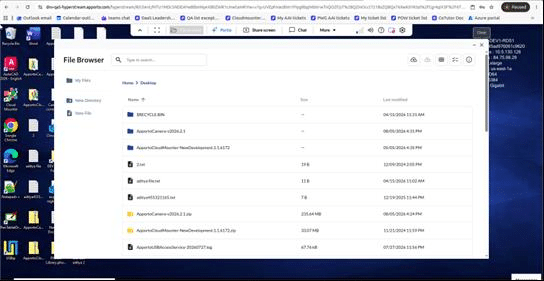
NOTE: If File Browser does not appear on the session toolbar, the feature may not be enabled for the session. Contact your Apporto administrator or Apporto Support for assistance.
Understand the File Browser screen
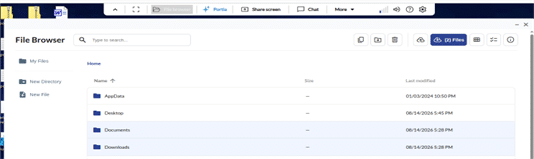
The File Browser screen includes the following controls:
· My Files: Returns you to your home directory.
· Breadcrumb path: Shows your current location and updates as you open different folders.
· File and folder list: Displays the items stored in the current location.
· Search: Finds files and folders by name or file type.
· Upload: Uploads a file or folder from your local device.
· New Directory: Creates a folder in the current location.
· New File: Creates and opens a file in the current location.
· Download: Downloads the selected file or folder to your local device.
· Switch View: Changes how files and folders are displayed.
· Multiple Files: Lets you select more than one file or folder.
· File Information: Displays information about the current location or selected items.
For each file, File Browser may display its name, size, and last-modified date and time.
IMPORTANT: File operations occur in the location displayed in the breadcrumb path. Confirm the current location before uploading, creating, copying, moving, or deleting an item.
Navigate files and folders
The breadcrumb path shows your current location. As you open folders, the path updates to show where you are.
-
Review the breadcrumb path to confirm your current location.
-
Double-click a folder to open it.
-
Click a location in the breadcrumb path to return to that location.
-
Click My Files to return to your home directory.
The initial view may open at Home > Desktop. Selecting My Files returns you to Home, where you can navigate to another available folder.

Change how files and folders are displayed
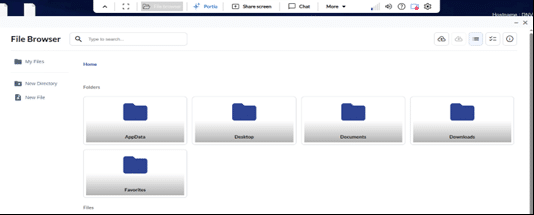
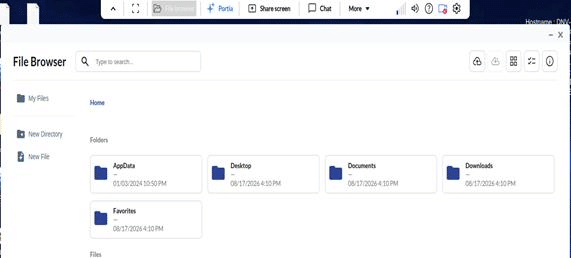
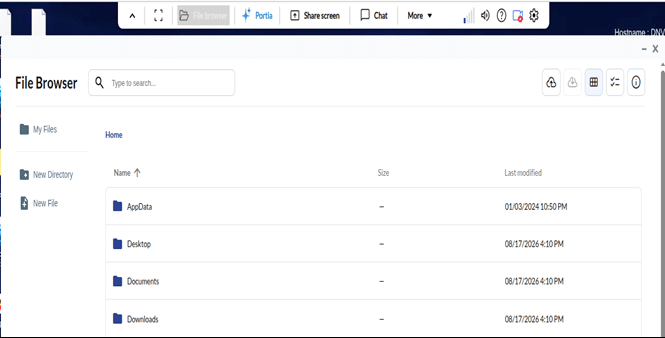
File Browser supports list, card, and grid views.
-
Click Switch View in the upper-right corner of File Browser.
-
Continue clicking Switch View until the preferred view appears.
· List view: Displays files and folders in rows with available details.
· Card view: Displays files and folders as large cards.
· Grid view: Displays files and folders as icons in a grid.
Changing the view does not move or modify your files.
Select multiple files or folders
Use multiple-selection mode when you want to select more than one file or folder for an available action.
-
Navigate to the folder containing the items.
-
Click Multiple Files in the upper-right corner.
-
Select the files or folders you want to include.
-
Choose the available action you want to perform.
The actions available to you may depend on the selected items and your permissions.
View file and folder information
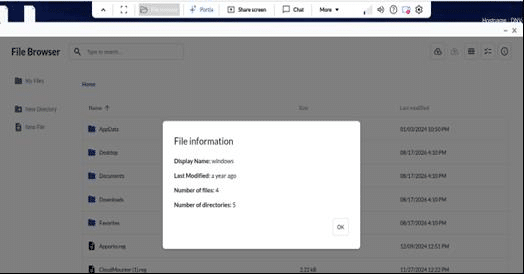
View information about the current location
-
Make sure no file or folder is selected.
-
Click File Information.
File Browser displays available details about the current location, such as its display name, last-modified information, number of files, and number of directories.
View information about selected items
-
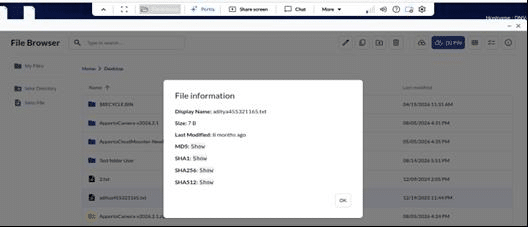
Select one or more files or folders.
-
Click File Information.
File Browser displays information about the selection, including its total size when available.
Related articles
· Uploading and Downloading Files
· Creating, Finding, and Organizing Files
· Accessing Apporto NextGen: https://www.apporto.com/help-center/accessing-apporto-nextgen
· Apporto Support: https://www.apporto.com/support