
Help Center | File Browser
Uploading and Downloading Files
Transfer files and folders between your local device and an Apporto virtual desktop.
Purpose
Use File Browser to upload files and folders from your local device to an active Apporto session and download session content to your device.
Use the information in this guide to learn how to:
-
Upload a file or folder.
-
Monitor an upload.
-
Download a file or folder.
-
Download multiple items.
-
Confirm that a transfer completed successfully.
Before You Begin
-
Open File Browser from an active Apporto application or virtual desktop session.
-
Use the breadcrumb path to select the destination folder for an upload or the source folder for a download.
-
Confirm that you have permission to access the files and folders you plan to transfer.
-
Confirm that your browser permits downloads from Apporto.
Important: Uploads and downloads apply to the location currently displayed in the breadcrumb path. Confirm the location before starting the transfer.
Upload a File or Folder
-
Navigate to the folder where the uploaded content should be stored.
-
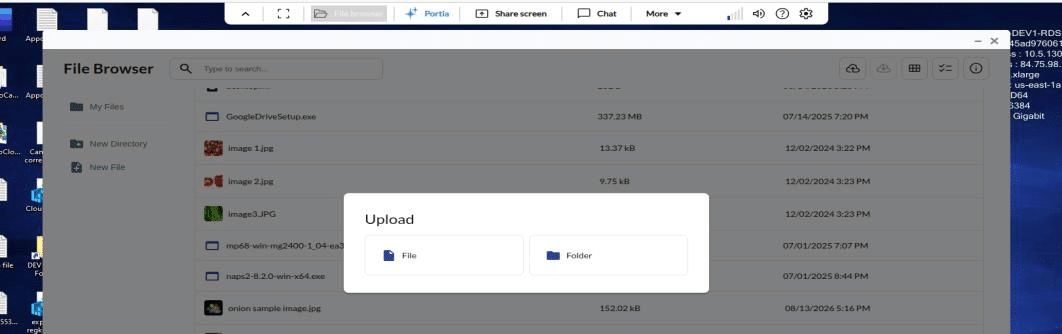
Select Upload.
-
Choose File or Folder.
-
Select the file or folder from your local device.
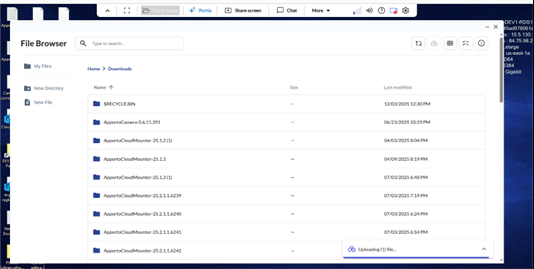
Expected result: The upload begins, and the Upload icon changes to a loading indicator.
Monitor the Upload
Keep File Browser open while the upload is in progress. When the transfer is complete:
-
The loading indicator returns to the Upload icon.
-
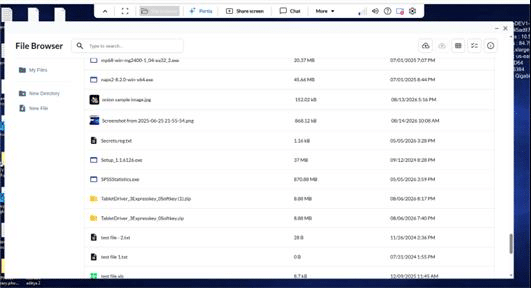
The uploaded file or folder appears in the current File Browser location.
-
Available file details may include the name, size, and last-modified date and time.
If the uploaded item does not appear, confirm that you are viewing the same location shown in the breadcrumb path when the upload began.
Download a File or Folder
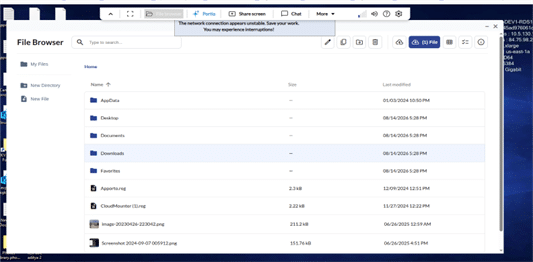
The Download button remains unavailable until you select an item.
-
Navigate to the file or folder you want to download.
-
Select the file, or single-click the folder to select it. Double-clicking a folder opens it instead.
-
Confirm that the Download button is available.
-
Select Download.
Expected result: Your browser downloads the selected content to your device.
Download Multiple Items
-
Navigate to the files or folders you want to download.
-
Select Multiple Files.
-
Select each file or folder you want to include.
-
Select Download.
-
If prompted, choose the download format.
Expected result: Your browser downloads the selected items to your device in the chosen format.
Validate the Transfer
After an upload:
-
Confirm that the item appears in the intended File Browser location.
-
Confirm that its name and available file details are correct.
After a download:
-
Confirm that the item appears in your device’s download location.
-
Open the downloaded content and confirm that it contains the expected information.
If an item seems to be missing: Return to the location where you performed the operation and confirm the breadcrumb path. A successful transfer can appear to be missing when you navigate to a different folder.
Related Guidance
-
Use File Browser
-
Creating, Finding, and Organizing Files