
Help Center | File Browser
Creating, Finding, and Organizing Files
Create content, find files and folders, and organize items in File Browser.
Purpose
Use these procedures to create files and directories, search for content, and rename, copy, move, or delete items stored in File Browser.
Before You Begin
-
Open File Browser from an active Apporto application or virtual desktop session.
-
Confirm the current location in the breadcrumb path.
-
Confirm that you have permission to modify the selected files or folders.
Important: File operations apply to the location currently displayed in the breadcrumb path. Confirm the location before creating, copying, moving, renaming, or deleting an item.
Create a Directory
-
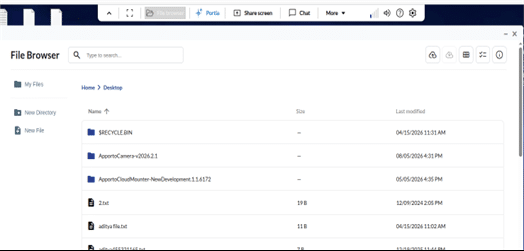
Navigate to the location where you want to create the directory.
-
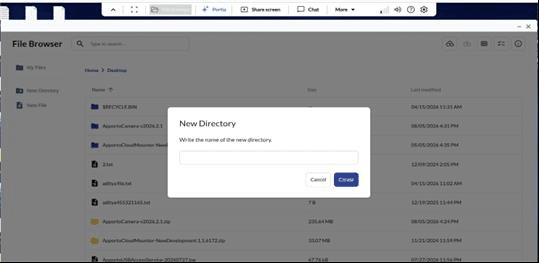
Select New Directory.
-
Enter a directory name.
-
Select Create.
Expected result: The directory appears in the current location.
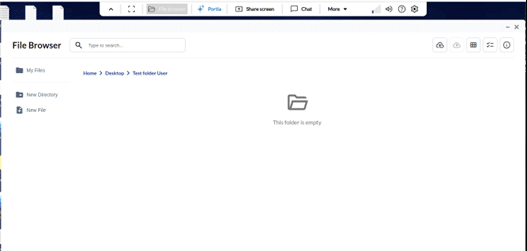
If you do not enter a name, File Browser prompts you to provide a directory name. Select Cancel to close the window without creating the directory.
Create a File
-
Navigate to the location where you want to create the file.
-
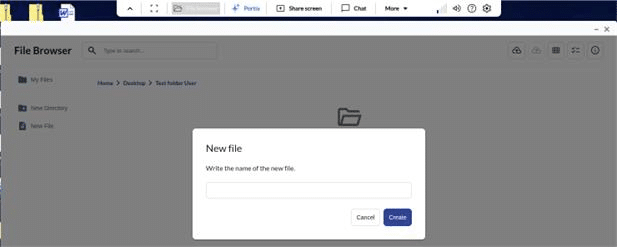
Select New File.
-
Enter a file name.
-
Select Create.
-
Add content and select Save.
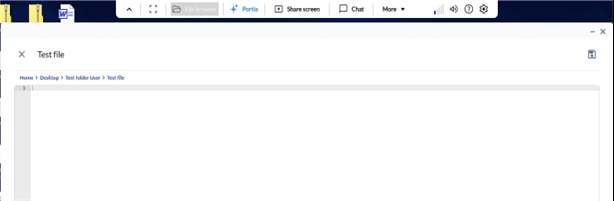
Expected result: The file appears in the selected folder and opens for editing.
Search for Content
-
Navigate to the location you want to search.
-
Select Search.
-
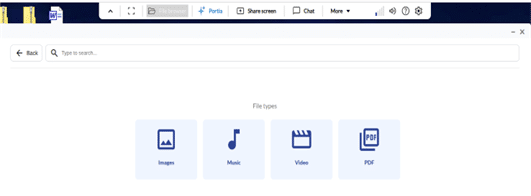
Optionally choose a file type: Video, PDF, Image, or Music.
-
Enter a file or folder name and press Enter.
To display all files of a selected type, choose the file type, leave the search field empty, and press Enter.
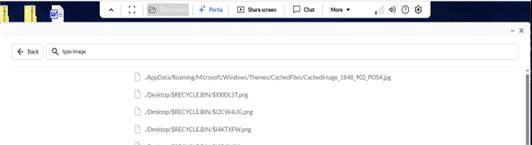
Expected result: Matching files and folders appear in the search results.
Selecting a search result displays the actions available for that item, including Rename, Download, Delete, Copy, Move, and File Information.
Rename an Item
-
Select the file or folder you want to rename.
-
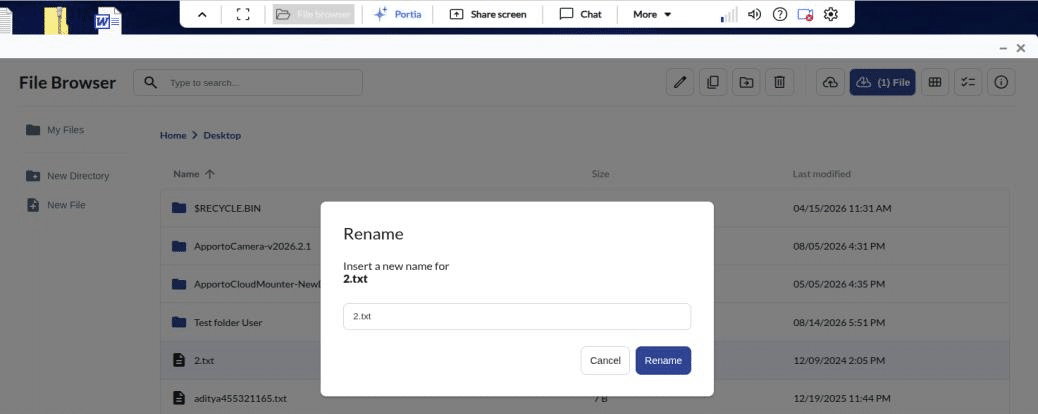
Select Rename.
-
Enter a different name.
-
Select Rename to confirm.
Expected result: The new name appears in File Browser.
File Browser does not accept a blank name or the item’s existing name. File and folder names are also subject to the length restrictions displayed by File Browser.
Copy an Item
-
Select the file or folder you want to copy.
-
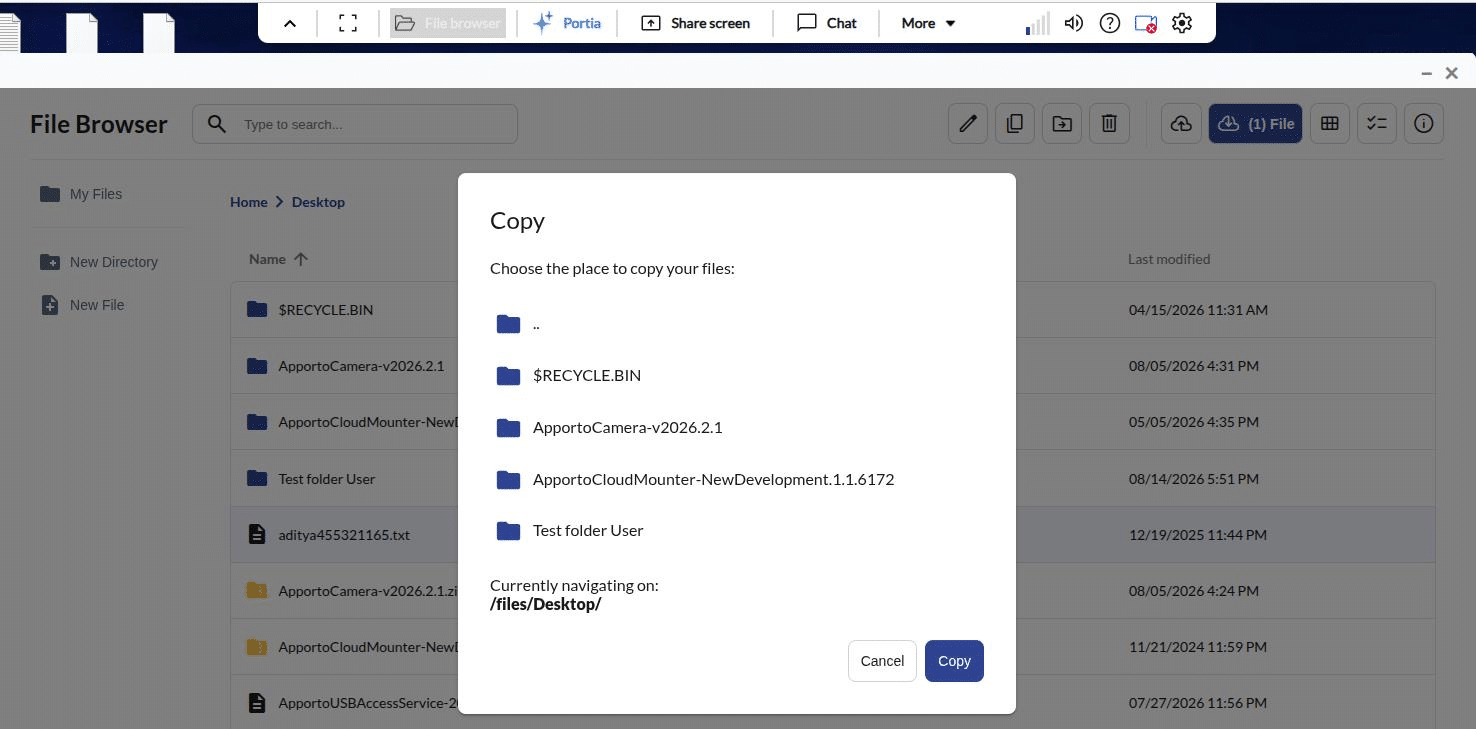
Select Copy.
-
Navigate to the destination folder in the window that appears.
-
Select Copy to confirm.
Expected result: A copy of the item appears in the selected destination. The original item remains in its current location.
Move an Item
-
Select the file or folder you want to move.
-
Select Move.
-
Navigate to a destination other than the item’s current folder.
-
Select Move to confirm.
Expected result: The item appears in the selected destination and no longer appears in its original location.
Delete an Item
-
Select the file or folder you want to delete.
-
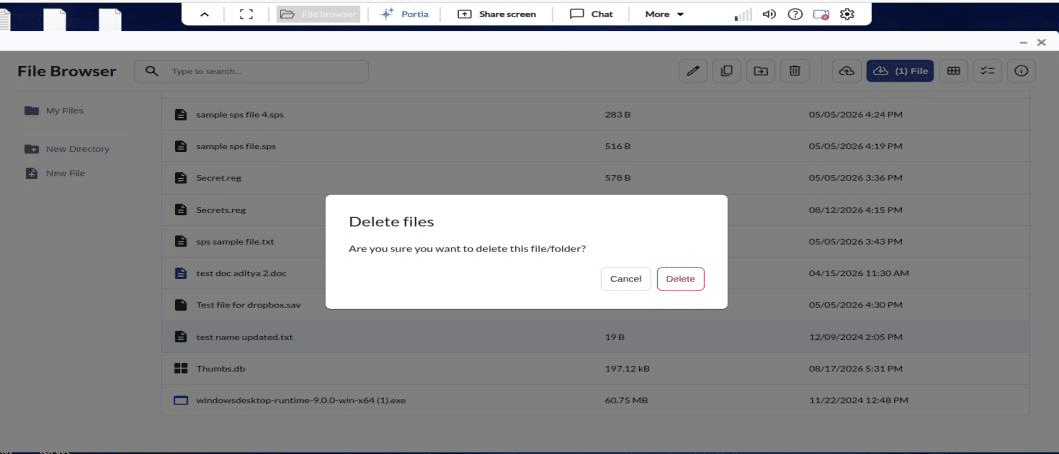
Select Delete.
-
Review the confirmation message.
-
Select Delete to confirm, or select Cancel to keep the item.
Expected result: The deleted item no longer appears in the current location.
Caution: Confirm the selected item and breadcrumb path before deleting or moving content.
Related Guidance
-
Use File Browser
-
Uploading and Downloading Files