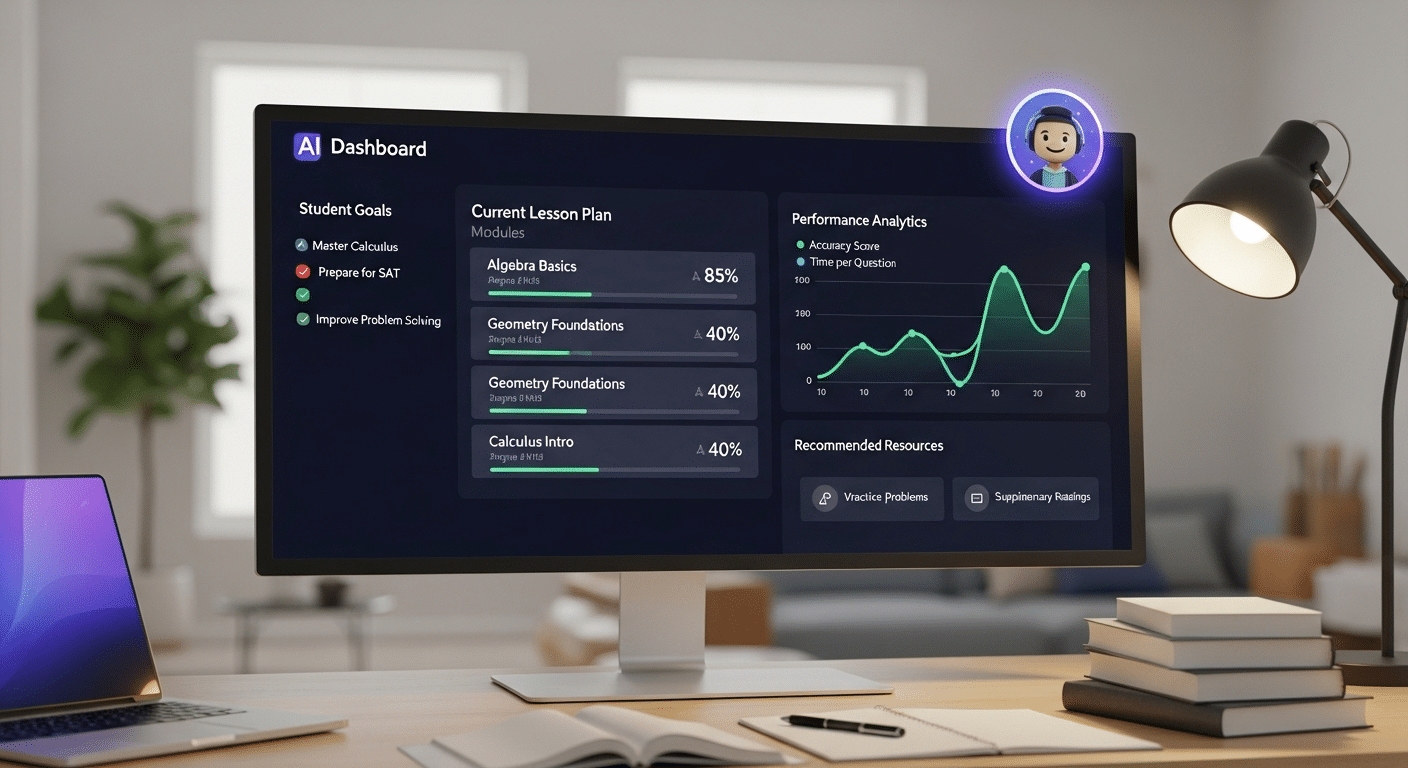
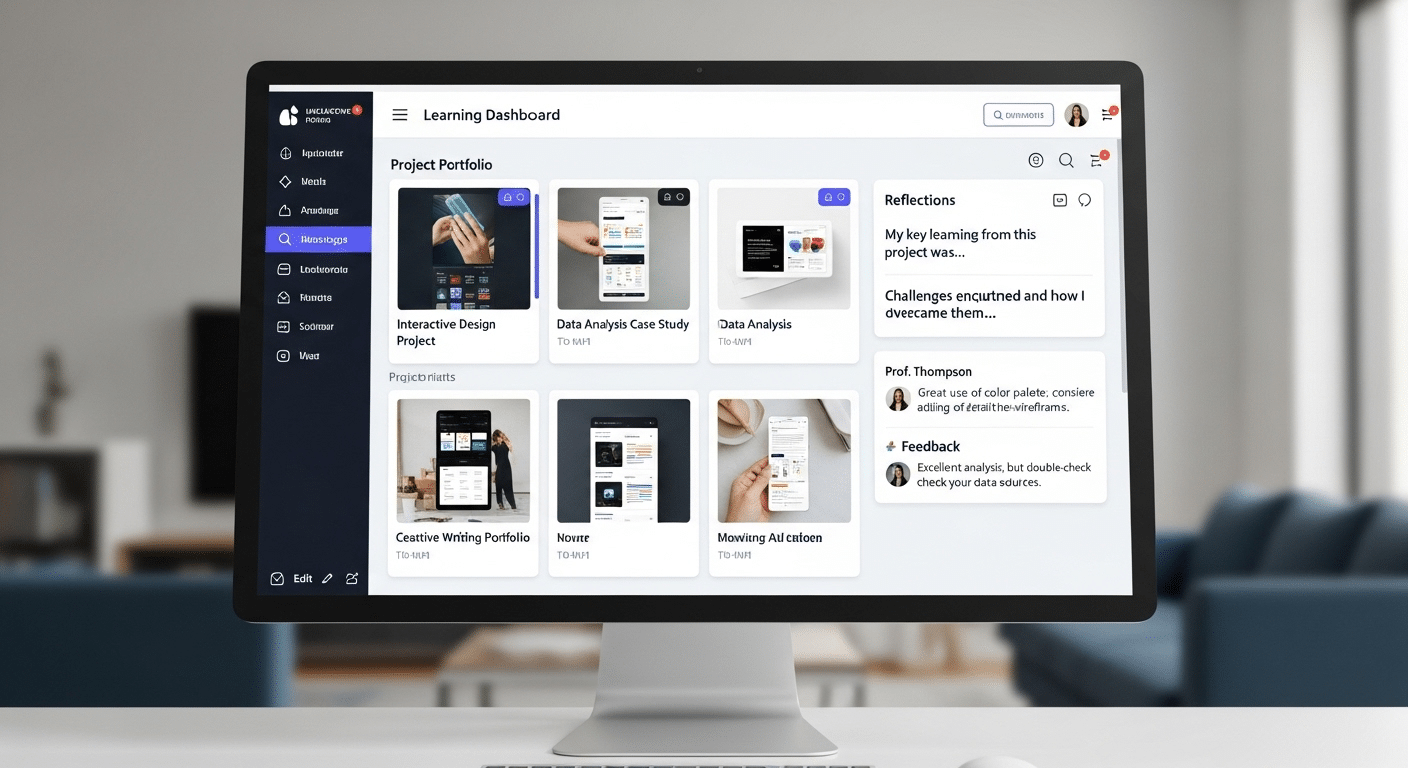
Should Students Be Allowed to Use AI to Write Essays?

Phones buzz. Tabs multiply. Somewhere between a Google Doc and a deadline, AI tools quietly slid into everyday student workflows — not as a novelty, but as furniture.

Normal now. And essays? They’re still the pressure point. The place where learning, assessment, and academic integrity collide, sometimes messily.

Students, understandably, want efficiency. Faster drafts. Cleaner sentences. A little help staring down a blank page at 1:47 a.m. Educators, on the other hand, are guarding something less tangible but more important: authentic thinking.

The slow, imperfect grind where ideas actually form. Where learning sticks.So institutions wobble. Some ban AI outright. Others permit it cautiously.

Many sit in policy limbo, unsure how to draw lines that make sense in real classrooms. That’s why the question should students be allowed to use AI to write essays isn’t really about software anymore.

It’s about authorship. Ownership. And whether education values polished output more than the thinking underneath it.


What Do We Actually Mean by “Using AI to Write an Essay”?

This is where things get slippery. When people say using AI to write, they’re often talking past each other — sometimes loudly.

Writing with AI isn’t the same thing as writing by AI, but policy language tends to mash the two together like they’re identical twins. They’re not.

Using generative AI for idea generation, outlining, light editing, or feedback sits on one side of the line. Think of it as a slightly overcaffeinated writing partner that asks questions, flags clunky sentences, and occasionally suggests a better verb. Helpful. Annoying, sometimes. Still clearly assistance. For example, a student might use AI to brainstorm essay topics or get suggestions for improving a thesis statement.

Writing by AI is different. That’s substitution. The machine produces paragraphs, arguments, even entire sections, and the student hands it in as own work. No intellectual sweat. No wrestling with ideas. Just output. For example, a student could copy and paste an entire AI-generated essay and submit it without making any changes.

The problem? Many institutional policies say “don’t use AI” without explaining how students are actually using it in the real writing process.

Is grammar cleanup allowed? Structural feedback? Rewording for clarity? Vague rules create gray zones, and gray zones invite confusion, fear, and accidental violations.

Students aren’t always trying to cut corners — often they just don’t know where the line is anymore.


Why Many Educators Say “No” to AI-Written Essays

Educator guiding students through critical thinking and writing process.

Ask instructors why they push back on AI-written essays and you’ll hear something deeper than rule-policing. It’s not technophobia. It’s pedagogy.

Essays exist for a reason — they force students to think, to struggle a bit, to assemble ideas that don’t want to line up neatly at first. That struggle matters.

When AI steps in as a shortcut, it bypasses the messy middle. The uncertainty. The false starts. And that’s where critical thinking actually develops.

Without it, writing assignments turn into formatting exercises instead of learning experiences.

There’s also the sameness problem. AI-generated essays tend to share familiar scaffolding: tidy introductions, predictable transitions, balanced-but-bland conclusions. Instructors see it.

They really do. Repeated phrasing. Safe arguments. No intellectual risk-taking. And concern is rising. In 2026, roughly 78% of instructors believe AI-driven cheating is increasing, which makes trust harder to maintain.

When essays can’t reliably reflect student understanding, assessment breaks down.

Educators aren’t just worried about academic misconduct — they’re worried about losing visibility into how students actually think. And that’s a much bigger problem than a polished paragraph ever was.


The Academic Integrity Line: When AI Use Becomes Cheating

Here’s the line most institutions draw, even if they phrase it differently in policy PDFs and syllabi footnotes. If a student turns in unedited AI-generated essays and presents them as own work, that’s academic misconduct.

Full stop. No hedging. No “but I tweaked a sentence” escape hatch.

Many colleges and universities now treat this the same way they treat contract cheating. In other words, outsourcing the thinking.

Whether the “someone else” is a human tutor-for-hire or a generative model doesn’t really matter in the eyes of academic integrity committees. The violation isn’t about the tool. It’s about authorship.

And this part often gets missed: instructor rules override tool capabilities. If a professor says “don’t use AI for this assignment,” then using it anyway is cheating, even if the tool feels harmless or widely available. Intent doesn’t erase impact.

Accountability always lands with the student. Not the software. Not the policy ambiguity. Not the “everyone’s doing it” argument.

The distinction that matters most is simple, even if uncomfortable:
Help ≠ authorship delegation.
Support is allowed. Substitution is not.


Why AI-Written Essays Often Fall Flat Anyway

Student essay displayed with highlighted repetitive sentence structures and bland transitions.

Even setting rules aside, there’s a quieter truth instructors notice pretty quickly. AI-generated content just… lacks something. It reads fine. Smooth, even. But it rarely lands.

Why? Because writing without lived experience tends to sound like it was assembled, not discovered.

AI-written essays often struggle with:

  • Bland, generic tone that could belong to almost anyone
  • Over-polished but shallow arguments that never quite take a stand
  • No personal voice, no friction, no real risk
  • Recycled sentence structures showing up across multiple submissions

Common tells instructors mention:

  • Predictable phrasing and stock transitions
  • Safe, non-committal claims that hedge everything
  • Zero emotional depth or specificity
  • “Perfect” grammar paired with thin insight

Good student writing is messy in places. It has fingerprints. Slight quirks. Moments of uncertainty. AI flattens those edges, and in doing so, it strips away originality.

Ironically, the very thing students hope will make their work stronger often makes it easier to spot — and easier to forget.


The Case for Allowing Limited AI Use in Essay Writing

Blank pages are cruel. Anyone who’s stared at one at 11:47 p.m. knows that. This is where the argument for limited AI use starts to make sense, even to some skeptical educators.

Used carefully, AI tools can function less like a cheat code and more like a writing assistant you’d find in a campus writing center. Helpful. Not magical.

For one, AI can act as a brainstorming partner. Not to invent ideas for you, but to nudge your thinking when it’s stuck in neutral. It can also help students who face structural disadvantages. ESL learners. Students with dyslexia or ADHD.

Folks who understand the material but struggle to express it cleanly on the page. In those cases, AI can improve grammar and clarity without touching the underlying ideas.

There’s also a pragmatic angle. Like it or not, AI is already woven into many workplaces. Learning how to use these tools ethically, transparently, and with restraint is part of modern education.

Pretending otherwise doesn’t prepare students; it just pushes the behavior underground.

The key, I believe, is intent and scope. AI that supports learning can be constructive. AI that replaces thinking is not.


What AI Can Help With (Without Replacing Student Thinking)

Ethical AI-assisted writing workflow showing student control over ideas and conclusions.

Here’s where the nuance lives. Not all AI use is equal, and most academic policies now reflect that, even if the language is clunky.

Generally acceptable uses (always policy-dependent) include:

  • Brainstorming ideas and outlines when you’re stuck at the starting line
  • Organizing research paths, especially for broad or unfamiliar topics
  • Grammar, spelling, and readability checks on work you already wrote
  • Clarifying background concepts so you understand what you’re arguing about

Put another way, AI can assist the process without owning the product.

Helpful guardrails many instructors suggest:

  • AI supports drafting, not writing
  • The student controls arguments and conclusions
  • The final voice remains recognizably human

If AI helps you think more clearly and write more confidently, great. If it starts doing the thinking for you, that’s the moment to stop. The line is subtle, yes. But it’s there.


What AI Should Never Be Used for in School

Some boundaries are not fuzzy. They’re bright red, and crossing them causes real trouble.

Clear no-go areas include:

  • Writing entire essays or papers and submitting them as your own
  • Completing graded assignments without explicit instructor permission
  • Personal reflection or admissions essays, where authenticity is the point
  • Exams, quizzes, or any proctored work

Using AI in these contexts isn’t clever. It’s cheating. Plain and simple.

Even when access is easy and enforcement feels uneven, responsibility doesn’t disappear. Schools don’t ban AI because they hate technology.

They ban misuse because learning requires effort, struggle, and ownership. Short-circuiting that process with AI-generated work doesn’t just violate rules. It empties the assignment of its purpose.


The Hidden Risks Students Often Miss When Using AI

Academic advisor explaining AI misuse risks and consequences to a concerned student.

Here’s the part that rarely makes it into the hype videos. AI can sound confident while being flat-out wrong. Hallucinated facts happen more than people think, and fabricated citations can sneak in wearing very official-looking clothes.

If you don’t cross-check against reliable sources, that error becomes your error. No appeals.

Then there’s bias. AI models are trained on massive piles of human-created text, which means they inherit human blind spots. Cultural assumptions. Skewed examples. Missing perspectives.

If you’re not actively questioning what you’re fed, those biases slide quietly into your work.

Plagiarism is another sleeper issue. Even when AI doesn’t copy directly, it can produce near-paraphrases that sit uncomfortably close to existing material. Detection tools don’t care about your intent. Similarity is similarity.

And over time, something subtler creeps in. Skill erosion. Writing muscles weaken. Research instincts dull. You get faster, sure, but thinner too.

Perhaps most frustrating of all: students can still face penalties even when the misuse wasn’t malicious. “I didn’t mean to” doesn’t undo a violation.


Why Policies Are So Inconsistent Across Schools

If AI rules feel chaotic, that’s because they are. Most universities didn’t plan for this moment. Policies differ not just by school, but by department, course, even individual instructor.

Your own institution might allow AI brainstorming in one class and ban it outright in another.

Part of the problem is speed. AI evolves faster than governance. Committees move slowly. Models update monthly. By the time a policy is approved, it’s already dated.

Discipline matters too. A computer science course treats AI differently than a philosophy seminar or a creative writing workshop. Expectations shift with learning goals.

Then there’s training. Many instructors were handed AI policies with little guidance on how to enforce them or explain them. The result? Patchwork rules, cautious language, and a lot of “it depends.”

In short, inconsistency isn’t negligence. It’s a system trying to catch its breath.


Should Students Be Allowed to Use AI at All? A Realistic Middle Ground

A total ban sounds tidy. It isn’t. Students already use AI, just like they use search engines, grammar checkers, and group chats. Pretending otherwise pushes the behavior underground and rewards secrecy over honesty.

But unrestricted use? That’s not the answer either. When AI starts doing the heavy lifting, learning thins out. Writing becomes polish without substance. Skills atrophy.

The middle ground is ethical use anchored in the learning process, not the final shine. AI as a tool to support thinking, not replace it. To clarify, not compose. To question, not conclude.

Frameworks beat prohibitions. Clear expectations beat fear. When students know how AI can be used responsibly, they’re more likely to stay inside the lines.

Education isn’t about perfect output. It’s about developing judgment, voice, and skill. AI can help with that—if it’s kept in its proper place.


How TrustEd Supports Fair AI Use Without Punishing Students

Apporto's page  for TrustEd highlighting academic integrity and AI-powered authenticity analytics.

Here’s where most systems get it wrong. They try to guess whether AI was used, then work backward toward blame. That approach is brittle. It breaks trust fast. TrustEd takes a different road.

Instead of playing detective with AI detection scores, TrustEd focuses on authorship verification. In plain terms, it looks at how the work came to be. Writing history.

Draft progression. Process evidence. The things that show thinking over time, not just a polished final document dropped from the sky.

That matters. Especially for students who use AI ethically—for brainstorming, feedback, or clarity—but still do the real intellectual work themselves.

TrustEd helps protect those students from false accusations that can derail grades, confidence, or worse.

It also helps institutions. Fewer disputes. Fewer appeals. Decisions grounded in evidence, not probabilities. Human reviewers stay in charge, using AI as support, not authority.

At its core, TrustEd is built on a simple idea: verification beats suspicion. Education works best when trust is preserved, not constantly tested.


The Bottom Line

Let’s say this plainly. AI isn’t the villain. It’s just a tool—sometimes helpful, sometimes risky, often misunderstood. The real problem starts when tools replace thinking instead of supporting it.

Essays exist for a reason. They’re meant to surface judgment, reasoning, struggle, growth. When AI shortcuts that process, learning thins out.

When it’s used ethically, thoughtfully, with ownership intact, it can actually strengthen understanding.

Students are still accountable. Always. Not for whether AI exists in their workflow, but for whether the ideas, arguments, and voice are genuinely theirs.

As education keeps shifting—and it will—the goal isn’t to chase every new tool. It’s to protect learning, fairness, and trust.

Explore how TrustEd helps institutions protect learning, verify authorship, and maintain trust as AI reshapes education.


Frequently Asked Questions (FAQs)


1. Is using AI to write an essay always cheating?

Not automatically—but context is everything. Using AI to fully write an essay and submitting it as your own work is widely considered academic misconduct.

2. Can students use AI for brainstorming but not drafting?

In many cases, yes. Brainstorming is one of the most commonly permitted uses of AI in academic settings. Students often use AI tools to explore possible angles, organize thoughts, or overcome writer’s block before starting their own draft.

3. What if my instructor allows AI use?

If your instructor explicitly allows AI use, follow their guidance to the letter. Permissions are often specific: brainstorming may be fine, grammar checks might be acceptable, but content generation could still be prohibited.

4. How can students avoid accidental misconduct?

Documentation and transparency go a long way. Keep early drafts, notes, and outlines. Save versions that show how your ideas developed. If you use AI, log what you asked and how you used the output.

5. Does AI use hurt long-term learning?

It can—if it replaces struggle. Writing essays is meant to build skills: forming arguments, synthesizing sources, articulating ideas. When AI does that work instead, students may see short-term efficiency but long-term erosion of critical thinking and communication abilities.

6. How do schools verify originality fairly?

Increasingly, schools are moving away from detector-only decisions. AI detection tools can flag patterns, but they’re probabilistic and prone to false positives.

Azure Virtual Desktop vs VMware Horizon: How to Choose the Best Fit

The way we work has shifted—possibly for good. Whether you’re supporting hybrid teams or updating legacy systems, providing secure, scalable access to desktops and applications is now a strategic IT priority.

Virtual desktop infrastructure (VDI) has gone from a niche solution to a core component of modern IT. The ability to deliver virtual desktops and applications from anywhere is no longer a bonus—it’s the baseline.

Two platforms lead the market: Azure Virtual Desktop (AVD) and VMware Horizon. Both simplify desktop delivery, reduce hardware costs, and support remote workforces, but they differ significantly in architecture, pricing, user experience, and long-term scalability.

This post breaks down each platform across an important areas like deployment models, management tools, user experience, total cost of ownership, and security features.

If you’re evaluating your next VDI solution, this guide will help you make a well-informed, practical decision—grounded in facts, not marketing promises.


What Is Azure Virtual Desktop and How Does It Work?

Cloud network illustration showing Azure Virtual Desktop securely connecting multiple devices in a DaaS environment.

Azure Virtual Desktop (AVD) is Microsoft’s cloud-based virtual desktop infrastructure (VDI) solution that allows you to deliver full desktops and individual applications to users, securely, from the Azure cloud.

At its core, AVD is a Desktop as a Service (DaaS) platform. Unlike traditional VDI that relies on physical data centers and complex on-prem setups, AVD runs entirely in Microsoft’s global cloud infrastructure. That means you don’t have to manage your own servers or worry about hardware refresh cycles. You simply deploy virtual desktops and applications through the Azure portal, and users can access them from anywhere.

1. Main Components of AVD:

  • Host Pools: A collection of Azure-based virtual machines (VMs) that serve as session hosts. You can configure personal or pooled desktops depending on your needs.
  • Multi-session Windows 10/11: A unique capability that allows multiple users to share a single VM — reducing cost without sacrificing experience.
  • Azure Active Directory Integration: Centralized identity and access management, supporting single sign-on and Conditional Access policies.
  • FSLogix: Manages user profiles for faster logins and persistent user settings.

AVD integrates tightly with Microsoft 365, so users can launch apps like Word or Excel directly in their virtual environment. It also works seamlessly with Azure services like Defender for Endpoint, Microsoft Intune, and Azure Monitor.

From an IT perspective, you manage everything from the Azure portal — including scaling, updates, and monitoring. You only pay for the compute and storage you consume, making it a flexible option for organizations with changing workforce needs.

Whether you’re supporting a remote team, academic lab, or seasonal workforce, AVD offers a secure, scalable, and cost-efficient way to deliver Windows desktops in the cloud — without the burden of maintaining physical infrastructure.


What Is VMware Horizon and What Makes It Different?

VMware Horizon cloud infrastructure visualization highlighting secure desktop delivery and integration with Azure Virtual Desktop vs VMware Horizon comparison.

VMware Horizon is a leading virtual desktop infrastructure (VDI) platform built to deliver and manage virtual desktops and applications across on-premises, hybrid, and cloud-based environments. It’s part of VMware’s broader ecosystem, designed to support complex enterprise workloads with flexibility and control.

Unlike Azure Virtual Desktop, which is fully cloud-native, Horizon allows you to deploy VDI on your own infrastructure, in a private or public cloud, or as a hybrid of both. This flexibility is what makes it attractive to organizations that have already invested in VMware vSphere or maintain their own data centers.

1. Integration Points:

  • VMware vSphere: Horizon builds on vSphere, VMware’s powerful virtualization platform, for performance and resource management.
  • VMware NSX: Enables advanced network virtualization and security segmentation.
  • Workspace ONE: Supports unified endpoint management across platforms.
  • Third-party tools: Broad integration ecosystem for backup, monitoring, and security.

Horizon supports both persistent and non-persistent desktops and is compatible with Windows and Linux-based virtual machines. It also offers granular policy controls, allowing IT to customize the application delivery process at scale.

Where Horizon stands out is in its ability to tightly integrate with an organization’s existing on-prem VMware stack. If you’re already using vSphere and NSX, extending into Horizon can feel like a natural progression. Plus, Horizon Cloud on Azure and AWS lets you leverage public cloud infrastructure without abandoning your VMware environment entirely.

In terms of user experience, VMware Horizon supports features like USB redirection, multi-monitor support, and real-time audio/video optimization. These capabilities make it a strong fit for high-performance needs like healthcare, finance, and engineering environments.

Ultimately, Horizon appeals to IT teams looking for deep control, flexible deployment models, and a consistent user experience across complex environments. It may require more upfront planning and licensing complexity, but the trade-off is advanced customization and infrastructure independence.


How Do Deployment Options Compare Between AVD and VMware Horizon?

One of the most noticeable differences between Azure Virtual Desktop (AVD) and VMware Horizon is how they’re deployed.

AVD is a fully cloud-native solution that runs exclusively on Microsoft Azure. There’s no on-premises version. All virtual machines, user sessions, and infrastructure components live in the cloud. This makes AVD an ideal choice for organizations that are cloud-first or want to reduce their on-premises footprint.

VMware Horizon, on the other hand, is far more flexible in its deployment options. You can run it:

  • On-premises (traditional VDI)
  • As a hybrid environment (on-prem + cloud)
  • In the cloud via Horizon Cloud on Microsoft Azure or AWS

This flexibility allows organizations to evolve gradually from legacy systems to the cloud — or maintain hybrid environments for specific workloads.

1.Quick Comparison Table:


Feature AVD VMware Horizon
Deployment Model Cloud-only (Azure) On-prem, Hybrid, Cloud (Azure/AWS)
Resource Management Azure-native tools vSphere, vCenter, NSX
Infrastructure Ownership Microsoft-managed Customer-managed or cloud-hosted
Complexity Lower (cloud native) Higher (more customizable)
Use Case Fit Cloud-first orgs Mixed/hybrid enterprises


If you prefer simplicity and centralized cloud control, AVD makes sense. If your environment spans both cloud and on-premises infrastructure, or you already use VMware, Horizon offers the flexibility to meet those needs.


How Do Pricing and Licensing Models Stack Up?

Business professional comparing Azure Virtual Desktop vs VMware Horizon performance and cost analytics on digital devices.

Understanding the pricing and licensing models of AVD and VMware Horizon is essential to making an informed decision — especially when thinking about long-term total cost of ownership (TCO).

1. Azure Virtual Desktop (AVD)

AVD follows a pay-as-you-go model. You pay for the Azure resources you use — virtual machines, storage, bandwidth — but not for the AVD service itself. If you already have Microsoft 365 E3/E5 or Windows Enterprise licenses, you’re covered for user access. To learn more about how Virtual Desktop Infrastructure (VDI) is changing the landscape of workspaces, explore recent advancements in this area.

  • Pros: No upfront infrastructure costs, elastic scaling
  • Cons: Costs can spike if not monitored

2. VMware Horizon

Horizon offers both perpetual and subscription-based licenses. You’ll also need licenses for vSphere, vCenter, and other VMware components — plus costs for cloud infrastructure if running Horizon Cloud.

  • Pros: Stable pricing in controlled environments
  • Cons: Higher initial cost, licensing complexity

AVD offers lower entry costs and scales efficiently. Horizon, while more expensive upfront, may benefit organizations with existing VMware investments and stable workloads.


Which Platform Offers Better User Experience and Performance?

When comparing user experience and performance, both Azure Virtual Desktop (AVD) and VMware Horizon perform well — but they excel in different ways depending on your infrastructure and priorities.

AVD benefits from being built directly into the Azure cloud, with global coverage and Microsoft 365 integration. Users often experience faster logon times and lower latency when sessions are hosted in nearby Azure regions. Multi-session Windows 10/11 also gives AVD a cost-efficiency edge without compromising the desktop experience for most tasks.

VMware Horizon offers more advanced performance tuning options. Using vSphere, NSX, and customizable policies, IT teams can finely control bandwidth allocation, session behavior, and application delivery. Horizon also supports persistent desktops and complex configurations better suited for high-performance environments.

1. Technical Features:

  • Latency: AVD generally faster for Microsoft-heavy workflows; Horizon excels with local/on-prem deployments
  • Session Stability: Both platforms are stable; Horizon may offer tighter control in high-availability environments
  • GPU Support: Available on both platforms; better tuned for CAD, 3D rendering, or engineering apps in Horizon
  • Application Streaming: Supported by both; more seamless in AVD if using Microsoft apps

2. Use Case Examples:

  • Remote Workforces: AVD for Microsoft-centric users needing quick access anywhere
  • Academic Labs: AVD for cost-effective, multi-session access
  • Call Centers: Horizon for persistent desktops and centralized management
  • Healthcare & Finance: Horizon for controlled environments with strict compliance needs
  • Software Development Teams: Horizon for advanced resource customization

Ultimately, if your users rely heavily on Microsoft tools and need flexible access with minimal setup, AVD provides a smoother out-of-the-box user experience. For environments demanding precise tuning and advanced workload optimization, VMware Horizon is the more configurable solution.


How Do Security and Compliance Features Compare?

Cybersecurity engineer monitoring Azure Virtual Desktop vs VMware Horizon analytics dashboards for performance and security metrics.

Security and compliance are non-negotiable in today’s distributed environments — and both AVD and VMware Horizon offer enterprise-grade protections, but with different approaches.

Azure Virtual Desktop is built on Azure’s native security stack, which includes:

  • Microsoft Defender for Endpoint
  • Zero Trust architecture
  • Conditional Access policies via Azure Active Directory
  • Multi-factor authentication (MFA)
  • Single sign-on (SSO) with Microsoft 365 and other cloud services

Because AVD is fully managed in the Azure ecosystem, all data stays in encrypted Azure storage, and identity is centralized in Azure AD. Policies can be enforced at the tenant level, streamlining control across users, apps, and devices.

VMware Horizon, by contrast, provides granular control through tools like:

  • vSphere for infrastructure security
  • NSX for microsegmentation and network-level controls
  • VMware Workspace ONE for identity, device, and app management
  • Support for third-party integrations (e.g., Okta, Duo, Palo Alto)

This level of detail makes Horizon appealing in regulated industries or environments where policy enforcement needs to extend into the virtual network layer.

1. Security Feature Comparison


Feature AVD (Azure) VMware Horizon
Identity Management Azure Active Directory, SSO, MFA AD, Workspace ONE, SAML, 3rd-party SSO
Endpoint Protection Microsoft Defender Workspace ONE + 3rd-party tools
Network Security Azure Firewall, Conditional Access NSX microsegmentation
Data Encryption At rest and in transit (Azure-native) vSphere-based encryption
Compliance Certifications HIPAA, GDPR, ISO, FedRAM HIPAA, GDPR, ISO, FedRAMP; see the implications of Broadcom’s acquisition of VMware.


If you already use Azure Active Directory and Microsoft’s ecosystem, AVD offers tight security integration with minimal complexity. Horizon, however, shines when you need fine-grained control across infrastructure layers or already operate a VMware-heavy environment.


What About Management Tools and Admin Experience?

Your choice of VDI platform isn’t just about performance or pricing — it’s also about how easy it is to manage day to day. Both Azure Virtual Desktop (AVD) and VMware Horizon offer a full suite of management tools, but the admin experience varies significantly.

2. AVD Management Overview:

AVD is managed primarily through the Azure Portal, where you can configure host pools, assign users, monitor session health, and set up scaling rules. For more control, you can use:

  • PowerShell – for scripting and automation
  • Microsoft Intune – to manage device compliance and user policy
  • Azure Monitor – for real-time session metrics
  • Custom APIs – for integration with your own service workflows

This cloud-native approach makes AVD easier for cloud-first organizations and smaller IT teams already working in the Microsoft ecosystem.

3. VMware Horizon Management Overview:

Horizon is managed through several VMware tools, including:

  • Horizon Console – central interface for desktop pools, entitlements, and monitoring
  • vCenter Server – for VM lifecycle management
  • Workspace ONE – for unified endpoint management and identity policies
  • Optional integrations with third-party tools for backups, security, and more

This setup gives large organizations deep visibility and customization, especially when managing hybrid or on-premises environments, through Zero Trust principles.

4. Comparison Snapshot:


Feature Azure Virtual Desktop VMware Horizon
Primary Console Azure Portal Horizon Console
Automation Tools PowerShell, APIs vCenter, PowerCLI
Monitoring Azure Monitor Horizon Console, vRealize, 3rd party
Device Management Intune Workspace ONE
Ease of Use Simpler for Microsoft environments More granular but complex


For small to mid-sized teams, AVD offers an easier learning curve. Larger enterprises with VMware infrastructure may prefer the advanced capabilities and tighter control Horizon provides — even if it comes with more administrative overhead.


How Do These Platforms Integrate with Existing Infrastructure?

Visual diagram showing Azure Virtual Desktop and VMware Horizon integration with existing IT infrastructure and legacy applications.

Integration is one of the most overlooked — yet critical — aspects of choosing a VDI platform. How easily a solution fits into your existing infrastructure can affect everything from deployment time to long-term maintenance.

1. Azure Virtual Desktop Integration:

AVD integrates natively with the Azure ecosystem, making it an ideal choice if you’re already using:

  • Microsoft 365
  • Azure Active Directory
  • Intune
  • Defender for Endpoint

User authentication is handled via Azure Active Directory, with full support for single sign-on (SSO) and Conditional Access policies. AVD also connects effortlessly to other cloud-based services like OneDrive, Teams, and SharePoint, making it well-suited for organizations already invested in Microsoft.

2. VMware Horizon Integration:

Horizon is more flexible in terms of infrastructure compatibility. It works well with:

  • On-premises Active Directory
  • VMware vSphere and NSX
  • Third-party identity providers like Okta, Ping, or Duo

You can deploy Horizon on your existing VMware stack or extend it into the cloud using Horizon Cloud on Azure or AWS. This makes it ideal for organizations in transition — those who aren’t fully cloud-ready but want to modernize gradually.

3. Takeaways:

  • Choose AVD if you want fast deployment, native Azure integration, and deep Microsoft 365 alignment.
  • Choose Horizon if you’re already running a VMware infrastructure and need flexibility to scale or maintain hybrid environments.

Both platforms offer extensive integration paths — it’s more a question of what you’re already using, and how much change you’re ready to manage.


Which One Fits Better for Your Organization’s Needs?

Choosing between Azure Virtual Desktop (AVD) and VMware Horizon ultimately comes down to the needs of your organization — not just the technology itself. The right VDI solution should align with your team’s goals, infrastructure, and available resources.

1. For Small and Mid-Sized Businesses (SMBs):

If you’re looking for fast setup, lower costs, and minimal infrastructure management, AVD is likely the better fit. Its integration with Microsoft 365 and cloud-first design make it ideal for SMBs with lean IT teams.

2. For Higher Education:

AVD’s support for multi-session Windows 10/11, integration with Azure Active Directory, and ease of scaling during peak academic seasons (like exams or remote learning spikes) make it especially compelling for colleges and universities. However, some institutions with legacy VMware environments may still lean toward Horizon for its compatibility and control.

3. For Large Enterprises:

Enterprises managing complex, hybrid environments often benefit from the advanced control and customization available in VMware Horizon. Its compatibility with existing VMware infrastructure, combined with support for on-premises and cloud workloads, makes it suitable for regulated industries and global-scale deployments.

4. Sample Decision Criteria:

  • Budget: AVD typically has lower upfront costs; Horizon may require larger initial investment but offers licensing flexibility.
  • IT Team Size: Smaller teams may prefer AVD’s simplicity; larger teams can leverage Horizon’s advanced tools.
  • Existing Infrastructure: AVD fits best in Microsoft-first shops; Horizon integrates tightly with vSphere environments.
  • Cloud Readiness: AVD is cloud-native; Horizon supports hybrid models.
  • Compliance Needs: Horizon offers fine-grained policy control; AVD benefits from Azure’s broad certification framework.

For businesses also considering alternative desktop virtualization platforms, such as Citrix Virtual Apps and Desktops, it’s important to review their pricing and cloud readiness.


Looking for a Simpler Alternative to Both?

Apporto logo representing a modern cloud-based virtual desktop platform compared alongside Azure Virtual Desktop vs VMware Horizon solutions.

While AVD and Horizon are strong contenders, not every organization needs the complexity that comes with them. If you’re looking for a solution that’s easier to manage, quicker to deploy, and more predictable in cost, Apporto is worth exploring.

Apporto delivers fully managed, browser-based virtual desktops — no client installs, no infrastructure headaches, no steep learning curves. It’s built for education, SMBs, and teams that value performance and simplicity over endless customization. Try Apporto now and see how lightweight VDI can be.


Final Thoughts: Azure Virtual Desktop or VMware Horizon — Which Should You Choose?

Both Azure Virtual Desktop and VMware Horizon are strong contenders for delivering secure, scalable virtual desktops and applications. AVD is cloud-native, integrates seamlessly with Microsoft 365, and is ideal for fast deployment in Azure environments.

VMware Horizon, with its flexible deployment options and deep integration with vSphere and NSX, suits enterprises with complex infrastructure and stricter compliance needs.

Consider your team size, budget, and cloud readiness when choosing. A trial or pilot can reveal which platform best fits your environment.

Prefer something simpler? Apporto delivers fully managed, browser-based desktops — without the complexity. It’s a modern solution that brings high performance and ease of use together in one clean platform.


Frequently Asked Questions (FAQs)

1. Is Azure Virtual Desktop better than VMware Horizon for cloud deployments?

Yes — if your organization is already in the Azure ecosystem, AVD is the more natural fit. It’s cloud-native, fully integrated with Microsoft 365 and Azure Active Directory, and doesn’t require managing infrastructure or separate virtualization layers like vSphere. Horizon, however, offers more flexibility in hybrid deployments.

2. Can you use VMware Horizon with Azure?

Yes. VMware Horizon can be deployed in Microsoft Azure using Horizon Cloud. This allows you to run virtual desktops in the Azure cloud while continuing to manage them with VMware tools like Horizon Console and vCenter. It’s a solid option for VMware-heavy organizations transitioning toward cloud environments.

3. What’s the difference between VDI and Desktop as a Service (DaaS)?

VDI typically refers to on-premises or self-hosted virtual desktop infrastructure that your IT team manages. DaaS, like AVD, is a fully managed, cloud-based service delivered by a provider. DaaS reduces infrastructure burden and simplifies scaling, especially for smaller IT teams or remote-heavy organizations.

4. Which is more cost-effective in the long run?

Azure Virtual Desktop often has a lower total cost of ownership for organizations already using Microsoft 365 and Azure. VMware Horizon can be more cost-effective for enterprises that already have VMware infrastructure and long-term licensing agreements. Cost varies based on usage, management needs, and cloud readiness.

5. Does AVD support multi-session desktops?

Yes. Azure Virtual Desktop is one of the few platforms that supports multi-session Windows 10/11, allowing multiple users to share a single virtual machine. This reduces cost per user and is ideal for use cases like academic labs, call centers, or task-based teams.

Why Is Citrix So Slow? A Practical Guide to Troubleshooting Performance


Few things disrupt your work day like a slow virtual desktop. You click, and nothing happens. You wait, but screens load at a crawl. Over time, that lag chips away at your productivity, your focus, and your patience.

If you’ve asked yourself, “Why is Citrix so slow?” — you’re not alone. Many users across industries rely on Citrix to access applications and data from remote or hybrid environments.

It powers everything from HR systems to full desktops, making it a backbone of digital operations for modern teams.

But when performance drops, the impact ripples across your entire environment. Tasks take longer. Support tickets increase. People get frustrated. And what should be a seamless user experience becomes a bottleneck.

In this guide, you’ll find out what really causes these issues, how to identify the slowdowns, and what steps you can take to fix them — or avoid them altogether.


What Is Citrix and Why Do So Many Teams Use It?

IT professional monitoring Citrix performance issues on a dashboard, analyzing system data to understand why Citrix is so slow and identify bottlenecks.

Citrix is a widely adopted platform that enables remote desktop and application virtualization. In simple terms, it lets you run software hosted in a central system—usually a data center or cloud—while accessing it from almost any device, anywhere in the world.

This setup is common in enterprise environments, particularly where Windows-based applications are essential. Instead of installing apps on every employee’s machine, Citrix allows centralized management. You log in, and your virtual desktop or application environment appears just as if it were running locally.

Companies trust Citrix because it helps standardize access, secure sensitive data, and reduce endpoint management. It offers robust support for compliance-heavy industries, too.

Still, even with all its benefits, Citrix isn’t immune to problems. Performance hiccups are among the most reported issues—slow access, laggy inputs, or freezing screens that interrupt workflows. Understanding why that happens is the first step toward fixing it.


What Does “Slow” Mean When Using Citrix?

When users say Citrix is slow, they’re often describing a range of frustrating behaviors. Sometimes it’s delayed clicks or unresponsive apps. Other times, it’s long logon times, frozen screens, or files that take forever to open. These aren’t always caused by the same issue—and that’s where troubleshooting gets tricky.

Some slowness comes from a weak connection or high latency—meaning there’s a delay between what you do and when the system responds. Other times, the system itself is overloaded, leading to slow profile loads or delayed file access.

Knowing what kind of slowness you’re experiencing helps narrow the cause. Is it during login? While opening applications? Does everything drag or just specific actions?

Identifying when and where the slowdown happens—whether at logon, during high-usage time periods, or while accessing specific files—is the first step toward a real fix. Understanding the difference helps avoid guessing and gets you to resolution faster.


What Causes Citrix to Be So Slow?

eam of IT professionals troubleshooting Citrix performance issues, reviewing network congestion and server overload as common causes of why Citrix is so slow.

Citrix slowness doesn’t usually have a single root cause. It’s often a combination of technical issues—some obvious, others hidden deep within the stack. Understanding where the bottleneck is can help you fix the issue faster or prevent it altogether.


1. Is Your Network Causing High Latency or Low Bandwidth?

Network quality plays a critical role in Citrix performance. Since you’re accessing a virtual desktop or app remotely, every click, file, and interaction travels over your connection. If there’s high latency—a delay in data traveling between your device and the Citrix server—everything feels sluggish.

Common network-related causes include:

  • Slow Wi-Fi or unstable connections
  • Limited bandwidth shared across multiple users
  • Packet loss or intermittent drops in connectivity
  • Poor routing between the user and Citrix environment

To diagnose this, use tools like:

  • ping and tracert to measure latency
  • Citrix Director or Analytics to track session health
  • Speed tests to evaluate data throughput

Even the best-configured Citrix setup can feel slow if the network can’t keep up.


2. Is the Citrix Server Under Heavy Load?

Sometimes the problem isn’t your side—it’s the backend. If the server hosting your session is overworked, everything slows down. High CPU, memory, or storage usage can degrade performance across every user session.

Signs of backend pressure include:

  • Long application launch times
  • Session freezes or sudden disconnects
  • Delays during high usage hours (e.g., mornings, before meetings)

This often happens when:

  • Too many sessions run on a single host
  • Multiple apps compete for limited system resources
  • No load-balancing or monitoring tools are in place

Use Citrix Studio, Director, or third-party tools to track server health and allocate capacity more effectively.


3. Are There Profile or Logon Delays?

User profiles in Citrix sessions can become bloated over time. If logon scripts, file redirection, or Windows settings are poorly configured, it can add 30–90 seconds (or more) to logon time.

Red flags include:

  • “Applying user settings” screens that hang for too long
  • Delays before the desktop fully loads
  • Files taking too long to appear in redirected folders

Common culprits:

  • Large roaming profiles with old log data
  • Missing or slow network file shares
  • Scripting errors or unoptimized GPOs

To fix this, try:

  • Enabling profile cleanups
  • Reducing login scripts
  • Using profile management tools like Citrix UPM or FSLogix


4. Are Virtual Desktop Images Poorly Optimized?

If your virtual desktop feels clunky, the image itself may be to blame. Many IT teams build “one-size-fits-all” templates that include unnecessary software, services, or settings.

Poorly optimized images can lead to:

  • Slower boot times
  • Application lag
  • Wasted system resources on unused features

Troubleshooting steps:

  • Strip out unnecessary applications
  • Use Citrix Optimizer or VMware OSOT to streamline the image
  • Reassess usage patterns to build purpose-specific templates

Even minor improvements can have a big impact across hundreds of user sessions.


5. Are End-User Devices Affecting Performance?

Your experience isn’t only about the cloud—your device plays a role, too. If you’re using older hardware, low CPU power, or incompatible peripherals, it can bottleneck your session.

What to look for:

  • Devices with less than 4GB RAM or old processors
  • Outdated hardware drivers or operating systems
  • Conflicts with security tools, VPNs, or local background apps

One common issue is antivirus or endpoint protection software performing scans during logon, eating up precious resources right when your session launches.

Recommendations:

  • Close unnecessary background apps
  • Schedule security scans outside work hours
  • Consider hardware upgrades for devices that can’t keep up


6. Are You Dealing with Configuration Drift?

Over time, Citrix environments can become misaligned. This is called configuration drift—when updates, patches, or policies are inconsistently applied across different teams or locations.

Symptoms include:

  • Inconsistent performance across departments
  • Out-of-date registry entries, drivers, or system settings
  • Features that behave differently from one site to another

What helps:

  • Centralized management tools
  • Regular environment audits
  • Baseline templates and automation for updates

Without standardization, even well-meaning changes can cause unexpected support issues and performance drops.


What Can You Do to Fix Slow Citrix Performance?

User analyzing Citrix performance data on a laptop, using diagnostics to uncover potential slowdowns in virtual desktop and application environments.

You don’t always need to be in IT to start fixing Citrix performance issues. While some problems require backend access, many can be identified—or even resolved—through basic troubleshooting steps on your end.

Start with the essentials:

  • Reboot your device — It’s simple, but it can clear up memory and background processes that slow things down.
  • Check your network connection — Run a speed test, move closer to your router, or switch from Wi-Fi to wired if possible.
  • Close unnecessary apps — Background programs consume CPU and memory, even if they’re not actively used.
  • Update your software — Ensure both your Citrix Workspace app and system tools are current.

If performance remains sluggish:

  • Use built-in monitoring tools (like Task Manager or Citrix Director) to track usage
  • Contact IT with specific symptoms: “slow during login” is more helpful than “it’s just slow”
  • Provide timestamps and click-to-response delays to speed up diagnosis

Empowering yourself with these basics not only helps you get better results, but also assists support teams in resolving the issue faster.


Why Slowness Isn’t Always a “Citrix Problem”

It’s easy to blame Citrix when your virtual desktop drags, but the reality is more nuanced. In most cases, the root cause isn’t the Citrix software itself—it’s the system or network architecture around it.

Think of Citrix as the highway. If the traffic is slow, it might be due to overloaded lanes, broken exits, or bad weather—not the road design. Similarly, slowness may stem from overloaded servers, poor management practices, or misconfigured policies across your environment.

Citrix deployments rely on many components working in sync: endpoints, cloud or on-prem infrastructure, storage, identity services, and more. Each adds potential friction.

That’s why diagnosing a performance issue requires collaboration. IT teams, vendors, and even power users all share part of the equation. Understanding that the problem may lie outside the Citrix app helps shift focus toward true resolution—not just finger-pointing.


Is There a Simpler Alternative to Citrix?

Apporto logo representing solutions for virtual workspace performance, indirectly linked to troubleshooting why Citrix is so slow.

If you’re tired of troubleshooting the same performance issues day after day, there is a new way forward. Apporto offers a modern, browser-based solution built to eliminate many of the problems legacy VDI platforms struggle with.

With Apporto, there’s no need to install a client, manage complex infrastructure, or worry about configuration drift. It’s a secure, cloud-native platform that delivers virtual desktops and applications with near-instant load times—all through your browser.

It’s fast, intuitive, and designed with Zero Trust security in mind. You can access your workspace from any device, anywhere, without sacrificing speed or control. The user experience is consistent and reliable, without the headaches of traditional systems.

If you’re ready to move away from slow and toward simplicity, it might be time to explore a better environment. Try Apporto Now


Final Thoughts: Don’t Let “Slow” Be the Norm

A lagging desktop might seem like a small thing, but over time, it steals hours, focus, and momentum. Every click that takes too long, every login that stalls—it all adds up.

You don’t have to settle for that.

Whether you’re deep into troubleshooting, working with IT to fix your setup, or considering a new solution altogether, what matters is taking back control of your digital experience. Look at what’s working, where it’s breaking, and what can be improved.

Your data, your time, your work—they deserve better.
See everything run smoother. Access it faster.
And stop letting poor performance drag you down.

You deserve the best experience, not the most familiar one.
Make the change if you need to. Or at the very least, demand better from what you use now.


Frequently Asked Questions (FAQs)

1. Why is Citrix so slow sometimes?

Citrix can feel slow for many reasons—high server load, outdated user profiles, or poor system optimization. Most often, it’s related to latency, network problems, or configuration issues within the Citrix environment itself.

2. How can I fix slow Citrix performance on my device?

Start by rebooting your device, closing background apps, and checking your network speed. Updating your Citrix Workspace client and reporting specific symptoms to IT will help resolve the issue faster.

3. Does Citrix depend on my network connection?

Yes. A stable, high-speed network connection is critical for good performance. Lag, disconnects, and session freezing are often tied to low bandwidth, high latency, or poor Wi-Fi signal strength.

4. What is the best way to speed up Citrix sessions?

Use optimized virtual desktop images, reduce unnecessary startup processes, and keep local devices clean. Combining good IT configuration with healthy usage habits can drastically improve session speed.

What are Virtual Cybersecurity Labs: The Smartest Way to Learn Cybersecurity

Cyber analyst working inside a virtual cybersecurity lab with real-time attack simulations and network security dashboards.

You step into a world where cybersecurity training no longer depends on hardware or fixed lab space, and the shift carries real implications for how you learn.

A virtual cybersecurity lab gives you a controlled environment that mirrors the systems you will face in practice, yet it removes the usual barriers of cost, location, and upkeep.

You get room to experiment, to make mistakes, and to see how digital defenses behave under pressure. The appeal is not just convenience but the clarity that comes from working directly with realistic tools and networks.

As you move through this guide, you will see how these environments reshape skill building and why they are becoming essential for anyone sharpening their security capabilities.


What Is a Virtual Cybersecurity Lab and How Does It Work?

A virtual cybersecurity lab is a cloud-hosted environment that gives you the freedom to explore, test, and build cybersecurity skills in a safe and fully contained space.

Instead of relying on physical hardware or campus labs, everything runs through the cloud using virtual machines, web browsers, and secure access protocols. These labs are designed to mirror the real world — complete with simulated networks, configurable systems, and the same security tools you’d use in a professional setting. To learn more about the transformation and future of university computer labs, explore this in-depth article.

You’re not just reading about threats or memorizing theory — you’re working directly with tools like firewalls, malware scanners, and packet analyzers. The environments are sandboxed, which means any mistakes or experiments are completely isolated from live infrastructure.

That makes these labs perfect for training, especially in industries where hands-on experience is essential. So, what makes them better than traditional training labs? Let’s explore how virtual labs improve accessibility, reduce cost, and deliver real-world impact.


Why Are Virtual Cybersecurity Labs Better Than Traditional Labs?

Comparison of physical security infrastructure versus cloud-based workflows in a virtual cybersecurity lab.

Traditional cybersecurity labs often require physical space, on-site hardware, and significant IT oversight to maintain. In contrast, virtual cybersecurity labs eliminate these logistical hurdles. Everything is delivered through your browser, which means you can access a full training environment without installing software or setting up local machines.

This cloud-native approach makes labs inherently scalable and accessible. Whether you’re managing a global training program or assigning coursework to a remote class, virtual labs let you deliver hands-on cybersecurity training instantly — no matter where your learners are located. There’s no waiting for lab time, no patching devices, and no dealing with hardware failures.

Beyond convenience, virtual labs also save time and money. Without physical equipment to maintain, costs drop sharply, and the flexibility to customize environments reduces technical overhead. It’s a model that works just as well for independent learners as it does for enterprise teams and academic institutions.

Next, let’s look at what types of hands-on training these labs actually make possible.


What Types of Hands-On Training Can You Do in a Cybersecurity Lab?

Hands-on threat analysis setup inside a virtual cybersecurity lab with phishing detection and network mapping tools displayed on multiple monitors.

A virtual cybersecurity lab isn’t just a theoretical exercise — it’s a dynamic, practice-driven environment. You can perform malware analysis, identify vulnerabilities, and engage in threat modeling, all within a secure, isolated system. These labs allow you to simulate cyber attacks, then test your defenses in real time, gaining practical experience with everything from firewall configuration to phishing mitigation.

You also get to use actual security tools found in enterprise networks, giving you familiarity with real-world workflows. The controlled setup makes it possible to explore more advanced tasks, such as incident response, penetration testing, and even data recovery after a simulated breach.

Through structured repetition and variation, these exercises reinforce crucial cybersecurity concepts. The result isn’t just knowledge — it’s skill. You’re not memorizing best practices; you’re applying them, adapting to challenges, and learning how to respond under pressure. That kind of hands-on training builds confidence that theory alone never will.


Who Needs a Virtual Cyber Lab Today?

With the rise in cyber threats and remote access needs, the demand for virtual cybersecurity labs is no longer limited to universities. Students studying cybersecurity or IT networking use these labs to gain real-world skills from day one, without needing expensive hardware or physical lab space.

Educators benefit just as much. They can design scalable, interactive courses or bootcamps that match modern industry requirements — all delivered through the browser. For organizations, these labs offer an efficient way to train staff on emerging threats, tools, and compliance protocols, especially when traditional, in-person training isn’t feasible.

IT leaders can also use virtual labs to guide team development with tailored learning paths, helping employees upskill quickly and effectively. And for remote-first teams, the value is clear: secure, on-demand access to lab environments from anywhere in the world. No shipping equipment. No IT bottlenecks. Just practical, accessible training that keeps your team sharp.


What Should You Look for in a Cybersecurity Training Platform?

Professional reviewing a cloud security dashboard inside a virtual cybersecurity lab environment.

Choosing the right cybersecurity training platform can significantly affect the success of your program. At its core, the platform should offer hands-on labs that allow you to engage with real cybersecurity tools and test defenses against realistic threat scenarios. The more authentic the environment, the more effective the learning.

Look for platforms with built-in curriculum aligned with industry certifications and learning standards. Pre-loaded exercises, modular learning paths, and structured lab progression help keep training focused and measurable. A browser-based platform is ideal — it simplifies deployment and enables remote access without technical hurdles.

Support for multiple operating systems, including Linux and Windows, adds flexibility to match real-world environments. Finally, features like user monitoring, session control, and live collaboration tools allow educators and team leads to guide, support, and assess users in real time.

With the right platform in place, learners can begin turning cybersecurity theory into working knowledge.


How Do Cyber Labs Help Build Practical Cybersecurity Skills?

The gap between learning about cybersecurity and actually doing it is often wide. Virtual cybersecurity labs bridge that gap by turning theory into applied knowledge. Instead of memorizing protocols or reading about exploits, you’re practicing them — in a safe, structured, and repeatable environment.

These labs let you simulate attack scenarios and immediately shift into threat mitigation. You can test firewall rules, encrypt data, or configure network security, all while troubleshooting issues as they happen. This kind of hands-on learning makes complex topics stick and helps build mental models that transfer into real-world problem-solving.

Alongside technical skills, labs sharpen your critical thinking and reaction time. You learn how to assess risk, isolate issues, and respond to unfamiliar situations — the same skills that matter during a live incident. Whether you’re a beginner or advancing toward certification, cyber labs meet you where you are and grow with you.


How Secure Are Virtual Cybersecurity Labs for Training?

Diagram of a virtual cybersecurity lab showing firewalls, access control, and isolated simulation containers with active threat monitoring.

Security is the foundation of any cybersecurity lab, and virtual environments are designed with that priority in mind. These labs run in isolated, cloud-based environments, completely separate from your organization’s production systems. That means you can safely simulate malware, attacks, and misconfigurations without real-world consequences.

Built-in safeguards prevent any accidental spillover, and granular access controls allow you to assign roles, manage permissions, and monitor usage. This ensures both safety and accountability, whether you’re training students or professionals.

Labs are also updated regularly to stay aligned with the latest vulnerabilities and cyber threats, giving you a secure, current platform for every session.


How Do You Start a Virtual Cybersecurity Training Program?

Launching a virtual cybersecurity training program begins with selecting a platform that offers structured courses, hands-on labs, and flexible training options. Make sure it aligns with essential industry certifications like CompTIA, CISSP, or Security+ to ensure credibility and direction.

Next, customize the experience by mapping labs to your team’s actual challenges — whether that’s phishing defense, network segmentation, or incident response. Enable real-time collaboration, instructor monitoring, and integrated feedback tools to create a more engaging environment.

Lastly, ensure the platform provides cloud-based access so that learners can participate from anywhere — without sacrificing security or control.


Why Are Virtual Cyber Labs the Future of Cybersecurity Education?

The future of cybersecurity education lies in environments that are flexible, interactive, and fully accessible. Virtual cyber labs eliminate the need for expensive infrastructure while expanding reach to learners across locations and time zones. They support hands-on training that goes beyond theory — giving students and teams the chance to test, break, and fix in safe environments.

As cyber threats evolve, so must training. These labs help your team respond faster, smarter, and with greater confidence. Continuous updates, real-time feedback, and accessible cloud delivery make them a powerful tool for skill development at every level.


Want to Build Your Own Cybersecurity Lab in the Cloud?

Apporto Cybersecurity Labs landing page with the option to Schedule Demo.

Explore how Apporto’s Cybersecurity Labs help you deliver secure, hands-on cybersecurity training without the overhead of physical infrastructure. From drag-and-drop virtual machine setup to pre-built learning paths and sandboxed environments, everything is ready to launch from your browser.

Whether you’re teaching students or training staff, Apporto makes scalable, cloud-based labs easy to deploy and even easier to manage. Try Apporto’s Virtual Cyber Lab Now


Final Thoughts

Virtual cybersecurity labs are more than just a convenience, they’re changing how cybersecurity skills are taught and retained. By combining scalability, real-world tools, and immersive learning, they give you everything traditional labs often lack.

Theory has its place, but without practical experience, it falls short in the face of real threats. These labs fill that gap, offering structured training that’s as dynamic as the field itself.

If you’re serious about upskilling your team or students, now is the time to explore guided, flexible training platforms that turn knowledge into action — and labs into lasting capability. Get started with Apporto today!


Frequently Asked Questions (FAQs)

1. What is a virtual cybersecurity lab used for?

A virtual cybersecurity lab provides a secure, browser-based environment where you can safely simulate, explore, and respond to real-world cyber threats using hands-on tools and guided training exercises.

2. Are virtual labs good for beginners?

Yes. Beginners can use these labs to learn essential cybersecurity skills without risk. They offer a safe space to practice techniques, test software, and build confidence from the ground up.

3. What kind of exercises are in a cyber lab?

Labs often include malware testing, password cracking, threat detection, firewall setup, encryption tasks, and incident response drills — all designed to simulate real cybersecurity challenges.

4. Can these labs be used in employee training?

Absolutely. Organizations use cyber labs to train employees on identifying threats, managing breaches, and handling real-time attacks. It’s a scalable, repeatable way to keep teams sharp and compliant.

5. How do virtual labs stay secure?

Labs are isolated in cloud-based environments with built-in access controls, updated software, and role-based permissions — ensuring no overlap with live systems or sensitive organizational data.

How Does Azure Virtual Desktop Work?


The shift to remote work has transformed how organizations think about access, security, and IT infrastructure. No longer confined to offices or physical machines, today’s workforce needs to connect from anywhere, securely and without disruption.

Traditional setups, especially those relying on on-premises hardware, are struggling to keep up.

That’s where Azure Virtual Desktop (AVD) comes in. Built on Microsoft’s Azure cloud computing platform, AVD offers a virtual desktop infrastructure (VDI) solution that’s designed for flexibility, security, and scale.

Whether you’re supporting employees across time zones or students in hybrid classrooms, AVD helps you provide a consistent desktop experience, without the physical limitations.

In this article, you’ll learn how Azure Virtual Desktop works, what makes it different, and how it can fit into your organization’s strategy for a modern remote workforce. Let’s break it down step by step.


What Is Azure Virtual Desktop and How Is It Different from Traditional VDI?

Azure Virtual Desktop (AVD), previously known as Windows Virtual Desktop, is Microsoft’s cloud-based virtual desktop infrastructure (VDI) service.

In simple terms, it allows you to run a full Windows desktop environment and applications from the Azure cloud, instead of depending on physical PCs or on-premises servers. Users can connect from anywhere—using laptops, tablets, or even browsers, and instantly access their personalized desktop.

Traditional VDI systems require organizations to build and maintain their own servers, storage, and network infrastructure. This setup often demands significant upfront investment, ongoing maintenance, and in-house IT resources. AVD, on the other hand, removes that burden.

Microsoft Azure handles the backend infrastructure, updates, and scaling automatically through its cloud computing environment.

In a full desktop virtualization environment, this shift means faster deployments, reduced hardware costs, and a more agile way to support modern work. You don’t need to manage data centers or install complex software manually.

Instead, you get a secure, centralized platform that adjusts to your users’ needs, whether that’s five remote employees or thousands of students logging in at once.


What Are the Core Components of Azure Virtual Desktop?

“Integrated Azure Virtual Desktop components working together to deliver a secure, scalable cloud desktop environment.

To understand how Azure Virtual Desktop works, it helps to look at its core components. Together, they form a desktop virtualization environment that delivers stability, scalability, and security.

Main Components of Azure Virtual Desktop:

  • Control Plane: Managed by Microsoft Azure, this layer handles system operations—like user connections, broker services, and resource scaling, behind the scenes. You don’t have to manage it directly.
  • Data Plane: This is where your desktops and apps live. It includes the resources hosted in your Azure environment, such as virtual machines, storage, and user profiles.
  • Host Pools: Collections of one or more virtual machines that act as session hosts. Each pool can be configured for specific teams or departments.
  • Session Hosts: These are the individual virtual machines where user sessions run. They deliver apps or full desktops to multiple users simultaneously.
  • Azure Active Directory (Azure AD): Provides identity management and secure access, verifying each user before they connect.
  • FSLogix Profile Containers: Store each user’s settings and files, ensuring that the desktop feels personal every time they log in.

In essence, AVD’s components work together to deliver a virtual desktop work environment that’s fast, consistent, and managed entirely through Azure, without traditional infrastructure complexity.


How Does the Azure Virtual Desktop Architecture Work?

The architecture behind Azure Virtual Desktop (AVD) is built for both performance and simplicity. At its core, it separates management from infrastructure, which means you control what users see and use, while Microsoft Azure quietly handles the underlying infrastructure.

The control plane, managed entirely by Azure, takes care of user authentication, resource allocation, and load balancing.

This ensures that every time someone connects to their desktop, the system knows where to route them. You never have to worry about managing these backend services, they’re built into the platform.

AVD uses a technology called reverse connect transport to make secure connections from the user’s device to the Azure-hosted virtual desktop.

Unlike older systems that required VPNs or direct line-of-sight to a server, reverse connect simplifies access and boosts security by allowing the session host to reach out to Azure first.

Once the connection is established, users interact with their desktops through the familiar Remote Desktop Protocol (RDP). It’s the same protocol Microsoft has used for years, but enhanced in AVD for a smoother, high-performance experience.

Together, this architecture creates a centralized server model that reduces complexity, improves access speed, and strengthens security, all without requiring you to manage the nuts and bolts.


How Do You Deploy Azure Virtual Desktop in Microsoft Azure?

IT admin creating an Azure Virtual Desktop host pool using the Azure Portal dashboard.

Setting up Azure Virtual Desktop might sound complex, but with the right tools, it’s surprisingly straightforward, especially when using the Azure Portal, Microsoft’s web-based management console.

Here’s a simplified look at the deployment process:

  1. Create a Host Pool
    Start by creating a host pool, a group of virtual machines that will deliver desktops or apps to users. This can be tailored for a single team or scaled to serve your entire organization.
  2. Configure Virtual Machines
    Choose the size and performance level of your VMs based on your users’ needs. You can configure everything from CPU to RAM, or use templates to save time.
  3. Add Session Hosts
    Add virtual machines to your host pool. These will run the actual sessions when users log in.
  4. Create Custom Images (Optional)
    If you want consistent environments across users, you can create custom images with pre-installed apps, settings, and policies.
  5. Integrate with Azure Active Directory
    This connects user identities and ensures only approved users can access desktops. It also supports single sign-on.
  6. Connect to a Virtual Network
    Link your AVD environment to a secure virtual network within your Azure subscription. This controls access to internal resources and the internet.

This cloud-native setup eliminates the need for on-site servers or complex installs. It’s scalable, flexible, and entirely managed in the Azure local environment, giving you full control without full responsibility.


How Do Users Connect and Access Virtual Desktops or Remote Apps?

Once everything’s set up, accessing Azure Virtual Desktop is intuitive for end users. They can log in using a variety of tools, depending on what works best for their device and situation.

Connection options include:

  • Remote Desktop Client – A downloadable app available for Windows, Mac, Android, and iOS
  • Web Access – Users can also sign in through a standard browser, no software required

After authentication via Azure Active Directory, users are routed to an available session host in the host pool, which launches either a full desktop or a specific remote app.

Because of multi-session capabilities, multiple users can share the same virtual machine while maintaining separate, secure sessions. The result is a consistent user experience across all platforms, with fast remote access and a responsive desktop interface, whether you’re working from a laptop, tablet, or thin client.

It feels like a local PC, but it’s powered by the cloud.


What Operating Systems and Applications Are Supported in AVD?

Azure Virtual Desktop running Windows 10 and Windows 11 Enterprise multi-session for multiple users in a cloud environment.

Azure Virtual Desktop (AVD) supports a flexible range of desktop operating systems to fit different user needs. You can deploy both:

  • Windows 10/11 Enterprise multi-session – Allows multiple users to share a single virtual machine, helping reduce infrastructure costs while maintaining personal sessions.
  • Windows Server desktops – Useful for traditional Remote Desktop Services (RDS) scenarios or when legacy apps require Windows Server environments.

In terms of applications, AVD supports a wide array of Microsoft apps, including the full Microsoft 365 suite (formerly Office 365)—Word, Excel, PowerPoint, Outlook, and Teams.

It also accommodates line-of-business apps, whether you’re using specialized finance tools, design software, or customer support platforms.

Thanks to AVD’s support for app virtualization, you can publish and stream individual apps without deploying a full desktop. But if you prefer, the platform also handles full desktop virtualization, giving users access to a complete desktop environment hosted in the cloud.


What Security Features Are Built into Azure Virtual Desktop?

Security is a core part of Azure Virtual Desktop’s architecture. It’s designed to meet modern security expectations while minimizing user friction.

Here’s how it keeps your environment secure:

  • Data Encryption: All data, at rest and in transit—is encrypted by default, ensuring your information stays protected.
  • Zero Trust Architecture: AVD assumes nothing is safe by default. Each login attempt must be verified, and each user/device combination is validated.
  • Secure Access: Integration with Azure Active Directory enables conditional access policies and multi-factor authentication.
  • Role-Based Access Control (RBAC): You can assign permissions based on user roles, so IT admins see admin tools, and end users don’t.
  • Session Isolation: Even when multiple users share the same virtual machine, their sessions and data are completely separated.

It also connects easily with Microsoft Defender and other security services to provide ongoing threat detection and response, keeping your virtual desktops inside a secure environment at all times.


How Does Azure Virtual Desktop Deliver Cost Efficiency and Scalability?

IT administrator dashboard monitoring Azure Virtual Desktop performance, usage, and cost efficiency.

Azure Virtual Desktop is built for cost control. Instead of overprovisioning physical hardware, you scale your environment based on actual usage, making it a scalable solution with predictable costs.

Here’s how AVD keeps expenses in check:

  • Multi-Session Capabilities: A single virtual machine can support multiple users, which reduces the number of VMs you need to run. This significantly lowers infrastructure costs.
  • Elastic Scaling: You can scale up during peak usage (e.g., seasonal staff or student exams) and scale down when demand drops.
  • Pay-as-You-Go Pricing: Since it’s part of public cloud services, you pay only for what you consume, no need to invest in or maintain physical hardware.

AVD gives you enterprise-grade performance with consumer-level simplicity, allowing IT teams to support dynamic needs without overspending. Whether you’re a small business or a large institution, the cost efficiency of Azure Virtual Desktop can help stretch your budget while maintaining high service levels.


What Insights and Management Tools Are Available in AVD?

Managing a virtual desktop environment at scale requires visibility, and Azure Virtual Desktop delivers with built-in tools that provide real-time insights and automation capabilities.

  • Azure Virtual Desktop Insights: This is a powerful dashboard integrated into Azure Monitor. It helps you track core metrics like session performance, connection health, login times, and user behavior. You can easily spot bottlenecks or underused resources and take action fast.
  • REST API: For advanced needs, the AVD REST API lets you automate workflows, integrate with third-party tools, and even build custom management dashboards. It gives developers and IT admins fine-grained control over how desktops are provisioned and maintained.
  • Management Tools: From the Azure Portal, you can manage virtual desktops, session hosts, and user access in a centralized place. It’s easy to scale, update images, reboot VMs, or assign users, all without jumping between tools.

These features make it easier to manage desktops efficiently while unlocking advanced capabilities for organizations that want more control and automation.


Can Azure Virtual Desktop Be Used in Multi-Cloud or Hybrid Deployments?

Secure network connections linking Azure Virtual Desktop to hybrid and multi-cloud environments.

Yes, Azure Virtual Desktop is designed to work across both cloud and hybrid environments. While it’s optimized for the Azure cloud, you can connect it with on-premises data centers and existing virtual desktop infrastructure, making it flexible for a range of IT strategies.

This is especially useful for multi-cloud deployments or enterprise multi environments with diverse workloads. Whether you’re transitioning gradually from legacy systems or balancing between cloud and local systems, AVD adapts to your infrastructure without forcing a full migration all at once.


Why Apporto Might Be a Better Fit for Many Organizations

Azure Virtual Desktop is a powerful, flexible platform, but it can be complex and costly to manage, especially without deep Azure expertise.

Apporto offers a simpler path.

It’s a fully managed virtual desktop service that eliminates the need to configure host pools, session hosts, or virtual machine setups. Everything runs directly in the browser, with no downloads, installs, or VPNs required.

Designed for education and SMBs, Apporto combines predictable pricing, strong performance, and excellent support, without the burden of building your own cloud environment.

If Azure feels too heavy for your needs, Apporto delivers the benefits of virtual desktops with far less overhead. Try Apporto


Final Thoughts

Azure Virtual Desktop is a secure, flexible, and scalable solution that can support everything from small remote teams to large enterprise deployments. It shines when you need full control, deep integration with the Azure ecosystem, and the ability to scale workloads dynamically.

However, for organizations looking for fewer technical hurdles, a faster setup, and a more streamlined virtual desktop experience, alternatives like Apporto might deliver more value with less effort.

Ultimately, the right solution depends on your goals, your team’s technical capacity, and your users’ needs. Take time to evaluate not just what the platform can do, but also what it requires from you to get there.


Frequently Asked Questions (FAQs)


1. What is Azure Virtual Desktop used for?

AVD enables organizations to deliver secure, cloud-based Windows desktops and apps to users from virtually anywhere.

2. How is it different from Windows 365?

Windows 365 offers fixed, persistent cloud PCs for each user. AVD, in contrast, allows multiple users to share virtual machines and supports broader customization.

3. Can multiple users access the same virtual machine?

Yes. AVD supports multi-session capabilities, allowing multiple users to access a single virtual machine while maintaining isolated sessions.

4. What is a host pool in Azure Virtual Desktop?

A host pool is a collection of Azure virtual machines that serve desktops or apps to users. It’s a core building block of the virtual desktop environment.

5. Does Azure Virtual Desktop require Windows Server?

Not always. You can use Windows 10/11 Enterprise multi-session or Windows Server operating systems, depending on your licensing and use case.

What Are Virtual Labs and How Do They Differ from Physical Labs?


Virtual labs are interactive, computer-based environments that simulate real science lab experiences.

They’re designed to let you perform experiments, manipulate variables, and test concepts digitally, without needing a traditional physical lab.

Unlike hands-on labs, virtual labs don’t require physical space, lab equipment, or heavy infrastructure. All you need is a device and an internet connection. This makes them especially useful in schools where resources are limited or students are learning remotely.

That said, the goals remain the same. Whether physical or virtual, the core of science education is consistent: help students explore concepts, meet learning objectives, and connect theory with real-world understanding.

Both formats emphasize experimentation, observation, and analysis. The main difference lies in how those experiences are delivered—physically with tools in hand, or virtually through screens and simulations.

Next, let’s look at how these virtual labs actually work step by step.


How Do Virtual Labs Actually Work? Step-by-Step Explained

To fully grasp how virtual labs work, it’s helpful to walk through the core process step by step. These labs are designed to simulate the experience of a physical lab, while offering greater flexibility, safety, and accessibility.

Step 1: Logging In and Accessing the Virtual Environment

The process begins by logging into a virtual lab platform using any device with a stable internet connection. These platforms often run on browsers, so there’s no need for special installations or hardware.

Once inside, you’ll see a dashboard that lists available lab simulations across various subjects like biology, chemistry, or physics.

Each module aligns with specific learning objectives, ensuring that the virtual experience supports your academic goals.

Step 2: Selecting the Experiment

From the list of options, you choose a simulation based on your course or interests. These simulations are powered by virtual machines, allowing each student to engage in a personal, isolated lab session without affecting others.

This virtual setup replicates real-world lab procedures using interactive tools.

The lab opens into a fully immersive interactive environment, a digital version of a traditional lab bench. You’ll see equipment, substances, controls, and instructions all presented visually.

Step 3: Running the Experiment and Manipulating Variables

Here’s where it gets hands-on. Within the simulation, you’ll manipulate variables like temperature, timing, or concentrations. You can mix substances, trigger reactions, or measure forces, all by interacting with visual elements on the screen.

The use of digital simulations makes it possible to observe outcomes in real time. Whether it’s a chemical color change or a physics reaction, everything unfolds as it would in a real lab, only safer.

Some platforms also incorporate augmented reality (AR) features, allowing you to interact with overlays on physical materials, or virtual reality (VR) for immersive spatial engagement.

Step 4: Real-Time Feedback and Reflection

Throughout the session, the system provides real-time feedback, through prompts, auto-checks, or visual corrections. This creates a safe space where experimentation is encouraged, and mistakes are treated as learning moments rather than setbacks.

Each of these steps involved brings you closer to mastering scientific concepts without ever needing to step into a physical lab. Next, let’s look at the technologies that make these simulations possible.


What Technologies Make Virtual Labs Possible?

Advanced virtual lab ecosystem showing cloud computing, simulations, and immersive learning tools working together.

The success of virtual labs rests on a carefully designed stack of technology that transforms complex scientific processes into user-friendly, digital learning experiences. These tools work together to create immersive, flexible, and interactive environments that closely mimic real-world labs.

1. Cloud-Based Platforms and Virtualization

Most modern virtual labs are built on cloud-based platforms. This allows simulations and course content to be delivered directly through a web browser, no need for advanced hardware or local installations.

Behind the scenes, virtualization creates isolated lab environments for each user, powered by virtual machines that replicate the functions of physical lab systems.

This setup also supports scale. Whether you’re one student or part of a large cohort, the lab can run simultaneously for everyone without interruption.

2. Browser-Based Access and Device Compatibility

Virtual labs are intentionally accessible. Since most platforms are browser-based, students can interact with experiments from nearly any device—laptop, tablet, or desktop. This ensures equity in access and creates a safe environment for learning, regardless of location or device type.

3. Simulations, Real-Time Feedback, and Interactivity

The real magic happens inside the interactive environments. Here, you can perform simulated experiments—mixing solutions, adjusting controls, triggering chemical or physical reactions. These simulations are dynamic and responsive, offering real time feedback as you explore and make decisions.

This kind of instant response helps you grasp consequences, refine understanding, and learn through trial and error.

4. Augmented Reality and Virtual Reality Enhancements

Some virtual labs go further by integrating augmented reality (AR) and virtual reality (VR). AR adds digital layers to the physical world (like interactive overlays), while VR creates an entirely immersive lab you can explore in 3D.

Together, these technologies enable virtual labs to deliver meaningful, accessible, and high-impact learning experiences. Now, let’s explore how students actually learn in these environments.


How Do Students Learn Through Virtual Labs?

Virtual labs are built with one central goal: to promote learning that is active, engaging, and adaptable. Unlike passive forms of instruction, these environments encourage students to explore, experiment, and make decisions, creating a deeper connection to the subject matter.

1. Interactive Learning That Encourages Curiosity

The foundation of virtual labs is interactive learning. Students don’t just read instructions—they click, drag, observe, and manipulate. This interaction keeps the brain engaged, reinforcing concepts through participation rather than observation alone.

Every decision made in the lab—mixing a solution, changing a variable, adjusting a setting, leads to a reaction. Seeing those outcomes in real time helps students understand how systems behave and why details matter.

2. Supporting All Learning Styles

Different students learn in different ways. Virtual labs support:

  • Visual learners through charts, color changes, and diagrams
  • Kinesthetic learners by letting them manipulate virtual tools and variables
  • Self-directed learners through flexible modules and exploration

Because students can learn at their own pace, they don’t have to keep up with the group or wait to revisit a topic. This flexibility helps reduce frustration and increases confidence.

3. Step-by-Step Guidance and Repetition

Each experiment is typically guided by step-by-step instructions, helping students stay on track. Whether it’s preparing a sample or running a reaction, every stage is clearly outlined. And because everything is digital, it’s easy to repeat processes as many times as needed.

This repetition supports practice skills development, reinforcing both the theoretical concepts and procedural understanding behind the experiment.

4. Connecting to Real-World Situations

Many virtual labs are designed to simulate real-world situations, such as medical testing, chemical reactions, or energy systems. This connection helps bridge the gap between abstract theory and practical application.

By engaging in these simulations, students gain learning experiences that mirror what they may encounter in academic labs or future careers. The result? A deeper understanding that sticks beyond the test.

Up next, let’s explore what kinds of subjects and courses benefit most from virtual labs.


What Subjects and Courses Use Virtual Labs Today?

Virtual lab platform supporting biology, chemistry, physics, and computer science courses in a unified digital environment.

Virtual labs have quickly become an important part of modern science education, particularly in subjects where experimentation and observation are essential to learning.

These platforms are used across a wide range of lab-based courses, both in traditional and online formats, to support core learning objectives and reinforce hands-on skills.

Biology

In biology, virtual labs allow students to explore complex systems like cell structures, genetics, and ecological interactions. Simulations may include dissections, microscope work, or DNA analysis, giving students a chance to interact with models that might be too costly, time-consuming, or unavailable in a traditional setting.

Chemistry

Chemistry courses benefit from virtual labs that simulate chemical reactions, solution mixing, titration processes, and more. These labs provide a safe environment to practice procedures and observe outcomes that, in a real science lab, might involve expensive equipment or safety risks.

Physics

In physics, students use simulations to study motion, energy, electricity, magnetism, and wave behavior. These models allow learners to adjust variables, test hypotheses, and visualize forces in ways that physical setups may not easily demonstrate.

Computer Science and Beyond

Outside the natural sciences, computer science courses use virtual labs to teach programming, networks, cybersecurity, and system architecture. Students can interact with virtual machines, run code, and test environments without needing access to physical servers or specialized labs.


Do Virtual Labs Help Prepare Students for Real-World Science?

One of the most important goals of any science course is to prepare students for real-world applications, whether in further education, lab research, or future careers. Virtual labs are increasingly playing a main role in this preparation by building both practical skills and theoretical knowledge in a flexible, low-risk environment.

Practice in a Safe, Repeatable Space

With virtual labs, students can conduct experiments repeatedly, allowing them to master techniques through hands-on digital interaction. Unlike traditional labs, there’s no risk of injury, broken equipment, or wasted materials.

This safe experimentation encourages curiosity and lets students explore deeper without fear of failure.

They learn how to follow procedures, manipulate variables, record results, and troubleshoot outcomes, all fundamental steps in any scientific process.

From Concepts to Application

Virtual labs are designed to connect theoretical knowledge to real-world scenarios. Instead of memorizing facts, students practice applying what they’ve learned.

For example, a chemistry simulation might walk them through chemical bonding and reaction chains, while a biology lab could simulate genetic testing or cellular behavior.

This kind of real world experience helps solidify understanding and bridges the gap between classroom concepts and applied science.

Readiness for Research and Careers

By engaging with simulations that reflect professional lab workflows, students gain early exposure to tools and protocols they’ll encounter in internships, research labs, or scientific careers.

Many platforms are even aligned with national education standards, making the transition from academic learning to lab environments smoother.

They also build soft skills, like observation, critical thinking, and digital literacy, that support lifelong learning and adaptability in any scientific field.

In short, virtual labs help prepare students not only for exams but for meaningful, hands-on work beyond the classroom. Up next, let’s examine the pros and cons of using virtual labs versus traditional science labs.


How Do Instructors and Institutions Benefit from Virtual Labs?

University instructor managing virtual labs for a large group of students through a centralized digital platform.

While virtual labs are known for enhancing student learning, they also offer significant advantages to instructors and institutions.

These tools not only improve the teaching process but also support broader institutional efforts to deliver modern, accessible, and cost-effective science education.

Scalability and Flexibility in Teaching

One of the biggest benefits for instructors is scalability. A single virtual lab setup can serve dozens, or even hundreds—of students at once. There’s no need to book lab space, manage physical materials, or worry about scheduling conflicts.

It also allows for flexible delivery across online learning formats, hybrid classes, and traditional settings.

Educators can promote learning more efficiently by assigning labs that students can complete at their own pace, from any location.

Expanding Access to More and Different Groups

Institutions benefit from the ability to expand access to science education. With no dependency on physical location, virtual labs can reach a broader audience, including remote learners, students with disabilities, or those in under-resourced schools.

This supports equity in education and meets the needs of a diverse student population.

Streamlined Feedback and Consistency

Virtual labs also help instructors provide students with fast, consistent feedback. Automated assessments, built-in quizzes, and interactive prompts make it easier to track progress and adjust instruction.

This streamlines grading, reduces administrative burden, and ensures all students receive the same level of support and evaluation.

Ultimately, virtual labs allow educators to teach more effectively while institutions modernize their delivery of science curriculum, without sacrificing quality or outcomes.

Up next, let’s compare virtual labs with traditional hands-on science labs side by side.


What Are the Limitations of Virtual Labs Compared to Hands-On Labs?

While virtual labs bring many advantages—such as flexibility, accessibility, and scalability, they do have limitations, especially when compared to the hands-on experience offered by traditional labs.

Missing the Physical, Sensory Element

The most obvious limitation is the absence of physical touch. In a hands-on lab, you feel the resistance of turning a knob, measure exact quantities, and observe materials react in real time with all your senses.

That kind of tactile and sensory feedback is difficult, if not impossible—to replicate in a virtual environment.

For some learners, especially those in tactile or kinesthetic learning styles, the inability to physically interact with equipment can impact their understanding and engagement.

Can’t Fully Replace Real Experiments

Despite offering simulations with variable outcomes and visual cues, virtual labs can’t entirely substitute the unpredictability or complexity of real experiments.

Things like equipment malfunctions, material inconsistencies, or accidental outcomes provide valuable learning moments in traditional settings that a digital simulation might not recreate.

Even the best-designed safe environment in a virtual setting lacks the realism and physical problem-solving challenges of an actual hands-on lab.

Best as a Supplement, Not a Replacement

Because of these gaps, virtual labs are often best used as a supplement to physical labs, not a full replacement. They work well for pre-lab preparation, conceptual reinforcement, or offering access when a physical lab isn’t available.

But for courses where physical manipulation is essential, a hands-on approach remains irreplaceable.

Virtual labs can do a lot, but recognizing what they can’t do is just as important.

Next, let’s summarize the essential takeaways and consider where virtual labs fit best in the future of science education.


Are Virtual Labs an Important Element of the Future of Education?

Future-focused education scene showing virtual labs integrated into modern classrooms and online learning environments.

Yes, virtual labs are not just a temporary solution; they’re fast becoming an important element in the evolution of science education.

As schools, colleges, and training institutions continue to modernize, virtual labs are finding a permanent place alongside traditional teaching methods.

They support flexible delivery models like hybrid, blended, and distance learning, offering practical lab experiences even when students and instructors aren’t in the same physical space.

More importantly, these labs are accessible to a wider audience. Students in rural areas, international learners, or those without access to physical facilities can still participate in meaningful lab-based education.

That levels the playing field and makes science learning more equitable across different regions and demographics.

Virtual labs also align with how digital-native students engage with content today, visually, interactively, and at their own pace. They reinforce training by allowing repeated practice and instant feedback, which is essential in mastering scientific concepts.

As education systems adapt to the changing world, virtual labs offer institutions a scalable way to enrich courses, strengthen teaching, and empower learners with real skills.


Before You Go: See How Apporto Makes Virtual Labs Seamless

If you’re looking to implement virtual labs that are scalable, cloud-based, and easy to manage across your institution, Apporto offers a complete platform designed for modern science education.

It enables students to access interactive lab environments without the hassle of setting up physical infrastructure.

From virtual machines to secure cloud delivery, Apporto helps both instructors and institutions make virtual science learning more effective, accessible, and reliable.

Whether you’re teaching chemistry, biology, or computer science, Apporto supports deep learning, safe experimentation, and seamless collaboration, backed by real-time feedback and centralized control.


Conclusion

In a world where education is rapidly shifting toward hybrid and digital models, knowing how virtual labs work isn’t just helpful, it’s essential.

These labs combine real learning outcomes with broad accessibility, giving students the ability to interact with science in ways that weren’t possible before.

For educators and institutional leaders, virtual labs offer a sustainable way to modernize teaching, reduce barriers, and expand reach.

For learners, they open the door to new methods of exploration and practice that match today’s technological world.

If you’re part of a school, university, or organization planning for the future, now is the time to explore trusted platforms like Apporto. Virtual labs aren’t a replacement for great teaching, they’re a tool that enhances it.

And as this shift continues, those who understand and adopt these tools early will be best positioned to shape the next chapter of science education.


Frequently Asked Questions (FAQs)


1. How do virtual labs work in science education?

Virtual labs use interactive environments, digital simulations, and cloud-based tools to let students perform experiments online. You manipulate variables, follow step-by-step instructions, and get real-time feedback, all through a browser or app, no physical lab needed.

2. Are virtual labs a full replacement for hands-on labs?

Not completely. While virtual labs support pre-lab preparation and build theoretical knowledge, they don’t fully replace the hands-on lab experience. They work best when combined with physical labs for a balanced approach.

3. What subjects use virtual labs the most?

Biology, chemistry, physics, and computer science often use virtual labs. They’re built into many science courses, lab-based courses, and online science labs to support specific learning objectives.

4. What tools and technologies power virtual labs?

Most virtual labs run on virtual machines, using digital tools like simulations, virtual reality, or augmented reality. All you need is a digital device and a stable internet connection to participate.

5. Can virtual labs help students gain real-world experience?

Yes. Students can practice skills, manipulate variables, and explore real-world situations in a safe environment. This builds confidence before entering a physical lab or real-world setting.

Zero Trust vs VPN: What’s the Better Fit for Modern Security?

In a world where remote work has become the norm and cloud environments power daily operations, the way organizations think about secure remote access has changed, dramatically.

For years, Virtual Private Networks (VPNs) were the go-to solution for connecting remote users to internal systems.

But as cyber threats have grown more advanced and users access data from anywhere, traditional VPNs are beginning to show their age.

Enter the Zero Trust model, a fundamentally different approach to network security. Unlike VPNs, Zero Trust doesn’t assume anyone, or anything, can be trusted by default. Every access request must be verified, continuously.

Both solutions aim to protect network resources, but they do so in very different ways.

In this post, you’ll explore the core differences between VPNs and Zero Trust, understand their pros and cons, and learn which approach is better suited for today’s security landscape.


What Is a VPN and How Does It Work?

A Virtual Private Network (VPN) is a tool that creates a secure, encrypted connection between your device and a private network, essentially forming a protected tunnel across the public internet. Once connected, your device behaves as if it’s part of the internal corporate network, giving you access to shared drives, internal applications, and other network resources.

Here’s how it works in simple terms:

  • A user logs into a VPN client on their device.
  • The VPN creates a secure and encrypted connection (or “tunnel”) to the organization’s private network.
  • The user can then access internal systems just like they would if they were on-site.

This setup is commonly used for:

  • Accessing corporate apps remotely
  • Connecting to internal networks
  • Reaching shared files and systems from offsite locations

However, VPNs operate on the assumption that once a user is inside the network, they can be trusted. This reliance on a trusted perimeter exposes a major weakness, once a threat actor gains access, they often have broad network access, making it difficult to contain lateral movement or identify compromised users until it’s too late.


What Is Zero Trust and How Does It Differ from Traditional Security Models?

Modern cybersecurity concept visualizing ‘never trust, always verify’ with locked apps and verified users in the cloud.

The Zero Trust security model takes a very different stance: “never trust, always verify.” It assumes that threats can come from anywhere, inside or outside the network—so access must be continuously evaluated and never granted automatically.

At its core, Zero Trust is built on a few critical principles:

  • User identity verification – Confirm who is requesting access, using strong authentication methods like multi-factor authentication (MFA).
  • Continuous verification – Access isn’t just checked once at login; it’s verified repeatedly based on behavior, device health, and location.
  • Granular access controls – Instead of broad permissions, users are given access only to the specific apps or data they need.
  • Least privilege access – Every user gets the minimum level of access necessary to perform their role, nothing more.

This approach stands in stark contrast to traditional perimeter-based models like VPNs. In those setups, once someone is “inside,” they often gain access to large portions of the network.

With Zero Trust Network Access (ZTNA), access is managed at the application level. Users don’t get a tunnel into the entire network; they connect to individual services or apps based on policy and identity.

Zero Trust is a natural fit for modern IT environments—especially those relying on cloud services, SaaS platforms, and distributed remote workforces.


How Does Zero Trust Network Access (ZTNA) Compare to VPNs?

When comparing Zero Trust Network Access (ZTNA) vs VPNs, the differences go far beyond architecture, they reflect a shift in how access and trust are managed in today’s digital world. Here’s a side-by-side breakdown:


Feature VPN Zero Trust Network Access (ZTNA)
Trust Model Implicit trust within network Continuous verification
Access Scope Broad access to entire network Least privilege, app-level access
Security Posture Perimeter-based Identity- and context-based
Visibility Limited Full session awareness
Usability Requires VPN client Typically browser-based
Scalability Struggles with modern scale Built for cloud and hybrid work
Attack Surface Wider Reduced significantly


While VPNs provide secure remote access by encrypting data in transit, they also tend to grant access to the entire internal network once the connection is established. That means if a VPN credential is stolen or misused, the intruder may gain wide access—potentially to sensitive data, critical systems, and more.

ZTNA, on the other hand, limits exposure through granular access controls, device posture checks, and identity-based policies. Rather than opening the door to the full network, ZTNA connects users only to the specific applications or data they are authorized to use.

This level of precision not only reduces the attack surface, it also improves the ability to detect anomalies and enforce session-level visibility. In a world of remote work and decentralized infrastructure, ZTNA offers the control and flexibility VPNs struggle to match.


What Are the Risks of Relying Solely on VPNs for Remote Access?

“Remote worker connected via VPN with unrestricted access to multiple network resources, emphasizing lack of least-privilege control.

While VPNs have long been a staple for remote access, relying on them exclusively creates significant security gaps, especially in today’s distributed environments.

One of the biggest issues is network-level access. Once a user logs in through a VPN, they typically gain entry to the entire internal network, not just the resources they need. This broad access opens the door to lateral movement if an account is compromised.

Here are some important vulnerabilities associated with VPN-only strategies:

  • Privileged access management gaps – VPNs don’t always enforce least privilege access, allowing users to reach more than they should.
  • Difficult to scale securely – Managing access for hundreds or thousands of remote users can become complex and error-prone.
  • Susceptibility to data breaches – If credentials are stolen or a device is infected, attackers can move freely inside the network.
  • Lack of visibility – VPNs offer limited insight into user behavior once connected.

The result? A remote user with VPN access could unintentionally, or maliciously—expose your organization to data loss, compliance violations, or system downtime. Without continuous verification or strong access control, VPNs offer a false sense of security in an environment where threats evolve constantly.


How Does Zero Trust Strengthen Remote Access Security?

Zero Trust isn’t just a philosophy, it’s a practical approach that hardens your organization’s remote access security in meaningful ways. Instead of relying on outdated assumptions of internal trust, it applies strict access controls and evaluates each request based on identity, context, and risk.

Here’s how it works:

  • Limits access to only authorized users – No one gets in without strong identity verification.
  • Verifies device posture – Every device is checked for health, patch level, and compliance before access is granted.
  • Grants role-based access to specific resources – Users only access what they need, nothing more.
  • Applies continuous verification – Trust is never assumed; it’s re-evaluated at every step.

These practices collectively reduce the attack surface and limit what an intruder can do, even if they manage to get inside.

Zero Trust is also built for the realities of modern work. It integrates seamlessly with cloud environments, SaaS platforms, and other software-as-a-service ecosystems. Whether your users are accessing files from home, managing workflows in the cloud, or using enterprise apps on the go, Zero Trust ensures those connections are tightly secured.

By focusing on identity, context, and least privilege, Zero Trust provides a robust security framework that adapts to wherever work happens, without compromising control or visibility.


Can VPNs and Zero Trust Coexist in a Hybrid Security Strategy?

Layered security illustration with VPN as the base and Zero Trust principles applied on top—identity, context, least privilege.

Absolutely. While VPNs and Zero Trust serve different purposes, many organizations use a hybrid strategy that combines both, especially when supporting existing network infrastructures.

For example, VPN solutions still play a valuable role in granting access to legacy systems that can’t easily be migrated to the cloud. In these scenarios, VPNs help protect data and extend connectivity to older environments.

At the same time, you can begin layering Zero Trust principles—like enforcing least privilege, verifying user identity, and using context-based access policies, on top of your VPN setup. This approach tightens control and limits the risks of broad access.

Here’s how a phased transition might look:

  • Start by segmenting users and applications
  • Add ZTNA tools for cloud and SaaS-based resources
  • Gradually reduce reliance on VPN for systems that can be isolated or containerized

This hybrid strategy allows you to maintain continuity while shifting toward a more modern security posture. Instead of ripping out existing systems, you’re reinforcing them, ensuring secure access policies while preparing for full Zero Trust security adoption.


Which Is Better for Your Organization: Zero Trust or VPN?

There’s no one-size-fits-all answer, but there is a smarter one.

When deciding between Zero Trust and VPN, start by assessing your current environment:

  • Is your network architecture cloud-heavy or legacy-based?
  • How remote is your workforce?
  • Do you rely heavily on SaaS apps or internal systems?
  • What security protocols and compliance standards must you meet?
  • How sensitive is the data your users access?

VPNs can be easier to deploy for legacy access, but they offer broad network access and limited visibility. Zero Trust, on the other hand, enables granular access controls, continuous verification, and works better with cloud environments.

Pros of VPN: Simpler setup for internal networks, compatible with older systems
Cons: Larger attack surface, less control over user actions

Pros of Zero Trust: Adaptive, identity-based, reduces lateral movement
Cons: Requires planning, policy creation, and modern infrastructure

If long-term security posture and scalability matter, Zero Trust is the clear path forward.


What Are the Core Takeaways from the Zero Trust vs VPN Debate?

Abstract security diagram showing VPN granting network-wide access versus Zero Trust enabling identity-based app access.

The difference between Zero Trust and VPN boils down to how each handles trust, access, and control.

  • Trust model: VPN assumes internal users can be trusted. Zero Trust assumes no one can.
  • Access control: VPN gives broad access to the network. Zero Trust enforces granular access based on identity and context.

  • Threat detection: VPNs lack visibility after login. Zero Trust tracks sessions and behaviors continuously.

VPNs were designed for a different era, when work happened in offices and systems stayed on-prem. Zero Trust represents an evolution in network security, purpose-built for modern, distributed, cloud-connected environments.


Ready to Move Beyond VPN? Consider a Simpler, More Secure Alternative

If you’re looking to move beyond the limits of VPNs without overwhelming complexity, Apporto is a powerful, Zero Trust-aligned solution.

Apporto offers browser-based access, identity-first security, and requires no VPN client, making it easy for both users and IT teams to secure remote work.

  • Ensure only authorized users access critical systems
  • Eliminate broad access with least privilege controls
  • Enjoy strong security without heavy infrastructure

Whether you’re in higher ed, healthcare, or managing corporate networks, Apporto helps you protect what matters—simply.

Explore Apporto to enable Zero Trust without complexity.


Final Thoughts

The days of trusting the network perimeter are behind us. Cyber threats now move faster, wider, and with more precision than ever.

It’s time to rethink how your organization handles remote access security. Start by auditing your current setup. Look at where VPNs may be exposing more than protecting.

Zero Trust architecture offers a smarter, more resilient path forward. It’s not just about new tools, it’s about a mindset shift toward continuous verification, identity-based access, and minimal exposure.

Security isn’t static. Your defenses shouldn’t be either. Consider Zero Trust as the foundation for a future-proof security strategy.


Frequently Asked Questions (FAQs)


1. What is the main difference between Zero Trust and VPN?

VPN trusts the network. Zero Trust verifies each request continuously, reducing overexposure.
2. Is Zero Trust safer than a VPN?

Yes. Zero Trust uses strict identity verification and limits access, reducing the risk of breaches and lateral movement.

3. Can I use Zero Trust and VPN together?

Yes. Many organizations use both, gradually shifting toward Zero Trust for broader security improvements.

4. Do I need special hardware to implement Zero Trust?

No. Most Zero Trust tools are cloud-based and integrate with existing infrastructure.

5. Why are VPNs becoming outdated for remote access?

VPNs grant broad network access and lack visibility. Zero Trust offers granular controls and is designed for today’s environments.

Top Zero Trust Security Providers: Who’s Leading the Way Today?


The way organizations think about security has changed forever. Remote work, multi-cloud environments, and mobile access have dissolved the boundaries that once defined the traditional network perimeter.

Attackers no longer need to break through the firewall—they simply log in with stolen credentials or exploit weak internal defenses.

This shift has exposed a harsh truth: perimeter-based security can’t keep up with today’s distributed networks and user behaviors.

That’s where Zero Trust Security comes in. Instead of assuming trust based on location or network, Zero Trust operates on one rule — never trust, always verify. Every user, device, and request is authenticated continuously, no matter where it originates.

In this guide, you’ll learn what defines a strong Zero Trust provider, how ZTNA works, and which vendors are leading the way today.


What Makes a Zero Trust Provider Worth Considering?

Choosing the right Zero Trust provider means more than checking off a few security boxes. The foundation of Zero Trust lies in strict identity verification, granular access control, and continuous monitoring—but how each provider enables these can vary widely.

Start with the essentials:

  • Zero Trust Network Access (ZTNA)
    This is the core of any Zero Trust solution. ZTNA ensures users access only specific resources, not the entire network. It reduces lateral movement and limits the scope of a breach.

  • Identity and Access Management (IAM)
    A good provider should support robust IAM features, allowing you to verify user identity before access is granted. Integration with leading identity providers (like Okta, Microsoft, or Google) is a plus.
  • Multi-Factor Authentication (MFA)
    MFA adds another layer of protection beyond passwords. It should be built-in or easily integrated into your environment.
  • Granular Access Control & Policy Enforcement
    Look for systems that support role-based and context-aware access. This ensures users only reach what they’re authorized to—based on time, location, device, or risk.
  • Cloud Access Security Broker (CASB) Compatibility
    Your provider should play well with cloud security tools, especially if you’re working in a multi-cloud or hybrid setup.
  • Seamless Integration with Existing Infrastructure
    The best Zero Trust tools don’t force you to rebuild everything. They integrate smoothly with your current network infrastructure, directory services, and endpoint solutions.
  • AI-Driven Threat Detection and Context-Aware Access
    Top-tier providers offer real-time risk assessment, adjusting access dynamically based on behavior patterns, device health, and threat intelligence.

Choosing a Zero Trust provider is about finding the right fit for your environment, risk tolerance, and security goals. The more adaptable and integrated the platform, the stronger your overall security posture becomes.


How Does Zero Trust Network Access (ZTNA) Actually Work?

Security operations center monitoring ZTNA policies, user identity signals, and device compliance in real time.

To understand Zero Trust Network Access (ZTNA), start with the basic idea: access is no longer tied to being “inside” a network. Instead, it’s tied to who you are, what you’re accessing, and how secure your device is.
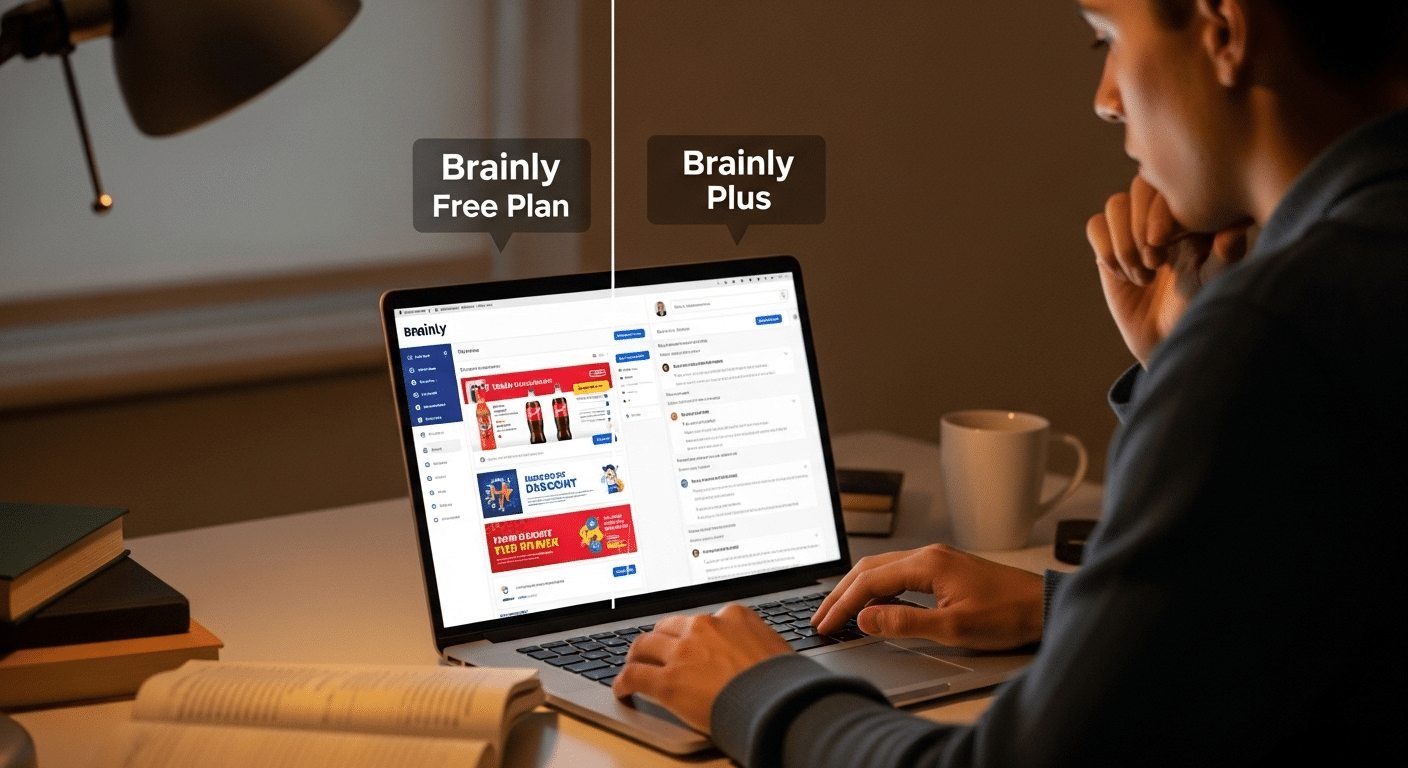
Traditional VPNs gave users full network access once they connected. That worked when users and apps were inside a controlled perimeter.

But today’s apps are in the cloud, and users connect from everywhere. VPNs have become overly broad, clunky, and risky.

ZTNA replaces that model. Instead of exposing the network, it creates an invisible control layer. When a user tries to access something, ZTNA evaluates their identity, device status, location, and other contextual factors.

If the request meets policy, access is granted—to only that specific resource. Nothing more.

Here’s what makes ZTNA work effectively:

  • Least Privilege Access
    Users get only what they need, limiting exposure and reducing risk.
  • Continuous Verification
    Trust isn’t permanent. Access is reevaluated constantly, especially if behavior changes or risk increases.
  • Device Security
    ZTNA assesses whether a device meets security standards before granting access.
  • Trust Solutions vs Legacy VPNs
    VPNs assume trust once inside. ZTNA assumes nothing. It’s dynamic, adaptive, and designed for the way modern work actually happens.

To conclude, ZTNA is the practical engine behind Zero Trust—controlling access not by location, but by validated identity and risk-aware policy.


What Security Features Should You Expect from a Top Zero Trust Vendor?

A strong Zero Trust vendor doesn’t just offer a few access controls—it delivers a comprehensive security solution that adapts to the evolving risk landscape. Here are the essential features you should expect:

1. Strict Access Controls Based on Identity, Device, and Context

Access should never be granted based solely on a password. Leading vendors use a combination of user identity, device health, and contextual factors (like time, location, and behavior) to determine who gets in—and what they can do.

2. Single Sign-On (SSO) and Risk-Based Authentication

Look for support for SSO to simplify logins without compromising security. In tandem, risk-based authentication assesses each login attempt in real time. If something looks unusual, it can trigger multi-factor authentication (MFA) or block access entirely.

3. Real-Time Continuous Risk Assessment

Top vendors don’t grant access once and forget about it. They continuously assess risk across sessions, adjusting access dynamically as conditions change. This is especially important for detecting compromised accounts or abnormal user behavior.

4. Adaptive Access Control Policies

Static rules no longer work. A good Zero Trust solution supports granular policy enforcement, allowing security teams to define who can access specific resources—under specific conditions.

5. Endpoint and Data Protection

The best platforms provide comprehensive protection for both devices and sensitive data. That means visibility into device posture, encryption, and secure access to applications whether they’re hosted in the cloud or on-prem.

To sum up, a top-tier Zero Trust vendor should make identity verification smarter, access management simpler, and security posture stronger—without adding unnecessary complexity to your environment.


Who Are the Top Zero Trust Security Providers Today?

Executive IT decision-making scene reviewing Zero Trust security vendor options and architecture diagrams

Finding the right Zero Trust solution means matching your organization’s goals with a provider that aligns with your infrastructure, users, and security requirements. Below are the top Zero Trust vendors today, each with a unique strength and focus area.

1. Apporto

Apporto takes a refreshing approach to Zero Trust by focusing on simplicity, usability, and secure virtual desktop infrastructure (VDI).

Unlike heavy solutions built for sprawling enterprise environments, Apporto is tailored for higher education, SMBs, and teams that want quick wins without sacrificing security. Its browser-based VDI platform offers built-in ZTNA, secure remote access, and session isolation—all without the need for complex deployment.

Admins can define granular access policies, monitor sessions in real time, and apply least privilege access effortlessly. It also integrates with major identity providers, enabling smooth IAM workflows.

Apporto is ideal for organizations seeking a cost-effective, low-maintenance Zero Trust platform that just works—out of the box. Try Apporto Now

2. Zscaler (Zscaler Private Access)

Zscaler is a pioneer in cloud-native Zero Trust Network Access. Its platform replaces traditional VPNs with a fully distributed architecture, enabling secure, direct-to-app connections—no network exposure required.

Main features include ZTNA, AI-powered threat intelligence, and integrations with identity providers for fine-grained policy enforcement. It also provides secure access across multi-cloud environments and remote workforces.

Best for large enterprises needing deep cloud security capabilities and real-time traffic inspection at scale.

3. Palo Alto Networks (Prisma Access)

Prisma Access by Palo Alto Networks extends the company’s renowned firewall and threat detection technology into the Zero Trust space.

It delivers end-to-end Zero Trust architecture, from identity-aware access controls to advanced threat intelligence and data loss prevention.

Backed by their AI-powered Cortex engine, it provides risk-based authentication, deep user behavior analytics, and tight integration with other security tools.

Ideal for enterprises seeking a full-stack security solution that combines traditional perimeter defense with modern ZTNA.

4. Okta (Customer Identity Cloud)

Okta is considered the gold standard in identity and access management. With a laser focus on user identity, it enables fine-tuned control over who gets access, when, and under what conditions.

Features include adaptive MFA, SSO, granular policy enforcement, and detailed access logs. Okta’s strength lies in its massive ecosystem of integrations and developer-friendly architecture.

It’s especially strong for companies that need to manage customer or partner identities in addition to employees.

Best for teams implementing identity-first Zero Trust strategies with scalability and flexibility in mind.

5. Cisco (Duo + Secure Access by Cisco)

Cisco has made Zero Trust implementation accessible to a broader range of organizations through tools like Duo Security and Secure Access by Cisco.

It focuses on strong access management, endpoint visibility, and multi-factor authentication, ensuring users and devices meet your security standards before granting access.

Cisco’s strength lies in supporting hybrid environments where legacy infrastructure must coexist with modern cloud services.

It’s a smart choice for organizations looking to transition gradually into Zero Trust while maintaining a strong network security baseline.

6. Microsoft Entra ID (formerly Azure AD)

Microsoft’s Entra ID platform, previously known as Azure Active Directory, is deeply integrated across the Microsoft ecosystem.

It enables organizations to apply conditional access policies, MFA, SSO, and privileged access controls for both cloud and on-prem apps.

Built-in analytics help identify risky sign-ins and enforce access policies in real time. For Microsoft-heavy environments, it offers seamless integration and consistent security posture across services.

Ideal for organizations already invested in Microsoft 365, Azure, or hybrid enterprise IT stacks.

7. Cloudflare Zero Trust

Cloudflare’s platform combines network-level controls, ZTNA, browser isolation, and a secure web gateway into a single interface.

Its global network ensures fast performance with minimal latency, even for remote users. Admins can create granular access control policies and monitor traffic without backhauling data to a central data center.

Cloudflare stands out for its scalability and ease of deployment, particularly for organizations with distributed or mobile-first teams.

Best for businesses that need a lightweight Zero Trust solution with excellent edge performance and fast onboarding.

8. Check Point Software Technologies

Check Point delivers a comprehensive security stack, ideal for large enterprises and highly regulated industries.

Its Zero Trust capabilities span ZTNA, threat prevention, data loss protection, and endpoint security. Deep packet inspection, unified policy management, and real-time risk detection are part of the standard offering.

Check Point is especially strong in data protection, making it a fit for finance, healthcare, and government sectors.

Recommended for teams seeking tight compliance, fine-grained control, and enterprise-grade visibility across multiple domains.


How to Choose the Right Zero Trust Provider for Your Organization

Choosing a Zero Trust provider isn’t just a technical decision—it’s a strategic one. Start by looking inward.

What does your existing infrastructure look like? Are you cloud-native, hybrid, or still relying heavily on on-prem systems? Your provider needs to align with that reality, not fight against it.

Next, assess your identity and access management (IAM) workflows. Do you already use a centralized identity provider like Okta or Microsoft Entra? How complex are your access control needs across departments, roles, and devices?

Then, consider your data protection goals. If your organization handles sensitive data—in education, healthcare, or finance—you’ll need vendors that support granular policy enforcement, privileged access controls, and strong encryption protocols.

Finally, think about the long game. A good provider should offer:

  • Seamless integration with your stack
  • Full visibility into user and device behavior
  • Strong threat response and risk assessment tools

Prioritize flexibility, ease of use, and scalability. The right Zero Trust solution will not only enhance your security posture—it’ll also streamline your operations.


Is Zero Trust Overkill for Small and Mid-Sized Organizations?

Small business IT team implementing Zero Trust security using a simple, cloud-based platform.

It’s easy to assume Zero Trust is only for massive enterprises or government agencies. That’s a myth. In reality, small and mid-sized organizations often face the same cybersecurity risks—just with fewer resources to manage them.

The core principles of Zero Trust—like multi-factor authentication (MFA), least privilege access, and context-aware controls—are scalable by design.

You don’t need a team of engineers to implement them. You just need a platform that fits your size and workflow.

That’s where vendors like Apporto shine. With its lightweight, browser-based platform, Apporto enables secure access and ZTNA out of the box—no major infrastructure overhaul required.

It’s ideal for educational institutions, remote teams, and SMBs looking to modernize security without overwhelming their IT staff.

Zero Trust doesn’t have to be expensive, complicated, or enterprise-only. It’s about creating smarter controls that reduce risk—no matter your size. In today’s world, every organization needs to treat access as a risk. And Zero Trust is how you do it.


What Are the Risks of Choosing the Wrong Zero Trust Vendor?

Risk assessment dashboard showing security blind spots caused by poor Zero Trust vendor selection.

Zero Trust is powerful—but only when done right. Choosing the wrong provider can introduce more problems than it solves.

One major risk is vendor lock-in. Some platforms force you into using only their tools, limiting flexibility and increasing long-term costs. You may also face tool fatigue, managing multiple overlapping systems that don’t integrate well.

Poor compatibility with identity providers can disrupt access management and lead to inconsistent policy enforcement. And overly complex platforms can bog down your team, reducing productivity and creating security blind spots.

Worse, some solutions may leave gaps in cloud security or offer weak remote access controls—undermining the very foundation of Zero Trust.

Avoid these pitfalls by choosing a vendor that supports open standards, integrates with your stack, and aligns with your organization’s size, needs, and risk profile.

Final Thoughts

Zero Trust isn’t just a security product—it’s a security mindset. It’s about building a trust model based on identity, context, and verification, not assumptions. With threats growing more complex and networks expanding beyond office walls, the need for smart access control has never been more urgent.

Choosing a Zero Trust provider means choosing a long-term strategy for how your organization grants access, protects data, and responds to risk. It’s not a switch you flip overnight. It’s a gradual shift, and the right platform will help you make that transition with minimal friction.

If you’re looking for a solution that’s powerful but also practical, Apporto stands out. Its browser-based VDI platform brings Zero Trust principles to life with built-in ZTNA, secure access, and low overhead—perfect for education, SMBs, or any team seeking lightweight, scalable security.

Start evaluating. Test what fits. Trust should be earned—and Zero Trust helps ensure it is.


Frequently Asked Questions (FAQs)


1. What’s the difference between ZTNA and VPN?

ZTNA grants access to specific applications, not entire networks like a VPN. It continuously verifies identity and device health, reducing lateral movement and exposure.

2. Is Zero Trust really needed if I already use SSO and MFA?

SSO and MFA are important, but Zero Trust goes further. It adds context-aware policies, continuous verification, and granular access controls, reducing risks that basic login tools can’t cover.

3. Can Zero Trust help protect cloud and hybrid environments?

Absolutely. Zero Trust is built for multi-cloud and hybrid setups, allowing organizations to protect resources regardless of where users or data reside. It adapts to modern IT environments.

4. How long does Zero Trust implementation usually take?

It varies. Small teams can start seeing results in weeks by securing high-risk areas first. Larger deployments might take months, especially when integrating with existing infrastructure and policies.

5. Do I need a separate Zero Trust vendor if I use Microsoft 365?

Not always, but many organizations layer specialized Zero Trust tools on top of Microsoft 365. Vendors like Apporto offer secure access environments that complement Microsoft’s identity and cloud controls for more targeted protection.

How to Use Windows 11 Virtual Desktop for Better Multitasking and Organization


Managing multiple tasks on one screen can get messy fast. That’s where Windows 11 Virtual Desktop comes in. It lets you create separate digital workspaces—like having multiple monitors, but without the hardware.

Whether you want to separate personal apps from work tools or keep your documents and meetings in their own space, virtual desktops help you stay focused and reduce clutter.

With just a few clicks, you can switch between desktops, organize your open windows, and boost overall productivity.

In this guide, you’ll learn how to set up, customize, and use virtual desktops the smart way.


What Are Virtual Desktops in Windows 11 and Why Should You Use Them?

A virtual desktop in Windows 11 is like a blank slate for your screen. Instead of stacking every app and file on one desktop, you can spread them across multiple desktops, each acting as a separate workspace.

Think of it as dividing your digital life into different desktops—one for work, one for personal use, one for a focused project, or even one for gaming. It keeps everything tidy, makes switching tasks easier, and helps you stay organized.

These separate workspaces don’t share open windows or apps, which means you won’t be distracted by unrelated tasks while working. And the best part? You can move between them without closing anything.

If you often juggle documents, meetings, and browser tabs all at once, Windows 11 Virtual Desktop makes multitasking feel more natural—and much less chaotic.


How Do You Create and Access a New Virtual Desktop in Windows 11?

Windows 11 Task View interface showing the '+ New desktop' button for creating virtual desktops.

Creating a new virtual desktop in Windows 11 is quick and simple.

Here’s how to do it:

  1. Click the Task View icon
    – Look for the two overlapping squares on your taskbar.
    – Or press Windows key + Tab to open Task View.
  2. Add a desktop
    – In Task View, click “+ New desktop” at the top or side.
    – This creates a blank desktop space with no open apps.
  3. Switch between desktops
    – Press Ctrl + Windows + Left/Right arrow to move through them quickly.
    – Or open Task View again and click the one you want.
  4. Rename or delete desktops
    – In Task View, right-click a desktop thumbnail.
    – Choose Rename to give it a custom label, or Delete to remove it.

You can keep desktops open for as long as needed and switch between them seamlessly.


How Do You Customize Backgrounds for Different Desktops?

Each virtual desktop can have its own desktop background, which helps you visually separate your different desktops. This is especially helpful when you’re switching between work, personal tasks, or study sessions.

Here’s how to do it:

  1. Open Task View and right-click on a desktop thumbnail.
  2. Select “Choose background”.
  3. Pick a solid color, a picture, or even a slideshow.
  4. Repeat for other desktops if needed.

Customizing your desktop background not only looks better, but it also improves your focus by giving each space a clear identity. It’s a simple way to organize your digital environment.


What Are the Best Shortcuts and Gestures to Switch Between Desktops Quickly?

Windows 11 keyboard shortcut overlay showing virtual desktop switching commands.

Switching between virtual desktops doesn’t have to slow you down. With just a few keyboard and mouse tricks, you can quickly switch from one space to another and stay organized without lifting your hands from the keyboard.

Use these shortcuts:

  • Ctrl + Windows + Left/Right arrow key – Move between desktops instantly.
  • Ctrl + Windows + D – Create a new desktop on the fly.
  • Ctrl + Windows + F4 – Close the current desktop.

You can also:

  • Use Task View (Win + Tab) to see and drag open apps between desktops.
  • Customize your taskbar settings to show apps from one desktop or all of them.

These small actions make it easier to manage your open apps and reduce clutter.


How Do Virtual Desktops Help Improve Focus and Productivity?

Virtual desktops are more than just a visual tool—they’re a strategy for better multitasking. By creating separate workspaces, you give each task its own space, making it easier to focus.

You might keep your documents, email, and meetings on one desktop, while using another for research or creative work. For gamers, it’s a way to switch between leisure and productivity without logging out or rearranging windows.

It also keeps your taskbar clean and organized—only showing open windows from the current desktop.

Combine this with snap layouts in Windows 11, and you’ve got a powerful way to boost productivity without buying a second monitor.


Can You Use Windows 11 Virtual Desktops with Cloud Services Like Azure Virtual Desktop?

Enterprise cloud workspace showing Windows 11 desktops delivered via Azure Virtual Desktop to remote users.

Yes, Windows 11 virtual desktops can work seamlessly with cloud-based services like Azure Virtual Desktop and Windows Virtual Desktop. These platforms let you deliver a full desktop experience to any device, even over a remote connection.

In an enterprise environment, this means users can log in from anywhere with full access to apps, files, and settings—while IT teams manage everything centrally. It supports modern PC deployment, improves security, and simplifies setup.

With Microsoft’s cloud services, you’re not tied to one machine. You get flexibility, scalability, and a consistent experience across multiple endpoints.


What Are Some Common Issues or Hidden Features in Windows 11 Virtual Desktop?

While Windows 11 Virtual Desktop is powerful, it isn’t perfect. You might notice occasional quirks—like desktop backgrounds resetting after a restart, or renamed desktops not saving. App placements may also shift when moving between screens, especially on a laptop or external monitor setup.

But there are hidden features that make up for it:

  • Right-click a desktop in Task View to set a default one.
  • Drag desktops to reorder them.
  • Use search to find open windows across desktops.

These small, helpful tweaks can improve how your computer handles virtual workspaces—if you know where to look.

 

An Easier Virtual Desktop Solution: Apporto

Apporto logo representing a cloud-based virtual desktop solution compatible with the azure virtual desktop client.

If you want the flexibility of virtual desktops without the manual setup, Apporto offers a fully managed cloud-based desktop experience. It works seamlessly on any device, giving your team secure access to apps and documents—without worrying about updates, storage, or configurations.

Whether you’re an educator, IT admin, or enterprise user, Apporto helps you stay productive and focused. It’s virtual desktops, minus the complexity.

Explore Apporto to streamline your workflow with fewer steps and better control.


Final Thoughts

If you’re looking to stay organized, focused, and in control of your digital workspace, Windows 11 virtual desktops are worth exploring. They let you customize your environment, separate tasks, and boost productivity—all without extra hardware.

Try creating a few desktops for your own workspaces. Move your apps around. Test what works best for your day-to-day.

With a little setup, you’ll find it’s a helpful way to make your personal computer more flexible and your mind a little clearer.


Frequently Asked Questions (FAQs)


1. How many virtual desktops can you have in Windows 11?

There’s no hard limit from Microsoft. You can create as many desktops as your PC can handle without slowing down. Performance depends on your system’s memory and workload.

2. Can you move apps between desktops?

Yes. Open Task View, then drag the app window from one desktop to another. It’s a quick way to rearrange your workspace without closing anything.

3. Do virtual desktops improve performance?

They don’t increase speed, but they improve your ability to focus. Keeping apps and tasks separated across desktops helps reduce clutter and distraction.

4. What happens to apps when you delete a desktop?

The apps stay open and automatically move to the previous desktop. Nothing is closed or lost—you just lose the extra workspace.

5. Can each desktop have its own taskbar layout?

Yes. In Taskbar settings, you can choose to show only the open apps from the current desktop for a cleaner view.

VDI Cloud vs On-Premise: Which Virtual Desktop Infrastructure Works Best for You?


Choosing between cloud-based and on-premises virtual desktop infrastructure (VDI) isn’t just a technical decision, it’s a strategic one.

The model you adopt directly affects how your team works, how your data is managed, and how your organization grows.

On one side, you have on-premises VDI, where you run everything from your own servers, within your own data center. This gives you full control over the environment, but it also means handling everything, from maintenance to security.

On the other side is cloud VDI, a more flexible model where desktops run on infrastructure managed by a cloud provider. You scale easily, deploy faster, and shift much of the overhead away from your internal team.

Each approach offers its own advantages, risks, and trade-offs. The right choice depends on your resources, compliance needs, and long-term goals.

In this guide, you’ll explore the core differences, and find out which model aligns best with your business.


What Is Virtual Desktop Infrastructure (VDI) and Why Does the Deployment Model Matter?

Virtual Desktop Infrastructure (VDI) is a technology that hosts virtual desktops on centralized servers instead of individual devices. In simple terms, it allows users to access their desktop environment remotely, from laptops, tablets, or even thin clients, without depending on local hardware.

The desktop, applications, and data all live inside a secure VDI infrastructure managed through cloud computing or an on-premises setup.

The VDI deployment model you choose shapes everything from cost to performance. In a cloud-based deployment, desktops run on remote servers managed by a cloud provider. It’s fast to scale, cost-efficient, and ideal for teams that value flexibility.

By contrast, on-premises VDI solutions are hosted within your organization’s own servers and managed directly by your IT team. This model gives complete control over performance, data storage, and compliance policies.

There’s also a hybrid approach, blending both cloud and on-premises resources. It offers the best of both worlds, local performance where needed and the elasticity of the cloud for variable workloads.

Choosing the right model depends on your needs: security, budget, and how much control you want over your infrastructure.


How Does On-Premise VDI Work and When Is It the Right Fit?

Enterprise on-premise data center hosting virtual desktop servers with secure internal network connections.

On-premises VDI means running your entire desktop environment from servers housed in your own data center. It’s your infrastructure, your hardware, and your responsibility. Every virtual machine runs on physical servers owned or leased by your organization.

Here’s what makes it appealing:

  • Complete Control – You oversee every part of the system, from configuration to updates.
  • Low Latency – Data doesn’t travel through the public internet, offering faster performance for local users.
  • Improved Security – Sensitive workloads never leave your controlled network, reducing exposure.
  • Compliance Requirements – Ideal for regulated industries (like healthcare or finance) where data sovereignty matters.

However, an on-premises VDI deployment comes with trade-offs. You’ll face upfront costs for purchasing hardware, software licenses, and ongoing power and cooling. Managing centralized servers also requires dedicated staff, regular maintenance, and infrastructure scaling that can’t happen overnight.

If your organization already operates a strong internal IT environment and prioritizes data control over flexibility, this model might fit perfectly. But if your team needs agility or global reach, cloud-based VDI could offer a better balance between control and efficiency.


What Are the Advantages of Cloud-Based VDI Solutions?

Cloud VDI is a deployment model where your virtual desktops are hosted by a third-party provider, often in a public cloud like Microsoft Azure or AWS. Rather than relying on in-house infrastructure, you operate within a managed cloud environment using flexible, scalable cloud-based solutions.

There are several essential advantages to this model:

  • Cost Savings – No need for upfront hardware investment. You pay for what you use, making it ideal for scaling up or down.
  • Easily Scale – Add new desktops in minutes, not weeks. Cloud infrastructure grows with your organization.
  • Disaster Recovery – Backups and failover systems are built in. If one region goes down, your environment can switch to another.
  • Reduced Latency (Geographically) – By deploying desktops closer to users through regional cloud zones, you can minimize delays.
  • Cloud Security & Data Protection – Leading cloud providers offer advanced cloud security, including encryption, identity controls, and isolation for sensitive data.

All of this depends on a reliable internet connection, of course. But for many organizations, the trade-off is worth it. A cloud VDI approach offers speed, resilience, and cost-efficiency, without the burden of maintaining physical infrastructure.


Can a Hybrid Cloud Model Offer the Best of Both Worlds?

Split-infrastructure illustration where core workloads run on-premise and burst workloads scale into the cloud.

A hybrid cloud solution blends on-premises VDI with cloud-based VDI to create a more flexible and adaptive infrastructure. This hybrid model is particularly valuable for organizations with both fixed and variable desktop needs, or those navigating strict compliance requirements.

Here’s how it works:

  • Core workloads (like sensitive data or compliance-heavy apps) stay on local infrastructure
  • Burst workloads or seasonal needs are deployed in the cloud, allowing rapid expansion
  • Resources are allocated dynamically, based on demand and usage patterns

The hybrid approach supports business continuity, even during outages or unexpected traffic spikes. If your local servers go down, users can be redirected to cloud-based desktops without service interruption.

This model is especially popular in healthcare organizations, government agencies, and enterprises bound by region-specific regulations. They get the assurance of local data control, along with the flexibility to scale or modernize without completely rebuilding their environment.

For teams pursuing strategic initiatives like remote workforce support or disaster preparedness, hybrid cloud VDI can offer the control of on-premises infrastructure and the agility of the cloud based VDI world.


What Are the Main Differences Between Cloud and On-Premise VDI?

When comparing cloud-based and on-premises VDI, the choice often comes down to how you balance cost effectiveness, control, and operational agility. While both serve the same purpose, delivering secure, remote access to virtual desktops, the underlying infrastructure and experience differ greatly.

Here’s a side-by-side look at the core differences:


Category On-Premise VDI Cloud VDI
Cost High upfront costs (hardware, licenses) Ongoing subscription-based pricing (reducing costs)
Security Internal control over all data Depends on third-party provider and shared models
Latency Low latency with local network Can vary based on internet connection and geography
Scalability Limited by existing infrastructure Instantly scalable through cloud infrastructure
Infrastructure Requires investment in physical servers Built on virtual systems and external platforms


The decision isn’t just technical, it’s strategic. Choosing the right path depends on what fits your business operations, growth plans, and available resources.


Which Factors Should You Consider Before Choosing a VDI Model?

Enterprise decision-making scene with IT leaders evaluating cloud VDI versus on-premises infrastructure on digital dashboards.

Making the right choice between cloud VDI and on-premises VDI starts by asking the right questions. Your decision hinges on more than technology, it’s about fit, timing, and readiness.

Here are some important factors to evaluate:

  • What is your IT team’s expertise?
    If your IT team is small or stretched thin, cloud-based VDI reduces pressure by shifting responsibility to the provider.
  • Are you prioritizing cost savings or control?
    Cloud options offer flexibility and cost savings, while on-premises solutions provide complete control over the environment.
  • What are your compliance and data security obligations?
    Industries with strict compliance requirements or data security mandates may lean toward on-prem for peace of mind.
  • Do you need to quickly adapt or operate at your own pace?
    Cloud VDI is better for teams needing agility. On-premises VDI suits those who prefer to move at their own pace.
  • Are you working with fewer resources or a flexible budget?
    If so, you may want to allocate resources gradually using a cloud model.

Balancing these questions will help narrow your path forward.


Is On-Premise or Cloud VDI More Cost Effective in the Long Run?

When thinking long-term, cost effectiveness becomes one of the most critical deciding factors in any VDI deployment. While on-premises VDI requires significant upfront costs, servers, licenses, cooling, and physical space, those investments are mostly one-time. After setup, the cost plateaus around maintenance and energy.

By contrast, cloud-based VDI operates on a pay-as-you-go model. You only pay for what you use, and that includes the compute time, storage, and user sessions. For growing companies or those with seasonal desktop needs, this model is ideal for reducing costs as usage fluctuates.

That said, server virtualization can dramatically improve the efficiency of an on-premise environment. Running multiple virtual machines on a single physical server spreads out costs and conserves resources.

The break-even point between these models depends on your usage patterns. If you plan to scale aggressively or want financial flexibility, cloud may be more affordable. But for organizations with steady demand and infrastructure already in place, on-prem VDI can be just as cost effective over time.


How Do You Ensure Security in Both VDI Models?

Secure virtual desktop login process with multi-factor authentication, encryption layers, and identity verification

Security is a leading concern in any virtual desktop environment, especially when dealing with sensitive data. Whether you’re running VDI on-premises or in the cloud, different security concerns come into play.

For On-Premises VDI:

  • You manage all access control, encryption, and firewall policies internally
  • Physical security of the data center adds another layer of control
  • You’re fully responsible for patching and updating systems, which can enhance or weaken security, depending on your practices

For Cloud-Based VDI:

  • Cloud security is shared between the provider and your organization
  • Providers often include built-in security tools like identity management, network isolation, and multi-factor authentication
  • However, handing over control to a third-party provider can raise concerns for industries handling highly sensitive or regulated data

Best Practices for Both:

  • Use role-based access control (RBAC)
  • Encrypt data at rest and in transit
  • Audit sessions and monitor logins regularly
  • Align policies with your organization’s compliance requirements

No model is inherently insecure. The difference lies in how well your policies and tools are implemented. With proper planning, both VDI types can deliver improved security without compromise.


What Role Does Performance and User Experience Play in Your Decision?

Performance can make or break the effectiveness of a virtual desktop infrastructure. If your users experience lag or delay, even the most secure and cost-efficient VDI setup won’t succeed.

In on-premises environments, performance is typically strong, especially for in-office users. With local servers, data travels shorter distances, resulting in low latency and smoother interactions. Your desktop environment stays tightly controlled, and updates can be tested internally for minimal disruption.

Cloud-based solutions, on the other hand, rely on a solid internet connection. For teams spread across regions or countries, remote access to a global cloud infrastructure can actually improve performance, especially when desktops are deployed closer to end-users.

What matters most is delivering a consistent user experience. Desktops should load quickly, apps should respond smoothly, and switching between tasks should feel natural, regardless of where the infrastructure lives.

Whether you choose cloud or on-prem, make sure the end-user experience is at the center of your decision. If it doesn’t work for your people, it won’t work for your business.


Looking for a Simpler VDI Experience? Try Apporto

Apporto logo representing a cloud-based virtual desktop solution compatible with the azure virtual desktop client.

If you want the benefits of virtual desktop infrastructure without managing physical servers, upgrades, or complex configurations, Apporto offers a modern alternative.

Apporto is a cloud-based VDI platform designed to deliver fast, secure, and scalable desktops, no setup required. It’s built for remote teams, academic institutions, and businesses that need reliable remote access without the hassle of traditional VDI.

You get high performance, low latency, and a consistent user experience across devices, all managed through a browser.

Try Apporto if you’re looking to modernize, reduce IT burden, and get started faster.


Final Thoughts

Choosing between cloud-based and on-premises VDI isn’t just about technology, it’s about aligning with your organization’s long-term strategy. If your team values agility, flexible scaling, and fewer infrastructure responsibilities, cloud VDI might be the better fit.

But if your business depends on full control, compliance, and localized performance, on-prem may still lead.

Each model carries its own strengths, weaknesses, and risks. What matters is how those align with your current operations, your IT team’s capabilities, and the outcomes you’re driving toward, be it cost savings, security, or resilience.

Take time to assess where your business stands today, and where it’s heading. Whether you’re expanding remote access, reducing IT overhead, or preparing for future growth, the right VDI model should support, not hinder, those goals.


Frequently Asked Questions (FAQs)


1. What is the difference between cloud and on-premises VDI?

Cloud VDI runs on infrastructure managed by a third-party provider, allowing users to access desktops via the internet. On-premises VDI is hosted in your own data center, giving your team complete control over infrastructure and security.

2. Which is better for small teams or startups?

Cloud-based VDI is typically more flexible and affordable for small teams or startups. There’s no need for upfront hardware, and you only pay for what you use, making it easier to scale as you grow.

3. Can you migrate from on-premises to cloud-based VDI?

Yes. Many organizations start with on-premises VDI and move to the cloud over time. Migration involves moving user profiles, apps, and data to the cloud while ensuring minimal downtime.

4. What’s more secure: cloud VDI or on-prem VDI?

Security depends on how well each model is implemented. On-prem VDI gives you internal control, while cloud VDI benefits from advanced cloud security tools, but may raise concerns for handling sensitive data.

5. How does latency impact user experience?

High latency can cause lag and slower load times. On-premises VDI offers lower latency locally, while cloud VDI depends on network strength and proximity to the data center.