

What Is Microsoft Azure Virtual Desktop (AVD) & How It Works?
Microsoft Azure Virtual Desktop (AVD) is a cloud-based virtual desktop platform that delivers Windows desktops and applications remotely through Azure. It uses host pools, session hosts, and FSLogix to provide secure, scalable access across devices. Platforms like Apporto offer browser-based alternatives with simplified deployment and management.
Virtual desktop infrastructure has changed dramatically in recent years, and Microsoft Azure Virtual Desktop (AVD) is at the center of that shift. As a cloud-native platform, AVD enables you to deliver full desktop experiences to users on nearly any device — securely, remotely, and at scale.
The rise of hybrid work, increased cybersecurity demands, and the need for flexible infrastructure have all fueled interest in multi-session virtual environments.
Whether you’re running a mid-sized business, managing IT in higher education, or supporting a globally distributed team, mastering AVD configuration and operations can simplify your environment while improving performance.
In this guide, you’ll explore each stage — from planning and configuring host pools to managing session hosts, optimizing performance, and ensuring resilience through backup and monitoring.
What Is Microsoft Azure Virtual Desktop and How Does It Work?

Microsoft Azure Virtual Desktop (AVD) is a cloud-based virtual desktop infrastructure (VDI) platform that lets you deliver Windows desktops and applications to users from virtually anywhere. It’s hosted in the Azure cloud and supports both personal desktops and multi-session virtual environments, making it suitable for a wide range of organizational needs.
At the core of Azure Virtual Desktop’s architecture are:
- Host Pools – Collections of virtual machines (VMs) that serve user sessions.
- Session Hosts – Individual VMs within a pool that users connect to.
- FSLogix – A profile management tool that ensures user settings persist across sessions.
- Remote Apps – Individual applications delivered without giving users full desktop access.
Unlike traditional on-premises virtual desktop infrastructure, AVD requires no physical servers, no complex data center builds, and no VPN. Azure Virtual Desktops are scalable, easier to manage, and often more cost-effective, especially when you need to deliver consistent desktop experiences across remote or hybrid workforces.
How Do You Plan and Implement Azure Virtual Desktop Successfully?
Before you can configure or operate Azure Virtual Desktop effectively, you need to plan and implement it with precision. Planning ensures your environment aligns with both technical needs and business objectives.
Here’s what to consider at the start:
- Licensing – Confirm you have the right Microsoft 365 or Windows licenses. AVD is included with many enterprise-grade subscriptions.
- Azure Region – Choose the nearest region to your users to minimize latency and improve performance.
- Active Directory Setup – AVD requires integration with Azure Active Directory and optionally with on-premises AD for hybrid scenarios.
- Network Readiness – Ensure proper bandwidth, DNS resolution, and firewall rules are in place.
Prerequisites
You’ll need solid Azure administration skills and prior experience including virtualization, networking, identity, and storage — especially when dealing with enterprise-scale rollouts.
Tools You’ll Use
- Azure Portal – For GUI-based configuration.
- Azure PowerShell & CLI – For scripting and automation.
- Cloud Shell – For quick administrative access in-browser.
By planning thoroughly, you’ll save time later — and be positioned to deliver and manage virtual desktops with greater control and confidence.
What Does It Take to Configure Host Pools and Session Hosts?
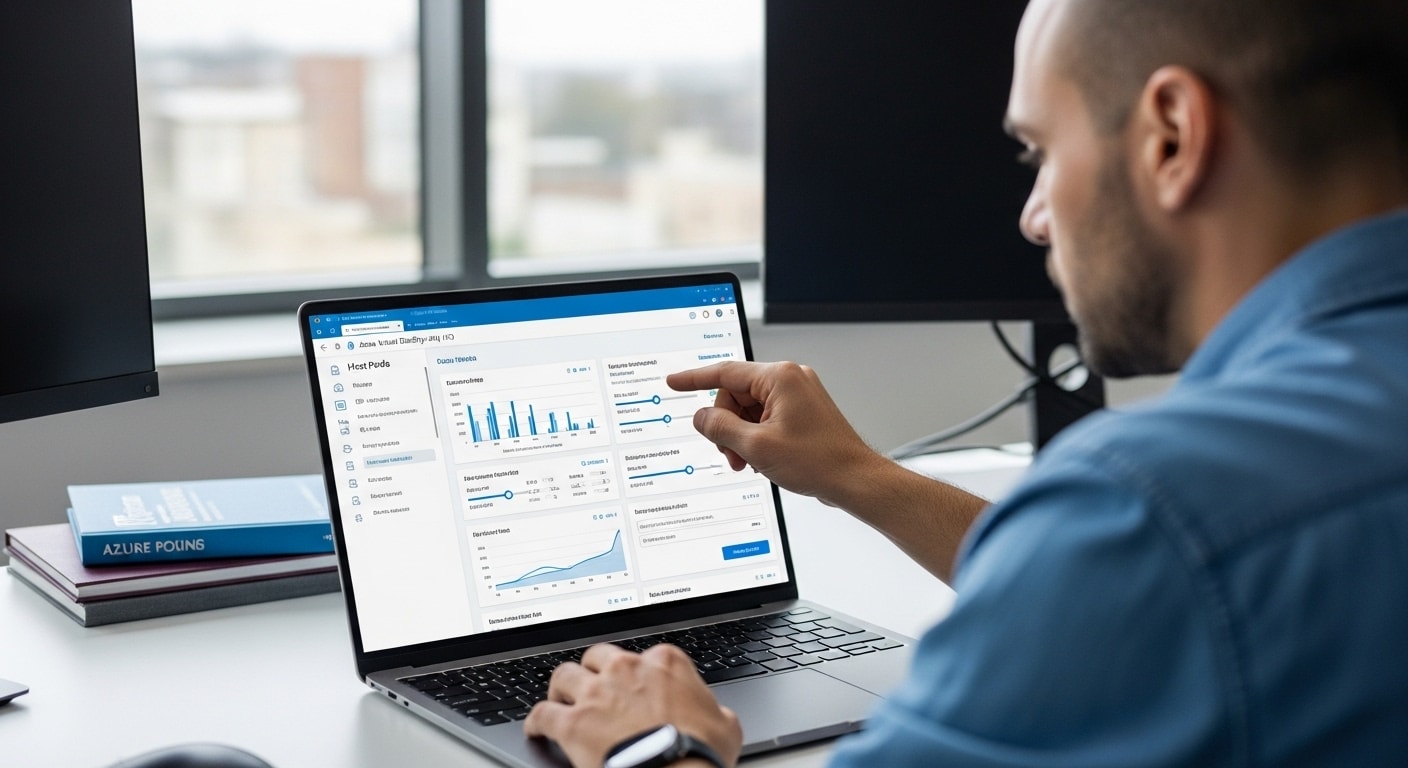
In Azure Virtual Desktop, a host pool is a collection of virtual machines (VMs) that users connect to when launching their virtual desktop or remote app. Within each pool, individual VMs act as session hosts, delivering personalized environments or shared multi-session virtual environments depending on your configuration.
You can begin desktop configuring host pools using either the Azure Portal (for a guided setup) or PowerShell (for automation and repeatability).
Key setup tasks include:
- VM Sizing – Select compute types based on workload (e.g., Standard_D2s_v4 for general use).
- Creating Session Host Images – Build a custom VM image with pre-installed apps and settings for consistency across hosts.
- Auto-Scaling – Configure rules to scale session hosts in and out based on user demand.
When pools and session hosts are properly configured, users benefit from faster login times, smoother app performance, and consistent experience — all while reducing unnecessary compute costs.
How Do You Install and Configure Apps on Azure Virtual Desktop?
Once your host pools are in place, the next step is to install and configure apps for your users. Azure Virtual Desktop supports most Windows-based applications, including Microsoft 365, Adobe tools, and custom line-of-business software.
There are two ways to deploy apps:
- Install apps on a session host image before creating VMs. This ensures every user has access to the same toolset at launch.
- Install apps per-host after provisioning, useful for one-off or department-specific applications.
Best Practices
- Use MSIX app attach when possible to simplify updates.
- Test apps for compatibility in multi-session environments.
- Keep your session host images up to date to avoid patching inconsistencies.
Whether you’re installing a handful of apps or managing hundreds, a streamlined app deployment process helps deliver seamless apps on Azure Virtual Desktop—without degrading performance or user experience.
How Do You Implement and Manage Networking for Azure Virtual Desktop?

To ensure a secure and responsive user experience, you’ll need to properly implement and manage networking for your Azure Virtual Desktop environment. The foundation starts with a virtual network (VNet) that connects your session hosts to Azure services, domain controllers, and storage.
Here’s what to configure:
- Virtual Networks – Ensure each session host has access to the necessary resources via subnets and IP ranges.
- Network Security Groups (NSGs) – Apply rules that allow RDP/HTTPS and restrict unnecessary inbound traffic.
- DNS Setup – Use custom DNS for Active Directory resolution, especially in hybrid setups.
For security and access control, integrate with Azure AD and use Conditional Access policies to restrict access by location, device compliance, or user group.
By managing networking for Azure Virtual Desktop correctly, you reduce latency, tighten security, and support a scalable foundation for users across different locations and devices.
How Do You Monitor and Optimize Azure Virtual Desktop Performance?
Monitoring isn’t just optional—it’s essential if you want to maintain a high-quality virtual desktop experience. Azure offers native tools like Azure Monitor, Log Analytics, and FSLogix insights to help you track system health, user sessions, and storage behavior.
Key metrics to monitor include:
- Session utilization – How many users are active per host?
- CPU/RAM usage – Are you over- or under-provisioning resources?
- Profile loading time – FSLogix containers that load slowly may indicate storage bottlenecks.
To improve Azure Virtual Desktop performance, consider these strategies:
- Enable autoscale for host pools based on usage patterns.
- Adjust session limits to avoid overloading individual hosts.
- Optimize storage by using Azure Premium Files or NetApp Files for FSLogix containers.
With regular FSLogix monitoring, proactive adjustments, and performance baselining, you’ll ensure AVD runs smoothly—even during peak usage.
What’s Involved in Managing Virtual Desktop Experiences and Remote Apps?

Managing virtual desktop experiences and remote apps in Microsoft Azure Virtual Desktop goes beyond infrastructure—it directly affects user productivity and satisfaction. The process starts with FSLogix, which manages user profiles by storing settings and data in containers.
This ensures reliable, consistent logins across multi-session virtual environments and multiple session hosts.
Using Azure Virtual Desktop RemoteApp, you can deliver individual applications instead of full desktops. This reduces resource usage and enhances the virtual desktop experience for task-specific roles.
To manage virtual desktop experiences effectively, configure:
- Session timeout and reconnection policies – Control idle time, reconnection behavior, and device roaming.
- Group Policy or Microsoft Intune – Enforce standard configurations across session hosts.
- App Group assignments – Define who can access full desktops vs. apps on Azure Virtual Desktop.
When these elements are well-managed, you deliver smoother, more secure experiences and remote apps while reducing support overhead.
How Do You Handle Storage, Backup, and Disaster Recovery in AVD?
Effective storage for Azure Virtual Desktop is the backbone of a reliable environment. FSLogix profile containers handle user data and settings and are typically hosted on Azure Files or Azure NetApp Files to support fast, scalable access in multi-session virtual environments.
For resilience, build a solid storage backup and restore plan, including:
- Azure Backup or third-party backup solutions for FSLogix profiles
- Geo-redundant storage (GRS) to safeguard data across multiple Azure regions
- Snapshot scheduling to enable quick rollbacks for profile corruption or accidental changes
When preparing for restore and disaster recovery, define failover regions, set up image replication, and document RTO/RPO goals.
A thoughtful approach to storage, backup, and restore ensures that your Azure virtual desktop infrastructure is protected—helping you maintain uptime, user confidence, and operational continuity even during outages.
Looking for a Simpler Way to Deliver Virtual Desktops?
If configuring and managing Azure Virtual Desktop feels more complex than expected, you’re not alone. Many IT teams struggle with the overhead of networking, image management, scaling, and licensing — especially in environments with limited resources or high turnover.
Apporto offers a fully managed, browser-based alternative to traditional virtual desktop infrastructure. There’s no client to install, no VPN, and no complex cloud billing models to untangle. Just fast, secure desktop access through the browser — optimized for education, SMBs, and organizations that value simplicity without sacrificing performance. Try Apporto now
Final Thoughts
Azure Virtual Desktop offers a compelling mix of flexibility, scalability, and cost control—all delivered through the security and reach of the Azure cloud. For organizations navigating hybrid work, legacy VDI limitations, or IT resource constraints, AVD is a modern solution that adapts to your environment.
Whether you’re supporting students, knowledge workers, or remote teams, AVD can simplify infrastructure without sacrificing performance.
To see if it’s right for you, explore a pilot deployment or review Microsoft’s step-by-step guides. There’s no substitute for hands-on learning when evaluating something this impactful.
Start small, test thoroughly, and scale with confidence.
Frequently Asked Questions (FAQs)
1. What is AVD Azure Virtual Desktop?
Azure Virtual Desktop (AVD) is a cloud-based virtual desktop infrastructure platform from Microsoft that delivers Windows desktops and applications remotely through Azure. It supports secure remote access, multi-session environments, centralized management, and scalable desktop delivery across devices for hybrid work, education, and enterprise environments.
2. How to configure AVD in Azure?
To configure Azure Virtual Desktop, administrators create host pools, deploy session host virtual machines, configure networking and identity settings, and assign users through the Azure portal or PowerShell. Proper setup also includes FSLogix profile management, security policies, autoscaling, and application deployment for optimized performance.
3. What is a host pool in Microsoft Azure Virtual Desktop?
A host pool in Microsoft Azure Virtual Desktop is a collection of session hosts that deliver virtual desktop experiences to users. It forms the foundation of your Azure virtual desktop infrastructure.
4. Can you run multi-session desktops with Azure Virtual Desktop?
Yes. AVD supports multi-session virtual environments, enabling multiple users to share a single session host. This helps reduce costs and improve virtual desktop performance.
5. How do you optimize app performance in Azure Virtual Desktop?
To optimize apps on Azure Virtual Desktop, update session host images regularly, configure FSLogix correctly, and enable autoscaling to match workload demands.
6. What backup and restore options exist for Azure Virtual Desktop?
Use Azure Backup, snapshots, or third-party tools to protect FSLogix containers and session host images. This ensures effective storage backup and restore for disaster recovery planning.
