

What Is FSLogix and How Does It Work in VDI Environments?
FSLogix is a profile management solution for virtual desktop infrastructure (VDI) that stores user profiles inside virtual disk containers such as VHDX files. It improves login performance, maintains profile persistence across session hosts, and simplifies profile management in platforms like Azure Virtual Desktop. Browser-based solutions like Apporto reduce the infrastructure complexity often associated with traditional VDI deployments.
Virtual desktop infrastructure setup depends heavily on how user profiles are managed. Without a reliable system in place, login delays, corrupted profiles, and inconsistent desktop experiences quickly become everyday problems. FSLogix addresses this challenge by providing a streamlined approach to user profile management across virtual environments.
Instead of scattering profile data across multiple systems, FSLogix stores each user profile inside a VHDX container that mounts directly to the operating system during login. The result is a consistent and predictable desktop experience across session hosts.
Platforms such as Azure Virtual Desktop AVD rely on FSLogix profile containers to maintain user profile persistence in pooled environments. This guide explains how FSLogix profile containers work, explores essential FSLogix VDI settings, reviews storage architecture and best practices for modern deployments.
What Is FSLogix and How Does It Work in Virtual Desktop Infrastructure?
Start with the core idea. FSLogix is a user profile management technology built specifically for virtual desktop infrastructure and multi session Windows environments. Its main job is simple, keep user profiles consistent and portable across different session hosts.
In traditional VDI setups, profiles can behave unpredictably. Data fragments appear, logins slow down, sometimes profiles even corrupt. FSLogix takes a different approach.
Instead of scattering profile files across the system, FSLogix stores the entire user profile inside a virtual disk file, usually a VHD or VHDX file placed on a network share or file server.
When a user signs in, the FSLogix agent automatically locates that container and mounts it directly into the Windows operating system. From the system’s point of view, the profile looks local. Applications read and write data normally, no special handling required.
This small architectural detail solves a surprisingly large number of problems. Roaming profile delays disappear. Profile corruption becomes far less common. And user profile persistence works reliably even when users move between session hosts in pooled environments.
Capabilities of FSLogix in VDI Environments:
• Stores the entire user profile inside a VHDX virtual disk container
• Mounts the profile container automatically during login
• Maintains user profile persistence across multiple session hosts
• Eliminates profile corruption often seen with roaming profiles
• Supports pooled desktops and multi session Windows deployments
How Do FSLogix Profile Containers Work?
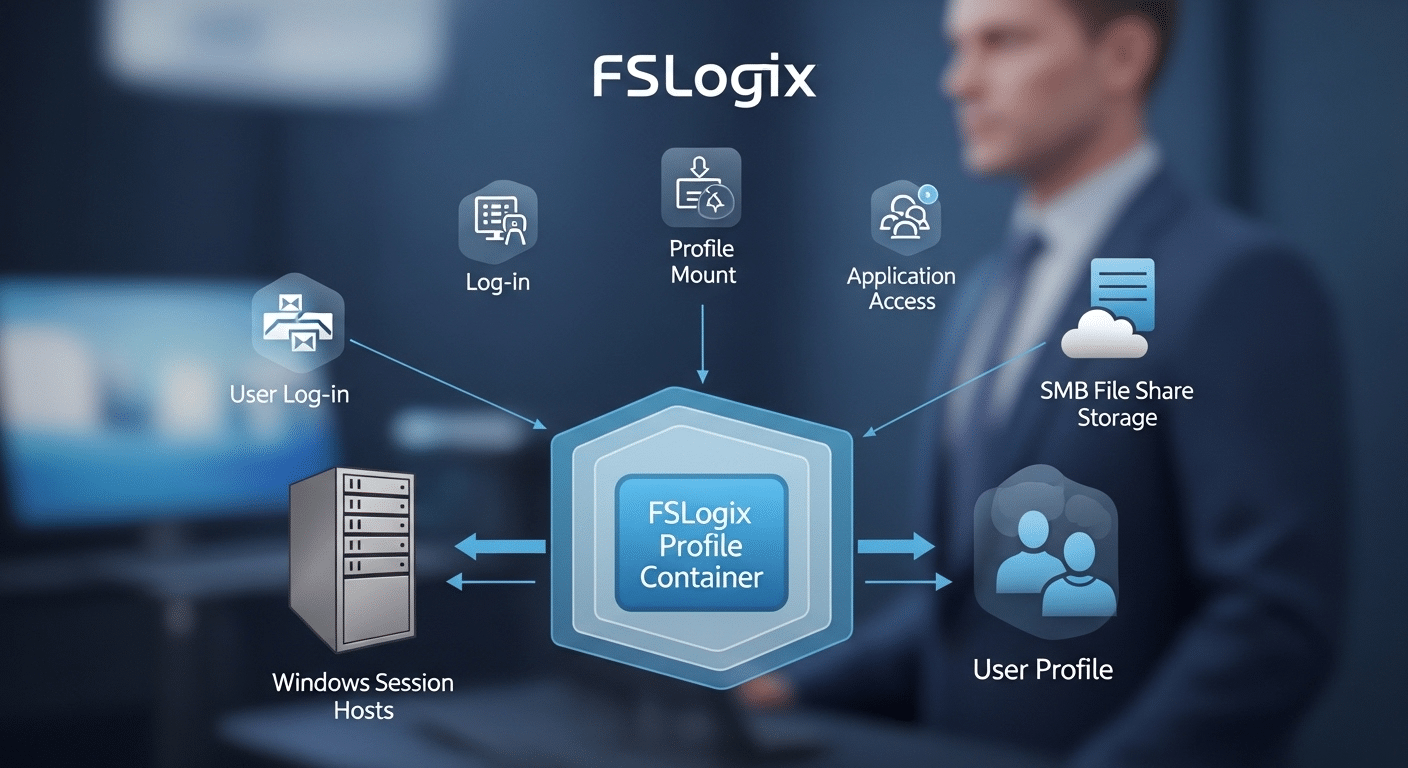
Once FSLogix is introduced into a virtual desktop infrastructure, the way profiles behave changes quite a bit. Instead of copying profile data back and forth between servers, the system stores the entire user profile inside a single virtual disk file. Usually a VHDX file. That file lives on a network share, often backed by high performance storage.
When the user signs in, something subtle happens behind the scenes. The FSLogix agent locates the user’s profile container and attaches it to the session host. From that moment forward, the operating system reads the profile as if it were stored locally on the machine. Applications cannot tell the difference. The profile feels immediate, responsive, and stable.
Login Process with FSLogix Profile Containers:
• User logs into a session host
• FSLogix agent locates the user’s profile container on a network share
• The VHDX file mounts into the Windows file system
• The operating system treats the container as a local user profile
• Applications access the profile data normally
Inside that virtual disk you will typically find Outlook cache data, OneDrive cache files, Teams data, Windows profile settings, and application preferences.
Because FSLogix profile containers work across multiple session hosts, users can move between desktops in a VDI pool and still receive the same environment every time they log in.
What Are the Most Important FSLogix VDI Settings to Configure?
Once the mechanics of FSLogix profile containers make sense, the next step becomes configuration. This is where many deployments succeed or quietly struggle. FSLogix works best when its settings are defined clearly and consistently across every session host in the environment.
Most FSLogix configuration parameters are managed through Group Policy Objects, though registry settings can also be used when policy deployment is not available.
Group Policy usually becomes the preferred approach in enterprise environments. It allows IT teams to apply identical FSLogix settings across multiple hosts, keeping configuration predictable.
Consistency matters here. If one host behaves differently, profile mounting can fail or login performance can vary. Nobody enjoys that kind of surprise.
A properly configured environment ensures the FSLogix agent can locate the file share, mount the user profile container quickly, and avoid leftover local profiles that interfere with the process.
A few settings carry more weight than others. These tend to shape the reliability of the entire profile system.
Core FSLogix VDI Configuration Settings
| Setting | Purpose | Default Value | Recommended Use |
|---|---|---|---|
| Enabled | Enables FSLogix profile container | Disabled | Enable |
| VHDLocations | Path to FSLogix file share | None | Required |
| SizeInMBs | Container size limit | 30000 | Adjust based on storage |
| DeleteLocalProfileWhenVHDShouldApply | Removes local profiles | Disabled | Enable |
| FlipFlopProfileDirectoryName | Simplifies container naming | Disabled | Enable |
These settings form the backbone of most FSLogix deployments. When applied through Group Policy Objects, they scale cleanly across clusters of session hosts. Registry keys remain useful for testing environments or smaller installations where centralized policy management is unavailable.
Should You Use FSLogix Profile Containers or Office Containers?
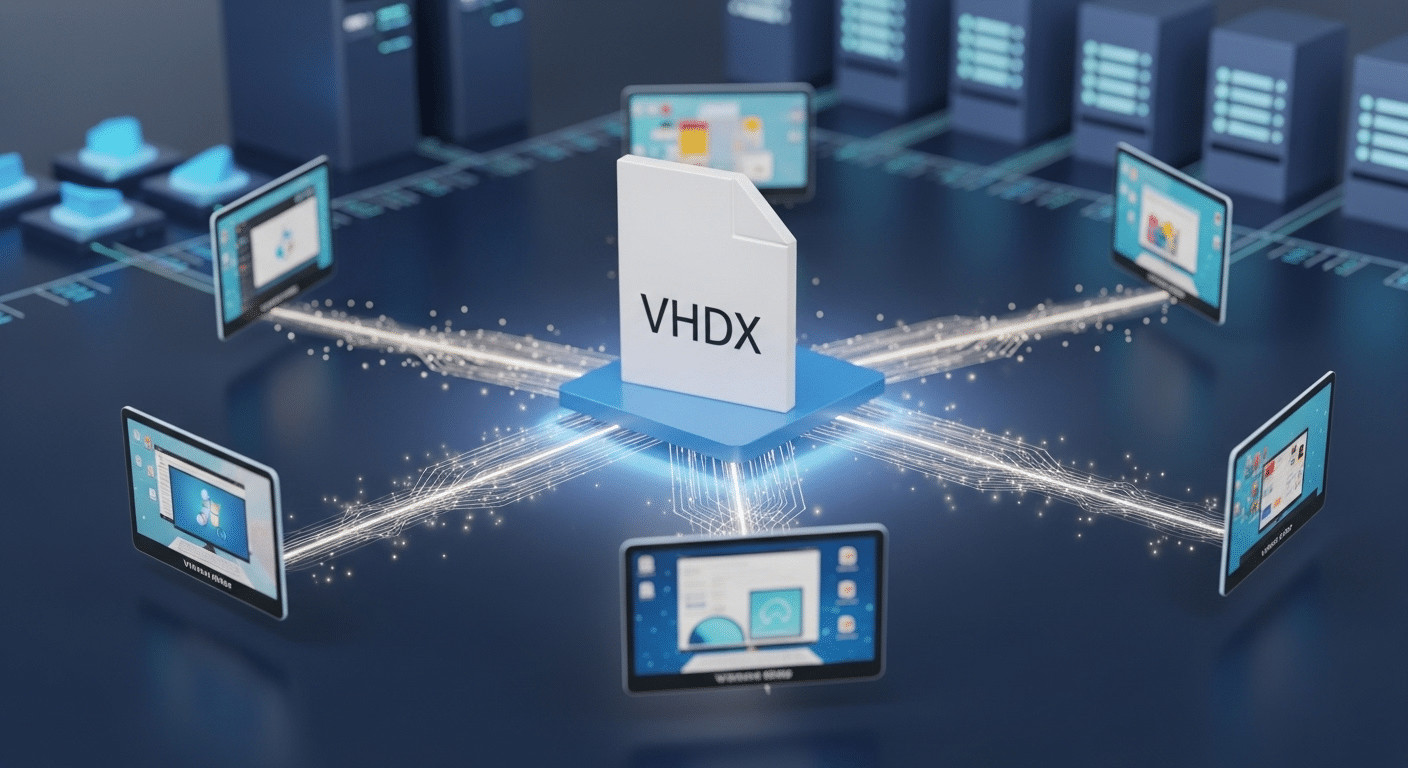
When FSLogix first appeared in many VDI deployments, administrators often configured two separate components. One container stored the full user profile, while another handled Microsoft Office data. That approach made sense at the time, particularly when Office applications behaved differently in roaming environments. Over time, though, the design evolved.
Modern FSLogix deployments almost always rely on the Profile Container alone. The reason is straightforward. The profile container already captures the entire user profile inside a single VHDX virtual disk.
That includes Office activation data, Outlook cache, Teams cache, OneDrive cache, and application preferences. Running a separate Office container rarely adds meaningful benefit today.
Adding both containers introduces extra complexity. Two virtual disks must mount during login. Two storage paths require management. Troubleshooting becomes more complicated when something fails. In most cases, the additional container simply duplicates data that already exists inside the main profile container.
Profile Container vs Office Container
| Feature | Profile Container | Office Container |
|---|---|---|
| Stores entire user profile | Yes | No |
| Stores Office data | Yes | Yes |
| Requires separate VHD | No | Yes |
| Complexity | Low | Higher |
For this reason, current best practice recommends using only the Profile Container. In fact, nearly all modern Azure Virtual Desktop environments follow this model because it simplifies management while still preserving the full user experience.
What Storage Architecture Works Best for FSLogix?
Storage decisions quietly determine how well FSLogix performs. When profile containers open slowly, users notice immediately. Logins drag, applications hesitate, Outlook takes its time waking up. In most cases the cause is not FSLogix itself, it is the storage layer underneath.
Remember how the system works. Each user profile sits inside a VHDX virtual disk stored on a network file share. At login, the FSLogix agent mounts that container across the network.
If the storage platform struggles to deliver data quickly, the entire login process slows down. That is why fast, stable file storage is considered one of the most important elements of a successful deployment.
Several storage architectures are commonly used in virtual desktop infrastructure.
Recommended Storage Options for FSLogix:
• Azure Files Premium storage accounts backed by SSD storage
• High performance file server clusters designed for heavy profile workloads
• OCI File Storage used in Oracle Cloud environments
• SMB file shares hosted on Windows Server infrastructure
Premium storage often delivers the most noticeable improvement. SSD backed file systems dramatically reduce the time required to mount profile containers and load application data.
A few practical requirements also matter.
• Storage must support SMB file access
• Active Directory authentication is required for user access
• NTFS permissions should restrict access to each user’s container
Finally, session hosts should be placed close to the file storage subnet. Lower network latency keeps profile mounting fast and predictable across the entire environment.
How Does FSLogix Cloud Cache Improve High Availability?

Even well designed storage systems fail sometimes. Disks fill up, network paths drop, a storage node simply stops responding. When FSLogix relies on a single file share, that failure can interrupt logins across the entire virtual desktop environment. This is exactly the scenario FSLogix Cloud Cache was designed to address.
Cloud Cache introduces redundancy into the profile container process. Instead of writing profile data to one location, the FSLogix agent can write simultaneously to multiple storage locations.
These locations might include different file shares, storage accounts, or data centers. The result is a distributed profile storage model that continues functioning even if one storage endpoint becomes unavailable.
Benefits of FSLogix Cloud Cache
• Configure multiple storage locations for profile container data
• Prevent login failures when a storage node fails
• Improve disaster recovery resilience across environments
• Maintain consistent user profile persistence across session hosts
The system keeps a local cache of profile activity on the session host itself. When the user logs in, profile operations read and write data both to the remote storage location and to this temporary local cache.
If the primary storage node becomes unreachable, the session does not immediately collapse. The user can continue working because the profile data remains accessible through the cached copy. Once connectivity returns, FSLogix synchronizes the changes.
How Do Network Settings Impact FSLogix Performance?
Network configuration plays a quiet but decisive role in FSLogix performance. Every profile container lives on a network share, which means the session host must reach that storage location quickly and consistently during login.
If the connection between the session host and the file share is slow or unstable, profile mounting delays appear almost immediately. Users experience longer logins, applications hesitate to load, and sometimes the profile container fails to attach altogether.
This dependency makes network planning critical in any virtual desktop infrastructure. FSLogix traffic moves constantly between the session host and the storage location. Even small interruptions in connectivity can interrupt the process.
Best Practices for Network Optimization
• Locate session hosts close to the storage infrastructure whenever possible
• Route core FSLogix traffic through optimized network paths
• Use high bandwidth network connections between VDI hosts and storage
• Reduce latency between session hosts and the file storage subnet
Multiple network connections can increase available bandwidth between hosts and storage systems. In larger deployments, this approach helps distribute traffic and keeps profile mounting operations stable even during peak login periods.
How Can Redirections.xml Improve FSLogix Performance?

After storage and networking are tuned, another small detail begins to matter, what actually goes inside the profile container. FSLogix captures the entire user profile inside a VHDX file, which is convenient, but not every piece of data inside a profile needs to travel with the user from session host to session host.
Some files are temporary, others rebuild themselves automatically each time the application starts. Keeping those files inside the container simply makes the disk larger and slower to mount.
That is where Redirections.xml becomes useful. This configuration file allows administrators to exclude specific folders from the FSLogix profile container.
Instead of storing unnecessary data in the virtual disk, the system redirects those folders to temporary locations on the session host. The container stays smaller. Logins become quicker.
Some common Exclusions:
• Temp folders Windows Search
• Browser cache directories
• Application update logs
• Teams cache files that regenerate automatically
When these folders remain inside the container, they quietly accumulate data over time. Containers grow, sometimes far larger than necessary. A carefully designed Redirections.xml file prevents that problem.
By trimming unnecessary content from the user’s profile container, the VHDX file stays lightweight, which improves login performance and reduces storage overhead across the environment.
What Security and Antivirus Settings Are Required for FSLogix?
Security configuration plays an important role in stable FSLogix deployments. Many performance issues, and even profile corruption cases, appear when antivirus software scans the wrong locations. On the surface it seems harmless.
Antivirus tools attempt to inspect files for threats. In a virtual desktop infrastructure environment, though, constant scanning of mounted profile containers can interrupt normal file operations.
Remember how FSLogix works. The user’s entire profile lives inside a VHDX virtual disk stored on a network share. When the user signs in, the FSLogix agent mounts that disk directly into the Windows file system.
If antivirus software attempts to scan the container while it is mounted, conflicts can occur. Files may lock unexpectedly, profile containers may fail to mount, and in rare cases the container itself can become corrupted. For that reason, several exclusions are strongly recommended.
Required Antivirus Exclusions:
• FSLogix profile container folders on the file share
• VHDX container files used for user profiles
• FSLogix mount paths created on the session host
Security settings should also include proper NTFS permissions. Each user must only access their own profile container. Restricting access through the file system ensures that user data remains isolated while maintaining secure profile management across the environment.
Why Apporto Is a Simpler Alternative to Complex FSLogix VDI Deployments?

A traditional virtual desktop infrastructure relies on many moving pieces. FSLogix profile containers must be configured. Storage shares must perform reliably.
File servers must remain available. Networking paths must stay stable so the user’s profile container mounts correctly at login. Each layer works, but each layer also adds complexity.
Apporto approaches virtual desktops from a different direction. Instead of requiring organizations to manage profile containers, storage architecture, and session host configuration, the platform delivers cloud hosted desktops directly through a browser.
The underlying infrastructure is handled behind the scenes, which removes much of the operational overhead commonly associated with VDI environments.
Several practical advantages follow.
• No FSLogix configuration required
• Simplified infrastructure with fewer components to manage
• Built in security controls designed for remote access
• Faster deployment compared with traditional Vow to set up VDDI setups
Users simply open a browser and access their desktop securely from almost any device. The experience remains consistent while the infrastructure stays far easier to maintain.
Final Thoughts
Designing an effective FSLogix deployment requires more than simply enabling profile containers. Each layer of the environment plays a role in how well virtual desktops perform. When configured correctly,
FSLogix profile containers provide a reliable method for maintaining user profile persistence across session hosts. Users receive the same desktop experience every time they log in, regardless of which machine hosts their session.
Storage decisions also matter. Premium storage solutions significantly reduce login delays because profile containers mount faster and applications access profile data more efficiently. High availability features such as FSLogix Cloud Cache add another layer of resilience, allowing profiles to remain accessible even if a storage node fails.
Performance tuning continues with Redirections.xml. Excluding unnecessary data keeps container sizes manageable and reduces login time.
Organizations that carefully plan FSLogix VDI settings, storage architecture, and network connectivity create environments that remain stable, responsive, and easier to manage over time.
Frequently Asked Questions (FAQs)
1. What is FSLogix used for in VDI?
FSLogix is used to manage user profiles in virtual desktop infrastructure environments. It stores each user profile inside a virtual disk file that mounts during login, allowing the operating system to treat it like a local profile. This approach improves login performance and maintains profile consistency across session hosts.
2. What is an FSLogix profile container?
An FSLogix profile container is a virtual disk file, typically a VHD or VHDX file, that stores the entire user profile. During login, the FSLogix agent mounts this container directly into the Windows file system so applications access the profile as if it were local.
3. Do you need Office Containers with FSLogix?
In most modern deployments, a separate Office Container is unnecessary. The FSLogix Profile Container already captures Office data such as Outlook cache, Teams cache, OneDrive cache, and activation data, making a second container redundant in the majority of environments.
4. Where should FSLogix profile containers be stored?
FSLogix profile containers should be stored on a high performance network file share. Many organizations use Premium Azure Files, dedicated Windows file servers, or enterprise storage platforms that support SMB access and Active Directory authentication for reliable performance.
5. What is FSLogix Cloud Cache?
FSLogix Cloud Cache is a high availability feature that allows profile containers to be written to multiple storage locations at the same time. If one storage node becomes unavailable, the system continues operating using the remaining storage locations.
6. Is FSLogix required for Azure Virtual Desktop?
FSLogix is not technically mandatory for Azure Virtual Desktop, but it is widely considered essential. The platform relies on profile containers to maintain user profile persistence across pooled session hosts, making FSLogix the standard profile management solution for AVD deployments.
