

How to Fix Azure Virtual Desktop Slow Performance?
Azure Virtual Desktop can feel slow due to factors like underpowered virtual machines, high session host density, network latency, or slow storage performance. Fixing it involves optimizing VM sizing, reducing user load, improving storage speed, and monitoring performance metrics. Simpler platforms like Apporto reduce this complexity.
Speed is the silent expectation behind every virtual desktop. When Azure Virtual Desktop works well, users barely notice the technology running behind the screen. The desktop appears quickly, applications open smoothly, and work continues without interruption. When Azure Virtual Desktop slow performance begins, the difference becomes obvious.
Users may notice slow logons, laggy mouse input, delayed keyboard response, or sessions where applications feel unusually sluggish. These symptoms often point to deeper infrastructure factors rather than a single fault.
Azure Virtual Desktop performance depends on several elements working together, including virtual machine size, network connectivity, storage performance, session host density, and FSLogix profile storage. In this blog, you will learn how to diagnose and fix common Azure Virtual Desktop performance issues
What Determines Azure Virtual Desktop Performance?
Slow desktops feel mysterious. You click, wait, maybe click again. The screen hesitates, then finally reacts. In most Azure Virtual Desktop environments the explanation is less mysterious and more mechanical.
Performance depends on several infrastructure components working together behind the scenes. When one of those components falls out of balance, the entire session begins to feel sluggish.
The platform itself usually runs fine. Microsoft maintains the service layer carefully. Yet AVD performance often declines because of choices made during deployment. Resource allocation, storage design, and network placement all shape how responsive a session becomes.
Several elements play a role, including session hosts, network latency, storage throughput, virtual machine size, and overall connection quality between the user and the Azure region.
Factors Affecting Azure Virtual Desktop Performance
- Virtual machine size: Underpowered VMs quickly reach CPU limits, causing contention and memory pressure during heavier workloads.
- Session host density: Too many users sharing the same host can slow every active session.
- Network bandwidth and latency: Weak connectivity between the client and Azure region increases response delay.
- Storage performance: Disk bottlenecks affect login time and application launch speed.
- User profile storage: FSLogix profiles on slow disks often cause long login times.
Finding the root cause usually requires monitoring CPU usage, memory consumption, and network connection quality metrics across session hosts.
Why Is Azure Virtual Desktop Slow? The Most Common Root Causes

Slow performance rarely appears out of nowhere. In most Azure Virtual Desktop environments, the slowdown builds gradually. One session host runs slightly hotter than expected, another carries too many users, storage begins responding slower than usual. Over time those small inefficiencies combine and the desktop starts feeling heavy, almost reluctant to respond.
The platform itself is usually stable. What changes is the surrounding infrastructure. Resource shortages, network conditions, storage limitations, and configuration choices often interact in ways that create noticeable performance issues.
Administrators investigating azure virtual desktop slow performance typically discover that the problem comes from several factors working together rather than a single fault.
Most Common Causes of Azure Virtual Desktop Slow Performance
- Underpowered virtual machines: Smaller VM sizes cannot handle heavier workloads, causing sessions to compete for CPU and memory.
- CPU contention on session hosts: When too many users share the same host, CPU utilization increases and performance drops across all sessions.
- Disk latency or slow storage accounts: Standard HDD storage introduces disk latency, delaying application launches and profile loading.
- Large FSLogix profiles: Oversized FSLogix profile containers slow profile mounting during login.
- Network latency from the client’s network: High round trip time delays input response and screen updates. Understanding how the Azure Virtual Desktop client connects to the hosted session can also help when troubleshooting connection-related performance issues.
- Connection bandwidth limitations: Low network bandwidth affects video rendering and remote desktop responsiveness.
For most environments, RTT below 150 ms provides good responsiveness. Once network latency rises above 200 ms, users begin noticing clear delays in session performance.
How Do Network Latency and Round-Trip Time Affect Azure Virtual Desktop Performance?
Network behavior often determines how responsive an Azure Virtual Desktop session feels. The most important measurement here is round trip time, usually shortened to RTT.
It represents how long data takes to travel from the user’s device to the Azure region hosting the session hosts, then back again. Small delays might seem trivial, yet remote desktops react instantly to them.
When network latency increases, the desktop begins to feel disconnected from your actions. Mouse movement becomes slightly delayed. Typing may appear half a second behind your keystrokes. Video playback and animations can stutter because the system struggles to deliver frames quickly enough.
Distance plays a major role. The farther the client’s network sits from the Azure region, the longer each request must travel across the internet.
That is why organizations often deploy host pools in regions geographically closer to their users. Shorter network paths generally produce better connection quality.
Recommended Network Latency Thresholds for Azure Virtual Desktop
| Metric | Recommended Value | Impact |
|---|---|---|
| Round Trip Time (RTT) | <150 ms | Smooth user experience |
| RTT above 200 ms | Degraded performance | Noticeable lag |
| Low bandwidth | <5 Mbps | Slow screen refresh |
| High packet loss | >2% | Session instability |
Another improvement involves enabling RDP Shortpath, a UDP-based transport method that allows more direct communication between the client and session host, often reducing latency and improving responsiveness.
How Do FSLogix Profiles Affect Azure Virtual Desktop Login Performance?

Login performance in Azure Virtual Desktop often depends on something users never see, the FSLogix profile container. Instead of storing user profiles locally on each session host, Azure Virtual Desktop mounts a virtual hard disk that contains the user’s entire profile. These FSLogix container hard disks, usually stored as VHDX files, attach to the user session during login.
When everything is configured properly, the process is quick. The container mounts, the Windows profile loads, and the desktop appears. But if the storage layer responds slowly, delays begin to appear. Users might stare at a black screen for several seconds.
Sometimes the desktop loads but applications take longer than expected to open. These symptoms often point to disk latency or slow profile storage.
Common FSLogix Performance Issues
- Large FSLogix profile containers: Oversized profiles take longer to mount during login.
- Profiles stored on standard HDD storage: Slower disks increase storage latency and extend login time.
- Antivirus scanning of VHDX files: Real-time scanning can slow profile attachment and impact login speed.
- Profile containers failing to attach: Mount failures may cause repeated login delays.
High performance storage improves this significantly. Many administrators place profile containers on Premium SSD storage accounts or Azure NetApp Files, which deliver higher throughput and lower latency.
Regular profile cleanup and size limits also help prevent bloated containers that contribute to slow logons.
How Session Host Resources Impact Azure Virtual Desktop Performance?
Every Azure Virtual Desktop environment depends on session hosts. These machines run the actual Windows desktop workloads that users interact with. When someone opens an application, loads a file, or launches a browser, the processing happens on the session host VM, not on the local device. Because of this, the resources available on each host directly shape the overall experience.
When the host has enough capacity, sessions run smoothly. Applications respond quickly, windows open without delay, and multiple users can work at the same time without noticing resource limits. Problems appear when the host becomes overloaded or poorly sized for the expected workload.
Session Host Resource Problems are:
- CPU usage spikes caused by heavy applications
- Memory pressure from concurrent users
- Resource creep from background processes
- Overloaded session hosts
Administrators should regularly monitor several metrics across session host VMs:
- CPU utilization
- memory usage
- disk performance
- number of users per host
Some deployments rely on burstable B-series VMs to reduce costs. These machines accumulate CPU credits and throttle performance when those credits run out, which makes them unsuitable for consistently heavy workloads.
How to Monitor Azure Virtual Desktop Performance Using AVD Insights and Azure Monitor?
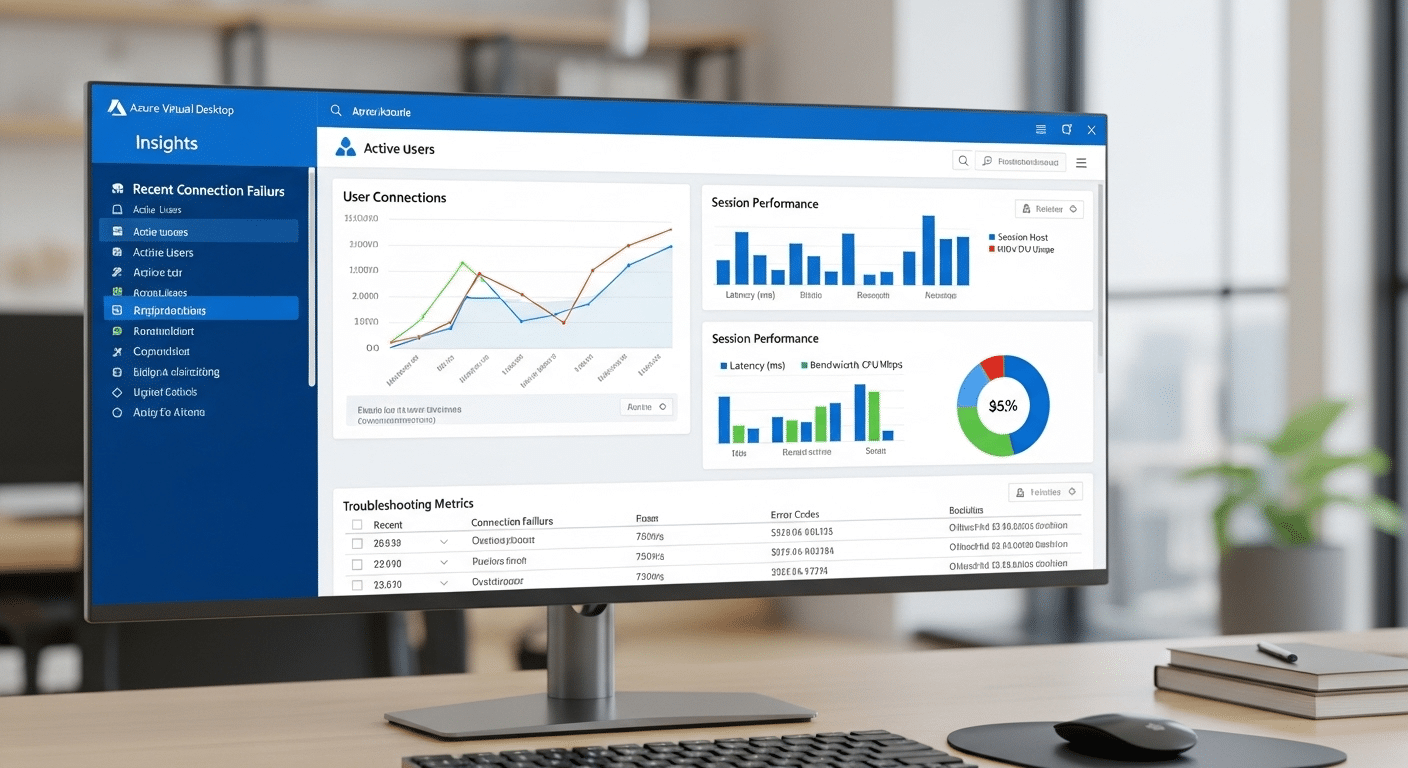
Performance troubleshooting rarely works without data. When Azure Virtual Desktop slow performance appears, the most reliable way to understand what is happening is by monitoring the environment with the tools built into the platform.
Two of the most useful tools are Azure Virtual Desktop Insights and Azure Monitor. Together they provide visibility into how sessions behave, how resources are consumed, and where bottlenecks might be forming.
AVD Insights collects operational data from session hosts, the control plane, and user connections. That information flows into Azure Log Analytics, where administrators can review performance metrics, track trends, and investigate connection quality problems across the environment. Instead of guessing, you can see exactly what is happening during each user session.
Metrics to Monitor:
- Round Trip Time (RTT): Measures how long it takes for data to travel between the client and the Azure region hosting the session.
- Input Delay: Indicates how long it takes for keyboard or mouse actions to register in the remote session.
- CPU and memory utilization: Shows whether session hosts are running out of compute resources.
- Disk latency and throughput: Identifies storage bottlenecks affecting application launch or login speed.
- Connection success rate: Tracks whether users are successfully connecting to desktops.
Within Log Analytics, administrators often analyze tables such as ConnectionGraphicsData and ConnectionNetworkDataLogs. These datasets reveal network behavior and graphical performance inside sessions.
If logs stop updating every two minutes, configuration should be reviewed. Monitoring Azure AD performance is also important because authentication delays can increase user logon time. If those delays are related to single sign-on, see our guide to Azure Virtual Desktop SSO not working for troubleshooting steps.
Best Practices to Improve Azure Virtual Desktop Performance
Once the main performance bottlenecks are understood, improving Azure Virtual Desktop performance becomes a matter of tuning the environment carefully. Small infrastructure adjustments can often produce noticeable improvements. Many administrators discover that responsiveness improves quickly once storage, networking, and session host capacity are aligned with the expected workload.
A healthy AVD deployment usually combines efficient virtual machine sizing, fast profile storage, and stable network connectivity. Without those elements working together, even a well-configured environment can develop performance issues over time.
Best Practices For Performance Optimization
- Deploy session hosts in the Azure region closest to users: Shorter network paths reduce latency and improve connection responsiveness.
- Use Premium SSD or Azure NetApp Files for FSLogix storage: Faster storage significantly reduces login delays and application launch time.
- Enable Accelerated Networking on supported VM sizes: This reduces CPU overhead and improves packet processing efficiency.
- Enable RDP Shortpath using UDP transport: Direct UDP communication often improves responsiveness and screen update speed.
- Monitor CPU utilization and adjust VM sizes: Choosing the correct VM size ensures enough compute capacity for active workloads.
- Limit the number of users per session host: Lower density helps maintain stable performance across sessions.
Administrators often configure auto scaling for host pools, ensuring enough session hosts run during peak hours while shutting down unused VMs when demand drops. Regularly rebooting session hosts can also help clear memory leaks and maintain stable performance.
How Image Optimization Improves Azure Virtual Desktop Performance?

Performance problems do not always originate from hardware or networking. Sometimes the issue sits quietly inside the Windows image used to deploy session hosts.
A poorly prepared base image can introduce unnecessary background services, startup tasks, and visual features that consume CPU and memory before users even begin working.
Every additional service running on a session host adds overhead. A few small processes might seem harmless at first, but multiplied across many users and sessions, the impact becomes noticeable. Over time the system spends more resources supporting the operating system itself instead of the user workload.
Optimizing the base image helps remove this hidden overhead and keeps the Azure Virtual Desktop platform running efficiently.
Image Optimization Techniques to Improve Performance are:
- Use the Azure Virtual Desktop Optimization Tool (VDOT)
- Disable unnecessary Windows services and visual effects
- Exclude FSLogix containers from antivirus scanning
- Maintain a clean and updated golden image
Regular updates to the golden image also help prevent image drift, where small configuration differences accumulate across session hosts and introduce unexpected performance issues.
Why Apporto is a Simpler Alternative to Complex Azure Virtual Desktop Deployments?

Optimizing Azure Virtual Desktop performance often requires continuous infrastructure tuning. Administrators regularly review VM sizing, adjust host density, analyze storage throughput, and monitor network latency.
Over time the environment becomes a system that demands careful oversight. Small configuration changes can affect session responsiveness, login speed, or overall workload stability.
Maintaining this balance is possible, but it requires effort. Many organizations eventually manage several layers at once, including network tuning, storage optimization, performance monitoring, and scaling session hosts. The infrastructure works, yet the operational complexity grows.
Because of this, some teams begin exploring platforms designed to simplify cloud desktop delivery. Instead of managing virtual machines, storage systems, and host pools, the goal becomes delivering reliable desktops with less infrastructure management.
Apporto provides a cloud desktop platform built around that idea. The service delivers desktops directly through the browser, removing the need for traditional remote desktop clients and much of the underlying configuration work.
Final Thoughts
Resolving azure virtual desktop slow performance rarely comes down to a single adjustment. In most environments, responsiveness improves when several infrastructure elements are tuned together. The performance of Azure Virtual Desktop depends heavily on VM resources, network latency, storage performance, and session host density. When one of these areas becomes constrained, every user session can feel slower.
Administrators should treat performance monitoring as an ongoing task rather than a one-time fix. Regularly reviewing metrics such as CPU utilization, memory usage, disk latency, and connection quality helps reveal emerging issues early. By adjusting virtual machine sizing, optimizing storage, and maintaining balanced host pools, organizations can preserve a stable and responsive virtual desktop experience.
Frequently Asked Questions (FAQs)
1. Why is Azure Virtual Desktop running slow?
Azure Virtual Desktop runs slowly when resources become constrained. Common causes include underpowered virtual machines, high session host density, network latency, and slow storage performance. These factors combine to create lag, delayed input response, and reduced application performance across user sessions.
2. What causes slow logins in Azure Virtual Desktop?
Slow logins in Azure Virtual Desktop are often caused by large FSLogix profile containers, slow storage accounts, or disk latency during profile mounting. Overloaded session hosts and authentication delays can also increase login time, resulting in longer wait periods before the desktop fully loads.
3. How do you check Azure Virtual Desktop performance?
You can check Azure Virtual Desktop performance using Azure Virtual Desktop Insights and Azure Monitor. These tools track key metrics such as round trip time, CPU and memory usage, disk latency, and connection success rates, helping identify bottlenecks and troubleshoot performance issues effectively.
4. What network latency is acceptable for Azure Virtual Desktop?
For smooth sessions, the round trip time (RTT) between the client network and the Azure region should stay below 150 milliseconds. Latency above 200 milliseconds often results in noticeable input delays, laggy mouse movements, and reduced connection quality.
5. Does FSLogix affect Azure Virtual Desktop performance?
Yes. FSLogix profiles can significantly affect performance if profile containers become large or are stored on slow storage accounts. Using Premium SSD or Azure NetApp Files for profile storage helps reduce disk latency and improve login speed.
6. How can you improve Azure Virtual Desktop performance?
Improve Azure Virtual Desktop performance by optimizing virtual machine sizing, reducing users per session host, upgrading to faster storage, and minimizing network latency. Monitoring metrics regularly and optimizing system images also help. Some organizations use simplified platforms like Apporto to reduce infrastructure complexity.
