
How Does Azure Virtual Desktop Work?
Azure Virtual Desktop (AVD) is Microsoft’s cloud-based virtual desktop infrastructure platform that delivers secure Windows desktops and applications through Azure. It uses host pools, session hosts, Azure Active Directory, and centralized management to support remote work and scalable desktop delivery. Browser-based platforms like Apporto simplify virtual desktop access with reduced infrastructure complexity.
The shift to remote work has transformed how organizations think about access, security, and IT infrastructure. No longer confined to offices or physical machines, today’s workforce needs to connect from anywhere, securely and without disruption.
Traditional setups, especially those relying on on-premises hardware, are struggling to keep up.
That’s where Azure Virtual Desktop (AVD) comes in. Built on Microsoft’s Azure cloud computing platform, AVD offers a virtual desktop infrastructure (VDI) solution that’s designed for flexibility, security, and scale.
Whether you’re supporting employees across time zones or students in hybrid classrooms, AVD helps you provide a consistent desktop experience, without the physical limitations.
In this article, you’ll learn how Azure Virtual Desktop works, what makes it different, and how it can fit into your organization’s strategy for a modern remote workforce. Let’s break it down step by step.
What Is Azure Virtual Desktop and How Is It Different from Traditional VDI?
Azure Virtual Desktop (AVD), previously known as Windows Virtual Desktop, is Microsoft’s cloud-based virtual desktop infrastructure (VDI) service.
In simple terms, it allows you to run a full Windows desktop environment and applications from the Azure cloud, instead of depending on physical PCs or on-premises servers. Users can connect from anywhere—using laptops, tablets, or even browsers, and instantly access their personalized desktop.
Traditional VDI systems require organizations to build and maintain their own servers, storage, and network infrastructure. This setup often demands significant upfront investment, ongoing maintenance, and in-house IT resources. AVD, on the other hand, removes that burden.
Microsoft Azure handles the backend infrastructure, updates, and scaling automatically through its cloud computing environment.
In a full desktop virtualization environment, this shift means faster deployments, reduced hardware costs, and a more agile way to support modern work. You don’t need to manage data centers or install complex software manually.
Instead, you get a secure, centralized platform that adjusts to your users’ needs, whether that’s five remote employees or thousands of students logging in at once.
What Are the Core Components of Azure Virtual Desktop?

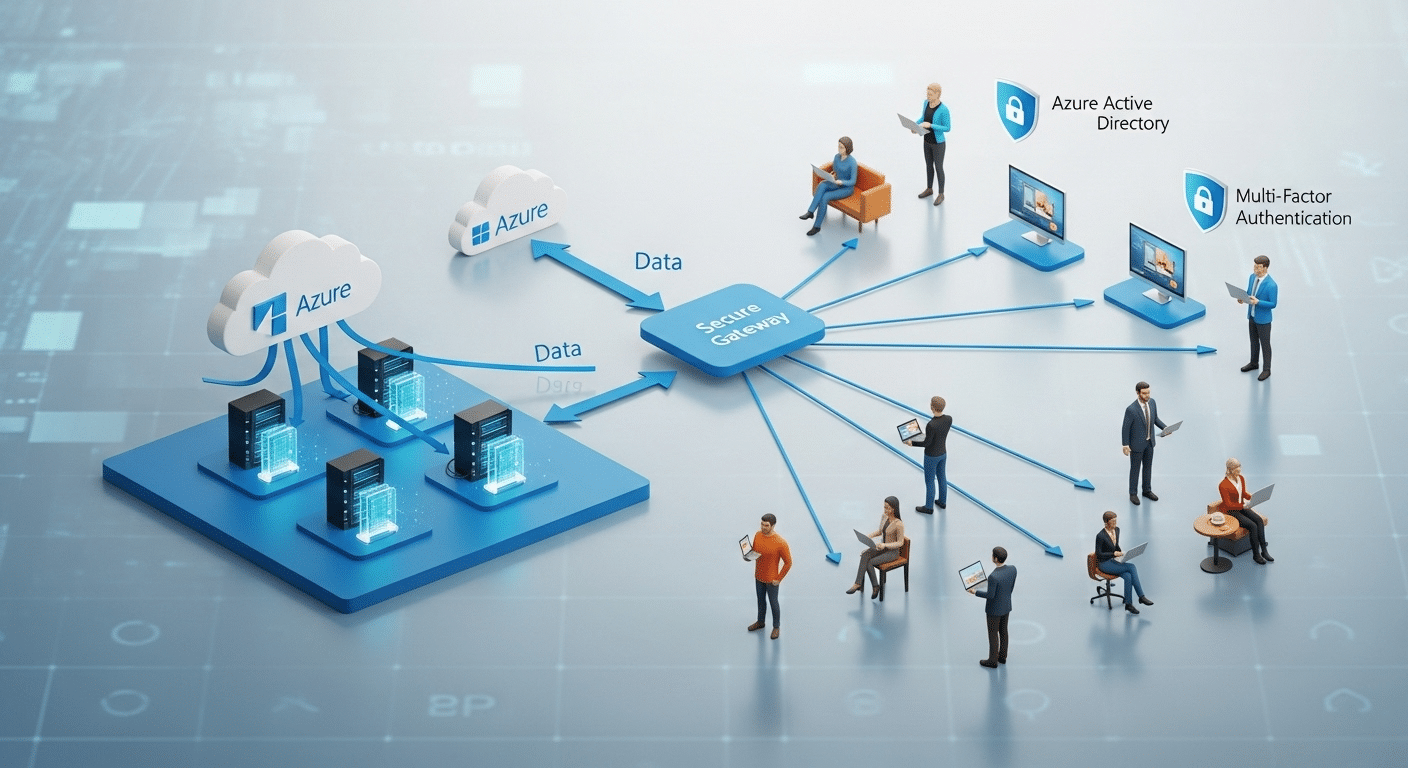
To understand how Azure Virtual Desktop works, it helps to look at its core components. Together, they form a desktop virtualization environment that delivers stability, scalability, and security.
Main Components of Azure Virtual Desktop:
- Control Plane: Managed by Microsoft Azure, this layer handles system operations—like user connections, broker services, and resource scaling, behind the scenes. You don’t have to manage it directly.
- Data Plane: This is where your desktops and apps live. It includes the resources hosted in your Azure environment, such as virtual machines, storage, and user profiles.
- Host Pools: Collections of one or more virtual machines that act as session hosts. Each pool can be configured for specific teams or departments.
- Session Hosts: These are the individual virtual machines where user sessions run. They deliver apps or full desktops to multiple users simultaneously.
- Azure Active Directory (Azure AD): Provides identity management and secure access, verifying each user before they connect.
- FSLogix Profile Containers: Store each user’s settings and files, ensuring that the desktop feels personal every time they log in.
In essence, AVD’s components work together to deliver a virtual desktop work environment that’s fast, consistent, and managed entirely through Azure, without traditional infrastructure complexity.
How Does the Azure Virtual Desktop Architecture Work?
The Azure Virtual Desktop (AVD) architecture is built for both performance and simplicity. At its core, it separates management from infrastructure, which means you control what users see and use, while Microsoft Azure quietly handles the underlying infrastructure.
The control plane, managed entirely by Azure, takes care of user authentication, resource allocation, and load balancing.
This ensures that every time someone connects to their desktop, the system knows where to route them. You never have to worry about managing these backend services, they’re built into the platform.
AVD uses a technology called reverse connect transport to make secure connections from the user’s device to the Azure-hosted virtual desktop.
Unlike older systems that required VPNs or direct line-of-sight to a server, reverse connect simplifies access and boosts security by allowing the session host to reach out to Azure first.
Once the connection is established, users interact with their desktops through the familiar Remote Desktop Protocol (RDP). It’s the same protocol Microsoft has used for years, but enhanced in AVD for a smoother, high-performance experience.
Together, this architecture creates a centralized server model that reduces complexity, improves access speed, and strengthens security, all without requiring you to manage the nuts and bolts.
How Do You Deploy Azure Virtual Desktop in Microsoft Azure?

Setting up Azure Virtual Desktop might sound complex, but with the right tools, it’s surprisingly straightforward, especially when using the Azure Portal, Microsoft’s web-based management console.
Here’s a simplified look at the deployment process:
- Create a Host Pool
Start by creating a host pool, a group of virtual machines that will deliver desktops or apps to users. This can be tailored for a single team or scaled to serve your entire organization. - Configure Virtual Machines
Choose the size and performance level of your VMs based on your users’ needs. You can configure everything from CPU to RAM, or use templates to save time. - Add Session Hosts
Add virtual machines to your host pool. These will run the actual sessions when users log in. - Create Custom Images (Optional)
If you want consistent environments across users, you can create custom images with pre-installed apps, settings, and policies. - Integrate with Azure Active Directory
This connects user identities and ensures only approved users can access desktops. It also supports single sign-on. - Connect to a Virtual Network
Link your AVD environment to a secure virtual network within your Azure subscription. This controls access to internal resources and the internet.
This cloud-native setup eliminates the need for on-site servers or complex installs. It’s scalable, flexible, and entirely managed in the Azure local environment, giving you full control without full responsibility.
How Do Users Connect and Access Virtual Desktops or Remote Apps?
Once everything’s set up, accessing Azure Virtual Desktop is intuitive for end users. They can log in using a variety of tools, depending on what works best for their device and situation.
Connection options include:
- Remote Desktop Client – A downloadable app available for Windows, Mac, Android, and iOS
- Web Access – Users can also sign in through a standard browser, no software required
After authentication via Azure Active Directory, users are routed to an available session host in the host pool, which launches either a full desktop or a specific remote app.
Because of multi-session capabilities, multiple users can share the same virtual machine while maintaining separate, secure sessions. The result is a consistent user experience across all platforms, with fast remote access and a responsive desktop interface, whether you’re working from a laptop, tablet, or thin client.
It feels like a local PC, but it’s powered by the cloud.
What Operating Systems and Applications Are Supported in AVD?

Azure Virtual Desktop (AVD) supports a flexible range of desktop operating systems to fit different user needs. You can deploy both:
- Windows 10/11 Enterprise multi-session – Allows multiple users to share a single virtual machine, helping reduce infrastructure costs while maintaining personal sessions.
- Windows Server desktops – Useful for traditional Remote Desktop Services (RDS) scenarios or when legacy apps require Windows Server environments.
In terms of applications, AVD supports a wide array of Microsoft apps, including the full Microsoft 365 suite (formerly Office 365)—Word, Excel, PowerPoint, Outlook, and Teams.
It also accommodates line-of-business apps, whether you’re using specialized finance tools, design software, or customer support platforms.
Thanks to AVD’s support for app virtualization, you can publish and stream individual apps without deploying a full desktop. But if you prefer, the platform also handles full desktop virtualization, giving users access to a complete desktop environment hosted in the cloud.
What Security Features Are Built into Azure Virtual Desktop?
Security is a core part of Azure Virtual Desktop’s architecture. It’s designed to meet modern security expectations while minimizing user friction.
Here’s how it keeps your environment secure:
- Data Encryption: All data, at rest and in transit—is encrypted by default, ensuring your information stays protected.
- Zero Trust Architecture: AVD assumes nothing is safe by default. Each login attempt must be verified, and each user/device combination is validated.
- Secure Access: Integration with Azure Active Directory enables conditional access policies and multi-factor authentication.
- Role-Based Access Control (RBAC): You can assign permissions based on user roles, so IT admins see admin tools, and end users don’t.
- Session Isolation: Even when multiple users share the same virtual machine, their sessions and data are completely separated.
It also connects easily with Microsoft Defender and other security services to provide ongoing threat detection and response, keeping your virtual desktops inside a secure environment at all times.
How Does Azure Virtual Desktop Deliver Cost Efficiency and Scalability?
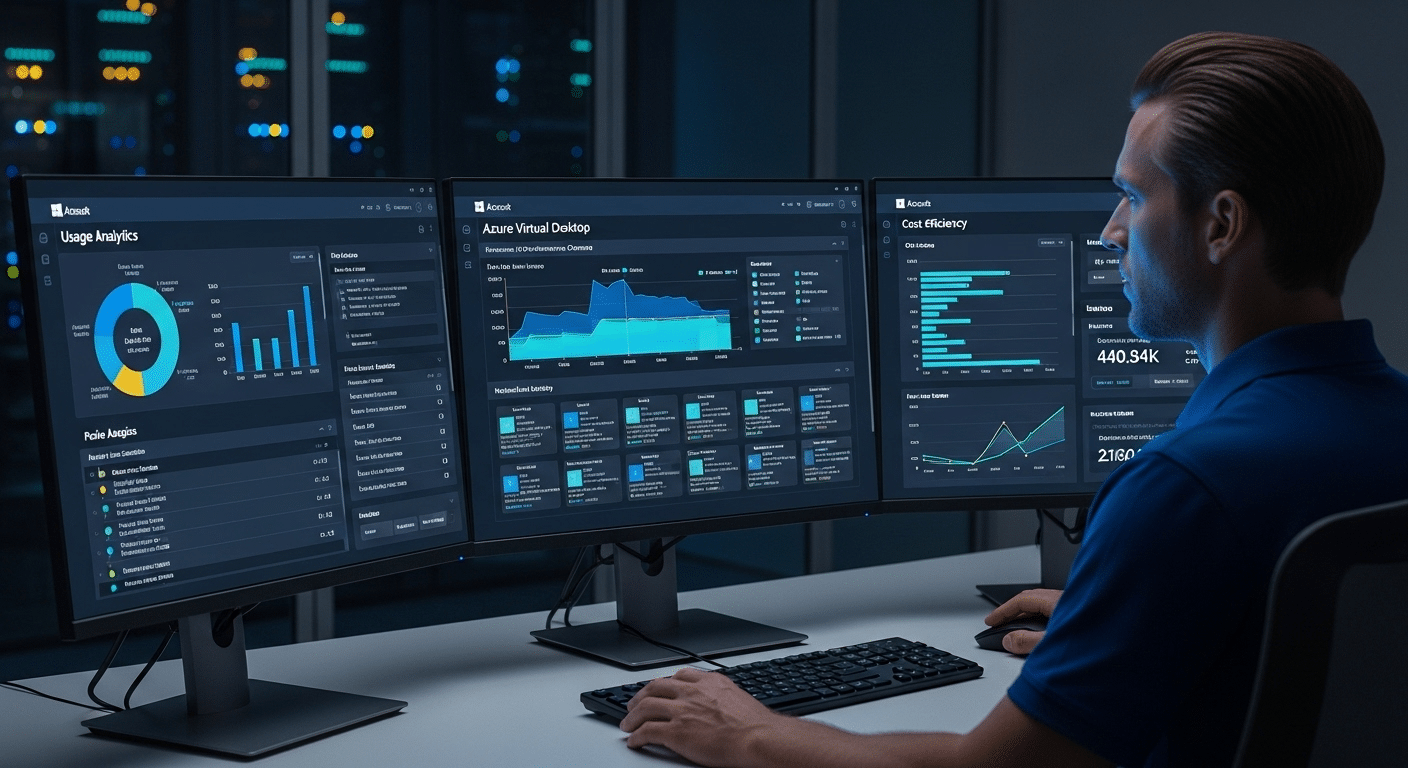
Azure Virtual Desktop is built for cost control. Instead of overprovisioning physical hardware, you scale your environment based on actual usage, making it a scalable solution with predictable costs.
Here’s how AVD keeps expenses in check:
- Multi-Session Capabilities: A single virtual machine can support multiple users, which reduces the number of VMs you need to run. This significantly lowers infrastructure costs.
- Elastic Scaling: You can scale up during peak usage (e.g., seasonal staff or student exams) and scale down when demand drops.
- Pay-as-You-Go Pricing: Since it’s part of public cloud services, you pay only for what you consume, no need to invest in or maintain physical hardware.
AVD gives you enterprise-grade performance with consumer-level simplicity, allowing IT teams to support dynamic needs without overspending. Whether you’re a small business or a large institution, the cost efficiency of Azure Virtual Desktop can help stretch your budget while maintaining high service levels.
What Insights and Management Tools Are Available in AVD?
Managing a virtual desktop environment at scale requires visibility, and Azure Virtual Desktop delivers with built-in tools that provide real-time insights and automation capabilities.
- Azure Virtual Desktop Insights: This is a powerful dashboard integrated into Azure Monitor. It helps you track core metrics like session performance, connection health, login times, and user behavior. You can easily spot bottlenecks or underused resources and take action fast.
- REST API: For advanced needs, the AVD REST API lets you automate workflows, integrate with third-party tools, and even build custom management dashboards. It gives developers and IT admins fine-grained control over how desktops are provisioned and maintained.
- Management Tools: From the Azure Portal, you can manage virtual desktops, session hosts, and user access in a centralized place. It’s easy to scale, update images, reboot VMs, or assign users, all without jumping between tools.
These features make it easier to manage desktops efficiently while unlocking advanced capabilities for organizations that want more control and automation.
Can Azure Virtual Desktop Be Used in Multi-Cloud or Hybrid Deployments?

Yes, Azure Virtual Desktop is designed to work across both cloud and hybrid environments. While it’s optimized for the Azure cloud, you can connect it with on-premises data centers and existing virtual desktop infrastructure, making it flexible for a range of IT strategies.
This is especially useful for multi-cloud deployments or enterprise multi environments with diverse workloads. Whether you’re transitioning gradually from legacy systems or balancing between cloud and local systems, AVD adapts to your infrastructure without forcing a full migration all at once.
Why Apporto Might Be a Better Fit for Many Organizations
Azure Virtual Desktop is a powerful, flexible platform, but it can be complex and costly to manage, especially without deep Azure expertise.
Apporto offers a simpler path.
It’s a fully managed virtual desktop service that eliminates the need to configure host pools, session hosts, or virtual machine setups. Everything runs directly in the browser, with no downloads, installs, or VPNs required.
Designed for education and SMBs, Apporto combines predictable pricing, strong performance, and excellent support, without the burden of building your own cloud environment.
If Azure feels too heavy for your needs, Apporto delivers the benefits of virtual desktops with far less overhead. Try Apporto
Final Thoughts
Azure Virtual Desktop is a secure, flexible, and scalable solution that can support everything from small remote teams to large enterprise deployments. It shines when you need full control, deep integration with the Azure ecosystem, and the ability to scale workloads dynamically.
However, for organizations looking for fewer technical hurdles, a faster setup, and a more streamlined virtual desktop experience, alternatives like Apporto might deliver more value with less effort.
Ultimately, the right solution depends on your goals, your team’s technical capacity, and your users’ needs. Take time to evaluate not just what the platform can do, but also what it requires from you to get there.
Frequently Asked Questions (FAQs)
1. What is Azure Virtual Desktop used for?
AVD enables organizations to deliver secure, cloud-based Windows desktops and apps to users from virtually anywhere.
2. How is it different from Windows 365?
Windows 365 offers fixed, persistent cloud PCs for each user. AVD, in contrast, allows multiple users to share virtual machines and supports broader customization.
3. Can multiple users access the same virtual machine?
Yes. AVD supports multi-session capabilities, allowing multiple users to access a single virtual machine while maintaining isolated sessions.
4. What is a host pool in Azure Virtual Desktop?
A host pool is a collection of Azure virtual machines that serve desktops or apps to users. It’s a core building block of the virtual desktop environment.
5. Does Azure Virtual Desktop require Windows Server?
Not always. You can use Windows 10/11 Enterprise multi-session or Windows Server operating systems, depending on your licensing and use case.
