
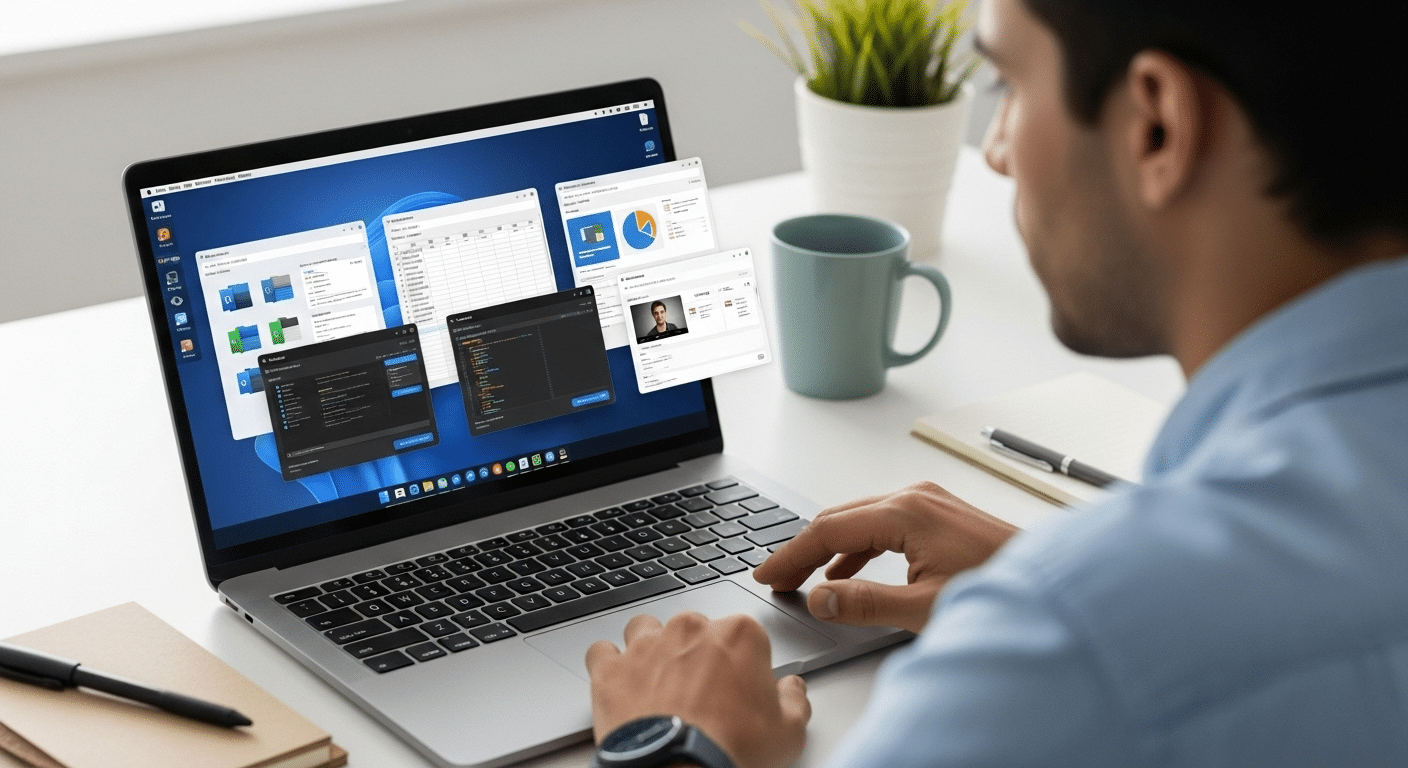
Which Version of Windows Supports Virtual Desktops?
Windows 10 and Windows 11 both support native virtual desktops through Microsoft Task View, allowing users to organize multiple workspaces on a single device. For cloud-hosted environments, platforms like Apporto provide secure remote desktop access, centralized management, and cross-device compatibility for modern hybrid work.
Modern work rarely happens on a single device anymore. You move between laptops, desktops, and cloud platforms, yet the expectation remains the same: secure access to applications, files, and data without losing performance.
That’s where virtual desktops come in. A Windows virtual desktop allows you to access a full desktop environment from almost anywhere while keeping your data centralized and protected.
Both organizations and individual users rely on these environments to maintain productivity across devices and operating systems. Whether you’re working locally on a laptop or connecting through the cloud, virtual desktops make the experience consistent and manageable.
In this blog, you’ll learn which version of Windows supports virtual desktops, how the feature has evolved across Windows 10 and Windows 11, and how cloud platforms like Azure Virtual Desktop fit into the modern desktop strategy.
What Are Virtual Desktops in Windows and How They Work?
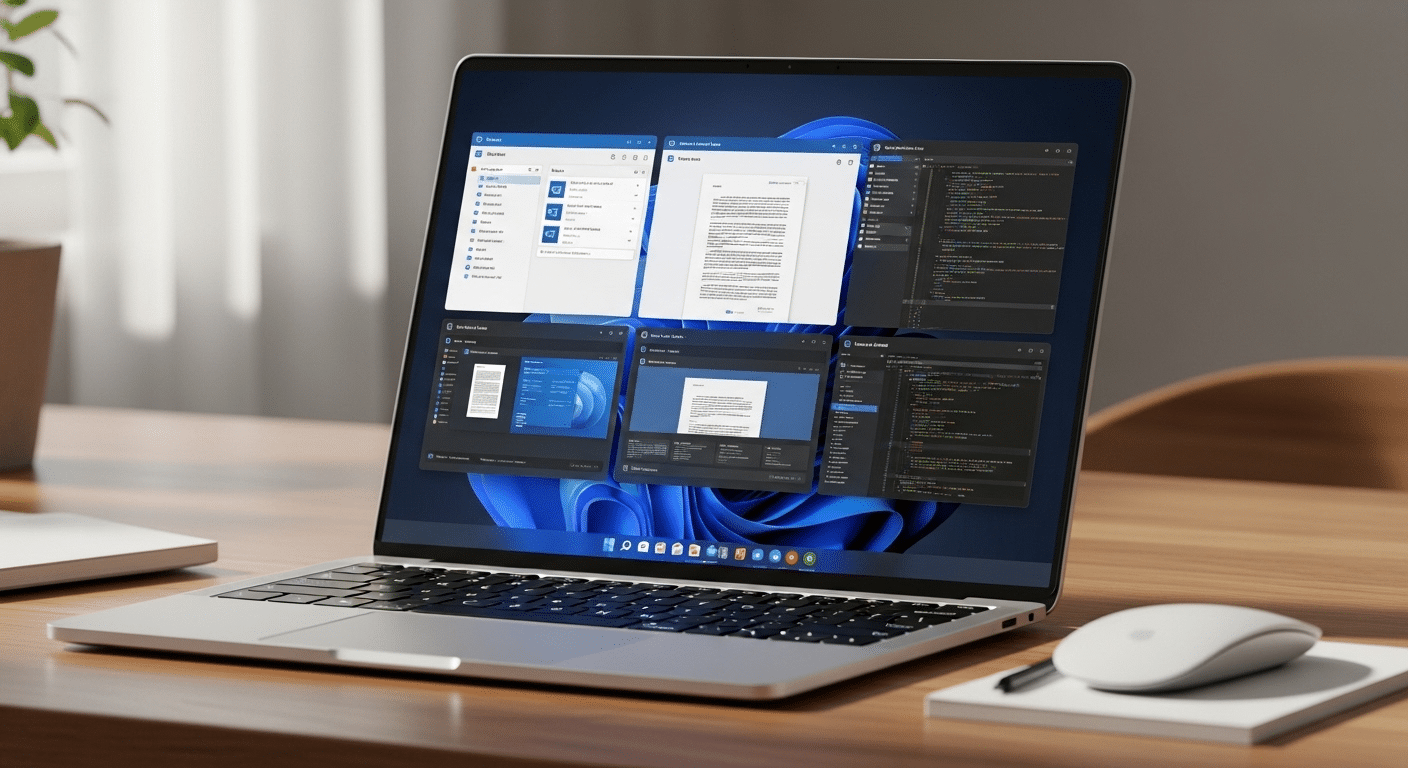
To understand which version of Windows supports virtual desktops, it helps to first look at what the feature actually is. Microsoft introduced native virtual desktops in Windows 10, packaged inside a tool called Task View.
Think of it as a simple way to create multiple workspaces inside a single operating system. One desktop for email, another for documents, maybe another for testing software. Same computer, same system, different spaces to work.
Everything still runs on the same machine. The operating system manages it quietly in the background. No complicated setup. Just a cleaner way to organize tasks and keep distractions under control.
There is also an important distinction to keep in mind. Local virtual desktops, like those built into Windows 10 and Windows 11, run directly on your device. By contrast, cloud-based virtual desktop infrastructure, such as Azure Virtual Desktop, runs desktops on remote servers where users log in through a network connection.
Both approaches support productivity, though they serve slightly different needs.
Main aspects of Windows virtual desktops are:
- Multiple desktop environments
- Keyboard navigation
- Task View access
- Application persistence
Which Version of Windows Supports Virtual Desktops Natively?
which version of Windows supports virtual desktops natively? The short answer is straightforward. Native virtual desktops first appeared in Windows 10, released by Microsoft in 2015. The feature arrived as part of Task View and allowed users to create and manage multiple desktops directly inside the operating system.
Before that release, things were less convenient. Older versions of Windows could still mimic the idea of multiple desktops, but only through third-party software. Those tools worked, sometimes surprisingly well, but they were never built into the system itself. Compatibility could vary, and the experience often felt bolted on rather than fully integrated.
With Windows 11, Microsoft kept the virtual desktop feature and refined it. The newer operating system improved usability, added visual customization, and strengthened compatibility with modern hardware and multi-monitor setups.
Here’s a quick comparison across major Windows versions:
Windows Versions That Support Native Virtual Desktops
| Windows Version | Virtual Desktop Support | Notes |
|---|---|---|
| Windows 11 | Yes | Improved interface and stronger multi-monitor support |
| Windows 10 | Yes | Introduced Task View and native virtual desktops in 2015 |
| Windows 8 / 8.1 | No | Required third-party software to simulate desktops |
| Windows 7 | No | No built-in support for virtual desktops |
In practice, Windows 10 and Windows 11 remain the primary operating systems supporting native virtual desktops today.
How Did Windows 11 Improve the Virtual Desktop Experience?
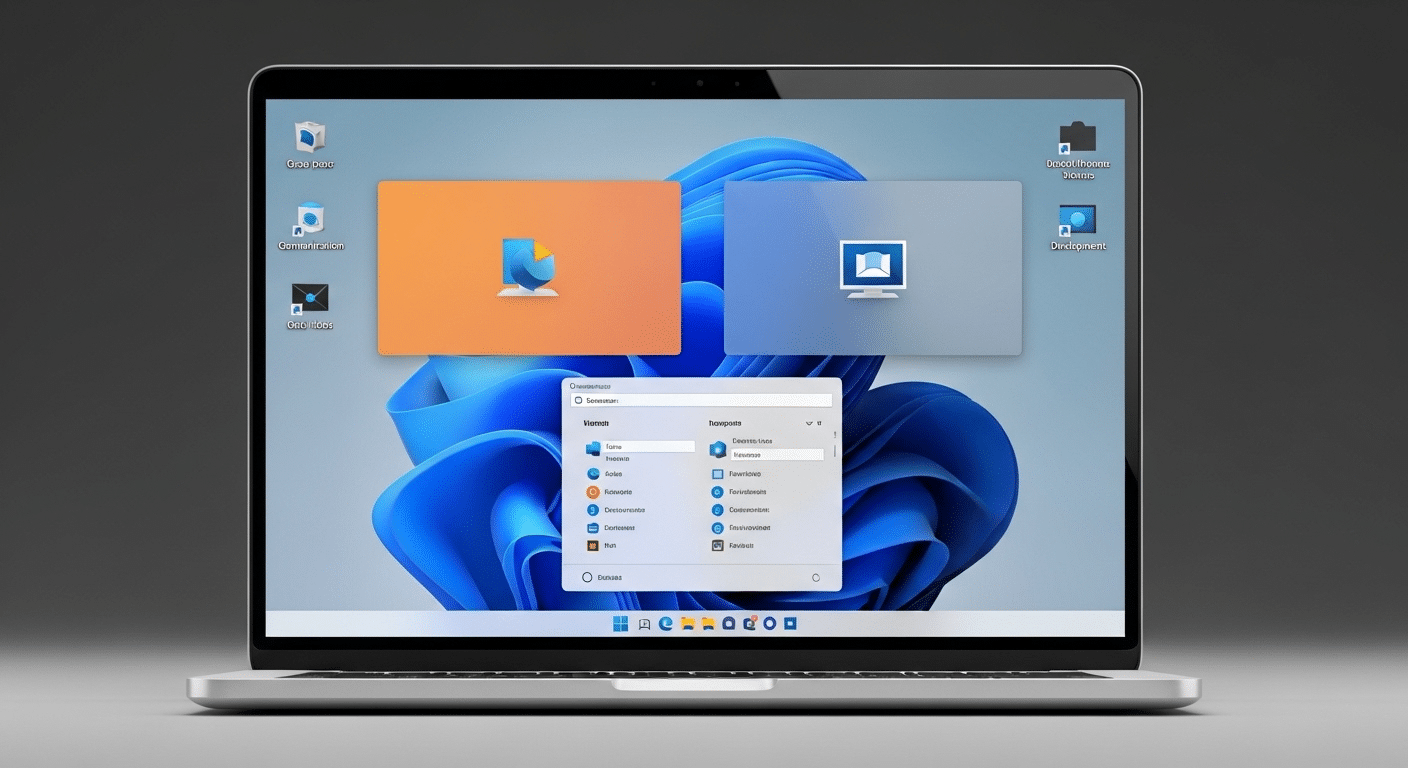
Windows 10 introduced virtual desktops, but Windows 11 refined the experience in several ways. Microsoft focused on usability first. The interface feels calmer, more organized, and easier to navigate when multiple desktops are running at the same time.
Small visual adjustments help here. The centered taskbar, rounded window corners, and smoother animations make the environment feel less crowded, even when several desktops are active.
One improvement that many users notice quickly is customization. In Windows 11, each virtual desktop can display its own background image.
That might sound cosmetic, but it actually helps people separate tasks mentally. One desktop for communication tools. Another for documents. Another for testing apps or reviewing data.
Behind the scenes, there were also important performance updates. During testing, Windows 11 performed almost identically to Windows 10 across most benchmarks. The differences were minor, but still interesting.
Windows 11 used slightly more memory, while at the same time requiring less CPU during the logon process. That improvement means users often experience faster and smoother logins.
These changes did not radically reinvent virtual desktops. Instead, Windows 11 focused on polishing what already worked, improving performance, and making everyday use feel more natural.
What Happens When Windows 10 Reaches End of Support in 2025?
Every operating system eventually reaches a point where regular maintenance stops. For Windows 10, that moment arrives in October 2025, when Microsoft officially ends standard support. After that date, the operating system will no longer receive routine security updates through Windows Update. For organizations running large desktop fleets or virtual desktop environments, this deadline carries real consequences.
Without ongoing updates, systems gradually become harder to secure and maintain. Many organizations are already evaluating how their desktop infrastructure will evolve once support ends. Some are planning upgrades to Windows 11, while others are reviewing cloud-based environments such as Azure Virtual Desktop to keep their systems current and manageable.
There is a partial safety net. Azure virtual machines running Windows 10 may still qualify for Extended Security Updates, often called ESU, if the environment is correctly configured. These updates extend security coverage for a limited time, buying organizations breathing room while migration plans take shape.
Even with that option available, most IT teams see 2025 as a firm signal. Modernizing desktop environments, especially those supporting virtual desktops, has become a priority rather than a future consideration.
How Does Azure Virtual Desktop Support Windows Virtual Desktops?

Local virtual desktops are useful for organizing work on a single machine. But large organizations often need something bigger, something that allows hundreds or even thousands of users to connect to a desktop from anywhere. That is where Azure Virtual Desktop (AVD) comes into the picture.
Azure Virtual Desktop is Microsoft’s cloud platform designed for virtualizing Windows operating systems inside Azure infrastructure. Instead of running a desktop on a local computer, the desktop is hosted in Azure on virtual machines (VMs). Users simply log in and start working while the heavy lifting happens in the cloud.
At the core of this system are session hosts, which are virtual machines responsible for delivering the desktop experience. In AVD environments these are often called AVD session hosts, and they manage the session for each connected user. Organizations can deploy these hosts using preconfigured virtual machine images, allowing identical desktops to be deployed quickly and consistently.
AVD also supports multi-session Windows environments, where multiple users share the same system resources efficiently. Businesses can deploy pooled desktops for shared access or personal desktops dedicated to individual users.
To connect, users typically need Windows 10 or Windows 11 Enterprise, ensuring compatibility with Azure Virtual Desktop sessions while maintaining security and scalability.
Azure Virtual Desktop vs Windows 365: What’s the Difference?
As organizations explore cloud-hosted desktops, two Microsoft platforms often appear side by side Azure Virtual Desktop and Windows 365. Both services run on Microsoft’s Azure cloud technologies and allow users to access Windows desktops remotely. From the end user perspective, the experience can look nearly identical. You log in, launch a desktop, and start working.
Under the surface, though, the platforms operate quite differently, particularly in how infrastructure, pricing, and management are handled.
Differences Between Azure Virtual Desktop and Windows 365
| Feature | Azure Virtual Desktop | Windows 365 |
|---|---|---|
| Pricing Model | Consumption-based | Fixed monthly |
| Infrastructure | Customer Azure subscription | Microsoft managed |
| Multi-session support | Yes | No |
| Scalability | Auto-scaling supported | Fixed resources |
| Cost optimization | Possible through scaling | Predictable cost |
With Azure Virtual Desktop, organizations deploy and manage the infrastructure inside their own Azure subscription. That model offers strong scalability, allowing environments to expand or contract based on usage. It can also reduce overall cost when workloads fluctuate.
Windows 365, on the other hand, focuses on simplicity. Microsoft manages the infrastructure entirely, and customers pay a predictable monthly price for each Cloud PC. The trade-off is flexibility. Windows 365 simplifies management, while Azure Virtual Desktop typically provides greater control and customization.
How Do Virtual Desktops Improve Productivity for Organizations?
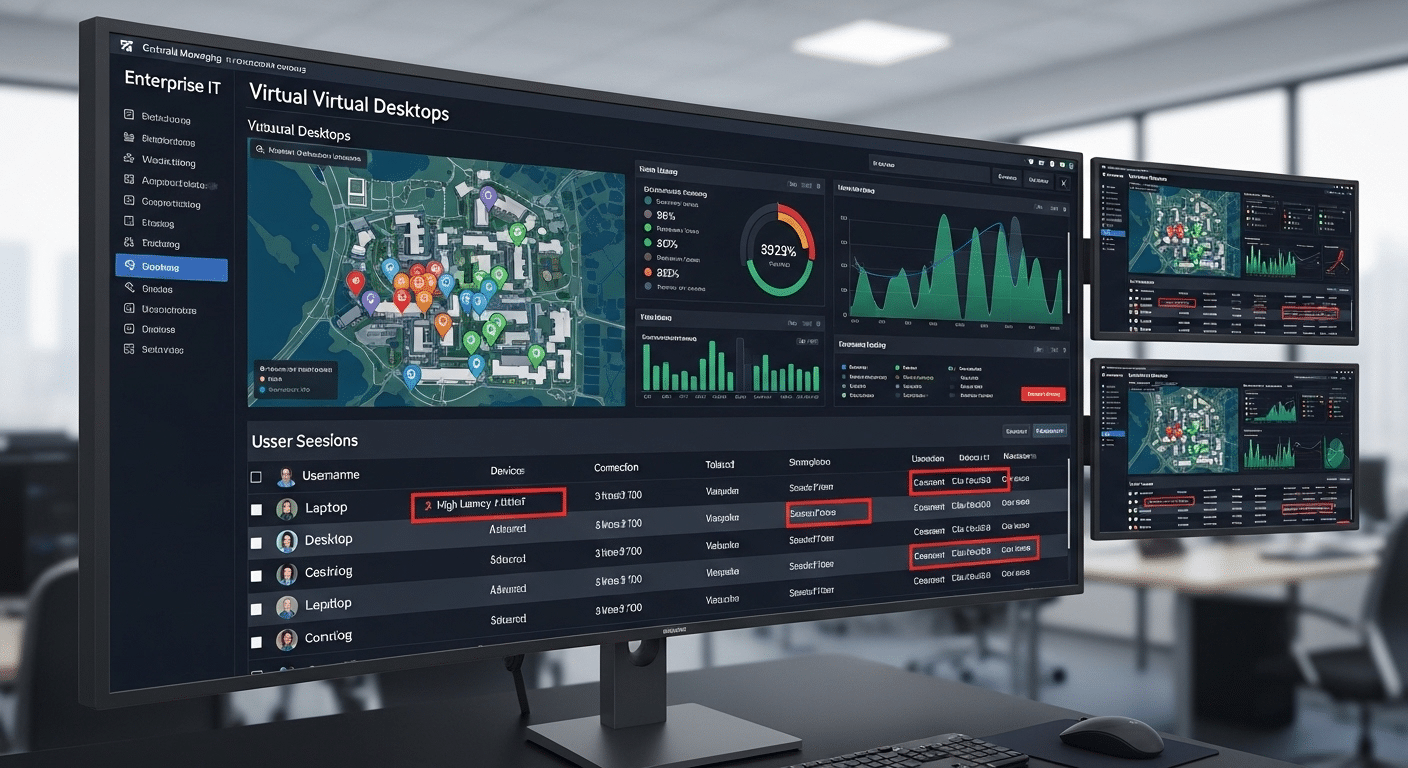
When organizations adopt virtual desktops, the goal usually goes beyond convenience. The real advantage shows up in productivity, security, and centralized management. Instead of maintaining hundreds of individual computers with different configurations, IT teams can manage desktops from a single environment.
Updates, application deployments, and security policies can all be controlled centrally, which saves time and reduces operational friction.
Another benefit is consistency. Virtual desktop environments allow organizations to deliver the same desktop experience across multiple devices, whether employees connect from laptops, office workstations, or remote systems.
That consistency matters. Fewer configuration differences means fewer technical problems and less downtime for users.
Advantages of virtual desktops include:
- Centralized desktop management allows IT teams to maintain and update systems from one place instead of managing individual devices.
- Secure access to business applications ensures users can connect safely while sensitive data stays within controlled environments.
- Consistent environments for users provide identical desktops across devices, reducing confusion and support requests.
- Improved scalability for growing organizations allows infrastructure to expand as new users and workloads appear.
Why Many Organizations Are Moving Toward Cloud-Based Virtual Desktop Platforms?
Not long ago, most virtual desktop environments lived inside company data centers. Rows of servers, carefully maintained infrastructure, and plenty of manual oversight. That model still exists, but more organizations are now leaning toward cloud-based virtual desktop platforms for a simpler reason. Flexibility.
Cloud infrastructure makes it easier to scale environments without rebuilding the entire system each time demand changes. If a team grows or a project suddenly requires more computing power, additional capacity can be added quickly. No hardware installation, no waiting for new equipment to arrive.
Cost control is another driver. Cloud platforms allow organizations to pay for resources as they are used, which can be more cost effective than maintaining idle servers. At the same time, centralized cloud management simplifies updates, monitoring, and system configuration.
Hybrid work also plays a role. Employees now connect from offices, homes, and temporary workspaces. Platforms such as Azure Virtual Desktop help organizations support this model by scaling desktop capacity based on real usage demand.
Why Apporto Is a Simpler Alternative to Traditional Virtual Desktop Infrastructure?

Traditional virtual desktop infrastructure can work well, but it often requires careful configuration, dedicated infrastructure, and ongoing maintenance. That complexity is exactly why many organizations start looking for simpler alternatives. Apporto takes a different approach.
Apporto delivers virtual desktops through a browser-based platform, which removes one of the biggest friction points in many VDI environments, client installation. Users simply open a browser, log in, and access their desktop. No extra software, no complicated setup steps.
Security is built into the service as well. Apporto follows a Zero Trust security model, which helps ensure that every connection is verified before access is granted.
At the same time, the platform supports cross-device compatibility, so users can connect from laptops, tablets, or other systems without changing their workflow. Deployment is also faster. Organizations can roll out desktops quickly without building complex infrastructure.
Final Thoughts
Virtual desktops have come a long way in the Windows ecosystem. Windows 10 introduced native virtual desktops, giving users the ability to create and manage multiple workspaces directly within the operating system. Windows 11 refined the experience, improving usability, interface design, and security features that make daily workflows smoother.
For larger organizations, Azure Virtual Desktop extends the concept further, allowing full desktop environments to run in cloud infrastructure and scale for thousands of users.
The right choice ultimately depends on your environment. Before upgrading or migrating, take time to evaluate compatibility, security requirements, and infrastructure capacity to ensure the platform supports both current needs and future growth.
Frequently Asked Questions (FAQs)
1. What version of Windows supports virtual desktops?
Native virtual desktops are supported in Windows 10 and Windows 11. The feature first appeared in Windows 10 through Task View and continues to be supported and improved in newer Windows versions.
2. Can Windows 10 still run virtual desktops after 2025?
Yes. Windows 10 will still function after its end of support in 2025. However, it will no longer receive regular security updates, which may affect long-term stability and security for organizations.
3. Does Windows 11 offer better virtual desktop performance?
Testing shows that Windows 11 performs very similarly to Windows 10 in most scenarios. However, it improves the user experience with better desktop organization, interface design, and slightly improved system efficiency.
4. What is Azure Virtual Desktop used for?
Azure Virtual Desktop is Microsoft’s cloud-based service for delivering Windows desktops and applications remotely. It allows organizations to host desktops in Azure infrastructure and provide secure remote access for users.
5. What’s the difference between Azure Virtual Desktop and Windows 365?
Azure Virtual Desktop uses a consumption-based model with customizable infrastructure, while Windows 365 offers fixed monthly pricing with Microsoft-managed infrastructure and dedicated Cloud PCs for individual users.
6. Do virtual desktops improve productivity?
Yes. Virtual desktops help organize tasks, centralize desktop management, and deliver consistent environments across devices. This reduces configuration issues and allows organizations to maintain smoother workflows for their users.
