

How Do You Set Up a Virtual Desktop?
To set up a virtual desktop, open Task View in Windows, create a new desktop, organize apps into separate workspaces, and switch between desktops using shortcuts. For a simpler browser-based option, platforms like Apporto provide virtual desktops without manual installation or configuration.
A virtual desktop gives you the freedom to separate tasks, organize apps, and manage your screen layout in ways a single desktop cannot. Instead of clutter, you get clean, focused workspaces designed for different needs.
Whether you’re running Windows 10, exploring productivity tools, or setting up a gaming environment with an Oculus headset, knowing how to set up virtual desktop properly can make daily work and play smoother. The right setup improves system performance, reduces distractions, and creates space for efficiency.
In this guide, you’ll learn step-by-step how to use, configure, and manage virtual desktops. From adjusting settings to moving apps across screens, you’ll get practical tips to customize your workflow and even play in VR with confidence.
What Is a Virtual Desktop and Why Would You Use One?

A virtual desktop allows you to create multiple, independent desktops on a single computer. Instead of working with one cluttered screen, you can switch between separate spaces, each organized for specific tasks.
This feature is built directly into Windows 10 and Windows 11, letting you easily manage apps, windows, and workflows without additional software. For example, you might keep a desktop for work emails, another for creative projects, and a third for gaming or entertainment.
Beyond Windows, tools like the Virtual Desktop app for Oculus Quest extend the concept into VR setups, where you can play games, stream, or run productivity apps inside a headset.
Whether you’re running multiple apps, testing software, or balancing personal and professional tasks, a virtual desktop helps you keep your monitor organized and your time focused. It’s a simple setup that delivers big benefits.
What Do You Need to Set Up a Virtual Desktop?
Before you begin, it’s important to make sure your system meets the requirements for a smooth virtual desktop setup.
For Windows Users
- A supported version of Windows 10 or newer
- Enough monitor resolution and screen space to handle multiple desktops
- A modern laptop or desktop computer capable of running multiple apps without lag
- Updated settings and drivers for performance and stability
For Oculus Quest / VR Users
- Install the Virtual Desktop app on your headset
- A link cable (for wired use) or a strong wireless network for streaming
- The latest system version of Oculus software running on both PC and headset
- Ensure your laptop or desktop is properly connected to the same network
It’s also wise to check for system updates, adjust display settings, and verify your network connection before starting. A little preparation helps prevent glitches during the actual setup.
How to Set Up Virtual Desktop in Windows 10 or 11
Setting up a virtual desktop in Windows 10 or Windows 11 is straightforward and takes just a few clicks.
Step-by-Step Setup
- Press Win + Tab or right click the taskbar and select Task View.
- In the Task View interface, click “New Desktop.” This creates a new, empty workspace.
- Open apps in the new desktop and arrange them as you want.
- To move an app between desktops, go back into Task View, right click the app window, and select Move to another desktop.
- You can also right click a desktop preview to close or rename it.
Tips for Use
- Separate your apps by purpose: one desktop for work tools, another for games, and a third for creative software.
- Use keyboard shortcuts like Ctrl + Win + Left/Right to switch quickly between desktops.
- Check your display settings if the desktops don’t show correctly on your screen.
Knowing how to set up virtual desktop properly can transform the way you use your computer, keeping tasks cleaner and more organized. It’s a flexible setup that works whether you want to work, play, or multitask.
How to Set Up a Virtual Desktop for Gaming and Oculus VR
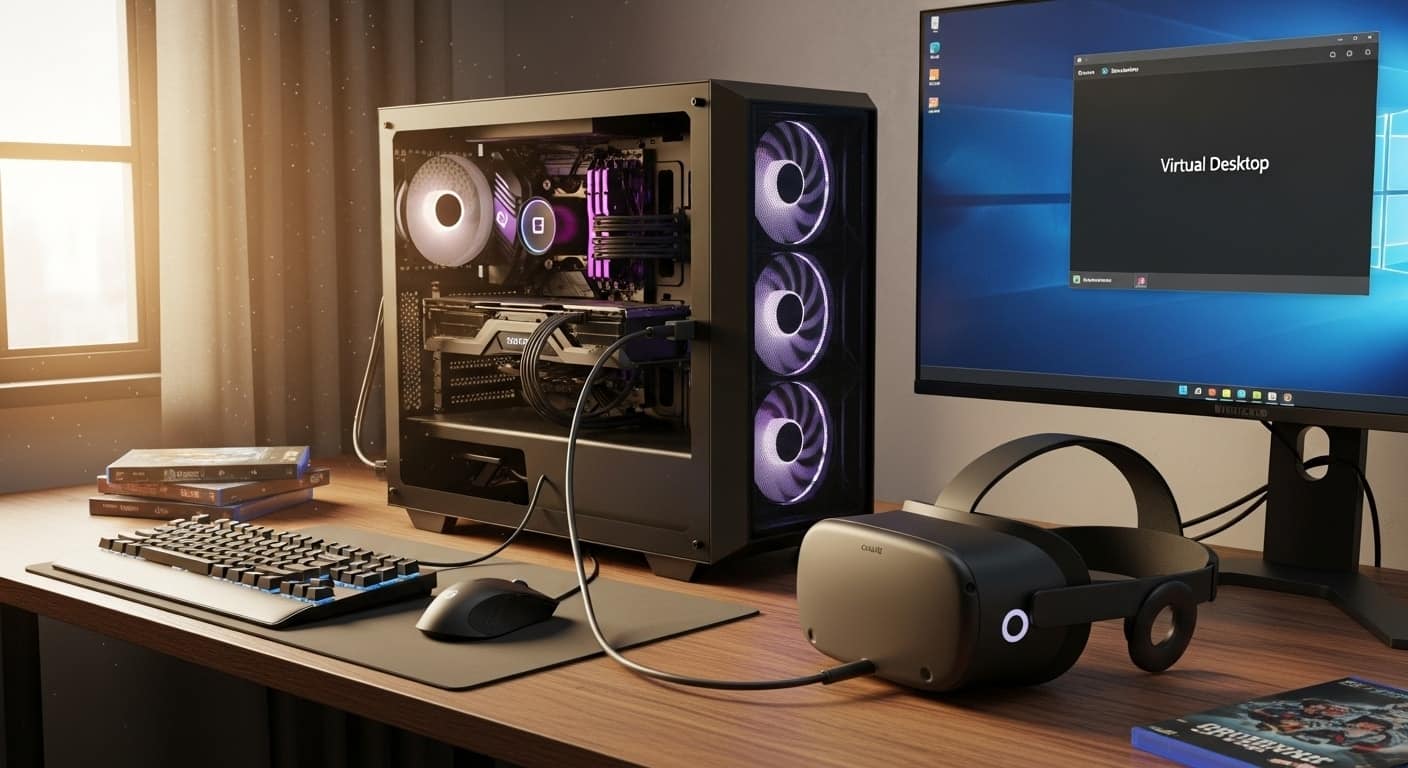
If you’re a gamer or VR enthusiast, the Virtual Desktop app extends the idea of multiple desktops into immersive environments.
Getting Started
- Download and install the Virtual Desktop app from the Oculus Store on your Quest headset.
- On your Windows 10 PC, install the companion software required for syncing.
- Connect your Oculus Quest using a Link cable for wired stability, or set up a wireless connection through your home network.
- Open the Virtual Desktop app on the headset, mirror your monitor, and launch your game or VR application.
Things to Check
- Make sure your PC is running the latest software version.
- Ensure your headset and PC are on the same fast, stable network.
- For the best experience, use a high-quality cable if wireless isn’t smooth.
With the right setup, you can play PC VR games or stream content seamlessly, turning your screen into a fully immersive environment.
Best Ways to Manage Virtual Desktops Efficiently
Once you’ve set up multiple desktops, the next step is learning how to manage them efficiently. A few small habits can save time and keep your system running smoothly.
- Right click on a desktop thumbnail in Task View to rename, close, or rearrange it. This small feature helps you stay organized.
- Use keyboard shortcuts like Ctrl + Win + Left/Right to move quickly between desktops without using the mouse.
- Assign each desktop a purpose: one for YouTube or streaming, another for work apps, and one dedicated to games.
- Regularly check your settings and disable startup programs you don’t use. Fewer background apps means less lag and a cleaner screen.
- For performance, close unneeded apps running in the background. Even freeing up a bit of memory can make switching desktops feel faster.
Simple adjustments like these give you better control and improve the overall desktop experience.
Troubleshooting Virtual Desktop Setup Problems
Even with a smooth setup, issues can happen. Sometimes apps won’t open, desktops freeze, or switching doesn’t work as expected.
Common Fixes
- Check your settings: verify Task View is enabled and your system is up to date.
- Try restarting your computer. A reboot clears temporary glitches.
- If layouts look strange, go back to the default desktop and rebuild from there.
For VR Users
- Confirm your Oculus Link is properly connected.
- Make sure your headset firmware and companion software are the latest version.
- Test your network connection — lag often comes from unstable wireless.
Extra Help
- YouTube tutorials can show step-by-step solutions visually.
- Community forums and official support pages often help with device-specific problems.
- If you still see errors, think about reinstalling the Virtual Desktop app or resetting your configuration.
Most problems are minor and resolved with a quick try, giving you a stable running environment again.
Looking for a Simpler Alternative?

Setting up a virtual desktop in Windows or Oculus can be powerful, but it’s not always straightforward. Between system requirements, network stability, and manual settings, the process can feel overwhelming.
That’s where Apporto comes in. Instead of worrying about cables, drivers, or configuration, Apporto delivers secure, high-performance virtual desktops directly in your web browser. No downloads, no complex setup — just open a link, log in, and use your apps.
It’s designed for education, SMBs, and organizations that want the benefits of desktop virtualization without the hassle of managing infrastructure. Try Apporto today and see how effortless a virtual desktop setup can be.
Conclusion
Once you know how to set up a virtual desktop, the process quickly becomes second nature. You can design separate spaces for games, multitasking, or focused work, and switch between them effortlessly.
Whether you’re using a laptop, a VR headset, or a multi-monitor desktop setup, the advantages are clear: more control, less clutter, and a smoother screen experience.
Take time to explore the available features, adjust your settings, and experiment with layouts until you find the flow that feels right. It’s a simple, effective way to improve productivity and enjoyment.
In the end, the right setup can make your daily computer use feel noticeably better.
Frequently Asked Questions (FAQs)
1. How to set up a virtual desktop on Windows?
To set up a virtual desktop on Windows, open Task View with Win + Tab, select New Desktop, and organize apps into separate workspaces. You can switch between desktops using keyboard shortcuts or Task View controls for easier multitasking.
2. Can I play games on a virtual desktop using Oculus?
Yes. Install the Virtual Desktop app on your Oculus Quest, then connect your headset via Link cable or a strong wireless network. Once connected, you can stream games directly from your PC screen.
3. Why can’t I see apps on my virtual desktop?
If your apps don’t show, make sure they’re running. Open Task View to see all desktops, and right click to move apps to the correct desktop screen. Check your settings if the issue continues.
4. Can you use virtual desktop on Oculus Quest 2?
Yes, you can use Virtual Desktop on Oculus Quest 2 by installing the app on the headset and connecting it to a compatible PC. It lets you stream desktop apps, play PC VR games, and access immersive environments.
5. Can you use virtual desktop with Oculus Link?
Yes, Virtual Desktop can be used alongside Oculus Link, depending on your setup. Oculus Link provides wired PC connectivity, while Virtual Desktop supports wireless streaming, giving users different options for accessing PC VR content.
