

What Is the Azure Virtual Desktop Client?
The Azure Virtual Desktop client is a Microsoft tool that provides secure access to cloud-hosted virtual desktops and applications from Windows, macOS, mobile devices, and web browsers. Organizations use it for remote work, centralized desktop management, and secure authentication. Browser-based platforms like Apporto offer a similar clientless approach to virtual desktop access.
The way you access your work environment has changed — possibly for good. As remote and hybrid work continue to define modern operations, having reliable access to your virtual desktop is no longer a luxury. It’s a necessity.
Whether you’re at home, in the office, or somewhere in between, the ability to securely connect to desktops and apps from any device ensures continuity, security, and productivity. This is exactly where the Azure Virtual Desktop client comes in.
With multiple options available — including desktop apps, web browser access, and mobile support — Microsoft gives you flexibility without compromise.
In this post, you’ll learn how each client works, how to install and connect, and what to expect in terms of features and user experience.
What Is the Azure Virtual Desktop Client?

The Azure Virtual Desktop client is the primary tool that allows you to connect securely to your virtual desktop and cloud-hosted applications through the Azure platform. Whether you’re working from a personal laptop, office machine, or mobile device, the client acts as the bridge between your device and your organization’s cloud-based resources.
Unlike a standard remote desktop client, which connects you to a physical machine or static virtual environment, the AVD client is designed to integrate seamlessly with Microsoft’s cloud. It gives you access to desktops and apps hosted in Azure — scalable, secure, and managed remotely by your IT team.
The Azure Virtual Desktop client supports multiple platforms:
- Windows
- macOS
- iOS/Android
- Web browsers like Chrome and Edge
This cross-device support means you can keep working no matter where you are — or what device you’re using.
What Are the Different Azure Virtual Desktop Client Options Available?
Microsoft offers several ways to connect to your Azure Virtual Desktop environment, depending on your device and how you work. Each client option provides a different balance of features, performance, and convenience.
Here’s a breakdown of the main client types:
| Client Type | Platform | Main Features | Best For |
|---|---|---|---|
| Desktop App | Windows/macOS | Full experience, local file and printer access | Office-based or power users |
| Web Client | All modern browsers (Chrome, Edge) | No installation, quick session launch | Light, occasional use |
| Mobile Client | iOS/Android | Touch-optimized UI, limited feature set | Mobile workers, field staff |
The desktop app provides the richest feature set, including access to local drives, multiple monitors, and device redirection. It’s the go-to choice for most enterprise users.
The web client, accessible through a web browser, is perfect for those needing instant access without installing software.
For those on the move, the mobile client delivers streamlined access with basic functionality, ideal for checking in while away from a desk.
These flexible options ensure the Azure Virtual Desktop client works for your workflow — not the other way around.
How Do You Download and Install the Azure Virtual Desktop Client?
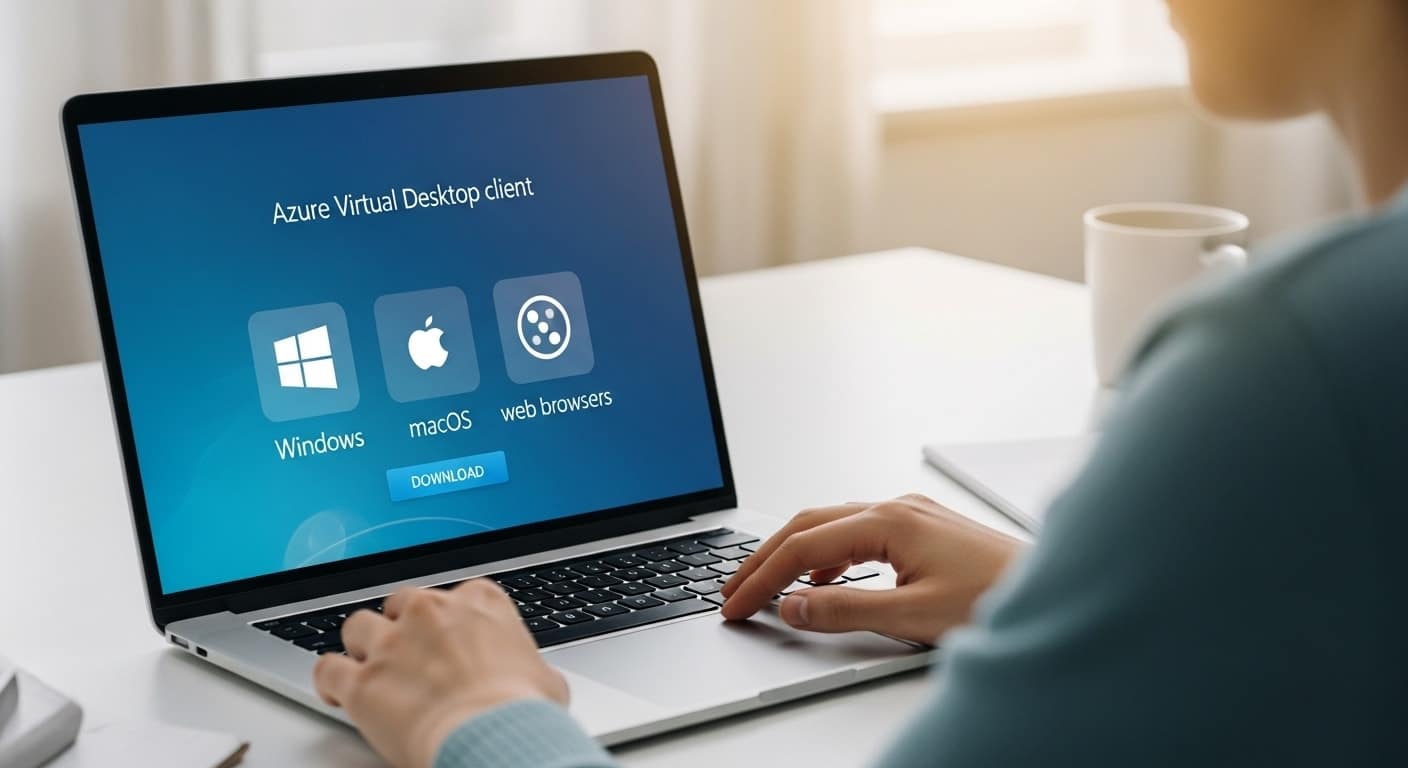
Getting started with the Azure Virtual Desktop client is straightforward, whether you’re using a Windows PC, a Mac, or just a browser. Here’s how to download and install it across platforms.
Windows/macOS Installation Steps:
- Visit Microsoft’s official Azure Virtual Desktop Client download page.
- Choose your operating system and download the software.
- Double-click the installer file and follow the installation wizard.
- Once installed, open the app from your Start Menu or Applications folder.
- You’ll be prompted to add a workspace — enter your work or school account credentials to proceed.
Web Client Access (No Installation Required):
If you prefer not to install any software, use the AVD web client:
- Navigate to https://client.wvd.microsoft.com/arm/webclient
- Sign in with your Microsoft 365 account
- Your workspace will load in the browser, and you can begin a session instantly
No matter which method you choose, installation is quick — and access to your virtual desktop is just a few clicks away.
How Do You Connect to Azure Virtual Desktop After Installation?
Once you’ve installed the Azure Virtual Desktop client, the next step is to connect to your workspace and start a session. The process is quick and user-friendly.
Using the Desktop Client (Windows/macOS)
- Launch the app from your desktop or applications menu
- Click “Subscribe” when prompted
- Sign in using your Microsoft 365 or Azure Virtual Desktop credentials
- The client will then fetch your assigned workspace, displaying a list of available desktops and apps
- Select what you need, then click to connect to your session
Using the Web Client (Browser-Based)
- Visit the AVD web client URL
- Sign in with your Microsoft account
- Choose your workspace from the list
- Click the available desktop or app, and your session will launch directly in the browser
You don’t need advanced technical knowledge — just your login credentials and internet access. From there, you can access your full virtual desktop environment in a matter of seconds.
What Features Should You Know About the Azure Virtual Desktop Client?
The Azure Virtual Desktop client comes packed with useful features that make remote access feel like working on a local machine. While functionality can vary slightly depending on the device you’re using, these are the core capabilities that enhance your virtual desktop environment:
- Multi-monitor support
Work across two or more screens just like you would on a physical computer. - Clipboard, printer, and local file access
Copy/paste between sessions, print to local devices, and access folders and files on your local desktop. - USB redirection (Windows app only)
Connect peripherals like webcams, smart card readers, or storage devices directly to your session. - Touch input support
On mobile devices, enjoy smooth gestures and tap-based navigation. - Full screen vs single app mode
Run the whole desktop or just one app in isolation — helpful for focused tasks or simpler workflows.
These resources help you manage work efficiently, no matter where you are or what device you’re on.
How Does the AVD Client Compare Across Devices Like Windows and macOS?
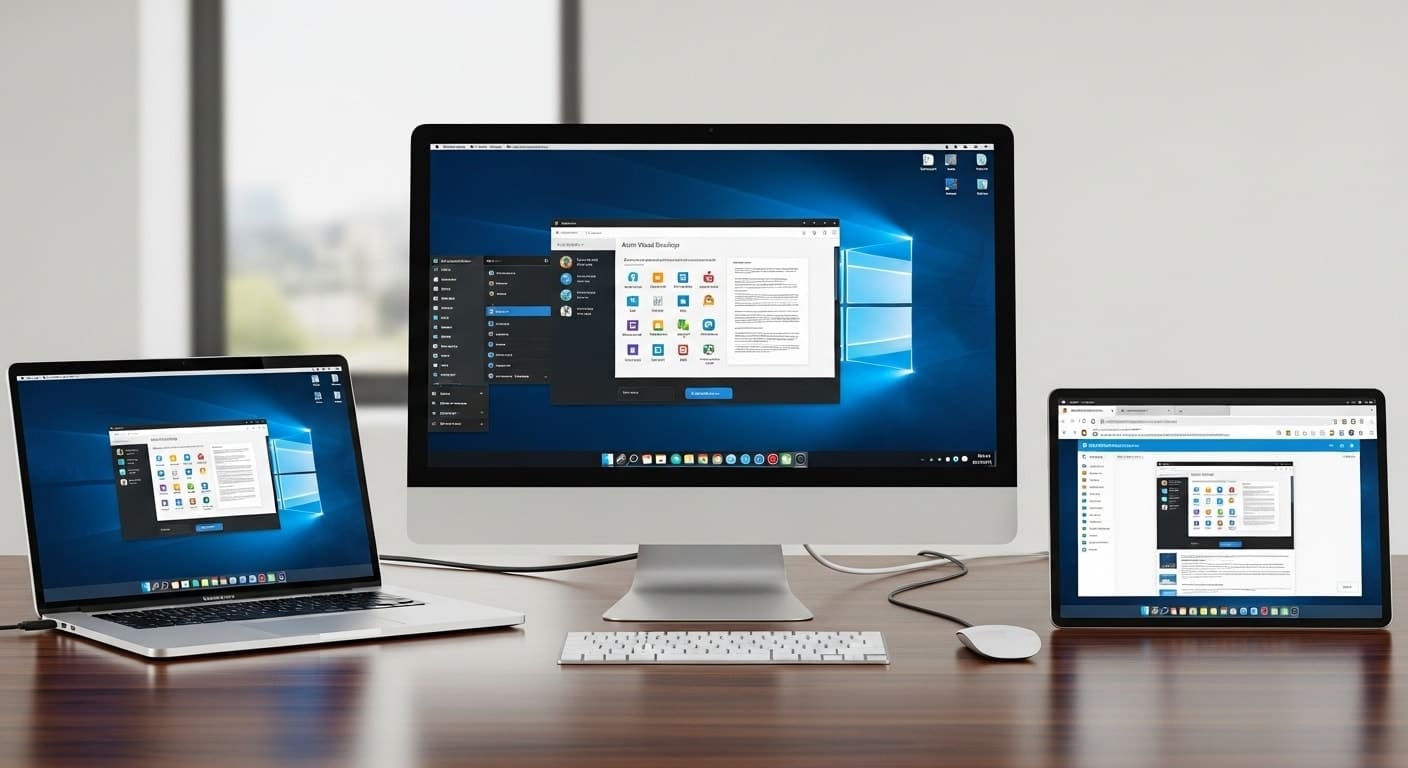
The Azure Virtual Desktop client delivers a consistent experience across platforms, but there are a few essential differences to keep in mind when using Windows, macOS, or the web client.
- On Windows devices, you get the most complete experience — including USB redirection, full access to local files, and the ability to open apps in a full desktop or single app mode.
- On macOS, most features are supported, but some advanced device redirection options are limited. You’ll still be able to access your files, use multiple monitors, and navigate between folders with ease.
- The web client, while incredibly convenient, doesn’t support things like clipboard integration, file transfer, or USB peripherals. But it’s perfect for fast access when you’re on a different device or don’t want to install software.
Take time to check the options for your platform. Choosing the right box — physical or virtual — can make all the difference in your day-to-day workflow.
What Are Common Troubleshooting Steps When the Client Doesn’t Work?
Even well-designed tools hit a snag sometimes. If your Azure Virtual Desktop client won’t open, connect, or load your desktop, a few quick steps can usually fix it.
Start here:
- Check your internet connection — a weak or unstable network is a common culprit
- Review your firewall settings to make sure the client isn’t being blocked
- Update the client to the latest version — older versions may fail after updates on the backend
- Try removing and re-adding your workspace from the client interface
- Sign out and sign back in — it resets session tokens and resolves stale login issues
- If you’re using the web client, clear your browser cache or try a different browser
Still stuck? See the logs or error messages for clues, and check Microsoft’s support pages for known issues.
A few minutes of troubleshooting can often save hours of confusion — and get you back to work on your virtual desktop. If the client connects successfully but the desktop itself remains slow or unresponsive, see our guide to Azure Virtual Desktop slow performance for additional troubleshooting steps.
Why Choose Azure Virtual Desktop Over Other Remote Desktop Services?
With plenty of remote desktop tools on the market, you might wonder what sets Azure Virtual Desktop (AVD) apart. The answer lies in its deep integration with Microsoft’s ecosystem and its cloud-native design.
First, AVD ties directly into Microsoft 365 and Azure Active Directory, allowing seamless identity management, single sign-on, and role-based access — all without third-party plugins.
Second, security is a standout. Built into the Azure platform, AVD benefits from enterprise-grade encryption, compliance support (HIPAA, GDPR, etc.), and Zero Trust network architecture. That’s peace of mind for IT teams and end users alike.
It’s also designed for scale. Whether you have 10 users or 10,000, AVD grows with you — without the need for on-premises hardware. You can run desktops and apps from any location and adjust capacity as your needs evolve.
For organizations modernizing their infrastructure, AVD is more than just a virtual desktop. It’s a fully managed cloud service that delivers a secure, consistent, and flexible experience — across departments, time zones, and devices.
Looking for a Simpler Alternative to Azure Virtual Desktop?

The Azure Virtual Desktop client is powerful — no doubt about that. But if you’re looking for something lighter, faster to deploy, and easier to manage, there’s another option worth considering.
Apporto delivers secure, high-performance virtual desktops directly through the browser. There’s no software to install, no need to manage clients, and no surprise cloud costs. It’s built for organizations that want all the benefits of desktop virtualization — without the heavy lifting.
Whether you’re in higher education, a mid-sized business, or managing remote teams, Apporto offers a seamless experience with enterprise-grade security and Zero Trust architecture baked in. Try Apporto now and see the difference.
Conclusion
The Azure Virtual Desktop client gives you flexibility, broad device support, and the backing of Microsoft’s trusted cloud ecosystem. Whether you’re working from a laptop, tablet, or browser, you get secure access to desktops and apps—anywhere, anytime. Learn more about how Citrix compares to other virtual desktop solutions.
To decide what fits your workflow, try both the desktop app and web client. See how each performs on your device, in your work environment, and with your daily tasks. Performance, experience, and comfort matter.
If you’re already deep into Azure, the AVD client is a strong choice. But if you’re starting fresh — or want something simpler — Apporto could be exactly what you’re looking for.
Frequently Asked Questions (FAQs)
1. What is the Azure Virtual Desktop client used for?
The Azure Virtual Desktop client allows you to access cloud-hosted desktops and apps from anywhere using a supported device. It connects users to virtual sessions through a secure Microsoft environment.
2. Can I use Azure Virtual Desktop on macOS?
Yes, Azure Virtual Desktop supports macOS through Microsoft’s desktop client. Mac users can securely access virtual desktops, cloud applications, multiple monitors, and local resources, although some advanced device redirection features may be limited.
3. Is there a browser version of Azure Virtual Desktop?
Yes, Azure Virtual Desktop includes a browser-based web client that works in modern browsers like Chrome and Edge. Users can securely access cloud desktops and applications without installing software, making it convenient for remote and temporary access.
4. What devices support the Azure Virtual Desktop client?
The Azure Virtual Desktop client supports Windows PCs, macOS devices, tablets, smartphones, and web browsers. This cross-platform compatibility allows users to access virtual desktops and applications securely from different locations using internet-connected personal or corporate devices.
5. How do I connect to Azure Virtual Desktop?
You can connect to Azure Virtual Desktop by installing the Azure Virtual Desktop client or using the web client in a browser. After signing in with your Microsoft account, you can access assigned virtual desktops and cloud-hosted applications securely.
