

How Can You Improve Virtual Desktop Performance?
Virtual desktop performance improves when organizations optimize CPU, memory, storage, and network resources while reducing latency and monitoring system bottlenecks. SSD storage, stable bandwidth, and proper resource allocation help deliver faster, more responsive desktop sessions. Browser-based platforms like Apporto simplify virtual desktop management and improve remote access performance.
Virtual desktop environments have become an essential part of how organizations deliver applications and desktops to users. Instead of relying on a single physical computer, your desktop runs in a centralized virtual desktop infrastructure and is accessed remotely through the network. When performance is optimized, the experience feels smooth and reliable. When it is not, the problems appear quickly.
Slow virtual desktop performance often leads to several common issues like lagging, Poor frame rate and login delays. These problems usually stem from network latency, limited CPU or memory resources, slow storage systems, or misconfigured environments.
In this guide, you will learn practical ways to optimize resources, stabilize network conditions, monitor system behavior, and implement configuration improvements that help deliver faster, more reliable virtual desktops.
What Causes Virtual Desktop Performance Issues in the First Place?
Before you can improve virtual desktop performance, you have to pause for a moment and ask a simple question, what exactly is slowing things down? Virtual desktop environments rely on several moving parts working together. If one element struggles, the entire desktop session can start to feel sluggish.
Performance problems rarely come from a single place. They usually emerge from a mix of compute resources, network infrastructure, storage speed, and application compatibility. Even a small bottleneck can ripple across the system and create noticeable lag.
Common causes of virtual desktop performance bottlenecks include:
• Insufficient CPU or memory allocation, which slows application responsiveness
• Network latency or packet loss, causing delayed screen updates and input lag
• Storage bottlenecks, especially when traditional HDD storage is used
• Server overload, when too many desktops share the same host
• Software conflicts or outdated applications, creating compatibility problems
• High display resolution, increasing rendering demand and frame rate pressure
When these factors are identified early, IT teams can adjust configuration and reduce system load before users begin noticing performance degradation.
How Does Resource Allocation Affect Virtual Desktop Performance?
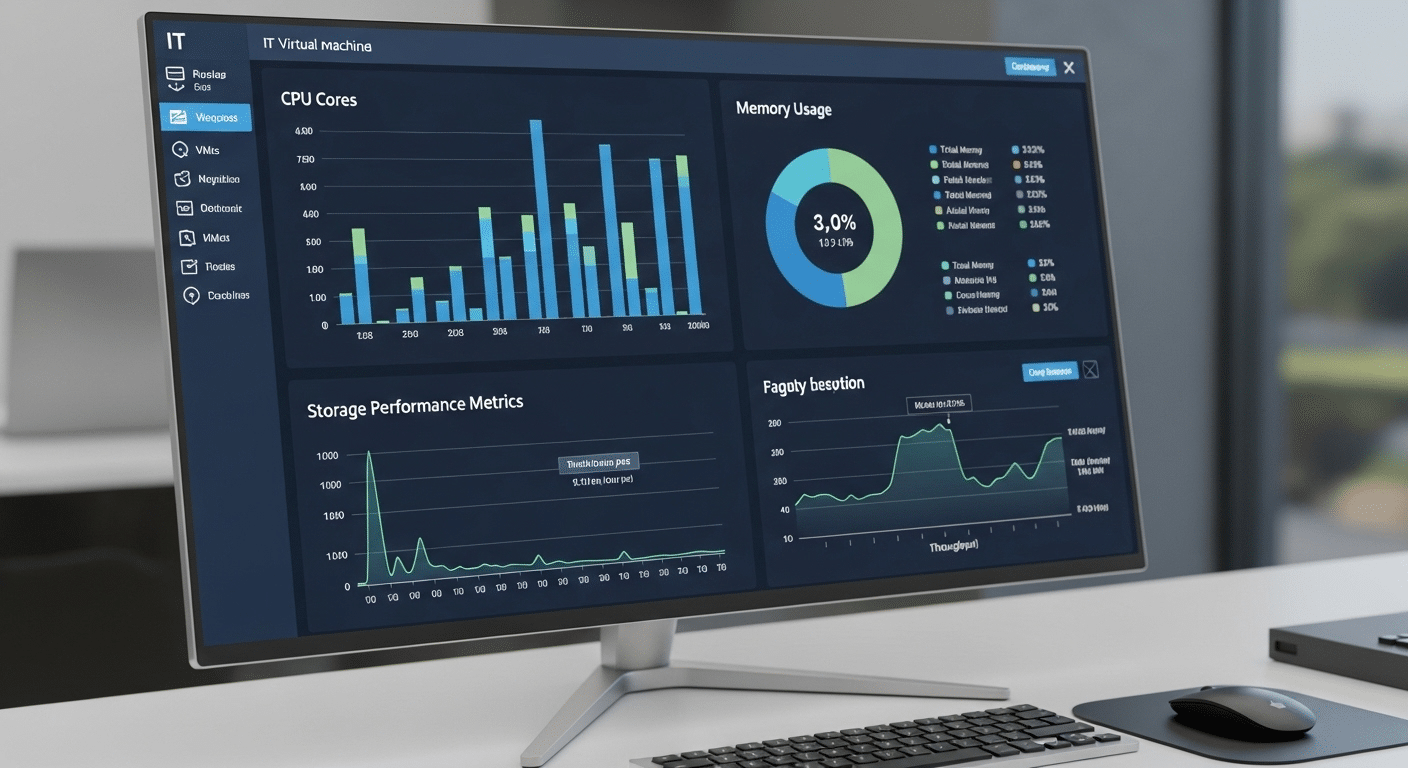
Resource allocation sits right at the center of virtual desktop performance. If the underlying system does not provide enough compute power, even simple tasks can start to feel slow.
Virtual desktops rely heavily on CPU cores, system memory, and sometimes GPU processing to deliver responsive applications and stable sessions.
When resources fall short, the symptoms appear quickly. Applications take longer to open, login processes drag on, and the entire desktop may respond with noticeable delay. Proper configuration prevents this kind of slowdown while keeping host infrastructure balanced.
Best practice usually involves assigning enough compute resources without overloading the physical server.
Recommended Resource Allocation for Virtual Desktop Environments
| Resource | Minimum Provisioning | Recommended Office Workload |
|---|---|---|
| CPU | 2 vCPUs | 4 vCPUs |
| RAM | 4 GB | 8 GB |
| Storage | SSD | NVMe SSD |
| GPU | Optional | Recommended for graphics workloads |
GPU-enabled virtual machines can further improve graphics-heavy workloads by moving rendering tasks away from the CPU.
Why Network Performance Is Critical for Virtual Desktop Responsiveness?
A virtual desktop may run on powerful hardware, yet the experience still depends heavily on the network connecting you to it. Every mouse click, keyboard input, and screen update travels through that connection. If the network struggles, the desktop feels slow no matter how strong the server is.
Latency plays a major role here. Once round-trip latency climbs above roughly 50 milliseconds, users often begin noticing delayed responses and inconsistent frame rate. Stable bandwidth and a reliable connection are essential for maintaining smooth interaction.
Best Practices for Network Optimization:
• Deploy virtual desktop servers close to user geographic locations
• Use Ethernet or Wi-Fi 6/6E routers to reduce latency
• Configure Quality of Service (QoS) to prioritize VDI traffic
• Monitor bandwidth usage to prevent network congestion
• Detect packet loss and unstable routing paths
How Do Storage Speed and Desktop Images Impact Performance?

Storage often sits quietly in the background of a virtual desktop environment, yet it influences almost everything you experience. Application launch time, file access, even login speed all depend on how quickly data can move through the system.
When traditional hard drives are involved, the result can be frustratingly slow response times because of I/O bottlenecks.
Faster storage changes that picture entirely. Modern solid state drives and NVMe storage dramatically improve data access and reduce delays across the desktop session.
Storage and Image Optimization Strategies:
• Replace HDD storage with SSD or NVMe drives
• Use shared storage systems to improve application access speed
• Reduce the number of desktop images to simplify management
• Create optimized base images using Windows Sysprep
• Remove unnecessary apps and disable background services
How Can Monitoring Tools Help Detect Performance Bottlenecks Early?
Performance issues rarely appear out of nowhere. Most of the time the warning signs are already there, quietly building in the background. Proactive monitoring gives IT teams the ability to catch those signals early, long before users begin reporting lag or slow desktops. By tracking system behavior continuously, teams can identify patterns, analyze trends, and resolve issues before they grow into noticeable problems.
Performance Metrics to Monitor:
• CPU utilization
• Memory usage
• Storage I/O performance
• Network latency and bandwidth
• Login time and application responsiveness
Common Monitoring Tools:
• Azure Monitor
• PRTG Network Monitor
• Diagnostic tools provided by virtual desktop platforms
When monitoring data is combined with direct feedback from employees, it becomes much easier to understand where performance gaps exist and how to improve the overall user experience.
Why Performance Benchmarking Is Essential for Virtual Desktop Optimization?

Improving virtual desktop performance requires more than guesswork. Benchmarking provides a structured way to measure how well a virtual desktop environment performs over time. By evaluating system behavior under normal workloads, organizations can understand how infrastructure, applications, and user activity affect overall efficiency.
Benchmarking helps organizations in several ways. It allows teams to establish baseline performance metrics that describe how the environment should behave during normal operations. From there, IT teams can compare hardware upgrades or configuration adjustments to see whether they truly improve performance. It also helps identify capacity limits before systems become overloaded.
Tracking different worker profiles adds even more insight, since employees often use very different applications. Service-level agreement reports can then monitor whether desktop performance meets operational goals and reliability expectations.
How Azure Virtual Desktop Helps Improve Performance and Scalability?
Azure Virtual Desktop provides a cloud-based platform for delivering virtual desktops with flexible infrastructure and built-in management capabilities. Instead of relying only on fixed on-premise hardware, organizations can deploy desktops in Azure and scale resources as demand changes. This flexibility helps maintain consistent performance even as workloads grow.
Advantages include scalable compute resources, centralized management tools, and integrated monitoring and diagnostic capabilities that allow IT teams to analyze performance and resolve issues quickly.
Azure environments also support GPU-enabled virtual machines for graphics workloads. Combined with profile management tools such as FSLogix, these features improve login speed, application responsiveness, and overall user experience.
Why Apporto Delivers Faster and Simpler Virtual Desktop Performance?

Traditional virtual desktop infrastructure often demands careful configuration, multiple client applications, and ongoing system management. That complexity can introduce performance issues before users even log in.
Apporto approaches the problem differently. The platform delivers virtual desktops directly through a browser, removing the need for local client installations and reducing setup friction across devices.
Because the environment is centrally managed, infrastructure complexity drops significantly. Built-in security controls and performance optimization features help maintain stable sessions while simplifying operations for IT teams. Users gain reliable remote access from laptops, tablets, or desktops without complicated configuration steps.
Key Takeaways
Improving virtual desktop performance comes down to a few practical fundamentals. Start by allocating sufficient CPU and RAM resources so applications can run smoothly without competing for limited capacity.
Maintain low network latency and stable bandwidth to avoid lag during remote sessions. Faster storage also plays a major role, so SSD or NVMe drives should replace slower disks whenever possible. It also helps to optimize desktop images by removing unnecessary applications and background services.
Continuous monitoring of performance metrics, combined with regular benchmarking, allows teams to track improvements and maintain a reliable, efficient virtual desktop environment.
Frequently Asked Questions (FAQs)
1. What is the most common cause of virtual desktop performance problems?
Network latency and insufficient system resources are the most common causes. When CPU, RAM, or bandwidth are limited, virtual desktops can experience lag, slow application performance, and delayed screen updates.
2. How much CPU and RAM does a virtual desktop need?
Most virtual desktop environments require at least 2 vCPUs and 4 GB RAM per session, while general office workloads often perform best with 4 vCPUs and 8 GB RAM.
3. Does network latency affect virtual desktop performance?
Yes. Latency above 50 milliseconds can noticeably impact responsiveness. A stable connection with low latency and minimal packet loss is essential for smooth desktop interaction.
4. Do SSD drives improve virtual desktop performance?
Yes. SSD and NVMe storage significantly reduce input/output bottlenecks and speed up application loading times compared with traditional hard drives.
