
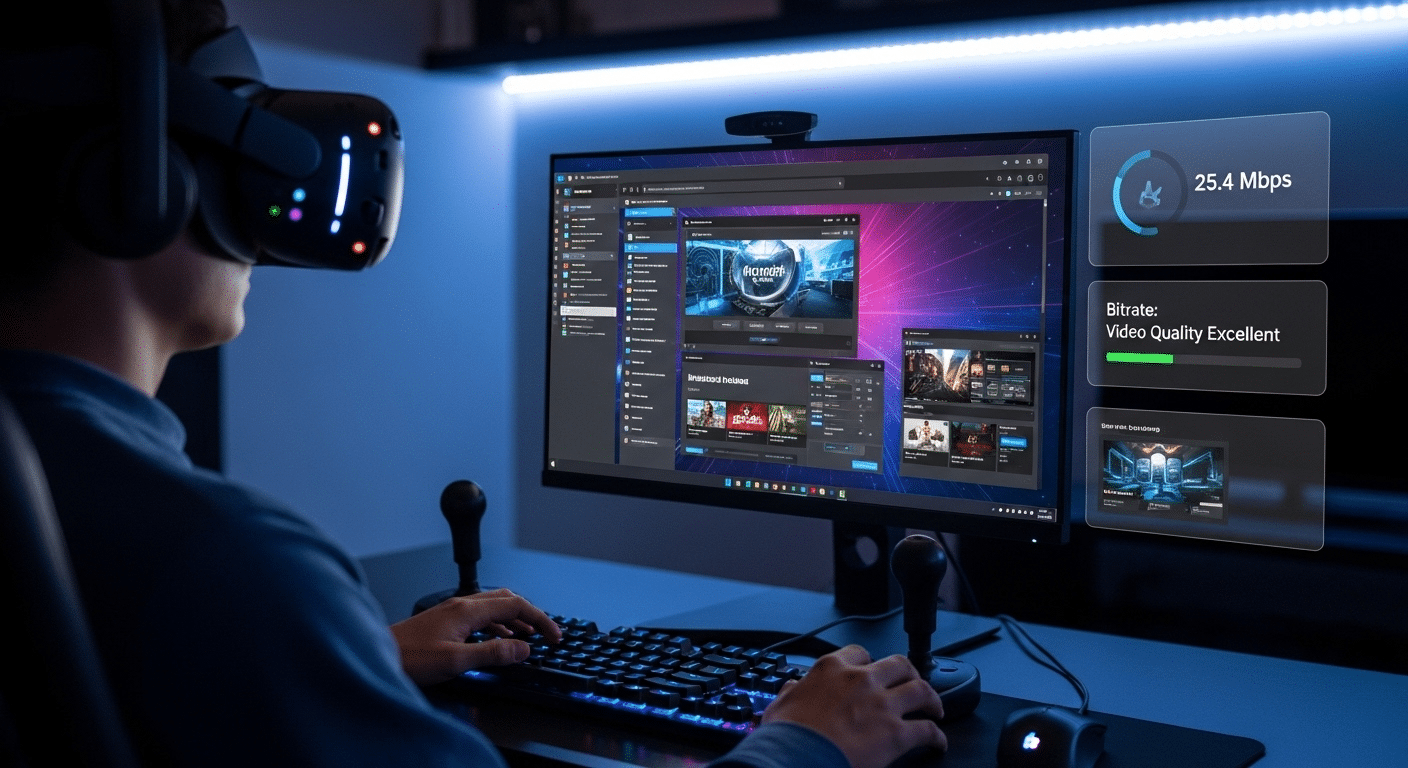
How Do You Increase Bitrate in Virtual Desktop?
To increase bitrate in Virtual Desktop, open the Streamer app, disable automatic bitrate adjustment, set a higher fixed bitrate, and optimize your router, codec, and network settings. Higher bitrate can improve VR image quality, but excessive settings may increase latency.
When you stream a virtual desktop to a VR headset, the experience depends heavily on bitrate. Bitrate determines how much video data your PC sends to the headset every second. More data generally means sharper graphics, smoother visuals, and a more immersive VR environment.
If the VR bitrate is too low, the problems become obvious. Textures may look blurry. Compression artifacts appear around moving objects. Even simple tasks inside a virtual desktop can feel less responsive, which quickly reduces immersion.
Increasing bitrate often improves image quality and delivers a noticeably better experience. However, pushing bitrate too high can introduce other challenges. Higher values may increase latency, generate more heat in the headset, and consume battery faster.
In this blog, you will learn how to increase bitrate in Virtual Desktop, optimize your network and settings, and achieve a smoother, clearer VR streaming experience.
What Does Bitrate Mean in Virtual Desktop and VR Streaming?
Bitrate sounds technical, but the idea is fairly simple. It refers to the amount of video data your PC sends to the VR headset every second. The higher the bit rate, the more visual information reaches your display.
More information usually means clearer graphics, sharper textures, and fewer compression artifacts inside the virtual environment.
Now here’s where things get interesting. VR streaming relies heavily on video compression and encoding, which is handled by a codec running on your computer. The codec squeezes large visual frames into smaller packets so they can travel quickly over your network.
When bitrate is too low, that compression becomes aggressive. Details disappear, edges soften, and motion can look slightly muddy.
VR demands far more data than ordinary video streaming. Every tiny head movement changes the perspective instantly, so the system must transmit new frames constantly.
Bitrate, network performance, and latency all interact here, and the right codec helps balance speed, clarity, and stability.
What Happens When Your Virtual Desktop Bitrate Is Too Low?
A low bitrate can quietly undermine your entire VR experience. At first you might simply notice the graphics look softer than expected. Text loses crisp edges.
Fine details in distant environments begin to fade. Over time the problem becomes harder to ignore, especially once movement inside the headset starts feeling slightly delayed or inconsistent.
Virtual reality demands fast, constant visual updates. When bitrate drops too far, the system compresses the video stream more aggressively.
That compression strips away detail and sometimes introduces visual artifacts. The result is a world that technically works, but doesn’t quite feel right.
Common Signs Your Bitrate Is Too Low:
- Blurry graphics or heavily compressed textures
- Noticeable latency or delayed head movement response
- Reduced clarity in distant objects within your view
- Inconsistent frame delivery during motion
Several factors can cause this issue. Router performance matters. Network congestion inside the house matters too. Even GPU encoding on your PC plays a role in how efficiently video reaches the headset.
How Do You Increase Bitrate in Virtual Desktop Settings?
Once you understand what bitrate does, the next question usually comes fast, how do you actually increase it? The answer sits inside the Virtual Desktop Streamer App, which runs on your PC and controls how video is encoded and transmitted to the headset.
The app provides several settings that directly influence desktop bitrate and overall streaming quality. Many people overlook these options at first. They install Virtual Desktop, start streaming, and assume the default configuration is already optimal. Sometimes it is. Often it isn’t.
To increase bitrate in Virtual Desktop, you need to adjust the encoding configuration and disable automatic controls that constantly modify the stream. That gives you consistent video quality and more predictable performance.
Step-by-Step Guide to Increase Desktop Bitrate:
- Open the Virtual Desktop Streamer App on your PC
- Disable Automatically Adjust Bitrate
- Set a fixed desktop bitrate value
- Enable high-quality video settings
- Monitor changes using the performance overlay
Disabling automatically adjust bitrate removes constant fluctuations caused by temporary network conditions. Instead, the stream remains stable. Still, higher bitrate settings require more bandwidth and processing power, so pushing the value too far can reduce stability or increase latency.
What Network Setup Helps Achieve Higher Bitrate Streaming?
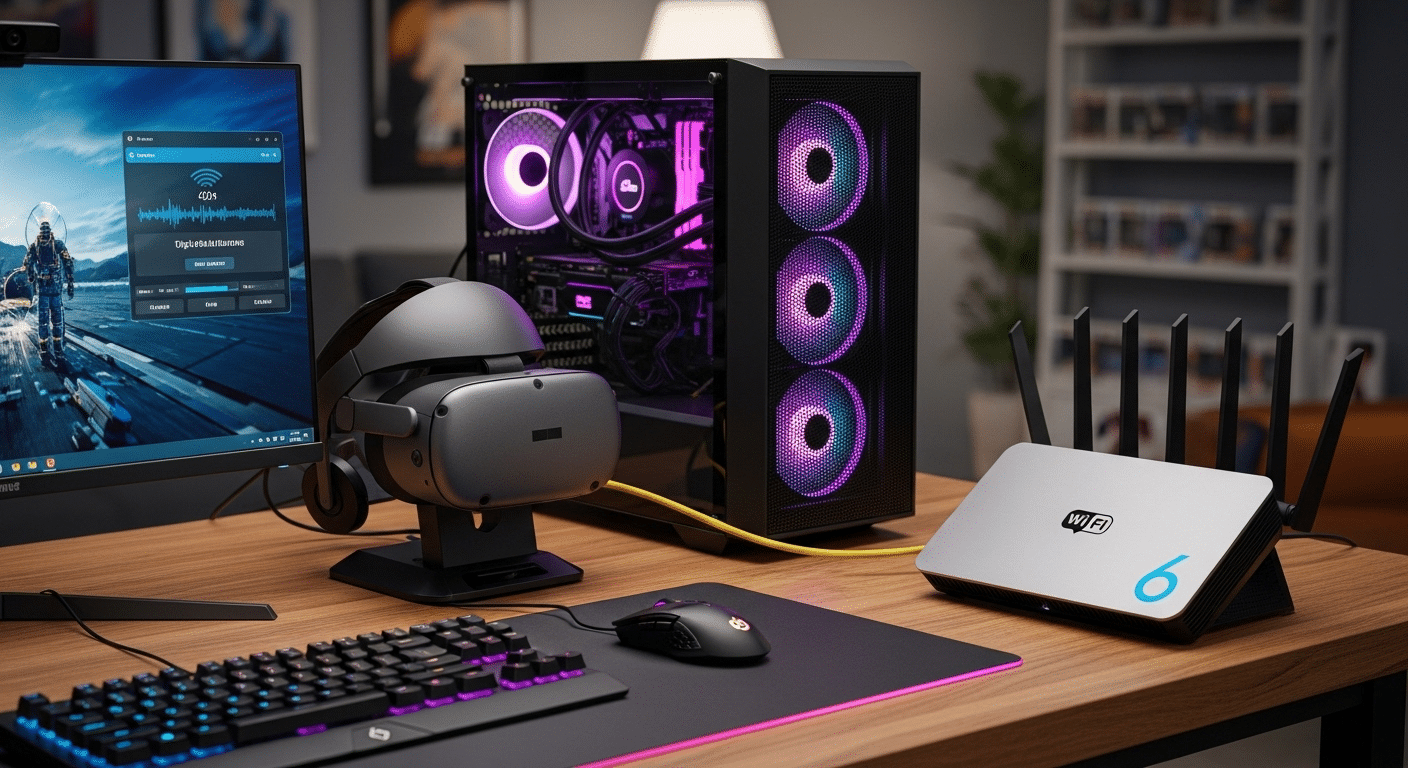
Bitrate settings inside Virtual Desktop matter, but your network setup usually determines how far you can push them. VR streaming sends a constant flow of video from your PC to the headset, and that data travels through your router every second. If the connection is unstable, even the best bitrate settings will struggle to hold steady.
Wireless VR places heavy demands on bandwidth and consistency. Small interruptions can create latency spikes or visible compression in the video stream. That’s why many performance issues trace back not to the headset or the PC, but to the network sitting quietly in the corner of the house.
Best Network Setup for Virtual Desktop
- Connect your PC directly to the router using Gigabit Ethernet
- Use a Cat 6 Ethernet cable for stable high-speed data transfer
- Use a dedicated Wi-Fi 6 or Wi-Fi 6E router
- Avoid mesh networks when aiming for high bitrate streaming
- Place the router close to the headset
Wireless interference also plays a role. If nearby devices compete for the same channel, performance can drop quickly. Checking router settings and selecting a less congested 5GHz or 6GHz channel often improves stability and streaming quality.
Which Codec Settings Deliver the Best VR Bitrate Performance?
Bitrate settings alone don’t determine VR image quality. The codec responsible for compressing and encoding the video stream plays an equally important role.
A codec decides how efficiently your PC converts raw graphics into a stream that can travel to the headset without overwhelming the network.
Older systems often rely on H.264, which works well and requires minimal GPU resources. The drawback, however, is efficiency. It needs more bandwidth to deliver the same visual clarity compared with newer encoding methods.
Newer codecs improve that balance. H.264+ allows significantly higher bitrate streams, often reaching up to 500 Mbps, which helps maintain detail in fast-moving VR scenes. HEVC (H.265) compresses video more efficiently, delivering sharper visuals while using less bandwidth.
Then there’s AV1, a newer option gaining popularity. AV1 offers excellent compression efficiency, meaning you can achieve strong graphics quality without pushing bitrate as aggressively, provided your GPU supports it.
Codec Comparison for VR Streaming
| Codec | Bitrate Efficiency | GPU Requirement | Best Use |
|---|---|---|---|
| H.264 | Standard | Low | Older GPUs |
| H.264+ | High bitrate support | Moderate | High bitrate VR |
| HEVC | Better compression | Moderate | Balanced performance |
| AV1 | Highest efficiency | New GPUs | Best visual quality |
How Can PC Hardware Limit Your Virtual Desktop Bitrate?
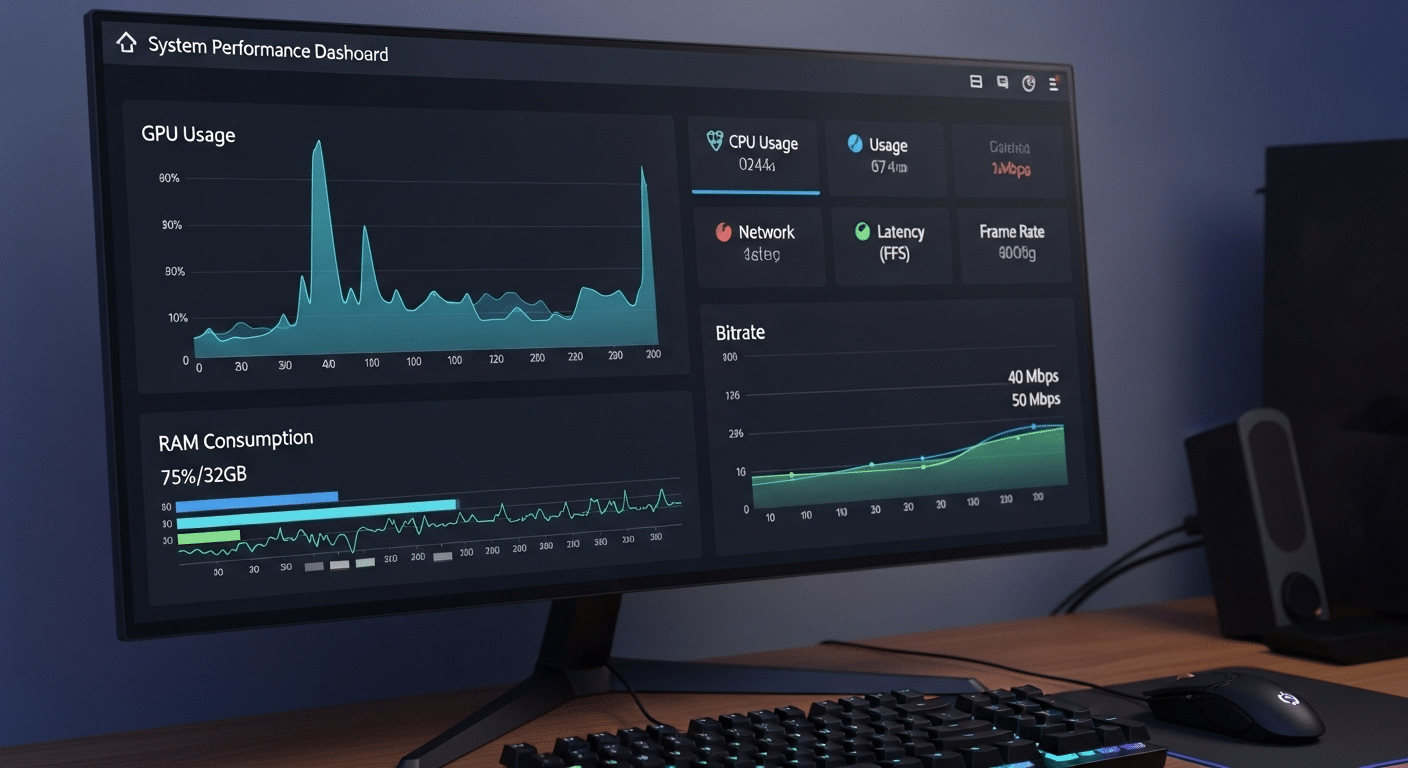
Even with excellent network conditions, your PC hardware still plays a major role in VR streaming performance. Bitrate isn’t just about bandwidth. The computer must encode the outgoing video stream and the headset must decode it in real time. That process requires processing power.
When bitrate climbs higher, the encoding workload increases. The GPU compresses large graphics frames while the system manages network transmission. If the PC lacks sufficient resources, performance can drop quickly. Frames may arrive late. Visual quality may fluctuate. The connection still works, but the experience feels unstable.
PC Optimization Tips for Higher Bitrate:
- Enable GPU-accelerated encoding for efficient video processing
- Set PC power mode to High Performance
- Ensure sufficient RAM and GPU resources
- Try restarting the PC to clear background tasks
Higher bitrate streams require additional decoding effort, so weaker hardware can introduce instability even when the network itself works perfectly.
How Do Refresh Rate and Field of View Affect Bitrate?
Bitrate is closely tied to how much visual data your system must generate every second. Two settings influence that workload more than many users realize, refresh rate and field of view (FOV).
When the headset runs at 120Hz, the PC must deliver far more frames each second compared with 80Hz. More frames mean more video data, which pushes bitrate requirements higher.
Lowering the refresh rate to 80Hz reduces the amount of data that needs to move across the network. Surprisingly, this can sometimes improve perceived image quality, because the available bitrate is spread across fewer frames.
Field of view also affects performance. A wider FOV means the computer renders more graphics per frame. Virtual Desktop allows native FOV adjustment in the Streamer app, making it easier to balance clarity and performance.
Virtual Desktop vs Meta Link: Does Bitrate Work Differently?
People comparing Virtual Desktop and Meta Link often focus on one question, which platform delivers the better bitrate experience? The answer depends on how each system streams data from your PC to the Quest 2 headset.
Virtual Desktop, often shortened to VD, streams video wirelessly through your router. That wireless connection places limits on how high the bitrate can safely go, but the system is designed to keep things efficient. With the right router and settings, image quality can still look excellent while maintaining smooth performance.
Meta Link takes a different approach. It uses a link cable to connect the headset directly to the PC. Because the connection is wired, higher bitrates are technically possible. However, some users have noticed that extremely high settings may introduce small quirks such as audio distortion.
Another difference is functionality. Virtual Desktop allows you to interact with the full Windows desktop environment, something the standard Meta platform from Facebook handles in a more limited way.
Virtual Desktop vs Meta Link
| Feature | Virtual Desktop | Meta Link |
|---|---|---|
| Connection | Wireless | Link cable |
| Bitrate limits | Lower but optimized | Higher possible |
| Setup | Dedicated router recommended | USB cable |
| Desktop interaction | Full Windows desktop | Limited |
Quick Tips to Improve Virtual Desktop Bitrate Stability
Increasing bitrate helps, but stability matters even more. A perfectly tuned bitrate won’t deliver a smooth VR experience if the network itself is inconsistent. Small interruptions, wireless interference, or outdated software can quietly disrupt performance. In many cases, a stable connection produces better results than simply pushing the bitrate to the maximum.
Practical Bitrate Optimization Tips:
- Use a dedicated router for your VR headset
- Keep the router in the same room for stronger signal strength
- Reduce Wi-Fi interference by limiting nearby devices on the same channel
- Monitor performance using the performance overlay
- Regularly update the Streamer app to maintain compatibility and stability
Stable networks usually outperform aggressive bitrate settings in real-world VR streaming.
How Can Cloud-Powered Platforms Like Apporto Improve Remote Desktop Performance?

Most conversations about bitrate focus on local hardware or network tuning. Fair enough. Yet the virtual desktop infrastructure behind the stream matters just as much. Traditional setups rely heavily on the user’s own PC, router, and home network.
When any of those pieces struggles, performance drops. Video quality dips. Latency creeps in. The experience becomes unpredictable.
Cloud-powered platforms approach the problem differently. Instead of depending entirely on local machines, a cloud desktop delivers computing power from optimized data centers. That means more consistent performance and fewer hardware bottlenecks.
Platforms like Apporto provide high-performance virtual desktops directly through a browser. No complicated installation. No fragile local configuration. Just fast, secure remote access to powerful computing environments designed to handle demanding workloads.
The result is a smoother remote desktop experience and easier deployment for users and organizations alike. Try Now.
Final Thoughts
Bitrate tuning is really about balance. A higher bitrate usually improves visual clarity, making textures sharper and motion inside VR feel more natural. But bitrate does not work in isolation. Your network setup determines how much data can move reliably between the PC and the headset.
Router quality, wireless interference, and cable connections all influence the maximum stable bitrate you can achieve. Hardware also matters. The PC, GPU encoder, codec choice, and refresh rate all shape how efficiently the system delivers video to your headset.
In practice, the best results come from experimenting. Adjust the settings gradually, observe how the stream behaves, and find the point where clarity improves without introducing latency or instability.
Frequently Asked Questions (FAQs)
1. What is the bitrate for Virtual Desktop VR?
A good Virtual Desktop VR bitrate often falls between 80 and 150 Mbps, depending on your network, headset, and GPU. Higher settings can improve image quality, while overly aggressive bitrate levels may introduce latency or reduce streaming stability.
2. Does increasing bitrate improve VR graphics quality?
Yes, increasing bitrate generally improves VR image quality because more video data reaches the headset. This allows sharper textures, clearer edges, and fewer compression artifacts. However, pushing bitrate too high can introduce latency or instability if the network cannot keep up.
3. Why does higher bitrate increase latency?
Higher bitrate means more data must travel from the PC to the headset every second. If the network or hardware cannot process that data quickly enough, delays occur, which appear as increased latency in the VR experience.
4. Can Wi-Fi affect Virtual Desktop bitrate?
Yes, wireless performance plays a major role in VR streaming quality. Interference from nearby devices, weak signals, or congested channels can reduce available bandwidth and limit how high your Virtual Desktop bitrate can safely go.
5. What router works best for Virtual Desktop VR?
A dedicated Wi-Fi 6 or Wi-Fi 6E router usually works best for Virtual Desktop VR. These routers provide higher bandwidth, lower latency, and improved wireless stability, especially when the PC is connected directly to the router using Ethernet.
