
How Do Virtual Desktops Improve Productivity?
Virtual desktops improve productivity by organizing tasks into separate workspaces, reducing distractions, and minimizing mental clutter from too many open apps and windows. Users can switch between focused environments for work, meetings, or personal tasks, while platforms like Apporto extend this flexibility through browser-based cloud desktop access.
You open your computer, and within minutes, the screen fills up. Tabs stacked on tabs. Apps open that you barely remember launching. It doesn’t take much before your digital workspace starts to feel crowded, almost noisy.
That’s the quiet problem. Not lack of tools, but too many of them, all at once.
When you’re juggling multiple tasks or switching between projects, that clutter builds into something heavier. Mental clutter. Focus slips, even if everything technically works.
Virtual desktops offer a simple way out. Built into Windows 11, they let you create separate workspaces for different tasks. In this blog, you’ll see how virtual desktops help you stay focused, organized, and in control of your work.
What Are Virtual Desktops and How Do They Work?
Virtual desktops let you create multiple desktops on a single computer, each acting like its own space. Not copies, not mirrors, but separate environments where your apps and open windows stay contained. You might have one desktop for focused work, another for meetings, maybe one that quietly holds everything else you’re not ready to deal with yet.
The difference between one desktop and multiple desktops is subtle at first. Then it clicks. Instead of stacking everything in one place, you spread it out, just enough to breathe.
Each virtual desktop runs independently. What’s open on one stays there. No overlap unless you move things intentionally.
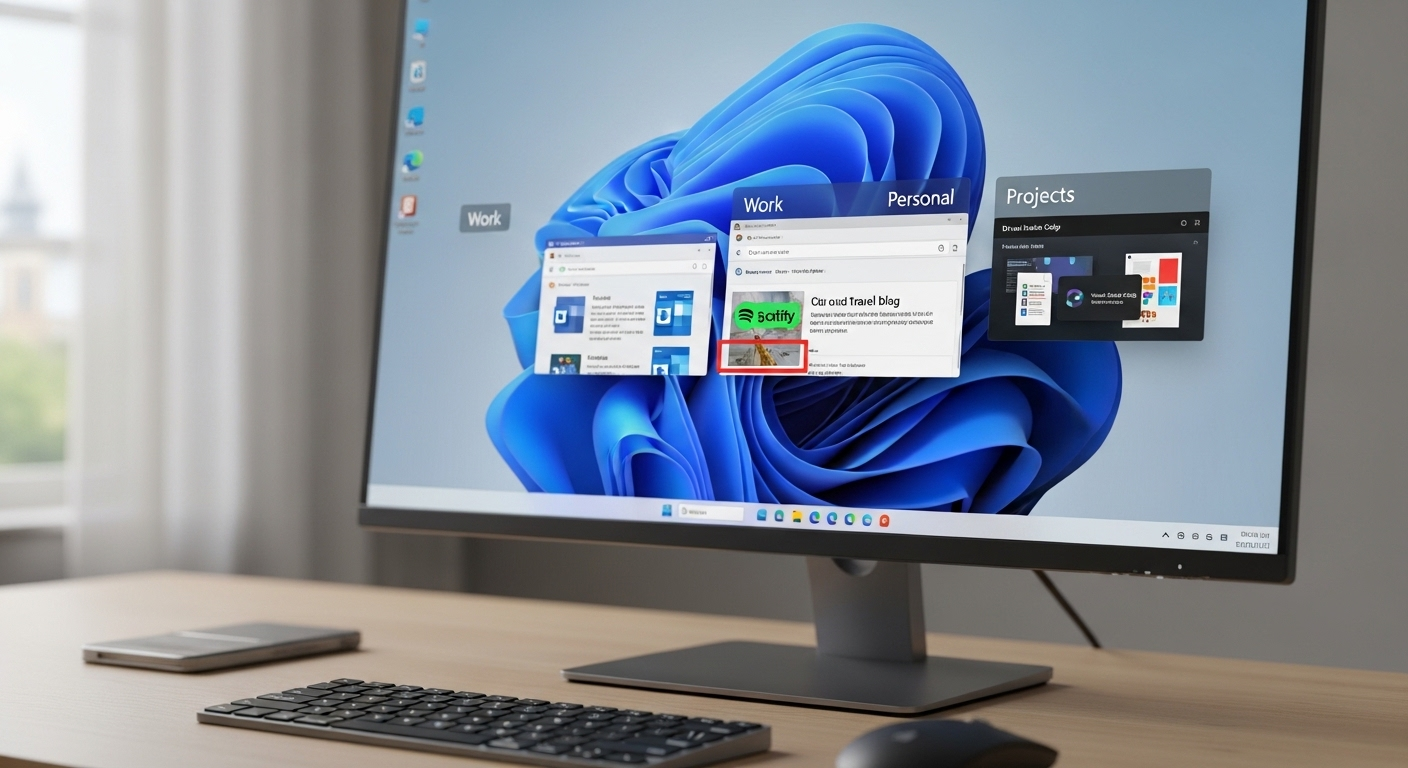
On systems like Windows 11, this is managed through Task View. You open it, see each desktop as a thumbnail, and switch between them in seconds. It feels quick. Almost frictionless.
And once you start switching desktops this way, going back to a single crowded screen feels… unnecessary.
How Do Virtual Desktops Improve Productivity?
Productivity doesn’t usually break because of a lack of tools. It breaks because everything is visible at once. Too many windows, too many tabs, too many unfinished threads pulling at your attention.
Virtual desktops change that, quietly. By splitting your work into separate workspaces, you reduce what’s in front of you. Less visual noise, fewer interruptions. You’re not constantly scanning unrelated apps or jumping between different tasks. That alone helps more than expected.
There’s also something subtle happening in the background. Mental separation. When your work apps sit on one desktop and personal apps on another, your brain starts treating them differently. You move with more intention, not just reacting to whatever is open.
And over time, that reduces task-switching fatigue. You’re not bouncing between multiple projects in the same space. You’re choosing when to switch, and that small control adds up.
- Create separate workspaces for different tasks, keeping your workflow structured
- Keep unrelated tasks out of view, reducing mental clutter
- Stay focused on one task at a time instead of juggling everything at once
- Reduce distractions caused by too many open windows competing for attention
How Do You Use Virtual Desktops in Windows 11?
In Windows 11, virtual desktops are built around something called Task View. You can open it with a quick tap, Windows + Tab, and suddenly your screen changes. You see your current desktop, plus the option to create a new one. Each shows up as a small desktop thumbnail, clean and easy to recognize.
Creating a new virtual desktop takes a second. Press Windows + Ctrl + D, and it appears instantly. A fresh space, nothing open, no distractions. From there, you can begin organizing your work the way you want.
Switching desktops feels just as quick. Windows + Ctrl + Left or Right lets you move between them without breaking your flow. It becomes almost automatic after a while.
And here’s a small detail people often miss. When you close a desktop, your apps don’t disappear. They move to another desktop. Nothing gets lost.
- Press Windows + Ctrl + D to create a new virtual desktop
- Use Windows + Tab to open Task View and see all desktops
- Switch between desktops using Windows + Ctrl + Arrow keys
- Close desktops without closing apps
Once you get used to it, navigating virtual desktops feels natural, almost like flipping between pages.
How Can You Organize Work Using Multiple Virtual Desktops?
Organization starts to feel different once you stop treating your desktop as one crowded space. Instead, you create separate desktops, each with a purpose. Not random, not messy, just intentional.
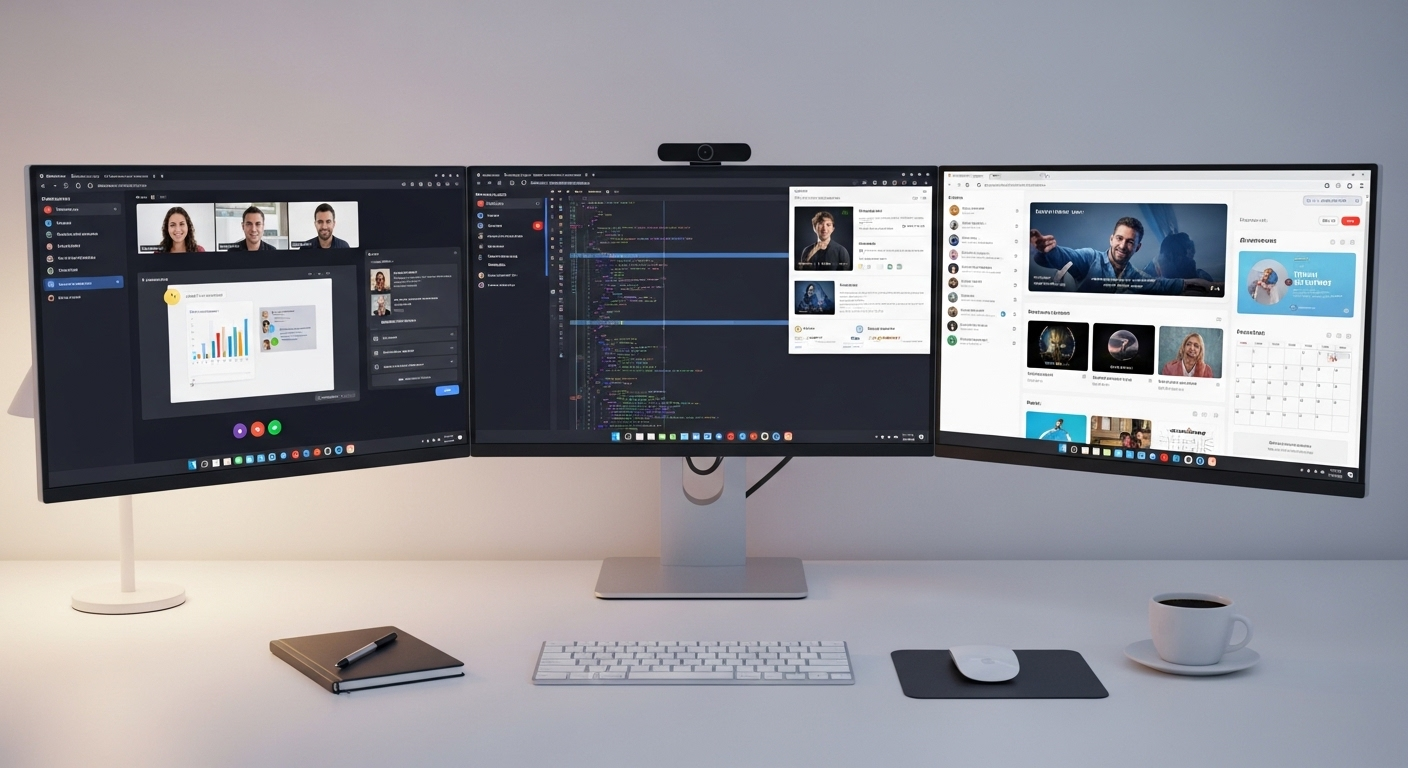
One desktop can hold meetings, video calls, calendars, maybe a browser with tabs you only need during conversations. Another can stay clean for deep work, fewer apps, fewer interruptions, just the tools tied to one task. And then there’s usually a third space, personal use, things that don’t belong in your main workflow but still sit somewhere nearby.
You can move apps between desktops when needed. Drag them through Task View, or shift things around as your work changes. It doesn’t have to stay rigid. In fact, it shouldn’t.
Over time, this creates a structure that feels natural. Multiple projects stop overlapping. Your workspace starts to reflect how you think, instead of forcing everything into one place.
What Are the Best Practices for Using Virtual Desktops Effectively?
It’s easy to overdo it at first. Create too many desktops, move things around endlessly, then wonder why it feels more complicated. A bit of structure helps. Not strict rules, just habits that keep things usable.
Here’s how to get the most out of virtual desktops:
- Group Similar Tasks: Keep related apps and open windows together so your attention stays in one place instead of bouncing across unrelated work.
- Limit the Number of Desktops: Avoid creating too many desktops, it can quietly add confusion and slow you down more than it helps.
- Use Keyboard Shortcuts: Move between desktops quickly using simple shortcuts, it keeps your flow intact without constant clicking.
- Customize Desktop Backgrounds: Use different wallpapers or even a solid color to visually distinguish each workspace at a glance.
- Move Apps Intentionally: Keep your setup clean by organizing apps across desktops instead of letting everything pile up.
- Close Desktops When Done: Remove desktops you no longer need so your workspace doesn’t slowly drift back into clutter.
What Challenges Should You Be Aware Of?
For something that feels simple, virtual desktops aren’t completely friction-free. A few small things tend to show up once you start using them regularly.
On Windows 11, you might notice your desktop background resetting after a restart. It’s not constant, but it happens enough to be mildly annoying. Renamed desktops can also revert back, which breaks that sense of structure you were building.
Then there’s the learning curve. Not steep, but real. Remembering where things live, which desktop holds what, it takes a bit of adjustment. At first, you might even lose track of your current desktop for a second or two.
Overuse is another quiet issue. Too many desktops, and the system starts to feel scattered again.
None of these are deal-breakers. Just small edges. The kind you notice early, then gradually work around without thinking much about it.
How Do Virtual Desktops Support Remote Work and Flexibility?
Work doesn’t stay tied to one place anymore. It moves, sometimes daily, between home, office, and everything in between. That’s where virtual desktops start to feel less like a feature and more like a baseline.
They give you a consistent digital workspace, regardless of the device in front of you. Your setup, your apps, your files, they follow you. Not perfectly every time, but close enough that you don’t have to reset your flow each time you switch devices.
In more advanced setups, especially those connected to a virtual desktop environment, everything is centralized. Data stays off local machines, which reduces risk and makes access easier across multiple devices.
There’s also less dependence on high-end hardware. You can work from a standard laptop and still access more powerful environments remotely. It’s flexible in a quiet way. You log in, and your workspace is simply there.
How Apporto Enhances Productivity with Virtual Desktops?

At some point, local virtual desktops start to show their limits. They help with personal organization, sure, but consistency across devices, across teams, that’s harder to maintain. Things drift. Environments don’t always match.
That’s where cloud-based approaches come in, and Apporto takes that a step further.
It delivers a full virtual desktop environment directly through the browser. No installs, no setup cycles, no dependency on the machine in front of you. You log in, and your digital workspace is there, consistent, predictable, ready.
Final Thoughts
Some tools ask for time before they give anything back. This isn’t one of them. Virtual desktops are already built into your computer. No setup, no extra tools, nothing complicated. You create a new space, move a few apps around, and the difference shows up almost immediately. Things feel lighter. More organized.
The effort is small, but the return builds over time. If your screen often feels crowded or your tasks start blending together, this is worth trying. Not as a big change, just a small adjustment. And sometimes, that’s enough to bring a bit more clarity into how you work.
Frequently Asked Questions (FAQs)
1. What are virtual desktops in Windows 11?
Virtual desktops in Windows 11 let you create multiple desktops on a single computer. Each one acts as a separate workspace with its own apps and open windows, helping you organize tasks without crowding one screen.
2. Can a virtual desktop be used for productivity?
Yes, virtual desktops can improve productivity by separating tasks into organized workspaces, reducing distractions, and making it easier to focus on one activity at a time. Many professionals use virtual desktops to manage projects, meetings, and personal tasks more efficiently across multiple workflows.
4. How do you switch between virtual desktops?
You can switch quickly using keyboard shortcuts like Windows + Ctrl + Left or Right Arrow. You can also open Task View with Windows + Tab and select the desktop you want to move to.
5. Can you move apps between desktops?
Yes, you can move apps between desktops using Task View. Just drag the app from one desktop to another, allowing you to reorganize your workflow without closing anything or losing progress.
6. Do virtual desktops affect performance?
Generally, no. Virtual desktops don’t duplicate apps, they just organize them. Performance depends more on how many apps are open overall, not how many desktops you’re using.
7. How many virtual desktops should you use?
There’s no fixed number, but keeping it simple works best. Two to four desktops is usually enough to stay organized without creating confusion or losing track of where your tasks are.
