
What Operating Systems Does Azure Virtual Desktop Support?
Azure Virtual Desktop supports Windows 10 and Windows 11 Enterprise editions, including multi-session environments, along with several Windows Server operating systems. Users can access virtual desktops from Windows, macOS, Android, iOS, and web browsers. Browser-based platforms like Apporto also simplify remote desktop access without complex infrastructure management.
Work environments are no longer tied to a single device or location. Azure Virtual Desktop (AVD), Microsoft’s cloud-based virtual desktop infrastructure service, allows you to access Windows desktops and applications remotely through secure connections. The platform runs on Microsoft Azure, delivering virtual machines that host desktops and apps while users connect from laptops, mobile devices, or web browsers.
For organizations adopting hybrid or remote work models, choosing the right supported operating systems becomes essential. Compatibility affects performance, security, and the overall user experience across devices.
Azure Virtual Desktop supports a wide range of environments, including Windows desktop editions, Windows Server operating systems, and client connections from macOS, Android, iOS, and modern browsers.
In this blog post, you’ll learn which operating systems Azure Virtual Desktop supports and how those environments work together to deliver secure, scalable virtual desktops.
What Is Azure Virtual Desktop and How Does It Actually Work?
Understanding Azure Virtual Desktop begins with a simple idea. Instead of running applications and desktops directly on your local computer, the entire environment runs in the Microsoft Azure cloud.
Microsoft designed this virtualization service so organizations can deliver Windows desktops and apps remotely while keeping infrastructure centralized and easier to manage.
When you use Azure Virtual Desktop, the desktop itself lives on Azure virtual machines known as session hosts. These machines handle the computing workload while you access the environment from a laptop, mobile device, or web browser.
From the user perspective, the experience still feels like a normal Windows desktop, but the system is actually operating inside Azure.
The workflow behind the scenes is structured but efficient. First, you authenticate through Microsoft Entra ID, which verifies your identity. Next, you connect to desktops or applications through approved client software or a browser.
Once access is granted, the platform launches a remote session hosted in Azure, allowing you to work as if the desktop were local.
Components of Azure Virtual Desktop
- Session Hosts: Azure virtual machines that run user sessions and deliver Windows desktops or applications remotely.
- p,Host Pools: Groups of session hosts organized to support different workloads, teams, or deployment environments.
- Microsoft Entra ID: Identity management service that authenticates users and controls secure access to desktops and apps.
- Azure Portal: Administrative interface used to deploy, configure, and manage Azure Virtual Desktop resources.
Which Operating Systems Are Supported by Azure Virtual Desktop?
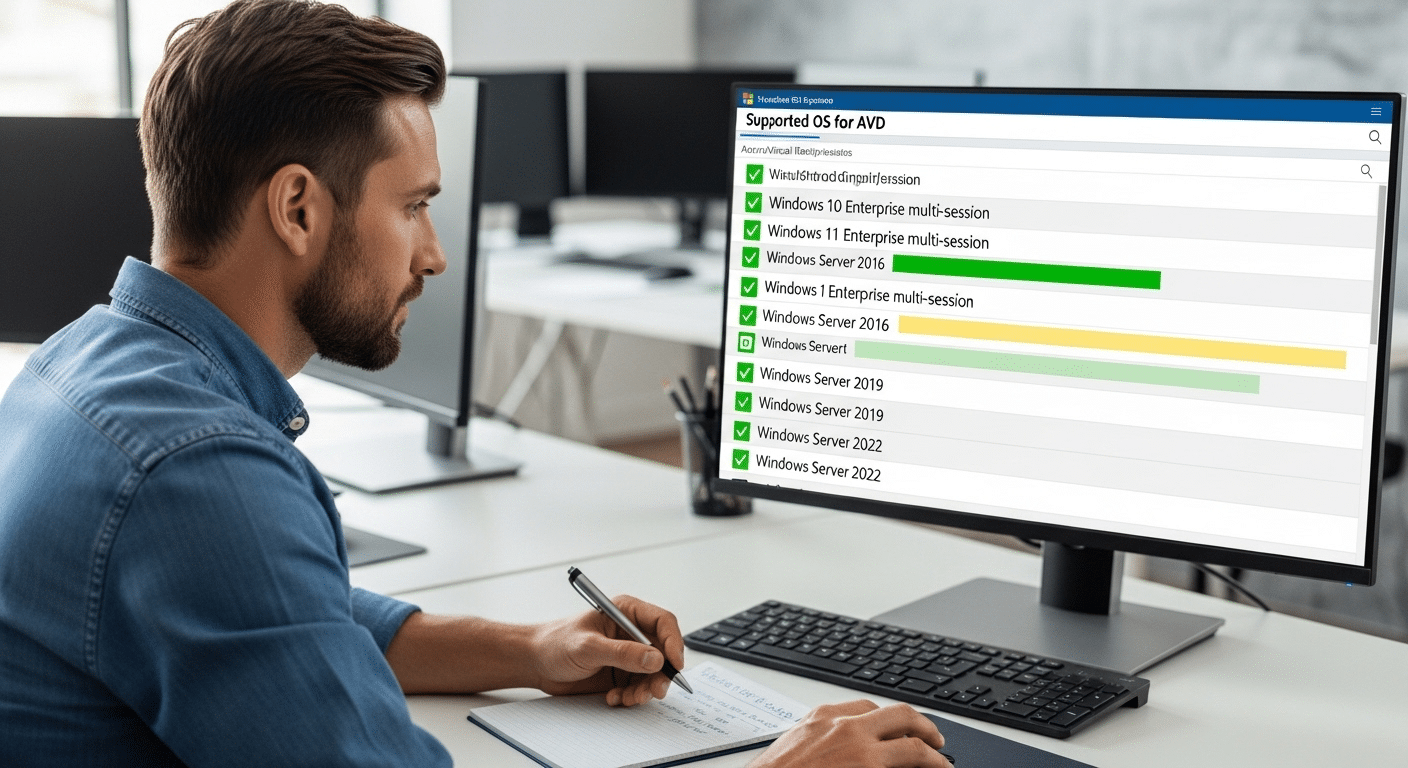
At some point every organization asks the same question, which operating systems actually work with Azure Virtual Desktop? The short answer is fairly clear. Azure Virtual Desktop primarily supports modern Windows desktop and Windows Server operating systems, allowing businesses to run full Windows environments inside the Azure cloud.
Most deployments rely on Windows 10 Enterprise or Windows 11 Enterprise, both of which are optimized for virtual desktop infrastructure. Microsoft also supports several Windows Server operating systems, giving IT teams flexibility when running enterprise workloads or legacy applications.
What makes Azure Virtual Desktop particularly interesting is its support for multi session Windows environments. With Windows 10 Enterprise Multi-session and Windows 11 Enterprise Multi-session, multiple users can log into a single virtual machine at the same time.
This design improves resource efficiency and helps organizations manage infrastructure costs more effectively. Below is a quick overview of the primary supported operating systems for Azure Virtual Desktop.
Supported Azure Virtual Desktop Operating Systems:
| Operating System | Support Type | Notes |
|---|---|---|
| Windows 11 Enterprise Multi-session | Full support | Optimized for shared environments |
| Windows 11 Enterprise | Full support | Single user desktop |
| Windows 10 Enterprise Multi-session | Full support | Multi-user VM support |
| Windows 10 Enterprise | Full support | Single session desktop |
| Windows Server 2022 | Supported | Enterprise workloads |
| Windows Server 2019 | Supported | Session host deployments |
| Windows Server 2016 | Supported | Legacy enterprise support |
| Windows Server 2012 R2 | Limited legacy support | Older deployments |
The Enterprise multi session editions of Windows remain unique to Azure Virtual Desktop, allowing organizations to deliver shared desktop environments from a single virtual machine.
What Makes Windows 10 and Windows 11 Multi-Session Unique in Azure Virtual Desktop?
One capability that sets Azure Virtual Desktop apart from traditional virtual desktop infrastructure is support for multi session Windows environments. In most desktop virtualization platforms, each user requires a separate virtual machine. Azure Virtual Desktop approaches the problem differently. It allows multiple users to log into the same virtual machine at the same time while maintaining separate sessions and user profiles.
This feature is available through Windows 10 Enterprise Multi-session and Windows 11 Enterprise Multi-session, operating systems specifically designed for shared virtual desktop workloads.
Because several users can run their sessions on a single machine, organizations can deliver desktops to large teams without deploying a separate virtual machine for every employee.
The result is a more efficient system that balances performance with infrastructure efficiency.
Advantages of Multi-Session Windows Environments
- Shared virtual machine sessions: Multiple users access the same session host while maintaining individual desktop environments.
- Lower infrastructure costs: Fewer virtual machines are required, which helps reduce overall infrastructure costs in Azure deployments.
- Optimized performance: Multi-session Windows environments are designed to handle high-density workloads without sacrificing stability.
- Faster large-scale deployment: Enterprises can deploy virtual desktops to large user groups quickly using centralized host pools.
Windows 11 Enterprise Multi-session is optimized for performance and shared environments, while Windows 10 Enterprise Multi-session continues to support many existing enterprise deployments.
Which Devices and Client Operating Systems Can Connect to Azure Virtual Desktop?
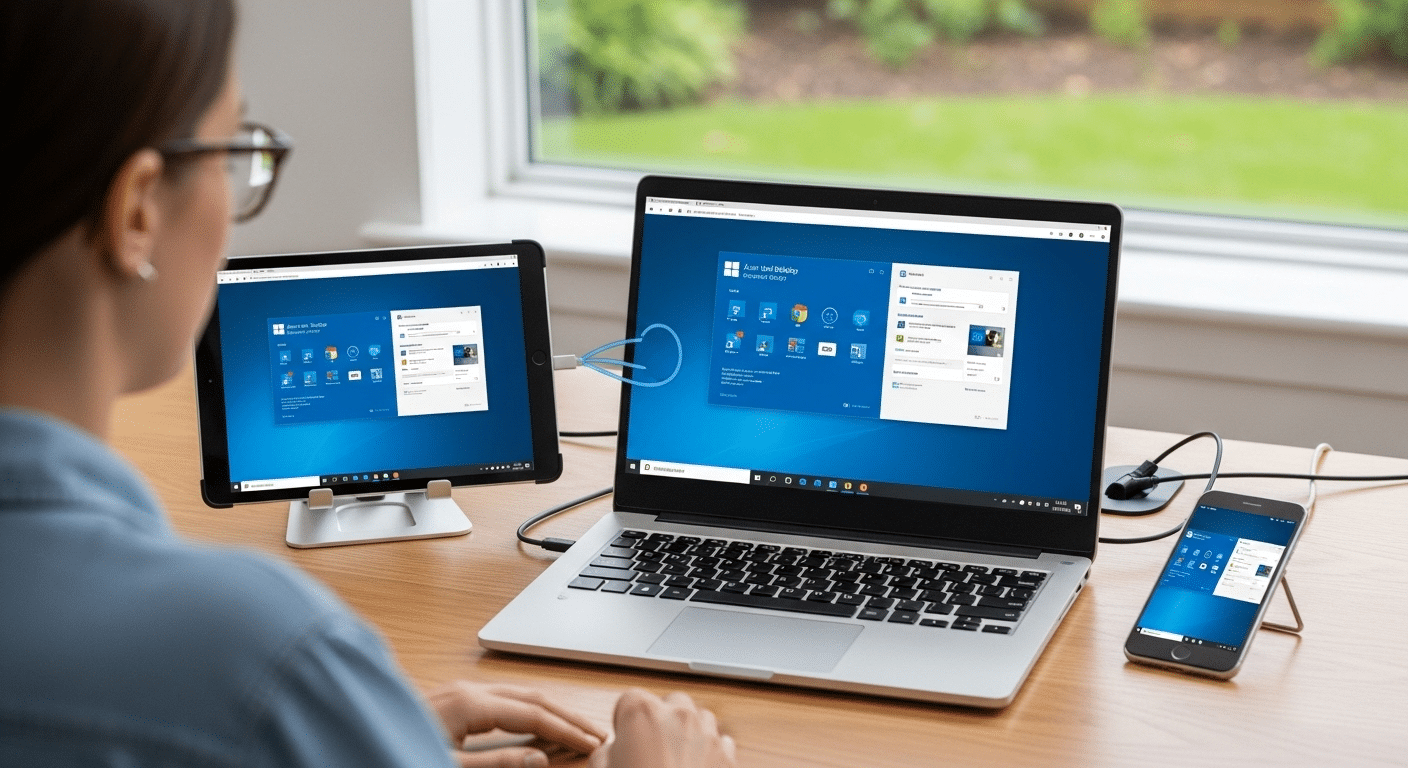
One advantage of Azure Virtual Desktop is the flexibility it offers when it comes to devices. Users are not limited to a single type of computer or operating system. As long as a device can run the required client software or access a supported browser, it can connect to a virtual desktop session hosted in Azure.
In practice, this means you can open your desktop environment from many different devices. A Windows laptop at the office, a Mac at home, a tablet while traveling, or even a browser on a shared workstation can all provide access to the same desktop and applications. The computing work still happens in Azure, while the device simply displays the remote session.
This wide compatibility helps organizations support distributed teams and hybrid work setups without forcing employees to use a single device type.
Supported Client Platforms
- Windows devices: Users connect through the Microsoft Remote Desktop client installed on Windows systems.
- macOS devices: Apple computers running macOS 10.14 or later can access Azure Virtual Desktop using the Remote Desktop client.
- Android devices: Mobile devices running Android 8.0 or later can connect through the Android Remote Desktop application.
- iOS devices: iPhones and iPads running iOS 13.0 or later support secure connections through the Microsoft Remote Desktop app.
- Web browsers: Modern browsers including Edge, Chrome, Safari, and Firefox allow users to connect directly without installing client software.
This flexibility allows organizations to support remote access to desktops and apps across many device types, helping teams stay productive wherever they connect.
How Does Azure Virtual Desktop Handle Security and Identity Management?
Security sits at the center of how Azure Virtual Desktop operates. Because desktops and applications run in the cloud, the platform must verify identities, protect sessions, and secure the connection between users and their virtual machines. Microsoft addresses this through Microsoft Entra ID, combined with built-in Azure security protocols.
Before a user can access a virtual desktop, the system requires authentication through a valid Microsoft Entra ID account. Administrators configure the identity provider, assign role-based access permissions, and define which users can connect to specific host pools or applications. This structure allows organizations to control access at a granular level while maintaining centralized identity management.
Once authentication is confirmed, Azure Virtual Desktop establishes a secure remote session between the user’s device and the session host. Throughout that process, several security mechanisms work together to protect the environment.
Main Security Mechanisms Are:
- Microsoft Entra ID
- Multifactor authentication
- Encryption
- Reverse connect technology
Azure Virtual Desktop also supports compliance frameworks such as HIPAA, GDPR, and PCI DSS, helping organizations maintain a secure virtual desktop infrastructure.
What Licensing Is Required to Use Azure Virtual Desktop?

Running Azure Virtual Desktop requires more than just cloud infrastructure. To access desktops and applications, users must have valid Microsoft licenses that grant rights to connect to the service. These licenses are tied to the user rather than the device, which means access is typically managed on a per user basis.
Many organizations already have the required licenses through their existing Microsoft 365 subscriptions. If those licenses include the correct desktop virtualization rights, you can enable Azure Virtual Desktop without purchasing a separate access license. This helps simplify client licensing requirements, especially for businesses already operating within the Microsoft ecosystem.
However, licensing for the desktop service and the infrastructure are two separate elements. While licenses grant access to the virtual desktop environment, organizations still pay for the Azure virtual machines, storage, networking, and other Azure services that run the environment.
Common Azure Virtual Desktop Licensing Options
| License Type | Access Rights |
|---|---|
| Microsoft 365 E3 / E5 | Full Azure Virtual Desktop access |
| Microsoft 365 A3 / A5 | Designed for education environments |
| Microsoft 365 F3 | Suitable for frontline workers |
| Microsoft 365 Business Premium | Common option for SMB environments |
| Windows 10 Enterprise E3/E5 | Provides desktop access rights |
Organizations using Windows Server operating systems in Azure Virtual Desktop deployments must also meet the appropriate server licensing requirements, often tied to Software Assurance agreements.
How Does Azure Virtual Desktop Scale for Different Workloads?
One reason many organizations adopt Azure Virtual Desktop is its ability to adapt to different workloads without requiring constant infrastructure changes. In traditional environments, expanding capacity often means installing new hardware or redesigning systems. With Azure, scaling becomes far more flexible.
The platform organizes resources using host pools, which group multiple session hosts together to deliver desktops and applications. Each session host runs on an Azure virtual machine, allowing administrators to adjust capacity based on the number of users or the type of workloads being handled. If more computing power is required, additional virtual machines can be deployed quickly.
Another advantage comes from Azure’s global reach. Organizations can place deployments in different Azure regions, helping reduce latency and improve performance for distributed teams.
Because everything runs in the Azure cloud, businesses avoid maintaining complex on-premise infrastructure. Instead, they scale resources when demand increases and reduce them when usage drops, improving both efficiency and cost control.
Why Many Organizations Look for Simpler Alternatives to Traditional Azure Virtual Desktop Deployments?

Azure Virtual Desktop offers strong capabilities, but deploying and managing the environment can take time and expertise. Organizations often deal with complex infrastructure configuration, identity management through directory services, network setup, and ongoing licensing management. Each of these pieces must work together correctly before users can access desktops and applications.
Because of this complexity, some teams start exploring simpler options. Apporto provides a virtualization platform and service designed to remove much of that operational overhead. Instead of installing client software or managing layered infrastructure, users access their desktops directly through a web browser.
This approach brings several advantages. Browser-based desktop access allows users to connect quickly from almost any device. Simplified deployment reduces setup time for administrators. Cross-device compatibility supports laptops, tablets, and other systems, while built-in security controls help maintain secure remote access.
Final Thoughts
Selecting the right environment for Azure Virtual Desktop begins with understanding compatibility. The service supports modern Windows desktop and Windows Server operating systems, giving organizations flexibility when building virtual desktop infrastructure.
Options such as Windows 10 Enterprise Multi-session and Windows 11 Enterprise Multi-session allow multiple users to share the same virtual machine while maintaining separate sessions and profiles.
At the same time, the platform allows connections from many devices and operating systems, including Windows, macOS, mobile devices, and web browsers.
Before deploying Azure Virtual Desktop, it helps to evaluate operating system compatibility, licensing requirements, and infrastructure capacity to ensure the environment can support long-term business needs.
Frequently Asked Questions (FAQs)
1. What operating systems does Azure Virtual Desktop support?
Azure Virtual Desktop primarily supports modern Windows operating systems. These include Windows 11 Enterprise, Windows 10 Enterprise, and multi-session editions designed for shared environments. The platform also supports several Windows Server operating systems such as Windows Server 2022, 2019, and 2016 for enterprise deployments.
2. Can Azure Virtual Desktop run Windows Server operating systems?
Yes, Azure Virtual Desktop supports several Windows Server operating systems. Organizations commonly deploy Windows Server 2022, Windows Server 2019, and Windows Server 2016 as session hosts to deliver remote desktop services and support enterprise workloads.
3. Does Azure Virtual Desktop support Linux machines?
Linux distributions such as Ubuntu, Red Hat, SUSE, and Oracle Linux can run on Azure virtual machines. However, Linux cannot currently function as native Azure Virtual Desktop session hosts within the standard service environment.
4. What devices can connect to Azure Virtual Desktop?
Users can connect to Azure Virtual Desktop from a wide range of devices. Supported platforms include Windows computers, macOS devices, Android and iOS mobile devices, and modern web browsers such as Edge, Chrome, Safari, and Firefox.
5. Is Windows 11 better than Windows 10 for Azure Virtual Desktop?
Windows 11 Enterprise offers improved security features and a refined interface compared with Windows 10. Both operating systems work well with Azure Virtual Desktop, though Windows 11 Enterprise Multi-session is optimized for newer environments and long-term deployments.
6. What licenses are required for Azure Virtual Desktop?
Access to Azure Virtual Desktop typically requires Microsoft licenses such as Microsoft 365 E3, E5, A3, A5, F3, or Business Premium. Windows 10 Enterprise E3 or E5 licenses also provide access rights, while Azure infrastructure costs remain separate.
7. Can I run Windows 11 in Azure Virtual Desktop?
Yes, you can run Windows 11 in Azure using Azure Virtual Machines or Azure Virtual Desktop. Microsoft supports Windows 11 Enterprise, including multi-session editions designed for virtual desktop infrastructure environments that allow secure remote access and centralized cloud-based management.
