

How to Set Up VDI?
A VDI setup hosts virtual desktops on centralized servers, allowing users to access them securely from any device. It improves flexibility, security, and IT control. While traditional VDI requires complex infrastructure, fully managed solutions like Apporto simplify deployment with browser-based access and no hardware requirements.
Setting up a VDI environment is no longer a niche IT task—it’s a strategic move for organizations embracing hybrid work, remote access, and centralized IT control.
A VDI setup, or Virtual Desktop Infrastructure, lets users access virtual desktops from almost any device, anywhere, through a secure remote connection.
Instead of relying on individual machines, desktops are hosted on a centralized server and delivered via the cloud or a data center.
As demand grows for secure, flexible, and cost-effective solutions, VDI has become essential to modern IT strategy. It reduces endpoint management, improves security, and ensures consistent user experiences.
Let’s dig into what makes VDI work, how to deploy it properly, and how to choose the right solution for your organization.
What Is a VDI Setup and Why Is It Used Today?
A Virtual Desktop Infrastructure (VDI) is a technology that hosts desktop environments on a centralized server, allowing users to access their virtual desktops from anywhere. Instead of running an operating system locally on each computer, the desktop and all its applications run on virtual machines (VMs) inside a secure data center or cloud platform. Users connect remotely to these desktops through a browser or client interface, enabling seamless access to files, apps, and system settings.
A proper VDI setup is built around a centralized management system. IT teams can deploy updates, apply security patches, and manage hundreds of desktops from a single location — saving both time and cost.
The advantages of virtual desktop infrastructure (VDI) go beyond convenience. It offers:
- Remote desktop access for employees working off-site
- Stronger data protection through centralized storage
- Compatibility with multiple devices and operating systems
- Scalability, allowing you to add or remove users easily
In short, a VDI solution delivers flexibility, consistency, and security in a single framework — essential for today’s mobile and remote-first workforce.
How Does a Virtual Desktop Work Compared to a Local Machine?

A virtual desktop functions much like a traditional personal computer, but with one main difference — it doesn’t live on your device. Instead, it’s hosted on a central server and accessed through a remote desktop client. Your screen, files, and software look the same, but the computing power comes from the data center rather than your hardware.
When you log in, the system starts a remote desktop session that connects you to your workspace securely over the internet. Every click, drag, and file update happens in real time, streamed to your device. For users experiencing reduced visual quality or sluggish session performance, increasing the bitrate can help optimize the remote desktop experience.
For users, the experience is nearly identical to running a desktop OS locally. Whether you’re on a Mac, Windows laptop, or tablet, a thin client can handle the connection with minimal setup. IT teams, meanwhile, use device management tools to oversee performance, ensure compliance, and maintain uptime.
The result is simple — you can work from almost any device, anywhere, without sacrificing performance or security.
What Are the Core Components of a VDI Environment?
To build a reliable VDI environment, you need more than just virtual desktops. The system depends on a coordinated set of components working together to deliver smooth performance, security, and scalability.
Here are the essentials:
- VDI Server / Central Server: The engine of your infrastructure. It hosts all the virtual machines (VMs) and handles processing, memory, and storage demands.
- Connection Broker: Directs each user to the correct virtual desktop during login. It manages load balancing and session persistence.
- Active Directory (AD): Handles user authentication, permissions, and policies.
- Profile Settings and Group Policies: Control the user experience and security settings across all desktops. For environments using FSLogix, administrators can fine-tune the settings to manage user profiles and improve consistency across virtual desktops.
- Virtual Machine Images: Pre-configured desktop templates used to rapidly deploy new environments.
Supporting software is just as important:
- Windows Server: Often used to host and manage VDI sessions.
- Microsoft Azure: Popular cloud platform offering scalable VDI solutions.
- RDP Protocol: Microsoft’s Remote Desktop Protocol enables the secure streaming of desktops to end users.
Underlying it all is infrastructure like:
- High-performance server hardware
- A secure data center
- Network attached storage (NAS) for persistent data
These components come together to create a centralized, flexible, and secure desktop experience.
What Are the Minimum Requirements to Set Up VDI?
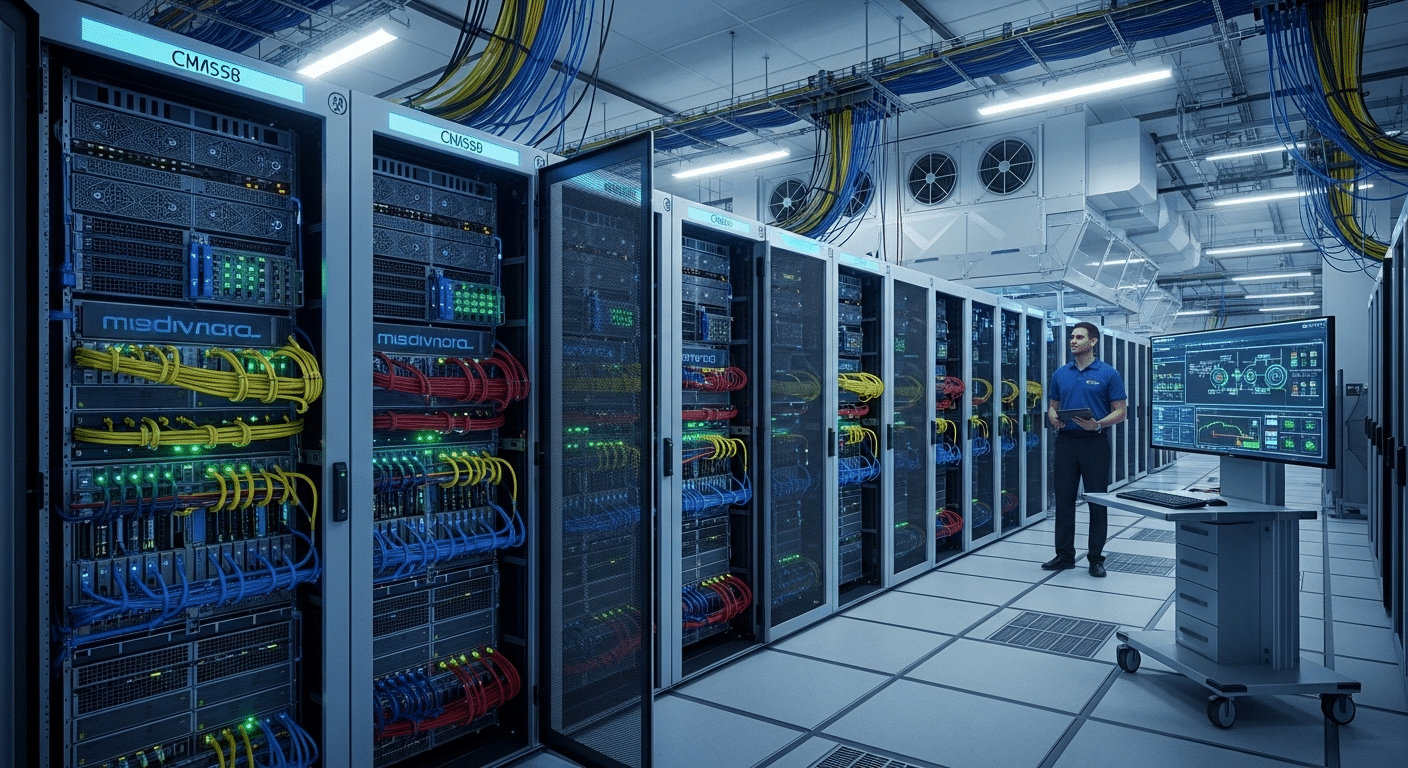
Before you deploy a VDI setup, your environment needs to meet certain baseline requirements — both on the server and client sides.
1. Server-Side Hardware Requirements
To ensure stability and performance, your VDI server should meet the following:
- CPU: Multi-core processors with virtualization support (Intel VT-x or AMD-V)
- Memory (RAM): At least 8 GB per user session for Windows, less for Linux
- Storage: SSD preferred for lower latency; capacity depends on user load
- Network Connectivity: High-speed internal network (1Gbps or higher)
2. Client-Side Requirements
Your users will need compatible devices and software:
- Operating System: Windows, macOS, Linux, or Chrome OS
- Browser Support: HTML5-compatible browser for browser-based access
- Thin Client: Alternatively, use dedicated lightweight endpoints for secure access
- Remote Desktop Client: Required for platforms like Windows Virtual Desktop, Azure Virtual Desktop, or Citrix Virtual Apps
3. Connectivity
- Stable internet connection with low latency and high availability
Make sure your setup aligns with the latest version of your chosen VDI software to ensure support and security.
How Do You Deploy a Virtual Desktop Infrastructure Step-by-Step?
Deploying VDI might sound complex, but the process follows a structured series of installation steps that ensure smooth setup and management. The goal is to create an environment where users can simply double click and access their desktops without delay.
Here’s a clear walkthrough to help you set up your virtual desktop infrastructure efficiently:
- Create a New Virtual Machine Image
- Begin by building a new virtual machine (VM).
- Install your preferred desktop operating system (OS) and essential software.
- Configure system preferences and add necessary add-ons for performance and security.
- Install and Configure Profile Settings
- Apply standard configurations across users for consistent experience.
- Manage personalization and app access through group policies.
- Connect to a Single Server or Central Server
- Integrate your VM with the VDI server or central server to host and manage desktops.
- Ensure the connection broker correctly routes users to their assigned desktops.
- Test and Manage the Deployment
- Conduct performance and security tests.
- Use administrative tools to manage virtual desktops, resource allocation, and updates.
Once these steps are complete, your VDI deployment allows seamless login, secure access, and consistent performance across all users.
How Can You Manage Users and Access in a VDI Setup?
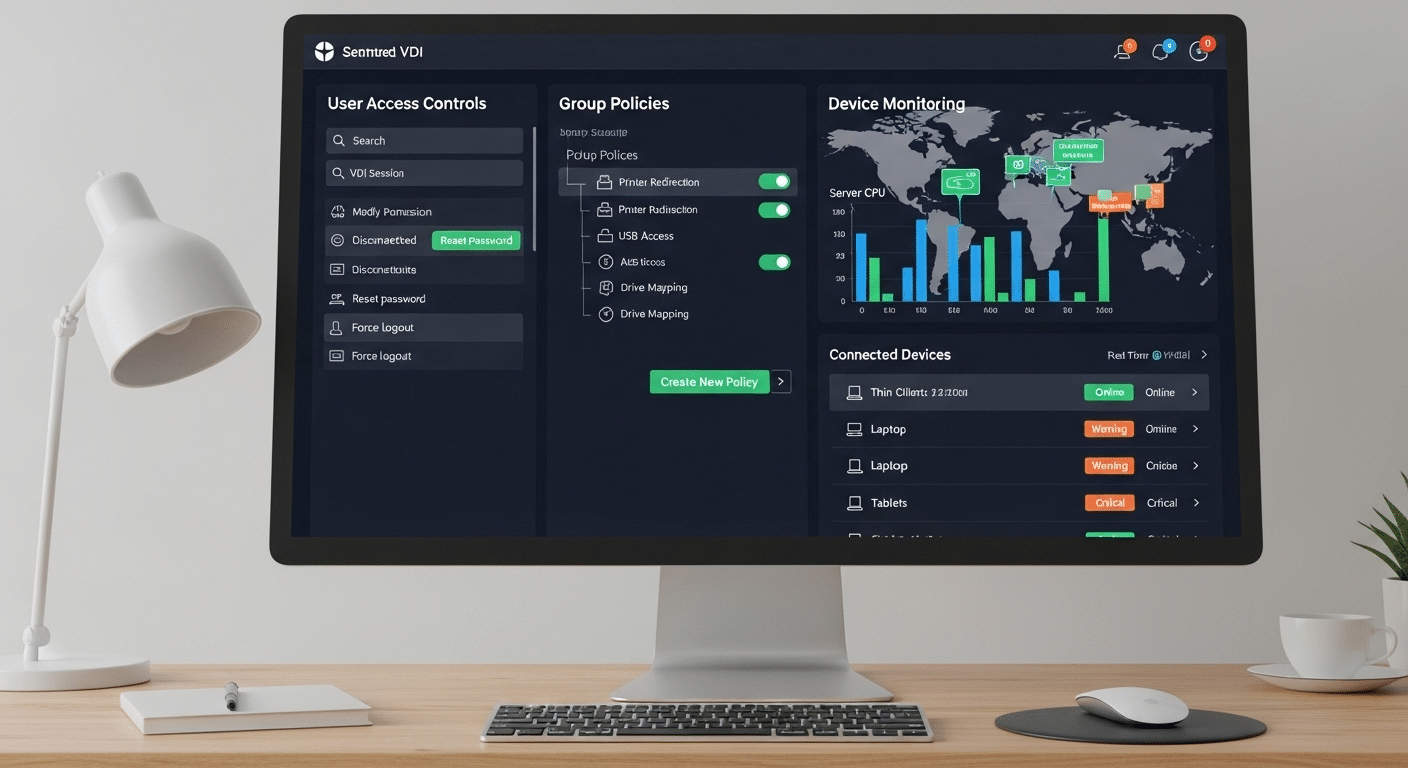
Effective management is what transforms a good VDI setup into a great one. With the right tools, you can securely manage multiple users, devices, and policies — all from a centralized interface.
Here’s how:
- Active Directory (AD): Use AD for authentication and identity control. It ensures every user has the right permissions before accessing their desktop.
- Group Policies: Apply uniform rules across the organization — such as password strength, app restrictions, or session timeouts.
- Remote Access Control: Configure secure remote connections so users can access virtual desktops anytime from any device, whether in-office or off-site.
- Device Management: Monitor and manage endpoints to maintain compliance and prevent unauthorized device access.
Centralized management means you can onboard a new user, change permissions, or update software without ever touching their physical device. This streamlined control not only enhances security but also simplifies IT operations.
What Security Measures Should Be Built into a VDI Deployment?
Security is one of the strongest arguments for adopting virtual desktop infrastructure. Because VDI environments are managed centrally, IT teams have greater control over access, data handling, and system integrity. But to protect sensitive data, the setup must be designed with security in mind from day one.
Here are some essential security measures to include in your VDI deployment:
- Zero Trust Architecture: Never assume any user or device is safe. Require verification at every step.
- Multi-Factor Authentication (MFA): Adds an extra layer of identity validation, especially critical for remote desktop access.
- Encryption: Ensure data is encrypted both in transit and at rest. This protects files accessed from remote locations.
- Access Monitoring: Log and review remote desktop sessions to detect anomalies or unauthorized behavior.
- Network Segmentation: Separate VDI workloads from internal systems to limit lateral movement in case of a breach.
A secure VDI setup doesn’t just reduce risk — it builds trust. When you manage everything from a central platform and enforce strong policies, you gain the security posture modern environments demand.
What Are the Pros and Cons of VDI vs. Azure Virtual Desktop or Citrix Virtual Apps?
Choosing the right solution isn’t always straightforward. While a traditional VDI setup gives you full control, alternatives like Azure Virtual Desktop and Citrix Virtual Apps offer flexibility and speed through the cloud.
Here’s a quick comparison:
| Feature | Traditional VDI | Azure Virtual Desktop | Citrix Virtual Apps |
|---|---|---|---|
| Control | High | Moderate | Moderate |
| Setup Time | Longer | Faster | Faster |
| Cost Effective | Varies by scale | Pay-as-you-go | Subscription-based |
| Support | In-house | Microsoft Support | Citrix Support |
| High Availability | Needs extra setup | Built-in | Built-in |
| Ability to Quickly Scale | Limited by hardware | Easy via cloud | Easy via cloud |
Each solution fits different needs. Azure Virtual Desktop works well for fast-moving teams needing cloud-native tools. Citrix Virtual Apps offers strong compatibility and enterprise support. Traditional VDI suits organizations prioritizing full control and custom configurations.
What Are the Common VDI Setup Challenges and How Do You Overcome Them?

Even a well-planned VDI deployment isn’t immune to friction. To maintain a seamless experience, it’s essential to address a few common obstacles early.
Main Challenges in VDI Setup:
- Low Latency Performance Issues
Poor network connectivity can cause lag in virtual desktop sessions. This affects user experience, especially with real-time applications. - Image Sprawl
Over time, having too many virtual desktop images with slight variations becomes hard to manage and update. - Bandwidth and Connectivity Bottlenecks
Limited bandwidth or inconsistent remote connections can disrupt access to centralized server resources.
How to Overcome Them:
- Implement load balancing to evenly distribute workloads across servers.
- Use cloud bursting to dynamically allocate additional compute resources during peak usage.
- Regularly consolidate and update your base image to the latest version to avoid fragmentation.
- Monitor server performance to ensure hardware is keeping up with demand.
Identifying and addressing these challenges early will help keep your VDI setup efficient, stable, and scalable.
Looking for a Simpler VDI Experience? Try Apporto
Setting up and managing a traditional VDI environment can be time-consuming and expensive. If you’re looking for a faster, easier path to virtual desktop infrastructure, Apporto is a fully managed cloud-based solution that eliminates the need for on-prem hardware and complex configuration.
Apporto delivers secure, high-performance virtual desktops through a browser—accessible from almost any device. It’s ideal for education, training, remote teams, and organizations that want the power of VDI without the maintenance headaches.
Is VDI the Right Solution for Your Organization’s Remote Access Needs?
A well-planned VDI deployment can bring real value — but it’s not one-size-fits-all. If your team relies on secure remote access, consistent desktop environments, and centralized device management tools, then VDI may be exactly what you need.
It supports today’s mobile users across a variety of operating systems, while giving IT the control to configure, secure, and scale from a single platform. Whether you’re managing remote desktop sessions for five users or five hundred, the benefits remain clear: security, consistency, and flexibility.
That said, traditional VDI can be resource-heavy to set up and maintain.
If you’re looking for a fully managed, cloud-based VDI solution, Apporto makes deployment easy — with no need to invest in physical infrastructure. It’s built for fast, secure VDI use, without the overhead.
Try Apporto.
Frequently Asked Questions (FAQs)
1. What is a VDI setup?
A VDI setup refers to the process of creating a centralized system where virtual desktops are hosted on servers and accessed remotely. It allows users to work from almost any device, while IT manages everything from a central platform.
2. How do you set up a new virtual desktop?
To set up a new virtual desktop, you create a virtual machine with a desktop operating system, configure settings and applications, and connect it to a VDI server. Users can then access this desktop via a remote desktop client.
3. Can multiple users share a single VDI server?
Yes. A properly configured VDI server can support multiple users, each with their own secure desktop environment. Load balancing and user isolation ensure smooth performance.
4. What are the biggest challenges in a VDI setup?
Common VDI challenges include performance issues due to latency, high infrastructure costs, image management complexity, and bandwidth limitations. Proper planning, load balancing, and scalable infrastructure are essential to maintain performance and ensure a consistent user experience across environments.
5. What’s the difference between VDI and remote desktop?
Remote desktop usually refers to one user connecting to a single machine, while virtual desktop infrastructure (VDI) supports many users, each with individual desktops running on a central server.
6. How secure is a VDI environment?
A VDI environment is typically more secure than local desktops. All data remains within the data center, and access is tightly controlled with tools like MFA and encryption.
