Setting Up VDI: A Complete Guide for IT Teams and Admins

Side-by-side comparison of legacy IT environment and modern cloud-based setup, illustrating the transition to setting up VDI for streamlined operations.

Setting up VDI is no longer a niche project—it’s a core infrastructure decision. With the rise of hybrid work, the pressure to support remote access, security, and consistent performance across devices has never been greater. Whether you’re managing faculty logins on campus or enabling engineers across regions, how your virtual desktop infrastructure is deployed affects everything from uptime to morale.

Done right, VDI delivers centralized control, improved data security, and a seamless user experience. Done wrong, it becomes a drag on productivity and an ongoing support headache.

This guide breaks down the essentials of planning and setting up VDI, from choosing hardware to optimizing for enhanced performance. You’ll get a clearer picture of how users connect, what to prioritize, and where modern solutions—like browser-based platforms—can make the entire process easier and more sustainable.


What Is VDI and How Does It Actually Work?

Virtual Desktop Infrastructure (VDI) is a method of delivering desktop environments to users through a centralized server. Instead of installing applications and storing files directly on a user’s device, VDI shifts everything to the data center or cloud. The desktop—along with apps, settings, and files—is accessed remotely from almost any device.

There are three core delivery types to understand:

  • Virtual desktops: Full desktop environments delivered virtually to users.
  • Remote desktop sessions: Multiple users share a single Windows Server session (e.g., through Remote Desktop Services) rather than receiving isolated desktops.
  • Virtual apps: Specific applications (not the entire desktop) are streamed to the user’s device.

In a VDI model, user desktops are typically hosted on virtual machines running inside a centralized server. When users log in, they connect via a secure protocol that renders the desktop session on their local screen.

What they see and interact with is familiar—but nothing actually runs on their local machine. This setup centralizes management, improves security, and provides a consistent experience across devices, locations, and operating systems.


What Do You Need Before Setting Up VDI?

A successful VDI setup starts with a well-planned initial setup. That includes both infrastructure and organizational readiness.

Here’s what you’ll need on the hardware side:

  • Server hardware with enough CPU, RAM, and GPU power to support concurrent users
  • Sufficient network bandwidth and stable network infrastructure
  • Fast, reliable storage—ideally network attached storage (NAS) or SSD-based solutions

And on the software and planning side:

  • A functioning domain controller for authentication and policy enforcement
  • Proper licensing for OS, virtualization platforms, and user access
  • A dedicated test environment to validate configurations before full deployment
  • Consideration of local computer compatibility if hybrid or BYOD access is in play

Skipping these early steps or underestimating capacity needs can create performance bottlenecks that frustrate users and burden IT. Upfront planning ensures the environment can grow and adapt as user demands increase.


How Do You Choose the Right VDI Solution for Your Users?

IT professional reviewing cloud performance dashboards while setting up VDI in a modern remote-ready workspace.

Choosing the right VDI solution starts with understanding your organization’s needs—not just from a technical standpoint, but from a user perspective as well. Start by looking at the type of users you’re supporting: are they mostly office-bound, fully remote, or a mix of both? Are they light task workers, or do they require access to graphics intensive applications?

From there, assess your environment:

  • Do you need a solution that runs on physical devices or mobile endpoints?
  • Is your current infrastructure better suited to an on-prem VDI model, or is a cloud provider like Microsoft Azure more sustainable long term?
  • Will your users need full desktops, or are virtual apps sufficient?

Also weigh:

  • Security requirements
  • Budget constraints
  • Scalability for future growth
  • Resource utilization and IT capacity

Some VDI solutions focus on control and flexibility but come with heavy infrastructure overhead. Others, like Apporto, deliver VDI as a lightweight, browser-based service with no client software, perfect for hybrid and remote teams.

The goal is to match the solution to the real-world needs of your workforce—not just the architecture of your data center.


What Are the Steps in a Successful VDI Deployment?

System administrator managing virtual desktop infrastructure from a secure data center, actively setting up VDI for enterprise users.

A well-planned VDI deployment isn’t just about spinning up virtual desktops—it’s about creating a resilient, user-friendly environment that can scale over time. Below are the key components to consider when deploying VDI:

  1. Image Creation: Build a clean, standardized desktop image with essential apps. This becomes the template for all user environments.
  2. OS Installation: Ensure each virtual machine runs a properly licensed and updated operating system, optimized for remote access.
  3. Base Policies: Set default group policies that align with organizational security standards, user behavior, and access restrictions.

Next, configure these foundational services:

  • Virtual desktop images: Customized per role or department
  • Connection broker: Manages authentication and routes users to the right desktop
  • User profile: Stores settings, preferences, and session history
  • User permissions: Controls who can access which apps, files, or desktops

Integrate Remote Desktop Services where needed, especially for session-based environments or shared resource pools.

Finally, connect it all through a stable virtual network—ensuring that the entire system operates smoothly across geographic locations and device types.

Skipping even one of these steps can introduce friction, security holes, or unnecessary overhead. VDI is only as effective as the groundwork beneath it.


What Security Best Practices Should You Build Into Your VDI Setup?

Secure laptop screen displaying blocked USB access and file download restrictions, highlighting endpoint protection when setting up VDI.

Security isn’t something you bolt on after deployment—it needs to be woven into the VDI setup from day one. A virtual desktop environment, while centralized by design, still faces many of the same risks as traditional infrastructure. Without robust security measures, your data, users, and systems remain vulnerable.

Here are some best practices to incorporate from the start:

  • Apply role-based access control (RBAC): Limit access to only the resources users need. This minimizes risk and helps enforce internal security policies.
  • Harden your desktop operating systems: Configure secure security settings, disable unnecessary services, and keep all systems patched and up to date.
  • Embed antivirus software in your base images: This ensures every virtual machine is protected right from deployment—without relying on user actions.
  • Use Azure AD or a similar identity provider: Enforce multi-factor authentication (MFA) and manage access from a centralized directory.
  • Prevent local data exposure: Block USB access when not needed, disable file downloads to unmanaged devices, and keep sensitive data within the network or cloud infrastructure.

By focusing on enhanced security at every layer—from user authentication to data protection—you lay the foundation for a resilient, scalable VDI environment.


How Do You Optimize VDI Performance Across Devices and Networks?

IT engineer interacting with a virtual global network interface while setting up VDI in a high-security data center.

Performance can make or break your VDI rollout. A slow or inconsistent experience affects productivity, frustrates users, and burdens IT support. Fortunately, there are reliable ways to optimize performance and deliver consistently strong results across your environment.

Here are best considerations to improve VDI performance:

  • Monitor and balance network bandwidth: Ensure you have enough network bandwidth to support concurrent users, especially during peak log-in times or software updates.
  • Tune for resource utilization: Over-provisioning virtual CPUs or RAM can hurt performance as much as under-provisioning. Monitor actual usage and adjust based on live metrics.
  • Support graphics-intensive applications: If users run graphics intensive applications, such as CAD or media editing tools, consider GPU acceleration for those virtual machines.
  • Standardize desktop OS configurations: Keep desktop operating systems consistent and lean. Disable unnecessary services and features that slow down virtual desktop performance.
  • Account for mobile and personal devices: Mobile users and those accessing VDI from a personal computer may have less consistent connections. Use adaptive display protocols and compression settings to maintain responsiveness.
  • Distribute workloads smartly: Balance session load across servers and consider geo-optimization to reduce latency for remote locations.

Fine-tuning performance isn’t a one-time task—it’s an ongoing process. With regular monitoring, smart resource allocation, and some thoughtful tuning, you can deliver enhanced performance across your VDI deployment without overbuilding or overspending.


How Important Is User Experience in VDI Implementation?

Corporate training session focused on user onboarding and best practices for setting up VDI across teams and devices.

The success of any VDI implementation hinges on one often-overlooked factor: user experience. Even if the backend is rock solid, users won’t embrace a system that feels slow, confusing, or restrictive.

To deliver a seamless user experience, focus on these core elements from the start:

  • User training matters: Introduce users to the platform with clear guidance on how it differs from a traditional desktop. Effective user training minimizes support tickets and frustration.
  • Design with real user needs in mind: Understand how different users work—what apps they use, how often they travel, and what they expect from their user desktops.
  • Support across devices: Your environment should work well on a range of devices, including laptops, tablets, and even personal machines. Compatibility builds confidence.
  • Personalize when possible: Give users flexibility in layout, saved sessions, and minor preferences. These small touches go a long way in enabling users to stay productive.

User experience isn’t just aesthetic—it’s structural. If you skip this, your rollout may stall, and adoption may lag. Build for people, not just infrastructure, and your investment in VDI will pay off.


Why Apporto Is a Smarter, Simpler Way to Deliver Virtual Desktops

If traditional VDI feels complex, rigid, or costly to maintain, Apporto offers a modern alternative. It’s a browser-based, cloud-native virtualization platform designed to streamline remote access without compromising security or control.

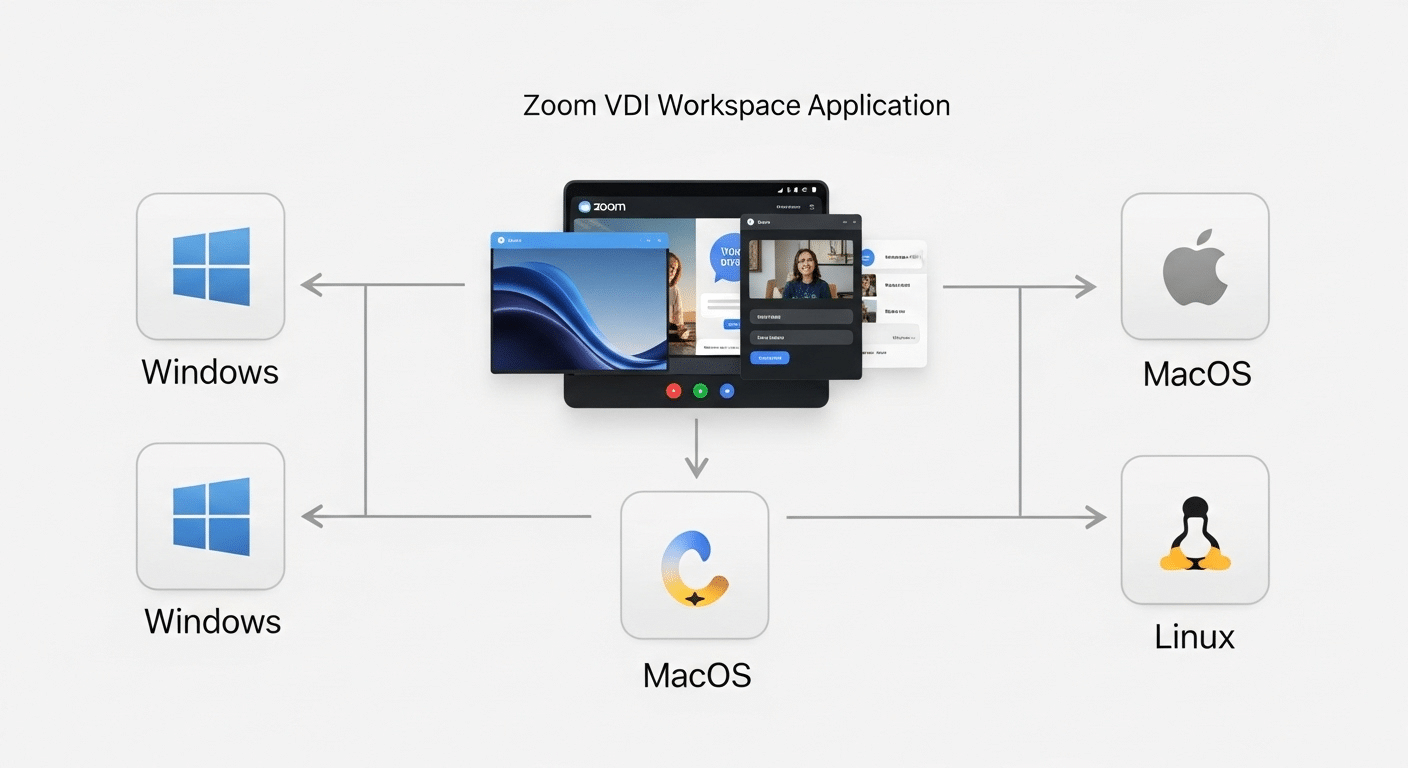
There’s no need for a massive infrastructure build-out—no connection broker, no VPN clients, and no server stack to babysit. Apporto runs in the browser, giving users instant secure access to their desktops and applications from anywhere, on any device.

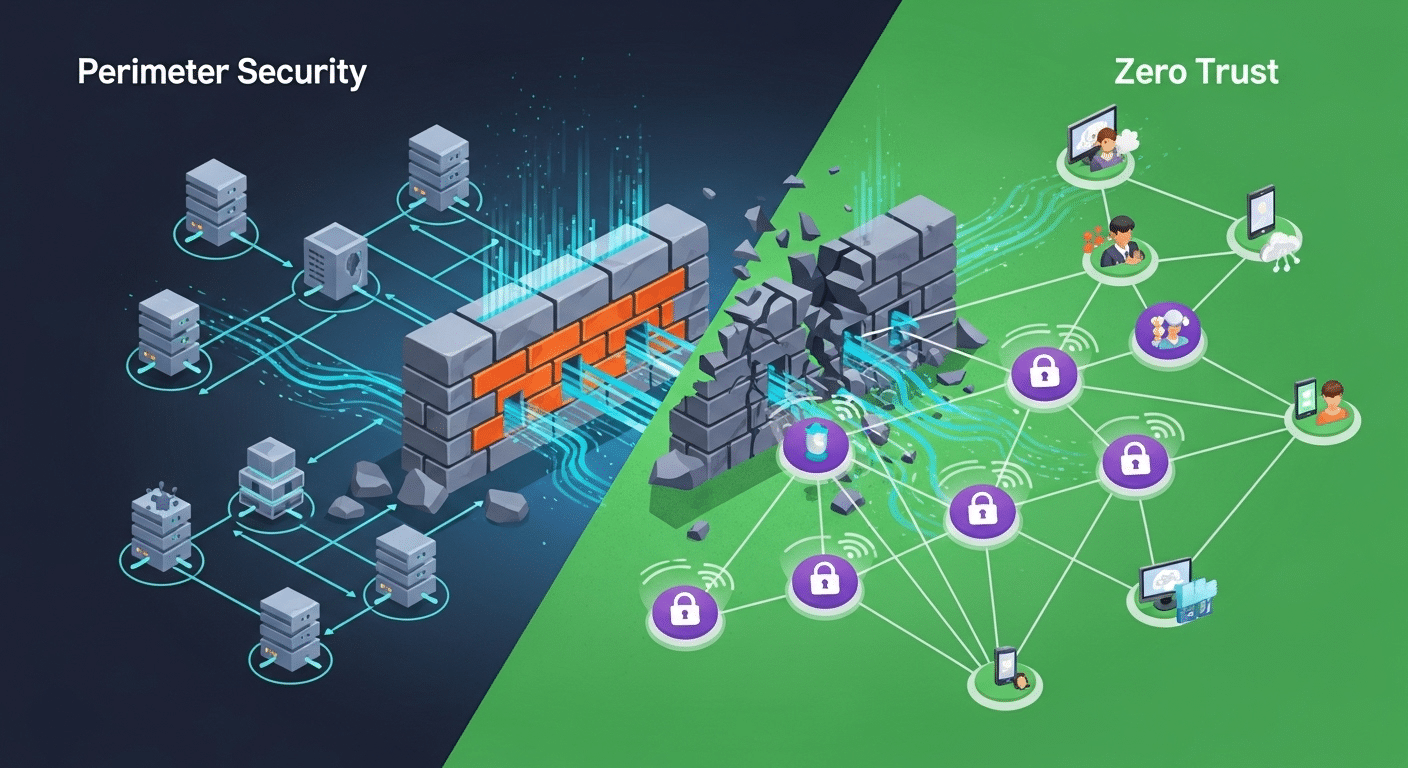
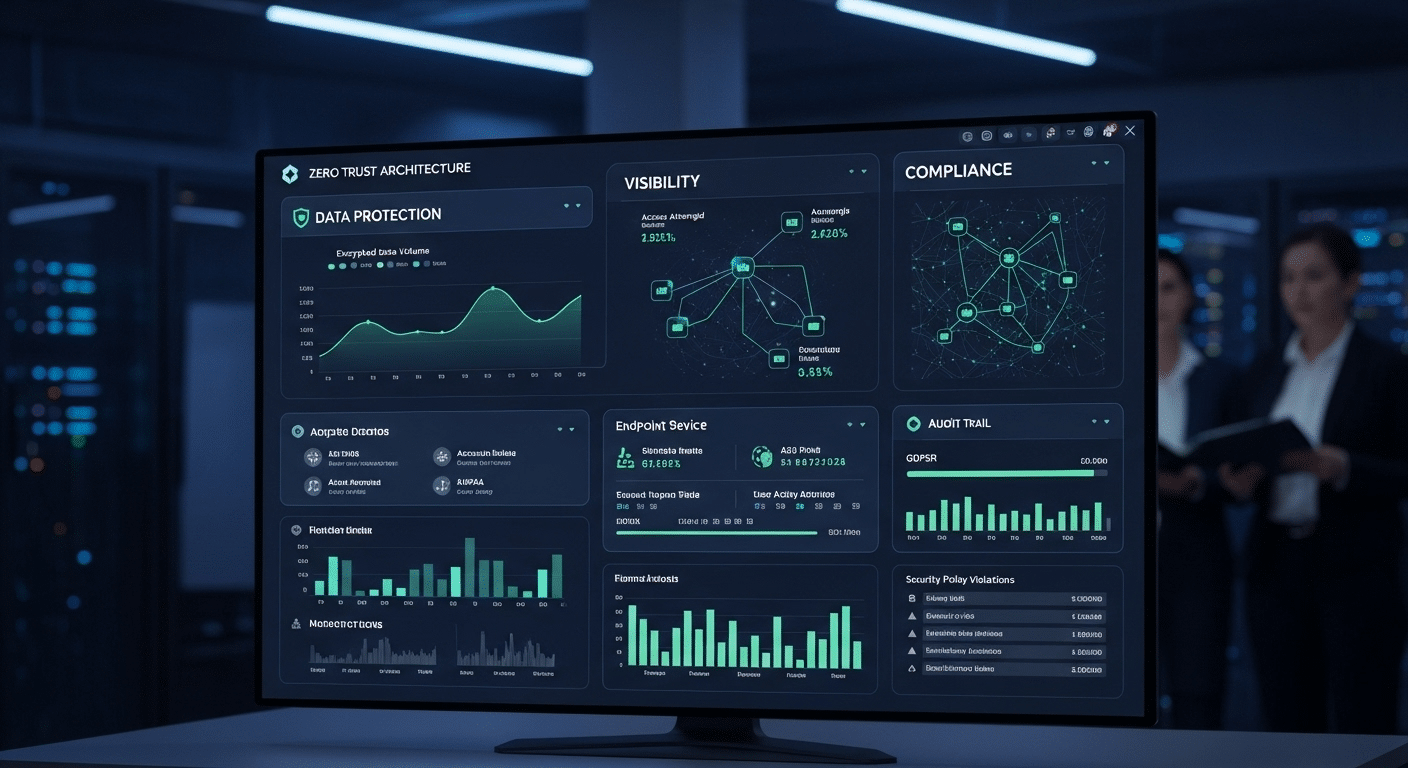
Built on a Zero Trust architecture, it keeps your data protected and your users productive, even when they’re working remotely or switching between devices. That means fewer security gaps and less IT overhead.

It’s ideal for education, SMBs, and hybrid teams looking for a VDI solution that scales with ease and simplicity. Whether you’re supporting hundreds of students or a distributed workforce, Apporto adapts—without adding layers of technical debt.

Simple to deploy. Fast to scale. Built for how your teams actually work. Try Apporto Now


Final Thoughts: Building a VDI Setup That Actually Works

Setting up VDI isn’t just a technical exercise—it’s a long-term commitment to how your organization delivers desktops, apps, and access. From careful planning and deployment to performance optimization and robust security, every phase matters. Whether you’re hosting in a traditional data center or working with a cloud provider, the goal remains the same: deliver a stable, flexible, and secure virtual desktop infrastructure that supports real users in real time.

Today’s VDI technologies offer more options than ever, but that also means more decisions. Take the time to evaluate your environment, user needs, and operational limits before settling on a service.

If your team is looking for flexibility without the complexity, Apporto provides a modern, browser-based alternative that removes the weight of legacy infrastructure—and just works.


Frequently Asked Questions (FAQs)

1.What is the best way to start setting up VDI?
Start with a test environment and clear user requirements. Plan for infrastructure, licensing, and security before scaling your virtual desktop infrastructure.

2.How many users can a VDI environment support?
A well-configured VDI setup can support dozens to thousands of users, depending on your server capacity, storage, and bandwidth availability.

3.What’s the difference between VDI and Remote Desktop Services (RDS)?
VDI gives each user a personal virtual machine. Remote Desktop Services share a single server session across multiple users, offering less isolation and customization.

4.Is VDI secure for sensitive data?
Yes—when set up correctly. VDI keeps sensitive data centralized and off endpoint devices. Use role-based access and encryption for stronger protection.

5.Can VDI be hosted in the cloud?
Absolutely. Many organizations use cloud providers like Azure to deploy scalable, cloud-native VDI environments that reduce on-premise infrastructure needs.

What is a VDI File & How to Open It?

User browsing contents of a VDI file through file explorer on a desktop, illustrating virtual disk access outside a VM.

You’ve likely come across the term VDI file while working with virtual machines or looking into virtualization. At first glance, it might sound overly technical or abstract. But in practice, it’s quite straightforward—and surprisingly useful.

A VDI file, short for Virtual Disk Image, is exactly what it sounds like: a digital version of a physical hard drive. It stores everything from an operating system to applications and user data, making it possible to simulate a full computer system inside another system.

Whether you’re a developer running multiple test environments, a student exploring different operating systems, or part of an IT team managing isolated setups, VDI files give you control, flexibility, and containment.

Understanding how these files work and how to open them can save you time and avoid system conflicts. Let’s break it all down—starting with the basics.


What Is a VDI File and How Does It Work in Virtual Machines?

VDI file being transferred from a physical server to the cloud, symbolizing virtual disk portability and backup.

A VDI file — short for Virtual Disk Image — is essentially a container. It simulates a physical hard drive within a virtual environment and holds everything a typical system would need to operate.

Here’s what a VDI file typically contains:

  • Operating system files – such as Windows, Linux, or Ubuntu.
  • Applications and software – installed within the virtual machine.
  • User data and settings – documents, downloads, desktop files, etc.
  • System state – logs, configuration files, and active memory states.

In a virtual machine (VM), the VDI file plays a central role. Instead of connecting a physical hard disk, the virtual system interacts with the VDI file like it’s real hardware. This allows you to boot, install software, save files, and perform normal computing tasks — all within the virtualized layer.

The host operating system — whether macOS, Windows, or Linux — treats the VM like a single application. But inside the VM, the guest operating system sees the VDI file as its main hard disk.

This setup offers flexibility:

  • You can duplicate the VDI to clone environments.
  • You can share it across systems for consistency.
  • You can back it up or restore it as needed.

In simple terms, the VDI file is the backbone of any functioning virtual machine. Without it, there’s no place for the system to live, no data to access, and no way to boot. It’s not just a file — it’s the digital structure your virtual environment relies on.


How Does a VDI File Function as a Virtual Hard Disk?

Illustration showing internal structure of a VDI file, with boot sector, apps, user data, and file system components.

Think of a VDI file as a working replica of a traditional hard drive—just stored inside another file. It behaves like a hard disk, stores data like a hard disk, and can even be partitioned and formatted, just like the physical version you’re used to.

Within a virtualized system, the VDI file plays several roles. First, it boots up alongside the virtual machine, acting as the primary disk. The guest operating system loads from it, reads and writes files to it, and installs software directly into its file structure.

Because it’s an image file, it’s self-contained. That means you can pause a system, copy the VDI, and restart it elsewhere—something you can’t do as easily with traditional hardware.

These qualities make it ideal for testing environments, sandboxed experiments, or backup copies of existing systems. If you need to roll back to a previous state or analyze a system without booting it, the VDI provides that flexibility.

In short, a VDI file is more than just storage. It’s the operational layer that lets your virtual system function independently, while still existing within the boundaries of your real, physical machine.


What Are the Components Stored Inside a VDI File?

Layered diagram of a VDI file showing partitions, installed programs, and boot volume inside a virtual machine.

A VDI file isn’t just a blank container. It holds everything a functioning virtual machine needs to operate—effectively replicating the contents of a traditional hard drive. The structure is organized, layered, and often quite similar to what you’d find on a physical computer.

Here’s what’s typically stored inside:

  • Operating system installation – Windows, Linux, Ubuntu, or any other supported OS is installed directly into the VDI file.
  • Application files – Programs, tools, and utilities that are installed within the virtual machine reside here.
  • System configurations and disk partitions – These include boot sectors, file system settings, and partition layout, just like on a regular hard disk.
  • User data and logs – Documents, downloads, system logs, temp files, and any folders created during system use are part of the image.
  • Folder structures and system directories – The virtual machine maintains its own internal file tree, similar to what you’d see under C: or /home.

In practice, a VDI file functions almost identically to a physical HDD. The main difference is portability—it lives inside another file on your host system, making it easy to duplicate, back up, or transfer without dismantling hardware.


How Do You Create and Configure a VDI File?

What Happens When You Create a New Virtual Machine with a VDI File?

Creating a new virtual machine involves a few basic steps that lead to the creation of a VDI file:

  • Choose the operating system you want to install.
  • Allocate memory and CPU resources for the virtual machine.
  • Create a new virtual hard disk, and choose the VDI format as your storage option.
  • Decide between:
    • Dynamically allocated (grows as needed).
    • Fixed size (pre-allocates the full disk size upfront).
  • Configure the default folder path, where the VDI and associated files will be stored.
  • Set up basic system preferences like display resolution, audio, and network settings.

The result is a fully structured digital disk, ready to be formatted and installed with your OS of choice.


Can You Use a Pre-Existing VDI File for a New VM?

Yes—you can attach a pre-existing VDI file to a new virtual machine, instead of creating one from scratch. This is especially useful when:

  • Cloning a known-good environment for testing or training.
  • Restoring from a backup after a system failure or OS issue.
  • Importing a standard system image across multiple users or machines.

To use it, you simply point your VM setup to the existing VDI file during the configuration phase. Once linked, the virtual machine will treat it as its primary drive, retaining all installed software, settings, and user data as if nothing changed.


How Can You Access and Open a VDI File?

You can’t just double-click a VDI file and expect it to open. It isn’t like a document or image—it’s a virtual disk. To use it, you need to connect it to a virtual machine, where it functions as a bootable drive.

Here’s how it’s typically accessed:

  • Through the configuration settings of a VM during setup or import.
  • Mounted as a secondary drive for data retrieval or file browsing.
  • Parsed by recovery tools to examine its internal structure.

You might use this for tasks like system analysis, data recovery, or pulling specific files out of a non-bootable environment.


Can You Recover Data from a Corrupted VDI File?

Damaged VDI file icon with a red alert triangle, representing corruption and virtual disk failure.

Corrupted VDI files show clear signs: the virtual machine won’t boot, files become unreadable, or logs begin to fail. Causes can include:

  • Power loss or forced shutdowns.
  • Software version mismatches.
  • Full or fragmented physical disk space.

Recovery is sometimes possible. You can:

  • Use utilities to restore partitions or analyze disk sectors.
  • Mount the VDI as a secondary (non-bootable) disk in another VM.
  • Extract deleted files using forensic or file recovery tools.

Backups and snapshots are your safety net. Keeping periodic versions of your virtual machine can prevent headaches when corruption strikes.


Can You Convert a VDI File to Another Format?

Yes, conversion is possible—and often necessary when moving between different virtual platforms.

Common reasons to convert include:

  • Migrating from one hypervisor to another (e.g., from VDI to VHD or VMDK).
  • Needing compatibility with a specific platform or tool.

Conversions can affect the partition structure, disk size, and system performance if not handled carefully. Before converting, check for:

  • Sufficient disk space.
  • File system compatibility.
  • Proper shutdown of the source VM.

Tools like qemu-img, VBoxManage, or dedicated converters can help you switch formats without compromising your data.


Is It Possible to Mount a VDI File Without a Virtual Machine?

Yes, you can mount a VDI file outside of a virtual machine, but there are limitations.

  • Third-party tools like 7-Zip, PowerISO, or forensic utilities allow read-only browsing.
  • Mounting it as a virtual drive lets you access files, logs, and system folders.
  • This method is non-bootable—you won’t be able to run the OS.

Still, it’s useful for:

  • Recovering individual files.
  • Investigating system logs.
  • Extracting data from non-functioning VMs.

For developers, auditors, or IT support, this kind of access is invaluable when you need insight without starting a full virtual environment.


How Can You Manage VDI Files Without Breaking Your System?

Managing VDI files requires some care, especially when juggling multiple virtual machines.

Best practices include:

  • Using a virtual media manager or dashboard to track all connected VDIs.
  • Labeling folder icons and associated logs for easy identification.
  • Avoiding direct manual deletion—unlink files properly before removing them.
  • Keeping storage paths organized to prevent broken references or errors.

Mistakes like deleting an in-use VDI can cause a system to crash or become unbootable. Always confirm file usage before making changes and keep backups ready in case something goes wrong.


What Are the Best Practices to Optimize a VDI File?

3D render of a VDI file being optimized using cleanup and maintenance tools, symbolizing performance best practices.

Optimizing a VDI file ensures better performance, faster load times, and more efficient storage.

Here’s how to keep your virtual disk healthy:

  • Enable dynamic allocation to save space when the disk isn’t full.
  • Compact the disk regularly to remove unused or deleted data.
  • Clean up temporary files and caches inside the guest OS.
  • Choose the right format: NTFS for Windows, ext4 for Linux.
  • Maintain version control and schedule periodic backups to avoid data loss.

Following these steps not only improves speed but extends the life of your virtual environment.


Can You Safely Delete a VDI File?

You can delete a VDI file—but only if you’re sure nothing depends on it.

Before removing one:

  • Confirm it’s not attached to any active virtual machine.
  • Check system logs and VM settings for references.
  • Disconnect it through your management interface first.

When ready to delete:

  • Remove associated log files, snapshots, and configuration entries.
  • Avoid leaving behind metadata that could confuse your VM software.

Secure deletion isn’t just about saving disk space. It prevents accidental relinks, boot errors, or storage bloat from orphaned files.


Final Thoughts: Why VDI Files Remain Vital to Virtual Computing

VDI files are more than just virtual storage—they’re foundational to modern virtual computing. Whether you’re running multiple systems on a single device or testing applications in safe environments, the VDI is your engine room.

Its flexibility allows for portability, recovery, and scalability—all without touching your base system. Knowing how to configure, manage, and troubleshoot VDI files gives you a technical edge and reduces the risk of errors.

With a bit of care, your virtual environments can be just as reliable as physical ones—sometimes more so. And it all starts with a single, well-managed VDI file.


Frequently Asked Questions (FAQs)

1. What does a VDI file contain?

A VDI file contains the entire contents of a virtual machine’s hard disk—this includes the OS, applications, configuration files, logs, and user data. It mirrors a real hard drive.

2. Can a VDI file work without virtualization software?

No. A VDI file is designed to be interpreted by virtualization tools. Without a VM to boot it, it functions like an archive—not an executable environment.

3. How do you recover deleted files from a VDI?

You can mount the VDI using compatible tools and browse its contents like a traditional disk. From there, use file recovery software to attempt restoration.

4. What’s the difference between a VDI and an ISO file?

An ISO is a static disk image, typically used to install an operating system. A VDI is a dynamic virtual hard drive used by virtual machines to run systems.

5. Is it possible to expand a VDI file if it runs out of space?

Yes. You can resize it using built-in settings or disk utilities. Just ensure you back up your data first, and adjust the guest OS partition if needed.

VDI Security: What You Need to Know to Protect Your Virtual Desktops

VDI dashboard displaying security alerts, threat icons, and protective shield symbols, illustrating layered virtual desktop security controls.


More organizations are adopting virtual desktop infrastructure (VDI) to support hybrid and remote work. The ability to provide secure, centralized access to applications and data has clear appeal. But with broader adoption comes an expanded surface for security threats.

Unlike traditional setups, VDI environments connect users to virtual desktops, virtual machines, and shared resources from multiple locations and devices. Every remote login, mobile connection, or unmanaged endpoint device becomes a potential entry point.

Securing VDI isn’t just about network defense—it’s about protecting the entire virtual infrastructure from misuse, misconfiguration, or neglect. This means understanding where the security risks lie and how to reinforce your defenses before gaps become breaches.

This guide breaks down how VDI works, what makes its security posture unique, and the steps you can take to build a more resilient and secure virtualized environment.


What Is VDI and How Does It Work?

Virtual desktop users securely connecting to cloud-hosted servers in a VDI environment, emphasizing centralized access control.

Virtual desktop infrastructure (VDI) allows you to deliver complete desktop experiences from a centralized server. Rather than running software and storing files locally, users access virtual desktop instances hosted in the data center or cloud.

Each desktop runs inside a virtual machine, spun up on demand and assigned to users based on their credentials. Access is brokered through a connection broker, which verifies the user and links them to the right desktop. This model supports logins from a wide range of devices—laptops, thin clients, tablets, even smartphones.

VDI setups typically fall into two categories:

  • Persistent VDI: Each user gets the same desktop every time
  • Non-persistent VDI: Users are assigned a fresh image at each login

This level of flexibility and scale comes with a tradeoff: more moving parts. The more components between the user and the data, the more opportunities for security vulnerabilities. Knowing how each layer works helps you pinpoint where weaknesses may surface.


Why Is VDI Security Different from Traditional Desktop Security?

Securing a virtualized environment is fundamentally different from locking down a local desktop. With traditional machines, you secure each physical resource directly—operating system, software, user permissions—on a device that stays put. VDI decentralizes the experience while centralizing the infrastructure, and that creates new dynamics.

In a VDI environment, one misstep in configuration can cascade. You’re often dealing with:

  • Unpatched virtual machines that weren’t updated in the image
  • Shared virtual machine files that could be tampered with or exposed
  • Common operating systems used across many users, making them tempting targets

More critically, the entire system depends on centralized infrastructure. A failure in your connection broker, policy enforcement, or image versioning can open the door to broader issues—fast.

While you gain control, consistency, and scalability with VDI, you also inherit unique security risks. Without proper security protocols, a single exploit could give someone access far beyond what they should have. That’s why the approach to VDI security must evolve.


What Are the Most Common VDI Security Risks?

Remote users accessing VDI systems over public Wi-Fi with endpoint security risks highlighted through lock and network icons.

1. Misconfigured Access Controls
One of the most common mistakes in VDI environments is giving users too much access. Without proper role-based settings, users may access more than they need—creating a broader attack surface.

2. Weak Authentication Methods
Without enforced multi-factor authentication, VDI logins are only as secure as a password. That’s rarely enough.

3. Vulnerable Endpoints
Users often connect from personal laptops, public Wi-Fi, or mobile devices. These endpoint devices may lack even basic security protections.

4. Insider Threats
VDI makes it easy to log in from anywhere, but that convenience applies to bad actors inside the organization too.

5. Connection Broker Compromise
As the central router of all desktop connections, the connection broker is a high-value target. If it’s breached, attackers can monitor or redirect user sessions.

6. Poor Network Visibility
When your virtual networks span multiple sites, compliance zones, or cloud regions, keeping tabs on them becomes challenging. Without monitoring, threats go unnoticed until damage is done.


How Can You Strengthen VDI Security?

1. Define Access Clearly
Use granular access controls. Align access rights to user roles, regions, or job functions—and nothing more.

2. Secure Authentication at Every Entry Point
Make multi-factor authentication non-negotiable. Combine with session timeouts and regular password rotations.

3. Patch and Harden All Images
Standardize your desktop operating systems. Maintain hardened base images and patch regularly across all virtual machines.

4. Monitor Compliance Continuously
Don’t rely on periodic audits. Use real-time compliance monitoring to detect configuration drift, policy violations, or suspicious behavior.

5. Protect the Connection Broker
Treat it like a crown jewel. Isolate it within a secure network zone, monitor it 24/7, and use identity-aware access.

6. Lock Down Endpoints
Install security agents, restrict USB access, and enforce encryption on all user devices, even if they’re BYOD.

7. Segment Virtual Networks
Don’t let every desktop see every other desktop. Limit network traffic and isolate by function, team, or sensitivity level.

8. Align Security with Deployment Workflows
Security should be part of your vdi deployment process—not an afterthought. Automate policy enforcement from the start.


What Are the Core Security Benefits of a Well-Built VDI Environment?

Secure VDI infrastructure in a high-tech data center, featuring centralized servers and real-time monitoring for virtual desktop security.

1. Centralized Control Over Desktops
All desktop environments are hosted centrally. That makes it easier to enforce updates, lock down apps, and monitor sessions.

2. Faster Disaster Recovery
With everything stored in a central location—not on endpoint devices—recovering from a breach or outage is faster and cleaner.

3. Better Containment of Cyber Threats
Using segmented virtual networks, you can limit lateral movement. If a threat lands, it stays contained.

4. Reduced Data Leakage Risk
Data never needs to live on the user’s device. That means lost laptops or unencrypted drives are no longer security liabilities.

5. Easier Compliance Across the Board
A consistent infrastructure makes it easier to implement and demonstrate compliance with data protection laws and industry standards.

What Are the Best Practices for Implementing VDI Security?

1. Begin with a Risk Assessment
Understand who your users are, what they need, and what they should never access. Build your VDI setup around those insights.

2. Standardize the Infrastructure
Use a centralized infrastructure to manage images, updates, and policies. Keep things uniform and avoid configuration drift.

3. Secure All Entry Points
Enforce multi-factor authentication across the board. Use VPNs, secure tunnels, and identity checks for all remote access.

4. Block What You Don’t Need
Limit network traffic by default. Only open what’s essential. Close everything else.

5. Monitor Continuously
Real-time compliance checks aren’t a luxury—they’re table stakes. If something goes wrong, you should know within minutes.

6. Log and Audit Everything
Track user access, configuration changes, and unusual behavior. Automate alerts and review logs regularly.

7. Choose a Secure Platform from the Start
Pick a solution with advanced security built in—not bolted on. Apporto, for example, comes with secure image management, built-in MFA, and centralized policy controls, right out of the box.


How Does Apporto Simplify VDI Security Without Compromise?

Apporto simplifies VDI security by delivering full-featured, cloud-hosted desktops directly through a browser. There’s no software to install, no virtual machines to manage locally, and no reliance on endpoint-based protections that often fail in remote settings. This streamlined approach reduces your attack surface while improving accessibility for distributed teams.

Security is built in—not layered on as an afterthought. With Apporto, you get:

  • A Zero Trust architecture that authenticates every session
  • Multi-factor authentication for all user logins
  • Centralized policy enforcement across all desktop instances
  • Isolated virtual desktop environments to prevent lateral movement
  • Automatic OS patching and updates, eliminating unpatched vulnerabilities
  • No local data storage, removing endpoint exposure entirely
  • Built-in compliance monitoring with real-time alerts

Apporto supports both persistent and non-persistent desktops, giving your IT team the flexibility to serve full-time staff, rotating users, and everything in between. It’s especially well-suited for organizations managing a remote workforce, academic labs, or sensitive data—where ease of use can’t come at the expense of security.


What Questions Should You Ask Before Deploying VDI in a Secure Environment?

IT team evaluating VDI security features and vendor options on a tablet, focusing on secure virtual desktop deployment strategies.

Not all VDI solutions approach security with the same level of rigor. Asking the right questions early can save you time, budget, and avoidable risk:

  • Does the platform offer granular access control for different user roles?
  • How is data protected—both in transit and at rest?
  • Is there built-in monitoring to detect security breaches or anomalies?
  • What does disaster recovery look like? How fast can systems be restored?
  • Are remote access policies designed specifically for distributed or hybrid teams?
  • Does the platform support regulatory compliance, and is it tracked in real time?
  • How does the provider address endpoint security, especially for personal devices?

These aren’t optional questions—they’re fundamental to choosing a platform that fits your organization’s security posture. If the answers aren’t clear, that’s a red flag. Providers like Apporto make these protections foundational, not optional, offering compliance-ready VDI environments with all core security baked in from the start.


Conclusion: VDI Security Is a Moving Target—Stay Ahead of It

Virtual desktop infrastructure changes the way you deliver technology—but it also changes how you think about security. You’re no longer guarding a single machine. You’re managing a virtual ecosystem that spans data centers, users, endpoints, and networks. Flexibility is the benefit. Risk is the tradeoff—unless you’re proactive.

Protecting that environment starts with visibility, access control, and a platform that doesn’t force you to assemble security from multiple vendors. The goal isn’t perfection—it’s a defensible posture, consistent enforcement, and fast response when something goes wrong.

Apporto makes this possible. It brings together compliance monitoring, role-based access, secure desktop delivery, and centralized policy management—without the complexity that burdens many VDI deployments.

Looking for secure virtual desktops that are easy to manage? Try Apporto and simplify your VDI security strategy.

VDI vs Remote Desktop: Which Remote Access Solution Fits Your Business?

Illustration comparing VDI and Remote Desktop technologies, highlighting differences in virtual desktop environments and remote access solutions


The shift toward remote work has reshaped workplaces across industries, driving companies to rethink how employees interact with business resources. As remote teams become the norm, your organization faces a crucial decision: choosing the right technology to deliver secure and reliable remote access.

Two prominent solutions stand out—Virtual Desktop Infrastructure (VDI) and Remote Desktop Services (RDS), often just called Remote Desktop.

Both solutions promise similar outcomes: enabling employees to access their desktops and essential applications from virtually anywhere. But beneath the surface, important distinctions influence your business in terms of security, cost, ease of management, and scalability. Understanding these differences isn’t merely technical; it’s strategically vital.

Making the right choice positions your organization to navigate the complexities of remote work more effectively, securing a competitive edge while providing your workforce with a smooth, productive experience.

Let’s break down exactly what sets these two solutions apart.


1. Understanding the Basics: VDI vs Remote Desktop

Virtual Desktop Infrastructure (VDI)

Virtual Desktop Infrastructure, commonly called VDI, allows your employees to access personalized desktops hosted centrally on servers. Rather than operating from traditional, physical computers, users connect remotely to virtual desktops—which are essentially simulated desktops running on powerful central servers, known as virtual machines. Think of these virtual machines as digital copies of typical desktop computers that exist entirely on a centralized server.

The power behind VDI lies in centralized management. IT teams manage, update, and secure these virtual desktops from one central location. Every user’s desktop operates independently, offering customization tailored specifically to their role or preferences.

With VDI, resources like computing power, storage, and software updates are efficiently controlled centrally. As a result, your employees gain seamless access to a consistent desktop experience, no matter which device they choose or where they choose to work.

Remote Desktop Services (RDS)

Remote Desktop Services (RDS), previously known as Terminal Services, allow multiple users to remotely access applications and desktops hosted on a centralized Windows Server. Instead of providing each user with a unique virtual machine, RDS shares a single desktop environment or applications with many users simultaneously.

At its core, RDS relies on the Remote Desktop Protocol (RDP)—a specialized method of transferring data securely between users’ devices and a central server. Simply put, RDP facilitates remote desktop connections by transmitting keyboard, mouse, and display data between your computer and the remote server, requiring minimal internet bandwidth.

Central to RDS operations are two important roles: the Remote Desktop Connection Broker, which manages user connections by directing traffic to the right server, and the Remote Desktop Session Host, which hosts user sessions, managing resources efficiently to ensure everyone experiences smooth, reliable remote access. This centralized structure simplifies management but provides less individual desktop customization compared to VDI.


2. Key Components: What Makes Up Each Solution?

Diagram comparing VDI and RDS, illustrating the structural differences between virtual desktop infrastructure and remote desktop services

Key Components of Virtual Desktop Infrastructure (VDI)

VDI is built upon several essential elements working together seamlessly. Central to its architecture are multiple virtual machines, each hosting individual user desktops. These virtual machines are managed and stored within a centralized data center, typically relying on powerful virtual servers to handle resource demands efficiently.

Employees access these virtual desktops through various devices, ranging from cost-effective thin clients—simple computers designed purely for remote access—to their own laptops, tablets, or even smartphones. The key advantage here is flexibility: no matter what device your employees prefer, they enjoy consistent access.

Underlying this setup is desktop virtualization, the technology that makes it possible to separate users’ desktop environments entirely from physical hardware, enabling IT teams to manage and secure desktops from one central location.

Key Components of Remote Desktop Services (RDS)

RDS has evolved significantly since its early days as Terminal Services, a technology first introduced by Microsoft to allow multiple users simultaneous access to a shared desktop. Today’s RDS relies heavily on Windows Server, serving as the central hub that hosts all applications and desktops accessed remotely.

Instead of providing separate virtual machines, RDS manages multiple desktop sessions simultaneously from a single operating environment. This approach simplifies management but requires careful distribution of server resources to avoid performance issues.

An essential aspect of RDS deployment is the Client Access License (CAL). Simply put, CALs are licenses required for each user or device connecting to your server, impacting the overall cost of RDS implementation. Understanding these licensing needs is crucial when planning your remote desktop strategy.


3. User Experience and Desktop Environments

User Experience with VDI

VDI excels when it comes to user personalization. Because each employee accesses their own dedicated desktop operating system, they can tailor their desktop just like they would on a physical computer. This personalized experience allows your team members to install custom applications, adjust desktop settings, or arrange their workspace in a way that suits them best.

However, VDI’s user experience can vary depending on your employees’ internet connectivity and the quality of your organization’s underlying hardware. Slow or unstable internet connections can cause noticeable delays or interruptions, affecting productivity.

Similarly, powerful hardware in your data center ensures smoother performance. Thus, investing in robust infrastructure and reliable network connectivity directly improves how effectively your users interact with their virtual desktops.

User Experience with Remote Desktop

Remote Desktop provides a different experience. Unlike VDI, RDS offers users a shared desktop environment, meaning multiple users connect concurrently to the same desktop or set of applications hosted centrally. This setup is less customizable, as each user sees essentially the same workspace, limiting personalization options.

While this shared setup simplifies management, performance can fluctuate depending on how many users access the server simultaneously. High numbers of concurrent users might lead to decreased responsiveness, especially if the server resources aren’t carefully balanced.

Additionally, user experience is heavily influenced by network communication protocols. Efficient protocols like RDP minimize bandwidth usage, improving responsiveness. Ensuring your infrastructure handles network traffic efficiently is crucial to providing smooth, uninterrupted access for your team.


4. Security and Data Protection: Which Offers Better Secure Remote Access?

Visual comparison of VDI vs remote desktop, demonstrating differences in centralized management, security, and network architecture

Security Considerations for VDI

VDI’s strongest security advantage comes from its centralized management. Since all desktops and data reside within centralized virtual servers, your IT team can efficiently apply security patches, updates, and policies from a single location. This significantly reduces vulnerabilities that arise from inconsistent or delayed updates across multiple devices.

In addition, VDI enhances data security because sensitive information never actually leaves the central server environment. Your employees access virtual desktops remotely, but the data itself stays safely stored within centralized virtual systems. This design drastically reduces the risk of data leaks, even if individual devices are compromised.

However, robust security depends on proper infrastructure configuration and continuous monitoring. Ensuring strict access controls and strong authentication methods further strengthens the inherent security advantages of VDI.

Security Considerations for Remote Desktop

Remote Desktop Services leverage built-in security features provided by the Remote Desktop Protocol (RDP), including encrypted communications to protect data transmitted between the user’s device and the central server. While encryption significantly enhances security, RDP systems can be vulnerable if misconfigured or exposed directly to the internet.

Common vulnerabilities include weak passwords, outdated software, or inadequate firewall protection, making your RDS system potentially vulnerable to cyberattacks. To mitigate these risks, your organization might consider enhancing security with specialized solutions like Cloudzy RDP Server or secure VPS hosting servers.

Ultimately, strengthening Remote Desktop security involves diligent configuration, regular system updates, and robust authentication practices, such as multi-factor authentication (MFA), to protect against unauthorized access and maintain the integrity of your business data.


5. Infrastructure and Resource Management

Server room showcasing infrastructure management critical for implementing VDI and Remote Desktop solutions

Infrastructure Demands of VDI

VDI requires a robust infrastructure designed to manage multiple virtual machines simultaneously. Each virtual desktop acts independently, consuming distinct computing resources, including CPU, memory, and storage. Therefore, your organization must maintain reliable hardware and efficient virtualization software capable of managing these demands effectively.

One significant benefit of VDI is its flexibility in handling seasonal or dynamic demands. Because resources are managed centrally, your organization can quickly scale the number of virtual desktops up or down based on changing workforce needs or workloads. For instance, adding temporary staff doesn’t necessarily require new hardware purchases.

However, effective management of these virtual instance resources demands continuous monitoring and proactive resource allocation. Ensuring your infrastructure is adaptable to fluctuating demands will maximize performance and reduce unnecessary expenses.

Resource Management in Remote Desktop

Remote Desktop Services offer a different approach, focusing heavily on resource sharing. With multiple users accessing a single shared environment, server resources like CPU, memory, and disk space are efficiently utilized, reducing overall infrastructure requirements. This approach allows more users to connect simultaneously, generally requiring fewer servers and lowering hardware costs.

However, effective management becomes crucial as increasing numbers of users place additional demands on the central server. Without careful balancing, performance can quickly degrade, causing noticeable delays or disruptions.

To maintain peak efficiency, your IT team must optimize the Microsoft Windows Server setup. Regular monitoring, load balancing, and proactive adjustments ensure resources remain evenly distributed, providing your team with smooth and reliable remote desktop performance without overwhelming your infrastructure.


6. Deployment Complexity and Management

"IT specialist working in data center environment managing virtual infrastructure, highlighting the role of VDI and Remote Desktop technologies

VDI Deployment Complexity

Deploying VDI can be demanding due to the complexity involved in its initial setup. Your IT team must carefully configure multiple layers of infrastructure, including virtual systems, storage solutions, and networking components. Each element requires thoughtful planning, integration, and thorough testing to ensure reliability.

Furthermore, the maintenance workload is significant. Unlike simpler approaches, each virtual desktop within a VDI environment needs individual attention for software updates, security patches, and troubleshooting. Although centralized management streamlines some processes, the sheer number of independent desktops means ongoing maintenance and resource management can consume considerable time and technical expertise.

Remote Desktop Deployment Simplicity

By contrast, Remote Desktop offers a straightforward approach. Its initial setup typically involves configuring a central server with a single shared operating system, drastically reducing deployment complexity. There’s no need to configure multiple isolated desktops individually, making initial deployment faster and less resource-intensive.

Moreover, Remote Desktop simplifies ongoing management. Because multiple users share a single operating environment, your IT team can apply software updates, security patches, and configuration changes centrally. This centralized approach saves valuable time, reduces complexity, and ensures consistency. In short, Remote Desktop’s simplicity allows your organization to quickly implement and easily manage a robust remote access solution.


7. Cost Analysis: Which is More Cost-Effective?

Colorful stacked blocks symbolizing software layers and server hardware, illustrating infrastructure complexity in VDI and Remote Desktop setups

Cost Considerations for VDI

When considering VDI, you need to be aware of significant upfront investments. Initially, VDI demands substantial hardware resources, such as powerful servers, storage solutions, and robust networking infrastructure. These elements are essential because each virtual desktop runs its own independent instance of a desktop operating system. Additionally, licensing multiple desktop operating systems, like Windows 10 or 11, adds another layer of expense.

However, VDI offers considerable long-term financial advantages. Its centralized nature allows your IT team to streamline maintenance and efficiently manage software updates and security patches. Over time, this can significantly reduce operational costs. While the initial expenditure might appear high, the long-term benefits—especially for businesses with many remote employees—can result in meaningful cost savings.

Cost Considerations for Remote Desktop

Remote Desktop typically involves lower upfront expenses compared to VDI. Since users share resources hosted on a single server, there’s less need for extensive hardware infrastructure. You’ll invest less initially in equipment and maintenance. However, licensing costs, specifically Client Access Licenses (CALs), must be factored into ongoing budgets, as they can quickly add up, particularly as your team expands.

Scaling Remote Desktop environments also has its costs. As more users join, performance demands increase, potentially requiring additional servers or enhanced infrastructure. Careful management and planning help control these expenses. Ultimately, while Remote Desktop might be more cost-effective at first glance, continuous expansion or increased user load may require more substantial ongoing investments down the line.


8. VDI vs Remote Desktop: Pros and Cons

Here’s a concise summary to clarify how VDI and Remote Desktop stack up against each other:


Factor VDI (Virtual Desktop Infrastructure) Remote Desktop Services (RDS)
Flexibility Highly flexible; fully customizable per user. Users can personalize their desktops extensively. Limited flexibility; users share a common environment, restricting individual customization.
Security Strong security through centralized management and data storage; data remains within central servers. Security reliant on proper configuration; vulnerable if mismanaged or inadequately secured.
Infrastructure Requires robust, upfront infrastructure investment; multiple virtual machines demand significant resources. More straightforward infrastructure; fewer resources required as multiple users share single server resources.
Costs Higher initial costs but potential long-term savings due to simplified management and centralized control. Lower initial costs; ongoing licensing (CALs) and scalability challenges can increase expenses over time.
User Experience Personalized and high-performance if properly resourced; quality dependent on internet connection and hardware. Standardized experience, less personalization; performance may fluctuate with concurrent user load and network efficiency.


Both options have distinct advantages and challenges—your choice should reflect your organization’s priorities and operational needs.


9. How to Choose: Factors to Consider

When deciding between VDI and Remote Desktop, carefully weigh these key factors:

  • Workforce Size:
    If your company employs many remote workers needing personalized desktops, VDI provides better flexibility. For smaller teams or standardized tasks, Remote Desktop might be sufficient and simpler to manage.
  • Data Sensitivity:
    For businesses handling sensitive or regulated data, VDI typically offers stronger protection through centralized data storage and tighter control, reducing security risks.
  • Existing Infrastructure:
    Evaluate your current IT environment. Companies with robust servers and storage may transition more smoothly to VDI. Simpler setups usually align better with Remote Desktop, which demands fewer resources initially.
  • Internet Connection:
    Consider your network reliability and bandwidth. VDI often requires higher internet speeds for optimal performance, while Remote Desktop is generally less demanding.
  • Budget and Scalability:
    VDI involves significant upfront costs but delivers potential long-term savings with scale. Remote Desktop has lower initial expenses but can become costly when scaling up.


10. Conclusion & Your Next Step

Choosing between VDI and Remote Desktop isn’t just a technical decision—it’s a strategic choice that directly impacts your team’s productivity, security, and your organization’s future growth. While VDI offers personalized experiences and robust security, Remote Desktop excels with simplicity and lower upfront costs. Your ideal solution depends on balancing these priorities with your organization’s unique circumstances.

As you weigh your options, you may want to try Apporto—a cloud-based DaaS solution that combines the personalization of VDI with the simplicity of RDS, offering secure, scalable remote access tailored to your organization’s needs.

DaaS Architecture: How Virtual Desktops Transform Your Business

Professional using laptop illustrating DaaS architecture with cloud computing and connectivity icons

Imagine having secure access to your desktop, data, and applications wherever you go, without needing to carry a specific device. This is exactly what Desktop-as-a-Service (DaaS) architecture offers.

At its heart, DaaS provides virtual desktops hosted securely in the cloud, giving you unmatched flexibility and accessibility. It simplifies management, cuts down complexity, and allows your team to work effectively, no matter their location.

With DaaS, your business benefits from enhanced security, streamlined operations, and greater scalability—all crucial factors in today’s rapidly evolving digital landscape. As organizations increasingly shift toward remote and hybrid work models, adopting DaaS architecture is no longer just an innovation; it’s quickly becoming a necessity.

But how exactly does it work, and what can it practically do for you? Let’s explore how virtual desktops can transform your business environment and create environments that boost productivity.


1. Understanding DaaS Architecture

Desktop-as-a-Service, or DaaS, refers to a cloud computing service where your virtual desktop—the same desktop you might see on your physical computer—is hosted on remote servers instead of your local device.

In simpler terms, DaaS lets you securely access your personal workspace, applications, and data through the internet, regardless of where you are or what device you’re using. The primary purpose of DaaS is to provide a highly flexible and accessible computing environment, ensuring your team can work seamlessly from any location. Many organizations are implementing DaaS in various projects to adapt to specific budgets and community needs.

DaaS typically comprises three fundamental components. First is the platform, usually a robust cloud infrastructure provided by companies like Microsoft Azure or Citrix, which hosts and manages the virtual desktops.

Next is the software that includes operating systems (like Windows), productivity apps, and management tools, all securely running in the cloud environment. Finally, the client devices—your laptops, tablets, smartphones, or thin clients—simply serve as windows into this remotely hosted desktop.

Imagine logging into your desktop from a cafe in Paris, using nothing but your smartphone. You open files, run software, and complete your tasks just as if you were sitting at your office desk. Everything remains secure and updated because it’s actually running on the cloud, not your local device.

When you log out, nothing sensitive stays behind on your phone. That convenience, combined with enhanced security and ease of management, is exactly why more businesses are turning to DaaS architecture today.


2. Why DaaS Architecture Matters: A Business Perspective

Business professional analyzing data on computer within modern office showcasing DaaS architecture applications

Why Businesses Turn to DaaS

Businesses today operate in a highly dynamic environment where agility, efficiency, and security aren’t optional—they’re foundational. Many organizations adopt Desktop-as-a-Service because it directly addresses these critical needs.

By shifting desktops into the cloud, you no longer rely on physical hardware for productivity. Instead, your team gains consistent, secure, and reliable access to resources anytime and from anywhere.

This shift isn’t just technological; it fundamentally changes how your business functions, allowing you to respond rapidly to opportunities or challenges without the burdens and delays of traditional desktop management. Much like a full-service architecture studio led by two architects, this approach emphasizes a collaborative process that adapts to various project types and community needs.

Simplicity, Accessibility, and Management

One of the most compelling reasons your business might embrace DaaS architecture is reduced complexity. Managing traditional IT infrastructures can consume significant resources and time. With DaaS, updates, security patches, and software deployments happen seamlessly in the background.

The ease of centralized management reduces overhead and improves operational efficiency. Additionally, the ability for your employees to access their personalized desktops from any device significantly boosts organizational accessibility and flexibility.

Illustrative Example

Consider an accounting firm transitioning to remote work during peak tax season. Using DaaS, accountants securely access sensitive financial data from home without complicated VPN setups or IT interventions. As a result, productivity remains high, data security stays robust, and the transition occurs smoothly, with minimal disruption to business operations.


3. Key Components of an Effective DaaS Architecture

Digital cloud with security keyhole representing secure DaaS architecture and global data connectivity

Cloud Platform Integration

Choosing the right cloud platform is essential for successful DaaS deployment. Leading platforms, like Microsoft Azure and Citrix, provide robust and reliable foundations tailored specifically to virtual desktop solutions.

Azure, for instance, offers scalability, allowing your business to quickly adapt and expand resources as needed without significant upfront costs. Citrix, similarly, excels in delivering seamless virtual desktop experiences, optimizing performance across various devices.

The role of cloud integration goes beyond just technical deployment. Effective integration ensures your DaaS environment remains cohesive, scalable, and resilient. It simplifies how you manage updates, software licensing, and resource allocation.

Instead of handling multiple disparate systems, you benefit from one integrated solution—reducing complexity and enabling rapid responses to shifting business demands. Ultimately, cloud integration through platforms like Azure and Citrix transforms the way your organization operates, making agility, flexibility, and efficiency achievable realities.

Security and Data Protection

Security is fundamental in any business, especially when dealing with sensitive data across remote environments. DaaS architecture prioritizes data security by employing robust measures such as multi-factor authentication (MFA) and integration with Active Directory (AD).

MFA requires multiple verification methods before granting access, significantly reducing the risk of unauthorized entry. Active Directory complements this by centralizing user credentials and access management, ensuring only verified users reach sensitive information.

Moreover, adopting a managed service approach further enhances your DaaS security. Managed service providers continuously monitor your systems, applying critical security patches and responding promptly to emerging threats.

Instead of handling complex security protocols internally, your team relies on experts dedicated to protecting your data. This arrangement not only improves your security posture but also frees up internal resources, letting you focus more fully on core business operations rather than constant security management.

User Access and Community Support

Effective DaaS design doesn’t just stop at technical infrastructure—it also emphasizes accessibility, comfort, and emotional well-being for users. Thoughtful design ensures each virtual desktop experience feels seamless, natural, and stress-free, encouraging higher productivity and greater satisfaction among your team.

By prioritizing intuitive interfaces, consistent performance, and reliable access from various locations, DaaS can notably reduce frustration or burnout linked to technological barriers. Employees benefit emotionally and professionally from solutions that work consistently, building a stronger sense of community and trust in the workplace. Ultimately, focusing on user well-being through carefully designed DaaS solutions directly supports the long-term success of your business.


4. Designing a Robust DaaS Architecture: The Process

"Team collaborating on business processes enhanced by DaaS architecture with gears, charts, and productivity icons

A. Initial Feasibility Studies

Before you create a DaaS environment, thorough feasibility studies and deep design investigations leading to practical outcomes are essential. Think of this stage as laying a strong foundation for your entire project.

Feasibility studies help identify technical and financial viability, highlight potential risks, and outline clear objectives for your DaaS deployment. Without these preliminary analyses, you risk encountering unforeseen complications later, potentially delaying your project or inflating costs.

Collaboration between at least two experienced architects during this stage significantly boosts the quality and effectiveness of your design outcomes. Combining diverse perspectives ensures a more comprehensive approach, revealing insights or pitfalls that might otherwise remain unnoticed.

Architects, through deep design investigations, consider factors such as scalability, security, user experience, and resource allocation, carefully aligning the proposed solution with your business goals. This collaborative groundwork enables your business to confidently proceed, ensuring your DaaS architecture can meet both immediate and long-term requirements.

B. Development and Programming

Once feasibility has been established, your architects transition to detailed development and programming, creating precise construction documents to guide the implementation phase. These documents clearly define the DaaS environment’s structure, including software selections, security protocols, user access policies, and performance benchmarks. Accurate construction documents ensure everyone involved clearly understands the requirements and roles, minimizing misunderstandings or costly rework.

A key design consideration during this stage is scalability. For example, your architects carefully plan server capacity and user workloads, ensuring the architecture seamlessly handles future expansions or spikes in demand. This includes thoughtful programming around load balancing, storage provisioning, and virtual desktop allocations.

By prioritizing scalability during development, your DaaS solution remains resilient and adaptable. Your organization will then be positioned to smoothly accommodate growth without performance degradation, avoiding disruptions or expensive upgrades as you expand.

C. Deployment and Managed Service

The final phase involves actual deployment of your DaaS environment, typically managed through professional service providers. Managed services streamline implementation by handling complex setup tasks, ongoing maintenance, updates, and security monitoring on your behalf. Providers like Microsoft Azure or Citrix offer comprehensive managed deployments that simplify your transition to DaaS.

For instance, an Azure-managed deployment quickly provisions virtual desktops, integrates security measures, and manages day-to-day operations without significant internal IT overhead. This allows your business to rapidly adopt a sophisticated DaaS architecture, knowing experts are continuously overseeing its functionality, security, and overall performance.

D. Optimization and Support

Optimizing and supporting a DaaS environment requires a deep understanding of its architecture and infrastructure. This involves ensuring that virtual desktops are properly configured to meet the specific needs of your business. Data security is paramount, and maintaining it involves implementing robust security measures and regular updates.

Access to resources must be seamless, ensuring that users can work without interruption. This means that DaaS providers need to offer timely and effective support, including troubleshooting and resolving issues quickly. By focusing on optimization and support, businesses can ensure that their users have a seamless and productive experience, with virtual desktops that are reliable, secure, and efficient.


5. Use Cases for DaaS

Business professional analyzing data visualization on desktop computer, illustrating effective use of DaaS architecture

DaaS offers a versatile solution for a variety of business needs:

  • Remote Work: DaaS enables employees to access their company applications and data from anywhere, on any device, making it an ideal solution for remote work. This flexibility ensures that productivity remains high, regardless of location.
  • Virtual Desktop Infrastructure (VDI): DaaS provides a centralized platform for data storage and application delivery, making it an excellent choice for VDI. It simplifies management and enhances security.
  • Cloud-Based Desktops: By offering cloud-based desktops, DaaS reduces the need for on-premises infrastructure and maintenance. This shift not only cuts costs but also streamlines operations.
  • Security and Compliance: For industries like healthcare and finance that require high levels of security and compliance, DaaS provides a secure and compliant solution. It ensures that sensitive data is protected and regulatory requirements are met.
  • Contractors, Seasonal, and Dynamic Workforces: DaaS allows businesses to quickly adapt to fluctuating workforce needs. Whether it’s contractors, seasonal workers, or dynamic teams, DaaS provides the flexibility to scale resources as needed.


6. Advantages of Implementing DaaS Architecture

Implementing DaaS architecture provides your business with clear and immediate benefits:

Flexibility and Scalability:

  • Quickly adapt to changing market conditions or business growth.
  • Easily add resources or expand virtual desktops without significant upfront investments.

Enhanced Security:

  • Centralized management of sensitive data reduces security risks.
  • Multi-factor authentication and managed services protect against unauthorized access and data breaches.

Improved Emotional Well-being and Productivity:

  • Reduces technology-related frustrations among your team.
  • Seamless, reliable access boosts employee satisfaction, morale, and overall productivity.
  • Encourages a positive work environment by eliminating common IT disruptions.

These advantages highlight why adopting DaaS is not just beneficial but essential for the long-term success and resilience of your organization.


7. Potential Challenges and How to Overcome Them

While DaaS architecture brings numerous advantages, adopting it can sometimes present certain challenges. Two common hurdles your organization might face are integration complexity and effective capacity planning.

Integration complexity arises when existing legacy systems must merge seamlessly with the new DaaS environment. This integration process might initially appear daunting, particularly if your infrastructure is extensive or fragmented. Overcome this by conducting thorough feasibility studies, clearly mapping dependencies, and gradually migrating applications in phases, rather than all at once.

Capacity planning—anticipating resource usage and user demand—can also pose difficulties. Misjudgments may result in either overspending or performance bottlenecks. To mitigate these risks, leverage cloud analytics and tools offered by platforms like Azure or Citrix, which help predict usage patterns accurately.

Regularly reviewing usage data and adopting scalable solutions will allow your organization to flexibly and cost-effectively manage resources, ensuring your DaaS implementation delivers optimal performance.


Conclusion: Making DaaS Architecture Work for Your Business

Embracing Desktop-as-a-Service architecture can profoundly reshape the way your organization operates, enhancing flexibility, improving security, and significantly simplifying IT management. It empowers your team with accessible, secure, and efficient virtual desktops that adapt effortlessly as your business evolves. By reducing complexity, increasing scalability, and prioritizing user well-being, DaaS offers you a powerful way to transform productivity and responsiveness in an increasingly digital workplace.

Yet adopting DaaS architecture isn’t merely about keeping pace; it’s about positioning your organization ahead of the curve. Now, it’s your turn—have you considered exploring how DaaS might enhance your business?

Perhaps you’ve already started deep design investigations or implemented virtual desktops within your organization. With Apporto’s secure, cloud-based virtual desktops, you can make that transition seamless, scalable, and tailored to your business needs.

Accops vs Citrix: Which Security-Focused Virtual Workspace Solution Makes Sense?

Accops vs Citrix virtual desktops with security shields highlighting secure remote access

Secure remote access is no longer a convenience — it’s a baseline requirement. As more organizations move toward hybrid work and cloud-native operations, the pressure to secure endpoints and ensure uninterrupted access has only intensified.

Virtual desktop platforms like Accops and Citrix have stepped in to fill that need, but they do so in very different ways. With Zero Trust now the industry standard and online threats growing more complex by the day, choosing the right platform isn’t just about features — it’s about risk.

This comparison cuts through the noise to focus on what matters most: security, simplicity, and control.


What Are Accops and Citrix Known For?

Accops vs Citrix illustrated as buildings, showing enterprise scale versus agile SMB focus.

Citrix is a familiar name in enterprise IT. It’s been the go-to solution for large organizations looking to deliver virtual desktops and applications at scale. Known for its powerful infrastructure control, Citrix supports complex environments with deep customization and integration options. But that power often comes with high costs and setup complexity.

Accops, by contrast, is a newer player with a focused mission. It targets small to mid-sized businesses and regulated industries that need secure, efficient remote access without the overhead. With India-based roots and expanding global presence, Accops offers a lightweight, compliance-friendly platform. It’s especially relevant for teams prioritizing data protection, Zero Trust, and cost-effective scalability.


How Do These Platforms Handle Security and Threat Protection?

Security is where the gap between Accops and Citrix becomes more obvious. Both offer strong protection, but their approaches differ. Citrix relies on layered enterprise-grade tools, requiring skilled teams to configure endpoint validation, enforce MFA (multi-factor authentication), and manage session control policies. It’s a powerful system — if your IT staff has the bandwidth to manage it.

Accops leans into Zero Trust by default. Devices and users are continuously verified, and sessions are tightly governed. This helps protect your network from online attacks, like phishing, brute-force attempts, or session hijacking. If something suspicious is triggered — an unknown IP address, repeated failed logins — the platform acts fast.

Both platforms offer security solutions, but Accops makes them more accessible for leaner IT teams. Logs are clear, alerts are actionable, and the whole system is designed to help you react quickly to bad actors without being overwhelmed by noise.


What Happens When You’re Blocked or See a Cloudflare Ray ID Message?

When using a virtual desktop platform, you might occasionally get blocked and see a message referencing a Cloudflare Ray ID. This usually means a security service detected something unusual — like malformed data, a suspicious SQL command, or even a specific phrase that triggered a protection rule. It’s part of how platforms defend against online attacks, bots, or DDoS events.

Citrix environments often rely on external security layers like Cloudflare or other web application firewalls (WAFs). These tools operate independently and may block users without much context. Accops, on the other hand, uses more integrated controls and fewer third-party dependencies.

The difference matters when it’s time to resolve the issue. In Accops, admins can trace the cause and restore access faster, often without leaving the platform. In Citrix, you might need to coordinate across tools or wait for the site owner to investigate. One platform gives you visibility — the other, sometimes just a reference ID.


Which Platform Offers a More Resilient User Experience During Threat Detection?

Accops vs Citrix user experience during lockout, showing clear Accops messaging versus generic Citrix error.

Getting locked out of your virtual desktop mid-task is frustrating — especially when you don’t know why. This is where user experience under pressure becomes a real differentiator.

Accops tends to offer clearer messaging and more responsive redirects when a session is blocked or flagged. Instead of a silent failure or vague error, you’ll often get a reason and a way forward. Citrix environments, depending on how they’re configured, may default to generic timeout screens or passive blocks.

For IT teams, false positives are easier to resolve in Accops. Admins can quickly identify what was triggered and unblock users without needing to file support tickets or escalate through layers. In Citrix, resolution workflows may depend on your licensing level or integration with partner-managed infrastructure. The difference isn’t just technical — it’s practical.


Are Admins Equipped to Investigate and Resolve Access Issues Quickly?

When a user gets blocked or access is denied, admins need answers fast. Both platforms offer tools, but the experience isn’t equal.

Accops provides clearer logs and real-time audit trails that help trace exactly what action was performed — whether it was submitting a malformed request, repeating an invalid SQL command, or triggering a phrase filter. That level of visibility cuts investigation time significantly.

For recovery, Accops allows admins to resolve issues directly through its management console — including unlocking accounts, sending recovery links via email, or overriding sessions manually. Citrix offers similar capabilities, but they often rely on integrations or support from third-party partners. That extra layer can delay resolution and complicate accountability. If your team values agility, this distinction matters.


Which Platform Has the Edge in Performance, Usability, and Cost?

Performance matters — especially when users rely on virtual desktops for critical work. In real-world usage, Accops tends to launch apps faster, with smoother transitions between sessions. Its browser-first architecture avoids heavy reliance on VPNs or local agents, making it more consistent across different devices and networks.

Citrix, while powerful, can feel heavier. Session latency and app load times may vary based on how it’s deployed. It often requires more backend infrastructure to function at scale, which can slow things down for smaller teams or hybrid users.

On the cost front, Accops is typically easier to budget for. Licensing is straightforward, and infrastructure needs are minimal. Support is vendor-led, reducing the need to navigate partner channels. Citrix, meanwhile, involves layered costs — infrastructure, licensing, and third-party support fees. If you’re looking for a balance of performance, simplicity, and affordability, Accops usually delivers more value with less overhead.


Accops vs Citrix: Which Is Better for Your Organization’s Risk Tolerance?

Accops vs Citrix balance scale comparing simplicity and compliance with complex infrastructure control.

Every organization has a different appetite for risk — and a different level of IT resources to manage it. If your team is large, experienced, and prefers deep system control, Citrix gives you the levers to fine-tune everything. That level of flexibility is ideal in high-scale enterprise environments.

But if your priority is security without complexity, Accops may be the better fit. It’s built for organizations that need strong compliance, simple recovery workflows, and minimal administrative friction — especially in regulated industries or smaller IT departments.

The trade-off comes down to control vs. peace of mind. Citrix offers full configuration flexibility, while Accops gives you pre-built, secure defaults designed to protect without constant oversight. Either can work — but only one fits your team’s true bandwidth.


Simpler, Safer, Faster: Why Apporto Stands Out

Apporto virtual desktop platform logo used in workspace technology comparison

If you’re exploring virtual desktop platforms and want something that combines security, simplicity, and speed, it’s worth adding Apporto to your shortlist. Unlike Citrix and Accops, Apporto is purpose-built for higher education and SMBs, offering browser-based access, zero client installations, and a built-in Zero Trust architecture — all with predictable pricing and exceptional customer support.

Deployment takes as little as 48 hours, and performance is optimized to feel near-native across devices. Whether you’re managing a small IT team or supporting a distributed user base, Apporto reduces overhead while keeping your data secure and your users productive.

Try Apporto now and see how simple secure remote access can be.


Final Thoughts: Choosing a Security-First Virtual Workspace Solution

Choosing between Citrix and Accops isn’t just about features — it’s about fit. Citrix gives you extensive control, but it comes with complexity and higher total cost. Accops, by contrast, simplifies secure access without sacrificing compliance or user experience.

If your priority is streamlined management and a security posture that works out of the box, Accops has clear advantages. If you need enterprise-grade customization and have the IT muscle to support it, Citrix remains a powerful choice.

Whatever path you choose, test it in your environment. Your decision should reflect how your people work — and how well your tools protect them.


Frequently Asked Questions (FAQs)

1. What is the difference between Accops and Citrix?

Citrix is a long-standing enterprise platform offering deep customization and control. Accops is a secure, lightweight solution tailored for SMBs, regulated industries, and teams with limited IT overhead.

2. Why does a Cloudflare Ray ID appear when using Citrix or Accops?

A Cloudflare Ray ID shows up when a request is blocked for security reasons — often due to malformed data, suspicious IP activity, or automated protection systems being triggered.

3. Can malformed data or certain words trigger access blocks?

Yes. Web firewalls may block access if login attempts include malformed inputs, unusual commands (like SQL), or flagged phrases that resemble attack patterns or automated abuse.

4. How can I resolve a blocked page when using a virtual desktop platform?

Admins can typically review logs to trace the issue, then restore access through internal tools, email links, or by whitelisting the affected session or device.

5. Which platform offers better security protection for online attacks?

Both platforms provide strong defenses, but Accops emphasizes integrated Zero Trust by default, while Citrix provides more customizable tools suited for large-scale enterprise environments.

How to Uninstall Citrix on Windows: A Step-by-Step Guide

Developer reviewing Citrix uninstall guide in front of dual-monitor Windows workstation

Uninstalling Citrix on Windows isn’t as simple as clicking “Remove.” At first glance, it looks like any other app — easy to install, easy to delete. But under the hood, it’s more complex. Citrix Workspace buries itself deep into your system, tying into startup routines, network settings, and registry entries. And if you miss a step, remnants can linger and cause problems down the line.

Maybe you’re upgrading. Maybe it’s no longer needed. Whatever the reason, a clean removal matters more than you think. This guide breaks it down step by step — so you can uninstall Citrix without the mess.


What Is Citrix Workspace App and Why Might You Want to Remove It?

System administrator managing Citrix Workspace on a Windows PC in a server room environment

Citrix Workspace is a remote access platform that lets you run apps, desktops, and files from a central server — no matter where you are. It replaced the older Citrix Receiver and is used widely across industries for virtual desktops and secure remote work. You might’ve seen it bundled into corporate laptops or required by your school or IT department for login access.

But for many users, Citrix can become more of a burden than a benefit. Performance issues, constant update prompts, or compatibility problems with Windows can start to pile up. In other cases, you may be transitioning to a new virtual desktop provider, and Citrix is simply no longer needed.

Whatever the situation, removing it completely ensures better system performance and fewer software conflicts later. And because of how deeply it integrates into Windows, you’ll want to follow the right method to get rid of it for good.


How Can You Check If Citrix Is Installed on Your Windows Machine?

Before removing anything, it helps to confirm Citrix is actually installed on your device. The quickest way is through the Control Panel. Head to Programs > Programs and Features, and look for entries like Citrix Workspace App or Citrix Receiver in the list.

Alternatively, you can open Windows Settings, navigate to Apps, and scroll through the Apps & Features section. If Citrix is there, it’ll show up with its version number and install date.

Spotting these entries confirms the app is still active — and gives you a starting point for a clean and complete uninstall.


What’s the Easiest Way to Uninstall Citrix Using Windows Settings?

For most users, the easiest way to uninstall Citrix is directly through Windows Settings. Here’s how to do it:

  1. Click the Start button and select Settings (the gear icon).
  2. Choose Apps, then go to Apps & Features.
  3. Scroll down or use the search bar to find Citrix Workspace (or Citrix Receiver, depending on your version).
  4. Click on it, then hit the Uninstall button.

You’ll likely see a prompt asking you to confirm. Once you click Uninstall, follow any on-screen instructions. You may also get a few progress notifications or system prompts. Let them run their course.

This method is quick, but not always complete. Sometimes, Citrix leaves behind folders or registry items. Still, it’s a good first step — and often enough if you’re dealing with a basic installation.


Can You Uninstall Citrix Workspace Through Control Panel?

IT specialist pointing to Citrix Workspace in Windows Programs and Features before uninstall

Yes — especially if you’re using an older version of Citrix, the Control Panel method still works just fine. Here’s what to do:

  1. Open the Control Panel from the Start menu.
  2. Go to Programs > Programs and Features.
  3. Look for Citrix Workspace App or Citrix Receiver.
  4. Right-click and select Uninstall.

You may be asked to confirm or enter an administrator password, depending on your system settings. This method is especially helpful if the app doesn’t appear in your Windows Settings or if you’re troubleshooting a failed update or install error.


How Do You Uninstall Citrix Using Command Prompt?

If the standard uninstall methods don’t work — maybe Citrix is stuck, partially removed, or not showing up at all — the Command Prompt offers a more powerful solution. This approach is especially useful for advanced users or IT administrators who need a clean, silent uninstall.

First, open Command Prompt as Administrator. You can do this by typing “cmd” in the Start menu, right-clicking on Command Prompt, and choosing Run as administrator.

To uninstall Citrix Workspace, enter the following command:

"C:Program Files (x86)CitrixICA Clientuninstaller.exe" /silent

This command initiates a silent uninstall — meaning it runs in the background without prompting for input. For older versions or different install paths, the executable name might vary, so check the exact folder in Program Files.

If you’re using a package management system or deployment tool, you may also use:

msiexec /x {CitrixProductCode} /qn

Replace {CitrixProductCode} with the actual GUID from your installed apps list. You can find this in the registry or using third-party tools.

Running the uninstall as administrator is essential — without elevated permissions, the process may fail or hang silently.


What Folders and Files Should You Delete After Uninstallation?

Even after using official uninstall methods, Citrix often leaves behind residual files. To fully clean up your system, it’s worth checking a few key locations manually.

Start by navigating to these folders:

  • C:Program FilesCitrix
  • C:Program Files (x86)Citrix
  • %AppData%Citrix
  • %LocalAppData%Citrix
  • %ProgramData%Citrix

If any of these folders still exist after uninstalling, you can delete them manually. Just make sure Citrix services are not running in the background.

Before deleting anything, check for saved configurations or files you may want to keep — especially if you’re planning to reinstall or migrate to another VDI solution.

Clearing these folders helps avoid version conflicts and frees up space, ensuring no components interfere with future installs or updates.


How Do You Handle Uninstall Issues or Errors That May Appear?

IT technician checking troubleshooting checklist for Citrix uninstall errors on Windows PC

Sometimes, uninstalling Citrix doesn’t go as planned. You might see a grayed-out uninstall button, a process that freezes midway, or leftover registry entries that keep showing Citrix as installed.

In these cases, Citrix provides an official Cleanup Utility designed to force-remove stubborn installations. You can download it directly from Citrix’s support site. Once run, it scans for and removes registry keys, services, and files tied to Citrix Workspace or Receiver.

Make sure to restart your device after using the utility. It’s also a good idea to open Task Manager and verify no Citrix processes are still running in the background before reinstalling or switching platforms.

For persistent errors, disabling antivirus temporarily or running the uninstaller in Safe Mode can help clear blocked files. Just remember to re-enable protection once you’re done.

A clean uninstall today can save you hours of troubleshooting tomorrow.


What Should You Do Before Reinstalling or Switching VDI Providers?

Before moving to a new virtual desktop provider — or reinstalling Citrix — it’s important to clean up your system properly. Skipping these steps could lead to lingering errors or failed installations later on.

  • Clean system = better performance and fewer install issues
    Removing old files ensures nothing conflicts with the next install or platform.
  • Log out of your Citrix account before uninstalling
    Staying signed in can cause session data to stick around or disrupt uninstall scripts.
  • Remove any saved single sign-on credentials
    Clear credentials from Windows Credential Manager to avoid future login issues or auto-connect problems.


Final Steps: How to Confirm Citrix Has Been Fully Removed

Once you’ve completed the uninstall process, take a moment to double-check that everything’s truly gone. It only takes a minute and helps prevent future headaches.

  • Go back to Programs & Features or Windows Settings
    Make sure Citrix Workspace or Receiver no longer appears in the list of installed apps.
  • Check for leftover folders
    Open File Explorer and look in Program Files, AppData, and ProgramData for any Citrix folders.
  • Run a system restart
    A fresh reboot clears temporary memory and finishes cleanup tasks running in the background.
  • Optionally, open Command Prompt and verify with commands
    Use commands like wmic product get name or PowerShell scripts to ensure nothing is still registered.


Looking for a Cleaner, Simpler Alternative to Citrix? Try Apporto

Apporto logo representing cloud-based virtual desktop alternative to Citrix Workspace

If uninstalling Citrix feels more complicated than it should be, you’re not alone. Between stubborn processes, leftover files, and admin rights, the process can be frustrating. That’s one reason many organizations are moving to more modern, browser-based virtual desktop solutions like Apporto.

Apporto eliminates the need for software installs entirely. You get secure, high-performance remote desktop access — right from your browser. No downloads. No plugins. No command-line gymnastics. It’s built for simplicity, speed, and user-friendly access across any device.

Whether you’re supporting hybrid work, students, or remote teams, Apporto delivers the experience users expect — without the baggage of legacy VDI platforms. Ready to simplify your virtual desktop experience? Try Apporto now


Conclusion: Uninstalling Citrix the Right Way Saves Headaches Later

Removing Citrix Workspace might seem simple — until it isn’t. A partial uninstall can leave behind services, files, or registry entries that interfere with future installs or even system performance. That’s why it pays to go step by step and finish the job properly.

Whether you’re troubleshooting, cleaning house, or moving to a new virtual desktop solution, a clean removal ensures your system stays smooth and conflict-free.


Frequently Asked Questions (FAQs)

1. What is the best way to uninstall Citrix Workspace on Windows?

The most straightforward method is through Windows Settings > Apps & Features. If that doesn’t work, the Control Panel, Command Prompt, or the Citrix Cleanup Utility can help.

2. Why won’t Citrix uninstall from my device?

This usually happens due to admin restrictions, background processes, or corrupt installation files. Restart your machine and try again, or run the uninstall with elevated permissions.

3. Do I need to delete leftover folders manually?

Yes — Citrix may leave behind folders in locations like AppData or Program Files. Manually removing them helps avoid issues with future installs.

4. Can I reinstall a newer version of Citrix after uninstalling?

Absolutely. In fact, a clean uninstall is often recommended before upgrading, to avoid conflicts between old and new components.

Citrix XenDesktop VDI: How It Works and Modern Alternatives


As virtualization and cloud adoption accelerate, many businesses are rethinking how they deliver access to desktops, apps, and data—especially with remote work becoming standard. Citrix has long been a trusted name in virtual desktops, offering scalable solutions that support a wide range of devices as an organization grows.

In this article, you’ll learn what Citrix XenDesktop VDI is, how it works behind the scenes, who it’s built for—and why many IT teams are exploring simpler, browser-based alternatives like Apporto.


What Is Citrix XenDesktop VDI?

Citrix XenDesktop VDI is a virtual desktop infrastructure (VDI) platform that allows organizations to centrally host and manage desktop environments. These citrix virtual desktops are delivered to end users across various locations, giving them secure access to business-critical apps and files—without data leaving the server.

It integrates with Citrix Workspace and Citrix Virtual Apps, combining virtualization technology with centralized management and control. This setup lets IT teams provision desktops quickly while ensuring compliance, reducing endpoint risk, and maintaining a consistent user experience across devices.


How Does Citrix XenDesktop Work Behind the Scenes?

IT team in a data center reviewing Citrix XenDesktop VDI architecture, showcasing virtual desktop delivery pipelines and backend infrastructure.

Citrix XenDesktop uses a combination of provisioning services, centralized management, and hypervisors to deliver virtual desktops. IT teams create and host these desktops in a data center or through cloud infrastructure, where they’re maintained on physical or virtual servers.

The system supports various virtualization technologies like Citrix Hypervisor, Microsoft Hyper-V, and VMware vSphere, allowing flexibility depending on the organization’s setup. Once provisioned, each operating system image is streamed to the end user’s device. All data is stored securely in the backend environment, not on the local machine.

This architecture enables scalability, efficiency, and tighter security—especially useful for teams managing hundreds or thousands of desktops across different locations.


What Are the Benefits of Citrix XenDesktop VDI?

Citrix XenDesktop helps IT teams manage and deliver virtual desktops efficiently—whether hosted in traditional data centers or deployed through hybrid clouds. It supports a wide range of operating systems and devices, providing secure access for users and employees in nearly any environment.

Some advantages include:

  • Centralized management for desktops and apps
  • Support for multiple operating systems and endpoint types
  • Easier patching and updates across a distributed workforce
  • Improved data control and endpoint security
  • Compatibility with cloud infrastructure as business needs evolve

But there are also challenges to consider:

  • Complex setup and infrastructure requirements
  • Higher cost of Citrix licenses and backend support
  • Steeper learning curve for teams managing the platform

As companies scale or shift to cloud-first strategies, these trade-offs become more noticeable—and often drive exploration of more lightweight alternatives.


Who Is Citrix XenDesktop Best Suited For?

IT professionals managing large-scale infrastructure in a secure command center, representing enterprise-level control enabled by Citrix XenDesktop VDI.

Citrix XenDesktop is built for enterprises with advanced IT needs, particularly those operating in regulated or highly distributed environments. It’s a fit for organizations that prioritize control, compliance, and scalability—often at the cost of complexity.

You’ll benefit most from XenDesktop if your team needs to:

  • Support hundreds (or thousands) of virtual desktops
  • Maintain on-prem or hybrid infrastructure
  • Enforce strict data security policies
  • Manage diverse devices across locations
  • Deliver consistent services to a large, global workforce
  • Provide centralized access for remote users and employees

This is a heavyweight platform for heavyweight environments.


Why Apporto Is a Modern Alternative to Citrix XenDesktop

Remote employee accessing a secure browser-based virtual desktop, highlighting a simplified alternative to Citrix XenDesktop VDI.

Apporto is a browser-based VDI platform built on a Zero Trust model—no clients to install, no hardware to manage. It delivers secure access to apps and desktops instantly, even on unmanaged remote devices.

Designed for hybrid teams and cloud-first organizations, Apporto simplifies virtualization without compromising performance or control. It’s scalable, cost-effective, and easy to deploy across varied infrastructure. Try Apporto Now


Final Thoughts: Is Citrix XenDesktop Still the Right VDI Today?

Citrix XenDesktop remains a capable virtualization platform, particularly for complex, on-prem environments. But if your business is moving to the cloud, or you’re looking for faster access, easier management, and fewer infrastructure demands, it’s worth exploring modern alternatives.

Apporto offers a fully browser-based, Zero Trust VDI solution that simplifies deployment, reduces overhead, and scales effortlessly with your team. No clients. No complexity. Just secure, reliable virtual desktops—from anywhere. Discover a smarter way to deliver remote access with Apporto

Best Desktop as a Service Providers: A Complete Comparison Guide

Modern office team efficiently using cloud technology provided by Desktop as a Service Providers on multiple devices


The way you deliver desktops to users is changing. More companies are shifting away from traditional hardware setups and embracing cloud desktops. Why? Because maintaining physical infrastructure across a remote or hybrid workforce is expensive, inflexible, and difficult to scale.

Desktop as a Service (DaaS) is filling that gap. It offers secure access, simplified management, and the ability to run full desktops in the cloud—on virtually any device. It gives your IT team more control, while reducing the friction that comes with legacy virtual desktop infrastructure (VDI).

With infrastructure costs rising and teams working from anywhere, DaaS isn’t a nice-to-have—it’s becoming the standard. This guide walks through what DaaS is, how it works, and how to identify the best DaaS provider for your needs.


What Is Desktop as a Service (DaaS)?

Desktop as a Service is a cloud-based solution that lets users access a full desktop experience—applications, files, settings—without needing a physical workstation. It runs on third-party cloud infrastructure and is managed entirely by a DaaS provider.

You can access these virtual desktops from anywhere, using nearly any device—Windows, Linux, Android, or even your own device at home. That flexibility makes DaaS particularly useful for organizations supporting BYOD, remote teams, or contractors.

Unlike virtual desktop infrastructure (VDI), which runs on servers you manage yourself, DaaS offloads the complexity. You don’t worry about patching, provisioning, or hardware failures.

Most DaaS services support:

  • Persistent desktops (saved user environment)
  • Nonpersistent desktops (reset after each session)
  • Multi-session Windows (multiple users on one machine)

It’s a popular choice for organizations that need centralized control, tight data security, and smooth onboarding—without the overhead of running everything on-premises.


What to Look for in a DaaS Service Provider

Not all DaaS providers offer the same experience. Choosing the right one depends on the size of your team, the complexity of your environment, and how much control you want to keep.

First, check operating system support. Some providers focus solely on Windows desktops, while others include Linux or cross-platform support for Android devices.

Next, look for seamless integration with tools your team already uses—like Microsoft Teams, Google Drive, or project management platforms. A good DaaS solution should feel like an extension of your existing stack, not a separate silo.

features to prioritize:

  • Multi-factor authentication and data loss prevention
  • Built-in compliance features for regulated industries
  • Support for public, private, or hybrid cloud infrastructure

Finally, your IT team needs tools for simplified management—from onboarding to policy enforcement across multiple users. And of course, pricing should be clear. Look for a provider that offers transparent billing with no hidden fees buried in fine print.


Top Desktop-as-a-Service Providers (Ranked)

1. Apporto

Apporto offers a browser-based virtual desktop platform designed for simplicity, speed, and flexibility. With no need for local installations or VPNs, users can launch full Windows or Linux desktops instantly from any internet-connected device.

Apporto prioritizes data security through multi-factor authentication, Zero Trust architecture, and built-in compliance features. It’s an ideal fit for education, SMBs, and organizations with remote or hybrid teams.

IT teams benefit from streamlined admin tools that make user onboarding and policy management efficient, without added infrastructure. Native integration with Microsoft 365 and Google Drive makes Apporto a lightweight, scalable alternative to legacy DaaS platforms.

Highlights:

  • Browser-based access—no client installation
  • Supports Windows and Linux desktops
  • Built-in security: MFA, Zero Trust, compliance
  • Seamless integrations with Microsoft 365, Google Drive
  • Ideal for education, SMBs, and hybrid workforces
  • Easy management across multiple users and desktops


2. Microsoft Azure Virtual Desktop

Azure Virtual Desktop (AVD) delivers powerful cloud-hosted desktops through Microsoft’s trusted infrastructure. Built for organizations already embedded in the Microsoft ecosystem, AVD integrates natively with Windows licenses, Office apps, and Microsoft Teams.

It’s a solid option for managing multi-session desktops across global teams. However, managing the underlying Azure cloud infrastructure and making decisions around desktop virtualization requires technical expertise, and pricing can quickly scale depending on usage.

IT teams should be prepared to monitor and optimize deployments regularly. AVD is feature-rich but best suited for businesses with existing Microsoft investments and the internal capacity to manage complexity.

Highlights:

  • Deep Microsoft 365 integration
  • Ideal for multi-session Windows desktops
  • Strong hybrid and remote work support
  • Requires Azure management experience
  • Flexible, but can become cost-intensive
  • Best for enterprise-level Microsoft environments


3. Citrix DaaS

Citrix DaaS continues to be a powerful player in enterprise desktop virtualization, offering a wide range of deployment models including shared desktops, pooled resources, and dedicated virtual machines.

It supports compliance-driven industries and high-security use cases through advanced data protection, policy controls, and multi-site deployments. However, Citrix has a steeper learning curve and typically requires a dedicated IT team to manage it effectively.

Infrastructure costs can rise quickly in large-scale deployments. While the platform excels in complex environments, it may feel over-engineered for smaller, fast-moving organizations.

Highlights:

  • Trusted legacy brand in virtual desktop delivery
  • Supports complex enterprise use cases
  • High performance and compliance-ready
  • Suited for financial, healthcare, and legal sectors
  • Requires skilled IT staff for deployment and support
  • Better for large, structured organizations


4. Amazon WorkSpaces

Amazon WorkSpaces is Amazon’s cloud-native DaaS option, known for its scalability and global availability through the AWS infrastructure. It supports both Windows and Linux desktops, and its pay-as-you-go model makes it attractive for startups or companies with fluctuating needs.

However, customization is limited compared to other platforms, and managing user environments can feel constrained. Integration with other AWS services is seamless but assumes some cloud fluency. Amazon WorkSpaces is ideal for companies already using AWS who want a dependable, cost-controlled way to deliver desktops remotely.

Highlights:

  • Built on globally available AWS infrastructure
  • Supports both Windows and Linux
  • Pay-as-you-go flexibility
  • Quick provisioning and deployment
  • Less customizable user experience
  • Great for companies already on AWS


5. VMware Horizon Cloud (Omnissa)

VMware Horizon Cloud logo, representing a leading solution among Desktop as a Service Providers

VMware Horizon Cloud offers advanced features for desktop virtualization, especially within environments that already use VMware solutions. It supports on-premises, cloud, and hybrid deployments, giving IT teams a wide range of architectural options.

Its strength lies in detailed control over virtual machines, user policies, and performance tuning. It’s well-suited for compliance-sensitive sectors but can be resource-intensive to deploy and maintain.

Horizon Cloud is a strong fit for enterprises needing flexibility and deep integration with existing virtualization infrastructure—but it’s often too complex for smaller teams.

Highlights:

  • Designed for advanced enterprise virtualization
  • Integrates with on-prem and hybrid cloud models
  • Supports extensive VM customization
  • Built-in tools for compliance and monitoring
  • Requires skilled IT resources to maintain
  • Best for large enterprises with VMware investment


Why Apporto Leads Among DaaS Providers

Apporto stands out by offering a complete virtual desktop solution through nothing more than a browser. There’s no software to install, no VPN, no client—just a secure login from any internet-connected device, whether that’s a laptop, Chromebook, or smartphone.

Its built-in security stack includes:

  • Multi-factor authentication to verify users
  • Zero Trust architecture that prevents unauthorized access
  • Data loss prevention tools to secure sensitive content

Apporto supports both persistent and nonpersistent desktops, making it flexible for a wide range of users—from long-term employees to rotating students or contractors. It also removes the operational burden of managing Windows licenses, provisioning scripts, or backend infrastructure.

For IT teams, the admin console simplifies tasks like user onboarding, policy enforcement, and usage monitoring. Scaling up or down is fast and doesn’t require downtime or reconfiguration.

Whether you’re supporting remote workers, academic labs, or distributed teams with minimal internal resources, Apporto delivers fast, secure access with less overhead. Pricing is transparent and scalable, so there’s no mystery about what you’re paying for—or when costs will change.


How DaaS Pricing Models Work

DaaS providers structure pricing in a few common ways—usually billed per user, per device, or based on the size of the virtual machine allocated. Some platforms offer fixed pricing tiers, while others allow more flexible models that adjust based on usage.

Most base plans include:

  • Access to cloud desktops
  • Operating system licensing (often Windows)
  • Standard support and compliance tools

But not everything is included. You’ll often see extra fees for:

  • Multi-session desktops, where multiple users share a machine
  • Additional storage, if your team needs more than the default
  • Custom or advanced desktop environment configurations

It’s important to read the fine print. Some vendors promote low entry pricing, only to tack on costs later for performance upgrades, support SLAs, or bandwidth usage.

Apporto, in contrast, keeps pricing straightforward. There are no hidden fees, and scaling is predictable. Whether you’re adding 5 users or 50, you know exactly what the change will cost—making it much easier to plan budgets and adapt to business changes without financial surprises.


Which DaaS Option Fits Your Business?

Not every DaaS solution fits every organization. The right provider depends on how you work, what you value, and how much control your IT team needs.

For small businesses, look for:

  • Easy deployment
  • No-hassle onboarding
  • Responsive support without requiring internal infrastructure

For education, key priorities are:

  • Cross-platform access for diverse devices
  • Browser-based desktops that don’t depend on local installs
  • Secure access and usage control for labs, testing, or research

Enterprises, on the other hand, often need:

  • Advanced compliance features
  • Detailed user management tools
  • Support for hybrid cloud deployments and data sovereignty

Match your environment to the desktop type:

  • Developers or staff with specific setup needs? Choose persistent desktops
  • Interns, students, or temporary workers? Use shared or pooled desktops

And always consider the long-term: Will this platform scale? Does it include data security guarantees? Can support meet your expectations as your business grows? A great fit now should also support where you’re headed next.


How to Evaluate a DaaS Provider During a Trial

Before making a long-term commitment, take advantage of any DaaS trial period. This is your opportunity to stress-test the platform across real-world conditions.

Focus on key metrics:

  • Speed of login and session load
  • Latency during use, especially under typical workloads
  • Remote access stability over different networks

Evaluate the admin console:

  • How easy is it to assign desktops?
  • Is user provisioning quick and consistent?
  • Can you track performance through reporting and monitoring tools?

Also check how well it integrates with your current cloud infrastructure. If the setup feels clunky or disconnected from your workflows, it may not improve with time.

Lastly, test how fast and smooth it is to onboard multiple users. If you can’t scale quickly now, it won’t get easier later.


Top Questions to Ask Before Choosing a DaaS Provider

Before you sign anything, make sure you’re asking the right questions—especially the ones that expose limitations early.

  • Does the platform support both Windows and Linux desktops?
  • Are the virtual desktops persistent, shared, or both?
  • How is sensitive data stored, encrypted, and backed up?
  • What’s the guaranteed IT support response time? Is it 24/7?
  • Can the solution integrate with your existing cloud services, like Microsoft 365 or Google Workspace?
  • Are there hidden fees for scaling, support, or using premium features?

Clarity upfront avoids costly surprises later. A trustworthy DaaS provider won’t hesitate to walk you through these details—and a good one will already have most of them clearly laid out in their proposal.


Conclusion: Choosing the Right DaaS Provider for Long-Term Success

Desktop as a Service is no longer a trend—it’s a foundational shift in how modern IT delivers user environments. Whether you’re in education, a growing startup, or a large enterprise, the right DaaS provider can reduce complexity, cut costs, and improve security across the board.

But not all platforms are created equal. Your provider should align with your needs—scalability, data security, user experience, and support expectations.

Apporto stands out for its simplicity, strong performance, and flexibility. It gives you full-featured desktops in the cloud—no local installs, no maintenance headaches, and no surprises. Whether you’re scaling or stabilizing, it’s a platform that adapts with you.

Ready to modernize your desktop strategy? Try Apporto and experience cloud desktops without the complexity.

Digital Employee Experience: How to Build a High-Performance Digital Workplace in 2026

Modern hybrid workplace in 2026 with employees collaborating across devices through seamless digital tools and cloud platforms.


You probably do not think about your digital employee experience until something breaks. A login fails. A dashboard stalls. A collaboration tool freezes mid-call. Small irritations, sure. But stack enough of them together and the workday starts to feel heavier than it should.

Hybrid and remote work have made one thing obvious, the digital workplace is now the real workplace. Your teams depend on digital tools for nearly every task, from internal communications to performance reviews to managing leave requests.

When those tools work well, employee engagement rises almost quietly. When they do not, employee satisfaction slips, sometimes faster than leadership expects.

There is a measurable link between employee experience and business outcomes. Companies investing seriously in digital transformation consistently report higher productivity and stronger retention. That is not coincidence. It is cause and effect.

Digital employee experience matters today because your workforce interacts with technology more than with policy manuals or office walls. If those digital interactions feel clumsy or fragmented, performance suffers. If they feel intuitive and reliable, momentum builds. And momentum, in business, is never accidental.


What Is Digital Employee Experience (DEX) in Simple Terms?

At its core, digital employee experience, often shortened to DEX, refers to how effectively you and your teams interact with workplace technology. It is not a single tool or platform. It is the cumulative effect of every digital interaction that shapes the employee experience throughout the workday.

Think of it this way. Each time employees interact with digital tools, they form an impression. Logging into HR systems. Submitting an IT ticket. Accessing shared files. Joining a video call. Requesting time off. Those touchpoints, repeated daily, create the employee’s digital experience. When they function smoothly, work feels coherent. When they fail, even small delays compound into frustration.

Digital employee experience DEX encompasses the entire digital workplace experience, from onboarding new hires to managing benefits and performance reviews. It includes the responsiveness of devices, the usability of collaboration tools, the clarity of internal communications, and the accessibility of digital resources needed to complete daily tasks.

It is, in practical terms, the sum of perceptions about digital experiences across the employee journey. If systems are intuitive, integrated, and reliable, employees feel supported. If systems are fragmented or slow, confidence erodes.

Digital employee experience examples range from unified login portals that reduce password fatigue to AI-driven self service tools that resolve routine questions instantly. Each element contributes to a broader truth, your technology either enables performance or quietly undermines it.


Why Is Digital Employee Experience Important for Productivity and Retention?

Modern employee working efficiently with streamlined single dashboard and integrated digital tools.

The cost of poor technology rarely appears as a line item. It shows up in minutes lost, tabs reopened, passwords reset, files hunted down across scattered systems. Research suggests employees can lose up to 13 hours per week due to inefficient digital experiences. That is nearly a full working day gone, not to strategy or creativity, but to friction.

When digital tools function well, the effect is measurable. Organizations that invest in a positive digital employee experience report productivity increases of up to 23 percent. That lift does not come from working longer hours. It comes from reducing interruption, simplifying processes, and removing procedural drag.

The retention impact is equally stark. Thirty-two percent of employees report leaving roles due to poor workplace technology. Another 36 percent have considered quitting for the same reason. Technology, once viewed as back-office infrastructure, now influences employee morale and job satisfaction in tangible ways.

When digital systems are slow or confusing, frustration builds quietly. Over time, that frustration shapes perception. Employees begin to associate the organization with inefficiency rather than opportunity. By contrast, a strong DEX signals investment. It communicates that the company values its people’s time and attention.

How strong DEX improves outcomes:

  • Higher employee productivity
  • Improved employee retention
  • Stronger employee morale
  • Ultimately boosting productivity

Technology may not inspire loyalty on its own. But poor technology, consistently experienced, certainly discourages it.


What Are the Key Components of a Strong Digital Employee Experience?

A strong digital employee experience does not happen by accident. It is built deliberately, through thoughtful design choices and consistent operational discipline. At its foundation, every key component works toward the same goal, reducing friction so work can move naturally.
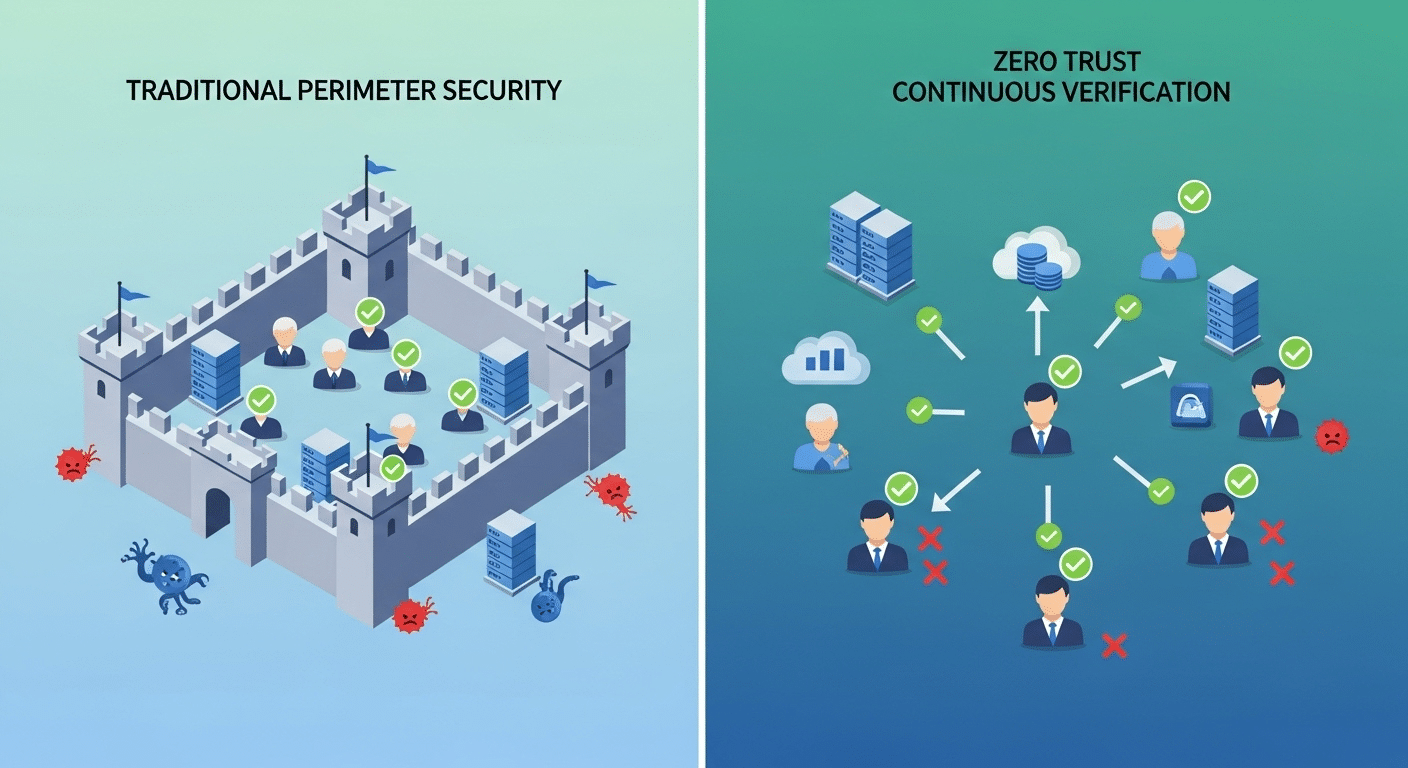
User friendly tools sit at the center. If employees need extensive training just to navigate internal systems, something is already misaligned. A well-designed digital workplace should feel intuitive. Buttons make sense. Processes follow logical steps. Self service portals resolve routine requests without delay.


Reliability is equally critical. Slow devices, unstable connections, and lagging applications disrupt concentration. Reliable workplace technology protects focus, which in turn protects employee productivity. When systems respond consistently, confidence grows.

Processes must also be streamlined. Redundant approvals, scattered documentation, and disconnected platforms undermine efficiency. A unified digital workspace that offers seamless access across tools, ideally supported by single sign-on, reduces password fatigue and unnecessary repetition.

Communication matters more than many leaders realize. Internal communications should be clear, accessible, and integrated within collaboration tools employees already use. Fragmented messaging leads to confusion and wasted time.

Finally, personalization strengthens relevance. Different roles require different digital resources. Tailoring interfaces and access rights ensures employees see what they need, not clutter.

Core components of a strong digital employee experience include:

  • User-Centric Design
  • Reliable Workplace Technology
  • Seamless Access and SSO
  • Personalization by Role
  • Effective Internal Communications

When these elements align, digital interactions feel coherent rather than chaotic. That coherence becomes a competitive advantage.


How Does Technology Performance Directly Impact Employee Sentiment?

Employee staring at frozen laptop screen with visible loading icon representing digital friction.

You can measure system uptime. You can track ticket volume. What you cannot always see, at least not immediately, is how poor technology performance reshapes employee sentiment.

Start with the basics. Slow devices. Lagging applications. Systems that freeze mid-task. None of these issues appear catastrophic on their own. Yet repeated daily, they introduce digital friction that quietly erodes focus. Instead of concentrating on strategy or execution, employees wait. They retry. They escalate. The emotional cost accumulates.

IT ticket overload compounds the effect. When internal systems break or behave unpredictably, support queues grow. Delays in assistance leave employees stranded mid-process. Frustration follows. Over time, those friction points become familiar pain points, shaping how employees feel about the broader work environment.

Fragmented systems add another layer. Knowledge scattered across platforms forces employees to search repeatedly for information that should be centralized. Each search consumes time and attention. Lower employee satisfaction often stems not from dramatic failure, but from constant inefficiency.

Root cause analysis becomes essential here. Instead of reacting to individual complaints, organizations need to identify patterns. Are devices outdated? Are collaboration tools poorly integrated?

An efficient workplace depends on reliable infrastructure. When technology performs consistently, employees regain cognitive bandwidth. When it does not, sentiment declines, sometimes more quickly than leadership anticipates. The connection between performance and perception is not theoretical. It is lived, daily.


How Can You Measure Digital Employee Experience Effectively?

You cannot improve what you do not measure. That principle applies directly to digital employee experience. Measuring DEX requires more than annual surveys or occasional check-ins. It demands continuous feedback and structured observation of how employees interact with workplace systems.

Start with employee feedback loops. Short, recurring pulse surveys can reveal shifts in user satisfaction before problems escalate. Direct comments often uncover hidden pain points in business processes that data alone may miss. Employees tend to describe friction clearly when given space to do so.

At the same time, quantitative signals matter. Digital friction leaves measurable traces. Support ticket data, frequency of password resets, and time spent searching for information across platforms all indicate where systems may be failing. High ticket volumes often point to unreliable internal tools. Repeated password resets suggest authentication barriers that disrupt productivity.

To measure digital employee experience effectively, combine perception and performance metrics. Together, they form the backbone of a sustainable digital employee experience strategy.

Below is a simple framework:

Metric What It Reveals Impact on Business
Support Ticket Volume Frequency of technical disruptions Higher operational costs and workflow delays
Password Reset Frequency Authentication friction Reduced productivity and lower user satisfaction
Time Spent Searching Knowledge fragmentation Inefficient business processes
Employee Feedback Scores Perceived usability and performance Direct influence on engagement and retention


When measurement becomes ongoing rather than reactive, improvement becomes strategic instead of accidental.


What Role Does AI Play in Modern Digital Employee Experience?

Artificial intelligence integrated into employee dashboard improving efficiency without visible complexity.

Artificial intelligence has moved from novelty to infrastructure. In the context of digital employee experience, AI functions less as spectacle and more as quiet acceleration. When integrated thoughtfully, it reduces friction in ways that are immediately practical.

AI-powered self service tools allow employees to resolve routine questions without waiting in support queues. Instead of submitting tickets and waiting hours, sometimes days, intelligent chatbots can provide answers instantly. These systems draw from centralized knowledge bases and past issue patterns to deliver accurate guidance. That immediacy reshapes expectations around employee service.

AI-driven automation also streamlines repetitive workflows. HR systems can automatically process common inquiries about benefits or leave policies. IT services can auto-classify incoming requests and route them to the appropriate teams. Over time, automation reduces manual overhead and improves response consistency.

Device performance presents another opportunity. AI-driven device refresh recommendations analyze usage patterns, warranty status, and system performance metrics to determine when hardware should be upgraded or replaced. Instead of reacting to failures, organizations act proactively.

Modern dex tools increasingly deliver real-time insights. Rather than relying on quarterly reviews, leaders receive continuous visibility into system health and user satisfaction trends. That responsiveness transforms DEX from reactive troubleshooting into a comprehensive dex solution aligned with strategic planning.

How AI improves DEX:

  • Faster employee service resolution
  • Reduced IT and HR workload
  • Proactive device management
  • Real-time operational visibility

When implemented responsibly, AI enhances efficiency without adding complexity. The goal is not more technology. It is better support for professional development and daily performance.


How Do Unified Digital Workspaces and Single Sign-On Improve DEX?

Few things drain focus faster than repeated logins. Password resets. Multi-step authentication loops. Searching for the correct portal. Over time, that repetition becomes background friction. A unified digital workspace addresses this directly.

Single Sign-On, often abbreviated as SSO, allows employees to log in once and gain seamless access across digital platforms. Instead of juggling credentials for collaboration tools, HR systems, and internal dashboards, users move fluidly between applications. That reduction in password fatigue may sound minor. It is not. Every saved minute compounds across the workforce.

A unified digital workspace does more than centralize access. It consolidates digital resources employees rely on daily, reducing the need to switch between disconnected systems. When tools integrate cleanly, processes feel coherent. Employees complete tasks faster, with fewer interruptions.

From an operational perspective, SSO helps streamline operations. Fewer login errors mean fewer support tickets. IT teams spend less time resetting passwords and more time addressing strategic improvements. Visibility improves as well, since access management becomes centralized rather than scattered across departments.

An effective digital employee experience solution should prioritize seamless access. When employees can navigate platforms without procedural obstacles, attention remains on outcomes rather than obstacles. Reduced friction leads to measurable gains in employee productivity and user satisfaction.

Sometimes, improvement begins with something simple. Remove the unnecessary barrier. Let work begin without delay.


What Are the Biggest Barriers to Building a Great Digital Employee Experience?

Business leaders reviewing limited IT budget allocation while digital workplace improvement projects compete for funding.

Designing a strong digital employee experience sounds straightforward in theory. In practice, obstacles surface quickly. The most cited barrier is budget. Around 40 percent of executives and practitioners identify budget constraints as the primary limitation when trying to improve workplace technology. Allocating resources toward DEX initiatives often competes with other priorities tied to digital transformation.

Resistance to change also slows progress. Stakeholders may hesitate to replace existing systems, even when those systems contribute to inefficiency. Familiarity can mask dysfunction. Employees may feel overwhelmed when new platforms are introduced without comprehensive training. Without clear communication, improvement efforts are mistaken for disruption.

Disconnected systems remain another persistent challenge. Many organizations operate with tools that solve specific needs but fail to integrate cleanly. Data sits in silos. Internal processes become fragmented. Employees move between platforms repeatedly, losing time and clarity.

Limited IT support compounds these issues. When support teams are understaffed, even small technical problems linger. Delays reduce trust in workplace systems and lower overall satisfaction across different employee segments.

Some common DEX challenges include:

  • Budget constraints
  • Resistance to change
  • Disconnected systems
  • Tool overload
  • Limited IT support

Addressing these barriers requires intentional strategy. Otherwise, friction persists quietly.


How Should IT and HR Collaborate on a Digital Employee Experience Strategy?

A digital employee experience strategy cannot sit solely within IT, nor can it belong exclusively to human resources. It exists at the intersection. IT teams understand systems, infrastructure, and security. Human resources understand employee needs, engagement patterns, and professional development. When those perspectives remain separate, gaps appear.

Alignment begins with shared objectives. Instead of measuring success only through uptime or policy compliance, both teams should focus on outcomes that matter to the digital employee. How easily can someone access tools? How quickly can they resolve issues? These questions bridge technical performance and employee sentiment.

Employee service integration is essential. HR systems and IT services should connect rather than operate in parallel. When onboarding, benefits management, device provisioning, and access permissions are coordinated, friction decreases. An engaged workforce depends on that cohesion.

Role-based personalization also requires collaboration. Different employee segments require different digital resources. IT configures access controls. Human resources define role requirements. Together, they tailor environments that support productivity without unnecessary clutter.

A mature dex strategy treats technology and people as interconnected variables. When IT and HR collaborate consistently, digital interactions become coherent rather than fragmented. That coherence supports retention, engagement, and measurable business performance.


What Does an Optimal Digital Employee Experience Look Like in Practice?

Team collaborating in real time with unified communication and file access platform.

An optimal digital employee experience rarely announces itself. You notice it most when it is absent. In practice, it feels intuitive. Interfaces make sense without long explanations. Navigation is predictable. Employees complete daily tasks without pausing to decode instructions or hunt through scattered menus.

Seamless collaboration plays a central role. Communication platforms connect smoothly with document sharing, project management, and internal messaging tools. Conversations transition into action without switching between disconnected systems. The digital workplace becomes a coherent environment rather than a patchwork of apps.

Minimal training is required because design anticipates user behavior. Comprehensive training still matters, especially during onboarding, but tools should not demand constant retraining. The best digital employee experience reduces cognitive load rather than adding to it.

Stable devices complete the picture. Outdated hardware undermines even well-designed software. Reliable laptops, responsive systems, and consistent connectivity protect momentum.

A positive digital experience also contributes to a cohesive work environment. When systems align, employees feel supported rather than obstructed. The optimal digital employee experience is not flashy. It is dependable. It allows you to focus on meaningful work rather than navigating procedural obstacles.


Final Thoughts

By now, the pattern is clear. Digital employee experience is not a side initiative. It is a structural element of how work gets done. When digital tools function reliably and processes are intuitive, employees move with clarity. When friction dominates, performance stalls.

Building a future-ready digital employee experience strategy requires more than tool upgrades. It demands a strategic approach that aligns IT, human resources, and leadership around shared outcomes. Measure consistently. Listen to employee feedback. Identify pain points early. Treat DEX as an evolving system rather than a one-time project.

Continuous improvement becomes essential. Technology changes. Employee expectations change. Business priorities change. A positive DEX depends on regular evaluation and adaptation.

The reward is tangible. Strong digital experiences empower employees to do their best work. They contribute to an efficient workplace, higher engagement, and stronger business outcomes over time. Organizations that invest thoughtfully in DEX position themselves for sustained advantage.

The next step is practical. Assess your current systems. Identify friction points. Begin refining deliberately. A future-ready workplace does not build itself.


Frequently Asked Questions (FAQs)


1. What is digital employee experience?

Digital employee experience refers to how employees interact with workplace technology throughout their daily tasks. It includes digital tools, internal systems, devices, and platforms that shape how efficiently and comfortably work gets completed.

2. How do you measure digital employee experience?

You measure digital employee experience through continuous feedback, user satisfaction surveys, support ticket trends, password reset frequency, and time spent searching for information. Combining perception data with performance metrics provides a clear view of digital friction.

3. Why is digital employee experience important?

Digital employee experience is important because it directly affects productivity, engagement, and job satisfaction. When workplace technology is reliable and intuitive, employees perform better, morale improves, and overall business outcomes strengthen.

4. What tools improve digital employee experience?

Tools that improve DEX include unified digital workspaces, single sign-on systems, collaboration platforms, AI-powered self service portals, and integrated HR systems. These solutions reduce friction, streamline operations, and provide seamless access across digital platforms.

5. How does DEX affect employee retention?

Poor workplace technology drives frustration and disengagement, increasing turnover risk. A strong digital employee experience demonstrates organizational investment in employees’ success, supporting retention, improving morale, and creating a more stable, productive workforce.

6. What is the difference between employee experience and digital employee experience?

Employee experience covers the full journey, including culture, leadership, and physical workspace. Digital employee experience focuses specifically on interactions with technology, digital tools, and systems that enable daily work performance.