

At first glance, it seems straightforward. You have a Mac, a clean system, fast, reliable, built for everyday work. Then the question comes up, can citrix run on mac without adding friction?
It can. But the experience depends on more than just your device.
Platforms like Citrix Workspace bring enterprise desktops and apps into macOS through remote access. That means your Mac becomes a window into another environment, one managed somewhere else, often with layers of infrastructure behind it.
In this guide, you’ll see how it works, what affects performance, and where simpler alternatives might offer a cleaner path forward.
Can Citrix Run on a Mac?
Yes, Citrix can run on a Mac. In most cases, it runs quite well. You access it through the Citrix Workspace app for Mac, which is the standard client designed for macOS.
There’s also the option to connect through a browser like Safari, Chrome, or Firefox, depending on how your organization has set things up. Both paths lead to the same place, your remote desktop. If you’re considering another Apple device, you can also learn how Citrix on iPad works and what to expect from the experience.
Compatibility matters, though. Newer macOS versions like Ventura and Sonoma are fully supported, while older versions tend to fall behind over time. Hardware plays a role too. Apple Silicon Macs often handle performance more efficiently than older Intel machines.
Still, the experience depends on configuration, network quality, and how well everything lines up behind the scenes.
How Does Citrix Workspace Work on macOS Devices?
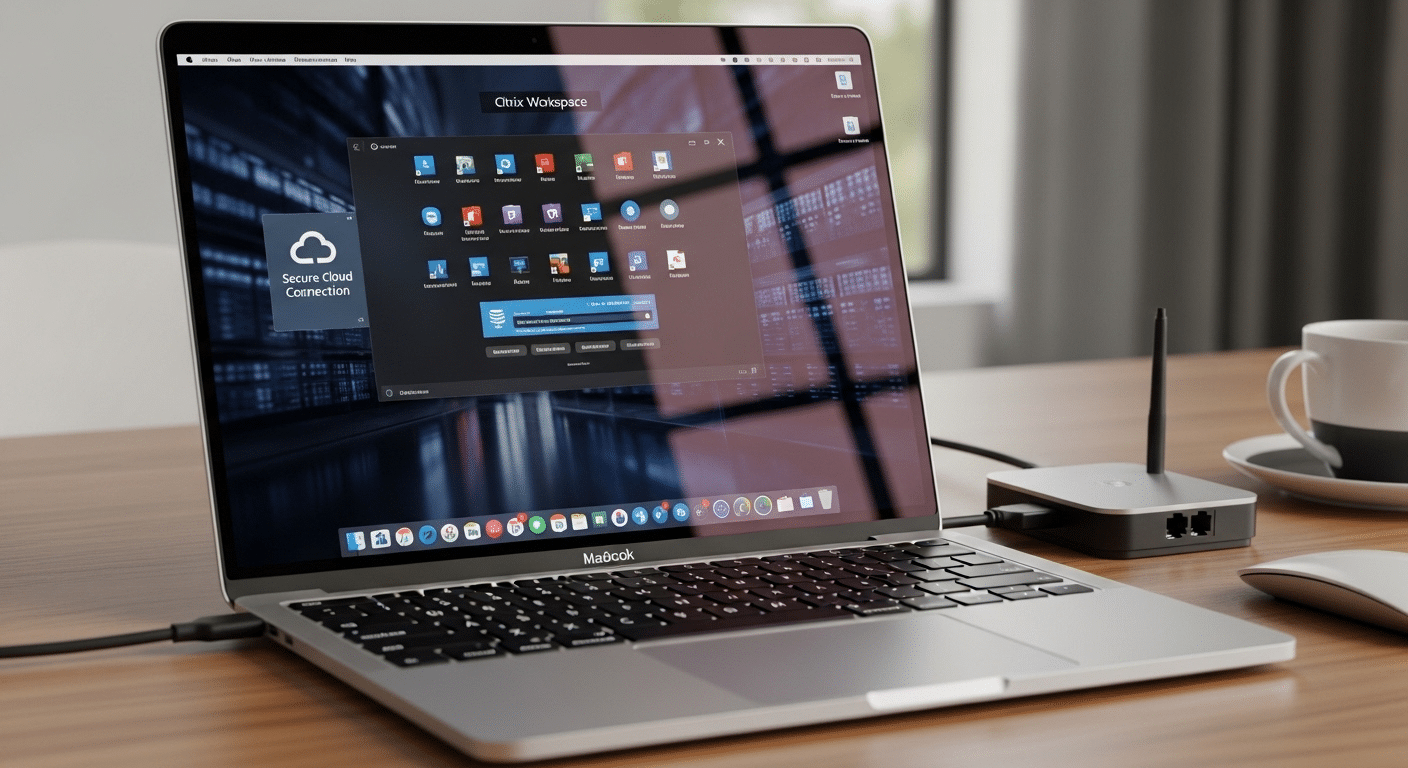
Once you get past the setup, the way Citrix works on macOS is actually quite straightforward. Your Mac isn’t running the applications in the traditional sense. It’s acting more like a window, a clean interface that connects you to something running somewhere else.
Through Citrix Workspace, you’re given remote access to Citrix VDI environments, with virtual desktops hosted on a centralized server. That server could sit in a data center or cloud environment, managed by your organization. Tools like Citrix Gateway or Secure Web Gateway handle the connection, making sure your session reaches the right place securely.
How Do You Install Citrix Workspace App on a Mac?
Getting Citrix running on a Mac is fairly straightforward. Still, a couple of steps can trip you up if you’re not paying attention. The process itself is simple, but it relies on having the right details from your organization, especially the account setup.
You begin with the download, and from there, it’s mostly guided.
- Download the App: Visit the Citrix website and start the free download for the workspace app for Mac. Make sure you’re getting the latest version.
- Locate the DMG File: Open your download folder, find the DMG file, and double-click it to begin the install software process.
- Click Continue: Follow the on-screen prompts and move through the setup steps as they appear.
- Accept License Agreement: Click agree to the end user license agreement so the installation can proceed.
- Install to Applications Folder: By default, the app installs into your Applications directory on macOS.
- Add Account: Use the add account option and enter your email or server address provided by your organization.
- Login with Credentials: Enter your username, password, and domain if required to access your workspace.
A few small things to note. You may be prompted for your system password during installation. Some versions also request accessibility permissions, which need to be enabled for full functionality. Newer releases may automatically install the EPA plugin, and in some cases, offer an optional Enterprise Browser during setup.
What Can You Do with Citrix on a Mac?
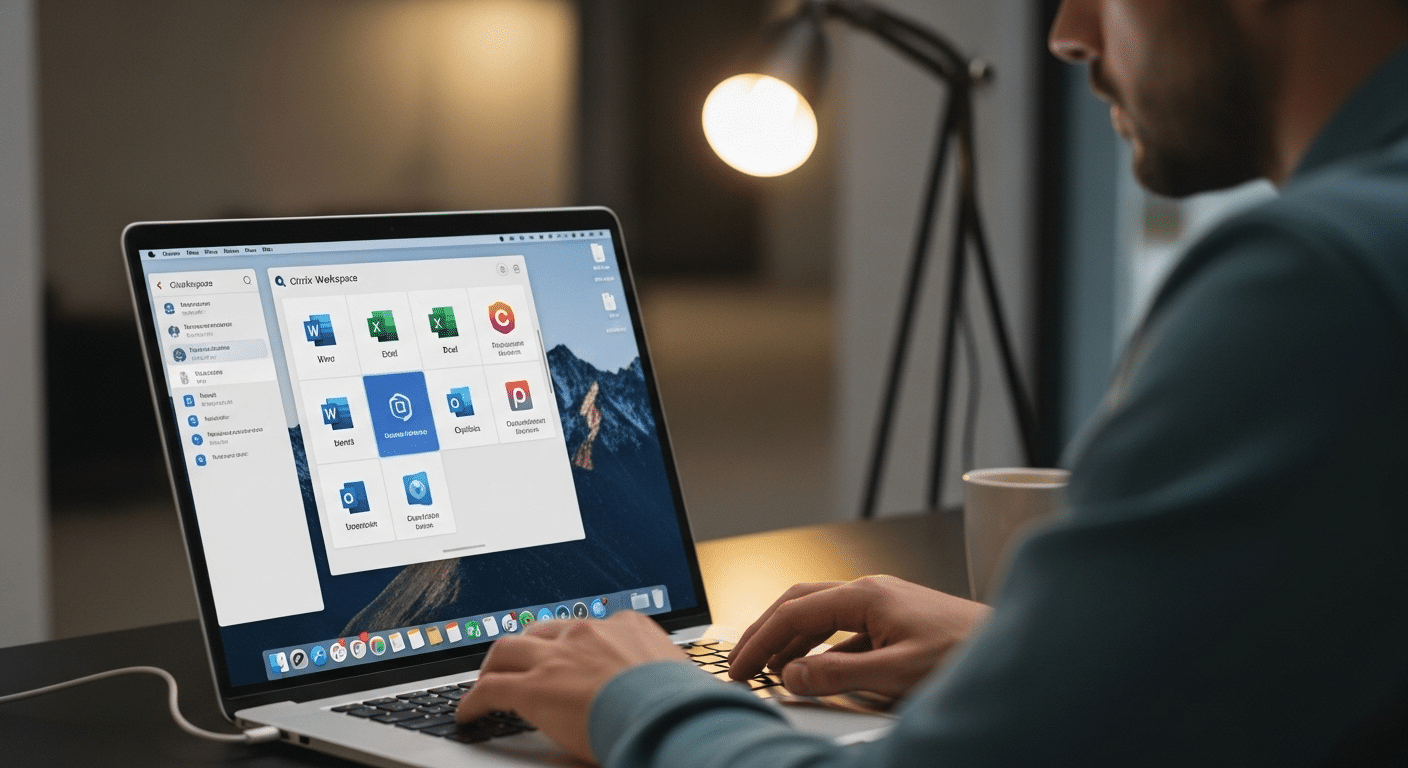
Once you’re inside the session, things start to feel familiar. Almost surprisingly so. Your Mac becomes a kind of bridge, not the place where work happens, but where it shows up.
Through Citrix Workspace, you can access full Windows-based environments. That includes tools like Microsoft Office or Adobe apps, all running remotely but appearing on your screen as if they’re local. From the apps tab, you can click apps, launch full desktops, or open specific programs depending on how your workspace is configured.
There’s flexibility in how you connect too. You can use the installed app or switch to a browser-based session when needed.
Performance has improved over time. Features like H.264 hardware acceleration make Microsoft Teams calls smoother, especially on newer Macs. Devices powered by Apple Silicon also support enhanced color formats, which helps with visual clarity.
Files move through the session, not always perfectly, but reliably enough. You log in, pick up where you left off, and continue.
What Are the Limitations of Citrix on Mac?
Citrix runs well on Mac in many cases. Still, there are limits, and they tend to show up once you rely on it daily or push it a little harder than usual.
Here are the main constraints to keep in mind:
- macOS Version Compatibility: Citrix no longer supports macOS versions older than Big Sur, so running an outdated system can lead to immediate compatibility issues.
- Apple Silicon Differences: Some features behave differently depending on whether your device uses Apple Silicon or Intel processors, which can affect consistency.
- Performance Variability: Performance depends heavily on network conditions and available system resources, even a small delay can disrupt the experience.
- Display Configuration Issues: Dual monitor setups require specific settings adjustments, otherwise you may notice lag or rendering problems.
- Browser Dependency: Certain environments require Chrome or another supported browser for full functionality, especially in web-based sessions.
- Security Permission Prompts: macOS may ask you to enable accessibility settings after launch, which can interrupt workflow if not configured properly.
- Version Management Complexity: Keeping both macOS and the Citrix Workspace app updated is necessary, otherwise stability starts to drift.
What Common Issues Do Users Face with Citrix on Mac?
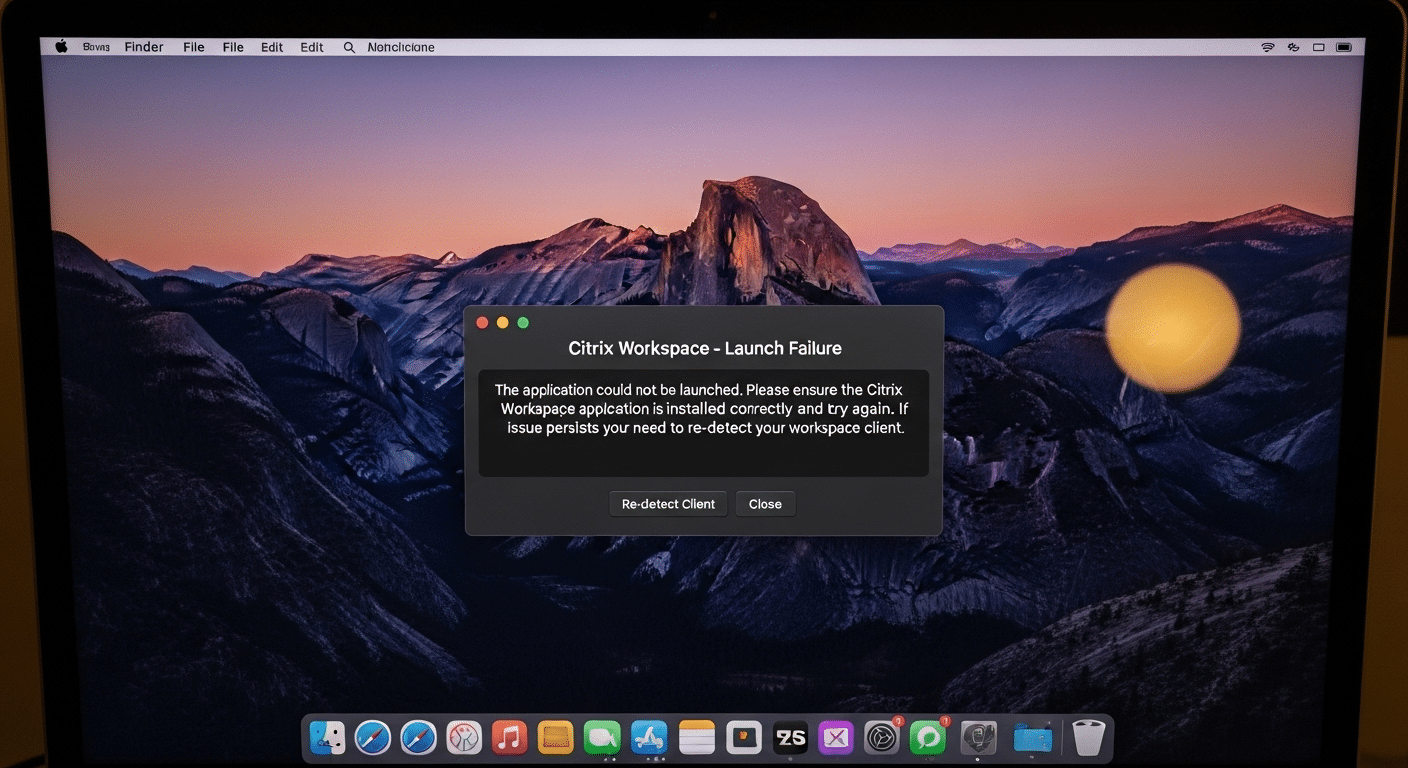
Even when everything looks set up correctly, small issues tend to appear over time. Some are minor, almost routine. Others take a bit longer to figure out. Most users run into a similar pattern of problems.
Some common issue:
- Installation Errors: An incorrect install process or missing permissions in macOS settings can prevent the app from completing setup properly.
- Login Problems: Issues with your account, domain, or credentials can block access, even when the connection itself is working fine.
- Application Launch Issues: If apps fail to open, you may need to return to the workspace page and re-detect the client before trying again.
- Accessibility Prompts: macOS may require manual approval for Citrix to control certain system functions, which can interrupt the session.
- Uninstall Errors: The app must be completely closed before dragging it to the trash, otherwise the process fails.
- File Location Confusion: Users often struggle to locate downloaded files or installation folders after setup.
How Can You Improve Citrix Performance on a Mac?
Performance on a Mac isn’t fixed. It improves, sometimes noticeably, with a few practical adjustments. Nothing complex. Just the right tweaks in the right places.
- Update macOS and Workspace App: Keeping both your macOS and Citrix Workspace app updated ensures better compatibility and avoids issues tied to unsupported versions.
- Use Low Latency Network: A stable internet connection reduces lag and improves how quickly your session responds to input.
- Enable Hardware Acceleration: This helps with video calls and graphics-heavy apps, especially on newer machines with better processing capability.
- Adjust Display Settings: Fine-tuning display settings can reduce rendering issues, particularly when using multiple monitors.
- Close Background Applications: Freeing up system resources allows your device to focus on the Citrix session instead of competing processes.
Why Browser-Based Virtual Desktops Work Better on Mac?
A Mac already leans heavily on the browser. Open a tab, log in, move on. That pattern feels natural, almost expected. So when virtual desktops follow the same approach, things tend to settle into place more easily.
With browser-based access, you skip the whole install process. No extra software sitting in your Applications folder, no version checks quietly causing problems later. You just navigate to a web page, sign in, and your workspace appears.
There’s also less friction behind the scenes. Since everything runs in the cloud, your device isn’t trying to stay in sync with multiple components. Fewer moving parts, fewer surprises.
Why Apporto Is a Simpler Alternative for Mac Users?

Apporto takes a different route. It’s fully browser-based, which means you don’t install anything, don’t manage updates, don’t worry about whether your version matches what’s running on the other side. You open a tab, log in, and your virtual desktops are ready.
Because it runs through a cloud provider, much of the underlying complexity stays out of sight. No client software conflicts. No layered infrastructure to maintain on your device. Just a cleaner path to secure access.
It feels lighter. More predictable too. And over time, that consistency matters more than you might expect.
Final Thoughts
So, can Citrix run on a Mac? Yes, and in many setups it runs reliably enough to support everyday work. For enterprise environments with established infrastructure, it often fits right in.
But there’s still a layer of complexity that doesn’t quite go away. Configuration, version management, small interruptions that show up when you least expect them. Nothing dramatic, just persistent.
That’s where the decision shifts. If simplicity and consistency matter more, exploring lighter, browser-based options may give you a smoother, more predictable experience over time. Try Apporto.
Frequently Asked Questions (FAQs)
1. Can you install Citrix Workspace on a Mac?
Yes, you can install the Citrix Workspace app on a Mac by downloading it from the official Citrix website. Once installed, you add your account and log in to access desktops and applications.
2. Does Citrix support Apple Silicon Macs?
Yes, Citrix Workspace supports Apple Silicon Macs and generally performs well. Some features may behave slightly differently compared to Intel-based systems, but overall compatibility and performance are stable in most environments.
3. Can you run Windows apps on Mac using Citrix?
Yes, Citrix allows you to run Windows applications on a Mac by connecting to remote desktops. The apps run on a server, while your Mac streams the interface through the Citrix Workspace session.
4. What macOS versions are supported by Citrix Workspace?
Citrix Workspace supports modern macOS versions like Ventura, Sonoma, and newer releases. Older versions, especially those before Big Sur, are no longer supported and may cause compatibility or performance issues.
5. How do you uninstall Citrix Workspace on Mac?
To uninstall Citrix Workspace, first close the app completely. Then go to the Applications folder and drag the app to the trash. If it’s still running, macOS may prevent removal.
6. Can you access Citrix through a browser on Mac?
Yes, you can access Citrix through browsers like Safari, Chrome, or Firefox. This method allows you to connect without installing the app, though some features may be limited depending on configuration.
