
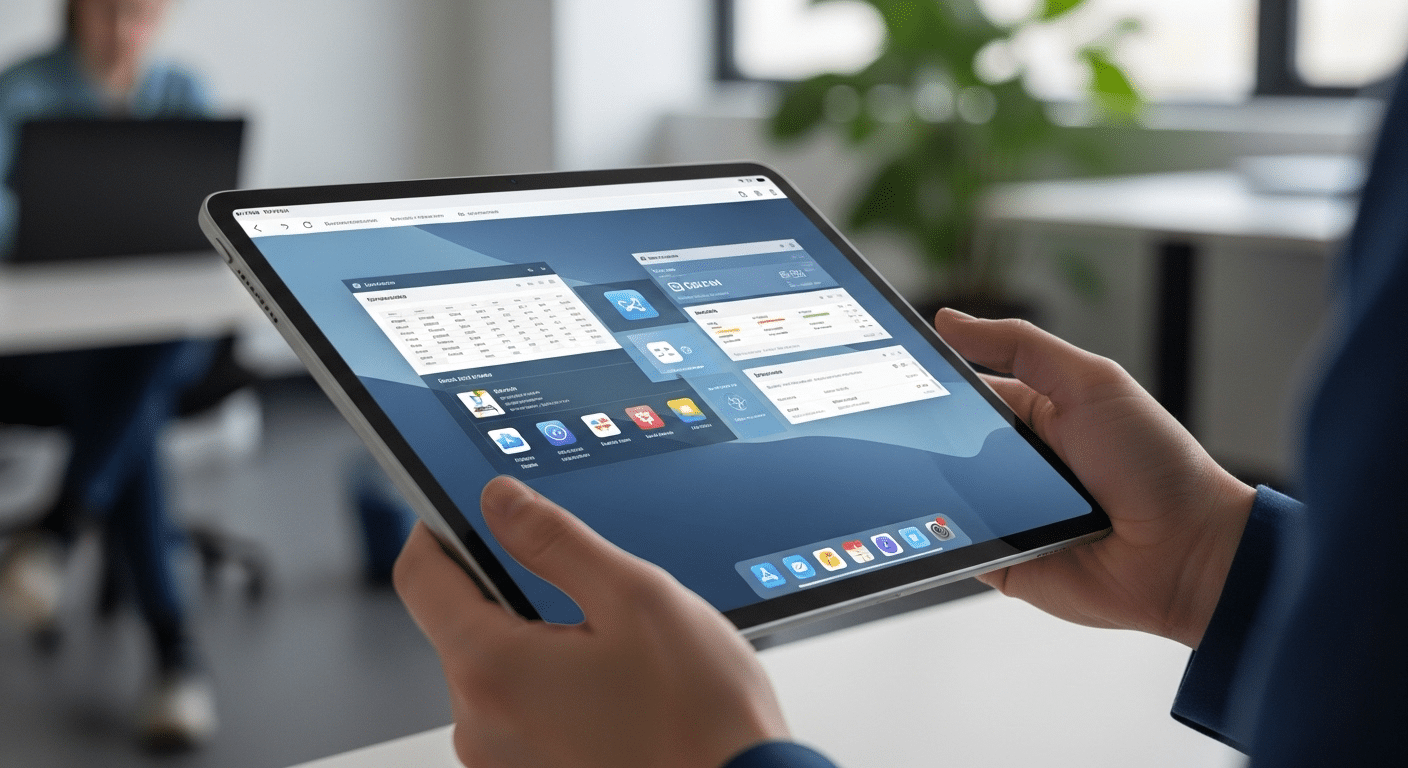
Can You Download Citrix on iPad?
You can download Citrix Workspace on an iPad to access remote desktops, enterprise apps, and files through a virtual environment. While Citrix supports iPadOS and browser access, performance depends on network stability and configuration. Browser-based platforms like Apporto provide a simpler, no-install alternative for virtual desktop access.
You expect an iPad to be simple. Tap, open, move on. No friction, no setup rituals. Then something more demanding enters the picture, remote desktops, enterprise apps, full work environments, and the question becomes less obvious: can you download Citrix on iPad and actually rely on it?
Technically, yes. Practically, it depends. With Citrix Workspace, your iPad becomes a gateway to desktops, files, and virtual apps running somewhere else.
You gain access, but you also inherit the complexity of that system, networks, configuration, and performance constraints included.
This guide walks through what works, what doesn’t quite hold up, and how you can approach it more efficiently.
Can You Download Citrix on an iPad?
Yes, you can download Citrix on an iPad. That part is straightforward. You install the Citrix Workspace app from the Apple App Store, just like any other iOS app.
It’s officially supported and works across most modern iPad models, though very old devices, like early-generation iPads, tend to fall out of compatibility.
There’s a catch, though. You’ll need iPadOS 16 or later, along with the latest version of the workspace app for iOS, to keep things running smoothly.
It also works on iPhone, which makes the setup fairly consistent across Apple devices. And if the app route feels limiting, browser access is usually available as a fallback. So yes, you can install it. How well it performs is another question.
How Does Citrix Workspace Work on an iPad?
At a glance, it feels like your iPad is doing all the work. Tap an app, a desktop appears, files open. But that’s not really what’s happening.
Behind the screen, Citrix Workspace connects you to a remote server environment, often through Citrix Gateway or StoreFront. When you launch something, an ICA file is used to establish the session, quietly linking your device to a remote machine where everything actually runs. What you see is a stream, your inputs go out, the response comes back.
It’s responsive. Until it isn’t.
Here’s the structure in simpler terms:
- Remote Desktop Access: Citrix VDI allows you to connect to desktops and virtual apps hosted on a centralized server or cloud environment.
- Server-Based Processing: Your iPad acts as a display device while applications run on a remote Windows machine.
- Flexible Access Methods: You can connect using the workspace app or directly through a browser session.
The mobile interface smooths this out, translating taps into actions. Still, the distance between you and the system never quite disappears.
How Do You Install Citrix Workspace App on an iPad?
Installing Citrix on an iPad feels simple at first. And in many cases, it is. But the setup depends heavily on having the right details, usually provided by your company’s IT team. Without those, the process tends to stall halfway.
You’re not just installing an app. You’re connecting to an environment. Here’s how the setup typically unfolds:
- Download from App Store: Open the Apple App Store, search for the Citrix Workspace app, and tap download to install it on your device.
- Open the App: Launch the app and tap “Get Started,” this is where the configuration begins.
- Enter Store URL or Email: Provide your company’s store URL, server address, or email for account discovery.
- Tap Sign In: Enter your user name and password on the login screen when prompted.
- Complete Authentication: Follow any additional steps like multi-factor authentication, certificates, or security checks.
- Access Workspace: Once connected, your desktops, files, and virtual apps populate on the screen.
A few things tend to come up. Email-based account discovery can simplify setup, but manual configuration using StoreFront or a XenApp site is sometimes required. In some cases, a root certificate must be installed to establish a secure connection. The app may guide you through a “tap log” or “tap sign” flow, though it’s not always obvious at first.
And if something doesn’t connect, it usually comes back to configuration. That’s where IT support becomes essential.
What Can You Actually Do with Citrix on an iPad?
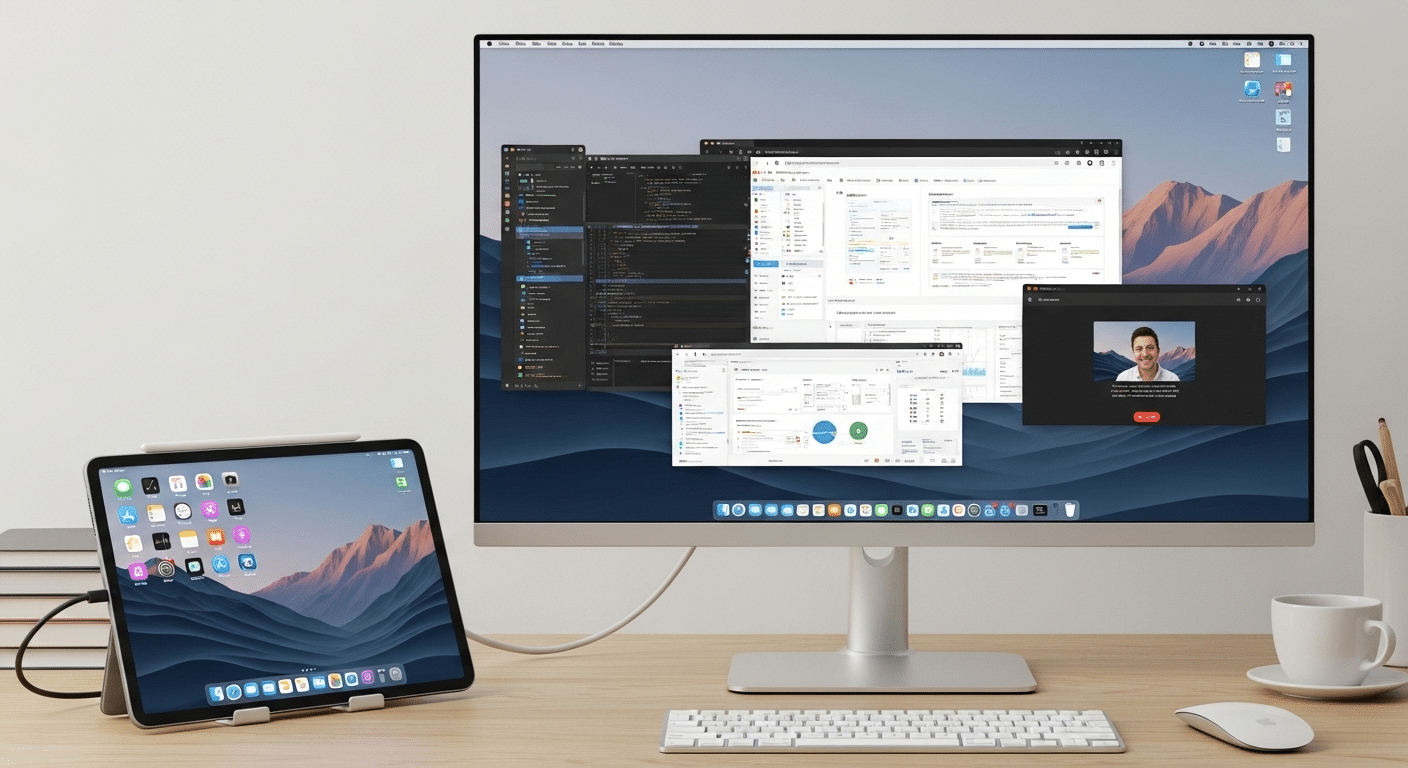
Once you’re inside the session, the experience starts to blur a little. It feels local. It isn’t. Through Citrix Workspace, you can access full Windows-based desktops and enterprise apps directly on your iPad.
These aren’t mobile versions, they’re the same environments you’d see on a laptop, just streamed to your screen. You open them from the workspace interface, tap to launch, and continue working where you left off.
File handling is part of the flow too. You can open and manage files through the iPad Files app, sometimes connecting with cloud storage like Google Drive, depending on how your system is configured.
With an iPad Pro and a Magic Keyboard, things feel more structured. Add an external display using Extended Mode, and the setup starts resembling a workstation, at least visually.
Sessions usually persist, so you can reconnect and pick up again. Not always perfectly, but close enough to stay productive.
What Are the Limitations of Citrix on iPad?
It works, yes. But after a while, the edges start to show. Not immediately, maybe after a few longer sessions, or when you try to do more than basic tasks. That’s when the limitations become harder to ignore.
Here are some limitations:
- Not Designed for Full Desktop Replacement: Citrix on an iOS mobile device isn’t built for sustained, heavy workflows, especially when compared to a traditional system.
- Session Disruptions from Sleep Mode: If your iPad locks, sleeps, or you switch apps, the session can disconnect without much warning.
- Display Scaling Reset Issues: Windows scaling settings may reset each time you reconnect, which means adjusting your screen layout repeatedly.
- External Display Bugs: Using an external display in Extended Mode can introduce resolution mismatches, scaling inconsistencies, and shortcut issues.
- Limited Authentication Support: FIDO2 security keys are not supported, which can limit how you verify access in more secure environments.
- App Refresh Limitations: The workspace interface doesn’t always refresh apps cleanly, leading to confusion when older or removed resources still appear.
- Performance Constraints: Performance depends heavily on network stability, and even small delays can affect responsiveness on a mobile device.
What Common Issues Do Users Face When Using Citrix on iPad?
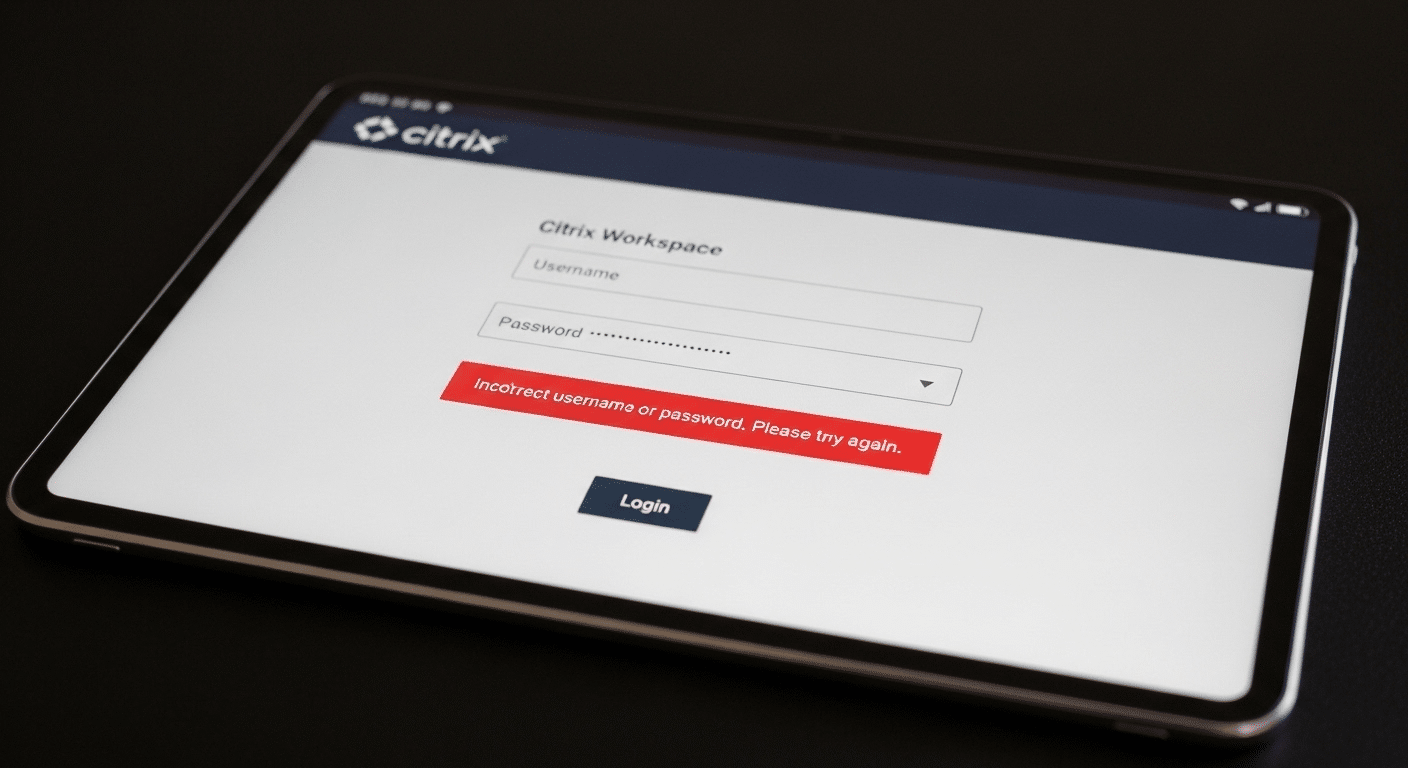
Even when everything is installed correctly, small issues tend to surface over time. Some are predictable. Others just appear, quietly, and interrupt your flow. Most users run into a similar set of problems.
Few common issues are:
- Login Errors: An incorrect store URL, user name, password, or account setup can block access, even when the app itself is working fine.
- Connectivity Problems: A weak internet connection leads to lag, dropped sessions, or failed reconnect attempts, especially during longer use.
- Configuration Failures: Missing certificates or incorrect server configuration can prevent the app from connecting at all.
- Session Drops on App Switch: Switching apps or multitasking on your device can disconnect the session without warning.
- File Access Issues: Some users struggle to open or sync files through the Files app or connected storage systems.
- User Experience Friction: Touch navigation, while functional, can feel less precise compared to a desktop setup.
How Can You Improve Citrix Performance on an iPad?
Performance on an iPad isn’t fixed. It shifts, sometimes subtly, depending on how your device, network, and settings come together. A few small adjustments can make the experience noticeably smoother.
Here’s what helps to improve performance:
- Update iPadOS and App Version: Keeping your device and Citrix Workspace updated ensures compatibility with the latest features and reduces unexpected issues.
- Use Strong Internet Connection: A stable internet connection improves responsiveness and helps maintain a consistent session without drops.
- Use External Keyboard and Mouse: Adding external input devices makes navigation more precise and improves overall productivity.
- Optimize Settings: Adjust display, scaling, and workspace settings to better match how your system renders the session.
- Avoid Background Apps: Closing unused apps frees up system resources, allowing your device to focus on the Citrix session.
How Do Analytics, Cookies, and Site Settings Affect Citrix Workspace Experience?
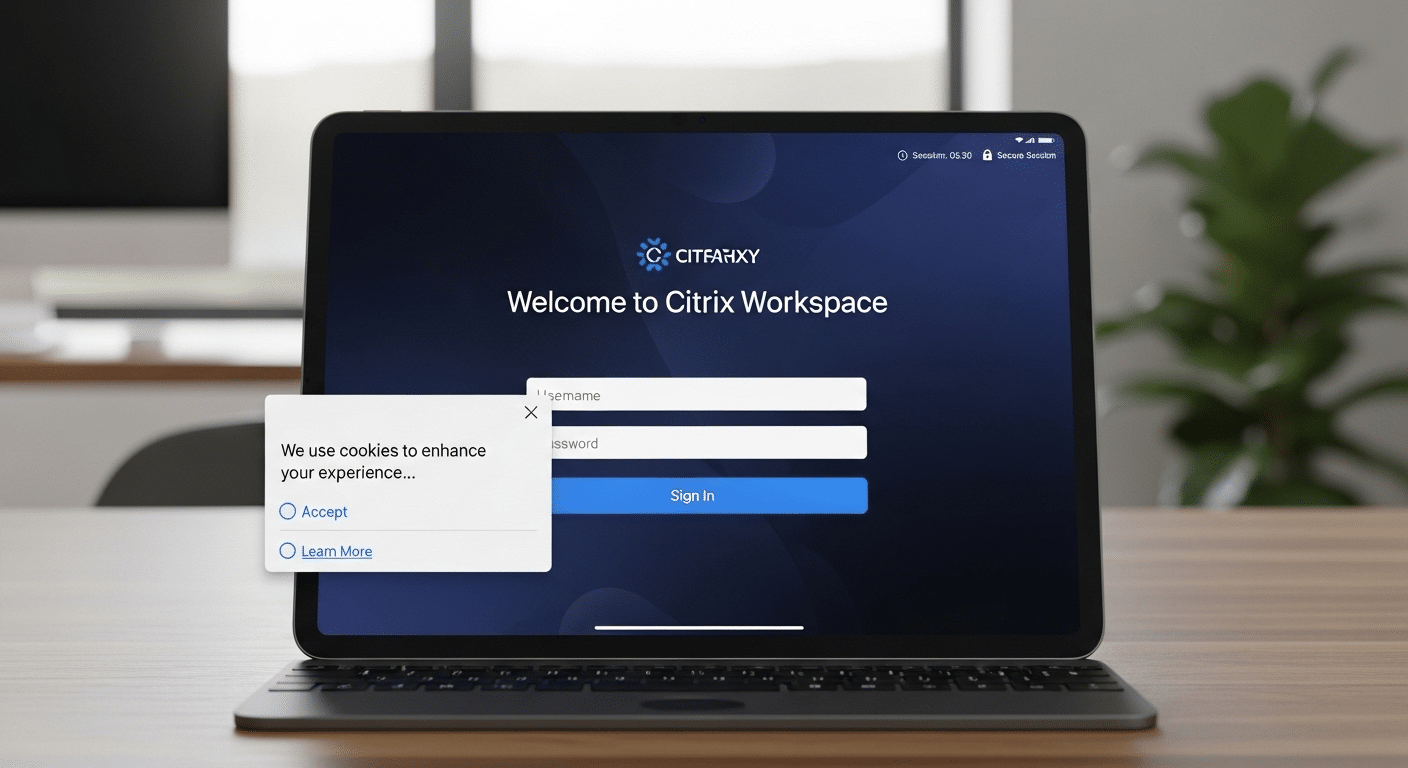
This part is easy to overlook. You open the app, log in, move on. But underneath, there’s a layer of tracking and session handling quietly doing its job.
Many Citrix environments include site operation analytics enhanced features that monitor how the system is used. Alongside that, cookies and related technologies help manage sessions, maintain login states, and store small pieces of information needed to keep things running.
You’ve probably seen it, a “site uses cookies” prompt that asks for consent. That choice matters more than it seems. Your consent and preferences can influence how smoothly sessions reconnect, how data is handled, and how the system tracks activity.
In some setups, analytics enhanced user experience tools are used to monitor performance and detect issues. It’s subtle. But it shapes how stable, or unstable, your workspace feels over time.
Why Browser-Based Virtual Desktops Work Better on iPad?
An iPad leans toward the browser by design. You open a tab, tap a link, move through a web environment without thinking too much about what’s happening underneath. That simplicity matters more than it seems.
When virtual desktops follow that same model, things tend to feel more stable. No installation. No setup screens asking for configuration details. You just navigate to a page, sign in, and gain access to your workspace.
It also avoids a common problem, version conflicts. With browser-based delivery, everything runs in the cloud, so your device doesn’t have to match specific app versions or system requirements.
It’s not flawless. There are still dependencies behind the scenes. But overall, the experience feels lighter, more consistent, and easier to rely on day after day.
Why Apporto Is a Better Fit for iPad Users?
After a while, you start noticing where the friction comes from. Not the iPad itself. It’s everything layered on top of it.
Apporto takes a different route. It’s a fully browser-based solution, which means you don’t install anything, don’t depend on the App Store, and don’t deal with setup loops or version checks. You open a tab, log in, and your virtual desktops are ready.
Because everything runs through a cloud provider, the complexity stays out of sight. No client-side configuration. No mismatch between app versions and backend systems. Just direct, consistent access.
Security is built into the service, so you’re not layering extra tools on your device. It feels cleaner. More predictable too. And over time, that simplicity matters more than most people expect.
Final Thoughts
So, can you rely on Citrix on an iPad? Yes, to a point. It works well enough for light tasks, quick access, checking files, opening apps, staying connected when you’re away from a primary device. That kind of usage fits naturally. The mobility helps.
But stretch it further, longer sessions, heavier workflows, multitasking, and the limitations begin to surface. Small interruptions, performance dips, things that don’t quite behave the way you expect.
That’s the trade-off. If you need something more consistent, browser-based solutions tend to reduce that friction and offer a smoother, more predictable experience over time.
Frequently Asked Questions (FAQs)
1. Can you download Citrix Workspace on an iPad?
Yes, you can download the Citrix Workspace app from the Apple App Store. Once installed, you configure it using your store URL or email, then log in to access desktops, apps, and files.
2. Does Citrix Workspace work well on iPad?
It works reasonably well for light tasks and short sessions. Performance depends on your internet connection, device capability, and configuration. For extended use or complex workflows, limitations tend to become more noticeable.
4. Can you run Windows apps on iPad using Citrix?
Yes, Citrix allows you to run Windows applications on an iPad by connecting to a remote server. The apps run elsewhere, and your device streams the interface, letting you interact with them in real time.
5. What iPadOS version is required for Citrix Workspace?
Citrix Workspace requires iPadOS 16 or later for proper functionality. Using the latest version is recommended to ensure compatibility, improved performance, and access to newer features within the app.
6. Why does Citrix disconnect on iPad?
Disconnections often happen due to unstable internet connections, device sleep mode, or switching between apps. Since sessions depend on continuous connectivity, even brief interruptions can cause the session to drop or reset.
7. Can you use Citrix without installing the app on iPad?
Yes, in some environments you can access Citrix through a browser. This avoids installing the app, though
