
Can Citrix Run on Chromebook?
Yes, Citrix can run on a Chromebook through the Citrix Workspace app or browser-based access, allowing users to connect to remote desktops and Windows applications. Performance depends on ChromeOS compatibility, internet stability, and device hardware, while browser-based platforms like Apporto often provide a simpler Chromebook experience.
A Chromebook is built for simplicity. Fast boot times, lightweight apps, everything centered around the browser. But then comes the question, can Citrix run on Chromebook, especially when your work depends on accessing full desktops and Windows-based tools?
That’s where things get a bit more layered. Platforms like Citrix Workspace bring enterprise-grade environments into devices running Chrome OS, allowing users to connect to remote desktops and applications. In this guide, you’ll understand how Citrix runs on a Chromebook, what limitations exist, and what alternatives may offer a smoother path forward.
Can Citrix Run on a Chromebook? The Direct Answer
Yes, Citrix can run on a Chromebook. But the way it runs matters more than the answer itself. You typically access it through the Citrix Workspace app for ChromeOS, which is available via the Chrome Web Store, or directly through a Chrome browser session.
Both methods let you connect to remote desktops and applications, though the experience can feel slightly different depending on how everything is configured.
Here’s the catch. Performance and stability depend on a few moving pieces. Your ChromeOS version, the device you’re using, and how your organization has set up its Citrix environment all play a role. Some setups feel smooth, almost native. Others, not quite.
How Does Citrix Workspace Work on ChromeOS Devices?
To understand why Citrix behaves the way it does on a Chromebook, you have to look at what’s actually happening behind the screen. Your device isn’t doing the heavy lifting. It’s more like a window, a clean interface that connects you to something running somewhere else.
When you open Citrix Workspace on ChromeOS, you’re not launching apps locally. Instead, you’re tapping into Citrix VDI environments, where virtual desktops are hosted on a remote server, often running a full Windows OS environment.. Everything happens there, on that distant machine. Your Chromebook simply streams the result back to you.
That setup works, but it comes with trade-offs. Here’s how it breaks down:
- Remote Desktop Access: Citrix allows you to connect to hosted desktops and virtual apps running on a remote server.
- Cloud-Based Processing: Your Chromebook does not run apps locally, all processing happens on a remote machine.
- App or Browser Access: You can use the Citrix Workspace app or access sessions directly through the Chrome browser.
How Do You Install Citrix Workspace App on a Chromebook?
Getting Citrix up and running on a Chromebook isn’t complicated, but it does depend on having the right details from your organization. The app itself is easy to find. The setup, though, that’s where most people pause for a second.
You don’t install it like traditional desktop software. Instead, everything starts from the browser.
Here’s how the process typically unfolds:
- Open Chrome Web Store: Search for the Citrix Workspace app and locate the official listing before you download anything.
- Click Add to Chrome: Install the app directly onto your Chromebook device, the process usually takes a few seconds.
- Launch from ChromeOS Launcher: Once installed, open the app from your app drawer, it should appear alongside your other apps.
- Enter Store URL or Email: Use the workspace link or email provided by your organization to begin configuration.
- Login with Credentials: Enter your username and password to access your desktops and applications.
One small but important detail. Your organization must have its Citrix Gateway or Receiver for Web properly configured. Without that, even a perfect installation won’t connect.
What Can You Actually Do with Citrix on a Chromebook?
Once everything is set up, the experience becomes fairly straightforward. You’re essentially using your Chromebook as a gateway into a different system, one that runs elsewhere but feels close enough to interact with.
Through Citrix Workspace, you can access full desktops powered by Windows. That means running familiar apps like Microsoft Office or Adobe tools without installing them locally. They open inside your session, respond to your input, and behave much like they would on a traditional machine.
File handling works too, though with some limits. You can open and manage files using the Chromebook Files App, and in many cases connect with Google Drive for storage and sharing. It’s not always seamless, but it gets the job done.
For remote work, it offers flexibility. You log in, access your workspace, and continue where you left off. Simple, at least on the surface.
What Are the Limitations of Citrix on Chromebook?
Running Citrix on a Chromebook works, but it doesn’t come without trade-offs. Some of them are minor. Others show up quickly once you start relying on it for more demanding tasks.
Here’s where the limitations tend to surface:
- Limited Peripheral Support: Certain USB devices, webcams, and external accessories may not function properly within Citrix sessions on Chrome devices.
- No Full Smart Card Support: Native smart card redirection is not supported, requiring additional connector apps to bridge the gap.
- Reduced Feature Availability: Advanced capabilities like browser redirection and content redirection are limited compared to full desktop environments.
- Performance Constraints: High-performance workloads, especially GPU-heavy applications, may struggle due to ChromeOS and device limitations.
- Multi-Monitor Lag: Using multiple displays can introduce lag, particularly when combined resolution exceeds supported thresholds.
- Single Sign-On Limitations: SSO does not consistently work in hybrid browser-based access scenarios, which can interrupt workflow continuity.
- Compatibility Dependencies: Stability depends heavily on running updated ChromeOS versions and a supported Citrix Workspace app configuration.
What Common Issues Do Users Face When Running Citrix on Chromebook?
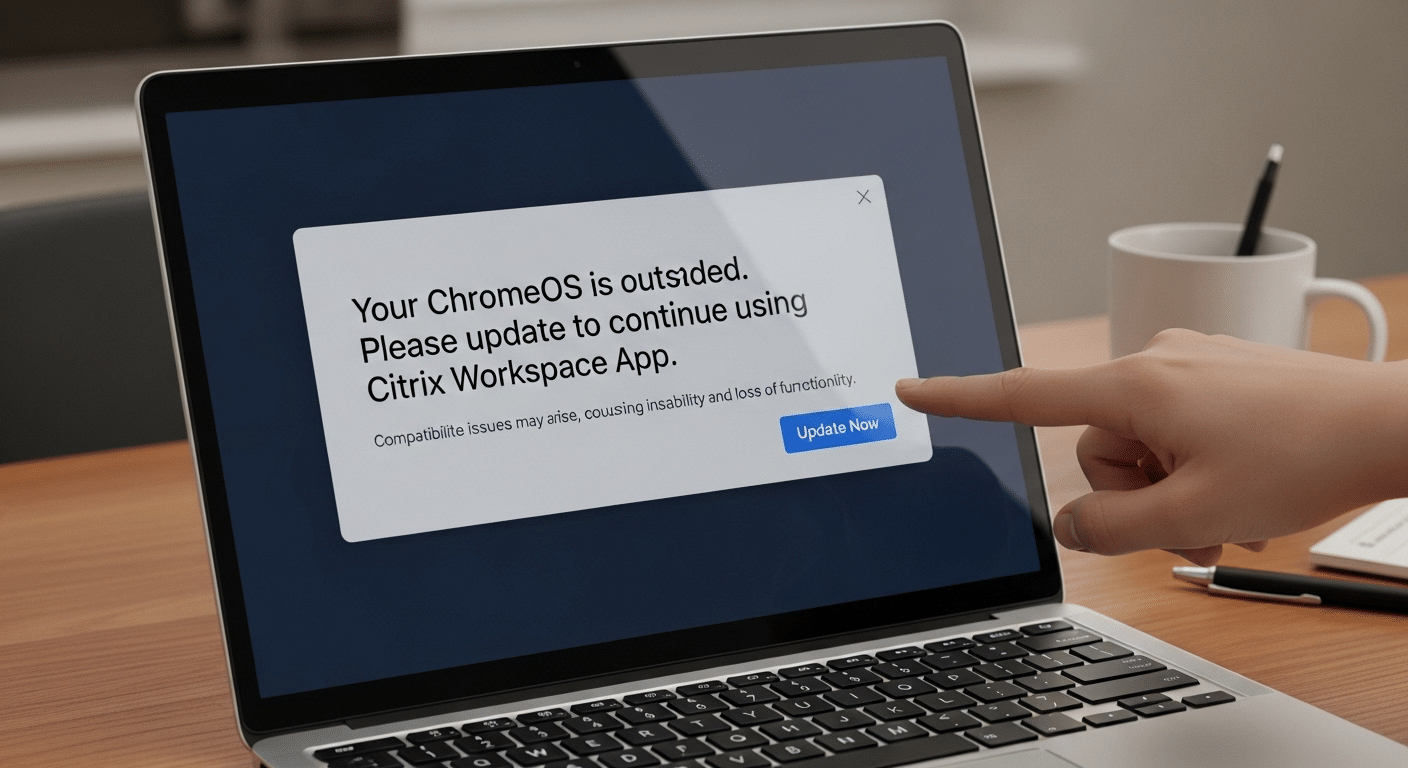
Even when everything seems set up correctly, small issues tend to surface over time. Some are easy to fix. Others take a bit of digging. Most users run into a familiar set of problems, especially when relying on Citrix daily.
Here are the ones that come up most often:
- Login Errors: Incorrect store URL or wrong credentials can block access, even when everything else looks fine at first glance.
- Connectivity Problems: An unstable internet connection can interrupt sessions, causing lag, freezes, or sudden disconnects.
- Version Compatibility Issues: Outdated ChromeOS or an older Citrix Workspace app can lead to inconsistent performance or failed launches.
- Installation Problems: Improper setup from the Chrome Web Store may prevent the app from opening or connecting properly.
- File Access Issues: Some users experience trouble opening or syncing files through Google Drive or the local Files App.
How Can You Improve Citrix Performance on a Chromebook?
Performance on a Chromebook isn’t fixed. It can improve, sometimes noticeably, with a few small adjustments. Nothing drastic. Just the kind of tweaks that remove friction from the system.
Here are a few practical ways to make Citrix run more smoothly:
- Update ChromeOS Regularly: Keeping your ChromeOS version up to date ensures better compatibility with newer Citrix Workspace features and reduces unexpected issues.
- Use a Stable Internet Connection: A consistent, high-quality connection minimizes lag and prevents session interruptions during use.
- Meet Hardware Requirements: Devices with at least 4GB to 8GB RAM handle multitasking more effectively and improve overall responsiveness.
- Close Background Applications: Freeing up system resources helps your device focus on the Citrix session instead of competing tasks.
- Use Stable Channel Versions: Avoid experimental or beta versions in settings, they can introduce instability.
Why Browser-Based Virtual Desktops Work Better on Chromebooks?
A Chromebook is built around the browser. That’s the core idea. Everything opens through the web, everything runs through it. So when a virtual desktop follows the same pattern, things tend to click more naturally.
Browser-based desktops remove a layer of friction that traditional setups introduce. No installs. No version checks. You simply open a tab, log in, and gain access to your workspace. It feels lighter, almost immediate.
There’s also less room for compatibility issues. Since everything runs in the cloud, your device isn’t juggling dependencies or struggling to match software versions. The browser handles most of the heavy lifting.
Why Apporto Is a Better Fit for Chromebook Users?
Apporto is built as a fully browser-based solution, which aligns almost perfectly with how Chromebooks are designed to operate. There’s nothing to install, no app to manage, no dependency on matching versions across devices and servers. You open a browser, log in, and your virtual desktops are right there.
Because everything runs through the cloud provider, much of the usual complexity fades into the background. No client updates. No friction between ChromeOS and enterprise infrastructure. It just works, more consistently than most traditional setups.
Security is handled within the platform as well, providing secure access without requiring extra configuration layers on your device.
Final Thoughts
So, can Citrix run on a Chromebook? Yes. It does. But the experience isn’t always as smooth as you might expect.
For light to moderate workloads, basic apps, document access, everyday tasks, it holds up reasonably well. Push beyond that, though, into heavier environments or more complex setups, and the cracks tend to show. Performance dips. Compatibility quirks. Small interruptions that add up.
That’s really the trade-off. It works, but within limits. If consistency matters, exploring simpler, browser-based alternatives like Apporto might give you a more stable and predictable experience. Try Now.
Frequently Asked Questions (FAQs)
2. Can you install Citrix Workspace on a Chromebook?
Yes, you can install the Citrix Workspace app from the Chrome Web Store or Google Play Store. Once installed, you log in using your organization’s store URL or email to access desktops and applications.
3. Does Citrix work well on ChromeOS?
It works reasonably well for basic tasks, especially with stable internet and updated ChromeOS. However, performance can vary depending on device specs, network quality, and how complex your virtual desktop environment is.
4. Can you run Windows apps on a Chromebook using Citrix?
Yes, Citrix allows you to access Windows-based applications hosted on remote servers. These apps run in a virtual desktop session, so your Chromebook acts as a gateway rather than running them locally.
5. What are the limitations of Citrix on Chromebook?
Limitations include reduced feature support, compatibility issues with certain devices, performance constraints for heavy workloads, and occasional lag or disconnections depending on network conditions and system configuration.
6. Do you need a powerful Chromebook for Citrix?
Not necessarily, but devices with at least 4GB to 8GB RAM perform better. More capable hardware improves multitasking and reduces lag, especially when running multiple apps inside a virtual desktop session.
7. Can you use Citrix on a Chromebook without installing the app?
Yes, in many cases you can access Citrix through a browser-based session. However, the experience may differ slightly from the app, and some features may be limited depending on configuration.
