
How to Connect to a Virtual Machine Using Remote Desktop?
You can connect to a virtual machine using Remote Desktop Protocol (RDP) by entering the VM’s IP address, enabling remote access, and authenticating with valid credentials. While RDP requires configuration, browser-based platforms like Apporto simplify access by providing secure virtual desktops without setup or client installation.
Connecting to a virtual machine no longer requires sitting in front of the physical computer that hosts it. With Remote Desktop Protocol (RDP), you can access a remote system from almost anywhere and interact with it through a familiar desktop interface.
The process is surprisingly straightforward. Your local computer simply displays the screen of the remote machine while sending your keyboard and mouse input across the network.
This capability is widely used for managing Windows servers, accessing cloud VMs, and working inside development environments without needing direct physical access to the machine.
In this guide, you will learn what Remote Desktop is, what requirements must be in place before connecting to a VM, how to establish a remote desktop connection step by step, and which security practices help keep remote access reliable and safe.
What Is Remote Desktop and How Does It Work With Virtual Machines?
Before connecting to a virtual machine, it helps to understand the mechanism doing the heavy lifting. That mechanism is Remote Desktop Protocol, usually shortened to RDP. Developed by Microsoft, it allows one computer to access another through a graphical desktop interface.
Instead of transferring the entire system to your device, the remote machine performs the processing while your computer simply displays the desktop and sends keyboard and mouse input across the network. Simple idea. Surprisingly powerful.
A remote desktop session lets you interact with a system that may be sitting in a data center, a server room, or somewhere across the internet.
Characteristics of Remote Desktop are:
• Provides a graphical desktop interface for remote access
• Allows users to control a remote computer as if sitting in front of it
• Supports remote sessions for managing servers and systems
• Works across Windows, Mac, Linux, and mobile devices
What Do You Need Before Connecting to a Virtual Machine Using Remote Desktop?
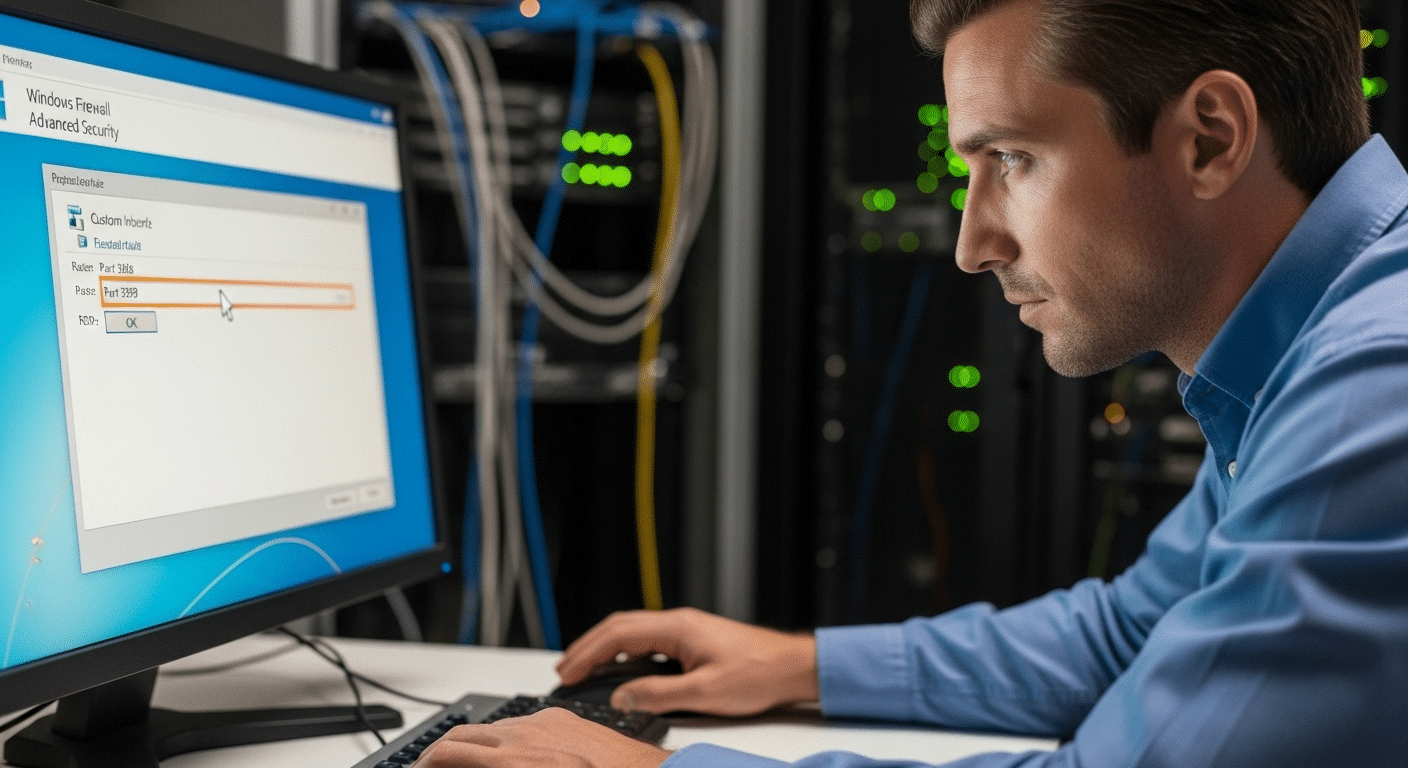
Understanding how Remote Desktop works is only half the story. Before a connection can happen, the environment around the virtual machine has to be prepared correctly.
Small configuration gaps often cause the most frustrating connection errors. A blocked firewall rule, a missing credential, sometimes even a simple network misconfiguration can prevent access.
Think of these requirements as the groundwork. When everything below is in place, the Remote Desktop connection usually works without much fuss.
Essential requirements include:
• A Windows virtual machine that is provisioned and currently running
• Remote Desktop enabled in the VM’s system configuration
• Firewall rules allowing traffic through the default RDP port 3389
• A public IP address or reachable local network connection for the VM
• A user account authorized for remote desktop access
• Valid username and password credentials for the virtual machine
• A Remote Desktop client installed on the local computer
Once these pieces are configured correctly, the system becomes ready to accept incoming RDP connections.
How Do You Enable Remote Desktop on a Windows Virtual Machine?
Once the basic requirements are in place, the next step is enabling Remote Desktop on the virtual machine itself. This setting allows the system to accept incoming remote connections through the Remote Desktop Protocol.
Without it, even a perfectly configured network will refuse the connection attempt. Windows keeps the option disabled by default for security reasons, so it must be turned on manually. The process is fairly quick and takes only a minute inside the VM’s system settings.
To enable Remote Desktop on a Windows VM:
• Open the Start Menu and search for Remote Desktop settings
• Enable the option Allow remote connections to this computer
• Verify which user accounts have permission to connect remotely
• Confirm firewall settings allow traffic through port 3389
• Ensure the virtual machine has a valid network connection
After this configuration is enabled, the VM is ready to accept remote desktop sessions.
How to Connect to a Virtual Machine Using Remote Desktop (Step-by-Step)
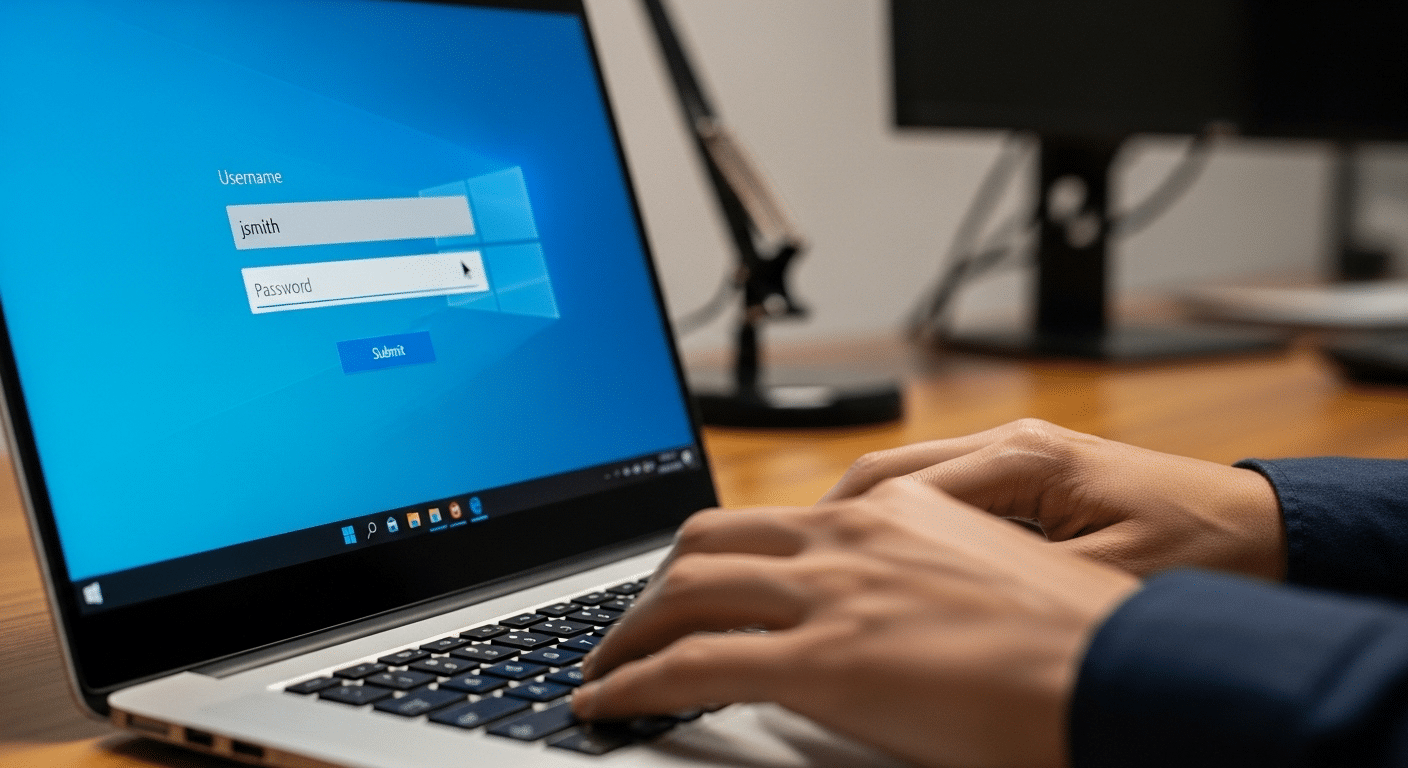
With Remote Desktop enabled and the network configuration ready, the actual connection process becomes fairly routine. You are simply telling your computer where the virtual machine lives and then authenticating with the correct credentials. The Remote Desktop client handles the rest, establishing a secure session between the two systems.
Windows includes a built-in tool for this purpose called Remote Desktop Connection, which launches the remote desktop connection window where you enter the details of the VM.
Steps to Connect to a Windows Virtual Machine Using Remote Desktop
- Open Remote Desktop Connection from the Start Menu by searching for mstsc.
- In the Computer field, enter the IP address assigned to the virtual machine.
- Click Connect to begin the connection process.
- When prompted, enter the username and password associated with the VM.
- Confirm the credentials in the Windows Security prompt.
- The remote session starts and the Windows VM desktop appears on your screen.
Once logged in, the virtual machine behaves almost exactly like a local computer. Applications open normally, files are accessible, and system settings can be configured as needed.
To end the session, click the X in the top-right corner of the remote desktop window and choose Disconnect.
How Do You Connect to a Virtual Machine From Mac or Linux?
Remote Desktop connections are not limited to Windows computers. Many administrators and developers work on macOS or Linux systems, and connecting to a Windows virtual machine from those platforms is still straightforward.
The key requirement is installing a compatible Remote Desktop Protocol client that can communicate with the remote system. Several tools support RDP connections across different operating systems.
Some common RDP clients are:
• Microsoft Remote Desktop app: For Mac, available through the Apple App Store
• Remmina: A widely used graphical client for Linux environments
• rdesktop: A lightweight command-line RDP client for Linux systems
• Microsoft Remote Desktop mobile apps: For Android and iOS devices
Once the software is installed, the connection process looks familiar.
• Enter the IP address of the virtual machine
• Provide your username and password credentials
• Start the remote session to access the desktop environment
How Do Virtualization Platforms Like Hyper-V and VirtualBox Support Remote Desktop?
Remote Desktop becomes even more useful when working with virtualization platforms. Tools like Hyper-V and VirtualBox allow several virtual machines to run on a single physical computer, which makes remote access essential for managing those systems efficiently. Instead of opening the VM through the host interface every time, you can connect directly using an RDP client. The setup varies slightly depending on the platform and its networking configuration.
RDP Support in Common Virtualization Platforms
| Platform | RDP Support | Notes |
|---|---|---|
| Hyper-V | Yes | Built into Windows virtualization platform |
| VirtualBox | Yes | Requires VirtualBox Extension Pack |
| Azure VM | Yes | Portal provides downloadable .rdp file |
| Local VM | Yes | Requires manual configuration |
Some platforms, such as Azure, provide a downloadable RDP file that stores the connection settings needed to launch a remote desktop session more quickly. VirtualBox also includes a feature called VirtualBox Remote Desktop Extension (VRDE), which allows RDP connections directly to guest operating systems when properly configured.
What Security Settings Should You Configure for Remote Desktop Access?
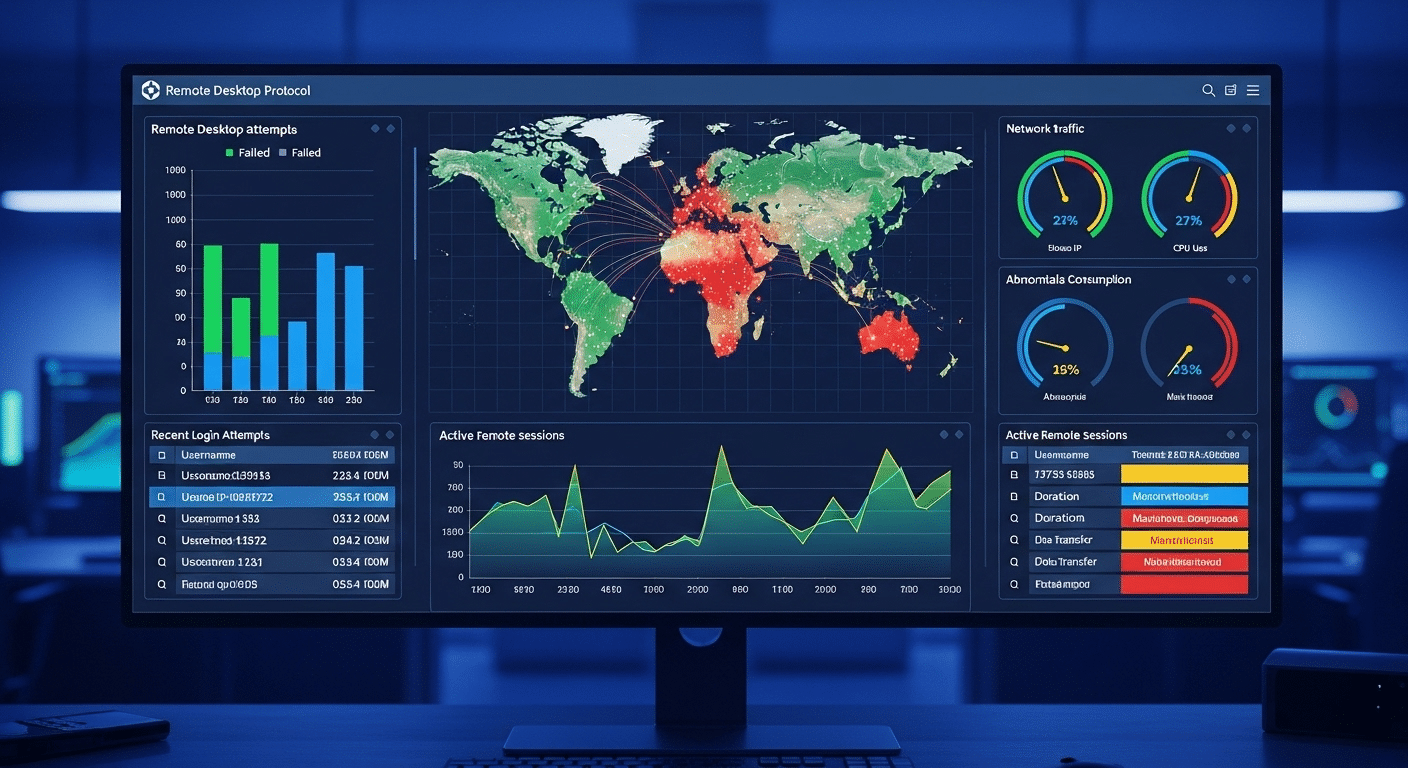
Remote Desktop makes accessing a virtual machine convenient, but that convenience comes with responsibility. A poorly secured configuration can expose a system to unwanted login attempts or unauthorized access. A few thoughtful security settings go a long way in protecting your remote environment. Administrators typically combine credential management, firewall configuration, and network controls to keep remote connections safe.
Recommended security practices are:
• Use strong usernames and passwords for all remote desktop accounts
• Restrict remote access through a VPN connection whenever possible
• Limit firewall exposure for the default RDP port 3389
• Allow only authorized user accounts to establish remote sessions
• Monitor login attempts and remote activity for unusual behavior
What Common Problems Prevent Remote Desktop Connections?
Even with everything configured correctly, Remote Desktop connections can occasionally fail. Most of the time the issue is something small, a blocked port, a permission setting, or a network detail that slipped past during setup. When troubleshooting a connection problem, these areas are usually the first places to check.
Common connection issues:
• Firewall blocking the default RDP port 3389
• Incorrect IP address entered in the computer field
• Remote Desktop not enabled on the virtual machine
• User account lacking permission for remote access
• Network connectivity problems between the local computer and the VM
Why Apporto Simplifies Access to Virtual Desktops ?
Managing virtual machines through traditional Remote Desktop setups can become complicated as environments grow. Networking rules, firewall configuration, and multiple client tools often add layers of friction before users can even log in.
Apporto takes a simpler route. Its browser-based virtual desktop platform delivers secure remote access without manual RDP setup or client installation. You open a browser, authenticate, and the desktop appears.
Final Thoughts
Remote Desktop continues to be one of the most dependable ways to access a virtual machine. Once the basic configuration is complete, enabling remote connections, confirming firewall rules, and preparing the correct credentials, the process becomes surprisingly routine. A few small settings, and suddenly a computer sitting in another room, another office, or even another data center is right in front of you.
Understanding how the connection works also helps avoid the usual troubleshooting headaches. With the right setup in place, you can securely connect to systems from Windows, Mac, or Linux and manage them almost as if they were running locally on your own computer.
Frequently Asked Questions (FAQs)
1. What is Remote Desktop Protocol?
Remote Desktop Protocol, often called RDP, is Microsoft’s technology for connecting to another computer over a network. It allows you to open a remote desktop session and interact with the remote system using your keyboard, mouse, and display.
2. How do I connect to a virtual machine using Remote Desktop?
To connect to a virtual machine using Remote Desktop, open an RDP client, enter the VM’s IP address, and log in with valid credentials. Once connected, you can access the desktop remotely. Platforms like Apporto simplify this by enabling browser-based access without manual setup.
3. What port does Remote Desktop use?
Remote Desktop typically uses port 3389 by default. This port must be allowed through firewall settings on the virtual machine and the network so the Remote Desktop client can establish a connection successfully.
4. Can you connect to a Linux VM using RDP?
Yes, although Linux systems do not include RDP by default. You can install services like xrdp on a Linux virtual machine, which allows Remote Desktop clients from Windows, Mac, or Linux devices to connect.
5. Do you need a public IP address to connect to a VM?
Not always. If your computer and the virtual machine are on the same local network, a local IP address is enough. Public IP addresses are typically required when connecting from outside the network.
