
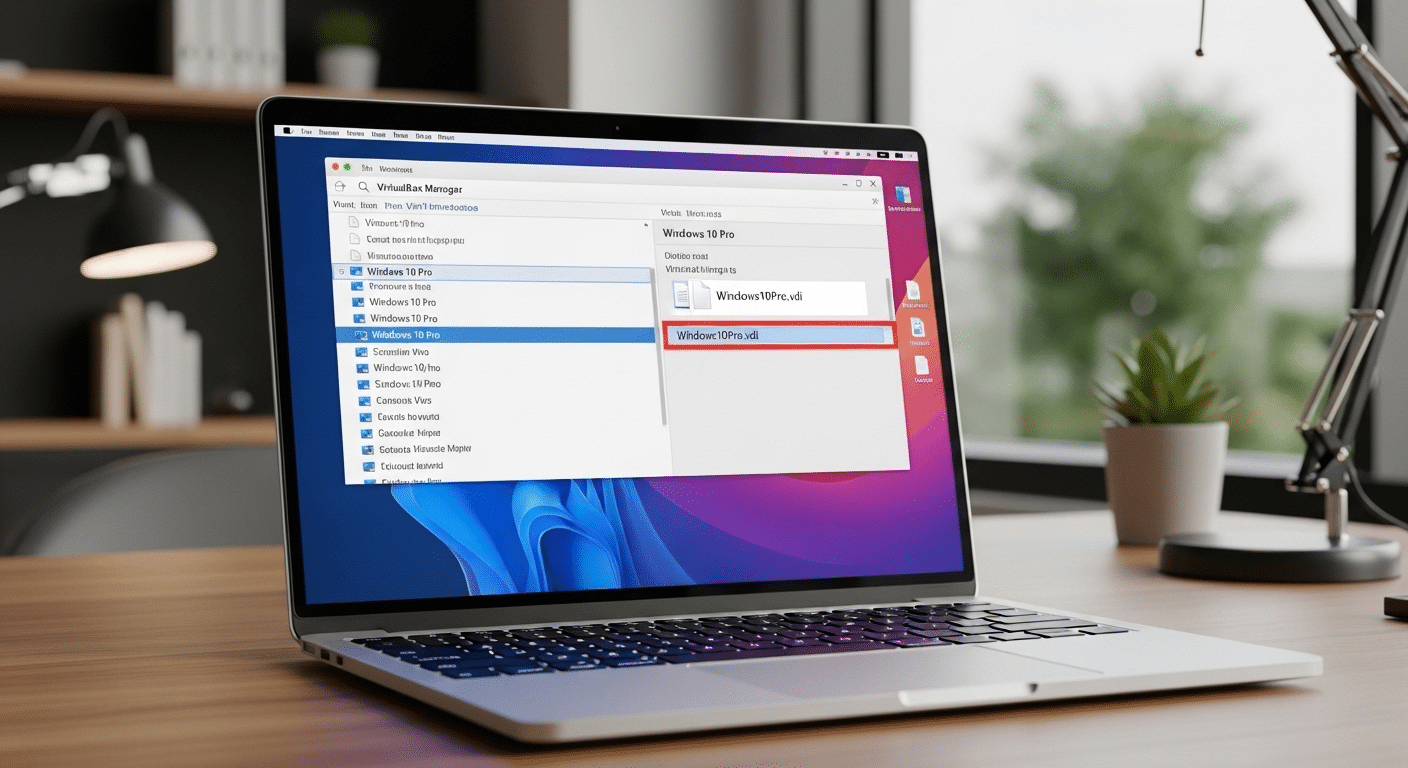
How to Use VDI File in VirtualBox?
To use a VDI file in VirtualBox, attach it as a virtual hard disk when creating or editing a virtual machine. The system inside the file then boots like a normal computer. For a simpler setup, platforms like Apporto provide browser-based environments without manual configuration.
Virtualization has changed the way you interact with operating systems. Instead of relying on one installed system, tools like Oracle VM VirtualBox allow you to run multiple operating systems on a single host computer. Each operating system runs inside a virtual machine, functioning almost like a separate computer within your existing environment.
At the center of this setup sits the VDI file, short for Virtual Disk Image. This file acts as the virtual hard disk for the machine. It stores the operating system, installed software, system files, and all the data the guest operating system needs to function normally.
Many users encounter VDI files when downloading disk images or migrating existing virtual machines. Understanding how to use a VDI file in VirtualBox becomes essential.
In this guide, you will learn what a VDI file is, how VirtualBox manages disk images, how to create or attach virtual disks, how disk allocation works, and how to resolve common VDI file problems.
What Is a VDI File and Why Does VirtualBox Use It?
A VDI file, short for Virtual Disk Image, sits quietly at the center of every VirtualBox virtual machine. Think of it as the machine’s storage brain. Not a physical drive, of course, but something that behaves almost exactly like one. Oracle VM VirtualBox uses this format as its native container for storing virtual disks.
Inside that single file lives an entire environment. The operating system, installed applications, configuration data, temporary files, everything the virtual machine relies on to function. From the perspective of the guest operating system, the VDI behaves like a normal hard disk installed in a physical computer. You install software. You save documents. Files appear, disappear, move around.
Meanwhile, something subtle is happening underneath.
Although these disk image files reside on the host system, VirtualBox quietly translates every disk operation. When the guest system reads or writes a disk sector, the virtualization layer redirects that request to the virtual hard disk file stored on the host computer. The guest OS never notices the difference.
Characteristics of VDI Files
• Stores the operating system and installed applications of the virtual machine
• Acts as the boot disk for the guest operating system
• Supports fixed size disks and dynamically allocated images
• Allows disk capacity expansion after creation
• Redirects disk sector operations from the guest OS to host storage
Dynamically allocated images start small. Over time, as data accumulates, the disk grows gradually, using only the storage actually required.
What Types of Disk Image Formats Does VirtualBox Support?
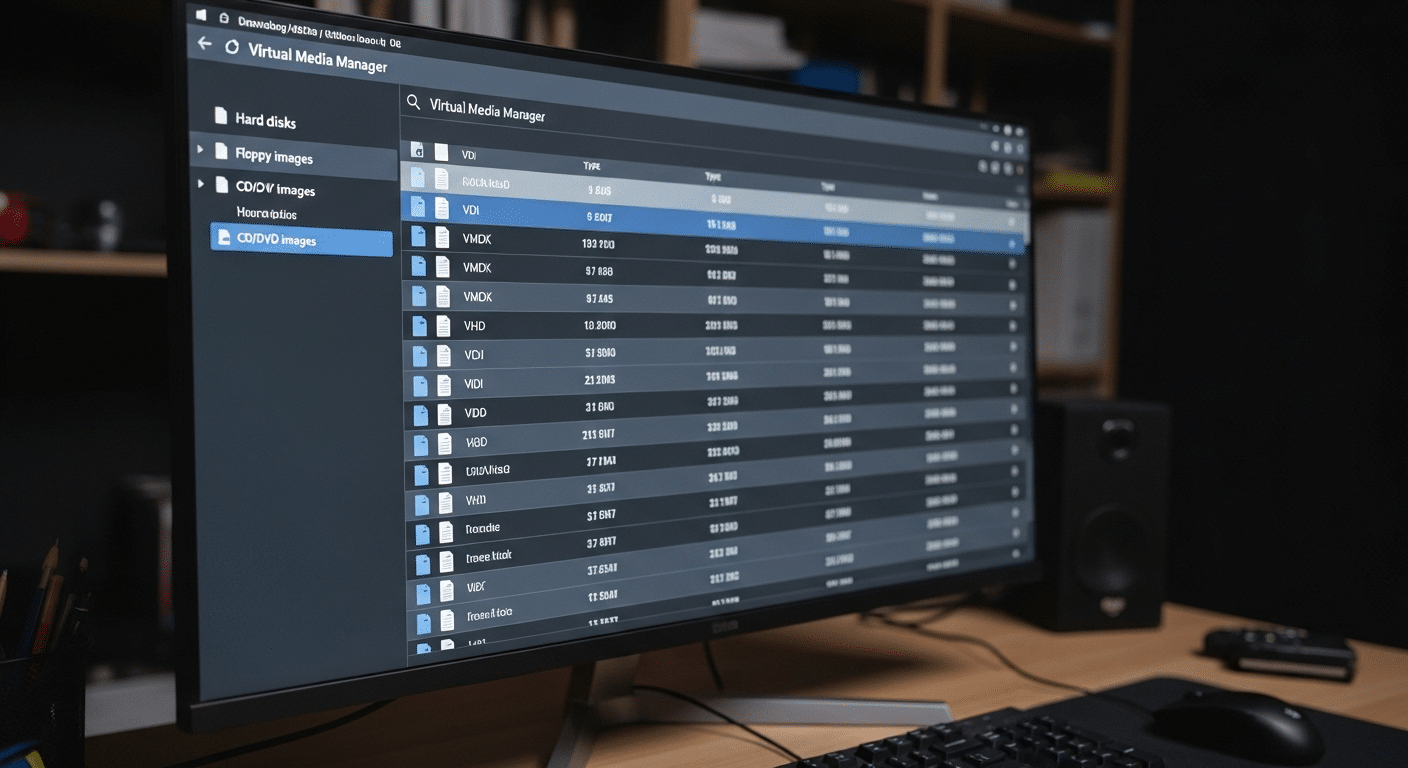
VirtualBox relies on VDI files by default, yet the software was designed with flexibility in mind. Virtual environments rarely stay inside one ecosystem forever. Teams migrate systems.
Developers move test machines between tools. Sometimes you download an image created somewhere else entirely. Because of that reality, Oracle VM VirtualBox supports several disk image container formats, allowing different virtualization platforms to work together.
In practice, this means a virtual machine originally built on VMware or Microsoft Hyper-V can often be imported and run inside VirtualBox with minimal effort.
The virtualization layer simply reads the structure of the disk image and presents it to the guest operating system as a usable virtual hard disk. Several common formats appear regularly when working with virtual machines.
Disk Image Formats Supported by Oracle VM VirtualBox
| Disk Format | Description | Typical Source |
|---|---|---|
| VDI | Native VirtualBox disk image format | Oracle VirtualBox |
| VMDK | VMware virtual disk format | VMware Workstation / ESXi |
| VHD | Microsoft virtual hard disk format | Microsoft Hyper-V |
| HDD | Parallels disk format | Parallels Desktop |
All of these disk images can be managed through the Virtual Media Manager window in VirtualBox. From there you can register existing disks, attach them to virtual machines, remove unused images, or inspect their properties. It is a small tool, easily overlooked, yet extremely useful when organizing virtual disk files.
How Does VirtualBox Store and Manage Virtual Disk Images?
Once a virtual machine is created, VirtualBox needs a reliable way to organize its storage. This is where disk image management becomes important.
Instead of spreading data across multiple hidden system components, VirtualBox stores disk image files directly inside the host system’s file structure, usually within the VirtualBox VM folder. You can open that directory and actually see the files sitting there.
Each of those files represents a virtual disk container. Inside it are data blocks that correspond to disk sectors used by the guest system.
When the guest operating system reads or writes information, VirtualBox maps those requests to the correct locations inside the disk image file stored on the host computer. To the guest system, it behaves like a real hard drive.
Keeping track of all those disks could become messy, so VirtualBox includes a built-in management tool called the Virtual Media Manager. This interface acts as the control center for disk images.
Functions of the Virtual Media Manager
• Register existing disk image files
• Create new virtual hard disk images
• Remove unused virtual disks
• Expand disk capacity when needed
• Clone disk images for backup or duplication
• Track disk file size and storage usage
Through the Virtual Media Manager window, administrators gain flexible storage management. It becomes much easier to organize disk image files, maintain virtual machines, and keep storage resources under control.
How to Use a VDI File in VirtualBox When Creating a New Virtual Machine?
So here’s where things become practical. You have a VDI file, maybe downloaded from a developer site, maybe exported from another system, and now the goal is simple, make that disk image actually run. In most cases the cleanest path is to create a new virtual machine and attach the VDI file as its primary boot disk.
Think of the process like assembling a computer, except everything happens inside software. The virtual machine provides the CPU, memory, and system configuration. The VDI file supplies the storage and operating system environment.
For users specifically setting up a Linux guest environment, you can also learn how to run Linux on Windows using VirtualBox and other methods depending on your performance and setup requirements. Put the two together and the system can boot normally.
VirtualBox makes this process fairly straightforward, although the option to use an existing disk is easy to overlook the first time you encounter the setup screen.
Steps to Create a New Virtual Machine Using a VDI File
- Launch Oracle VM VirtualBox on your host system.
- Click New to begin creating a new virtual machine.
- Enter a machine name and choose the correct operating system type.
- Allocate system memory and any additional computing resources required.
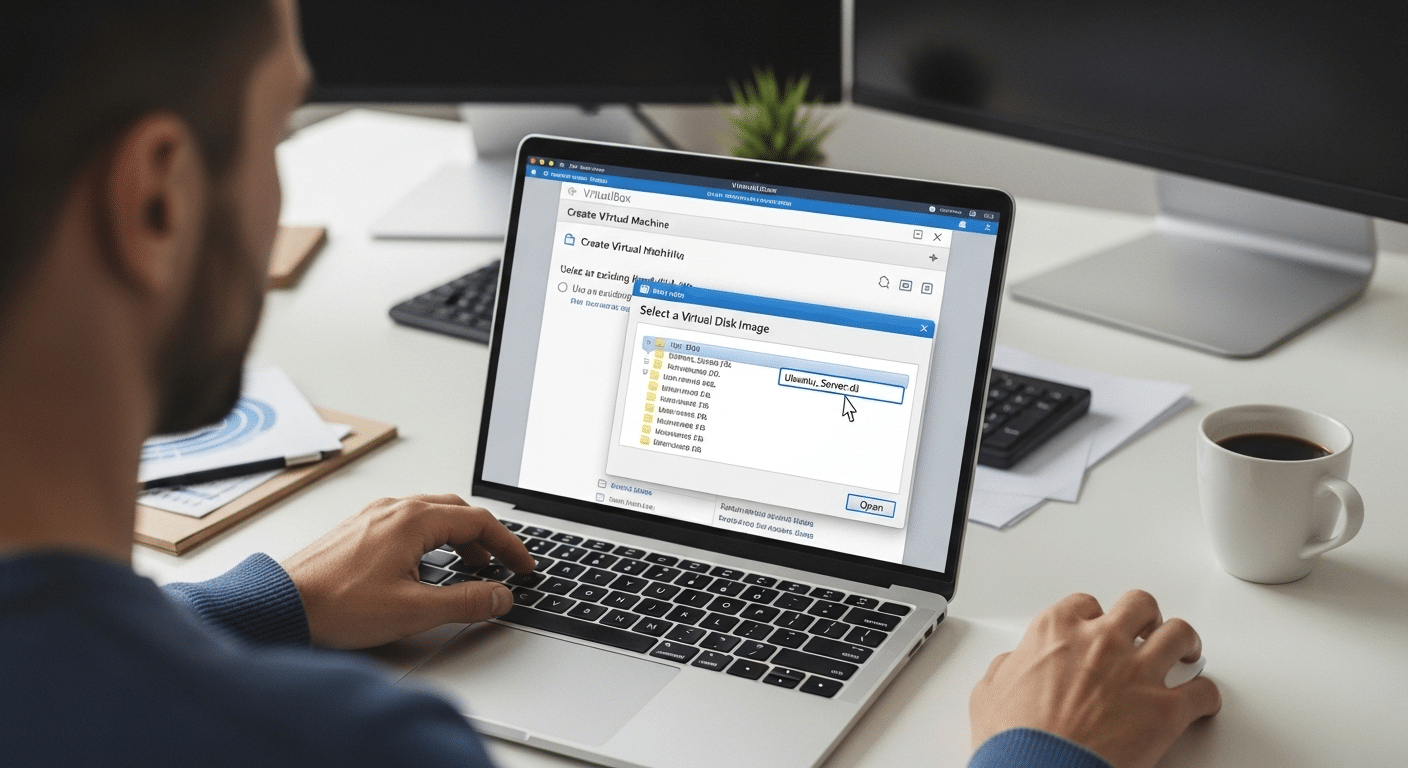
- When the storage configuration screen appears, choose Use an existing virtual hard disk file.
- Click the folder icon beside the disk selection field.
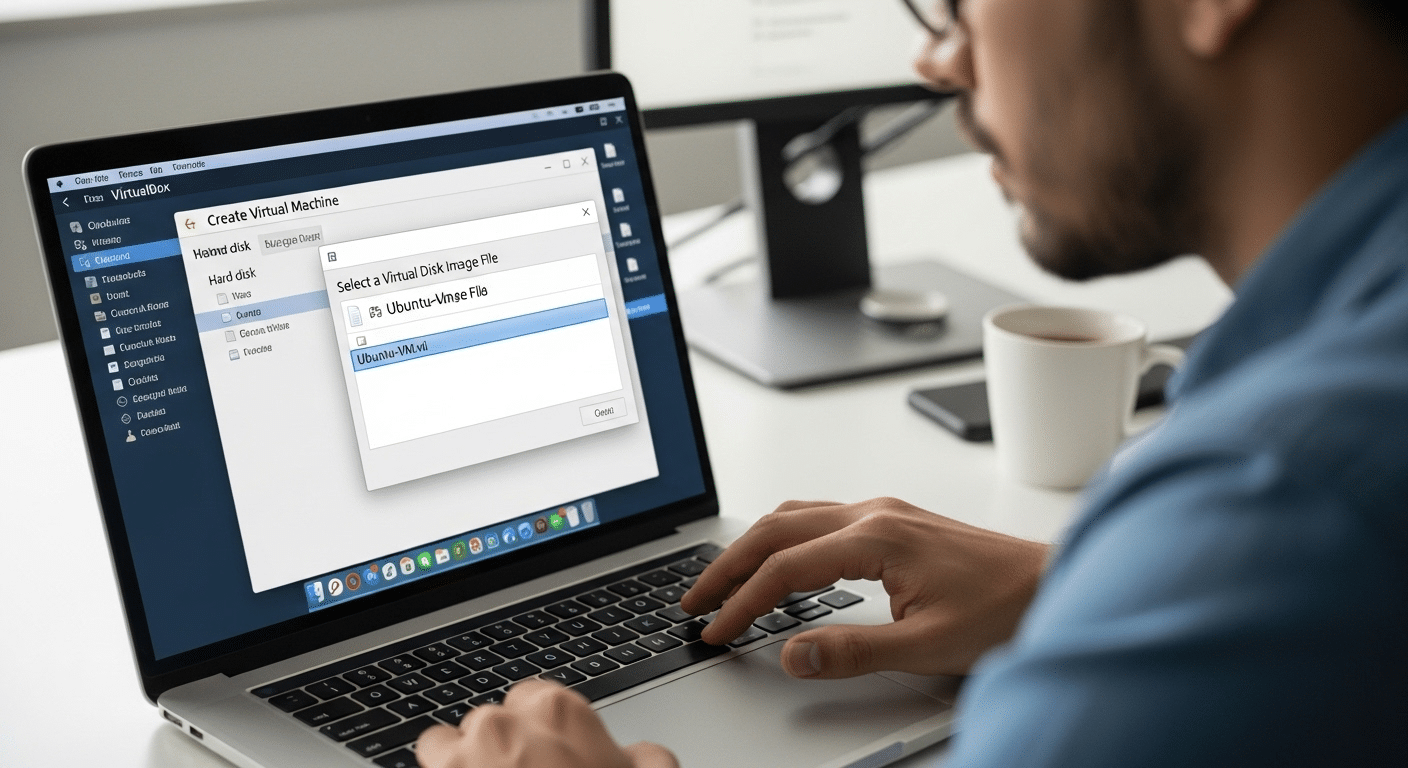
- Browse through the available disk images and locate your existing VDI file.
- Select the disk image and confirm the selection.
- Click Create to finish configuring the virtual machine.
Once the setup is complete, the virtual machine recognizes the existing VDI as its storage device. When you start the VM, VirtualBox loads the operating system stored inside that disk image, treating it exactly like a physical boot disk.
How Do You Attach a VDI File to an Existing Virtual Machine?
Sometimes a VDI file already contains useful data or even an entire operating system, yet the virtual machine you plan to use already exists. In that situation you do not need to create a new VM at all. VirtualBox allows you to attach a VDI file as an additional virtual hard disk to an existing system.
This approach is common when adding extra storage to a VM, restoring a disk from backup, or migrating data from another virtual machine.
The process takes place inside the storage configuration panel, where VirtualBox lets you connect new disk images to a controller such as SATA or IDE.
Once attached, the virtual machine treats the disk image just like another hard drive installed in a physical computer.
Steps to Attach a VDI File
- Launch VirtualBox and select the existing virtual machine.
- Click Settings to open the machine configuration window.
- Navigate to the Storage section.
- Locate and select the SATA controller.
- Click Add Hard Disk to create a new storage attachment.
- Choose the option labeled Existing Disk.
- Browse the storage list and select the desired VDI file.
- Apply the configuration changes and close the settings window.
When the VM starts again, the system detects the existing virtual hard disk automatically. Inside the guest operating system it appears as a normal virtual drive, ready for file access or additional configuration.
What Is the Difference Between Dynamically Allocated and Fixed Size VDI Files?
When creating a virtual disk image in VirtualBox, one decision quietly shapes how that disk behaves over time. The platform asks you to choose between two allocation methods, dynamically allocated images or fixed size images. At first glance the difference appears small. In practice it affects storage usage and performance.
A dynamically allocated VDI file begins modestly. The disk image occupies only a small amount of space on the host system at the start. As data is written inside the virtual machine, the file gradually expands. Each write operation increases the disk file size until it eventually reaches the maximum capacity defined during creation.
A fixed size image behaves differently. When the disk is created, VirtualBox immediately allocates the full storage capacity on the host system. The disk file size roughly matches the virtual disk capacity from the beginning. This approach consumes more space initially but can provide faster disk performance because the storage layout remains stable.
VDI Disk Allocation Comparison
| Feature | Dynamically Allocated Image | Fixed Size Image |
|---|---|---|
| Initial disk file size | Small | Full capacity allocated |
| Disk growth | Expands as data is written | Fixed at creation |
| Host storage usage | Uses less space initially | Roughly same size as capacity |
| Write performance | Slightly slower | Faster write operations |
In many environments dynamically allocated disks help conserve storage. Fixed disks, on the other hand, may deliver better write performance, especially during heavy disk activity.
How Can You Resize or Expand a VDI File After Creation?
Virtual machines evolve. Software grows, data accumulates, and eventually the original disk size you selected begins to feel cramped. The good news is that VirtualBox allows you to expand a VDI file even after it already contains data. The process does not require rebuilding the virtual machine or reinstalling the operating system.
Resizing typically happens outside the graphical interface. VirtualBox provides a small but powerful utility called VBoxManage, a command line tool that allows you to modify virtual disk properties. With a single command, you can increase the maximum capacity of the virtual disk image, giving the guest system additional room to work with.
It is important to remember something, though. Expanding the VDI file only increases the available storage at the virtual disk level. The operating system inside the virtual machine must still expand its partition before it can use that new space.
Steps to Resize a VDI File
• Open the command line interface on the host system
• Navigate to the VirtualBox installation directory
• Run the VBoxManage modifyhd command with the path to the VDI file
• Specify the new disk capacity you want to assign
After the operation completes, start the virtual machine and extend the partition within the guest operating system to use the additional disk space.
What Common Problems Occur When Opening VDI Files in VirtualBox?
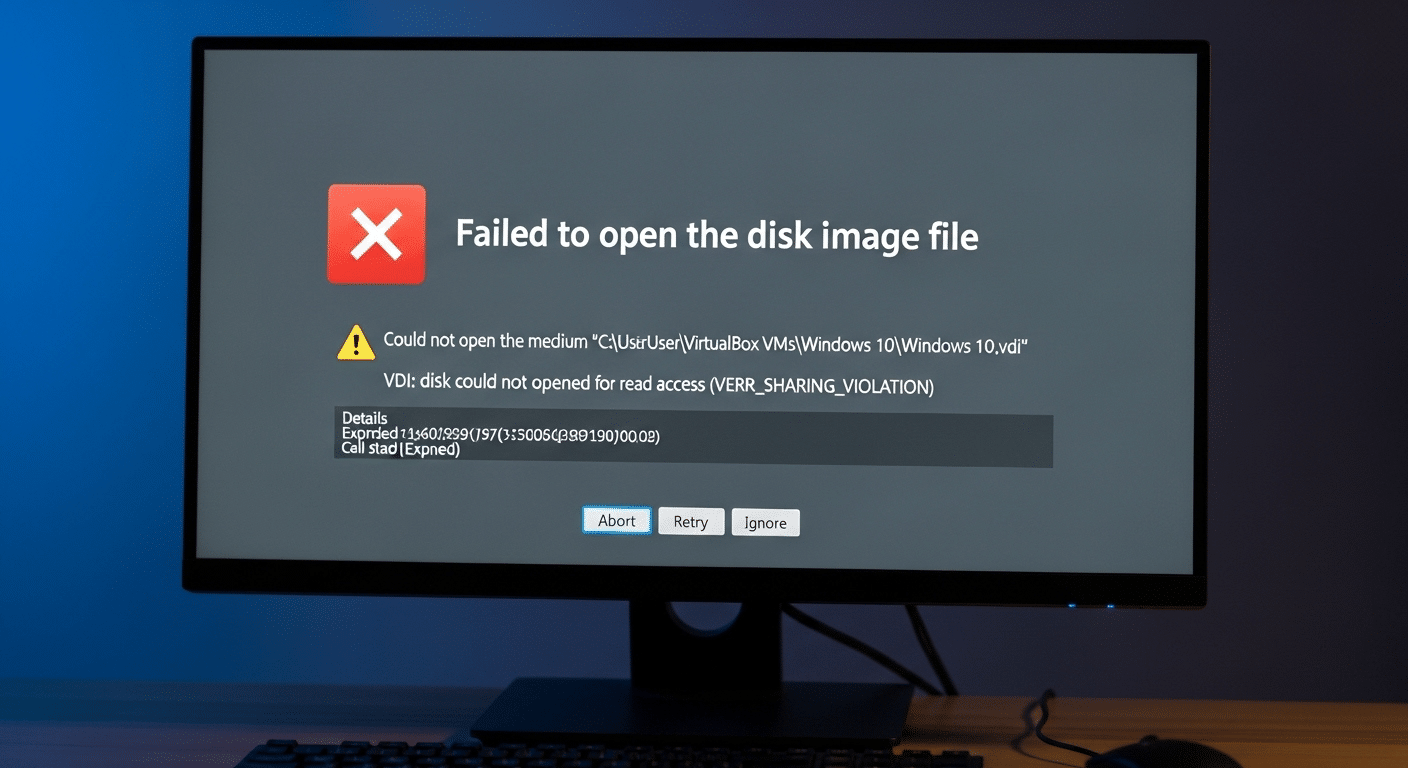
Working with virtual machines usually feels smooth, at least most of the time. Still, VDI files occasionally refuse to cooperate. You try to start the VM, and something goes wrong. The disk fails to load. The system complains about compatibility. Sometimes the file simply refuses to open.
These situations rarely mean the entire virtual machine is lost. In many cases the issue comes down to configuration details or version mismatches between the disk image VDI file and the VirtualBox installation.
Common VDI File Issues are:
• VirtualBox not recognizing the disk image
• Corrupted VDI files caused by interrupted writes or storage errors
• Disk image version incompatibility between VirtualBox releases
• Incorrect storage controller configuration inside the VM settings
• Damaged virtual disk sectors that prevent proper disk reads
When a VDI file fails to open, the first step is usually simple. Open the Virtual Media Manager and check whether the disk image is properly registered. If the file appears missing or detached, re-registering the disk often restores access.
Sometimes converting the disk format or updating VirtualBox resolves the issue as well. Most problems look serious at first glance, yet they tend to have practical fixes once you identify the root cause.
How Can You Recover or Repair Corrupted VDI Files?
Every now and then a virtual disk runs into trouble. Maybe the host computer shut down unexpectedly. Maybe a storage device failed halfway through a write operation.
Sometimes the issue is less dramatic, just a corrupted block inside the VDI file that prevents VirtualBox from opening it normally. When this happens, the virtual machine may refuse to start or the disk image may appear unreadable.
A virtual disk image is still a file stored on the host system, which means it can suffer from the same kinds of corruption that affect any other file. Incomplete writes, sudden system crashes, or disk hardware errors can damage the internal structure of the image.
Recovery Methods to Use Are:
• Using professional VDI recovery software designed to repair corrupted VDI files
• Repairing the virtual disk with specialized disk repair utilities
• Restoring disk image files from backup copies
Some tools go further and allow direct data recovery. For example, Aryson VDI Recovery Software can scan damaged disk images, repair corrupted VDI structures, and recover deleted files stored inside the virtual disk.
Of course, prevention remains the safer path. Regular backups of important virtual machines help ensure you can recover quickly if disk image corruption occurs.
Why Apporto Is a Simpler Alternative to Complex Virtual Machine Environments?

VirtualBox gives you remarkable control over virtualization, yet that flexibility comes with responsibility. You configure the virtual machine, attach disk images, install the operating system, adjust storage controllers, and manage resources manually. For developers or system administrators that level of control makes sense. For many teams, though, it quickly becomes time consuming.
This is where Apporto takes a different path. Instead of requiring users to manage virtual disk images or configure local virtualization software, Apporto delivers browser based virtual desktops that run entirely in the cloud. You open a browser, sign in, and your desktop environment appears ready to use.
Final Thoughts
Working with virtual machines becomes far less intimidating once you understand how VDI files function inside VirtualBox. In most situations the process follows a clear path.
You create a virtual machine, attach the VDI file as the virtual hard disk, configure system resources such as memory and CPU allocation, then launch the guest operating system. From there the virtual machine behaves much like a normal computer.
Learning how VirtualBox handles disk images also makes everyday management easier. You begin to understand where disk image files reside, how storage grows, and how virtual disks interact with the host system.
With that knowledge, maintaining virtual machines becomes more predictable. Storage can be expanded, disk images organized, and virtual environments managed with far greater confidence and efficiency.
Frequently Asked Questions (FAQs)
1. What is a VDI file in VirtualBox?
A VDI file is a virtual hard disk format used by Oracle VM VirtualBox to store an operating system, applications, and data. It functions like a physical drive inside a virtual machine, enabling the system to run independently within your computer
2. Can you open a VDI file directly in VirtualBox?
You cannot open a VDI file like a normal document. Instead, VirtualBox uses it as the virtual hard disk for a virtual machine. You must attach the VDI file to a new or existing VM before the operating system inside it can run.
3. How to view a .VDI file?
You cannot open a .VDI file directly like a regular file. Instead, load it into Oracle VM VirtualBox as a virtual disk to access its contents. Alternatively, specialized tools or mounting methods can help extract or browse files stored inside the disk image.
4. What is the difference between VDI and VMDK?
VDI is the native disk image format created for VirtualBox environments, while VMDK is commonly used by VMware virtualization products. Both formats store virtual disk data, and VirtualBox supports opening VMDK files for compatibility between virtualization platforms.
5. Can you convert a VDI file to another disk format?
Yes. VirtualBox provides tools such as the VBoxManage command line utility that allow you to convert a VDI file into formats like VMDK or VHD. This is useful when migrating virtual machines between different virtualization platforms.
6. Why is my VDI file not opening in VirtualBox?
A VDI file may fail to load due to disk corruption, incorrect VM storage settings, or compatibility issues with the VirtualBox version installed. Re-registering the disk image in the Virtual Media Manager often resolves the problem.
