VDI as a Service Pricing: What to Know Before You Commit

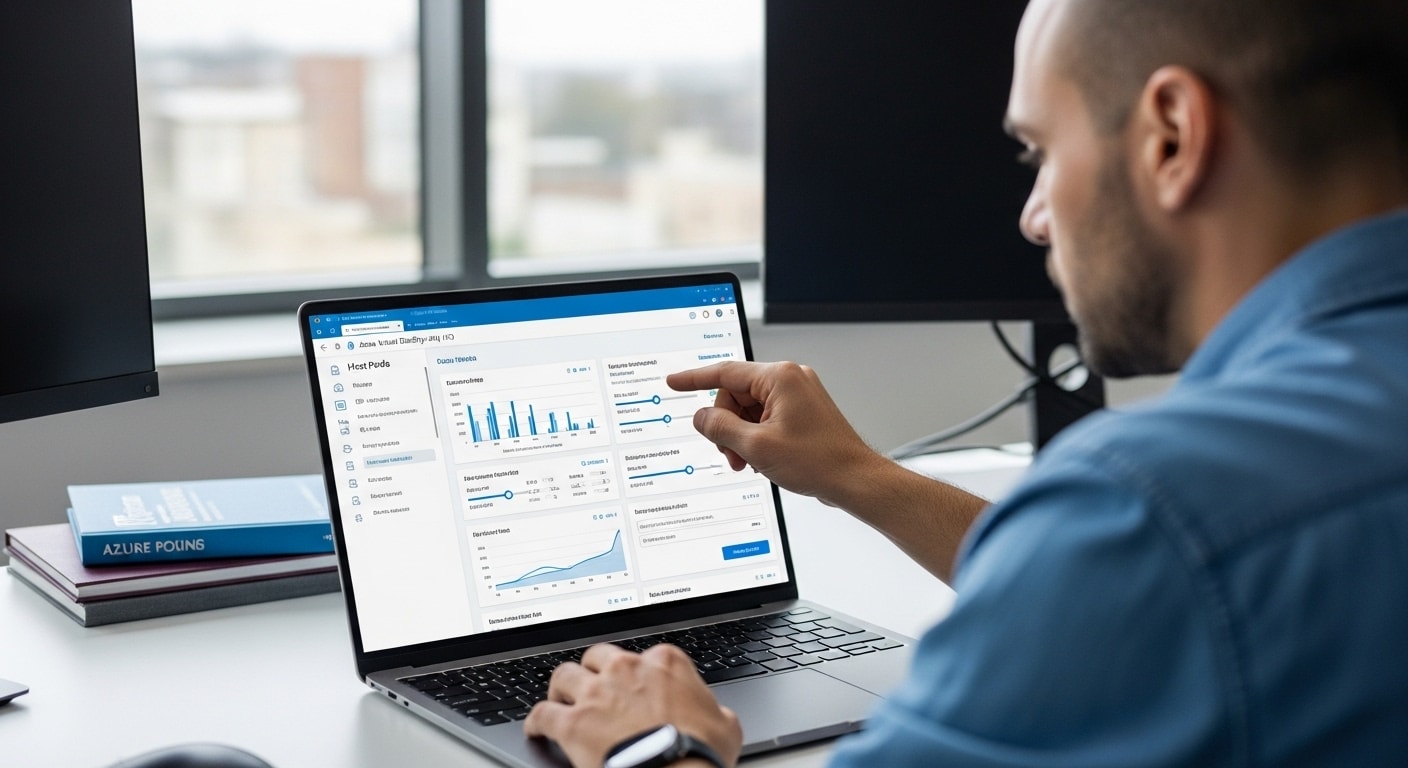
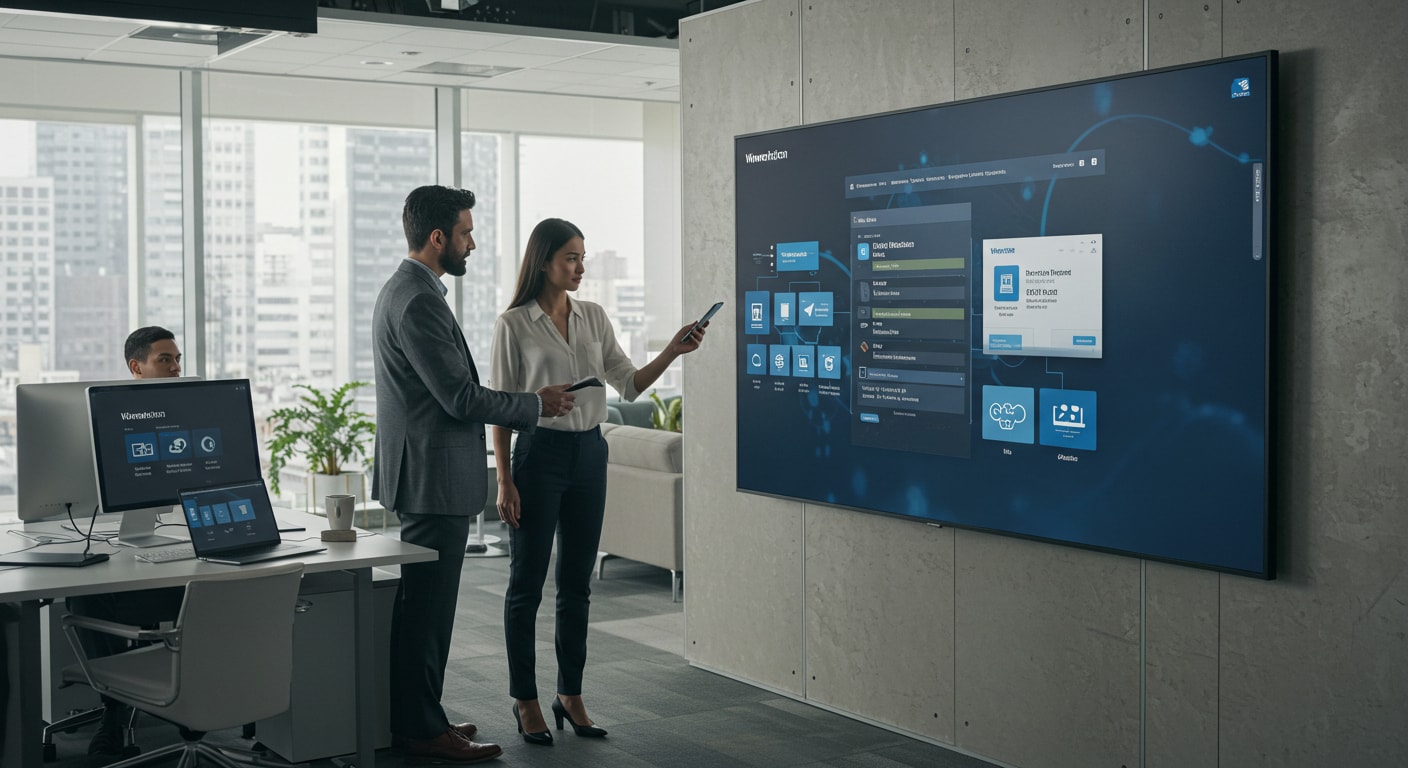
Team of professionals analyzing a large screen displaying a VDI as a Service pricing breakdown, collaborating to choose the best cloud desktop solution.


More companies are turning to VDI as a Service (VDIaaS) to support hybrid work, cut down on hardware, and make virtual desktop infrastructure easier to manage. Instead of installing software on every endpoint device or maintaining physical machines, users can log into secure cloud desktops. It’s fast, flexible, and often more efficient than managing things in-house.

But pricing isn’t always easy to understand. What looks like a simple monthly fee can come with added storage costs, support charges, software licensing, or higher resource consumption over time. Costs can rise quickly if you’re not paying attention to the details.

This article breaks down what you’re really paying for with VDIaaS. You’ll learn how pricing works, what’s often billed separately, and what to look out for so you don’t get stuck with unexpected costs.

If you want a simpler, more predictable way to run virtual desktop solutions, Apporto was built with cost clarity in mind. It’s designed to take the guesswork out of pricing while giving your team the tools they need to work securely and effectively.
 

1. What Does “VDI as a Service” Really Include?

VDI as a Service is a cloud-based solution that delivers virtual desktops to your users. Instead of running software on individual machines, your team accesses a full computing environment through the internet connection—no matter where they are or what device they’re using.

This setup usually includes:

  • Access to virtual machines
  • User setup across multiple devices
  • Cloud storage for user files and settings
  • Central tools to manage desktop infrastructure
  • Basic technical support

But not all VDI services come with everything in one package. Some providers charge extra for features you’d expect to be included, like:

  • Client access licenses for Windows or other software
  • Disaster recovery options
  • Support for external users or contractors
  • 24/7 support or detailed usage monitoring

These costs often aren’t obvious upfront. That’s why it’s important to get a clear list of what’s included in the base price—and what’s not. Some providers bundle these services, while others treat them as additional costs.

If you’re comparing options, be sure to look at the full picture. A low monthly fee might look good at first, but upfront costs, hidden fees, and ongoing maintenance can add up fast. Knowing what you’re paying for makes all the difference when choosing the right VDI solution.


2. How Do Most VDI Pricing Models Work?

Business team analyzing a cloud pricing breakdown on screen, evaluating VDI as a Service pricing options to align with their budget and usage needs.

VDI pricing isn’t always simple, but most providers use a few common models. Understanding how these work can help you compare costs and avoid surprises.

You’ll usually see pricing based on:

  • Per-user, per-month charges – a flat fee for each person using the system
  • Pay-as-you-go – charges based on actual usage, like how many hours a user stays connected
  • Fixed hourly billing – a set hourly rate, even if not all computing resources are used

Some providers charge based on how much you actually use—things like CPU, memory, and cloud storage. That means your bill can change depending on how heavily your team uses the system.

It’s also important to look at:

  • Upfront costs – setup fees or upfront payments for long-term discounts
  • Ongoing maintenance – updates, support, or data migration
  • Cloud infrastructure costs – fees for using services like Azure Virtual Desktop or Azure virtual machines

For example, accessing Azure Virtual Desktop might seem low-cost at first, but once you add things like storage, user access rights, or external users, the price grows quickly. Azure also has region-based pricing and options like Azure savings plans or discounted upfront commitments—but those require planning.
Bottom line: VDI pricing options vary. Some offer flexibility, others offer predictability. The key is knowing what’s included, what scales with resource consumption, and what might not show up until the invoice arrives.

 

3. What Factors Can Cause Unexpected Costs?

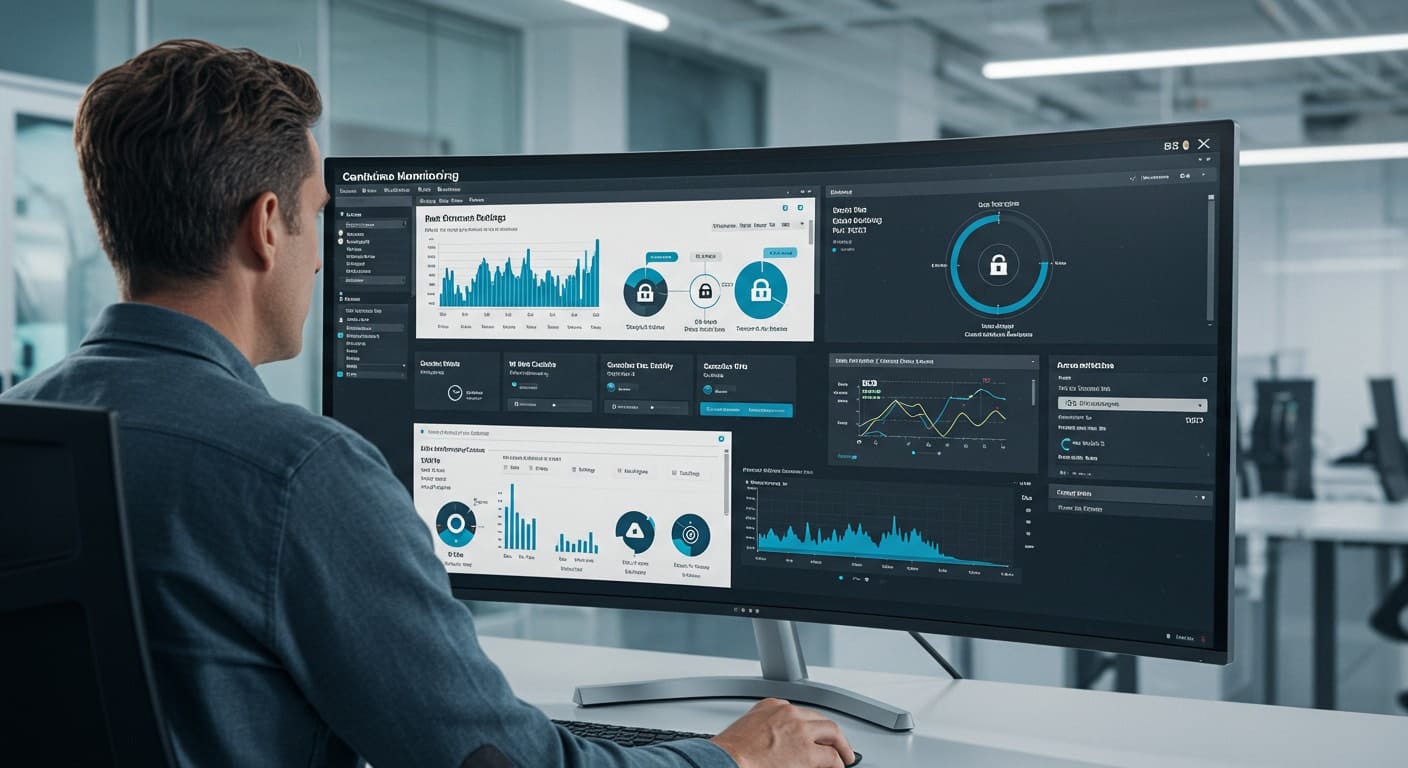
IT professional reviewing a cloud cost dashboard with concern, highlighting the complexity of VDI as a Service pricing and unexpected usage spikes.

Even with a clear pricing plan, it’s easy for unexpected expenses to creep in. Here are a few common reasons that bills end up higher than expected.

  1. Data migration – Moving from legacy systems into the cloud often requires time, tools, and services that aren’t included in base pricing.
  2. Growing resource needs – As your team scales, or as workloads increase, you may need more CPU, RAM, or cloud storage. If you’re on a usage-based plan, that means more cost.
  3. User behavior – Some providers don’t offer visibility into how long users stay logged in or what they’re using. Without continuous monitoring, you can’t control resource consumption—and that adds up.
  4. Add-ons – Things like technical support, advanced analytics, or adding external users are often billed separately.
  5. Licensing – Some solutions require eligible Windows versions, or charge extra based on user access rights.
  6. Azure regions – Platforms like Azure may charge different rates depending on where your data centers are located.

These aren’t deal-breakers, but they can catch you off guard. The more transparent your provider is about these details, the easier it is to manage your VDI as a Service pricing.


4. How Does Apporto Simplify VDI Pricing?

Apporto takes the guesswork out of VDI pricing. Unlike many cloud VDI platforms that split billing across multiple services, Apporto offers a clean, cost-effective, fully managed solution.

There are no hidden fees. You don’t need to juggle Azure virtual machines, license add-ons, or third-party monitoring tools. Everything’s bundled—so what you see is what you pay.

Included in the monthly cost:

  • A fully managed virtual desktop infrastructure
  • Built-in disaster recovery and business continuity
  • Support for multiple users, across multiple devices, with a consistent, high-performance experience

There’s also no need for costly upgrades, hardware refreshes, or dedicated servers. That alone can save your IT team time and money. You don’t have to worry about provisioning access, managing cloud desktops, or optimizing workloads—Apporto handles all of it for you.

If you’re looking for a predictable pricing model that reduces infrastructure costs without cutting corners, Apporto is built to keep things simple. Try Apporto now


5. What’s the Real Cost Difference Between VDI and Traditional Desktops?

IT professional reviewing VDI as a Service pricing flexibility and scalability on a holographic data interface in a server environment.

Comparing the cost of traditional desktops to VDI as a Service isn’t just about the price tag on a machine. It’s about everything that comes with it.

With traditional setups, you’re usually paying for:

  • Physical machines for every user
  • Regular maintenance and IT support
  • Hardware upgrades every few years
  • Time and money spent on downtime recovery when something breaks

Those costs don’t always show up in the budget right away—but they add up over time.

VDI, on the other hand, shifts those responsibilities to the cloud infrastructure. You don’t have to maintain physical hardware, and deployment is much faster. New users can be onboarded in minutes, not days. It also scales as your needs change, allowing you to add or remove access without wasting computing resources.

VDI platforms often work with thin clients or older devices, which means you don’t need to invest in expensive new hardware. For teams with a remote workforce, this helps standardize the computing environment and cut back on device costs.

The biggest difference? VDI is built for flexibility. Whether you’re growing fast or managing seasonal usage, it adapts. For many organizations, that translates into real cost savings, better uptime, and fewer support headaches—especially when productivity depends on staying connected.


6. What Should You Ask Before Committing to a VDI Provider?

Before you choose a VDI platform, it’s important to ask the right questions—especially when it comes to pricing options. Here’s a list that can help you avoid surprises down the line.

  • Is technical support included or billed separately?
  • What’s the policy on data storage limits and overage fees?
  • Are external users or contractors included in the pricing?
  • Can users access desktops from multiple devices without extra cost?
  • Do you offer pay-as-you-go or fixed pricing—and can I switch later?
  • Are there tools to monitor resource usage and keep track of spending?
  • Is disaster recovery included, or is it an optional add-on?
  • What exactly is included in the per-user monthly cost?

Asking these questions upfront will help you compare providers on equal terms. It also helps ensure your chosen platform supports your actual business needs, not just a theoretical pricing tier. Pricing transparency now prevents unexpected expenses later—and sets your IT team up for success.


7. How to Match Pricing Models to Business Needs

Team analyzing cloud dashboards and cost metrics in a modern office setting, representing VDI as a Service pricing models in action

Not every organization needs the same VDI pricing model. The best choice depends on how your team works, how much flexibility you need, and how you plan to scale.

Consider the following approaches:

  • Pay-as-you-go:
    Ideal for teams with variable usage—like seasonal workforces, part-time users, or early-stage startups. You only pay for actual usage, which helps control costs during low-demand periods.
  • Fixed monthly pricing:
    A better fit for consistent workloads and predictable growth. It allows you to plan your IT budget more accurately and avoid unexpected billing spikes.
  • All-inclusive bundles:
    Useful for smaller teams, schools, or departments that want everything—technical support, infrastructure, and user access—under a single rate. These help avoid the complexity of à la carte pricing.
  • Custom pricing with integrations:
    Larger organizations may need advanced features like cloud migration support, integration with Azure Virtual Desktop, or compatibility with enterprise identity systems. Custom plans can provide flexibility without giving up scale.

There’s no one-size-fits-all solution, but choosing a pricing model that matches your actual usage will help you avoid waste and maximize the return on your VDI investment.


8. Final Thoughts: Choosing Cost-Effective VDI Without Surprises

When it comes to virtual desktops, price matters—but clarity matters more. It’s easy to be drawn in by a low monthly rate, only to be hit with surprise charges for storage, support, or extra users later. That’s why pricing transparency and flexibility are just as important as the number on the invoice.

Choosing the cheapest option might save money up front, but it often leads to unexpected costs in the long run—costs tied to resource consumption, licenses, or support that wasn’t clearly outlined.

Apporto is different. It offers a fully managed VDI solution with clear pricing and no hidden add-ons. It’s designed to support your team, not overwhelm your budget. If you’re concerned about the turbulence facing VMware customers, Apporto delivers real value—without backend complexity or billing surprises.

Looking for VDI pricing that makes sense? See how Apporto delivers more with less.


9. Frequently Asked Questions (FAQs)

Is VDI cheaper than traditional desktops?
In many cases, yes. VDI eliminates the need for physical desktops, local IT maintenance, and hardware refresh cycles. It also allows you to scale users up or down without buying new machines. Over time, these savings can outweigh the recurring cloud costs.

What’s included in per-user pricing?
It depends on the provider. With Apporto, per-user pricing includes full access to a secure virtual desktop, cloud storage, disaster recovery, centralized management, and technical support. Other providers may charge separately for client access licenses, monitoring tools, or backup services.

Do I need to pay for support separately?
Some platforms include basic support but charge extra for priority or 24/7 help. Apporto includes technical support as part of the core offering, so you’re not stuck paying more when issues arise.

Are storage and backups included in VDI pricing?
Not always. Some providers break out storage costs or data protection as separate line items. Apporto includes both as part of the standard package—so there’s no guessing what’s covered.

How does Apporto’s pricing compare to Azure Virtual Desktop?
Azure Virtual Desktop offers flexibility, but the pricing can get complex. Costs depend on usage, storage, Azure region, and licensing. Apporto simplifies this with one clear monthly price that includes everything—no hidden charges, no unexpected billing.

What is virtual desktop infrastructure? VDI explained

Virtual Desktop Infrastructure Illustration
Quick Answer

What is virtual desktop infrastructure?

Virtual desktop infrastructure (VDI) is a technology that delivers desktop environments from centralized servers instead of local devices. It lets users securely access applications and data remotely while improving management, security, and scalability. VDI can be deployed on-premises, in the cloud, or hybrid.

What is virtual desktop infrastructure? VDI explained

In the past, traditional desktop infrastructure was the primary way for organizations to deploy and manage user workstations. However, with the increase in remote work and the growing demand for secure and flexible access to corporate data, virtual desktop infrastructure (VDI) has gained popularity.

Understanding Virtual Desktop Infrastructure (VDI)

Definition and basics of VDI

Virtual Desktop Infrastructure (VDI) is a virtualization technology that allows a user’s desktop environment to be deployed and managed from a centralized server, rather than being installed and managed on a local device (such as a laptop or desktop computer). This technology enables users to access their desktop environment from any device with an internet connection.

VDI provides a complete desktop environment to the end-user, including an operating system (such as Windows) and the applications required by the user. The backend infrastructure necessary for executing VDI includes a hypervisor (such as VMware or Hyper-V), servers to host virtual machines, and a network connection that allows users to access their virtual desktops remotely.

VDI has become increasingly popular in recent years due to its many benefits, including:

  • Centralized management of desktop environments
  • Improved security and compliance
  • Reduced hardware costs
  • Increased flexibility and mobility for end-users

How VDI works: an overview

VDI operates by creating a virtual machine on a central server. The virtual machine includes a complete operating system, applications, and settings required by the end-user. The virtual machine is then remotely accessed by the end-user, typically through a web-based interface or specialized client software that is installed on the user’s local device.

When a user logs in to their virtual desktop, they are presented with a desktop environment that looks and feels like a traditional desktop. However, all of the processing and storage is done on the central server, rather than on the user’s local device. This allows for greater flexibility and mobility, as users can access their desktop environment from any device with an internet connection.

VDI allows IT administrators to manage all desktop environments on a central server, rather than managing multiple individual installations on individual devices. This centralized approach provides IT teams with greater control over desktop environments, enabling them to manage user permissions, security, and settings more efficiently.

Key components of a VDI setup

There are several key components needed for a VDI setup, including:

  • Hypervisor: a server that creates and manages virtual machines. The hypervisor is responsible for allocating resources to each virtual machine, ensuring that each virtual machine has the necessary resources to operate efficiently.
  • Virtual Desktop Images: a pre-configured virtual machine for each desktop environment. These images are used to create new virtual machines as needed.
  • Virtual Machine Manager: software designed to manage virtual machines. This software enables IT administrators to create, delete, and manage virtual machines as needed.
  • Thin Clients: low-cost hardware devices that provide remote access to virtual desktops. These devices are typically used in environments where users do not require a full desktop computer.

Overall, VDI is a powerful technology that can provide many benefits to organizations of all sizes. By centralizing desktop environments and enabling remote access, VDI can improve efficiency, reduce costs, and increase flexibility for end-users.

Benefits of implementing VDI

Virtual Desktop Infrastructure (VDI) is a technology that has been gaining popularity in recent years due to its many benefits. Here are some of the key advantages of implementing VDI:

Enhanced security and data protection

One of the main benefits of VDI is its ability to improve security and data protection. By centralizing data storage, organizations can better control access to sensitive information and limit user permissions. Additionally, VDI offers end-to-end encryption, which adds an extra layer of security to data in transit.VDI also eliminates the need to store data on local devices, which can help organizations comply with data protection regulations and prevent data loss in case of device theft or loss. This can give organizations peace of mind knowing that their data is secure.

Improved resource management and scalability

Another advantage of VDI is its ability to improve resource management and scalability. With VDI, administrators can manage all desktop environments more efficiently and effectively, reducing the overall cost of maintenance and support. In addition, VDI infrastructure can be scaled up or down to match the changing needs of the organization. This makes it a more cost-effective solution in the long-term, as organizations can avoid overprovisioning and only pay for the resources they need.

Cost savings and reduced hardware requirements

VDI can also help organizations save money by eliminating the need to purchase and manage individual workstations. This can result in significant cost savings in the long-term and can also enable organizations to extend the life of existing hardware by using it as a thin client. In addition to reducing hardware expenses, VDI can also help organizations save on energy costs. By centralizing computing resources, organizations can reduce the number of devices that need to be powered on at any given time.

Simplified IT management and maintenance

VDI simplifies IT management and maintenance by centralizing the management of desktop environments. This enables IT administrators to reduce the amount of time and resources required to manage and maintain desktop environments. Additionally, VDI simplifies the deployment of new applications, software updates, and patches. This can help organizations stay up-to-date with the latest software and security updates, which is critical for maintaining a secure and productive computing environment.

Increased flexibility and remote access

Finally, VDI provides users with increased flexibility and remote access. With VDI, users can access their desktop environments securely from anywhere with an internet connection. This enables remote workers to access corporate data and applications without compromising security or productivity. In addition to remote access, VDI can also enable organizations to implement bring your own device (BYOD) policies. This can help organizations attract and retain top talent by allowing employees to use their own devices for work, which can improve job satisfaction and work-life balance. In conclusion, VDI offers many benefits to organizations of all sizes and industries. From enhanced security and data protection to cost savings and increased flexibility, VDI can help organizations improve their computing environments and stay competitive in today’s fast-paced business world.

Virtual Desktop Provider Comparison

See how Apporto stacks up against the most popular virtualization technologies available today

LEARN MORE


Top 7 Vendors Comparison

VDI vs. traditional desktop infrastructure

Comparing performance and user experience

In terms of performance, VDI can offer faster boot times and application load times than traditional desktop infrastructure, provided the infrastructure is designed and optimized correctly. Additionally, because all desktop environments are managed centrally, the end-user experience can be consistent across all users and devices.

VDI can also offer greater flexibility in terms of remote access. With traditional desktop infrastructure, remote access can be difficult to set up and manage, often requiring a VPN connection or other complex network configurations.

Another advantage of VDI is its ability to scale. Traditional desktop infrastructure can be difficult to scale, requiring additional hardware and software licenses to be purchased and installed. With VDI, new virtual desktops can be spun up quickly and easily, allowing organizations to quickly adapt to changing business needs.

Differences in deployment and management

One of the most significant differences between VDI and traditional desktop infrastructure is the centralized management approach taken by VDI. This makes VDI easier to deploy, manage, and support than traditional desktop infrastructure.

With traditional desktop infrastructure, each individual desktop must be managed and maintained separately. This can be time-consuming and can lead to inconsistencies in the end-user experience. With VDI, all desktop environments are managed centrally, making it easier to deploy software updates and patches, manage user accounts, and monitor system performance.

VDI can also offer greater security than traditional desktop infrastructure. With VDI, all data and applications are stored centrally, reducing the risk of data loss or theft. Additionally, because all desktop environments are managed centrally, it is easier to enforce security policies and monitor user activity.

Evaluating costs and return on investment

VDI can require a significant upfront investment in infrastructure and hardware. However, over time, the cost savings and greater efficiency enabled by VDI can result in a positive return on investment (ROI).

One of the key cost savings associated with VDI is the reduced need for hardware. With traditional desktop infrastructure, each individual desktop requires its own hardware, including a CPU, hard drive, and memory. With VDI, multiple virtual desktops can be run on a single physical server, reducing the need for additional hardware.

VDI can also offer greater energy efficiency than traditional desktop infrastructure. Because multiple virtual desktops can be run on a single physical server, VDI can reduce the amount of energy required to power and cool data centers.

Finally, VDI can offer greater productivity and efficiency than traditional desktop infrastructure. With VDI, employees can access their desktops from anywhere with an internet connection, allowing them to work from home or on the go. Additionally, because all desktop environments are managed centrally, it is easier to deploy new applications and updates, reducing downtime and increasing productivity.

Types of VDI deployments

Virtual Desktop Infrastructure (VDI) is a technology that enables organizations to host desktop environments on a centralized server and provide access to them remotely. There are different types of VDI deployments that organizations can choose from based on their needs and requirements.

Persistent vs. non-persistent VDI

Persistent VDI maintains a persistent virtual machine for each user, ensuring that individual customizations and settings are saved across sessions. This means that users can log in and find their desktop environment exactly as they left it, with all their files, applications, and settings intact. This type of VDI is ideal for users who require a high degree of customization and personalization, such as developers, designers, and power users.

In contrast, non-persistent VDI creates a new virtual machine image for each session, eliminating the need for storage of individual user settings. This type of VDI is ideal for users who require a standardized desktop environment, such as call center agents, customer service representatives, and other knowledge workers.

Cloud-based vs. on-premises VDI

A cloud-based VDI is hosted in the cloud and accessed remotely by end-users. This type of VDI offers several advantages, such as reduced hardware and maintenance costs, greater scalability, and easier access for remote workers. Cloud-based VDI can also be deployed quickly, which makes it ideal for organizations that need to set up new desktop environments quickly.

An on-premises VDI is hosted on local servers and accessed over the organization’s internal network. This type of VDI offers greater control and security, as the organization has complete control over the infrastructure. On-premises VDI is also ideal for organizations that need to comply with strict data privacy regulations or have specific hardware requirements.

Hybrid VDI solutions

A hybrid VDI solution combines both cloud-based and on-premises VDI solutions to provide greater flexibility and scalability. This type of VDI is ideal for organizations that need to manage fluctuating demand for desktop environments. For example, during peak periods, the organization can use cloud-based VDI to quickly spin up new desktop environments, while during off-peak periods, the organization can use on-premises VDI to save costs.

Hybrid VDI solutions can also be used to provide redundancy and disaster recovery. In case of a hardware failure or a natural disaster, the organization can quickly switch to the other VDI solution to ensure business continuity.

Conclusion

Virtual desktop infrastructure offers organizations greater flexibility and control over their desktop environments, enabling remote work, improving security, and reducing costs. Choosing the right approach requires an understanding of the organization’s needs, infrastructure, and resources, as well as careful consideration of the costs and benefits associated with each option.

Check out this related article on other desktop virtualization solutions and how to choose the right provider.

Frequently Asked Questions (FAQs)


1. What do you mean by virtual desktop infrastructure? 

Virtual desktop infrastructure, or VDI, is a technology that hosts desktop environments on centralized servers and delivers them remotely to users. It allows secure access to applications and data from multiple devices while improving management, scalability, and control for organizations.

2. What are the two types of VDI? 

The two main types of VDI are persistent and non-persistent VDI. Persistent VDI gives each user a personalized desktop that saves changes, while non-persistent VDI delivers standardized desktops that reset between sessions for simpler management and lower costs.

3. What is the difference between VM and VDI? 

A virtual machine, or VM, is a software-based computer that runs an operating system on virtualized hardware. VDI uses virtual machines to deliver remote desktop environments to users, making VDI a use case built on virtual machine technology.

4. What is VDI used for? 

VDI is used to provide secure remote access to desktops and applications, support hybrid work, simplify IT management, and improve data security. Organizations also use VDI for virtual labs, centralized computing, disaster recovery, and bring-your-own-device environments.

5. What is the main disadvantage of desktop virtualization? 

A main disadvantage of desktop virtualization is the infrastructure complexity and cost required for deployment and maintenance. Performance can also depend heavily on network reliability and system configuration, and poorly optimized environments may introduce latency, support issues, or user experience challenges.


Benefits of Desktop as a Service (DaaS): Explained

A few years ago, traditional desktops still felt like a safe default. Machines under desks. Local networks. IT teams running around with spare laptops and crossed fingers.

Then remote work hit, BYOD stopped being optional, and security threats got louder, faster, sharper. Suddenly, that old setup started to feel brittle.

That’s where Desktop as a Service enters the picture. Not as shiny new tech, but as a practical response to pressure.

When employees need to access a virtual desktop from anywhere, on any device, without dragging sensitive data along for the ride, cloud-delivered workspaces just make sense. Less friction. Fewer fires.

This isn’t just another cloud computing add-on. It’s a change in how organizations think about workstations, access, and control.

DaaS reframes the desktop as a service, not a thing. And for many teams, that shift isn’t about innovation anymore. It’s about staying upright while everything else keeps moving.


What Is Desktop as a Service (DaaS), Really?

Strip away the buzzwords and Desktop as a Service is surprisingly simple.

Instead of a physical computer doing all the heavy lifting, your desktop lives in the cloud. A DaaS solution means the operating system, applications, files, even your settings are hosted by cloud service providers in secure data centers. You log in.

Your desktop appears. Same workspace, different screen. Coffee shop, home office, airport lounge. Doesn’t matter much.

Behind the curtain, this looks a lot like virtual desktop infrastructure, but the ownership model flips. With VDI, your IT team builds and maintains everything on-prem.

With DaaS, that responsibility shifts outward. The provider handles infrastructure, updates, capacity planning, and most of the security plumbing. IT teams focus on access and policy instead of babysitting hardware.

It’s also not the same as basic remote desktop tools. Those usually connect you to a single machine somewhere else. DaaS delivers a full, cloud-hosted desktop environment designed to scale.

Then there’s the choice between persistent and non-persistent desktops. Persistent desktops remember everything, just like a personal laptop.

Non-persistent desktops reset after each session. Clean. Predictable. Easier to manage. Different needs, different fits.


How DaaS Works Behind the Scenes

Thin client, laptop, and tablet all connected to the same cloud-hosted desktop environment.

On the surface, Desktop as a Service feels almost boringly easy. You open a browser or a small client app, log in, and boom—your desktop is right there. Underneath that calm surface, though, there’s a lot humming along.

Here’s the short version. Your desktop isn’t actually on your laptop. It lives inside a cloud infrastructure, running on powerful centralized servers inside a provider’s data center.

What you see on your screen is essentially a live video stream of that environment, plus your keyboard and mouse inputs heading back the other way. Nothing magical. Just very efficient plumbing.

You can access virtual desktops in a few ways. Some teams use lightweight client software. Others stick with a browser.

Thin clients work too, and yes—so do personal devices under BYOD policies. The endpoint barely matters because the heavy work happens elsewhere.

What really matters is where the data lives.

With DaaS, files, applications, and business data stay inside the centralized server environment. Not on the laptop. Not on the phone. Not even cached locally in most setups. That’s a big deal for security, compliance, and peace of mind.

Under the hood, the model looks like this:

  • Centralized server model running desktops in secure cloud data centers
  • Secure access over the internet using encrypted connections and access controls
  • No local data storage on endpoints, even if a device is lost, stolen, or shared

It’s less about convenience, honestly, and more about control without the micromanaging.


The Most Significant Benefits of Desktop as a Service

1. Enhanced Security for Sensitive Data

Here’s the quiet superpower of Desktop as a Service, and it’s one most people underestimate at first. Your data doesn’t travel. It stays put.

With DaaS, sensitive data never actually lives on the employee’s laptop, tablet, or phone. It remains locked inside the provider’s data center, behind layers of controls most organizations would struggle to maintain on their own.

Lose a laptop in an airport? Annoying, yes. A breach? Not really. There’s nothing local to steal. That shift alone changes the security equation. Ransomware attacks that depend on endpoint access suddenly hit a wall.

Malware on a personal device can’t easily touch corporate files it never downloads. Even careless behavior—saving files to a desktop, emailing attachments to the wrong address—gets quietly neutralized by design.

Then there’s access control. IT teams can define exactly who gets access to what, from where, and on which device. Logins are tracked. Sessions are logged. Policies are enforced centrally, not hoped for.

In practical terms, DaaS turns data access into a managed privilege instead of a gamble. And when you’re dealing with truly sensitive information, that difference matters more than flashy features ever will.

2. Simplified IT Management and Lower Operational Overhead

Ask almost any IT lead what eats their week alive and you’ll hear the same sigh, followed by a list that never seems to end: patching, updating, troubleshooting, chasing version mismatches, fixing something that worked yesterday.

Desktop as a Service quietly sweeps a lot of that off the table.

With DaaS, the service provider takes responsibility for the unglamorous but critical stuff: operating system updates, security patches, core infrastructure maintenance, even baseline performance tuning. That alone can free up dozens of hours a month. Sometimes more.

For the internal IT team, the shift is real. Instead of babysitting individual machines or playing whack-a-mole with broken desktops, they manage centrally. One change. One policy. Applied everywhere.

That’s what simplified management actually feels like in practice.

And here’s the part that doesn’t show up neatly on a budget spreadsheet. Fewer emergencies mean fewer late nights. Less reactive work means more time for planning, automation, and actual improvement.

Desktop management stops being a constant drain and starts behaving like a system again. Not perfect, maybe. But finally predictable.

3. Cost Savings and Predictable Spending

Budgets hate surprises. Traditional desktops are basically surprise machines. One year it’s a bulk hardware refresh, the next it’s emergency replacements, then licensing sprawl, then security tooling you didn’t plan for but suddenly can’t avoid. It adds up. Quietly. Relentlessly.

Desktop as a Service flips that math on its head with a subscription model. Instead of lumpy capital expenses every few years, costs move into a steady, forecastable line item. Month to month.

User to user. That predictability alone is gold for finance teams who are tired of guessing. The cost savings don’t come from magic.

They come from fewer physical devices to buy, less hands-on support, and dramatically reduced spend on endpoint security tools that are no longer doing the heavy lifting.

When desktops live in the cloud, you’re not constantly patching, repairing, or replacing them.

Over time, the total cost of ownership tends to drop, especially once you factor in softer numbers like reduced management cost and fewer IT fire drills.

It’s not always cheaper on day one. But over a few cycles? The operational costs start behaving. And that’s a relief you can actually feel.

4. Remote Work Without the VPN Headaches

Ask any IT team what they don’t miss from 2020 and you’ll hear the same groan. VPNs. Slow logins. Dropped connections. The endless “can you hear me now?” energy. Desktop as a Service quietly sidesteps most of that mess.

Instead of tunneling traffic back through a fragile corporate network, users get remote access straight to a cloud-hosted desktop. Open a browser. Launch a client. You’re in.

No clunky handshake rituals, no bottlenecked gateways melting down at 9:01 a.m.

For remote work, especially with globally distributed teams, performance feels more consistent because the desktop lives close to the applications, not the employee.

A stable internet connection becomes the main requirement, not proximity to headquarters or a perfectly configured VPN client.

And yes, internet connectivity still matters. DaaS isn’t magic. But when it works, it works smoothly. People log in from home, hotels, airports, or borrowed laptops and get the same desktop every time. Same apps. Same files. Less friction. Fewer headaches.

5. Secure BYOD Without Losing Control

Bring Your Own Device used to make IT folks sweat. Laptops of unknown origin. Phones with cracked screens. Tablets shared with kids who download… everything. And yet, here we are. BYOD isn’t a trend anymore. It’s just how work happens.

This is where Desktop as a Service earns its keep.

With Bring Your Own Device setups, employees can log in from personal devices or their own devices without dragging company data onto them. The desktop lives in the cloud. The files stay put.

Nothing sensitive gets saved locally, synced accidentally, or left behind at an airport security checkpoint. That separation matters. A lot.

From an IT perspective, secure access becomes easier to enforce because control lives at the desktop layer, not the hardware layer. Policies apply uniformly. Access can be revoked instantly.

Logs tell the story if something looks off. Meanwhile, employees just… work. On the device they prefer. In the space they’re comfortable with.

It’s a rare win-win. Flexibility for users. Control for IT. And fewer late-night panic calls when a laptop goes missing.

6. Faster Onboarding and Easy Scalability

There’s a particular kind of chaos that happens when a new hire starts on Monday and their laptop… doesn’t. Or when a contractor shows up for a three-week project and needs “full access, but not too much access.”

Multiply that by twenty during peak season and suddenly onboarding becomes a minor disaster movie.

This is where DaaS quietly shines.

With new virtual desktops, IT can spin up fully configured environments in minutes. Not days. Not weeks. Minutes. The apps are already there. The permissions are baked in. Log in, get to work. That’s it.

DaaS enables employees to be productive almost immediately, whether they’re full-time, freelance, or somewhere in between.

Scaling works the same way in reverse. Need to add a hundred users for a merger or seasonal push? Fine. Need to scale back next month? Also fine. No sunk hardware costs.

No closets full of unused laptops. From a budgeting standpoint, it’s a far more cost-effective solution because capacity flexes with reality, not forecasts.

IT teams stop playing Tetris with hardware. The business moves at the speed it actually needs to.

7. Built-In Business Continuity and Disaster Recovery

Most companies don’t think seriously about disasters until one shows up uninvited. A power outage. A flooded office.

A fiber cut down the street. Suddenly, everything that lived on a local machine or an on-prem server is unreachable, and work grinds to a halt.

DaaS flips that script.

Because desktops and data storage live on redundant cloud servers, business continuity is baked in, not bolted on. If one data center hiccups, another quietly takes over.

Users log in from home, a coffee shop, a temporary office, wherever there’s an internet connection, and pick up right where they left off. Same desktop. Same files. Same apps. No frantic restores.

This matters more than most people realize. Work continues even when offices don’t. Payroll runs. Support teams respond. Sales calls still happen. And IT isn’t stuck performing heroics at 2 a.m.

In short, DaaS turns disasters into inconveniences. Not existential threats.

8. Compliance Made Easier (Not Automatic, But Easier)

Let’s clear something up right away. DaaS doesn’t magically make you compliant. Anyone promising that is selling fairy dust.
What it does do is remove a huge amount of friction from the compliance grind.

Most reputable DaaS providers operate in environments already pre-audited for major data privacy regulations like HIPAA, GDPR, and PCI DSS.

That means the underlying infrastructure, from access controls to encryption standards, is already aligned with what auditors expect. You’re not starting from scratch every time.

Because desktops live in one controlled place, maintaining compliance becomes far more manageable. Security policies are enforced centrally. Logs are consistent.

Updates are applied everywhere at once. There’s no guessing which laptop missed a patch or which endpoint quietly drifted out of policy.

For organizations handling patient data or other regulated information, that centralized visibility is gold. Audits become less about scavenger hunts and more about verification. Reports are easier to generate. Evidence is easier to show.

It’s still your responsibility. But with DaaS, compliance stops being a daily fire drill and starts looking… almost reasonable.


Desktop as a Service vs VDI: A Practical Comparison

Split visual showing cloud-hosted DaaS on one side and on-premise server room powering VDI on the other.

Here’s where things usually get fuzzy in boardrooms and IT stand-ups. DaaS and VDI sound similar. Virtual desktops, remote access, centralized control. Same soup, different spoon. But in practice, the differences matter. A lot.

At a high level, VDI is something you run. DaaS is something you consume. That one distinction alone changes budgets, staffing, timelines, and stress levels.

Side-by-side: DaaS vs VDI

Factor Desktop as a Service (DaaS) Virtual Desktop Infrastructure (VDI)
Infrastructure management Handled by the service provider Managed internally by your IT team
Hosting model Cloud computing offering On-premise servers (or private cloud)
Upfront costs Low; subscription-based High; hardware, licensing, setup
Scalability Fast and elastic Slower; capacity planning required
Control Less granular, more standardized Full control, more customization
Deployment speed Hours or days Weeks or months


Now, the nuance. VDI makes sense if you need deep customization, tight integration with legacy systems, or strict internal control. You also need the staff, the time, and the appetite for infrastructure babysitting. Updates break things. Storage fills up. Someone’s always on call.

DaaS, on the other hand, trades some control for flexibility. The service provider handles the heavy lifting. You scale when you need to. You stop when you don’t.

For many organizations, especially those embracing remote work or rapid growth, that tradeoff feels… sensible. Refreshingly so.


Where DaaS Isn’t Perfect (And What to Watch Out For)

Let’s be honest for a second. Desktop as a Service isn’t magic. It solves a lot of problems, sure, but it also introduces a few new ones that tend to show up right after the honeymoon phase ends.

First, the obvious one: internet connectivity. No connection, no desktop. Even a shaky connection can mean lag, frozen screens, or that lovely moment when your cursor moves five seconds after your hand does. In regions with inconsistent broadband, this isn’t a small footnote. It’s a real operational risk.

Then there’s latency. Even with solid internet, users far from the provider’s data center can feel delays, especially with graphics-heavy apps or specialized software. Not everyone notices it, but the people who do really notice it.

Customization is another tradeoff. DaaS platforms are built to scale, which often means standardized environments.

If your teams rely on deeply customized desktop setups or niche configurations, that limited control can feel constraining. Sometimes frustrating.

And yes, vendor lock-in is real. Migrating hundreds or thousands of virtual desktops from one provider to another isn’t a weekend project. Data formats, tooling, contracts—they all matter. A lot.

Finally, the quiet one: operational costs over time. The subscription model feels friendly at first, but as user counts grow, monthly spend can creep. Slowly. Predictably. Enough that finance will eventually ask questions.

None of this disqualifies DaaS. It just means going in with open eyes. Cloud convenience is powerful, but it still comes with strings attached.


Who Benefits Most From Desktop as a Service?

Small IT team monitoring centralized virtual desktops from a clean cloud management dashboard.

Not every organization needs DaaS. But for some, it’s less a “nice-to-have” and more a quiet lifesaver. The kind you only notice once it’s gone.

Here’s where a DaaS platform tends to shine brightest.

  • Remote-first or hybrid organizations
    Teams spread across cities, countries, time zones. DaaS gives everyone the same desktop environment without duct-taping VPNs and local setups together. Consistency matters more when people rarely share an office.
  • Companies with lean IT infrastructure
    If your IT team can be counted on one hand, offloading desktop management is a relief. Updates, patches, security controls—handled by the provider instead of burning internal cycles.
  • Regulated or data-sensitive industries
    Healthcare, finance, legal, government-adjacent orgs. When sensitive data can’t live on laptops or personal devices, centralized virtual desktops reduce exposure and simplify compliance headaches.
  • Fast-growing or fluctuating workforces
    Startups scaling quickly. Seasonal businesses. Contractors coming and going. DaaS makes it easy to spin desktops up or down without buying, imaging, and shipping hardware.
  • Organizations embracing BYOD cautiously
    Letting employees use personal devices while keeping corporate data locked in the cloud? That’s a common win.

In short, many organizations adopt DaaS not because it’s trendy, but because it fits the reality they’re already living in.


How to Decide If DaaS Is Right for Your Organization

Before jumping headfirst into a DaaS environment, it’s worth slowing down. Just a bit. Not every workload loves the cloud, and not every team works the same way.

The trick is asking the right questions, not chasing buzzwords.

Start with the work itself. What are people actually doing all day? Knowledge work, call-center tasks, analytics, design, regulated workflows? Some roles fit neatly into cloud-delivered desktops.

Others—especially latency-sensitive or highly customized setups need closer scrutiny.

Then there’s security. How sensitive is your data? If keeping information locked inside a centralized data center sounds comforting (and it usually does), DaaS may align well with your risk posture.

Compliance requirements matter here too HIPAA, GDPR, industry audits those aren’t footnotes.

User profiles come next. Are employees remote, hybrid, mobile-heavy? Do they switch devices often? DaaS tends to shine when flexibility is non-negotiable.

Finally, be honest about connectivity. Cloud technology lives and dies by the internet. If reliable bandwidth isn’t a given, frustrations will pile up fast.

In short: map the reality you have today, not the one you wish you had tomorrow.


Why DaaS Is About Control, Not Convenience

Centralized cloud desktop control panel managing user access rules, device permissions, and session logging.

It’s tempting to pitch Desktop as a Service as a convenience play. Log in anywhere. Same desktop. Easy. But that’s the surface story, not the real one.

Underneath, DaaS is about control. Real control. The kind that matters when devices go missing, when teams scatter across time zones, when risk shows up uninvited at 2 a.m.

Centralized desktops mean centralized rules: who gets access, from where, on what device, and under which conditions. That’s not a nice-to-have anymore. It’s table stakes.

Modern risk doesn’t live neatly inside office walls. It lives on personal laptops, café Wi-Fi, rushed contractors, and shadow IT.

DaaS responds by pulling the work back into a managed core, where data stays put and access is deliberate, logged, reversible.

So yes, it’s convenient. But more importantly, it’s resilient. DaaS gives organizations leverage over outcomes, not just smoother logins. And in today’s environment, leverage beats comfort every time.


Conclusion

By now, it should be pretty clear that Desktop as a Service isn’t just a clever way to modernize desktops or shave a few dollars off hardware budgets. That’s the shallow read.

The deeper truth is this: DaaS lines up far better with how work actually happens now. Distributed. Device-agnostic. Constantly moving.

It’s safer because data stays put. More flexible because desktops can follow people, not the other way around. And, frankly, saner for IT teams who are tired of duct-taping security, access, and support together across a sprawl of devices and locations.

The biggest advantage, though, is control without complexity. Centralized environments, consistent policies, fewer surprises. Less chaos. That matters.

If you’re weighing next steps, it may be worth evaluating how DaaS could reduce risk, simplify IT operations, and support secure remote work at real scale—without turning your infrastructure into a full-time fire drill.


Frequently Asked Questions (FAQs)


1. What is the biggest benefit of Desktop as a Service?

The biggest benefit of Desktop as a Service is centralized control. Your data, desktops, and security policies live in the data center, not on employee devices, reducing risk and simplifying management.

2. Is Desktop as a Service more secure than traditional desktops?

In most cases, yes. With DaaS, sensitive data never leaves the cloud environment, which limits exposure from lost laptops, malware, ransomware, or unsecured personal devices.

3. How is DaaS different from traditional VDI?

DaaS is fully managed by a service provider, while VDI typically runs on on-premise servers managed by your own IT team. DaaS trades some control for faster deployment, scalability, and lower operational overhead.

4. Does Desktop as a Service require a constant internet connection?

Yes. Users need a stable internet connection to access their virtual desktop. Poor connectivity can affect performance, which is why network readiness is a key consideration before adopting DaaS.

5. Is Desktop as a Service suitable for small or fast-growing teams?

Absolutely. DaaS works especially well for small IT teams, remote-first organizations, and companies with fluctuating headcounts because new desktops can be provisioned or removed in minutes.

What Are Cloud Desktops? A Complete Guide

Quick Answer

What Are Cloud Desktops?

A cloud desktop lets you access a full desktop environment from anywhere using an internet connection, without needing a powerful local computer. It centralizes data, reduces maintenance, and supports remote work, while solutions like Apporto provide secure, ready-to-use environments through the browser.

The desktop used to be a place. A box under a desk. A fixed screen in a fixed room. That assumption has quietly collapsed, and cloud desktops are what rushed in to fill the gap.

Work now happens across homes, offices, airports, call centers, and classrooms. People switch devices mid-day. Data moves constantly.

Traditional desktops and physical PCs struggle in that environment because they were built for stability, not mobility. Each new device adds friction. Each location adds risk. And suddenly IT teams are managing dozens, sometimes hundreds, of individual machines instead of one coherent system.

That strain shows up in security incidents, support tickets, and ballooning costs. It also explains why so many people are asking the same question: what are cloud desktops, and why do they keep coming up now? The technology promises something familiar, a desktop, without the old constraints.

Going ahead, the focus changes from the buzzword to the mechanics, the trade-offs, and why access has become just as important as computing power itself.


What Are Cloud Desktops, in Simple Terms?

At the most basic level, cloud desktops are virtual desktops that live in the cloud instead of on a physical computer. The screen, operating system, applications, and data exist on remote cloud infrastructure, while you interact with them through a device you already have. That device becomes a window, not the engine.

You will also hear cloud desktops called Desktop as a Service, or DaaS. The idea is similar to other cloud services you already use.

The desktop is delivered on demand, maintained by a provider, and accessed when you need it. There is no need to buy or manage a dedicated physical PC for every user.

A cloud desktop solution works because the heavy computing happens elsewhere. Users connect over an internet connection from laptops, tablets, or even older machines that no longer have much computing power. The experience stays consistent because the desktop itself does not change when the device does.

In simple terms, cloud desktops are:

  • Hosted in the cloud rather than on a local machine
  • Not tied to a physical computer or office location
  • Accessed through an internet connection from various devices
  • Managed centrally by IT teams or service providers

This approach removes the desktop from the desk. What stays is the familiar environment users expect, delivered in a more flexible way.


How Do Cloud Desktops Actually Work Behind the Scenes?

Illustration of encrypted connection streaming desktop display to a laptop with inputs flowing back to the server.

Behind the screen, cloud desktops rely on virtualization technology. Instead of one operating system running on one physical machine, many virtual desktops run on shared physical servers inside cloud data centers. Each user gets their own isolated environment, even though the hardware is shared.

A layer known as virtual desktop infrastructure makes this possible. The VDI layer separates the desktop environment from the underlying hardware.

Computing resources such as CPU, memory, and storage are allocated dynamically based on demand. When a user logs in, resources are assigned. When they log out, those resources return to the pool.

Data and operating systems live inside secure cloud infrastructure, not on local devices. That means files, applications, and settings stay in the same place, regardless of where or how users connect. Secure connections stream the desktop experience to the user and send inputs back to the server.

At a technical level, this setup includes:

  • A virtual desktop infrastructure layer that manages sessions
  • Centralized cloud infrastructure hosted in data centers
  • Isolated user environments for security and consistency
  • Secure connections between users and their desktops

This design allows many desktops to run efficiently while keeping user experiences separate and controlled.


How Are Cloud Desktops Different From Traditional Desktops?

The difference becomes clear once you stop thinking about the desktop as a piece of hardware and start thinking about it as a service. Traditional desktops are built around physical PCs. Cloud desktops are built around access.

Here is the contrast at a glance:

Traditional Desktops Cloud Desktops
Runs on physical PCs Hosted in the cloud
Tied to one device Accessible from many devices
Local data storage Centralized data
High maintenance Vendor-managed
Hard to scale Scales on demand


With traditional desktops, everything depends on the physical hardware sitting on or under a desk. Performance is limited by that machine.

When it fails, work stops. When software needs updating, IT teams touch each device, often one by one. Over time, this creates a heavy maintenance burden that pulls attention away from more strategic work.

Security is another pressure point. Data stored on local devices increases exposure. Lost laptops, outdated systems, and inconsistent patching all raise risk. Protecting sensitive information becomes harder when it is scattered across hundreds of physical PCs.

Cloud desktops remove many of these constraints. The physical hardware lives in secure data centers, and users connect to it instead of carrying data with them.

IT teams manage desktops centrally, apply policies once, and scale resources as needed. The desktop becomes easier to maintain, easier to secure, and far more flexible than a traditional setup ever allowed.


Cloud Desktops vs Traditional VDI: What’s the Real Difference?

Split-screen comparison showing on-premises data center racks labeled Traditional VDI versus cloud-hosted infrastructure labeled Cloud VDI.

At first glance, cloud desktops and traditional VDI look similar. Both rely on virtual desktop infrastructure, and both separate the desktop environment from the user’s physical device. The real difference shows up in where that infrastructure lives and who is responsible for running it.

Traditional VDI runs on premises, inside a company’s own data center. That means organizations must purchase physical servers, storage, networking equipment, and licenses upfront.

IT teams manage everything, from updates and patches to capacity planning. This model offers control, but it comes with complexity and significant capital expense.

Cloud VDI moves that same virtual desktop infrastructure into the cloud. Providers such as Microsoft Azure and Google Cloud host the computing power, storage, and networking.

Instead of buying hardware, organizations pay for what they use through an operating expense subscription model. Scaling up or down becomes faster because resources are not limited by physical equipment sitting in a server room.

Here is how the two approaches compare:

Traditional VDI Cloud VDI
On-premises data center Hosted in the cloud
CapEx-heavy OpEx subscription
Internally managed Vendor-managed
Complex deployments Faster setup
Harder to scale Elastic scaling


In practical terms, cloud VDI reduces infrastructure overhead and increases flexibility. Traditional VDI can still make sense in tightly controlled environments, but cloud VDI offers a simpler path for organizations that need agility, predictable costs, and easier scaling.


What Devices Can You Use to Access a Cloud Desktop?

One of the quiet advantages of cloud desktops shows up the moment access becomes simple. You are no longer locked to a single physical device sitting under a desk. Users connect through the internet, and the cloud desktop follows them, not the hardware.

Because the desktop environment lives in the cloud, access becomes device agnostic. Existing devices stay useful longer, and physical hardware does not need to be refreshed as often. That alone changes how organizations think about endpoints and refresh cycles.

Common devices used to access a cloud desktop include:

  • Laptops and desktops
    Standard Windows, macOS, or Linux machines can connect through a browser or client application.
  • Tablets and mobile devices
    iOS and Android devices allow quick access for review tasks, approvals, or light work on the go.
  • Thin clients
    Lightweight physical devices designed only to connect to a remote desktop, often used for secure environments.
  • Shared computer labs
    Cloud desktops work well in education and training settings where multiple users rotate through the same machines.
  • Personal devices (BYOD)
    Employees use their own physical device while data remains centralized and secure in the cloud.

This flexibility sets the stage for the next question, why organizations actively choose cloud desktops over traditional setups.


Why Do Businesses Use Cloud Desktops? Key Benefits Explained

Business dashboard highlighting cost savings from reduced hardware spending and subscription-based cloud desktops.

Once device flexibility is in place, the business case becomes clearer. Cloud desktops are not adopted for novelty, they solve practical problems that pile up with traditional desktops and on premises systems.

Cost efficiency often leads the conversation. Organizations reduce spending on physical PCs, replacement cycles, and unexpected hardware failures. Instead of large upfront purchases, costs align more closely with actual usage.

Security follows close behind. Data lives in centralized cloud infrastructure, not scattered across local devices. If a laptop is lost or stolen, sensitive data remains protected. Centralized policies also make it easier to enforce access controls and security standards.

Centralized management simplifies life for IT teams. Updates, patches, and configuration changes happen in one place, rather than across hundreds or thousands of individual devices. That saves time and reduces configuration drift.

Key benefits businesses consistently point to include:

  • Cost savings on hardware and extended device lifespan
  • Reduced ongoing maintenance for IT teams
  • Centralized management tools and policy control
  • Faster onboarding for new users or temporary staff
  • Flexible resource allocation based on real demand
  • Rapid scaling up or down as teams grow or contract

Together, these benefits explain why cloud desktops continue to gain traction across industries, from call centers to education and distributed workforces.


How Cloud Desktops Improve Security Compared to Physical PCs

Security becomes the deciding factor once data starts moving beyond office walls. Physical PCs were designed for a time when work stayed inside buildings. That assumption no longer holds. Cloud desktops change the security model by moving data away from endpoints and into controlled cloud environments.

With a cloud desktop, sensitive data stays in the cloud. Files, applications, and operating systems run inside secured data centers rather than on local hard drives. If a device is lost, stolen, or damaged, the exposure is limited because nothing critical lives on that physical PC. Access can be revoked instantly without chasing hardware.

Cloud desktop solutions also benefit from stronger, more consistent security features than most individual devices ever receive. Updates, patches, and security policies apply centrally, reducing gaps that attackers often exploit on unmanaged machines. IT teams gain visibility instead of guessing which devices are up to date.

Key security advantages include:

  • Centralized data storage
    Sensitive data remains inside cloud infrastructure instead of being scattered across laptops and desktops.
  • Multi-factor authentication
    Access requires more than a password, lowering the risk of unauthorized entry.
  • Enhanced security posture
    Centralized monitoring helps detect unusual behavior across user environments.
  • Policy-based access controls
    Permissions are enforced consistently based on role, location, or device type.
  • Reduced exposure on local devices
    Even compromised endpoints provide limited access without valid authentication.

Compared to physical PCs, cloud desktops reduce risk by design rather than relying on perfect user behavior.


Common Use Cases for Cloud Desktops Across Industries

University students accessing identical cloud desktop environments from classroom and home.

Cloud desktops did not catch on because they were trendy. They stuck because they solved very real, very practical problems across industries where flexibility, security, and scale matter more than owning physical machines.

Take call centers, for example. These environments deal with high employee turnover, strict access controls, and sensitive customer data. Cloud desktops allow new agents to log in from day one, work inside a controlled environment, and log out without leaving anything behind on local devices.

Educational institutions use cloud desktops in computer labs and remote learning setups. Instead of maintaining rows of aging machines, schools give students consistent access to the same software and tools, whether they are on campus or learning remotely.

Healthcare organizations rely on secure remote access. Cloud desktops keep patient data centralized, which supports compliance while allowing clinicians to work from different locations without copying sensitive files to local systems.

Software development teams benefit from standardized environments. Developers can spin up identical desktops with the right tools, reducing setup time and configuration drift.

Temporary or contract workers also fit naturally. Access can be granted quickly and removed just as fast.

Across these use cases, cloud desktops support distributed workforces, secure remote access needs, and rapid scaling requirements without adding operational chaos.


What Are the Cost Models for Cloud Desktop Solutions?

Cloud desktop pricing looks different from traditional IT spending, and that difference is often the point. Instead of buying hardware upfront, organizations pay for access over time.

Most cloud desktop solutions use subscription-based pricing. You pay per user, per month, based on the computing power and features required. This moves spending from large capital expenses to predictable operating costs.

There are typically two common pricing approaches:

  • Monthly per-user pricing
    A fixed cost per user that includes compute resources, storage, and management.
  • Usage-based resource billing
    Costs scale with actual usage, which works well for seasonal teams or variable workloads.
  • Reduced upfront investment
    No need to purchase physical PCs, servers, or data center equipment.

This OpEx model contrasts with traditional CapEx-heavy setups, where hardware, maintenance, and refresh cycles drive costs. For many organizations, cloud desktops become cost effective not because they are cheaper on paper, but because they reduce waste, simplify budgeting, and align spending with real usage.


What Challenges Come With Cloud Desktops?

Remote worker experiencing lag on a cloud desktop due to unstable internet connection.

Cloud desktops solve plenty of problems, but they are not friction free. Knowing the trade-offs upfront helps avoid surprises later.

The first and most obvious dependency is the internet connection. Because cloud desktops live outside the local device, reliable internet connectivity becomes essential. A weak or unstable connection can affect responsiveness, especially for graphics-heavy or real-time tasks.

Latency is another concern. Even with strong bandwidth, distance from the data center can introduce delays. This is manageable, but it requires thoughtful provider selection and performance tuning based on user location and workload type.

Migration complexity often catches teams off guard. Moving from physical PCs or traditional VDI to a cloud desktop solution involves rethinking identity management, application delivery, and security policies. It is not difficult, but it is layered.

Common challenges organizations encounter include:

  • Internet connectivity requirements
    Consistent, reliable access is non-negotiable for a smooth user experience.
  • Performance tuning
    Resource allocation must match real usage patterns, not assumptions.
  • Change management
    Users may resist new workflows, even when the technology works well.
  • User training needs
    Small differences in access and login behavior still require guidance.

Handled early, these challenges stay manageable rather than disruptive.


How Do Organizations Successfully Migrate to Cloud Desktops?

Successful cloud desktop migrations tend to follow a clear, deliberate path. Rushing almost always leads to avoidable friction.

Most organizations start by understanding what they already have. That means reviewing existing infrastructure, applications, identity systems, and network readiness. This step informs realistic expectations around performance and resource allocation.

A practical migration approach usually includes:

  • Assess existing infrastructure
    Identify applications, data flows, and security requirements that must carry over.
  • Choose the right provider
    Match the cloud desktop solution to workload needs, compliance requirements, and management capabilities.
  • Pilot with a small user group
    Start with a controlled group to surface issues before full rollout.
  • Train users and IT teams
    Set expectations early and document new access patterns and workflows.
  • Monitor performance and feedback
    Use real usage data to refine configurations and ongoing maintenance plans.

This phased approach reduces risk, keeps users engaged, and allows IT teams to manage the environment proactively rather than reactively.


What to Look for in the Right Cloud Desktop Solution

IT decision maker reviewing cloud desktop platform features on a structured evaluation checklist.

Choosing the right cloud PC solution comes down to fit, not hype. On paper, many platforms look similar. In practice, the details decide whether the experience feels smooth or frustrating six months in.

When evaluating options, focus on capabilities that hold up under real use, not just demo environments. The goal is a cloud desktop solution that supports users quietly, securely, and without constant tuning.

Key features to look for include:

  • Robust security features
    Centralized data protection, multi-factor authentication, role-based access, and strong identity controls should be built in, not bolted on later.
  • Performance and scalability
    The platform should handle peak demand without lag and allow resources to scale up or down as teams change.
  • Integration with existing tools
    Compatibility with identity systems, management tools, and productivity platforms reduces friction for IT teams.
  • Pricing flexibility
    Look for models that align with actual usage patterns rather than fixed assumptions.
  • Vendor support and reliability
    Responsive support, clear documentation, and predictable updates matter more than flashy features.

The right choice feels boring in the best way. It works. Consistently.


Conclusion:

Cloud desktops have earned their momentum for a reason. They offer a powerful solution for organizations dealing with distributed teams, rising security expectations, and growing pressure on IT resources. Flexibility improves. Access becomes simpler. Data stays protected where it belongs.

Still, cloud desktops are not a universal answer. Workloads vary. Network readiness matters. User expectations differ. The most successful deployments start with careful planning rather than urgency.

Before making a decision, evaluate cloud desktop readiness across infrastructure, security needs, and user workflows. Identify where cloud desktops add real value and where traditional setups may still make sense.

If the fit is right, modern cloud desktop platforms can unlock new capabilities while reducing long-term complexity. Exploring secure, scalable desktop services now helps organizations move forward with clarity rather than guesswork.


Frequently Asked Questions (FAQs)


1. What is a cloud desktop? 

A cloud desktop is a virtual desktop environment hosted on remote servers instead of a physical computer. Users access their operating system, applications, and data through the internet, enabling secure, flexible work from any device without relying on local hardware.

2. How is a cloud desktop different from a regular virtual desktop?

A regular virtual desktop is often part of traditional VDI, which runs on on-premises servers managed by internal IT teams. A cloud desktop is hosted and maintained by a cloud provider and delivered as a service. This reduces infrastructure complexity, lowers upfront costs, and makes scaling easier without managing physical hardware or data center capacity.

3. Do cloud desktops require a constant internet connection?

Yes, cloud desktops depend on an active internet connection because the desktop environment lives in the cloud. If the connection drops, access is temporarily interrupted. Modern cloud desktop solutions are optimized to work well even on modest connections and are far more resilient than early virtual desktop setups.

4. Are cloud desktops secure enough for sensitive data?

Cloud desktops are generally more secure than physical PCs because data stays centralized in the cloud instead of being stored on local devices. Lost or stolen hardware does not expose sensitive information. Security features often include encryption, multi-factor authentication, access controls, and centralized policy enforcement managed by IT teams.

5. What types of organizations benefit most from cloud desktops?

Organizations with distributed teams, remote workers, call centers, and shared computer labs often see the biggest gains. Educational institutions and healthcare organizations also benefit from centralized access and stronger security controls.

6. Are cloud desktops expensive compared to physical PCs?

Cloud desktops usually follow a subscription or pay-as-you-go model, which shifts costs from large upfront purchases to predictable operating expenses. This can reduce long-term spending on hardware, maintenance, and upgrades. Costs depend on usage patterns, performance needs, and provider pricing models, so careful planning is important.

7. How long does it take to move to cloud desktops?

Migration timelines vary. Small pilot groups can be up and running in days, while full deployments may take weeks depending on complexity. A phased approach, testing with a limited group first, helps reduce disruption and ensures the cloud desktop setup meets real-world needs before scaling.