What Is Virtual Desktop Infrastructure? The Complete Guide to How VDI Works

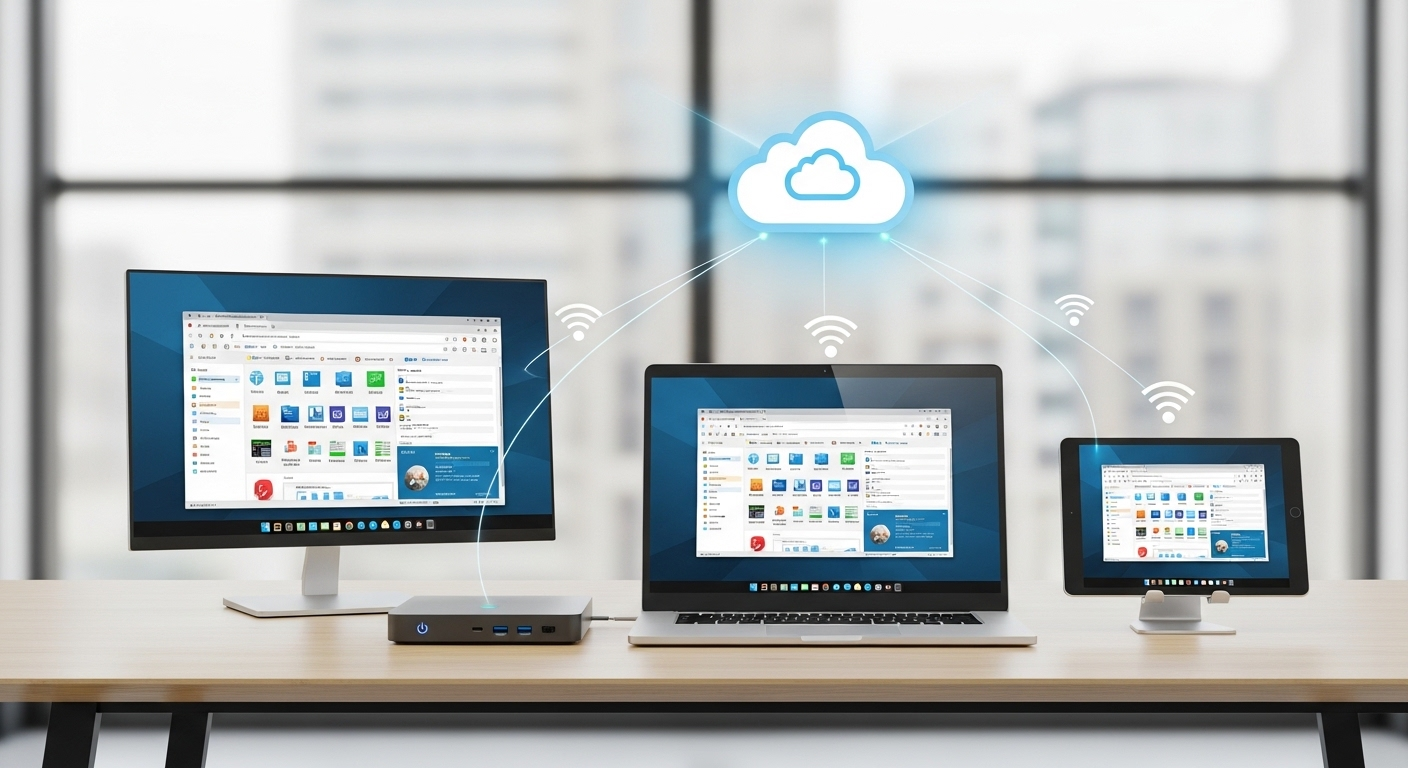
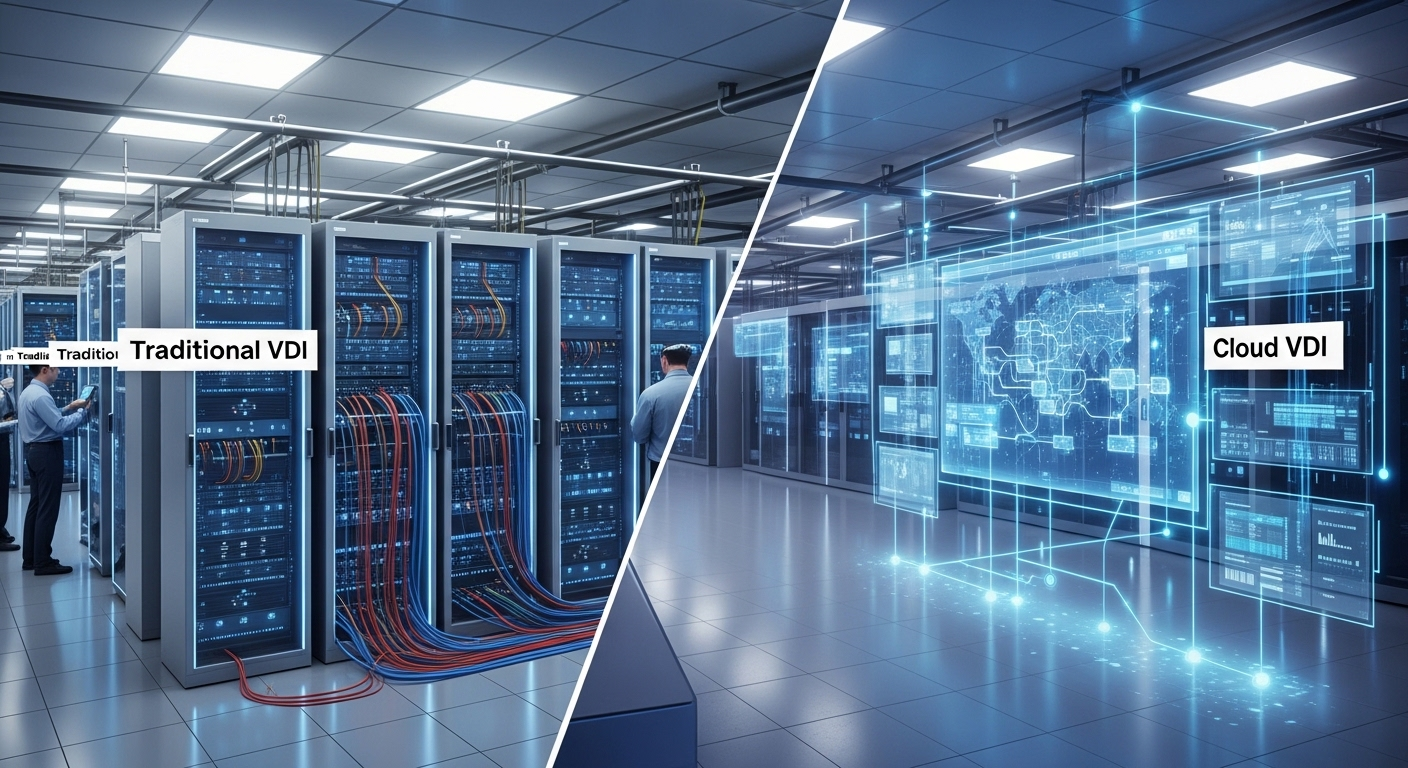
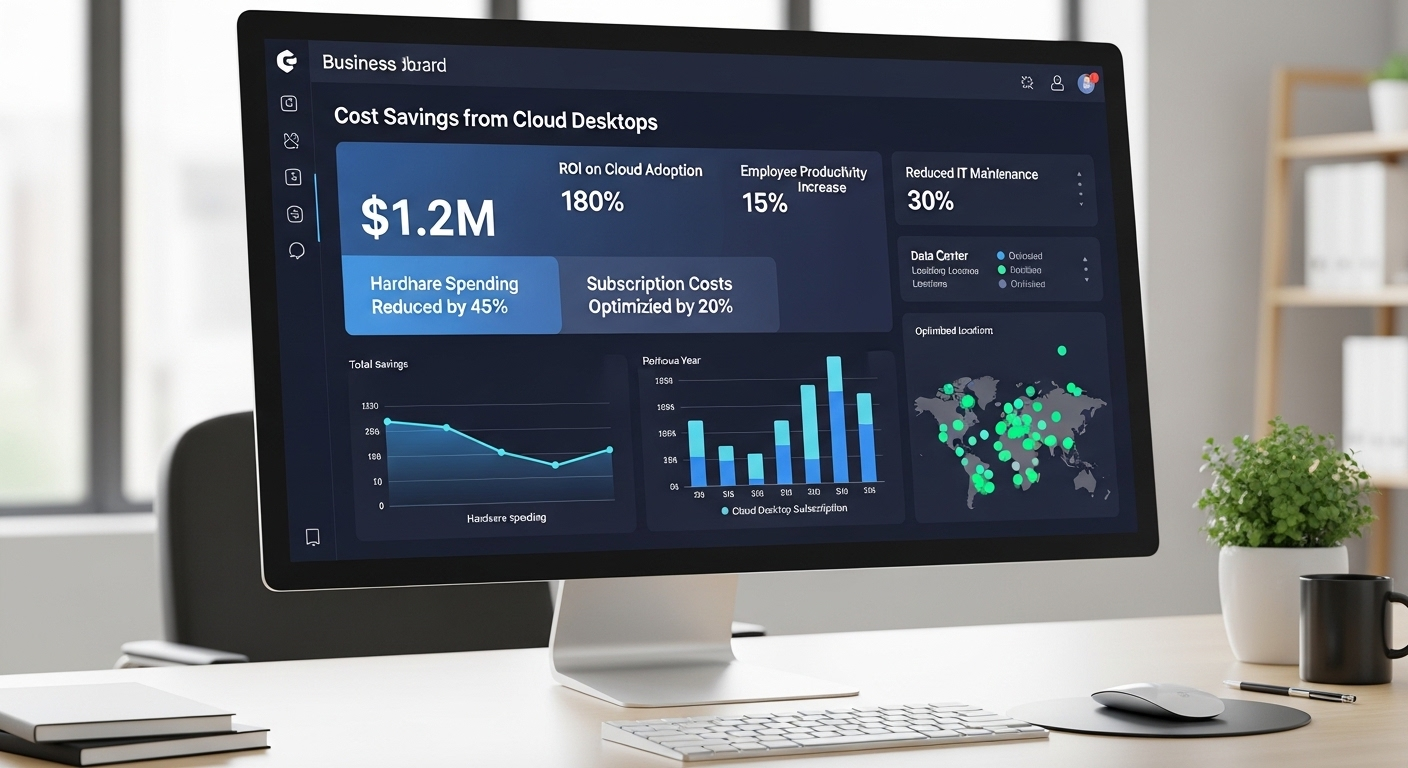
Modern virtual desktop infrastructure concept showing cloud-hosted desktops securely accessed from laptops, tablets, and remote work locations.
Quick Answer

What is virtual desktop infrastructure (VDI)?

Virtual Desktop Infrastructure (VDI) delivers desktop environments from centralized servers rather than local computers. It helps organizations improve security, simplify desktop management, and support remote work. Modern cloud-based platforms like Apporto extend these benefits through browser-based access, faster deployment, and reduced infrastructure complexity.

Traditional desktop setups weren’t built for modern remote work. Applications stayed tied to office machines, files lived locally, and IT teams managed physical desktops one device at a time. Then hybrid work changed expectations almost overnight. Companies needed secure remote access for employees working across locations, devices, and networks that weren’t always reliable.

That pressure pushed virtual desktop infrastructure into the spotlight. VDI moves desktop infrastructure into centralized digital workspaces users can access remotely through browsers, lightweight clients, or cloud platforms.

Instead of depending heavily on physical desktops and local storage, organizations now prioritize centralized management, flexibility, and tighter security controls.

In this guide, you’ll learn what virtual desktop infrastructure is, how it works, why businesses use it, and what modern VDI platforms are changing next.


What Is Virtual Desktop Infrastructure (VDI)?

For decades, desktop computing followed a pretty rigid model. Your applications lived on your computer. Your files stayed on that same machine. If the device failed, or you left it at home, work became difficult very quickly. VDI changed that relationship entirely.

Virtual desktop infrastructure, usually shortened to VDI, separates the desktop experience from the physical device itself. Instead of running everything locally on desktop computers or laptops, desktop environments run inside centralized servers located in a data center or cloud infrastructure.

Users then access those virtualized desktops remotely through internet-connected devices. That sounds technical at first. In practice, though, the concept is surprisingly straightforward.

What Is the Simplest Definition of VDI?
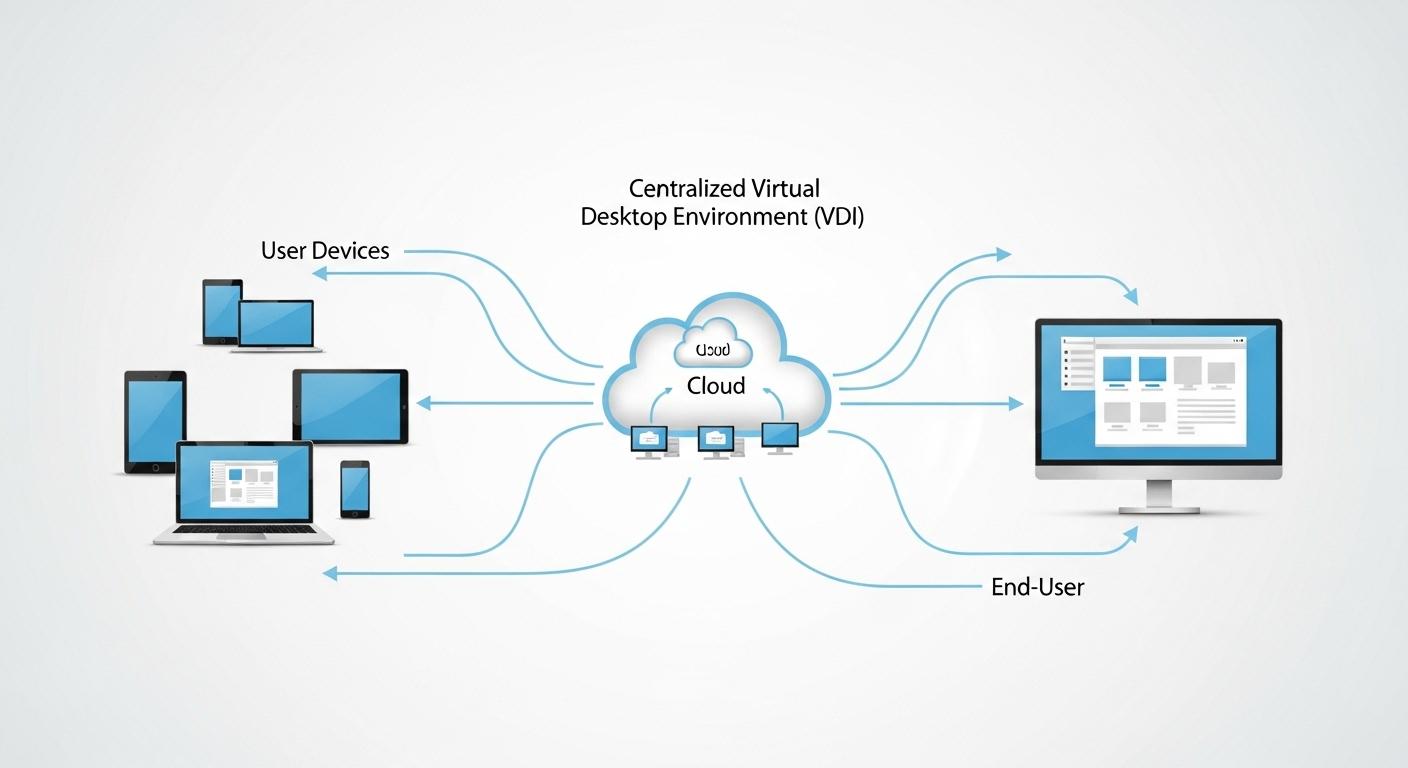
Simple VDI concept diagram showing user devices connecting to a centralized virtual desktop environment in the cloud

Virtual desktop infrastructure (VDI) is a desktop virtualization technology that hosts virtual desktop environments on centralized servers instead of local physical devices. Users connect to these virtualized desktops remotely using laptops, tablets, thin clients, or web browsers through an internet connection.

Each user can receive an individual virtual desktop with its own operating system, applications, files, and permissions while IT teams manage the infrastructure centrally.

The important distinction here is location. In traditional computing, your desktop lives on your machine. In VDI, your desktop lives somewhere else, usually inside centralized infrastructure designed to support many users at once.

That separation gives organizations far more control over security, updates, performance management, and remote access. It also allows employees to access the same desktop environment from different devices without carrying workloads locally on the endpoint itself.

And honestly, that’s why VDI became increasingly important once remote and hybrid work started becoming permanent rather than temporary.

How Is VDI Different From Traditional Desktop Computing?

Traditional desktops depend heavily on physical hardware. Your operating system, applications, and storage all run locally on the machine sitting in front of you. That approach worked for years, but it also created maintenance headaches, security risks, and limited flexibility once employees began working remotely.

Desktop virtualization (VDI) changes where the actual computing happens. Instead of relying on physical desktops individually, VDI is setup across centralized workloads inside a data center or cloud infrastructure

The device you use becomes more of an access point than the true workstation itself. Your applications, files, and desktop environment remain hosted remotely while centralized management systems control updates, security policies, and resource allocation.

Another major difference is consistency. Traditional desktops tie your experience to one machine. VDI allows you to access the same desktop from multiple devices while keeping settings, applications, and permissions intact.

Traditional Desktops Virtual Desktop Infrastructure (VDI)
Workloads run on local physical hardware Workloads run on centralized servers
Files stored locally on the device Data managed centrally
Device-dependent desktop experience Access the same desktop remotely
Individual desktop management Centralized management across users
Limited remote flexibility Designed for secure remote access
Frequent hardware upgrades required Supports longer device lifespans


How Does Virtual Desktop Infrastructure Actually Work?
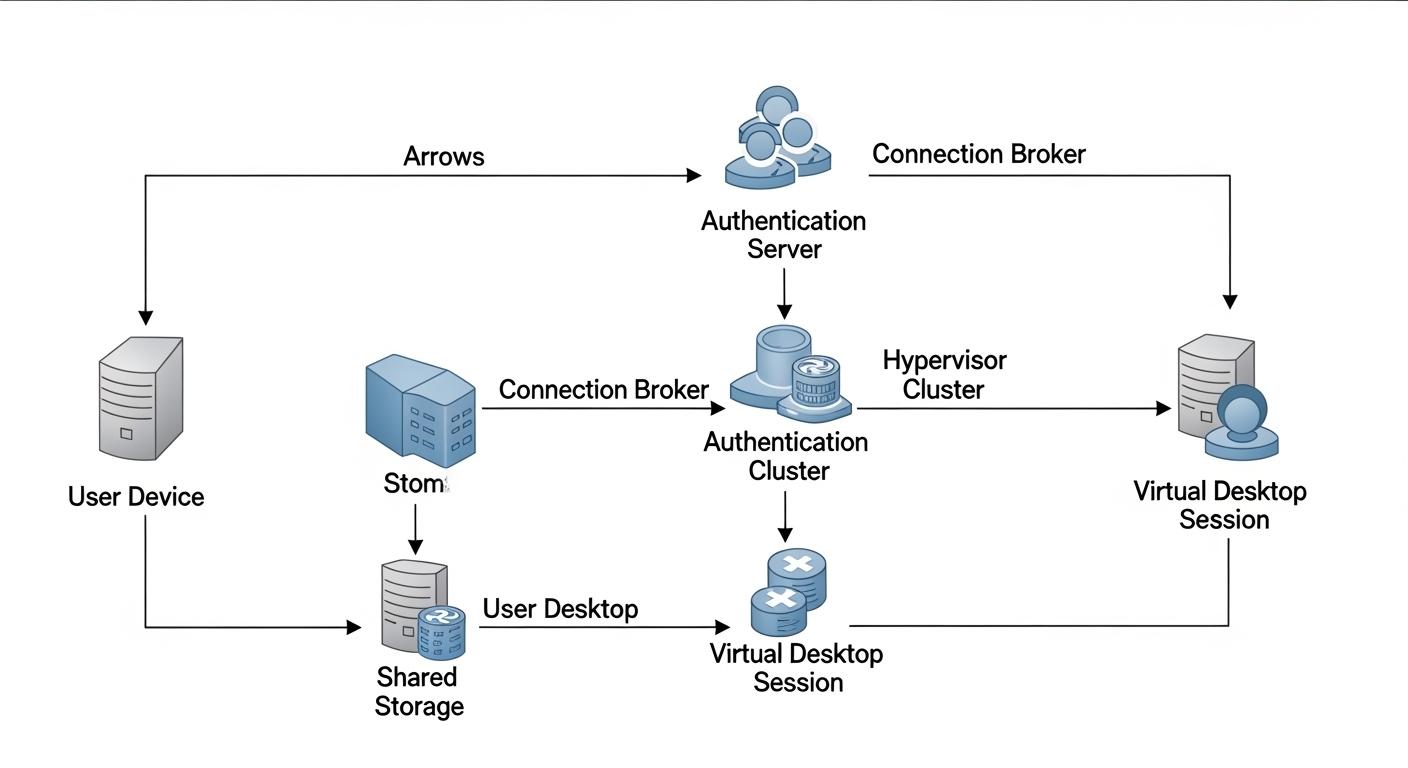
Step-by-step virtual desktop infrastructure process flow from user device to centralized server and virtual desktop session

Once you understand the basic idea behind VDI, the next question becomes obvious: where is the desktop actually running, and how does it appear on your screen almost instantly?

The answer sits inside a layered system of virtualization software, centralized servers, networking components, and remote access protocols all working together behind the scenes. It sounds complex, maybe a little intimidating too, but the workflow itself follows a fairly logical sequence.

What makes VDI different is that your physical device no longer performs most of the heavy computing. Instead, workloads run inside virtualized environments hosted remotely, while your laptop, tablet, or thin client acts more like a window into that desktop session.

That separation is the core idea behind desktop virtualization.

What Happens When You Connect to a Virtual Desktop?

From the user perspective, logging into a virtual desktop often feels similar to opening a normal computer session. Underneath, though, several systems coordinate that experience in real time.

Here’s how the process usually works:

  • Step 1: The user logs into the platform
    Users connect through a browser, desktop client, or remote desktop portal using an internet-connected device.
  • Step 2: The connection broker authenticates credentials
    The connection broker verifies login details, permissions, and security policies before allowing access.
  • Step 3: The broker assigns a virtual desktop
    Once authenticated, the system routes users connect requests to the correct virtual desktop environment.
  • Step 4: The hypervisor launches the virtual machine
    The host server activates the assigned virtual machine and operating system needed for the session.
  • Step 5: The remote display protocol streams the desktop
    The remote display protocol transmits visuals from the remote desktop to the user device while keyboard and mouse input travel back to the server in real time.
  • Step 6: The user interacts with the desktop remotely
    Applications, files, and workloads continue running inside centralized infrastructure even though the desktop appears local to the user.

This architecture allows VDI to separate computing workloads from endpoint devices almost entirely. For Citrix environments specifically, understanding the Citrix VDI architecture helps explain how these components work together to deliver virtual desktops.

What Components Make Up a VDI Environment?

A VDI environment depends on multiple technologies working together simultaneously. Each layer plays a specific role in delivering stable, secure virtualized environments.

  • Hypervisor: The hypervisor divides a physical server into multiple virtual machines that can operate independently.
  • Virtual Machines (VMs): Virtual machines function as software-based computers, each running its own operating system and applications.
  • Host Servers: Centralized servers provide the processing power, memory, and storage needed to support virtual desktops remotely.
  • Desktop Images: A desktop image acts as a preconfigured template containing applications, settings, and policies for users.
  • Connection Broker: The connection broker authenticates users and routes them to assigned desktop sessions securely.
  • Centralized Storage: Files, applications, and operating system images are stored centrally rather than across endpoint devices.
  • Authentication Systems: Security systems enforce login verification, permissions, and secure access policies before users connect.
  • Operating System Images: Standardized operating system images simplify deployments and help organizations maintain consistent desktop environments at scale.

Why Does Network Performance Matter So Much in VDI?

VDI performance depends heavily on network connectivity because every interaction travels between the user device and centralized infrastructure in real time. Poor bandwidth or high latency can create delays, blurry visuals, lagging cursor movement, or disconnected sessions. For users experiencing visual quality or streaming issues, understanding how to increase bitrate in a virtual desktop can also help optimize the remote desktop experience

Graphics-heavy workloads add even more pressure on server resources and remote access performance. Applications involving video editing, engineering software, or 3D rendering require stronger infrastructure support to maintain responsiveness inside virtual environments.

In many cases, the quality of the network determines whether a VDI deployment feels seamless or frustrating.


What’s the Difference Between VDI, Virtual Machines, and Remote Desktop Services?

These terms get mixed together constantly, even inside IT conversations. Understandable, honestly. They’re related technologies, and in some environments they overlap heavily. But they are not interchangeable.

Virtual machines, VDI, and Remote Desktop Services solve different problems, deliver different user experiences, and require different infrastructure strategies behind the scenes.

The confusion usually starts because all three involve remote computing in some form. The real difference comes down to how desktop environments are created, managed, and delivered to users.
VDI vs Virtual Machines: Are They the Same Thing?

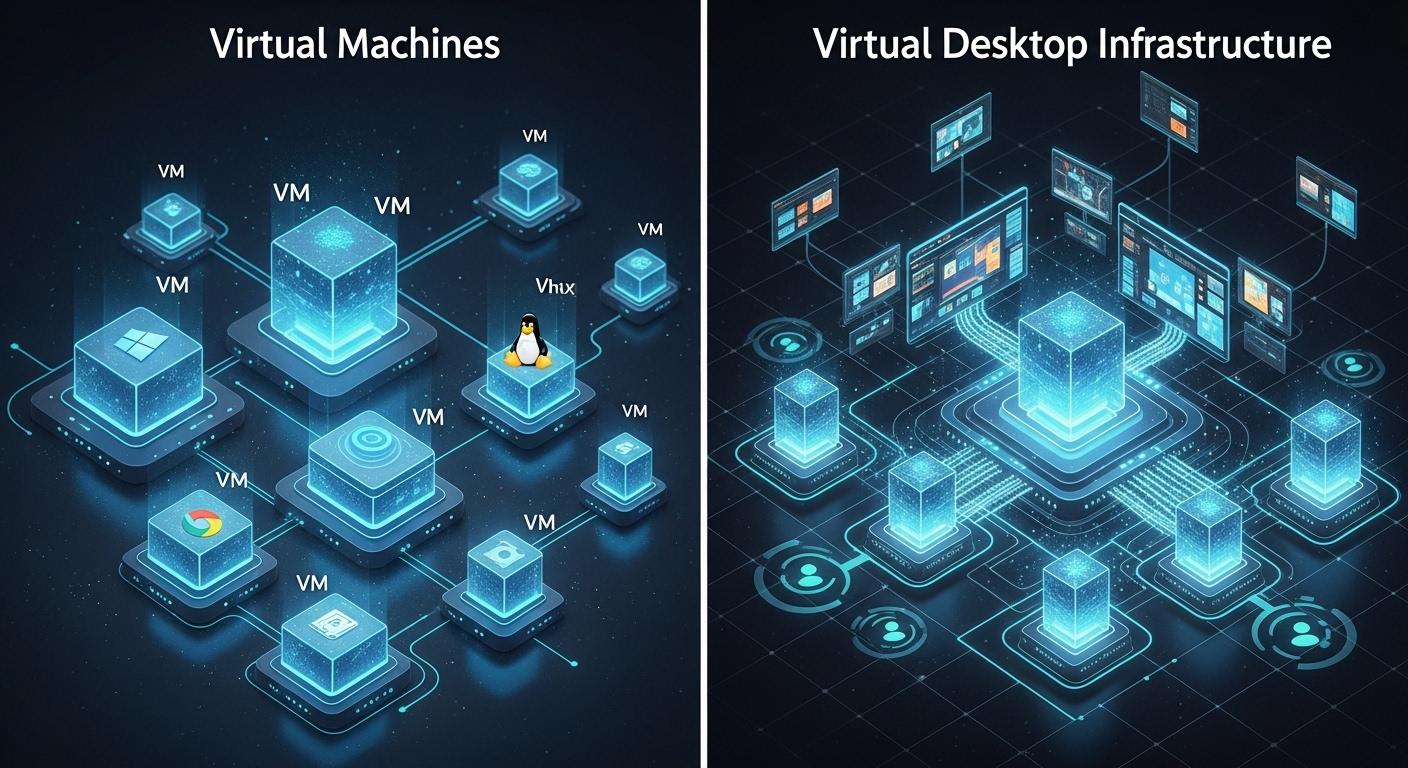
Side-by-side comparison of virtual machines and virtual desktop infrastructure, showing VMs as building blocks powering a centralized VDI environment.

A virtual machine, or VM, is essentially a software-based computer running inside a physical server. Each VM operates independently with its own operating system, applications, memory allocation, and processing resources.

VDI builds on top of that virtualization layer. Instead of using virtual machines for servers or backend applications, desktop virtualization uses VMs specifically to deliver desktop environments to end users remotely. A single VDI environment can contain dozens, hundreds, sometimes thousands of virtual machines running simultaneously.

For organizations deciding whether to deliver a complete desktop or individual applications, understanding DaaS vs application virtualization can help clarify which virtualization model best fits their needs.

Virtual Machines (VMs) Virtual Desktop Infrastructure (VDI)
Virtualizes an operating system Delivers desktop environments remotely
Functions as an independent software-based computer Uses virtual machines to provide user desktops
Can host servers, apps, databases, or desktops Focused specifically on desktop virtualization
Each VM runs its own operating system Multiple VMs support many desktop users
Exists independently of end-user access Designed primarily for user desktop delivery
Common in broader virtualized environments Specialized infrastructure for virtual desktops


In simple terms, virtual machines are the building blocks. VDI is the larger system that organizes those building blocks into centralized desktop infrastructure.

VDI vs Remote Desktop Services (RDS): What Changes for the User?
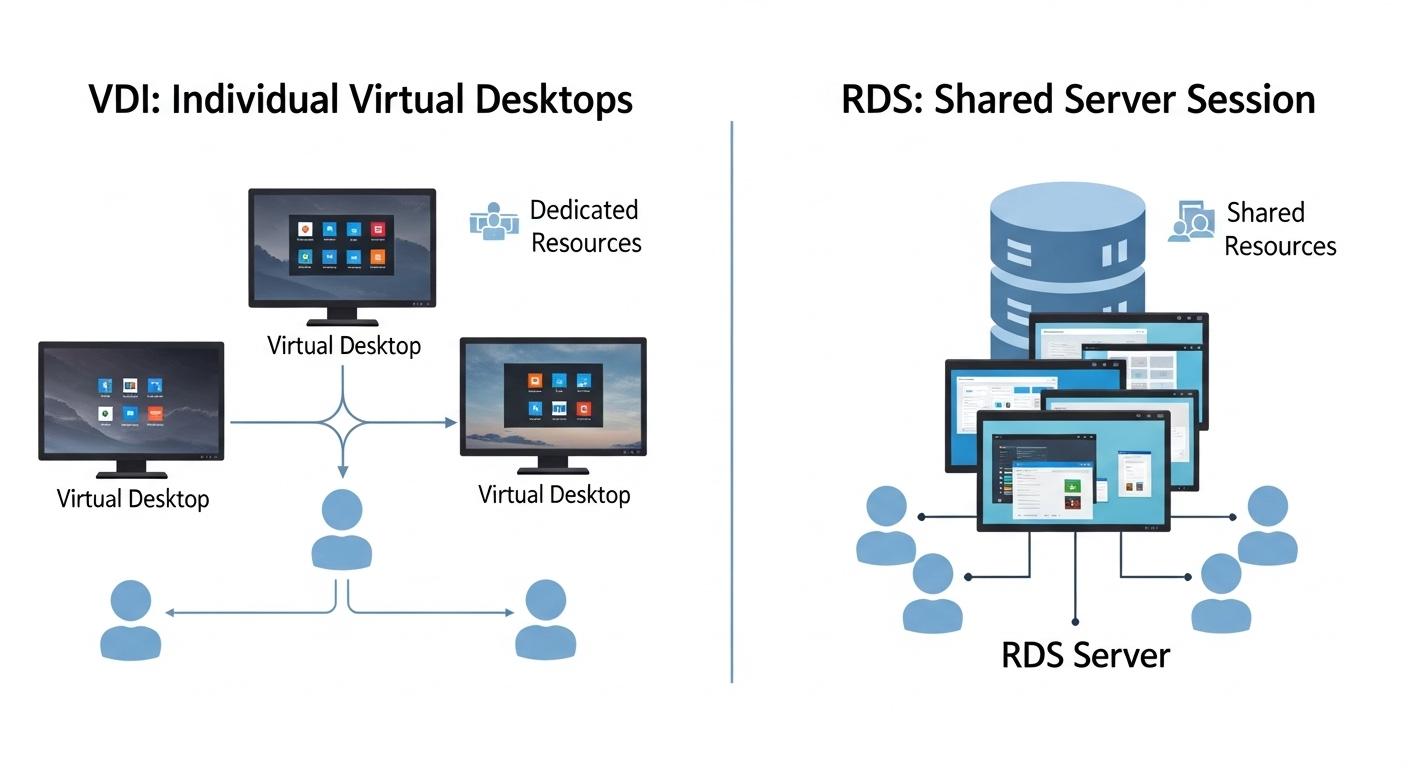
Visual diagram showing individual virtual desktops in VDI contrasted with multiple users sharing a single RDS server session.

The difference between VDI and Remote Desktop Services becomes much more noticeable from the user perspective.

Remote Desktop Services, often called RDS, typically allows multiple users to share sessions running on the same operating system. VDI creates individual virtual desktops for users instead. That distinction changes personalization, performance consistency, resource allocation, and security isolation.

Feature VDI Remote Desktop Services (RDS)
Desktop Experience Dedicated virtual desktop Shared desktop session
User Environment Individual virtual desktops Multiple users share the same environment
Personalization Supports persistent custom settings Limited personalization
Operating System Model Separate operating systems per user Shared operating system across sessions
Resource Allocation Dedicated or assigned resources Shared server resources
Scalability More resource-intensive Easier to scale for large groups
Security Isolation Stronger user separation Shared-session architecture
Cost Higher infrastructure cost Lower operational cost
Best Use Cases Knowledge workers, developers, hybrid teams Call centers, task workers, training labs


Persistent VDI environments also support highly personalized desktop experiences. Users can save files, maintain custom settings, install applications, and return to the same desktop later. RDS environments usually prioritize consistency and efficiency over personalization.

That’s why Remote Desktop Services often works well for call centers or training environments where users perform similar tasks. VDI becomes more valuable when organizations need flexibility, stronger isolation, or dedicated desktop environments tailored to individual users.


What Are the Different Types of VDI Deployments?
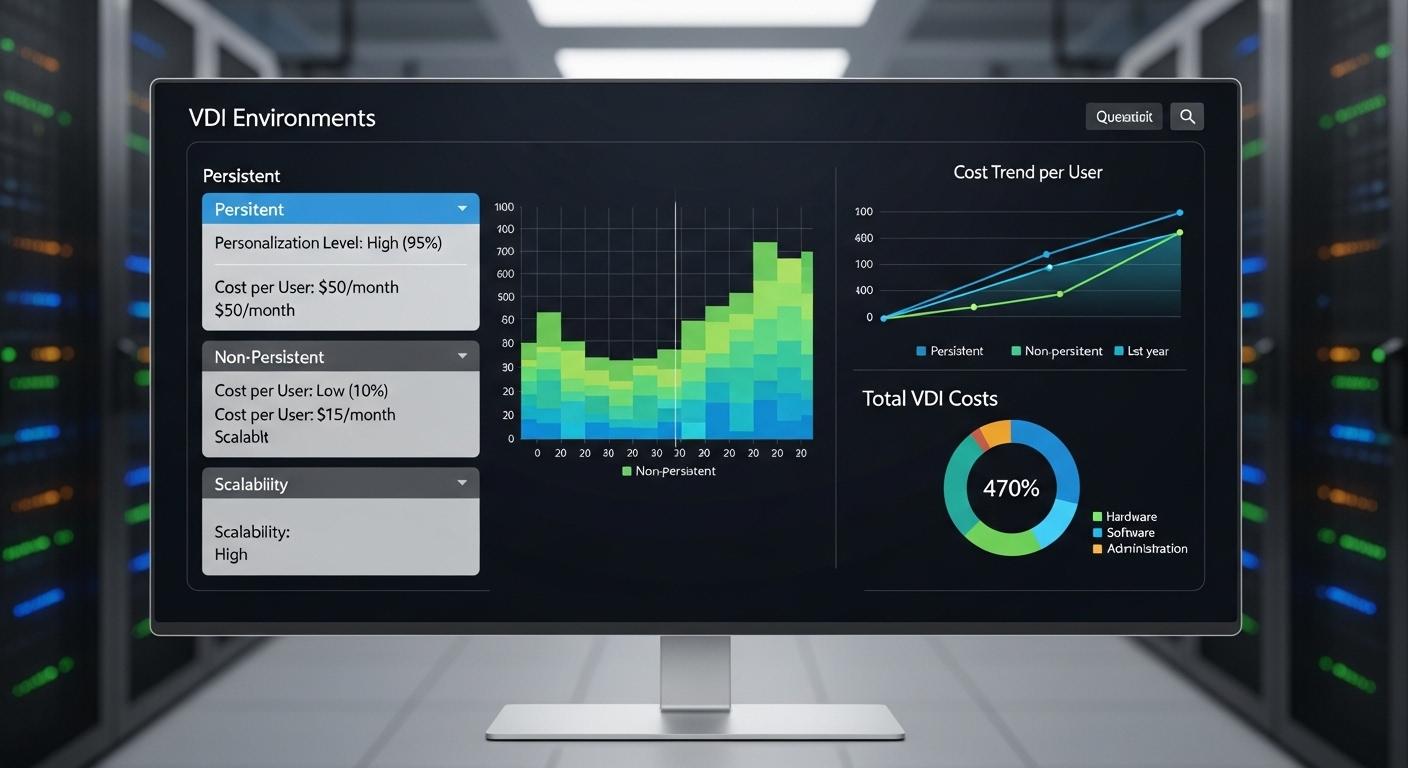
IT management dashboard visualizing persistent and non-persistent VDI environments with differences in personalization, cost, and scalability

Not all VDI environments are designed the same way. Some organizations need highly personalized desktops that behave almost like physical machines. Others care more about scalability, lower infrastructure costs, and easier management across large user groups.

That’s where VDI deployment models start to matter. Most virtual desktop infrastructure environments fall into two categories: persistent and non-persistent VDI.

The difference mainly comes down to what happens to the desktop after a user logs out. Simple distinction on paper, surprisingly important in practice. The choice affects storage usage, operational costs, scalability, and the overall user experience.

What Is Persistent VDI and Who Needs It?

Persistent VDI gives users dedicated virtual desktops that remain assigned to them over time. When users return, the desktop looks exactly the way they left it. Files remain saved, applications stay installed, and custom settings continue across sessions.

In other words, the desktop behaves much like a traditional computer, except the environment runs remotely inside centralized infrastructure instead of local hardware.

This approach creates a highly personalized digital workspace for employees who depend on customized applications, saved workflows, or specific operating environments. It also gives organizations more flexibility for user-specific configurations and long-term desktop continuity.

Persistent VDI is commonly used for:

  • Developers: Development environments often require custom tools, configurations, and persistent testing environments.
  • Knowledge workers: Employees handling complex workflows usually need stable user desktops with saved preferences and applications.
  • Designers and engineers: Creative and technical software frequently depends on specialized plugins, settings, and stored project files.
  • Healthcare professionals: Medical applications and secure user permissions often require consistent desktop environments tied to individual users.

There’s a tradeoff, though. Persistent VDI consumes significantly more storage because each user desktop retains separate files, settings, and applications over time.

At scale, those storage requirements can grow quickly and increase virtual desktop infrastructure costs substantially. Still, for organizations prioritizing personalization and continuity, the added complexity is often worth it.

What Is Non-Persistent VDI and Why Is It More Cost-Effective?

Non persistent VDI works differently. Instead of assigning permanent desktops to users, the system provides temporary desktop sessions pulled from shared desktop pools. Once users log out, the environment resets automatically.

That reset process simplifies desktop management considerably. Since non persistent desktops don’t retain individualized settings or stored data permanently, organizations reduce storage usage, maintenance overhead, and infrastructure complexity.

This model also makes it easier to support multiple users efficiently inside standardized environments. Non-persistent VDI is especially common in:

  • Call centers
  • Training labs
  • Customer support teams
  • Temporary staffing environments
  • Shared workstation environments

The model works well anywhere personalization matters less than scalability, consistency, and operational efficiency.

Persistent vs Non-Persistent VDI Comparison  

Feature Persistent VDI Non-Persistent VDI
Storage Usage Higher due to saved user data Lower due to shared desktop pools
Personalization Fully customized desktop experience Standardized desktop sessions
Management Complexity Higher operational overhead Simpler centralized management
Scalability More resource-intensive at scale Easier to scale rapidly
Cost Efficiency Higher infrastructure costs More cost-effective overall
Typical Use Cases Developers, designers, healthcare Call centers, training environments


Why Are Businesses Investing in Virtual Desktop Infrastructure?

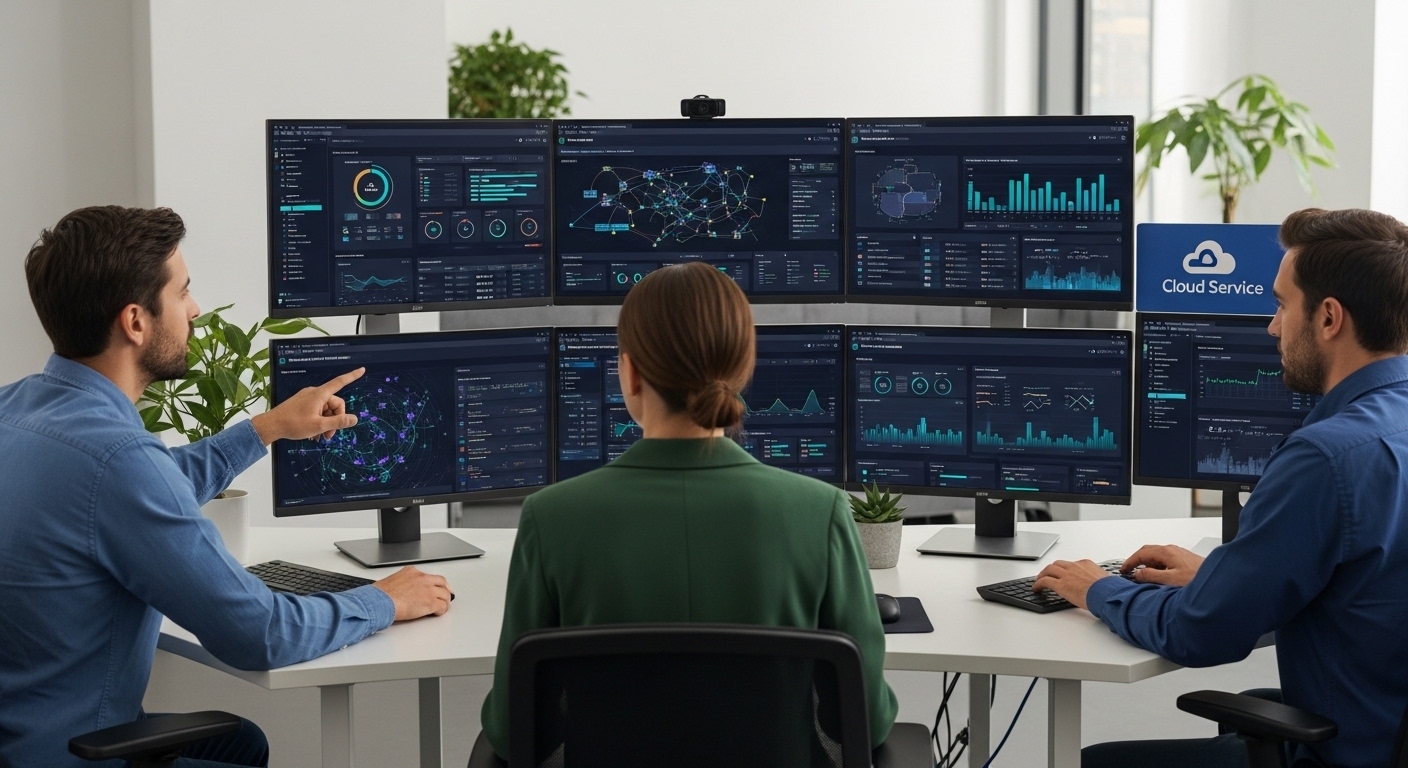
Business leaders and IT teams managing a centralized virtual desktop infrastructure that securely supports employees across multiple locations and devices.

The appeal of VDI goes far beyond remote desktop access. Organizations are investing in virtual desktop infrastructure because traditional desktop management has become increasingly difficult to maintain at scale. Employees work from different locations, use different devices, and expect uninterrupted access to applications almost everywhere. IT teams, meanwhile, are expected to secure everything without slowing people down. Not an easy balancing act.

VDI helps centralize that complexity. By moving desktop environments into centralized infrastructure, businesses gain tighter control over applications, security policies, updates, and user access without depending so heavily on physical hardware. The desktop becomes portable, consistent, and easier to manage across distributed teams.

How Does VDI Support Remote and Hybrid Work?

Remote work exposed a problem many organizations had ignored for years. Traditional desktops were never really designed for distributed teams. They worked best when employees sat inside the same building, connected to the same network, using company-managed devices.

VDI changed that modelring Your Own Device policies became much more common once remote and hybrid work expanded. VDI makes those environments easier to secure and manage, regardless of the device employees use.. Remote workers can securely access desktops from almost anywhere while organizations maintain centralized control over applications, permissions, and sensitive data.

Instead of storing workloads locally on personal devices, cloud desktops run remotely inside protected infrastructure environments.

That separation reduces risk significantly. Employees can work across locations without exposing business systems directly on local laptops or home computers. Even if a physical device is lost or compromised, the actual desktop environment remains secured centrally.

There’s also a practical advantage people tend to appreciate quickly: continuity. Users can move between devices and still access the same applications, files, and desktop sessions with minimal interruption.

The experience becomes far more seamless than traditional remote access methods that depend heavily on local machine configurations. For hybrid teams especially, secure remote access is no longer optional infrastructure. It’s foundational.

Why Is VDI Important for BYOD Policies?
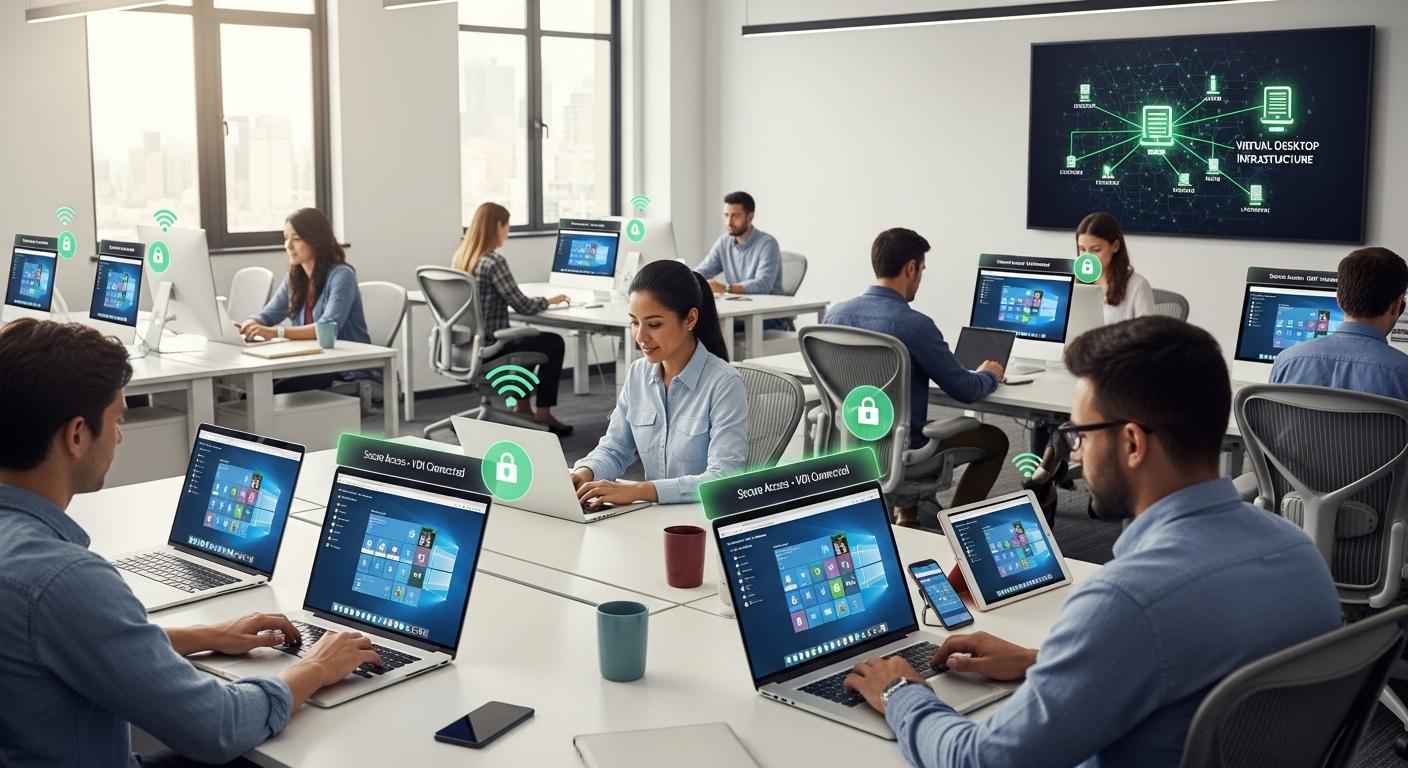
BYOD workplace environment showing multiple personal devices connected to a centralized virtual desktop infrastructure with secure access controls.

Bring Your Own Device policies became much more common once remote and hybrid work expanded. VDI makes those environments easier to secure and manage. For organizations supporting Apple users, choosing the VDI for Mac can also help ensure employees get reliable access to their virtual desktops without requiring a Windows-based endpoint.

Some advantages include:

  • Personal device flexibility: Employees can securely access desktops using laptops, tablets, or other personal devices.
  • Reduced hardware spending: Organizations rely less on purchasing and maintaining large fleets of physical devices.
  • Secure access controls: Applications and company data remain inside centralized infrastructure instead of living directly on endpoint devices.
  • Separation of local and company data: VDI isolates business environments from personal files, applications, and user activity.

For many small businesses, that separation becomes one of the biggest operational benefits of VDI.

How Does VDI Improve IT Operations?

VDI also simplifies IT management in ways that become more noticeable over time.

Main operational benefits include:

  • Centralized patching: Administrators can patch multiple virtual desktops simultaneously instead of updating machines individually.
  • Desktop image management: Standardized desktop images help IT teams manage desktop environments more consistently.
  • Faster onboarding: New employees, contractors, and temporary workers can receive desktop access quickly through centralized provisioning.
  • Disaster recovery support: Centralized infrastructure makes backup, recovery, and business continuity planning easier to maintain.
  • Easier scaling: Organizations can scale virtual desktops more efficiently as workforce demands increase or fluctuate.

That centralized management model reduces repetitive maintenance work while giving IT teams stronger visibility across the environment overall.


Which Industries Benefit Most From VDI?
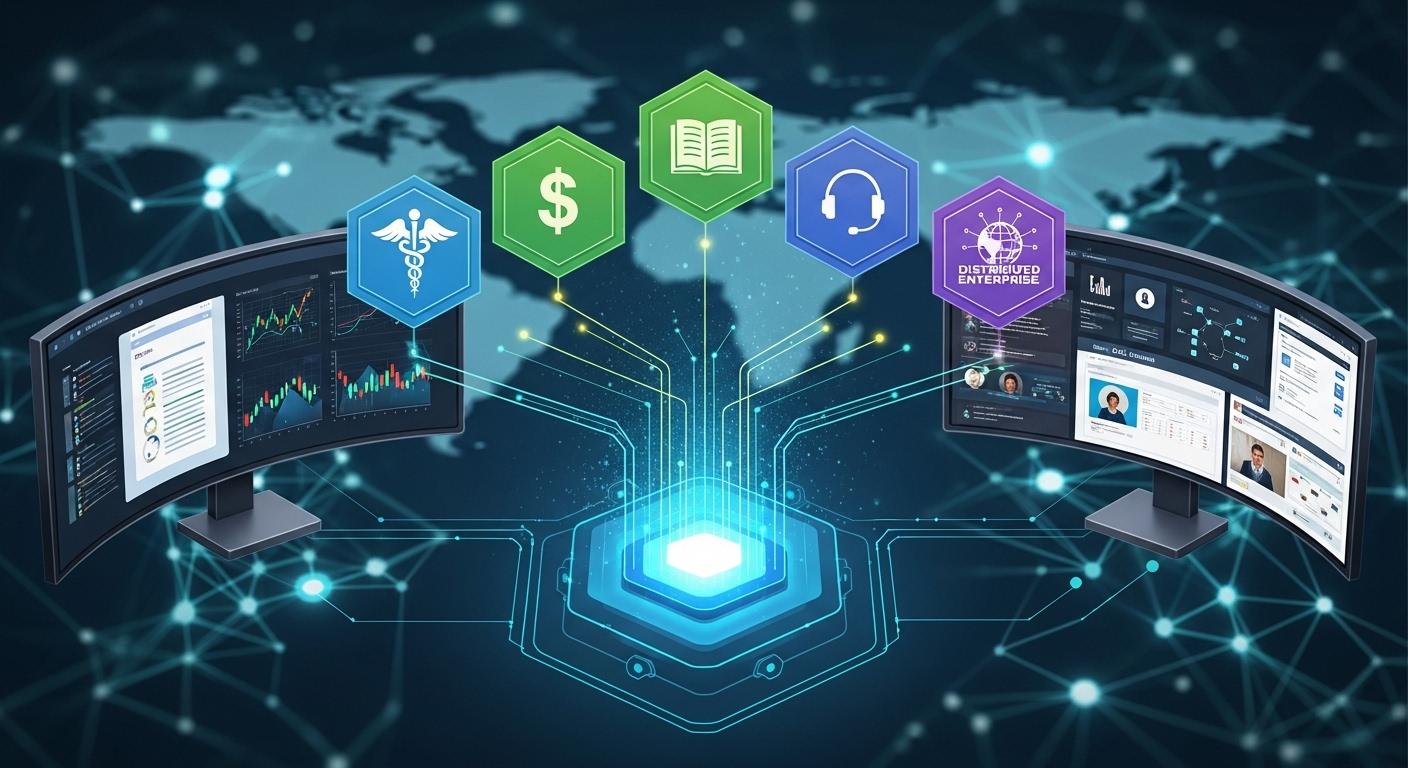
Centralized virtual desktop platform delivering secure remote access across healthcare, finance, education, call centers, and distributed enterprises.

Virtual desktop infrastructure spread quickly because different industries started facing the same underlying problem from completely different angles: people needed secure access to applications and systems without depending entirely on physical office computers.

For some organizations, the priority was compliance. For others, it was remote access, cost control, or supporting large groups of users efficiently. VDI ended up fitting all of those pressures surprisingly well.

And over time, certain industries became especially strong adopters because centralized desktop environments solved operational problems traditional desktops struggled to handle consistently.

Industry Why VDI Matters
Healthcare Secure access to patient and clinical systems
Finance Compliance, security, centralized oversight
Education Remote labs and standardized desktop access
Call Centers Fast onboarding and lower hardware costs
Hybrid Enterprises Centralized remote work infrastructure


Why Do Healthcare and Finance Depend on VDI?

Healthcare providers and financial institutions operate inside highly regulated environments where secure access and data protection are constant priorities. Sensitive data cannot simply live across unmanaged laptops or scattered endpoint devices without introducing significant security risks.

VDI helps centralize sensitive data inside controlled infrastructure environments rather than storing it locally on user machines. That centralization allows organizations to enforce stronger authentication policies, tighter access permissions, and more consistent security oversight across employees and departments.

These industries also depend heavily on controlled access environments. Doctors, analysts, administrators, and support staff often require access to critical applications from multiple locations, but organizations still need visibility into who accessed what and when.

Centralized VDI security reduces endpoint exposure risks considerably. If a laptop is lost or compromised, sensitive applications and data remain protected inside the virtual environment instead of sitting directly on the physical device itself.

For industries facing compliance audits regularly, that level of enhanced security becomes operationally important, not optional.

How Does VDI Transform Education and Universities?

Education environments have become one of the most practical use cases for VDI. Universities especially manage enormous numbers of users accessing software from different locations, devices, and network conditions all at once.

Traditional desktop labs struggle to scale efficiently under that kind of demand. VDI gives schools far more flexibility. Core advantages include:

  • Standardized desktop environments: Students and faculty receive consistent access to applications, settings, and virtual apps across departments.
  • Lab access from anywhere: Specialized software can be accessed remotely without requiring students to sit inside physical campus labs.
  • Browser-based learning access: Many modern digital workspaces allow students to launch desktop environments directly through web browsers.
  • Device flexibility for students: Students can access full desktop environments remotely from personal laptops, tablets, or lower-powered devices.

This creates more consistent learning experiences across locations while reducing dependency on expensive computer labs and constantly refreshed endpoint hardware.

Why Are Call Centers Heavy Users of Non-Persistent VDI?

Call centers often prioritize consistency and scalability over personalization, which makes non persistent desktops a very practical fit. Most agents do not need heavily customized desktop environments. They need quick access to communication tools, customer systems, and standardized workflows that function reliably across large teams.

That’s exactly where non-persistent VDI performs well. Desktop sessions reset automatically after logout, simplifying onboarding and reducing long-term management overhead. New employees can start quickly because the environment already exists in a standardized format.

Call centers also commonly rely on thin client VDI instead of expensive desktop computers. Since workloads run remotely inside centralized infrastructure, local devices require far less processing power.

For organizations managing hundreds or thousands of employees performing similar tasks, that operational simplicity matters quite a bit.


What Are the Biggest Benefits of Virtual Desktop Infrastructure?
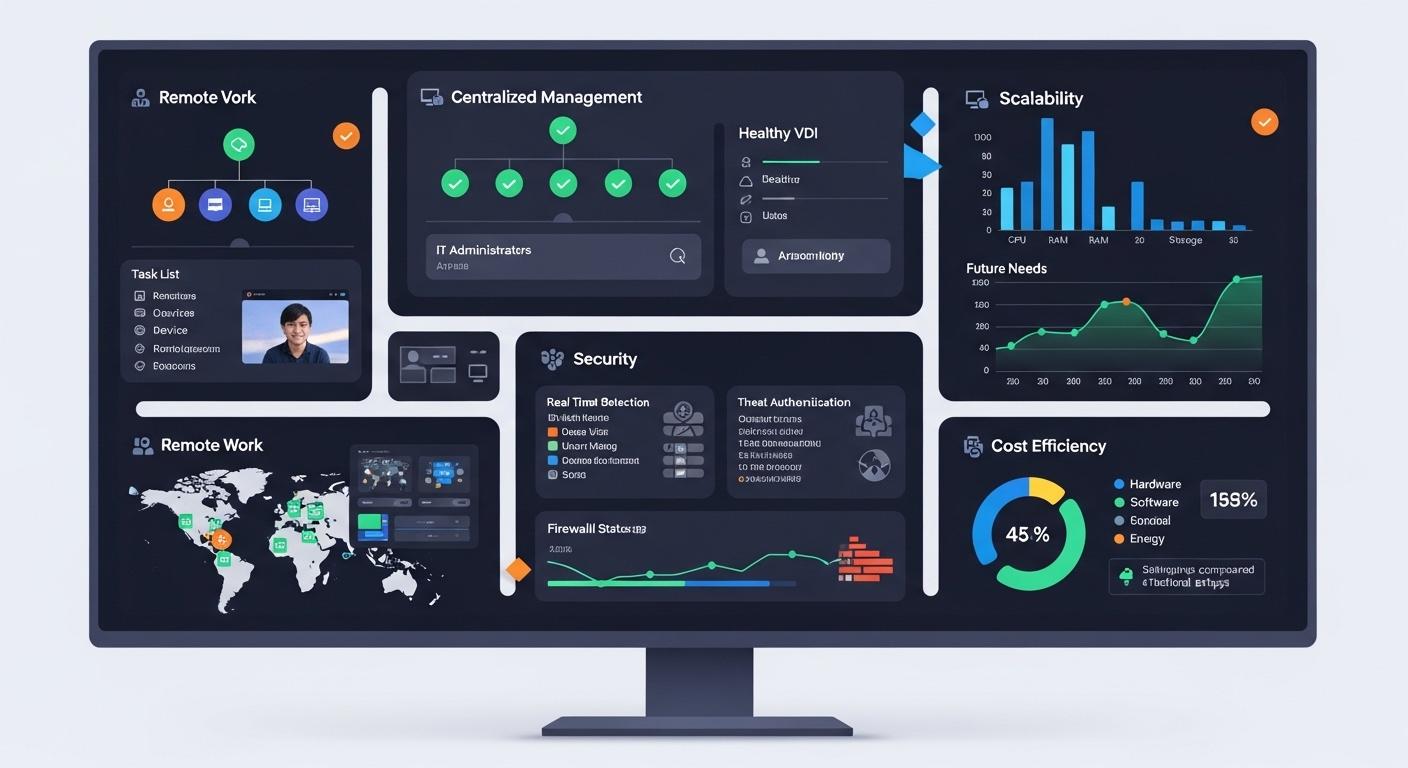
Enterprise virtual desktop infrastructure dashboard highlighting security, remote work, centralized management, scalability, and cost efficiency in a single visual.

Organizations usually adopt VDI for one reason at first, remote work, centralized management, cost reduction, security, something practical like that. Then over time they realize the benefits overlap. Improving desktop management often improves security too. Reducing hardware dependency also increases flexibility. The infrastructure becomes more adaptable almost by accident.

That interconnectedness is part of why virtual desktop infrastructure continues growing across industries. Once desktop environments move into centralized systems, organizations gain far more control over how work gets delivered, secured, and scaled.

Some advantages become obvious immediately. Others show up slowly, after months of managing distributed teams and increasingly complicated endpoint environments.

How Does VDI Improve Security?

Security of virtual desktops is one of the strongest arguments for desktop virtualization, especially for organizations supporting remote employees and hybrid environments.

Security benefits include:

  1. Centralized data protection: Sensitive data remains stored on centralized servers rather than scattered across endpoint devices and local hard drives.
  2. Multi-Factor Authentication (MFA): MFA adds additional identity verification layers before users gain secure access to virtual desktops and applications.
  3. Zero Trust access controls: Modern VDI platforms continuously validate user identities, permissions, and device trust before granting access.
  4. Reduced local storage exposure: Lost or stolen laptops expose far less information because workloads and files stay inside centralized infrastructure.
  5. Secure remote access: Employees can connect safely from different locations without transferring sensitive company data directly onto personal devices.

Centralization reduces risks significantly because organizations maintain tighter visibility and control over applications, user activity, and data access across the environment.

How Does VDI Simplify Desktop Management?

Managing physical desktops individually becomes exhausting at scale. VDI simplifies many of those operational challenges through centralized management systems.

Desktop management advantages include:

  1. Centralized updates: IT teams can deploy patches and security updates across many virtual desktops simultaneously.
  2. Operating system image control: Standardized operating system images help maintain consistency across departments and user groups.
  3. Faster troubleshooting: Administrators can resolve many desktop issues centrally without physically accessing endpoint devices.
  4. Consistent desktop environments: Shared desktop image templates reduce configuration drift and simplify long-term maintenance.
Traditional Desktop Management VDI Management
Device-by-device updates Centralized management
Inconsistent configurations Standardized environments
Physical troubleshooting required Remote administration
Higher maintenance overhead Simplified operational control


For distributed teams especially, that consistency saves enormous amounts of time.

How Does VDI Extend the Life of Older Hardware?

School computer lab using older PCs as thin clients connected to modern virtual desktop environments in the cloud.

Traditional desktop environments force organizations into regular hardware replacement cycles because applications and workloads run locally on endpoint devices. Over time, older desktop computers struggle to keep up with performance demands.

VDI changes that equation. Because workloads move into centralized servers, older physical machines can continue operating as thin clients for much longer than they otherwise could.

The endpoint device mainly handles display and input while the heavier computing happens remotely inside centralized infrastructure.

That means organizations often delay expensive hardware refresh cycles without sacrificing access to modern applications or desktop environments. Schools, call centers, and budget-conscious organizations tend to benefit especially from this approach because physical hardware requirements become far less demanding over time.

How Does VDI Improve Scalability and Business Flexibility?

Modern organizations rarely stay static for long. Teams expand, contractors rotate in, seasonal hiring increases suddenly, then priorities change again six months later. Traditional desktop infrastructure struggles to adapt quickly under those conditions.

VDI deployment models are far more flexible.

Organizations can scale virtual desktops rapidly based on workforce demand without purchasing and configuring physical machines individually. New users can receive secure desktop access within minutes rather than waiting days for hardware setup and provisioning.

Main flexibility advantages include:

  • Fast provisioning: IT teams can deploy multiple virtual desktops rapidly from standardized templates.
  • Contractor onboarding: Temporary workers receive controlled access without permanent hardware assignments.
  • Seasonal workforce scaling: Businesses can expand desktop capacity temporarily during peak demand periods.
  • Cloud-hosted scalability: Cloud-based virtual desktop infrastructure increases flexibility by allowing organizations to expand infrastructure resources dynamically.

That operational flexibility has become increasingly valuable as work environments continue evolving beyond fixed office-based models.


What Are the Biggest Challenges and Limitations of VDI?
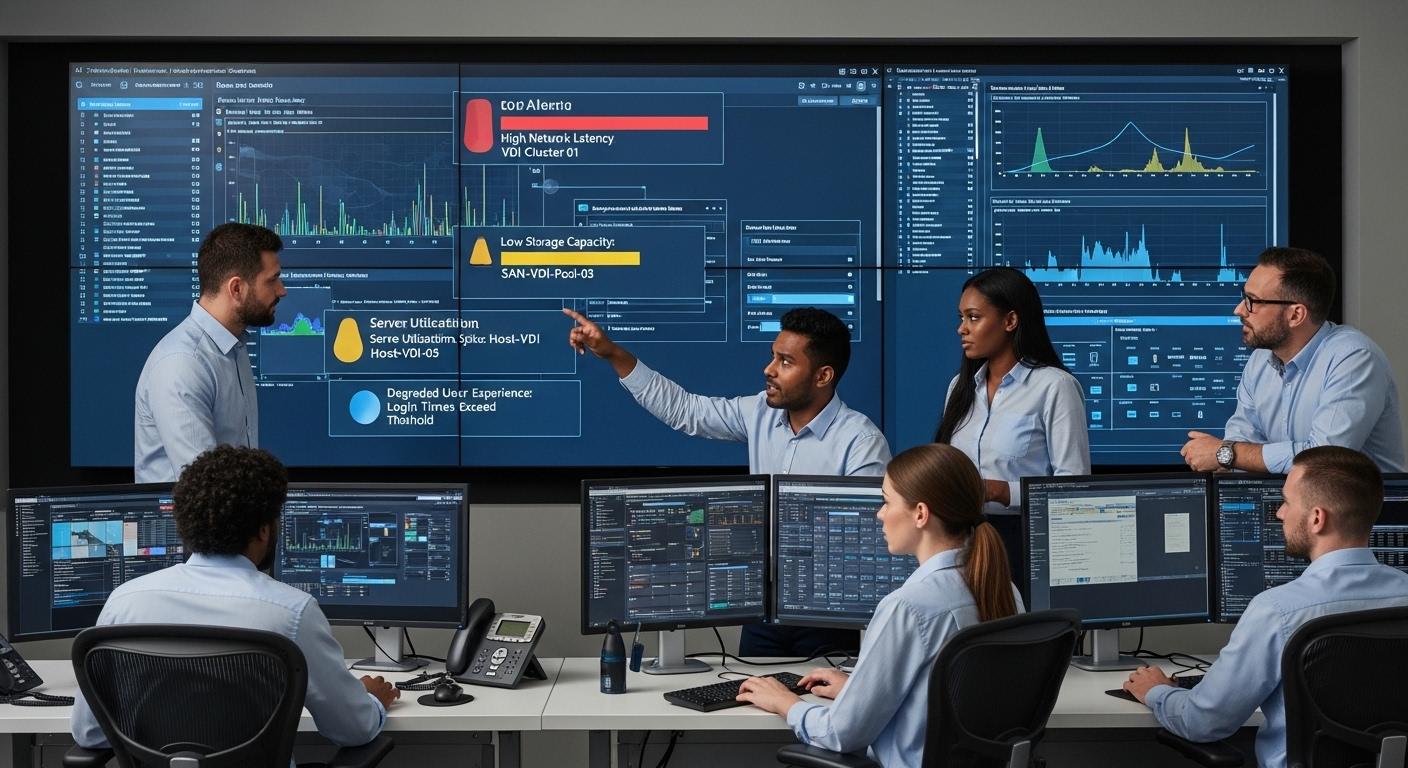
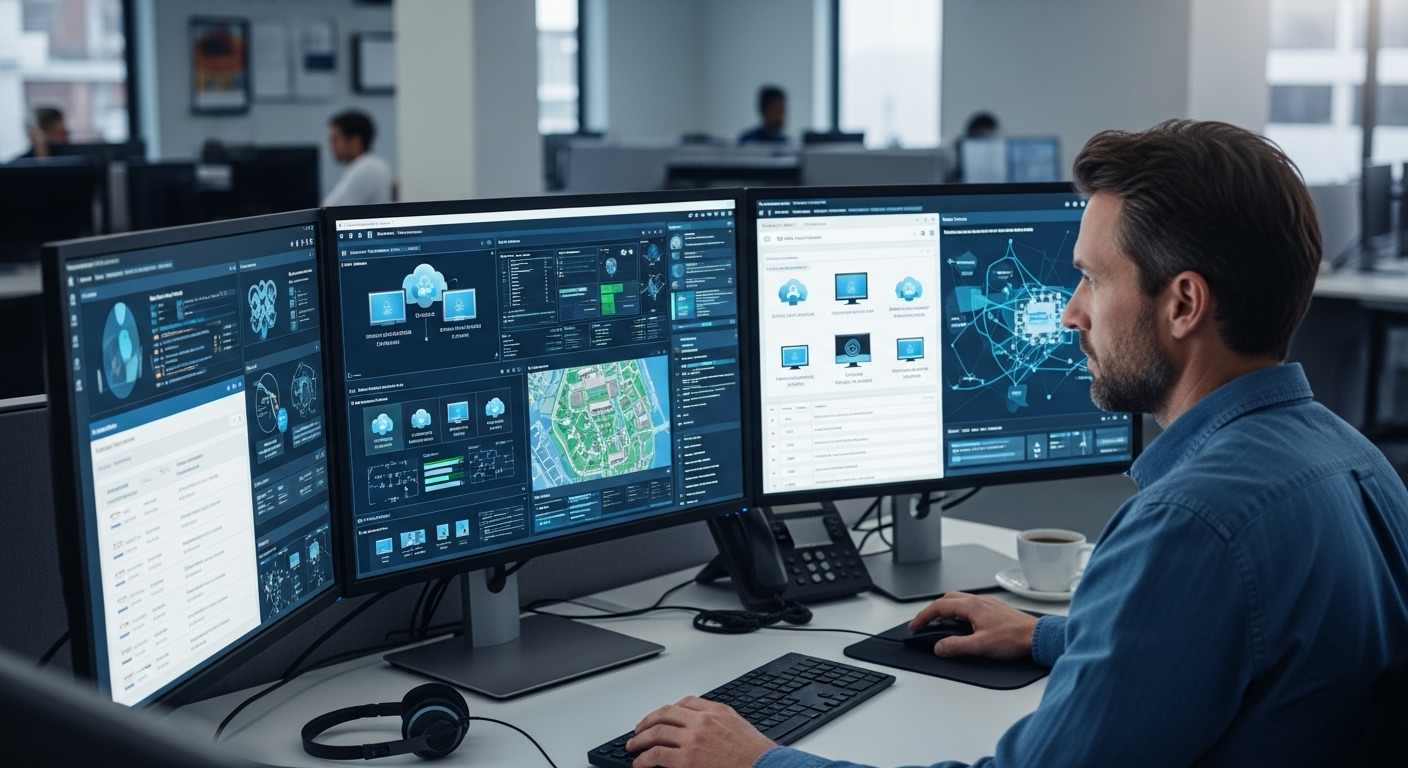
IT administrators monitoring a VDI environment with alerts for network latency, storage capacity, server utilization, and user experience metrics.

VDI solves a lot of problems. It also creates new ones. That part sometimes gets overlooked in highly polished vendor conversations where everything sounds effortless and infinitely scalable. Real deployments are rarely that tidy.

Once desktop environments move into centralized infrastructure, organizations become more dependent on networking, storage performance, server capacity, and specialized IT oversight. The flexibility improves dramatically, yes, but the infrastructure underneath becomes far more interconnected. One bottleneck can suddenly affect hundreds of users at once.

For many organizations the benefits outweigh the complexity. Still, understanding the limitations matters before committing heavily to a VDI deployment strategy.

Why Is Traditional VDI Expensive to Deploy?

Traditional VDI infrastructure often requires substantial upfront investment before organizations even provision the first virtual desktop. Unlike traditional desktops where computing power stays distributed across endpoint devices, VDI centralizes workloads inside shared infrastructure environments hosted within a data center or server environment.

That centralization increases infrastructure demands considerably. Organizations typically need to invest in:

  • Physical server infrastructure
  • Centralized storage systems
  • Networking hardware
  • Virtualization software licensing
  • Redundancy and failover systems
  • Backup and disaster recovery infrastructure

Persistent desktop deployments increase costs even further because every user desktop stores unique files, applications, and settings over time. As organizations scale, storage demands rise quickly, sometimes aggressively enough to create storage bottlenecks affecting both cost and performance.

There’s also the issue of availability. If centralized infrastructure fails, large numbers of users can lose access simultaneously. That forces businesses to build additional redundancy layers into the VDI infrastructure itself, which increases complexity and long-term operational spending.

For smaller organizations especially, traditional VDI can become difficult to justify without very clear operational goals.

What Performance Problems Can Impact VDI?

VDI performance depends heavily on infrastructure quality and network stability. When something weakens inside that chain, users feel it immediately.

Common performance challenges include:

  • Latency: Delays between user input and desktop response can make virtual environments feel sluggish or unresponsive.
  • Bandwidth limitations: Weak network connectivity reduces responsiveness and affects application performance during remote sessions.
  • Graphics-heavy workloads: Video editing, CAD software, and GPU-intensive applications require stronger server resources and optimized infrastructure.
  • Session disconnects: Unstable internet connections can interrupt desktop sessions unexpectedly, especially during remote work scenarios.
  • Server congestion: Overloaded infrastructure may slow performance for many users simultaneously inside shared environments.
  • Remote display protocol limitations: Even optimized protocols struggle under poor network conditions or overloaded systems.

Performance problems tend to compound quickly because centralized infrastructure supports many users at once.

Why Is VDI More Complex Than Traditional Desktop Management?

Traditional desktops spread risk and management responsibilities across individual devices. VDI centralizes those responsibilities inside the infrastructure itself. That improves centralized management in many ways, but it also increases operational complexity considerably.

A modern VDI environment requires specialized IT expertise across virtualization, storage, networking, authentication systems, security policies, and performance optimization. Managing all those layers together becomes far more demanding than maintaining standalone desktop computers.

User profile management also becomes more difficult at scale. Persistent desktop environments especially require careful coordination between applications, permissions, storage policies, and personalized desktop configurations. Proper FSLogix VDI settings can help organizations manage user profiles and profile data more efficiently across virtual desktop environments. Small inconsistencies can create frustrating user experience issues surprisingly fast.

Security oversight increases too. Centralized systems improve visibility and control, but they also concentrate risk. A single vulnerability inside the infrastructure can potentially affect large groups of users simultaneously if not monitored carefully.

Traditional Desktops VDI Environment
Distributed device management Centralized infrastructure management
Simpler local troubleshooting Multi-layer infrastructure dependencies
Lower networking demands High dependency on stable connectivity
Individual device failures Shared infrastructure risk
Easier for smaller IT teams Requires specialized expertise


That complexity doesn’t make VDI ineffective. It simply means the infrastructure demands more planning and operational maturity behind the scenes.


How Does VDI Compare to DaaS (Desktop as a Service)?
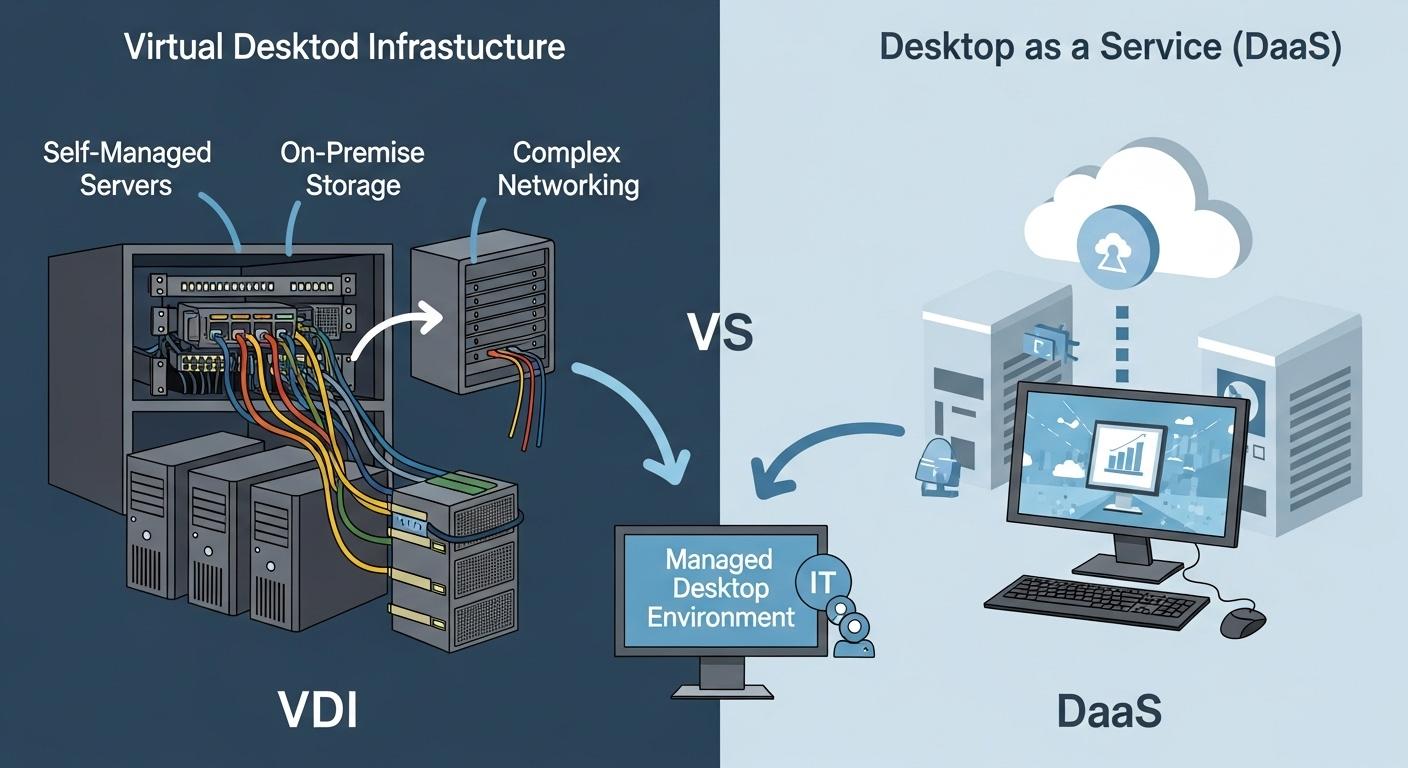
Modern cloud computing comparison between VDI and DaaS, featuring servers, storage, networking, and managed desktop environments.

As VDI adoption grew, many organizations ran into the same uncomfortable realization: managing virtual desktop infrastructure internally can become resource-heavy very quickly. Servers need maintenance. Storage expands constantly. Networking complexity increases. Then licensing enters the conversation and things become less fun.

That pressure helped accelerate interest in Desktop as a Service, usually called DaaS. Both models deliver remote desktop environments, but the responsibility behind managing the infrastructure changes quite a bit depending on which approach you choose.

What Is the Difference Between VDI and DaaS?

Traditional virtual desktop infrastructure is commonly hosted on-premises inside an organization’s own data center. Internal IT teams manage the centralized servers, networking, storage systems, security policies, operating environments, and virtualization infrastructure directly.

With DaaS, the infrastructure itself is hosted and maintained by a third-party cloud provider. Instead of building and maintaining the environment internally, organizations subscribe to cloud-hosted desktop environments delivered through a service model.

From the user side, the experience can feel fairly similar. Users still access remote desktops, applications, and files through internet-connected devices. The difference exists mostly behind the curtain, inside the infrastructure and operational responsibilities supporting those desktops.

DaaS reduces infrastructure burden significantly for internal IT teams because the provider handles much of the backend management, including hardware maintenance, scalability, redundancy, and portions of platform security. Organizations focus more on user access, applications, and policy management rather than maintaining physical infrastructure directly.

Traditional VDI still offers deeper customization and infrastructure control in some environments, especially for large enterprises with complex compliance requirements. But DaaS often appeals to organizations prioritizing flexibility, faster deployment, and lower operational overhead.

Honestly, that tradeoff has become increasingly attractive as remote work environments continue expanding.

Which Is Better for Modern Organizations: VDI or DaaS? 

Category Traditional VDI DaaS (Desktop as a Service)
Deployment Speed Slower due to infrastructure setup and configuration Faster deployment through cloud-based provisioning
Scalability Scaling requires hardware expansion planning Resources scale dynamically through cloud infrastructure
Security Responsibility Managed primarily by internal IT teams Shared between organization and cloud provider
Infrastructure Ownership Organization owns and maintains infrastructure Cloud provider manages backend infrastructure
IT Overhead Higher operational and maintenance burden Reduced infrastructure management responsibilities
Cost Structure Larger upfront capital investment Subscription-based operational spending
Cost Predictability Variable costs tied to infrastructure growth More predictable recurring pricing
Flexibility Greater infrastructure customization Faster adaptation and easier scalability
Maintenance Requirements Internal teams handle updates and hardware upkeep Provider manages much of the maintenance
Best Fit Large enterprises with mature IT teams SMBs, education, hybrid organizations, distributed teams


For many modern organizations, the decision comes down to control versus simplicity. Traditional VDI offers more direct ownership over infrastructure. DaaS removes much of that complexity so teams can focus more on users and less on maintaining backend systems constantly.


Why Apporto Represents a Simpler, More Modern Approach to VDI
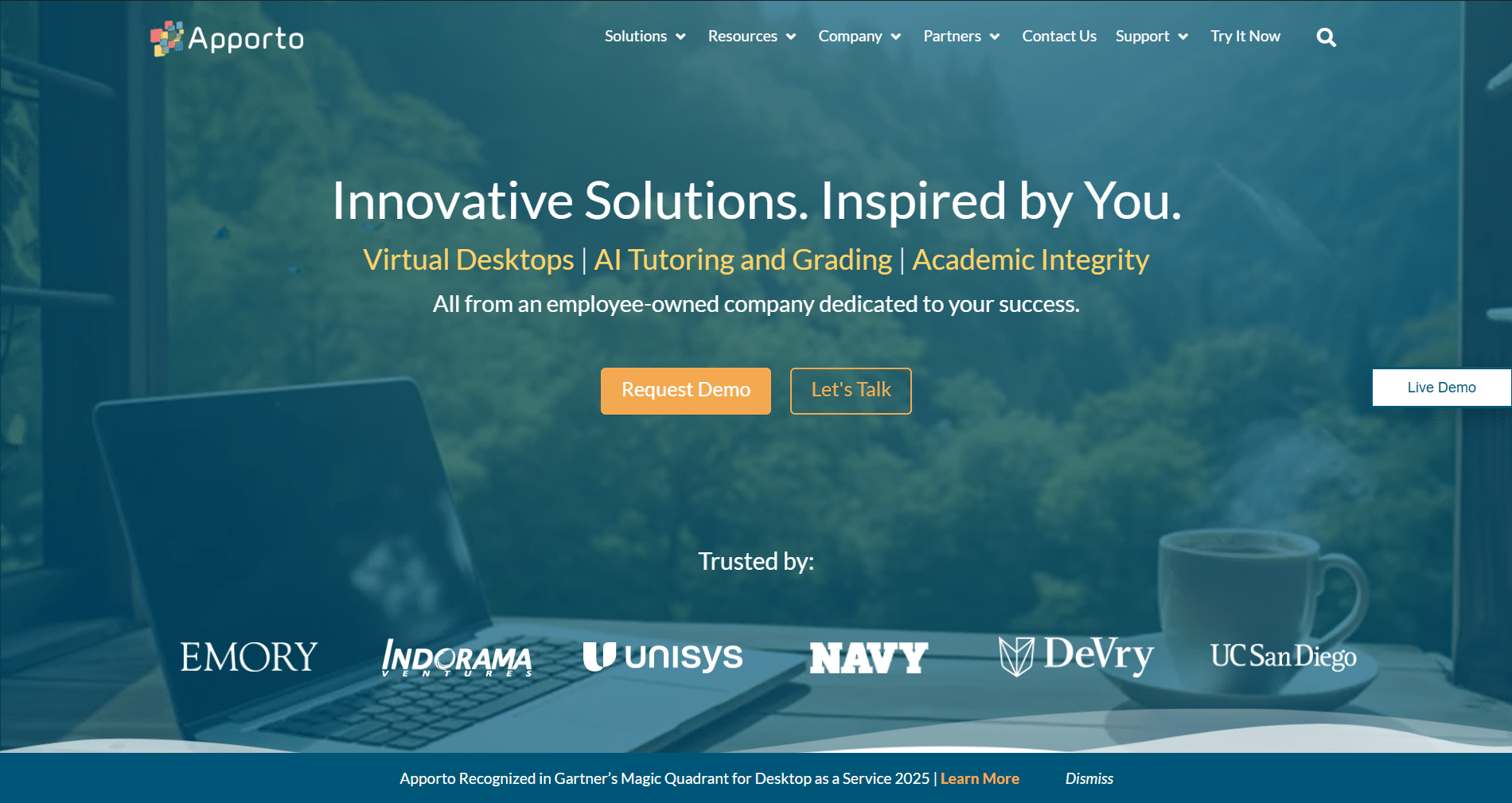
Apporto homepage showcasing virtual desktop solutions, AI tutoring tools, and cloud-based learning technology for education and enterprise organizations.

Traditional VDI platforms solved an important problem, but they also introduced a different kind of operational burden. Complex deployments, VPN dependencies, infrastructure maintenance, storage planning, client installations, endless patching cycles eventually many organizations realized they were spending almost as much time managing the environment as delivering it.

That tension pushed modern desktop virtualization in a different direction.  Traditional platforms such as Citrix desktop virtualization helped establish the centralized desktop model, but modern organizations are increasingly looking for simpler, cloud-based approaches that reduce infrastructure and management overhead.

Organizations today want digital workspaces that feel lighter, faster, and easier to access without sacrificing secure remote access or centralized control. They want infrastructure that adapts to distributed users instead of forcing users to adapt constantly to infrastructure limitations.

That’s where Apporto approaches things differently. Instead of treating VDI as a heavy on-premises system requiring layers of management overhead, Apporto delivers white label VDI and browser-based virtualization technology designed around accessibility and simplicity first.

Users connect directly through a web browser, applications remain centralized, and the environment becomes far easier to deploy and maintain across remote teams, universities, and hybrid organizations.

In many ways, that reflects the future of VDI. Less dependency on complicated infrastructure. More emphasis on seamless remote access and flexible delivery models.

What Makes Apporto Different From Legacy VDI Platforms?

Legacy VDI environments often depend on complicated setup processes involving VPNs, installed desktop clients, networking configurations, and infrastructure tuning that can overwhelm smaller IT teams pretty quickly. Apporto removes much of that friction.

Some advantages include:

  • Browser-based access: Users can launch full desktop environments and virtual apps directly through a web browser without relying on traditional client software.
  • No VPNs or client installs: Eliminating VPN dependencies and software installations simplifies onboarding while reducing support tickets and user-side complexity.
  • Faster deployments: Organizations can deploy desktop virtualization environments much faster compared to traditional infrastructure-heavy VDI models.
  • Built-in Zero Trust security: Secure remote access is integrated directly into the platform using modern authentication and access control principles.
  • Lower infrastructure overhead: IT teams spend less time maintaining centralized infrastructure, patching systems, or managing storage expansion manually.
  • Designed for higher education and SMBs: Apporto aligns especially well with universities and smaller organizations that need scalable digital workspaces without enterprise-level operational complexity.
  • Near-native performance: Modern browser optimization helps users experience responsive desktop environments across devices and operating systems.

The broader advantage is simplicity. Apporto reduces much of the operational weight traditionally associated with VDI while still delivering the flexibility organizations now expect from modern virtualization platforms. Try Apporto Now


Final Thoughts

A few years ago, virtual desktop infrastructure still felt like specialized enterprise technology. Useful, certainly, but often associated with highly controlled corporate environments and complicated infrastructure projects. That perception has changed quite a bit.

Organizations now prioritize centralized digital workspaces because work itself no longer happens in one place. Employees move between offices, homes, campuses, and personal devices constantly. Traditional desktop models struggle to keep pace with that kind of flexibility.

VDI addresses that problem by separating the desktop experience from physical hardware. Applications, operating systems, and user environments live inside centralized infrastructure while users access them remotely through browsers, thin clients, or lightweight devices. Quietly, almost without people noticing, desktop computing became more abstract.

Modern desktop virtualization is also becoming far easier to deploy. Browser-based platforms and cloud-hosted environments continue reducing much of the infrastructure complexity that once limited VDI adoption to large enterprises with massive IT teams.

And that may be the most important change of all. Virtual desktop infrastructure is no longer niche technology reserved for a handful of industries.

It’s becoming foundational infrastructure for organizations trying to support remote work, strengthen secure remote access, simplify desktop management, and create more adaptable digital workspaces for the long term.


Frequently Asked Questions (FAQs)


1. What is virtual desktop infrastructure in simple terms?

Virtual desktop infrastructure (VDI) is a technology that hosts desktop environments on centralized servers instead of local computers. Users access those virtual desktops remotely through internet-connected devices while applications, files, and operating systems remain centrally managed.

2. How does a VDI environment work?

A VDI environment uses centralized servers, virtual machines, hypervisors, and connection brokers to deliver desktop environments remotely. Users log in through secure access systems, then the desktop interface streams to their device using remote display protocols.

3. What is the difference between VDI and a virtual machine?

A virtual machine is a software-based computer running its own operating system inside a server. VDI uses multiple virtual machines together specifically to deliver centralized desktop virtualization experiences to remote users.

4. What is the difference between VDI and Remote Desktop Services?

Remote Desktop Services allows multiple users to share sessions running on the same operating system. VDI creates individual virtual desktops for users, allowing stronger personalization, better isolation, and more flexible desktop environments overall.

5. What are the two main types of VDI?

The two primary types are persistent VDI and non-persistent VDI. Persistent desktops save user settings and applications permanently, while non-persistent desktops reset automatically after logout to simplify management and reduce infrastructure costs.

6. Why is VDI useful for remote work?

VDI allows employees to securely access centralized desktop environments from almost anywhere without storing sensitive business data directly on local devices. That flexibility makes remote work and hybrid work environments easier to manage securely.

7. Is VDI secure enough for sensitive business data?

Yes, when properly configured, VDI improves security by keeping sensitive data inside centralized servers rather than endpoint devices. Organizations can also apply centralized authentication, access policies, encryption, and monitoring across the environment.

8. Can employees use personal devices with VDI?

Yes. VDI supports Bring Your Own Device policies by allowing employees to access desktop environments securely from personal laptops, tablets, and other devices without exposing centralized business systems directly to local machines.

9. Why do universities and schools use VDI?

Educational institutions use VDI to provide students with standardized desktop environments and remote access to specialized applications. Students can launch virtual apps and full desktop environments remotely regardless of their device capabilities.

10. What industries rely on VDI the most?

Healthcare, finance, education, government agencies, call centers, and hybrid enterprises are among the largest VDI adopters. These industries often prioritize centralized management, secure access, compliance requirements, and scalable remote work infrastructure.

11. Is VDI hosted in the cloud or on-premises?

VDI can be hosted on-premises inside organizational data centers or through cloud-based infrastructure. Many organizations now use hybrid deployment models combining centralized servers with cloud-hosted scalability and remote access flexibility.

12. What is the difference between VDI and DaaS?

VDI is usually managed internally by an organization using its own infrastructure. Desktop as a Service (DaaS) delivers virtual desktops through a third-party cloud provider that manages much of the backend infrastructure and maintenance.

 

Benefits of Desktop as a Service (DaaS): Explained

Quick Answer

What Is Desktop as a Service (DaaS) & Why Are Businesses Adopting It?

Desktop as a Service (DaaS) delivers secure cloud-hosted desktops that employees can access from any device or location. Businesses adopt DaaS to simplify IT management, improve security, support remote work, and reduce hardware costs. Platforms like Apporto further streamline secure desktop delivery with browser-based access and centralized control.

A few years ago, traditional desktops still felt like a safe default. Machines under desks. Local networks. IT teams running around with spare laptops and crossed fingers.

Then remote work hit, BYOD stopped being optional, and security threats got louder, faster, sharper. Suddenly, that old setup started to feel brittle.

That’s where Desktop as a Service enters the picture. Not as shiny new tech, but as a practical response to pressure.

When employees need to access a virtual desktop from anywhere, on any device, without dragging sensitive data along for the ride, cloud-delivered workspaces just make sense. Less friction. Fewer fires.

This isn’t just another cloud computing add-on. It’s a change in how organizations think about workstations, access, and control.

DaaS reframes the desktop as a service, not a thing. And for many teams, that shift isn’t about innovation anymore. It’s about staying upright while everything else keeps moving.


What Is Desktop as a Service (DaaS), Really?

Strip away the buzzwords and Desktop as a Service is surprisingly simple.

Instead of a physical computer doing all the heavy lifting, your desktop lives in the cloud. A DaaS solution means the operating system, applications, files, even your settings are hosted by cloud service providers in secure data centers. You log in.

Your desktop appears. Same workspace, different screen. Coffee shop, home office, airport lounge. Doesn’t matter much.

Behind the curtain, this looks a lot like virtual desktop infrastructure, but the ownership model flips. With VDI, your IT team builds and maintains everything on-prem.

With DaaS, that responsibility shifts outward. The provider handles infrastructure, updates, capacity planning, and most of the security plumbing. IT teams focus on access and policy instead of babysitting hardware.

It’s also not the same as basic remote desktop tools. Those usually connect you to a single machine somewhere else. DaaS delivers a full, cloud-hosted desktop environment designed to scale.

Then there’s the choice between persistent and non-persistent desktops. Persistent desktops remember everything, just like a personal laptop.

Non-persistent desktops reset after each session. Clean. Predictable. Easier to manage. Different needs, different fits.


How DaaS Works Behind the Scenes

Thin client, laptop, and tablet all connected to the same cloud-hosted desktop environment.

On the surface, Desktop as a Service feels almost boringly easy. You open a browser or a small client app, log in, and boom—your desktop is right there. Underneath that calm surface, though, there’s a lot humming along.

Here’s the short version. Your desktop isn’t actually on your laptop. It lives inside a cloud infrastructure, running on powerful centralized servers inside a provider’s data center.

What you see on your screen is essentially a live video stream of that environment, plus your keyboard and mouse inputs heading back the other way. Nothing magical. Just very efficient plumbing.

You can access virtual desktops in a few ways. Some teams use lightweight client software. Others stick with a browser.

Thin clients work too, and yes—so do personal devices under BYOD policies. The endpoint barely matters because the heavy work happens elsewhere.

What really matters is where the data lives.

With DaaS, files, applications, and business data stay inside the centralized server environment. Not on the laptop. Not on the phone. Not even cached locally in most setups. That’s a big deal for security, compliance, and peace of mind.

Under the hood, the model looks like this:

  • Centralized server model running desktops in secure cloud data centers
  • Secure access over the internet using encrypted connections and access controls
  • No local data storage on endpoints, even if a device is lost, stolen, or shared

It’s less about convenience, honestly, and more about control without the micromanaging.


The Most Significant Benefits of Desktop as a Service

1. Enhanced Security for Sensitive Data

Here’s the quiet superpower of Desktop as a Service, and it’s one most people underestimate at first. Your data doesn’t travel. It stays put.

With DaaS, sensitive data never actually lives on the employee’s laptop, tablet, or phone. It remains locked inside the provider’s data center, behind layers of controls most organizations would struggle to maintain on their own.

Lose a laptop in an airport? Annoying, yes. A breach? Not really. There’s nothing local to steal. That shift alone changes the security equation. Ransomware attacks that depend on endpoint access suddenly hit a wall.

Malware on a personal device can’t easily touch corporate files it never downloads. Even careless behavior—saving files to a desktop, emailing attachments to the wrong address—gets quietly neutralized by design.

Then there’s access control. IT teams can define exactly who gets access to what, from where, and on which device. Logins are tracked. Sessions are logged. Policies are enforced centrally, not hoped for.

In practical terms, DaaS turns data access into a managed privilege instead of a gamble. And when you’re dealing with truly sensitive information, that difference matters more than flashy features ever will.

2. Simplified IT Management and Lower Operational Overhead

Ask almost any IT lead what eats their week alive and you’ll hear the same sigh, followed by a list that never seems to end: patching, updating, troubleshooting, chasing version mismatches, fixing something that worked yesterday.

Desktop as a Service quietly sweeps a lot of that off the table.

With DaaS, the service provider takes responsibility for the unglamorous but critical stuff: operating system updates, security patches, core infrastructure maintenance, even baseline performance tuning. That alone can free up dozens of hours a month. Sometimes more.

For the internal IT team, the shift is real. Instead of babysitting individual machines or playing whack-a-mole with broken desktops, they manage centrally. One change. One policy. Applied everywhere.

That’s what simplified management actually feels like in practice.

And here’s the part that doesn’t show up neatly on a budget spreadsheet. Fewer emergencies mean fewer late nights. Less reactive work means more time for planning, automation, and actual improvement.

Desktop management stops being a constant drain and starts behaving like a system again. Not perfect, maybe. But finally predictable.

3. Cost Savings and Predictable Spending

Budgets hate surprises. Traditional desktops are basically surprise machines. One year it’s a bulk hardware refresh, the next it’s emergency replacements, then licensing sprawl, then security tooling you didn’t plan for but suddenly can’t avoid. It adds up. Quietly. Relentlessly.

Desktop as a Service flips that math on its head with a subscription model. Instead of lumpy capital expenses every few years, costs move into a steady, forecastable line item. Month to month.

User to user. That predictability alone is gold for finance teams who are tired of guessing. The cost savings don’t come from magic.

They come from fewer physical devices to buy, less hands-on support, and dramatically reduced spend on endpoint security tools that are no longer doing the heavy lifting.

When desktops live in the cloud, you’re not constantly patching, repairing, or replacing them.

Over time, the total cost of ownership tends to drop, especially once you factor in softer numbers like reduced management cost and fewer IT fire drills.

It’s not always cheaper on day one. But over a few cycles? The operational costs start behaving. And that’s a relief you can actually feel.

4. Remote Work Without the VPN Headaches

Ask any IT team what they don’t miss from 2020 and you’ll hear the same groan. VPNs. Slow logins. Dropped connections. The endless “can you hear me now?” energy. Desktop as a Service quietly sidesteps most of that mess.

Instead of tunneling traffic back through a fragile corporate network, users get remote access straight to a cloud-hosted desktop. Open a browser. Launch a client. You’re in.

No clunky handshake rituals, no bottlenecked gateways melting down at 9:01 a.m.

For remote work, especially with globally distributed teams, performance feels more consistent because the desktop lives close to the applications, not the employee. As organizations continue adapting to distributed and hybrid work, the future of DaaS is increasingly tied to how easily businesses can provide secure, consistent desktop access regardless of where employees work.

A stable internet connection becomes the main requirement, not proximity to headquarters or a perfectly configured VPN client.

And yes, internet connectivity still matters. DaaS isn’t magic. But when it works, it works smoothly. People log in from home, hotels, airports, or borrowed laptops and get the same desktop every time. Same apps. Same files. Less friction. Fewer headaches.

5. Secure BYOD Without Losing Control

Bring Your Own Device used to make IT folks sweat. Laptops of unknown origin. Phones with cracked screens. Tablets shared with kids who download… everything. And yet, here we are. BYOD isn’t a trend anymore. It’s just how work happens.

This is where Desktop as a Service earns its keep.

With Bring Your Own Device setups, employees can log in from personal devices or their own devices without dragging company data onto them. The desktop lives in the cloud. The files stay put.

Nothing sensitive gets saved locally, synced accidentally, or left behind at an airport security checkpoint. That separation matters. A lot.

From an IT perspective, secure access becomes easier to enforce because control lives at the desktop layer, not the hardware layer. Policies apply uniformly. Access can be revoked instantly.

Logs tell the story if something looks off. Meanwhile, employees just… work. On the device they prefer. In the space they’re comfortable with.

It’s a rare win-win. Flexibility for users. Control for IT. And fewer late-night panic calls when a laptop goes missing.

6. Faster Onboarding and Easy Scalability

There’s a particular kind of chaos that happens when a new hire starts on Monday and their laptop… doesn’t. Or when a contractor shows up for a three-week project and needs “full access, but not too much access.”

Multiply that by twenty during peak season and suddenly onboarding becomes a minor disaster movie.

This is where DaaS quietly shines.

With new virtual desktops, IT can spin up fully configured environments in minutes. Not days. Not weeks. Minutes. The apps are already there. The permissions are baked in. Log in, get to work. That’s it.

DaaS enables employees to be productive almost immediately, whether they’re full-time, freelance, or somewhere in between.

Scaling works the same way in reverse. Need to add a hundred users for a merger or seasonal push? Fine. Need to scale back next month? Also fine. No sunk hardware costs.

No closets full of unused laptops. From a budgeting standpoint, it’s a far more cost-effective solution because capacity flexes with reality, not forecasts.

IT teams stop playing Tetris with hardware. The business moves at the speed it actually needs to.

7. Built-In Business Continuity and Disaster Recovery

Most companies don’t think seriously about disasters until one shows up uninvited. A power outage. A flooded office.

A fiber cut down the street. Suddenly, everything that lived on a local machine or an on-prem server is unreachable, and work grinds to a halt.

DaaS flips that script.

Because desktops and data storage live on redundant cloud servers, business continuity is baked in, not bolted on. If one data center hiccups, another quietly takes over.

Users log in from home, a coffee shop, a temporary office, wherever there’s an internet connection, and pick up right where they left off. Same desktop. Same files. No frantic restores.

This matters more than most people realize. Work continues even when offices don’t. Payroll runs. Support teams respond. Sales calls still happen. And IT isn’t stuck performing heroics at 2 a.m.

In short, DaaS turns disasters into inconveniences. Not existential threats.

8. Compliance Made Easier (Not Automatic, But Easier)

Let’s clear something up right away. DaaS doesn’t magically make you compliant. Anyone promising that is selling fairy dust.
What it does do is remove a huge amount of friction from the compliance grind.

Most reputable DaaS providers operate in environments already pre-audited for major data privacy regulations like HIPAA, GDPR, and PCI DSS.

That means the underlying infrastructure, from access controls to encryption standards, is already aligned with what auditors expect. You’re not starting from scratch every time.

Because desktops live in one controlled place, maintaining compliance becomes far more manageable. Security policies are enforced centrally. Logs are consistent.

Updates are applied everywhere at once. There’s no guessing which laptop missed a patch or which endpoint quietly drifted out of policy.

For organizations handling patient data or other regulated information, that centralized visibility is gold. Audits become less about scavenger hunts and more about verification. Reports are easier to generate. Evidence is easier to show.

It’s still your responsibility. But with DaaS, compliance stops being a daily fire drill and starts looking… almost reasonable.


Desktop as a Service vs VDI: A Practical Comparison

Split visual showing cloud-hosted DaaS on one side and on-premise server room powering VDI on the other.

Here’s where things usually get fuzzy in boardrooms and IT stand-ups. DaaS and VDI sound similar. Virtual desktops, remote access, centralized control. Same soup, different spoon. But in practice, the differences matter. A lot.

At a high level, VDI is something you run. DaaS is something you consume. That one distinction alone changes budgets, staffing, timelines, and stress levels.

Side-by-side: DaaS vs VDI

Factor Desktop as a Service (DaaS) Virtual Desktop Infrastructure (VDI)
Infrastructure management Handled by the service provider Managed internally by your IT team
Hosting model Cloud computing offering On-premise servers (or private cloud)
Upfront costs Low; subscription-based High; hardware, licensing, setup
Scalability Fast and elastic Slower; capacity planning required
Control Less granular, more standardized Full control, more customization
Deployment speed Hours or days Weeks or months


Now, the nuance. VDI makes sense if you need deep customization, tight integration with legacy systems, or strict internal control. You also need the staff, the time, and the appetite for infrastructure babysitting. Updates break things. Storage fills up. Someone’s always on call.

DaaS, on the other hand, trades some control for flexibility. The service provider handles the heavy lifting. You scale when you need to. You stop when you don’t.

For many organizations, especially those embracing remote work or rapid growth, that tradeoff feels… sensible. Refreshingly so.


Where DaaS Isn’t Perfect (And What to Watch Out For)

Let’s be honest for a second. Desktop as a Service isn’t magic. It solves a lot of problems, sure, but it also introduces a few new ones that tend to show up right after the honeymoon phase ends.

First, the obvious one: internet connectivity. No connection, no desktop. Even a shaky connection can mean lag, frozen screens, or that lovely moment when your cursor moves five seconds after your hand does. In regions with inconsistent broadband, this isn’t a small footnote. It’s a real operational risk.

Then there’s latency. Even with solid internet, users far from the provider’s data center can feel delays, especially with graphics-heavy apps or specialized software. Not everyone notices it, but the people who do really notice it.

Customization is another tradeoff. DaaS platforms are built to scale, which often means standardized environments.

If your teams rely on deeply customized desktop setups or niche configurations, that limited control can feel constraining. Sometimes frustrating.

And yes, vendor lock-in is real. Migrating hundreds or thousands of virtual desktops from one provider to another isn’t a weekend project. Data formats, tooling, contracts—they all matter. A lot.

Finally, the quiet one: operational costs over time. The subscription model feels friendly at first, but as user counts grow, monthly spend can creep. Slowly. Predictably. Enough that finance will eventually ask questions.

None of this disqualifies DaaS. It just means going in with open eyes. Cloud convenience is powerful, but it still comes with strings attached.


Who Benefits Most From Desktop as a Service?

Small IT team monitoring centralized virtual desktops from a clean cloud management dashboard.

Not every organization needs DaaS. But for some, it’s less a “nice-to-have” and more a quiet lifesaver. The kind you only notice once it’s gone.

Here’s where a DaaS platform tends to shine brightest.

  • Remote-first or hybrid organizations
    Teams spread across cities, countries, time zones. DaaS for hybrid work helps give everyone the same desktop environment without duct-taping VPNs and local setups together. Consistency matters more when people rarely share an office.
  • Companies with lean IT infrastructure
    If your IT team can be counted on one hand, offloading desktop management is a relief. Updates, patches, security controls—handled by the provider instead of burning internal cycles.
  • Regulated or data-sensitive industries
    Healthcare, finance, legal, government-adjacent orgs. When sensitive data can’t live on laptops or personal devices, centralized virtual desktops reduce exposure and simplify compliance headaches.
  • Fast-growing or fluctuating workforces
    Startups scaling quickly. Seasonal businesses. Contractors coming and going. DaaS makes it easy to spin desktops up or down without buying, imaging, and shipping hardware.
  • Organizations embracing BYOD cautiously
    Letting employees use personal devices while keeping corporate data locked in the cloud? That’s a common win.

In short, many organizations adopt DaaS not because it’s trendy, but because it fits the reality they’re already living in.


How to Decide If DaaS Is Right for Your Organization

Before jumping headfirst into a DaaS environment, it’s worth slowing down. Just a bit. Not every workload loves the cloud, and not every team works the same way.

The trick is asking the right questions, not chasing buzzwords.

Start with the work itself. What are people actually doing all day? Knowledge work, call-center tasks, analytics, design, regulated workflows? Some roles fit neatly into cloud-delivered desktops.

Others—especially latency-sensitive or highly customized setups need closer scrutiny.

Then there’s security. How sensitive is your data? If keeping information locked inside a centralized data center sounds comforting (and it usually does), DaaS may align well with your risk posture.

Compliance requirements matter here too HIPAA, GDPR, industry audits those aren’t footnotes.

User profiles come next. Are employees remote, hybrid, mobile-heavy? Do they switch devices often? DaaS tends to shine when flexibility is non-negotiable.

Finally, be honest about connectivity. Cloud technology lives and dies by the internet. If reliable bandwidth isn’t a given, frustrations will pile up fast.

In short: map the reality you have today, not the one you wish you had tomorrow.


Why DaaS Is About Control, Not Convenience

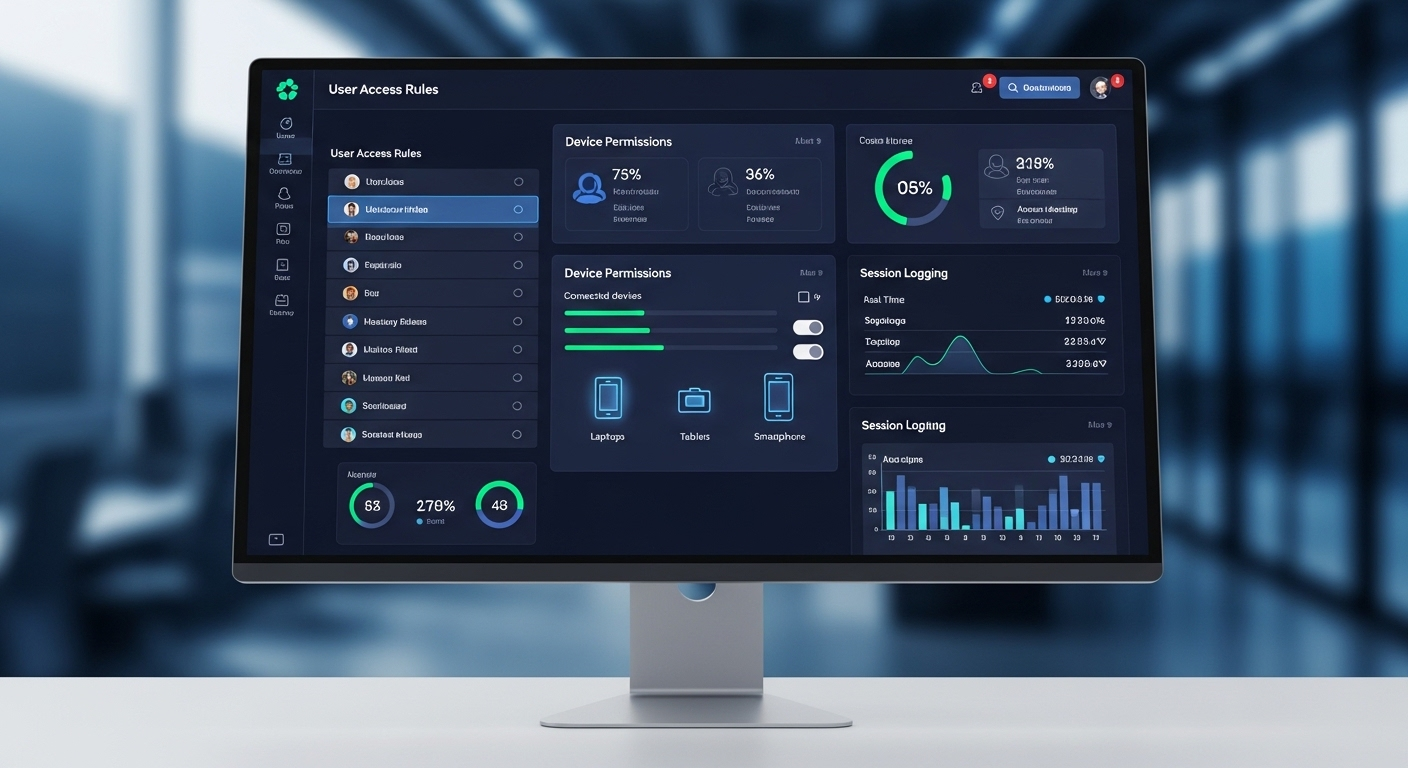
Centralized cloud desktop control panel managing user access rules, device permissions, and session logging.

It’s tempting to pitch Desktop as a Service as a convenience play. Log in anywhere. Same desktop. Easy. But that’s the surface story, not the real one.

Underneath, DaaS is about control. Real control. The kind that matters when devices go missing, when teams scatter across time zones, when risk shows up uninvited at 2 a.m.

Centralized desktops mean centralized rules: who gets access, from where, on what device, and under which conditions. That’s not a nice-to-have anymore. It’s table stakes.

Modern risk doesn’t live neatly inside office walls. It lives on personal laptops, café Wi-Fi, rushed contractors, and shadow IT.

DaaS responds by pulling the work back into a managed core, where data stays put and access is deliberate, logged, reversible.

So yes, it’s convenient. But more importantly, it’s resilient. DaaS gives organizations leverage over outcomes, not just smoother logins. And in today’s environment, leverage beats comfort every time.


Conclusion

By now, it should be pretty clear that Desktop as a Service isn’t just a clever way to modernize desktops or shave a few dollars off hardware budgets. That’s the shallow read.

The deeper truth is this: DaaS lines up far better with how work actually happens now. Distributed. Device-agnostic. Constantly moving.

It’s safer because data stays put. More flexible because desktops can follow people, not the other way around. And, frankly, saner for IT teams who are tired of duct-taping security, access, and support together across a sprawl of devices and locations.

The biggest advantage, though, is control without complexity. Centralized environments, consistent policies, fewer surprises. Less chaos. That matters.

If you’re weighing next steps, it may be worth evaluating how DaaS could reduce risk, simplify IT operations, and support secure remote work at real scale—without turning your infrastructure into a full-time fire drill.


Frequently Asked Questions (FAQs)


1. What is the biggest benefit of Desktop as a Service?

The biggest benefit of Desktop as a Service is centralized control. Your data, desktops, and security policies live in the data center, not on employee devices, reducing risk and simplifying management.

2. Is Desktop as a Service more secure than traditional desktops?

In most cases, yes. With DaaS, sensitive data never leaves the cloud environment, which limits exposure from lost laptops, malware, ransomware, or unsecured personal devices.

3. How is DaaS different from traditional VDI?

DaaS is fully managed by a service provider, while VDI typically runs on on-premise servers managed by your own IT team. DaaS trades some control for faster deployment, scalability, and lower operational overhead.

4. Does Desktop as a Service require a constant internet connection?

Yes. Users need a stable internet connection to access their virtual desktop. Poor connectivity can affect performance, which is why network readiness is a key consideration before adopting DaaS.

5. Is Desktop as a Service suitable for small or fast-growing teams?

Absolutely. DaaS works especially well for small IT teams, remote-first organizations, and companies with fluctuating headcounts because new desktops can be provisioned or removed in minutes.

How Cloud Desktops Support DEI in Higher Education?

Quick Answer

How Do Cloud Desktops Support Diversity, Equity, and Inclusion in Higher Education?

Cloud desktops support diversity, equity, and inclusion in higher education by giving all students consistent access to software, virtual labs, and learning resources from any device or location. They reduce barriers tied to hardware, campus access, and scheduling. Platforms like Apporto provide browser-based environments designed for equitable learning.

For a long time, access to education was tied to place. A classroom, a lab, a campus network. If you could reach those, you were in. If not, things became harder, sometimes quietly, sometimes all at once.

In many higher education institutions, diversity and inclusion are priorities, but equity often runs into practical limits. Devices differ. Internet access varies. Some students work with advanced tools, others make do with what’s available. It’s uneven, and the gap shows up in performance, not just experience.

Remote learning made this more visible, not less. Equal access to learning resources isn’t just a principle, it’s a requirement for meaningful participation.

In this blog, you’ll see how cloud desktops help close these gaps by making access to tools, software, and learning environments more consistent across all students.


What Challenges Prevent Equal Access to Education Today?

Inequality in education often begins with something basic, the tools you can use, and the ones you can’t. That gap doesn’t always look dramatic. Sometimes it’s subtle. But it adds up.

  • Device Inequality: Not every student has a high-performance personal computer. Running engineering software or data science tools on older machines can be frustrating, sometimes impossible.
  • Location Constraints: Traditional computer labs still require physical presence. If you’re not on campus, access becomes limited, or delayed, or both.
  • Limited Software Access: Specialized software is often locked inside campus systems, tied to specific environments that don’t extend beyond them.
  • Time Constraints: Fixed lab hours don’t align with everyone’s schedule. Students balancing jobs or caregiving responsibilities are left working around systems that don’t adapt.
  • IT Resource Limitations: Many institutions operate with smaller IT teams. Supporting a large, diverse group of users under those conditions isn’t easy.

Budget constraints and staffing challenges make it harder to close these gaps. And demand for flexible access keeps growing. Over time, these differences shape outcomes. Not just experiences, but results.


What Are Cloud Desktops and How Do They Work in Education?

Student accessing a full virtual desktop through a browser on a basic laptop, with cloud data center in the background.

A cloud desktop is, at its core, a virtual desktop. It doesn’t run on your personal device. Instead, it lives in a data center, part of a larger cloud infrastructure managed by external providers. You access it remotely, usually through a browser or a lightweight app.

That’s where virtual desktop infrastructure (VDI) comes in. It’s the system that delivers these desktops to you, streaming the experience over an internet connection. What you see on your screen isn’t happening locally. It’s being processed elsewhere, then delivered in real time.

This changes a few things. You’re no longer limited by your device. A basic laptop can access the same environment as a high-end machine. Institutions can deliver Windows apps and full desktops without worrying about individual setups.

Behind the scenes, cloud providers handle infrastructure management. Servers, storage, updates, all of it. Which means less dependency on local machines. And more consistency in how resources are accessed, regardless of where you are.


How Do Cloud Desktops Improve Access and Equity for Students?

Cloud desktops remove that dependency on physical labs. You don’t need to be on campus. You don’t need a specific machine. What matters is the connection, and even that doesn’t have to be perfect, just stable enough.

That alone changes how learning fits into daily life.

  • Access from Any Device: You can use personal devices, even lower-powered ones, and still run demanding applications without friction.
  • Learn from Anywhere: There’s no requirement to be in a specific room at a specific time. Remote learning becomes practical, not just theoretical.
  • Consistent Desktop Experience: The same tools, same interface, same setup follow you across devices. No surprises, no reconfiguration.
  • 24/7 Availability: You can access resources anytime. Late evenings, early mornings, in between responsibilities. It adapts to your schedule, not the other way around.
  • Support for Non-Traditional Students: Those balancing jobs, caregiving, or living away from campus gain the same level of access as anyone else.

Students can access desktops anytime, anywhere. And more importantly, they get a consistent experience each time they log in. Over time, that consistency builds something important. A foundation where access isn’t uneven, but shared.


How Do Cloud Desktops Support Inclusion and Accessibility?

Student using a cloud desktop with screen reader and accessibility tools enabled, highlighting inclusive learning environment.

Access is only one part of the equation. Inclusion goes a bit deeper. It asks a different question, can everyone actually use what’s being provided?

Cloud desktops help answer that, not perfectly, but meaningfully.

  • Assistive Technologies: Tools like screen readers can be integrated directly into the environment, making it easier for students with disabilities to navigate and engage with course materials.
  • Language Support: Built-in translation and live captioning reduce barriers for non-native speakers or students who process information differently. Small details, but they matter.
  • Flexible Learning Environments: You can adjust the setup based on personal needs. Display settings, input methods, accessibility tools, all within reach.
  • Device Independence: You’re not limited by hardware. Different devices, different operating systems, same level of access. That removes a layer of inequality that often goes unnoticed.

Cloud desktops support accessibility tools in a way that’s consistent, not fragmented. And that consistency makes a difference.

Over time, inclusion becomes less about adding features, and more about designing environments where participation feels natural, not forced.


How Do Cloud Desktops Enable Collaboration Across Diverse Student Communities?

Cloud desktops create shared environments where students can work together in real time, even if they’re in completely different locations. Same tools, same setup, no mismatch in software or capability. That removes a layer of friction that usually slows things down.

You’re not sending files back and forth, hoping versions align. You’re working inside the same space. This matters more than it seems.

Students collaborate across regions, across time zones, sometimes across cultures. Different perspectives come into the same workflow without the usual technical barriers getting in the way. It’s less about where you are, more about what you can contribute.

Hybrid programs benefit from this too. Some students are on campus, others remote, but the environment stays consistent.

Cloud platforms break down geographic limits. And once those limits fade, collaboration starts to feel less constrained, more fluid, more natural.


What Role Do Cloud Desktops Play in Reducing Costs and Expanding Access?

University replacing physical computer labs with cloud desktop access on personal devices.

Cost is often the quiet barrier behind access. Not always visible, but always there. Traditional computer labs require significant investment. Hardware, maintenance, upgrades, energy, it adds up quickly. And for many institutions, especially those managing limited budgets, that creates real constraints.

Cloud desktops take a different approach.

Cost Area Traditional Labs Cloud Desktops
Hardware High upfront investment Reduced reliance on devices
Maintenance IT-intensive Provider-managed
Scaling Limited by infrastructure On-demand scalability
Energy Use High consumption Efficient data centers


You don’t need to refresh hardware every few years. You don’t need to maintain large physical labs. Infrastructure becomes something you access, not something you constantly manage.

The model becomes more predictable too. Subscription-based, easier to plan around, easier to adjust.

There’s also efficiency behind the scenes. Cloud environments tend to reduce energy consumption, and studies have shown returns as high as $3.86 for every dollar invested in cloud migration.

Over time, those savings translate into something more meaningful. More access. More availability. Fewer limits tied to cost.

How Do Cloud Desktops Help Institutions Scale and Meet Growing Demand?

Demand in higher education doesn’t move in a straight line. It spikes. It dips. Then spikes again, usually when you least expect it.

Enrollment surges. New online programs launch. Hybrid courses expand faster than planned. And suddenly, existing systems feel tight. Cloud desktops handle this differently.

You don’t provision hardware months in advance. You allocate resources as needed, almost in real time. More students, more desktops. Fewer users, scale it back. It’s flexible in a way traditional infrastructure rarely is. That matters during peak periods.

Enrollment spikes don’t overwhelm the system. Online course demand doesn’t require emergency upgrades. You adjust computing resources without rebuilding anything underneath.

Cloud desktops scale quickly because they’re not tied to physical machines. That separation makes a difference.

And as hybrid and remote programs continue to grow, institutions need systems that expand without friction. Not perfectly, but reliably enough to keep pace.


What Security and Compliance Benefits Do Cloud Desktops Provide?

University IT admin monitoring security dashboard with cloud-based desktops and controlled access.

Security in higher education has become more complicated, and more urgent. The numbers tell part of the story. Cyberattacks increased by 70% in recent years, and many institutions are still working with limited resources. That gap is difficult to manage.

Cloud desktops reduce some of that pressure by centralizing institutional data. Instead of spreading across devices, it stays within controlled environments. That alone lowers the risk tied to endpoints.

You’re not relying on individual machines to stay secure. The control moves inward.

There’s also the matter of compliance. Regulations don’t go away, and meeting them across distributed systems is challenging. Cloud providers invest heavily in security infrastructure, often beyond what individual institutions can maintain on their own.

So part of the responsibility shifts. Not entirely, but enough to make it manageable. In the end, it’s about reducing exposure. Fewer weak points. More control over where data lives and how it’s accessed.


Why Apporto Is Built to Support DEI in Higher Education?

Homepage banner showing Apporto’s cloud desktop solutions with virtual desktops, AI tutoring, and academic integrity features highlighted for higher education institutions.

Some solutions try to fit into existing systems. Others seem designed around the problems themselves. Apporto leans toward the second.

It runs directly in the browser, which removes a lot of the usual friction. No installs, no device-specific setup, no dependency on high-end hardware. You open it, log in, and the environment is there.

It works across devices, so students using different systems still access the same tools. It removes the need for physical labs, which quietly eliminates one of the biggest access barriers. And because everything is centralized, IT teams don’t have to manage complexity at the device level. Accessibility features remain consistent. Inclusion becomes part of the setup, not an afterthought.


Final Thoughts

When you step back, the pattern becomes clearer. Access leads to participation. Participation leads to outcomes. And when access is uneven, everything that follows tends to reflect that imbalance.

Cloud desktops don’t solve every problem. But they address something foundational. They make access more consistent, which supports equity. And over time, that consistency allows inclusion to take hold in a more practical way.

It’s not about adding more tools. It’s about changing how those tools are delivered. Because in the end, opportunity often follows access. And the systems you build, quietly, steadily, determine who gets to move forward.


Frequently Asked Questions (FAQs)


1. What are cloud desktops in higher education?

Cloud desktops are virtual desktop environments hosted in remote data centers and delivered over the internet. You access them through a browser, allowing you to use institutional software, tools, and resources without relying on a physical computer or campus lab.

2. How do cloud desktops support DEI?

Cloud desktops support diversity, equity, and inclusion by providing equal access to the same tools and environments for all students. They remove barriers tied to devices, location, and resources, helping create a more consistent and fair learning experience.

3. Can students use cloud desktops on any device?

Yes, cloud desktops are designed to work across a wide range of devices, including older laptops, Chromebooks, and tablets. Since computing happens in the cloud, your device simply acts as a window into the environment.

4. Are cloud desktops secure for institutions?

Cloud desktops improve security by keeping data centralized and off personal devices. With encryption, access controls, and provider-managed infrastructure, institutions can better protect sensitive data while maintaining compliance with security standards.

5. Do cloud desktops replace computer labs?

Not entirely. Cloud desktops reduce reliance on physical labs by enabling remote access, but many institutions adopt a hybrid model. This allows both on-campus and remote students to access the same resources without limitations.

What Are Cloud Desktops? A Complete Guide

Quick Answer

What Are Cloud Desktops?

A cloud desktop lets you access a full desktop environment from anywhere using anw internet connection, without needing a powerful local computer. It centralizes data, reduces maintenance, and supports remote work, while solutions like Apporto provide secure, ready-to-use environments through the browser.

The desktop used to be a place. A box under a desk. A fixed screen in a fixed room. That assumption has quietly collapsed, and cloud desktops are what rushed in to fill the gap.

Work now happens across homes, offices, airports, call centers, and classrooms. People switch devices mid-day. Data moves constantly.

Traditional desktops and physical PCs struggle in that environment because they were built for stability, not mobility. Each new device adds friction. Each location adds risk. And suddenly IT teams are managing dozens, sometimes hundreds, of individual machines instead of one coherent system.

That strain shows up in security incidents, support tickets, and ballooning costs. It also explains why so many people are asking the same question: what are cloud desktops, and why do they keep coming up now? The technology promises something familiar, a desktop, without the old constraints.

Going ahead, the focus changes from the buzzword to the mechanics, the trade-offs, and why access has become just as important as computing power itself.


What Are Cloud Desktops, in Simple Terms?

At the most basic level, cloud desktops are virtual desktops that live in the cloud instead of on a physical computer. The screen, operating system, applications, and data exist on remote cloud infrastructure, while you interact with them through a device you already have. That device becomes a window, not the engine.

Cloud desktops are also part of the broader end user computing landscape, which focuses on how organizations deliver desktops, applications, data, and digital resources to employees across different devices and locations.

You will also hear cloud desktops called Desktop as a Service, or DaaS. The idea is similar to other cloud services you already use. Understanding the difference between DaaS and SaaS can help clarify how these two cloud service models deliver technology to users.

The desktop is delivered on demand, maintained by a provider, and accessed when you need it. There is no need to buy or manage a dedicated physical PC for every user.

A cloud desktop solution works because the heavy computing happens elsewhere. Users connect over an internet connection from laptops, tablets, or even older machines that no longer have much computing power. The experience stays consistent because the desktop itself does not change when the device does.

In simple terms, cloud desktops are:

  • Hosted in the cloud rather than on a local machine
  • Not tied to a physical computer or office location
  • Accessed through an internet connection from various devices
  • Managed centrally by IT teams or service providers

This approach removes the desktop from the desk. What stays is the familiar environment users expect, delivered in a more flexible way.


How Do Cloud Desktops Actually Work Behind the Scenes?

Illustration of encrypted connection streaming desktop display to a laptop with inputs flowing back to the server.

Behind the screen, cloud desktops rely on virtualization technology. Instead of one operating system running on one physical machine, many virtual desktops run on shared physical servers inside cloud data centers. Each user gets their own isolated environment, even though the hardware is shared.

A layer known as virtual desktop infrastructure makes this possible. The VDI layer separates the desktop environment from the underlying hardware.

Computing resources such as CPU, memory, and storage are allocated dynamically based on demand. When a user logs in, resources are assigned. When they log out, those resources return to the pool.

Data and operating systems live inside secure cloud infrastructure, not on local devices. That means files, applications, and settings stay in the same place, regardless of where or how users connect. Secure connections stream the desktop experience to the user and send inputs back to the server.

At a technical level, this setup includes:

  • A virtual desktop infrastructure layer that manages sessions
  • Centralized cloud infrastructure hosted in data centers
  • Isolated user environments for security and consistency
  • Secure connections between users and their desktops

This design allows many desktops to run efficiently while keeping user experiences separate and controlled.


How Are Cloud Desktops Different From Traditional Desktops?

The difference becomes clear once you stop thinking about the desktop as a piece of hardware and start thinking about it as a service. Traditional desktops are built around physical PCs. Cloud desktops are built around access.

Here is the contrast at a glance:

Traditional Desktops Cloud Desktops
Runs on physical PCs Hosted in the cloud
Tied to one device Accessible from many devices
Local data storage Centralized data
High maintenance Vendor-managed
Hard to scale Scales on demand


With traditional desktops, everything depends on the physical hardware sitting on or under a desk. Performance is limited by that machine.

This dependence on physical machines is also one reason organizations are reconsidering traditional remote-access methods. For teams still relying on RDP, understanding why they should stop using RDP for remote access can help them evaluate more flexible alternatives that reduce dependence on individual physical desktops.

When it fails, work stops. When software needs updating, IT teams touch each device, often one by one. Over time, this creates a heavy maintenance burden that pulls attention away from more strategic work.

Security is another pressure point. Data stored on local devices increases exposure. Lost laptops, outdated systems, and inconsistent patching all raise risk. Protecting sensitive information becomes harder when it is scattered across hundreds of physical PCs.

Cloud desktops remove many of these constraints. The physical hardware lives in secure data centers, and users connect to it instead of carrying data with them.

IT teams manage desktops centrally, apply policies once, and scale resources as needed. The desktop becomes easier to maintain, easier to secure, and far more flexible than a traditional setup ever allowed.


Cloud Desktops vs Traditional VDI: What’s the Real Difference?

Split-screen comparison showing on-premises data center racks labeled Traditional VDI versus cloud-hosted infrastructure labeled Cloud VDI.

At first glance, cloud desktops and traditional VDI look similar. Both rely on virtual desktop infrastructure, and both separate the desktop environment from the user’s physical device. The real difference shows up in where that infrastructure lives and who is responsible for running it.

Traditional VDI runs on premises, inside a company’s own data center. That means organizations must purchase physical servers, storage, networking equipment, and licenses upfront.

IT teams manage everything, from updates and patches to capacity planning. This model offers control, but it comes with complexity and significant capital expense.

Cloud VDI moves that same virtual desktop infrastructure into the cloud. Providers such as Microsoft Azure and Google Cloud host the computing power, storage, and networking.

Instead of buying hardware, organizations pay for what they use through an operating expense subscription model. Scaling up or down becomes faster because resources are not limited by physical equipment sitting in a server room.

Here is how the two approaches compare:

Traditional VDI Cloud VDI
On-premises data center Hosted in the cloud
CapEx-heavy OpEx subscription
Internally managed Vendor-managed
Complex deployments Faster setup
Harder to scale Elastic scaling


In practical terms, cloud VDI reduces infrastructure overhead and increases flexibility. Traditional VDI can still make sense in tightly controlled environments, but cloud VDI offers a simpler path for organizations that need agility, predictable costs, and easier scaling.


What Devices Can You Use to Access a Cloud Desktop?

One of the quiet advantages of cloud desktops shows up the moment access becomes simple. You are no longer locked to a single physical device sitting under a desk. Users connect through the internet, and the cloud desktop follows them, not the hardware.

Because the desktop environment lives in the cloud, access becomes device agnostic. Existing devices stay useful longer, and physical hardware does not need to be refreshed as often. That alone changes how organizations think about endpoints and refresh cycles.

Common devices used to access a cloud desktop include:

  • Laptops and desktops
    Standard Windows, macOS, or Linux machines can connect through a browser or client application.
  • Tablets and mobile devices
    iOS and Android devices allow quick access for review tasks, approvals, or light work on the go.
  • Thin clients
    Lightweight physical devices designed only to connect to a remote desktop, often used for secure environments.
  • Shared computer labs
    Cloud desktops work well in education and training settings where multiple users rotate through the same machines.
  • Personal devices (BYOD)
    Employees can use their own devices with BYOD cloud desktops, while data remains centralized and secure in the cloud.

This flexibility sets the stage for the next question, why organizations actively choose cloud desktops over traditional setups.


Why Do Businesses Use Cloud Desktops? Key Benefits Explained

Business dashboard highlighting cost savings from reduced hardware spending and subscription-based cloud desktops.

Once device flexibility is in place, the business case becomes clearer. Cloud desktops are not adopted for novelty, they solve practical problems that pile up with traditional desktops and on premises systems.

Cost efficiency often leads the conversation. Organizations reduce spending on physical PCs, replacement cycles, and unexpected hardware failures. Instead of large upfront purchases, costs align more closely with actual usage.

Security follows close behind. Data lives in centralized cloud infrastructure, not scattered across local devices. If a laptop is lost or stolen, sensitive data remains protected. Centralized policies also make it easier to enforce access controls and security standards.

Centralized management simplifies life for IT teams. Updates, patches, and configuration changes happen in one place, rather than across hundreds or thousands of individual devices. That saves time and reduces configuration drift. For managed service providers, cloud desktops for MSPs can also make it easier to deliver centralized desktop environments across multiple customers

Core benefits businesses consistently point to include:

  • Cost savings on hardware and extended device lifespan
  • Reduced ongoing maintenance for IT teams
  • Centralized management tools and policy control
  • Faster onboarding for new users or temporary staff
  • Flexible resource allocation based on real demand
  • Rapid scaling up or down as teams grow or contract

Together, these benefits explain why cloud desktops continue to gain traction across industries, from call centers to education and distributed workforces. As organizations continue adapting to more distributed and flexible ways of working, the future of DaaS is becoming increasingly important to long-term IT and workplace strategy.


How Cloud Desktops Improve Security Compared to Physical PCs

Security becomes the deciding factor once data starts moving beyond office walls. Physical PCs were designed for a time when work stayed inside buildings. That assumption no longer holds. Cloud desktops change the security model by moving data away from endpoints and into controlled cloud environments.

With a cloud desktop, sensitive data stays in the cloud. Files, applications, and operating systems run inside secured data centers rather than on local hard drives. If a device is lost, stolen, or damaged, the exposure is limited because nothing critical lives on that physical PC. Access can be revoked instantly without chasing hardware.

Cloud desktop solutions also benefit from stronger, more consistent security features than most individual devices ever receive. Updates, patches, and security policies apply centrally, reducing gaps that attackers often exploit on unmanaged machines. IT teams gain visibility instead of guessing which devices are up to date.

This centralized security model is also valuable for ransomware prevention cloud desktops, as keeping desktops, applications, and business data away from local endpoints can reduce the impact of a compromised device and make security controls easier to manage centrally.

Main security advantages include:

  • Centralized data storage
    Sensitive data remains inside cloud infrastructure instead of being scattered across laptops and desktops.
  • Multi-factor authentication
    Access requires more than a password, lowering the risk of unauthorized entry.
  • Enhanced security posture
    Centralized monitoring helps detect unusual behavior across user environments.
  • Policy-based access controls
    Permissions are enforced consistently based on role, location, or device type.
  • Reduced exposure on local devices
    Even compromised endpoints provide limited access without valid authentication.

Compared to physical PCs, cloud desktops reduce risk by design rather than relying on perfect user behavior.


Common Use Cases for Cloud Desktops Across Industries

University students accessing identical cloud desktop environments from classroom and home.

Cloud desktops did not catch on because they were trendy. They stuck because they solved very real, very practical problems across industries where flexibility, security, and scale matter more than owning physical machines.

Take call centers, for example. These environments deal with high employee turnover, strict access controls, and sensitive customer data. Cloud desktops allow new agents to log in from day one, work inside a controlled environment, and log out without leaving anything behind on local devices.

Educational institutions use cloud desktops in computer labs and remote learning setups. Instead of maintaining rows of aging machines, schools give students consistent access to the same software and tools, whether they are on campus or learning remotely.

Healthcare organizations rely on secure remote access. Cloud desktops keep patient data centralized, which supports compliance while allowing clinicians to work from different locations without copying sensitive files to local systems.

Software development teams benefit from standardized environments. Developers can spin up identical desktops with the right tools, reducing setup time and configuration drift.

Temporary or contract workers also fit naturally. Access can be granted quickly and removed just as fast.

Across these use cases, cloud desktops support distributed workforces, secure remote access needs, and rapid scaling requirements without adding operational chaos.


What Are the Cost Models for Cloud Desktop Solutions?

Cloud desktop pricing looks different from traditional IT spending, and that difference is often the point. Instead of buying hardware upfront, organizations pay for access over time.

Most cloud desktop solutions use subscription-based pricing. You pay per user, per month, based on the computing power and features required. This moves spending from large capital expenses to predictable operating costs.

There are typically two common pricing approaches:

  • Monthly per-user pricing
    A fixed cost per user that includes compute resources, storage, and management.
  • Usage-based resource billing
    Costs scale with actual usage, which works well for seasonal teams or variable workloads.
  • Reduced upfront investment
    No need to purchase physical PCs, servers, or data center equipment.

This OpEx model contrasts with traditional CapEx-heavy setups, where hardware, maintenance, and refresh cycles drive costs. For many organizations, cloud desktops become cost effective not because they are cheaper on paper, but because they reduce waste, simplify budgeting, and align spending with real usage.


What Challenges Come With Cloud Desktops?

Remote worker experiencing lag on a cloud desktop due to unstable internet connection.

Cloud desktops solve plenty of problems, but they are not friction free. Knowing the trade-offs upfront helps avoid surprises later.

The first and most obvious dependency is the internet connection. Because cloud desktops live outside the local device, reliable internet connectivity becomes essential. A weak or unstable connection can affect responsiveness, especially for graphics-heavy or real-time tasks.

Latency is another concern. Even with strong bandwidth, distance from the data center can introduce delays. This is manageable, but it requires thoughtful provider selection and performance tuning based on user location and workload type.

Migration complexity often catches teams off guard. Moving from physical PCs or traditional VDI to a cloud desktop solution involves rethinking identity management, application delivery, and security policies. It is not difficult, but it is layered.

Common challenges organizations encounter include:

  • Internet connectivity requirements
    Consistent, reliable access is non-negotiable for a smooth user experience.
  • Performance tuning
    Resource allocation must match real usage patterns, not assumptions.
  • Change management
    Users may resist new workflows, even when the technology works well.
  • User training needs
    Small differences in access and login behavior still require guidance.

Handled early, these challenges stay manageable rather than disruptive.


How Do Organizations Successfully Migrate to Cloud Desktops?

Successful cloud desktop migrations tend to follow a clear, deliberate path. Rushing almost always leads to avoidable friction.

Most organizations start by understanding what they already have. That means reviewing existing infrastructure, applications, identity systems, and network readiness. This step informs realistic expectations around performance and resource allocation.

A practical migration approach usually includes:

  • Assess existing infrastructure
    Identify applications, data flows, and security requirements that must carry over.
  • Choose the right provider
    Match the cloud desktop solution to workload needs, compliance requirements, and management capabilities.
  • Pilot with a small user group
    Start with a controlled group to surface issues before full rollout.
  • Train users and IT teams
    Set expectations early and document new access patterns and workflows.
  • Monitor performance and feedback
    Use real usage data to refine configurations and ongoing maintenance plans.

Organizations planning an operating system upgrade as part of the same modernization effort can use a Windows 11 migration guide to structure a phased transition. This approach reduces risk, identifies compatibility considerations, and minimizes disruption during deployment. Ultimately, it allows IT teams to manage the environment proactively rather than reactively while keeping users engaged


What to Look for in the Right Cloud Desktop Solution

IT decision maker reviewing cloud desktop platform features on a structured evaluation checklist.

Choosing the right cloud PC solution comes down to fit, not hype. On paper, many platforms look similar. In practice, the details decide whether the experience feels smooth or frustrating six months in.

When evaluating options, focus on capabilities that hold up under real use, not just demo environments. The goal is a cloud desktop solution that supports users quietly, securely, and without constant tuning.

Key features to look for include:

  • Robust security features
    Centralized data protection, multi-factor authentication, role-based access, and strong identity controls should be built in, not bolted on later.
  • Performance and scalability
    The platform should handle peak demand without lag and allow resources to scale up or down as teams change.
  • Integration with existing tools
    Compatibility with identity systems, management tools, and productivity platforms reduces friction for IT teams.
  • Pricing flexibility
    Look for models that align with actual usage patterns rather than fixed assumptions.
  • Vendor support and reliability
    Responsive support, clear documentation, and predictable updates matter more than flashy features.

The right choice feels boring in the best way. It works. Consistently.


Conclusion:

Cloud desktops have earned their momentum for a reason. They offer a powerful solution for organizations dealing with distributed teams, rising security expectations, and growing pressure on IT resources. Flexibility improves. Access becomes simpler. Data stays protected where it belongs.

Still, cloud desktops are not a universal answer. Workloads vary. Network readiness matters. User expectations differ. The most successful deployments start with careful planning rather than urgency.

Before making a decision, evaluate cloud desktop readiness across infrastructure, security needs, and user workflows. Identify where cloud desktops add real value and where traditional setups may still make sense.

If the fit is right, modern cloud desktop platforms can unlock new capabilities while reducing long-term complexity. Exploring secure, scalable desktop services now helps organizations move forward with clarity rather than guesswork.


Frequently Asked Questions (FAQs)


1. What is a cloud desktop? 

A cloud desktop is a virtual desktop environment hosted on remote servers instead of a physical computer. Users access their operating system, applications, and data through the internet, enabling secure, flexible work from any device without relying on local hardware.

2. How is a cloud desktop different from a regular virtual desktop?

A regular virtual desktop is often part of traditional VDI, which runs on on-premises servers managed by internal IT teams. A cloud desktop is hosted and maintained by a cloud provider and delivered as a service. This reduces infrastructure complexity, lowers upfront costs, and makes scaling easier without managing physical hardware or data center capacity.

3. Do cloud desktops require a constant internet connection?

Yes, cloud desktops depend on an active internet connection because the desktop environment lives in the cloud. If the connection drops, access is temporarily interrupted. Modern cloud desktop solutions are optimized to work well even on modest connections and are far more resilient than early virtual desktop setups.

4. Are cloud desktops secure enough for sensitive data?

Cloud desktops are generally more secure than physical PCs because data stays centralized in the cloud instead of being stored on local devices. Lost or stolen hardware does not expose sensitive information. Security features often include encryption, multi-factor authentication, access controls, and centralized policy enforcement managed by IT teams.

5. What types of organizations benefit most from cloud desktops?

Organizations with distributed teams, remote workers, call centers, and shared computer labs often see the biggest gains. Educational institutions and healthcare organizations also benefit from centralized access and stronger security controls.

6. Are cloud desktops expensive compared to physical PCs?

Cloud desktops usually follow a subscription or pay-as-you-go model, which shifts costs from large upfront purchases to predictable operating expenses. This can reduce long-term spending on hardware, maintenance, and upgrades. Costs depend on usage patterns, performance needs, and provider pricing models, so careful planning is important.

7. How long does it take to move to cloud desktops?

Migration timelines vary. Small pilot groups can be up and running in days, while full deployments may take weeks depending on complexity. A phased approach, testing with a limited group first, helps reduce disruption and ensures the cloud desktop setup meets real-world needs before scaling.