FSLogix VDI Settings: Complete Configuration Guide

Virtual desktop infrastructure depends heavily on how user profiles are managed. Without a reliable system in place, login delays, corrupted profiles, and inconsistent desktop experiences quickly become everyday problems. FSLogix addresses this challenge by providing a streamlined approach to user profile management across virtual environments.

Instead of scattering profile data across multiple systems, FSLogix stores each user profile inside a VHDX container that mounts directly to the operating system during login. The result is a consistent and predictable desktop experience across session hosts.

Platforms such as Azure Virtual Desktop AVD rely on FSLogix profile containers to maintain user profile persistence in pooled environments. This guide explains how FSLogix profile containers work, explores essential FSLogix VDI settings, reviews storage architecture and best practices for modern deployments.


What Is FSLogix and How Does It Work in Virtual Desktop Infrastructure?

Start with the core idea. FSLogix is a user profile management technology built specifically for virtual desktop infrastructure and multi session Windows environments. Its main job is simple, keep user profiles consistent and portable across different session hosts.

In traditional VDI setups, profiles can behave unpredictably. Data fragments appear, logins slow down, sometimes profiles even corrupt. FSLogix takes a different approach.

Instead of scattering profile files across the system, FSLogix stores the entire user profile inside a virtual disk file, usually a VHD or VHDX file placed on a network share or file server.

When a user signs in, the FSLogix agent automatically locates that container and mounts it directly into the Windows operating system. From the system’s point of view, the profile looks local. Applications read and write data normally, no special handling required.

This small architectural detail solves a surprisingly large number of problems. Roaming profile delays disappear. Profile corruption becomes far less common. And user profile persistence works reliably even when users move between session hosts in pooled environments.

Capabilities of FSLogix in VDI Environments:

• Stores the entire user profile inside a VHDX virtual disk container
• Mounts the profile container automatically during login
• Maintains user profile persistence across multiple session hosts
• Eliminates profile corruption often seen with roaming profiles
• Supports pooled desktops and multi session Windows deployments


How Do FSLogix Profile Containers Work?
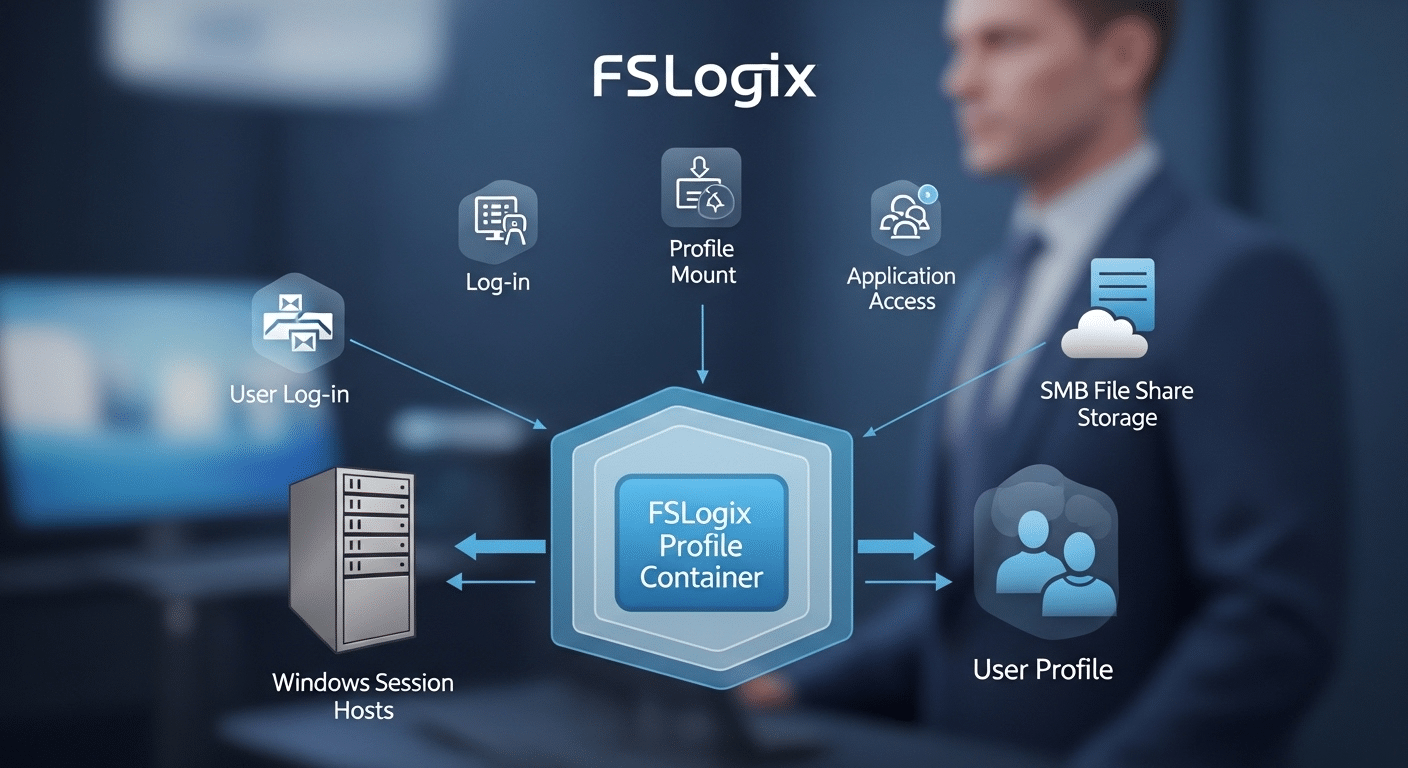
Technical illustration of FSLogix profile containers attaching user profiles to Windows session hosts in a virtual desktop environment.

Once FSLogix is introduced into a virtual desktop infrastructure, the way profiles behave changes quite a bit. Instead of copying profile data back and forth between servers, the system stores the entire user profile inside a single virtual disk file. Usually a VHDX file. That file lives on a network share, often backed by high performance storage.

When the user signs in, something subtle happens behind the scenes. The FSLogix agent locates the user’s profile container and attaches it to the session host. From that moment forward, the operating system reads the profile as if it were stored locally on the machine. Applications cannot tell the difference. The profile feels immediate, responsive, and stable.

Login Process with FSLogix Profile Containers:

• User logs into a session host
• FSLogix agent locates the user’s profile container on a network share
• The VHDX file mounts into the Windows file system
• The operating system treats the container as a local user profile
• Applications access the profile data normally

Inside that virtual disk you will typically find Outlook cache data, OneDrive cache files, Teams data, Windows profile settings, and application preferences.

Because FSLogix profile containers work across multiple session hosts, users can move between desktops in a VDI pool and still receive the same environment every time they log in.


What Are the Most Important FSLogix VDI Settings to Configure?

Once the mechanics of FSLogix profile containers make sense, the next step becomes configuration. This is where many deployments succeed or quietly struggle. FSLogix works best when its settings are defined clearly and consistently across every session host in the environment.

Most FSLogix configuration parameters are managed through Group Policy Objects, though registry settings can also be used when policy deployment is not available.

Group Policy usually becomes the preferred approach in enterprise environments. It allows IT teams to apply identical FSLogix settings across multiple hosts, keeping configuration predictable.

Consistency matters here. If one host behaves differently, profile mounting can fail or login performance can vary. Nobody enjoys that kind of surprise.

A properly configured environment ensures the FSLogix agent can locate the file share, mount the user profile container quickly, and avoid leftover local profiles that interfere with the process.

A few settings carry more weight than others. These tend to shape the reliability of the entire profile system.

Core FSLogix VDI Configuration Settings

Setting Purpose Default Value Recommended Use
Enabled Enables FSLogix profile container Disabled Enable
VHDLocations Path to FSLogix file share None Required
SizeInMBs Container size limit 30000 Adjust based on storage
DeleteLocalProfileWhenVHDShouldApply Removes local profiles Disabled Enable
FlipFlopProfileDirectoryName Simplifies container naming Disabled Enable


These settings form the backbone of most FSLogix deployments. When applied through Group Policy Objects, they scale cleanly across clusters of session hosts. Registry keys remain useful for testing environments or smaller installations where centralized policy management is unavailable.


Should You Use FSLogix Profile Containers or Office Containers?
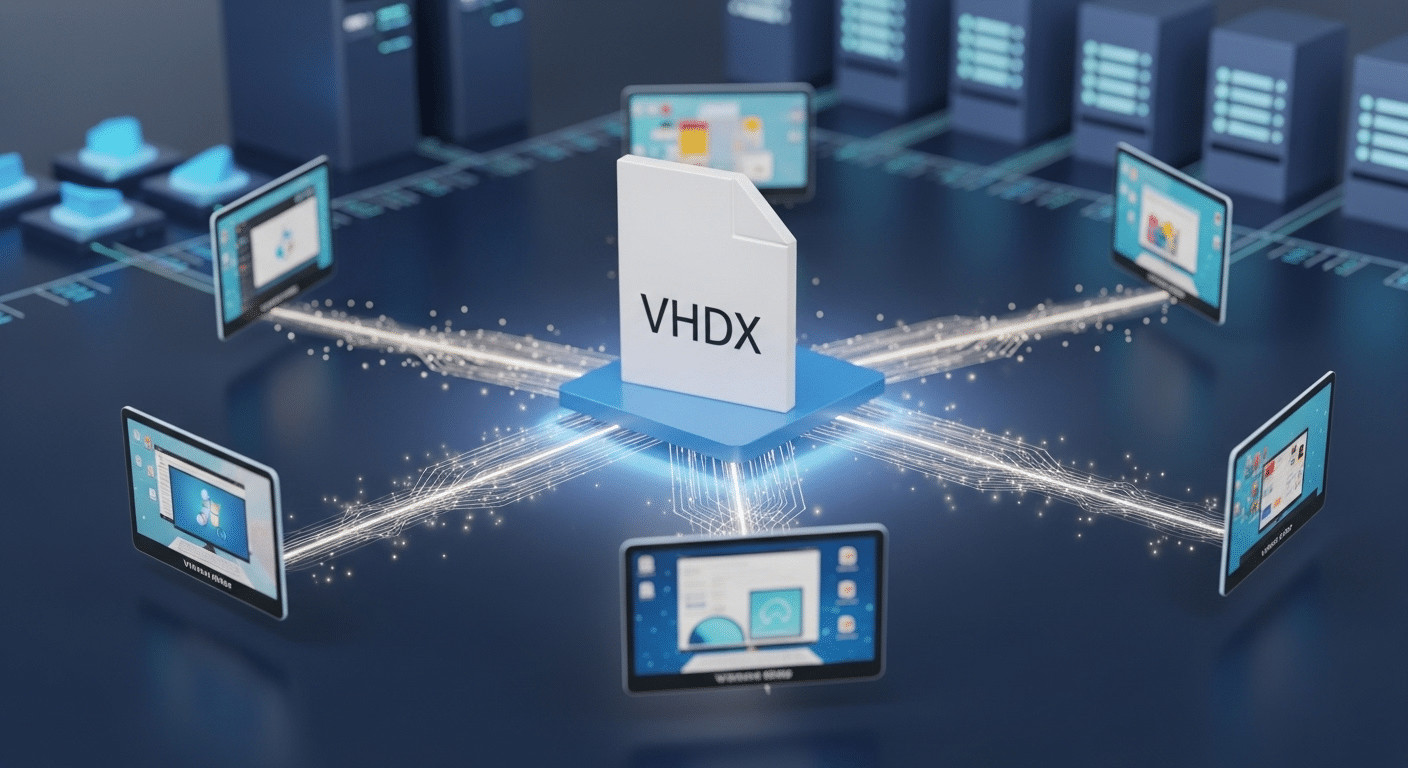
Enterprise VDI illustration showing FSLogix profile containers storing Outlook, Teams, OneDrive, and Windows profile data in one VHDX file.

When FSLogix first appeared in many VDI deployments, administrators often configured two separate components. One container stored the full user profile, while another handled Microsoft Office data. That approach made sense at the time, particularly when Office applications behaved differently in roaming environments. Over time, though, the design evolved.

Modern FSLogix deployments almost always rely on the Profile Container alone. The reason is straightforward. The profile container already captures the entire user profile inside a single VHDX virtual disk.

That includes Office activation data, Outlook cache, Teams cache, OneDrive cache, and application preferences. Running a separate Office container rarely adds meaningful benefit today.

Adding both containers introduces extra complexity. Two virtual disks must mount during login. Two storage paths require management. Troubleshooting becomes more complicated when something fails. In most cases, the additional container simply duplicates data that already exists inside the main profile container.

Profile Container vs Office Container

Feature Profile Container Office Container
Stores entire user profile Yes No
Stores Office data Yes Yes
Requires separate VHD No Yes
Complexity Low Higher


For this reason, current best practice recommends using only the Profile Container. In fact, nearly all modern Azure Virtual Desktop environments follow this model because it simplifies management while still preserving the full user experience.


What Storage Architecture Works Best for FSLogix?

Storage decisions quietly determine how well FSLogix performs. When profile containers open slowly, users notice immediately. Logins drag, applications hesitate, Outlook takes its time waking up. In most cases the cause is not FSLogix itself, it is the storage layer underneath.

Remember how the system works. Each user profile sits inside a VHDX virtual disk stored on a network file share. At login, the FSLogix agent mounts that container across the network.

If the storage platform struggles to deliver data quickly, the entire login process slows down. That is why fast, stable file storage is considered one of the most important elements of a successful deployment.

Several storage architectures are commonly used in virtual desktop infrastructure.

Recommended Storage Options for FSLogix:

• Azure Files Premium storage accounts backed by SSD storage
• High performance file server clusters designed for heavy profile workloads
• OCI File Storage used in Oracle Cloud environments
• SMB file shares hosted on Windows Server infrastructure

Premium storage often delivers the most noticeable improvement. SSD backed file systems dramatically reduce the time required to mount profile containers and load application data.

A few practical requirements also matter.

• Storage must support SMB file access
• Active Directory authentication is required for user access
• NTFS permissions should restrict access to each user’s container

Finally, session hosts should be placed close to the file storage subnet. Lower network latency keeps profile mounting fast and predictable across the entire environment.


How Does FSLogix Cloud Cache Improve High Availability? 

Enterprise VDI infrastructure with FSLogix Cloud Cache maintaining user profile availability across multiple data centers.

Even well designed storage systems fail sometimes. Disks fill up, network paths drop, a storage node simply stops responding. When FSLogix relies on a single file share, that failure can interrupt logins across the entire virtual desktop environment. This is exactly the scenario FSLogix Cloud Cache was designed to address.

Cloud Cache introduces redundancy into the profile container process. Instead of writing profile data to one location, the FSLogix agent can write simultaneously to multiple storage locations.

These locations might include different file shares, storage accounts, or data centers. The result is a distributed profile storage model that continues functioning even if one storage endpoint becomes unavailable.

Benefits of FSLogix Cloud Cache

• Configure multiple storage locations for profile container data
• Prevent login failures when a storage node fails
• Improve disaster recovery resilience across environments
• Maintain consistent user profile persistence across session hosts

The system keeps a local cache of profile activity on the session host itself. When the user logs in, profile operations read and write data both to the remote storage location and to this temporary local cache.

If the primary storage node becomes unreachable, the session does not immediately collapse. The user can continue working because the profile data remains accessible through the cached copy. Once connectivity returns, FSLogix synchronizes the changes.


How Do Network Settings Impact FSLogix Performance? 

Network configuration plays a quiet but decisive role in FSLogix performance. Every profile container lives on a network share, which means the session host must reach that storage location quickly and consistently during login.

If the connection between the session host and the file share is slow or unstable, profile mounting delays appear almost immediately. Users experience longer logins, applications hesitate to load, and sometimes the profile container fails to attach altogether.

This dependency makes network planning critical in any virtual desktop infrastructure. FSLogix traffic moves constantly between the session host and the storage location. Even small interruptions in connectivity can interrupt the process.

Best Practices for Network Optimization

• Locate session hosts close to the storage infrastructure whenever possible
• Route core FSLogix traffic through optimized network paths
• Use high bandwidth network connections between VDI hosts and storage
• Reduce latency between session hosts and the file storage subnet

Multiple network connections can increase available bandwidth between hosts and storage systems. In larger deployments, this approach helps distribute traffic and keeps profile mounting operations stable even during peak login periods.


How Can Redirections.xml Improve FSLogix Performance?

IT administrator configuring Redirections.xml settings to improve FSLogix profile container performance in a VDI environment.

After storage and networking are tuned, another small detail begins to matter, what actually goes inside the profile container. FSLogix captures the entire user profile inside a VHDX file, which is convenient, but not every piece of data inside a profile needs to travel with the user from session host to session host.

Some files are temporary, others rebuild themselves automatically each time the application starts. Keeping those files inside the container simply makes the disk larger and slower to mount.

That is where Redirections.xml becomes useful. This configuration file allows administrators to exclude specific folders from the FSLogix profile container.

Instead of storing unnecessary data in the virtual disk, the system redirects those folders to temporary locations on the session host. The container stays smaller. Logins become quicker.

Some common Exclusions:

• Temp folders Windows Search
• Browser cache directories
• Application update logs
• Teams cache files that regenerate automatically

When these folders remain inside the container, they quietly accumulate data over time. Containers grow, sometimes far larger than necessary. A carefully designed Redirections.xml file prevents that problem.

By trimming unnecessary content from the user’s profile container, the VHDX file stays lightweight, which improves login performance and reduces storage overhead across the environment.


What Security and Antivirus Settings Are Required for FSLogix?

Security configuration plays an important role in stable FSLogix deployments. Many performance issues, and even profile corruption cases, appear when antivirus software scans the wrong locations. On the surface it seems harmless.

Antivirus tools attempt to inspect files for threats. In a virtual desktop infrastructure environment, though, constant scanning of mounted profile containers can interrupt normal file operations.

Remember how FSLogix works. The user’s entire profile lives inside a VHDX virtual disk stored on a network share. When the user signs in, the FSLogix agent mounts that disk directly into the Windows file system.

If antivirus software attempts to scan the container while it is mounted, conflicts can occur. Files may lock unexpectedly, profile containers may fail to mount, and in rare cases the container itself can become corrupted. For that reason, several exclusions are strongly recommended.

Required Antivirus Exclusions:

• FSLogix profile container folders on the file share
• VHDX container files used for user profiles
• FSLogix mount paths created on the session host

Security settings should also include proper NTFS permissions. Each user must only access their own profile container. Restricting access through the file system ensures that user data remains isolated while maintaining secure profile management across the environment.


Why Apporto Is a Simpler Alternative to Complex FSLogix VDI Deployments?
Apporto homepage showcasing virtual desktop solutions, AI tutoring and grading services, and academic integrity tools with demo request options.

A traditional virtual desktop infrastructure relies on many moving pieces. FSLogix profile containers must be configured. Storage shares must perform reliably.

File servers must remain available. Networking paths must stay stable so the user’s profile container mounts correctly at login. Each layer works, but each layer also adds complexity.

Apporto approaches virtual desktops from a different direction. Instead of requiring organizations to manage profile containers, storage architecture, and session host configuration, the platform delivers cloud hosted desktops directly through a browser.

The underlying infrastructure is handled behind the scenes, which removes much of the operational overhead commonly associated with VDI environments.

Several practical advantages follow.

• No FSLogix configuration required
• Simplified infrastructure with fewer components to manage
• Built in security controls designed for remote access
• Faster deployment compared with traditional VDI setups

Users simply open a browser and access their desktop securely from almost any device. The experience remains consistent while the infrastructure stays far easier to maintain.


Final Thoughts

Designing an effective FSLogix deployment requires more than simply enabling profile containers. Each layer of the environment plays a role in how well virtual desktops perform. When configured correctly,

FSLogix profile containers provide a reliable method for maintaining user profile persistence across session hosts. Users receive the same desktop experience every time they log in, regardless of which machine hosts their session.

Storage decisions also matter. Premium storage solutions significantly reduce login delays because profile containers mount faster and applications access profile data more efficiently. High availability features such as FSLogix Cloud Cache add another layer of resilience, allowing profiles to remain accessible even if a storage node fails.

Performance tuning continues with Redirections.xml. Excluding unnecessary data keeps container sizes manageable and reduces login time.

Organizations that carefully plan FSLogix VDI settings, storage architecture, and network connectivity create environments that remain stable, responsive, and easier to manage over time.


Frequently Asked Questions (FAQs)


1. What is FSLogix used for in VDI?

FSLogix is used to manage user profiles in virtual desktop infrastructure environments. It stores each user profile inside a virtual disk file that mounts during login, allowing the operating system to treat it like a local profile. This approach improves login performance and maintains profile consistency across session hosts.

2. What is an FSLogix profile container?

An FSLogix profile container is a virtual disk file, typically a VHD or VHDX file, that stores the entire user profile. During login, the FSLogix agent mounts this container directly into the Windows file system so applications access the profile as if it were local.

3. Do you need Office Containers with FSLogix?

In most modern deployments, a separate Office Container is unnecessary. The FSLogix Profile Container already captures Office data such as Outlook cache, Teams cache, OneDrive cache, and activation data, making a second container redundant in the majority of environments.

4. Where should FSLogix profile containers be stored?

FSLogix profile containers should be stored on a high performance network file share. Many organizations use Premium Azure Files, dedicated Windows file servers, or enterprise storage platforms that support SMB access and Active Directory authentication for reliable performance.

5. What is FSLogix Cloud Cache?

FSLogix Cloud Cache is a high availability feature that allows profile containers to be written to multiple storage locations at the same time. If one storage node becomes unavailable, the system continues operating using the remaining storage locations.

6. Is FSLogix required for Azure Virtual Desktop?

FSLogix is not technically mandatory for Azure Virtual Desktop, but it is widely considered essential. The platform relies on profile containers to maintain user profile persistence across pooled session hosts, making FSLogix the standard profile management solution for AVD deployments.

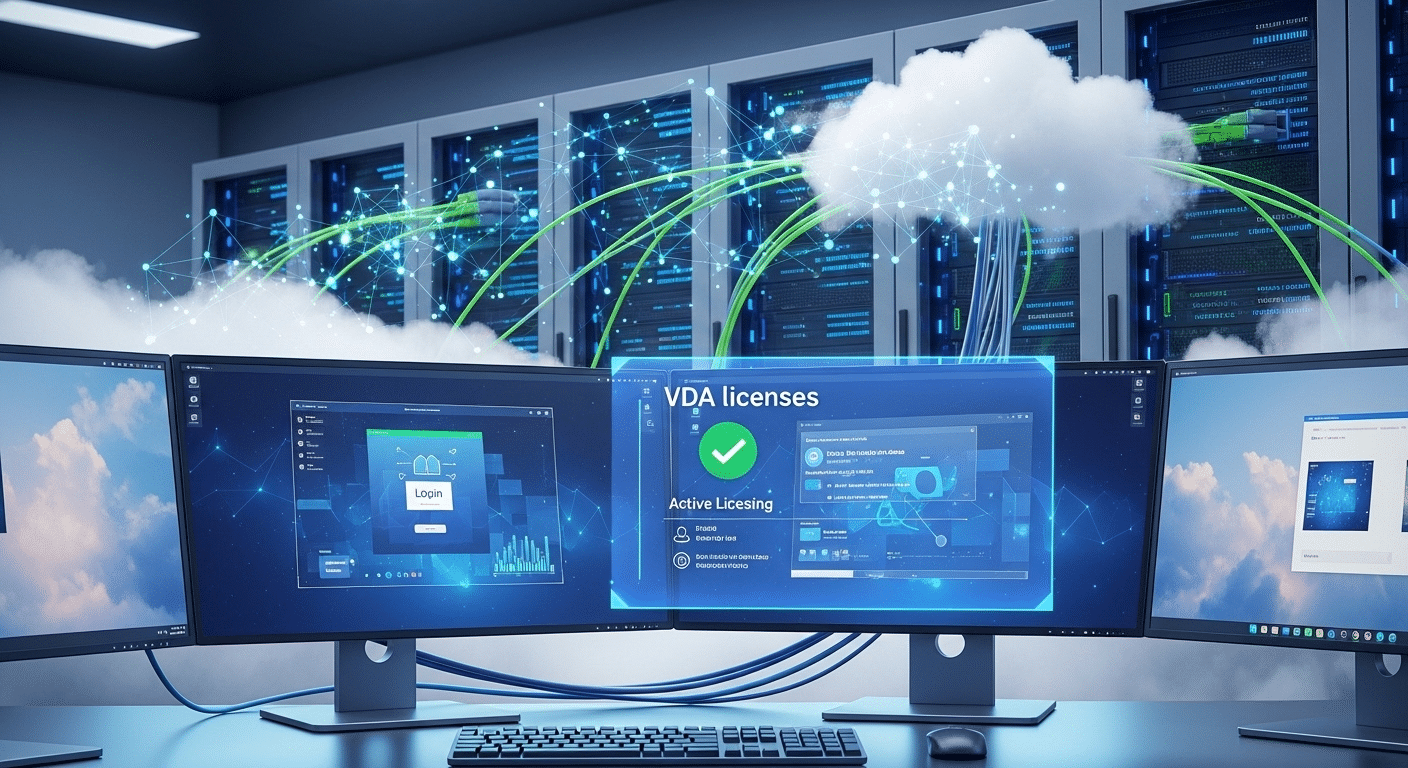
VDI vs VDA: All Differences Explained

Organizations are increasingly relying on virtual desktops to deliver applications and desktop operating systems without depending on individual machines. Instead of running software directly on local laptops or PCs, many businesses now use Virtual Desktop Infrastructure (VDI) to host desktops on centralized servers located in a data center or cloud environment.

However, infrastructure is only part of the story. This is where confusion often begins. VDI describes the technology used to deliver virtual desktops, while Virtual Desktop Access (VDA) refers to the licensing model that allows devices to legally connect to those environments.

In this Blog, you will Understand the difference between VDI and VDA and how it helps organizations plan infrastructure correctly, maintain licensing compliance, and deliver secure remote access to desktop operating systems.


What Is Virtual Desktop Infrastructure (VDI) & How It Works?

The computer in front of you is not really doing the heavy lifting. Instead, the real work happens somewhere else, quietly, inside racks of servers humming in a data center or running inside a cloud platform. That is essentially what Virtual Desktop Infrastructure (VDI) is about.

In a VDI environment, desktop operating systems are hosted on centralized servers rather than on local machines. The desktop itself exists as a virtual machine inside that server environment.

You connect to it remotely, usually through remote desktop services, and interact with it through a graphical interface that looks exactly like a normal Windows desktop.

The device in your hands, a laptop, tablet, or thin client, mainly displays the session and sends keyboard or mouse input back to the server. Processing, storage, and application workloads all happen remotely. A bit strange at first, but surprisingly efficient once you see it in action.

Characteristics of Virtual Desktop Infrastructure

• Desktop operating systems run on centralized servers rather than local machines
• Users access virtual desktops remotely from multiple devices
• IT teams manage desktop images from a central environment
• Sensitive data remains inside secure data centers instead of endpoint devices
• Organizations can support multiple users with scalable virtual environments

Because everything lives inside centralized infrastructure, organizations can maintain consistent virtual environments and deploy standardized desktops much faster.


What Is Virtual Desktop Access (VDA) & Why It Exist?

Cloud desktop environment where VDI servers host desktops and VDA licenses grant legal access for user devices.

Infrastructure alone does not grant permission. That detail trips up a surprising number of IT teams. You might have a perfectly configured VDI environment humming along in a data center, virtual machines ready, connection brokers working, remote desktop services running smoothly. Yet users still cannot legally log in. Why? Licensing.

Virtual Desktop Access (VDA) is Microsoft’s licensing framework that allows a device to connect to Windows desktop operating systems hosted inside a virtual environment.

The technology might already be in place, but VDA provides the legal rights to access those virtual desktops. Think of it this way. VDI delivers the desktop. VDA authorizes the device attempting to reach it.

Without the correct VDA license, organizations may technically deploy a working virtual desktop infrastructure but still remain out of compliance if devices connect without proper licensing coverage.

Facts About Windows Virtual Desktop Access (VDA)

• Windows VDA is a device-based subscription license
• It typically costs around $100 per device per year through Microsoft Volume Licensing
• A VDA license allows a device to connect to up to four virtual machines simultaneously
• VDA is required when devices are not covered by Windows Client Software Assurance
• The primary user of a VDA-licensed device can access the virtual desktop from personal devices


VDI vs VDA: What Are the Key Differences?

The two terms look similar. Only one letter separates them. Yet VDI and VDA describe completely different parts of the same virtual desktop ecosystem, and confusing them can lead to planning mistakes or licensing surprises later.

Virtual Desktop Infrastructure (VDI) refers to the technology stack that hosts and delivers virtual desktops from centralized servers. It includes the servers, virtual machines, storage systems, networking layers, and connection brokers that allow users to access desktop operating systems remotely.

Virtual Desktop Access (VDA), on the other hand, has nothing to do with infrastructure. It is a licensing model created by Microsoft that grants devices permission to connect to those virtual desktops.

In other words, VDI builds the environment. VDA authorizes access to it. One handles the technology. The other governs the rules.

Differences Between VDI and VDA 

Feature VDI (Virtual Desktop Infrastructure) VDA (Virtual Desktop Access)
Purpose Provides infrastructure for hosting virtual desktops Provides licensing rights for accessing virtual desktops
Function Runs desktop operating systems on centralized servers Grants access permissions for devices
Focus Infrastructure and desktop delivery Licensing and access control
Deployment Requires servers, connection brokers, and virtual machines Requires subscription license per access device
Managed By IT infrastructure teams Licensing and compliance teams


Why Microsoft Requires VDA Licensing for Virtual Desktop Access?

IT administrator managing device compliance and VDA licensing policies for secure access to corporate virtual desktops.

Licensing rules in the Windows ecosystem can feel oddly strict at first glance. Still, there is a reason behind them. When organizations host a Windows desktop OS inside virtual machines, Microsoft requires that any device connecting to those desktops is properly licensed. That is where the VDA license enters the picture.

Some devices already carry those access rights. If a machine is covered under Windows Client Software Assurance (SA), it typically includes the permissions needed to access virtual desktops running in a VDI environment. No additional license is required in that case.

But things change when devices fall outside that coverage. Devices without Software Assurance must obtain a Windows VDA license to legally connect to those virtual desktop environments.

This becomes especially relevant in modern workplaces where multiple device types appear:

• Third party devices used by partners or consultants
• Contractor laptops connecting to company systems
• Thin clients deployed for centralized desktop environments
• Personally owned devices in bring your own device policies

VDA licensing ensures every licensed device accessing a Windows desktop OS remains compliant and properly authorized.


How VDI Improves Security and Data Protection?

Security concerns usually sit near the top of every IT discussion. And honestly, for good reason. Traditional desktops scatter company data across dozens or hundreds of machines, laptops, home devices, maybe even the occasional forgotten workstation. That model creates risk. A lost laptop or compromised device can expose far more information than anyone expected.

A Virtual Desktop Infrastructure (VDI) environment changes that arrangement entirely. Instead of storing files and applications on local machines, desktop operating systems run inside centralized servers located in secure data centers.

Users simply connect to those environments remotely, while the actual data stays protected within controlled infrastructure.

Security Benefits of Virtual Desktop Infrastructure

  • Sensitive data remains inside secure data centers
  • Reduced risk of data loss from stolen or compromised laptops
  • Centralized patch management and security updates
  • Controlled access to applications and operating systems
  • Simplified compliance monitoring

By keeping sensitive information inside centralized servers, organizations can strengthen data security while still giving employees convenient remote access to their desktop environments.


How VDI Supports Remote Work and Business Continuity?

Cloud-hosted virtual desktop environment enabling remote workers to securely access their workspaces from different locations.

Work is no longer tied to a single desk. In many organizations, employees move between offices, homes, airports, and shared workspaces. That flexibility only works if the desktop environment follows the user instead of staying locked to one physical computer. This is where Virtual Desktop Infrastructure (VDI) becomes valuable.

VDI allows users to connect to their desktop environment from almost any device with a network connection. A laptop, tablet, thin client, or even a borrowed computer can act as the gateway. The desktop itself remains hosted on centralized infrastructure, which means the actual work environment stays consistent regardless of the device accessing it.

This setup also supports bring your own device policies, allowing employees to use personal end user devices while company data remains secured inside the data center.

If a laptop fails or an office becomes inaccessible, employees simply reconnect to their virtual desktop from another device, maintaining productivity and supporting business continuity.


What Infrastructure Components Are Required for a VDI Environment?

Building a functioning Virtual Desktop Infrastructure (VDI) environment involves more than spinning up a few virtual machines. Several systems must work together behind the scenes to host desktop operating systems, manage user sessions, and deliver reliable remote access. Each component plays a specific role in keeping the environment stable and scalable.

At the core, VDI relies on centralized infrastructure inside a data center. Desktop operating systems run on virtual machines instead of individual laptops or PCs.

Users connect remotely, while processing and storage remain within the server environment. That separation allows IT teams to manage resources more efficiently and support large numbers of users without relying on local hardware.

Core Components of a Virtual Desktop Infrastructure

• Virtual machines running desktop operating systems
• Centralized physical servers located in a data center
• Connection broker systems that route users to available desktops
• Storage infrastructure for desktop images and user data
• Network infrastructure enabling remote desktop access


Why VDI and VDA Are Often Confused in IT Planning?

The confusion often starts with the names. VDI vs VDA looks like a small difference on paper, just one letter apart, yet the meanings sit in completely different categories. One describes technology. The other describes licensing.

During IT planning, many organizations concentrate heavily on building the VDI environment, selecting servers, configuring virtual machines, deploying connection brokers, and preparing centralized storage. From a technical perspective, everything appears ready. Desktops can be delivered from the data center and users can theoretically connect.

Then licensing enters the conversation. Accessing Windows desktop operating systems in a virtual environment requires the correct permissions, and this is where the Windows VDA subscription becomes important.

Without the proper license, devices may technically reach the infrastructure but still lack the legal authorization to access it.

Understanding the distinction between VDI infrastructure and VDA licensing helps organizations avoid compliance problems and unexpected costs.


Why Apporto Simplifies Virtual Desktop Infrastructure?

Apporto homepage showcasing virtual desktop solutions, AI tutoring and grading services, and academic integrity tools with demo request options.

Traditional virtual desktop infrastructure deployments can become surprisingly complicated. Servers must be configured, networking layers carefully managed, connection brokers maintained, and licensing rules tracked across multiple devices.

Even after the infrastructure is running, users often need separate remote desktop clients just to access their virtual environments. Over time, the operational overhead can grow larger than expected.

Apporto takes a different approach. The platform delivers virtual desktops directly through a web browser, removing the need for specialized client installations or complex endpoint configuration. Users simply log in and access their environment from almost any device.

Because the infrastructure is centrally managed, organizations can deliver consistent desktop experiences across laptops, thin clients, and tablets while maintaining strong security and reliable performance.


Final Thoughts

The distinction between VDI vs VDA is easier to understand once the roles become clear. Virtual Desktop Infrastructure (VDI) delivers the technical foundation, hosting desktop operating systems on centralized servers and allowing users to access virtual desktops remotely. Virtual Desktop Access (VDA), meanwhile, focuses on licensing, granting devices the rights required to connect to those virtual environments.

Both elements matter. A well-designed infrastructure without the proper licensing can create compliance risks, while correct licensing alone cannot deliver the desktop environment users expect. Successful deployments require attention to both technology and policy.

When organizations evaluate their infrastructure, device coverage, and licensing strategy together, they create virtual desktop environments that are secure, scalable, and easier to manage over time.


Frequently Asked Questions (FAQs)


1. What is the difference between VDI and VDA?

VDI and VDA serve two different roles in virtual desktop environments. Virtual Desktop Infrastructure (VDI) refers to the technology that hosts desktop operating systems on centralized servers. Virtual Desktop Access (VDA) refers to the licensing that allows devices to connect to those virtual desktops.

2. Do you need VDA to access virtual desktops?

In many cases, yes. Devices that are not covered under Windows Client Software Assurance typically require a Windows VDA license to access Windows desktop operating systems hosted in a virtual environment. Without it, the infrastructure may exist, but access would not be properly licensed.

3. How much does Windows VDA licensing cost?

Windows VDA licensing is usually offered as a device-based subscription through Microsoft Volume Licensing programs. The cost is commonly around $100 per device per year, though pricing can vary depending on agreements and licensing bundles.

4. Can multiple users access the same virtual desktop infrastructure?

Yes. One advantage of Virtual Desktop Infrastructure is that centralized servers can host multiple virtual machines simultaneously. This allows organizations to support many users accessing their own desktops while sharing underlying infrastructure resources efficiently.

5. Does VDI improve security for organizations?

VDI can significantly improve data security because sensitive information stays within centralized servers rather than being stored on local devices. This reduces the risk of data loss from stolen laptops and allows IT teams to apply centralized security updates and controls.

Azure Virtual Desktop vs Windows Virtual Desktop: What’s the Difference?

Cloud desktops have quietly become a core part of modern IT strategy. As organizations support hybrid work and distributed teams, many rely on virtual desktop infrastructure hosted on Microsoft Azure to provide secure remote access to corporate systems. Naturally, this leads to a common question: Azure Virtual Desktop vs Windows Virtual Desktop, what exactly is the difference?

The confusion makes sense. Windows Virtual Desktop was the original Microsoft platform for delivering Windows desktops from the cloud. Over time, Microsoft expanded the service and introduced Azure Virtual Desktop (AVD) with broader capabilities.

In this article, you will learn what Azure Virtual Desktop is, how Windows Virtual Desktop evolved, the key architecture and infrastructure differences, how pricing models affect cost efficiency, and when each platform makes the most sense for organizations.


What Is Windows Virtual Desktop and How Does It Work?

Before Azure Virtual Desktop became the name everyone recognizes today, Microsoft introduced a service called Windows Virtual Desktop, often shortened to WVD.

It was Microsoft’s first large-scale attempt to deliver Windows desktops directly from the cloud using Microsoft Azure. The idea was straightforward, though the technology behind it carried plenty of complexity.

Instead of running the operating system on your local machine, Windows desktops lived inside Azure virtual machines hosted in Microsoft data centers.

Users simply connected through a remote desktop client. Once logged in, the experience looked and behaved like a normal Windows desktop, applications, files, settings, all present, all running somewhere else.

That approach solved several long-standing challenges in traditional virtual desktop infrastructure. Managing desktops from centralized servers reduced hardware dependency, improved control over applications, and made remote access easier for distributed teams.

Features of Windows Virtual Desktop

• Delivered Windows desktop operating systems directly from the Microsoft Azure cloud
• Enabled secure remote access to corporate desktops and applications
• Supported both single user and multi user Windows desktops
• Allowed users to connect from laptops, tablets, and thin clients
• Integrated with Azure Active Directory for identity authentication

As Microsoft expanded the platform, adding stronger management tools and deeper Azure integrations, the service eventually evolved. Windows Virtual Desktop did not disappear exactly. It simply grew into something broader, now known as Azure Virtual Desktop (AVD).


What Is Azure Virtual Desktop (AVD) and How Does It Work Today?

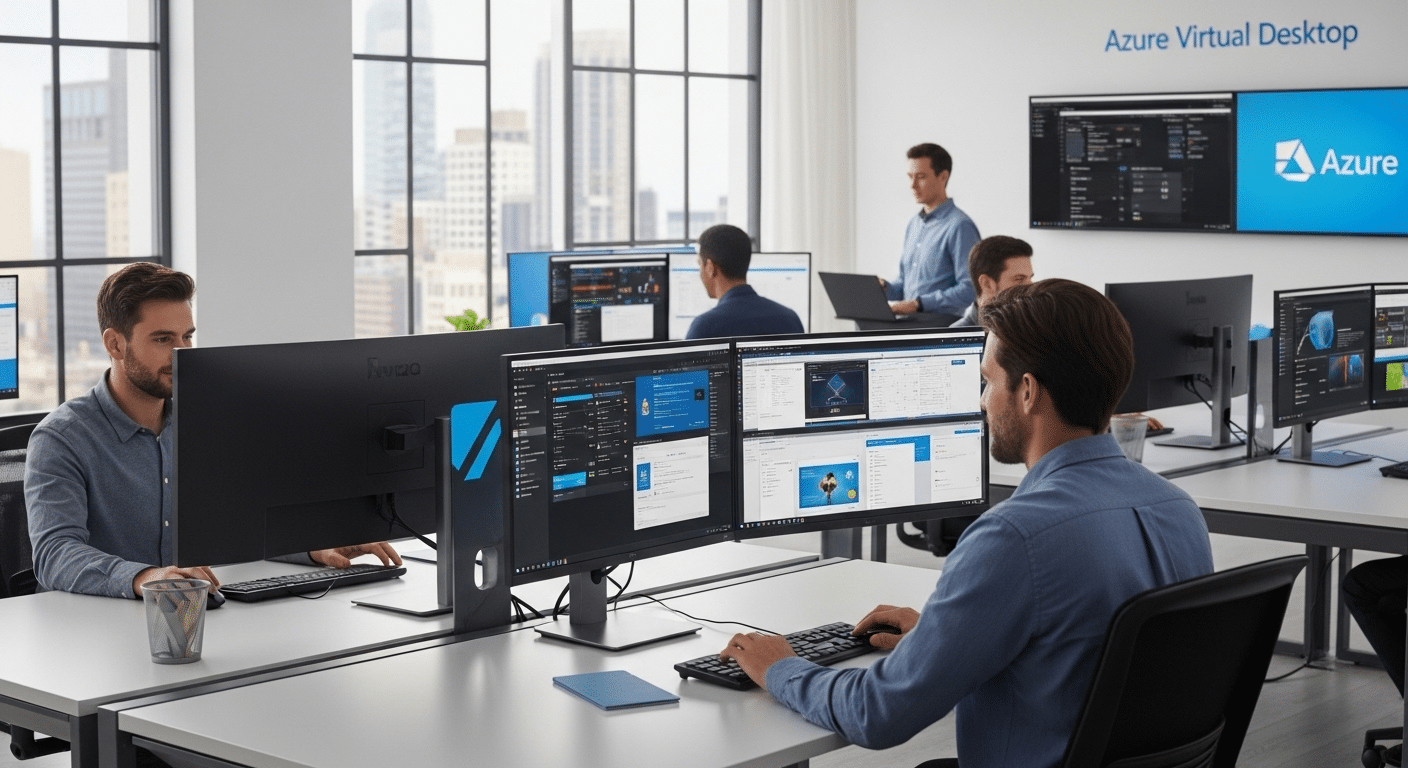
Modern cloud workspace showing multiple users sharing a multi-session Azure Virtual Desktop environment hosted on Azure servers.

Microsoft did not simply rename Windows Virtual Desktop and walk away. The platform matured. Capabilities expanded. Over time the service evolved into Azure Virtual Desktop (AVD), a modern desktop as a service platform built directly on Microsoft Azure.

AVD allows organizations to deliver full Windows desktops and applications from the cloud while keeping infrastructure centralized. Users connect remotely from laptops, tablets, thin clients, or almost any device with internet access.

Once connected, the desktop environment behaves much like a traditional Windows system, except the computing actually happens inside Azure.

Under the surface, Azure Virtual Desktop relies on Azure virtual machines that host the Windows operating system. These virtual machines act as the runtime environment for applications and user sessions.

IT teams manage these environments centrally through Azure tools, which makes it easier to deploy updates, configure resources, and control access policies across the organization. The architecture is built from several core components working together.

Main Components of Azure Virtual Desktop Architecture

• Session host VMs, which run the Windows desktop operating system and deliver user sessions
• Connection broker, which routes users to available desktops and balances workloads
• Azure Active Directory, responsible for identity authentication and access control
• Azure virtual network, providing secure connectivity between users and resources
• Azure Files or Azure NetApp Files, used to store user profiles and configuration data

Beyond those elements, the AVD control plane includes gateway services, web access portals, diagnostics systems, and APIs that help administrators manage the environment.

A major advantage of AVD is support for multi session environments. Multiple users can share a single virtual machine, which helps organizations reduce infrastructure costs while maintaining reliable performance.


Azure Virtual Desktop vs Windows Virtual Desktop: What Changed?

At first glance, the comparison between Azure Virtual Desktop vs Windows Virtual Desktop sounds like two separate products competing with each other. That assumption appears logical. In reality, the story is a little different.

Azure Virtual Desktop did not replace Windows Virtual Desktop in the traditional sense. It grew out of it. Microsoft expanded the original service, strengthened its architecture, and integrated it more deeply with the wider set of Azure services already used by many organizations.

Windows Virtual Desktop began as a focused cloud desktop solution built on Azure virtual machines. It allowed users to access a Windows desktop remotely and simplified some of the complexity associated with traditional VDI deployments.
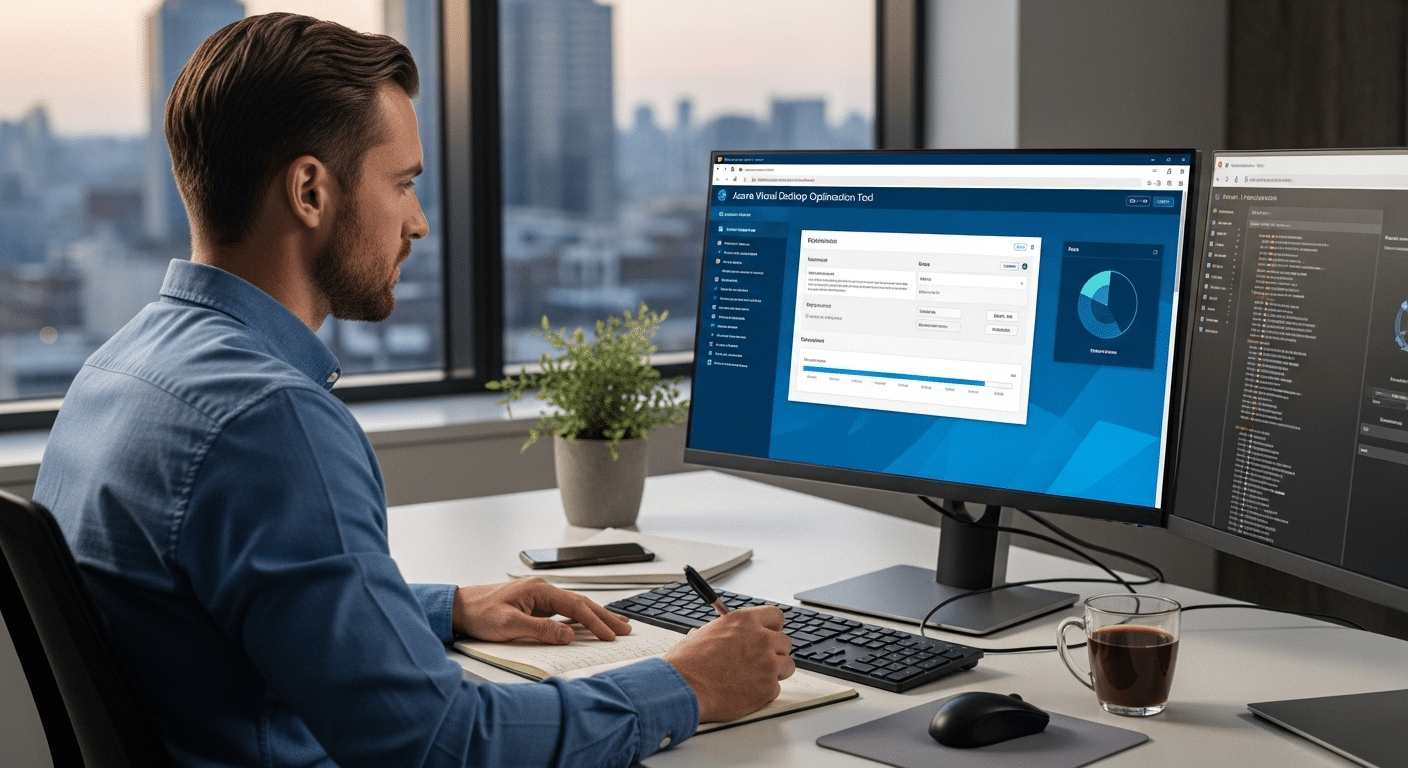
Over time, Microsoft added stronger management tools, better infrastructure visibility, and more automation features. The platform eventually evolved into Azure Virtual Desktop, reflecting its broader role within Microsoft Azure.

The differences mostly appear in management capabilities, infrastructure integration, and security controls.

Differences Between Azure Virtual Desktop and Windows Virtual Desktop 

Feature Windows Virtual Desktop Azure Virtual Desktop
Platform Scope Initial cloud desktop service Expanded Azure integrated service
Management Basic management tools Deep integration with Azure portal
Infrastructure Hosted on Azure VMs Fully integrated with Azure resources
Security Standard Microsoft cloud security Expanded security features and diagnostics
Integration Limited Azure integrations Full integration with Azure service


How Does Azure Virtual Desktop Architecture Work?

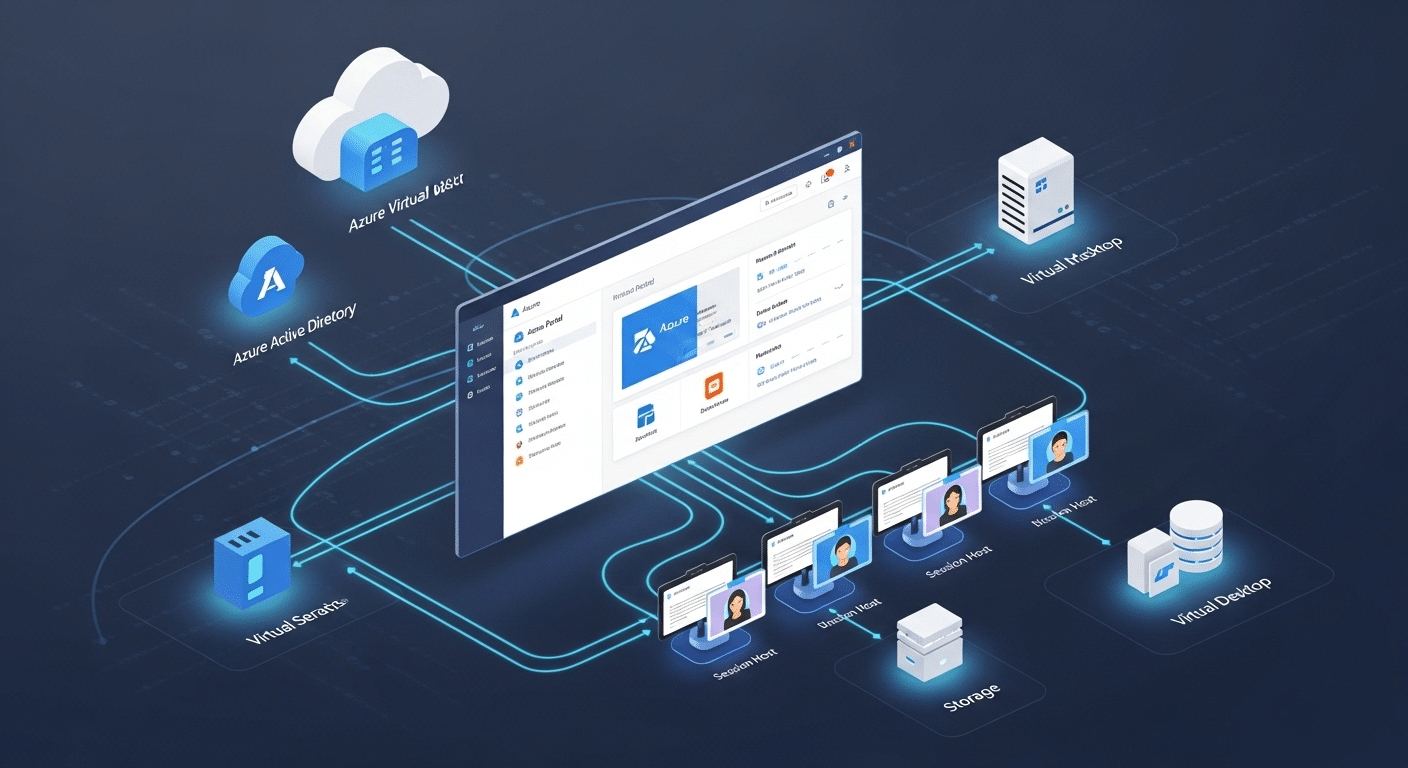
Modern cloud infrastructure visualization of Azure Virtual Desktop environment with Azure portal management, identity services, and session hosts.

Understanding Azure Virtual Desktop architecture requires looking at how responsibilities are divided between Microsoft and the organization running the environment.

The platform uses a layered structure built on Azure infrastructure and a set of Microsoft cloud technologies designed to deliver desktops securely from the cloud.

Part of the system is managed by Microsoft. This layer is called the control plane, and it includes services responsible for authentication, connection brokering, gateway access, and diagnostics. In simple terms, Microsoft maintains the core platform services that allow users to reach their virtual desktops reliably.

The rest of the environment belongs to the organization itself. Companies must configure and manage their own Azure resources, including virtual machines, storage, networking, and identity services. These elements form the working infrastructure where Windows desktops actually run.

Elements of Azure Virtual Desktop Infrastructure

• Azure virtual machines hosting Windows desktop operating systems
• Session host VMs delivering personal or pooled desktops to users
• Azure Active Directory providing identity authentication and access control
• Azure portal used for infrastructure management and configuration
• Azure Files or Azure NetApp Files storing user profiles and application data
• Azure virtual network ensuring secure connectivity between users and resources

To maintain a healthy environment, organizations must manage Azure subscriptions, virtual machine configurations, storage resources, and network infrastructure.

This level of control allows IT teams to tailor resource allocation, optimize performance, and support complex virtual desktop environments with different user needs.


What Is Windows 365 and How Does It Compare to Azure Virtual Desktop?

Somewhere along the way Microsoft realized something important. Not every organization wants to manage virtual machines, networking rules, storage layers, and session hosts just to provide employees with a remote desktop. Many companies simply want a desktop that works, predictable, stable, easy to deploy. That idea led to Windows 365.

Windows 365 is a Cloud PC service built on Microsoft Azure infrastructure, but the experience is intentionally simplified. Instead of building a full virtual desktop environment, each user receives a dedicated Cloud PC, essentially a virtual machine running Windows 10 or Windows 11 that lives entirely in the Microsoft cloud. The environment remains persistent. Users log in and return to the same desktop every time.

Azure Virtual Desktop works differently. It gives IT teams much more control over infrastructure, allowing them to configure pooled or personal desktops, manage session hosts, and adjust resource allocation across virtual machines.

The contrast becomes clearer in a side by side comparison.

Azure Virtual Desktop vs Windows 365 Comparison 

Feature Azure Virtual Desktop Windows 365
Desktop Model Pooled or personal desktops Dedicated Cloud PC
Pricing Model Consumption based pricing Fixed monthly cost
Infrastructure Management Managed by IT teams Microsoft managed service
Scalability Highly customizable Simpler scaling
Multi session support Yes No


Which Platform Is More Cost Effective: Azure Virtual Desktop or Windows 365?

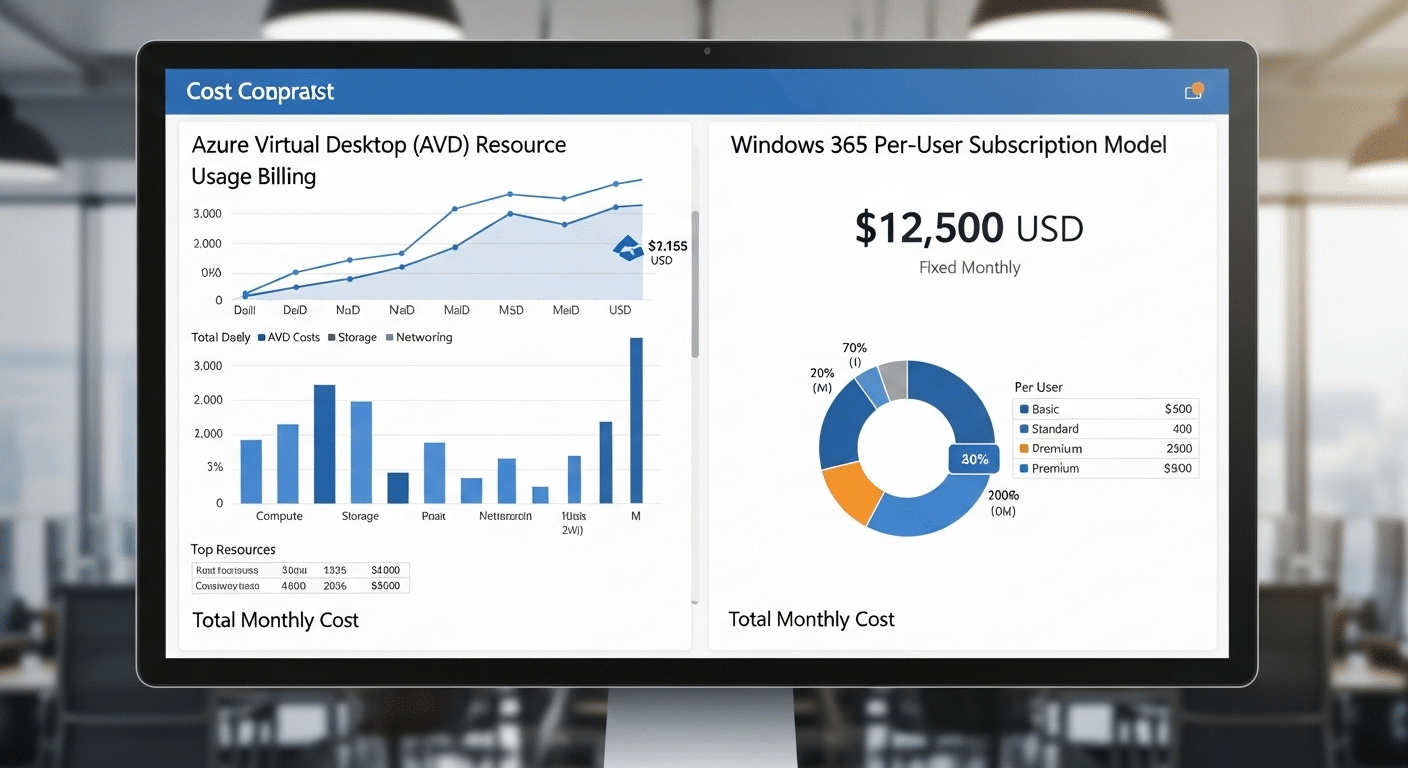
Cost comparison dashboard showing Azure Virtual Desktop resource usage billing versus Windows 365 per-user subscription model.

Cost often becomes the deciding factor when organizations compare Azure Virtual Desktop vs Windows Virtual Desktop related services like Windows 365.

At first glance the platforms seem similar, both deliver cloud based desktops from Microsoft Azure. The pricing models, however, operate very differently, and those differences can influence long term infrastructure costs.

Azure Virtual Desktop uses a consumption based pricing model. In practical terms, organizations pay only for the Azure resources their environment actually consumes.

That means infrastructure costs depend on the size of virtual machines, storage usage, networking traffic, and how long those resources remain active.

With Azure Virtual Desktop, organizations typically pay for:

• Virtual machine usage running Windows desktops
• Storage resources used for user profiles and data
• Networking and bandwidth consumption
• Supporting Azure infrastructure services

Windows 365 follows a simpler structure. Each user receives a Cloud PC billed at a fixed monthly cost, regardless of how heavily the machine is used. This predictable pricing often appeals to companies that want stable budgeting without tracking infrastructure utilization.

Cost Considerations

• Azure Virtual Desktop may reduce costs through auto scaling and pooled desktops
• Windows 365 provides predictable monthly subscription pricing
• Azure reserved instances can lower long term infrastructure expenses
• Pooled desktops allow multiple users to share resources efficiently

Organizations with variable workloads often gain better cost efficiency from Azure Virtual Desktop. Businesses with consistent desktop usage may find Windows 365 easier to budget and manage.


How Do Azure Virtual Desktop and Windows 365 Support Remote Work?

Remote work has become a normal operating model for many organizations, and both Azure Virtual Desktop and Windows 365 are designed to support that reality. Instead of relying on a single office computer, users can reach their full desktop environment from almost anywhere with a stable internet connection. The desktop runs in the cloud, while the device in your hands simply acts as the window into that environment.

Employees connect using a variety of methods depending on their device and workflow. Common access points include:

• Web access portals through a standard browser
• Remote desktop clients installed on laptops or PCs
• Thin client devices designed for cloud desktops
• Mobile devices such as tablets or smartphones

Once connected, users interact with their Windows desktop just as they would in an office environment. Applications launch normally, files remain accessible, and settings stay consistent between sessions.

Security is a central part of this architecture. Microsoft integrates multi factor authentication, data encryption, and secure access protocols to help protect sensitive information.

Because the desktop runs in the cloud rather than on the endpoint device, organizations can maintain stronger control over corporate data while supporting a distributed workforce.


What Are the Security Features of Azure Virtual Desktop?

IT administrator managing centralized security policies for Azure Virtual Desktop through Azure portal with authentication and update controls.

Security tends to become the first concern when organizations move desktop environments into the cloud. A virtual desktop may live far from the user’s device, often inside Microsoft data centers, which naturally raises questions about how access is controlled and how data stays protected. Azure Virtual Desktop addresses these concerns through a layered security design built directly into the platform.

Because desktops run on centralized Azure infrastructure, administrators can manage identity controls, security policies, and system updates from a single environment. This approach reduces the risks that typically appear when sensitive information is scattered across many endpoint devices.

Security Features of Azure Virtual Desktop:

• Azure Active Directory authentication
• Multi factor authentication
• Data encryption
• Centralized management of security updates
• Role based access control

A centralized architecture also improves overall protection. Files, applications, and system data remain inside the cloud rather than being stored on laptops or mobile devices.

Even if a device is lost or compromised, sensitive information remains protected inside the virtual desktop environment.


When Should Organizations Choose Azure Virtual Desktop?

Not every organization needs the same level of control over its desktop environment. Some teams want simplicity, predictable costs, and minimal infrastructure management.

Others require deeper customization, flexible resource allocation, and the ability to run specialized applications. This is where Azure Virtual Desktop becomes the stronger option.

Azure Virtual Desktop is particularly useful for organizations operating in complex environments where infrastructure decisions cannot be simplified to a single desktop configuration.

Because AVD allows administrators to configure virtual machines, networking, storage, and session hosts directly inside Azure, IT teams gain significant control over how the environment is built and maintained.

This flexibility allows organizations to tailor the virtual desktop experience to match specific operational needs.

Best Use Cases for Azure Virtual Desktop:

• Large enterprises managing complex environments with diverse workloads
• Organizations that benefit from pooled desktop environments shared by multiple users
• Teams hosting legacy applications that require specialized configurations
• Businesses needing advanced infrastructure management and customization
• IT teams comfortable managing Azure resources and cloud infrastructure


Why Apporto Is a Simpler Alternative to Traditional Virtual Desktop Infrastructure?

Apporto homepage showcasing virtual desktop solutions, AI tutoring and grading services, and academic integrity tools with demo request options.

Traditional virtual desktop infrastructure platforms can deliver powerful capabilities, yet they often come with a heavy operational burden. Solutions like Azure Virtual Desktop require organizations to configure Azure resources, manage virtual machines, maintain networking policies, and continuously monitor infrastructure performance. For many IT teams, that level of infrastructure management quickly becomes complex.

Apporto approaches the problem differently. Instead of requiring extensive configuration, the platform delivers virtual desktops directly through a web browser. Users simply log in and access their desktop environment without installing specialized clients or configuring remote desktop tools.

Several advantages come from this simplified model.

• No client installations required for users
• Simplified infrastructure management for IT teams
• Secure remote access across multiple devices
• Faster deployment compared with traditional VDI solutions

By removing much of the infrastructure complexity, Apporto allows organizations to deliver cloud desktops quickly while maintaining strong performance, security, and reliable remote access.


Final Thoughts

The comparison between Azure Virtual Desktop vs Windows Virtual Desktop becomes clearer once you look at how the platform evolved. Windows Virtual Desktop started as Microsoft’s original cloud desktop service.

Over time, Microsoft expanded the platform and introduced Azure Virtual Desktop, adding deeper integration with Azure infrastructure, stronger management tools, and broader deployment flexibility.

Today, Azure Virtual Desktop provides organizations with powerful customization options, flexible resource allocation, and scalable virtual desktop environments. Windows 365, by contrast, focuses on simplicity by delivering dedicated Cloud PCs with predictable monthly pricing and minimal infrastructure management.

When deciding between these options, organizations should evaluate infrastructure management capabilities, overall cost structure, scalability requirements, and security controls. Understanding these factors helps businesses choose the platform that best delivers secure and reliable cloud-based desktop environments.


Frequently Asked Questions (FAQs)


1. What is the difference between Azure Virtual Desktop and Windows Virtual Desktop?

The difference between Azure Virtual Desktop and Windows Virtual Desktop mainly reflects the platform’s evolution. Windows Virtual Desktop was the earlier version of Microsoft’s cloud desktop service, while Azure Virtual Desktop is the expanded version with deeper Azure integration, improved management tools, and broader deployment capabilities.

2. Is Azure Virtual Desktop replacing Windows Virtual Desktop?

Azure Virtual Desktop is essentially the next stage of the same platform rather than a completely separate product. Microsoft expanded Windows Virtual Desktop and reintroduced it as Azure Virtual Desktop, adding stronger Azure service integration, better diagnostics, and more advanced infrastructure management features.

3. How does Azure Virtual Desktop pricing work?

Azure Virtual Desktop follows a consumption-based pricing model. Organizations pay for the Azure resources their environment uses, including virtual machines, storage, and networking. This approach allows costs to scale with usage and can create savings when pooled desktops or auto-scaling features are used.

4. What is the difference between Azure Virtual Desktop and Windows 365?

Azure Virtual Desktop provides flexible infrastructure and allows pooled or personal desktops managed through Azure. Windows 365 delivers a dedicated Cloud PC per user with fixed monthly pricing and simplified management, making it easier for organizations seeking predictable costs.

5. Can Azure Virtual Desktop support multiple users on one VM?

Yes. One advantage of Azure Virtual Desktop is support for multi-session environments, where multiple users share a single virtual machine. This capability allows organizations to optimize resource allocation and reduce infrastructure costs compared with dedicated single-user desktop environments.

How to Use VDI File in VirtualBox? Detailed Guide

Virtualization has changed the way you interact with operating systems. Instead of relying on one installed system, tools like Oracle VM VirtualBox allow you to run multiple operating systems on a single host computer. Each operating system runs inside a virtual machine, functioning almost like a separate computer within your existing environment.

At the center of this setup sits the VDI file, short for Virtual Disk Image. This file acts as the virtual hard disk for the machine. It stores the operating system, installed software, system files, and all the data the guest operating system needs to function normally.

Many users encounter VDI files when downloading disk images or migrating existing virtual machines. Understanding how to use a VDI file in VirtualBox becomes essential.

In this guide, you will learn what a VDI file is, how VirtualBox manages disk images, how to create or attach virtual disks, how disk allocation works, and how to resolve common VDI file problems.


What Is a VDI File and Why Does VirtualBox Use It?

A VDI file, short for Virtual Disk Image, sits quietly at the center of every VirtualBox virtual machine. Think of it as the machine’s storage brain. Not a physical drive, of course, but something that behaves almost exactly like one. Oracle VM VirtualBox uses this format as its native container for storing virtual disks.

Inside that single file lives an entire environment. The operating system, installed applications, configuration data, temporary files, everything the virtual machine relies on to function. From the perspective of the guest operating system, the VDI behaves like a normal hard disk installed in a physical computer. You install software. You save documents. Files appear, disappear, move around.

Meanwhile, something subtle is happening underneath.

Although these disk image files reside on the host system, VirtualBox quietly translates every disk operation. When the guest system reads or writes a disk sector, the virtualization layer redirects that request to the virtual hard disk file stored on the host computer. The guest OS never notices the difference.

Characteristics of VDI Files

• Stores the operating system and installed applications of the virtual machine
• Acts as the boot disk for the guest operating system
• Supports fixed size disks and dynamically allocated images
• Allows disk capacity expansion after creation
• Redirects disk sector operations from the guest OS to host storage

Dynamically allocated images start small. Over time, as data accumulates, the disk grows gradually, using only the storage actually required.


What Types of Disk Image Formats Does VirtualBox Support?

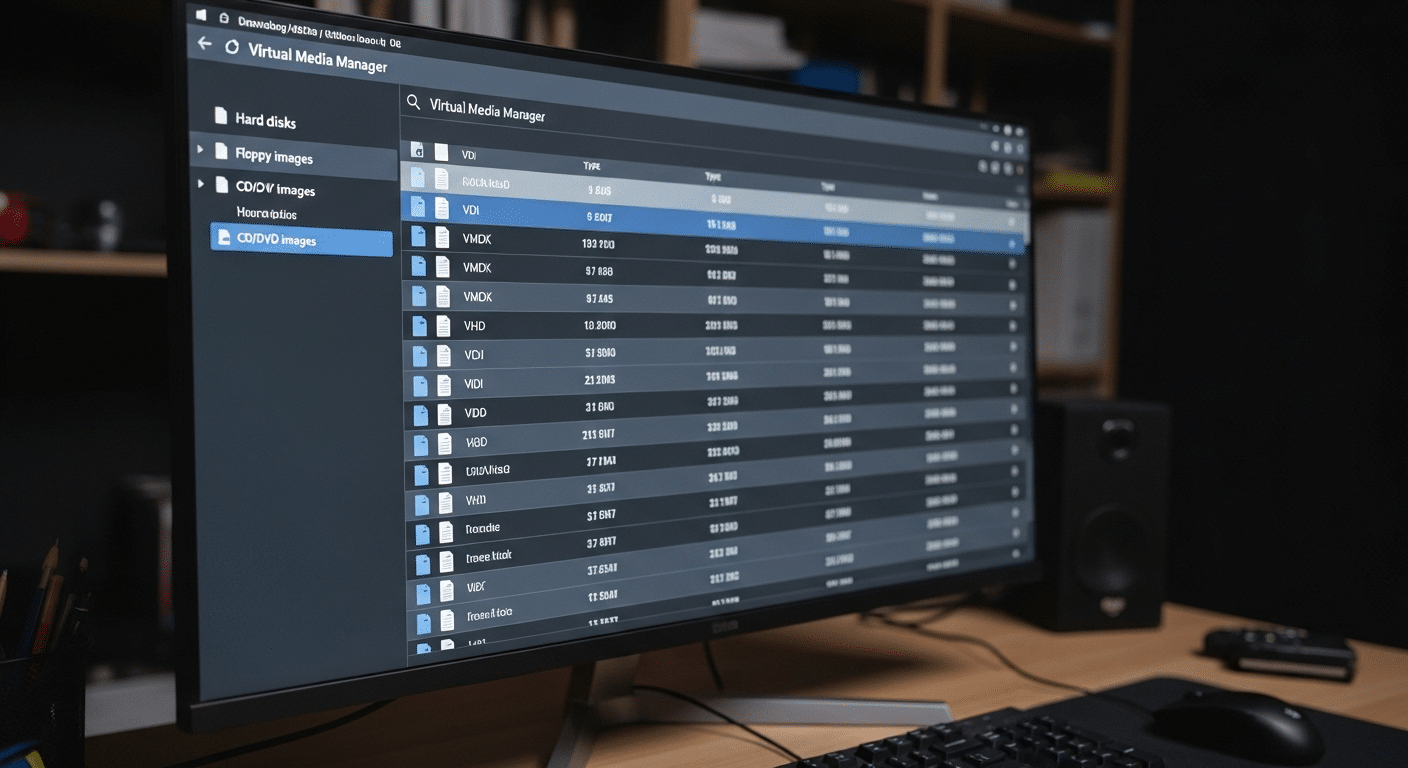
Developer workstation screen displaying VirtualBox Virtual Media Manager organizing multiple virtual disk image formats.

VirtualBox relies on VDI files by default, yet the software was designed with flexibility in mind. Virtual environments rarely stay inside one ecosystem forever. Teams migrate systems.

Developers move test machines between tools. Sometimes you download an image created somewhere else entirely. Because of that reality, Oracle VM VirtualBox supports several disk image container formats, allowing different virtualization platforms to work together.

In practice, this means a virtual machine originally built on VMware or Microsoft Hyper-V can often be imported and run inside VirtualBox with minimal effort.

The virtualization layer simply reads the structure of the disk image and presents it to the guest operating system as a usable virtual hard disk. Several common formats appear regularly when working with virtual machines.

Disk Image Formats Supported by Oracle VM VirtualBox  

Disk Format Description Typical Source
VDI Native VirtualBox disk image format Oracle VirtualBox
VMDK VMware virtual disk format VMware Workstation / ESXi
VHD Microsoft virtual hard disk format Microsoft Hyper-V
HDD Parallels disk format Parallels Desktop


All of these disk images can be managed through the Virtual Media Manager window in VirtualBox. From there you can register existing disks, attach them to virtual machines, remove unused images, or inspect their properties. It is a small tool, easily overlooked, yet extremely useful when organizing virtual disk files.


How Does VirtualBox Store and Manage Virtual Disk Images?

Once a virtual machine is created, VirtualBox needs a reliable way to organize its storage. This is where disk image management becomes important.

Instead of spreading data across multiple hidden system components, VirtualBox stores disk image files directly inside the host system’s file structure, usually within the VirtualBox VM folder. You can open that directory and actually see the files sitting there.

Each of those files represents a virtual disk container. Inside it are data blocks that correspond to disk sectors used by the guest system.

When the guest operating system reads or writes information, VirtualBox maps those requests to the correct locations inside the disk image file stored on the host computer. To the guest system, it behaves like a real hard drive.

Keeping track of all those disks could become messy, so VirtualBox includes a built-in management tool called the Virtual Media Manager. This interface acts as the control center for disk images.

Functions of the Virtual Media Manager

• Register existing disk image files
• Create new virtual hard disk images
• Remove unused virtual disks
• Expand disk capacity when needed
• Clone disk images for backup or duplication
• Track disk file size and storage usage

Through the Virtual Media Manager window, administrators gain flexible storage management. It becomes much easier to organize disk image files, maintain virtual machines, and keep storage resources under control.


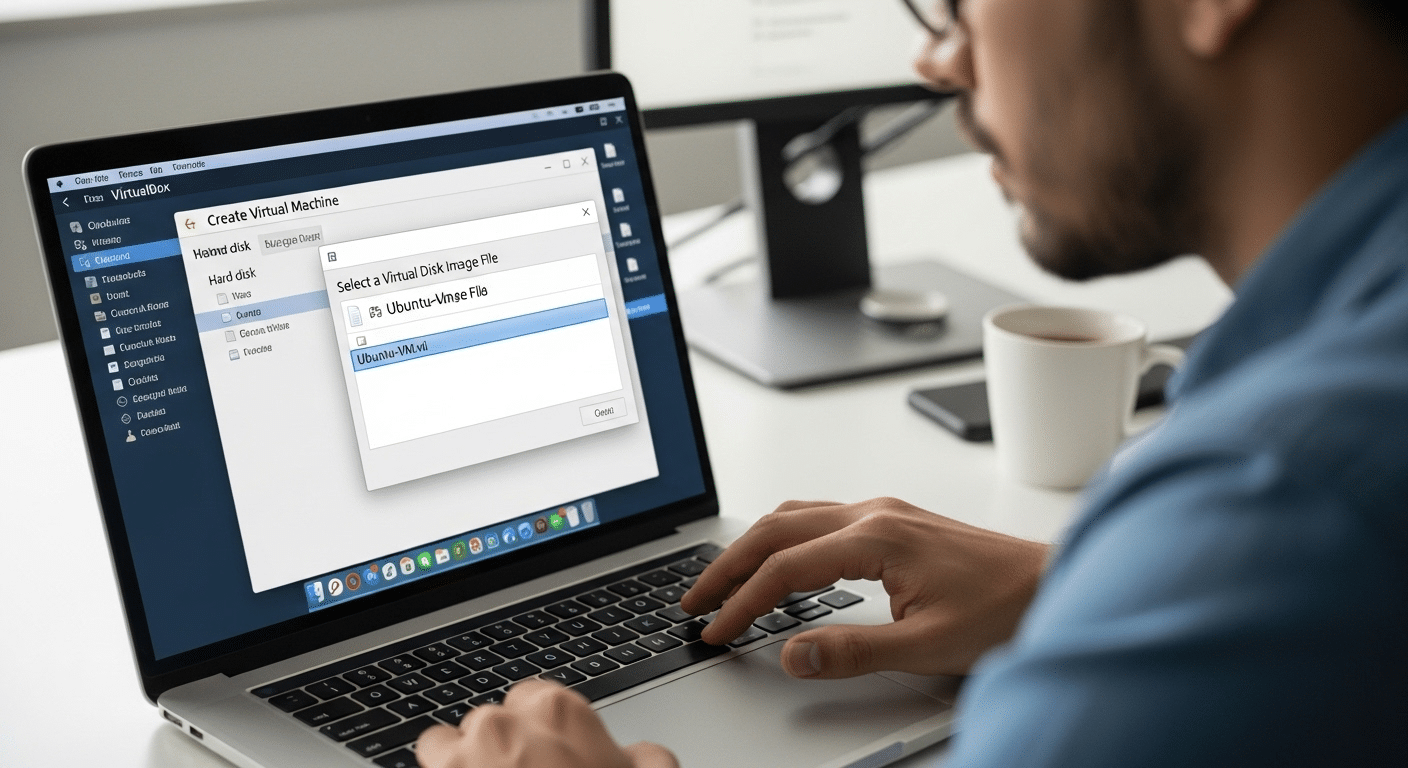
How to Use a VDI File in VirtualBox When Creating a New Virtual Machine?

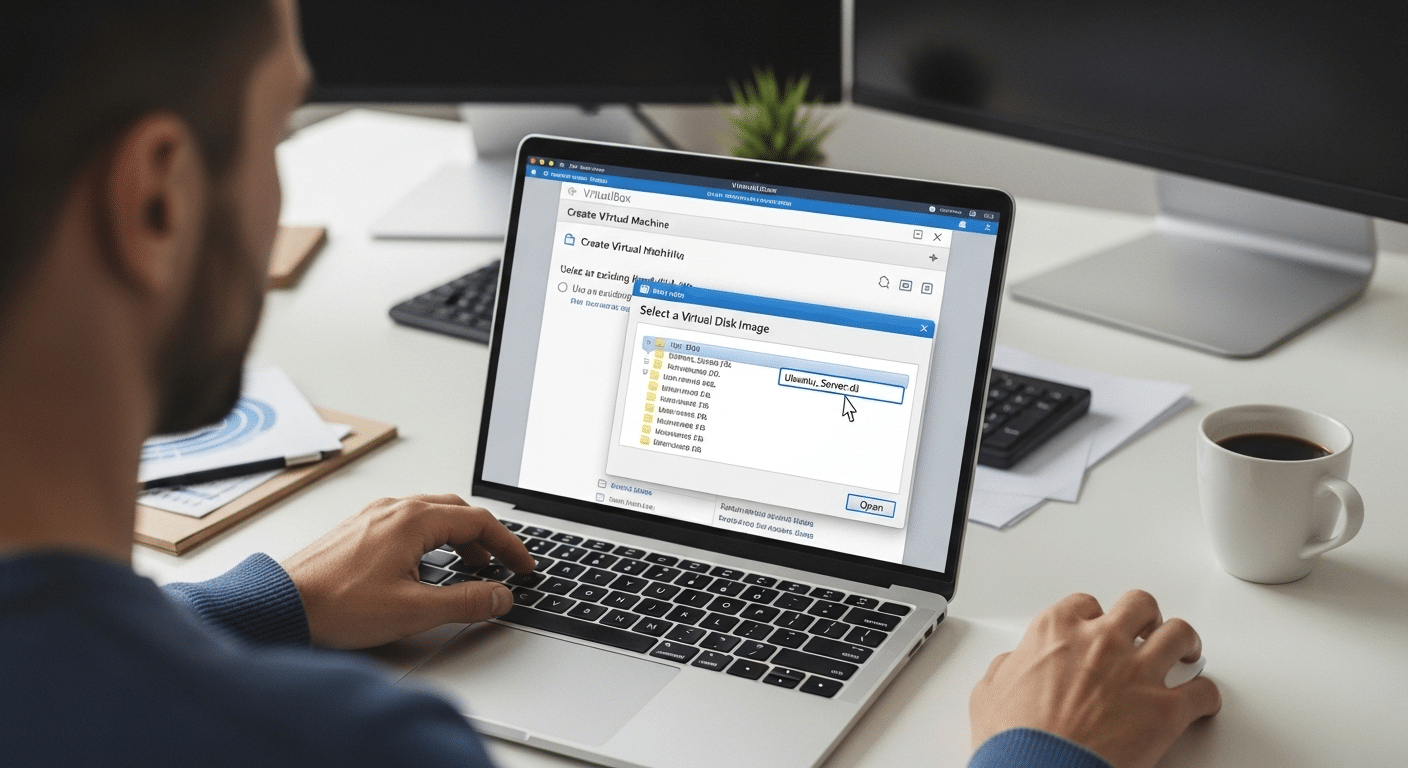
Developer creating a virtual machine in VirtualBox while selecting an existing VDI disk image from a file browser.

So here’s where things become practical. You have a VDI file, maybe downloaded from a developer site, maybe exported from another system, and now the goal is simple, make that disk image actually run. In most cases the cleanest path is to create a new virtual machine and attach the VDI file as its primary boot disk.

Think of the process like assembling a computer, except everything happens inside software. The virtual machine provides the CPU, memory, and system configuration. The VDI file supplies the storage and operating system environment. Put the two together and the system can boot normally.

VirtualBox makes this process fairly straightforward, although the option to use an existing disk is easy to overlook the first time you encounter the setup screen.


Steps to Create a New Virtual Machine Using a VDI File

  1. Launch Oracle VM VirtualBox on your host system.
  2. Click New to begin creating a new virtual machine.
  3. Enter a machine name and choose the correct operating system type.
  4. Allocate system memory and any additional computing resources required.
  5. When the storage configuration screen appears, choose Use an existing virtual hard disk file.
  6. Click the folder icon beside the disk selection field.
  7. Browse through the available disk images and locate your existing VDI file.
  8. Select the disk image and confirm the selection.
  9. Click Create to finish configuring the virtual machine.

Once the setup is complete, the virtual machine recognizes the existing VDI as its storage device. When you start the VM, VirtualBox loads the operating system stored inside that disk image, treating it exactly like a physical boot disk.


How Do You Attach a VDI File to an Existing Virtual Machine?

Sometimes a VDI file already contains useful data or even an entire operating system, yet the virtual machine you plan to use already exists. In that situation you do not need to create a new VM at all. VirtualBox allows you to attach a VDI file as an additional virtual hard disk to an existing system.

This approach is common when adding extra storage to a VM, restoring a disk from backup, or migrating data from another virtual machine.

The process takes place inside the storage configuration panel, where VirtualBox lets you connect new disk images to a controller such as SATA or IDE.

Once attached, the virtual machine treats the disk image just like another hard drive installed in a physical computer.

Steps to Attach a VDI File

  1. Launch VirtualBox and select the existing virtual machine.
  2. Click Settings to open the machine configuration window.
  3. Navigate to the Storage section.
  4. Locate and select the SATA controller.
  5. Click Add Hard Disk to create a new storage attachment.
  6. Choose the option labeled Existing Disk.
  7. Browse the storage list and select the desired VDI file.
  8. Apply the configuration changes and close the settings window.

When the VM starts again, the system detects the existing virtual hard disk automatically. Inside the guest operating system it appears as a normal virtual drive, ready for file access or additional configuration.


What Is the Difference Between Dynamically Allocated and Fixed Size VDI Files?

Developer selecting a VDI file from a file browser while configuring a new virtual machine in VirtualBox.

When creating a virtual disk image in VirtualBox, one decision quietly shapes how that disk behaves over time. The platform asks you to choose between two allocation methods, dynamically allocated images or fixed size images. At first glance the difference appears small. In practice it affects storage usage and performance.

A dynamically allocated VDI file begins modestly. The disk image occupies only a small amount of space on the host system at the start. As data is written inside the virtual machine, the file gradually expands. Each write operation increases the disk file size until it eventually reaches the maximum capacity defined during creation.

A fixed size image behaves differently. When the disk is created, VirtualBox immediately allocates the full storage capacity on the host system. The disk file size roughly matches the virtual disk capacity from the beginning. This approach consumes more space initially but can provide faster disk performance because the storage layout remains stable.

VDI Disk Allocation Comparison 

Feature Dynamically Allocated Image Fixed Size Image
Initial disk file size Small Full capacity allocated
Disk growth Expands as data is written Fixed at creation
Host storage usage Uses less space initially Roughly same size as capacity
Write performance Slightly slower Faster write operations


In many environments dynamically allocated disks help conserve storage. Fixed disks, on the other hand, may deliver better write performance, especially during heavy disk activity.


How Can You Resize or Expand a VDI File After Creation?

Virtual machines evolve. Software grows, data accumulates, and eventually the original disk size you selected begins to feel cramped. The good news is that VirtualBox allows you to expand a VDI file even after it already contains data. The process does not require rebuilding the virtual machine or reinstalling the operating system.

Resizing typically happens outside the graphical interface. VirtualBox provides a small but powerful utility called VBoxManage, a command line tool that allows you to modify virtual disk properties. With a single command, you can increase the maximum capacity of the virtual disk image, giving the guest system additional room to work with.

It is important to remember something, though. Expanding the VDI file only increases the available storage at the virtual disk level. The operating system inside the virtual machine must still expand its partition before it can use that new space.

Steps to Resize a VDI File

• Open the command line interface on the host system
• Navigate to the VirtualBox installation directory
• Run the VBoxManage modifyhd command with the path to the VDI file
• Specify the new disk capacity you want to assign

After the operation completes, start the virtual machine and extend the partition within the guest operating system to use the additional disk space.


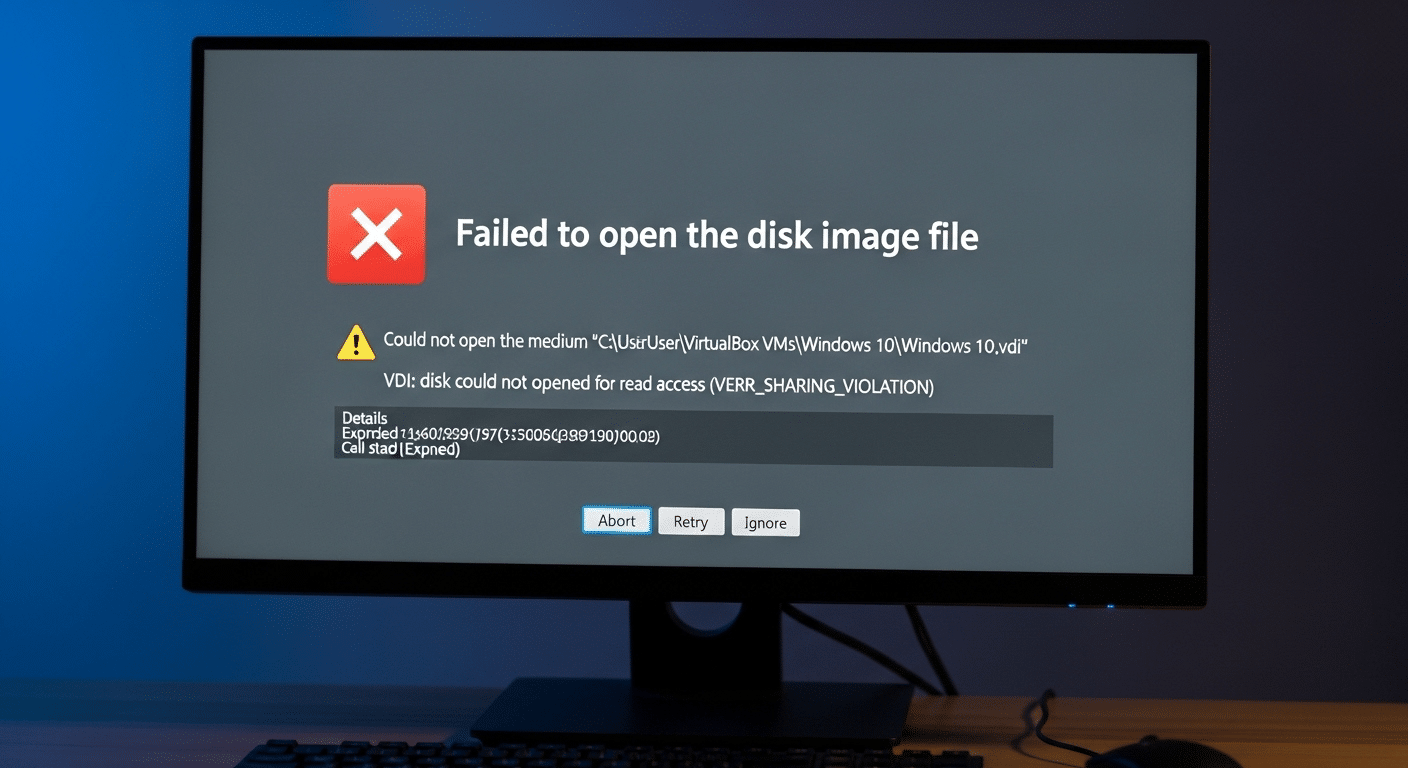
What Common Problems Occur When Opening VDI Files in VirtualBox?

VirtualBox virtual machine error screen showing a VDI disk failing to load with warning icons and troubleshooting indicators.

Working with virtual machines usually feels smooth, at least most of the time. Still, VDI files occasionally refuse to cooperate. You try to start the VM, and something goes wrong. The disk fails to load. The system complains about compatibility. Sometimes the file simply refuses to open.

These situations rarely mean the entire virtual machine is lost. In many cases the issue comes down to configuration details or version mismatches between the disk image VDI file and the VirtualBox installation.

Common VDI File Issues are:

• VirtualBox not recognizing the disk image
• Corrupted VDI files caused by interrupted writes or storage errors
• Disk image version incompatibility between VirtualBox releases
• Incorrect storage controller configuration inside the VM settings
• Damaged virtual disk sectors that prevent proper disk reads

When a VDI file fails to open, the first step is usually simple. Open the Virtual Media Manager and check whether the disk image is properly registered. If the file appears missing or detached, re-registering the disk often restores access.

Sometimes converting the disk format or updating VirtualBox resolves the issue as well. Most problems look serious at first glance, yet they tend to have practical fixes once you identify the root cause.


How Can You Recover or Repair Corrupted VDI Files?

Every now and then a virtual disk runs into trouble. Maybe the host computer shut down unexpectedly. Maybe a storage device failed halfway through a write operation.

Sometimes the issue is less dramatic, just a corrupted block inside the VDI file that prevents VirtualBox from opening it normally. When this happens, the virtual machine may refuse to start or the disk image may appear unreadable.

A virtual disk image is still a file stored on the host system, which means it can suffer from the same kinds of corruption that affect any other file. Incomplete writes, sudden system crashes, or disk hardware errors can damage the internal structure of the image.

Recovery Methods to Use Are:

• Using professional VDI recovery software designed to repair corrupted VDI files
• Repairing the virtual disk with specialized disk repair utilities
• Restoring disk image files from backup copies

Some tools go further and allow direct data recovery. For example, Aryson VDI Recovery Software can scan damaged disk images, repair corrupted VDI structures, and recover deleted files stored inside the virtual disk.

Of course, prevention remains the safer path. Regular backups of important virtual machines help ensure you can recover quickly if disk image corruption occurs.


Why Apporto Is a Simpler Alternative to Complex Virtual Machine Environments?

Apporto homepage showcasing virtual desktop solutions, AI tutoring and grading services, and academic integrity tools with demo request options.

VirtualBox gives you remarkable control over virtualization, yet that flexibility comes with responsibility. You configure the virtual machine, attach disk images, install the operating system, adjust storage controllers, and manage resources manually. For developers or system administrators that level of control makes sense. For many teams, though, it quickly becomes time consuming.

This is where Apporto takes a different path. Instead of requiring users to manage virtual disk images or configure local virtualization software, Apporto delivers browser based virtual desktops that run entirely in the cloud. You open a browser, sign in, and your desktop environment appears ready to use.


Final Thoughts

Working with virtual machines becomes far less intimidating once you understand how VDI files function inside VirtualBox. In most situations the process follows a clear path.

You create a virtual machine, attach the VDI file as the virtual hard disk, configure system resources such as memory and CPU allocation, then launch the guest operating system. From there the virtual machine behaves much like a normal computer.

Learning how VirtualBox handles disk images also makes everyday management easier. You begin to understand where disk image files reside, how storage grows, and how virtual disks interact with the host system.

With that knowledge, maintaining virtual machines becomes more predictable. Storage can be expanded, disk images organized, and virtual environments managed with far greater confidence and efficiency.


Frequently Asked Questions (FAQs)


1. What is a VDI file in VirtualBox?

A VDI file, or Virtual Disk Image, is the native virtual hard disk format used by Oracle VM VirtualBox. It stores the operating system, applications, and system data required by a virtual machine, functioning like a physical hard drive inside the virtual environment.

2. Can you open a VDI file directly in VirtualBox?

You cannot open a VDI file like a normal document. Instead, VirtualBox uses it as the virtual hard disk for a virtual machine. You must attach the VDI file to a new or existing VM before the operating system inside it can run.

3. What is the difference between VDI and VMDK?

VDI is the native disk image format created for VirtualBox environments, while VMDK is commonly used by VMware virtualization products. Both formats store virtual disk data, and VirtualBox supports opening VMDK files for compatibility between virtualization platforms.

4. Can you convert a VDI file to another disk format?

Yes. VirtualBox provides tools such as the VBoxManage command line utility that allow you to convert a VDI file into formats like VMDK or VHD. This is useful when migrating virtual machines between different virtualization platforms.

5. Why is my VDI file not opening in VirtualBox?

A VDI file may fail to load due to disk corruption, incorrect VM storage settings, or compatibility issues with the VirtualBox version installed. Re-registering the disk image in the Virtual Media Manager often resolves the problem.

Azure Virtual Desktop SSO Not Working? Here’s How to Fix

At first glance, Azure Virtual Desktop seems straightforward. You connect, your desktop appears, and work begins. Behind that simplicity sits a layered authentication system running on Microsoft Azure, where identity services, policies, and virtual machines must align for everything to function smoothly.

Single Sign-On (SSO) is designed to simplify access. After signing in once with Microsoft Entra ID, you should be able to open virtual desktops and applications without entering credentials again.

When Azure Virtual Desktop SSO is not working, the experience changes quickly. Users may see repeated credential prompts, endless login loops, standard authentication dialogs, or failed remote desktop client sessions.

Most issues stem from misconfigured Microsoft Entra authentication, missing Kerberos objects, restrictive Conditional Access policies, missing user permissions, or improperly configured session hosts. This guide explains how SSO works and how to troubleshoot failures.


What Is Single Sign-On in Azure Virtual Desktop and How Does It Work?

Authentication usually fades into the background when systems behave the way they should. You sign in once, open a desktop, and everything simply continues. That quiet convenience is exactly what Single Sign-On (SSO) aims to deliver inside an Azure Virtual Desktop environment.

SSO allows you to authenticate using your Microsoft Entra credentials, then reuse that identity across the entire session. After the initial login, Azure generates a Windows cloud login token tied to your account.

The Remote Desktop client receives that token and passes it along during the connection process. Once the request reaches the session host, the system recognizes the token and signs you in automatically. No additional prompts. No second password entry.

The result is that SSO delivers the desired experience for users by providing a seamless experience where users connect once and move between desktops and apps without interruption.

Core Components Behind Azure Virtual Desktop SSO

  1. Microsoft Entra ID authentication
  2. Session hosts
  3. Host pools
  4. Remote Desktop client / Windows App
  5. Microsoft Entra ID app (Azure Windows VM Sign-In)


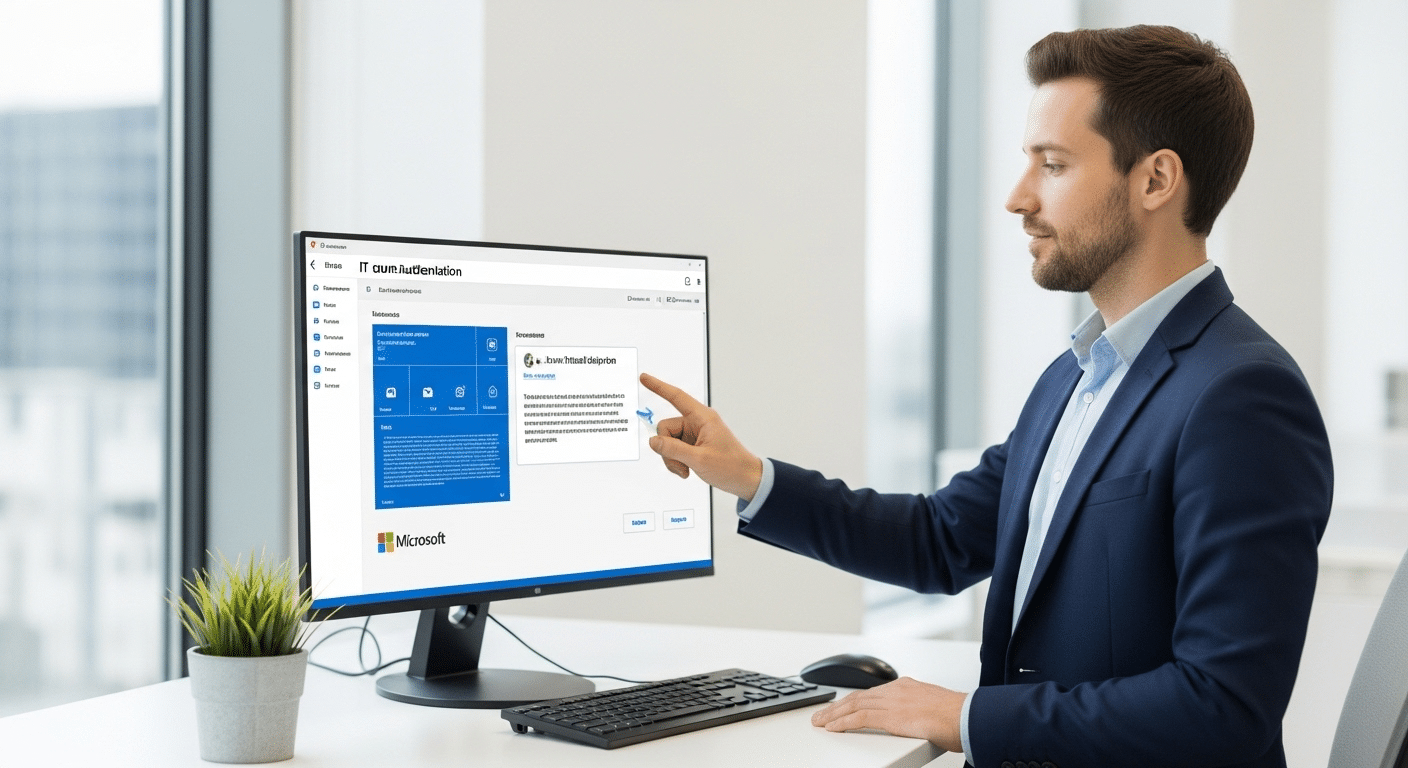
What Must Be Configured Before Azure Virtual Desktop SSO Can Work?

"IT administrator enabling Microsoft Entra authentication for Azure Virtual Desktop Single Sign-On setup.

Before Single Sign-On works in Azure Virtual Desktop, a few pieces have to line up properly. Authentication, device identity, and remote desktop configuration all need to cooperate.

Miss one element and the system quietly falls back to standard credential prompts. That’s usually the moment administrators realize something in the configuration chain is incomplete.

Microsoft outlines several steps required to enable Microsoft Entra authentication and activate SSO. These settings allow Azure to issue authentication tokens that session hosts can trust during login. When configured correctly, users authenticate once and connect to their desktops without repeated prompts.

Required Configuration for Azure Virtual Desktop SSO are:

  1. Enable Microsoft Entra authentication
  2. Configure host pool RDP property
  3. Join session hosts correctly
  4. Assign user permissions
  5. Verify licensing

Administrators should also confirm the surrounding infrastructure is ready. That includes creating host pools, configuring session host virtual machines, verifying identity provider settings, and ensuring the Azure subscription has the required permissions for deployment and management.


Which Misconfigurations Cause Azure Virtual Desktop SSO Not Working?

Once Single Sign-On is enabled, the expectation is simple. You authenticate once and connect directly to your virtual desktop. When that process breaks, the cause is usually not a single error but a small configuration problem somewhere along the authentication chain.

Azure Virtual Desktop relies on identity services, device trust, and host configuration working together. If any part of that structure is incomplete, the platform cannot validate authentication tokens correctly.

The result is familiar to many administrators. Users sign in successfully, yet the system continues asking for credentials again and again. Several configuration issues appear repeatedly in environments where Azure Virtual Desktop SSO is not working.

Most Common SSO Failure Causes

  • Kerberos server object missing or incomplete: Hybrid environments require a correctly configured Kerberos object to validate authentication requests.
  • Session hosts not Microsoft Entra hybrid joined: If session hosts are not properly joined, authentication tokens cannot be trusted during login.
  • Host pools missing required RDP properties: Missing properties such as targetisaadjoined:i:1 prevent the system from recognizing Entra-based authentication.
  • Users lacking Virtual Machine User Login permissions: Without the proper role assignment, users cannot access session hosts.
  • Conditional Access policies blocking authentication: Policies enforcing strict login rules may interrupt the SSO handshake.
  • Time differences between session hosts and Azure AD: Even small clock mismatches can break token validation.
  • Unsupported Remote Desktop client versions: Older clients may not support modern authentication features.


How Do Conditional Access Policies Break Azure Virtual Desktop SSO?

Azure Virtual Desktop SSO authentication flow interrupted by Conditional Access policies and MFA requirements.

Security policies exist for good reasons. They protect identities, restrict risky sign-ins, and help organizations control how users access sensitive systems. In an Azure Virtual Desktop environment, those same controls can occasionally interfere with the authentication flow required for Single Sign-On.

SSO depends on a smooth exchange of identity tokens between Microsoft Entra ID, the Remote Desktop client, and the session host. When a Conditional Access policy introduces additional authentication steps during that process, the handshake may fail or restart.

The user signs in, authentication begins, then another security rule interrupts the process. Sometimes the result is a simple prompt for credentials. Other times the system repeats the login cycle.

Conditional Access Issues That Commonly Break SSO

  • Policies requiring Microsoft Entra multifactor authentication: MFA can interrupt the token exchange used during remote desktop login.
  • Sign-in frequency rules: Strict sign in frequency policies may force users to authenticate repeatedly during reconnect attempts.
  • Policies targeting the Azure Windows VM Sign-In application: Restrictions applied to this identity endpoint can block automatic authentication.
  • Device compliance requirements: Devices that fail compliance checks may be blocked before the session begins.

Conditional Access policies can also rely on device groups, dynamic groups, and trusted devices to determine who can sign in. Because these rules are reevaluated each time a session reconnects, SSO may fail even after an earlier login succeeded.


How Kerberos and Hybrid Join Issues Break Azure Virtual Desktop SSO?

Many Azure Virtual Desktop environments still rely on on-premises infrastructure. File shares, internal applications, legacy systems, all of them often live inside a traditional Active Directory environment. Session hosts in these environments frequently run on Windows Server and require connectivity to a domain controller for authentication. To access those resources from a virtual desktop, the authentication chain usually depends on Kerberos, and Windows integrated authentication is used to provide seamless sign-on between Azure Virtual Desktop and on-premises resources.

In hybrid deployments, Microsoft Entra hybrid join allows session hosts to trust both Azure identity services and the on-premises domain. That bridge only works when Kerberos is configured correctly.

If the Kerberos configuration is incomplete, or if the session host cannot reach a domain controller, Azure Virtual Desktop cannot complete the authentication handshake required for Single Sign-On.

What happens then? The login technically succeeds, yet the system cannot validate the session when the user connects to the desktop. The result often looks confusing, repeated credential prompts, failed authentication attempts, or remote sessions that refuse to fully start.

Kerberos Troubleshooting Checks

  • Verify the Kerberos server object exists: Hybrid environments require this object for secure authentication between Microsoft Entra ID and the domain.
  • Confirm required attributes are present: Missing attributes often cause authentication loops.
  • Ensure session hosts are Microsoft Entra hybrid joined: Devices must participate in hybrid join for Kerberos authentication to function.
  • Verify the local device is correctly joined to Microsoft Entra ID or hybrid joined: Device identity of the local device is critical for Kerberos authentication and SSO to work properly.
  • Verify Active Directory domain controllers are reachable: Session hosts must communicate with domain controllers to validate Kerberos tickets.


How to Diagnose Azure Virtual Desktop SSO Failures Using Entra Sign-In Logs?

IT administrator analyzing Microsoft Entra sign-in logs to diagnose Azure Virtual Desktop SSO authentication failures.

When Azure Virtual Desktop SSO is not working, guessing rarely solves the problem. Authentication failures usually leave clear evidence inside Microsoft Entra sign-in logs.

These logs record every attempt to authenticate, including policy decisions, token failures, and permission errors. Reading them carefully often reveals exactly where the login chain breaks.

When a user attempts to sign in to a session host, the authentication request travels through several identity checkpoints.

Microsoft Entra ID evaluates the request, verifies policies, and generates authentication tokens for the Azure Windows VM Sign-In application. If any part of this sequence fails, the logs capture the error.

What to Look For in Sign-In Logs

  • AADSTS error codes: These codes identify the exact authentication failure and often point directly to the misconfigured component.
  • Conditional Access policy failures: Logs may show policies that blocked or interrupted the sign-in attempt.
  • Unexpected MFA prompts: If multifactor authentication triggers during remote desktop login, the SSO flow may break.
  • Errors tied to the Azure Windows VM Sign-In app: Failures here often indicate permission or token issues.

Administrators can review these records through the Azure Portal, query them using Microsoft Graph modules, or investigate events from a PowerShell session for deeper troubleshooting.


How to Troubleshoot Azure Virtual Desktop SSO Step by Step

When Azure Virtual Desktop SSO is not working, the most effective approach is a structured check of the authentication chain. Each connection depends on device identity, user permissions, session host configuration, and the client software initiating the login. If any of those pieces fail validation, the platform quietly falls back to standard authentication prompts.

Troubleshooting usually starts on the session host virtual machine, then moves outward to identity services and client configuration. Administrators should verify that the device is properly joined to Microsoft Entra ID, confirm the session host is healthy, and ensure the user is connecting with a supported client. Small configuration gaps often reveal themselves during these checks.

Major Troubleshooting Commands

Run the following commands to troubleshoot Azure Virtual Desktop SSO issues:

  • Run dsregcmd /status in Command Prompt
  • Verify a Primary Refresh Token exists
  • Ensure session hosts show “Available” in the host pool
  • Confirm users connect with a supported Windows Desktop Client version
  • Review Conditional Access policies targeting the Azure Windows VM Sign-In app

Administrators can also run Microsoft Graph commands in the same PowerShell session to verify permissions and confirm identity configuration.


Can ADFS Cause Azure Virtual Desktop SSO Problems?

Enterprise IT engineer reviewing AD FS configuration and identity synchronization with Microsoft Entra Connect.

In some enterprise environments, Active Directory Federation Services (AD FS) is still used to provide Single Sign-On for Azure services.

Instead of relying entirely on Microsoft Entra authentication, organizations may federate their on-premises identity infrastructure with Microsoft Azure. This approach allows existing domain credentials to authenticate users across cloud services, including Azure Virtual Desktop.

When configured correctly, AD FS can provide a smooth SSO experience. However, federation introduces additional components into the authentication chain.

Certificates, identity synchronization, and federation trust relationships must all function correctly. If any of these pieces fail, users may experience repeated authentication prompts or failed virtual desktop logins.

ADFS SSO Requirements

  • Session hosts running supported Windows versions
  • Active Directory Certificate Services deployed
  • Microsoft Entra Connect configured in federation mode
  • Relying-party trust established between ADFS and Azure Virtual Desktop

It is also important to note that AD FS-based SSO cannot be used with Microsoft Entra Domain Services.


Why Some Organizations Look for Alternatives to Azure Virtual Desktop Authentication Complexity?

Azure Virtual Desktop is powerful, but the authentication chain behind it can grow complicated very quickly. Identity providers must be configured correctly. Kerberos objects, hybrid join settings, and Conditional Access policies all need to align.

Add licensing requirements and session host configuration, and the environment can become difficult to maintain. A small misconfiguration often leads to repeated credential prompts or failed login attempts.

Because of this complexity, some organizations begin exploring platforms that deliver virtual desktops without heavy identity configuration. Organizations may also seek solutions that better align with their own values and priorities regarding security, simplicity, and user experience.

Apporto is one example. It provides cloud desktops through a browser, removing the need for traditional Remote Desktop clients and complex authentication chains.

The platform includes built-in authentication, simplified deployment, and secure remote access across devices. Instead of maintaining layered infrastructure, you connect directly through the browser and start working. Try Now.


Final Thoughts

When Azure Virtual Desktop SSO is not working, the issue rarely comes from a single failure. Most problems appear when several authentication components fall slightly out of alignment. Identity services, host configuration, security policies, and client software must all cooperate for the login process to succeed.

Fixing the issue usually requires tracing the authentication chain from start to finish. Administrators should review Microsoft Entra ID sign-in logs, confirm host pool configuration, verify Kerberos settings, and examine Conditional Access policies that may interrupt authentication.

Once these elements are aligned, the system typically returns to what SSO was meant to provide, a smooth and uninterrupted sign-in experience. Microsoft Entra remembers user credentials and session information, which streamlines repeated connections and reduces login friction.


Frequently Asked Questions (FAQs)


1. Why does Azure Virtual Desktop keep asking for credentials?

Repeated credential prompts usually appear when Single Sign-On fails to complete the authentication chain. This can happen if session hosts are not Microsoft Entra joined, permissions are missing, Conditional Access policies interrupt authentication, or Kerberos configuration is incomplete.

2. How do you enable single sign-on in Azure Virtual Desktop?

To enable SSO, administrators must allow Microsoft Entra authentication for Windows, configure the host pool RDP property targetisaadjoined:i:1, ensure session hosts are Entra joined or hybrid joined, and assign proper user roles such as Virtual Machine User Login.

3. What causes endless login loops in Azure Virtual Desktop?

Login loops usually occur when authentication tokens cannot be validated by the session host. Common causes include missing Kerberos server object attributes, restrictive Conditional Access rules, incorrect host pool configuration, or unsupported Remote Desktop client versions.

4. How do Conditional Access policies affect Azure Virtual Desktop SSO?

Conditional Access policies may enforce multifactor authentication, device compliance checks, or sign-in frequency rules. These policies are reevaluated during remote desktop connections and can interrupt the SSO handshake between Microsoft Entra ID and session hosts.

5. How do you verify session hosts are Microsoft Entra joined?

Administrators can run the command dsregcmd /status from the session host using Command Prompt. The output confirms whether the device is Microsoft Entra joined or hybrid joined and verifies that a valid Primary Refresh Token exists.

6. Does Azure Virtual Desktop require Microsoft Entra ID licenses?

Users typically need Microsoft Entra ID P1 licensing or equivalent Microsoft 365 subscriptions to enable advanced authentication features such as Conditional Access and Single Sign-On when connecting to Azure Virtual Desktop environments.

How to Fix Azure Virtual Desktop Slow Performance: Detailed Guide

Speed is the silent expectation behind every virtual desktop. When Azure Virtual Desktop works well, users barely notice the technology running behind the screen. The desktop appears quickly, applications open smoothly, and work continues without interruption. When Azure Virtual Desktop slow performance begins, the difference becomes obvious.

Users may notice slow logons, laggy mouse input, delayed keyboard response, or sessions where applications feel unusually sluggish. These symptoms often point to deeper infrastructure factors rather than a single fault.

Azure Virtual Desktop performance depends on several elements working together, including virtual machine size, network connectivity, storage performance, session host density, and FSLogix profile storage. In this blog, you will learn how to diagnose and fix common Azure Virtual Desktop performance issues


What Determines Azure Virtual Desktop Performance?

Slow desktops feel mysterious. You click, wait, maybe click again. The screen hesitates, then finally reacts. In most Azure Virtual Desktop environments the explanation is less mysterious and more mechanical.

Performance depends on several infrastructure components working together behind the scenes. When one of those components falls out of balance, the entire session begins to feel sluggish.

The platform itself usually runs fine. Microsoft maintains the service layer carefully. Yet AVD performance often declines because of choices made during deployment. Resource allocation, storage design, and network placement all shape how responsive a session becomes.

Several elements play a role, including session hosts, network latency, storage throughput, virtual machine size, and overall connection quality between the user and the Azure region.

Factors Affecting Azure Virtual Desktop Performance

  • Virtual machine size: Underpowered VMs quickly reach CPU limits, causing contention and memory pressure during heavier workloads.
  • Session host density: Too many users sharing the same host can slow every active session.
  • Network bandwidth and latency: Weak connectivity between the client and Azure region increases response delay.
  • Storage performance: Disk bottlenecks affect login time and application launch speed.
  • User profile storage: FSLogix profiles on slow disks often cause long login times.

Finding the root cause usually requires monitoring CPU usage, memory consumption, and network connection quality metrics across session hosts.


Why Is Azure Virtual Desktop Slow? The Most Common Root Causes

IT engineer analyzing Azure Virtual Desktop slowdown with dashboards displaying CPU usage, storage latency, and network RTT metrics.

Slow performance rarely appears out of nowhere. In most Azure Virtual Desktop environments, the slowdown builds gradually. One session host runs slightly hotter than expected, another carries too many users, storage begins responding slower than usual. Over time those small inefficiencies combine and the desktop starts feeling heavy, almost reluctant to respond.

The platform itself is usually stable. What changes is the surrounding infrastructure. Resource shortages, network conditions, storage limitations, and configuration choices often interact in ways that create noticeable performance issues.

Administrators investigating azure virtual desktop slow performance typically discover that the problem comes from several factors working together rather than a single fault.

Most Common Causes of Azure Virtual Desktop Slow Performance

  • Underpowered virtual machines: Smaller VM sizes cannot handle heavier workloads, causing sessions to compete for CPU and memory.
  • CPU contention on session hosts: When too many users share the same host, CPU utilization increases and performance drops across all sessions.
  • Disk latency or slow storage accounts: Standard HDD storage introduces disk latency, delaying application launches and profile loading.
  • Large FSLogix profiles: Oversized FSLogix profile containers slow profile mounting during login.
  • Network latency from the client’s network: High round trip time delays input response and screen updates.
  • Connection bandwidth limitations: Low network bandwidth affects video rendering and remote desktop responsiveness.

For most environments, RTT below 150 ms provides good responsiveness. Once network latency rises above 200 ms, users begin noticing clear delays in session performance.


How Do Network Latency and Round-Trip Time Affect Azure Virtual Desktop Performance?

Network behavior often determines how responsive an Azure Virtual Desktop session feels. The most important measurement here is round trip time, usually shortened to RTT.

It represents how long data takes to travel from the user’s device to the Azure region hosting the session hosts, then back again. Small delays might seem trivial, yet remote desktops react instantly to them.

When network latency increases, the desktop begins to feel disconnected from your actions. Mouse movement becomes slightly delayed. Typing may appear half a second behind your keystrokes. Video playback and animations can stutter because the system struggles to deliver frames quickly enough.

Distance plays a major role. The farther the client’s network sits from the Azure region, the longer each request must travel across the internet.

That is why organizations often deploy host pools in regions geographically closer to their users. Shorter network paths generally produce better connection quality.

Recommended Network Latency Thresholds for Azure Virtual Desktop 

Metric Recommended Value Impact
Round Trip Time (RTT) <150 ms Smooth user experience
RTT above 200 ms Degraded performance Noticeable lag
Low bandwidth <5 Mbps Slow screen refresh
High packet loss >2% Session instability


Another improvement involves enabling RDP Shortpath, a UDP-based transport method that allows more direct communication between the client and session host, often reducing latency and improving responsiveness.


How Do FSLogix Profiles Affect Azure Virtual Desktop Login Performance?

IT admin analyzing slow Azure Virtual Desktop login caused by large FSLogix profile containers and storage latency.

Login performance in Azure Virtual Desktop often depends on something users never see, the FSLogix profile container. Instead of storing user profiles locally on each session host, Azure Virtual Desktop mounts a virtual hard disk that contains the user’s entire profile. These FSLogix container hard disks, usually stored as VHDX files, attach to the user session during login.

When everything is configured properly, the process is quick. The container mounts, the Windows profile loads, and the desktop appears. But if the storage layer responds slowly, delays begin to appear. Users might stare at a black screen for several seconds.

Sometimes the desktop loads but applications take longer than expected to open. These symptoms often point to disk latency or slow profile storage.

Common FSLogix Performance Issues

  • Large FSLogix profile containers: Oversized profiles take longer to mount during login.
  • Profiles stored on standard HDD storage: Slower disks increase storage latency and extend login time.
  • Antivirus scanning of VHDX files: Real-time scanning can slow profile attachment and impact login speed.
  • Profile containers failing to attach: Mount failures may cause repeated login delays.

High performance storage improves this significantly. Many administrators place profile containers on Premium SSD storage accounts or Azure NetApp Files, which deliver higher throughput and lower latency.

Regular profile cleanup and size limits also help prevent bloated containers that contribute to slow logons.


How Session Host Resources Impact Azure Virtual Desktop Performance?

Every Azure Virtual Desktop environment depends on session hosts. These machines run the actual Windows desktop workloads that users interact with. When someone opens an application, loads a file, or launches a browser, the processing happens on the session host VM, not on the local device. Because of this, the resources available on each host directly shape the overall experience.

When the host has enough capacity, sessions run smoothly. Applications respond quickly, windows open without delay, and multiple users can work at the same time without noticing resource limits. Problems appear when the host becomes overloaded or poorly sized for the expected workload.

Session Host Resource Problems are:

  • CPU usage spikes caused by heavy applications
  • Memory pressure from concurrent users
  • Resource creep from background processes
  • Overloaded session hosts

Administrators should regularly monitor several metrics across session host VMs:

  • CPU utilization
  • memory usage
  • disk performance
  • number of users per host

Some deployments rely on burstable B-series VMs to reduce costs. These machines accumulate CPU credits and throttle performance when those credits run out, which makes them unsuitable for consistently heavy workloads.


How to Monitor Azure Virtual Desktop Performance Using AVD Insights and Azure Monitor?

Azure Virtual Desktop Insights dashboard tracking user connections, session performance, and troubleshooting metrics.

Performance troubleshooting rarely works without data. When Azure Virtual Desktop slow performance appears, the most reliable way to understand what is happening is by monitoring the environment with the tools built into the platform.

Two of the most useful tools are Azure Virtual Desktop Insights and Azure Monitor. Together they provide visibility into how sessions behave, how resources are consumed, and where bottlenecks might be forming.

AVD Insights collects operational data from session hosts, the control plane, and user connections. That information flows into Azure Log Analytics, where administrators can review performance metrics, track trends, and investigate connection quality problems across the environment. Instead of guessing, you can see exactly what is happening during each user session.

Metrics to Monitor:

  • Round Trip Time (RTT): Measures how long it takes for data to travel between the client and the Azure region hosting the session.
  • Input Delay: Indicates how long it takes for keyboard or mouse actions to register in the remote session.
  • CPU and memory utilization: Shows whether session hosts are running out of compute resources.
  • Disk latency and throughput: Identifies storage bottlenecks affecting application launch or login speed.
  • Connection success rate: Tracks whether users are successfully connecting to desktops.

Within Log Analytics, administrators often analyze tables such as ConnectionGraphicsData and ConnectionNetworkDataLogs. These datasets reveal network behavior and graphical performance inside sessions.

If logs stop updating every two minutes, configuration should be reviewed. Monitoring Azure AD performance is also important because authentication delays can increase user logon time.


Best Practices to Improve Azure Virtual Desktop Performance

Once the main performance bottlenecks are understood, improving Azure Virtual Desktop performance becomes a matter of tuning the environment carefully. Small infrastructure adjustments can often produce noticeable improvements. Many administrators discover that responsiveness improves quickly once storage, networking, and session host capacity are aligned with the expected workload.

A healthy AVD deployment usually combines efficient virtual machine sizing, fast profile storage, and stable network connectivity. Without those elements working together, even a well-configured environment can develop performance issues over time.

Best Practices For Performance Optimization

  • Deploy session hosts in the Azure region closest to users: Shorter network paths reduce latency and improve connection responsiveness.
  • Use Premium SSD or Azure NetApp Files for FSLogix storage: Faster storage significantly reduces login delays and application launch time.
  • Enable Accelerated Networking on supported VM sizes: This reduces CPU overhead and improves packet processing efficiency.
  • Enable RDP Shortpath using UDP transport: Direct UDP communication often improves responsiveness and screen update speed.
  • Monitor CPU utilization and adjust VM sizes: Choosing the correct VM size ensures enough compute capacity for active workloads.
  • Limit the number of users per session host: Lower density helps maintain stable performance across sessions.

Administrators often configure auto scaling for host pools, ensuring enough session hosts run during peak hours while shutting down unused VMs when demand drops. Regularly rebooting session hosts can also help clear memory leaks and maintain stable performance.


How Image Optimization Improves Azure Virtual Desktop Performance?

IT administrator optimizing a Windows golden image for Azure Virtual Desktop using the Azure Virtual Desktop Optimization Tool.

Performance problems do not always originate from hardware or networking. Sometimes the issue sits quietly inside the Windows image used to deploy session hosts.

A poorly prepared base image can introduce unnecessary background services, startup tasks, and visual features that consume CPU and memory before users even begin working.

Every additional service running on a session host adds overhead. A few small processes might seem harmless at first, but multiplied across many users and sessions, the impact becomes noticeable. Over time the system spends more resources supporting the operating system itself instead of the user workload.

Optimizing the base image helps remove this hidden overhead and keeps the Azure Virtual Desktop platform running efficiently.

Image Optimization Techniques to Improve Performance are:

  • Use the Azure Virtual Desktop Optimization Tool (VDOT)
  • Disable unnecessary Windows services and visual effects
  • Exclude FSLogix containers from antivirus scanning
  • Maintain a clean and updated golden image

Regular updates to the golden image also help prevent image drift, where small configuration differences accumulate across session hosts and introduce unexpected performance issues.


Why Apporto is a Simpler Alternative to Complex Azure Virtual Desktop Deployments?

Apporto website homepage highlighting virtual desktops, AI tutoring, and academic integrity solutions with trusted customer logos.

Optimizing Azure Virtual Desktop performance often requires continuous infrastructure tuning. Administrators regularly review VM sizing, adjust host density, analyze storage throughput, and monitor network latency.

Over time the environment becomes a system that demands careful oversight. Small configuration changes can affect session responsiveness, login speed, or overall workload stability.

Maintaining this balance is possible, but it requires effort. Many organizations eventually manage several layers at once, including network tuning, storage optimization, performance monitoring, and scaling session hosts. The infrastructure works, yet the operational complexity grows.

Because of this, some teams begin exploring platforms designed to simplify cloud desktop delivery. Instead of managing virtual machines, storage systems, and host pools, the goal becomes delivering reliable desktops with less infrastructure management.

Apporto provides a cloud desktop platform built around that idea. The service delivers desktops directly through the browser, removing the need for traditional remote desktop clients and much of the underlying configuration work.


Final Thoughts

Resolving azure virtual desktop slow performance rarely comes down to a single adjustment. In most environments, responsiveness improves when several infrastructure elements are tuned together. The performance of Azure Virtual Desktop depends heavily on VM resources, network latency, storage performance, and session host density. When one of these areas becomes constrained, every user session can feel slower.

Administrators should treat performance monitoring as an ongoing task rather than a one-time fix. Regularly reviewing metrics such as CPU utilization, memory usage, disk latency, and connection quality helps reveal emerging issues early. By adjusting virtual machine sizing, optimizing storage, and maintaining balanced host pools, organizations can preserve a stable and responsive virtual desktop experience.


Frequently Asked Questions (FAQs)


1. Why is Azure Virtual Desktop running slow?

Azure Virtual Desktop slow performance usually occurs when infrastructure resources become constrained. Common causes include underpowered virtual machines, high CPU utilization on session hosts, slow storage for user profiles, or network latency between the client and Azure region hosting the desktops.

2. What causes slow logins in Azure Virtual Desktop?

Slow logins often result from FSLogix profile containers stored on slow disks or large profile sizes that take longer to mount during login. Disk latency, overloaded session hosts, and authentication delays related to Azure AD can also increase login time.

3. How do you check Azure Virtual Desktop performance?

Administrators typically review performance metrics through Azure Virtual Desktop Insights and Azure Monitor. These tools track round trip time, CPU and memory utilization, connection success rate, and disk latency, helping identify the root cause of performance issues across session hosts.

4. What network latency is acceptable for Azure Virtual Desktop?

For smooth sessions, the round trip time (RTT) between the client network and the Azure region should stay below 150 milliseconds. Latency above 200 milliseconds often results in noticeable input delays, laggy mouse movements, and reduced connection quality.

5. Does FSLogix affect Azure Virtual Desktop performance?

Yes. FSLogix profiles can significantly affect performance if profile containers become large or are stored on slow storage accounts. Using Premium SSD or Azure NetApp Files for profile storage helps reduce disk latency and improve login speed.

6. How can you improve Azure Virtual Desktop performance?

Performance improves when infrastructure is tuned carefully. Administrators often adjust VM sizes, reduce users per session host, deploy hosts closer to users, enable accelerated networking, optimize Windows images, and monitor metrics continuously to prevent resource bottlenecks.

Azure Virtual Desktop Supported Operating Systems (Complete List & Guide)

Work environments are no longer tied to a single device or location. Azure Virtual Desktop (AVD), Microsoft’s cloud-based virtual desktop infrastructure service, allows you to access Windows desktops and applications remotely through secure connections. The platform runs on Microsoft Azure, delivering virtual machines that host desktops and apps while users connect from laptops, mobile devices, or web browsers.

For organizations adopting hybrid or remote work models, choosing the right supported operating systems becomes essential. Compatibility affects performance, security, and the overall user experience across devices.

Azure Virtual Desktop supports a wide range of environments, including Windows desktop editions, Windows Server operating systems, and client connections from macOS, Android, iOS, and modern browsers.

In this blog post, you’ll learn which operating systems Azure Virtual Desktop supports and how those environments work together to deliver secure, scalable virtual desktops.


What Is Azure Virtual Desktop and How Does It Actually Work?

Understanding Azure Virtual Desktop begins with a simple idea. Instead of running applications and desktops directly on your local computer, the entire environment runs in the Microsoft Azure cloud.

Microsoft designed this virtualization service so organizations can deliver Windows desktops and apps remotely while keeping infrastructure centralized and easier to manage.

When you use Azure Virtual Desktop, the desktop itself lives on Azure virtual machines known as session hosts. These machines handle the computing workload while you access the environment from a laptop, mobile device, or web browser.

From the user perspective, the experience still feels like a normal Windows desktop, but the system is actually operating inside Azure.

The workflow behind the scenes is structured but efficient. First, you authenticate through Microsoft Entra ID, which verifies your identity. Next, you connect to desktops or applications through approved client software or a browser.

Once access is granted, the platform launches a remote session hosted in Azure, allowing you to work as if the desktop were local.

Components of Azure Virtual Desktop

  • Session Hosts: Azure virtual machines that run user sessions and deliver Windows desktops or applications remotely.
  • p,Host Pools: Groups of session hosts organized to support different workloads, teams, or deployment environments.
  • Microsoft Entra ID: Identity management service that authenticates users and controls secure access to desktops and apps.
  • Azure Portal: Administrative interface used to deploy, configure, and manage Azure Virtual Desktop resources.


Which Operating Systems Are Supported by Azure Virtual Desktop?

IT administrator reviewing supported Windows operating systems for Azure Virtual Desktop session hosts.

At some point every organization asks the same question, which operating systems actually work with Azure Virtual Desktop? The short answer is fairly clear. Azure Virtual Desktop primarily supports modern Windows desktop and Windows Server operating systems, allowing businesses to run full Windows environments inside the Azure cloud.

Most deployments rely on Windows 10 Enterprise or Windows 11 Enterprise, both of which are optimized for virtual desktop infrastructure. Microsoft also supports several Windows Server operating systems, giving IT teams flexibility when running enterprise workloads or legacy applications.

What makes Azure Virtual Desktop particularly interesting is its support for multi session Windows environments. With Windows 10 Enterprise Multi-session and Windows 11 Enterprise Multi-session, multiple users can log into a single virtual machine at the same time.

This design improves resource efficiency and helps organizations manage infrastructure costs more effectively. Below is a quick overview of the primary supported operating systems for Azure Virtual Desktop.

Supported Azure Virtual Desktop Operating Systems: 

Operating System Support Type Notes
Windows 11 Enterprise Multi-session Full support Optimized for shared environments
Windows 11 Enterprise Full support Single user desktop
Windows 10 Enterprise Multi-session Full support Multi-user VM support
Windows 10 Enterprise Full support Single session desktop
Windows Server 2022 Supported Enterprise workloads
Windows Server 2019 Supported Session host deployments
Windows Server 2016 Supported Legacy enterprise support
Windows Server 2012 R2 Limited legacy support Older deployments

The Enterprise multi session editions of Windows remain unique to Azure Virtual Desktop, allowing organizations to deliver shared desktop environments from a single virtual machine.


What Makes Windows 10 and Windows 11 Multi-Session Unique in Azure Virtual Desktop?

One capability that sets Azure Virtual Desktop apart from traditional virtual desktop infrastructure is support for multi session Windows environments. In most desktop virtualization platforms, each user requires a separate virtual machine. Azure Virtual Desktop approaches the problem differently. It allows multiple users to log into the same virtual machine at the same time while maintaining separate sessions and user profiles.

This feature is available through Windows 10 Enterprise Multi-session and Windows 11 Enterprise Multi-session, operating systems specifically designed for shared virtual desktop workloads.

Because several users can run their sessions on a single machine, organizations can deliver desktops to large teams without deploying a separate virtual machine for every employee.

The result is a more efficient system that balances performance with infrastructure efficiency.

Advantages of Multi-Session Windows Environments

  • Shared virtual machine sessions: Multiple users access the same session host while maintaining individual desktop environments.
  • Lower infrastructure costs: Fewer virtual machines are required, which helps reduce overall infrastructure costs in Azure deployments.
  • Optimized performance: Multi-session Windows environments are designed to handle high-density workloads without sacrificing stability.
  • Faster large-scale deployment: Enterprises can deploy virtual desktops to large user groups quickly using centralized host pools.

Windows 11 Enterprise Multi-session is optimized for performance and shared environments, while Windows 10 Enterprise Multi-session continues to support many existing enterprise deployments.


Which Devices and Client Operating Systems Can Connect to Azure Virtual Desktop?

Remote worker connecting to Azure Virtual Desktop from laptop, tablet, and phone using Microsoft Remote Desktop client.

One advantage of Azure Virtual Desktop is the flexibility it offers when it comes to devices. Users are not limited to a single type of computer or operating system. As long as a device can run the required client software or access a supported browser, it can connect to a virtual desktop session hosted in Azure.

In practice, this means you can open your desktop environment from many different devices. A Windows laptop at the office, a Mac at home, a tablet while traveling, or even a browser on a shared workstation can all provide access to the same desktop and applications. The computing work still happens in Azure, while the device simply displays the remote session.

This wide compatibility helps organizations support distributed teams and hybrid work setups without forcing employees to use a single device type.

Supported Client Platforms

  • Windows devices: Users connect through the Microsoft Remote Desktop client installed on Windows systems.
  • macOS devices: Apple computers running macOS 10.14 or later can access Azure Virtual Desktop using the Remote Desktop client.
  • Android devices: Mobile devices running Android 8.0 or later can connect through the Android Remote Desktop application.
  • iOS devices: iPhones and iPads running iOS 13.0 or later support secure connections through the Microsoft Remote Desktop app.
  • Web browsers: Modern browsers including Edge, Chrome, Safari, and Firefox allow users to connect directly without installing client software.

This flexibility allows organizations to support remote access to desktops and apps across many device types, helping teams stay productive wherever they connect.


How Does Azure Virtual Desktop Handle Security and Identity Management?

Security sits at the center of how Azure Virtual Desktop operates. Because desktops and applications run in the cloud, the platform must verify identities, protect sessions, and secure the connection between users and their virtual machines. Microsoft addresses this through Microsoft Entra ID, combined with built-in Azure security protocols.

Before a user can access a virtual desktop, the system requires authentication through a valid Microsoft Entra ID account. Administrators configure the identity provider, assign role-based access permissions, and define which users can connect to specific host pools or applications. This structure allows organizations to control access at a granular level while maintaining centralized identity management.

Once authentication is confirmed, Azure Virtual Desktop establishes a secure remote session between the user’s device and the session host. Throughout that process, several security mechanisms work together to protect the environment.

Main Security Mechanisms Are:

  • Microsoft Entra ID
  • Multifactor authentication
  • Encryption
  • Reverse connect technology

Azure Virtual Desktop also supports compliance frameworks such as HIPAA, GDPR, and PCI DSS, helping organizations maintain a secure virtual desktop infrastructure.


What Licensing Is Required to Use Azure Virtual Desktop?

Enterprise IT team managing Azure Virtual Desktop user licenses through the Microsoft 365 admin center.

Running Azure Virtual Desktop requires more than just cloud infrastructure. To access desktops and applications, users must have valid Microsoft licenses that grant rights to connect to the service. These licenses are tied to the user rather than the device, which means access is typically managed on a per user basis.

Many organizations already have the required licenses through their existing Microsoft 365 subscriptions. If those licenses include the correct desktop virtualization rights, you can enable Azure Virtual Desktop without purchasing a separate access license. This helps simplify client licensing requirements, especially for businesses already operating within the Microsoft ecosystem.

However, licensing for the desktop service and the infrastructure are two separate elements. While licenses grant access to the virtual desktop environment, organizations still pay for the Azure virtual machines, storage, networking, and other Azure services that run the environment.

Common Azure Virtual Desktop Licensing Options

License Type Access Rights
Microsoft 365 E3 / E5 Full Azure Virtual Desktop access
Microsoft 365 A3 / A5 Designed for education environments
Microsoft 365 F3 Suitable for frontline workers
Microsoft 365 Business Premium Common option for SMB environments
Windows 10 Enterprise E3/E5 Provides desktop access rights


Organizations using Windows Server operating systems in Azure Virtual Desktop deployments must also meet the appropriate server licensing requirements, often tied to Software Assurance agreements.


How Does Azure Virtual Desktop Scale for Different Workloads?

One reason many organizations adopt Azure Virtual Desktop is its ability to adapt to different workloads without requiring constant infrastructure changes. In traditional environments, expanding capacity often means installing new hardware or redesigning systems. With Azure, scaling becomes far more flexible.

The platform organizes resources using host pools, which group multiple session hosts together to deliver desktops and applications. Each session host runs on an Azure virtual machine, allowing administrators to adjust capacity based on the number of users or the type of workloads being handled. If more computing power is required, additional virtual machines can be deployed quickly.

Another advantage comes from Azure’s global reach. Organizations can place deployments in different Azure regions, helping reduce latency and improve performance for distributed teams.

Because everything runs in the Azure cloud, businesses avoid maintaining complex on-premise infrastructure. Instead, they scale resources when demand increases and reduce them when usage drops, improving both efficiency and cost control.


Why Many Organizations Look for Simpler Alternatives to Traditional Azure Virtual Desktop Deployments?

Apporto website homepage highlighting virtual desktops, AI tutoring, and academic integrity solutions with trusted customer logos.

Azure Virtual Desktop offers strong capabilities, but deploying and managing the environment can take time and expertise. Organizations often deal with complex infrastructure configuration, identity management through directory services, network setup, and ongoing licensing management. Each of these pieces must work together correctly before users can access desktops and applications.

Because of this complexity, some teams start exploring simpler options. Apporto provides a virtualization platform and service designed to remove much of that operational overhead. Instead of installing client software or managing layered infrastructure, users access their desktops directly through a web browser.

This approach brings several advantages. Browser-based desktop access allows users to connect quickly from almost any device. Simplified deployment reduces setup time for administrators. Cross-device compatibility supports laptops, tablets, and other systems, while built-in security controls help maintain secure remote access.


Final Thoughts

Selecting the right environment for Azure Virtual Desktop begins with understanding compatibility. The service supports modern Windows desktop and Windows Server operating systems, giving organizations flexibility when building virtual desktop infrastructure.

Options such as Windows 10 Enterprise Multi-session and Windows 11 Enterprise Multi-session allow multiple users to share the same virtual machine while maintaining separate sessions and profiles.

At the same time, the platform allows connections from many devices and operating systems, including Windows, macOS, mobile devices, and web browsers.

Before deploying Azure Virtual Desktop, it helps to evaluate operating system compatibility, licensing requirements, and infrastructure capacity to ensure the environment can support long-term business needs.


Frequently Asked Questions (FAQs)


1. What operating systems does Azure Virtual Desktop support?

Azure Virtual Desktop primarily supports modern Windows operating systems. These include Windows 11 Enterprise, Windows 10 Enterprise, and multi-session editions designed for shared environments. The platform also supports several Windows Server operating systems such as Windows Server 2022, 2019, and 2016 for enterprise deployments.
2. Can Azure Virtual Desktop run Windows Server operating systems?

Yes, Azure Virtual Desktop supports several Windows Server operating systems. Organizations commonly deploy Windows Server 2022, Windows Server 2019, and Windows Server 2016 as session hosts to deliver remote desktop services and support enterprise workloads.

3. Does Azure Virtual Desktop support Linux machines?

Linux distributions such as Ubuntu, Red Hat, SUSE, and Oracle Linux can run on Azure virtual machines. However, Linux cannot currently function as native Azure Virtual Desktop session hosts within the standard service environment.

4. What devices can connect to Azure Virtual Desktop?

Users can connect to Azure Virtual Desktop from a wide range of devices. Supported platforms include Windows computers, macOS devices, Android and iOS mobile devices, and modern web browsers such as Edge, Chrome, Safari, and Firefox.

5. Is Windows 11 better than Windows 10 for Azure Virtual Desktop?

Windows 11 Enterprise offers improved security features and a refined interface compared with Windows 10. Both operating systems work well with Azure Virtual Desktop, though Windows 11 Enterprise Multi-session is optimized for newer environments and long-term deployments.
6. What licenses are required for Azure Virtual Desktop?

Access to Azure Virtual Desktop typically requires Microsoft licenses such as Microsoft 365 E3, E5, A3, A5, F3, or Business Premium. Windows 10 Enterprise E3 or E5 licenses also provide access rights, while Azure infrastructure costs remain separate.

Azure Bastion vs Azure Virtual Desktop: Which One Should You Use?

In the Microsoft Azure ecosystem, several services promise secure remote access to cloud resources. Two names often appear in the same conversation, Azure Bastion and Azure Virtual Desktop. They may seem similar, yet they serve very different roles.

Azure Bastion is designed for administrators who need secure RDP or SSH access to Azure virtual machines without exposing those machines to the public internet. Azure Virtual Desktop, on the other hand, delivers full Windows desktops and applications to end users as a cloud-based desktop service.

Organizations researching azure bastion vs azure virtual desktop sometimes confuse infrastructure management access with user workspace delivery. Bastion focuses on protecting networks and virtual machines, while Azure Virtual Desktop focuses on productivity.

In this guide, you will learn how these two services differ, when each one makes sense, and how to choose the right solution.


What Is Azure Bastion and How Does It Work?

Azure Bastion exists for a fairly specific reason, protecting administrative access to machines that live inside your Azure environment. Instead of exposing a virtual machine directly to the public internet, the service acts as a secure gateway, sometimes called a bastion host, sitting quietly inside your virtual network.

The connection path is surprisingly simple. You open the Azure portal, select the virtual machine you want to access, and initiate a session directly in the browser.

The connection travels through Transport Layer Security, using port 443. Because of this design, you never have to open traditional RDP or SSH ports such as 3389 or 22 to the internet. The target VM stays private. Completely private.

Azure Bastion itself runs inside a dedicated subnet called AzureBastionSubnet, acting as a managed entry point into your private network.

Main Features of Azure Bastion

  • Secure RDP or SSH connectivity to Azure virtual machines
  • No public IP address required on the target VM
  • Uses Transport Layer Security (TLS) over port 443
  • Browser-based access through the Azure portal
  • Supports both Windows and Linux VMs
  • Integrates with Azure RBAC and Conditional Access policies
  • Supports multi-factor authentication


What Is Azure Virtual Desktop and How Does It Work?

User logging into Azure Virtual Desktop with a full Windows 11 workspace appearing from the cloud.

Azure Virtual Desktop approaches remote computing from a completely different angle. Instead of helping administrators manage servers, this service delivers entire work environments to people who need them.

You connect, authenticate, and suddenly your familiar Windows desktop appears, even though it is actually running inside the Azure cloud.

That is the core idea behind Azure Virtual Desktop, often shortened to AVD. It is a desktop platform designed to stream Windows desktops and applications to users wherever they happen to be working.

The experience feels local, but the operating system and applications live on Azure virtual machines inside a controlled environment.

This is where the difference with Bastion becomes obvious. Bastion protects infrastructure access. Azure Virtual Desktop focuses on end-user productivity, giving people a full workspace rather than simple administrative VM access.

Core Capabilities of Azure Virtual Desktop

  • Provides full Windows 10 or Windows 11 desktop experiences
  • Supports multi session Windows, allowing several users on a single VM
  • Enables remote access from almost any device
  • Optimized for Microsoft 365 workloads
  • Allows application streaming without delivering an entire desktop
  • Supports host scaling to handle growing user environments

Because of this design, Azure Virtual Desktop works well for remote workforces, training labs, and centralized corporate desktop environments.


Azure Bastion vs Azure Virtual Desktop: What Are the Core Differences?

By now the contrast should be starting to take shape. Azure Bastion and Azure Virtual Desktop both help you connect to resources in the cloud, yet the intent behind each service is completely different. One protects infrastructure access. The other delivers full user workspaces.

Azure Bastion acts as a secure gateway for administrative access to virtual machines. You use it to log into servers safely through secure RDP or SSH, typically for maintenance, configuration, or troubleshooting. The service lives inside the Azure network and prevents those machines from being exposed directly to the public internet.

Azure Virtual Desktop, on the other hand, operates as a virtual desktop solution designed for end users. Instead of accessing servers, users connect to full Windows desktops or individual applications hosted on Azure infrastructure.

Differences Between Azure Bastion and Azure Virtual Desktop 

Feature Azure Bastion Azure Virtual Desktop
Primary purpose Secure administrative access to VMs Full virtual desktops for users
Access method Azure portal browser connection Remote desktop client or web
Protocols RDP and SSH RDP
VM exposure No public IP required Managed session hosts
Typical users IT administrators End users and remote workers
Network role Secure gateway to VMs Desktop virtualization platform


In simple terms, Bastion strengthens infrastructure security, while Azure Virtual Desktop focuses on productivity and user workspaces.


How Does Azure Bastion Improve Security for Azure Virtual Machines?

IT administrator accessing an Azure virtual machine through Azure Bastion via the Azure portal with encrypted connection.

Security is usually the reason organizations adopt Azure Bastion in the first place. Traditional remote administration often requires opening RDP or SSH ports directly on virtual machines. Those open ports become visible on the public internet, and once visible they become targets. Automated scanners constantly probe for them. Not ideal.

Azure Bastion changes that model entirely. Instead of exposing every server individually, the connection happens through a managed gateway inside the Azure environment.

Administrators access machines through the Azure portal, and the traffic travels over encrypted Transport Layer Security on port 443. The virtual machines themselves remain hidden inside the private network.

Because of this design, Bastion significantly reduces the overall attack surface of the infrastructure.

Security Benefits of Azure Bastion

  • Eliminates public IP addresses on virtual machines
  • Removes the need to open ports 3389 or 22
  • Uses TLS encryption over port 443 for secure connections
  • Supports Conditional Access policies and multi factor authentication
  • Enables role-based access control for VM permissions
  • Allows session logging and auditing

Another advantage appears at the network level. Security becomes centralized at the network perimeter, instead of relying on individual firewall rules across many virtual machines.


How Does Azure Bastion Work in Hub-and-Spoke Network Architectures?

Large Azure environments rarely exist as a single network. Instead, many organizations design their infrastructure using a hub and spoke virtual network model.

The hub network hosts shared services such as firewalls, gateways, or security controls. The spoke networks host application workloads, databases, and virtual machines.

Azure Bastion fits naturally into this design. When deployed in the hub VNet, it can provide secure administrative access to virtual machines located across peered virtual networks.

Administrators open a connection from the Azure portal, and Bastion routes the session internally through the Azure network.

Bastion Network Architecture Capabilities

  • Supports VNet peering across peered VNets
  • Connects to VMs located in spoke networks
  • Operates centrally within a hub virtual network
  • Enables centralized administrative access across environments

This model works well for production environments managing multiple VNets, because administrators can securely access machines across the entire network architecture from one controlled entry point.


When Should You Use Azure Bastion Instead of Azure Virtual Desktop?

System administrator managing production servers through Azure Bastion without exposing public IP addresses.

Sometimes the decision becomes obvious once you think about the goal. If the task involves maintaining infrastructure, troubleshooting servers, or managing workloads inside the Azure environment, Azure Bastion usually makes more sense. The service exists primarily to protect and simplify administrative access to machines running inside a private network.

Instead of exposing servers to the internet or relying on external jump boxes, Bastion lets administrators connect directly to a target VM through the Azure portal. The connection remains encrypted and the virtual machine stays private.

Best Use Cases for Azure Bastion

  • Secure administrative access to Windows Server or Linux VMs
  • Remote infrastructure management using RDP or SSH
  • Secure access to production servers without assigning public IP addresses
  • Just-in-time administrative sessions for IT operations teams
  • Managing virtual machines across peered networks

The Bastion service works best when the goal is infrastructure management. It is not designed to deliver full desktop environments to users, which is where Azure Virtual Desktop becomes the better option.


When Should You Use Azure Virtual Desktop Instead of Bastion?

While Azure Bastion helps administrators reach servers securely, Azure Virtual Desktop serves a very different purpose. The platform exists to deliver complete work environments to people who need access to company resources from anywhere. Instead of logging into infrastructure, users connect to a fully functional Windows desktop running in the Azure cloud.

The difference becomes clear in real environments. Bastion protects machines. Azure Virtual Desktop delivers productivity.
Organizations often adopt AVD when they want a consistent and controlled workspace for employees, contractors, or students without relying on local hardware.

Best Use Cases for Azure Virtual Desktop

  • Remote work environments for distributed teams
  • Training labs or classroom environments requiring identical systems
  • Secure access to corporate applications from personal devices
  • Shared multi-session Windows desktops that reduce infrastructure costs
  • Centralized corporate desktop delivery without local installations

Because the virtual desktop platform runs in Azure, users can access the same desktop experience from laptops, tablets, or other devices while maintaining consistent security and configuration standards.


How Much Does Azure Bastion Cost Compared to Alternatives?

Enterprise IT team evaluating Azure Bastion pricing using a cloud cost calculator and infrastructure comparison charts.

Pricing often becomes part of the Azure Bastion vs Azure Virtual Desktop discussion, especially when organizations evaluate infrastructure access options. The bastion cost depends on the selected SKU and how frequently the service is used. Azure offers different SKU tiers, allowing teams to balance features with cost.

Example Cost Comparison 

Option Estimated Monthly Cost
Azure Bastion Basic ~ $140
Self-managed jumpbox VM $35 – $100
Bastion Standard Higher cost but supports VNet peering


A self-managed jumpbox VM might look cheaper. Yet the real cost often includes patching the operating system, monitoring security, and maintaining the machine over time.

Azure Bastion removes that operational burden because it is a fully managed service. There is no host VM to maintain. To estimate exact pricing for your environment, the Azure cost calculator provides a useful starting point.


Why Some Organizations Look for Simpler Remote Desktop Platforms?

Azure Bastion and Azure Virtual Desktop both solve important problems, but they also introduce layers of infrastructure management. Deployments often involve network design, identity configuration, security policies, and ongoing monitoring. Over time, maintaining those components can become a routine responsibility for IT teams managing a growing Azure environment.

Because of that complexity, some organizations begin exploring simpler ways to deliver desktops and applications from the cloud. The goal is the same, reliable and secure remote access, but with less infrastructure to maintain.

Apporto offers a cloud desktop platform designed around that idea. Instead of managing virtual machines and network gateways, desktops are delivered directly through the browser.

You gain browser-based access, simplified deployment, secure remote access, and reduced infrastructure complexity. Try Apporto.


Final Thoughts

The comparison between Azure Bastion and Azure Virtual Desktop becomes clearer once you look at the purpose behind each service. Azure Bastion exists to secure administrative access to virtual machines, allowing IT teams to connect through RDP or SSH without exposing those systems to the public internet. Azure Virtual Desktop takes a different path. It delivers full Windows desktops and applications to users working from anywhere.

Both services solve remote access challenges, but they address different needs. One protects infrastructure. The other enables productivity.

Before choosing a solution, evaluate your security requirements, user access needs, and overall Azure architecture to determine which platform fits your environment.


Frequently Asked Questions (FAQs)


1. What is the difference between Azure Bastion and Azure Virtual Desktop?

Azure Bastion provides secure administrative access to Azure virtual machines using RDP or SSH without exposing those machines to the public internet. Azure Virtual Desktop, on the other hand, delivers full Windows desktop environments and applications to users as a cloud-hosted workspace.

2. Does Azure Bastion replace a VPN?

Azure Bastion does not fully replace a VPN, but it can reduce the need for one in some scenarios. It allows administrators to securely connect to Azure virtual machines through the Azure portal using TLS without opening RDP or SSH ports.

3. Can Azure Bastion connect to Linux virtual machines?

Yes. Azure Bastion supports both Windows and Linux virtual machines. Administrators can securely connect to Linux VMs using SSH directly through the Azure portal without requiring a public IP address on the target machine.

4. Can Azure Bastion access Azure Virtual Desktop session hosts?

Yes. Azure Bastion can provide secure administrative access to Azure Virtual Desktop session hosts. This allows IT administrators to troubleshoot or manage those machines without exposing them to the public internet.

5. Is Azure Bastion secure for production environments?

Azure Bastion is designed for secure production use. It removes public IP exposure, uses encrypted connections over TLS, integrates with role-based access control, and supports conditional access policies with multi-factor authentication for additional protection.

6. When should organizations choose Azure Virtual Desktop instead?

Organizations should choose Azure Virtual Desktop when they need to deliver full Windows desktops or applications to end users. It is commonly used for remote work environments, training labs, and scenarios where employees require consistent desktop access from multiple devices.

Which Version of Windows Supports Virtual Desktops?

Modern work rarely happens on a single device anymore. You move between laptops, desktops, and cloud platforms, yet the expectation remains the same: secure access to applications, files, and data without losing performance.

That’s where virtual desktops come in. A Windows virtual desktop allows you to access a full desktop environment from almost anywhere while keeping your data centralized and protected.

Both organizations and individual users rely on these environments to maintain productivity across devices and operating systems. Whether you’re working locally on a laptop or connecting through the cloud, virtual desktops make the experience consistent and manageable.

In this blog, you’ll learn which version of Windows supports virtual desktops, how the feature has evolved across Windows 10 and Windows 11, and how cloud platforms like Azure Virtual Desktop fit into the modern desktop strategy.


What Are Virtual Desktops in Windows and How They Work?

Laptop displaying several Windows virtual desktops for email, documents, and development tasks managed through Task View.

To understand which version of Windows supports virtual desktops, it helps to first look at what the feature actually is. Microsoft introduced native virtual desktops in Windows 10, packaged inside a tool called Task View.

Think of it as a simple way to create multiple workspaces inside a single operating system. One desktop for email, another for documents, maybe another for testing software. Same computer, same system, different spaces to work.

Everything still runs on the same machine. The operating system manages it quietly in the background. No complicated setup. Just a cleaner way to organize tasks and keep distractions under control.

There is also an important distinction to keep in mind. Local virtual desktops, like those built into Windows 10 and Windows 11, run directly on your device. By contrast, cloud-based virtual desktop infrastructure, such as Azure Virtual Desktop, runs desktops on remote servers where users log in through a network connection.

Both approaches support productivity, though they serve slightly different needs.

Main aspects of Windows virtual desktops are:

  • Multiple desktop environments
  • Keyboard navigation
  • Task View access
  • Application persistence


Which Version of Windows Supports Virtual Desktops Natively?

which version of Windows supports virtual desktops natively? The short answer is straightforward. Native virtual desktops first appeared in Windows 10, released by Microsoft in 2015. The feature arrived as part of Task View and allowed users to create and manage multiple desktops directly inside the operating system.

Before that release, things were less convenient. Older versions of Windows could still mimic the idea of multiple desktops, but only through third-party software. Those tools worked, sometimes surprisingly well, but they were never built into the system itself. Compatibility could vary, and the experience often felt bolted on rather than fully integrated.

With Windows 11, Microsoft kept the virtual desktop feature and refined it. The newer operating system improved usability, added visual customization, and strengthened compatibility with modern hardware and multi-monitor setups.

Here’s a quick comparison across major Windows versions:

Windows Versions That Support Native Virtual Desktops

Windows Version Virtual Desktop Support Notes
Windows 11 Yes Improved interface and stronger multi-monitor support
Windows 10 Yes Introduced Task View and native virtual desktops in 2015
Windows 8 / 8.1 No Required third-party software to simulate desktops
Windows 7 No No built-in support for virtual desktops


In practice, Windows 10 and Windows 11 remain the primary operating systems supporting native virtual desktops today.


How Did Windows 11 Improve the Virtual Desktop Experience?

Laptop screen displaying Windows 11 virtual desktops with separate backgrounds for communication, documents, and development tasks.

Windows 10 introduced virtual desktops, but Windows 11 refined the experience in several ways. Microsoft focused on usability first. The interface feels calmer, more organized, and easier to navigate when multiple desktops are running at the same time.

Small visual adjustments help here. The centered taskbar, rounded window corners, and smoother animations make the environment feel less crowded, even when several desktops are active.

One improvement that many users notice quickly is customization. In Windows 11, each virtual desktop can display its own background image.

That might sound cosmetic, but it actually helps people separate tasks mentally. One desktop for communication tools. Another for documents. Another for testing apps or reviewing data.
Behind the scenes, there were also important performance updates. During testing, Windows 11 performed almost identically to Windows 10 across most benchmarks. The differences were minor, but still interesting.

Windows 11 used slightly more memory, while at the same time requiring less CPU during the logon process. That improvement means users often experience faster and smoother logins.

These changes did not radically reinvent virtual desktops. Instead, Windows 11 focused on polishing what already worked, improving performance, and making everyday use feel more natural.


What Happens When Windows 10 Reaches End of Support in 2025?

Every operating system eventually reaches a point where regular maintenance stops. For Windows 10, that moment arrives in October 2025, when Microsoft officially ends standard support. After that date, the operating system will no longer receive routine security updates through Windows Update. For organizations running large desktop fleets or virtual desktop environments, this deadline carries real consequences.

Without ongoing updates, systems gradually become harder to secure and maintain. Many organizations are already evaluating how their desktop infrastructure will evolve once support ends. Some are planning upgrades to Windows 11, while others are reviewing cloud-based environments such as Azure Virtual Desktop to keep their systems current and manageable.

There is a partial safety net. Azure virtual machines running Windows 10 may still qualify for Extended Security Updates, often called ESU, if the environment is correctly configured. These updates extend security coverage for a limited time, buying organizations breathing room while migration plans take shape.

Even with that option available, most IT teams see 2025 as a firm signal. Modernizing desktop environments, especially those supporting virtual desktops, has become a priority rather than a future consideration.


How Does Azure Virtual Desktop Support Windows Virtual Desktops?

Remote employees connecting to Azure Virtual Desktop session hosts through laptops and tablets over the cloud.

Local virtual desktops are useful for organizing work on a single machine. But large organizations often need something bigger, something that allows hundreds or even thousands of users to connect to a desktop from anywhere. That is where Azure Virtual Desktop (AVD) comes into the picture.

Azure Virtual Desktop is Microsoft’s cloud platform designed for virtualizing Windows operating systems inside Azure infrastructure. Instead of running a desktop on a local computer, the desktop is hosted in Azure on virtual machines (VMs). Users simply log in and start working while the heavy lifting happens in the cloud.

At the core of this system are session hosts, which are virtual machines responsible for delivering the desktop experience. In AVD environments these are often called AVD session hosts, and they manage the session for each connected user. Organizations can deploy these hosts using preconfigured virtual machine images, allowing identical desktops to be deployed quickly and consistently.

AVD also supports multi-session Windows environments, where multiple users share the same system resources efficiently. Businesses can deploy pooled desktops for shared access or personal desktops dedicated to individual users.

To connect, users typically need Windows 10 or Windows 11 Enterprise, ensuring compatibility with Azure Virtual Desktop sessions while maintaining security and scalability.


Azure Virtual Desktop vs Windows 365: What’s the Difference?

As organizations explore cloud-hosted desktops, two Microsoft platforms often appear side by side Azure Virtual Desktop and Windows 365. Both services run on Microsoft’s Azure cloud technologies and allow users to access Windows desktops remotely. From the end user perspective, the experience can look nearly identical. You log in, launch a desktop, and start working.

Under the surface, though, the platforms operate quite differently, particularly in how infrastructure, pricing, and management are handled.

Differences Between Azure Virtual Desktop and Windows 365 

Feature Azure Virtual Desktop Windows 365
Pricing Model Consumption-based Fixed monthly
Infrastructure Customer Azure subscription Microsoft managed
Multi-session support Yes No
Scalability Auto-scaling supported Fixed resources
Cost optimization Possible through scaling Predictable cost


With Azure Virtual Desktop, organizations deploy and manage the infrastructure inside their own Azure subscription. That model offers strong scalability, allowing environments to expand or contract based on usage. It can also reduce overall cost when workloads fluctuate.

Windows 365, on the other hand, focuses on simplicity. Microsoft manages the infrastructure entirely, and customers pay a predictable monthly price for each Cloud PC. The trade-off is flexibility. Windows 365 simplifies management, while Azure Virtual Desktop typically provides greater control and customization.


How Do Virtual Desktops Improve Productivity for Organizations?

Enterprise IT dashboard centrally managing hundreds of virtual desktops for employees across multiple devices.

When organizations adopt virtual desktops, the goal usually goes beyond convenience. The real advantage shows up in productivity, security, and centralized management. Instead of maintaining hundreds of individual computers with different configurations, IT teams can manage desktops from a single environment.

Updates, application deployments, and security policies can all be controlled centrally, which saves time and reduces operational friction.

Another benefit is consistency. Virtual desktop environments allow organizations to deliver the same desktop experience across multiple devices, whether employees connect from laptops, office workstations, or remote systems.

That consistency matters. Fewer configuration differences means fewer technical problems and less downtime for users.

Advantages of virtual desktops include:

  • Centralized desktop management allows IT teams to maintain and update systems from one place instead of managing individual devices.
  • Secure access to business applications ensures users can connect safely while sensitive data stays within controlled environments.
  • Consistent environments for users provide identical desktops across devices, reducing confusion and support requests.

  • Improved scalability for growing organizations allows infrastructure to expand as new users and workloads appear.


Why Many Organizations Are Moving Toward Cloud-Based Virtual Desktop Platforms?

Not long ago, most virtual desktop environments lived inside company data centers. Rows of servers, carefully maintained infrastructure, and plenty of manual oversight. That model still exists, but more organizations are now leaning toward cloud-based virtual desktop platforms for a simpler reason. Flexibility.

Cloud infrastructure makes it easier to scale environments without rebuilding the entire system each time demand changes. If a team grows or a project suddenly requires more computing power, additional capacity can be added quickly. No hardware installation, no waiting for new equipment to arrive.

Cost control is another driver. Cloud platforms allow organizations to pay for resources as they are used, which can be more cost effective than maintaining idle servers. At the same time, centralized cloud management simplifies updates, monitoring, and system configuration.

Hybrid work also plays a role. Employees now connect from offices, homes, and temporary workspaces. Platforms such as Azure Virtual Desktop help organizations support this model by scaling desktop capacity based on real usage demand.


Why Apporto Is a Simpler Alternative to Traditional Virtual Desktop Infrastructure?

Apporto virtual desktop solutions platform homepage showcasing DaaS services, AI tutoring tools, and trusted enterprise and university partners.

Traditional virtual desktop infrastructure can work well, but it often requires careful configuration, dedicated infrastructure, and ongoing maintenance. That complexity is exactly why many organizations start looking for simpler alternatives. Apporto takes a different approach.

Apporto delivers virtual desktops through a browser-based platform, which removes one of the biggest friction points in many VDI environments, client installation. Users simply open a browser, log in, and access their desktop. No extra software, no complicated setup steps.

Security is built into the service as well. Apporto follows a Zero Trust security model, which helps ensure that every connection is verified before access is granted.

At the same time, the platform supports cross-device compatibility, so users can connect from laptops, tablets, or other systems without changing their workflow. Deployment is also faster. Organizations can roll out desktops quickly without building complex infrastructure.


Final Thoughts

Virtual desktops have come a long way in the Windows ecosystem. Windows 10 introduced native virtual desktops, giving users the ability to create and manage multiple workspaces directly within the operating system. Windows 11 refined the experience, improving usability, interface design, and security features that make daily workflows smoother.

For larger organizations, Azure Virtual Desktop extends the concept further, allowing full desktop environments to run in cloud infrastructure and scale for thousands of users.

The right choice ultimately depends on your environment. Before upgrading or migrating, take time to evaluate compatibility, security requirements, and infrastructure capacity to ensure the platform supports both current needs and future growth.


Frequently Asked Questions (FAQs)


1. What version of Windows supports virtual desktops?

Native virtual desktops are supported in Windows 10 and Windows 11. The feature first appeared in Windows 10 through Task View and continues to be supported and improved in newer Windows versions.

2. Can Windows 10 still run virtual desktops after 2025?

Yes. Windows 10 will still function after its end of support in 2025. However, it will no longer receive regular security updates, which may affect long-term stability and security for organizations.

3. Does Windows 11 offer better virtual desktop performance?

Testing shows that Windows 11 performs very similarly to Windows 10 in most scenarios. However, it improves the user experience with better desktop organization, interface design, and slightly improved system efficiency.

4. What is Azure Virtual Desktop used for?

Azure Virtual Desktop is Microsoft’s cloud-based service for delivering Windows desktops and applications remotely. It allows organizations to host desktops in Azure infrastructure and provide secure remote access for users.

5. What’s the difference between Azure Virtual Desktop and Windows 365?

Azure Virtual Desktop uses a consumption-based model with customizable infrastructure, while Windows 365 offers fixed monthly pricing with Microsoft-managed infrastructure and dedicated Cloud PCs for individual users.

6. Do virtual desktops improve productivity?

Yes. Virtual desktops help organize tasks, centralize desktop management, and deliver consistent environments across devices. This reduces configuration issues and allows organizations to maintain smoother workflows for their users.

How to Connect to a Virtual Machine Using Remote Desktop?

Connecting to a virtual machine no longer requires sitting in front of the physical computer that hosts it. With Remote Desktop Protocol (RDP), you can access a remote system from almost anywhere and interact with it through a familiar desktop interface.

The process is surprisingly straightforward. Your local computer simply displays the screen of the remote machine while sending your keyboard and mouse input across the network.

This capability is widely used for managing Windows servers, accessing cloud VMs, and working inside development environments without needing direct physical access to the machine.

In this guide, you will learn what Remote Desktop is, what requirements must be in place before connecting to a VM, how to establish a remote desktop connection step by step, and which security practices help keep remote access reliable and safe.


What Is Remote Desktop and How Does It Work With Virtual Machines?

Before connecting to a virtual machine, it helps to understand the mechanism doing the heavy lifting. That mechanism is Remote Desktop Protocol, usually shortened to RDP. Developed by Microsoft, it allows one computer to access another through a graphical desktop interface.

Instead of transferring the entire system to your device, the remote machine performs the processing while your computer simply displays the desktop and sends keyboard and mouse input across the network. Simple idea. Surprisingly powerful.

A remote desktop session lets you interact with a system that may be sitting in a data center, a server room, or somewhere across the internet.

Characteristics of Remote Desktop are:

• Provides a graphical desktop interface for remote access
• Allows users to control a remote computer as if sitting in front of it
• Supports remote sessions for managing servers and systems
• Works across Windows, Mac, Linux, and mobile devices


What Do You Need Before Connecting to a Virtual Machine Using Remote Desktop?

IT administrator configuring Remote Desktop settings on a Windows virtual machine with firewall rules and RDP port 3389 highlighted.

Understanding how Remote Desktop works is only half the story. Before a connection can happen, the environment around the virtual machine has to be prepared correctly.

Small configuration gaps often cause the most frustrating connection errors. A blocked firewall rule, a missing credential, sometimes even a simple network misconfiguration can prevent access.

Think of these requirements as the groundwork. When everything below is in place, the Remote Desktop connection usually works without much fuss.

Essential requirements include:

• A Windows virtual machine that is provisioned and currently running
• Remote Desktop enabled in the VM’s system configuration
• Firewall rules allowing traffic through the default RDP port 3389
• A public IP address or reachable local network connection for the VM
• A user account authorized for remote desktop access
• Valid username and password credentials for the virtual machine
• A Remote Desktop client installed on the local computer

Once these pieces are configured correctly, the system becomes ready to accept incoming RDP connections.


How Do You Enable Remote Desktop on a Windows Virtual Machine?

Once the basic requirements are in place, the next step is enabling Remote Desktop on the virtual machine itself. This setting allows the system to accept incoming remote connections through the Remote Desktop Protocol.

Without it, even a perfectly configured network will refuse the connection attempt. Windows keeps the option disabled by default for security reasons, so it must be turned on manually. The process is fairly quick and takes only a minute inside the VM’s system settings.

To enable Remote Desktop on a Windows VM:

• Open the Start Menu and search for Remote Desktop settings
• Enable the option Allow remote connections to this computer
• Verify which user accounts have permission to connect remotely
• Confirm firewall settings allow traffic through port 3389
• Ensure the virtual machine has a valid network connection

After this configuration is enabled, the VM is ready to accept remote desktop sessions.


How to Connect to a Virtual Machine Using Remote Desktop (Step-by-Step)

IT user authenticating with username and password to access a remote Windows VM through Remote Desktop Protocol.

With Remote Desktop enabled and the network configuration ready, the actual connection process becomes fairly routine. You are simply telling your computer where the virtual machine lives and then authenticating with the correct credentials. The Remote Desktop client handles the rest, establishing a secure session between the two systems.

Windows includes a built-in tool for this purpose called Remote Desktop Connection, which launches the remote desktop connection window where you enter the details of the VM.

Steps to Connect to a Windows Virtual Machine Using Remote Desktop

  1. Open Remote Desktop Connection from the Start Menu by searching for mstsc.
  2. In the Computer field, enter the IP address assigned to the virtual machine.
  3. Click Connect to begin the connection process.
  4. When prompted, enter the username and password associated with the VM.
  5. Confirm the credentials in the Windows Security prompt.
  6. The remote session starts and the Windows VM desktop appears on your screen.

Once logged in, the virtual machine behaves almost exactly like a local computer. Applications open normally, files are accessible, and system settings can be configured as needed.

To end the session, click the X in the top-right corner of the remote desktop window and choose Disconnect.


How Do You Connect to a Virtual Machine From Mac or Linux?

Remote Desktop connections are not limited to Windows computers. Many administrators and developers work on macOS or Linux systems, and connecting to a Windows virtual machine from those platforms is still straightforward.

The key requirement is installing a compatible Remote Desktop Protocol client that can communicate with the remote system. Several tools support RDP connections across different operating systems.

Some common RDP clients are:

Microsoft Remote Desktop app: For Mac, available through the Apple App Store
Remmina: A widely used graphical client for Linux environments
rdesktop: A lightweight command-line RDP client for Linux systems
Microsoft Remote Desktop mobile apps: For Android and iOS devices

Once the software is installed, the connection process looks familiar.

• Enter the IP address of the virtual machine
• Provide your username and password credentials
• Start the remote session to access the desktop environment


How Do Virtualization Platforms Like Hyper-V and VirtualBox Support Remote Desktop? 

Remote Desktop becomes even more useful when working with virtualization platforms. Tools like Hyper-V and VirtualBox allow several virtual machines to run on a single physical computer, which makes remote access essential for managing those systems efficiently. Instead of opening the VM through the host interface every time, you can connect directly using an RDP client. The setup varies slightly depending on the platform and its networking configuration.

RDP Support in Common Virtualization Platforms  

Platform RDP Support Notes
Hyper-V Yes Built into Windows virtualization platform
VirtualBox Yes Requires VirtualBox Extension Pack
Azure VM Yes Portal provides downloadable .rdp file
Local VM Yes Requires manual configuration

VirtualBox also includes a feature called VirtualBox Remote Desktop Extension (VRDE), which allows RDP connections directly to guest operating systems when properly configured.


What Security Settings Should You Configure for Remote Desktop Access?

Cybersecurity dashboard monitoring Remote Desktop login attempts and remote session activity for suspicious behavior.

Remote Desktop makes accessing a virtual machine convenient, but that convenience comes with responsibility. A poorly secured configuration can expose a system to unwanted login attempts or unauthorized access. A few thoughtful security settings go a long way in protecting your remote environment. Administrators typically combine credential management, firewall configuration, and network controls to keep remote connections safe.

Recommended security practices are:

• Use strong usernames and passwords for all remote desktop accounts
• Restrict remote access through a VPN connection whenever possible
• Limit firewall exposure for the default RDP port 3389
• Allow only authorized user accounts to establish remote sessions
• Monitor login attempts and remote activity for unusual behavior


What Common Problems Prevent Remote Desktop Connections?

Even with everything configured correctly, Remote Desktop connections can occasionally fail. Most of the time the issue is something small, a blocked port, a permission setting, or a network detail that slipped past during setup. When troubleshooting a connection problem, these areas are usually the first places to check.

Common connection issues:

• Firewall blocking the default RDP port 3389
• Incorrect IP address entered in the computer field
• Remote Desktop not enabled on the virtual machine
• User account lacking permission for remote access
• Network connectivity problems between the local computer and the VM


Why Apporto Simplifies Access to Virtual Desktops ?

Apporto virtual desktop solutions platform homepage showcasing DaaS services, AI tutoring tools, and trusted enterprise and university partners.

Managing virtual machines through traditional Remote Desktop setups can become complicated as environments grow. Networking rules, firewall configuration, and multiple client tools often add layers of friction before users can even log in.

Apporto takes a simpler route. Its browser-based virtual desktop platform delivers secure remote access without manual RDP setup or client installation. You open a browser, authenticate, and the desktop appears.


Final Thoughts

Remote Desktop continues to be one of the most dependable ways to access a virtual machine. Once the basic configuration is complete, enabling remote connections, confirming firewall rules, and preparing the correct credentials, the process becomes surprisingly routine. A few small settings, and suddenly a computer sitting in another room, another office, or even another data center is right in front of you.

Understanding how the connection works also helps avoid the usual troubleshooting headaches. With the right setup in place, you can securely connect to systems from Windows, Mac, or Linux and manage them almost as if they were running locally on your own computer.


Frequently Asked Questions (FAQs)


1. What is Remote Desktop Protocol?

Remote Desktop Protocol, often called RDP, is Microsoft’s technology for connecting to another computer over a network. It allows you to open a remote desktop session and interact with the remote system using your keyboard, mouse, and display.

2. What port does Remote Desktop use?

Remote Desktop typically uses port 3389 by default. This port must be allowed through firewall settings on the virtual machine and the network so the Remote Desktop client can establish a connection successfully.

3. Can you connect to a Linux VM using RDP?

Yes, although Linux systems do not include RDP by default. You can install services like xrdp on a Linux virtual machine, which allows Remote Desktop clients from Windows, Mac, or Linux devices to connect.

4. Do you need a public IP address to connect to a VM?

Not always. If your computer and the virtual machine are on the same local network, a local IP address is enough. Public IP addresses are typically required when connecting from outside the network.