Windows 10 End of Support 2025: Your Complete Windows 11 Migration Guide

It’s a New Year, and as winter turns to spring, with warmer days and longer periods of daylight, mother nature prepares for migration. But nature is not the only one looking to migrate. 2025 sees the end of support for Microsoft Windows 10 and so organizations need to also prepare for the migration to the Windows operating system too.

It doesn’t seem all that long ago that we would have been having similar conversations regarding Windows 7 which is a fair few years ago now, back in January 2020. Can you believe that it is almost 11 years since the end of life of Windows XP back in April 2014.

Even though 11 years have passed, 0.3% of the global desktop market are still running Windows XP, and almost 3% are still running Windows 7. Given that Windows 11 launched back in October 2021 you would think that most organizations would have migrated already, however, in reality that is not the case. Statcounter shows that just over 36% of the global Windows desktop market is running Windows 11, while Windows 10 still remains at a touch over 60%!
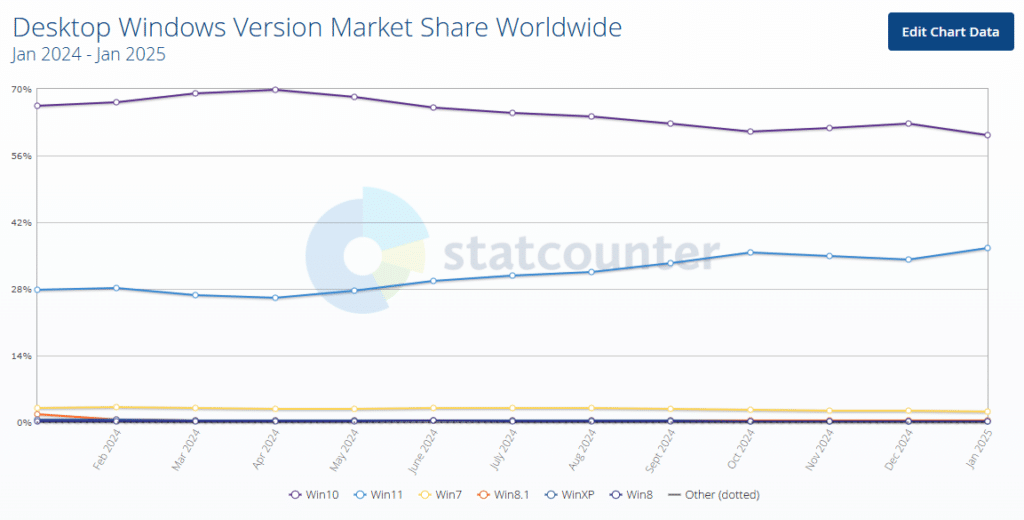
That means that 60% of the global desktop market customers have just over 8 months to plan and execute their migration to Windows 11.


Extended Support: A Costly Temporary Solution

One other thing to be aware of, and that’s not meant to scare you even more, is that early versions of Windows 11 have already gone to the end of support. Windows 11, 21H2 (Home, Pro, and Pro Education), has already gone end-of-life, and Windows 11, 21H2 Enterprise went end-of-life in October 2024. Two more Windows 11 versions share an end of support date with the final version of Windows 10, in October 2025.
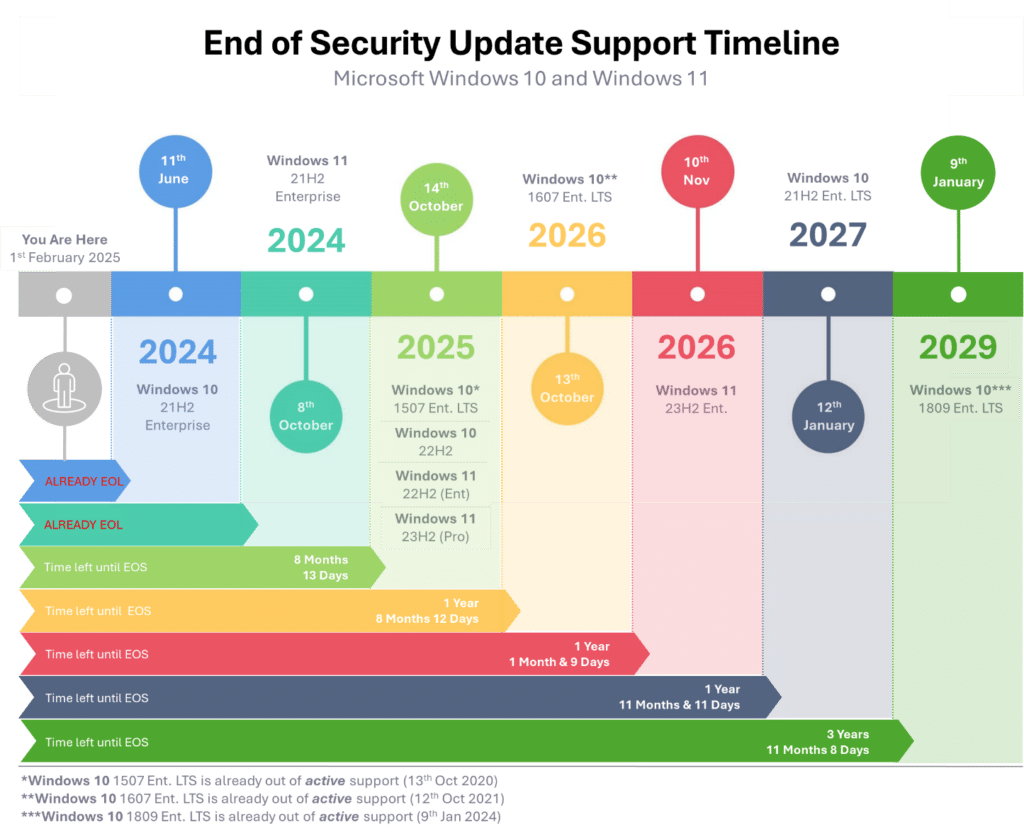
There is of course the option of a life raft in the form of extended support. But this is not a fix, merely a play for more time. And one that also has a cost attached to it the longer you try to stay afloat in that raft.

In that respect extended security support should be seen as a “last chance saloon” option for those who can’t migrate yet, not as an option to extend the lifecycle of the existing Windows estate.

If you are unfamiliar with the extended support option, then it is worth quickly highlighting the difference between active support and security support. With active support, you still receive updates that may include new features plus any fixes, etc. Security support is precisely that. You will only receive critical security patches and updates and no new features.


The Cost of Delaying Windows 11 Migration

Going back to the subject of costs, what do those numbers look like?

For standard customers, the cost of receiving extended security updates is $61 USD (approximately £50 GBP) per device for the first year. If you want to extend it for a further year, then the cost of that second year doubles to $122 (£100) per device. Finally, a third and final year can be purchased, where the price doubles to $244 (£200) per device.

If you use Microsoft’s cloud-based update management tool, Intune, a discounted option is available. This reduces the year one cost to $45 per device, the year two cost to $90 per device, and finally, the year three cost to $180 per device.

We have so far mentioned standard customers. However, there is an exception to the pricing rule when it comes to educating customers. For education customers, the cost of ESU for year one is $1 per device, year two is $2 per device, and finally, year three is $4 per device.

To put this into perspective, let’s take an example of a customer with 1,000 devices running Windows 10. Maintaining ESU for the first year will cost $61k, $122k for year two, and $244k for year three. Those figures are by no means a drop in the ocean, but you need to weigh up the cost of remaining secure while you migrate if it will take you beyond the end-of-life dates.

There is one other key point to highlight. If you decide not to take ESU in the first year and then decide that you do need ESU in the second year, you will still have to pay for year one and year 2, meaning the cost per device is $183.

So, What’s Next?

The obvious answer is to migrate to a supported version of Windows 11. But is it that as straightforward as it sounds? Most likely not. If you haven’t already started your planning and testing it is unlikely that you will get migrated by October.


Understanding the Need for Migration

Migrating to a new operating system is a significant undertaking that requires careful consideration and planning. With the end of support for Windows 10 approaching, businesses must migrate to Windows 11 to ensure continued security, compatibility, and support.

A successful migration requires a thorough understanding of the need for migration, including the benefits of upgrading to a new operating system, the risks of delaying migration, and the potential impact on business operations.


Understanding your application compatibility landscape

First and foremost, will your applications work or be supported on a new operating system? Understanding the application landscape is key. For example, are there any apps that are no longer used? Do you have multiple versions of the same application?

You need to build an end-to-end picture of your applications so you can confidently answer how many apps you have. I would put money on the fact that the answer will be way higher than you think.

Ensuring application compatibility is crucial when migrating to Windows 11, as core business applications must function properly to avoid disruptions.

The likelihood is that apps would continue to run if they were running on Windows 10, but you still need to test them on the new OS just in case. These can all be tested as you build your new OS image.

If you’re running older apps on an even older OS that are equally as business critical, you can look at alternative ways of delivering them. Maybe deliver them as published or virtual apps or maybe containerize them.


Pre-Migration Planning and Preparation

Pre-migration planning and preparation are critical steps in ensuring a smooth transition to a new operating system. This includes assessing the current IT infrastructure, identifying potential compatibility issues, and developing a comprehensive migration plan.

IT leaders must also consider the time and resources required for the migration process, including testing, training, and deployment. A well-planned migration can help minimize disruption, reduce downtime, and ensure a successful transition to the new operating system.


What About the New Hardware?

We’ve talked about apps, but equally important is the hardware. To support Windows 11, organizations may need to consider procuring new hardware to avoid conflicts during the transition.

Having assessed your hardware estate, you’ll understand whether your current devices will or will not support Windows 11. For the basics, Windows 11 requires the following configuration:

  • 1GHz 64-bit CPU with two or more cores
  • 4GB memory
  • 64GB hard disk space
  • UEFI Secure boot functionality
  • Trusted Platform Module (TPM) 2.0. You can now install with TPM 1.2, but it’s not officially supported
  • DirectX 12 or later + Windows Display Driver Model (WDDM) 2.0
  • HD Display (720p) greater than 9” and 8-bits per colour channel

Overall, the hardware requirements don’t seem too onerous, and the vast majority of endpoint devices will likely be able to run Windows 11 comfortably. However, before we get to two areas that might be an issue, there are a few things to call out.
One thing to be aware of is that these are the minimum specifications to run the Windows 11 operating system. I don’t want to state the obvious, but these specs are just for the OS and don’t consider any application resource requirements. Applications may need more CPU and memory resources and potentially more storage space.

Depending on the type of application, the graphics requirements might be greater, too. It’s worth running some benchmark performance tests on any hardware that’s being upgraded.

Anyway, back to those two potential showstoppers: TPM and CPU generation.

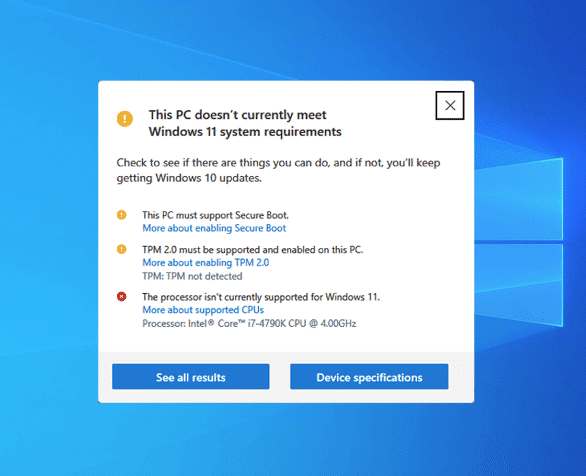
First off, to install Windows 11, the endpoint device must have a TPM 2.0 chip. As you can see from the screenshot above, Previously Windows 11 would not install without it, however Microsoft have relaxed this slightly and you can now perform a fresh install with TPM 1.2, however it is not officially supported.

Depending on the age of your hardware, this may not be a showstopper at all, as the device may have a TPM module, given that TPM 2.0 was introduced back in 2014. However, having said that it doesn’t mean your hardware vendor fitted it. But if you don’t have it, it could stop your migration in its tracks unless you swap out the hardware.

In Windows 11, the TPM is used for things such as Windows Hello and BitLocker. It may well be that your hardware has the TPM module present (your assessment data will tell you that), but it’s currently disabled, which would require a change of BIOS settings to enable it. Something you need to factor into the migration process.

As a side note, this is also true for the Windows Server 2022 operating system. In the case of server hardware such as Dell, the TPM module is typically not included as a standard and will need to be added as a plug-in module to the motherboard.

The other potential showstopper, again highlighted in the screenshot, is the CPU. While your current CPU may easily meet and exceed the required clock speed and core count, this isn’t the only requirement you must be aware of.

The CPU generation, or how old it is, also comes into play and might be a bigger issue as Microsoft supports the Intel Generation 8 and newer CPUs and the AMD 2nd Generation Ryzen CPUs and newer, both of which were only released in 2018. A mere six years ago! Four years after the introduction of TPM 2.0. Given that fact, it’s possibly more likely that you have an unsupported CPU rather than a missing TPM. Your assessment data will tell you what CPUs you have out there.

You can check your results against the Windows 11 supported Intel CPU page and the Windows 11 supported AMD CPU page.


What’s Next for a Smooth Transition?

Migrate is what’s next. It’s the only real option when running desktops and laptops. Not migrating to Windows 11 will mean that you’ll be running an unsupported operating system and all the risks of doing that.

The main one is running an operating system that is vulnerable to attack. Considering the convenience, you might opt for an in place upgrade or in place upgrades to maintain existing settings and data.

In terms of approach, you should first run an assessment to understand what you have deployed currently. That will give you the number of devices under the spotlight that need the operating system updated and the applications being used.

This will enable you to scope the size of the migration project to help determine timelines and budgets. Many businesses rely on experienced partners to manage these complexities and ensure a smooth transition.

Timelines are key too. If you need to extend support in order to complete migration and continue with a supported environment, from a security perspective, you could upgrade to Windows 10 1809 LTS version if you haven’t already. That means you’ll receive security patches until January 2029. Effective user training during this process is essential to ensure users feel supported and informed.

There are then the alternative options. Now could be the ideal time to migrate to a virtual desktop or virtual application solution either on-premises or from a Desktop-as-a-Service provider.

This would certainly solve your hardware question to a certain degree, however if you continue to access virtual environments from a Windows device you will still need to have an updated and supported OS, but maybe these devices could be repurposed into a thin client device using something like IGEL OS.

When considering a major Windows update, it’s important to evaluate different installation methods, such as clean installs versus in-place upgrades, to ensure systems function properly and mitigate potential technical issues.

In summary, given the options outlined above, the one thing that is not an option is to do nothing.

How can universities prepare graduates for the AI-first job market?

Companies across various sectors—technology, healthcare, finance, and retail—are declaring themselves “AI-first,” signaling a strategic shift to prioritize AI in their operations, decision-making, and innovation practices. This means embedding AI into core processes to enhance productivity, efficiency, and innovation. For example, Google has prioritized AI technologies in its products, from search algorithms to autonomous driving projects. Similarly, Amazon uses AI to optimize supply chains and personalize customer experiences.  

Beyond tech giants, AI is penetrating traditional industries. In healthcare, AI algorithms assist in diagnosing diseases and personalizing treatments. Financial institutions use AI to detect fraudulent transactions and forecast market trends. Retailers leverage AI for inventory management and customer insights. These applications demonstrate that AI is no longer a futuristic concept but a cornerstone of modern business strategy.  

At Apporto, we have adopted a matrix that defines the maturity model of candidates for various jobs in the company. Here is the Engineering role maturity model. We give strong preference to those candidates who are in the adoptive or transformative stages.  

Unacceptable
Capable
Adoptive
Transformative
Calls AI coding assistants ‘too risky’ Has never tested AI-generated code
Uses ChatGPT/Copilot for simple coding tasks (e.g., regex, unit-test stubs) Can explain how they prompt, review, and validate AI output
Uses ChatGPT/Copilot for simple coding tasks (e.g., regex, unit-test stubs) Can explain how they prompt, review, and validate AI output Chains LLM calls with fallback + retry logic Adds eval tests to flag hallucinations Knows Claude Code, Cursor, Windsurf, etc.
Ships LLM-powered features, monitors live metrics, and refines based on user feedback Builds an AI-first dev pipeline (guardrails, RAG docs, etc.) that cuts down PR cycle time

The Case for Education to Lead the AI-First Revolution 

While businesses are redefining themselves around AI, education—arguably the foundation of all industries—must not lag behind. The rapid adoption of AI in the corporate world underscores the necessity for educational institutions to rethink how they prepare students for the future. Here are compelling reasons why education must embrace an AI-first mindset: 

  1. Preparing Students for the Future Workforce

AI is reshaping the job market. Traditional roles are evolving, and new ones are emerging that require AI proficiency. To equip students for this new reality, education must integrate AI into curricula, from primary levels to higher education. Teaching students not only how to use AI tools but also how to build, understand, and question them ensures they are prepared to navigate an AI-driven world. 

  1. Enhancing Learning Experiences

AI has the potential to revolutionize the way students learn. Adaptive learning platforms, powered by AI, can personalize education to meet the unique needs of each student.  Such approaches not only improve academic outcomes but also foster a love for learning by making it more engaging and relevant. 

  1. Reducing Inequality in Education

One of AI’s most promising applications is its ability to bridge gaps in education access. AI-powered tools can provide high-quality educational resources to underserved communities, overcoming barriers such as geographical distance and teacher shortages. For instance, virtual tutors and AI-driven learning apps can bring world-class instruction to remote areas, democratizing education in unprecedented ways. 

  1. Driving Institutional Efficiency

Just as businesses use AI to streamline operations, educational institutions can leverage AI for improved efficiency. AI can assist in teaching tasks such as tutoring, grading and providing feedback, and more.  

Challenges and Opportunities 

Adopting an AI-first approach comes with its challenges. Issues such as data privacy, algorithmic bias, and the digital divide must be addressed to ensure equitable and ethical implementation. However, these challenges also present opportunities for innovation. By involving diverse stakeholders—including students, educators, policymakers, and technologists—education can develop AI solutions that are inclusive and responsible. 

Moreover, the AI-first transition in education is not just about technology; it is about a cultural shift. It requires an openness to experimentation, a willingness to adapt, and a commitment to lifelong learning. Educational institutions must foster an environment where curiosity and creativity thrive, empowering students to not only adapt to the AI era but to shape it. 

Conclusion 

The AI-first movement in industry is a clarion call for education to follow suit. As companies leverage AI to redefine success, educational institutions have an opportunity—and a responsibility—to redefine learning. By adopting an AI-first approach, education can prepare students for the future, enhance learning experiences, and contribute to a more equitable and ethical society. The time to act is now. The future of AI is not just about machines and algorithms; it is about people and possibilities. Let education take the lead in unlocking this future.  

Are Companies Replacing Graduates With AI? A case study

Are Companies Replacing Graduates With AI? A case study 

For many new graduates, the dream of landing that first job is starting to feel out of reach. Social media is filled with stories of shrinking entry-level opportunities, while headlines warn that artificial intelligence (AI) is “eating into” traditional white-collar roles. This has fueled a troubling rumor: companies are no longer hiring graduates because they’re replacing them with AI. 

It’s a striking claim—one that plays on very real anxieties about the future of work. But how much of it reflects reality? 

The Power of Narrative 

Much of the noise comes from high-profile tech leaders with a clear interest in shaping the conversation. For example, Salesforce CEO Marc Benioff claimed that 50% of workloads are now handled by AI. Similarly, Dario Amodei, CEO of Anthropic, warned in 2025 that AI could eliminate up to half of entry-level white-collar jobs within five years, potentially pushing U.S. unemployment as high as 10% to 20%. 

These statements should be taken with caution. Companies often benefit when they appear to be cutting costs—layoff announcements, for instance, frequently trigger stock price bumps. Now consider the double incentive for firms selling AI systems: they can boast about replacing workers with AI while also marketing their technology as indispensable. 

A Case Study: Apporto 

At Apporto we both build and embed AI tools. Our leadership team has adopted a straightforward mantra: if we promote AI externally, we must also use it internally. 

Like most software firms, our largest expenditure lies in engineering. Gartner analyst Philip Walsh notes that the leading use case for AI in business has been coding and software development. With this in mind, we’ve worked closely with our engineering team to make AI part of daily workflows. 

We’ve also tested a range of tools—Copilot, Cursor, and others—and found that AI consistently boosts productivity. Interestingly, the employees who benefited most from these tools were often recent graduates, many of whom entered the workforce already comfortable with AI thanks to their studies. 

That said, our hiring philosophy has evolved. Before bringing on new graduates, we ask: have we fully leveraged AI to maximize the productivity of our current team? Only when the answer is yes do we consider expanding headcount. 

In this sense, AI hasn’t eliminated graduate hiring—but it has raised the bar. By amplifying the output of our existing employees, AI reduces the urgency to expand teams. Yet as Walsh points out, “There’s so much software that isn’t created today because we can’t prioritize it. AI is going to drive demand for more software creation, and that’s going to drive demand for highly skilled software engineers who can do it.” 

What This Means for Graduates 

The bottom line: AI isn’t replacing graduates—it’s reshaping what’s expected of them. Productivity thresholds are higher, but opportunities remain abundant for those with the right skills. To students studying computer science, my advice is simple: have no fear. AI will expand—not erase—the opportunities ahead. 

VMware Migration Options: Simplifying Transition to Cloud & Hybrid DaaS

In the dynamic landscape of virtual desktop infrastructure (VDI), organizations are constantly seeking innovative solutions to enhance user experience, reduce costs, and improve overall efficiency. One such transition that holds immense potential is migrating from VMware Horizon (on-premises VDI) to Apporto’s Desktop-as-a-Service (DaaS).

Given the ongoing turmoil and uncertain future created by the Broadcom acquisition, there is no better time to consider a switch away from Horizon.

This article will guide you through the seamless migration process, outlining key benefits and considerations for a successful transition. We offer two different migration options, each with a simple-to-follow migration path.


Why Perform a VMware Migration?

1. Definition and Benefits of Virtual Machine Migration

Virtual machine migration is the process of transferring a VM from one host to another while preserving its configuration, data, and applications. This process offers several significant benefits:

  • Improved Resource Utilization and Allocation: By redistributing workloads, VM migration helps in balancing resource usage across multiple hosts, ensuring optimal performance.

  • Enhanced Performance and Scalability: Migrating VMs allows for better load balancing and scalability, accommodating growth and changing demands without compromising performance.

  • Reduced Downtime and Increased Availability: VM migration minimizes downtime by enabling maintenance and upgrades without interrupting services, thus ensuring higher availability.

  • Simplified Management and Maintenance: The ability to move VMs between hosts simplifies the management of virtualized environments, making maintenance tasks more straightforward.

  • Increased Flexibility and Agility: VM migration provides the flexibility to adapt to changing business needs, allowing for quick responses to new opportunities or challenges.

2. Importance of VM Migration in Virtualized Environments

In virtualized environments, VM migration is indispensable for several reasons:

  • Optimize Resource Allocation and Utilization: By dynamically moving VMs, organizations can ensure that resources are used efficiently, avoiding bottlenecks and underutilization.

  • Improve Performance and Scalability: VM migration supports load balancing and scalability, enabling systems to handle increased workloads seamlessly.

  • Reduce Downtime and Increase Availability: Maintenance and upgrades can be performed with minimal disruption, ensuring continuous availability of services.

  • Simplify Management and Maintenance: The ability to migrate VMs simplifies the overall management of virtualized environments, making it easier to maintain and update systems.

  • Increase Flexibility and Agility: VM migration allows organizations to quickly adapt to changing requirements, providing the agility needed in today’s fast-paced business landscape.

3. Types of VM Migration: Live, Cold, and Hybrid

There are three primary types of VM migration, each with its own process and benefits:

  • Live Migration: This involves moving a VM from one host to another while it is still running. Live migration ensures minimal downtime, making it ideal for critical applications that require continuous availability.

  • Cold Migration: In this type, the VM is shut down before being moved to a new host and then restarted. Cold migration is typically used when live migration is not feasible or when significant changes to the VM’s configuration are required.

  • Hybrid Migration: Combining elements of both live and cold migration, hybrid migration involves moving the VM while it is still running but with some planned downtime. This approach balances the need for minimal disruption with the practicalities of certain migration scenarios.


Preparing for Migration

Before embarking on the migration process, it is crucial to thoroughly assess migration readiness and meticulously plan each step. Proper preparation ensures a smooth transition and minimizes potential disruptions.

1. Assessing Migration Readiness and Planning

To ensure a successful migration, organizations should:

  • Evaluate the Current Virtualization Environment: Conduct a comprehensive assessment of the existing virtualization setup to identify any potential challenges or limitations that may impact the migration.

  • Assess VM Compatibility: Verify that the VMs are compatible with the target host or platform, ensuring that all necessary configurations and dependencies are met.

  • Plan the Migration Process: Develop a detailed migration plan that outlines the order of VM migration, expected downtime, and resource allocation. This plan should also include timelines and milestones to track progress.

  • Develop a Contingency Plan: Prepare for potential issues by creating a contingency plan that addresses possible challenges and outlines steps to mitigate risks during the migration process.

By carefully planning and preparing for VM migration, organizations can ensure a smooth and successful transition that minimizes downtime and disruption to business operations. This proactive approach not only enhances the efficiency of the migration process but also ensures that the migrated VMs continue to perform optimally in their new environment.


Option 1 – DaaS with Virtual Machines

There has never been a better time to move to the cloud and execute a cloud-smart strategy. Leveraging the latest cloud technologies and cloud environments, Apporto makes DaaS incredibly easy with our fully managed service.

These cloud environments facilitate VM migrations between various platforms, including on-premise systems and data centers, enhancing manageability and cost optimization. We handle all of the heavy lifting so that you can focus on strategic projects and the business needs of your organization.

What You Keep vs. What You Can Discard

What You Keep
What You Can Discard
Software Licensing
Connection Servers
vCenter*
Unified Access Gateway
Horizon Edge Gateway
Enrollment Server
App Volumes Manager
Horizon Licensing
App Volumes Licensing
VDA Licensing (MS)

*If used for other workloads

As shown, moving to Apporto’s DaaS platform can dramatically simplify your on-premise infrastructure and will help increase your security posture, as Apporto doesn’t require the plethora of firewall rules required by Horizon.

With the Apporto DaaS platform, migration couldn’t be simpler.  Size your environment, order a subscription, and we’ll do the rest.

Of course, we keep you in the loop every step of the way and never lock you out of making changes should you need or want to. Flexibility is one of the key benefits you’ll enjoy with Apporto.

We understand that cloud-hosted DaaS isn’t for everyone. We also offer a hybrid DaaS option, where the majority of the infrastructure will still run on-premises.

Additionally, VMware vCenter Converter can be used to transform physical machines into VMware virtual machines and facilitate migrations between hosts and data centers.


Option 2 – Hybrid DaaS in Hybrid Cloud Environments

If you’re happy with your vSphere environment and there’s still life in your hardware, leave it in place and deploy Apporto instead. This gives you multiple advantages:

  1. Continue using existing hardware where you’ve already invested, utilizing your physical server as a foundation for hosting multiple virtual machines.
  2. Built-in cloud migration pathway if your future plans include cloud hosting.
  3. Cloud bursting and disaster recovery capabilities for additional flexibility.

What You Keep vs. What You Can Discard

What You Keep
What You Can Discard
Software Licensing
Connection Servers
vCenter*
Unified Access Gateway
Server Hardware
Horizon Edge Gateway
Gold Images
Enrollment Server
VDA Licensing (MS)
App Volumes Manager
Horizon Licensing
App Volumes Licensing

With our hybrid DaaS deployment, nearly everything runs on-premises and stays within your control. Our management portal stays cloud-hosted, but that’s it.

  • Re-use your Gold Images
  • Deploy your own cyber protection
  • Scale your hardware however you want

The VMware environment offers robust capabilities for managing virtual machines and seamlessly migrating workloads to cloud platforms.

Key Benefits of Apporto DaaS/Hybrid DaaS

1. Cost-Efficiency

Apporto eliminates the need for extensive hardware investments and maintenance costs associated with on-premises solutions. This cost-effective model allows businesses to allocate resources more strategically.

Additionally, during data migration from physical to virtual systems or to cloud infrastructures, it is crucial to use reliable tools and strategies to ensure safe and efficient data transfer.

2. Improved Accessibility

DaaS provides users with any-time, anywhere access to desktop environments, enhancing collaboration and productivity. This is particularly beneficial for remote or mobile teams. The only requirements are an Internet connection and an HTML5-compatible browser.

Virtualization platforms enable users to create and manage multiple virtual machines on a single physical machine, enhancing efficiency, scalability, and resource management in IT environments.

3. Scalability with VM Migration

Apporto’s DaaS scales effortlessly to accommodate the growth of your organization. Whether you’re expanding your team or adopting new technologies, the platform adapts without compromising performance.

4. Security in Data Centers

Following industry best practices for zero-trust and leveraging multiple layers of protection and detection, Apporto’s DaaS platform is safe and secure, without compromising user experience or performance.

The VMware migration tool is crucial for P2V and V2V migrations, playing a significant role in efficiently managing data transfer during these upgrades.

5. Simplicity

Just three components, all managed from an intuitive web console—Apporto couldn’t be simpler to deploy and manage.


Conclusion

Whether your organization is executing a cloud migration strategy or just looking for a VMware Horizon alternative, there are multiple options available with Apporto.

As a leader in cloud-based virtual desktop solutions, Apporto is at the vanguard of facilitating remote work and learning. Recognized in Gartner’s 2023 Magic Quadrant for DaaS, Apporto is dedicated to providing secure, scalable, and high-performance computing environments that meet the demands of today’s dynamic digital ecosystem.

Additionally, tools like Faddom and vMotion play a crucial role in optimizing VMware migrations and minimizing risks by mapping dependencies and enhancing performance during the migration process.

Unlocking the Potential of Apporto for College Students

In today’s digital age, access to technology is pivotal for academic success. College students rely on software applications for curriculum, research, data analysis, programming, and project management, among other tasks.

However, not all students have access to the high-powered devices or specialized software required for their courses. This is where Apporto, a cloud, on-prem, or hybrid-based virtual desktop and application streaming platform, steps in to bridge the gap with its cloud desktops.

With Apporto, educational institutions can provide students with seamless access to software resources, leveling the playing field and enhancing the learning experience.

Here’s how Apporto technology benefits college students:

1. Accessibility to Essential Software through Virtual Desktop Infrastructure


Apporto enables students to access software applications without needing to install them on their personal devices. For many, installing high-end software like MATLAB, Adobe Creative Suite, or AutoCAD can be daunting due to hardware limitations or incompatibilities.


With Apporto’s virtual desktop, students can run these programs from the cloud, irrespective of their device’s processing power or operating system. This ensures that every student can access the necessary tools to complete their coursework, promoting equal access regardless of their personal computer’s specifications.

2. Cost Savings on Software and Hardware


Purchasing software licenses or upgrading hardware to meet the system requirements for specific applications can be costly. Apporto eliminates the need for students to make such investments by providing access to licensed software directly through its platform. While Apporto eliminates the need for high-end physical devices, students still require basic physical devices to connect to their virtual desktops.


This not only saves money but also allows students to use high-performance software on older or budget-friendly devices. Additionally, universities can offer a wider range of applications without increasing software budgets, passing the benefits onto students.

3. Flexible and Remote Learning to Support Remote Learning


The flexibility of computing with Apporto is invaluable for students who may be juggling work, family, and academic commitments. By providing remote access to a virtual desktop environment, Apporto allows students to work from any location with an internet connection.


Whether studying from home, traveling, or on campus, Apporto’s VDI solutions allow students to access the same software and resources seamlessly. This enhances the learning experience, particularly for online or hybrid course formats, and supports students who may be studying abroad or have limited physical access to university facilities.

4. Effortless Collaboration and Project Sharing


Collaborative work is a key component of college life, especially for group assignments, projects, and study groups. Apporto enables real-time collaboration on projects by allowing multiple users to access the same virtual desktop environment simultaneously.


This means students can work together on documents, presentations, or software applications, without needing to send files back and forth or worry about compatibility issues. By streamlining project collaboration, Apporto promotes teamwork and fosters a sense of community among students, even if they are geographically dispersed.

5. Enhanced Cybersecurity and Data Protection


With cybersecurity threats on the rise, protecting sensitive data and personal information is a priority for educational institutions. Apporto offers a double-gate approach enabling secure access from any student device using an Internet connection and HTML5-compatible browser.


Following a deny-all access posture, limited access to campus resources can be provisioned. Apporto provides a secure environment where students can work without the risk of exposing their devices to malware or viruses.

Since files are stored externally rather than on individual devices, the risk of data loss from hardware failure or theft is also mitigated. The platform also includes features such as automated backups and multi-factor authentication, further safeguarding students’ work and personal information.

6. Support for Specialized Learning Environments


Certain academic fields, such as engineering, data science, or multimedia design, require specialized software that can be complex to set up and manage. Apporto supports these specialized learning environments by providing pre-configured
virtual machines tailored for specific course requirements.

For example, a computer science course may have a virtual desktop environment set up with coding tools, compilers, and databases, while a graphic design course may offer access to photo editing and video production software. This customization ensures that students can quickly get started with their work without spending time configuring their own environments.

7. Sustainable and Eco-Friendly Approach


Apporto’s technology supports a more sustainable approach to computing. By reducing the need for frequent hardware upgrades and limiting the consumption of physical resources, it helps cut down on electronic waste.


Moreover, data centers often use more energy-efficient technology than individual computers, contributing to a reduction in the overall carbon footprint. Students and institutions alike can therefore adopt a more environmentally conscious approach to technology use, while still enjoying top-notch computing capabilities.

8. Seamless Software Updates and Maintenance


Installing and updating software can be time-consuming and disruptive. Apporto eliminates the need for students to worry about software updates, as the platform ensures that all applications are always up to date with the latest features and security patches.


This also reduces the workload for university IT departments, which no longer need to manage software installations on individual student devices. Students can simply log in and get to work, knowing they have access to the latest software versions.

9. Equalizing Opportunities for All Students


A significant benefit of Apporto technology is its potential to equalize access to educational resources. Not all students have the same financial means or access to technology, and this disparity can affect academic performance.


By providing access to a desktop with essential software, universities can help ensure that every student has the opportunity to succeed, regardless of their financial situation. This is particularly impactful for students from disadvantaged backgrounds, who may otherwise struggle to afford the technology needed for their studies.

Conclusion


Apporto technology is more than just a tool for virtual desktop access; it is a gateway to a more inclusive, accessible, and sustainable learning environment. By offering a platform where college students can access essential software, collaborate effortlessly, and work securely from anywhere, Apporto is helping to shape the future of education.


As higher education continues to evolve with the digital age, embracing solutions like Apporto can help institutions empower students to reach their full academic potential.

Effortless Transition to Windows 11 with Apporto: A Secure, Cost-Effective Virtual Solution Leveraging Existing Infrastructure

The release of Windows 11 has sparked a mix of enthusiasm and apprehension among organizations. While the new operating system promises improved performance, enhanced security, and a modern user interface, IT departments are grappling with several challenges that are hindering a seamless transition, and many businesses rely on experienced partners to navigate these complexities.

  • Hardware Compatibility and Upgrade Costs: Ensuring that existing PCs are compatible with Windows 11 is a major concern, and the cost of upgrading can be prohibitively expensive.
  • Security Risks and Data Sharing: The significant amount of hardware and software monitoring information being shared with Microsoft and other third-party vendors raises concerns about massive security risks and potential data breaches.


According to a recent survey by VMBlog.com, which analyzed a sample set of 750,000 enterprise Windows devices, a staggering 82% have not yet migrated to Windows 11.


Moreover, 11% of all devices are unable to be upgraded, leaving organizations vulnerable to security risks and potential disruptions. The delay in making this transition has led to increased costs, operational disruptions, and potential supply chain issues, including hardware shortages.


In this blog, we will explore two key issues that companies are facing when introducing Windows 11, and how Apporto’s innovative solution can help organizations of all sizes save significant costs, minimize operational disruptions, and ensure a more secure transition.


Our solution provides alternatives to the “replace everything” approach leveraging desktop and application virtualization, thin client technology from partners like IGEL, 10ZiG, and Stratodesk, as well as eliminating security risks from the Windows 11 OS itself.

The Problem: PC Compatibility and Replacement Costs with Windows Operating System

Many companies face a significant challenge when upgrading to Windows 11: software compatibility on their PCs. Legacy applications, whether purchased or custom-built, may no longer be directly compatible with the new operating system. While Microsoft offers a software compatibility mode, this may not be a viable solution for older, custom-made software that requires updates.

The problem is that updating custom software can be a significant undertaking, requiring substantial resources and investment. Unfortunately, many companies may not have the budget or resources to update their custom software, leaving them with a difficult decision: either upgrade and incur significant costs or risk security vulnerabilities by continuing to run outdated software.

Furthermore, Windows 11 requires more powerful hardware to run efficiently, which can be a significant expense for large organizations with many employees who don’t need the latest and greatest hardware to perform their jobs. As shown on Microsoft’s site, the need to run Copilot+ directly on the PC requires more expensive processors with little benefit to the employees.

Timing the Windows 11 migration with a hardware refresh can ensure that the necessary requirements for the new OS are met and provide a seamless transition for users.

Copilot+ PCs are a class of Windows 11 devices that are powered by a neural processing unit (NPU) capable of performing 40+ trillion operations per second (TOPS). An NPU is a specialized computer chip for AI-intensive processes like real-time translations and image generation.

For most scenarios, customers will need to acquire new hardware to run Copilot+ PCs experiences. In addition to the above minimum system requirements for Windows 11, hardware for Copilot+ PCs must include the following:

  • Processor: A compatible processor or System on a Chip (SoC). This currently includes the Snapdragon® X Plus and the Snapdragon® X Elite. We will update this list periodically as more options become available.
  • RAM: 16 GB DDR5/LPDDR5
  • Storage: 256 GB SSD/UFS

For those companies looking to delay the Windows 11 update, Microsoft is only supporting Windows 10 with security updates until October 2025 at which time an upgrade to Windows 11 is required to continue receiving security updates.

Finally, IT support and training staff may need to undergo training to learn the new features and functionality of Windows 11. While training is essential to ensure a smooth transition to Windows 11, it’s essential to consider the costs and impact on business operations. Organizations must weigh the benefits of training against the costs and potential disruption to their business.

The Problem: Security Risks in Data Privacy Collection by Microsoft and Security Features


The PC Security Channel released a video, Has Windows become Spyware? providing a detailed analysis of the data being shared by Windows 11 vs XP using Wireshark. Using a brand new Windows 11 laptop, the results are troublesome for any corporation concerned about company information being shared with 3rd parties beyond Microsoft. 


Sites receiving computer data directly include:


For more analysis visit “Is Windows 11 spring on you? New report details eye-opening levels of telemetry.” Also suggested is “Windows 11 purview references AI feature that searches inside audio and video files for specific word” from Sept 2, 2024. 

The Apporto Answer to the Migration Process

Apporto provides a virtualized DaaS solution that simplifies the complexities and challenges associated with executing an OS upgrade to Windows 11, which can be deployed on-premises, in the cloud, or as a hybrid model, offering a simple and cost-effective way to manage and deliver applications to employee devices. With Apporto, organizations can:

  • Simplify the upgrade process: Apporto is fully compatible with Windows 11, removing the complexity of traditional upgrades or migrations. Organizations can easily switch to Windows 11 virtually while continuing to use their existing PC or thin-client infrastructure.

This approach saves IT teams considerable time and costs by bypassing the need for testing and validating new Windows 11 devices and avoiding additional licensing expenses.

  • Reduce costs: Apporto’s virtual desktops and applications deliver Windows 11 directly to devices or thin clients running a compatible browser on their existing operating systems, eliminating the need to purchase costly Windows 11-compatible hardware.

Apporto’s pricing model also includes Windows licenses, simplifying costs and ensuring a seamless transition to the latest OS without additional hardware or licensing expenses.

  • Minimize downtime: Apporto’s cloud-based, on-premises, or hybrid architecture guarantees continuous availability of virtual desktops and applications, reducing downtime and maintaining business continuity.

This ensures that organizations can keep their critical applications and services running smoothly, even during upgrade processes.

  • Streamline management: Apporto’s intuitive management console streamlines the management of virtual desktops and applications, eliminating the need for extensive training and specialized expertise.

IT staff can easily manage application delivery on existing PCs without the need for substantial investments in training or additional support resources typically required for a Windows 11 transition.

In addition to simplifying the upgrade process, reducing costs, minimizing downtime, and streamlining management, Apporto also offers a number of additional benefits, including:

  • Scalability: Apporto’s cloud-based, on-premises, or hybrid architecture makes it easy to scale to meet changing business needs. This means that organizations can quickly and easily add or remove virtual desktops or applications as well as PCs or thin-clients for employees without impact to the company.


  • Security: Apporto’s cloud-based, on-premises, or hybrid architecture provides a secure and reliable platform for virtual desktops or applications. This means that organizations can ensure that their critical applications and data are protected from cyber threats and other security risks.


  • Flexibility: Apporto’s cloud-based, on-premises, or hybrid architecture provides a flexible and agile platform for virtual desktops and applications. This means that organizations can quickly and easily deploy new applications and services, without the need for extensive client-side infrastructure upgrades.

Seize the Opportunity with Apporto for Business Operations


Our team has extensive experience managing Windows 11 migrations for customers, helping them save significant costs, downtime, and security risks. We understand the challenges of upgrading to a new operating system and the importance of protecting internal, proprietary data.

Preserving user files alongside profile data and settings is crucial during the transition to Windows 11. With Apporto, you can trust that your Windows 11 migration will be handled with care and expertise.

Don’t let the challenges of Windows 11 hold you back. Contact the Apporto team today to learn more about our DaaS solution and how it can help you simplify your Windows 11 upgrade. Our experts are ready to help you navigate the process and ensure a successful migration.

To ensure a successful Windows migration, organizations should follow several best practices. A well-planned Windows upgrade can help transfer files and application settings seamlessly, ensuring minimal disruption to business operations.

The Unasked Question: AI’s Ultimate Creative Barrier

“AI is useless. It can only give you answers” Pablo Picasso


In 1968, Pablo Picasso, never one to shy away from bold declarations, reportedly said: “Computers are useless. They can only give you answers.” Picasso, an artist who thrived on ambiguity, emotion, and open interpretation, dismissed computers because they could not pose questions, express doubt, or provoke new ways of thinking—the lifeblood of creativity.

Fast-forward more than half a century, and computers have evolved into sophisticated, omnipresent tools. Artificial intelligence is increasingly woven into the fabric of our daily lives. But despite the remarkable advances, Picasso’s critique retains surprising relevance. One could argue that even today, AI is still best at answering well-defined questions, rather than asking them.

The Limits of Answers

Artificial intelligence excels when the rules are clear and the goals are defined. It can diagnose diseases from medical scans, beat grandmasters at chess and Go, and summarize thousands of pages of legal text in seconds. These are extraordinary feats.. But they are, at their core, responses to predefined problems.

AI, as it stands, lacks the curiosity, context, and consciousness to ask truly novel or transformative questions. It doesn’t wake up wondering, “What if?” It doesn’t speculate, doubt, or daydream. Instead, it works within the bounds of what it has been trained on. Its creativity is derivative—an echo of the data it has consumed, not the spark of something never before imagined.

The Art of the Question

Human creativity—what Picasso so fiercely defended—is often driven by the question rather than the answer. In art, science, and philosophy alike, breakthroughs begin not with data but with inquiry. What lies beyond the stars? What happens if we look at this problem from a different angle?

In my role as CEO of a young company, I begin each day not by seeking answers, but by posing questions: How might we evolve our technology to better serve our current customers? What opportunities are we overlooking with new markets?

These questions don’t have clear answers—but they drive progress.AI, for all its computational power, has not yet demonstrated this kind of generative, interrogative thinking. It doesn’t challenge its own premises or rebel against its training. It doesn’t suggest that perhaps the real problem lies elsewhere. And in that sense, it remains far from the kind of intelligence Picasso might have respected.

Despite all its progress, AI still doesn’t wonder why.

How Colleges Integrate Academic and Professional Development?


In higher education, the degree can no longer stand alone. You see it in employer surveys, in hiring data, and in conversations across universities. Employers report persistent skills gaps, particularly in communication, problem solving, and applied critical thinking. A transcript signals academic achievement, but it does not always clarify professional readiness.

That reality places responsibility on institutions. Integrating career development into the student journey is now essential for modern education. Professional development cannot remain an optional workshop or a final-year activity managed only by career services. It must be woven into the academic experience itself.

Career engagement begins at enrollment. From the first semester, you encounter conversations about skills, purpose, and future pathways. Colleges increasingly embed career preparation directly into coursework, advising, and experiential learning. Academic and professional development become interconnected, not separate tracks.

If education aims to prepare you for meaningful contribution, then career readiness becomes an integral part of the foundation, not an afterthought at graduation.


What Does True Integration Look Like in Practice?

True integration is deliberate. It is designed into curriculum, advising structures, and institutional strategy, not added as a final requirement. In practice, academic affairs and career services do not operate in isolation.

Departments coordinate programs so that courses reflect both disciplinary knowledge and professional development. Teaching evolves to include applied assignments and reflective exercises that connect classroom learning to real roles.

Early counseling plays a central role. You encounter structured career exploration before choosing a major, and that exploration continues through each stage of development. Technology supports this process by tracking academic progress alongside professional milestones.

Industry alignment ensures that what you learn remains relevant to workforce expectations. Integration becomes visible when these elements reinforce one another across the institution.

Key structural pillars include:

  • Curriculum alignment that connects course objectives to professional skills and workforce expectations
  • Experiential learning integration through internships, co-ops, and applied projects embedded in programs
  • Embedded career coaching introduced early and sustained throughout enrollment
  • Technology milestone tracking that monitors academic progress and career readiness together
  • Cross-department collaboration between faculty, academic affairs, and career services


Embedding Career Readiness Directly Into the Curriculum

Professor guiding students through a project-based learning session solving a real-world industry problem in a collaborative classroom.

Career readiness becomes meaningful when it is visible inside the curriculum itself. You do not develop durable skills by attending a single workshop. You build them through structured repetition across courses, guided by faculty members who intentionally connect academic knowledge with professional application.

Many colleges now use competency mapping aligned with NACE career readiness competencies. In practical terms, that means learning goals are not limited to content mastery. They include communication, critical thinking, problem solving, teamwork, and digital literacy.

Faculty modify coursework to reflect this broader purpose. Assignments that once measured recall now require analysis, collaboration, and presentation.

Skill mapping in syllabi makes expectations explicit. When you review a course outline, you see how each assignment contributes to specific competencies. Career readiness becomes a required component of academic programs, not an optional supplement.

Project-based learning strengthens this connection, asking you to solve real problems that resemble entry level job responsibilities. The classroom becomes a rehearsal space for professional practice.

Examples of how institutions operationalize this integration include:

  • Competency mapping in syllabi that links assignments to defined career readiness standards
  • Project-based assignments tied directly to job roles or industry challenges
  • Explicit skill articulation exercises that help you describe communication and problem solving abilities
  • Career competencies embedded within standard coursework rather than added as separate modules


Why Faculty Professional Development Is a Critical Lever?

Curriculum design alone does not guarantee strong outcomes. Faculty members translate strategy into daily teaching practice, and that work requires continuous professional development. When educators remain current with new methodologies and technologies, the quality of instruction improves.

Research consistently shows that faculty who engage in ongoing development tend to have students who perform better academically and persist at higher rates. Retention, engagement, and long term success are closely connected to instructional quality.

Sustained professional development produces stronger results than isolated workshops. One afternoon session rarely changes practice in lasting ways. Faculty learning communities, structured peer conversations, and collaborative inquiry allow educators to reflect, test new approaches, and refine their expertise over time.

Institutions that treat professional development as an integral part of strategic planning, with dedicated resources and accountability, see measurable gains in outcomes. At the same time, many adjunct faculty lack equitable access to these opportunities, which can limit their effectiveness.

Key levers include:

  • Sustained faculty learning communities that encourage reflection and peer collaboration
  • Technology and methodology updates that keep teaching aligned with evolving student needs
  • Strategic institutional investment that embeds professional development in planning processes
  • Expanding access for adjunct faculty so all educators receive meaningful support


Experiential Learning as the Bridge Between Classroom and Career

College student transitioning from classroom lecture to internship office environment in a split-scene visual showing theory meeting practice.

Experiential learning gives professional development a concrete form. You do not fully understand a field by reading about it alone. You test knowledge through practice, reflection, and feedback. Colleges embed internships, co-ops, practicums, and applied projects directly into academic programs so that theory and application reinforce one another.

Internships consistently enhance job prospects after graduation. Employers value internship experience because it signals familiarity with workplace expectations, communication norms, and professional responsibility.

Many institutions now offer credit-bearing work to ensure that applied experience remains academically grounded. Structured co-ops go further, allowing you to alternate between academic semesters and paid, full-time work aligned with learning objectives.

Practicums and clinicals, common in fields such as nursing, psychology, and education, require observation, documentation, and supervised practice. These experiences cultivate professional judgment, not just technical competence.

Experiential learning strengthens outcomes because it demands accountability. You apply knowledge in real settings, reflect on performance, and return to the classroom with deeper understanding.

Experiential Model Academic Integration Professional Outcome
Internships Course credit + applied work Stronger job placement
Co-ops Alternating work/study Paid experience + structured objectives
Practicums/Clinicals Observation + documentation Professional performance readiness
Industry Projects Employer-designed assignments Portfolio-ready skills


Early Career Coaching and First-Year Integration

Career development now begins at entry, not at the end of a degree. Many colleges introduce first-year success coaches who help you think about goals before you even meet with an academic advisor.

This early career exploration shapes how you choose courses, join programs, and engage in campus life. Instead of asking what you will do after graduation, you begin asking how each semester builds toward long term outcomes.

Early engagement with career centers improves results. Students who connect with career coaching in their first year are more likely to secure internships and jobs later. Career coaching provides structured conversations that define goals, identify skills gaps, and clarify professional identity.

This support matters especially for first generation students, who may not have informal networks to guide career decisions. When integration begins early, the student experience becomes more coherent, intentional, and aligned with success.

Key mechanisms include:

  • First-year milestone mapping that connects academic progress with professional development goals
  • Personalized career coaching that clarifies direction and identifies skill gaps
  • Skills reflection exercises embedded in introductory courses
  • Targeted support structures designed for first-generation students to increase access and confidence


Technology as the Infrastructure for Integration

University student viewing a dual-progress dashboard tracking academic credits and career readiness milestones on a laptop.

Integration at scale requires more than intention. It requires systems. Technology provides the infrastructure that connects academic progress with professional development in measurable ways.

Through digital tools, institutions can track professional growth alongside coursework, identifying patterns and gaps early. Milestone dashboards allow you to see progress in both degree requirements and career readiness benchmarks, which reinforces accountability.

Virtual simulations extend access to experiential learning. You can experience a day in the life of a role, test decision making, and reflect on performance without leaving campus. These tools make career exploration more concrete, especially when internship access is limited.

Technology also allows colleges to scale support, ensuring that career centers and advising teams reach more students without sacrificing personalization.

Core tools often include:

  • Career milestone dashboards that align academic and professional progress
  • Skills tracking platforms that document competencies across programs
  • Virtual role simulations that expose you to real-world scenarios
  • Digital portfolio systems that capture projects and applied learning
  • Integrated advising platforms that connect faculty, coaches, and career services


Employer Collaboration and Industry Co-Design

Integration strengthens when employers move from peripheral partners to active contributors. Advisory boards composed of industry leaders help shape curriculum alignment so that programs reflect current workforce needs.

When employers participate in academic boards, they provide insight into tools, expectations, and evolving professional standards. This collaboration ensures that what you study connects directly to what organizations require.

Some institutions take collaboration further by co-designing programs with businesses. Courses incorporate real projects, current software, and applied challenges drawn from industry practice. Direct collaboration builds durable skills because you engage with authentic constraints and expectations.

Alumni networks also play a critical role. Platforms such as Tritons Connect link students with graduates for mentoring and networking, while initiatives like Pay It Forward mobilize alumni to create job opportunities for new graduates. These partnerships reinforce professional identity long before graduation.

Key collaboration mechanisms include:

  • Industry advisory boards that review and refine curriculum alignment
  • Co-designed curriculum developed in partnership with employers
  • Alumni mentorship platforms that connect students with experienced professionals
  • Employer-led projects embedded in courses to simulate real workplace challenges


The Emerging Challenge: Trust, Verification, and Credential Integrity

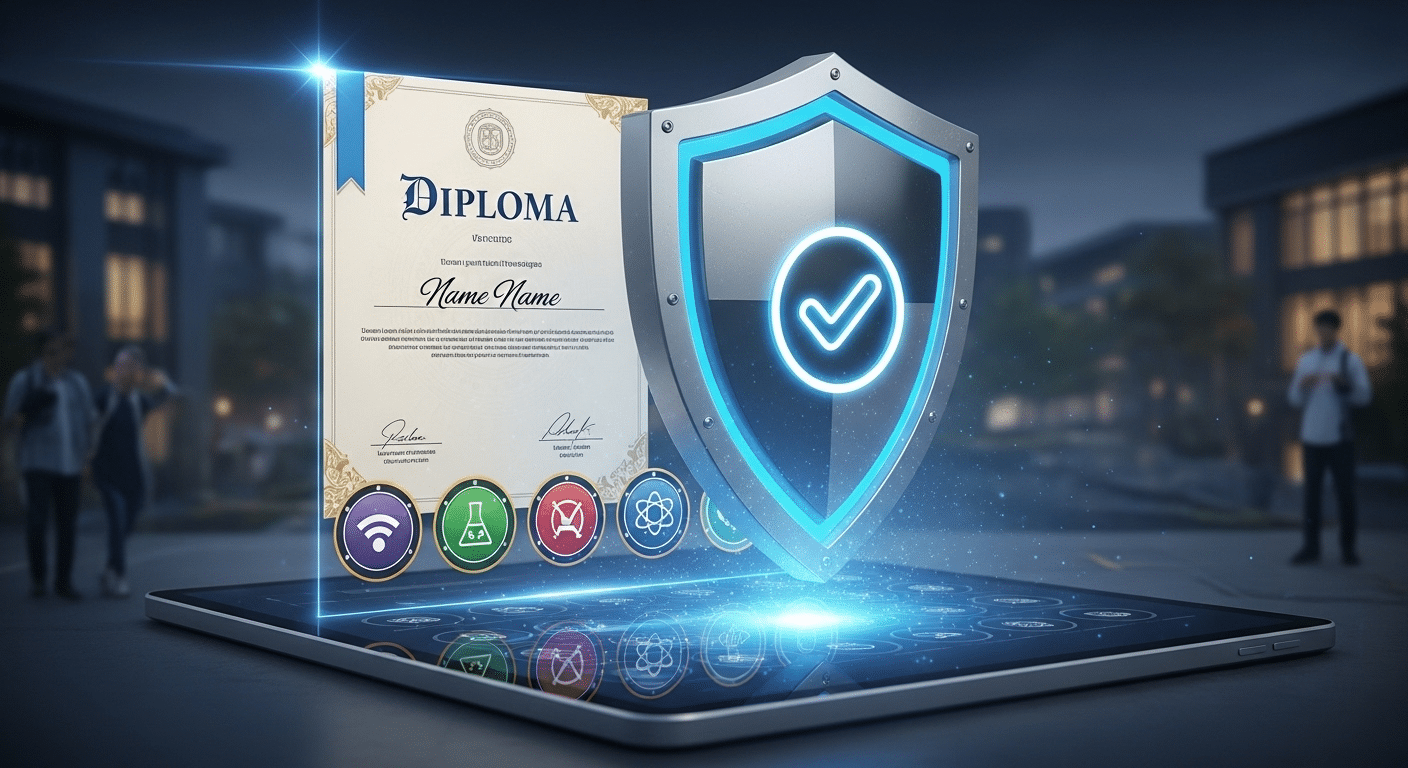
Digital diploma and verified skills badge protected by a secure shield icon, symbolizing credential integrity in higher education.

As colleges weave career development into academic programs, a new responsibility emerges. Verification becomes essential. When courses promise durable skills and professional readiness, institutions must ensure that demonstrated competencies are authentic.

Employers depend on that credibility. A degree that signals communication, problem solving, and applied expertise must rest on verified assessment, not assumption.

Authentic student work therefore carries weight beyond the classroom. It shapes professional identity. It influences hiring decisions. When learning occurs across online platforms, collaborative tools, and remote environments, integrity challenges grow more complex.

Assessment in digital spaces can obscure authorship and blur accountability. That reality does not diminish integration, but it raises expectations for oversight.

Employers must trust that projects, portfolios, and experiential outcomes reflect genuine performance. Faculty must feel confident that evaluation methods preserve fairness. Academic integrity becomes inseparable from professional credibility.

As integration deepens, institutions must strengthen systems that protect authenticity while preserving flexibility and access. The next step is not to slow integration, but to secure it.


How Apporto’s TrustEd Protects the Integrity of Career-Ready Education?

When career development becomes integrated into coursework, assessment carries higher stakes. Projects, simulations, internships, and applied assignments now serve as evidence of readiness. For that evidence to retain meaning, authorship must be clear and evaluation must be trustworthy. This is where Apporto TrustEd plays a critical role.

TrustEd provides instructor-controlled authorship verification designed specifically for academic environments. Instead of removing faculty judgment, it strengthens it. You retain oversight of assessment while gaining tools that help verify that submitted work reflects authentic student effort. This protects institutional credibility at a time when employers rely on portfolios, competency mapping, and experiential outcomes to make hiring decisions.

TrustEd follows a human-in-the-loop design. Technology supports review, but faculty remain central. When verification is transparent and embedded into assessment processes, confidence grows across stakeholders, from educators to employers. Career-ready education depends on credibility. TrustEd ensures that credibility remains intact.

Key benefits include:

  • Transparent authorship verification that supports academic integrity
  • Faculty-controlled review processes that preserve instructional authority
  • Protecting credential value by validating demonstrated competencies
  • Strengthening employer trust in institutional outcomes


What the Future of Higher Education Demands?

The future of higher education demands coherence. You are no longer preparing for a single job, but for a career that evolves over decades. Lifelong learning becomes a practical necessity, not an abstract ideal.

As industries adapt and knowledge expands, professional identity forms continuously. Education must support that ongoing development rather than conclude at graduation.

Durable skills such as communication, critical thinking, and problem solving anchor this long trajectory. Technical knowledge changes, but these capabilities persist.

Institutions therefore face a responsibility to design integration as a structural baseline, not a temporary initiative. Academic learning and professional development must function as one system.

At the same time, ethical technology governance becomes central. As digital tools support tracking, assessment, and verification, oversight must remain thoughtful and human-centered.

If higher education aims to sustain credibility and relevance, integration must be intentional, accountable, and designed for endurance rather than convenience.


Conclusion

Integrating academic and professional development requires intention across every layer of an institution. Curriculum integration connects classroom learning with real job responsibilities. Faculty development strengthens teaching and improves outcomes.

Experiential learning brings theory into contact with practice. Employer collaboration aligns programs with workforce needs. Technology provides the infrastructure to track progress and scale support. Integrity safeguards protect credibility and ensure that demonstrated competencies remain authentic.

When these elements work together, education becomes coherent. You see how knowledge, skills, and professional identity develop in parallel. That coherence builds trust among students, faculty, and employers.

If you are strengthening career-ready education at your institution, explore how TrustEd can help protect the integrity behind every credential you award.


Frequently Asked Questions (FAQs)


1. How do colleges integrate academic and professional development?

Colleges align curriculum with career readiness competencies, embed experiential learning into programs, and introduce early career coaching. Academic affairs, career services, and employers collaborate so that learning outcomes connect directly to workforce expectations.

2. Why is career readiness embedded into the curriculum?

Embedding career readiness ensures that students develop durable skills such as communication and problem solving alongside academic knowledge. This integration helps you connect coursework to real job responsibilities.

3. Do internships really improve job prospects?

Yes. Employers consistently value internship experience when making hiring decisions. Structured internships and co-ops allow you to apply knowledge in real settings, strengthening employability after graduation.

4. What role do faculty play in professional development?

Faculty members integrate competencies into teaching, revise syllabi to highlight skills, and participate in sustained professional development to improve instruction and student outcomes.

5. How does technology support career integration?

Technology tracks professional milestones alongside academic progress, offers virtual simulations, and scales advising support. These tools make career development measurable and accessible.

6. Why is academic integrity important for career-ready education?

Authentic assessment protects credential credibility. Employers must trust that demonstrated competencies reflect genuine student performance, especially in technology-supported learning environments.

How to Set Up a Cybersecurity Lab at Home (A Beginner’s Guide)

Reading about cyber security is useful, but the real learning usually happens when systems behave in unexpected ways. Logs fill with strange entries. A network scan reveals something that shouldn’t exist. Those moments, slightly messy and occasionally confusing, are where understanding starts to deepen.

That’s exactly why many security professionals build a cybersecurity home lab. A home lab creates a controlled lab environment where you can test tools, run experiments, and explore attack simulations without putting real systems at risk.

Instead of experimenting on your main computer or personal network, everything happens inside an isolated setup designed specifically for learning.

Working in this kind of environment helps you observe how operating systems respond to attacks, how monitoring tools detect suspicious behavior, and how defensive strategies actually work in practice.

The good news is that building your own home lab project does not require a data center. In most cases, it starts with a single machine, then gradually evolves into a more capable cybersecurity lab over time.

In this blog, you’ll learn how to set up a cybersecurity lab at home step by step, including the hardware, software, tools, and security practices needed to build a safe and effective learning environment.


What Is a Cybersecurity Home Lab and How Does It Work?

A cybersecurity lab is essentially a small, controlled testing ground where you can explore how systems behave under attack, how defenses respond, and how monitoring tools detect unusual activity. Instead of experimenting on real devices or your everyday network, everything happens inside a carefully designed lab environment built for learning.

Most cybersecurity labs rely on virtual machines, which are simulated computers running inside your main system. Each machine behaves like a real device with its own operating system, services, and network behavior. That setup allows you to recreate real security scenarios without risking damage to your personal network.

Inside a lab, you might run one system that acts as the attacker, another that acts as the target, and a third that monitors traffic. The idea is simple. Observe what happens. Break things occasionally. Then fix them.

What a Typical Cybersecurity Lab Contains?

  • Multiple VMs running at the same time
  • Different operating systems for testing environments
  • Various security monitoring tools
  • Simulated attacker and victim machines
  • A controlled personal network

These labs also give you a place to practice with real tools such as Nmap, Wireshark, and Metasploit.


What Hardware Do You Need for a Cybersecurity Home Lab?

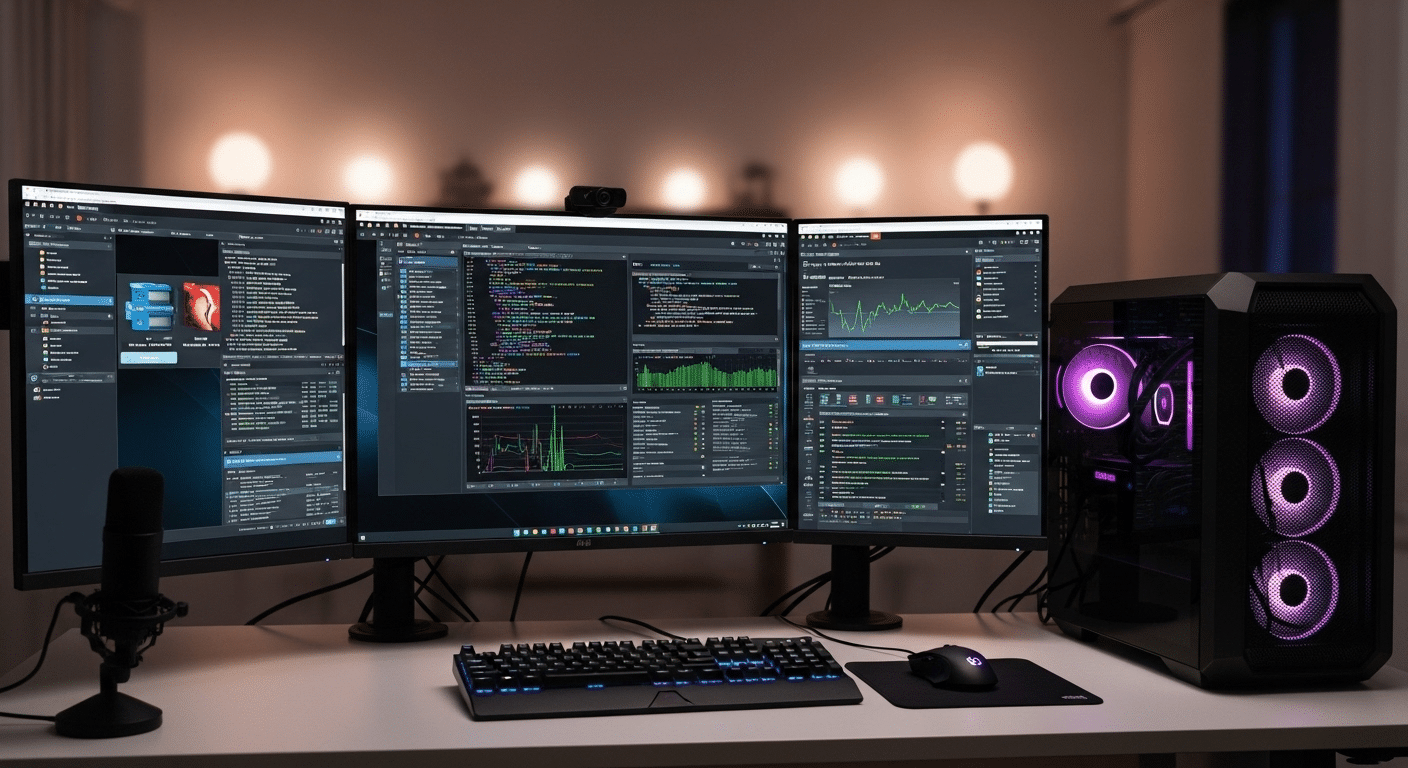
Modern desktop computer used for a cybersecurity home lab with multiple monitors displaying virtual machines and security tools.

A cybersecurity home lab rarely demands exotic equipment. Most setups begin with a single computer running virtualization software. That machine becomes the foundation of your lab, hosting several simulated systems at once.

Still, resources matter. Running multiple virtual machines places real pressure on memory, storage speed, and processor cores. A modest laptop can work for small experiments, though many people eventually notice performance slowing once several machines start running together.

For most home labs, a modern processor such as an Intel i5 or i7 or an AMD Ryzen chip works well. Memory matters even more. 16GB of RAM is typically the practical minimum, while 32GB provides a smoother experience when several systems operate simultaneously. Storage also plays a role. A fast SSD with at least 512GB helps virtual machines load quickly and keeps the lab responsive.

Some enthusiasts add multiple drives to separate operating systems, lab images, and backups. Others use a small NAS device for storage and snapshots. It’s convenient.

Recommended Cybersecurity Lab Hardware 

Component Minimum Requirement Recommended
CPU 4 cores 8+ cores
RAM 16GB 32GB
Storage 512GB SSD 1TB SSD
Network Standard NIC Managed switch


Which Virtualization Software Should You Use for a Cybersecurity Lab?

At the heart of almost every cybersecurity lab sits one critical piece of technology, virtualization software. This software allows a single computer to run multiple operating systems at the same time. Each system behaves like a separate machine, complete with its own network settings, services, and vulnerabilities.

Before installing anything locally, many learners now explore cloud-based virtual desktops. Instead of relying entirely on personal hardware, these environments deliver preconfigured lab systems directly through a browser.

Platforms such as Apporto make it possible to launch virtual machines remotely, experiment with tools, and access lab resources without worrying about hardware limitations. For people with modest computers, this can make learning much easier.

Traditional hypervisors remain extremely common, though. They run directly on your computer and allow you to create and manage multiple virtual machines inside a single operating system.

Popular Virtualization Platforms for Cybersecurity Labs

  • Apporto Virtual Desktops
  • Oracle VirtualBox
  • VMware Workstation Player
  • VMware Workstation Pro
  • Hyper V
  • Proxmox
  • VMware ESXi

These hypervisors allow several operating systems to run simultaneously, making a cybersecurity home lab practical and surprisingly affordable.


Which Operating Systems Should You Install in Your Cybersecurity Lab?

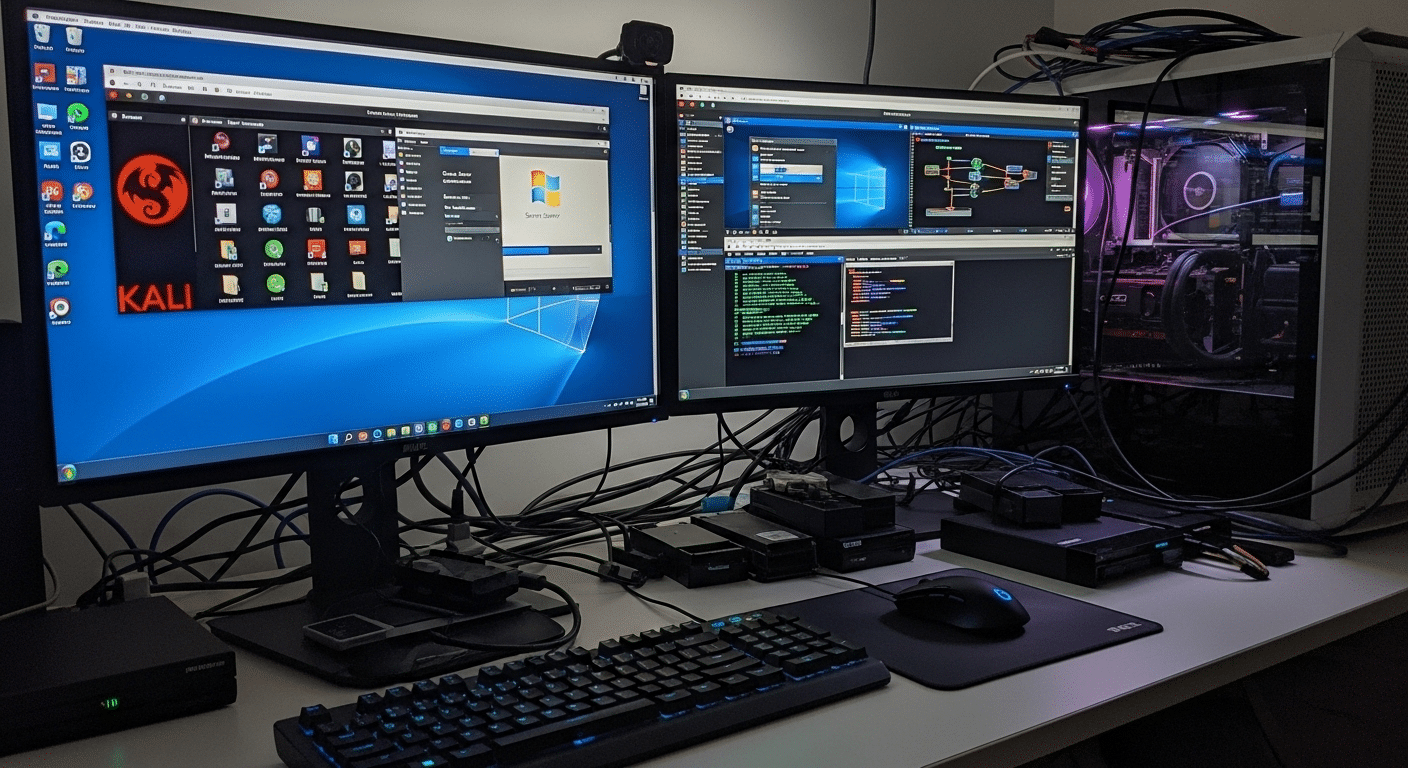
Cybersecurity lab running multiple virtual machines including Kali Linux, Windows Server, Ubuntu, and Metasploitable on a host computer.

Once virtualization is running, the next step is choosing the operating systems that will power your cybersecurity lab. A realistic lab usually contains three types of machines.

One acts as the attacker, another behaves like the target, and a third often serves as the monitoring system that observes network activity and system logs.

This arrangement allows you to recreate situations similar to those seen in real corporate networks. You can launch security scans, simulate attacks, and watch how systems respond. Sometimes the result is messy. That’s part of the learning process.

Common Operating Systems Used in Cybersecurity Labs are:

  • Kali Linux,
  • Windows Server
  • Ubuntu Server
  • Windows 10 or Microsoft Windows
  • Metasploitable

Together these machines create a small but realistic network. With the right combination of systems, your lab begins to resemble the environments security professionals defend every day.


How Do You Create an Isolated Network for Your Cybersecurity Lab?

Network isolation is one of the most important parts of a cybersecurity lab. Without it, experiments can spill into places they shouldn’t. A poorly configured service, a misbehaving script, or a piece of test malware could easily wander onto your home network. That’s not the sort of surprise anyone wants.

A proper lab lives inside an isolated environment. The goal is simple. Keep experimental traffic contained while still allowing the virtual machines inside the lab to communicate with each other. Several techniques make this possible.

One common method involves VLAN segmentation, which logically divides a physical network into smaller sections. Another approach uses subnet separation, creating dedicated network ranges for lab systems.

Many virtualization platforms also offer host only networks, which allow virtual machines to communicate internally without reaching outside devices.

Methods used to Isolate Your Cybersecurity Lab

  • Use VLAN segmentation on managed switches
  • Configure host-only networks in virtualization software
  • Separate lab traffic from the home network
  • Create specific firewall rules to control traffic
  • Use dedicated network equipment when possible

These precautions keep experimental traffic contained. Even if malware runs inside the lab, it stays within the testing environment rather than spreading to personal devices.


What Security Tools Should You Install in Your Cybersecurity Lab?

Cybersecurity home lab dashboard showing tools like Nmap, Wireshark, Metasploit, and ELK Stack monitoring network activity.

A cybersecurity lab becomes far more useful once real security tools enter the picture. These tools are the same ones analysts, penetration testers, and incident responders use every day. Inside a controlled lab, you can observe how they behave, how they collect security information, and how they respond when suspicious activity appears on a network.

Running these tools in isolation makes experimentation safe. You can generate traffic, trigger alerts, and inspect network packets without worrying about damaging real systems. Sometimes the results are surprising. Logs reveal patterns you didn’t expect. Network scans uncover services you forgot were running.

Essential Cybersecurity Lab Tools:

  • Nmap: Widely used for network discovery and vulnerability scanning
  • Wireshark: A powerful packet analysis software that shows how data travels across the network
  • Metasploit: A penetration testing framework used to simulate attacks
  • Security Onion: Platform designed for advanced network monitoring and threat analysis
  • Wazuh: An open source platform for threat detection and response
  • ELK Stack: A popular system for collecting and analyzing security logs
  • Pi hole: A DNS filtering tool often used to study network traffic patterns

Each tool reveals a different piece of the puzzle. Nmap maps networks. Wireshark exposes raw traffic. Security Onion, Wazuh, and the ELK Stack help visualize activity across systems.

Together they create a layered monitoring environment where suspicious behavior, misconfigurations, and simulated malicious activity become visible rather than hidden.


How Many Virtual Machines Should Your Cybersecurity Lab Have?

One of the first questions people ask while building a home lab is simple, how many virtual machines are actually necessary? The honest answer, fewer than you might expect at the beginning.

A small cybersecurity lab setup can start with just two or three machines. One system plays the role of the attacker, another acts as the target, and sometimes a third machine observes what is happening across the network. Even this simple arrangement can teach a lot about system behavior and security monitoring.

As your lab grows, the structure often becomes more detailed. Many labs eventually include four core systems:

  • An attacker machine, often running penetration testing tools
  • A target machine, designed to simulate vulnerable systems
  • A monitoring machine, collecting logs and network traffic
  • A domain controller, commonly built with Windows Server to manage users and policies

At that stage, the lab begins to resemble a miniature enterprise network. Over time, you may run multiple VMs at once, experimenting with different services, vulnerabilities, and defensive strategies. The number of machines expands naturally as your skills develop.


Why Snapshots and Documentation Are Essential in a Cybersecurity Lab?

Security researcher documenting attack simulations and mitigation results while managing virtual machine snapshots.

Spend enough time inside a cybersecurity lab and something inevitable happens. A configuration breaks. A service refuses to start. Sometimes an entire system simply stops responding after a security test goes sideways. That is normal. Experiments are supposed to push systems to their limits.

This is exactly why snapshots and good documentation become so valuable. A snapshot captures the exact state of a virtual machine at a specific moment. If something fails later, you can quickly roll the machine back to that earlier state and try again. No rebuilding the entire environment. Just restore and continue.

Documentation serves a different but equally important role. It turns experiments into lessons you can revisit later.

Best Practices for Managing a Lab

  • Take snapshots before making configuration changes
  • Document system configurations and lab setup details
  • Record attack methods used during testing
  • Record mitigation strategies that stopped the attack
  • Maintain experiment logs for ongoing reference

Over time, these notes become a personal knowledge base. Patterns start to appear. Certain vulnerabilities repeat themselves. Defensive techniques improve.

Without documentation, many insights disappear as quickly as they appear. With it, every experiment contributes to a deeper and more organized understanding of security systems.


How Do You Maintain and Secure Your Cybersecurity Lab?

A cybersecurity lab doesn’t stay useful forever without attention. Systems age. Software becomes outdated. New vulnerabilities appear almost every month. If the lab environment remains frozen in time, the lessons you learn inside it slowly drift away from real-world conditions.

Regular maintenance keeps the system realistic and functional. Operating systems should be updated, security tools refreshed, and lab machines reviewed occasionally to make sure services behave as expected. Even small issues, like an outdated package or a forgotten service running in the background, can distort test results.

Security labs also require a certain level of discipline. Experiments may introduce unstable configurations or broken network settings. Maintenance helps restore order so the lab remains a place for structured learning rather than confusion.

Ongoing Lab Maintenance Tasks

  • Update operating systems to the latest version
  • Update security tools and frameworks regularly
  • Perform routine monitoring of system performance
  • Review and adjust firewall rules inside the lab network
  • Remove outdated or unused virtual machines

Outdated tools can quietly create unrealistic scenarios. A vulnerability that existed years ago may no longer appear in modern systems. Keeping tools and operating systems current ensures your lab reflects the kinds of threats security professionals actually face today.


When Does Local Hardware Become a Limitation?

At some point, many home labs reach the same quiet obstacle. Hardware. Running a small cyber security lab with two virtual machines is usually manageable, but once the environment expands, the demands grow quickly. Add a monitoring server, a domain controller, several vulnerable systems, and suddenly the computer begins to struggle.

Memory is often the first limit people notice. RAM shortages appear when several machines run at the same time. CPU resources can also become tight, especially during scanning or penetration testing tasks that consume processing power. Then there is storage. Virtual machines generate large disk images, and storage bottlenecks can slow the entire lab environment.

These limitations push many learners to explore cloud-based virtual labs. Instead of relying solely on local hardware, computing resources can be delivered remotely through a virtual desktop environment.

Platforms like Apporto provide access to high performance virtual desktops that run directly through a browser. This approach allows students and professionals to launch cybersecurity tools, run multiple lab machines, and experiment with complex environments without upgrading their personal computer.


Final Thoughts

A cybersecurity lab changes how you learn security. Reading articles and watching tutorials can explain concepts, but experimentation turns those ideas into practical understanding. Inside a lab environment you can test defenses, trigger alerts, and observe how systems respond to unusual behavior without putting real networks at risk.

That freedom to experiment matters. Mistakes happen. Services crash. Configurations break. Each of those moments reveals something about how systems operate and how vulnerabilities appear in the first place.

Virtualization has made this kind of learning far more accessible. With a single computer and a few virtual machines, you can simulate entire network environments that once required expensive hardware. As skills grow, the lab can grow with you.

Most cybersecurity professionals began in exactly this way, experimenting inside a small lab built at home. The key is to start simple.

A few machines, basic monitoring tools, and a controlled network are enough to begin exploring real security concepts. Over time the lab expands, and so does your understanding of how modern systems behave under pressure.


Frequently Asked Questions (FAQs)


1. How much RAM do you need for a cybersecurity home lab?

Most cybersecurity home labs work best with at least 16GB of RAM, though 32GB provides a much smoother experience. Running multiple virtual machines consumes memory quickly, especially when several operating systems and monitoring tools operate at the same time.

2. Can you build a cybersecurity lab on a laptop?

Yes, a decent laptop can run a small cybersecurity lab. Many learners start this way. As long as the system supports virtualization and has enough RAM and storage, it can host several virtual machines for experimentation and security practice.

3. What operating systems are best for cybersecurity labs?

Common choices include Kali Linux, Windows Server, Ubuntu Server, and Windows 10. This mix allows you to simulate attacker systems, enterprise servers, and everyday user machines, creating a realistic environment for security testing and monitoring.

4. Is VirtualBox good for cybersecurity labs?

Yes, Oracle VirtualBox is a popular choice for beginners. It is free, easy to install, and supports most operating systems. Many cybersecurity learners use it to create virtual machines and build their first home lab environments.

5. How do you isolate a cybersecurity lab from your home network?

Isolation usually involves creating separate virtual networks, using VLAN segmentation, or configuring host-only adapters inside virtualization software. These methods keep experimental traffic inside the lab environment so malware or misconfigured services cannot affect personal devices.

VDI Thin Client vs Zero Client: What’s the Difference?

Virtual desktop infrastructure has quietly reshaped how organizations deliver computing power to users. Instead of relying on traditional PCs or thick client machines, many organizations now run desktops from a centralized server in the data center.

Applications, files, and processing all live there, while endpoint devices simply provide remote access to the virtual desktop environment.

This shift toward centralized control simplifies management for IT teams and helps standardize how users access their work environments. Yet the device at the client end still matters.

Thin clients and zero clients remain critical parts of a modern VDI environment because they connect users to the server that hosts their desktop session.

Understanding how these devices differ is essential. This guide breaks down thin clients, zero clients, their differences, and how modern VDI environments are evolving.


What Is Virtual Desktop Infrastructure (VDI) &How It Works?

Virtual desktop infrastructure, often shortened to VDI, refers to a system where desktop computers run from a central server rather than from the physical machine sitting on your desk. The idea is straightforward. Your applications, files, and computing power live inside a data center, while you access them remotely through a device on your end.

In a typical VDI environment, the virtual desktop itself runs on a remote server. Each user session exists as a separate desktop instance inside that server. When users connect, they are essentially viewing and controlling a desktop that lives elsewhere. The heavy lifting, processing, and storage all happen within the server infrastructure.

Your device plays a far smaller role than a traditional PC would. It mainly displays the interface. When you move the mouse or press a key, those actions travel across the network to the central server. The server processes the request and sends the visual result back to your screen. Simple. Efficient.

A stable network connection is essential here. Without it, the experience can feel sluggish or interrupted because every interaction travels between the device and the data center.

How VDI Works

  • Centralized Server Hosts virtual desktops for every user session inside the data center.
  • Endpoint Devices Thin clients or zero clients act as display terminals that relay mouse movements and keyboard input to the server.
  • Network Connection A stable network connection sends screen updates back to the device in real time.
  • Centralized Management IT teams manage software, updates, and security from a central management console.


What Is a Thin Client and How Does It Work in a VDI Environment?

Thin client device connecting to a centralized VDI server with applications running remotely in a data center.

A thin client is a lightweight computer designed specifically to access a virtual desktop rather than run applications locally. In a virtual desktop infrastructure VDI setup, the thin client acts as the doorway to a remote workspace. The device itself does very little processing. Most of the computing power lives on a central server inside the data center.

Thin client devices usually include a minimal operating system, often a compact Linux or Windows based local OS built to launch a remote desktop session. Some models include small flash memory or limited local storage, though its role is minimal compared to a traditional PC. The thin client runs a remote access client that connects to VDI protocols such as Microsoft RDP, Citrix, or VMware.

Once powered on, thin clients boot quickly and connect to virtual desktops hosted on the server. From that moment forward, almost everything happens remotely. Applications run in the VDI environment while the device simply displays the interface and sends user input across the network. Because thin clients rely on a network connection, performance depends heavily on stable connectivity.

This design simplifies device management for IT teams while giving users consistent access to their virtual desktops.

Characteristics of Thin Client Devices are:

  • Minimal Operating System
  • Centralized Processing
  • Peripheral Support
  • Multi-Protocol Support
  • Centralized Device Management


What Is a Zero Client and Why Is It Different From a Thin Client?

A zero client is about as minimal as a computing device can get. Think of it as a small terminal whose only job is to connect you to a virtual desktop running somewhere else, usually inside a data center. Unlike thin clients, zero clients have no operating system, no local storage, and almost no moving parts. The device exists purely as a gateway to the server.

Because there is no local OS and no traditional software stack, a zero client device depends entirely on server processing. Every application, file, and task runs on the central infrastructure. The device simply displays the interface and sends input such as mouse movements or keyboard strokes back to the server.

Many zero clients are built around a single protocol. PCoIP zero clients are a well known example. In these systems the protocol runs directly at the hardware level, which allows the device to communicate with the virtual desktop very efficiently. Since the device does not keep state locally, it behaves like a stateless device. Turn it off, turn it back on, and it reconnects to the environment without carrying local data.

That simplicity changes how these devices are managed. With only a firmware image to maintain, updates are quicker and the management process becomes far less complicated than traditional endpoint devices.


Thin Client vs Zero Client: What Are the Key Differences?

Thin clients and zero clients appear almost identical. Both are small endpoint devices designed to connect users to a virtual desktop infrastructure. Both replace traditional PCs and move computing workloads to a centralized server.

And in both cases, most of the processing happens somewhere else, usually inside a data center where virtual desktops run continuously. That similarity can be misleading though. The architecture underneath each device is quite different.

Thin clients include a minimal local operating system. That small OS allows the device to support multiple protocols, install management tools, and interact with various VDI platforms. Because of this flexibility, thin clients often work across different vendors and environments.

They can connect using Microsoft RDP, Citrix, VMware, and other protocols depending on how the VDI environment is configured.

Zero clients take a more stripped down approach. These devices contain no local operating system and no meaningful local storage. Instead, they are built around a single protocol implemented directly at the hardware level.

This makes them extremely specialized devices. They perform one job very well, connecting users to a virtual desktop through a specific VDI protocol.

That design choice changes everything from security to device management. Thin clients require occasional OS patching and updates. Zero clients do not.

Thin clients offer broader USB and peripheral support because the local OS handles drivers. Zero clients typically provide limited peripheral support but a smaller attack surface. Put simply, thin clients offer flexibility. Zero clients focus on simplicity and tight optimization.

Feature Thin Client Zero Client
Operating System Minimal embedded OS No OS
Local Storage Small flash storage None
Protocol Support Multiple protocols Single protocol
Peripheral Support Broad USB support Limited peripheral support
Device Management Requires patching and updates Firmware updates only
Security Secure but OS exists Ultra secure
Flexibility Works across vendors Protocol specific


Which Option Is More Secure, Thin Client or Zero Client?

Enterprise VDI security environment where thin clients and zero clients access centralized desktops with encrypted connections.

Security often sits at the center of the thin client versus zero client debate. Once desktops move into a virtual desktop infrastructure, something important happens.

The data leaves the endpoint. Files, applications, and user sessions live inside the data center, protected behind the organization’s centralized management and security controls.

That alone reduces risk. If a device is lost or stolen, the sensitive data does not go with it because nothing meaningful is stored locally. Users simply connect to a virtual desktop running on the server, perform their work, and disconnect.

The endpoint becomes more like a viewing window than a computer. Still, thin clients and zero clients approach security in slightly different ways.

Security Feature Thin Clients Zero Clients
Operating System Security Read-only operating system prevents users from installing software or saving files locally, reducing security risks. No operating system exists on the device, which eliminates OS-level malware risks entirely.
Data Storage Sensitive data remains on the central server rather than the endpoint device, helping protect information even if the device is lost or stolen. No local storage is available, ensuring that sensitive data never resides on the device itself.
Malware Resistance Applications run on the remote server, meaning malware has very limited opportunities to infect the thin client device. Without an operating system or local software stack, malware has almost no surface to target.
Attack Surface Secure design, though the presence of a minimal OS means the device still requires patching and updates. Extremely small attack surface due to stateless hardware and absence of an operating system.
Protocol Security Security controls are typically handled through the operating system and VDI software stack. VDI protocol processing occurs at the hardware level, improving security for highly regulated environments.


Because of these characteristics, many healthcare, finance, and government organizations deploy thin clients and zero clients to meet strict security and compliance standards while maintaining centralized management of sensitive data.


How Do Thin Clients and Zero Clients Compare on Performance and User Experience?

Performance inside a virtual desktop infrastructure often surprises people. The endpoint device does not carry most of the computing power. Instead, the server in the data center handles the demanding work, from running applications to processing graphics. This means the overall experience depends heavily on server resources, network quality, and how the VDI environment is configured.

For everyday workloads, both thin clients and zero clients can deliver a smooth virtual desktop experience. Applications open quickly, files load from the server, and user input travels across the network almost instantly.

The difference tends to appear when workloads become more demanding. Graphics heavy applications, multi display setups, and specialized workflows can reveal how each device handles rendering and protocol processing.

Thin clients offer flexibility. Their small operating system allows broader compatibility with peripherals and multiple VDI platforms. Zero clients, on the other hand, are often optimized for a single protocol, which can produce very consistent high performance when the environment is designed for it.

Where Thin Clients Work Best

  • General Office Work
  • Peripheral Heavy Work
  • Multi Platform VDI

Where Zero Clients Work Best

  • Graphics Intensive Workloads
  • Protocol Optimized Environments
  • Multi Monitor Workstations


What Are the Cost and Energy Differences Between Thin Clients and Zero Clients?

Modern data center powering multiple low-energy thin client and zero client workstations through centralized VDI infrastructure.

Cost often becomes the deciding factor when organizations compare thin clients and zero clients. Both options reduce reliance on traditional desktop computers, which typically require powerful processors, large storage drives, and regular hardware upgrades.

In a VDI environment, that heavy computing work moves to centralized servers in the data center. Endpoint devices can therefore remain simple and far less expensive.

Thin clients generally have a lower hardware cost than standard PCs. They include a lightweight operating system and modest internal components, which keeps the purchase price down.

Over time, organizations also benefit from cost savings because applications run on the server rather than on individual machines. Updates, patches, and software management happen centrally, reducing maintenance work across hundreds or thousands of devices.

Zero clients take efficiency even further. Because they have no operating system, no storage, and almost no local processing capability, the device itself consumes very little energy.

Many zero clients draw significantly less power than traditional desktop computers. That reduction in electricity usage can add up quickly in offices with large numbers of workstations.

From a total cost perspective, both devices offer clear advantages. Less hardware complexity, lower power consumption, and centralized infrastructure allow IT teams to extend device lifespans while maintaining consistent performance across users.


Why Many Organizations Are Moving Beyond Thin Clients and Zero Clients?

Thin clients and zero clients solved an important problem for many organizations. They simplified endpoint devices, moved computing power to the data center, and gave IT teams centralized control over user desktops. For years, that model worked well. But technology rarely stands still.

Today, many organizations are exploring a different approach. Instead of relying on specialized endpoint devices, they are moving toward browser based VDI environments that run directly inside web browsers. This model removes the need for dedicated hardware such as thin clients or zero clients.

The idea is simple. If a virtual desktop can open securely through a browser, users can connect from almost any device with an internet connection. Laptops, tablets, and even personal computers become viable entry points to the same remote workspace.

This flexibility changes how organizations think about endpoint devices. Employees can work from office machines, personal laptops, or shared workstations without installing additional software. In BYOD environments, the browser becomes the access point while centralized control remains with IT.

The result is fewer restrictions at the device level and broader remote access for users, all while maintaining centralized management of the virtual desktop environment.


Why Apporto Offers a Simpler Alternative to Traditional VDI Endpoints?

Apporto virtual desktop solutions platform homepage showcasing DaaS services, AI tutoring tools, and trusted enterprise and university partners.

Traditional VDI deployments often require dedicated endpoint devices such as thin clients or zero clients. While those systems can work well, they still introduce hardware planning, device management, and ongoing maintenance. Many organizations are now looking for ways to simplify that model.

Apporto takes a different approach. Instead of relying on specialized endpoint hardware, Apporto delivers virtual desktops directly through a browser. Users open their workspace using standard web browsers, connect to the environment, and begin working almost immediately. No additional software installs. No specialized client devices.

This means organizations do not need to purchase thin clients or zero clients to support their VDI environment. Existing laptops, desktops, and tablets can serve as secure access points to the same virtual desktop experience. IT teams maintain centralized control while reducing the complexity associated with managing endpoint devices.

For organizations looking to simplify remote access while keeping infrastructure manageable, browser-based desktops like Apporto are a practical alternative.


Final Thoughts

Thin clients and zero clients both reduce reliance on traditional PCs by moving computing workloads to centralized servers. Each approach solves the same problem in a slightly different way. Thin clients offer flexibility through a minimal operating system and support for multiple VDI platforms, which can help organizations run mixed environments with various tools and protocols.

Zero clients focus on simplicity and security. With no local operating system and almost no storage, they provide a smaller attack surface and strong protection for sensitive environments.

At the same time, newer solutions are beginning to simplify endpoint requirements even further. Browser based virtual desktops allow users to connect from almost any device, which reduces hardware complexity and expands access across modern workplaces.


Frequently Asked Questions (FAQs)


1. What is the difference between a thin client and a zero client?

The main difference comes down to software and architecture. Thin clients run a minimal operating system and support multiple VDI protocols, while zero clients have no operating system at all. Zero clients connect through a single protocol and rely entirely on server processing.

2. Are zero clients more secure than thin clients?

Zero clients are often considered more secure because they have no local operating system and no storage. This design reduces the attack surface significantly. However, thin clients still provide strong security through centralized management and locked down operating systems.

3. Do thin clients require an operating system?

Yes. Thin clients include a lightweight operating system, usually embedded Linux or Windows. This small OS allows the device to run remote desktop software, manage device drivers, and connect to different VDI platforms through supported protocols.

4. Which device is better for graphics workloads?

Zero clients can perform very well in environments designed around a specific VDI protocol. Hardware level protocol processing often delivers smooth graphics performance, which makes these devices suitable for design, engineering, and other visually demanding workloads.

5. Can thin clients support USB devices?

Yes. Thin clients generally offer broader peripheral compatibility because the local operating system manages device drivers. This allows support for printers, scanners, smart cards, and other USB devices that organizations often rely on in office and healthcare environments.

6. Do zero clients support multiple VDI protocols?

Most zero clients are built for a single protocol such as PCoIP. This design improves performance within that specific ecosystem, but it also limits flexibility. Organizations using multiple VDI platforms often choose thin clients for broader compatibility.

7. Are thin clients cheaper than traditional PCs?

In most cases, yes. Thin clients cost less than full desktop computers because they contain fewer components and rely on centralized servers for processing. Over time, organizations also reduce maintenance and upgrade costs through centralized management.