What is Virtual Desktop Infrastructure? A Clear Guide for Beginners

Quick Answer

What Is Virtual Desktop Infrastructure (VDI)?

Virtual Desktop Infrastructure (VDI) delivers virtual desktops from centralized servers or cloud environments to remote users over a network connection. It improves security, centralized management, and remote access flexibility. Organizations may use traditional VDI platforms or browser-based solutions like Apporto to simplify desktop delivery across distributed teams. .

Something subtle has changed in how you work. Your desktop isn’t always tied to a physical machine anymore. It exists somewhere else, often in a data center, delivered to you when needed. That’s the idea behind what is virtual desktop infrastructure, or VDI.

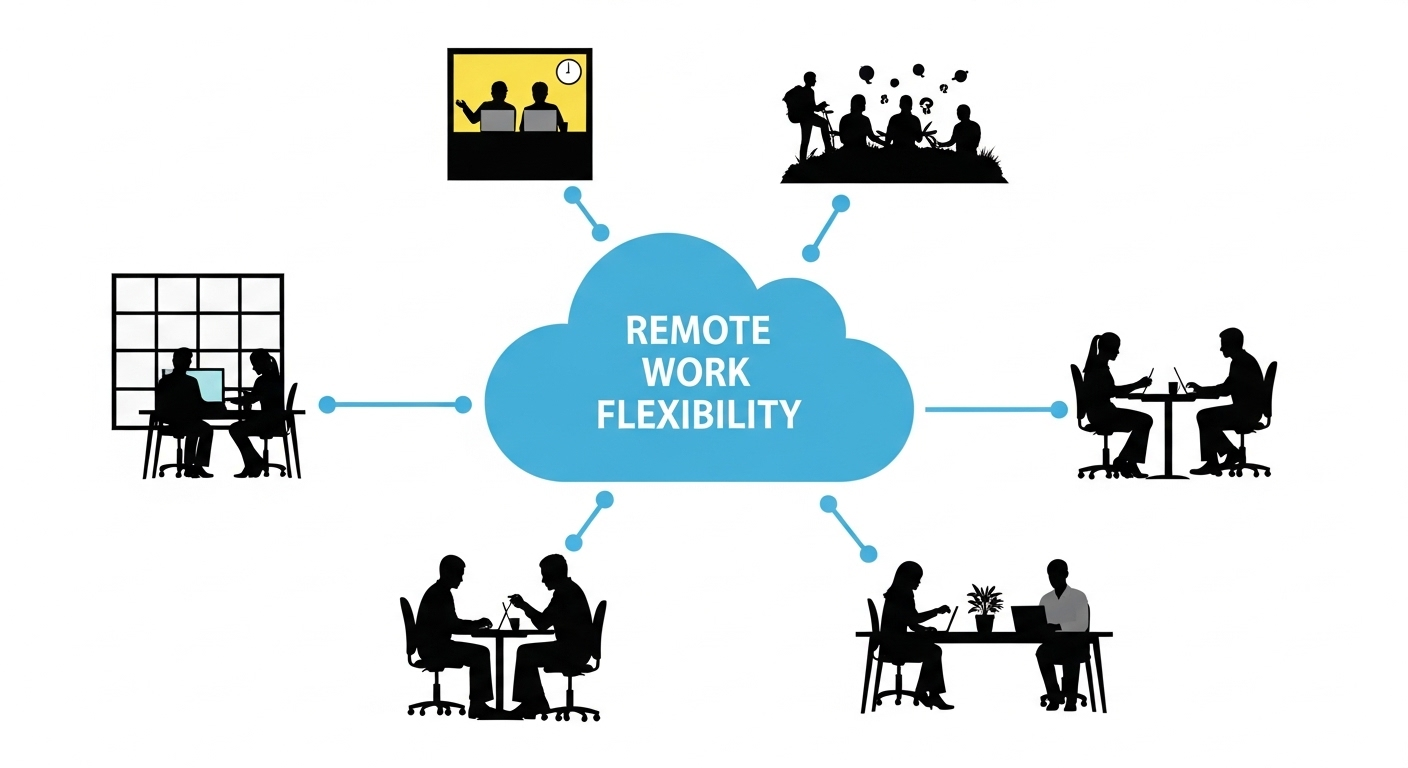
Instead of relying on traditional desktop environments, organizations are moving toward centralized, virtual desktop infrastructure VDI models that support a growing remote workforce. Remote work, hybrid setups, distributed teams, they all demand flexibility without compromising control.

You still access the same tools, the same files, the same environment. Just not from the same place. In this guide, you’ll learn what is virtual desktop infrastructure and how it works.


What Is Virtual Desktop Infrastructure (VDI) & How Does It Work?

It sounds abstract at first. A desktop that isn’t really on your device. Still, you open it, move files around, run applications, and everything behaves as if it’s local. That’s the core idea behind virtual desktop infrastructure.

VDI is a form of desktop virtualization where your desktop environment lives on a centralized server, usually inside a data center or a cloud environment. Your device, laptop, thin client, even a tablet, becomes more like a window than a machine. You’re not running the system locally. You’re accessing it.

Behind that experience, there’s a quiet structure holding it all together. Multiple users connect at the same time, each one interacting with their own isolated desktop, even though everything is running on shared infrastructure.

Here’s how it works:

  • Centralized Server Architecture: Virtual desktops run on a centralized server or physical server inside a data center, allowing centralized management and control across the entire environment.
  • Virtual Machines: Each desktop operates inside a virtual machine, a software-based computer with its own operating system and applications.
  • Remote Access Model: Users connect through remote desktop tools from end user devices, accessing their environment from virtually anywhere.
  • Connection Broker Role: A connection broker routes users to the correct virtual desktop instance, making sure each session lands where it should.


What Are the Core Components of a VDI Infrastructure?
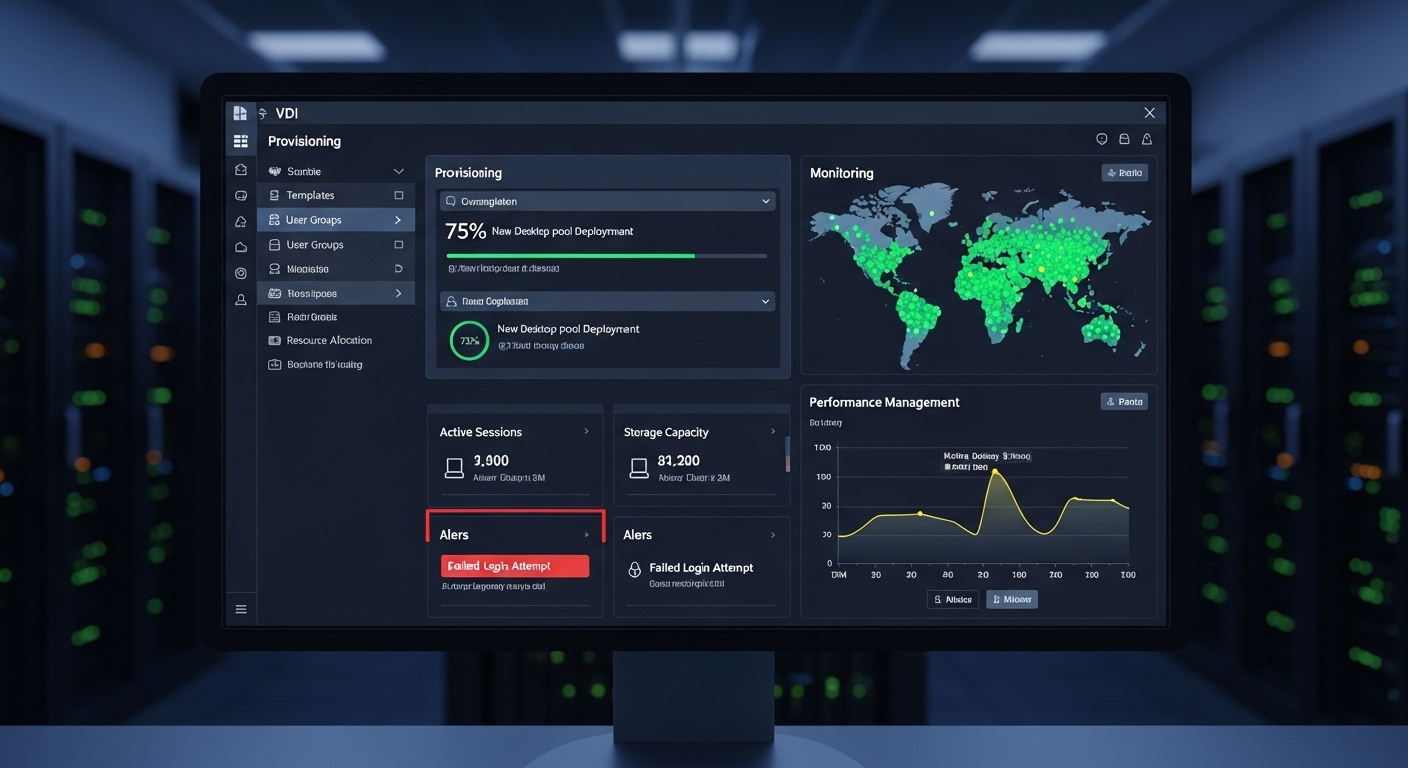
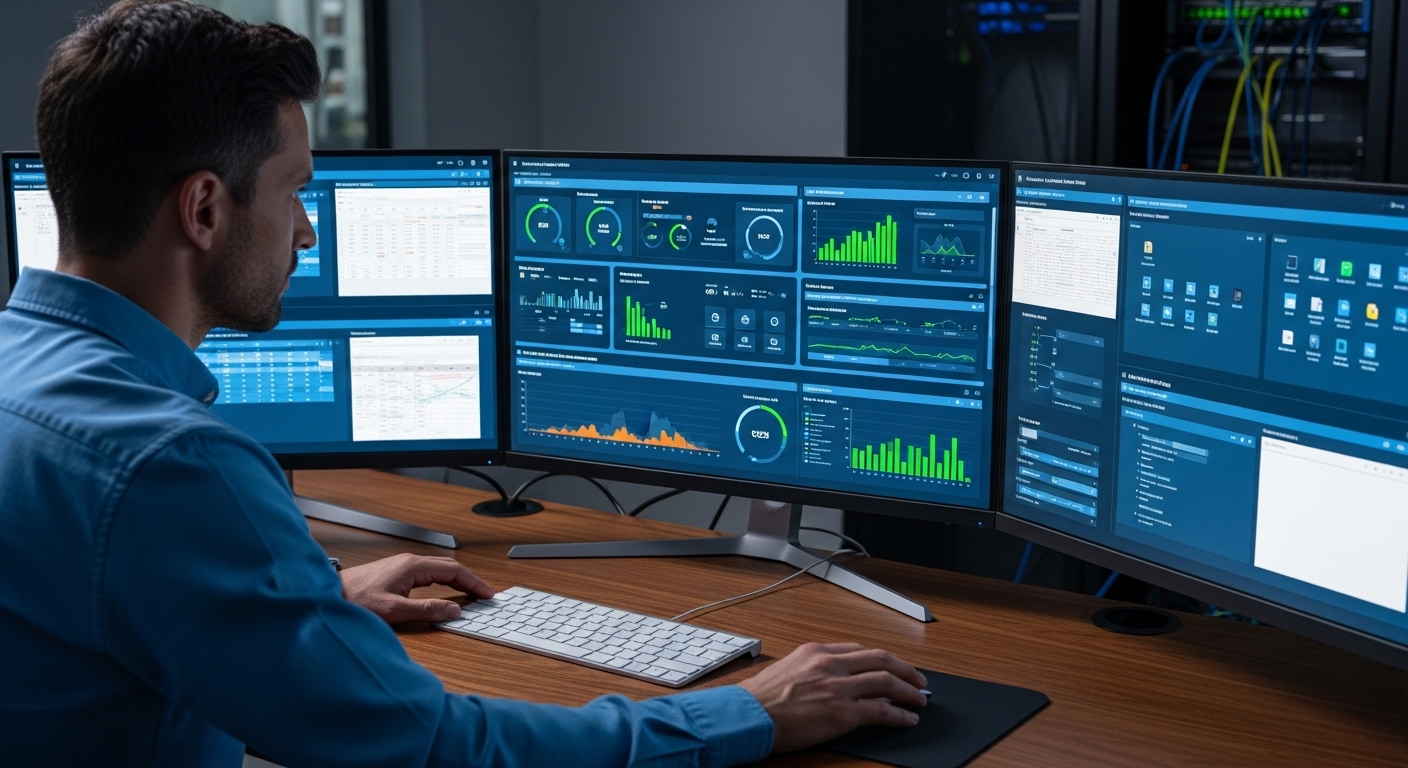
VDI software dashboard showing provisioning, monitoring, and performance management of virtual desktops.

Once you look past the surface, VDI isn’t just one system. It’s a collection of parts working together, quietly, constantly. Each piece has a role. Miss one, and the whole thing starts to feel unstable.

Here’s what makes up a typical VDI infrastructure:

  • Hypervisor and Virtual Machines: The hypervisor manages virtual machines, allowing multiple operating systems to run on a single physical server. Each user desktop exists inside one of these virtual environments.
  • Centralized Storage: All desktop images, applications, and corporate data are stored in centralized storage, not on individual devices. This keeps everything consistent and easier to manage.
  • Connection Broker: The connection broker acts like a traffic controller, directing users to the correct virtual desktop when they log in. Without it, sessions would be chaotic, to say the least.
  • Host Server: The host server is the physical hardware that powers everything, allocating CPU, memory, and resources across multiple virtual desktops.
  • End User Devices: These include laptops, mobile devices, and thin client terminals. They don’t do the heavy work, they simply connect and display the desktop.
  • VDI Software Layer: This layer handles provisioning, monitoring, and performance, making sure desktops are created, maintained, and adjusted as needed.

Together, these components form a centrally managed server environment. Structured, controlled, and always running behind the scenes.


What Are Persistent and Non-Persistent VDI Deployments?

Not all virtual desktops behave the same. Some remember you. Others forget you completely the moment you log off. That difference, small on the surface, shapes how a VDI deployment is designed.

Persistent vs Non-Persistent VDI 

Feature Persistent VDI Non-Persistent VDI
Desktop Type Personalized desktop Generic desktop
Data Storage Saved between sessions Not saved
Resource Usage Higher More efficient
Use Case Knowledge workers Large workforce, repetitive tasks


With persistent VDI, you connect to the same personalized desktop every time. Your files stay where you left them. Your settings remain unchanged. It feels familiar, almost like a traditional machine, just hosted somewhere else. The tradeoff is resource usage. Each user requires dedicated storage, even when the system isn’t actively in use.

Non persistent VDI works differently. Each login creates a fresh desktop instance. Clean, standardized, temporary. When you log off, that instance disappears. The centralized server handles this lifecycle dynamically, creating and destroying environments as needed.

That’s where scalability shows up. Nonpersistent desktops are easier to manage across large teams because they don’t carry individual state.

So the choice becomes practical. Personalization or efficiency. Stability or scale. In most cases, you end up balancing both, depending on how your users actually work.


How Does VDI Compare to Remote Desktop Services (RDS) and Desktop as a Service (DaaS)?

At some point, VDI stops being the only option on the table. You start hearing about remote desktop services, or maybe DaaS, and the lines blur a little. They all deliver desktops. Just in different ways.

VDI vs RDS vs DaaS  

Feature VDI RDS DaaS
Desktop Type Dedicated virtual desktop Shared desktop Cloud-hosted desktops
Management In-house In-house Third-party managed
Customization High Limited Moderate
Cost Higher upfront Lower Subscription-based


With VDI, each user gets a dedicated virtual desktop environment. It’s isolated, customizable, and fully controlled by your organization. That control comes with responsibility. You manage the infrastructure.

Remote Desktop Services works differently. Instead of separate desktops, users share a common environment. It’s efficient, but less flexible. Customization is limited because everyone operates within the same system.

Then there’s DaaS, Desktop as a Service. The desktops live in a cloud environment, and a third party manages everything. You don’t own the infrastructure. You access it.


What Are the Benefits of Virtual Desktop Infrastructure?
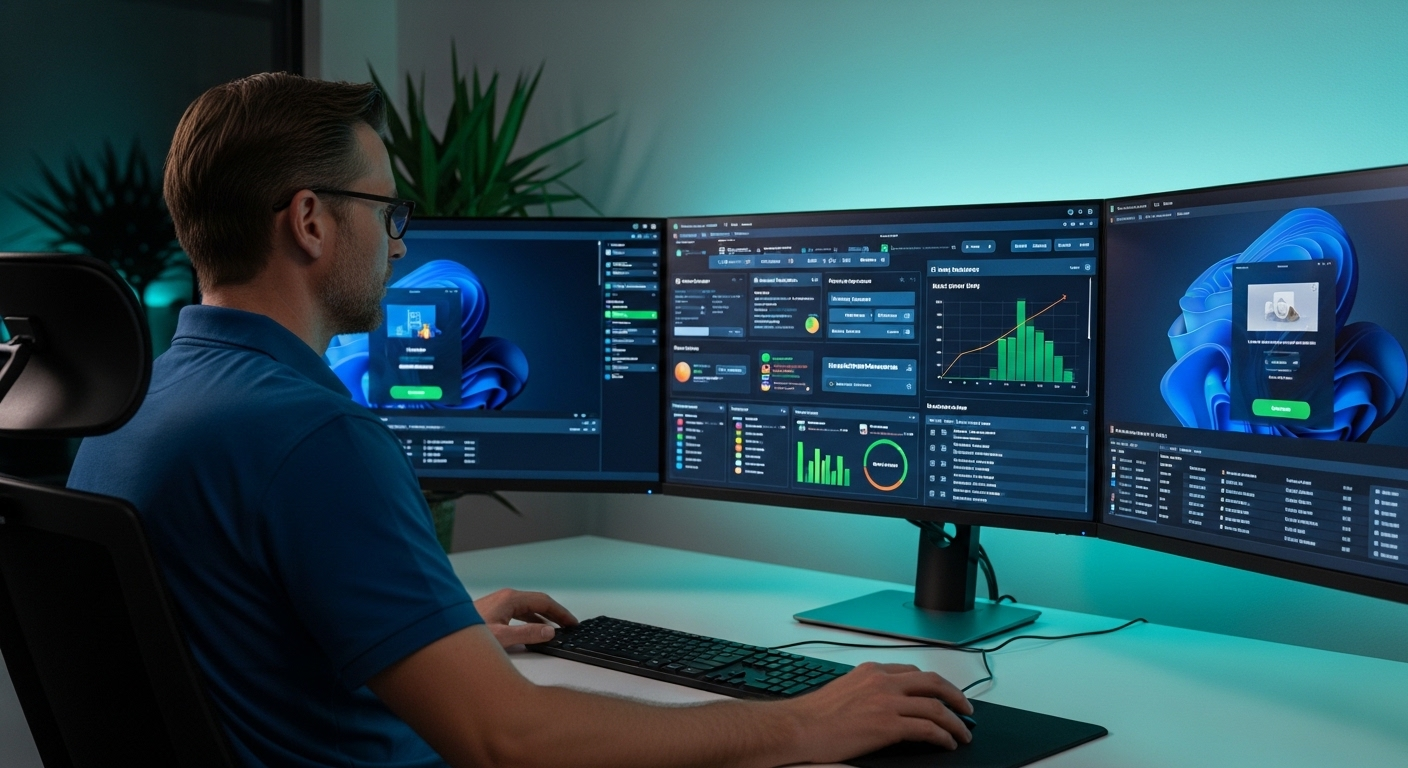
IT administrator managing multiple virtual desktops from a centralized dashboard, highlighting control and efficiency.

The appeal of VDI isn’t just technical. It’s practical. You notice it in how things are managed, how access works, how little depends on the device in front of you.

Here’s are some benefits:

  1. Secure Remote Access: VDI keeps sensitive data inside centralized servers, not on local machines, which reduces the risk of data loss or exposure. You get secure access without carrying the data itself.
  2. Centralized Management: IT teams manage everything from a single point, patching systems, updating desktops, and maintaining consistency across environments without touching individual devices.
  3. Flexibility for Remote Work: Users can log in from almost anywhere, using laptops, thin clients, or their own device, and still access the same desktop environment.
  4. Scalability: It’s easier to scale virtual desktops as teams grow, new users can be added without rebuilding infrastructure from scratch.
  5. Disaster Recovery: With data stored centrally, recovery becomes faster. If a device fails, your desktop is still intact, just waiting to be accessed again.
  6. Cost Optimization: Over time, organizations reduce dependency on high-end physical desktops and simplify maintenance across systems.
  7. BYOD Support: Employees can use their own device while corporate data remains protected within the environment.

There’s also a compliance layer. Centralized control supports audit trails, making it easier to meet regulatory requirements without tracking every individual endpoint.


What Are the Limitations and Challenges of VDI?

IT team troubleshooting VDI performance issues on a monitoring dashboard with alerts and resource usage graphs.

The benefits are clear. But the friction, that shows up later. Usually during setup, sometimes during scaling, occasionally when something fails and everything depends on it.

Here’s where VDI starts to feel more demanding:

  1. Infrastructure Complexity: A full VDI setup requires servers, storage systems, networking layers, and coordination between them. It’s not a simple install, it’s an ecosystem that needs to be built and maintained.
  2. Performance Dependency: The entire system relies on strong network connectivity and sufficient CPU resources. If either falls short, users feel it immediately through lag or instability.
  3. Single Point of Failure: Because everything runs on a centralized system, if that system goes down, access disappears for everyone connected to it.
  4. Security Targeting: Centralized infrastructure becomes an attractive target. While data is protected, the system itself requires careful monitoring and defense.
  5. Training Requirements: Users may need time to adapt, especially if they’re used to traditional desktop environments. The experience is similar, but not identical.
  6. Resource Allocation: Each virtual machine requires allocated resources, and balancing those across users can become complex.

There’s also ongoing effort behind the scenes. Testing the deployment, adjusting configurations, using performance monitoring tools to understand how the system behaves under load. It’s not static. It evolves, constantly.


Where Is VDI Used in Real-World Industries?

You don’t always notice VDI directly. It sits behind the scenes, quietly enabling access, control, and consistency across very different environments. Still, once you look closely, it shows up almost everywhere.

Here’s where it’s commonly used:

  1. Healthcare: VDI allows providers to securely access patient records and systems from different locations while maintaining strict compliance standards. Sensitive data stays centralized, not on individual devices.
  2. Finance: Financial institutions rely on VDI to protect sensitive data, enforce security policies, and maintain detailed audit trails across operations.
  3. Education: Schools and universities use VDI to give students access to software and resources from multiple devices, both on campus and remotely. It supports flexible learning and collaboration.
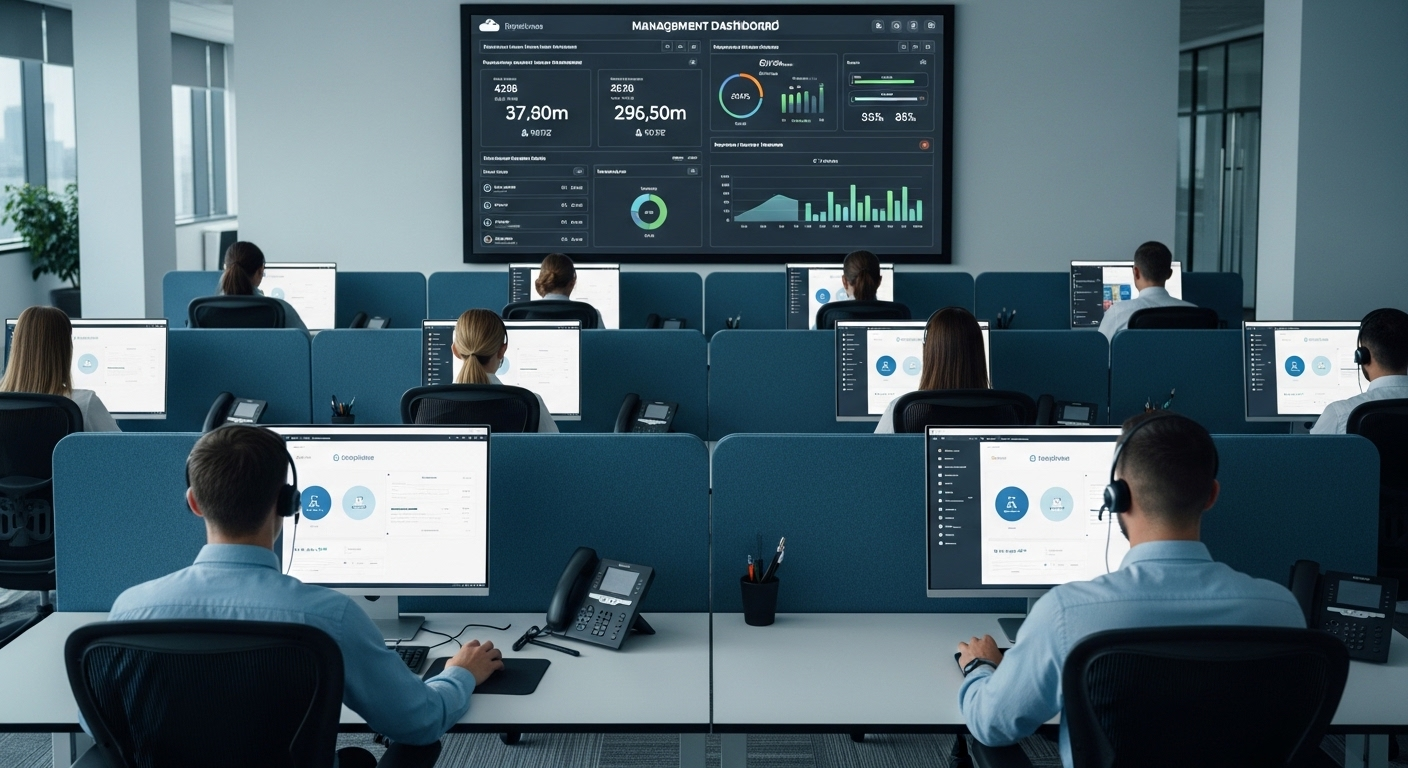
  4. Call Centers: Agents connect to virtual desktops to handle customer interactions, access tools, and provide remote assistance without needing high-powered local machines.
  5. Software Development: Teams use VDI to build consistent development and testing environments, ensuring everyone works within the same setup, reducing errors and improving collaboration.
  6. Manufacturing: Engineers and technicians access systems directly from the factory floor, connecting to centralized desktops without depending on local infrastructure.

Across all these industries, one pattern stays consistent. VDI supports a distributed, remote workforce, while keeping control centralized. That balance is what makes it so widely adopted.


How Does VDI Support Remote Work, BYOD, and Digital Workspaces?

IT admin controlling access and security for remote users through a centralized VDI dashboard.

The idea sounds simple. Work from anywhere, on any device, without losing control. VDI makes that possible, though not without a bit of structure underneath.

With a VDI setup, a remote user doesn’t need a powerful machine. You can use your own device, a laptop, tablet, even a thin client, and still access the same desktop environment. The heavy work happens elsewhere. You just connect.

That’s where secure remote access becomes important. Data never really leaves the system. It stays inside the centralized infrastructure while you interact with it from the outside.

There’s also a sense of continuity. Your workspace feels consistent, familiar, sometimes even personalized depending on the setup. A highly personalized digital workspace for some, a standardized one for others.

And behind all of it, centralized control remains intact. IT teams manage access, updates, and security without relying on the device in your hands. That balance, flexibility on the surface, control underneath, is what defines modern digital workspaces.


How Is VDI Different from Traditional Desktop Infrastructure?

At first, both feel similar. You log in, open apps, move through your work. But the difference sits underneath, in where everything actually lives.

With traditional setups, physical desktops and desktop computers handle everything locally. Your files, applications, and processing all exist on the same machine in front of you. If that device fails, your work goes with it, unless backups are in place.

VDI changes that model. Instead of relying on local hardware, everything runs on a centralized server. Your desktop becomes something you access, not something you own physically. The device you’re using becomes more of an entry point than a processing unit.

Management shifts too. Traditional systems require updates, patches, and maintenance on individual machines. With VDI, those tasks happen centrally, across all virtual desktops at once.

So the difference isn’t what you see. It’s where control lives, locally on each machine, or centrally across the entire environment.


Why Traditional VDI Infrastructure Can Feel Complex and Resource-Heavy?
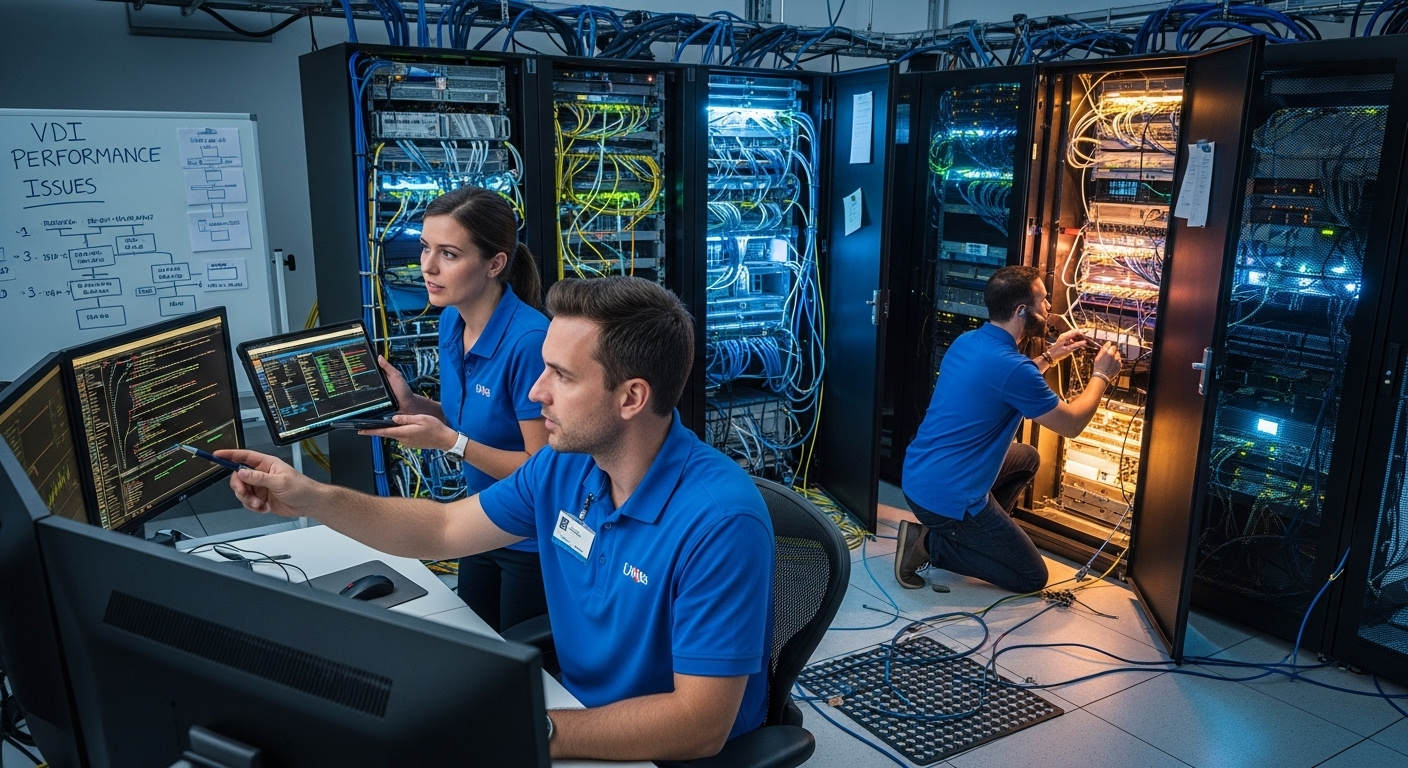
Overloaded data center with multiple virtual machines consuming CPU and memory resources continuously.

On paper, VDI sounds efficient. Centralize everything, manage it once, scale when needed. In practice, it can feel heavier than expected.

The infrastructure overhead comes first. You’re not just running desktops, you’re managing servers, storage, networking, and the coordination between them. Each layer adds something, and none of it is entirely optional.

Then scaling enters the picture. Adding more users isn’t just provisioning another desktop, it often means expanding capacity, adjusting resources, sometimes rethinking the setup entirely.

Resource consumption builds quietly. Multiple virtual machines running at once place constant demand on CPU, memory, and storage. It doesn’t spike dramatically, it accumulates.

And management never really stops. Updates, monitoring, troubleshooting, optimization, it’s continuous. It works, yes. But it asks for attention. More than most teams expect at the beginning.


Why Cloud-Native Virtual Desktops Are Transforming the VDI Model?

Something shifts when the infrastructure disappears from your immediate concern. Not completely, but enough that you stop thinking about it every day.

Cloud native virtualized desktops take the traditional VDI model and move it into a managed cloud environment, where much of the underlying complexity is abstracted away. You’re no longer building and maintaining the same level of infrastructure locally.

Deployment becomes faster. You don’t spend days configuring systems or aligning resources. You provision, access, and start working. It feels almost immediate.

Scaling changes too. Instead of expanding physical capacity, you simply scale virtual desktops based on demand. More users, more environments, less friction.

There are still dependencies, of course. Nothing disappears entirely. But the balance improves. Less time managing systems, more time actually using them.


Why Apporto Offers a Simpler Virtual Desktop Experience?
Homepage banner of Apporto showcasing virtual desktop and cloud solutions, illustrating enterprise use cases relevant to DaaS vs SaaS comparison.

At some point, you start questioning the setup itself. Not the idea of virtual desktops, but everything required to make them work.

Apporto takes a different route. It delivers browser-based desktops, which means you don’t install software, don’t configure infrastructure, and don’t manage backend systems. You open a browser, log in, and your workspace is already there. That changes the experience more than expected.

There’s no dependency on local hardware. No need to maintain servers or worry about scaling limits. The system handles that in the background, quietly. You just get simplified access to your environment, from almost any device.

Security is built into the platform, keeping data inside a controlled, secure environment rather than on endpoints. It feels lighter. Less effort, fewer moving parts, and a lot more predictable over time.


Final Thoughts

VDI is powerful. There’s no question about that. It gives you control, security, and a way to manage environments at scale. For organizations dealing with sensitive data or strict compliance, it often makes sense.

But it isn’t simple. It requires planning, infrastructure, and ongoing attention. The kind that doesn’t really stop once everything is set up. Over time, that effort becomes part of the cost.

So the decision comes down to priorities. If control and customization matter most, VDI fits. If simplicity and speed matter more, newer alternatives are starting to feel easier, sometimes noticeably so.


Frequently Asked Questions (FAQs)


1. What is virtual desktop infrastructure in simple terms?

Virtual desktop infrastructure is a way to run your desktop on a remote server instead of your local computer. You access it over the internet, but it behaves like a normal system with apps, files, and settings.

2. How does VDI work for remote users?

VDI allows a remote user to connect to a virtual desktop through a secure connection. Your device becomes a display, while the actual processing happens on a centralized server in a data center or cloud environment.

3. What is the difference between persistent and non-persistent VDI?

Persistent VDI gives you the same desktop every time you log in, with saved files and settings. Non-persistent VDI creates a fresh desktop for each session, which resets after you log out.

4. Is VDI more secure than traditional desktops?

In most cases, yes. VDI keeps data inside centralized systems instead of storing it on individual devices. This reduces the risk of data loss and helps organizations maintain stronger control over access and security.

5. What industries use VDI the most?

VDI is widely used in healthcare, finance, education, call centers, and software development. These industries rely on secure access, centralized control, and consistent environments across distributed teams.

6. Can VDI run multiple operating systems?

Yes, VDI uses virtual machines to run different operating systems on a single server. This allows organizations to support various applications and environments without needing multiple physical computers.


VDI Security: How to Protect Virtual Desktop Infrastructure in a Remote-First World

Cybersecurity concept showing a centralized virtual desktop infrastructure secured inside a glowing shield, with remote users connecting from homes, airports, and cafes

Something changed the moment work stopped being tied to a single desk. Offices became optional. Homes became extensions of corporate infrastructure. 

Coffee shops, airport lounges, spare bedrooms, all of it now part of your network whether you like it or not. And in that sprawl, virtual desktop infrastructure, VDI, moved from a convenience to a necessity.

You rely on VDI to centralize applications, secure data, and deliver the same desktop experience to many users across many locations. It promises control. Consistency. Cleaner management. But centralized infrastructure does not magically dissolve security risks. In some cases, it concentrates them.

Ransomware is more sophisticated. Lost devices remain common. Cyberattacks are organized, patient, and well funded. The rise of remote work has expanded the surface area attackers can probe.

VDI security, then, becomes less about convenience and more about resilience. This guide walks you through how virtual desktop infrastructure security actually works, where the vulnerabilities hide, and what you must do to protect your data, your systems, and your organization’s security posture in a world that rarely sits still.


What Is VDI Security and How Does It Work?

At its core, virtual desktop infrastructure, VDI, refers to desktop virtualization. Instead of running your operating systems and applications directly on a physical desktop under someone’s desk.

You host them inside a centralized infrastructure, typically in a data center or cloud environment. What you see on your screen is simply a delivered desktop session, streamed from a server.

That difference matters. A physical desktop stores data locally. A virtual desktop lives inside a virtualized environment. The files, applications, and processing happen on virtual machines, VMs, running on shared hardware. Your device becomes more of a window than a vault.

Behind the curtain, several components work together. A hypervisor sits on the server and allows multiple virtual machines to run safely on the same hardware.

 A connection broker acts as traffic control, directing users to the correct virtual desktop instances when they log in. Virtual networks route traffic between systems. All of it operates inside a defined VDI environment.

When you access remotely, your endpoint device, whether a laptop, thin client, or tablet, connects to that centralized infrastructure through secure authentication. You see the same desktop, but the actual computing happens elsewhere.

Key Components of a VDI Environment:

  • Virtual machines, VMs, that host individual desktop environments
  • Connection broker that authenticates and routes sessions
  • Virtual networks that manage communication between systems
  • Endpoint devices that display the desktop session
  • Centralized data center or cloud server infrastructure that stores data

Centralization changes your security posture. It reduces scattered data across endpoints, but it also means your infrastructure becomes a high value target. Control increases. So does responsibility.


What Are the Most Common VDI Security Risks?

Virtualization changes where risk lives. It does not erase it. When you move from a physical desktop to a VDI environment, the attack surface reorganizes itself. 

Some vulnerabilities shrink. Others quietly expand. And if you assume centralized systems are automatically secure, that assumption alone can become a weakness.

Below are the most common VDI security risks you must actively manage.

  • Lost or stolen devices
    Even if data is centralized, stolen laptops or thin clients can still provide attackers with login access. Without strong authentication and endpoint protection, remote access becomes a doorway.
  • Unpatched virtual machines and operating systems
    Unpatched virtual machines remain one of the most overlooked security vulnerabilities. Attackers actively scan for outdated operating systems inside virtual desktop environments.
  • Malware entering through endpoint devices
    Endpoint devices remain a frequent entry point. Malware can ride in through compromised personal devices, especially in remote workforce setups.
  • Lateral movement inside a shared resource pool
    In a shared resource pool, attackers who breach one virtual desktop may attempt lateral movement to reach other virtual machines or sensitive systems.
  • Weak access controls or single-factor login
    Single-factor login still exists in many VDI deployments. Weak access controls increase the likelihood of security breaches.
  • USB access vulnerabilities
    Unrestricted USB access creates a channel for data exfiltration or malware injection.
  • Misconfigured virtual networks
    Virtual networks inside a VDI environment must be segmented properly. Misconfiguration exposes internal traffic to unnecessary risk.
  • Persistent VDI storing confidential data locally
    Persistent VDI setups can accumulate confidential data across sessions, increasing exposure if compromised.
  • Vulnerable virtual machine files
    VM files stored improperly can be copied, altered, or exploited.
  • Insider threats and third party contractors
    Not all security threats come from outside. Contractors, temporary workers, or disgruntled employees can misuse legitimate access.

Many organizations underestimate these VDI security risks because the infrastructure feels centralized and controlled. That perception breeds complacency. In reality, virtualization concentrates assets in one place. 

When sensitive data, systems, and users converge, even small security gaps can widen quickly. And bad actors know exactly where to look.


Why Is VDI Considered More Secure Than a Physical Desktop?

VDI is often described as more secure than a physical desktop, and in many cases that is accurate. However, the security benefits only materialize when the virtualized environment is configured properly and maintained consistently. Centralization alone does not guarantee protection. Management does.

When deployed thoughtfully, virtual desktop infrastructure strengthens your organization’s security posture in several important ways:

Security Benefits of VDI:

  • Centralized data instead of local storage
    Sensitive data resides in a controlled data center rather than being scattered across laptops, tablets, or personal devices.
  • Better visibility for IT admins
    Administrators can monitor sessions, detect anomalies, and enforce consistent security policies across many users from one centralized console.
  • Easier vulnerability scanning and compliance monitoring
    Updates and patches can be applied centrally to virtual machines, simplifying regulatory compliance and reducing unpatched systems.
  • Data loss prevention policies
    Controls can restrict copying, printing, or downloading confidential data outside the VDI environment.
  • Real-time monitoring across desktop instances
    Continuous visibility improves the ability to detect suspicious activity before it becomes a breach.
  • Disaster recovery and snapshot capability
    Snapshots allow rapid restoration of systems after hardware failure or cyberattacks.

These advantages are meaningful. Still, the outcome depends on configuration, patch discipline, and ongoing monitoring. VDI can strengthen security. It can also amplify oversight failures. The difference comes down to how carefully you manage it.


How Do Persistent and Non-Persistent VDI Impact Security?

Not all virtual desktops behave the same way. And that difference matters more than most teams realize.

Persistent VDI gives you the same desktop every time you log in. Your files remain, your settings stay intact, and the desktop instances feel personal. Non persistent VDI, by contrast, delivers a fresh image at each session. When you log out, the system resets. Clean slate. No memory.

That structural choice directly affects your security exposure.

Persistent VDI Security Considerations:

  • Greater risk of stored confidential data
    Persistent VDI allows stored data to accumulate across sessions, increasing the chance that sensitive files remain on a virtual machine longer than intended.
  • Requires stricter patching
    Each persistent desktop instance must receive regular patches and updates, otherwise vulnerabilities compound quietly over time.
  • More complex monitoring
    Ongoing changes within each desktop make monitoring and provisioning more challenging during deployment and lifecycle management.

Non Persistent VDI Security Advantages:

  • Reduced malware persistence
    Since non persistent desktops reset after each login, malicious code struggles to survive beyond a single session.
  • Cleaner image resets
    A standardized image simplifies configuration control and limits drift between desktop instances.
  • Easier patch management
    Updates are applied once to the master image rather than individually across many machines.
  • Lower long-term risk surface
    Temporary environments reduce stored data and shrink the window attackers can exploit.

Strategically, non persistent VDI often strengthens security in high-risk environments. Persistent VDI offers personalization but demands disciplined patching and tighter oversight. The safer option depends on your use case, your users, and your tolerance for complexity.


What Security Best Practices Should You Follow When Deploying VDI?

Security inside a VDI environment does not rest on a single tool or configuration. It works more like layered armor. Remove one layer and weaknesses begin to show. Add several, and the system becomes resilient. 

VDI security best practices focus on defense in depth, meaning no single failure should expose your data or infrastructure entirely.

When implementing VDI, you need a disciplined framework that reinforces protection across users, endpoint devices, and centralized systems.

VDI Security Best Practices:

  • Enforce multi factor authentication
    Require more than a password. Multi factor authentication reduces the likelihood that stolen credentials result in unauthorized access.
  • Implement role based access controls
    Limit what users can access based on job function. Access controls should align with defined security policies and remove unnecessary privileges.
  • Encrypt data in transit and at rest
    Encryption protects data as it moves across networks and while stored in centralized systems, reducing exposure during interception attempts.
  • Disable unnecessary USB access
    Restricting USB ports prevents data exfiltration and blocks malware introduced through removable drives.
  • Conduct regular vulnerability scanning
    Routine vulnerability scanning helps detect misconfigurations, unpatched systems, and security vulnerabilities before attackers discover them.
  • Maintain patch updates for operating systems and software
    Unpatched virtual machines remain one of the largest VDI security risks. Consistent updates close known exploits.
  • Deploy endpoint protection on personal devices
    Remote workforce setups often rely on personal laptops. Endpoint protection ensures those devices do not become weak links.
  • Monitor network traffic for anomalies
    Monitoring identifies unusual activity patterns, such as abnormal login attempts or unexpected data transfers.
  • Implement real-time compliance monitoring
    Continuous compliance monitoring supports regulatory requirements and strengthens oversight of user behavior.
  • Train employees on phishing and ransomware
    Security protocols are ineffective if users cannot recognize threats. Employee training reduces human error.
  • Segment virtual networks to reduce lateral movement
    Network segmentation prevents attackers from moving freely between systems once inside the VDI environment.

Security solutions are only as effective as their management. Implementing VDI securely requires consistent monitoring, regular updates, and disciplined enforcement of policies. 

Security is not a box you check at deployment. It is a continuous process that demands attention, adaptation, and vigilance.


How Does VDI Security Support Regulatory Compliance?

Regulatory compliance often feels complex, sometimes overwhelming. Yet virtual desktop infrastructure can make adherence more manageable when configured properly. 

Centralized infrastructure allows you to control where confidential data resides, how it is accessed, and how activity is logged. That control matters when regulations demand proof, not promises.

Healthcare organizations, for example, must comply with HIPAA requirements that protect patient information. VDI security supports this by keeping sensitive data inside a secured data center rather than scattered across endpoint devices. 

Data residency policies ensure information remains within approved geographic locations, which is essential for GDPR-type regulations and other regional laws.

Centralized logging creates detailed audit trails. Every login, session, and file access can be recorded and reviewed. Real-time compliance monitoring adds another layer, helping you detect irregular behavior before it becomes a violation.

In highly regulated industries, visibility is critical. With proper configuration, VDI security strengthens compliance monitoring, protects confidential data, and simplifies oversight across distributed users and systems.


What Security Challenges Come with Remote Work and BYOD?

The remote workforce is no longer a temporary arrangement. It is embedded in how many organizations operate. Employees connect from home offices, shared apartments, airport gates, sometimes even from a parked car before a meeting. 

Remote access has made work more flexible, but it has also stretched the perimeter of your VDI environment far beyond a controlled office network.

Bring your own device policies, often shortened to BYOD, introduce additional variables. When personal devices enter the equation, consistency becomes harder to maintain. 

Security standards that were simple inside a single building now must extend across distributed endpoints and unpredictable networks.

Key Remote Workforce Security Challenges:

  • Personal laptops and mobile devices
    Remote workers often rely on their own devices, which may lack consistent endpoint protection or standardized security configuration.
  • Shared home networks
    Home routers rarely receive enterprise-level monitoring, making them easier targets for interception or unauthorized access attempts.
  • Weak password habits
    Password reuse and simple login credentials increase the likelihood that attackers can access sensitive data through compromised accounts.
  • Shadow IT apps
    Employees sometimes install unauthorized applications that bypass official security controls.
  • Increased attack surface
    Each additional device, tablet, or smartphone connecting remotely expands the number of entry points attackers can probe.

Managing a distributed workforce requires more than access. It demands consistent enforcement of security policies across every device, every login, every session. Without that discipline, convenience quietly turns into exposure.


How Does VDI Compare to Traditional Remote Desktop Services?

At first glance, VDI and traditional remote desktop services seem similar. Both allow you to connect remotely and view a desktop session from another location. The difference lies beneath the surface.

Remote desktop services typically connect you to a specific physical desktop or a shared server session. You are essentially borrowing one machine’s environment. If that machine fails, becomes overloaded, or is misconfigured, your access suffers.

Virtual desktop infrastructure, on the other hand, delivers centralized desktop images from a managed resource pool of virtual machines.

Instead of tying you to one physical desktop, VDI provisions virtual desktops dynamically. That design improves scalability and distributes workloads across shared infrastructure.

Control also increases. Administrators can standardize images, manage deployment centrally, and isolate desktop instances within the broader VDI environment. Remote desktops provide convenience. VDI provides architecture.

The distinction matters when performance, scalability, and security are critical to your organization’s long-term strategy.


What Should You Look for in a Secure VDI Solution?

Choosing a VDI solution is not only about performance or cost savings. It is fundamentally about infrastructure security. The provider you select will influence how secure your virtual desktops remain over time. 

A well-designed platform reduces complexity and strengthens management. A weak one introduces hidden vulnerabilities.

Security should be built into the architecture, not bolted on after deployment. As you evaluate hosted solutions, focus on capabilities that reinforce secure access and simplify long-term oversight.

Key Security Capabilities to Evaluate:

  • Built-in Zero Trust model
    Access should never be assumed. Every login and session must be verified continuously to reduce exposure to compromised credentials.
  • Browser-based access
    Reducing installed endpoint software lowers the attack surface and minimizes risk tied to outdated client applications.
  • Enforced encryption by default
    Data should be encrypted automatically, both in transit and at rest, without relying on manual configuration.
  • Integrated monitoring tools
    Continuous visibility allows administrators to detect anomalies and respond quickly to emerging threats.
  • Automated patch management
    Regular updates to operating systems and applications reduce vulnerabilities without manual intervention.
  • Granular access controls
    Permissions must align precisely with user roles to prevent overexposure of sensitive systems.
  • Secure provisioning and deprovisioning
    When users join or leave, access must be granted and revoked cleanly to avoid lingering credentials.

Modern infrastructure security demands clarity, automation, and resilience. Your VDI solution should make secure management easier, not more complicated.


Why Browser-Based VDI Represents the Next Evolution in Security

Security often improves when complexity decreases. Browser-based virtualization embodies that principle. Instead of requiring client installs on every endpoint device, this model delivers secure virtual desktops directly through a web browser. 

Nothing extra to install. Nothing outdated to forget about. The access point becomes simpler, and simplicity tends to reduce risk.

Traditional VDI deployments often depend on exposed connection brokers, client software updates, and VPN configurations that can grow complicated over time. Each added layer introduces configuration demands and potential vulnerabilities.

A browser-based VDI solution removes much of that friction. The infrastructure remains centralized, but the user connects through a standard browser session that is easier to control and monitor.

With fewer moving parts on endpoint devices, the attack surface shrinks. Zero Trust principles can be embedded by design, requiring continuous verification before granting access. Encryption and session controls become default behaviors, not optional add-ons.

Better visibility follows naturally. Administrators manage hosted desktops from a unified platform, whether on premises or through a cloud provider. Security posture becomes more resilient because enforcement is consistent across users and locations.

If your goal is to reduce risk while maintaining accessibility, exploring a browser-based VDI approach is a practical next step. Learn more. Consider trying a modern, streamlined solution built for secure remote work.


Final Thoughts

Security inside a VDI environment does not rest on a single control or a single tool. It is layered. Access controls form one layer. Encryption adds another. Monitoring strengthens both. When those layers align, your infrastructure becomes far more resilient to cyber threats and human error alike.

Configuration matters. A misconfigured virtual machine or poorly segmented network can undo even the strongest security policies. Monitoring matters just as much. 

Real-time visibility helps you detect anomalies before they escalate into security breaches. And training matters, perhaps more than many admit. End users remain part of the security equation. Awareness reduces accidental exposure.

There is also a quieter truth. Simplicity reduces complexity, and reduced complexity often reduces risk. Systems that are easier to manage tend to be easier to secure.

Take time to evaluate your current VDI setup. Modernization may not require a full rebuild, but it does require honest assessment. The more deliberate your design, the stronger your long-term security posture will be.


Frequently Asked Questions (FAQs)


1. What is VDI security?

VDI security refers to the policies, controls, and technologies that protect virtual desktop infrastructure, including virtual machines, endpoint devices, and centralized data stored in data centers or cloud environments.

2. Is VDI more secure than a physical desktop?

VDI can be more secure than a physical desktop when configured properly, because data remains centralized and easier to monitor, but misconfiguration can still introduce serious vulnerabilities.

3. What are the biggest VDI security risks?

Common risks include unpatched virtual machines, weak access controls, malware entering through endpoint devices, lateral movement inside shared resource pools, and misconfigured virtual networks.

4. How does non persistent VDI improve security?

Non persistent VDI resets the desktop image after each session, reducing stored data exposure and limiting the ability of malware to remain active long term.

5. Can VDI help with compliance requirements?

Yes. Centralized logging, compliance monitoring, and controlled data residency help organizations meet regulatory compliance standards such as healthcare or privacy regulations.

6. Does VDI prevent ransomware attacks?

VDI does not eliminate ransomware risk, but centralized infrastructure, strong monitoring, and data loss prevention policies can reduce impact and speed recovery.


How AI Can Reduce VDI Costs and Boost Efficiency

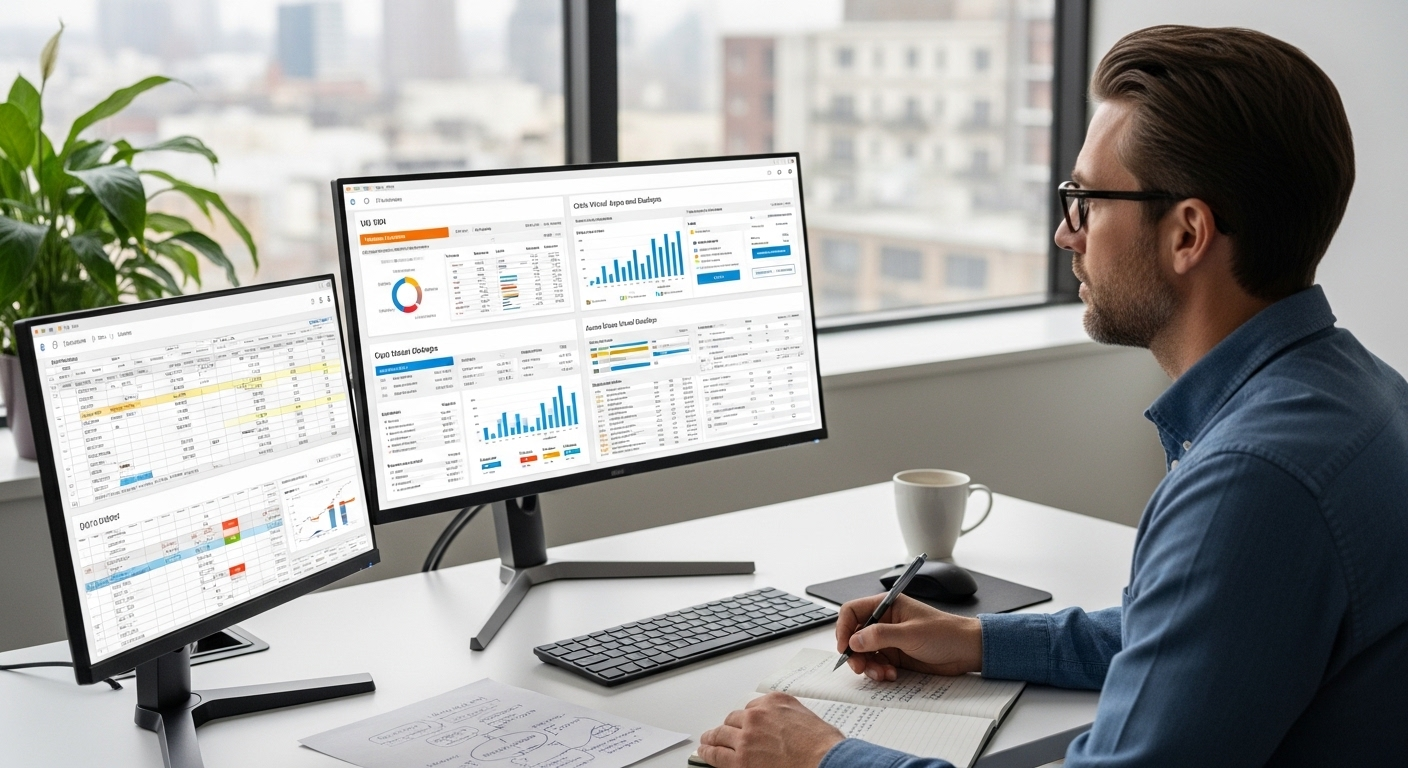
IT administrator monitoring real-time utilization metrics with AI recommendations reducing excess capacity.
Quick Answer

How AI Can Reduce VDI Costs and Boost Efficiency?

AI reduces VDI costs by optimizing resource allocation, automating scaling, and improving infrastructure efficiency based on real-time demand. It helps lower compute, storage, energy, and IT management expenses while maintaining performance. Platforms like Apporto combine AI-driven optimization with browser-based delivery to simplify infrastructure and reduce operational overhead.

Virtual desktop infrastructure promises centralized control and predictable delivery. In practice, vdi costs rise steadily as usage expands. The cost structure is tied directly to growth. When user counts increase, infrastructure expands with them.

More virtual machines are provisioned. More compute is allocated. Storage demand increases. Network traffic grows. The scaling model is linear, and linear models are rarely efficient at scale.

GPU requirements intensify the pressure. AI workloads and graphics intensive applications demand additional processing power, which drives up data center capacity and cloud consumption. Cloud providers charge based on compute, storage, and network usage. Each session contributes incremental cost.

Licensing costs compound the challenge. VDI platforms typically require licensing for the platform itself and for operating system sessions. Maintenance costs add another layer, including patch management, security updates, and hardware refresh cycles.

Energy consumption increases when underutilized virtual machines remain active. Many organizations overprovision resources to prevent performance degradation, which protects user experience but inflates operational costs.

Managing costs under this structure becomes reactive. You add infrastructure to solve performance issues. Intelligent optimization, however, changes the equation. Instead of scaling resources blindly, AI enables smarter allocation and reduces unnecessary expansion.


Where the Money Actually Goes in a Traditional VDI System?

When you examine a traditional VDI system closely, the cost structure is rarely concentrated in one place. It fragments across hardware, cloud consumption, licensing agreements, support labor, compliance overhead, and risk exposure. Each layer adds incremental expense. Together, they create a cost profile that feels heavier every year.

VDI infrastructure requirements scale linearly with usage. As user counts rise, so does the financial footprint. That scaling dynamic drives spending in several specific areas:

  • Licensing fees for the VDI platform and operating systems used in each session.
  • GPU resources required for high performance applications and AI driven workloads.
  • Storage and compute consumption in the data center or public cloud environment.
  • Infrastructure management tools and monitoring systems that oversee performance and security.
  • Patch management cycles and periodic hardware upgrades to maintain stability.
  • Overprovisioned virtual machines created to avoid performance complaints during peak demand.
  • Linear scaling costs tied directly to user growth, without intelligent optimization.
  • Energy costs associated with idle compute resources that remain powered but underutilized.
  • Compliance related monitoring overhead to meet regulatory or internal security requirements.
  • Downtime costs resulting from reactive management and delayed issue detection.

The financial burden does not emerge from one dramatic expense. It accumulates through predictable, recurring layers. Each additional desktop session increases compute, storage, licensing, and support demand.

Without automation or adaptive resource management, operational efficiency declines as the environment grows. Managing costs becomes a constant balancing act between performance and budget.


How AI Optimizes Resource Allocation in VDI Environments?

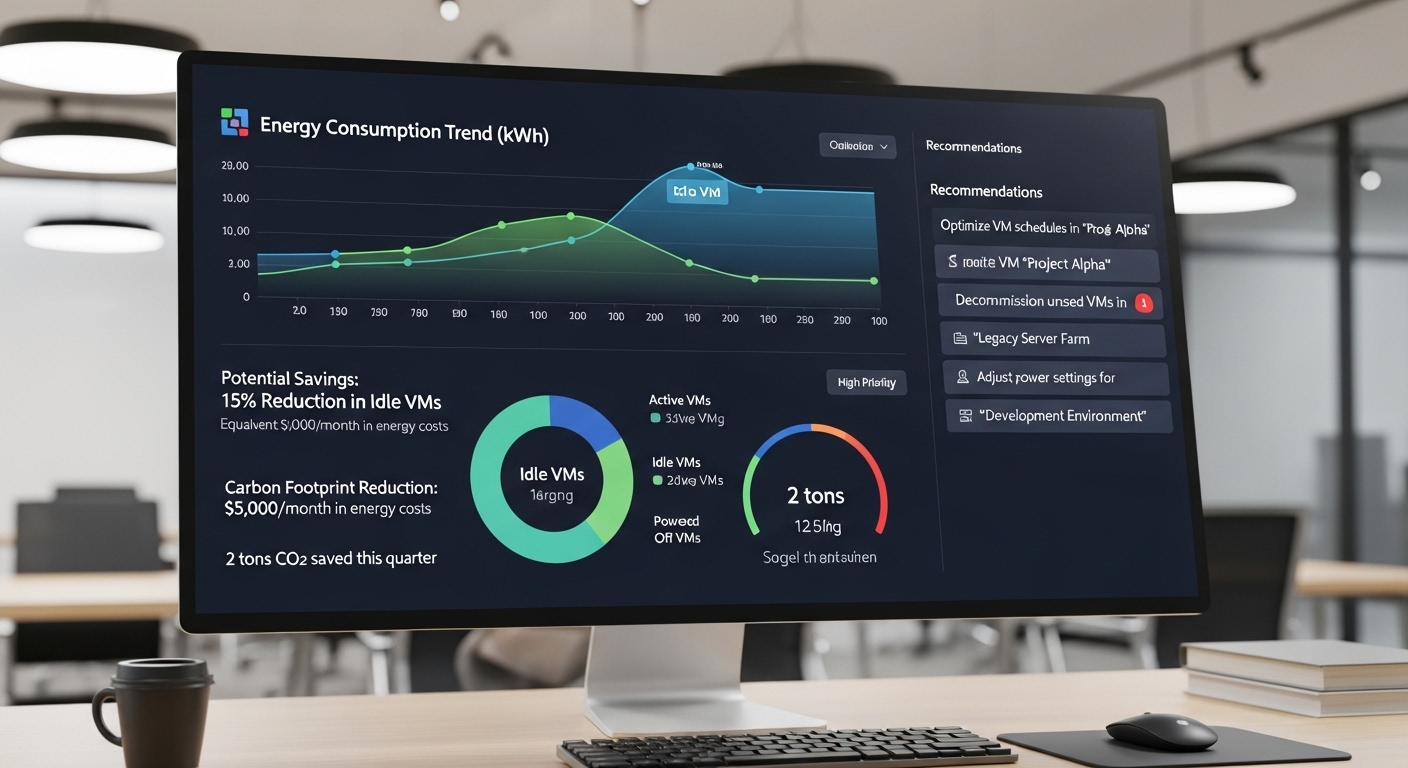
IT dashboard displaying AI-powered insights reducing idle virtual machines and energy waste.

The core driver of rising VDI costs is inefficient resource allocation. Traditional environments allocate compute and storage based on peak demand assumptions. You provision for the worst case, then hope usage justifies the spend. In most cases, it does not.

AI integration changes that dynamic. Instead of static allocation, AI automates resource distribution using real time and historical usage patterns.

Machine learning models analyze session activity, application demand, and user behavior to predict demand fluctuations before they occur. That predictive layer allows systems to adjust computing power dynamically, rather than relying on fixed provisioning rules.

When implementing auto scaling with AI, resource allocation becomes adaptive. Compute expands during peak usage and contracts during idle periods. AI determines the optimal placement of virtual desktops across cloud or on premise environments to balance cost and performance.

If certain workloads perform better in a different region or infrastructure tier, AI can shift them accordingly.

This prevents overprovisioning while maintaining performance. You avoid allocating GPU or CPU resources that sit unused. At the same time, scalability remains seamless. Growth no longer requires linear infrastructure expansion.

AI driven reporting tools also provide deeper infrastructure insights. Organizations using AI powered VDI environments report improved system reliability and reduced IT overhead because resource decisions are data driven, not reactive.

Improved resource utilization translates directly into cost efficiency. Fewer idle virtual machines mean lower energy consumption. Smarter scaling means reduced infrastructure spending. The financial impact is measurable.


Predictive Analytics: Reducing Downtime, Support Tickets, and Maintenance Costs

Traditional VDI environments operate reactively. A user reports slow performance. A system crashes. A ticket is opened. IT teams investigate. Resources are adjusted after the fact. That cycle consumes time and labor. Predictive analytics replaces that pattern with anticipation rather than response.

AI driven predictive analytics continuously analyzes performance data, usage patterns, and system behavior. Instead of waiting for failure, it identifies risk signals early. This allows resource adjustments before users experience disruption.

Key capabilities include:

  • AI driven predictive analytics that foresees potential system failures before they cause outages.
  • AI powered diagnostics that instantly identify and often resolve user experience issues.
  • Dynamic resource reallocation to prevent downtime during peak demand or infrastructure strain.
  • Automated scaling that maintains seamless performance without manual intervention.
  • Reduced ticket volume for IT teams due to proactive issue resolution.
  • Reduced need for manual performance tuning across virtual machines.
  • Fewer disruptions, which directly lowers maintenance costs.
  • Improved system reliability, decreasing the labor burden on infrastructure teams.

AI driven resource management enhances business continuity by minimizing unexpected interruptions. Managing costs becomes less about firefighting and more about maintaining operational efficiency through continuous, data informed oversight.


AI and Auto Scaling: Breaking the Linear Cost Model

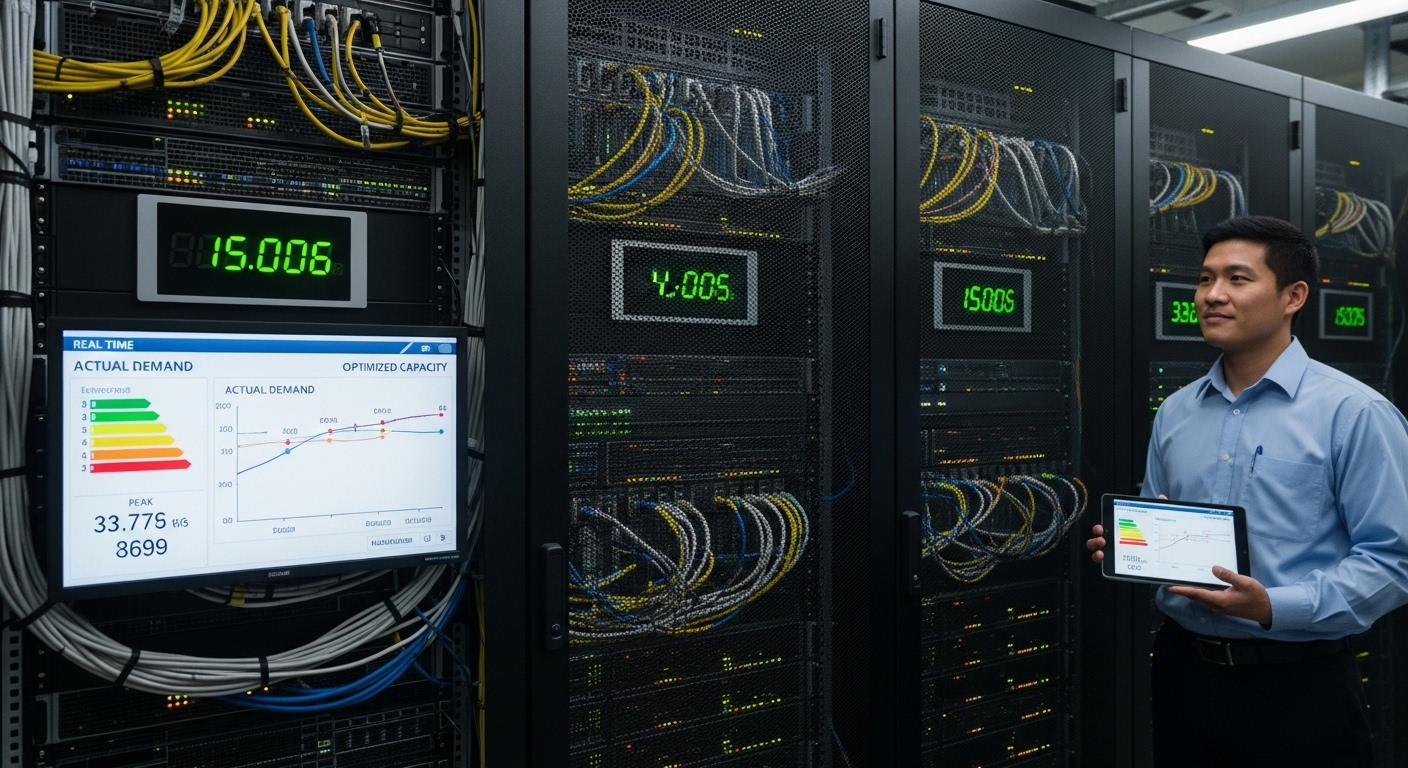
Enterprise infrastructure running efficiently at actual demand levels rather than maximum capacity.

Without automation, VDI infrastructure scales in a predictable but expensive way. More users require more virtual machines, more compute, and often more GPU capacity. Costs rise in direct proportion to demand. This linear model leaves little room for efficiency.

AI changes the math. By analyzing demand in real time, AI predicts usage fluctuations before they fully materialize. Implementing auto scaling allows compute resources to expand during peak periods and contract when activity declines.

Idle virtual machines no longer consume energy and capacity unnecessarily. Resource utilization becomes precise rather than precautionary.

AI dynamically allocates compute power during high demand windows while preventing unnecessary GPU allocation when workloads do not require it. This improves scalability without increasing baseline infrastructure.

User density can rise because resources are distributed intelligently, not uniformly. Performance remains stable, yet hardware growth slows.

Automated scaling mechanisms also reduce energy consumption and hardware strain. Infrastructure runs closer to actual demand rather than theoretical maximum load.

Additionally, enterprise browsers can reduce dependency on VDI by 80 percent or more in some environments, further lowering backend compute requirements.

Breaking the linear cost model requires intelligence. Auto scaling provides that leverage, turning reactive provisioning into cost controlled scalability.


AI-Powered Security: Preventing the Most Expensive VDI Failures

Security incidents are not minor disruptions in VDI environments. They are cost multipliers. A single breach can trigger infrastructure rebuilds, prolonged downtime, regulatory scrutiny, and reputational damage. When virtual desktop infrastructure is compromised, recovery affects hardware, licensing, compliance reporting, and operational continuity. Preventing that cascade is often more economical than responding to it.

AI strengthens enhanced security across VDI environments through continuous monitoring and adaptive response:

  • AI detects anomalies in real time by analyzing behavioral patterns across users and systems.
  • AI reduces phishing based credential compromise, which accounts for approximately 90 percent of credential theft incidents.
  • AI enhances multi factor authentication enforcement by identifying suspicious login attempts dynamically.
  • AI driven automation improves remote work security by monitoring unusual access behavior.
  • AI prevents unauthorized access attempts before lateral movement occurs.
  • AI reduces the likelihood of ransomware deployment by detecting abnormal encryption patterns early.
  • AI continuously monitors compliance requirements to support data protection and regulatory adherence.
  • AI enforces security policies consistently across distributed VDI environments.

The financial equation is straightforward. An avoided breach means avoided infrastructure rebuild costs, avoided downtime losses, and avoided compliance fines. Enhanced security is not only protective, it is economically rational.


AI-Driven User Density and Local Workload Processing

Laptop performing AI-powered video background blur locally while connected to virtual desktop session.

Traditional VDI models concentrate processing in the data center. Every desktop session pulls compute, storage, and often GPU resources from centralized infrastructure. As user density increases, backend resource demands rise with it. AI changes where and how work is processed.

AI powered devices now handle portions of workloads locally. Features such as background blur in video meetings and advanced noise cancellation are processed on the endpoint rather than in the data center. That reduces backend compute consumption and lowers strain on centralized GPU resources. Performance improves without expanding infrastructure.

AI also analyzes usage behavior to determine where workloads should run. Some virtual desktop experiences perform better in a specific cloud region. Others are more cost efficient on premise.

AI can move workloads between environments to optimize both performance and cost. This dynamic placement reduces unnecessary compute allocation and improves scalability.

Enterprise browsers further reduce infrastructure dependency by allowing many apps to run securely without full desktop sessions. In some cases, organizations can reduce reliance on VDI by 80 percent or more.

The economic effect is direct. Lower server dependency reduces energy consumption, storage demand, and maintenance costs. AI maintains performance while moderating infrastructure growth.


Automating Infrastructure Management and Reporting

Manual oversight has long defined VDI management. Administrators monitor dashboards, respond to alerts, adjust configurations, and patch systems across distributed environments.

That labor intensive cycle increases operational costs and stretches IT teams thin. As environments grow, the burden multiplies. Managing costs becomes a function of adding staff or accepting risk.

AI integration changes how infrastructure management is performed. Instead of relying solely on reactive monitoring, AI powered management tools analyze performance continuously and generate meaningful insights.

Key advantages include:

  • AI transforms monitoring and reporting by analyzing system behavior in real time.
  • AI driven reporting provides actionable insights rather than raw performance data.
  • Automated remediation resolves common issues without manual intervention.
  • Reduced reliance on manual patch management across virtual machines.
  • Streamlined infrastructure management through intelligent policy enforcement.
  • Lower operational costs as repetitive tasks are automated.
  • Identification of cost optimization opportunities based on usage and performance patterns.
  • Improved system reliability through continuous automated oversight.

When automation replaces repetitive oversight, integration becomes more efficient. IT teams focus on strategy rather than troubleshooting. Infrastructure stabilizes. Managing costs becomes data informed rather than reactive. Over time, operational efficiency compounds into measurable savings.


AI, Sustainability, and Long-Term Financial Efficiency

AI-optimized data center reducing active virtual machines to lower energy consumption.

Sustainability and cost control are closely connected in VDI environments. When infrastructure runs inefficiently, energy consumption rises.

Idle virtual machines continue drawing power. Overprovisioned hardware sits underutilized. Over time, those inefficiencies translate into higher operating expenses.

AI optimizes resource consumption by aligning compute and storage usage with actual demand. When workloads contract, infrastructure contracts with them. Energy usage declines because fewer resources remain active unnecessarily.

AI powered devices also reduce reliance on centralized data center infrastructure by processing certain tasks locally, easing pressure on backend systems.

Shifting workflows to web technologies further reduces backend compute demand. When apps run securely in a browser instead of a full desktop session, hardware and cloud resources are preserved. This supports sustainability goals while lowering long term operational costs.

The economic connection is straightforward. Improved energy efficiency reduces electricity expenses, cooling requirements, and hardware strain.

Lower hardware turnover minimizes waste and capital spending. AI driven optimization turns sustainability into measurable financial efficiency.


From Reactive Management to Proactive Optimization

Traditional VDI management tends to respond after problems appear. Performance slows. Users complain. Resources are adjusted manually. This reactive cycle increases IT overhead and creates unpredictable operational costs.

It also limits scalability, since infrastructure expansion often follows performance complaints rather than demand forecasts.

An AI driven solution changes that pattern. Instead of waiting for disruption, predictive analytics continuously evaluates performance signals and usage data.

Potential bottlenecks are identified early. Resources are reallocated before users experience degradation. Unexpected outages decline because systems adapt in real time.

Seamless scalability becomes practical rather than theoretical. As demand grows, the VDI platform adjusts automatically. As demand contracts, resources scale down without manual intervention. This improves operational efficiency while protecting user experience.

The financial impact compounds over time. Reduced IT overhead, fewer emergency interventions, and lower infrastructure expansion translate into measurable cost efficiency. Automation does not simply maintain performance.

It restructures how resources are managed, converting reactive maintenance into proactive optimization and delivering significant cost savings.


How Apporto Uses AI to Reduce VDI Costs?

Reducing VDI costs requires more than incremental optimization. It requires rethinking how infrastructure is delivered, secured, and managed.

Apporto integrates AI directly into its architecture to lower operational complexity while improving performance and data protection. Instead of layering automation onto heavy legacy systems, the model simplifies the foundation itself.

Key cost reduction advantages include:

  • Browser based delivery that removes the need for complex client installations and reduces infrastructure requirements.
  • No client software dependency, lowering patch management effort and long term maintenance costs.
  • Built in auto scaling that adjusts compute resources dynamically based on usage patterns.
  • Zero trust enforcement that reduces breach risk and associated financial exposure.
  • Centralized management across environments, improving visibility and operational efficiency.
  • Lower licensing overhead compared to traditional VDI platforms that require layered agreements.
  • Reduced GPU overprovisioning through intelligent resource allocation.
  • Faster deployment cycles that minimize infrastructure lock in and reduce upfront capital investment.
  • Reduced total cost of ownership by approximately 50 to 70 percent compared to legacy VDI models.

By combining architectural simplicity with AI driven optimization, Apporto enables significant cost savings without compromising performance or scalability.


Conclusion

Traditional VDI models tie cost directly to usage. As demand increases, infrastructure expands. The pattern is predictable, and over time, expensive. AI introduces intelligence into that equation. Instead of scaling resources uniformly, AI optimizes allocation based on real demand. Infrastructure contracts when usage declines. Compute expands only when necessary. This reduces excess capacity, lowers maintenance burden, and limits unnecessary GPU allocation.

The benefits extend beyond hardware. Reduced infrastructure lowers energy consumption. Automation reduces labor overhead for IT teams. Built in security monitoring reduces exposure to costly breaches and compliance failures.

Together, these elements form a more sustainable cost structure, one that aligns performance with efficiency rather than constant expansion.

Modernizing your VDI platform is no longer a technical upgrade. It is a financial decision. Evaluating how AI can reshape your cost structure today may determine how efficiently you scale tomorrow.


Frequently Asked Questions (FAQs)

1. How can AI be used to reduce costs?

AI reduces costs by automating repetitive tasks, optimizing resource allocation, and predicting demand in real time. In VDI environments, AI helps lower compute, storage, energy, and IT management expenses by preventing overprovisioning and improving infrastructure efficiency.

2. How can AI be used to improve efficiency?

AI improves efficiency by automating monitoring, scaling resources dynamically, and identifying performance issues before they cause disruptions. Predictive analytics and intelligent automation help organizations reduce downtime, streamline operations, and improve system performance with less manual intervention.

3. Can AI improve scalability without increasing infrastructure spending?

Yes. AI predicts demand fluctuations and dynamically allocates compute resources. This allows scalability without linear infrastructure expansion, reducing unnecessary GPU and virtual machine provisioning.

4. How does AI reduce IT labor costs in VDI environments?

AI driven diagnostics, automated remediation, and predictive analytics reduce support tickets and manual performance tuning. IT teams spend less time troubleshooting and more time focusing on strategic initiatives.

5. Does AI improve security in virtual desktop infrastructure?

AI enhances security by detecting anomalies, preventing phishing based credential compromise, enforcing multi factor authentication, and monitoring compliance requirements continuously across VDI environments.

6. Can AI reduce dependency on centralized data centers?

Yes. AI powered devices process certain workloads locally, lowering backend compute demand. Enterprise browsers can further reduce reliance on full VDI sessions in many use cases.

7. How does AI impact GPU resource allocation?

AI analyzes usage patterns to allocate GPU resources only when needed. This prevents overprovisioning while maintaining performance for graphics intensive workloads.

8. What is the long term financial benefit of AI optimized VDI?

AI improves resource utilization, reduces operational overhead, lowers security risk, and supports energy efficiency. Over time, this results in a more sustainable and predictable cost structure.

How Virtual Desktop Solutions for Education Boost Student Engagement?

Education doesn’t sit in one place anymore. It moves, between classrooms, homes, campuses, sometimes across time zones without much warning. Remote learning and hybrid learning have made that clear, perhaps more than expected.

But the older model still lingers. Traditional computer labs, physical desktops, fixed locations. Useful, yes, but limited. Access depends on where you are, not what you need.

That gap has become harder to ignore. Students use different devices, learn from different environments, and expect the same access to educational resources regardless of location.

At the same time, IT infrastructure costs keep rising. More hardware, more maintenance, more complexity.

Virtual desktop solutions step into that space. In this guide, you’ll explore how they work, their benefits, types, security considerations, costs, and what to evaluate before adopting them.


What Are Virtual Desktop Solutions for Education and How Do They Work?

Virtual desktop solutions for education allow you to access a full desktop environment, apps, files, settings, from somewhere else. Not your local device, but a centralized system. Usually delivered through virtual desktop infrastructure, or VDI, which hosts these environments on servers rather than individual machines.

Behind the scenes, virtual machines do the heavy lifting. Each student or user connects to a cloud desktop that lives inside a data center, sometimes managed on campus, often in the cloud. The processing happens there, not on your laptop or tablet.

So your device becomes more of a window than a workstation.

You log in from a personal device, Chromebook, Mac, even a basic laptop, as long as there’s an internet connection. What you see is consistent. Same operating system, same applications, same setup.

And importantly, it’s separate from physical hardware. Nothing critical is stored locally. Which, when you think about it, changes how access, security, and maintenance all behave moving forward.


Why Are Educational Institutions Moving Away from Traditional Computer Labs?

Student locked out of a closed computer lab while using a laptop outside, representing restricted access to resources.

There was a time when computer labs felt like the center of everything. Rows of identical machines, controlled access, predictable setups. It worked, for a while.

But the cracks started showing. Physical computers come with limits. Access is tied to a location, sometimes even a schedule.

If you’re not on campus, or the lab is full, or closed, that’s it. Learning pauses, or at least slows down in ways that feel unnecessary now.

Then there’s the cost side. Hardware doesn’t age gracefully. Upgrades are expensive, and they never really stop. One cycle ends, another begins. Add ongoing maintenance, software updates, repairs, and the workload for IT staff starts to pile up quietly in the background.

Meanwhile, expectations have changed. Students want remote access. Flexible environments. The ability to continue work from anywhere, not just a designated room.

That demand keeps growing, and traditional labs struggle to keep up.

  • Physical labs limit access to a specific location
  • Hardware upgrades are costly and time consuming
  • Maintenance increases IT staff workload
  • Limited scalability during enrollment spikes


How Do Virtual Desktop Solutions Improve Access and Learning Experience?

With virtual desktop solutions, you’re no longer tied to a single device or a specific room. Students can log in from Chromebooks, Macs, Windows PCs, even lower-powered laptops that normally wouldn’t handle demanding applications. The device matters less. The connection matters more.

This becomes especially relevant in remote and hybrid learning environments. Classes don’t pause when someone leaves campus. Work continues, assignments, labs, projects, all accessible through the same desktop environment, no matter where you are. It feels consistent, which is surprisingly important when everything else is changing.

Consistency shows up in smaller ways too. The same operating system, same apps, same settings. You don’t have to adjust every time you switch devices. That removes friction. Not entirely, but enough to make a difference.

There are practical examples of this already. Institutions using solutions like Microsoft Azure Virtual Desktop have maintained continuity during disruptions, even weather-related closures, with minimal impact on attendance. Accessibility has improved as well, especially when assistive software is delivered through centralized desktops instead of individual machines.

Over time, access becomes less about location. More about availability. And that tends to open things up, quietly, but meaningfully.


What Are the Benefits of Virtual Desktop Solutions for Education?

Students using low-cost devices accessing powerful cloud desktops, illustrating cost reduction in education IT.

If you step back and look at it, the appeal isn’t just technical. It’s practical. Small improvements stacking up into something that feels, well, easier to manage.

Here’s what makes virtual desktop solutions valuable for education:

  • Cost Reduction: Minimizes spending on physical hardware and reduces long-term IT infrastructure costs, especially when device lifecycles no longer dictate upgrade cycles.
  • Centralized IT Management: Simplifies software updates, license management, and system maintenance across all users, so you’re not chasing individual machines across campus.
  • Scalability: Allows institutions to expand or reduce resources based on enrollment without new hardware investments, which becomes useful during exam periods or sudden enrollment spikes.
  • Enhanced Security: Centralizes data storage, reducing risks of data breaches and device-level vulnerabilities, particularly when devices are lost or used outside campus networks.
  • Equal Access: Enables students to access educational resources from any device and location, making learning less dependent on physical availability.
  • Support for Remote Learning: Provides consistent access to desktops for hybrid and online learning environments, without needing separate setups for different modes.
  • Support for High-Performance Apps: Enables access to resource-intensive software without specialized local hardware, which can be surprisingly limiting otherwise.
  • Reduced IT Workload: Centralized updates and management lower the burden on IT teams, freeing up time for more strategic work.


What Types of Virtual Desktop Solutions Are Available for Education?

Not all virtual desktop solutions are built the same. And that’s where things can get slightly confusing at first, because the right choice depends less on technology itself and more on what your institution actually needs.

Broadly, there are three main approaches. Cloud-hosted desktops are the most common starting point. Everything runs in a public cloud environment, and users access it through the internet.

This works well for smaller schools or districts that want flexibility without investing heavily in infrastructure. It’s easier to set up, easier to scale, and usually easier to manage.

On-premise VDI sits on the other end. Here, desktops are hosted inside the institution’s own data center. Larger universities often prefer this because it offers more control over systems, data, and performance. But it also comes with higher infrastructure and maintenance responsibilities.

Then there’s local virtualization. This runs directly on individual devices, often used for specialized or high-performance workloads. It’s less common in broader education settings, but still useful in specific cases.

Integration matters across all three. Whatever approach you choose needs to work with existing systems, applications, and infrastructure, otherwise the complexity just shifts somewhere else.

Types of Virtual Desktop Solutions 

Type Description Best For
Cloud-Hosted Runs in public cloud and accessed via internet Schools needing flexibility and low upfront cost
On-Premise VDI Hosted in school data center Large universities needing control
Local Virtualization Runs on individual device High-performance or niche use cases


Which Virtual Desktop Platforms Are Commonly Used in Education?

IT administrator comparing multiple virtual desktop platforms on a dashboard, evaluating features and scalability.

Once you move past the concept, the next question tends to be practical. Which platforms actually get used, and why those? A few names come up repeatedly.

Apporto is often positioned around simplicity. Browser-based access, centralized delivery, and minimal setup make it appealing for institutions that don’t want heavy infrastructure or long deployment cycles. It tends to fit environments where ease of use matters as much as capability.

Microsoft Azure Virtual Desktop sits comfortably in ecosystems already using Microsoft tools. It supports multi-session desktops, meaning multiple students can share a single virtual machine, which helps control costs. It also integrates well with existing systems, which reduces friction during adoption.

Amazon WorkSpaces takes a different approach with flexible, usage-based pricing. That can be useful when demand fluctuates, especially around exam periods or seasonal enrollment spikes.

Citrix DaaS is often associated with larger, more complex environments. Strong security, reliability, and centralized control make it suitable for institutions managing multiple campuses or diverse user groups.

Parallels RAS focuses on delivering specific apps or full desktops from a central environment, which works well when certain courses require specialized software.

There isn’t a single best choice. The right platform depends on your size, existing infrastructure, and how much control or flexibility you actually need.


How Do Virtual Desktop Solutions Improve Security and Compliance?

Security tends to become visible only after something goes wrong. A breach, a lost device, unauthorized access, then suddenly everything feels urgent. Virtual desktop solutions approach this from a different angle, by changing where data actually lives.

Instead of storing information on local devices, everything sits in a centralized environment. Data centers or cloud desktops handle storage, processing, and access. So even if a laptop is lost or a device is compromised, the sensitive data isn’t sitting there waiting to be exposed.

That alone reduces risk more than expected. Compliance becomes easier to manage as well. Regulations like FERPA or GDPR require consistent handling of data, controlled access, and auditability. When systems are centralized, enforcing those rules becomes more structured. Not effortless, but definitely more manageable.

Then there’s authentication. Multi-factor authentication adds an extra layer, making unauthorized access harder even if credentials are exposed. Combine that with secure storage and regular backups, and the overall system becomes more resilient.

Over time, the attack surface shrinks. Fewer entry points, fewer inconsistencies.

  • Centralized data storage protects sensitive information
  • Multi-factor authentication reduces unauthorized access
  • Centralized updates improve security posture
  • Reduced risk from lost or stolen devices


What Challenges Should You Consider Before Implementation?

Complex IT environment integrating legacy systems with modern virtual desktop infrastructure.

It’s easy to focus on benefits. Most discussions do. But implementation has its own friction points, and ignoring them tends to create problems later, not immediately, but eventually.

Bandwidth is one of the first things to consider. Virtual desktops depend on a stable internet connection, and not all workloads behave the same. Basic tasks run smoothly on modest bandwidth, while graphics-heavy applications demand more. If connectivity is inconsistent, the experience can feel slow or unreliable.

Integration is another area that often takes more effort than expected. Existing systems, especially legacy applications, don’t always fit neatly into a virtual environment. Adjustments are usually required, sometimes small, sometimes not.

Then there’s cost. Virtual desktop solutions can reduce infrastructure expenses, but pricing models aren’t always straightforward. Subscription fees, usage-based charges, additional services, they can add up if not clearly understood from the start.

And underlying all of this is dependency. Without a working internet connection, access simply stops.

  • Bandwidth needs vary by workload
  • Poor connectivity affects performance
  • Integration with legacy systems may be complex
  • Pricing models can include hidden costs


How Can Schools Choose the Right Virtual Desktop Solution?

The decision rarely comes down to features alone. It’s more about fit. What works for one institution can feel unnecessarily complex, or insufficient, for another.

Choosing the right virtual desktop solution depends on several factors:

  • Device Compatibility: Ensure support for multiple devices and operating systems so students can access desktops from Chromebooks, Macs, Windows PCs, or other personal devices without friction.
  • Scalability Needs: Handle enrollment spikes without infrastructure upgrades, especially during peak periods like admissions or exam cycles.
  • Budget and Pricing: Evaluate transparent pricing and avoid hidden fees, since costs can expand over time if usage patterns aren’t fully understood.
  • Security Requirements: Ensure compliance with standards like FERPA or GDPR and implement strong access controls to protect sensitive data.
  • Integration Capabilities: Work with existing systems and applications, including legacy tools that may still be essential for certain courses.
  • Performance Needs: Support both basic workloads and high-performance applications, particularly for engineering, design, or data-heavy programs.
  • Support and Management: Ensure strong support teams and simple management tools, because complexity tends to surface after deployment, not before.


How Do Virtual Desktop Solutions Support the Future of Education?

Hybrid education model showing in-class and remote students connected in a unified digital workspace.

Education is becoming less tied to a single format. Classrooms still exist, of course, but they’re no longer the only center of learning. Hybrid models, remote access, flexible schedules, all of it continues to expand, sometimes faster than institutions expect.

Virtual desktop solutions fit into that direction quite naturally. They allow you to separate learning from physical constraints.

Students can access the same desktop environment regardless of device or location, which makes device independence more than just a convenience. It becomes part of how learning is delivered.

Scalability plays a role too. As enrollment changes, resources can expand or contract without requiring new hardware. That flexibility supports long-term planning, not just immediate needs.

Over time, this becomes part of a broader digital transformation in education. Systems become more centralized, more adaptable, and easier to manage. Not perfect, still evolving, but moving toward something more consistent.


Final Thoughts

It’s tempting to see virtual desktop solutions as a complete answer. They’re not. There are trade-offs, connectivity issues, integration challenges, cost considerations that don’t always stay predictable.

But the benefits are hard to ignore. Accessibility improves. Scalability becomes manageable. Costs, at least over time, tend to stabilize compared to constant hardware cycles. And perhaps most importantly, learning becomes less dependent on location or device.

That changes how education feels, not just how it operates. So the question isn’t really if these solutions will be used. It’s how thoughtfully you approach them.

Evaluate your needs. Test carefully. Adopt where it makes sense. Because the direction is already clear, even if the details are still unfolding.


Frequently Asked Questions (FAQs)


1. What are virtual desktop solutions for education?

Virtual desktop solutions for education allow you to deliver full desktop environments, including apps and files, from centralized servers or cloud platforms. Students and faculty access these desktops remotely, removing dependence on physical computers and enabling consistent learning experiences across different devices.

2. How do virtual desktops improve learning access?

Virtual desktops improve access by allowing students to log in from any device with an internet connection. This removes location barriers and ensures equal access to educational resources, whether students are on campus, at home, or in areas with limited physical infrastructure.

3. Are virtual desktop solutions cost-effective for schools?

They can be cost-effective over time by reducing spending on physical hardware, maintenance, and upgrades. While subscription costs exist, centralized management and scalability often lead to better resource utilization and lower long-term infrastructure expenses for many institutions.

4. What devices can students use with virtual desktops?

Students can use a wide range of devices, including Chromebooks, Macs, Windows PCs, and even low-powered laptops or tablets. Since processing happens in the cloud or data center, the local device mainly acts as an access point rather than doing heavy computing work.

5. Are virtual desktops secure for education?

Virtual desktops improve security by keeping data centralized instead of storing it on individual devices. Features like multi-factor authentication, encrypted storage, and centralized updates help protect sensitive information and reduce risks associated with lost or compromised devices.

6. What is the difference between VDI and cloud desktops?

VDI refers to virtual desktops hosted either on-premise or in the cloud, often managed by the institution. Cloud desktops are a type of VDI delivered through public cloud providers, offering easier scalability and reduced infrastructure management responsibilities.

7. How do schools choose the right virtual desktop solution?

Schools should evaluate device compatibility, scalability, security requirements, and budget. Integration with existing systems and support for different workloads also matter. The right choice depends on institutional size, technical capabilities, and long-term goals rather than features alone.

How Cloud Desktops Enhance Distance Learning?

Quick Answer

How Do Cloud Desktops Enhance Distance Learning?

Cloud desktops improve distance learning by giving students secure access to virtual desktops, educational software, and files from any device or location. They reduce hardware limitations, simplify IT management, and support scalable online learning environments. Platforms like Apporto provide browser-based access designed specifically for higher education.

Distance learning didn’t grow slowly. It accelerated, almost abruptly, especially during COVID-19. What started as a temporary adjustment has now settled into something more permanent. Hybrid programs, online learning, remote access, all of it now sits at the center of how educational institutions operate.

You’re dealing with device inconsistency, students on Chromebooks, others on Windows or Mac, each with different limitations. Access to specialized software isn’t always guaranteed. And then there’s the quiet pressure of rising cyber threats across the education sector, which, if you look closely, hasn’t slowed down.

Traditional systems weren’t built for this level of flexibility. They weren’t meant to stretch this far. In this blog, you’ll see how cloud desktops enhance distance learning by improving access, strengthening security, reducing costs, and making systems easier to scale.


What Are Cloud Desktops and How Do They Work?

A cloud desktop is simply a virtual desktop that lives in remote data centers, not on your local machine. You’re not running software on your device, you’re accessing a full desktop environment hosted somewhere else, delivered over the internet. That’s where virtual desktop infrastructure (VDI) comes in.

VDI works by creating a virtual machine, essentially a digital version of a computer, that runs your operating system and applications. You connect to it using a browser or a remote desktop app, and everything appears as if it’s running locally. It isn’t.

Most modern cloud desktops run entirely on public cloud platforms. That means the heavy lifting, computing power, storage, processing, happens elsewhere. Your client device becomes just a window into that environment.

Some universities still rely on on-premise VDI, hosted on their own servers. It works, but scaling it gets complicated. Expensive too.

With cloud-based delivery, you remove the dependency on powerful local hardware. Even older devices can access a full, high-performance desktop. Quietly efficient, in a way.


Why Do Traditional Computer Labs Fall Short in Distance Learning?

IT team managing rows of desktop computers in a lab, emphasizing high maintenance workload.

For a long time, traditional computer labs were the backbone of campus technology. Rows of machines, carefully maintained, always ready. Or at least, that was the idea. But they come with limits. Hard ones.

They’re tied to a physical location, which means access depends on being there, at the right time, within a fixed schedule. That doesn’t hold up well when learning moves beyond campus walls.

Then there’s cost. The upfront investment in physical machines, followed by frequent upgrades, adds up quickly. Hardware doesn’t age gracefully. It slows down, becomes incompatible, needs replacing sooner than expected.

Behind the scenes, IT infrastructure becomes a constant responsibility. Teams spend hours maintaining systems, patching software, troubleshooting issues across dozens, sometimes hundreds of devices.

And when demand spikes, during exams or new enrollments, scaling isn’t simple. You can’t just add more machines overnight.

Budget constraints make it harder. Resource gaps make it worse. So while physical labs still exist, they struggle to keep pace with how distance learning actually works today.


How Do Cloud Desktops Improve Access and Flexibility for Students?

Access has always been uneven. Some students have powerful machines. Others don’t. Some are on campus. Others are miles away, dealing with whatever device happens to be available. That gap matters more than it seems.

Instead of relying on what sits in front of you, everything runs remotely. Your device becomes a doorway, not a limitation. That alone changes how online classes feel, and how consistent they can be.

Here’s what that looks like in practice:

  • Access from Any Device: You can log in from Chromebooks, Macs, Windows PCs, even older laptops, without worrying about performance differences across personal devices.
  • Learn from Anywhere: A stable internet connection is enough. No dependency on physical labs, no need to be in a specific place to connect.
  • Consistent Desktop Experience: The same apps, files, and settings follow you, regardless of operating system or device. It doesn’t reset every time you switch.
  • Support for BYOD: Bring your own device becomes practical, not complicated. Fewer compatibility issues, less friction for IT teams.
  • Seamless Switching: Work stays in the cloud, so you can move between devices without losing progress or starting over.

The result is quieter than expected. More consistent access, fewer interruptions. And over time, that consistency supports something bigger, equal access to educational resources, and better conditions for real student success.


What Security Advantages Do Cloud Desktops Offer Educational Institutions?

Students securely accessing virtual desktops with multi-factor authentication and encrypted connections.

More users, more devices, more exposure. And often, not enough structure to manage it all cleanly. Cloud desktops approach this differently. Not perfect, but more contained.

Some security advantages are :

  • Data Encryption: Sensitive data is protected both when stored and while moving across the network, reducing the risk of exposure during remote access or online learning sessions.
  • Multi-Factor Authentication: Access requires more than just a password, adding a second verification layer that makes unauthorized entry far less likely.
  • Zero Trust Architecture: Every user and device is verified before access is granted, instead of assuming anything inside the network is safe by default.
  • Centralized Data Storage: Data stays in secure cloud environments rather than on individual devices, which lowers the risk tied to lost, stolen, or damaged hardware.
  • Automated Threat Detection: Cloud providers continuously monitor activity and respond to suspicious behavior in real time, often faster than internal systems can.

There’s another layer to this. Most cloud providers invest heavily in security infrastructure, far beyond what many educational institutions can realistically maintain on their own.

At the same time, gaps still exist. Limited budgets, inconsistent policies, those things leave systems exposed.

Which is why stronger security measures aren’t optional anymore. They’re necessary, especially as cyber threats keep finding new ways in.


How Do Cloud Desktops Reduce Costs and Improve Cost Efficiency?

Cost is always there in the background. Sometimes obvious, sometimes hidden in maintenance budgets, hardware cycles, staffing hours. Either way, it adds up. And for most institutions, it adds up quickly.

Traditional setups rely heavily on physical infrastructure. Machines need to be purchased, replaced, upgraded. Then maintained. Then replaced again. It becomes a loop.

Cloud desktops break that pattern.

Instead of large upfront investments, you move into a more predictable model. Subscriptions. Controlled spending. Fewer surprises. That alone changes how budgets behave over time.

Here’s a clearer comparison:

Cost Area Traditional Labs Cloud Desktops
Hardware High upfront cost Subscription-based
Maintenance IT-heavy Provider-managed
Upgrades Frequent refresh cycles Automatic scaling
Energy Use High consumption Energy-efficient data centers


You’re no longer investing heavily in physical labs that age quickly. Hardware costs drop. Maintenance demands shrink. IT teams spend less time fixing machines and more time focusing on higher-value work.

There’s also the energy side, often overlooked. Cloud providers operate optimized data centers, which lowers overall energy consumption and reduces your carbon footprint over time.

It’s not just about saving money, though that matters. It’s about creating a system where costs stay predictable, and where scaling doesn’t mean starting over again.


How Do Cloud Desktops Simplify IT Management for Educational Institutions?

IT admin managing multiple virtual desktops from a centralized cloud dashboard with unified control panel.

IT management in education rarely stays simple for long. More users, more devices, more systems layered on top of each other. At some point, it turns into a constant cycle of fixing, updating, repeating. Quietly exhausting, if you look at it closely.

Cloud desktops ease that pressure in a very direct way. Instead of managing individual machines scattered across labs, classrooms, and personal devices, everything moves into a centralized environment. Fewer moving parts. Less fragmentation.

Here’s how that plays out:

  • Centralized Desktop Management: IT teams control all virtual desktops from a single interface, removing the need to maintain separate physical machines across different locations.
  • Golden Image Deployment: Updates, patches, and software changes are applied once and instantly reflected across all users, reducing repetitive work.
  • Remote Support: Issues can be diagnosed and resolved without physical access, which makes supporting remote learning environments far more practical.
  • Scalable Resources: Computing power can be adjusted on demand, especially during peak periods like exams or enrollment spikes.

Managing IT resources has always been labor-intensive. That hasn’t changed. But cloud-based desktop management reduces the operational burden enough to make it manageable again.


How Do Cloud Desktops Enhance Collaboration and Learning Outcomes?

Learning rarely happens in isolation anymore. Even in online classes, there’s an expectation of interaction, shared work, ongoing discussion. That’s where cloud desktops start to feel different.

Because everything runs in a shared environment, collaboration becomes more immediate. You’re not sending files back and forth, waiting for updates. You’re working in the same space, at the same time. Small difference, but it changes the pace.

Integration plays a role too. Tools like video conferencing and cloud platforms such as Google Drive sit naturally alongside the desktop, not as separate layers. It feels connected, less fragmented.

Then there’s access to specialized software. No installation, no compatibility issues. Students can open what they need instantly, which removes a lot of friction that usually slows things down.

Over time, that consistency improves engagement. It also makes participation easier, especially in hybrid programs where some are present, others remote. Everyone works within the same environment. That matters more than it seems.


What Role Do Cloud Desktops Play in Accessibility and Inclusion?

Student customizing a cloud desktop with accessibility settings like font size, contrast, and input controls.

Accessibility isn’t always about big changes. Often, it’s the smaller adjustments that make the biggest difference.

Cloud desktops allow environments to be configured around individual needs. Display settings, input methods, application layouts, these can be adjusted without being tied to a specific physical device. That flexibility helps students who need something different from the standard setup.

More importantly, access becomes less dependent on circumstance. It doesn’t matter where you are. Or what device you’re using.

As long as there’s an internet connection, you can reach the same desktop, the same tools, the same educational resources. That creates a more consistent baseline.

For students working across different conditions, shared devices, limited hardware, varying connectivity, this kind of equal access changes the experience in a quiet but meaningful way.

It doesn’t solve everything. But it removes enough barriers to support more inclusive learning, and that, over time, adds up.


Why Are Cloud Desktops Becoming Essential in Higher Education?

It didn’t take long for the cracks to show. When COVID-19 pushed everything online, many higher education institutions realized their systems weren’t built for that kind of pressure. Some adapted quickly. Others struggled, quietly, behind the scenes.

Distance learning is now part of how education institutions operate, not a temporary fix. And with that comes the need for systems that can scale without breaking. More students, more courses, more simultaneous access. It’s not a small requirement.

Cloud desktops fit into that need almost naturally. They expand without requiring new physical infrastructure. They support large student populations without forcing constant upgrades. And they align with broader cloud adoption strategies already taking shape across campuses.

It’s less about replacing what existed before, and more about building something that can keep up. Because once expectations change, they rarely go back.


Why Apporto Is Built for Distance Learning Environments?

Homepage banner showing Apporto’s cloud desktop solutions with virtual desktops, AI tutoring, and academic integrity features highlighted for higher education institutions.

Some platforms try to adapt to distance learning. Others are built with it in mind from the start. That difference shows up quickly.

Apporto works directly in the browser, so there’s nothing to install, nothing to configure on individual devices. You open it, log in, and you’re in. Simple, in a way that feels intentional.

It runs across operating systems without friction. Mac, Windows, Linux, even lower-powered devices. The experience stays consistent, which removes a lot of the usual complications around compatibility.

Security is handled through a Zero Trust approach, meaning access is controlled without exposing systems unnecessarily. It’s there, but not intrusive.

Deployment is fast. Scaling is straightforward. And for IT teams already dealing with too much, reducing complexity matters more than it might seem at first. Try now to see how it works.


Final Thoughts

Cloud desktops address a few core things at once. Access becomes more consistent. Security becomes more controlled. Cost efficiency improves without constant reinvestment. And scalability stops feeling like a constraint.

Individually, those benefits matter. Together, they change how learning is delivered. There’s also a longer view to consider.

Education infrastructure is moving toward models that are less tied to physical systems and more adaptable over time. Cloud-based approaches fit into that naturally, not as an upgrade, but as a foundation. Because tools don’t just support learning. They shape how it happens, how it grows, and who it reaches.


Frequently Asked Questions (FAQs)


1. What are cloud desktops in education?

Cloud desktops are virtual desktop environments hosted in remote data centers and delivered over the internet. They allow students and educators to access a full desktop experience, including apps and files, from any device without relying on local hardware.

2. What are the benefits of using cloud computing in education?

Cloud computing in education improves accessibility, flexibility, and collaboration by giving students and educators access to applications, files, and virtual learning environments from any device. It reduces hardware costs, simplifies IT management, supports remote learning, and allows institutions to scale resources more efficiently as demand changes.

3. How do cloud desktops support distance learning?

Cloud desktops support distance learning by providing consistent access to educational resources, software, and files from any location. They remove dependency on physical labs and enable students to participate in online classes using their own devices.

4. Are cloud desktops secure for educational institutions?

Yes, cloud desktops offer strong security features like data encryption, multi-factor authentication, and centralized data storage. These measures help protect sensitive information and reduce risks associated with device loss, unauthorized access, and cyber threats.

5. Do students need high-end devices?

No, students don’t need powerful local devices. Cloud desktops handle computing workloads in the cloud, allowing even older or low-powered devices to access high-performance environments through a stable internet connection.

6. Are cloud desktops cost-effective for schools?

Cloud desktops reduce upfront hardware costs and ongoing maintenance expenses. With subscription-based pricing and provider-managed infrastructure, schools can better control budgets while avoiding frequent upgrades and lowering long-term operational costs.

Cloud Desktops for Educational Institutions: A Complete Guide to Modernizing Teaching & Learning

Cloud desktop interface streaming to multiple devices—Chromebook, laptop, tablet, smartphone—symbolizing equal access in education
Quick Answer

How Do Cloud Desktops Support Modern Education?

Cloud desktops give students and faculty secure access to virtual desktops, applications, and educational resources from almost any device with an internet connection. Educational institutions use cloud desktops to support remote learning, reduce hardware costs, simplify IT management, and provide consistent computing environments across campuses and hybrid learning models.

Something changed the moment learning stopped being tied to a single room. Classrooms expanded. Campuses stretched beyond brick and mortar. Remote learning and hybrid models are no longer temporary fixes, they are part of how education operates year round.

Students attend lectures from dorm rooms, apartments, even halfway across the world. Faculty deliver instruction through screens as often as from podiums.

With that evolution came a hard truth. Equal access to computing resources is not guaranteed. Many institutions still rely on computer labs built around aging physical infrastructure. Expensive hardware, time consuming maintenance tasks, and limited software compatibility create barriers. 

Meanwhile, students bring laptops, Chromebooks, tablets, smartphones, each with different operating systems and performance limits.

Cloud desktops offer a different path. Instead of tying learning to a specific machine or campus location, educational institutions can provide secure virtual desktops accessible from almost any device with an internet connection. 

That move supports cost savings, simplifies management, and helps empower students with consistent access to educational resources wherever they study.


What Are Cloud Desktops and How Do They Work in Education?

At a basic level, cloud desktops are virtual desktops delivered through cloud infrastructure rather than tied to a physical computer sitting in a lab. The desktop experience, operating system, applications, files, settings, all of it runs inside a centralized computing environment hosted on remote servers. Students and faculty simply connect to it.

The concept builds on virtual desktop infrastructure, often called VDI. Traditional VDI typically runs inside an institution’s own data center. Cloud desktops extend that model into externally hosted environments. 

Instead of maintaining every server on premises, educational institutions rely on scalable cloud infrastructure to power virtual machines that host individual desktop sessions.

Each student desktop is powered by a virtual machine inside a secure virtual environment. The heavy lifting, memory, processing, storage, happens in the cloud. 

The student’s device becomes a window into that environment. Access can occur through a browser, thin clients, or lightweight software, depending on the deployment model.

Because everything runs centrally, IT teams maintain control over software updates, applications, and security protocols while users connect from almost any device.

Core Components of Cloud Desktop Solutions:

  • Virtual machines running Windows or specialized apps required for coursework and research
  • Cloud infrastructure hosted in Microsoft Azure or AWS to provide scalable computing resources
  • Centralized storage and servers to store data securely in one managed environment
  • Identity-based access controls to manage users and protect sensitive information
  • Secure remote access over an internet connection to ensure safe connectivity from campus or home

Cloud desktops create consistency without forcing everyone onto the same hardware.


Why Are Educational Institutions Moving Away from Traditional Computer Labs?

Frustrated IT administrator managing multiple failing desktop systems in a traditional computer lab

There was a time when computer labs symbolized innovation. Rows of desktops, powerful machines lined up neatly, humming away inside carefully cooled rooms. Today, that same setup often feels like a financial and operational burden. 

Physical infrastructure demands constant attention. Hardware becomes outdated quickly. Maintenance tasks pile up quietly until they consume entire weeks of IT staff time.

Expensive hardware purchases rarely align with shrinking budgets. Institutions invest heavily upfront, then face another refresh cycle just a few years later. Software updates must be installed repeatedly across every desktop, a process that is slow and prone to error. 

Downtime becomes unavoidable when systems fail or patches go wrong.

Challenges with Physical Computer Labs:

  • Expensive hardware refresh cycles 
  • Time consuming software updates 
  • Maintenance expenses and downtime
  • Limited scalability 
  • Compatibility issues across operating systems

As these challenges accumulate, many educational institutions begin exploring virtual desktop solutions that centralize management and reduce costs while improving accessibility.


How Do Cloud Desktops Support Remote Learning and Hybrid Education?

Remote learning is no longer a temporary solution, it is part of how education operates. Students enroll from different cities, sometimes different countries. Distance education attracts a global mix of learners who expect reliable access to coursework at any hour.

Faculty must support teaching and learning across time zones and devices without lowering standards.

Cloud desktops make that possible by centralizing the computing environment while allowing students to access remotely through a standard internet connection. Applications are delivered from the cloud, so performance does not depend entirely on the student’s laptop or smartphone. 

Even Chromebooks, often limited in local processing power, can run demanding software inside a browser-based virtual desktop.

The result is more equal access to resources, regardless of physical location.

Cloud Desktops Enable:

  • Access to educational resources from home 
  • Consistent desktop environments across devices
  • Secure submission of assignments 
  • Collaboration tools integration 
  • Teaching and learning continuity during disruptions 

When implemented thoughtfully, cloud desktops enable continuity and consistency in modern education.


What Security Advantages Do Cloud Desktops Offer Educational Institutions?

Secure virtual desktop login screen with multi-factor authentication in an academic environment

Universities handle more sensitive data than many realize. Student records, financial information, research data, intellectual property, sometimes even healthcare information tied to campus clinics. Protecting that data is not optional. 

It is essential to maintaining trust and meeting privacy obligations.

Cloud desktops strengthen data protection by centralizing storage and enforcing consistent security protocols. Instead of scattering files across personal laptops and unmanaged devices, institutions keep data inside a controlled virtual environment.

Enhanced Security Features Include:

  • Centralized data protection
  • Multi-layered security protocols
  • Access controls and role-based permissions 
  • Reduced risk of data breaches
  • Disaster recovery and backup 
  • Secure browser-based access 

For higher education institutions, these measures also support compliance with regulations such as FERPA and, in research or healthcare programs, HIPAA. Security and privacy become built into the infrastructure, not added as an afterthought.


How Do Cloud Desktops Reduce Costs for Schools and Universities?

Budgets in education rarely stretch as far as ambitions do. New programs launch, enrollment fluctuates, technology evolves, yet funding cycles move slowly. That tension forces institutions to look closely at cost savings opportunities without compromising teaching quality.

Cloud desktops reduce costs in several practical ways. First, the need for constant hardware purchases decreases. Instead of replacing entire labs every few years, schools rely on centralized cloud infrastructure. Students can use existing laptops or lower-cost devices while computing resources run remotely.

Maintenance expenses also decline. IT teams spend less time repairing aging machines or installing updates individually across dozens of desktops. Reduced downtime follows naturally. When a single physical computer fails, a student loses access. In a cloud based model, sessions can restart quickly on another virtual machine.

Workload for IT staff becomes more strategic rather than reactive. Automated updates and centralized management reduce repetitive tasks. Pricing models that scale based on usage allow institutions to align spending with actual demand, making the solution more cost effective over time.

Cost Savings Come From:

  • Eliminating expensive hardware refresh cycles
  • Reducing on-premises servers 
  • Minimizing maintenance tasks
  • Scaling computing resources on demand 
  • Streamlining software license management

For many institutions, cloud desktops offer a way to save money while increasing flexibility.


How Can Cloud Desktops Scale Across Multiple Campuses and Thousands of Students?

IT administrator scaling virtual desktop capacity with a slider control during peak exam season.

Large higher education institutions rarely operate from a single site. Multiple campuses, satellite centers, online programs, research facilities, all of them depend on shared infrastructure. Scaling traditional computer labs across these locations can become unwieldy and expensive. Cloud desktops approach scalability differently.

Because computing resources live in centralized cloud infrastructure, institutions can scale capacity without duplicating hardware at each campus. Thousands of students can access virtual desktops simultaneously, provided the underlying cloud environment is configured properly. 

User sessions are distributed across virtual machines, allowing administrators to adjust capacity as enrollment rises or new programs launch.

Research workloads present another challenge. Engineering simulations, data modeling, CAD applications, these demand significant processing power and memory. Cloud desktops can allocate high-performance instances for specialized users while maintaining standard configurations for general coursework. 

During peak demand periods, such as midterms or final exams, additional resources can be provisioned temporarily to prevent slowdowns.

This elasticity is difficult to replicate with fixed physical infrastructure. Cloud desktops allow institutions to scale thoughtfully, matching demand across campuses without overinvesting in idle hardware during quieter months.


What Should IT Teams Consider Before Deploying Cloud Desktops?

Excitement around cloud desktops is understandable, but careful planning keeps that excitement from turning into frustration. Deployment touches infrastructure, security, licensing, and workflows. When IT teams approach the process methodically, risks shrink and outcomes improve.

Before committing to a full rollout, administrators should pause and evaluate the broader environment. Cloud based systems integrate with existing networks, identity providers, and storage solutions. Misalignment in any one of those areas can complicate management later.

Steps to Consider:

  • Assess existing IT infrastructure to determine compatibility with cloud desktops and identify areas that require upgrade
  • Evaluate internet bandwidth across campuses and remote learners to ensure reliable access
  • Define security protocols that protect sensitive data and align with institutional policies
  • Review software licensing agreements to confirm compliance within virtual desktop environments
  • Plan migration and deployment timeline to minimize disruption to teaching and learning
  • Train IT staff and faculty so they understand management tools and classroom integration

A structured deployment process allows institutions to make informed decisions rather than reactive ones. Thoughtful preparation strengthens long term success and simplifies management after implementation.


How Do Browser-Based Cloud Desktops Simplify Management for IT Staff?

IT administrator managing hundreds of browser-based cloud desktops from a single centralized dashboard.

For IT staff, complexity is the silent enemy. Every installed client, every version mismatch, every patch cycle adds another layer to manage. Browser-based cloud desktops strip much of that away. When access happens directly through a browser, there is no software to install on each laptop, no recurring client updates to chase down across departments.

Updates become centralized. Instead of touching dozens or hundreds of endpoint devices, administrators apply changes within the hosted environment. 

The next time users log in, they see the updated desktop automatically. Provisioning also speeds up. New students or faculty accounts can be created and assigned virtual desktops in minutes, not days.

Compatibility issues shrink because the browser becomes the access point. Different operating systems matter less. The experience is consistent.

Browser-Based Advantages:

  • Lower endpoint risk since fewer applications are installed locally
  • Reduced maintenance complexity through centralized management
  • Faster deployment of desktops and applications
  • Easier removal of users when courses end or staff transition
  • Seamless access from any device with a secure internet connection

By simplifying management and streamlining operations, browser-based cloud desktops provide scalable flexibility without overwhelming IT teams.


How Universities Use Cloud Desktops to Empower Students

Consider a university with a strong engineering program. Enrollment expands, including students studying remotely from different regions. 

Traditionally, CAD software and advanced research applications were limited to high performance machines inside campus labs. Access depended on location and schedule.

In this education case study, the university deployed cloud desktops to extend that computing environment beyond physical walls. Engineering students could launch specialized applications from home, accessing the same desktop experience they would find on campus. 

Research teams gained reliable performance without competing for limited lab time.

The result was measurable. Downtime dropped because maintenance occurred centrally. Hardware refresh costs declined as fewer high end machines were required on premises. Most importantly, accessibility improved. Students had equal access to computing resources regardless of where they logged in.

By using cloud desktops, the university did more than modernize infrastructure. It created an environment that empowered students to work, design, and conduct research without artificial barriers tied to geography or device limitations.


Final Thoughts

Education is no longer confined to lecture halls and lab rooms. Flexibility has become a requirement, not a luxury. Cloud desktops give educational institutions a way to deliver consistent computing environments wherever students and faculty happen to be working. 

That flexibility supports hybrid learning models and expands access beyond campus boundaries.

Security also strengthens when data is centralized and protected through defined access controls. Sensitive information remains within managed infrastructure instead of scattered across personal devices. 

At the same time, scalability allows institutions to support thousands of users, adjust resources during peak demand, and expand programs without rebuilding physical labs.

Cost efficiency plays a major role. Reduced hardware purchases, fewer maintenance tasks, and streamlined management all contribute to more predictable budgets. Modern teaching requires tools that adapt quickly, support specialized applications, and empower students.

The question is not whether cloud desktops are viable. The real question is how thoughtfully institutions evaluate their needs and plan the next steps toward a more resilient computing environment.


Frequently Asked Questions (FAQs)


1. What are cloud desktops for educational institutions?

Cloud desktops are virtual desktops hosted in cloud infrastructure that allow students and faculty to access a full computing environment from any device with an internet connection.

2. Are cloud desktops secure for student data?

Yes. When properly configured, cloud desktops use centralized data protection, access controls, and security protocols to protect sensitive student information and reduce data breaches.

3. How do cloud desktops support remote learning?

They enable students to access remotely through a browser, delivering consistent applications and educational resources regardless of physical location.

4. Do cloud desktops reduce IT costs?

Cloud desktops can reduce costs by lowering hardware purchases, minimizing maintenance expenses, and aligning pricing with actual usage demand.

5. Can cloud desktops run specialized software like engineering or research tools?

Yes. Virtual machines can be configured to run advanced applications, including engineering, research, and data analysis software.

6. How quickly can a school deploy cloud desktops?

Deployment timelines vary, but many institutions can launch pilot environments within weeks depending on infrastructure readiness and planning.


What Is Cloud VDI? A Complete Guide to Cloud-Based Virtual Desktop

Cloud VDI graphic
Quick Answer

What Is Cloud VDI?

Cloud VDI is a cloud-based virtual desktop infrastructure that delivers desktop environments from remote cloud servers instead of physical computers. Users access applications, files, and operating systems through the internet while management, security, and processing remain centralized. Browser-based platforms like Apporto simplify cloud VDI with scalable, secure, and clientless desktop access.

So, what is cloud VDI, really? Strip away the acronyms and it’s fairly straightforward. Cloud VDI, short for cloud-based virtual desktop infrastructure, lets you run your desktop environment from a remote data center instead of from the physical computer sitting on your desk.

Your applications, files, and operating system live in the cloud. You access them through an internet connection. Simple in theory, surprisingly powerful in practice.

This matters more than ever because remote work is no longer a side arrangement, it is part of how modern organizations function.

Digital workspaces now stretch across homes, campuses, branch offices, and personal devices. Secure access has to follow users wherever they log in.

Cloud computing makes that possible by centralizing desktop management while keeping data protected. From persistent desktops that remember your settings to non-persistent environments that reset each session, the architecture, benefits, and limitations of cloud VDI deserve a closer look.

In this blog post, you will get to know what cloud VDI really is, how it works, and why it is becoming central to modern IT strategy.


What Is Cloud VDI and How Is It Different from Traditional VDI?

To understand cloud VDI clearly, you first need to understand what came before it. Traditional virtual desktop infrastructure laid the groundwork. Cloud VDI builds on that same model but relocates the desktop environment into cloud infrastructure managed by a provider rather than your own corporate data center.

Both approaches rely on desktop virtualization. Both allow users to connect to virtual desktops instead of physical desktops. The difference lies in where the vdi infrastructure resides, how it is funded, and how much complexity your IT team must manage.

In a traditional setup, you purchase servers, storage, networking equipment, and maintain everything internally. In a cloud-based model, those components are delivered as a cloud based service. You still deliver virtual desktops, but the heavy lifting happens inside secure cloud data centers.

The impact of that change shows up in cost structure, scalability, hardware requirements, and ongoing desktop management. It affects how quickly you can provision new virtual machines, how easily you can scale for multiple users, and how much capital you must invest upfront.

Let’s break the foundation down first.

What Is Virtual Desktop Infrastructure (VDI)?

Virtual desktop infrastructure VDI is a framework where desktop virtualization runs user environments inside virtual machines hosted on a centralized server. A hypervisor manages those virtual machines, allocating computing resources efficiently.

When you log in, a connection broker authenticates you and assigns you to your desktop environment. Remote desktop services then stream the interface to your device, keeping processing inside the vdi infrastructure.

What Is Cloud VDI?

Cloud VDI is a cloud based service that hosts your desktop environment inside secure cloud infrastructure instead of an internal data center. A cloud VDI solution uses cloud computing to deliver virtual desktops over the internet, giving users secure remote access to the same desktop from almost any device.

The provider manages the backend systems, while you access cloud native virtualized desktops through an internet connection.

Cloud VDI vs Traditional VDI What’s the Real Difference?

The real difference between cloud VDI and traditional VDI is location and responsibility. One runs in your own corporate data center, the other runs in managed cloud infrastructure. That shift influences cost models, hardware investments, scalability limits, and operational complexity.

Feature Cloud VDI Traditional VDI
Hosting Location Cloud infrastructure Corporate data center
Cost Model Subscription, OpEx Capital investment, CapEx
Hardware Costs Lower Higher
Customization Moderate High
Complexity Simplified Infrastructure-heavy
Scalability Flexible Limited by physical resources


How Does Cloud VDI Actually Work Behind the Scenes?

Data center servers running virtual desktops with remote users accessing them via laptops and thin clients.

At first glance, cloud VDI feels almost effortless. You log in and your desktop appears. But behind that simplicity sits a carefully orchestrated system running inside cloud infrastructure.

Unlike a physical computer that processes everything locally, cloud VDI performs the heavy work inside a centrally managed server hosted in a secure data center. Your device becomes a window, not the engine. The desktop interface is transmitted over an internet connection, while processing, storage, and security controls remain in the cloud.

This architecture allows organizations to deliver consistent virtual desktop environments to multiple users without maintaining individual desktop computers. The complexity is centralized. The experience feels local.

To understand how that experience is delivered reliably and securely, you need to look at the core components powering the environment.

What Core Components Power a Cloud VDI Environment?

Cloud VDI relies on several foundational components that work together to deliver virtual desktops:

  • Hypervisor, the software layer that runs and manages virtual machines on a centralized server.
  • Virtual Machines, VMs, the foundation of desktop virtualization, each running its own operating system.
  • Connection Broker, which authenticates users, assigns available virtual machines, and manages load balancing.
  • Remote Access Protocol, which streams screen pixels to the end user’s device and returns keyboard and mouse input.
  • Cloud Management Platform, CMP, which allows administrators to create, update, and manage operating system images and users.

What Happens When a Remote User Connects?

When a remote user initiates a session, the process begins with authentication. From a laptop, thin client, or other end user’s device, the user connects through a secure access gateway using an internet connection.

The connection broker verifies credentials and links the user to an available virtual desktop environment. The desktop interface is then streamed in real time. What appears on the screen feels like a local machine, yet all processing occurs inside the cloud.

No corporate data is stored on the physical machine. The virtual environments remain inside the centrally managed server, protected and monitored within the cloud infrastructure.


What Is the Difference Between Persistent and Non-Persistent Cloud VDI?

When designing a cloud VDI environment, one of the most important decisions involves session behavior. Persistent VDI and non-persistent VDI may rely on the same underlying virtual desktop infrastructure, but the user experience and resource demands differ significantly.

Persistent VDI assigns each user a dedicated virtual desktop. You log in and return to the same desktop every time. Your files remain. Your settings stay intact.

It behaves much like a traditional physical computer, which makes it ideal for developers, engineers, and knowledge workers who require a personalized desktop environment.

The trade-off is higher resource consumption because the system must store individual data and maintain separate instances.

Non-persistent VDI, on the other hand, delivers a standardized desktop image that resets after logout. Each session starts fresh. No data is saved locally between sessions.

This model is often more cost-efficient and highly scalable, especially in environments where multiple users perform similar tasks.

Persistent vs Non-Persistent VDI  

Feature Persistent VDI Non-Persistent VDI
Desktop Experience Personalized Standardized
Data Storage Saved between sessions Reset after logout
Resource Requirements Higher Lower
Scalability Moderate High
Ideal For Developers, engineers Call centers, education


What Are the Key Benefits of Cloud VDI?

"Modern cloud VDI ecosystem illustration highlighting cost savings, security, scalability, and remote work flexibility.

Cloud VDI delivers measurable advantages compared to traditional desktops and traditional VDI infrastructure:

  • Cost Savings
  • Lower Hardware Costs:
  • Centralized Management
  • Enhanced Security
  • Flexible Remote Work
  • BYOD Support
  • Scalable Infrastructure
  • Reduced Desktop Management Complexity

Taken together, these benefits create a more agile desktop infrastructure, one that reduces operational friction while supporting modern, distributed teams.


What Are the Limitations or Trade-Offs of Cloud VDI?

While powerful, cloud VDI also comes with considerations:

  • Ongoing Subscription Fees: Monthly or annual costs can add up over time, particularly for large user bases.
  • Less Customization: Traditional VDI environments often allow deeper control over infrastructure configurations.
  • Network Dependency: A stable internet connection is essential for consistent performance.
  • Performance Risks: Limited bandwidth or high latency can affect responsiveness.
  • Graphics-Intensive Limitations: Some high-end rendering or specialized workloads may experience performance constraints depending on infrastructure design.

These trade-offs do not cancel out the benefits, but they do require thoughtful planning. Cloud VDI works best when network capacity is properly assessed, user workloads are clearly defined, and scalability is evaluated in advance.

The goal is alignment. When infrastructure, user expectations, and cost models are matched carefully, cloud VDI can deliver both efficiency and flexibility without unnecessary compromise.


What Are the Most Common Use Cases for Cloud VDI?

Modern call center agents using identical cloud-based virtual desktops with centralized management dashboard in the background.

Cloud VDI supports a wide range of industries and digital workspaces:

  • Remote Workforces: Provides secure remote access for geographically dispersed employees, allowing them to connect to the same desktop environment from any location with an internet connection.
  • Call Centers: Enables multiple users to access standardized virtual desktops, ensuring consistency, easier desktop management, and faster onboarding.
  • Healthcare and Finance: Supports enhanced security and compliance requirements by keeping sensitive data inside a secure cloud data center.
  • Education: Allows students to access full desktop environments, specialized applications, and lab software both on campus and remotely.
  • Manufacturing: Gives engineers and technicians secure access to Windows or Linux desktop systems without relying on physical machines on-site.
  • Software Development: Makes it possible to provision isolated virtual environments for development and testing.
  • Temporary Workers: Simplifies rapid deployment of new virtual desktops without purchasing additional hardware.


How Do You Plan and Deploy a Cloud VDI Environment Successfully?

Successful VDI deployment requires strategic planning:

  1. Map User Requirements: Identify applications, performance expectations, and whether users need a personalized desktop or standardized environment. Clear profiling prevents overprovisioning and supports smoother vdi deployment.
  2. Assess Network Infrastructure: Ensure bandwidth and latency can support remote access protocols reliably. Weak connectivity undermines even the strongest cloud infrastructure.
  3. Determine Resource Allocation: Use performance monitoring tools to define virtual machine requirements, including CPU, memory, and storage for operating system images.
  4. Conduct a Pilot Program: Roll out to a small group first. Test configuration accuracy, load balancing, and centralized management controls before scaling.
  5. Train End Users: Provide guidance on secure access, login procedures, and navigating digital workspaces. Adoption matters.
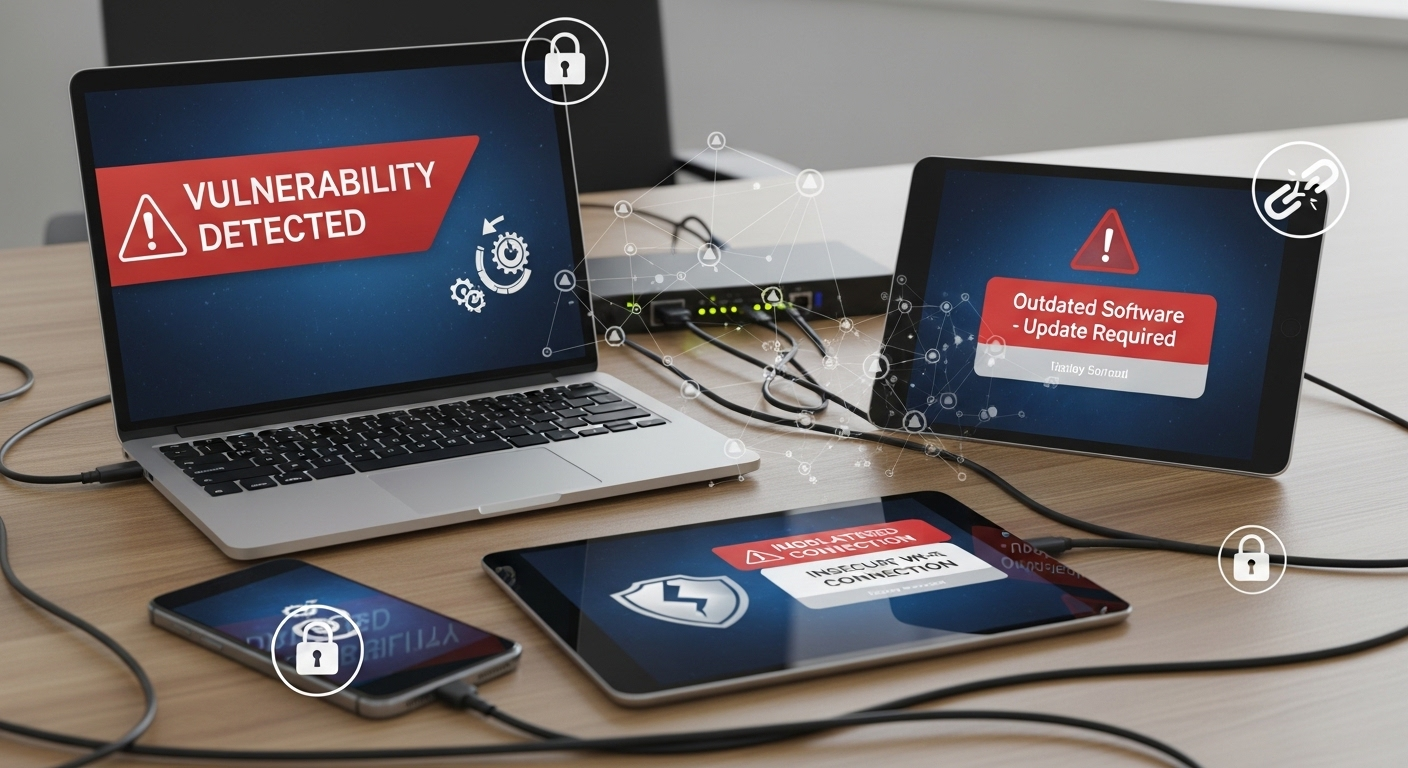
  6. Monitor and Optimize: Continuously track performance metrics and manage user access policies to maintain stability.
  7. Evaluate Scalability: Confirm that your cloud infrastructure can support growth without disruption or unnecessary cost spikes.


How Do You Choose the Right Cloud VDI Provider?

IT decision maker comparing cloud VDI providers on a large dashboard showing security, scalability, pricing, and performance metrics.

Selecting the right cloud VDI provider requires careful evaluation:

  • Security and Compliance Capabilities: Ensure the platform includes encryption, access controls, auditing, and policy enforcement to protect sensitive data stored in the cloud.
  • Ease of Desktop Management: A strong cloud VDI solution should simplify updates to operating system images, desktop provisioning, and user management through centralized tools.
  • Support for Persistent and Non-Persistent VDI: The provider should support both personalized desktop environments and scalable, standardized virtual desktops.
  • Scalability and Future Growth: Confirm the infrastructure can handle increasing users without requiring costly redesigns.
  • Transparent Pricing Model: Subscription pricing should be predictable and aligned with usage, avoiding hidden hardware costs.
  • Performance Optimization: Look for efficient remote display delivery and bandwidth management to maintain responsiveness.
  • Browser-Based Accessibility: Modern providers like Apporto deliver virtual desktops through the browser, reducing client complexity and improving secure access.
  • Centralized Management Tools: Administrators should be able to manage user access and system updates from a single, streamlined interface.


Why Modern Cloud-Native VDI Is Replacing Traditional Infrastructure

Traditional VDI infrastructure was built for a different era. It required on-premise servers, storage arrays, networking gear, and careful coordination between hypervisors and connection brokers. Managing that stack demanded time, capital, and specialized expertise. For many organizations, it became more complicated than the problem it was meant to solve.
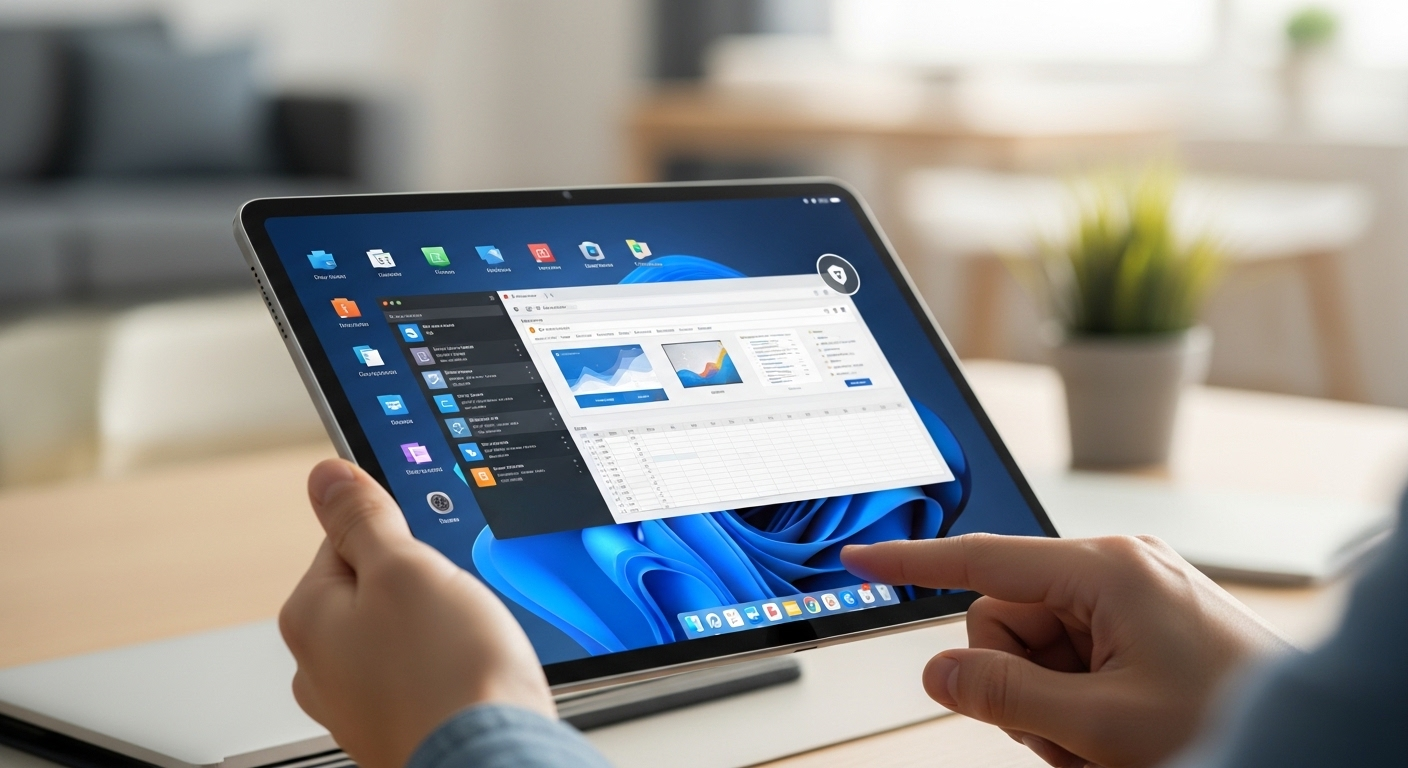
Modern cloud-native VDI takes a lighter approach. Instead of maintaining heavy backend systems inside a corporate data center, you rely on cloud infrastructure that is centrally managed and continuously updated.

Hardware costs drop because processing happens remotely. Desktop computers and thin clients no longer need to carry the workload.

Browser-based access further simplifies the experience. You open a secure session, log in, and your virtual desktop appears. No complex client installations.
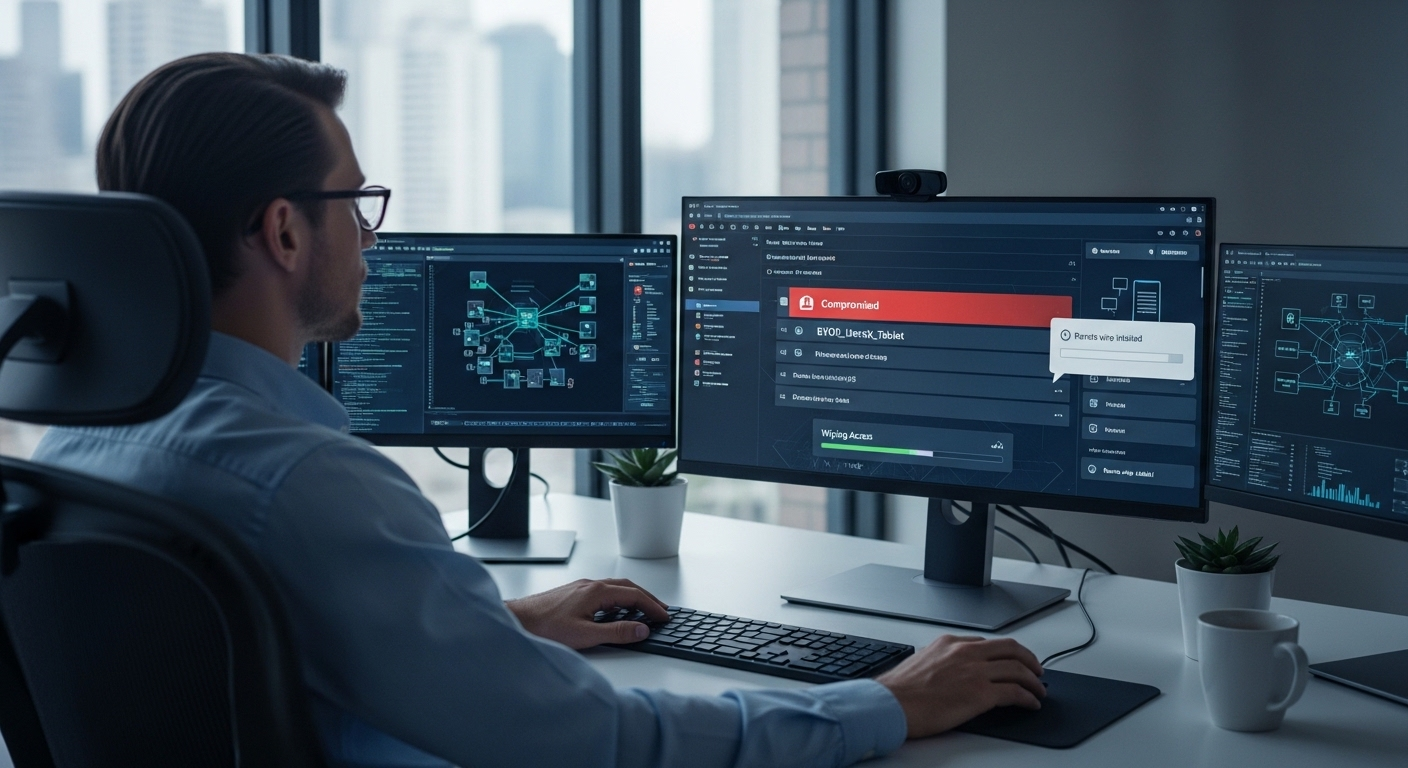
No intricate configuration of connection brokers. Platforms built around this model, such as Apporto, illustrate how cloud VDI can remain secure, scalable, and significantly easier to operate than traditional infrastructure.
 

Final Thoughts

At its core, cloud VDI is a virtual desktop infrastructure model where your desktop environment runs in cloud infrastructure instead of on a physical machine. You access it through the internet, while processing, storage, and security remain inside a secure data center. That design alone explains much of its appeal.

You gain flexibility for remote work, centralized desktop management, enhanced security controls, and often meaningful cost savings compared to maintaining traditional VDI infrastructure. Hardware refresh cycles slow down. User access becomes easier to manage. Scaling feels less disruptive.

Still, the right choice depends on your users, workloads, and growth plans. Take the time to evaluate your requirements carefully. If simplicity, security, and scalability matter, exploring a modern cloud VDI solution like Apporto may be a practical next step.


Frequently Asked Questions (FAQs)


1. What is cloud VDI in simple terms?

Cloud VDI is a way to run your desktop environment from cloud infrastructure instead of a physical computer. Your applications, files, and operating system live in a secure data center, and you access them through an internet connection from almost any device.

2. Is VDI the same as cloud PC? 

No, VDI and cloud PCs are similar but not identical. VDI delivers virtual desktops through centralized infrastructure that can support multiple users, while a cloud PC is typically a dedicated cloud-based desktop assigned to a single user with persistent settings and applications.

3. How is cloud VDI different from remote desktop services?

Remote desktop services typically connect you to a shared server session, while cloud VDI provides a dedicated virtual desktop environment running inside its own virtual machine. Cloud VDI offers greater isolation, stronger centralized management, and more flexibility for scaling users.

4. Is cloud VDI secure for sensitive data?

Cloud VDI can be highly secure when properly configured. Data remains stored inside the cloud data center rather than on local machines, and providers implement encryption, access controls, auditing, and user provisioning to protect sensitive information and enforce compliance policies.

5. Can cloud VDI support multiple users at once?

Yes, cloud VDI is designed to support multiple users simultaneously. Virtual machines are provisioned based on demand, and centralized infrastructure allows administrators to allocate resources efficiently while maintaining performance and secure access for each user session.

6. What devices can access a cloud VDI environment?

You can access a cloud VDI environment from laptops, desktop computers, thin clients, tablets, and even personal devices. As long as there is a stable internet connection and secure authentication, the virtual desktop environment remains accessible and consistent.

How to Secure BYOD with Cloud Desktops?

Quick Answer

How to Secure BYOD with Cloud Desktops?

Cloud desktops secure BYOD environments by keeping corporate data in centralized cloud infrastructure instead of personal devices. They combine encrypted access, Zero Trust security, and identity-based controls to reduce data leakage and unauthorized access. Platforms like Apporto help organizations deliver secure remote access across unmanaged devices.

Today, bring your own device (BYOD) is everywhere. Employees, contractors, partners, all connecting through personal laptops and unmanaged devices. It works, until it doesn’t. The flexibility is real, but so is the exposure. Sensitive company data now moves across environments you don’t fully control, and that creates quiet vulnerabilities.

Remote work has only intensified this pattern. More access, more endpoints, more opportunities for data leakage or unauthorized entry.

Traditional security approaches struggle to keep up. They were built for control at the device level, not at the access level.

In this blog, you’ll learn how to secure BYOD with cloud desktops by shifting control away from devices and toward access, data, and identity.


What Is BYOD and Why Are Organizations Adopting It So Quickly?

BYOD, or bring your own device, is exactly what it sounds like. You use your personal laptop, phone, or tablet to access corporate resources instead of relying on company-issued hardware. Simple idea. Big implications.

You avoid hardware costs. No need to provision devices for every employee. At the same time, people prefer working on their own machines. Familiar setup, fewer adjustments, less friction. It just feels easier.

There’s also a structural reason behind it. Organizations now rely more on contractors and distributed teams. Talent isn’t always local anymore. BYOD makes it possible to onboard quickly without shipping equipment or building rigid setups.

Over time, it becomes more than a convenience. It becomes part of how work actually gets done. Faster access, broader reach, and in many cases, better productivity.


What Security Risks Come with BYOD Devices?

Multiple personal devices connected to a corporate network with visible security vulnerabilities and warning icons.

Here’s the part that tends to get overlooked. The more freedom you allow, the less control you have. And with BYOD, that gap can widen quietly.

The risks aren’t always obvious at first. But they accumulate.

  • Data Leakage: Work data can be copied, downloaded, or shared outside controlled environments, sometimes unintentionally, sometimes not. Once it leaves, it’s difficult to track.
  • Unmanaged Devices: Personal devices don’t always meet security standards. Missing updates, weak configurations, or outdated software can create openings you didn’t plan for.
  • Malware Exposure: A compromised device can act as an entry point into corporate systems. It doesn’t take much, a single infected file can be enough.
  • Unauthorized Access: Lost or stolen devices introduce a different kind of risk. If access isn’t tightly controlled, sensitive company data can be exposed quickly.
  • Compliance Violations: Maintaining standards like SOC2, HIPAA, or PCI becomes harder when data spreads across unmanaged environments.

And this is where it compounds. As organizations scale, more users, more devices, more endpoints, the surface area expands. IT teams have been trying to contain this for years, often with mixed results.


Why Traditional BYOD Security Models No Longer Work?

For a while, the approach seemed reasonable. Manage the device, secure the data. But that logic starts to break when the device isn’t yours.

Most MDM solutions focus on controlling endpoints. Installing policies, enforcing updates, locking configurations. It works, up to a point. Then you realize the device itself isn’t fully under your control.

The older model, trust but verify, doesn’t hold up well in remote environments. Too many variables. Too many unknowns.

And when devices are personal, unmanaged, or shared, endpoint security becomes unreliable. You don’t always see what’s happening. Visibility drops.

That’s why the thinking changes. Less emphasis on the device. More on access itself.

Zero Trust starts to replace those older assumptions. You verify everything. Every time. And security moves closer to where the data actually lives.


How Do Cloud Desktops Secure BYOD Environments at the Core?

"Centralized cloud desktop with secure data storage while users access from personal devices without local data transfer.

If traditional approaches struggle with devices, cloud desktops take a different route. They stop trying to control what you can’t fully control.

Instead, they focus on access. And more importantly, on where the data lives. Here’s how that works:

  • Centralized Data Storage: Corporate data stays inside secure cloud environments, not scattered across personal devices. That alone reduces a large portion of the risk.
  • No Data Residency on Endpoints: Even if a device is compromised, nothing meaningful is stored locally. The actual work never leaves the organization’s boundaries.
  • Encrypted Sessions: Every interaction between the user and the desktop is protected using encryption protocols like TLS or a VPN. Data moves, but safely.
  • Application-Level Access: Instead of exposing full systems, users access specific apps and resources. Less exposure, fewer entry points.
  • Device-Agnostic Security: Security controls sit at the access layer, not tied to the device. It doesn’t matter if it’s a personal laptop or something older, the rules stay consistent.

Cloud desktops centralize corporate resources in a way that’s easier to manage and harder to misuse. And because the data never really leaves that controlled environment, you reduce the risk tied to unmanaged devices.

It’s a different foundation. One that aligns closely with Zero Trust, where access is controlled, and nothing is assumed safe by default.


How Does Zero Trust Strengthen BYOD Security?

Zero Trust sounds complicated at first. It isn’t, at least not in principle. You assume every access request could be a threat. Not sometimes. Every time. That’s the starting point.

In a BYOD environment, that mindset matters more than usual. Devices aren’t controlled. Networks vary. Users move between locations. You can’t rely on assumptions anymore.

So instead, access is continuously validated. Identity is checked. Not once, but repeatedly. Device compliance is evaluated, even if the device isn’t owned by the organization. Session behavior is monitored in the background, quietly, looking for anything unusual.

There’s no implicit trust. Not based on location. Multi-factor authentication becomes essential here. Without it, the model weakens quickly.

And behind all of this sits continuous monitoring. Every request, every session, every interaction is verified. It’s a stricter model, yes. But in a BYOD setup, that level of scrutiny is what keeps things stable.


What Security Controls Should You Enforce in a BYOD Cloud Desktop Strategy?

Security admin remotely wiping access from a compromised BYOD device in a cloud desktop environment.

If cloud desktops provide the foundation, these controls are what make it hold up under pressure. Without them, gaps start to appear. Small at first, then harder to manage.

Here’s what needs to be in place:

  • Multi-Factor Authentication: Adds a critical extra layer of protection, preventing unauthorized access even if credentials are exposed or a device is lost.
  • Conditional Access Policies: Restrict access based on device health, location, and compliance requirements, ensuring only trusted conditions allow entry.
  • Data Loss Prevention: Monitors and blocks unauthorized movement of sensitive files to personal storage, external drives, or unapproved applications.
  • Remote Wipe Capabilities: Allows IT teams to immediately remove access or disconnect environments if a device is compromised or a user leaves.
  • Continuous Monitoring: Tracks activity in real time, identifying suspicious behavior before it turns into a larger issue.
  • Single Sign-On: Simplifies access across systems while maintaining strong authentication controls behind the scenes.


How Do Cloud Desktops Balance Security with User Experience?

Security often comes with friction. Extra steps, slower access, more things to manage. That’s usually the trade-off. But cloud desktops handle it a bit differently.

You get a consistent desktop experience across devices, which matters more than it sounds. Same apps, same settings, same environment, no matter what you’re using. It removes that constant adjustment between systems.

There’s also no dependency on specific operating systems. Whether it’s Windows, Mac, or something older, access stays the same. Tools like Windows 365 have leaned into this idea, delivering a stable experience without compromising compliance.

And that’s the key point. You maintain control in the background while keeping access simple in the foreground. Less friction. More continuity. It works quietly, which is exactly what you want.


Why Are Cloud Desktops a Cost-Effective BYOD Strategy?

Cost is often the reason BYOD starts. But without the right structure, it can become unpredictable. Cloud desktops bring some order to that.

You don’t need to issue hardware to every employee, which immediately reduces upfront investment. Devices are already there. You just enable access. That alone can save more than expected.

On the operational side, IT overhead drops. Fewer devices to manage, fewer systems to maintain, fewer support requests tied to hardware issues. The burden shifts away from internal teams.

There’s also scalability. You can expand access without building new infrastructure or buying additional machines.

And with a subscription-based model, costs become easier to track. It’s not just about saving money. It’s about making costs behave in a more predictable way.


Why Apporto Is an Ideal Solution for Secure BYOD?

Homepage banner showing Apporto’s cloud desktop solutions with virtual desktops, AI tutoring, and academic integrity features highlighted for higher education institutions.

Apporto runs entirely in the browser. No installation, no dependency on local setup, no extra steps that quietly break things later. You log in, and access is there. Simple, but intentional.

More importantly, no data is stored on personal devices. Everything stays within a controlled environment, which reduces the risk that usually comes with unmanaged endpoints.

At the same time, IT teams manage everything from a single console, which keeps oversight centralized. It works across operating systems without friction. Different devices, same experience. Try Now.


Final Thoughts

BYOD brings flexibility. That part is clear. But it also introduces uncertainty, especially around access and data.

Cloud desktops bring that back into balance. You don’t restrict users. You redefine where control lives. Data stays protected, access is managed, and security becomes part of the system instead of something layered on top later.

Over time, that changes how you think about risk. It’s no longer something you chase after, trying to fix. It’s something you design around from the beginning. And in a way, that’s the point. Control doesn’t limit flexibility. It makes it sustainable.


Frequently Asked Questions (FAQs)


1. What is a secure BYOD policy?

A secure BYOD policy is a defined set of rules that governs how personal devices can access corporate resources. It outlines security requirements, acceptable use, compliance standards, and gives organizations the ability to control or revoke access when needed.

2. How do cloud desktops protect corporate data?

Cloud desktops keep corporate data centralized in secure environments rather than storing it on personal devices. Users access applications and files remotely, which reduces the risk of data leakage, theft, or unauthorized transfers from unmanaged endpoints.

3. Is BYOD safe without cloud desktops?

BYOD without cloud desktops can be risky because data often resides on personal devices. Even with tools like MDM, maintaining consistent security and compliance across unmanaged environments is difficult and often incomplete.

4. Do cloud desktops work across all devices?

Yes, cloud desktops are designed to work across different devices and operating systems, including Windows, macOS, and even low-powered machines. Access typically happens through a browser or lightweight client, keeping the experience consistent.

5. What is Zero Trust in BYOD environments?

Zero Trust in BYOD means no user or device is automatically trusted. Every access request is continuously verified based on identity, device condition, and behavior, ensuring secure access to corporate systems regardless of location or device type.

Tips for Successful Implementation of Cloud Desktops in Educational Institutions

Cloud Desktops for Educational Institutions

Tips for Successful Implementation of Cloud Desktops in Educational Institutions

In today’s world, technology is playing an increasingly important role in education. To keep up with the latest developments, many institutions are turning to the cloud to provide their students and staff with the flexibility and mobility they need. However, implementing cloud desktops in educational settings can be challenging if you don’t know the best practices. In this article, we will guide you through the process of successfully implementing cloud desktops in educational institutions.

Understanding Cloud Desktops in Education

What are Cloud Desktops?

Cloud desktops are a type of virtual desktop infrastructure (VDI) that allows users to access their desktop environment from any device with an internet connection. Instead of storing files and applications locally on a user’s device, cloud desktops store everything on remote servers in the cloud. This means that users can access their desktops and files from anywhere, as long as they have an internet connection.

Cloud desktops are becoming increasingly popular in educational institutions due to their flexibility, mobility, cost savings, and increased security.

Benefits of Cloud Desktops in Educational Institutions

There are several benefits of using cloud desktops in educational institutions:

Common Challenges and Solutions

Despite the benefits of cloud desktops, there are some challenges that educational institutions may face when implementing them:

  • Slow Internet Speeds: Slow internet speeds can make it difficult for students and staff to access their desktops from remote locations. Institutions may need to invest in better internet connectivity to overcome this challenge. This can be particularly challenging for institutions in rural areas with limited internet access.
  • Resistance to Change: Some staff members may be resistant to the change to cloud desktops, and may need additional training and support to adjust to the new technology. It is important for institutions to provide adequate training and support to ensure a successful transition.

Despite these challenges, cloud desktops can offer significant benefits to educational institutions, including increased flexibility, mobility, cost savings, and security. As technology continues to evolve, it is likely that more institutions will turn to cloud desktops as a way to provide their students and staff with greater access to their desktop environments.

Assessing Your Institution’s Needs

Cloud desktops are becoming increasingly popular in educational institutions, providing a flexible and cost-effective solution for students, staff, and faculty to access their work from anywhere, at any time. However, before implementing cloud desktops, it’s important to assess your institution’s needs and objectives to ensure a successful transition.

Identifying Key Stakeholders

One of the first steps in assessing your institution’s needs is to identify the key stakeholders who will be impacted by the change. This may include students, staff, IT, and administration. Each stakeholder group will have different needs and requirements when it comes to cloud desktops, and it’s important to take these into consideration when planning the implementation.

For example, students may require access to specific software programs for their coursework, while staff and faculty may need to access sensitive data and files. IT will need to ensure that the infrastructure can support the new system, and administration will need to consider the budget and resources required for the implementation.

Evaluating Current Infrastructure

Another important step in assessing your institution’s needs is to evaluate your current infrastructure to ensure that it can support cloud desktops.

Internet connectivity is crucial for cloud desktops, as all data and applications are accessed through the internet. It’s important to ensure that your institution has a reliable and fast internet connection to support the new system.

Setting Goals and Objectives

Once you’ve identified your key stakeholders and evaluated your infrastructure, it’s important to set goals and objectives for your cloud desktop implementation. This may include improving flexibility and mobility, reducing costs, or increasing security.

Implementing cloud desktops can provide numerous benefits, such as allowing students and staff to access their work from anywhere, reducing the need for expensive hardware and software, and increasing security and compliance. However, it’s important to have clear goals and objectives in place to ensure a successful implementation.

By assessing your institution’s needs, identifying key stakeholders, evaluating your infrastructure, and setting goals and objectives, you can ensure a successful transition to cloud desktops and provide a flexible and cost-effective solution for your institution.

Virtual Desktop Provider Comparison

See how Apporto stacks up against the most popular virtualization technologies available today

LEARN MORE


Top 7 Vendors Comparison

Choosing the Right Cloud Desktop Solution

In today’s digital world, cloud desktop solutions have become increasingly popular for institutions of all sizes. Cloud desktops offer a flexible and scalable solution for organizations looking to provide their employees with remote access to their work environment. However, choosing the right cloud desktop solution can be a daunting task. In this article, we will explore some key factors to consider when evaluating cloud desktop providers.

Comparing Cloud Desktop Providers

There are several cloud desktop providers to choose from, each with its own set of features and pricing. It’s important to compare providers to find the one that best meets the needs of your institution. Some providers may offer more robust collaboration tools, while others may focus on providing a simple and user-friendly interface. Additionally, pricing models can vary greatly between providers, so it’s important to evaluate the cost of each option.

Evaluating Features and Functionality

When evaluating cloud desktop providers, it’s important to consider the features and functionality that are important to your institution. This may include collaboration tools, storage capacity, and ease of use. Some providers may offer advanced features such as virtual whiteboards and video conferencing, while others may focus on providing a streamlined and intuitive user experience. It’s important to evaluate the needs of your institution and choose a provider that offers the features and functionality that align with those needs.

Considering Security and Compliance Requirements

Security and compliance are critical considerations when choosing a cloud desktop provider. It’s important to choose a provider that meets your institution’s security and compliance requirements. This may include HIPAA compliance for healthcare organizations, data encryption to protect sensitive information, and multi-factor authentication to prevent unauthorized access. It’s important to thoroughly evaluate the security and compliance measures of each provider to ensure that they align with your institution’s needs.

In conclusion, choosing the right cloud desktop solution requires careful consideration of several key factors. By comparing providers, evaluating features and functionality, and considering security and compliance requirements, institutions can find a cloud desktop solution that meets their unique needs.

Preparing for Implementation

Implementing a cloud desktop solution can be a complex process, but it doesn’t have to be overwhelming. By taking the time to properly prepare for implementation, you can ensure a smooth transition and a successful outcome.

Developing a Project Timeline

One of the first steps in preparing for implementation is to develop a project timeline. This timeline should outline all of the necessary steps for a successful implementation, including deadlines for each phase of the project, as well as any necessary training and testing.

It’s important to involve all stakeholders in the development of the project timeline to ensure that everyone is on the same page and has a clear understanding of what needs to be done and when. This can help to prevent delays and ensure that the project stays on track.

Allocating Resources and Budget

Another important aspect of preparing for implementation is to allocate enough resources and budget for your cloud desktop implementation. This may include hiring additional IT staff, investing in better internet connectivity, or purchasing new hardware.

It’s important to carefully consider all of the costs associated with the implementation, including any ongoing maintenance and support costs, to ensure that you have enough budget to see the project through to completion.

Training Staff and Educators

Finally, it’s important to provide training and support for staff and educators to ensure that they are comfortable using the new technology. This may include on-site training, online training, or tutorials.

It’s important to involve staff and educators in the planning and development of the training program to ensure that it meets their needs and addresses any concerns they may have. Providing ongoing support and training can help to ensure that the implementation is successful and that everyone is able to fully utilize the new technology.

Conclusion

Implementing cloud desktops in educational institutions can provide students and staff with the flexibility and mobility they need to succeed. By following the best practices outlined in this article, you can ensure a successful implementation that meets the needs of your institution.

Security Benefits of Cloud Desktops for Education

Cloud desktops security lock

Security Benefits of Cloud Desktops for Education

In recent years, education institutions have increasingly adopted cloud desktops as a solution to streamline their IT infrastructure. Cloud desktops offer several benefits for educational institutions, especially in terms of security. In this article, we will discuss the security benefits of cloud desktops for education.

Understanding Cloud Desktops in Education

Cloud desktops are a form of virtual desktops that offer computer resources as a service. They are hosted in the cloud rather than on traditional desktop hardware. When users log in, they are connected to a desktop instance with all their applications, settings, and data they need to work. Cloud desktops are accessible from any device with the internet, making them an attractive option for educational institutions with diverse user needs.

What are Cloud Desktops?

Put simply; a cloud desktop is a virtual computer. The user can interact with the machine through a web interface or a native application. The virtual computer runs in a data center on high-quality hardware and typically an enterprise-grade hypervisor to ensure optimal performance. The result is an environment that has the performance characteristics of a desktop but can be accessed from anywhere, on any device.

Cloud desktops are a great solution for educational institutions that require students and faculty to have access to their work and learning resources from anywhere, at any time. With cloud desktops, students can work on assignments and projects at home, in the library, or on the go. Faculty members can access course materials, grade assignments, and communicate with students, no matter where they are.

Cloud desktops offer a number of benefits over traditional desktops. For one, they are more flexible and scalable. With cloud desktops, educational institutions can easily add or remove resources as needed, without having to invest in new hardware or infrastructure. This makes it easier for institutions to adapt to changing needs and budgets.

The Role of Cloud Desktops in Educational Institutions

In educational institutions, cloud desktops can be used by students, faculty, and staff as a centralized resource for learning, research, and administrative tasks. They offer a consistent user experience for each user, regardless of their location or device, which improves productivity and communication. In addition, cloud desktops reduce IT infrastructure costs and management needs, allowing institutions to focus on education, rather than technology.

Cloud desktops also provide a secure environment for educational institutions. With cloud desktops, institutions can ensure that all data is stored and accessed securely, reducing the risk of data breaches and other security threats. This is especially important for institutions that deal with sensitive student and faculty information, such as grades, financial aid, and personal data.

Another benefit of cloud desktops is that they are environmentally friendly. By using cloud desktops, educational institutions can reduce their carbon footprint and energy consumption. This is because cloud desktops require less energy to operate than traditional desktops, which can help institutions save money on energy costs and reduce their impact on the environment.

In conclusion, cloud desktops are an excellent solution for educational institutions that need a flexible, scalable, and secure environment for students, faculty, and staff. With cloud desktops, institutions can provide a consistent user experience, reduce IT infrastructure costs, and improve productivity and communication. Additionally, cloud desktops are environmentally friendly, making them a great choice for institutions that want to reduce their carbon footprint and energy consumption.

Enhanced Data Protection and Privacy

One of the key benefits of cloud desktops for education is enhanced data protection and privacy. Educational institutions handle sensitive information such as student records, research data, and financial information that needs to be secure. Cloud desktops offer several features to help ensure that sensitive information is protected.

Secure Data Storage and Backup

Cloud desktops offer secure data storage and backup options. Educators and students can store their data on the cloud desktop and access it from any device. Backup and recovery can be done with ease by cloud desktop providers. This ensures that data is always available and protected in case of data loss or hardware failure.

In addition, cloud desktops use encryption to protect data both in transit and at rest. This means that even if someone intercepts the data, they won’t be able to read it without the encryption key. This adds an extra layer of protection to sensitive information.

Access Control and User Authentication

Access control and user authentication are essential for any educational institution that manages sensitive data. With cloud desktops, administrators can control who can access data and resources by setting permissions and user access levels. This limits the risk of unauthorized access to sensitive data. In addition, user authentication protocols such as two-factor authentication can be enabled to further strengthen the security of data access.

Cloud desktops also provide detailed logs of user activity, which can be used to track who accessed what data and when. This can help institutions identify potential security breaches and take action to prevent them.

Compliance with Data Protection Regulations

Educational institutions must comply with data protection regulations such as GDPR and FERPA. Cloud desktops from reputable providers are compliant with these regulations and provide regular audits to ensure compliance. This ensures that institutions can continue to handle sensitive data legally and avoid hefty fines that come with non-compliance.

Furthermore, cloud desktop providers often have dedicated compliance teams that stay up-to-date with the latest regulations and ensure that their services remain compliant. This means that institutions can focus on their core mission of educating students, while leaving the compliance aspect to the experts.

In conclusion, cloud desktops provide enhanced data protection and privacy for educational institutions. With secure data storage and backup, access control and user authentication, and compliance with data protection regulations, cloud desktops offer a comprehensive solution for handling sensitive information. Educational institutions can rest assured that their data is protected and compliant, allowing them to focus on their core mission of educating students.

Zero Trust Virtual Desktop White Paper

In this white paper, you will learn how Apporto helps companies achieve highly secure remote workplaces

Improved Cybersecurity Measures

In today’s digital age, cybersecurity has become an essential aspect of any organization, especially educational institutions. With the increasing number of cyberattacks, educational institutions are continually seeking ways to improve their cybersecurity measures and protect their sensitive data. One solution that has gained popularity is the use of cloud desktops.

Cloud desktops offer several benefits, including enhanced data protection and improved cybersecurity measures. Let’s take a closer look at how cloud desktops can help educational institutions mitigate the risks of cyberattacks.

Protection Against Malware and Ransomware

Malware and ransomware attacks have become a significant threat to educational institutions, leading to data loss, reputation damage, and financial loss. These attacks are continually evolving, making it challenging for institutions to keep up with the latest cybersecurity measures. However, cloud desktops provide protection against these threats through features such as anti-malware software, regular updates, and patches.

Anti-malware software is designed to detect and remove malware from the system, reducing the risk of data loss or damage. Regular updates and patches ensure that the cloud desktop environment is secure and up-to-date with the latest cybersecurity measures. This way, educational institutions can focus on their core mission of education without worrying about cybersecurity threats.

Regular Security Updates and Patches

Regular security updates and patches are necessary to keep educational institutions safe from cyberattacks. However, manual updates and patching can be time-consuming and resource-intensive, taking away valuable time and resources from education. Cloud desktops provide these updates regularly and automatically, ensuring that the environment is up-to-date with the latest cybersecurity measures.

This way, educational institutions can focus on their core mission of education while still maintaining the highest level of cybersecurity. Additionally, cloud desktops offer a centralized management system, making it easier for IT teams to manage and monitor security updates and patches across the institution.

Advanced Threat Detection and Prevention

Cloud desktops offer advanced threat detection and prevention through features such as machine learning and artificial intelligence. These features learn from user behavior and can detect anomalies, such as unusual login attempts or data access patterns. This early detection can prevent potential cyberattacks and reduce the risk of data loss or damage significantly.

Moreover, cloud desktops provide real-time monitoring and alerts, allowing IT teams to respond quickly to potential threats. This way, educational institutions can ensure that their sensitive data is protected from cyberattacks and their students, faculty, and staff can work in a secure and safe environment.

Security Measures of Cloud Desktops

Cloud desktops offer several benefits to educational institutions, including enhanced data protection and improved cybersecurity measures. With the increasing number of cyberattacks, educational institutions must take proactive measures to protect their sensitive data and ensure a secure working environment for their students, faculty, and staff. Cloud desktops provide a cost-effective and efficient solution to these challenges, allowing institutions to focus on their core mission of education while still maintaining the highest level of cybersecurity.

Simplified IT Management and Maintenance

Institutions can gain several benefits from the deployment of cloud desktops, including simplified IT management and maintenance. Cloud desktops provide a centralized platform for managing and maintaining IT infrastructure, which can help educational institutions save time and money.

Centralized Security Management

One of the key benefits of cloud desktop environments is the ability to manage security centrally. This means that administrators can monitor and control security settings for all devices and users from a single dashboard. This centralized approach provides greater visibility and control over data and resources, which can help to prevent security breaches and unauthorized access.

Cloud desktop providers also offer support and maintenance services, which can help to reduce the workload for IT staff. This means that educational institutions can focus on other important tasks, such as curriculum development and student support.

Streamlined Software Updates and Upgrades

Managing software updates and upgrades can be a time-consuming task for educational institutions. Cloud desktops streamline this process by offering automated and centralized updates. This means that updates are deployed at a time that minimizes disruption and provides the latest features to users.

Cloud desktop providers also offer software licensing and management services, which can help to reduce costs and simplify the procurement process. This means that educational institutions can access the latest software applications without having to worry about licensing fees or complex installation procedures.

Reduced IT Infrastructure Costs

Cloud desktops offer cost savings for educational institutions by reducing IT infrastructure costs. This is because cloud desktops eliminate the need for expensive computer hardware and maintenance. Instead, educational institutions can access cloud desktops through low-cost devices such as thin clients or laptops.

In addition, cloud desktops offer scalability, which means that educational institutions can add or remove resources as required. This pay-as-you-go model means that institutions only pay for what they use, which can help to reduce costs and improve budget predictability.

Overall, cloud desktops offer a range of benefits for educational institutions, including simplified IT management and maintenance, centralized security management, streamlined software updates and upgrades, and reduced IT infrastructure costs. By adopting cloud desktops, educational institutions can focus on delivering high-quality education and student support, while leaving the IT management to the experts.

Conclusion

Cloud desktops offer several benefits for educational institutions, including enhanced data protection and privacy, improved cybersecurity measures, and simplified IT management and maintenance. These benefits allow educational institutions to focus more on education and less on technology while reducing the risk of data loss, damage, and cyberattacks.