Why Does Citrix Keep Disconnecting? Causes, Fixes, and What to Check First

Employee facing a reconnection error screen, showing real-world frustration with Why Does Citrix Keep Disconnecting problems.
Quick Answer

Why Does Citrix Keep Disconnecting?

Citrix may keep disconnecting due to unstable internet, firewall restrictions, software mismatches, device settings, or session configuration issues. Troubleshooting network reliability and client settings often resolves the problem. For a simpler alternative, browser-based platforms like Apporto can reduce connection complexity and disconnect risks.

You’re working in a virtual app or desktop, and suddenly — the screen freezes, the session drops, and your progress disappears. If you rely on Citrix for daily work, these disconnections aren’t just technical hiccups — they interrupt momentum, cut into productivity, and sometimes cause data loss.

Citrix disconnects happen for a variety of reasons, and understanding them is the first step toward a more stable experience. This article explores why Citrix keeps disconnecting, from network connectivity issues to Citrix Workspace misconfigurations, version mismatches, and more.

Let’s break it down so you can find the fix faster.


What Does a Citrix Disconnection Actually Mean?

User reconnecting to a Citrix virtual desktop environment, visualizing Why Does Citrix Keep Disconnecting during active sessions.

A Citrix disconnection isn’t the same as logging out or restarting an app. When a session is disconnected, the virtual machine or server hosting your virtual apps or desktops is still running — you’re just not connected to it anymore.

In most cases, a disconnected session is still alive on the backend. Your apps remain open, your data is in place, and the system is waiting for you to reconnect. But problems arise when you don’t reconnect properly — or worse, when you unknowingly launch a new session instead of returning to the same session.

It’s a subtle but important distinction. Disconnecting is like walking away from your desk with your screen on. Resetting or logging off, on the other hand, closes everything. If your Citrix experience feels unstable or inconsistent, it’s worth understanding what kind of disconnection is occurring — and whether the system is preserving your session or starting over every time.


Can Unstable Internet Connection Cause Citrix to Disconnect?

Yes — your internet connection plays a major role in Citrix stability. Even if you’re using the right software and settings, poor bandwidth, packet loss, or jitter can silently disrupt your session.

Unlike basic web apps, Citrix depends on a steady, low-latency stream of data. If packets arrive too late or get dropped entirely, the session can time out. You might experience delays, screen freezing, or get kicked out entirely.

This is especially common with home Wi-Fi, mobile hotspots, or heavily shared networks. Corporate offices typically have dedicated routing, QoS (quality of service), and optimized gateways — but at home, even a smart TV streaming video in another room can tip your connection over the edge.

Remote users on laptops or PCs often report similar issues across different locations. If disconnects happen frequently, test your connection with speed and packet loss tools — or try switching networks to compare behavior.


How Do Firewalls, Ports, and Security Settings Interrupt Citrix Sessions?

Citrix requires specific ports and protocols to stay connected. If your network’s firewall or proxy is blocking traffic — even for a few seconds — it can break the session.

Corporate firewalls or endpoint protection platforms sometimes misclassify Citrix traffic, especially if ICA packets or gateway traffic aren’t explicitly whitelisted. Even default router settings at home can close necessary ports if they detect inactivity or enforce aggressive security.

You might also be facing issues if the Citrix client can’t maintain a consistent path to the data center or server. Proxies that route traffic dynamically or apply content filtering can introduce unexpected disconnects.

To troubleshoot, work with IT or check your own network settings. Ensure that Citrix’s recommended port access is allowed, particularly for SSL, ICA, and session reliability protocols. If other services work fine but Citrix keeps dropping, your firewall configuration could be the hidden cause.


Are You Starting a New Session Instead of Reconnecting to the Same One?

Citrix desktop on iMac showing multiple active apps, illustrating session duplication issues and Why Does Citrix Keep Disconnecting.

Sometimes, Citrix disconnects aren’t really disconnects — they’re duplicate logins. If your system doesn’t properly detect an existing active session, it may launch a new session on the same server, leaving the original one running in the background.

This usually happens when session state tracking breaks down, often due to misconfigurations in Citrix Workspace App or inconsistent session policies.

To fix this, ensure your Workspace settings allow automatic reconnection to active sessions. If you’re using a browser, always close the tab fully and log back in cleanly. Avoiding session overlap starts with knowing how Citrix handles “connected but idle” states.


Can Outdated Citrix Software or Version Mismatches Cause Disconnects?

Yes — version mismatches are a common cause of unexplained Citrix disconnects. When the Citrix Workspace App, the server’s VDA, and the client’s OS aren’t aligned, compatibility issues arise. That’s when features don’t behave as expected, or sessions unexpectedly drop.

Newer Workspace versions may not work correctly with older server infrastructure, and vice versa. Citrix regularly updates its protocol layers, so keeping everything in sync is critical.

Use the Citrix Upgrade Tool or version check utilities to confirm your software matches supported configurations. Staying current helps reduce connection errors and ensures smoother session handoffs across environments.


Can Device Settings or OS Behavior Interrupt Active Citrix Sessions?

Yes — sometimes the culprit is your own device. Power-saving features on Windows or macOS can silently kill network connections. If your laptop goes into sleep mode or your Wi-Fi adapter resets, the Citrix session may drop or freeze.

Background apps or third-party services like VPN clients, antivirus, or bandwidth limiters can also interfere. Even something as simple as plugging into a USB hub or docking station can change network routing unexpectedly.

Check your power settings, especially for wireless adapters, and disable “allow the computer to turn off this device” under advanced network settings if disconnects persist.


How Do You Use Logs and Event Viewers to Diagnose Citrix Session Drops?

IT administrator checking event logs to troubleshoot Why Does Citrix Keep Disconnecting issues on a virtual desktop.

If Citrix keeps disconnecting without explanation, your first stop should be the logs. Open Windows Event Viewer and filter for Citrix-related errors or ICA session resets. You’ll often see codes tied to session drops, timeouts, or reconnect failures.

Admins can also check Citrix Director, which provides a timeline of user activity and session health. For deeper inspection, explore the Diagnostics Page and Web Studio, where you can view registration errors or misconfigured policies.

Reading logs won’t fix the problem immediately — but they almost always point you in the right direction.


Quick Fixes: What Can You Do Right Now to Stop Citrix from Disconnecting?

When you’re mid-session and Citrix disconnects, try these quick actions before diving into logs or support tickets:

  • Restart the Citrix Workspace App
  • Check your internet connection or switch networks
  • Review firewall settings — especially if you’re behind a corporate proxy
  • Clear saved sessions or reconnect through your workspace portal
  • Reboot your device to flush out any stale configurations
  • Reconnect to the proper delivery group if you’re using multiple environments

Sometimes, it’s a combination of small glitches — restarting with a clean config often restores stability faster than you’d expect.


When Should You Escalate the Issue to IT or Citrix Support?

If Citrix keeps disconnecting — and it’s happening across multiple users, apps, or office locations — the issue likely goes beyond your device. That’s the time to escalate.

When reaching out to IT or Citrix Support, share specific details:

  • Timestamps of disconnects
  • Any visible error messages
  • Device type and operating system
  • Recent network or location changes
  • Exported log files, if possible

The Citrix Helpdesk portal and official support site also maintain documentation on known issues and fixes. A detailed report saves time and helps your support team resolve it faster.


Frustrated with Citrix Disconnects? Try Apporto Instead

Apporto cloud desktop platform logo, often compared when asking Why Does Citrix Keep Disconnecting for end users.

If you’re spending more time troubleshooting Citrix than working in it, there’s a simpler option. Apporto is a browser-based virtual desktop solution that eliminates complex installs, firewalls, and version mismatches.

No client downloads. No VPN. No reconnect errors.

Just reliable access to apps and desktops — from anywhere, on any device.

Whether you’re an IT admin or end user, Apporto offers a faster, cleaner [alternative to legacy VDI platforms]. Learn more about how Virtual Desktop Infrastructure is revolutionizing workspaces Try Apporto now — and stop worrying about disconnects.


Conclusion: Diagnosing Citrix Disconnects Means Connecting the Dots

Citrix disconnects rarely come from a single cause. More often, they’re the result of layered issues — a mix of network conditions, software mismatches, and configuration gaps.

Understanding how Citrix handles session state, connectivity, and reconnection logic is key to narrowing down the issue and applying the right fix.

If problems persist, don’t guess — test methodically, monitor logs, and escalate when needed.


Frequently Asked Questions (FAQs)


1. Why is Citrix getting disconnected frequently? 

Citrix may disconnect frequently because of unstable internet, packet loss, firewall restrictions, outdated Workspace software, or session policy issues. Problems with device power settings or server-side configurations can also interrupt connectivity, making it important to identify where the session breakdown occurs.

2. Can slow internet cause Citrix to disconnect or freeze?

Yes. Low bandwidth or unstable internet can interrupt Citrix hosted applications or virtual desktop sessions. Look for signs of packet loss, jitter, or congestion on your home or office network.

3. How do I resolve a session timeout issue? 

To resolve a Citrix session timeout issue, review inactivity timeout policies, reconnect settings, and network stability. Updating Citrix Workspace and checking server-side session policies can help. If timeouts persist, IT administrators may need to adjust session reliability or timeout configurations.

4. What’s the difference between Citrix disconnect and log off?

A disconnect keeps your session active on the server; you can reconnect later. A log off closes the session and ends any open apps or desktops — requiring a full restart next time.

5. Does Citrix Workspace App version matter?

Absolutely. Using an outdated Workspace App can cause errors, connection drops, or security issues. Always match your client version to what’s supported by the server or VDA version.

6. Can antivirus or firewall software interrupt Citrix?

Yes. Overly aggressive antivirus or firewall settings can block critical Citrix ports or ICA packets, breaking the session unexpectedly. Add exceptions or consult with your IT team.

DaaS vs. VDI: Understanding the Key Differences and Benefits for Your Business

IT decision maker evaluating VDI vs DaaS on a strategic roadmap board.
Quick Answer

What Is the Difference Between VDI and DaaS?

VDI (Virtual Desktop Infrastructure) delivers virtual desktops from on-premises servers managed internally by IT teams, while DaaS (Desktop as a Service) provides cloud-hosted virtual desktops managed by a third-party provider. VDI offers greater infrastructure control, whereas DaaS emphasizes scalability, reduced maintenance, and subscription-based desktop delivery for remote and hybrid work environments.

VDI vs DaaS comes up more often now because the way teams access desktops has changed in very practical ways. Remote access is no longer a special case. Virtual desktops are part of daily operations for employees, contractors, and entire departments that rely on consistent access from different locations and devices.

At the same time, pressure is building. Costs are harder to predict, performance expectations are higher, and security standards keep tightening. Desktop virtualization is no longer judged only by whether it works, but by how reliably it performs under load, how well it protects data, and how much effort it takes to maintain.

This is why the comparison matters. Choosing between VDI and DaaS is not an abstract architecture debate. It affects budgets, IT workload, user experience, and long term flexibility. The wrong model can introduce friction that shows up as slow desktops, rising support tickets, or infrastructure that struggles to adapt.

This article breaks down the real differences so you can decide which approach fits better, based on how your organization actually operates.


What Is VDI, in Simple Terms? 

Virtual Desktop Infrastructure, often shortened to VDI, is a way of delivering virtual desktops from servers that an organization owns and manages itself. Instead of running a desktop operating system directly on a physical PC, the desktop runs on servers located on premises, usually inside a company data center. Users connect to that desktop over the internal network or through secure remote access.

In a traditional VDI setup, IT teams are responsible for almost everything behind the scenes. That includes purchasing physical servers, configuring storage, managing networking, applying patches, and keeping systems available. The desktop experience may feel familiar to users, but the infrastructure supporting it is complex and resource intensive.

This model offers a high degree of control. Organizations decide how desktops are built, where data lives, and how security policies are enforced. That control comes with tradeoffs. VDI requires significant upfront infrastructure investment and ongoing maintenance effort, especially as environments grow.

At a basic level, VDI typically involves:

  • Virtual desktops running in a company data center
  • Physical servers and storage owned by the organization
  • High upfront costs for hardware and licensing
  • Full internal control managed by IT teams

Understanding traditional VDI creates a clear baseline. From here, it becomes easier to see how DaaS approaches desktop virtualization differently.


What Is DaaS, in Simple Terms?

User logging into a cloud-hosted virtual desktop from a laptop with data center servers in the background

Desktop as a Service, usually called DaaS, delivers virtual desktops from cloud infrastructure instead of from servers you own. The desktop operating system, applications, and data run in cloud data centers managed by a service provider. Users connect over the internet and see the same desktop each time they log in, regardless of the device they use.

The biggest difference from VDI is ownership and responsibility. With DaaS, the provider manages the underlying infrastructure. That includes servers, storage, updates, availability, and much of the security baseline. 

IT teams no longer maintain physical hardware or worry about capacity planning in the same way. They focus more on access, policies, and user experience.

DaaS is also different from SaaS. SaaS delivers individual applications through a browser. DaaS delivers a full desktop environment that can run many applications together, including legacy or specialized software that does not work well as a web app.

Access follows a subscription model. Organizations pay based on users, usage, or resource tiers, which makes costs easier to adjust as needs change.

At its core, DaaS typically includes:

  • Virtual desktops hosted in the cloud
  • Infrastructure managed by third-party providers
  • Subscription-based access instead of hardware ownership
  • Access from multiple devices using an internet connection

This approach appeals to teams that want flexibility and reduced infrastructure burden without giving up a full desktop experience.


VDI vs DaaS at a High Level: How They Actually Differ

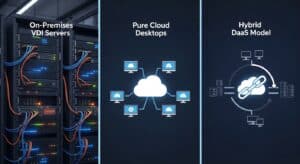
At a high level, the difference between VDI and DaaS comes down to where desktops live, who manages them, and how much operational weight your organization carries day to day. Both models deliver virtual desktop solutions, but they approach infrastructure very differently.

VDI DaaS
On-premises infrastructure Cloud hosted
CapEx heavy OpEx subscription
Internally managed Provider managed
Slower to scale Scales quickly
Higher maintenance Lower operational overhead


VDI emphasizes control. Desktops run on infrastructure you own, inside your data center, under policies your IT team defines and enforces. That control can be valuable in tightly regulated environments or where customization is critical. 

The tradeoff is cost and complexity. Hardware purchases, upgrades, and maintenance stay on your balance sheet and your team’s workload.

DaaS emphasizes convenience and flexibility. Infrastructure lives in the cloud and is managed by a provider. Costs move to a subscription model, and scaling becomes faster and more predictable. Operational responsibility shifts away from internal teams, which reduces maintenance overhead but also means accepting provider constraints.

The real difference is not technical alone. It is about how much control you need versus how much complexity you want to manage. Understanding that balance sets the stage for deeper comparisons around cost, security, and long term fit.


Infrastructure and Management: Who Owns the Complexity?

Split-scene showing internal IT team managing physical servers versus cloud provider managing DaaS infrastructure

Infrastructure decisions quietly decide who carries the operational burden over time. With desktop virtualization, that burden shows up in how much complexity your IT teams must own every day.

In a VDI model, the responsibility sits squarely inside the organization. IT teams manage physical servers, storage systems, networking, and virtualization layers. Patching operating systems, upgrading hardware, and monitoring performance all require ongoing attention. 

As environments grow, management overhead increases. More users often mean more servers, more licenses, and more points of failure to watch closely.

That workload demands specialized technical expertise. Skills in virtualization platforms, networking, storage, and security are not optional. 

When experienced staff leave or priorities change, maintaining consistency becomes harder. Over time, infrastructure maintenance can pull IT teams away from more strategic tasks.

DaaS changes where that complexity lives. The provider manages servers, upgrades, and much of the underlying infrastructure. 

Internal teams focus on access control, policies, and user support rather than hardware lifecycle management. This reduces operational strain and makes staffing models more flexible.

The difference is not about capability alone. It is about who owns the complexity and how much time your IT team spends keeping systems running versus improving how technology supports the business.


Cost Comparison: Upfront Investment vs Ongoing Spend

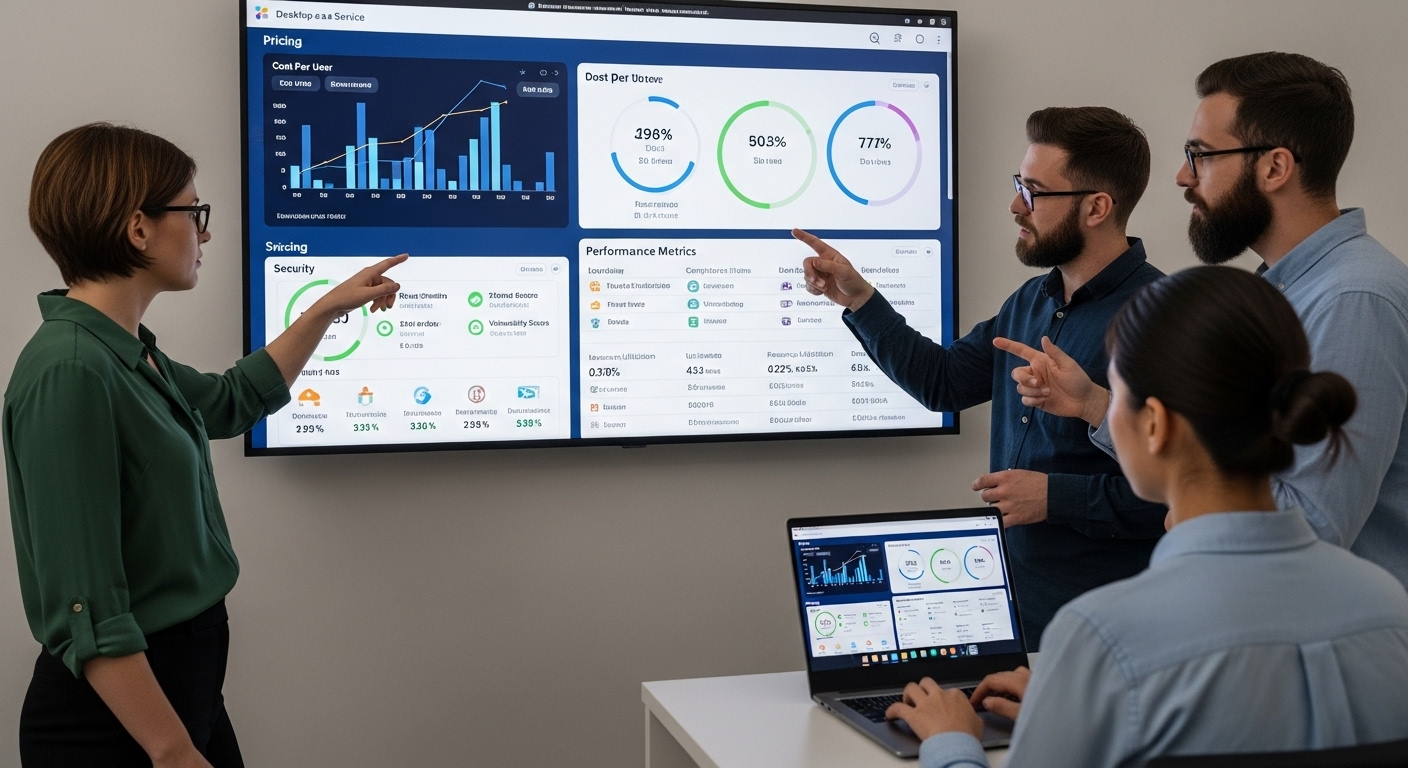
Cost comparisons between VDI and DaaS often look simple at first glance, but the real differences appear over time. What matters is not only how much you pay, but when you pay it and how predictable those costs remain as needs change.

VDI relies heavily on capital expenditure. Servers, storage, networking gear, and licenses are purchased upfront. That investment can deliver control, but it also locks money in early. Predicting future capacity becomes critical, because underestimating leads to performance issues, while overestimating leaves expensive hardware underused.

DaaS follows an operating expense model. Costs move to subscriptions tied to users or resource consumption. This brings flexibility. Spending can rise or fall as teams grow or contract. The tradeoff is that long term costs depend heavily on usage patterns and pricing structures.

Hidden costs exist in both models. With VDI, maintenance contracts, power, cooling, and hardware refresh cycles add up quietly. With DaaS, licensing tiers, premium features, network charges, and long term subscriptions can increase total cost if not monitored carefully.

  • Key cost components to evaluate include:
  • Hardware and server costs required for on premises infrastructure
  • Licensing and upgrades for operating systems and virtualization platforms
  • Ongoing maintenance, staffing, and support overhead
  • Subscription fees tied to users, performance tiers, or usage

True cost efficiency comes from modeling total cost over time, not just comparing first year expenses.


Scalability and Flexibility: Which Model Adapts Faster?

Cloud dashboard adding and removing virtual desktop users instantly through a management console

Scalability becomes a real concern the moment an organization starts changing shape. New hires join, projects end, contractors rotate in and out, and remote teams expand across regions. How quickly a desktop model adapts to those changes matters more than most teams expect.

With VDI, scaling usually involves planning ahead. Adding users often means provisioning additional servers, expanding storage, and revisiting capacity assumptions. Removing users does not always reduce costs immediately, because infrastructure is already purchased. This approach can work in stable environments, but it is less forgiving when growth is uneven.

DaaS handles flexibility differently. Users can be added or removed quickly, often through a management console, without touching physical infrastructure. This supports flexible work models and makes it easier to respond to short term demand. Resource elasticity allows desktops to scale with usage instead of fixed capacity.

The faster model depends on context. Organizations that value predictable, static environments may tolerate slower scaling. Teams that need to scale up or down frequently benefit from platforms designed to adapt without friction.


Performance and User Experience Differences

Architecture choices show up clearly in daily user experience. Virtual desktops succeed or fail based on how they feel during real work, not how they look in diagrams.

Latency is one of the most noticeable factors. In VDI, performance depends on internal network quality and data center proximity. In DaaS, internet routing and cloud data center location play a larger role. Both models can perform well, but poorly planned deployments struggle.

Resource contention also matters. In VDI, shared servers can become bottlenecks if workloads spike unexpectedly. In DaaS, providers typically balance resources across larger pools, which can improve consistency when configured correctly.

Consistency of performance is what users remember. Desktops that respond the same way each day build trust. When performance varies, support tickets rise and productivity slips. The underlying architecture determines how predictable that experience remains over time.


Security and Compliance: VDI vs DaaS

IT team managing firewalls and network security in a data center contrasted with provider-managed compliance environment

Security responsibilities differ sharply between VDI and DaaS, even though both aim to provide secure access to virtual desktops. The difference lies in where data lives and who enforces controls day to day.

With VDI, data typically remains inside an organization’s own data center. IT teams define access rules, manage network security, and monitor activity directly. This offers strong control, but it also means compliance depends heavily on internal processes, staffing, and consistency. Audits, logging, and policy enforcement all sit with the organization.

DaaS centralizes security within cloud environments operated by providers that design platforms around compliance at scale. Data is stored centrally rather than on local devices, reducing exposure from lost or compromised endpoints. Providers often maintain certifications and controls that would be costly to replicate internally.

  • Key security considerations include:
  • Centralized data storage that limits data loss from local devices
  • Multi factor authentication to protect user access
  • Compliance controls aligned with industry regulations
  • Clearly defined audit responsibilities between provider and customer

The tradeoff is control versus shared responsibility. VDI offers direct ownership of security operations. DaaS relies on provider safeguards combined with customer defined access policies. Understanding that division is critical for meeting compliance requirements without gaps.


Deployment Speed and Ongoing Operations

Deployment speed is one of the most visible differences between the two models. VDI environments usually take weeks or months to deploy. Hardware must be purchased, configured, tested, and integrated before users ever log in.

DaaS deployments move faster. Providers already operate the infrastructure, so desktops can be provisioned quickly once identity, policies, and applications are defined. This shortens time to value and reduces early project risk.

Day to day operations also differ. VDI requires continuous attention to patching, upgrades, and capacity planning. DaaS shifts much of that work to the provider, reducing IT workload and freeing teams to focus on access management and user support.

The operational impact is clear. Faster deployment and lighter maintenance often favor DaaS, while VDI suits organizations prepared to manage complexity internally.


Which Use Cases Fit VDI Better?

VDI tends to work best in environments where control outweighs convenience. Some organizations are willing to accept higher management overhead in exchange for tighter ownership of systems, data, and processes.

  • Highly regulated environments with strict control needs
    Industries with heavy compliance requirements often prefer traditional VDI. Keeping desktops on premises allows enterprises to define and enforce security controls without relying on shared provider responsibility models.
  • Organizations with existing data centers
    Enterprises that have already invested in servers, storage, and virtualization platforms may extend that infrastructure rather than replace it. In these cases, VDI builds on what is already in place.
  • Specialized workloads
    Certain applications require custom configurations, predictable performance, or direct integration with internal systems. Traditional VDI gives IT teams fine grained control over these environments.

VDI fits organizations that value direct control and already have the expertise and infrastructure to support it over time.


Which Use Cases Fit DaaS Better?

DaaS platforms shine when flexibility, speed, and reduced overhead matter most. They are often chosen to simplify desktop delivery rather than customize it deeply.

  • Remote and hybrid teams
    DaaS supports users working from many locations and devices. Desktops remain consistent without requiring local infrastructure or complex network configurations.
  • Rapid growth or contraction
    Organizations that hire quickly or rely on contractors benefit from the ability to add and remove users without long term commitments or hardware purchases.
  • Limited IT resources
    Teams with small IT staff often prefer DaaS because infrastructure management, patching, and scaling are handled by the provider.
  • DaaS fits organizations that prioritize flexibility and speed, especially when internal resources are focused on broader business goals rather than maintaining desktop infrastructure.


How to Decide Between VDI and DaaS for Your Organization

IT team reviewing existing data center servers before choosing between VDI and cloud-based DaaS

Choosing between VDI and DaaS works best when the decision is broken into clear, practical steps. Skipping this structure often leads to decisions based on assumptions rather than real requirements.

  • Assess current infrastructure
    Start by understanding what you already have. Existing data centers, server capacity, and virtualization investments influence how practical traditional VDI may be.
  • Define user personas
    Identify who will use the desktops and how. Performance needs, application usage, and access patterns vary widely across roles, and those differences matter.
  • Identify compliance requirements
    Document regulatory obligations and internal security standards. These requirements often narrow the choice quickly by defining what models are acceptable.
  • Model costs over time
    Compare capital and operating expenses across multiple years. Look beyond initial pricing and include growth, maintenance, and staffing impacts.
  • Test performance
    Run pilots using real users and real workloads. Performance testing reveals issues that diagrams and vendor claims cannot.


The Bottom Line

There is no universal winner in the VDI vs DaaS debate. Each model brings tradeoffs between control and simplicity, flexibility and ownership. What matters most is how well the model fits your organization’s needs today and how it supports change over time.

Long term implications outweigh short term convenience. Infrastructure choices affect costs, security posture, user experience, and IT workload for years. A thoughtful decision reduces friction rather than introducing it.

Before committing, evaluate current constraints, future growth plans, and internal capabilities honestly. From there, explore modern desktop delivery options with a clear view of what success looks like for your teams. The right choice is the one that aligns with how your organization actually works, not how technology trends suggest it should. 


Frequently Asked Questions (FAQs)


1. Is DaaS more secure than VDI?

DaaS can offer strong security because data stays centralized in the provider’s cloud environment, rather than on local devices. However, security depends on configuration, access controls, and monitoring, not the model alone. VDI can be equally secure when managed well, but it requires more internal effort and expertise.

2. Can VDI and DaaS coexist in the same organization?

Yes, many organizations run both models side by side. VDI is often kept for workloads needing tight control, while DaaS supports remote teams or temporary users. This approach lets IT match desktop delivery to specific user needs without forcing one standard everywhere.

3. Which costs more over the long term, VDI or DaaS?

VDI usually requires higher upfront investment in servers, storage, and licenses. DaaS spreads costs over time through subscriptions, which can be easier to predict. Long term cost depends on scale, growth patterns, and how efficiently resources are managed.

4. What technical skills are required to run VDI compared to DaaS?

VDI demands deep expertise in virtualization, networking, storage, and ongoing maintenance. IT teams handle patching, upgrades, and capacity planning themselves. With DaaS, much of that responsibility moves to the provider, reducing internal skill requirements.

5. How does migration usually work when moving from VDI to DaaS?

Most migrations start with a pilot group rather than a full rollout. Applications, user profiles, and security policies are tested first. A phased approach reduces risk and helps teams adjust before expanding usage.

6. Is performance better with VDI or DaaS?

Performance depends on network quality, resource allocation, and user location. VDI can deliver strong performance on local networks. DaaS performs well for distributed teams when connectivity and provider infrastructure are properly matched.

7. Which model is easier to scale during rapid growth?

DaaS generally scales faster because desktops can be added or removed through the provider platform. VDI scaling often requires purchasing and configuring new hardware. Organizations expecting frequent changes often find DaaS easier to adapt operationally.


VPN Security: Are VPNs Safe and Secure?

Quick Answer

Are VPNs Safe to Use?

VPNs are generally safe when they use strong encryption, trustworthy providers, and secure protocols to protect internet traffic and privacy. They help reduce risks on public networks, but they do not prevent malware, phishing, or replace broader security protections.

Are VPNs safe, or do they simply make you feel safer than you actually are? That question lingers beneath all the marketing promises. You see ads everywhere claiming instant privacy, airtight VPN security, total anonymity. It sounds reassuring. Almost too reassuring.

A virtual private network, usually shortened to VPN, is a tool that creates a secure connection between your device and a remote server. It encrypts your internet traffic so outsiders cannot easily read it, and it masks your IP address so your online activity appears to come from somewhere else.

For many internet users, that feels like a shield. For remote workers accessing company systems, it feels essential. Enterprises rely on VPN service platforms to support secure remote access and protect corporate data.

And yes, VPN safety is real, up to a point. A well-configured VPN can strengthen online security and help with protecting data on public networks. But it is not absolute protection. Encryption standards matter. The VPN provider matters.

Free VPN services carry risks. Enterprise security requires more than a VPN alone. Legal restrictions vary by country. Data leaks still happen. In this blog post, you will understand whether VPNs are truly safe, and where their protection begins and ends.


What Is a VPN and How Does a VPN Actually Work?

A VPN creates a secure tunnel between your device and a VPN server operated by your provider. That tunnel is encrypted, which simply means your internet traffic is scrambled into unreadable data while it travels across your internet connection. Anyone trying to intercept it sees nonsense, not usable information.

Once connected, your data no longer travels directly from your device to a website. Instead, it moves through a remote server first. That remote server then forwards your request to the wider internet. Because of this rerouting, your real IP address is hidden. Websites and services see the IP address of the VPN server, not your own.

This entire setup forms what is often called a VPN network, essentially a private network layered on top of the public internet. The encrypted tunnel protects your data in transit, while masking your digital location.

Under the hood, VPN services rely on tunneling protocols such as L2TP or IPsec. You do not need to memorize the acronyms. What matters is that they establish and maintain the encrypted connection. Most reputable providers use AES encryption standards, widely trusted for protecting sensitive data efficiently.

In practical terms, a VPN creates distance between you and the open internet. It inserts a protective layer. That layer matters, but it is not magic.

How a VPN Creates a Secure Connection?

  • Encrypts traffic so it becomes unreadable data
  • Routes internet traffic through a remote server
  • Hides your IP address from your internet service provider
  • Prevents unauthorized parties from monitoring public Wi Fi connections


What Security Benefits Do VPNs Actually Provide?

Remote employee securely accessing corporate servers through a VPN connection with visible encryption shield icon.

Now that you understand how a VPN works, the next step is clarity. What does it genuinely protect, and where does that protection hold up?

A properly configured VPN strengthens data protection by encrypting your internet traffic while it moves across networks. That matters most when you are using public Wi Fi in airports, hotels, cafés, anywhere strangers share the same connection. Without encryption, your data can be intercepted. With it, your information becomes unreadable to opportunistic attackers.

For remote workers, VPNs provide secure remote access to company resources. Instead of exposing internal systems directly to the internet, enterprises route access through a controlled VPN network. This supports enterprise security by reducing the likelihood of unauthorized intrusion during remote access sessions.

A VPN also prevents your internet service provider from easily tracking your search history or monitoring patterns in your online activity. You can browse anonymously in a limited sense, meaning your ISP cannot readily profile what sites you visit. It may also prevent throttling, since your ISP cannot easily detect specific types of traffic to slow down.

There are even smaller advantages. Changing your apparent location can sometimes reduce price discrimination on travel sites. And by masking your IP address, a VPN can help prevent hackers from targeting your visible network identity.

What a Safe VPN Can Protect You From

  • Interception of sensitive information on public Wi Fi
  • Exposure of your user’s IP address
  • Basic ISP tracking of online activity
  • Data breaches caused by unencrypted connections
  • Throttling of specific types of internet traffic


Where Do VPNs Fall Short? What VPNs Do NOT Protect You From?

This is where the conversation usually gets uncomfortable. VPN safety is real, but it is often overstated. And overstating protection creates blind spots.

First, a VPN does not stop malware. It does not scan files, block phishing emails, or prevent you from clicking a malicious link. If you download infected software or fall for a scam, encryption will not save you. Malware protection requires antivirus tools, secure browsing habits, and updated systems.

Second, a VPN does not prevent cookie tracking or browser fingerprinting. Websites can still identify you through login sessions, device characteristics, and tracking technologies. If you are logged into your social media or email account, your activity is still tied to you. A VPN cannot undo that connection.

Absolute anonymity is also a myth. Your VPN provider can potentially see your internet traffic. Some providers claim zero-log policies, but not all are audited. Depending on the jurisdiction, certain VPN services may be required to log or share data. That introduces privacy concerns, especially if the service provider lacks transparency.

Performance is another limitation. VPN connections frequently introduce latency, particularly when you connect to geographically distant servers or when many remote users share the same network. Encrypting all traffic adds processing overhead. The result can be slower internet speed and occasional bandwidth challenges.

Finally, a VPN does not replace firewalls, intrusion detection systems, or strong password hygiene. If your login credentials are weak, or reused across services, a VPN does nothing to correct that vulnerability. It protects data in transit, not poor security decisions.

Security Risks You Should Understand

  • VPN connections can introduce latency, especially across distant servers
  • Encrypting all traffic may reduce internet speed
  • Some VPN providers log online activity
  • Free VPN services may sell user data
  • VPNs cannot prevent malware infections
  • VPNs cannot protect against tracking via cookies

So, are VPNs safe? In many cases, yes. But only within boundaries. Understanding those boundaries is the difference between smart protection and misplaced confidence.


Are Free VPN Services Safe or a Hidden Risk?

Split-screen illustration showing a free VPN labeled 'free' leaking user data while a paid VPN shows strong encryption and security shields.

Free sounds harmless. Sometimes generous. But in the VPN market, free VPN services deserve careful scrutiny. Running a VPN network costs money. Servers, bandwidth, security updates, customer support, audits, none of it is free. So when a service provider offers unlimited access at no charge, you have to ask how the operation is funded.

In many cases, the answer is uncomfortable. Some free VPNs monetize user data. They may log browsing activity, analyze patterns, and in certain cases sell user data to third parties. That directly undermines online privacy.

Security standards can also be weaker. Some free services rely on outdated encryption standards or limit bandwidth to control costs. Others have been caught distributing bundled software that includes malware. A tool meant to protect your device ends up exposing it instead.

Independent audits are rare among free VPNs. Without third-party verification, claims of zero logs or strong VPN security remain unproven. Jurisdiction matters too. Providers based in countries with mandatory data-sharing laws may be legally required to hand over user information.

Customer support is typically minimal. If something goes wrong, you may be left guessing.

Why Free VPNs Can Be Dangerous

  • May monetize user data
  • Often lack strong encryption standards
  • Can contain malware
  • Provide limited secure access
  • Rarely offer transparent pricing

Difference between Free VPNs vs Paid VPNs 

Feature Free VPN Services Reputable Paid VPN Service
Encryption Standards Often limited AES or strong encryption
Zero-Log Policy Rare Often independently audited
Customer Support Minimal Dedicated support
Risk of Data Monetization High Low


A safe VPN usually requires investment. Free services often collect their payment in other ways.


Can You Trust Your VPN Provider? What Really Matters

At this point, the real question is not simply are VPNs safe, it is whether your VPN provider deserves your trust. Because once you route your internet traffic through a VPN network, you are placing a great deal of faith in that service.

Start with the zero log policy. A credible provider should clearly state that it does not store your browsing history or connection data. Even better, that claim should be verified through independent security audits. Words on a website mean little without external validation.

Jurisdiction also matters. Some providers operate in countries with mandatory data-sharing laws. In those cases, even a privacy-focused service may be legally compelled to disclose information. If you care about online privacy, that is not a small detail.

Transparency is another signal. A trustworthy VPN provider should offer a clear pricing model, straightforward terms of service, and accessible customer support. Hidden fees or vague policies are warning signs. Regular updates to VPN software also matter, because outdated systems create security risks.

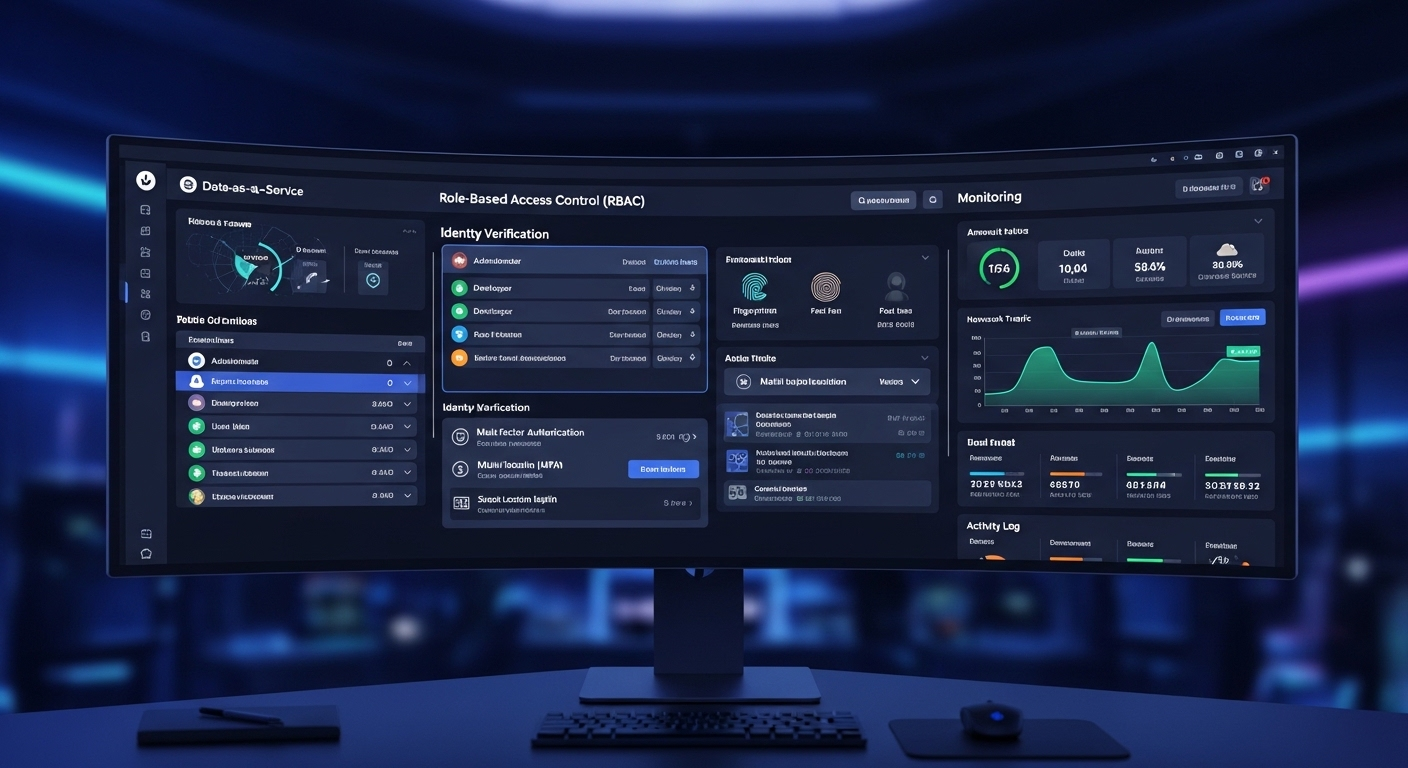
Strong authentication methods add another layer of protection. Multifactor authentication helps secure your account even if your password is compromised. Secure tunneling protocols and modern encryption standards further strengthen the foundation.

Granular access control is especially important for enterprise environments, where different users should not have unrestricted access to sensitive systems.

What Makes a Good VPN Provider

  • Verified zero log policy
  • Independent security audits
  • Strong encryption standards
  • Multi-factor authentication options
  • Transparent pricing
  • Reliable customer support
  • Regular security updates


Are VPNs Enough for Enterprise Security?

Scalable data center infrastructure handling increased remote VPN users with performance and security indicators.

For enterprise security, a VPN is a tool, not a complete strategy. It plays a role in network security, particularly by enabling secure remote access for remote users. But it is not the whole structure.

A traditional VPN grants vpn access to the internal network once authentication succeeds. That approach assumes that anyone inside the tunnel is trustworthy. In practice, that assumption can be risky. If a compromised device connects, it may gain access to sensitive company resources and move laterally across systems. This is where granular access control becomes critical. Not every user should see everything.

Modern security models lean toward Zero Trust principles. Instead of trusting a connection by default, Zero Trust verifies identity continuously and limits access to only what is necessary. A VPN alone does not enforce that level of precision.

Enterprises also require firewalls, intrusion detection systems, endpoint protection, and identity management frameworks. Without those layers, a VPN becomes a single gate protecting a much larger structure.

Scalability introduces another challenge. As the number of remote users grows, bandwidth strain and performance bottlenecks can emerge. Data center infrastructure must be designed to handle the load securely.


Do VPNs Slow Down Your Internet Connection?

Yes, a VPN connection can reduce internet speed. The reason is simple, your internet traffic no longer travels directly to its destination. It detours through a VPN server first. That extra step introduces latency, especially if the server is located far from you geographically.

Distance matters. The farther the VPN server, the longer the data path. High user load also plays a role. If many people are connected to the same server, bandwidth challenges can emerge, and performance may dip.

Encryption adds processing overhead as well. Scrambling and unscrambling data requires computing power, which can slightly slow your internet connection. For streaming platforms or business applications that rely on real-time responsiveness, even small delays can become noticeable.

That said, high-quality VPN services invest in optimized infrastructure. Fast servers, efficient routing, and modern encryption standards can minimize slowdowns. You may not experience dramatic speed loss, but some reduction in internet speed is normal.


Is Using a VPN Legal Everywhere?

Corporate compliance officer reviewing global VPN regulations on a multi-screen international policy dashboard.

VPN usage is legal in many countries, including the United States and the United Kingdom. In those regions, using a VPN for online privacy or secure access on public networks is generally permitted. However, legality is not universal.

Some governments restrict or tightly regulate VPN usage. Countries such as China, Russia, and Iraq impose limitations, and in certain cases only government-approved services are allowed. Using unauthorized VPN services in those jurisdictions can lead to legal consequences.

For enterprises operating globally, compliance becomes complex. Government agencies may require specific data handling standards. Before deploying a VPN solution across borders, understanding local regulations is essential.


Conclusion

So, are VPNs safe? In many practical situations, yes. A VPN is a vital resource for protecting data while it travels across networks. It strengthens online security by encrypting traffic and reducing exposure, especially on public Wi Fi connections where private data can otherwise be intercepted.

But clarity matters. A safe VPN does not provide absolute anonymity. It does not replace malware protection. It does not correct weak passwords or eliminate every security risk. VPN safety is real, yet bounded.

For remote workers handling company resources, a VPN supports secure access and reduces the likelihood of interception. For everyday users, it adds a useful layer of defense when browsing on unsecured networks. Still, it should be part of a broader, layered security approach that includes strong authentication, endpoint protection, and sound network policies.

Before assuming you are fully protected, take a moment to evaluate your overall security posture. A VPN can strengthen your defenses, but thoughtful strategy provides lasting protection.


Frequently Asked Questions (FAQs)


1. Is there a risk using VPN? 

Yes, using a VPN can involve risks if the provider logs data, uses weak encryption, or offers poor security practices. VPNs also do not prevent malware or phishing, so they should be part of a broader online security strategy.

2. Are VPNs safe for everyday internet users?

For most internet users, VPNs are generally safe when you choose a reputable provider. A reliable VPN encrypts your internet traffic, protects data on public Wi Fi, and limits basic ISP tracking. However, overall safety still depends on your browsing habits and provider transparency.

3. Can a VPN hide my IP address? 

Yes, a VPN hides your IP address by routing internet traffic through a remote server, making websites see the server’s address instead of yours. This improves privacy, though it does not provide complete anonymity online.

4. Do VPNs protect against malware and phishing attacks?

VPNs do not function as malware protection tools. They encrypt data in transit but cannot prevent you from downloading infected files or clicking phishing links. Antivirus software and cautious browsing remain essential parts of online security.

5. Why are free VPN services considered risky?

Free VPN services are often risky because they must generate revenue somehow. Some monetize user data, use weak encryption standards, or lack independent audits. In extreme cases, free services may even contain malicious software.

6. Do VPNs slow down your internet speed?

Yes, using a VPN can reduce internet speed. Routing traffic through a VPN server and encrypting data introduces latency. High-quality services minimize slowdowns, but some reduction in speed is normal.

7. Are VPNs enough for enterprise security?

No, VPNs alone are not sufficient for enterprise security. They support secure remote access, but organizations also need firewalls, identity management, intrusion detection, and granular access control to protect sensitive systems.

8. Can I use VPN on a public Wi-Fi?

Yes, using a VPN on public Wi-Fi is recommended because it encrypts your internet traffic and helps protect sensitive data from interception. It adds security on shared networks commonly found in airports, hotels, cafés, and schools.

9. Is using a VPN legal in all countries?

VPN usage is legal in many countries, including the US and UK. However, some nations restrict or regulate VPN services. In places like China or Russia, unauthorized VPN usage can carry legal consequences.

VPN vs. HTTPS: What’s the difference?

VPN vs. HTTPS: What’s the difference?

In today’s digital world, where online security and privacy are paramount, you have likely come across the terms VPN and HTTPS. While both serve to protect your data, they operate in different ways and offer distinctive benefits. In this article, we will delve into the basics of VPN and HTTPS, examine their key differences, weigh their pros and cons, and help you make an informed decision on when to use each.

Understanding the Basics

What is a VPN?

A VPN, also known as a Virtual Private Network, is a technology that establishes a secure connection between your device and the internet. This connection is encrypted, meaning your data is encoded and cannot be intercepted or accessed by unauthorized individuals.

By routing your internet traffic through a VPN server, your IP address is masked, and your online activities become anonymous. This makes it incredibly difficult for anyone to track your browsing habits or compromise your personal information.

Furthermore, VPNs are widely used by individuals looking to bypass geographical restrictions on content. For example, you can access region-locked streaming services by connecting to a VPN server in a different country. This allows you to enjoy a broader range of entertainment options that may not be available in your current location.

What is HTTPS?

HTTPS, or HyperText Transfer Protocol Secure, is an extension of the standard HTTP protocol used for website communication. It adds an additional layer of security by encrypting the data exchanged between your browser and the web server.

When accessing a website that uses HTTPS, you will notice a padlock icon in your browser’s address bar. This indicates that the connection is secure, and the website has an SSL (Secure Sockets Layer) certificate. Any data you transmit, such as passwords or credit card information, is protected from prying eyes.

Moreover, HTTPS not only secures the data in transit but also helps verify the authenticity of the website you are visiting. This is crucial in preventing phishing attacks where malicious actors create fake websites to steal sensitive information from unsuspecting users. By ensuring the website has a valid SSL certificate, you can have more confidence in the legitimacy of the site.

The Key Differences Between VPN and HTTPS

Functionality and Purpose

While both VPN and HTTPS encrypt your data, they serve different purposes. A VPN is primarily used to create a secure connection between your device and the internet. It masks your IP address and provides anonymity for your online activities. This means that not only is your data encrypted, but your online identity is also protected, making it difficult for anyone to track your online behavior.

On the other hand, HTTPS ensures that the data transmitted between your browser and a specific website remains encrypted and secure. It adds an extra layer of protection, particularly when you are entering sensitive information such as passwords or credit card details on a website. With HTTPS, you can trust that the information you send and receive is encrypted and cannot be easily intercepted by malicious actors.

Security Measures

VPN technology uses robust encryption protocols, such as OpenVPN or IPSec, to secure your internet connection. This prevents eavesdropping and protects your data from potential hackers or prying eyes on public Wi-Fi networks. Additionally, VPNs provide features like DNS leak protection and kill switch, which further enhance your online security.

HTTPS, on the other hand, relies on SSL certificates to encrypt the data transmitted between your browser and the website you are visiting. These certificates ensure that the website you are connecting to is authentic and that the data exchanged is encrypted. This helps protect against man-in-the-middle attacks and ensures the integrity of the data being transmitted.

While both VPN and HTTPS offer encryption, VPNs provide a higher level of security since all of your internet traffic is encrypted and protected, including data transmitted within apps or other non-web-based services. This means that even if you are using a public Wi-Fi network or accessing the internet from a potentially insecure location, your data remains secure and private.

Speed and Performance

When it comes to speed, VPNs may introduce a slight delay due to the additional encryption and rerouting of your internet traffic. However, modern VPN providers have made significant improvements in terms of speed and performance, utilizing optimized servers and protocols. This ensures that you can enjoy a secure browsing experience without experiencing significant slowdowns.

HTTPS, on the other hand, adds minimal overhead to the communication between your browser and the web server. In most cases, the impact on speed is negligible, and you can enjoy a secure browsing experience without sacrificing performance. This is particularly important for websites that handle sensitive information, as the slight decrease in speed is outweighed by the increased security and protection provided by HTTPS.

In conclusion, while both VPN and HTTPS offer encryption and security, they have different functionalities and purposes. VPNs provide a comprehensive solution for securing your entire internet connection, while HTTPS focuses on securing the communication between your browser and specific websites. By understanding these key differences, you can make informed decisions about which security measures to implement based on your specific needs and requirements.

Virtual Desktop Provider Comparison

See how Apporto stacks up against the most popular virtualization technologies available today

Pros and Cons of Using VPN

Virtual Private Networks (VPNs) offer a range of benefits and drawbacks to users, making them a popular tool for ensuring online security and privacy. Let’s delve deeper into the advantages and disadvantages of using a VPN.

Advantages of VPN

  • Enhanced security and privacy: VPNs encrypt your internet connection, making it more secure and protecting your data from potential cyber threats.
  • Anonymous browsing: By masking your IP address, VPNs allow you to browse the web anonymously, keeping your online activities private.
  • Bypassing geo-restrictions: VPNs enable you to access region-locked content by changing your virtual location, giving you more freedom to explore the internet.
  • Protection on public Wi-Fi networks: When connected to public Wi-Fi hotspots, VPNs add an extra layer of security, safeguarding your sensitive information from hackers.

Moreover, VPNs can also be used for remote work purposes, allowing employees to securely access company resources from anywhere in the world. This flexibility and security are especially crucial in today’s digital age, where remote work is becoming increasingly common.

Disadvantages of VPN

  • Potential speed decrease: Due to the encryption process, using a VPN can sometimes lead to a decrease in internet speed, which may affect activities like streaming or online gaming.
  • Reputable VPN providers may come at a cost: While there are free VPN services available, premium VPN providers often charge a subscription fee for their reliable and secure services.
  • Some websites or services may block VPN usage: In an effort to prevent unauthorized access or protect their content, certain websites or streaming platforms may block users who are using VPNs.

Pros and Cons of Using HTTPS

Advantages of HTTPS

  • Secure communication between your browser and websites
  • Protection against data interception
  • Trustworthy indication of a website’s security

One of the key advantages of using HTTPS is the encryption it provides for data transmitted between your browser and the websites you visit. This encryption helps protect sensitive information such as login credentials, personal details, and financial data from being intercepted by malicious third parties. By ensuring that data remains confidential during transit, HTTPS plays a crucial role in maintaining the security and integrity of online communications.

Disadvantages of HTTPS

  • Does not provide overall anonymity or privacy
  • Does not protect data transmitted outside the browser
  • Relies on individual websites implementing HTTPS

While HTTPS offers significant security benefits, it is important to note that it does not guarantee complete anonymity or privacy when browsing the web. Although the encryption provided by HTTPS helps secure the connection between your browser and websites, it does not prevent tracking or monitoring of your online activities. Additionally, HTTPS only protects data while it is in transit between your browser and the web server, meaning that information stored on your device or transmitted through other means may still be vulnerable to unauthorized access.

Choosing Between VPN and HTTPS

When to Use VPN

VPN usage is ideal when you want to establish a secure and private connection to the internet. If you frequently use public Wi-Fi networks or want to keep your online activities anonymous, a VPN is a valuable tool. VPNs are also crucial for bypassing geo-restrictions, allowing you to access content that may be blocked in your region.

Moreover, VPNs offer an added layer of security by masking your IP address, making it harder for third parties to track your online movements. This feature is particularly beneficial for individuals concerned about their online privacy and data security.

When to Use HTTPS

HTTPS should be utilized whenever you access websites that handle sensitive information, such as personal details or financial data. It ensures that your communication with the website remains encrypted and safeguards your information from potential attackers.

Furthermore, HTTPS helps establish the authenticity of websites by verifying their identity through digital certificates. This verification process adds another level of trust and security for users, reducing the risk of falling victim to phishing attacks or fraudulent websites.

In conclusion, while both VPN and HTTPS play vital roles in securing your online activities, they serve different purposes. VPNs excel in providing overall security and privacy by encrypting all your internet traffic, while HTTPS ensures secure communication between your browser and specific websites. Understanding the key differences and use cases of VPN and HTTPS will help you make an informed decision when it comes to protecting your online presence.

Remember, whether you choose to use a VPN or rely on HTTPS, your online security should always be a top priority. Stay informed, take necessary precautions, and enjoy a safer browsing experience on the internet.

What is RDP? Remote Desktop Protocol Explained

What is RDP? Remote Desktop Protocol Explained

Remote Desktop Protocol (RDP) is a proprietary protocol developed by Microsoft that allows users to access and control a remote computer over a network connection. It is widely used in the IT industry for remote administrative tasks, technical support, and accessing files and applications on remote machines.

Understanding the Basics of RDP

Definition of Remote Desktop Protocol

Remote Desktop Protocol, commonly known as RDP, is a protocol developed by Microsoft that enables users to connect and interact with remote computers or virtual desktops. RDP provides a secure way to control a remote machine as if you were sitting in front of it.

RDP operates on an extension of the International Telecommunication Union (ITU) T.120 family of protocols. This allows for the transmission of graphical user interface (GUI) data over a network connection. By utilizing RDP, users can access files, applications, and even network resources on a remote computer, making it a valuable tool for remote work, troubleshooting, and collaboration.

The History and Development of RDP

Originally introduced in 1996 as part of Windows NT 4.0 Terminal Server Edition, RDP has evolved significantly over the years. Microsoft continually improves the protocol to enhance performance, security, and user experience. Today, it is a foundational component of the Windows operating system, used extensively in various industries.

Over the years, RDP has seen multiple versions released, each bringing new features and improvements. With the introduction of Network Level Authentication (NLA), RDP became even more secure by requiring authentication before a connection is established. Additionally, advancements in encryption algorithms and protocol enhancements have further solidified RDP’s position as a reliable and secure remote access solution.

The Functionality of Remote Desktop Protocol

How RDP Works

RDP operates by transmitting the user’s input, such as keyboard and mouse actions, over the network to the remote machine. The remote machine processes the input and sends back the graphical user interface (GUI) updates to the user’s local machine. This allows users to interact with the remote machine as if they were using it directly.

When a user initiates an RDP connection, a secure communication channel is established between the local and remote machines. This channel encrypts the data being transmitted, ensuring that sensitive information remains protected during the remote session. The encryption protocols used by RDP help prevent unauthorized access to the data being exchanged between the machines, adding an extra layer of security to the remote desktop connection.

Key Features of RDP

RDP offers a wide range of features that enhance its functionality and usability:

  • Graphical user interface replication
  • Audio and video streaming capabilities
  • Clipboard sharing between local and remote machines
  • File and printer redirection

Moreover, RDP supports multiple monitor configurations, allowing users to view and work across several screens simultaneously during a remote session. This feature is particularly useful for tasks that require increased screen real estate, such as video editing or software development. Additionally, RDP can adapt to varying network conditions by adjusting the display quality of the remote session in real-time. This dynamic adjustment ensures a smooth user experience, even when network bandwidth fluctuates.

The Benefits of Using RDP

Accessibility and Flexibility

RDP provides users with the flexibility to access their desktops or applications from anywhere in the world, as long as they have an internet connection. This flexibility enables remote work, enhances collaboration, and allows businesses to leverage global talent.

Moreover, RDP offers a secure connection, ensuring that sensitive data remains protected during remote access. This security feature is crucial for businesses dealing with confidential information, providing peace of mind to both users and organizations.

Enhanced Productivity

By using RDP, individuals and organizations can streamline their workflows and enhance productivity. Users can access their work environments remotely, eliminating the need for physical presence or travel. This convenience saves time and resources, enabling users to be more efficient in their tasks.

In addition, RDP allows for easy scalability, making it simple for businesses to adjust resources based on demand. This scalability feature is particularly beneficial for growing companies or those with fluctuating workloads, as it ensures optimal performance without unnecessary costs.

Virtual Desktop Provider Comparison

See how Apporto stacks up against the most popular virtualization technologies available today

Security Aspects of RDP

Understanding RDP Security Measures

RDP (Remote Desktop Protocol) is a widely used technology that allows users to access and control a remote computer over a network connection. When it comes to security, RDP incorporates numerous measures to protect sensitive data and ensure secure remote access. One of the key security features of RDP is the encryption of data transmitted over the network. This encryption helps prevent unauthorized parties from intercepting and reading the data being transmitted between the local and remote computers.

In addition to encryption, RDP also employs user authentication protocols to verify the identity of users attempting to establish a remote connection. By requiring users to provide valid credentials, RDP helps ensure that only authorized individuals can access the remote computer. Furthermore, RDP supports network-level authentication, which adds an extra layer of security by authenticating users before they establish a connection to the remote desktop.

Potential Risks and How to Mitigate Them

While RDP provides a secure remote access solution, there are potential risks that users should be aware of. One common risk is the use of weak passwords, which can be easily compromised by attackers. To mitigate this risk, it is crucial for users to follow security best practices, such as using strong and unique passwords for their RDP connections. Strong passwords should be complex, consisting of a mix of letters, numbers, and special characters, and should be changed regularly to reduce the risk of unauthorized access.

Another risk associated with RDP is the potential for security vulnerabilities in the RDP software itself. To address this risk, users should regularly apply security patches and updates provided by the software vendor. These patches often contain fixes for known security vulnerabilities, so keeping the RDP software up to date is essential for maintaining a secure remote access environment. Additionally, implementing two-factor authentication for RDP can further enhance security by requiring users to provide a second form of verification, such as a one-time code sent to their mobile device, before accessing the remote desktop.

RDP vs. Other Remote Access Protocols

Comparing RDP to VNC and SSH

There are several remote access protocols available, each with its own strengths and weaknesses. When comparing RDP to other protocols like VNC and SSH, RDP stands out for its user-friendly interface, efficient performance, and seamless integration with the Windows ecosystem.

Remote Desktop Protocol (RDP) is a proprietary protocol developed by Microsoft that allows users to remotely connect to Windows-based systems. One of the key advantages of RDP is its ease of use, as it is built into Windows operating systems, making it readily accessible for users without the need for additional software installation. Additionally, RDP offers a seamless experience by providing features like file transfer, clipboard sharing, and printer redirection, enhancing user productivity during remote sessions.

Choosing the Right Protocol for Your Needs

When selecting a remote access protocol, consider your specific requirements, such as the operating systems involved, network conditions, and security considerations. Evaluate the pros and cons of each protocol to choose the one that best aligns with your needs and offers the desired level of functionality and security.

Virtual Network Computing (VNC) is another popular remote access protocol that is platform-independent, allowing users to connect to a wide range of operating systems. Unlike RDP, VNC operates at a higher level of the network stack, transmitting graphical desktop environments over the network. While VNC offers cross-platform compatibility, it may not provide the same level of performance and integration with the host operating system as RDP.

How Secure Is Remote Desktop Protocol (RDP)?

How Secure Is Remote Desktop Protocol (RDP)?

Remote Desktop Protocol (RDP) is a widely used technology that allows users to remotely access and control computers over a network connection. While convenient and efficient, the security of RDP has been a topic of concern for many IT professionals and security experts. In this article, we will explore the various aspects of RDP security and discuss best practices for enhancing its security.

Understanding Remote Desktop Protocol (RDP)

Before delving into the security aspects of RDP, it is important to have a clear understanding of what exactly Remote Desktop Protocol is. Essentially, RDP is a proprietary protocol developed by Microsoft that enables users to connect to a remote computer and interact with its desktop as if they were physically present. This technology has revolutionized the way remote work is conducted, allowing employees to access their work resources from anywhere in the world.

One of the key advantages of RDP is its simplicity and ease of use. It provides a seamless experience by transmitting audio, video, and input data between the local and remote machines. However, it is important to recognize that this convenience comes with its own set of security implications.

What is Remote Desktop Protocol?

Remote Desktop Protocol, often referred to as RDP, is a proprietary protocol developed by Microsoft. It allows users to connect to a remote computer over a network connection and access its desktop. With RDP, users can interact with the remote computer as if they were physically present, enabling them to perform tasks, access files, and utilize software applications remotely.

The Functionality of RDP

RDP provides a comprehensive set of features that facilitate remote access and control. It allows users to establish a secure connection to a remote computer and view its desktop in real-time. Users can interact with the remote desktop by using their local mouse, keyboard, and other input devices. RDP also supports the transmission of audio and video data, enabling users to collaborate remotely with colleagues or access multimedia content.

Furthermore, RDP offers a range of customization options to enhance the user experience. Users can adjust display settings, such as screen resolution and color depth, to optimize the visual quality of the remote desktop. Additionally, RDP supports the redirection of local resources, such as printers, drives, and USB devices, allowing users to seamlessly access their local peripherals while connected to a remote computer.

Another notable feature of RDP is its ability to support multiple simultaneous connections. This means that multiple users can connect to the same remote computer and collaborate in real-time. This feature is particularly useful for team projects or remote training sessions, as it enables participants to work together efficiently, regardless of their physical location.

The Security Aspects of RDP

When it comes to remote access technologies, security should always be a top priority. RDP offers several built-in security features to safeguard the remote connection, but it is important to understand the potential security risks involved. Let’s explore both the security features and risks associated with RDP.

Built-In Security Features in RDP

Microsoft has implemented various security features in RDP to protect the remote connection. These features include network-level authentication, encryption, and access controls. Network-level authentication requires users to authenticate themselves before establishing a remote session, adding an extra layer of security. Encryption ensures that the data transmitted between the local and remote machines is securely encrypted, preventing eavesdropping and unauthorized access. Access controls allow administrators to define user permissions and restrict access to specific resources.

Potential Security Risks of RDP

Despite the built-in security features, RDP is not without its vulnerabilities. One of the primary concerns with RDP is the risk of brute-force attacks, where hackers attempt to gain unauthorized access by repeatedly guessing the login credentials. Weak passwords and the absence of lockout policies can make RDP susceptible to such attacks. Additionally, RDP is also prone to attacks like man-in-the-middle attacks, session hijacking, and network sniffing if proper security measures are not in place.

Let’s delve deeper into the potential security risks of RDP. One common vulnerability is the exposure of RDP ports to the internet. If the RDP port (default port 3389) is open and accessible from the internet, it becomes an attractive target for hackers. They can scan for open RDP ports and launch attacks to exploit any weaknesses in the system’s security.

Another security risk is the use of weak encryption protocols and outdated versions of RDP. Older versions of RDP may have known vulnerabilities that can be exploited by attackers. It is crucial to keep RDP up to date with the latest security patches and use strong encryption protocols, such as TLS 1.2 or higher, to ensure a secure remote connection.

Furthermore, RDP can be vulnerable to credential theft attacks. If an attacker gains access to a user’s RDP credentials, they can potentially compromise the entire system. It is essential to educate users about the importance of using strong, unique passwords and enabling multi-factor authentication to mitigate the risk of credential theft.

Lastly, RDP sessions can be susceptible to session hijacking, where an attacker intercepts and takes control of an ongoing session. This can occur if the session is not properly secured or if the attacker manages to obtain session cookies or credentials. Implementing strong session management practices, such as regularly refreshing session keys and using secure session protocols, can help prevent session hijacking.

Virtual Desktop Provider Comparison

See how Apporto stacks up against the most popular virtualization technologies available today

Enhancing RDP Security

Given the potential security risks, it is crucial to implement best practices to enhance the security of RDP. By following these measures, organizations can minimize the likelihood of unauthorized access and protect sensitive information.

Best Practices for Securing RDP

The following best practices can help improve the security of RDP:

  1. Enable Network-Level Authentication (NLA) to ensure users are authenticated before establishing a remote session.
  2. Use strong and unique passwords for RDP authentication to prevent brute-force attacks.
  3. Consider implementing multi-factor authentication for an extra layer of security.
  4. Regularly update and patch the RDP server and client software to address any security vulnerabilities.
  5. Monitor and log RDP connections to detect and respond to any suspicious activity.

Advanced Security Measures for RDP

In addition to the best practices mentioned above, organizations can further enhance the security of RDP by implementing advanced security measures. These measures include:

  • Using a Virtual Private Network (VPN) to establish a secure and encrypted connection before initiating an RDP session.
  • Implementing session recording and auditing to track and review user actions on the remote desktop.
  • Utilizing intrusion detection and prevention systems to detect and block any malicious activities.
  • Restricted access control policies to limit RDP usage to authorized users only.
  • Regularly conducting security assessments and penetration testing to identify and address any vulnerabilities in the RDP infrastructure.

Implementing a Virtual Private Network (VPN) adds an extra layer of security to RDP sessions. By establishing a secure and encrypted connection before initiating an RDP session, organizations can protect sensitive data from interception and unauthorized access. VPNs create a secure tunnel between the user’s device and the RDP server, ensuring that data transmitted during the session remains confidential and cannot be easily intercepted by malicious actors.

Session recording and auditing provide organizations with a comprehensive view of user actions on the remote desktop. By recording and reviewing these sessions, organizations can detect any suspicious activities, identify potential security breaches, and take appropriate actions to mitigate risks. This capability is particularly useful in environments where multiple users have access to the same RDP server, as it allows administrators to track individual user actions and hold them accountable for their activities.

Evaluating RDP Alternatives

While RDP is a widely used remote access technology, it is not the only option available. There are several alternative remote access tools that organizations can consider. Let’s compare RDP with these alternatives to understand their pros and cons.

Comparing RDP with Other Remote Access Tools

When evaluating remote access tools, it is important to consider factors such as security, performance, scalability, and ease of use. Some popular alternatives to RDP include:

  • Virtual Private Network (VPN): VPN offers a secure and encrypted connection but may require additional configuration and setup.
  • Virtual Network Computing (VNC): VNC is an open-source remote access tool known for its cross-platform compatibility, but it may lack some advanced security features.
  • Terminal Services: Terminal Services provide a similar functionality to RDP but may have different licensing requirements and limitations.

Pros and Cons of RDP Alternatives

Each remote access tool has its own strengths and weaknesses. Here are some pros and cons of the mentioned alternatives:

  • A VPN offers high-level security but may introduce additional complexity in the setup process.
  • VNC is platform-independent but may not provide the same level of security as RDP.
  • Terminal Services provide compatibility but may have specific licensing considerations depending on the organization’s needs.

Now, let’s dive deeper into each of these alternatives to gain a better understanding of their unique features and considerations.

Virtual Private Network (VPN)

A Virtual Private Network (VPN) is a secure and encrypted connection that allows users to access a private network remotely. It establishes a secure tunnel between the user’s device and the network, ensuring that data transmitted over the internet remains protected from unauthorized access.

One of the key advantages of using a VPN is its high-level security. By encrypting the data, VPNs provide an additional layer of protection, making it difficult for hackers or eavesdroppers to intercept sensitive information. However, setting up a VPN may require additional configuration and setup, which can be a bit complex for non-technical users.

Virtual Network Computing (VNC)

Virtual Network Computing (VNC) is an open-source remote access tool that allows users to control and access remote computers over a network. It is known for its cross-platform compatibility, enabling users to connect to different operating systems such as Windows, macOS, and Linux.

While VNC offers platform independence, it may not provide the same level of security as RDP. As an open-source tool, VNC may lack some advanced security features that are present in proprietary solutions like RDP. Organizations should carefully evaluate their security requirements before opting for VNC as their remote access tool.

Terminal Services

Terminal Services is a remote access technology that enables users to access applications and desktops hosted on a remote server. It provides a similar functionality to RDP, allowing multiple users to connect to a server simultaneously and work on their individual sessions.

One consideration when using Terminal Services is the licensing requirements and limitations that may vary depending on the organization’s needs. Depending on the number of users and the desired features, organizations may need to acquire specific licenses to ensure compliance and avoid any legal issues.

By exploring these alternatives, organizations can make an informed decision based on their specific requirements and priorities. Whether it’s the high-level security of a VPN, the cross-platform compatibility of VNC, or the compatibility of Terminal Services, each alternative has its own strengths and weaknesses that should be carefully evaluated.

The Future of RDP Security

As technology continues to evolve, so does the landscape of remote access security. It is important to stay informed about emerging trends and future advancements in RDP security. Let’s take a glimpse into the future.

Emerging Trends in Remote Access Security

One of the emerging trends in remote access security is the increased adoption of cloud-based remote desktop solutions. These solutions offer enhanced security measures, such as centralized control and monitoring, as well as improved scalability and accessibility.

Predictions for RDP Security Improvements

In the future, we can expect RDP to incorporate advancements in authentication methods, encryption algorithms, and intrusion detection systems. Additionally, the integration of artificial intelligence and machine learning technologies may help detect and prevent advanced threats in real-time.

In conclusion, while RDP provides a convenient and efficient means of remote access, its security should not be overlooked. By understanding the functionality and security features of RDP, and implementing best practices and advanced security measures, organizations can mitigate the potential risks and ensure a secure remote access environment.

What is VPN & How Does it Work?

Quick Answer

What is VPN & How Does it Work?

A VPN works by encrypting your internet traffic, routing it through a remote server, and masking your IP address before data reaches its destination. This creates a secure connection that protects sensitive data, improves privacy, and helps reduce tracking on public networks.

Step into any airport lounge or corner café and you’ll see it, dozens of people tethered to public Wi Fi networks as if they were harmless utilities, like tap water or overhead lights. Convenient, yes. Safe, not always.

Your internet connection, when left unguarded, quietly exposes browsing history, online identity, and patterns of internet traffic that say more about you than you might expect.

At the same time, remote employees now log into company systems from spare bedrooms, hotel rooms, sometimes even parked cars. Remote access has become ordinary. That familiarity can blur the risks. Sensitive data moves across open networks every day, payroll records, client contracts, internal communications. And most internet users assume their internet service provider handles the heavy lifting of network security. It does not.

This is where understanding how VPN works becomes less technical trivia and more practical literacy. A virtual private network creates a secure connection by routing your internet traffic through an encrypted path to a remote server.

That simple redirection helps protect data, conceal your IP address, and reduce tracking from third parties. Privacy is not paranoia. It is maintenance. And knowing how a VPN works is part of that maintenance.


What Is a Virtual Private Network, VPN, in Simple Terms?

Strip away the jargon and a virtual private network is exactly what the name suggests, a private pathway carved out of a very public system. The internet is, by design, open. Your internet connection routes data across shared network infrastructure owned by telecom companies, data centers, and service operators you will never meet. That openness is efficient. It is not private.

A virtual private network creates a sealed corridor inside that openness. Instead of sending data directly through your internet service provider to its final destination, a VPN service reroutes your traffic first to a VPN server operated by a VPN provider. That server becomes an intermediary, a checkpoint, sometimes even a disguise.

Here is the distinction that matters. Your internet service provider gives you access to the internet. It controls the physical wires, fiber lines, and wireless signals that connect your device to the broader network infrastructure. A VPN provider, on the other hand, overlays vpn technology on top of that connection. It does not replace your internet service provider. It wraps around it.

When you connect to a vpn server, your traffic passes through that server before reaching websites, apps, or company systems. To outside observers, the traffic appears to originate from the vpn server rather than your original location. That redirection is not cosmetic. It changes how your internet connection is seen, logged, and tracked.

In simple terms, a virtual private network turns a public route into a controlled one. You still travel the same internet. You just take a quieter road.


How VPN Works Step by Step & What Actually Happens When You Connect to it?
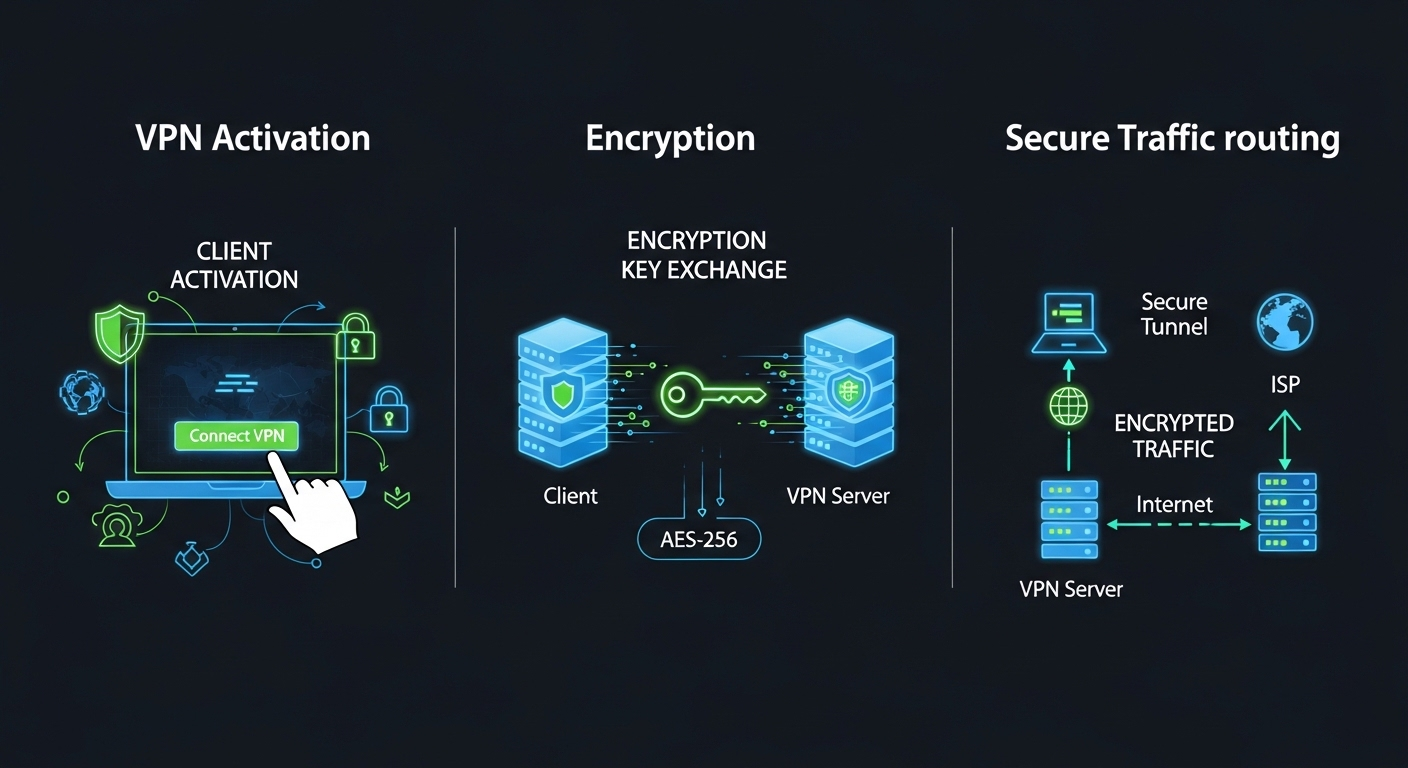
Modern cybersecurity infographic explaining VPN client activation, encryption key exchange, and secure traffic routing.

You tap “connect” and it feels instant. Behind that small click, however, several coordinated actions unfold in seconds. Understanding how VPN works means slowing that moment down and examining what actually takes place between your device and the wider internet.

First, your device activates vpn client software. That software is not just a button interface. It handles authentication, negotiates encryption protocols, and prepares your system to build a secure link. Once activated, it reaches out across your existing internet connection to establish a vpn connection with a remote server operated by your chosen provider.

When that remote server responds, something important happens. The vpn encrypts your outgoing data before it leaves your device. An encryption key is generated and shared securely between your device and the vpn server. This key scrambles your internet traffic into unreadable code, creating what is often described as an encrypted vpn tunnel. Anyone attempting to intercept vpn traffic at this stage sees distorted data, not usable information.

At the same time, your original ip address is concealed. Instead of websites seeing the location assigned by your internet service provider, they see the ip address of the remote server. From the outside, your activity appears to originate from that server’s location.

Once the encrypted data reaches the vpn server, it is decrypted using the matching encryption key. The server then forwards your request to its intended destination. Responses from websites or applications travel back through the same encrypted tunnel, protecting data transfers on the return trip.

It sounds complex. In practice, it happens quietly, repeatedly, every time you load a page or send a file.

To make it clearer, here is the sequence in order:

  1. VPN client software initiates the request: Your device activates the vpn client and begins establishing a secure vpn connection over your existing internet connection.
  2. VPN connection to remote server: The client authenticates with a remote server managed by the vpn provider, preparing to route vpn traffic through that server.
  3. Encrypted VPN tunnel creation: An encrypted tunnel is formed using shared encryption keys, allowing data to travel securely between your device and the vpn server.
  4. IP address masking: Your real ip address is hidden, and the remote server’s ip address becomes visible to external websites and services.
  5. Internet traffic routed through VPN server: All internet traffic passes through the remote server before reaching its final destination.
  6. Data decrypted at destination: The vpn server decrypts outbound data before forwarding it, and encrypts incoming responses before sending them back to you.

This is how a vpn encrypts, redirects, and shields your activity.


What Is a VPN Tunnel and Why Is It So Important?

The phrase “VPN tunnel” sounds abstract, almost theatrical. In reality, it describes something quite precise. A vpn tunnel is a secure, encrypted pathway between your device and a remote server. Instead of broadcasting your data openly across shared network routes, your information travels through an encrypted connection that shields it from inspection.

Think of ordinary internet traffic as postcards. Anyone handling them along the route can glance at the message. A vpn tunnel transforms those postcards into locked containers. The tunneling protocol is the mechanism that builds that container.

It determines how data packets are wrapped, transported, and verified as they move across networks. Inside that secure tunnel, encryption processes scramble the data into unreadable code. Only the intended recipient, holding the correct encryption key, can reverse that scrambling.

When a VPN encrypts data, it does not simply hide content. It restructures it. The encrypted vpn tunnel ensures that even if someone intercepts your data mid-transfer, what they capture is useless noise. That is why a vpn tunnel matters. It protects sensitive data during transmission, not just at rest.

The difference becomes clearer when placed side by side:


Without VPN With VPN Tunnel
Data travels openly through shared network routes Data travels inside an encrypted VPN tunnel
Internet service providers can view traffic patterns Traffic appears encrypted and unreadable
Higher exposure to interception on public networks Secure tunnel reduces interception risks
IP address directly visible to external services IP address masked by remote server


How Does a VPN Encrypt Your Data?

Digital transformation of readable data into encrypted code before leaving a user’s device in a VPN connection.

Encryption is the spine of VPN technology. Without it, a virtual private network would simply reroute traffic, not protect it. When a VPN encrypts your data, it transforms readable information into coded text that cannot be understood without the correct key. That transformation happens before your data leaves your device.

Encryption protocols define the rules of that transformation. These protocols determine how data is scrambled, how encryption keys are exchanged, and how integrity is verified during transmission. Strong encryption protocols prevent tampering, impersonation, and unauthorized access.

One of the most widely used standards is the Advanced Encryption Standard, often referred to as AES 256-bit. The number refers to the length of the encryption key.

Longer keys create exponentially more possible combinations, making brute-force decryption attempts practically impossible with current computing power. When your VPN uses AES, your internet traffic becomes mathematically protected.

Internet Protocol Security, commonly called IPSec, is another widely adopted framework. It operates at the network layer and encrypts data packets before they travel across networks.

Secure Socket Tunneling Protocol, or SSTP, wraps traffic inside SSL encryption, the same protective layer used for secure websites. These mechanisms differ in structure, but their objective remains the same, to secure sensitive data.

Encryption relies on keys. A public key encrypts outgoing data, and a matching private key decrypts it. In many systems, only authenticated users who possess the correct credentials can access these keys. That restriction ensures that encrypted traffic remains private.

Common VPN protocols explained simply:

  • OpenVPN: A widely trusted protocol known for flexibility and strong encryption, often using AES and open-source auditing for transparency.
  • IKEv2: A fast and stable protocol, particularly useful for mobile devices that switch between networks while maintaining secure connections.
  • SSL VPN: Uses secure socket layer encryption to protect traffic, often accessed directly through web browsers without complex setup.
  • SSTP: Secure Socket Tunneling Protocol, integrates with certain operating systems and uses strong SSL encryption for data protection.


What Happens to Your IP Address When You Use a VPN?

Your IP address is more revealing than most people realize. It identifies your general location, your internet service provider, and in many cases, patterns tied to your online identity. Every time you request a webpage, stream a video, or access resources online, that IP address travels with the request.

When you connect to a VPN, that dynamic changes immediately. Instead of your user’s IP address appearing as the origin of your activity, the vpn server’s IP address takes its place. Websites, apps, and external services no longer see your direct connection. They see the address assigned to the remote server handling your traffic.

This masking serves two practical functions. First, it enhances privacy. Your actual location becomes obscured, reducing the ability of third parties to track browsing behavior or build profiles tied to your physical region. Second, it enables location spoofing.

By selecting a vpn server in another country or city, you can appear to connect from that region. That capability allows you to gain access to region-restricted content, bypass certain geographic limitations, and test services as if you were elsewhere.

It is important to understand the boundary here. A VPN changes how your IP address is presented to external systems. It does not erase your identity from every database, nor does it guarantee anonymity. It simply interposes a remote server between you and the broader internet access environment.

Your IP address does not disappear. It is redirected. And that redirection alters who can see what.


What Are the Three Main Types of VPNs?

Remote employee securely connecting laptop to corporate network through encrypted VPN tunnel from home office.

Not all VPNs serve the same purpose. The underlying encryption principles may look similar, but the architecture and intended use vary depending on who needs secure access and how that access is structured. Broadly speaking, VPN solutions fall into three main categories, remote access VPNs, site to site VPNs, and mobile VPNs. Each addresses a different operational need within a network infrastructure.

Understanding these types helps you see where a VPN fits, not just for personal privacy, but for structured network resources and business continuity.

What Is a Remote Access VPN?

A remote access VPN is the most familiar model for many remote users. It allows individuals to connect securely to a corporate network from outside the physical office. Remote employees use this type of remote access VPN to log into company resources, access internal systems, and interact with files stored behind corporate firewalls.

Here, the user’s device runs client software that establishes an encrypted connection to the organization’s network. Once authenticated, the user can access resources as though physically present inside the office local network. This structure protects sensitive data while allowing flexibility. For distributed teams, consultants, and hybrid workers, remote access VPNs function as a controlled gateway into protected environments.

What Are Site-to-Site VPNs and When Are They Used?

Site to site VPNs operate at a broader level. Instead of connecting individual remote users, they link entire networks together. A local network in one office connects securely to another local network in a different location, forming a unified company’s network infrastructure.

This model is common in larger organizations with multiple branches or data centers. Rather than managing separate connections for each user, the networks themselves establish a permanent encrypted bridge. Employees in one office can access network resources hosted in another without exposing traffic to public internet routes. Site to site VPNs emphasize infrastructure stability rather than individual mobility.

How Do Mobile VPNs Work?

A mobile VPN addresses a specific challenge, unstable connectivity. Mobile devices frequently switch between Wi Fi, cellular data, and other internet connected devices. Traditional VPN sessions can drop during these transitions. A mobile VPN maintains session continuity even when the underlying network changes.

This matters for professionals who rely on multiple devices throughout the day. Field workers, delivery teams, healthcare staff, and on-call engineers depend on stable, secure connections while moving between locations. A mobile VPN preserves authentication and encrypted communication during these network changes.

The key distinction lies in adaptability. While remote access VPNs focus on connecting users to a corporate network and site to site VPNs focus on linking infrastructure, mobile VPNs prioritize session persistence and resilience across shifting connectivity conditions.


How Does a VPN Protect You on Public Wi-Fi?

Public Wi Fi networks feel convenient, almost invisible. You connect, the page loads, life moves on. What you do not see is how exposed that connection can be. Unlike a secured home network, many public access points lack strong security measures. Traffic moves across shared channels, and those channels can be monitored.

One of the most common threats on public Wi Fi networks is the so-called man in the middle attack. In simple terms, an attacker positions themselves between you and the network. Instead of your data traffic moving directly to its destination, it passes through an unauthorized device first. Passwords, account credentials, even financial information can be intercepted if no encryption is in place.

This is where a VPN protects you. When you activate a VPN, your device creates a secure connection before any meaningful data traffic leaves your system. That connection encrypts sensitive data at the source. Even if someone attempts to intercept the transmission, the information appears scrambled and unreadable.

Encryption changes the risk profile entirely. Without it, data sent over open networks can be observed in plain form. With it, private data becomes coded text that cannot be interpreted without the proper key. That distinction is crucial in places where network administrators are unknown and infrastructure oversight is minimal.

A VPN does not make public Wi Fi flawless. It adds a protective layer. It creates secure access where none existed. In environments designed for convenience rather than protection, that layer matters more than most people realize.


Can a VPN Prevent ISP Tracking and Bandwidth Throttling?
Internet service provider monitoring user traffic dashboard before VPN encryption is enabled.

Your internet service provider sits at a powerful vantage point. Every website you visit, every streaming session, every file download passes through its network infrastructure.

That visibility allows an internet service provider to observe patterns in your browsing history and categorize network traffic by type. In some cases, traffic linked to streaming or gaming can be intentionally slowed, a practice known as bandwidth throttling.

A VPN changes what your ISP can see. When a VPN works correctly, it encrypts data before it leaves your device and routes it through a remote server.

Instead of your provider seeing specific websites or application types, it sees encrypted network traffic traveling to a single destination, the VPN server. The contents and categories of that traffic are obscured.

Because the ISP cannot easily identify whether you are streaming video, transferring files, or accessing a specific service, targeted throttling becomes more difficult. The ISP still sees that data is moving, but it cannot distinguish the type of activity inside the encrypted channel.

This does not guarantee faster speeds in every situation. The VPN itself can introduce slight overhead due to encryption. However, for many internet users, using a VPN can reduce intentional slowdowns tied to traffic classification and limit how much browsing history is directly observable by their provider.


How Do Businesses Use VPNs for Secure Remote Access?

In most organizations, the corporate network contains more than shared folders. It houses financial systems, customer databases, internal communications, and proprietary tools that are not meant for public exposure. When remote employees need to connect from outside the office, that access must be controlled without weakening overall security.

A VPN provides secure access by creating an encrypted link between an employee’s device and the company’s network. Through this connection, remote server access becomes possible without exposing internal systems directly to the open internet. Once connected, employees can access company resources as though they were physically present within the office.

This includes reaching an intranet site, internal dashboards, development environments, or document repositories that operate behind firewalls. The VPN acts as a controlled gateway.

Access control mechanisms determine who can enter and what they can see. Permissions are assigned based on role, ensuring that only authenticated users can reach specific network resources.

Authentication is critical. Businesses often require credentials, multi-factor verification, or digital certificates before granting network access. These layered checks prevent unauthorized entry and reduce the risk of compromised accounts spreading damage across the corporate network.

VPNs do not eliminate all security concerns, but they provide structure. They allow organizations to extend their internal infrastructure outward while maintaining corporate network protection.

In distributed work environments, this balance between accessibility and restriction becomes foundational. Without secure remote access, flexibility collapses. Without safeguards, exposure grows.


What a VPN Does NOT Protect You From?
Cybersecurity concept highlighting VPN protection for traffic but not endpoint threats.

A VPN strengthens your privacy and encrypts your traffic, but it does not solve every security problem. Understanding its limits prevents false confidence.

  • Viruses: A VPN does not detect or remove viruses from your device. If malicious software is installed, encryption will not neutralize it. You still need antivirus tools and active security measures.
  • Malware: Malware infections occur through compromised downloads, unsafe attachments, or vulnerable applications. A VPN does not scan files or block malicious code once it reaches your system.
  • Phishing scams: Fraudulent emails and deceptive websites rely on social engineering, not network exposure alone. Even with encrypted traffic, you can still be tricked into revealing passwords or financial details.
  • Free VPN risks: Free VPNs often monetize user data in indirect ways. Some may inject ads, track usage, or provide weak encryption. In extreme cases, free VPNs become the privacy risk they claim to solve.
  • Logging policies: Not every VPN provider offers a strict zero log commitment. A weak vpn provider logging policy means your activity could still be recorded, stored, or shared under certain conditions.

A VPN improves privacy. It does not replace comprehensive cybersecurity practices.


How Do You Choose the Right VPN Provider?

Scroll through any app store or search result and you will see dozens of names competing for attention. Many VPN providers promise speed, privacy, anonymity, even freedom. The language is polished. The guarantees sound absolute. Choosing the right vpn provider requires more patience than impulse.

Start with fundamentals. A reliable vpn service should be transparent about how it operates, what encryption protocols it uses, and how it handles user data.

Strong vpn solutions are built on technical clarity, not marketing claims. Look beyond homepage slogans and examine documentation, independent audits, and public disclosures.

You also need to consider practical performance. The number and distribution of server locations directly influence speed and latency. A wider geographic spread often means better routing options and less congestion.

If you plan to use multiple devices, confirm that the service supports simultaneous connections without restrictive limitations.

These are core criteria to evaluate:

  • Reputation and Track Record: A trustworthy vpn provider should have a documented history of reliability, independent reviews, and no unresolved security controversies.
  • Zero-Log Policy: A clear logging policy should state that user activity is not recorded or stored. Ambiguous language around data retention is a warning sign.
  • Encryption Standards: The vpn service should use modern encryption protocols such as AES 256-bit and well established tunneling methods to secure data traffic.
  • Server Locations: A broad network of server locations improves performance, supports location flexibility, and reduces overcrowding on individual servers.
  • Customer Support: Responsive support channels matter when technical issues arise. Look for live chat, detailed documentation, and timely assistance.
  • Multi-device Support: The provider should allow secure connections across multiple devices, including laptops, mobile phones, and tablets under one account.

The decision should not be rushed. Privacy tools deserve scrutiny. A VPN can strengthen online privacy, but only when the provider itself operates with discipline and transparency.


Are VPNs Enough for Modern Network Security?

A VPN is powerful, but it is not a complete security architecture. It strengthens network security by encrypting traffic and controlling entry points, yet modern threats extend beyond simple interception. If you rely only on VPN technology, gaps can remain.

Traditional models assumed a clear perimeter. Once you entered the corporate network through a secure tunnel, you were trusted. That model worked when systems were centralized and employees stayed inside office walls.

Today, network infrastructure is distributed. Cloud services, third-party platforms, and remote endpoints expand the attack surface.

This is where the idea of Zero Trust gained traction. Instead of assuming trust after connection, Zero Trust frameworks verify continuously. Access control becomes granular. Each request to access sensitive data is evaluated individually. Permissions are limited to specific applications or systems rather than broad network entry.

A VPN provides secure access to the network. Zero Trust extends that concept by questioning every action within it. The difference is subtle but meaningful. Secure entry does not guarantee secure behavior afterward.

VPNs remain essential for encrypting connections and protecting data in transit. They help secure sensitive data as it moves across networks. However, they do not monitor device posture, detect compromised credentials automatically, or segment internal systems by default.

In short, VPN technology is foundational but not sufficient alone. Modern security strategies layer encryption, access control, monitoring, and verification together. The tunnel is necessary. It is not the entire structure.


Final Thoughts

By now, the mechanics are clearer. A VPN works by encrypting your internet traffic, routing it through a remote server, and masking your IP address before data reaches its destination.

That process creates a secure connection across networks that were never designed with privacy as a priority. It protects data in transit. It reduces visibility.

So should you use a VPN in 2026?

If you rely on public Wi Fi networks, handle sensitive information, or require remote access to company systems, the answer is straightforward. A VPN adds a practical layer of protection. It strengthens online privacy and limits exposure to tracking from internet service providers and third parties.

At the same time, clarity matters. A VPN does not replace antivirus software. It does not eliminate phishing risks. It does not guarantee anonymity. There are security trade-offs, including slight performance overhead and the need to trust your chosen provider.

The decision should not be driven by fear or marketing slogans. It should be driven by context. Assess how you use the internet, what data you transmit, and how much control you want over your digital footprint.


Frequently Asked Questions (FAQs)


1. What is a VPN and why do I need it? 

A VPN, or virtual private network, encrypts your internet traffic and routes it through a remote server to improve privacy and security. People use VPNs to protect data on public Wi-Fi, reduce tracking, and enable secure remote access.

2. How does a VPN actually work?

A VPN works by encrypting your internet traffic on your device and routing it through a remote server operated by a VPN provider. That server masks your IP address, creating a secure connection that protects data from interception.

3. What is the difference between a VPN and a proxy?

A VPN encrypts all network traffic from your device and secures the entire internet connection. A proxy usually redirects traffic for a single app or browser session and often does not provide strong encryption or full network protection.

4. Can a VPN hide my IP address?

Yes, a VPN masks your real IP address by routing traffic through a remote server, making websites see the server’s IP instead. This improves privacy, reduces tracking, and can help access region-restricted content in some cases.

5. Is a VPN safe to use?

Yes, reputable VPNs are generally safe and help protect sensitive data through encryption. However, safety depends on choosing a trustworthy provider with strong security standards, transparent logging policies, and modern protocols like OpenVPN or IKEv2.

6. What is the most secure VPN protocol?

OpenVPN is widely regarded as highly secure due to its strong encryption and open-source transparency. IKEv2 and IPSec also provide robust protection. Security depends on proper configuration and the quality of the VPN provider’s implementation.

7. Does a VPN slow down internet speed?

A VPN can reduce speed slightly because encryption and server routing add processing time. However, it may help avoid bandwidth throttling by hiding traffic type from your internet service provider, which can offset performance loss in some cases.

8. Can businesses rely only on VPN for security?

A VPN secures remote access and encrypts data in transit, but it does not provide complete network security. Businesses often combine VPNs with access control policies, monitoring tools, and Zero Trust frameworks for broader protection.

9. What are the disadvantages of VPN? 

VPNs can slightly reduce internet speed because of encryption and server routing. Some services may have subscription costs, limited server options, or logging concerns. A VPN also does not protect against malware, phishing attacks, or unsafe browsing behavior.

10. What are the risks of free VPNs? 

Some free VPNs may have weak encryption, slow performance, intrusive ads, or data logging practices that undermine privacy. In some cases, providers may sell usage data, so reviewing security policies and provider reputation is important.

Hybrid DaaS: How to Bridge On-Prem VDI and Cloud Desktops for a Modern Workforce

IT team monitoring a dashboard that unifies on-prem virtual desktops and cloud-based desktop environments
Quick Answer

What Is Hybrid DaaS and How Does It Support Hybrid Work?

Hybrid DaaS combines on-premises virtual desktop infrastructure with cloud-based desktops to improve scalability, flexibility, and remote access. It helps organizations support hybrid work environments while maintaining centralized management and security controls. Browser-based platforms like Apporto simplify desktop delivery without relying on complex client installations.

A few years ago, most desktops lived inside office walls. Now they live everywhere. Conference rooms, spare bedrooms, airport lounges, even the back seat of a rideshare between meetings. Hybrid work environments are no longer experimental. They are operational reality.

That expansion of remote work has pushed many businesses into uncomfortable territory. Traditional virtual desktop infrastructure was designed for controlled premises. Suddenly, IT teams must support cloud desktops, personal devices, contractors, and full-time staff across multiple locations. The strain shows.

Cloud computing adoption has accelerated at the same time. Cloud infrastructure promises scalability and agility, but it also introduces cost questions and governance concerns. For decision makers balancing budgets and performance, the equation is not simple.

Hybrid DaaS, hybrid desktop as a service, emerges from this tension. It offers a bridge between on-prem VDI and cloud based desktops. It allows organizations to modernize virtual desktop delivery at their own pace, aligning digital transformation with cost efficiency and operational control.


What Is Hybrid DaaS and How Does It Work?

Desktop as a service, often shortened to DaaS, refers to delivering virtual desktops from the cloud rather than hosting them entirely inside your own data center. Users log in through the internet, and their desktop environments run on infrastructure managed by a cloud provider. The concept builds on virtual desktop infrastructure, but changes who owns and operates the underlying hardware.

Traditional VDI typically lives on premises. Your servers, your storage, your networking stack. You manage the virtualization technology, provision virtual machines, and maintain the environment. Cloud based DaaS shifts much of that responsibility to an external provider such as Microsoft Azure, AWS, or Google Cloud. Infrastructure becomes a service you consume.

Hybrid DaaS combines both approaches. You keep some workloads in on prem VDI for compliance, performance, or legacy system requirements. At the same time, you extend capacity into public cloud resources when demand grows. The hybrid model allows flexibility without forcing an all-or-nothing migration.

Centralized management becomes the glue. IT teams oversee virtual desktops across environments through unified policies, identity providers, and shared authentication frameworks. You maintain centralized control even when infrastructure spans different platforms.

Core Components of a Hybrid DaaS Model:

  • On prem VDI or on premises infrastructure for sensitive or legacy workloads
  • Cloud provider resources such as Microsoft Azure, AWS, or Google Cloud for scalable capacity
  • Virtual desktops and virtual machines running on shared virtualization technology
  • Identity providers and login management to unify authentication and access controls
  • Centralized management console to oversee performance, provisioning, and security

Hybrid DaaS is less about replacing systems and more about connecting them intelligently.


How Is Hybrid DaaS Different from Traditional VDI or Pure Cloud DaaS?

Three-column infrastructure comparison showing on-prem VDI servers, pure cloud desktops, and a hybrid DaaS model connecting both environments

On premises VDI gives you control, sometimes total control. Your data center, your servers, your networking configuration. That level of ownership appeals to organizations with strict compliance requirements or specialized workloads. But it also comes with limitations. Capacity planning becomes a guessing game. Hardware refresh cycles demand capital investment. Scalability is bounded by what sits inside your building.

Pure DaaS built entirely in public clouds takes a different path. Infrastructure lives in cloud infrastructure owned by a provider. You gain elasticity. Need more desktops? Spin them up. Demand drops? Scale back. The tradeoff often comes in cost predictability and performance tuning, especially for graphics-heavy workloads or latency-sensitive applications.

Hybrid DaaS sits between these models. It bridges on premises VDI and cloud based desktops, allowing you to place workloads where they make the most sense. Sensitive data can remain in your data center. Seasonal or temporary users can run on cloud infrastructure.

The real distinction in the VDI vs DaaS discussion is flexibility. Hybrid work models demand agility without abandoning cost control. Hybrid DaaS balances those forces, distributing networking, storage, and compute resources across environments while maintaining centralized oversight.


What Business Problems Does Hybrid DaaS Solve?

Modernization sounds attractive until you confront the operational complexity behind it. Many organizations still run aging on premises infrastructure while trying to support a hybrid workforce that expects seamless remote access. IT teams juggle upgrades, patches, hardware refresh cycles, and cloud migration plans, often all at once. Budgets tighten. Expectations rise. Something has to give.

Hybrid DaaS addresses that tension by creating a more adaptable operating model. It allows you to modernize virtual desktop delivery without dismantling existing investments overnight. Instead of forcing a binary decision between on prem VDI and cloud desktops, you distribute workloads intelligently and evolve at your own pace.

Hybrid DaaS Helps You:

  • Simplify management across distributed locations
    Centralized tools reduce fragmentation and allow IT teams to manage users, devices, and desktop environments from one unified framework.
  • Reduce upfront costs compared to hardware refresh
    Extending capacity into cloud infrastructure lowers capital expenses and spreads cost over time, improving cost efficiency.
  • Support temporary staff and contractors
    You can provision desktops quickly for short-term workers and deprovision them just as easily when contracts end.
  • Scale during demand spikes
    Seasonal growth or sudden project expansion no longer requires permanent hardware purchases.
  • Enhance productivity for remote employees
    Consistent access to applications improves performance and collaboration across locations.
  • Support BYOD policies securely
    Hybrid DaaS enables remote employees to use personal devices without exposing core systems.
  • Bridge legacy systems with modern cloud platforms
    Older applications can coexist with newer cloud services, supporting digital transformation without disruption.

The result is not only flexibility, but a more cost effective path to modernization that aligns with real-world business constraints.


What Are the Security Risks in a Hybrid DaaS Environment?

Identity provider dashboard with misconfigured authentication rules exposing hybrid desktop access

Flexibility has a price. The moment you connect on prem systems with public cloud infrastructure, complexity increases. Hybrid DaaS delivers agility, but it also introduces layered security risks that require deliberate oversight.

The challenge is not that hybrid architecture is inherently unsafe. The challenge is coordination. When two environments operate under different update schedules, different governance models, or different identity frameworks, small inconsistencies can widen into meaningful vulnerabilities.

Common Security Risks in a Hybrid DaaS Environment:

  • Misaligned security updates between cloud and on prem
    If patches and security updates are applied inconsistently across environments, unpatched systems can become easy targets.
  • Identity provider misconfigurations
    Hybrid DaaS relies heavily on identity providers for login and remote access. Poorly configured authentication settings create gaps attackers can exploit.
  • Multi factor authentication gaps
    Inconsistent enforcement of multi factor authentication across systems weakens overall security posture.
  • Data movement between environments
    When data flows between on premises systems and cloud platforms, encryption and access controls must be tightly managed to keep information secure.
  • Expanded attack surface in hybrid work
    Remote employees connecting from various devices increase exposure points for cyber threats.
  • Compliance gaps across locations
    Regulations such as HIPAA or PCI require consistent compliance monitoring. Differences in policy enforcement across regions can create audit risks.

Hybrid DaaS strengthens flexibility, but it demands disciplined security coordination. Complexity, left unmanaged, quietly compounds.


How Does Hybrid DaaS Improve Scalability and Cost Effectiveness?

Infrastructure planning used to mean buying for peak demand and hoping usage justified the investment. Extra servers sat idle for months, sometimes years, simply because you could not afford to run short during busy periods. Hybrid DaaS changes that equation.

By combining on premises infrastructure with cloud capacity, you tap into resource pooling across environments. Virtual desktops draw from shared compute, storage, and networking pools instead of relying on dedicated hardware for every scenario. When demand increases, cloud resources absorb the surge. When demand drops, you scale back.

Pay-as-you-go cloud consumption introduces flexibility into budgeting. Instead of heavy upfront hardware purchases, costs align more closely with actual usage. That improves cost effectiveness and reduces financial risk tied to overprovisioning servers.

Hybrid DaaS also provides storage and networking flexibility. You can allocate resources dynamically based on workloads, performance requirements, or geographic location.

Cost Advantages Include:

  • Lower upfront hardware investment
    Fewer capital expenses for servers and storage reduce pressure on annual budgets.
  • Optimized cloud usage
    Workloads move to cloud infrastructure only when needed, improving cost savings.
  • Easier upgrades
    Software and platform upgrades occur incrementally rather than through disruptive hardware replacements.
  • Flexible scaling in minutes
    New desktop instances can be provisioned quickly to meet sudden spikes in demand.

Hybrid DaaS turns scalability into a controllable variable instead of a fixed constraint.


What Role Does Hybrid DaaS Play in Hybrid Work Models?

Employee moving between office desk and home workspace while accessing the same cloud-delivered desktop environment seamlessly

Hybrid work is no longer an experiment. It is how many organizations operate day to day. Employees move between office desks and home setups, sometimes within the same week. That movement demands consistency. Hybrid DaaS provides a framework that supports remote employees without sacrificing performance or control.

In a hybrid work environment, seamless app delivery becomes critical. Applications must be accessed remotely without lag or complicated configuration. Collaboration tools such as MS Teams need to perform reliably across devices and locations. When desktops are delivered through a hybrid model, employees experience the same settings, applications, and access controls whether they log in from a corporate office or a personal laptop at home.

The benefit is subtle but powerful. A consistent user experience reduces friction, supports collaboration, and reinforces productivity across the modern workplace.


How Should IT Teams Approach Hybrid DaaS Implementation?

Implementation strategy determines whether hybrid DaaS becomes a smooth evolution or a frustrating detour. Technology alone will not solve operational gaps. IT teams need a deliberate plan that balances performance, security, and user experience. Rushing deployment without assessing current infrastructure often leads to misalignment and unnecessary rework.

A measured transition helps administrators manage complexity while preserving stability.

Steps to Start:

  • Assess existing VDI infrastructure
    Evaluate current servers, storage, networking, and deployment processes to understand strengths and limitations before adding cloud components.
  • Identify workloads suited for cloud desktops
    Not every application needs to migrate immediately. Select workloads that benefit most from scalability or remote accessibility.
  • Align identity providers and security policies
    Ensure login systems, multi factor authentication, and compliance requirements remain consistent across environments.
  • Pilot with select users
    Test performance and user experience with a small group before broad rollout.
  • Monitor performance and analytics
    Use analytics tools to track usage patterns, resource consumption, and potential bottlenecks.
  • Plan long-term migration at your own pace
    Hybrid DaaS allows gradual transition rather than abrupt infrastructure replacement.

Careful implementation strengthens adoption and minimizes disruption during deployment.


What Should Decision Makers Look for in a Hybrid DaaS Provider?

Executive reviewing a unified hybrid DaaS management console displaying both on-prem and cloud desktop environments

Choosing among DaaS providers requires more than comparing price sheets. The right provider should reduce complexity, not add hidden layers of management overhead. Decision makers must evaluate how well a platform integrates with existing infrastructure while supporting future growth. Control, automation, and visibility should be built into the architecture rather than offered as optional add-ons.

Key Capabilities to Evaluate:

  • Centralized management console that provides unified oversight across on premises and cloud environments.
  • Automation and provisioning tools that simplify desktop deployment and reduce manual configuration.
  • Built-in security controls to enforce consistent policies without additional software.
  • Integration with Azure, AWS, and Google Cloud for flexible cloud infrastructure support.
  • Compliance monitoring support to meet regulatory requirements across industries.
  • Transparent cost structure that aligns consumption with budgets and avoids unexpected charges.

The right platform strengthens control while preserving flexibility.


Why Browser-Based Hybrid DaaS Represents the Next Step Forward

Complex systems tend to accumulate friction. Client installs multiply. Version mismatches creep in. Endpoint devices drift out of compliance. Over time, what began as a clean architecture becomes harder to manage. Browser based hybrid DaaS offers a simpler alternative.

When desktops are delivered directly through a web browser, there is no client software to deploy, patch, or troubleshoot. That alone reduces complexity across distributed environments. Lower endpoint risk follows naturally because fewer installed components mean fewer vulnerabilities tied to outdated software.

For IT teams, management becomes more straightforward. Centralized infrastructure remains in place, but access is streamlined. Updates occur at the platform level rather than on every device. Policies can be enforced consistently across users without complicated configuration.

This approach also supports a future proof architecture. Cloud based delivery aligns with evolving hybrid work models and emerging security expectations. Agility improves because desktops can be provisioned quickly, adjusted as demand changes, and accessed from virtually any device.

If your goal is to modernize virtual desktop delivery while keeping control intact, exploring browser based hybrid DaaS is a practical next step. Evaluate the model carefully and consider how it could streamline your environment.


Final Thoughts

Hybrid DaaS offers a middle path between rigid on premises VDI and fully cloud based desktops. You gain scalability, cost efficiency, and centralized control without abandoning existing infrastructure. At the same time, complexity increases if governance and security coordination are weak. Flexibility is the advantage, but discipline determines the outcome.

For many organizations, the appeal lies in optionality. You can modernize at your own pace, allocate workloads strategically, and respond to changing workforce demands without major disruption. The key is thoughtful evaluation. Assess your infrastructure, budgets, compliance requirements, and long-term goals before committing.

Hybrid DaaS is not simply a technology choice. It is a modernization strategy that should align with how you plan to operate in the years ahead.


Frequently Asked Questions (FAQs) 


1. What is hybrid DaaS?

Hybrid DaaS combines on premises VDI with cloud based desktop as a service, allowing organizations to run virtual desktops across both local infrastructure and public cloud providers.

2. How is hybrid DaaS different from VDI?

Traditional VDI runs entirely on premises, while hybrid DaaS extends capacity into cloud infrastructure, giving you more flexibility and scalability without fully abandoning existing systems.

3. Is hybrid DaaS cost effective?

Hybrid DaaS can improve cost effectiveness by reducing upfront hardware purchases and aligning cloud consumption with actual usage demand.

4. What is the difference between cloud and on Prem VDI?

Cloud VDI delivers virtual desktops through public cloud infrastructure, allowing flexible scaling and remote access without managing physical hardware. On-prem VDI runs entirely inside an organization’s data center, offering greater control and customization but requiring higher maintenance, infrastructure investment, and ongoing IT management.

5. Can hybrid DaaS support healthcare compliance like HIPAA?

Yes. With proper configuration, centralized management, encryption, and compliance monitoring, hybrid DaaS can support HIPAA and other regulatory requirements.

6. Does hybrid DaaS improve scalability?

Hybrid DaaS enhances scalability by allowing virtual desktops to scale across both on premises servers and cloud resources as demand changes.

7. Is DaaS a cloud service?

Yes, DaaS, or Desktop as a Service, is a cloud service that delivers virtual desktops over the internet through cloud infrastructure. Users access desktop environments remotely from different devices, while the provider manages servers, updates, storage, security, and virtualization infrastructure behind the scenes.

8. Is hybrid DaaS secure for remote employees?

Hybrid DaaS can be secure for remote employees when multi factor authentication, centralized control, and consistent security policies are enforced across environments.


Best Virtual Desktop Solutions for Small Business in 2026

You start noticing it in everyday operations. Systems feel heavier than they should. Managing devices takes more time than expected. And as your team grows or spreads across locations, the cracks begin to show.

Traditional desktop setups weren’t built for this kind of flexibility. They tie your work to physical machines, increase hardware costs, and make it harder to protect sensitive data across multiple endpoints.

Add remote work into the mix, and the complexity only grows. Small businesses are beginning to question whether this model still works.

Virtual desktop solutions offer a different path, one that prioritizes access, security, and cost efficiency without adding more infrastructure strain.

In this blog, you’ll explore how virtual desktop for small business works and what it means for your long-term strategy.


What Is a Virtual Desktop for Small Business and How Does It Actually Work?

A “virtual desktop” isn’t some abstract thing floating in the cloud, it’s still your desktop, your files, your apps, just not sitting inside a physical machine under your desk anymore.

Instead, everything runs on a centralized server. That’s the core idea behind virtual desktop infrastructure. Your desktop environment is hosted in one place, secure servers built to handle the computing power, storage, and processing. What you see on your screen is simply a streamed version of that environment.

You connect to it through an internet connection. Open a browser or a client, log in, and your workspace appears. Same layout. Same files. Same tools. It doesn’t really matter where you are.

And it doesn’t depend on the device either. You can access it from a laptop, a tablet, even your own device at home. The local computer becomes less important, almost interchangeable.

Behind the scenes, virtual machines are doing the work. Each user gets their own isolated system, running independently but managed centrally. That’s what allows multiple users to operate without overlap or conflict.

Over time, this creates something consistent. A standardized desktop environment across teams, across locations. Less variation. Fewer surprises. And, in most cases, fewer things breaking for no clear reason.


What’s the Difference Between VDI and Desktop as a Service (DaaS)?

IT administrator overwhelmed managing VDI hardware and systems contrasted with streamlined DaaS dashboard managed by provider

VDI and Desktop as a Service sound like variations of the same idea. And technically, they are. Both rely on virtual desktop infrastructure, both deliver desktops from a centralized server, both allow remote access. But the difference shows up the moment you look at who’s responsible for everything behind the scenes.

With traditional VDI solutions, you own the infrastructure. That means servers, storage, networking, virtualization software, all of it sits under your control. It also means the responsibility stays with you. Setup takes time. Maintenance doesn’t stop. And yes, there’s usually a significant upfront investment before anything even runs.

DaaS, on the other hand, takes that burden and moves it elsewhere. A third party provider hosts and manages the entire environment. You don’t build it. You don’t maintain it. You access it. That’s the trade.

This changes things more than expected. Hardware costs drop because you’re no longer buying and maintaining physical infrastructure. IT management becomes simpler, since updates, patches, and system performance are handled centrally. And the pricing model feels different too, more predictable, usually subscription-based, which makes planning easier for small businesses trying to control costs.

Which model is better for small businesses?  

Feature VDI DaaS
Infrastructure Owned Third-party provider
Cost Model High upfront Subscription-based
IT Management Complex Simplified
Scalability Limited Highly scalable
Security Internal responsibility Centralized and enhanced


VDI can make sense if you already have the infrastructure and expertise in place. But for many small businesses, that’s rarely the case.

DaaS offers something more practical. Lower entry cost. Less operational strain. Faster setup. It aligns better with how smaller teams operate, especially when cost efficiency and flexibility matter more than complete control. And over time, that simplicity tends to win.


What Are the Benefits of Virtual Desktops for Small Businesses?

Once you step back and look at how work actually happens day to day, the appeal becomes clearer. Less time fixing machines. Fewer gaps between devices. More consistency. Virtual desktops don’t solve everything, but they do remove a surprising amount of friction that builds up over time.

Benefits of virtual desktops for small business are:

  • Reduce hardware costs by minimizing dependency on physical devices, which means fewer upgrades, less maintenance, and longer lifespans for the devices you already own.
  • Centralized data storage reduces the risk of data loss and breaches, since files aren’t scattered across individual machines but stored securely in one controlled environment.
  • Enable secure access to company data from any location, allowing employees to log in and work without exposing sensitive data on local devices.
  • Improve productivity with seamless access to resources, so applications, files, and systems are always available without setup delays or compatibility issues.
  • Support remote teams and flexible work environments, making it easier to collaborate across different locations without disrupting workflows.
  • Provide a consistent desktop experience across multiple users, which reduces confusion and ensures everyone is working within the same setup.
  • Simplify IT management through centralized control, where updates, patches, and troubleshooting happen in one place instead of across dozens of machines.
  • Scale easily as business grows, allowing you to add or remove users without rebuilding your entire IT infrastructure.
  • Employees access files securely from various devices, which keeps workflows moving even outside traditional office environments.
  • Improves collaboration by ensuring teams are working within the same system, with shared access to tools and data.
  • Enables hiring remote talent, since location becomes less of a limitation when access is standardized and secure.


How Secure Is a Virtual Desktop Environment for Small Businesses?

Centralized cloud server protecting business data with multiple security layers like encryption, MFA, and access controls.

Security usually comes up early in the conversation, and it should. When your business depends on digital access, even small vulnerabilities can carry real consequences. What often gets overlooked, though, is how virtual desktops change where risk actually lives.

Instead of spreading data across multiple devices, everything is pulled into a centralized control point. That alone reshapes how data security works. You’re no longer relying on each individual laptop or local computer to stay protected. The system carries that responsibility.

  • Multi factor authentication protects access by adding an extra verification layer, making it far more difficult for unauthorized users to get in.
  • Centralized data reduces endpoint risks since files are stored securely on servers rather than scattered across devices.
  • Secure servers protect sensitive data within controlled environments designed for consistent protection.
  • Access controls limit unauthorized use by defining permissions clearly across users and roles.
  • Encryption protects data in transit, keeping information secure as it moves between devices and servers.
  • Reduced data loss risk comes from storing everything centrally instead of relying on vulnerable endpoints.
  • Stronger security protocols can be enforced consistently across the entire system without gaps.
  • Better monitoring of user logs allows unusual activity to be tracked and addressed quickly.

There’s another layer here. With DaaS solutions, enhanced security often comes built in, managed continuously, and updated without requiring constant attention. For small businesses, that difference matters more than it might seem.


Can Virtual Desktops Reduce IT Costs and Improve Efficiency?

Cost is usually where the conversation becomes real. Not theoretical savings, not long-term promises, just what you actually spend and how often you have to spend it again. Traditional setups tend to demand constant attention. Hardware upgrades, maintenance cycles, unexpected failures. It adds up, sometimes quietly, sometimes all at once.

Virtual desktops approach this differently. Instead of building everything upfront, you move toward a model that feels more predictable. Subscription-based, easier to plan, less tied to physical limitations. That alone changes how you think about IT management.

  • Reduced hardware costs since you rely less on high-performance local machines and more on centralized computing power.
  • Lower IT management overhead because systems are maintained centrally instead of across individual devices.
  • Predictable monthly pricing, typically ranging from $30 to $45 per user, makes budgeting more straightforward.
  • Less downtime and maintenance as updates and fixes happen in a controlled environment rather than device by device.
  • No need for frequent physical hardware upgrades, which removes a recurring expense many small businesses struggle with.
  • Improved efficiency across teams as access to systems becomes faster and more consistent.
  • Better resource management since computing power can be allocated where it’s needed most.
  • Faster onboarding of new employees, allowing users to be set up in minutes instead of days.


What Are the Best Virtual Desktop Solutions for Small Businesses in 2026?

Small business team choosing between different virtual desktop solutions displayed as cloud platforms with distinct features.

At some point, the question becomes practical. Not what virtual desktops are, but which one actually fits your setup. There isn’t a single answer that works for everyone. Different virtual desktop providers lean toward different priorities, some focus on control, others on simplicity, others somewhere in between.

When comparing VDI solutions, it helps to look beyond features and think about how each platform fits into your existing environment. Integration matters. So does how much effort it takes to manage everything after deployment.

Here are some of the most widely used options in 2026.

Apporto:

  • Browser-based access means no installs, no dependency on local device configurations, everything runs through a simple login.
  • Designed for simplicity, which makes it easier for small businesses without large IT teams to deploy and manage.
  • Strong security and performance built into the platform, with centralized control that keeps data protected and accessible.
  • Works well across various devices, allowing teams to connect without worrying about compatibility issues.

Microsoft Azure Virtual Desktop:

  • Integrates deeply with the Microsoft ecosystem, which can be useful if your business already relies on Microsoft tools.
  • Offers flexibility in how virtual machines are configured and deployed.
  • Setup and management can become complex, especially without prior experience in Microsoft Azure environments.

Amazon WorkSpaces:

  • Scalable cloud solution that allows you to adjust resources based on demand.
  • Pay-as-you-go pricing model provides flexibility, especially for businesses with fluctuating needs.
  • Works well for remote teams, though performance can depend on network conditions and configuration.

VMware Horizon:

  • Enterprise-grade VDI platform offering high levels of control over infrastructure and user environments.
  • Strong capabilities for advanced management and customization.
  • Requires more technical expertise and ongoing management, which can make it less practical for smaller teams.
  • Better suited for organizations that need deeper control rather than simplicity.


How Do You Choose the Right Virtual Desktop Solution for Your Business?

Choosing a virtual desktop solution sounds straightforward until you start comparing options. Then it gets a bit messy. Features overlap, pricing varies, and every provider claims to be the right fit. So the decision usually comes down to a few key factors that matter more than the rest.

Start with performance. You need enough computing power to handle your actual workloads, not just basic tasks. Then look at security and compliance. If you’re handling sensitive data, strong controls and clear policies aren’t optional.

Cost matters too, but not just the monthly price. You have to consider total cost of ownership, including savings from reduced hardware costs and IT management. Sometimes the cheaper option upfront becomes expensive later.

Scalability is another piece. A good solution should grow with your business without forcing you to rebuild your setup. Integration matters as well. The system should fit into your existing IT infrastructure, not complicate it further.

Finally, pay attention to support and SLA guarantees. Reliable uptime and responsive support can make or break the experience. The goal isn’t to find the most powerful option. It’s to avoid unnecessary complexity and choose something that works, consistently, over time.


What Challenges Should You Expect When Implementing Virtual Desktops?

IT team managing complex virtual desktop deployment with multiple warning icons for compatibility, security, and infrastructure challenges.

It rarely goes perfectly on the first attempt. Even with the right virtual desktop solution, implementation brings its own set of friction points. Some are technical. Others are human. Both matter more than expected.

Moving into a new VDI environment means rethinking how systems, data, and users interact. That takes planning. Without it, small issues tend to stack up quickly.

  • Data migration complexity can slow things down, especially when large volumes of files need to move without disrupting daily operations.
  • App compatibility issues show up when older tools don’t behave the same way in a virtual desktop environment.
  • Network infrastructure limitations can affect performance, since everything depends on a stable internet connection.
  • User adoption challenges are common, people resist change, even when the system is better.
  • Security risks can appear during transition phases if access controls and monitoring aren’t set correctly from the start.


How Can Small Businesses Successfully Transition to Virtual Desktops?

The move sounds simple on paper. In reality, it works best when approached with a bit of structure. Rushing into a virtual desktop setup without a plan usually leads to confusion, or worse, a system no one fully trusts.

Start by defining clear goals. What are you trying to fix, cost, access, security, or all of it? That clarity shapes every decision that follows. Then take a close look at your network readiness. A stable internet connection isn’t optional here, it’s foundational.

Choosing a trusted provider comes next. Not just based on features, but reliability, support, and how well the solution fits your existing setup.

From there, ease into it. A pilot program gives you a controlled environment to test performance, identify gaps, and gather feedback. It also makes change management smoother, since not everyone is forced to adapt at once.

Training employees matters more than expected. If people don’t understand how to use the system, adoption slows down.

Finally, treat this as an ongoing process. Monitor performance, adjust configurations, and optimize as needed. A phased rollout, followed by continuous improvement, tends to work better than trying to get everything perfect from day one.


Why Apporto Is the Best Virtual Desktop Solution for Small Businesses?

Homepage of Apporto showcasing virtual desktop solutions for small business with cloud-based access, AI tools, and secure remote environments.

At some point, complexity becomes the real cost. Not just money, but time, effort, and the constant need to manage systems that were supposed to make things easier. That’s where Apporto starts to stand out. It removes a lot of that overhead without asking you to compromise on performance or security.

You don’t deal with infrastructure. There’s no need to set up servers, maintain hardware, or worry about ongoing system upkeep. Everything runs through a browser, which means access is simple and consistent across devices. You log in, and your desktop is there. That’s it.

Pricing stays predictable, which matters more than it seems. Instead of large upfront investments or fluctuating costs, you know what you’re paying and why. That makes planning easier, especially for small businesses managing tight budgets.

Deployment is fast. New users can be up and running in minutes, not days. And as your team grows, the system scales with you without adding friction.

If you’re looking for a virtual desktop for small business that reduces complexity while staying reliable, this is a practical place to start. Try Now.


Final Thoughts

Virtual desktops can reduce hardware costs, simplify IT management, and make remote work feel more natural. At the same time, they introduce new considerations, network dependency, implementation effort, and the need to choose the right provider.

So the decision isn’t automatic. It’s strategic. You’re weighing control against simplicity, upfront investment against long-term cost efficiency, and flexibility against familiarity.

For many small businesses, the balance leans toward virtual desktops. But it still depends on how well the solution fits your actual business needs.

The best way forward isn’t guesswork. It’s exploration. Test the options, evaluate performance, and see what works in your environment before fully committing.


Frequently Asked Questions (FAQs)


1. What is a virtual desktop for small business?

A virtual desktop for small business is a desktop environment hosted on a centralized server rather than a local computer. You access it through the internet, allowing you to work from different devices while keeping company data stored securely in one place.

2. How does VDI differ from DaaS?

VDI requires you to own and manage your own infrastructure, which often involves higher upfront costs and ongoing maintenance. DaaS, on the other hand, is hosted by a third-party provider, offering a subscription-based model with simpler management and faster deployment.

3. Is virtual desktop secure for small businesses?

Yes, virtual desktops can improve security by storing data centrally instead of on individual devices. Features like multi factor authentication, encryption, and access controls help protect sensitive data and reduce risks from lost or stolen devices.

4. What is the cost of virtual desktops?

Costs typically range from $30 to $45 per user per month, depending on the provider and features. This subscription model reduces large upfront investments and makes it easier to predict and manage IT expenses over time.

5. Can employees use personal devices?

Yes, virtual desktops support bring your own device setups. Employees can securely access their work environment from laptops, tablets, or home computers without storing company data locally, which helps maintain security while offering flexibility.

6. What are the best virtual desktop providers?

Popular options include Apporto, Microsoft Azure Virtual Desktop, Amazon WorkSpaces, and VMware Horizon. Each offers different strengths, so the best choice depends on your business needs, budget, and how much IT management you want to handle.

7. Do virtual desktops improve productivity?

They often do. With consistent access to applications and files, reduced downtime, and fewer device-related issues, employees can work more efficiently. It also makes collaboration easier since everyone operates within the same standardized environment.

What is Daas in Cloud Computing and Why it Matters?


Something interesting is happening with how desktops are delivered. Not replaced entirely, but rethought. DaaS in cloud computing is becoming a serious option, not just for large enterprises, but for teams trying to keep things simple without losing control.

The numbers point in that direction. The market is expected to reach $18.7 billion by 2030, growing at a steady 20.6% CAGR. That kind of growth usually signals a shift in how organizations approach everyday infrastructure.

You’re also dealing with a remote workforce that isn’t temporary anymore. Add BYOD policies, cloud based services, and changing business needs, and suddenly traditional desktop management starts to feel heavy.

DaaS promises flexibility. But it also raises questions around cost, control, and long-term fit. In this guide, you’ll look at how it works, where it helps, and where it needs closer attention.


What Is DaaS in Cloud Computing and How Does It Actually Work?

Desktop as a Service, or DaaS, is exactly what it sounds like. Your desktop isn’t tied to a physical machine anymore. It lives somewhere else, in the cloud, and you connect to it when you need it.

A cloud hosted virtual desktop is delivered over the internet. You log in from your laptop, tablet, even a mobile device, and what shows up feels familiar. Same desktop environment, same apps, same files. Just not stored on your device.

Behind that simplicity, there’s a layered setup. A centralized server runs the environment. Inside it, virtual machines simulate individual desktops, each with its own operating system. Windows, Linux, whatever your setup requires. The cloud provider handles the backend management, updates, performance tuning, and most of the heavy lifting you’d otherwise deal with.

It’s built on shared cloud infrastructure, often multi-tenant, meaning resources are distributed across users while still keeping environments separate.

There’s also a choice in how desktops behave. Persistent desktops retain your settings and data over time. Nonpersistent desktops reset after each session, which is cleaner, sometimes safer.

In a way, DaaS removes the dependency on physical hardware. The desktop becomes something you access, not something you own.


How Does DaaS Compare to Traditional VDI ?

IT decision-maker evaluating DaaS vs VDI on a dashboard showing control, cost, and scalability differences.

The comparison comes up often, and for good reason. On the surface, DaaS and virtual desktop infrastructure, VDI, look similar. Both deliver virtual desktops. Both move workloads away from local machines. But once you look a little closer, the differences start to matter.

With DaaS, the cloud provider handles the infrastructure. Servers, storage, updates, backend management, it’s all managed for you. You’re essentially subscribing to a service. That subscription model removes the need for large upfront investments, which is often where organizations hesitate with traditional setups.

VDI works differently. Your IT team owns and manages everything, usually within an on-prem data center. That gives you more control, no question. You can customize environments deeply, adjust configurations, fine-tune performance. But it also brings complexity. Infrastructure management becomes an ongoing responsibility, not a one-time effort.

There’s also the question of scale. DaaS can expand quickly since it relies on cloud resources. VDI, on the other hand, depends on the hardware you already have, or plan to add.

So it becomes a trade-off. Simplicity versus control. Speed versus customization.

Feature DaaS VDI
Infrastructure Hosted by cloud provider On-prem data center
Cost Model Subscription-based High upfront CapEx
Management Provider handles backend IT team manages
Scalability Elastic and fast Hardware-dependent
IT Effort Lower Higher
Control Limited customization Full control


What Are the Benefits of DaaS in Cloud Computing?

Once you understand how DaaS works, the appeal becomes easier to see. It’s not about replacing everything you already have, it’s about removing the parts that tend to slow you down over time.

Here’s what makes DaaS a strong fit for modern cloud environments:

  • Cost Savings: Reduce hardware investments and move spending toward predictable operational expenses, avoiding the pressure of large upfront infrastructure costs that often come with traditional setups.
  • Simplified Desktop Management: Allows IT administrators to manage users, updates, and environments from a centralized point, without needing to configure or maintain physical hardware across locations.
  • Scalability: Enables you to scale desktop environments up or down based on active end users and changing business needs, without waiting on procurement or deployment cycles.
  • Seamless Access: Allows users to access virtual desktops from almost any device with an internet connection, including laptops, tablets, and mobile devices, with a consistent experience.
  • Enhanced Security: Keeps sensitive data stored within the cloud, reducing the risk of data loss if a user’s device is lost, stolen, or compromised.
  • Business Continuity: Supports ongoing operations during disruptions by allowing users to reconnect to their desktop environments from different locations without interruption.
  • Support for BYOD: Allows employees to work from their own devices while maintaining control over business data, which stays within the managed environment.
  • Faster Deployment: Enables quick onboarding of new users without delays tied to hardware setup, imaging, or manual configuration.


What Are the Hidden Costs and Risks of DaaS?

Remote worker experiencing lag and latency on a virtual desktop due to unstable internet connection.

There’s a quiet assumption that DaaS always reduces costs. In many cases it does. But not automatically, and not without careful planning.

If the wrong virtual desktop solution is chosen, expenses can creep up in ways that aren’t obvious at the start. Licensing, storage, performance tiers, they add up. And in about 44% of deployments, organizations rely on ongoing managed services, which introduces another layer of cost. Sometimes necessary, sometimes underestimated.

You’re also depending on the provider more than you might expect. Infrastructure, updates, backend management, most of it sits outside your direct control. That can simplify things, but it also means your performance and reliability are tied to someone else’s system.

And performance itself isn’t always consistent. It leans heavily on internet connectivity. When the connection is stable, things feel smooth. When it’s not, even basic tasks can slow down.

  • Internet dependency affects performance and reliability, especially for remote users on weaker networks
  • High latency can create frustrating user experiences, particularly in real-time applications
  • Pricing models can become unpredictable without transparency, making budgeting harder over time
  • Security risks increase with poor access management and weak control over user logs and data access
  • Vendor lock-in limits flexibility, making it harder to switch providers without disruption


What Types of DaaS Deployments Should You Know?

Not all desktop environments behave the same, and that’s by design. DaaS gives you options, which sounds simple, but the choice you make here tends to shape how users experience the system day to day.

Start with the persistent desktop. This is closer to what you’re used to. Settings stay. Files remain. Applications don’t reset. It’s a personalized environment, which makes it a better fit for power users, developers, or anyone working with complex tools over time.

Then there’s the non persistent desktop. Every session begins fresh. Once you log out, the environment resets. Clean slate. This works well for task workers, shared environments, or roles where consistency matters more than customization.

Neither approach is better in isolation. It depends on the workload. Some organizations mix both. Persistent desktops for users who need continuity, non persistent ones for efficiency and control. That flexibility is part of what makes DaaS deployments adaptable, you’re not locked into a single model.


How Does DaaS Handle Security and Data Protection?

Cybersecurity dashboard displaying role-based access control, identity verification, and monitoring in a DaaS platform.

Security tends to be one of the main reasons organizations consider DaaS in the first place. Not because it removes risk entirely, but because it changes where that risk lives.

With DaaS, data isn’t stored on individual devices. It stays within a centralized cloud environment. That matters more than it sounds. If a laptop is lost or a personal device is compromised, the actual business data isn’t sitting there exposed. Access can be revoked, sessions can be closed, and the core data remains protected.

There’s also more consistency in how security is applied. Instead of relying on each endpoint to be properly configured, controls are enforced at the platform level. That includes encryption, identity checks, and access management policies.

Compliance becomes easier to manage as well. Frameworks tied to regulations like HIPAA or GDPR often require strict control over sensitive data. Centralization helps meet those expectations without relying on scattered systems.

  • Data Encryption: Protects sensitive data both at rest and in transit across cloud environments
  • Centralized Data Storage: Keeps business data within controlled cloud infrastructure instead of user devices
  • Access Management: Restricts access based on roles and permissions, reducing unauthorized entry
  • Security Patches: Ensures systems are regularly updated by service providers without manual effort
  • Reduced Endpoint Risk: Limits exposure when user devices are lost, stolen, or compromised


How Does DaaS Support Remote Work and Modern Workforce Needs?

Work doesn’t really stay in one place anymore. It moves, across locations, across devices, sometimes across time zones. That’s where DaaS starts to make practical sense.

It gives your remote workforce a consistent way to access their desktop environments without being tied to a specific machine. You log in, and your workspace follows. Same apps, same files, same setup. Whether it’s a laptop at home or a mobile device on the go, the experience stays mostly intact.

There’s also flexibility with BYOD. Employees can use their own device without exposing business data, since everything runs within the cloud. That separation matters, especially when devices aren’t centrally managed.

Of course, it all depends on one thing. A reliable internet connection. Without it, performance can dip, sometimes noticeably. Still, for teams that need mobility without losing structure, DaaS fits naturally into how work already happens.


What Should You Evaluate Before Choosing a DaaS Provider?

"IT team comparing multiple DaaS providers on a dashboard with pricing, security, and performance metrics.

Not all DaaS providers are built the same. Some look similar on the surface, same promises, same features, but the differences tend to show up later. Usually when you’re already committed.

Choosing a DaaS provider requires more than surface-level comparison:

  • Transparent Pricing: Prevent unexpected costs and ensure predictable budgeting over time, especially when usage scales or additional services are introduced.
  • Security Standards: Ensure strong data protection, encryption, and compliance capabilities so sensitive business data remains protected within the cloud service environment.
  • Performance Reliability: Deliver a consistent user experience across varying network conditions and devices, which becomes critical for remote teams relying on stable access.
  • Scalability: Support growth without requiring infrastructure redesign, allowing you to add or remove users without disrupting existing operations.
  • Managed Services Availability: Provide ongoing support to reduce the burden on internal IT teams, particularly in environments with limited resources or expertise.
  • Compliance Capabilities: Help meet regulatory requirements like HIPAA or GDPR, which is essential if your organization handles sensitive or regulated data.


Why Apporto Simplifies DaaS in Cloud Computing?

Homepage banner of Apporto website showcasing virtual desktops, AI tutoring, and academic integrity solutions with call-to-action buttons for demo and contact.

Some DaaS platforms still carry a bit of weight. Setup takes time, infrastructure decisions pile up, and before long, the simplicity you expected starts to fade. That’s where a browser-based approach feels different.

Apporto delivers desktops directly through the browser. No installs. No complex setup on the user’s device. You open a tab, log in, and your environment is there. It sounds simple, and it is, but that simplicity reduces friction in ways that matter over time.

There’s no need to manage heavy infrastructure or maintain layers of backend systems. That lowers the burden on your IT team, especially when resources are limited. Provisioning users becomes faster. Updates happen without disruption.

The experience itself stays consistent. Across devices, across locations, without relying on local configurations.

It’s a cleaner way to approach a DaaS platform. Less overhead, more control where it counts, and a secure environment that doesn’t feel complicated.


Final Thoughts

DaaS in cloud computing brings clear advantages. Flexibility, simplified management, easier scaling. It removes a lot of the friction tied to traditional desktop environments.

But it also comes with trade-offs, especially around cost control, performance, and reliance on the provider. That’s where planning starts to matter more than the technology itself.

The daas model works best when it aligns with your actual business needs, not just trends or expectations. A careful evaluation, looking at how your users work, what your infrastructure can support, and where risks may sit, tends to make the difference. In the end, it’s less about adoption, more about fit.


Frequently Asked Questions (FAQs)


1. What is DaaS in cloud computing?

DaaS in cloud computing is a cloud service where a provider delivers virtual desktops over the internet. You access your desktop environment remotely, without relying on physical hardware, using a subscription-based model managed by the provider.

2. How is DaaS different from VDI?

DaaS is managed by a cloud provider, which reduces infrastructure and management effort. VDI, on the other hand, is controlled by your IT team, offering more customization but requiring higher investment and ongoing infrastructure management.

3. Is DaaS secure?

DaaS can be secure when properly configured. Data stays in the cloud, protected by encryption and access controls. Risks still exist, especially around user access and misconfigurations, so consistent security practices remain important.

4. Does DaaS reduce IT costs?

DaaS can reduce upfront hardware and infrastructure costs, shifting expenses to a subscription model. However, total costs depend on usage, provider pricing, and whether additional managed services are required over time.

5. What devices support DaaS?

DaaS supports a wide range of devices, including laptops, desktops, tablets, and mobile devices. Since access happens through an internet connection, users can connect from almost any device without needing high-end hardware.

6. Does DaaS require constant internet?

Yes, DaaS depends on a stable internet connection. Performance is directly tied to network quality, and high latency or interruptions can affect the user experience, especially for tasks requiring real-time responsiveness.