Empowering Students through Technology Equity: The West Chester University Story

West Chester University (WCU), a leading institution within Pennsylvania’s State System of Higher Education, serves nearly 17,000 graduate and undergraduate students. A significant portion of WCU’s student population includes first-generation college students and Pell Grant recipients. Recognizing the unique needs of their diverse student body, WCU launched their ambitious “Moonshot for Equity” initiative aimed at eliminating institutional equity gaps by 2030. 

Beyond tech giants, AI is penetrating traditional industries. In healthcare, AI algorithms assist in diagnosing diseases and personalizing treatments. Financial institutions use AI to detect fraudulent transactions and forecast market trends. Retailers leverage AI for inventory management and customer insights. These applications demonstrate that AI is no longer a futuristic concept but a cornerstone of modern business strategy.  

At Apporto, we have adopted a matrix that defines the maturity model of candidates for various jobs in the company. Here is the Engineering role maturity model. We give strong preference to those candidates who are in the adoptive or transformative stages.  

Identifying the Equity Gap 

One of the critical challenges WCU faced was unequal student access to essential technology. Theresa Friedman, Assistant Director of Technical Support Services at WCU, highlighted a troubling statistic: 41% of low-income households lacked laptops or desktops, and 43% lacked reliable broadband internet. Students were often attempting critical coursework on inadequate devices, including smartphones or outdated hardware, negatively affecting their academic success. 

Additionally, WCU’s existing investments in traditional computer labs and departmental laptop carts proved inefficient. The utilization rates were exceptionally low, and faculty struggled with extensive IT troubleshooting, detracting valuable time from teaching and learning. 

A Strategic Shift for Greater Equity 

Realizing the potential for reallocating existing resources, WCU embarked on a transformative project. They converted underused physical devices into a comprehensive device loaner program, ensuring every student could access a suitable laptop for an entire academic year, renewable annually. 

To complement this hardware strategy, WCU partnered with Apporto to deliver a seamless, browser-based virtual desktop environment known as RAM Cloud Next Gen. Unlike their previous Citrix-based system, Apporto provided easy access to critical software, including SPSS, SAS, MATLAB, ArcGIS, and SolidWorks, regardless of device type or user location. 

Breaking Barriers through Apporto 

Apporto’s platform removed previous barriers to equitable technology access. Students could now seamlessly connect to powerful applications from personal laptops, borrowed devices, Chromebooks, or even tablets. Faculty benefited from straightforward LMS integration, streamlined classroom management, and improved virtual office hours capabilities. 

Faculty quickly recognized the significant value of the new system. As Theresa Friedman noted, one criminal justice professor was able to reclaim almost a full week of instructional time each semester due to reduced technical troubleshooting, significantly enhancing the learning experience. 

Measurable Impact and Adoption 

The immediate impact on campus was remarkable. Virtual software usage skyrocketed, faculty adoption increased significantly, and IT support requests decreased dramatically. Students, regardless of their device’s age or capabilities, gained equal footing, creating a genuinely inclusive educational environment. 

According to Theresa Friedman, “Students using Apporto have equal footing, whether they’re using a high-end gaming laptop or a five-year-old Chromebook. It’s transformative for equity.” 

Lessons Learned and Looking Forward 

WCU’s journey demonstrates critical lessons for institutions seeking equity through technology: 

  • Faculty engagement and personalized training are key to technology adoption. 
  • Existing resources can be strategically reallocated to create impactful, cost-neutral initiatives. 
  • Browser-based virtual solutions, like Apporto, significantly enhance accessibility and student success. 

WCU’s partnership with Apporto exemplifies how innovation, strategic thinking, and a commitment to equity can transform student outcomes without additional financial burdens. Their story is an inspiring model for institutions everywhere aiming to bridge technology gaps and ensure equitable education for all students. 

To learn more about how Apporto can transform technology equity at your institution, contact us today. 

Cisco AnyConnect vs Citrix: Which Secure Access Solution Is Right for You?

Business team reviewing Cisco AnyConnect vs Citrix performance comparison on a presentation screen.
Quick Answer

What Is the Difference Between Cisco AnyConnect and Citrix?

Cisco AnyConnect provides secure VPN-based network access through encrypted tunnels, while Citrix delivers virtual apps and desktops through centralized session-based virtualization. Organizations choose based on remote access and infrastructure needs, while browser-based platforms like Apporto offer simplified cloud desktop access without traditional VPN or VDI complexity.

Secure access isn’t a luxury anymore — it’s a necessity. As organizations adapt to hybrid work, decentralized teams, and increasingly mobile workflows, the demand for remote access, VPN solutions, and virtual desktop infrastructure (VDI) continues to rise.

Two of the most recognized names in this space are Cisco AnyConnect and Citrix. Both offer tools designed to help users connect securely to corporate environments, but they serve different purposes and operate on fundamentally different architectures. And for IT leaders or administrators deciding how to enable secure access at scale, the differences matter.

The confusion often starts with overlapping terminology: VPNs, virtual apps, gateways, remote desktops — it’s easy to assume these tools are interchangeable. They’re not.

In this guide, you’ll get a clear, side-by-side comparison of Cisco AnyConnect vs Citrix — how they work, where they differ, and which one may be the better fit for your organization. Let’s dig in.


What Is Cisco AnyConnect and How Does It Work?

Laptop connecting to server via encrypted VPN tunnel using Cisco AnyConnect, illustrating Cisco AnyConnect vs Citrix secure access.

Cisco AnyConnect is a widely used VPN solution that gives remote users secure access to internal systems by creating an encrypted tunnel between their device and the organization’s network. It’s trusted by enterprises worldwide for its balance of usability, flexibility, and security.

At the core, AnyConnect functions as a VPN client, using SSL VPN and IPsec protocols to protect data in transit. SSL (Secure Sockets Layer) is the most common, providing encrypted access through a standard web port. IPsec, while more complex to configure, offers robust encryption and lower latency in certain environments.

AnyConnect is supported across major operating systems — including Windows, macOS, Linux, and iOS — making it a reliable tool for teams with diverse devices. For IT administrators, its centralized management through Cisco’s infrastructure (e.g., ASA firewalls, Firepower, and SecureX) simplifies control over authentication, endpoint posture, and connection settings.

Strengths of Cisco AnyConnect:

  • Seamless integration with other Cisco solutions
  • Easy setup for users — just install, connect, and work
  • Scalable and reliable for large, distributed teams
  • Broad router and network compatibility

If you’re already using Cisco infrastructure, AnyConnect may feel like a natural extension. But it’s focused purely on network-level access, not application delivery — which is where Citrix begins to stand out.


What Is Citrix and What Does It Offer Beyond VPN?

Citrix server streaming virtual desktops and apps to multiple devices, highlighting Cisco AnyConnect vs Citrix architecture differences

Unlike traditional VPN clients, Citrix is built for a different class of remote access — one that doesn’t just connect a device to a network, but instead delivers full virtual desktops and applications to the user, directly from a central server.

Citrix offers a suite of tools under its umbrella, including:

  • Citrix Gateway – A secure access point for remote users, similar to a VPN but focused on session-based access.
  • Citrix Virtual Apps – Used to deliver individual applications to users without needing a full desktop environment.
  • Citrix Metaframe – The legacy architecture that laid the foundation for today’s Citrix delivery platforms.

With Citrix, you’re not just routing traffic — you’re serving up a virtual desktop infrastructure (VDI) experience. Applications and desktops run in a data center or cloud environment, and users interact with them through a lightweight interface. No heavy downloads, no dependency on the user’s hardware capabilities.


Citrix Goes Beyond VPN by Offering:

  • Centralized access to corporate resources
  • Secure delivery of web applications, files, and desktops
  • Infrastructure built for high performance across operating systems
  • Additional components that allow deep customization for enterprise needs

In short, Citrix acts more like a remote workspace platform than a VPN. It’s built for environments where secure, controlled access to apps and data is more important than raw network connectivity.


How Are Cisco AnyConnect and Citrix Architected Differently?

The fundamental difference between Cisco AnyConnect and Citrix lies in how they deliver access. Cisco uses a VPN-based model, while Citrix is built on session-based virtualization. These architectural choices shape everything — from deployment to user experience.

With AnyConnect, users establish a secure tunnel directly from their device to the corporate network. This tunnel uses SSL or IPsec protocols to protect traffic and encrypt data in transit. Once connected, users essentially function as if they’re on the internal network, with full access based on their credentials and firewall rules.

Citrix, on the other hand, doesn’t give device-level access. Instead, it hosts desktops and apps in a centralized infrastructure, and streams them to users via remote sessions. Nothing runs natively on the endpoint — it’s all happening on the server.

Here’s a simplified breakdown:

Feature Cisco AnyConnect Citrix
Access Model VPN tunnel Virtual session
Runs on User device Remote server
Protocols Used SSL, IPsec ICA (Independent Computing Architecture)
Control Location Endpoint-based Centralized in the data center
Connection Type Network-level Application/Desktop-level

These technologies aren’t interchangeable — they serve different purposes. Cisco focuses on giving users network access, while Citrix is more about managing apps, desktops, and user experience from a central point.


What Are the Essential Security Features in Both Cisco and Citrix?

Employees in a meeting reviewing Cisco AnyConnect secure login screen, comparing Cisco AnyConnect vs Citrix authentication methods

When it comes to secure access, both Cisco and Citrix offer strong but very different security models — shaped by their underlying architecture.

Cisco AnyConnect protects traffic through SSL VPN encryption, ensuring that everything passed between the endpoint and network is safe from interception. It supports multi-factor authentication (MFA), endpoint posture checks (to verify device health), and deep integration with Cisco security appliances for firewall and threat policy enforcement.

Citrix, in contrast, emphasizes session isolation. Users never access the internal network directly — they connect to a virtual session hosted on a server. This limits lateral movement, which is a common attack vector in VPN-based networks. Citrix also supports granular access controls, including policy enforcement based on user role, location, or device.


Security Features at a Glance:

1. Cisco AnyConnect

  • SSL encryption and IPsec tunneling
  • MFA integration
  • Device validation (endpoint posture)
  • Secure vpn connections managed by IT

2. Citrix

  • Centralized app and desktop delivery
  • Isolated sessions (no direct access to the network)
  • Single sign-on (SSO) and smart card support
  • Real-time policy management for users and devices

While Cisco excels in protecting the connection, Citrix adds another layer by reducing what users can access in the first place. It’s a subtle but important distinction — especially in Zero Trust environments.


Which Offers Better Support for Virtual Apps and Desktops?

When it comes to virtual apps and desktops, Citrix is the clear leader. It was designed from the ground up to deliver full Windows desktops and individual applications remotely, regardless of the user’s device or location. Whether you’re deploying full virtual desktops or just streaming access to Microsoft Office apps, Citrix offers a flexible, high-performance experience.

Cisco AnyConnect, by contrast, doesn’t deliver desktops or applications. Its role is to provide secure network access — users still run apps locally, on their own devices. That means performance is tied to the endpoint’s specs and software.

Scenario Better Fit
Full remote desktop access Citrix
Access to internal web tools Cisco AnyConnect
App delivery on low-power devices Citrix
Lightweight, secure VPN connection Cisco AnyConnect


For organizations prioritizing device independence, centralized application deployment, or desktop virtualization, Citrix offers the richer toolset.


How Do Cisco AnyConnect and Citrix Handle Deployment and Scalability?

IT professionals managing Citrix dashboards for secure sessions and performance, part of Cisco AnyConnect vs Citrix security features.

Cisco AnyConnect offers a straightforward deployment process, especially if your infrastructure already includes Cisco firewalls, routers, or identity services. The client software installs easily on user devices, and IT can manage configurations centrally via Cisco appliances like ASA or Firepower. This makes it a practical choice for environments with limited setup time or technical resources.

Citrix, by comparison, requires more planning and integration. Deploying Citrix Virtual Apps or Desktops involves setting up a centralized delivery controller, resource servers, and potentially multiple supporting components — including Citrix Gateway, StoreFront, and Studio.

But that complexity unlocks flexibility. Citrix supports:

  • Cloud, on-prem, and hybrid environments
  • Robust load balancing for high availability
  • Fine-grained resource allocation per user or app


Deployment Considerations:

Feature Cisco AnyConnect Citrix
Setup Time Quick Moderate to Complex
Cloud Support Limited (via Umbrella) Native + full hybrid support
Scalability Vertical (add devices) Horizontal (add servers/users)
Best For Simple VPN access Complex, high-volume deployments


So, if you need to scale remote access across thousands of users with varying needs, Citrix provides the architecture to support it — albeit with more effort up front.


What Does Management Look Like for Administrators?

Managing Cisco AnyConnect is relatively simple, especially for teams already familiar with Cisco’s ecosystem. IT administrators configure and maintain connections through ASA firewalls, Firepower appliances, or Cisco’s cloud-based dashboards like SecureX. Once set up, policies can be pushed out centrally, minimizing time spent on individual device configuration.

In contrast, Citrix management is more layered. Admins work through tools like Citrix Cloud, Studio, and Director to manage infrastructure, sessions, user roles, and performance. While powerful, these platforms require more training and ongoing oversight.


Side-by-Side Admin Experience:

Feature Cisco AnyConnect Citrix
Toolset ASA, Firepower, SecureX Cloud, Studio, Director
Learning Curve Low to Moderate Moderate to High
Software Maintenance Lightweight Frequent updates across components
Ideal For Small teams, fast deployments Skilled teams managing complex setups


If your IT team needs a lightweight solution that’s easy to maintain, Cisco may be a better fit. Citrix offers more power — but with more moving parts.


How Does Cost Compare Between Cisco and Citrix Solutions?

Cost can be a deciding factor, especially for organizations with limited IT budgets or small teams.

Cisco’s pricing is generally more transparent. Licenses are tied to the number of users or devices, with options for perpetual or subscription-based models. If you already own Cisco appliances, the total cost of ownership (TCO) is even lower, since you’re simply extending existing capabilities.

Citrix, on the other hand, involves more layers. You’ll need licensing for core Citrix products, plus potential fees for additional components like Citrix Gateway, Cloud services, or third-party integrations. Costs can escalate as you scale — especially in larger environments.


Cost Breakdown:

Factor Cisco AnyConnect Citrix
Licensing Simplicity High Moderate
Upfront Costs Lower Higher
Hidden Expenses Minimal Possible (components, support)
Best Fit For SMBs, existing Cisco users Mid-to-large enterprises


While Citrix offers more capabilities, it requires a bigger investment — financially and operationally.


Which Option Is Better for Your Environment?

There’s no universal winner — it depends on your organization’s structure, use case, and IT maturity.

Cisco AnyConnect is ideal for environments that need quick, secure VPN access with minimal configuration. It works well for mobile workforces, contractors, and companies already running Cisco networks. It’s stable, easy to roll out, and requires minimal user training.

Citrix is best for organizations that need to deliver full desktops or applications remotely, particularly when security, device control, and centralized access are priorities. It’s highly customizable and scalable, but requires more IT oversight.


Quick Decision Guide:

Your Priority Recommended Solution
Simple VPN for remote access Cisco AnyConnect
Full desktop/app virtualization Citrix
Minimal IT overhead Cisco AnyConnect
Granular control & flexibility Citrix


Ultimately, your choice should match your network, user devices, and long-term access strategy — not just the features on paper.


Looking for a Simpler Alternative?

Apporto logo representing a modern alternative to Cisco AnyConnect vs Citrix for secure remote access.

If you’re exploring secure access options but find traditional VPN or VDI platforms overly complex, Apporto may offer a better path forward. It’s a browser-based virtual desktop solution that delivers fast, secure access to apps and desktops — without the need for VPN clients, extensive hardware, or complicated setups.

Apporto supports both education institutions and mid-sized businesses, offering scalability, strong security, and a near-native user experience. It’s also designed with Zero Trust architecture and deploys in as little as 48 hours.

Try Apporto now and see how virtual desktop access can be both powerful and painless.


Final Thoughts: Choosing Between Cisco AnyConnect and Citrix

Cisco AnyConnect and Citrix are built for different goals. One offers a secure tunnel to your network, the other delivers apps and desktops directly to your users. It’s VPN vs VDI, and device-level vs centralized access.

Choosing the right one depends on your infrastructure, IT capacity, and what your users actually need. If you’re unsure, run a test deployment of each and evaluate based on usability, performance, and support.

And if you’re ready to rethink traditional remote access entirely, consider solutions like Apporto — a modern, cloud-native alternative that simplifies everything.


Frequently Asked Questions (FAQs) 


1. What’s the biggest difference between Cisco AnyConnect and Citrix?

Cisco AnyConnect creates a VPN connection that gives users full access to a corporate network, while Citrix delivers virtual apps and desktops directly from a central server. It’s network-level access vs. session-based delivery — two very different approaches to remote work.

2. Can Cisco AnyConnect replace Citrix Virtual Apps?

Not really. AnyConnect is designed to connect a device to a network, not to stream individual applications or hosted desktops. Citrix Virtual Apps lets users access specific software without installing it locally, which AnyConnect doesn’t support.

3. Which is more secure, Citrix or Cisco AnyConnect?

Both platforms offer strong security, but in different ways. Cisco secures the network tunnel using SSL VPN protocols, while Citrix controls access at the application layer, using session isolation and policy enforcement. Your choice depends on how granular your access control needs to be.

4. Is Citrix harder to manage than Cisco AnyConnect?

Yes — generally speaking. Citrix involves more components, more configuration, and a steeper learning curve. Cisco AnyConnect is easier to maintain, especially if you’re already using Cisco infrastructure.

5. Does Citrix require VPN?

No. Citrix Gateway enables secure access to apps and desktops without a traditional VPN. This reduces overhead, improves performance, and makes access easier for users on personal or mobile devices.

Amazon WorkSpaces vs Citrix: Which Virtual Desktop Platform Fits Your Business Needs?

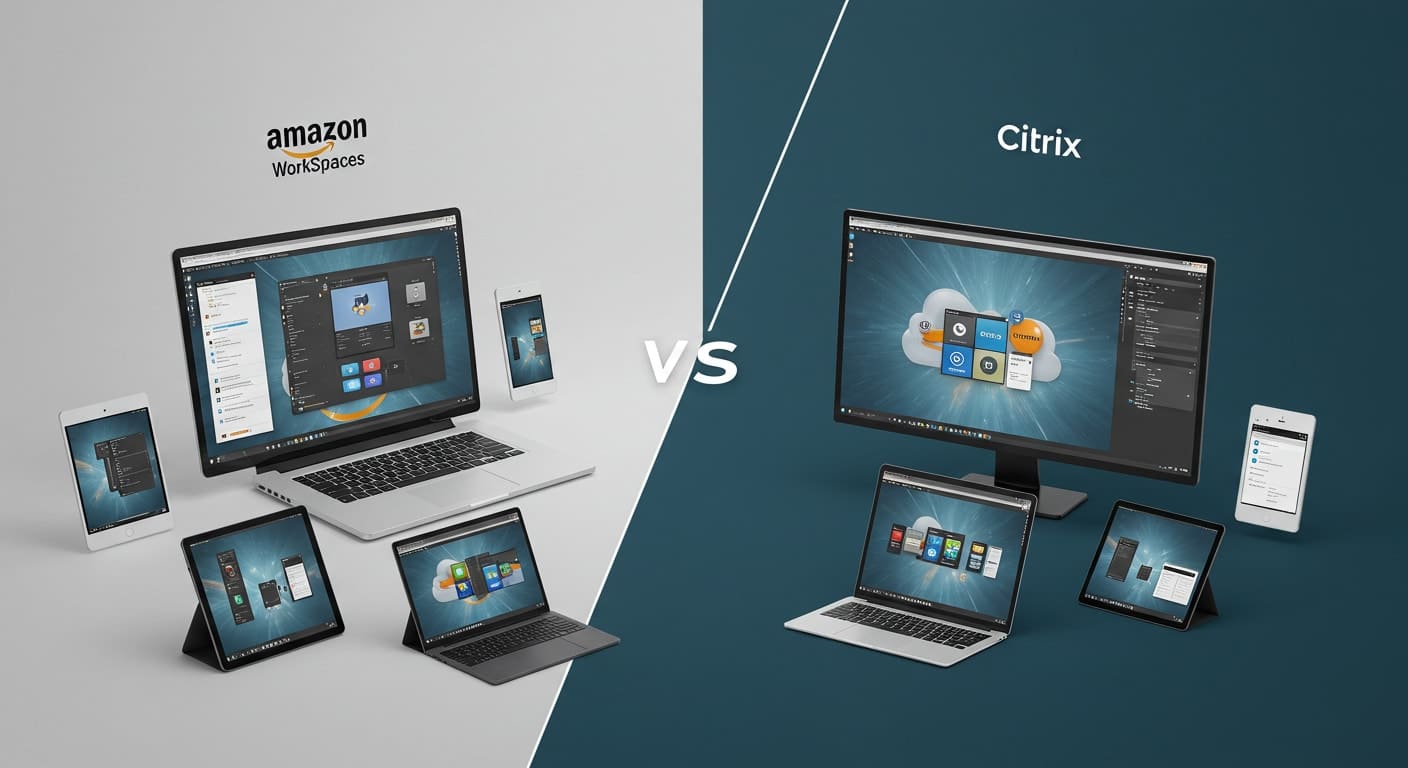
Amazon WorkSpaces vs Citrix desktops used in a modern office environment for business productivity
Quick Answer

Which Is Better: Amazon WorkSpaces or Citrix?

Amazon WorkSpaces and Citrix both provide secure virtual desktops for remote work, but they serve different needs. Amazon WorkSpaces emphasizes cloud-native simplicity and fast deployment, while Citrix offers deeper customization and enterprise controls. Browser-based platforms like Apporto provide a simpler alternative with streamlined deployment and management.

As remote work solidifies into standard practice, virtual desktops have become a core pillar of modern IT strategy. Businesses need platforms that offer secure, scalable, and cost-effective access to digital workspaces—without locking teams into rigid infrastructure.

Two names frequently rise to the top: Amazon WorkSpaces and Citrix virtual desktops. Both provide cloud-enabled desktop experiences across a wide array of devices and operating systems, yet their approaches, pricing models, and capabilities differ in important ways.

This comparison focuses on what matters most for IT leaders: deployment, security, features, cost, and the long-term sustainability of each platform within your business environment.

Let’s explore how these two solutions stack up—so you can decide which one best aligns with your organization’s needs.


What Are Amazon WorkSpaces and Citrix Virtual Desktop Platforms?

Amazon WorkSpaces vs Citrix virtual desktops compared across multiple devices and platforms

When evaluating virtual desktop platforms, it’s important to understand the foundation of each solution. Both Amazon WorkSpaces and Citrix virtual desktops offer remote desktop access through cloud technologies—but they serve slightly different business profiles and IT priorities.


What is Amazon WorkSpaces used for in business environments?

Amazon WorkSpaces is an AWS virtual desktop solution that delivers cloud-based desktops to users worldwide. It’s designed for simplicity and rapid provisioning. Teams can deploy Windows or Linux desktops across a wide variety of devices, including:

  • Amazon Fire tablets
  • Apple iPads
  • Android tablets
  • Standard desktops and laptops

WorkSpaces provides a fully managed infrastructure, making it appealing for organizations that want predictable performance without managing underlying hardware.


What makes Citrix virtual desktops popular in the enterprise?

Citrix virtual desktops, including Citrix Managed Desktops, are widely used in enterprises that require more customizable, infrastructure-integrated solutions. Citrix is known for:

  • Supporting complex, hybrid environments
  • Offering deep integration with existing on-prem systems
  • Providing high levels of admin control and policy enforcement

Its long history in virtualization makes VMware a trusted solution for organizations that value fine-grained configuration and internal infrastructure compatibility.


How Do These Platforms Handle Deployment and Scalability?

IT teams managing Amazon WorkSpaces vs Citrix infrastructure deployment and scalability.

One of the biggest distinctions between Amazon WorkSpaces and Citrix is how they approach deployment and long-term scalability. Your decision will largely depend on your team’s IT bandwidth, urgency, and growth outlook.


Which platform is easier to deploy and scale?

Amazon WorkSpaces offers a cloud-native deployment model with rapid provisioning and minimal configuration. You can:

  • Spin up desktops quickly using prebuilt templates
  • Avoid heavy infrastructure commitments
  • Manage everything within the AWS ecosystem

By contrast, Citrix may require more setup time, especially if you’re integrating it into existing on-premise infrastructure. It often demands:

  • Advanced planning
  • Internal or partner IT support
  • More complex configuration steps


How does scalability differ between Amazon WorkSpaces and Citrix?

Scalability is where the platforms diverge sharply:

  • Citrix scales well for large enterprises with dedicated IT teams and global infrastructure. It’s designed to support massive, diverse environments.
  • Amazon WorkSpaces is better suited for smaller organizations or teams that need to scale quickly. Its elastic capacity in AWS allows you to add or reduce desktops based on workload, budget, or seasonal demand—without long-term infrastructure planning.

If flexibility and speed matter more than deep control, Amazon WorkSpaces usually comes out ahead.


What Devices and Operating Systems Can Users Access Virtual Desktops From?

For organizations with hybrid workforces, device flexibility and broad OS compatibility are essential. Both Amazon WorkSpaces and Citrix provide access to virtual desktops across a wide range of environments, but they differ slightly in how performance holds up across them.

Which devices are supported across each platform?

Both platforms support most modern operating systems and devices, including:

  • Windows and macOS laptops and desktops
  • Linux machines (with browser-based or native clients)
  • Mobile access via iOS, Android, and even Amazon Fire tablets
  • Web browsers for lightweight device use

This wide compatibility makes it easy for teams to work across personal and corporate hardware in a BYOD setting.


How consistent is performance across operating systems?

In terms of cross-platform performance, both platforms offer OS-level optimization to maintain smooth user experiences. Citrix uses adaptive display technologies, while Amazon WorkSpaces emphasizes virtual hardware consistency across devices. Neither is perfect, but both are capable of delivering a stable experience across a wide array of systems—if the backend is well configured.


Which Platform Offers Better Security and Compliance Controls?

Developers using Amazon WorkSpaces vs Citrix desktops for secure coding and remote access

When evaluating virtual desktop solutions, security and compliance are non-negotiable. Both Amazon WorkSpaces and Citrix offer mature platforms, but the depth and flexibility of their controls can influence your decision—especially in regulated industries.


How secure are Amazon WorkSpaces and Citrix desktops?

Both platforms support core security protocols, including:

  • Multi-factor authentication (MFA)
  • Endpoint validation and session policies
  • Encryption for data in transit and at rest
  • Secure user access workflows

Citrix provides granular policy control and robust security logs for auditing and threat detection. Amazon WorkSpaces offers seamless integration with AWS security services like CloudTrail and GuardDuty, giving administrators powerful tools to review and manage access events in real time.


Which platform meets enterprise compliance needs better?

For organizations handling sensitive data, compliance coverage is critical. Both platforms offer support for:

  • GDPR, SOC 2, HIPAA, and other regulatory frameworks
  • Tenant isolation for data segmentation
  • Configurable data storage regions to meet sovereignty laws

Citrix tends to offer more flexibility for highly customized compliance setups. Amazon WorkSpaces, however, benefits from AWS’s global infrastructure and built-in security posture, making it an attractive option for teams that want a secure solution without managing every detail themselves.


What Desktop Features and Software Capabilities Stand Out?

Teams collaborating with Amazon WorkSpaces vs Citrix platforms to enhance productivity.

Beyond security and access, the value of a virtual desktop platform often comes down to features—the tools and controls that enhance productivity, streamline management, and support modern workstyles.


Which solution offers more built-in features for business users?

Both Amazon and Citrix include essential tools, but Citrix offers more depth in out-of-the-box capabilities. These include:

  • Advanced admin panels with user segmentation
  • Multi-session support for running concurrent environments
  • Screen sharing, monitoring, and group policy enforcement
  • Application layering and workspace analytics

Amazon WorkSpaces, in contrast, focuses on simplicity and speed. While it doesn’t have the same level of embedded customization, it excels at ease-of-use and integrates well with the AWS console for user management and automation.


How do software bundles compare between Citrix and AWS?

Citrix provides robust support for virtual app delivery, allowing businesses to publish individual applications or full desktops. Licensing models vary, but flexibility is a strength.

Amazon WorkSpaces offers standard software bundles, including Microsoft Office and developer tools, depending on your instance type. While less customizable, it’s straightforward to set up and manage, especially for teams with standard workloads.


Which Platform Performs Better in Real-World Conditions?

When it comes to performance, users care about more than just specs—they expect smooth sessions, minimal lag, and seamless access across devices and locations. Both platforms are strong, but how they deliver that experience differs.


Which delivers more reliable performance?

Citrix is often praised for its session stability, especially under high user loads. It’s engineered for large enterprise environments and performs consistently with proper infrastructure. Amazon WorkSpaces benefits from AWS’s cloud backbone, offering solid uptime and responsive performance, especially for mid-sized teams during peak usage.


How do both platforms manage global connectivity?

Amazon WorkSpaces leverages AWS’s global data centers for low-latency connections and quick session reconnects. Citrix uses a combination of cloud and on-premise configurations, which can be optimized through edge technologies and WAN acceleration. For geographically dispersed teams, both offer reliable connectivity—but AWS often wins on global reach.


How Does Pricing and Cost Compare Between Amazon WorkSpaces and Citrix?

Business professional reviewing analytics and cost performance with Amazon WorkSpaces virtual desktop

Understanding cost goes beyond sticker price. Total value depends on usage patterns, licensing models, and the resources your business dedicates to setup and management.


What is the pricing structure of each platform?

Amazon WorkSpaces uses usage-based billing, allowing you to pay hourly or monthly depending on your needs. This offers flexibility but can become unpredictable without close monitoring. Citrix, by contrast, uses subscription-based tiers, often bundled through resellers or MSPs, which may involve long-term commitments.


Which platform provides better long-term value?

For businesses with stable usage, Citrix can offer efficient scaling—but hidden costs can arise through partner pricing and management overhead. Amazon WorkSpaces reduces those complexities with fewer dependencies. If your team prefers agility over long-term lock-ins, AWS may offer a better TCO with less admin friction.


Which Platform Integrates Better With Existing IT Infrastructure?

Integration is often where decisions are made. If your organization already relies on specific tools or identity systems, your virtual desktop solution must integrate seamlessly without introducing friction.

Amazon WorkSpaces is tightly aligned with AWS-native services, making it easy to connect with other Amazon cloud tools and manage environments at scale. It integrates well with Microsoft Active Directory, but typically favors cloud-first architecture.

Citrix, on the other hand, is more versatile for hybrid infrastructure. It supports deep integration with on-prem systems, existing data centers, and third-party management tools. If you’re bridging legacy and modern platforms, Citrix offers more adaptability out of the box.


Who Should Choose Amazon WorkSpaces and Who Should Choose Citrix?

While both platforms support a broad set of use cases, the best fit depends on your organization’s structure, technical demands, and user profile.

When is Amazon WorkSpaces a better choice?

Amazon WorkSpaces is ideal for:

  • Small to mid-sized organizations
  • Teams without large IT departments
  • Businesses that want simple deployments and predictable management
  • Customers already using AWS services or pursuing cloud-native strategies


When does Citrix make more sense?

Citrix suits:

  • Large enterprises with complex networks
  • Organizations needing high customization
  • Businesses that value deep control over infrastructure and employee access policies
  • Environments with strict regulatory and compliance needs


Looking for a Simpler Alternative? Consider Apporto

Apporto virtual desktop platform logo highlighting simplicity and cloud security.

If you’re weighing Amazon WorkSpaces vs Citrix, but neither feels quite right for your team’s size, IT bandwidth, or budget, there’s another option worth considering: Apporto.

Apporto is a browser-based virtual desktop platform designed specifically for higher education and SMBs. It offers:

  • Zero client installs, no VPNs, and fully secure access
  • Built-in Zero Trust architecture
  • Cross-device compatibility (Windows, Mac, Linux, iPad, Chromebook)
  • Fast deployment—often within 48 hours
  • Transparent pricing with no surprise costs or reseller markup

With Apporto, you get enterprise-grade capabilities without the enterprise-level complexity. It’s a platform that emphasizes simplicity, speed, and support—so your IT team can stay focused on impact, not maintenance.

Try Apporto now and see what modern VDI should feel like.


Final Thoughts: Choosing the Right Virtual Desktop Platform for Your Organization

There’s no shortage of capable virtual desktop platforms, but capability doesn’t always equal suitability. Amazon WorkSpaces is flexible, fast to deploy, and cloud-native—but less customizable. Citrix offers power and control, but often at the cost of complexity and overhead.

If you’re an organization looking for a secure, scalable solution that doesn’t demand deep infrastructure investment or long setup cycles, Apporto may offer the best of both worlds. It’s a platform built for today’s work realities: hybrid teams, tight budgets, and user expectations that leave no room for clunky experiences.

As with any critical decision, run a pilot, test performance, assess integration, and examine long-term support. In the end, the best platform isn’t just the most feature-rich—it’s the one your users barely notice because it simply works.


Frequently Asked Questions (FAQs)


1. How does WorkSpaces compare to Citrix?

Amazon WorkSpaces and Citrix both provide cloud-based virtual desktops, but they target different needs. WorkSpaces focuses on simplified deployment, AWS integration, and predictable management, while Citrix offers deeper customization, advanced policy controls, and enterprise infrastructure flexibility for complex hybrid and large-scale environments.

2. Can Citrix run on AWS infrastructure?

Yes. Citrix can be deployed on AWS, giving customers the flexibility to combine Citrix’s features with Amazon’s global cloud footprint.

3. Which platform is more secure and reliable?

Both are secure and stable, but Citrix provides more advanced policy controls. Amazon WorkSpaces offers strong baseline security with seamless AWS integration.

4. Do both platforms support tablets and mobile devices?

Yes. Users can access virtual desktops on nearly any device, including iPads, Android tablets, and even Amazon Fire tablets.

5. Which is more cost-effective for small and mid-sized businesses?

Amazon WorkSpaces generally has lower upfront cost and is easier to manage, making it more attractive for SMBs without large IT teams.

Azure Virtual Desktop Pricing: What You Really Need to Know?

Azure Virtual Desktop pricing visual showing cloud computing and cost analytics over a city skyline
Quick Answer

How Much Does Azure Virtual Desktop Cost?

Azure Virtual Desktop pricing depends on compute, storage, licensing, and user workloads, so costs vary by deployment. Organizations can reduce spend through pooled desktops, reserved instances, and auto-scaling. For simpler, predictable pricing, alternatives like Apporto provide fully managed virtual desktops with lower operational complexity.

Azure Virtual Desktop (AVD) has become one of the most widely adopted cloud-based solutions for delivering virtual desktops at scale. It’s flexible, powerful, and deeply integrated with the Microsoft ecosystem — which makes it especially appealing to enterprise IT teams and organizations embracing remote work.

But when it comes to Azure Virtual Desktop pricing, things get complicated quickly. Costs vary based on virtual machine types, user workloads, storage choices, licensing, and even geographic regions. There’s no one-size-fits-all answer.

This guide breaks down the pricing structure piece by piece — so you can make more informed decisions, control your spend, and optimize your cloud investment.


What Is Azure Virtual Desktop (AVD) and How Does It Work?

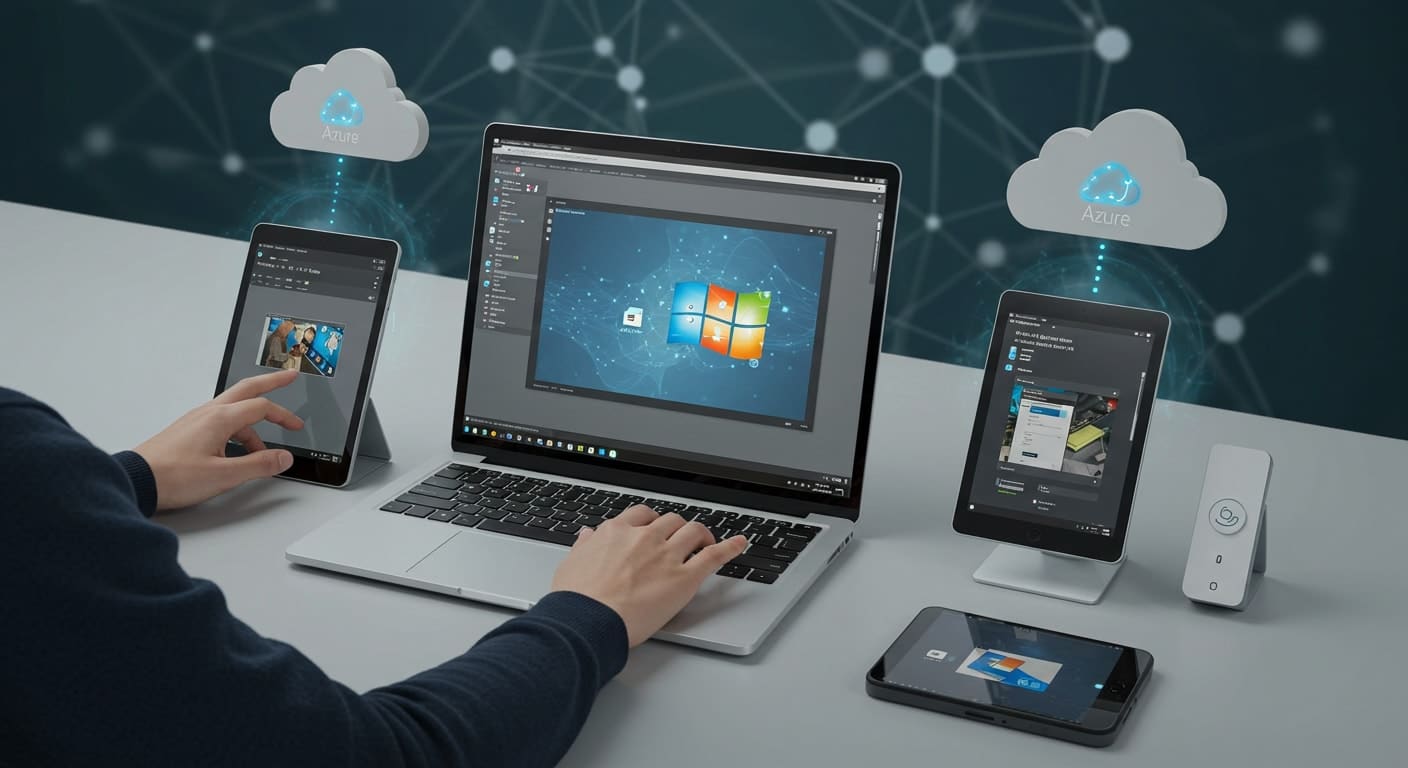
User accessing Azure Virtual Desktop on laptop, tablet, and mobile devices through the Microsoft cloud

Azure Virtual Desktop (AVD) is Microsoft’s fully managed cloud-hosted virtual desktop solution. It allows organizations to deliver Windows desktops and applications securely over the internet, without the need for physical infrastructure at every location. Users — whether working from a laptop, tablet, or thin client — can access Azure Virtual Desktop from anywhere.

At the core of the AVD environment are several important components:

  • Azure virtual machines (VMs) that host the desktop sessions
  • Storage resources for operating system disks and user data
  • Azure Active Directory (Azure AD) to authenticate end users
  • Remote session hosts that manage user connections

You can deploy personal desktops (one user per VM) or pooled desktops, where multiple users share resources in a multi-session setup. The pooled model increases efficiency, while personal desktops give users dedicated performance. Choosing between the two impacts both performance and pricing — an essential theme throughout this guide.


How Is Azure Virtual Desktop Pricing Structured?

The Azure Virtual Desktop pricing model is usage-based — which means you’re billed for what you consume, but also responsible for managing it efficiently. Here are the core components that make up the cost:


1. Compute Costs

These are based on the Azure VM instances you choose. More powerful VMs (with more CPUs or memory) cost more per hour. If you’re running desktops for longer periods, compute can be your biggest expense.

2. Storage Costs

Each virtual desktop has an OS disk, and users need space for profiles and data. User profile storage is often managed via FSLogix containers stored in Azure storage accounts. Storage pricing depends on disk type and size.

3. Network Costs

Data transfer out of Azure (e.g., sending data to external networks) incurs network costs. Inbound traffic is usually free, but outbound usage adds up.

4. Azure Infrastructure Costs

Other associated costs can include backup, diagnostics, and third-party services layered into your AVD environment.

You can choose pay-as-you-go or commit to reserved instances for 1–3 years to lower your rate. Use the Azure Pricing Calculator to estimate your virtual desktop pricing based on actual usage patterns and configuration details.


What Are the Main Cost Drivers in an AVD Deployment?

IT professional reviewing Azure Virtual Desktop cost dashboard with compute and storage metrics

Several factors directly influence the Azure Virtual Desktop costs, and understanding them helps avoid surprises on your invoice. Each decision in your setup affects both pricing and performance.


Cost drivers include:

  • VM Size and Type:
    The size of your Azure virtual machines matters. Burstable VMs are cheaper and good for light tasks, while memory-optimized or GPU-enabled VMs are more costly but necessary for high-performance needs.
  • Personal vs. Pooled Desktops:
    Personal desktops (1:1 user-to-VM) offer a consistent experience but increase infrastructure requirements. Pooled desktops allow multiple users to share resources, improving cost efficiency.
  • Session Hosts per User:
    The number of session hosts allocated impacts user cost. Overprovisioning leads to wasted spend; underprovisioning can hurt performance.
  • Operating System:
    You can run Windows 10/11 Enterprise multi-session or Windows Server. Licensing models and compatibility influence cost here, too.
  • Azure Region:
    Pricing varies by location. Some Azure regions are cheaper due to data center capacity or local energy costs.

All these variables combine to shape your virtual desktop infrastructure footprint — and ultimately, your monthly cost.


How Does Microsoft Charge for User Access to Azure Virtual Desktop?

Business professional reviewing Azure Virtual Desktop licensing details and compliance requirements

In addition to infrastructure charges, you need to account for user licensing when calculating Azure Virtual Desktop pricing. Microsoft separates infrastructure costs from per-user access pricing, and this varies depending on your user type.

For internal users (employees), access rights to AVD are often included in Microsoft 365 or Windows 10/11 Enterprise licenses that come with Software Assurance. If you’re already licensed, there’s no need for an additional Client Access License (CAL).

For external users (contractors, vendors), licensing is different. You’ll need to license them separately unless they bring their own credentials and entitlements. This is where the Azure Hybrid Benefit can reduce costs — it lets you use existing licenses in the cloud, avoiding duplicate charges.

When supporting multiple users in pooled environments, you only need to license each named user, not every session. Still, it’s important to verify user access rights before deploying, to avoid compliance issues and hidden costs.


Can You Reduce Azure Virtual Desktop Costs?

Yes — with the right strategies, you can significantly reduce costs while keeping performance steady. Azure provides several built-in tools and pricing options that help you optimize costs without sacrificing usability.


Crucial ways to improve cost efficiency:

  • Right-size your VM instances
    Don’t overprovision. Match VM specs to actual workload needs.
  • Use reserved instances or Azure Savings Plans
    Commit to 1–3 years for a fixed hourly amount, reducing upfront payments.
  • Apply Azure Hybrid Benefit
    Reuse existing Windows licenses to save on OS charges.
  • Leverage auto-scaling
    Automatically shut down or reduce resources during non-peak hours.
  • Monitor in the Azure Portal
    Use Azure Monitor and analytics to track utilization and flag overspending.

These options together can drive meaningful cost savings while helping you stay in control of your AVD deployment.


What Is the Total Cost of Ownership (TCO) for AVD at Enterprise Scale?

Enterprise team analyzing Azure Virtual Desktop total cost of ownership with performance charts

Calculating the total cost of ownership (TCO) for Azure Virtual Desktop means looking well beyond just VM pricing. You need to consider everything that contributes to the full deployment lifecycle.


Major components in a cost breakdown:

  • Compute, storage, and network infrastructure costs
  • User profile storage with tools like FSLogix
  • Azure AD integration and role management
  • Security monitoring and backup tools

For enterprises with existing infrastructure, moving to AVD introduces new efficiencies — but it also comes with hidden costs like data migration, downtime during rollout, or support training.

Compared to an on-prem environment, cloud deployments reduce hardware overhead but introduce variable monthly billing. Over time, the TCO often balances out, but it depends on scale, geography, and how well resources are managed within your Azure account.

The key is to evaluate every layer — and ensure that you’re optimizing both the cost and the experience for your users.


Is Azure Virtual Desktop Worth It for Your Business?

Azure Virtual Desktop is a smart choice for organizations operating at enterprise scale. If you already rely on Microsoft Azure, run a hybrid IT strategy, or manage large remote teams, AVD fits well into your ecosystem. It offers deep integration with Azure resources, centralized control, and secure access for globally distributed workforces.

AVD also works best when there’s dedicated IT staff to manage sessions, optimize usage, and configure things like managed disks and host pools.

But it’s not ideal for everyone. Small businesses or educational institutions with limited IT support may find the platform too complex or costly. For these use cases, a fully managed, browser-based VDI like Apporto offers a simpler and more predictable cloud solution — without the maintenance overhead or steep learning curve. For a broader overview of virtual desktop infrastructure, including its benefits and different deployment options, see our guide.

Ultimately, AVD is powerful, but it requires planning, budget, and technical oversight to deliver the value it’s capable of.


How to Get a Real-Time Estimate Using the Azure Pricing Calculator

To get a rough idea of what Azure Virtual Desktop will cost, use the Azure Pricing Calculator — a free tool that helps estimate your monthly bill.

Here’s what to input:

  • VM type and number of instances
  • Region (since pricing varies)
  • Hours per month
  • Storage, Azure resources, and bandwidth usage

Once entered, the calculator will show your virtual desktop pricing breakdown. It’s not perfect, but it gives you visibility before committing to a full Azure cloud service deployment. For more accurate results, match the inputs to your current workloads or AVD proof-of-concept data.


Looking for a Simpler, More Predictable Alternative?

Apporto cloud desktop platform logo offering an alternative to Azure Virtual Desktop

If Azure Virtual Desktop feels too complex, you’re not alone. For SMBs, educational institutions, and teams without dedicated IT staff, managing AVD’s infrastructure, licensing, and cost variables can be overwhelming.

Apporto offers a modern alternative:

  • Fully browser-based — no installs or client maintenance
  • Zero infrastructure management
  • Predictable, all-inclusive pricing
  • Fast deployment — often in under 48 hours
  • Built for education and small-to-midsize businesses

With Apporto, you get the secure access and desktop experience you need, without the operational burden of managing virtual machines or calculating hourly rates.

If you’re looking for a platform that “just works” — and doesn’t surprise you on the billing side — Apporto is worth exploring. Try Apporto now


Final Thoughts: Navigating Azure Virtual Desktop Pricing with Confidence

Azure Virtual Desktop pricing isn’t impossible to manage — but it does require attention to detail. The platform offers impressive flexibility, but that comes with layered complexity across compute, storage, licensing, and user access.

If you’re just getting started, consider a small-scale deployment first. Test different VM sizes, monitor usage, and refine based on performance.

For organizations that want a simpler path — especially SMBs or schools — platforms like Apporto deliver fully managed, browser-based desktops with predictable pricing and minimal overhead. It’s fast, secure, and designed for ease. Try Apporto now


Frequently Asked Questions (FAQs)


1. How much does Azure Virtual Desktop cost per user?

There’s no fixed per-user price. Costs depend on the virtual machine type, hours used, storage, and bandwidth. You also need proper user licensing, which may be covered by Microsoft 365 or Windows Enterprise plans.

2. Do I need a license to access Azure Virtual Desktop?

Yes. Internal users typically need a Microsoft 365 or Windows license with Software Assurance. External users require separate licensing. Without valid access rights, you’ll need to purchase Client Access Licenses (CALs) or pay additional access fees.

3. What’s included in Azure infrastructure costs?

Infrastructure costs include virtual machine instances, OS and profile storage, data transfer, and Azure networking. You may also incur charges for monitoring tools, backups, or using services like Azure Active Directory and diagnostics.

4. Can I use Azure Hybrid Benefit to save money?

Yes. Azure Hybrid Benefit lets you use existing Windows Server or Microsoft licenses in the cloud. This reduces your hourly VM charges and helps avoid paying twice for the same software.

5. How do I monitor AVD usage and optimize cost?

Use Azure Monitor and the Azure Portal to track VM usage, user sessions, and cost patterns. Set alerts, review peak hours, and scale resources based on actual workload to reduce waste and improve efficiency.

VDI vs VPN: Here’s How to Decide Between Both

Dual remote work setup comparing VDI access via cloud platform versus VPN tunnel login, representing VDI vs VPN usage.
Quick Answer

What Is the Difference Between VDI and VPN?

VPN and VDI both support remote access, but they work differently. A VPN securely connects users to a company network, while VDI delivers a complete virtual desktop from centralized infrastructure. Browser-based VDI platforms like Apporto provide secure remote workspaces without VPN software or complex infrastructure management.

The way people work has changed. Offices are no longer the center of productivity. Instead, teams are logging in from home, airports, coffee shops—wherever they need to be. That shift has made remote access more than a convenience. It’s now a critical part of daily operations for businesses of all sizes.

To meet this demand, IT teams are turning to two primary solutions: Virtual Private Networks (VPNs) and Virtual Desktop Infrastructure (VDI). Both are designed to help remote users connect securely to workplace resources. But how they work—and what they’re best suited for—are fundamentally different.

VPNs create a secure tunnel between an employee’s device and the company network. VDI hosts the entire desktop experience on a central server, delivering it over the internet. One offers access. The other offers control.

If you’re evaluating these options for your organization, understanding their differences isn’t just helpful—it’s essential. This article breaks down how each one works, where each shines, and which fits best based on your needs.


1. What Is a VPN, and How Does It Work?

Visual representation of a VPN tunnel extending from a laptop, highlighting the network encryption element.

A Virtual Private Network, or VPN, is a tool that allows users to securely access resources on a company’s private network while working remotely. Instead of connecting directly over the public internet, the VPN acts as a secure bridge, encrypting all data traveling between the user’s device and the internal network.

Here’s how it works: when you connect through a VPN client (software installed on your laptop or phone), it establishes a secure tunnel to a VPN server—typically located on your company’s premises or in the cloud. This tunnel encrypts your network traffic, hiding it from external threats and giving you access as if you were physically in the office.

Common use cases include:

  • Connecting to a corporate network to access files and applications
  • Using remote workstations from home or on the go
  • Securing connections over public Wi-Fi in airports, hotels, or cafés

Most VPNs require setup from a VPN provider or IT team, and performance can vary based on the user’s internet connection and the location of the VPN server.

While VPNs do provide secure remote access, they also depend heavily on the security of the endpoint device. If a laptop is compromised, the VPN tunnel doesn’t protect the internal network—it simply extends it. That’s why VPNs are often paired with other security tools, but even then, the exposure risk is real.


2. What Is VDI, and How Does It Work?

Secure cloud desktop interface with lock icon, symbolizing centralized VDI security in contrast to VPN’s endpoint exposure.

Virtual Desktop Infrastructure (VDI) is a remote access technology that allows users to connect to a full desktop environment hosted on a central server or within a data center. Unlike a VPN, which tunnels into an existing device, VDI delivers an entire virtual desktop through a secure, internet-based connection.

When a user logs in, they aren’t accessing their own laptop or office machine—they’re launching a desktop that lives on a remote server. That desktop includes the operating system, apps, files, and settings they need to work, all delivered to whatever client device they’re using: laptop, tablet, or even a browser.

This approach creates an environment where:

  • Data stays on the server, not on personal devices
  • IT teams can enforce policies across all desktop environments
  • Users gain access to the same tools no matter where they log in from

VDI runs on virtual machines, allowing IT to host multiple user desktops on a single physical server. This setup enables centralized management, simplified updates, and scalable infrastructure for growing teams.

It also removes the risks that come with remote devices—since nothing is stored locally, there’s little exposure if a device is lost or compromised. That makes VDI particularly useful for companies handling confidential data, managing distributed teams, or supporting remote employees with varying hardware.

In essence, VDI transforms the desktop into a secure, flexible, cloud-hosted workspace—accessible from anywhere, without compromising control.


3. VDI vs VPN: What Are the Key Differences?

While both VDI and VPN aim to enable remote access, they achieve that goal in very different ways. VPN extends the corporate network to the user’s device. VDI brings the entire desktop experience to the user, without ever leaving the control of the data center.

Understanding the core distinctions will help you assess which is better aligned with your security posture, performance needs, and IT strategy. Here’s a quick breakdown:

Feature VPN VDI
Access Type Tunnel to corporate network Hosted virtual desktop
Devices Connects from the user’s device Desktop runs on a central server
Data Location Resides on local machine Stays within centralized data center
Security Depends on VPN & device security Managed, centralized control
Performance Tied to user’s internet connection Controlled server-side performance
Use Case File access, basic apps Full desktop environments, enterprise apps


Where VPN gives users a pathway into the local network, VDI offers a self-contained desktop that doesn’t rely on local hardware or storage. For simple file access or light work, VPN may be sufficient. But when users need full apps, a consistent desktop experience, or tighter security, VDI is built to deliver.

The difference isn’t just architectural—it’s operational. VDI grants control where VPN grants access.


4. Which Is More Secure: VDI vs VPN?

Security comparison of VDI vs VPN showing centralized cloud protection versus distributed VPN vulnerabilities.

When it comes to security, VDI and VPN take very different approaches—and the implications are significant.

A VPN creates an encrypted tunnel between the endpoint device and the company network, shielding data in transit. But once connected, the security of the session depends heavily on the device itself. If malware exists on that laptop, the VPN becomes a fast track into the broader network. That’s a serious risk, especially with personal devices or poorly maintained machines.

VDI, on the other hand, centralizes everything. The desktop, applications, and sensitive data all live on a remote server, not on the user’s hardware. Nothing is stored locally. If a device is lost, compromised, or infected, the virtual desktop remains unaffected.

VDI also supports Zero Trust architectures, where access is continuously verified. This, combined with centralized control, limits lateral movement within the system and greatly reduces the risk of data breaches.

Another concern with VPN is visibility. The use of real IP addresses over the public internet can introduce vulnerabilities, especially if your VPN provider isn’t rock-solid.

In short, both can be secure—but only VDI offers built-in isolation, consistent enforcement, and reduced exposure. When data protection is critical, VDI has the edge.


5. How Do VPN and VDI Perform Under Real-World Conditions?

Side-by-side view of users accessing remote work via VPN and VDI, illustrating the performance and environment differences.

Performance matters—especially when your remote workforce depends on it to stay productive. This is another area where the differences between VPN and VDI become clear.

VPN performance depends on multiple variables:

  • The quality of the user’s internet connection
  • Bandwidth between the VPN server and the corporate network
  • Load on the VPN infrastructure during peak times

Heavy traffic, throttling, or congestion can slow things down quickly. Even routine tasks like file access or using a CRM tool can lag if the tunnel is saturated. And for graphics-heavy applications like CAD or video editing? VPN simply wasn’t built for that.

VDI shifts the burden away from the user’s network. Because the virtual desktop runs in a data center, performance is managed centrally. Users interact with a streaming session, not a direct pipeline to sensitive assets.

This means:

  • Faster load times for large files
  • Better support for high-performance apps
  • Minimal lag, even on low-powered devices

For everyday work, VPN might suffice. But for bandwidth-heavy tasks, VDI provides a smoother, more reliable experience—especially when paired with modern streaming tech and geo-optimized infrastructure like Apporto’s.


6. What About Setup and Management Complexity?

On the surface, VPN is easier to get started with. A VPN client is installed, credentials are entered, and the user connects. From an IT standpoint, it’s relatively low effort—at least initially.

But that simplicity comes at a cost. As your user base grows, managing multiple VPN connections across a range of endpoint devices can get messy. You’re responsible for ensuring every device is patched, every tunnel is secure, and every access request is appropriate. Centralizing policy enforcement becomes a juggling act.

VDI, in contrast, takes more effort to deploy upfront. Setting up the virtual machines, provisioning storage, and configuring the central server infrastructure requires planning. But once it’s in place, management becomes far more streamlined.

With VDI, IT teams:

  • Push updates from a single location
  • Enforce security consistently across all sessions
  • Onboard or offboard users without touching their physical devices

Scaling is easier, too. Instead of provisioning more VPN licenses or chasing device compliance, you just spin up more desktops. It’s a centralized solution designed for long-term sustainability.

If you’re building for the future—and want fewer support tickets along the way—VDI gives you more control with less sprawl.


7. Which Solution Is Better for BYOD and Personal Devices?

In today’s hybrid workplace, Bring Your Own Device (BYOD) policies are increasingly common. But they also bring added security challenges—especially when employees use personal laptops or tablets to access company resources.

With VPN, you’re extending your corporate network directly to the user’s device. That means if their laptop is compromised, so is your network. Even with encryption, the VPN connection provides broad access, and there’s little separation between confidential data and the rest of their system.

VDI takes a fundamentally different approach. All applications, data, and activity reside in the remote server, never on the device itself. The user simply streams a virtual desktop, and once the session ends, no files or information are left behind.

This isolation is what makes VDI far safer for remote employees using personal devices. It allows them to work from anywhere—without putting your private network at unnecessary risk.


8. How Do Cost and Licensing Compare?

A comparison showing chaotic VPN connections versus streamlined VDI server-client architecture.

At first glance, VPNs look like the more affordable option. They typically have lower upfront costs and minimal infrastructure requirements. Just install a VPN client, configure the VPN server, and you’re good to go.

But as your team grows, so does the complexity. Managing VPN access across multiple devices, supporting bandwidth needs, and securing endpoint devices can quickly inflate costs. VPNs also do little to reduce hardware needs or IT workload.

VDI, while more resource-intensive to deploy, offers better long-term value. Hosting multiple virtual machines on a centralized server reduces the need for high-powered endpoints. You can consolidate servers, streamline data storage, and avoid purchasing new laptops for every new hire.

Licensing structures also differ. VPN licenses are often tied to the number of simultaneous users, while VDI infrastructure allows for dynamic resource allocation across a shared pool.

Most importantly, VDI brings predictable cost control. Once deployed, the ability to manage desktops centrally and reduce support requests translates to lower operational costs over time. Especially for businesses scaling rapidly or managing remote teams, VDI becomes the more sustainable—and cost-efficient—choice.


9. Which One Offers Better Control for IT Teams?

When it comes to control, VDI clearly leads.

VPNs provide access, but they shift much of the responsibility to the user’s device. That means patching, policy enforcement, and endpoint security can vary wildly—especially in BYOD environments. You’re trusting that the employee’s setup is as secure as your own.

VDI, on the other hand, centralizes everything. IT teams manage the remote desktop directly from a centralized server, giving full visibility into sessions, activity, and file access. Software deployment is uniform. Updates are pushed instantly. Security policies are enforced without relying on users to follow them.

With VDI, you don’t just give users the tools—they access those tools in a controlled, monitored environment. You maintain oversight, control access, and reduce exposure across the board.

For organizations that prioritize governance, consistency, and centralized management, VDI offers the kind of operational clarity that VPNs simply can’t match.


10. When Should You Use VDI Instead of VPN?

There’s a place for both VPN and VDI—but they aren’t interchangeable. Choosing the right one depends on what your organization needs to protect, how your users work, and what kind of control you want to maintain.

VDI is the better choice when:

  • You’re handling sensitive data that can’t risk local exposure
  • Your teams are distributed and rely on remote workstations
  • You need to support multiple virtual machines from a centralized hub

It’s particularly useful for companies that want standardized desktop environments, streamlined support, and a scalable foundation for growth. In contrast, VPN may be suitable for occasional file access or light remote tasks—but it’s not built for enterprise-grade performance or deep IT oversight.

If your organization is moving beyond basic access and into full digital workspace management, VDI is the next logical step.


11. How Does Apporto Combine the Best of VDI Without the Overhead?

Apporto takes everything that works about VDI—and removes the friction that holds most teams back.

There’s:

  • No software to install
  • No VPN clients to configure
  • No complex infrastructure to maintain

Instead, users simply log in through their browser and access a full virtual desktop hosted in the cloud. Apporto supports multiple operating systems, works across all major remote devices, and is built with Zero Trust security at its core.

Whether you’re managing remote users, scaling an SMB, or running an educational institution, Apporto delivers a high-performance experience without the headaches of traditional VDI.

It’s fast. It’s secure. And it’s simple to manage—because complexity shouldn’t be the price of control. Try Apporto now


12. Final Thoughts: VDI vs VPN — What’s Right for You?

Remote access isn’t optional anymore—it’s foundational. But the way you deliver it matters.

VPNs offer ease and low setup costs but come with limitations in scalability, control, and security. VDI, on the other hand, creates a managed, secure workspace from anywhere—perfect for teams that need reliability and flexibility at scale.

Ultimately, the choice isn’t just about today’s convenience. It’s about tomorrow’s strategy. As workforces grow more remote and data becomes more critical, you need solutions that adapt with you.

Looking for a smarter way to deliver remote desktops? See how Apporto changes the game.


13. Frequently Asked Questions (FAQs)


1. What is the difference between VDI and VPN?

VDI delivers a complete virtual desktop hosted on centralized servers, while a VPN creates a secure connection between a user’s device and a company network. VDI keeps applications and data centralized, whereas VPN users access resources directly from their local device and network connection.

2. Is VDI more secure than using a VPN?

Yes, VDI is generally more secure than a VPN because applications and sensitive data remain inside centralized servers instead of being accessed directly from personal devices. VDI also supports centralized security controls, session monitoring, and Zero Trust access models that reduce endpoint exposure and data loss risks.

3. Can VDI and VPN be used together? 

Yes, organizations can use VDI and VPN together to add another layer of secure access. However, many modern browser-based VDI platforms reduce the need for traditional VPN software by securely delivering virtual desktops directly through the cloud or browser.

4. Does Apporto replace the need for a VPN? 

In many cases, Apporto can replace traditional VPNs by delivering secure virtual desktops directly through a web browser. This reduces endpoint exposure, simplifies remote access, and eliminates the need to configure or maintain separate VPN client software.

5. How does VDI protect against data loss on personal devices?

VDI protects against data loss by keeping applications, files, and user activity inside centralized cloud or data center infrastructure instead of local devices. Because sensitive data is not stored on personal laptops or tablets, organizations reduce the risk of exposure if devices are lost or compromised.

Best VDI Cloud Providers: Which One Should You Choose?

Remote team members using virtual desktops from various devices, connected to centralized servers via VDI cloud providers.
Quick Answer

What Are the Top VDI Cloud Providers?

Apporto delivers browser-based cloud desktops with minimal setup, strong security, and centralized management. Other leading VDI cloud providers include Microsoft Azure Virtual Desktop, Amazon WorkSpaces, Citrix DaaS, and VMware Horizon Cloud, which offer scalable solutions with more complex infrastructure and configuration requirements.

The way organizations deliver desktop environments has changed. With the acceleration of remote work and bring-your-own-device (BYOD) policies, the need for secure remote access, scalable delivery, and centralized virtual desktop infrastructure (VDI) has never been more critical.

Traditional physical desktops and on-premises setups often can’t keep up with the flexibility or security that distributed teams require. Cloud-based virtual desktop solutions are designed to close that gap.

They allow IT teams to deliver managed, virtualized desktops to any endpoint device, while maintaining control, enforcing policies, and supporting a wide range of operating systems.

Not all VDI cloud providers are created equal. Some focus on complex, large-scale enterprise deployments. Others are built with small to midsize organizations in mind.

In this article, you’ll get a closer look at several leading cloud VDI solutions—Microsoft Azure Virtual Desktop, Amazon Workspaces, Citrix DaaS, VMware Horizon Cloud—and why Apporto stands out as a purpose-built alternative for those who value simplicity, performance, and data security.


1. What Makes a VDI Cloud Provider Worth Your Time?

Choosing a VDI service provider isn’t just about brand recognition. It’s about finding a cloud VDI platform that aligns with your backend infrastructure, your users, and the realities of your IT resources. A strong provider brings together desktop virtualization, performance, and manageable complexity.


1.1 Infrastructure and Scalability

A reliable provider should support:

  • Persistent desktops and nonpersistent desktops
  • Multiple virtual desktops per user or department
  • Centralized provisioning, remote desktop management, and security controls

Managing all of this from a single admin console keeps your IT team productive and focused.


1.2 Compatibility Across Devices and OS

Your platform should support:

  • Windows desktops and Linux desktops
  • Thin clients, tablets, and BYOD setups
  • Broad endpoint device compatibility without complex configurations

This ensures a consistent experience across all user scenarios.


1.3 Performance and Streaming

Look for strong performance under load. Virtual machines should operate smoothly, and remote app streaming must feel responsive—even with low-bandwidth internet connections.


1.4 Cloud Ecosystem and Compliance

Consider the cloud infrastructure:

  • Microsoft Azure, AWS, or Google Cloud
  • Hypervisors like Citrix Hypervisor, VMware, or Microsoft’s stack

Also verify compliance with data protection standards for sensitive data, including Zero Trust readiness and encryption protocols.


Best VDI Cloud Providers: Ranked and Reviewed

1. Apporto: Cloud VDI That Just Works

Apporto logo showcasing a modern VDI cloud provider focused on browser-based simplicity and Zero Trust security.

Apporto delivers a streamlined, cloud-native VDI experience designed for simplicity and scalability. There’s no virtual desktop software to install, no VPNs to configure, and no need for local IT infrastructure. Everything runs securely through the browser.

The platform supports Windows desktops, Linux desktops, and macOS environments, with persistent and nonpersistent desktops managed from a centralized dashboard. Built-in Zero Trust security, role-based access, and real-time monitoring allow for secure VDI at scale.

Apporto is optimized for education, SMBs, and hybrid teams that need high performance with minimal complexity. Desktop images, user licenses, and software applications can be managed from a single admin portal. The pricing is clear, onboarding is fast, and the user experience is consistent across all client devices.

If you’re looking to reduce IT overhead while maintaining enhanced security features, Apporto is a VDI cloud provider that just works. Try Apporto now

Quick Highlights
✅ 100% browser-based, no client install required
✅ Built for education, SMBs, and hybrid teams
✅ Supports Windows, Linux, and macOS
✅ Centralized management with Zero Trust security
✅ Predictable pricing and fast deployment


2. Microsoft Azure Virtual Desktop (AVD)

Microsoft Azure logo, highlighting Azure Virtual Desktop as a major VDI cloud provider for enterprise environments.

Azure Virtual Desktop is Microsoft’s flagship virtual desktop infrastructure (VDI) solution, built on top of Azure virtual machines. It’s fully integrated with Microsoft 365, Windows 10/11, and Microsoft’s broader cloud platform, making it ideal for enterprises already using the Azure ecosystem.

AVD provides secure remote access and scalable delivery of cloud desktops. It supports user sessions, desktop image configurations, and policy enforcement through Azure Active Directory.

However, deployment requires Azure experience. Costs are often tied to usage, making billing difficult to predict. Dynamic scaling also presents challenges for smaller teams or those without dedicated cloud architects.

Quick Highlights
✅ Deep integration with Microsoft 365 and Windows
✅ Enterprise-grade scalability and policy support
⚠️ Complex configuration and Azure dependency
⚠️ Unpredictable costs tied to resource usage


3. Amazon Workspaces

AWS logo representing Amazon Workspaces, a key VDI cloud provider offering global virtual desktops

Amazon Workspaces is AWS’s desktop as a service (DaaS) offering. It provides cloud-based virtual desktops globally, using AWS’s highly available cloud infrastructure to support remote workforces and multiple operating systems.

Workspaces can be spun up quickly and managed through the AWS console. It supports both Windows and Linux desktops, and automates much of the provisioning process for distributed teams.

Management is lightweight, which is good for speed but limits customization. Session management, desktop images, and policy visibility are basic. For cloud-native teams, this may be a fair trade-off.

Quick Highlights
✅ Fast provisioning via global AWS infrastructure
✅ Supports Linux and Windows desktops
⚠️ Limited desktop image control and session visibility
⚠️ Minimal customization beyond core features


4. Citrix DaaS (Citrix Cloud Services)

Citrix logo representing one of the leading VDI cloud providers for enterprise desktop virtualization

Citrix DaaS is a long-established VDI solution that offers full control over virtualized desktops, apps, and remote app streaming. It’s built on Citrix Hypervisor and supports hybrid deployments with advanced access management.

Its strength is in delivering detailed control, ideal for complex environments. Citrix supports containerized desktop infrastructure, thin client access, and rich session visibility.

However, this power comes with complexity. Licensing is layered. Infrastructure is heavy. And configuration demands a high level of IT expertise and internal resources.

Quick Highlights
✅ Deep enterprise controls and app virtualization
✅ Proven support for remote access at scale
⚠️ High complexity and infrastructure demands
⚠️ Expensive licensing and steep learning curve


5. VMware Horizon Cloud (Omnissa)

VMware Desktop icon symbolizing remote desktop access among modern VDI cloud provider tools.

VMware Horizon Cloud is a VDI platform designed to integrate with vSphere, delivering virtual desktop environments across both cloud platforms and private data centers. It provides robust controls over backend infrastructure and persistent session delivery.

VMware’s strength lies in its maturity and flexibility for hybrid models. It supports Windows desktops, Linux environments, and advanced identity management integrations.

The tradeoff is complexity. Horizon Cloud often relies on physical servers, private cloud extensions, and large-scale infrastructure investments. That makes it harder for smaller teams or organizations to deploy quickly.

Quick Highlights
✅ Strong hybrid desktop delivery and session control
✅ Native VMware tool integration
⚠️ Infrastructure-heavy and high initial costs
⚠️ Not well suited for lean IT teams or fast pivots


6. v2 Cloud

v2 Cloud logo representing a simplified VDI cloud provider solution for small to midsize businesses.

v2 Cloud is a fully managed VDI service provider built for simplicity. It’s focused on delivering cloud desktops to small and midsize teams without the need for in-house IT infrastructure.

It supports Windows environments, offers easy provisioning, and has a clean interface for managing user access and licenses. The experience is fast to set up and requires very little configuration.

v2 Cloud trades deep customization for speed and ease of use. For SMBs that don’t need advanced controls or containerized environments, it can be a practical fit.

Quick Highlights
✅ Easy to deploy and manage
✅ Clear pricing, fast onboarding
⚠️ Limited scalability and customization
⚠️ Best for basic use cases, not complex enterprise deployments


VDI Cloud Providers Compared: At-a-Glance

Provider Ease of Deployment OS Support Management Security Model Best For
Apporto Browser-based, instant Windows, Linux, macOS Centralized, intuitive Zero Trust, no endpoint data Education, SMBs, remote teams
Azure VDI Azure setup required Windows (limited Linux) Advanced Azure tools IAM + encryption Microsoft-centric enterprises
Amazon Workspaces AWS-based, moderate Windows, Linux Basic provisioning tools AWS-managed encryption Cloud-native, DevOps teams
Citrix DaaS Heavy and complex Windows (Linux via add-ons) Full enterprise suite Layered, customizable Enterprises with legacy systems
VMware Horizon Infrastructure-heavy Windows, Linux Backend-intensive vSphere-integrated Hybrid environments, VMware customers
v2 Cloud Very simple Windows Lightweight admin tools Basic encryption Startups, small teams needing speed


Why Apporto Is Best for Your Cloud VDI Needs

Apporto is purpose-built for organizations that want the benefits of virtual desktop infrastructure (VDI) without the typical operational complexity. As a fully cloud-native VDI provider, Apporto enables users to launch high-performance cloud desktops from any modern browser—no downloads, VPN clients, or endpoint installations required.

The platform supports both persistent and nonpersistent desktops, adapting to the needs of educational institutions, small to midsize businesses, and remote teams. Whether you’re managing Windows desktops, Linux environments, or macOS devices, Apporto ensures consistent performance and compatibility across multiple operating systems.

Security is a core part of the design. Apporto uses a Zero Trust security model, ensuring that no confidential data is stored on the endpoint device. Centralized tools for managing desktop images, user licenses, and software applications simplify oversight and reduce IT burden.

If you’re looking for a secure, scalable, and browser-based VDI service provider, Apporto delivers the ideal balance of simplicity, flexibility, and control. Try Apporto now 


Final Thoughts: Choosing the Right VDI Cloud Provider

Whether you’re deploying cloud desktops for a handful of users or supporting thousands of remote users, the right VDI cloud provider can reduce infrastructure demands, improve data security, and streamline IT operations.

Enterprise platforms like Azure Virtual Desktop, Amazon Workspaces, and Citrix DaaS offer powerful capabilities—but often at the cost of complexity, layered licensing, and heavier backend requirements.

Apporto offers a different path. It combines the flexibility of desktop as a service (DaaS) with the control of VDI. With its browser-based VDI infrastructure, Zero Trust architecture, and simplified onboarding, it enables IT teams to deploy secure desktops without the typical overhead.

Looking to modernize your virtual desktop delivery? Explore how Apporto helps you move forward.


Frequently Asked Questions (FAQs)


1. How do I choose the right cloud provider? 

Choose a cloud provider based on scalability, security, performance, and ease of management. Consider support for your operating systems, pricing predictability, and compliance requirements. Simpler, browser-based platforms like Apporto can reduce infrastructure complexity while delivering secure, consistent desktop access.

2. What are the two types of VDI? 

The two main types of VDI are persistent and non-persistent desktops. Persistent VDI provides users with a dedicated desktop that retains settings and data, while non-persistent VDI resets after each session, offering standardized environments that are easier to manage and more secure.

3. What are the risks of VDI? 

VDI can introduce risks such as high infrastructure costs, complex setup, and dependency on network performance. Poor configuration may impact security or user experience. These challenges often lead organizations to explore cloud-based alternatives that simplify management and reduce reliance on local infrastructure.

4. What’s the difference between DaaS and VDI?

DaaS is a managed version of virtual desktop infrastructure, often hosted by a third party. VDI usually provides more control but requires more configuration.

5. Can VDI cloud providers support both Linux desktops and Windows desktops?

Yes. Most modern providers, including Apporto, support both operating systems for cross-platform compatibility.

6. Is browser-based VDI secure enough for confidential data?

Yes. Solutions like Apporto use a Zero Trust security model, isolating all data in the cloud to avoid local exposure on endpoint devices.

7. Does Apporto support multiple virtual desktops per user?

Yes. You can assign different virtual desktop environments based on user roles, projects, or applications.

8. Are cloud desktops more cost-effective than physical desktops?

In many cases, yes—especially when factoring in reduced hardware costs, simplified updates, and centralized desktop management.

Azure vs AWS: Which Cloud Platform Is Right for You?

Side-by-side view of AWS and Azure data centers, comparing global infrastructure in Azure vs AWS.
Quick Answer

Which Cloud Platform Is Better: AWS or Azure?

AWS and Azure are leading cloud platforms that provide compute, storage, security, AI, and virtual desktop infrastructure for businesses and developers. AWS offers broader global infrastructure and service flexibility, while Azure integrates closely with Microsoft environments. For simplified cloud desktop delivery, platforms like Apporto provide browser-based VDI alongside traditional cloud infrastructure solutions.

The cloud world is no longer defined by adoption — it’s defined by optimization. You’re no longer asking if you need cloud infrastructure. You’re asking which provider will give you the most control, security, and value as your needs grow.

Two names dominate that conversation: Amazon Web Services (AWS) and Microsoft Azure. These platforms account for the lion’s share of global cloud activity and serve as the backbone for everything from enterprise workloads to AI experiments.

With hybrid cloud solutions gaining momentum and budgets under tighter scrutiny, choosing the right cloud partner isn’t just strategic — it’s essential. This article breaks down the key differences between AWS and Azure so you can make an informed decision rooted in practical considerations, not just brand recognition.


What Are Azure and AWS—and Why Are They Dominating the Cloud Market?

Business team reviewing Azure vs AWS cloud performance dashboards during a strategy meeting.

Amazon Web Services (AWS)

Launched in 2006, AWS pioneered cloud computing as a mainstream business tool. It grew from a few basic services into a sprawling ecosystem that supports millions of users across the globe. AWS offers data centers in more regions than any other provider, giving you near-unmatched global coverage and latency control. It has long held the lead in cloud market share, particularly among startups, developers, and compute-heavy enterprises.


Microsoft Azure

Azure arrived later, but its impact has been fast and deep — especially among large organizations. What makes Azure distinct is its tight integration with Microsoft products. If your business already relies on tools like Windows Server, SQL Server, or Microsoft 365, Azure offers a more natural fit. It’s also at the forefront of hybrid cloud development, blending cloud and on-premises environments with relative ease.


The Bigger Picture

So why do AWS and Azure dominate the conversation? It comes down to trust, reach, and breadth of service. They serve overlapping markets, but with different philosophies and strengths. Google Cloud and other players have their merits, but the AWS–Azure rivalry remains the focal point for most enterprise and institutional buyers. If you’re weighing cloud strategies, chances are high that both names are on your shortlist — and understanding how they stack up is your next best move.


How Do Their Compute Services Compare?

When it comes to compute services, AWS and Azure both offer powerful, flexible platforms that let you run applications, scale infrastructure, and automate workloads — but how they deliver those experiences differs in a few key ways.


Elastic Compute Options

AWS offers Amazon Elastic Compute Cloud (EC2), which lets you spin up virtual machines (VMs) with a wide range of configurations. You can tailor compute power, memory, and networking to match your workload, whether it’s a lightweight web app or a GPU-heavy rendering job. Azure counters with Azure Virtual Machines, offering similar flexibility but with closer ties to Microsoft tools and enterprise environments.

Performance in both platforms is strong, but provisioning differs slightly. EC2 often requires more initial configuration, while Azure’s interface may feel more familiar if you’re used to Microsoft systems.


Pricing and Flexibility

AWS provides a broader menu of pricing tiers — from on-demand instances to Spot Instances (unused capacity at discounted rates) and Reserved Instances for predictable, long-term use. Azure offers similar models, including its own reserved instance pricing and fast provisioning.

Both providers support auto-scaling, allowing your infrastructure to expand or contract based on demand — which is crucial for cost control and consistent performance.


Modern Use Cases

In the serverless category, AWS Lambda and Azure Functions both let you run event-driven code without managing servers. These services are ideal for automation, real-time data processing, or lightweight APIs.

Compatibility also matters. AWS has broader third-party support, but Azure often integrates more seamlessly with on-premises environments, especially for organizations already running Microsoft workloads.


What About Storage—Which Cloud Offers Better Options?
Visual comparison of cloud infrastructure, highlighting Azure vs AWS storage and compute solutions.

Storage is where the real test of a cloud provider’s infrastructure comes into play. Whether you’re archiving terabytes of data or serving files to thousands of users, you need storage that’s fast, scalable, and secure.


Storage Types and Performance

At the object storage level, you’re likely choosing between Amazon S3 and Azure Blob Storage. Both are highly scalable, durable, and optimized for big data. Amazon S3 has a longer track record and deeper integration with AWS services, while Azure Blob shines in environments using Microsoft analytics or business intelligence tools.

For block storage (used to support virtual machines), AWS provides EBS Volumes, which offer high-performance storage tightly integrated with EC2. Azure’s counterpart is Azure Managed Disks, designed for consistent throughput and easy backups.

Need archival storage? AWS has Glacier, and Azure offers Cool and Archive tiers — both focused on long-term retention at a lower cost.


Use Case Scenarios

If you’re working with media content, both providers deliver on performance and throughput. Azure’s media services pair well with its storage for streaming workflows, while AWS has deeper CDN (content delivery network) integrations.

For disaster recovery and backup, both offer replication across regions, automated failover options, and tools to ensure data availability even under heavy load. Your decision will likely hinge on your existing stack — and whether integration with other tools matters more than interface or branding.


Which Cloud Has a Better Pricing Model and Cost Structure?

Cloud pricing is notoriously complex. While both AWS and Azure offer competitive pricing, the details can get murky — especially when factoring in usage patterns, reserved capacity, and hybrid deployments. Understanding the core models will help you avoid surprise bills and better predict long-term costs.


On-Demand vs Reserved

Both AWS and Azure offer on-demand pricing, where you pay only for what you use. It’s flexible and ideal for variable workloads, but it can become costly at scale.

To counter that, both providers offer Reserved Instances — discounted rates in exchange for a 1- or 3-year commitment. You also have Spot Instances (AWS) or Low-Priority VMs (Azure), which allow you to tap into unused capacity at a fraction of the cost. These are best for non-critical or interruptible workloads.


Hybrid Savings

Azure introduces a unique cost advantage with its Hybrid Benefit program. If you already own on-premises Microsoft licenses — like Windows Server or SQL Server — you can apply those licenses to Azure and pay a reduced rate. This benefit makes Azure particularly appealing to organizations already invested in the Microsoft ecosystem.

Transparency also varies. AWS offers granular billing tools, but understanding all the line items can be overwhelming. Azure’s cost estimator is more straightforward, particularly for teams familiar with Microsoft enterprise products.


For the Enterprise Buyer

Both AWS and Azure offer self-service portals, detailed cost reports, and usage forecasts. But Azure often wins points for predictable pricing — especially when paired with its hybrid incentives. For larger organizations, that predictability can make a real difference in budgeting and procurement cycles.


How Do They Stack Up on Security and Compliance?
IT professional comparing Azure vs AWS dashboards to evaluate performance, cost, and scalability.

Security is non-negotiable in the cloud. Whether you’re handling personal data, proprietary code, or regulated content, your cloud provider must offer both robust defenses and compliance readiness. AWS and Azure take different paths to the same goal, and knowing those distinctions helps you evaluate fit.


Identity and Access

Azure Active Directory (Azure AD) provides a unified identity platform that integrates natively with Microsoft apps, devices, and services. It’s especially valuable if your organization already uses tools like Microsoft 365 or Windows Server. Azure AD also supports multi-factor authentication, conditional access, and single sign-on across your cloud and on-prem environments.

AWS Identity and Access Management (IAM) is powerful and highly granular. It allows you to define specific roles, policies, and permissions with deep precision. IAM integrates well with AWS services but requires more configuration effort to match the seamlessness of Azure AD.


Data Protection

Both providers offer server-side encryption by default and allow you to manage your own encryption keys or let the cloud provider do it. They support REST API access for integration with third-party security tools, and both meet major compliance frameworks like HIPAA, GDPR, ISO 27001, and FedRAMP.

Where Azure often leads is in enterprise directory integration, while AWS offers stronger developer controls and threat detection tools through services like GuardDuty and Macie. For most use cases, either platform will meet baseline requirements — but the ideal choice depends on your security model and administrative preferences.


Which Platform Integrates Best with Microsoft and Open Source Ecosystems?

The ability to integrate smoothly with your existing tools — whether proprietary or open source — plays a big role in choosing the right cloud platform. Azure and AWS both offer broad compatibility, but they emphasize different strengths.


Microsoft-Centric Integration

If your infrastructure already runs on Windows Server, SQL Server, or Azure Active Directory, then Azure offers clear advantages. These services are built into the platform, meaning fewer workarounds and smoother authentication across environments. Azure also integrates directly with Microsoft 365 and Dynamics, making it a strong candidate for organizations already invested in Microsoft products.


Support for Open Source

AWS, on the other hand, has long been a favorite among developers who lean on open source technologies. It provides robust support for Linux distributions, PostgreSQL, MySQL, Kubernetes, Docker, and more. Azure has caught up in this area, but AWS still holds the edge when it comes to variety and depth of support for containerized workloads and third-party frameworks.


Cross-Infrastructure Compatibility

Both platforms support hybrid cloud models, allowing workloads to run across on-premises and cloud environments. Azure’s strength lies in its tools like Azure Arc, which extend Azure management to your local data center. AWS offers similar hybrid capabilities through Outposts and Snowball, but Azure’s tighter integration with on-premises data centers gives it a slight advantage for enterprises with legacy infrastructure.


Machine Learning Platforms

Data science teams working with coding dashboards and Azure Machine Learning Studio, evaluating Azure vs AWS AI platforms.

When it comes to building and deploying machine learning models, both AWS and Azure provide robust solutions — but they differ in approach.

AWS SageMaker is a highly customizable platform tailored for experienced data science teams. It supports full-lifecycle development, including training, tuning, and deployment. If your organization works with large-scale data pipelines or requires fine-grained control, SageMaker offers deep integration with AWS’s broader ecosystem.

Azure Machine Learning, on the other hand, emphasizes accessibility. It features built-in automation tools like AutoML and a user-friendly UI for building models without heavy coding. It integrates smoothly with Microsoft products, enabling teams to analyze and visualize results using tools like Power BI or Excel.


Cognitive and Predictive Services

If your team doesn’t have dedicated data scientists, both platforms offer pre-trained APIs to simplify AI adoption.

Azure’s Cognitive Services are built around core tasks like speech recognition, language translation, image tagging, and recommendation systems. These are ideal for enterprise teams seeking fast, reliable results without model development.

AWS offers similar tools via services like Rekognition (for image analysis) and Comprehend (for natural language processing). While powerful, they often require more setup than Azure’s plug-and-play approach.


Who Should Choose Azure—and Why?

IT team analyzing Azure Hybrid Benefit cost savings while comparing Azure vs AWS pricing models.

Advantages

Azure is a strong fit for organizations that are already built around the Microsoft ecosystem. If you rely on tools like Windows Server, SQL Server, or Active Directory, Azure offers native integration that reduces complexity and shortens deployment timelines.

It also stands out in hybrid cloud scenarios, where you want to extend existing on-premises infrastructure into the cloud without a full migration. Tools like Azure Arc and seamless support for identity management make that possible.

In regulated industries such as finance, healthcare, or government, Azure provides compliance-ready services and region-specific data residency options. Its Azure Hybrid Benefit gives you a cost advantage by letting you reuse existing Microsoft licenses in the cloud.

For institutions already using Microsoft licensing at scale, Azure often provides better pricing predictability and administrative cohesion — making it a natural choice for continuity, especially when managing complex enterprise IT environments.


Who Should Choose AWS—and Why?

Why It Leads

AWS is the go-to platform for organizations that prioritize scalability, global reach, and service breadth. As the market leader in cloud computing, it offers the largest selection of tools, services, and infrastructure configurations — from basic compute to advanced AI, analytics, and edge computing.

If you’re building highly scalable applications, running intensive workloads, or deploying globally distributed systems, AWS gives you the flexibility and control to match demand in real time. It’s also favored by developer-centric teams for its deep documentation, command-line tools, and automation capabilities.

Startups, SaaS companies, and large enterprises alike choose AWS for its proven performance and reliability at scale. While its pricing structure can be complex, its range of features often justifies the learning curve for teams ready to take full advantage of its ecosystem.


What Are the Main Differences Between AWS and Azure?

Side-by-Side Summary

Here’s a quick comparison to highlight the practical differences between these two cloud giants:

Feature AWS Azure
Compute Services EC2, more instance types VM integration with Microsoft
Storage S3, EBS, Glacier Blob, Managed Disks, Archive
Pricing Model On-demand, spot, reserved Includes Azure Hybrid Benefit
Security & Identity IAM, GuardDuty Azure AD, built-in compliance
AI & Machine Learning SageMaker,
Rekognition
Azure ML, Cognitive Services
Hybrid Cloud Support AWS Outposts Azure Arc, strong hybrid tools
Microsoft Integration Limited Deep (Windows Server, SQL, etc.)
Open Source Support Broad (Linux, Kubernetes, etc.) Catching up, improving fast
Global Reach Largest cloud footprint Competitive in enterprise zones


This table summarizes core capabilities, making it easier to align your choice with technical and operational needs.


Why Apporto Is Best for Your Cloud VDI Needs
Apporto cloud desktop platform logo, often compared in Azure vs AWS discussions about virtual desktop solutions.

If you’re looking for a simpler, more focused alternative to AWS or Azure for virtual desktops, Apporto is purpose-built for exactly that. As a fully cloud-native VDI provider, Apporto delivers high-performance desktops right from your browser — no VPNs, downloads, or complex endpoint installations.

It supports persistent and nonpersistent desktops, making it ideal for education, SMBs, and remote teams. Whether you use Windows, Linux, or macOS, Apporto ensures consistent performance across devices.

Security is handled through a Zero Trust architecture, meaning no data is stored on user machines. Centralized tools let you manage users, software, and desktop images with ease.

For a fast, secure, and cost-predictable VDI experience — without the operational headache — try Apporto now.


Conclusion: Azure vs AWS—Which One Delivers the Best Value?

There’s no universal answer when it comes to choosing between these two platforms. Each has strengths that suit different teams, budgets, and long-term goals.

One excels in flexibility and global reach. The other shines in integration, predictability, and hybrid compatibility. Your decision depends on what matters most to your organization — not just in terms of features, but in how those features align with your infrastructure and workflows.

Before making a commitment, take the time to experiment. Set up a trial. Run real workloads. See how each provider performs in your environment.

This isn’t just a technical decision — it’s a strategic one. And the best way to make it is through experience, not assumptions.


Frequently Asked Questions (FAQs) 

1. Is Azure cheaper than AWS?

Pricing depends on workload and services used. Azure Hybrid Benefit often brings savings for those already using Microsoft licenses.

2. Can I run Windows Server on AWS?

Yes, AWS supports Windows Server workloads and offers license mobility, but Azure may be more seamless for Microsoft-heavy environments.

3. Which provider is better for hybrid cloud?

Azure has a slight edge due to Azure Arc, Hybrid Benefit, and native tools for integrating on-premises data centers.

4. Does Azure support open source tools?

Yes. Azure supports a wide range of open-source stacks including Linux, Kubernetes, PostgreSQL, and more.

5. What’s the main difference between Azure Blob and Amazon S3?

Both offer scalable object storage, but Azure Blob integrates tightly with Microsoft services, while S3 has deeper customization and lifecycle rules.

VMware Horizon Client Install Failed? Here’s How to Troubleshoot and Fix It

Admin checking Citrix session error codes to identify Why Does Citrix Keep Disconnecting issues and VMware Horizon Client install failed errors.
Quick Answer

Why Does VMware Horizon Client Installation Fail?

VMware Horizon Client installation failures are commonly caused by permission issues, corrupted installer files, version conflicts, or leftover files from previous installations. Most problems can be resolved by uninstalling older versions, running the installer as administrator, and updating Windows. Browser-based alternatives like Apporto avoid installation requirements entirely.

The VMware Horizon Client is a widely used tool for remote desktop avccess—especially in organizations that depend on centralized IT systems. It gives users secure, reliable access to virtual desktops and apps from nearly any device. But when the installation fails, everything stops.

These failures are more common than you’d think. On Windows systems, issues like permission errors, blocked installers, or version mismatches can prevent setup from completing. Sometimes, even a leftover file from a previous install can trigger a silent crash.

So, how do you fix it? Let’s break it down—step by step—so you can get back up and running without wasting hours on guesswork.


What Is the VMware Horizon Client and Why Do You Need It Installed?

Cross-device virtual desktop access illustration explaining Why Does Citrix Keep Disconnecting on different platforms

The VMware Horizon Client is a remote desktop application that allows you to connect to virtual desktops hosted on a centralized server. It’s designed to offer consistent, secure access to workplace or academic resources, regardless of where you are or what device you’re using.

Who uses it?

But the benefits only come when the software is installed correctly. A clean, compatible installation ensures:

  • Smooth performance with fewer crashes or freeze-ups
  • Proper alignment with system security settings and user permissions
  • Support for the latest version and Horizon server features

Fail to install it right, and you’re likely to run into problems that are harder—and more time-consuming—to fix later.


Why Does the VMware Horizon Client Install Fail on Windows?

If your VMware Horizon Client install failed, you’re not alone. Installation problems on Windows systems are surprisingly common—and usually preventable. Most failures trace back to system conflicts, permission issues, or leftover data from previous installs.

Here are some of the most frequent causes:

  • Installing a newer version over an incomplete or corrupted one
    A partially uninstalled client can leave behind broken registry entries or locked files that block the new setup.
  • Conflicts with other VMware tools or third-party remote access software
    Running multiple clients—like an older Horizon Client or Citrix—can trigger system conflicts during installation.
  • Missing system permissions or blocked MSI commands
    If the installer isn’t run as Administrator, the MSI package may not complete essential setup tasks. Antivirus or security policies can silently block parts of the install.
  • Installation hangs due to directory errors or profile issues
    A corrupted user profile, a locked install directory, or an invalid username path can cause the installer to freeze mid-process.

Windows may not always display a clear error. That’s why it’s important to check logs, clear out any leftover files, and ensure you have the right system permissions before trying again.


What Are the Most Frequent Horizon Installer Error Messages and Their Fixes?

IT professional analyzing event logs to troubleshoot Why Does Citrix Keep Disconnecting issues.
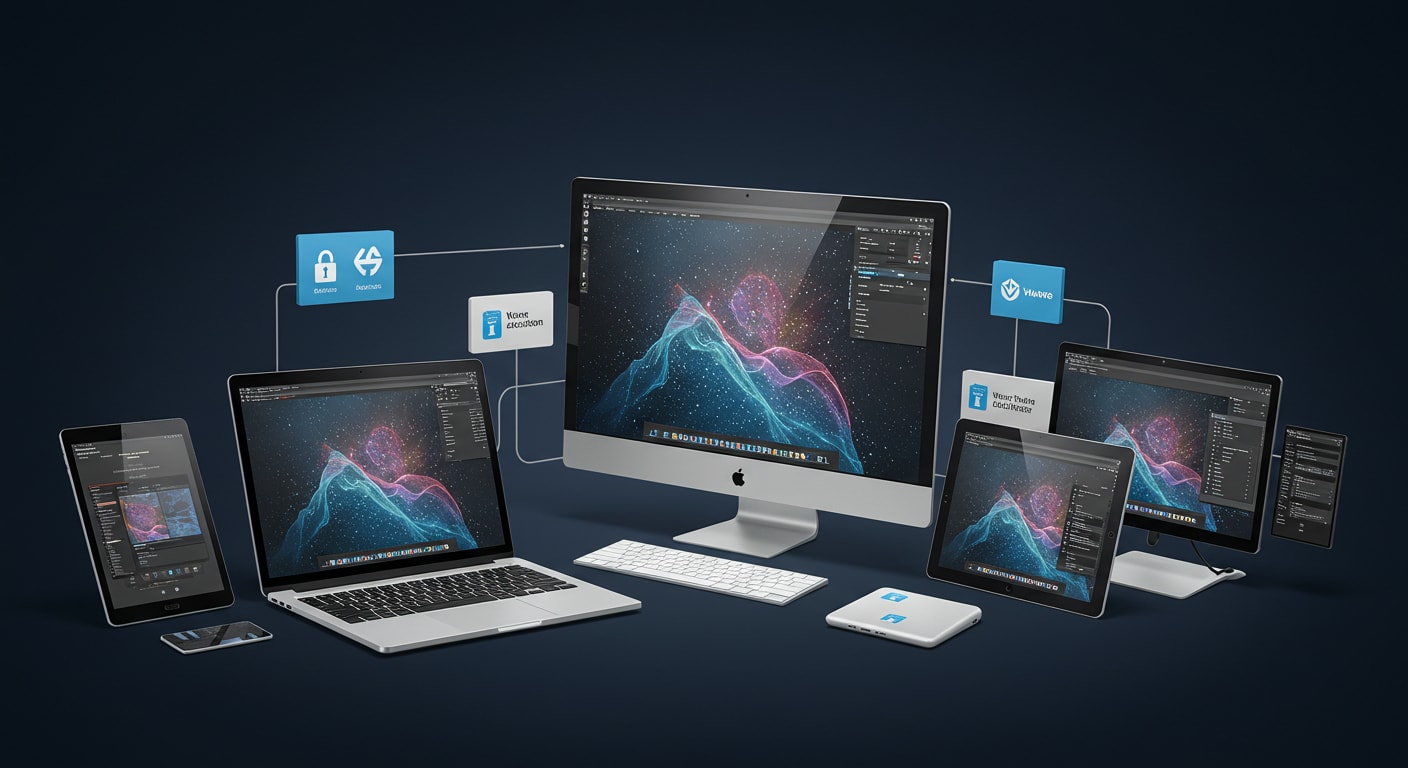
When the Horizon Client installer fails, the message you get may seem vague—but it usually points to a specific issue. Here are some of the most common prompts and what they really mean:

  • “Another version of this product is already installed”
    Go to Control Panel → Programs and Features and uninstall the older version completely before reinstalling.
  • “Unable to proceed — attachments found”
    This often means the installer has found leftover files from a previous install. Delete any residual VMware folders from Program Files or AppData.
  • “You do not have sufficient permission”
    Run the installer as an administrator. If that fails, check Group Policy settings or verify your account has install rights.

  • “Setup cannot continue”
    This can signal a missing or locked install directory. Make sure you have write access to the path and that it isn’t blocked by another application.

To dig deeper, check the installation log. You can generate a detailed one by running the installer via command line using msiexec /i installer.msi /L*v log.txt.


How Do You Uninstall a Previous Version of VMware Horizon Cleanly?

Before attempting a fresh install, it’s critical to fully remove any older version of the VMware Horizon Client. Leftover files or registry entries are a common reason for install failures.

Here’s how to perform a clean uninstall:

  • Open Control Panel → Programs and Features
    Locate VMware Horizon Client and select Uninstall.
  • Delete lingering folders manually:
    Check these directories and delete any Horizon-related files:

    • %ProgramFiles%\VMware
    • %AppData%\VMware
  • Empty the Recycle Bin and restart your machine.
  • (Advanced) If you’re experienced, you may also clean the registry:
    • Press Win + R, type regedit, and search for remaining VMware keys. Proceed only if you know what you’re doing.

A clean uninstall ensures that the installer won’t be blocked by a corrupt file or previously failed configuration. Once done, you’re ready to proceed with a fresh install attempt.


Step-by-Step Guide to Fix a Failed VMware Horizon Client Installation

Student frustrated by virtual desktop errors on laptop then relieved after fixing the issue, illustrating Why Does Citrix Keep Disconnecting problems.

If your Horizon Client install failed, don’t panic. You can usually fix it by following a few structured steps. Here’s how to get things back on track:

  1. Download the latest version
    Head to VMware’s official download page and get the newest supported version of Horizon Client for your operating system.
  2. Temporarily disable antivirus or firewall software
    Some security tools block the setup process or prevent MSI files from running properly.
  3. Run the installer as Administrator
    Right-click the installer file and select “Run as administrator” to ensure it has the required permissions.
  4. Use the command line for a more controlled install
    Open Command Prompt and use this command:
    msiexec /i installer.msi /L*v log.txt
    This logs every step of the process and helps identify where it fails.
  5. Check that your system is supported
    Make sure your Windows version is up to date. Some older builds may not be compatible with the latest Horizon Client release.

Following this checklist can resolve most install problems. If not, your system logs and installation file paths will at least give you clues on what’s blocking the install job.


What to Do If the Horizon Installer Is Still Failing

If you’ve followed all the standard steps and the Horizon Client installer still won’t run, it’s time to dig deeper. Some issues require more advanced troubleshooting.

Here’s what to try next:

  • Perform a clean boot
    Restart Windows with only essential services running. This isolates third-party software that might be blocking the installer.
  • Re-download the installer
    The file may be corrupted. Download a fresh copy directly from VMware’s site, and avoid using copies sent over email or attachments from third-party sources.
  • Use compatibility mode
    On older systems, right-click the installer, select Properties → Compatibility, and run it in Windows 8 mode.
  • Search the VMware Community
    The VMware Community forums are filled with real-world fixes posted by other users facing similar installation failures.
  • Double-check permissions and file access
    Assume nothing—ensure you’re not missing a required directory, command, or system variable.

Sometimes the problem isn’t obvious. But a methodical approach and a close look at logs will usually reveal what’s going wrong.


When Should You Consider Alternatives to VMware Horizon Client?

There comes a point when trying to fix the VMware Horizon Client over and over just isn’t worth the time—especially if you’re dealing with:

  • Ongoing installation failures
  • Blocked MSI installs due to lack of admin rights
  • Unsupported or outdated system configurations

If that sounds familiar, it may be time to consider an alternative.


Why consider Apporto?

Apporto logo representing alternative cloud desktops compared to Why Does Citrix Keep Disconnecting issues in Citrix.

  • 100% browser-based — no downloads or installers
  • Secure by design — built-in Zero Trust architecture
  • Works across all devices with a modern browser
  • Seamless access to virtual desktops and apps

If installation headaches are slowing you down, switching to a cloud-native solution might be the simplest path forward. Try Apporto.


Final Thoughts: Installing VMware Horizon Client Shouldn’t Be This Complicated

A failed VMware Horizon Client installation doesn’t have to become a recurring headache. Most errors—whether it’s a blocked setup, a version conflict, or missing permissions—can be fixed with a methodical approach.

To recap:

  • Fully uninstall old versions before trying again
  • Always download the latest supported installer
  • Run the setup with the right permissions and system readiness

If you’ve tried it all and the install still fails, consider switching paths. Alternatives like Apporto offer a browser-based virtual desktop experience with no software downloads, no install errors, and built-in security. Sometimes, the smarter solution is the simpler one.


Frequently Asked Questions (FAQs)


1. How to fix VMware Horizon Client? 

To fix VMware Horizon Client issues, uninstall older versions, restart your device, and install the latest supported release with administrator permissions. Checking antivirus settings, clearing leftover VMware files, and updating Windows can also resolve connection, installation, or performance problems affecting Horizon Client functionality.

2. does it mean if it says installation failed? 

An “installation failed” message usually means the VMware Horizon Client setup was blocked by permission issues, corrupted installer files, version conflicts, or leftover files from previous installations. Reviewing installation logs and reinstalling the latest version often helps identify and resolve the problem quickly.

3. How do I fix a blocked Horizon installer on Windows?

Run the installer as administrator, check your antivirus settings, and verify you’re using the most recent version of Horizon Client downloaded from VMware’s official site.

4. Can I install VMware Horizon Client without admin access?

Not typically. The MSI package requires admin privileges. If that’s not available, consider browser-based alternatives like Apporto that require no installation.

5. Where can I find Horizon Client install log files?

Log files are usually located in your %TEMP% folder. Run the installer with msiexec /L*v log.txt to generate detailed logs for troubleshooting.

6. Is there a secure, no-install alternative to VMware Horizon?

Yes. Apporto is a cloud-native, browser-based virtual desktop solution that works on any device with no downloads or admin setup required.

DaaS vs SaaS: What’s the Real Difference and Why It Matters

Comparison of teams using SaaS apps for productivity and DaaS environments for creative workflows, illustrating real-world DaaS vs SaaS use cases.
Quick Answer

What’s the Difference Between DaaS and SaaS?

SaaS delivers individual software applications through the cloud, while DaaS provides full virtual desktop environments accessible from any internet-connected device. SaaS is ideal for specific business tools, whereas DaaS supports complete workspaces with greater customization, centralized management, and desktop-level control. Platforms like Apporto simplify secure, browser-based DaaS deployment.

Cloud services have become the foundation of how modern businesses operate. Whether it’s accessing data, running applications, or managing teams remotely, the change to cloud computing has changed how organizations approach technology. Within this shift, two models stand out: Software as a Service (SaaS) and Desktop as a Service (DaaS).

Both offer unique advantages, but they serve very different needs. SaaS delivers specific software tools through the internet, while DaaS provides full desktop environments hosted in the cloud.

This article provides a complete DaaS vs SaaS comparison and explores both models—what they are, how they work, and what sets them apart.


What Is SaaS and How Does It Work?

Businesswoman selecting software icons from a cloud-based SaaS interface, visualizing the user experience in DaaS vs SaaS models.

Software as a Service (SaaS) is one of the most common forms of cloud computing used today. In simple terms, it allows you to access software applications through an internet connection, without installing or maintaining them locally. These apps are hosted and managed by a SaaS provider, who takes care of everything—from updates and backups to performance and security.

SaaS follows a subscription service model. You typically pay monthly or annually to use the software, often on a per-user or per-seat basis. This makes it predictable and easy to scale.

Common SaaS apps include tools like Google Workspace, Microsoft 365, Salesforce, and Dropbox. You can use them from virtually any device—laptops, tablets, even phones—because the application and data are stored in the cloud, not on your machine.

For businesses, SaaS offers quick deployment and low overhead. You get access to modern tools without worrying about underlying servers, storage, or updates. But with that convenience comes limited control over the environment and customization options.


What Is DaaS and How Does It Work?

Cloud desktop interface streamed to laptop, desktop, tablet, and smartphone, showcasing cross-device compatibility in DaaS vs SaaS.

Desktop as a Service (DaaS) takes a different approach to cloud computing. Instead of offering just individual applications, it provides full virtual desktops—complete with an operating system, applications, files, and settings—all streamed from the cloud.

A DaaS provider handles the desktop infrastructure, including servers, storage, and security. You simply connect to a DaaS desktop session using any internet-connected device. Once connected, you’re in a familiar desktop environment, just like you would be on a local machine. Whether it’s Windows, macOS, or Linux, DaaS supports multiple operating systems to fit diverse user needs.

This model is especially useful for remote teams, educational institutions, or companies with flexible workforces. It reduces the need for physical hardware while still delivering the computing power and applications users rely on.

Since the provider manages the heavy lifting, your internal IT team can focus on strategic initiatives instead of maintenance. DaaS gives you centralized control, better security, and the ability to scale desktop access up or down based on demand—all without the complexity of traditional desktop setups.


DaaS vs SaaS: How Are SaaS and DaaS Different?

Though both are cloud-based service models, SaaS and DaaS serve different functions. SaaS delivers access to individual software applications, while DaaS provides an entire virtual desktop environment over the internet.

Here’s how they compare:

Feature SaaS DaaS
Delivers Software Full Desktop
Device Dependency Low Moderate
Data Storage Hosted by provider Hosted by provider or user
Customization Limited More control
Use Cases Business apps Full work environments


SaaS is ideal when you need a specific tool—like email, file storage, or customer management software. It’s fast to deploy and requires very little configuration. DaaS, on the other hand, replicates a full computer in the cloud, making it suitable for teams that need operating systems, access to multiple tools, or centralized desktop management.

The key differences lie in control, flexibility, and the depth of the user experience. Where SaaS simplifies access to one task, DaaS enables a broader, more customizable workspace.


Which One Gives You More Control?

If you need flexibility in how desktops are managed, updated, or secured, DaaS offers more options. IT teams can configure desktop infrastructure, install specific apps, and control how data is stored or backed up.

SaaS, while convenient, often limits customization. You’re confined to what the software provider allows—functionality is dictated by the vendor, not your internal policies.

With DaaS, you gain more control over data security, access rights, and the overall system environment. This makes it a better fit for organizations that want to maintain oversight of how tools and files are used—especially in regulated or compliance-heavy industries.


How Do Cost and Scalability Compare Between DaaS and SaaS?

3D illustration of cloud computing infrastructure with SaaS application icons and data servers, representing DaaS vs SaaS architecture.

Both SaaS and DaaS follow a subscription service model, but how you’re charged can differ significantly.

SaaS pricing is usually per app or per user. It’s simple and cost-effective if you only need one or two tools. But if your team uses multiple apps, those subscriptions can add up quickly.

DaaS pricing often bundles computing resources, licensing, and infrastructure into a single monthly cost. It can be more expensive up front—but also more efficient when supporting teams or remote staff who need full desktop functionality.

In terms of scalability, cloud-based services like DaaS are designed to flex. You can quickly provision or remove desktops as your workforce grows or shifts—making it particularly cost-effective for hybrid or seasonal teams.


What Are the Security Considerations for Each?

Security is a key concern for any cloud-based service, and both SaaS and DaaS approach it differently.

With SaaS, your data lives entirely in the hands of the third-party vendor. While major SaaS providers have strong security protocols, you have limited visibility into how data is managed or stored.

DaaS enables desktop virtualization with multiple layers of control. You can set granular user permissions, enforce access rules, and even implement Zero Trust architecture—a framework where access is constantly verified, not assumed.

Providers like Apporto offer these advanced security measures out of the box, helping organizations reduce risk without increasing complexity. DaaS lets you manage both the data load and user interaction more securely.


How Do DaaS and SaaS Fit into the Broader Cloud Computing Model?

Both SaaS and DaaS are part of the larger cloud computing model, which also includes Infrastructure as a Service (IaaS) and Platform as a Service (PaaS).

SaaS sits at the top of the stack—it’s the easiest to use and requires the least maintenance. Just sign in and go.

DaaS, by contrast, builds on IaaS services. It runs on virtual machines and cloud storage, offering full desktops streamed over the web. You don’t manage the hardware, but you still have control over software and configurations.

Think of SaaS as providing access to one tool, while DaaS gives you the entire workspace. Together, they offer flexible options for different types of users and business needs.


When Should You Use DaaS Instead of SaaS?

Students using cloud-based virtual desktops in a classroom setting, highlighting secure DaaS use in education.

SaaS works well when you only need access to a specific software application. But if your team needs a more complete and customizable environment, DaaS is the better fit.

Here are a few situations where DaaS makes more sense:

  • You need to deliver a consistent desktop experience across different platforms
  • Teams require access to development tools, enterprise apps, or software that doesn’t run in a browser
  • You want to consolidate management and reduce local IT support needs
  • Your business serves multiple developers, analysts, or power users
  • You’re in education, healthcare, or government, and need strict control over desktop infrastructure

In these scenarios, DaaS offers the depth, flexibility, and security that SaaS alone can’t provide.


Why Apporto Is the Right DaaS Provider for Modern Teams

Apporto offers a modern take on Desktop as a Service, designed to eliminate the hassle of managing infrastructure or maintaining software locally. Everything runs through a browser-based interface, making setup fast and access effortless.

What sets Apporto apart:

  • No installations, no VPNs, no updates to manage
  • Seamless performance across any internet-connected device
  • Support for Windows, Mac, and Linux, with full 4K @ 60fps capability
  • Built-in Zero Trust security architecture to protect user data and access
  • Tailored for education and SMBs that need flexibility without complexity

It’s a powerful, scalable desktop solution—without the heavy lifting of traditional virtual desktop infrastructure.


Conclusion: DaaS vs SaaS — Which Cloud Service Is Right for You?

While SaaS delivers quick access to specific tools, DaaS offers a complete, flexible workspace in the cloud. The right choice depends on what your teams need—whether it’s a single app or a full computing environment.

The shift toward cloud-first operations means rethinking not just the tools you use, but how you access and manage them. Matching the right service model to your business application is key.

Want to test drive secure, cloud-delivered desktops? Try Apporto now and experience the DaaS difference. 


Frequently Asked Questions (FAQs)


1. What is the main difference between DaaS and SaaS? 

DaaS provides complete virtual desktop environments streamed from the cloud, while SaaS delivers individual software applications through a web browser. DaaS supports full desktop workflows and operating systems, whereas SaaS focuses on specific tools like email, collaboration, or customer relationship management software.

2. When should a business choose DaaS over SaaS? 

Businesses should choose DaaS when employees need full desktop environments, centralized desktop management, or access to specialized applications that do not run in browsers. DaaS is especially useful for remote teams, education, healthcare, and organizations requiring stronger control over user environments and security.

3. Is DaaS more secure than SaaS? 

DaaS can provide stronger control over desktop environments through centralized management, access policies, and Zero Trust security models. SaaS providers also offer strong security, but organizations typically have less visibility and control over application environments, user sessions, and data management practices.

4. What are the benefits of DaaS? 

DaaS improves remote accessibility, centralized desktop management, scalability, and device flexibility by delivering cloud-hosted desktops through the internet. It also reduces hardware maintenance, simplifies software deployment, and allows organizations to support remote or hybrid work environments more efficiently.

5. Can DaaS replace traditional desktop computers? 

Yes, DaaS can replace many traditional desktop setups by delivering cloud-hosted virtual desktops accessible from laptops, tablets, or thin clients. Users receive a consistent desktop experience without relying heavily on local hardware, making remote access and centralized management easier.

6. Why are companies adopting DaaS solutions? 

Companies adopt DaaS solutions to support remote work, reduce IT infrastructure management, improve scalability, and strengthen security across distributed teams. Browser-based platforms like Apporto also simplify deployment by eliminating software installations, VPN dependencies, and ongoing desktop maintenance requirements.

How to Change the RDP Port in Windows (Step-by-Step Guide)

Digital padlock next to port numbers 338 and 8080, symbolizing the need to change the default RDP port in Windows for improved security.
Quick Answer

How to Change the RDP Port in Windows?

To change the RDP port in Windows, update the PortNumber value in the Registry Editor, create a matching firewall rule, and restart the system. For a simpler alternative to traditional RDP management, platforms like Apporto provide secure browser-based remote desktop access.

Remote Desktop Protocol (RDP) is the backbone of remote access on Windows systems. It lets you connect to another computer and work as if you were sitting in front of it. But here’s the problem: the default RDP port—3389—is widely known and heavily targeted by attackers.

Leaving this port unchanged is like leaving your front door unlocked because the key is too common. In this guide, you’ll learn how to change the RDP port safely, reduce exposure, and add a layer of obscurity that can help secure your remote desktop access.


What Is the Default RDP Port Number and Why Should You Care?

Illustration of RDP port 3389 being closed and redirected to port 443, representing secure configuration to change the RDP port in Windows Firewall.

When you use Remote Desktop to connect to another system, your connection request travels through a specific channel known as a port. For RDP, that channel is port 3389. It’s the default across all Windows devices.

That predictability is exactly what makes it vulnerable. Automated bots and malicious actors often scan networks for open port 3389. Once they find one, they launch brute-force attacks—repeated login attempts to gain unauthorized access.

Changing the port won’t stop a targeted attack, but it does lower your chances of being randomly hit. Think of it as moving the lock from the front door to a side entrance with fewer visitors. It’s not bulletproof security, but it’s practical defense.


When Should You Change the Remote Desktop Port?

You don’t need to change the RDP port every time you set up a Windows machine. But certain conditions make it a smart move.

If you’re managing a terminal server, especially one exposed to the internet, sticking with the default port leaves you wide open. Small to mid-sized businesses (SMBs) and academic IT teams often operate with limited cybersecurity resources, making basic preventive steps like this especially valuable.

Changing the port is also useful when dealing with Windows Server environments that support multiple users or allow external access. It’s not just about hiding—it’s about narrowing your attack surface in a world where every open port is a potential invitation.


How Do You Back Up the Windows Registry Before Making Changes?

Windows system icon locked in a secure vault, symbolizing protection of remote desktop access after changing the RDP port in Windows.

Editing the Windows Registry can feel routine—but a small mistake can lead to serious issues. That’s why backing up the registry before making changes isn’t just a precaution. It’s essential.

To do this safely:

  • Open the Start Menu, type regedit, and press Enter.
  • In the Registry Editor, click File > Export.
  • Choose a location and file name, then select “All” under Export range.
  • Click Save.

This gives you a full backup of your registry, so if anything goes wrong, you can restore your system to its previous state quickly and without stress.


Where in the Registry Can You Find the RDP Port Setting?

The RDP port setting lives in a very specific place inside the Windows Registry. You’ll find it by navigating to:

HKEY_LOCAL_MACHINESYSTEMCurrentControlSetControlTerminal ServerWinStationsRDP-Tcp

Each part of this path matters. The Control branch governs system behavior. Terminal Server manages remote access settings, and WinStations handles session-specific details. Finally, RDP-Tcp is the actual configuration point for RDP connections.

Inside this key, look for a value named PortNumber. That’s the setting controlling which port Windows uses for incoming remote desktop connections. Once you locate it, you’re ready to change it—but only after you’ve completed the backup.


How to Change the RDP Port Using Registry Editor

Once you’ve backed up your registry and found the correct path, you can safely update the RDP port:

  1. In Registry Editor, double-click the PortNumber entry in the RDP-Tcp key.
  2. A small dialog box appears—make sure to select the Decimal option.
  3. Enter your new port number. Choose something higher than 1024 and not already in use. For example, 4455 or 3390 are common alternatives.
  4. Click OK to save the value.

Avoid using ports assigned to other services or applications. Conflicting port numbers can block services or cause connection errors. After saving, close the Registry Editor. The port is now technically changed, but the system won’t recognize it until after a restart.


What Firewall Rules Should You Update for the New Port?

Futuristic diagram showing RDP port configuration on a digital chip, representing advanced methods to change the RDP port in Windows for secure access.

Changing the RDP port in the registry isn’t enough on its own. If Windows Firewall doesn’t know to allow traffic on the new port, your remote desktop connection will fail.

Here’s what to do:

  1. Open Windows Defender Firewall with Advanced Security.
  2. Go to Inbound Rules > New Rule.
  3. Select Port, then click Next.
  4. Choose TCP and enter your new RDP port number under Specific local ports.
  5. Select Allow the connection.
  6. Apply the rule to the appropriate profiles: Domain, Private, and/or Public, depending on your environment.

This ensures your connection request reaches the right destination. Without this step, Windows will continue blocking traffic—even if your registry setting is correct.


How Do You Connect with a Remote Desktop Client After the Change?

Once the new port is set and firewall rules are in place, update your connection format. Use the syntax:

IPaddress:NewPort

For example: 192.168.0.25:4455

This tells the Remote Desktop Connection tool which port to use when initiating the session. You can also save this configuration in the connection settings to avoid entering it manually each time.


What Should You Check Before Restarting the System?

Before rebooting, make sure all changes are complete:

  • Verify that your inbound rule is active.
  • Double-check the PortNumber entry in the registry.
  • Run netstat -a or open Control Panel > Windows Defender Firewall > Advanced Settings to confirm port status.

Then restart the system. This allows the RDP service to pick up the new configuration and route traffic accordingly.


Can You Change the RDP Port Using PowerShell?

Yes, PowerShell is a fast alternative to manually editing the registry—especially useful when managing multiple Windows Server machines.

Here’s a simplified command:

Set-ItemProperty -Path "HKLM:SystemCurrentControlSetControlTerminal ServerWinStationsRDP-Tcp" -Name "PortNumber" -Value 4455

This sets the new port directly. Just be sure to update your firewall rules and restart the server afterward.


What to Do If Your Remote Desktop Connection Fails After the Change

Connection issues are usually easy to resolve. Start with the basics:

  • Confirm you’re entering the correct IP and new port number.
  • Ensure your firewall rule wasn’t skipped or misconfigured.
  • Verify that you made changes with administrator access.
  • Open services.msc and check that the Remote Desktop Services are running.

One small oversight—like forgetting to switch from hexadecimal to decimal in the registry—can block access. Review each step carefully before troubleshooting deeper.


Why Apporto Is a Smarter Alternative to Traditional RDP

Apporto logo representing a cloud-based Windows emulator for Chromebook ideal for education and virtual desktops.

Manual RDP port changes, firewall configurations, and registry edits are manageable—but they’re also a burden. Apporto eliminates all of that.

With Apporto, there’s:

  • No registry editing.
  • No open ports to monitor.
  • No firewall headaches.

It’s a browser-based virtual desktop platform built with Zero Trust security and seamless remote desktop access across any device. Whether you use Windows, Mac, or Linux, Apporto supports full performance—up to 4K @ 60fps, with support for multi-monitor setups and real-time collaboration.

It’s ideal for SMBs and educational institutions that want security, scalability, and simplicity—without the overhead of legacy setups.


Conclusion: Ready to Take Control of Your Remote Access?

Changing the RDP TCP port is a smart first step toward better remote access security. Just remember to back up your registry, update firewall rules, and test everything before going live.

If you’re looking for an easier, more secure alternative, explore Apporto—a cloud-first solution that removes the complexity of traditional remote desktop management.

Skip the registry edits and firewall tweaks. Try Apporto now for secure, hassle-free remote access.


Frequently Asked Questions (FAQs)


1. How do I change port 3389 to another port?

To change port 3389, open Registry Editor, update the PortNumber value under the RDP-Tcp registry path, choose an unused port above 1024, update Windows Firewall rules, and restart the system so Remote Desktop begins listening on the new port.

2. What port should I change RDP to?

You should change RDP to an unused TCP port above 1024 that does not conflict with other services, such as 4455 or 3390. Avoid common ports tied to known services, and always update firewall rules to allow connections through the new port.

3. How to access RDP with a different port?

To access RDP with a different port, enter the remote computer’s IP address followed by a colon and the new port number, such as 192.168.1.10:4455, in your Remote Desktop client. Save the connection settings to simplify future remote access.

4. How to check if the 3389 port is enabled?

You can check if port 3389 is enabled by using netstat -a, reviewing Windows Firewall inbound rules, or testing the port with PowerShell or a port scanner. If the port is listening and allowed through the firewall, RDP should be accessible.

5. How do I change the RDP port in Windows 11?

In Windows 11, change the RDP port by editing the PortNumber value in Registry Editor, selecting a new unused TCP port, updating Windows Defender Firewall rules, and restarting the device. Afterward, connect using your IP address followed by the new port.