

Modern organizations rely on VMware Horizon to deliver centralized access to virtual desktops and published applications across multiple devices. Instead of installing software and managing desktops on every physical machine, you can provide secure remote desktops and application access from a centralized infrastructure that employees can reach from almost anywhere.
However, the success of any deployment depends heavily on proper VMware Horizon configuration. Poor configuration can lead to slow connections, unstable virtual desktop sessions, authentication errors, and even security vulnerabilities.
A typical Horizon environment includes several core components such as the Horizon Connection Server, Horizon Client, Horizon Agent, vCenter Server, and Unified Access Gateway working together to deliver desktop access.
In this blog, you will learn how VMware Horizon configuration works, including architecture planning, installation steps, authentication settings, desktop pools, security controls, and performance optimization.
What Is VMware Horizon and How Does Its Architecture Work?
VMware Horizon might look like just another remote desktop solution. It is not. The platform is built as a full virtual desktop infrastructure system, designed to deliver desktops and applications from centralized servers instead of individual machines scattered across offices and homes.
When configured correctly, users can open a desktop session from a laptop, tablet, or even a web browser, and the experience feels surprisingly close to working on a local computer.
The connection process itself is fairly straightforward. Users connect through the VMware Horizon Client, through HTML Access, or directly from a browser session.
Once the login credentials are verified, the system routes the request through the infrastructure and assigns the appropriate desktop or application. The heavy lifting happens behind the scenes, inside the data center or cloud environment where virtual machines actually run.
A typical Horizon deployment relies on several core components working together.
Core Components of a VMware Horizon Deployment
- Horizon Connection Server
- Horizon Client
- Horizon Agent
- vCenter Server
- Unified Access Gateway (UAG)
Together, these components allow Horizon to deliver centralized desktop management while maintaining secure user access across devices and networks.
What Infrastructure Must Be Prepared Before VMware Horizon Configuration?

Before installing any Horizon component, a few foundational pieces must already exist. Think of it like preparing the ground before building a house. VMware Horizon configuration relies heavily on underlying services such as identity systems, virtualization platforms, and reliable networking. Without these elements in place, the Horizon environment may start, but it rarely runs well for long.
At a minimum, the infrastructure must support user authentication, virtual machine management, and stable network connectivity. Each part plays a specific role in ensuring that users can log in, access their virtual desktops, and maintain consistent performance during daily work.
Required Infrastructure Components
- Active Directory environment
- DNS configuration
- vCenter Server deployment
- Windows Server hosts
- Network infrastructure with sufficient bandwidth and low latency
VMware Horizon must connect directly to vCenter Server in order to manage key components of the environment, including:
- virtual machines
- instant clones
- desktop pools
Performance also depends on the underlying hardware. Adjusting BIOS settings, such as enabling Hyper-threading and Turbo Boost, can improve VMware host performance and help the infrastructure handle larger desktop workloads efficiently.
How Do You Install and Configure the Horizon Connection Server?
At the center of every VMware Horizon setup sits the Horizon Connection Server. It is the component that quietly manages authentication, directs user connections, and assigns desktops or published applications. Without it, the environment simply cannot function.
In many ways, it behaves like a traffic controller. When a Horizon Client attempts to connect, the Connection Server checks login credentials, verifies permissions, then routes the user to the correct virtual desktop. If you need to establish this connection in the client, see how to add server to VMware Horizon.
Because of that role, the Horizon Connection Server configuration must be done carefully. A misconfigured server can cause login errors, unstable sessions, or connection failures. Fortunately, the installation process itself is fairly straightforward when the required infrastructure has already been prepared.
Horizon Connection Server Installation Steps
- Download the Horizon installer from VMware or Omnissa documentation and verify the installation files.
- Run the installation package from the Program Files directory on the Windows Server where the Connection Server will be installed.
- During setup, select Connection Server as the installation type.
- Configure the server address and domain settings, ensuring the server is properly joined to the Active Directory domain.
- Enter product licensing information to activate the Horizon environment.
- Configure secure tunnel settings and the Blast Secure Gateway, which help protect user connections and optimize remote display performance.
- Review the configuration summary and click Finish to complete the installation.
Once installation is complete, administrators manage the environment through the Horizon Administrator Console, also called the Horizon Console. This interface allows you to configure desktop pools, authentication settings, policies, and user access.
For larger environments, high availability becomes important. A recommended practice is to deploy at least two Connection Servers behind a load balancer. This ensures that if one server becomes unavailable, the remaining server can continue brokering user connections without interrupting desktop access.
How Do Desktop Pools and Instant Clones Work in VMware Horizon?
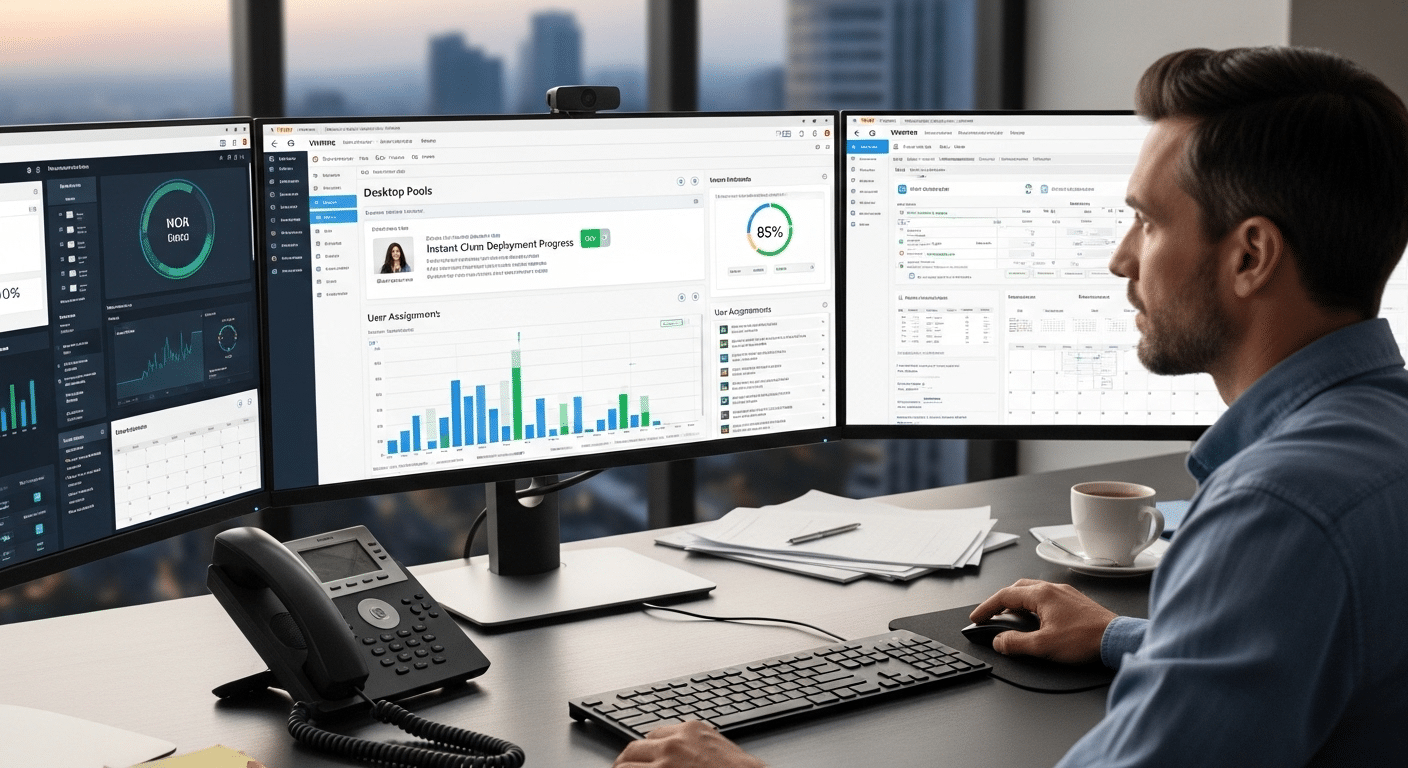
Once the Horizon Connection Server is installed and running, the next step in a typical VMware Horizon configuration involves creating desktop pools. Desktop pools are essentially groups of virtual desktops that administrators manage and assign to users. Instead of configuring every virtual desktop individually, you organize them into pools and apply policies to the entire group. It simplifies management quite a bit.
Desktop pools also help the infrastructure scale. When new users need access, additional desktops can be added to the pool without rebuilding the environment from scratch. This approach improves centralized management, strengthens security controls, and makes the overall end-user experience more consistent.
Different types of desktop pools serve different purposes depending on how desktops are assigned and maintained.
Types of Horizon Desktop Pools
| Pool Type | Description |
|---|---|
| Instant Clone Pools | Rapid deployment of desktops using snapshots of a master image |
| Dedicated Pools | Virtual desktops permanently assigned to individual users |
| Floating Pools | Desktops dynamically assigned to users during login sessions |
Instant clones are particularly useful in large environments because they allow Horizon to create desktops quickly from a master image. When these desktops are created, the system automatically generates computer objects in Active Directory, ensuring that authentication and domain policies work correctly.
Administrators configure desktop pools inside the Horizon Console under the desktop pool settings. From there, you can control user assignments, policies, and resource allocation.
Desktop pools can also deliver published applications and remote desktops, giving organizations flexibility in how they provide access to their computing resources.
How Do You Configure Authentication and Login Security in VMware Horizon?
Access control sits at the heart of any VMware Horizon configuration. Before a user reaches a virtual desktop, the system must verify identity and confirm permissions.
This verification happens through authentication policies configured inside the Horizon Console. When set correctly, these policies protect remote desktops while still allowing users to log in smoothly from approved devices.
Authentication settings determine how users provide their credentials and how the platform validates them. In most environments, Horizon integrates directly with Active Directory, allowing organizations to use existing Windows accounts for login.
Administrators manage these settings through the Authentication tab within the Horizon Console, where different authentication methods can be enabled or combined.
Authentication Methods in VMware Horizon
- Windows authentication using Active Directory users, the most common method, where users log in with their domain credentials.
- RADIUS authentication, which connects Horizon to external authentication servers to support one-time passcodes and other verification methods.
- Smart card authentication, commonly used in regulated environments where physical security tokens verify user identity.
- True SSO authentication, allowing users to authenticate once and gain seamless access to desktops without repeated credential prompts.
Many organizations strengthen login security by enabling Multi-Factor Authentication. With MFA enabled, users must provide an additional verification factor, often a temporary code from a mobile device or authentication application. This extra step helps prevent unauthorized access to remote desktops.
When Windows user name matching and two-factor authentication are both enabled, the username entered in Horizon must match the user’s Active Directory username exactly. Any mismatch can prevent authentication from completing.
Administrators can also fine-tune authentication behavior through configuration settings such as:
- Realm prefix, used to specify domain formatting during login.
- Realm suffix, which helps identify the correct authentication domain.
- Accounting port for RADIUS servers, required when Horizon communicates with external RADIUS authentication systems.
Properly configured authentication ensures that Horizon delivers secure access while maintaining a consistent login experience for users across the environment.
How Does Unified Access Gateway Enable Secure Remote Access?
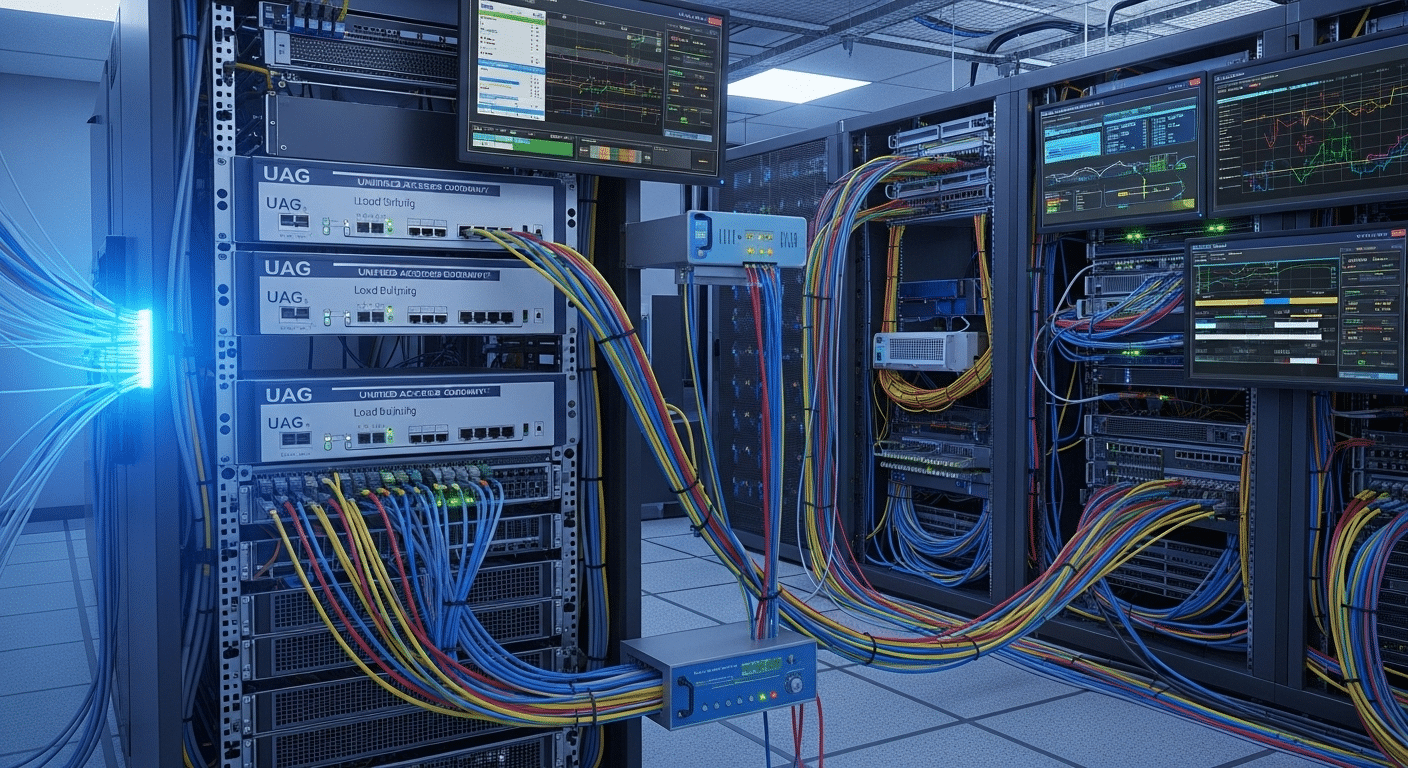
As soon as remote access enters the conversation, security becomes the first concern. A VMware Horizon configuration often includes external users connecting from home networks, mobile devices, or branch offices.
Directly exposing internal Horizon servers to the internet would create unnecessary risk. This is where the Unified Access Gateway, often called UAG, plays a critical role.
The Unified Access Gateway acts as a secure entry point positioned between external users and the internal Horizon infrastructure. When a user attempts to connect, the request first passes through the gateway.
Only verified and authorized connections are then forwarded to the Horizon Connection Server. This layered approach protects internal servers while still allowing users to reach their virtual desktops.
Unified Access Gateway Capabilities
- Secure remote desktop access without VPN, allowing users to connect safely from outside the corporate network.
- HTML Access connections through web browsers, enabling desktop access even when the full Horizon Client is not installed.
- Secure HTTPS tunnels for Horizon sessions, ensuring that remote display traffic is encrypted during transmission.
Administrators can further control external access through the Users and Groups → Remote Access tab in the Horizon Console. This allows specific user groups to connect through the gateway while restricting others.
For larger environments, deploying multiple Unified Access Gateways behind a load balancer improves both scalability and reliability, ensuring remote connections remain stable even during heavy usage.
How Do You Optimize VMware Horizon Performance for Virtual Desktops?
Performance can make or break a virtual desktop environment. Even a well-designed VMware Horizon configuration may feel slow to users if the infrastructure is not tuned correctly. When desktops respond slowly, applications lag, or login times stretch longer than expected, productivity suffers. The good news is that most performance issues can be improved with a few practical adjustments.
Optimization typically begins with the virtual desktop image itself. The operating system image used to create desktops often contains services and background processes that are unnecessary in a VDI environment.
Removing these extras reduces resource usage and improves responsiveness. Hardware configuration also plays a role, since virtual desktops depend on the underlying host resources provided by VMware infrastructure.
Horizon Performance Optimization Techniques
- Optimize the Golden Image using VMware OS Optimization Tool, which removes unnecessary Windows services and scheduled tasks that consume CPU and memory.
- Disable unnecessary Windows services and scheduled tasks, ensuring the desktop image runs only essential components required for applications.
- Enable Hyper-threading and Turbo Boost in BIOS, allowing VMware hosts to handle higher workloads more efficiently.
- Avoid over-provisioning virtual CPUs, because assigning too many virtual processors can actually reduce performance across shared infrastructure.
- Select Blast Extreme protocol, which adapts to varying network conditions and provides improved display performance for remote desktops.
Beyond configuration changes, ongoing monitoring is equally important. Tracking resource usage across vCenter Server and Horizon infrastructure helps identify CPU, memory, or storage bottlenecks before they affect users. Proactive monitoring allows administrators to adjust resources and maintain a consistent desktop experience.
What Security Best Practices Should Be Used in VMware Horizon Configuration?
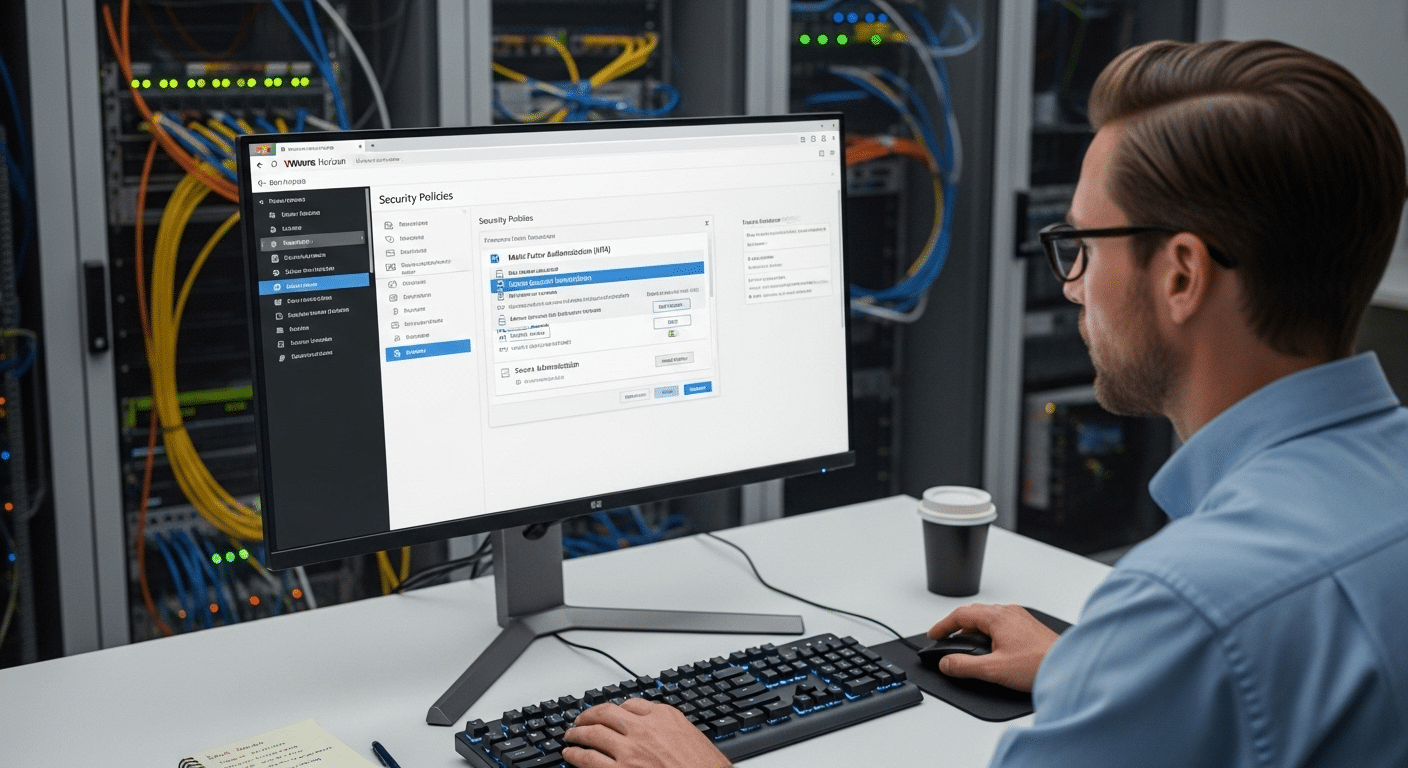
Security sits at the center of any well-designed VMware Horizon configuration. Because Horizon environments deliver remote desktops and applications over networks, they naturally become attractive targets for unauthorized access.
A secure setup protects both the infrastructure and the user sessions running inside it. The goal is simple in theory, though sometimes tricky in practice, ensure that only verified users can access desktops while all communication remains encrypted and monitored.
Authentication policies, connection settings, and user profile management all contribute to a secure deployment. When these areas are configured carefully, organizations can reduce the risk of credential theft, unauthorized access, and session hijacking.
Horizon also provides several built-in tools that strengthen security without making the login process overly complicated for legitimate users.
VMware Horizon Security Best Practices
- Enable Multi-Factor Authentication (MFA) so users must provide an additional verification factor during login.
- Restrict Horizon Client minimum versions, preventing outdated clients with potential vulnerabilities from connecting.
- Enable HTTPS secure tunnels, ensuring that all desktop session traffic remains encrypted during transmission.
- Configure True SSO authentication, allowing secure single sign-on while reducing the need for repeated credential entry.
User profile management also plays a role in both security and performance. Dynamic Environment Manager (DEM) allows administrators to centrally manage user settings and profiles, helping reduce login times while maintaining consistent configurations.
In load balanced deployments, origin checking settings must be configured correctly. If these settings do not match the load balanced hostname used by clients, legitimate connections may be rejected during authentication.
How Do Licensing and Horizon Versions Affect Configuration?
Licensing plays a surprisingly important role in VMware Horizon configuration. Before desktops, applications, or authentication policies are fully operational, the platform must be activated with valid product licensing.
Without proper licensing, many Horizon features remain unavailable or restricted. Administrators typically configure licensing shortly after installing the Horizon Connection Server and accessing the Horizon Console.
VMware Horizon environments support two primary licensing models. The first uses traditional product keys, which are entered directly into the Horizon Console. The second option uses cloud subscription licenses, commonly associated with Horizon Cloud environments and subscription-based deployments. Both models provide access to Horizon capabilities, but they are activated differently depending on the deployment type.
Version changes can also affect licensing behavior. For example, Horizon 2406 and newer versions can activate cloud subscription licenses without requiring an Edge Gateway.
This simplifies deployment and removes an additional infrastructure dependency. In contrast, older environments often required extra configuration steps during activation.
Another important update involves platform branding and license keys. After upgrading to Horizon 2412 or newer, existing VMware Horizon 8 license keys must be replaced with Omnissa Horizon 8 license keys within a limited timeframe to maintain functionality.
Administrators configure and manage product licensing information directly in the Horizon Console under licensing settings, where activation status and license details can be reviewed or updated as needed.
What Are the Most Common VMware Horizon Configuration Issues?
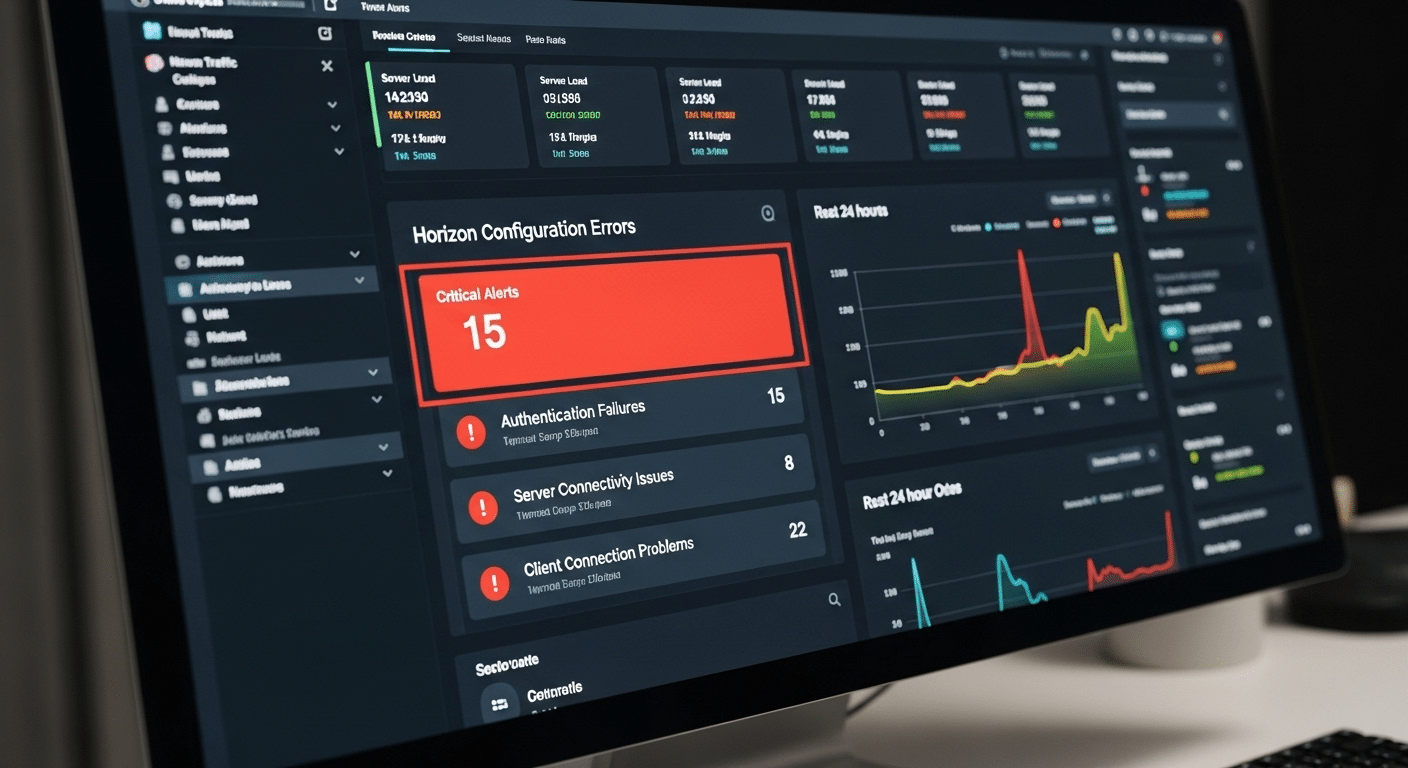
Even a carefully planned VMware Horizon configuration can encounter problems during deployment or daily operation. Virtual desktop environments involve several moving parts, including authentication services, virtualization infrastructure, and network connectivity. If one component is configured incorrectly, the result can be slow connections, login failures, or unstable user sessions.
These issues often appear gradually. Users might first notice longer login times or unexpected disconnects. In other cases, administrators may see error messages in the Horizon Console or event logs indicating authentication failures or server communication problems. For example, the error parsing token VMware Horizon issue can occur when authentication or session handling fails. Identifying the source of the issue requires examining configuration settings across the Horizon platform and its supporting infrastructure.
Common Horizon Configuration Issues
- Incorrect server address configuration, preventing Horizon Clients from reaching the correct Connection Server.
- Load balancer hostname mismatch caused by origin checking, where the name used by the client does not match the actual server name behind the load balancer.
- Authentication configuration errors, such as incorrect settings in the authentication tab or conflicts with external authentication providers.
- Active Directory permission problems, which may prevent users from accessing assigned desktop pools or published applications.
When issues appear, a structured troubleshooting process is essential. Reviewing logs, verifying configuration settings, and checking infrastructure services usually helps restore service quickly and ensures stable desktop access for users.
Why Apporto Is an Alternative to VMware Horizon Deployments?

A fully featured VMware Horizon configuration can deliver powerful virtual desktop infrastructure. Yet that capability often comes with complexity. Deploying Horizon usually requires multiple infrastructure components working together, including Connection Servers, Unified Access Gateway, desktop pools, authentication services, and vCenter Server integration. Each layer must be installed, configured, secured, and monitored. Over time, maintaining these systems can demand significant administrative effort and specialized infrastructure management.
For many organizations, especially those seeking faster deployment and simpler operations, platforms like Apporto offer a different approach. Instead of building and managing a full VDI stack, Apporto delivers remote desktops and applications through a browser-based platform. Users simply open a browser, authenticate, and access their workspace without installing a dedicated client.
This approach reduces the infrastructure burden dramatically. Organizations benefit from browser-based desktop access, simplified deployment compared to traditional VDI, and secure remote access across devices including laptops, tablets, and thin clients. With fewer components to manage, teams can focus more on productivity rather than infrastructure maintenance.
Final Thoughts
A successful VMware Horizon configuration depends on careful planning and consistent management across several technical layers. When each component is configured correctly, the platform can deliver reliable virtual desktops and applications to users across many types of devices.
But stability does not happen by accident. It begins with proper infrastructure preparation, ensuring that services such as Active Directory, networking, and vCenter Server are ready before Horizon components are installed.
From there, administrators must focus on the Connection Server setup, since it brokers every user session and controls access to desktop pools and published applications. Authentication configuration also plays a major role in protecting remote desktops, especially when Multi-Factor Authentication or other advanced login policies are used.
Finally, performance optimization ensures that virtual desktops remain responsive even during heavy usage. After installation, organizations should carefully test and secure the deployment, verify authentication settings, and monitor system performance. These steps help ensure stable access to desktops and applications for users across the entire Horizon environment.
Frequently Asked Questions (FAQs)
1. What is VMware Horizon configuration?
VMware Horizon configuration refers to the process of setting up and managing the components required to deliver virtual desktops and applications. This includes configuring the Horizon Connection Server, desktop pools, authentication settings, and integration with vCenter Server to provide secure desktop access for users.
2. What does the Horizon Connection Server do?
The Horizon Connection Server acts as the central broker in a VMware Horizon environment. It authenticates login credentials, manages user connections, and directs Horizon Clients to the correct virtual desktop or published application based on user permissions and desktop pool assignments.
3. How do desktop pools work in VMware Horizon?
Desktop pools group multiple virtual desktops together so administrators can assign them to users efficiently. Pools allow centralized management of desktop images and resources, while technologies such as instant clones enable fast deployment of large numbers of virtual desktops.
4. Why is Unified Access Gateway important in Horizon?
The Unified Access Gateway (UAG) provides secure external access to Horizon environments. It acts as a gateway between the internet and internal Horizon servers, allowing remote users to connect to virtual desktops without exposing internal infrastructure directly to external networks.
5. How can VMware Horizon performance be optimized?
Performance optimization usually begins with tuning the desktop image and infrastructure. Administrators often optimize the golden image, disable unnecessary Windows services, monitor vCenter resources, and use the Blast Extreme protocol to improve display performance during varying network conditions.
6. What authentication methods does VMware Horizon support?
VMware Horizon supports several authentication methods, including Windows authentication through Active Directory, RADIUS authentication, smart card authentication, and True SSO. Organizations often combine these methods with Multi-Factor Authentication to strengthen login security for remote desktop access.
