
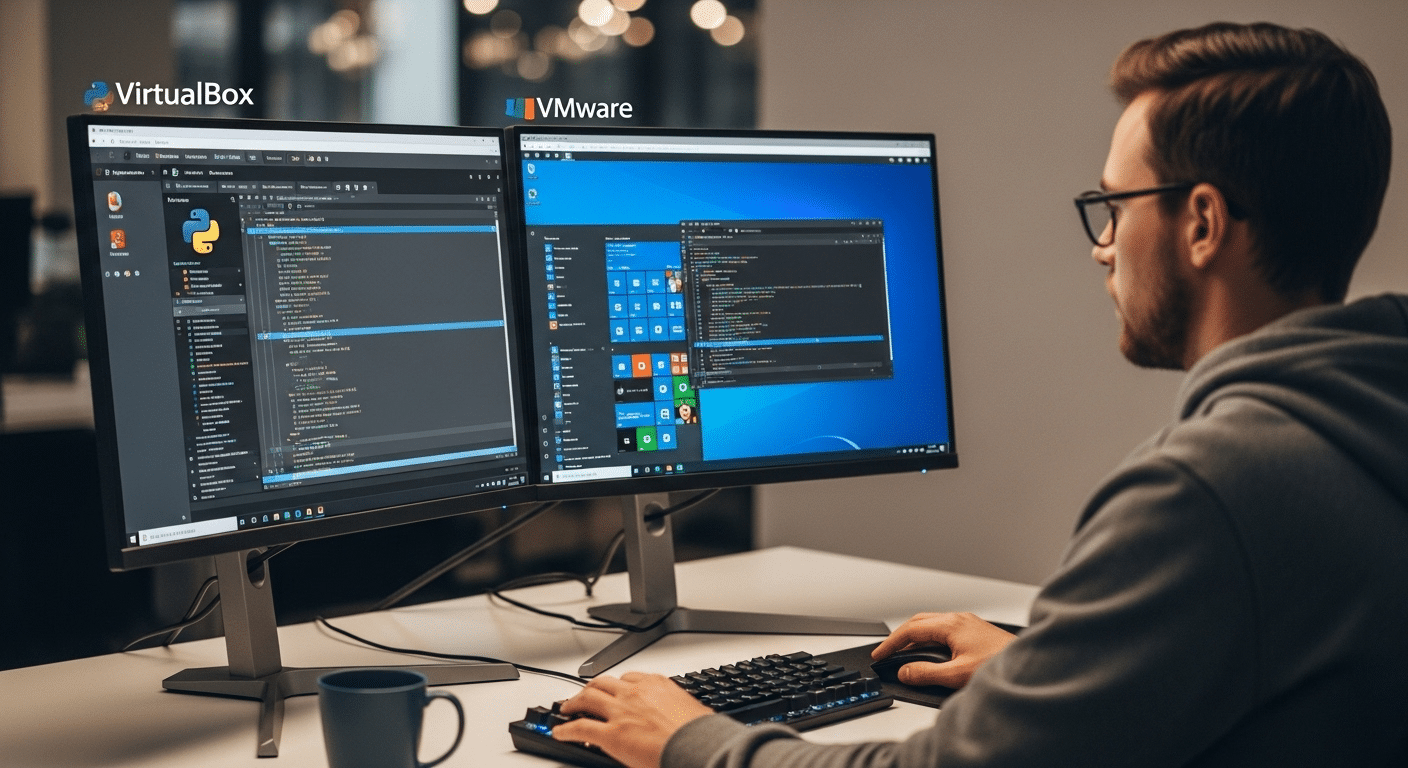
What Is the Difference Between VirtualBox and VMware?
VirtualBox and VMware are virtualization tools that let you run multiple operating systems on one machine. VirtualBox is free and flexible, while VMware offers better performance and enterprise features. For simpler access without local setup, platforms like Apporto provide browser-based virtual environments.
At some point, you need more than one system on the same computer. Maybe for development, maybe for testing, maybe just to try something without breaking your main setup. That’s where a virtualization platform comes in.
Tools like VirtualBox and VMware Workstation let you run multiple operating systems on a single physical machine. Your main system becomes the host OS, while each virtual machine runs its own guest OS, isolated but fully functional.
This matters more than it seems. Developers, testers, enterprises, even small businesses rely on it daily.
In this guide, you’ll explore virtualbox vs vmware across performance, cost, scalability, and real-world use cases, so you can decide what actually fits your setup.
What Is Oracle VirtualBox and How Does It Work Across Different Operating Systems?
Oracle VirtualBox is an open source virtualization platform that lets you run separate systems inside your existing one. It works as a Type 2 hypervisor, which simply means it runs on top of your host OS, not directly on hardware. So your Windows hosts, Linux hosts, macOS, even Solaris setups can all run additional operating systems without needing another computer.
Inside that environment, you create virtual machines. Each one gets its own guest OS, maybe Ubuntu for development, Windows XP for legacy testing, or FreeBSD if you’re experimenting. It’s flexible. Sometimes surprisingly so.
Here’s how it different from others:
- Open Source Nature: VirtualBox is maintained by Oracle and benefits from constant community-driven improvements and feedback.
- Broad OS Compatibility: It supports Windows, Linux, macOS, Solaris, and a wide range of legacy systems for testing environments.
- Flexible VM Management: You can run multiple VMs on a single physical machine with fine control over settings.
- Command Line Interface: Advanced users can automate workflows using scripting and CLI tools.
- Cost Effective: It’s completely free, no licensing layers, no hidden upgrades.
It also handles different disk formats, supports snapshots for rollback, and integrates well with tools like Vagrant and Docker. Not perfect, but adaptable in ways that matter.
What Is VMware Workstation Pro and Player and How Do They Compare as Enterprise Virtualization Tools?
At some point, VirtualBox starts to feel a bit… loose. Flexible, yes. But not always tight where it matters. That’s usually where VMware enters the picture.
VMware Workstation Pro and VMware Workstation Player are part of a more structured ecosystem. Still a Type 2 hypervisor, so it runs on your existing system, but built with a stronger focus on enterprise virtualization and stability under pressure.
There’s also a broader context here. VMware ESXi, often mentioned alongside it, is a Type 1 hypervisor that runs directly on hardware. Different layer, different use case, but it hints at where VMware is positioned overall. For organizations using VMware to deliver virtual desktops, the VMware Horizon client provides the software interface users rely on to connect to those remote desktop environments.
Here’s what defines it:
- High Performance Virtualization: VMware uses hardware-assisted virtualization and optimized CPU handling to deliver consistently better performance in demanding environments.
- Enterprise Virtualization Platform: It’s designed for developers, IT teams, and businesses that need scalability and reliability.
- Advanced Features: Includes networking controls, backup integration, snapshots, and deeper system integration.
- User Experience: The interface feels more polished, with fewer rough edges during setup and operation.
- Licensing Model: Some versions are free, but advanced features are often tied to a paid license, though recent changes have relaxed that in certain cases.
It also supports DirectX 11 and OpenGL 4.3, which improves graphics handling. Faster, smoother, more predictable, especially when workloads get heavier.
What Are the Differences Between VirtualBox and VMware?
Both tools seem to do the same thing. Run virtual machines, isolate environments, let you experiment without breaking your main system. But once you start comparing them closely, the differences become harder to ignore.
VirtualBox vs VMware Comparison
| Feature | VirtualBox | VMware |
|---|---|---|
| Cost | Free, open source | Free + paid license |
| Performance | Good, better memory management | High performance, faster speed |
| OS Support | Wide (Windows, Linux, Solaris) | Wide but optimized |
| Features | Flexible, manual control | Advanced, enterprise-ready |
| Integration | Limited | Seamless integration |
| Scalability | Moderate | High scalability |
| UI | Basic | Polished |
VirtualBox leans toward flexibility. It gives you control, sometimes a bit too much, over how your virtualization software behaves. You can tweak settings, experiment with configurations, and run a wide range of environments without worrying about cost. It feels open, adaptable, occasionally rough around the edges.
VMware, on the other hand, feels more structured. Its features, performance tuning, and system integration are designed for stability and scale. You get fewer surprises. Better consistency. And usually, stronger performance when workloads grow. In simple terms, VirtualBox prioritizes freedom. VMware prioritizes refinement and scalability.
Which Platform Delivers Better Performance, Speed, and Resource Management?

Start a VM on both platforms and the difference shows up in small ways, boot time, responsiveness, how quickly the system reacts when you push it. VMware Workstation Pro tends to load faster and run smoother, especially when the workload gets heavier. It leans more on hardware-assisted virtualization, which means your CPU does more of the heavy lifting.
Oracle VirtualBox, on the other hand, handles memory in a surprisingly efficient way. When you’re running multiple environments on the same machine, that balance starts to matter more than raw speed.
Here’s how it breaks down:
- VMware Speed Advantage: Optimized for high performance workloads, with better CPU utilization and faster execution under pressure.
- VirtualBox Memory Efficiency: Handles multiple VMs more gracefully in multi-platform setups, especially when resources are limited.
- Graphics Capability: VMware supports advanced 3D acceleration, improving rendering and visual responsiveness.
So the tradeoff becomes clear. VMware leans toward speed and consistency. VirtualBox leans toward flexibility and resource balance. It depends on what your setup demands.
How Do Features Like Snapshots, USB Support, and Integration Compare?
Once you move past basic setup, features start to matter more than you expect. Not the flashy ones. The practical ones you rely on every day, rollback, device access, smooth interaction between systems.
Here’s where the differences become clearer:
- Snapshot Management: VirtualBox gives you more freedom with snapshots, making it easier to save states and roll back during testing environments. It feels flexible, almost experimental at times.
- USB Support: Both platforms offer solid USB support, allowing you to connect external devices across host and guest systems without much friction.
- Automation Tools: VirtualBox integrates well with development tools like Vagrant and Docker, which makes it a strong option for automated workflows and repeatable environments.
- Enterprise Integration: VMware stands out when it comes to integration, especially in enterprise setups involving backup systems, networking layers, and larger infrastructure.
- Seamless Experience: VMware delivers a more consistent host-guest interaction, fewer hiccups, smoother transitions, better overall stability.
So again, it splits along familiar lines. VirtualBox gives you flexibility and control. VMware gives you structure and reliability, especially when systems need to work together without friction.
Which One Is Better for Beginners vs Advanced Users?

This usually comes down to how much control you actually want. Or maybe how much complexity you’re willing to tolerate.
For most beginners, Oracle VirtualBox feels easier to start with. The setup is straightforward, the interface is simple enough, and you can get a virtual machine running without digging too deep into configuration. It doesn’t ask much upfront.
VMware takes a different approach. VMware Workstation Pro offers a more polished interface, but underneath that, there’s more structure, more settings, more decisions to make. It can feel a bit heavy at first, especially if you’re not familiar with virtualization concepts.
For advanced users, though, that complexity becomes useful. You get finer control, better integration, and more predictable behavior in larger environments. VirtualBox leans toward simplicity and flexibility. VMware leans toward depth and control.
How Do Pricing, Licensing, and Cost Compare Over Time?
Cost looks simple at first. Then you start digging into licensing, features, and long-term usage, and it gets a bit less obvious.
Here’s how it breaks down:
- VirtualBox Free Model: VirtualBox is completely free for all users, including businesses. No tiers, no feature restrictions, no upgrade path you’re forced into later. It stays predictable over time.
- VMware Licensing: VMware offers both free and paid license options. Basic usage may not cost anything, but advanced features often sit behind licensing layers.
- Recent Licensing Changes: VMware Workstation Pro becoming free in certain cases has changed how some users approach adoption, though not all enterprise features are included.
- Cost for Small Businesses: For small businesses, VirtualBox tends to be more cost effective, especially when scaling across multiple machines or environments.
What Are the Best Use Cases for VirtualBox vs VMware in Real Environments?

Once you move past features and pricing, the real question becomes simpler. Where does each tool actually fit in everyday work?
Here’s are some use cases:
- Development and Testing Environments: VirtualBox works well for developers building flexible testing environments, especially when you need quick setup and frequent changes.
- Enterprise Virtualization: VMware is better suited for production systems where stability, scalability, and structured enterprise virtualization matter more than flexibility.
- Running Multiple Operating Systems: VirtualBox handles diverse systems easily, including older or niche operating systems that still show up in real workflows.
- High Performance Workloads: VMware performs better when workloads get heavy, large applications, complex builds, or anything resource-intensive.
- Students and Learning: VirtualBox is often the first choice for users learning virtualization, mostly because it’s free and easy to experiment with.
- Backup and Integration: VMware integrates more smoothly with enterprise tools, making backup, networking, and system coordination easier at scale.
So the pattern repeats. VirtualBox adapts. VMware stabilizes. The right choice depends on what your environment demands.
What Limitations Should You Expect from VirtualBox and VMware?
No tool is without friction. It just shows up in different places depending on what you’re trying to do.
Here’s are some limitations:
- VirtualBox Limitations: Performance can drop in high-demand environments, especially when multiple virtual machines compete for resources. It also lacks deeper enterprise integration.
- VMware Limitations: Licensing can become complicated, and some advanced features still depend on a paid model, which adds layers over time.
- Hardware Dependency: VMware relies more heavily on hardware-assisted virtualization, so your machine’s capabilities directly affect performance.
- Configuration Complexity: VirtualBox often requires manual tuning to reach optimal performance, which can slow things down for less experienced users.
None of these issues are immediate deal breakers. But over time, they shape how reliable, or frustrating, your setup feels.
Why Traditional Virtualization Software Can Feel Heavy for Modern Workflows?

At first, it feels manageable. Install the software, create a virtual machine, get to work. Simple enough. Then the layers start to build.
There’s installation complexity, small steps that don’t seem important until something breaks. Then resource usage creeps in. Your system is suddenly running multiple environments, each pulling from the same CPU, the same memory, the same storage. It adds up quietly.
Everything depends on your local machine. That’s the part that rarely gets questioned. If your hardware struggles, everything slows with it. No buffer. No fallback.
Scaling makes it more noticeable. Adding new environments isn’t just a click, it’s more setup, more configuration, more time. None of this is dramatic. It just accumulates. And over time, that weight becomes harder to ignore.
Why Browser-Based Virtual Desktops Are Replacing Local Virtual Machines?
You open a browser, sign in, and your desktops are already there. No installer. No configuration screens. Just immediate access to a ready-made environment that doesn’t depend on your local system.
Because everything runs in the cloud, your device stops being the bottleneck. You’re not managing CPU limits or memory allocation anymore. The heavy work happens elsewhere, quietly, out of sight.
It also scales differently. Need another workspace? You don’t build it from scratch. You simply access it. Faster setup, fewer steps, less friction.
It’s not perfect, of course. Network quality still matters. But the overall experience feels lighter, more predictable.
And once that simplicity becomes normal, going back to local virtual machines starts to feel unnecessarily complicated.
Why Apporto Is a Simpler Alternative to VirtualBox and VMware?
At some point, the question changes. It’s no longer just virtualbox vs vmware. It becomes, do you really need to manage all this locally?
Apporto approaches it differently. Everything runs through the browser. No installation, no setup loops, no dependency on your machine’s hardware. You open a tab, log in, and your virtual desktops are ready.
Because it’s fully browser-based, the complexity stays behind the scenes. You don’t deal with version mismatches or system configuration. You simply get access to a clean, controlled environment that works across devices.
Final Thoughts
VirtualBox gives you flexibility. It’s free, adaptable, and easy to experiment with. VMware leans toward performance, structure, and enterprise-level reliability. Both work, just in different ways.
The decision depends on your requirements. Simple testing setups, learning, smaller environments, VirtualBox fits naturally. Larger systems, heavier workloads, VMware starts to make more sense.
But there’s a third direction quietly emerging. One that removes local complexity altogether. And once you experience that, the comparison starts to feel a little different.
Frequently Asked Questions (FAQs)
1. Is VirtualBox better than VMware for beginners?
In most cases, yes. VirtualBox feels easier to start with, simpler setup, fewer barriers, and completely free. You install it, create a VM, and you’re running. VMware is more structured, but that structure can feel heavier early on.
2. Which is faster, VirtualBox or VMware?
VMware is generally faster, especially under heavier workloads. It uses hardware-assisted virtualization more effectively, which improves performance. VirtualBox is slightly slower in execution, but it often manages memory better when running multiple virtual machines.
3. Can VirtualBox run multiple operating systems on one machine?
Yes, that’s exactly what it’s designed for. VirtualBox lets you run multiple operating systems simultaneously on a single machine, each inside its own isolated virtual environment, without affecting your main system.
4. Is VMware free or does it require a paid license?
VMware offers both free and paid versions. Basic use may be free, especially after recent changes, but advanced features and enterprise capabilities are often tied to a paid license, depending on your setup and requirements.
5. Which platform is better for enterprise virtualization?
VMware is typically the better choice for enterprise virtualization. It offers stronger performance, better integration, and more advanced features suited for large-scale environments where stability and scalability matter.
6. Does VirtualBox support Linux, Windows, and Solaris?
Yes, VirtualBox supports a wide range of operating systems, including Linux, Windows, and Solaris, along with older systems like XP or FreeBSD, making it a flexible option for testing and development environments.
