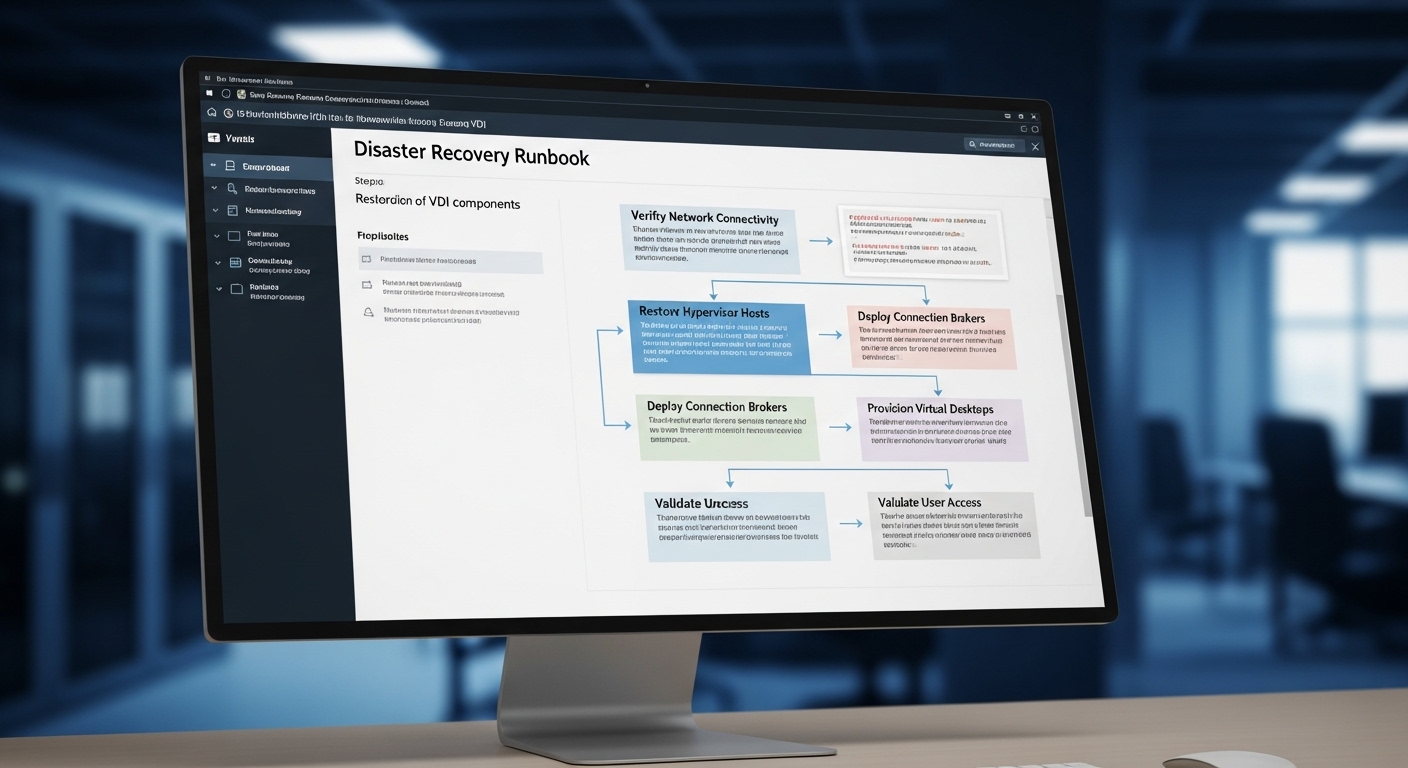
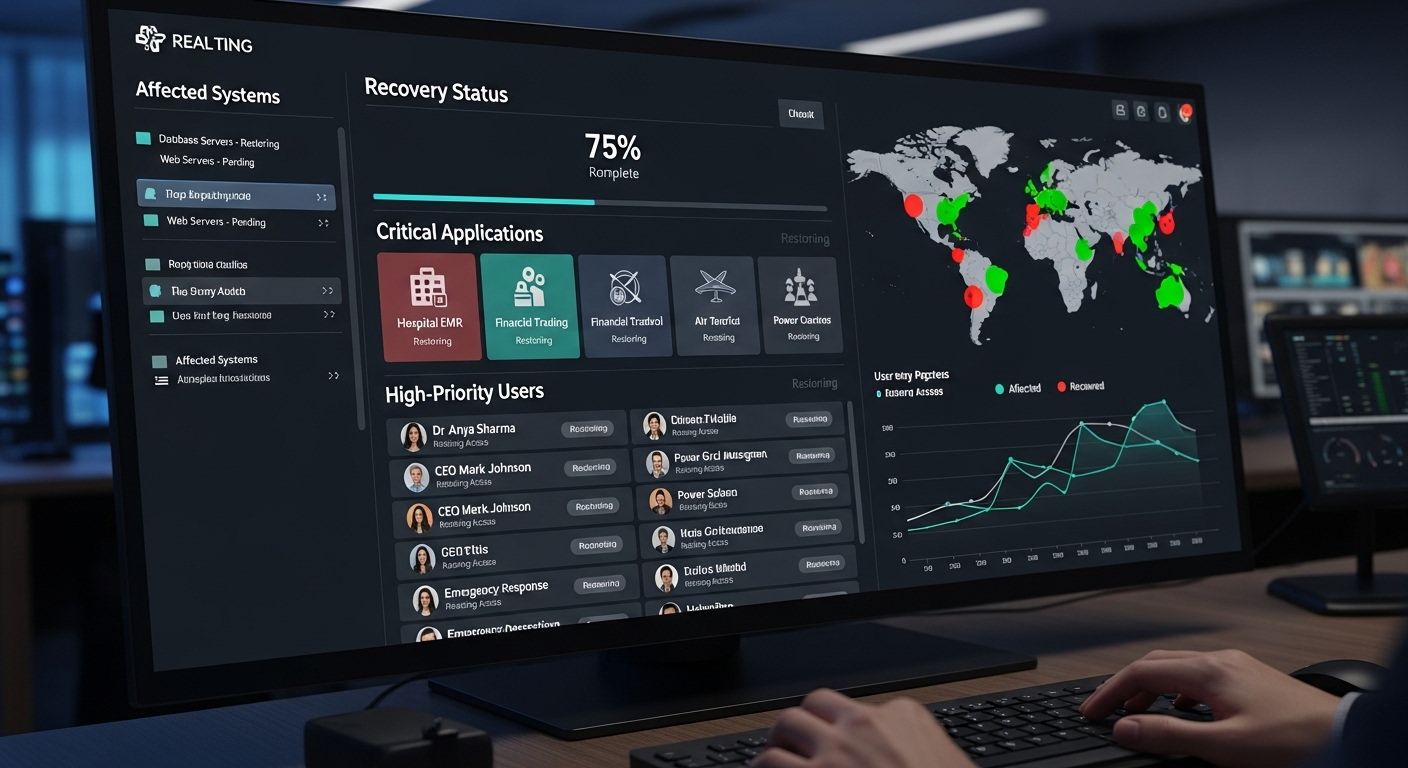
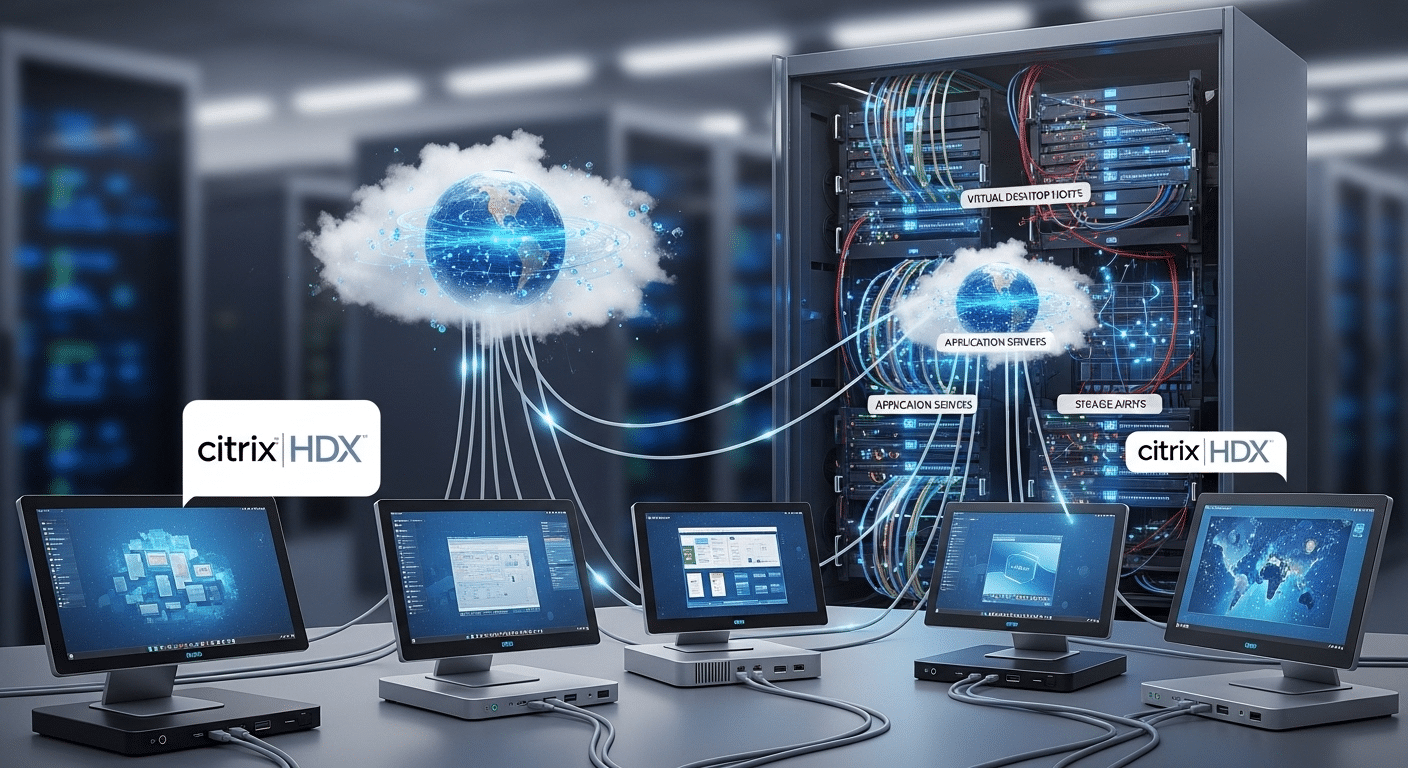
How to Fix Azure Virtual Desktop Slow Performance: Detailed Guide

Quick Answer

How to Fix Azure Virtual Desktop Slow Performance?

Azure Virtual Desktop can feel slow due to factors like underpowered virtual machines, high session host density, network latency, or slow storage performance. Fixing it involves optimizing VM sizing, reducing user load, improving storage speed, and monitoring performance metrics. Simpler platforms like Apporto reduce this complexity.

Speed is the silent expectation behind every virtual desktop. When Azure Virtual Desktop works well, users barely notice the technology running behind the screen. The desktop appears quickly, applications open smoothly, and work continues without interruption. When Azure Virtual Desktop slow performance begins, the difference becomes obvious.

Users may notice slow logons, laggy mouse input, delayed keyboard response, or sessions where applications feel unusually sluggish. These symptoms often point to deeper infrastructure factors rather than a single fault.

Azure Virtual Desktop performance depends on several elements working together, including virtual machine size, network connectivity, storage performance, session host density, and FSLogix profile storage. In this blog, you will learn how to diagnose and fix common Azure Virtual Desktop performance issues


What Determines Azure Virtual Desktop Performance?

Slow desktops feel mysterious. You click, wait, maybe click again. The screen hesitates, then finally reacts. In most Azure Virtual Desktop environments the explanation is less mysterious and more mechanical.

Performance depends on several infrastructure components working together behind the scenes. When one of those components falls out of balance, the entire session begins to feel sluggish.

The platform itself usually runs fine. Microsoft maintains the service layer carefully. Yet AVD performance often declines because of choices made during deployment. Resource allocation, storage design, and network placement all shape how responsive a session becomes.

Several elements play a role, including session hosts, network latency, storage throughput, virtual machine size, and overall connection quality between the user and the Azure region.

Factors Affecting Azure Virtual Desktop Performance

  • Virtual machine size: Underpowered VMs quickly reach CPU limits, causing contention and memory pressure during heavier workloads.
  • Session host density: Too many users sharing the same host can slow every active session.
  • Network bandwidth and latency: Weak connectivity between the client and Azure region increases response delay.
  • Storage performance: Disk bottlenecks affect login time and application launch speed.
  • User profile storage: FSLogix profiles on slow disks often cause long login times.

Finding the root cause usually requires monitoring CPU usage, memory consumption, and network connection quality metrics across session hosts.


Why Is Azure Virtual Desktop Slow? The Most Common Root Causes

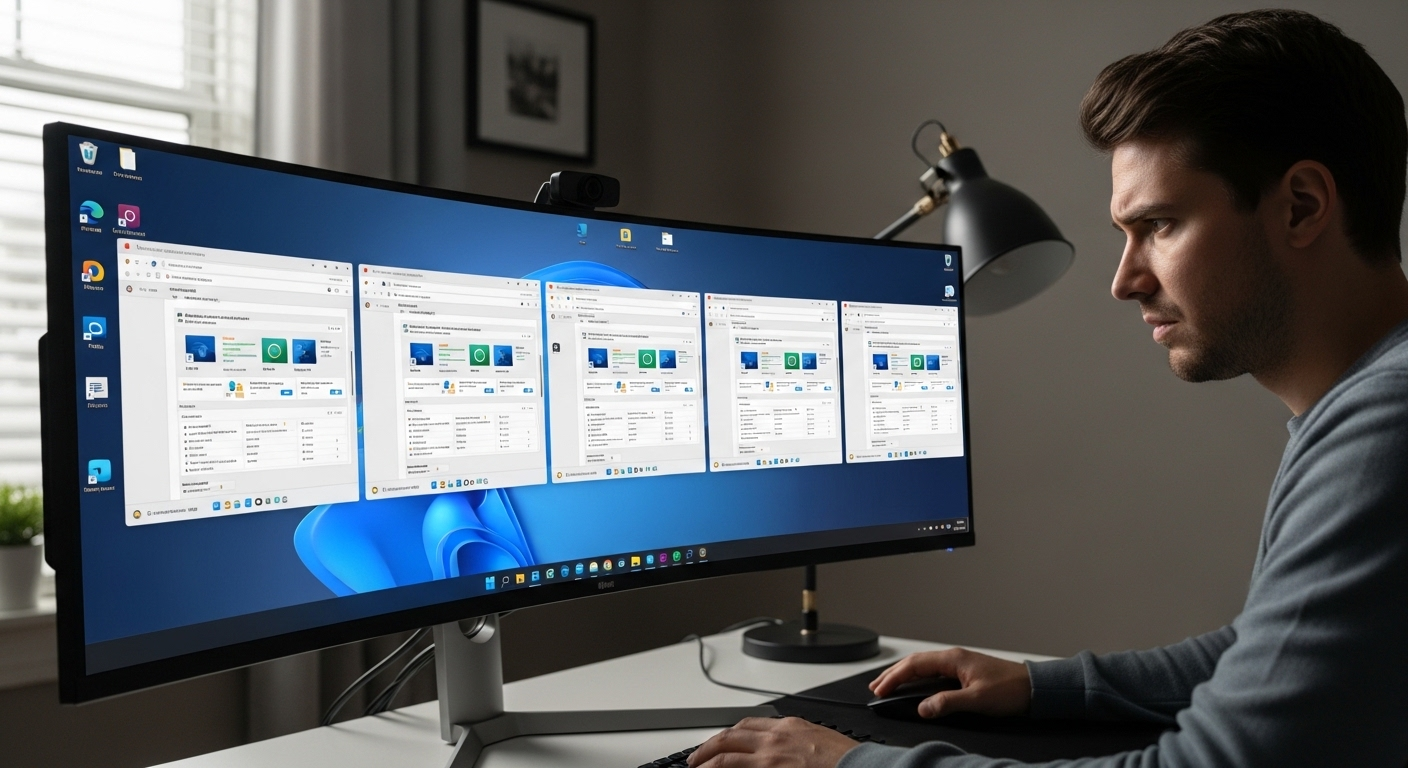
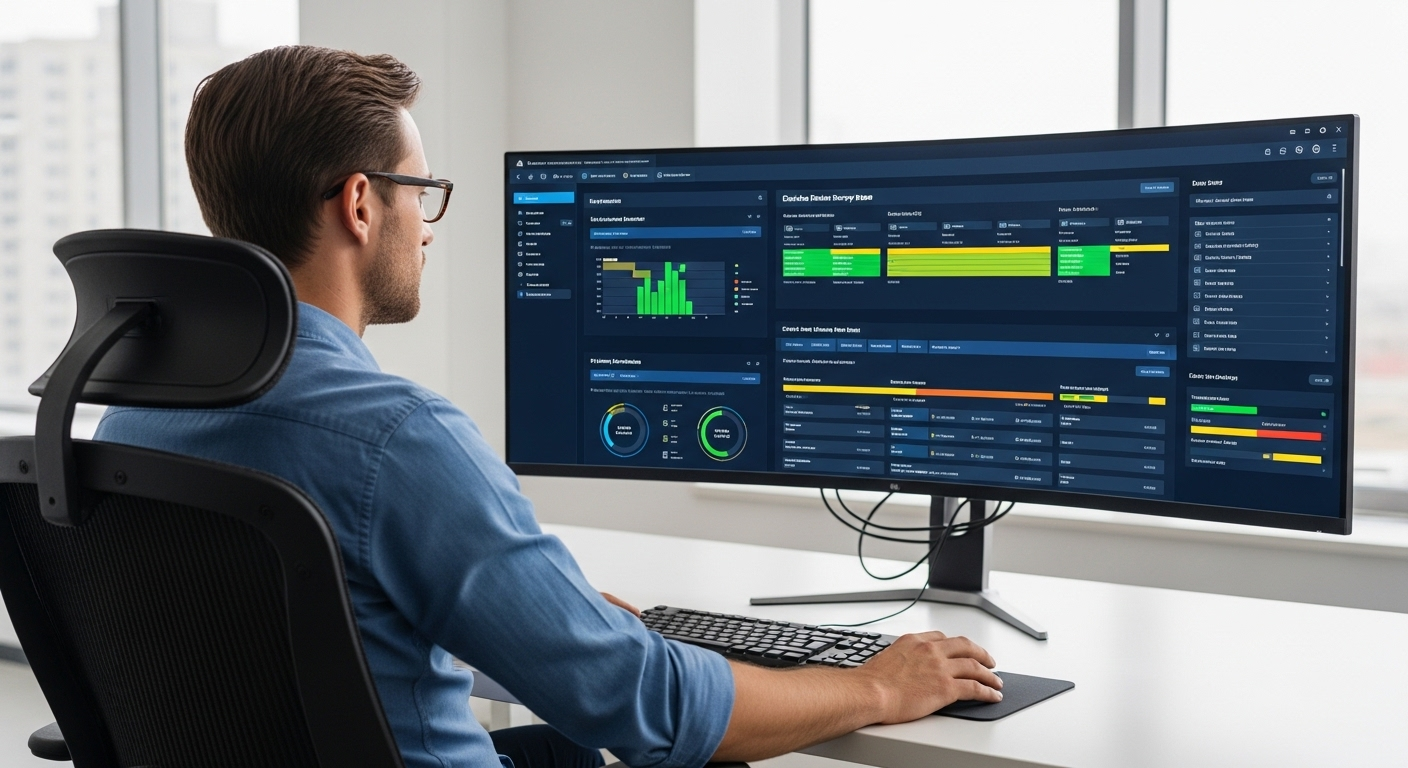
IT engineer analyzing Azure Virtual Desktop slowdown with dashboards displaying CPU usage, storage latency, and network RTT metrics.

Slow performance rarely appears out of nowhere. In most Azure Virtual Desktop environments, the slowdown builds gradually. One session host runs slightly hotter than expected, another carries too many users, storage begins responding slower than usual. Over time those small inefficiencies combine and the desktop starts feeling heavy, almost reluctant to respond.

The platform itself is usually stable. What changes is the surrounding infrastructure. Resource shortages, network conditions, storage limitations, and configuration choices often interact in ways that create noticeable performance issues.

Administrators investigating azure virtual desktop slow performance typically discover that the problem comes from several factors working together rather than a single fault.

Most Common Causes of Azure Virtual Desktop Slow Performance

  • Underpowered virtual machines: Smaller VM sizes cannot handle heavier workloads, causing sessions to compete for CPU and memory.
  • CPU contention on session hosts: When too many users share the same host, CPU utilization increases and performance drops across all sessions.
  • Disk latency or slow storage accounts: Standard HDD storage introduces disk latency, delaying application launches and profile loading.
  • Large FSLogix profiles: Oversized FSLogix profile containers slow profile mounting during login.
  • Network latency from the client’s network: High round trip time delays input response and screen updates.
  • Connection bandwidth limitations: Low network bandwidth affects video rendering and remote desktop responsiveness.

For most environments, RTT below 150 ms provides good responsiveness. Once network latency rises above 200 ms, users begin noticing clear delays in session performance.


How Do Network Latency and Round-Trip Time Affect Azure Virtual Desktop Performance?

Network behavior often determines how responsive an Azure Virtual Desktop session feels. The most important measurement here is round trip time, usually shortened to RTT.

It represents how long data takes to travel from the user’s device to the Azure region hosting the session hosts, then back again. Small delays might seem trivial, yet remote desktops react instantly to them.

When network latency increases, the desktop begins to feel disconnected from your actions. Mouse movement becomes slightly delayed. Typing may appear half a second behind your keystrokes. Video playback and animations can stutter because the system struggles to deliver frames quickly enough.

Distance plays a major role. The farther the client’s network sits from the Azure region, the longer each request must travel across the internet.

That is why organizations often deploy host pools in regions geographically closer to their users. Shorter network paths generally produce better connection quality.

Recommended Network Latency Thresholds for Azure Virtual Desktop 

Metric Recommended Value Impact
Round Trip Time (RTT) <150 ms Smooth user experience
RTT above 200 ms Degraded performance Noticeable lag
Low bandwidth <5 Mbps Slow screen refresh
High packet loss >2% Session instability


Another improvement involves enabling RDP Shortpath, a UDP-based transport method that allows more direct communication between the client and session host, often reducing latency and improving responsiveness.


How Do FSLogix Profiles Affect Azure Virtual Desktop Login Performance?

IT admin analyzing slow Azure Virtual Desktop login caused by large FSLogix profile containers and storage latency.

Login performance in Azure Virtual Desktop often depends on something users never see, the FSLogix profile container. Instead of storing user profiles locally on each session host, Azure Virtual Desktop mounts a virtual hard disk that contains the user’s entire profile. These FSLogix container hard disks, usually stored as VHDX files, attach to the user session during login.

When everything is configured properly, the process is quick. The container mounts, the Windows profile loads, and the desktop appears. But if the storage layer responds slowly, delays begin to appear. Users might stare at a black screen for several seconds.

Sometimes the desktop loads but applications take longer than expected to open. These symptoms often point to disk latency or slow profile storage.

Common FSLogix Performance Issues

  • Large FSLogix profile containers: Oversized profiles take longer to mount during login.
  • Profiles stored on standard HDD storage: Slower disks increase storage latency and extend login time.
  • Antivirus scanning of VHDX files: Real-time scanning can slow profile attachment and impact login speed.
  • Profile containers failing to attach: Mount failures may cause repeated login delays.

High performance storage improves this significantly. Many administrators place profile containers on Premium SSD storage accounts or Azure NetApp Files, which deliver higher throughput and lower latency.

Regular profile cleanup and size limits also help prevent bloated containers that contribute to slow logons.


How Session Host Resources Impact Azure Virtual Desktop Performance?

Every Azure Virtual Desktop environment depends on session hosts. These machines run the actual Windows desktop workloads that users interact with. When someone opens an application, loads a file, or launches a browser, the processing happens on the session host VM, not on the local device. Because of this, the resources available on each host directly shape the overall experience.

When the host has enough capacity, sessions run smoothly. Applications respond quickly, windows open without delay, and multiple users can work at the same time without noticing resource limits. Problems appear when the host becomes overloaded or poorly sized for the expected workload.

Session Host Resource Problems are:

  • CPU usage spikes caused by heavy applications
  • Memory pressure from concurrent users
  • Resource creep from background processes
  • Overloaded session hosts

Administrators should regularly monitor several metrics across session host VMs:

  • CPU utilization
  • memory usage
  • disk performance
  • number of users per host

Some deployments rely on burstable B-series VMs to reduce costs. These machines accumulate CPU credits and throttle performance when those credits run out, which makes them unsuitable for consistently heavy workloads.


How to Monitor Azure Virtual Desktop Performance Using AVD Insights and Azure Monitor?

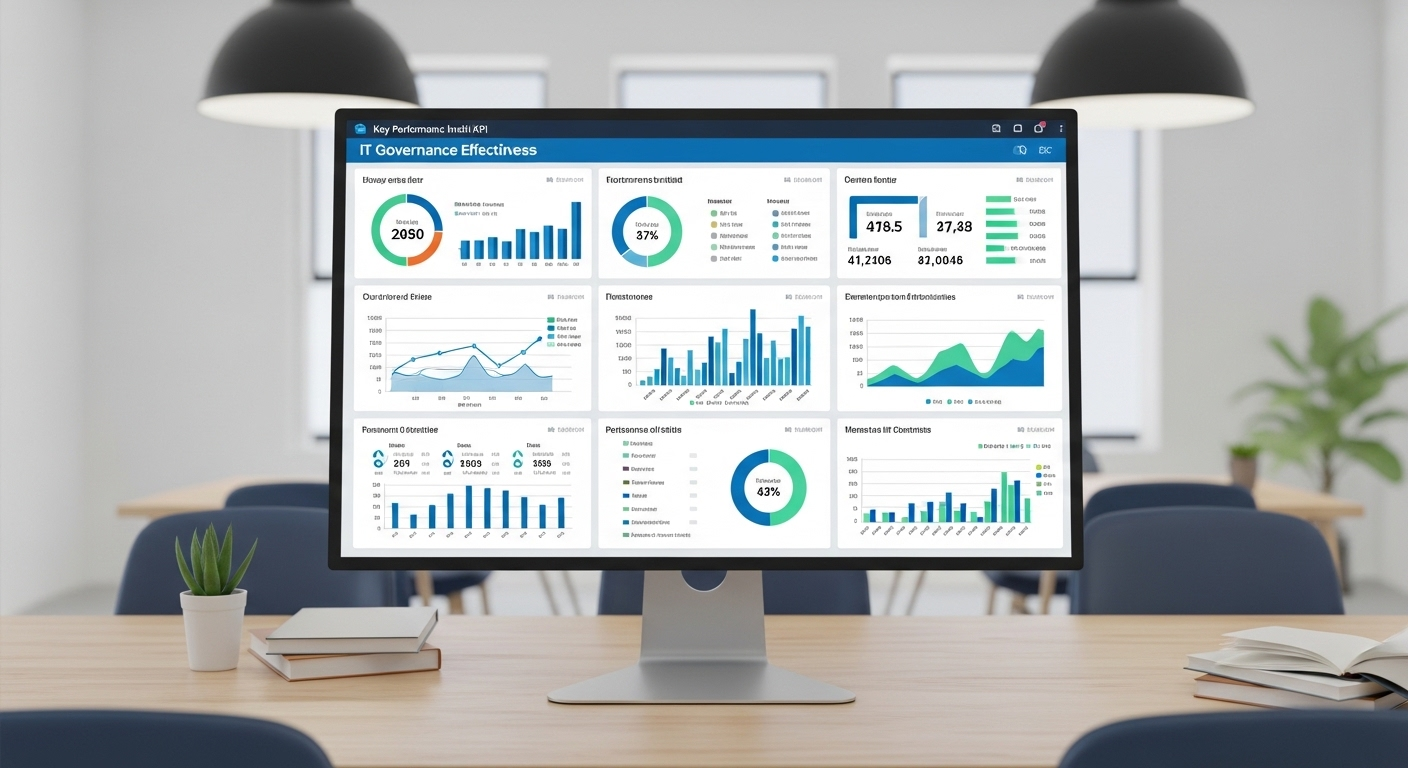
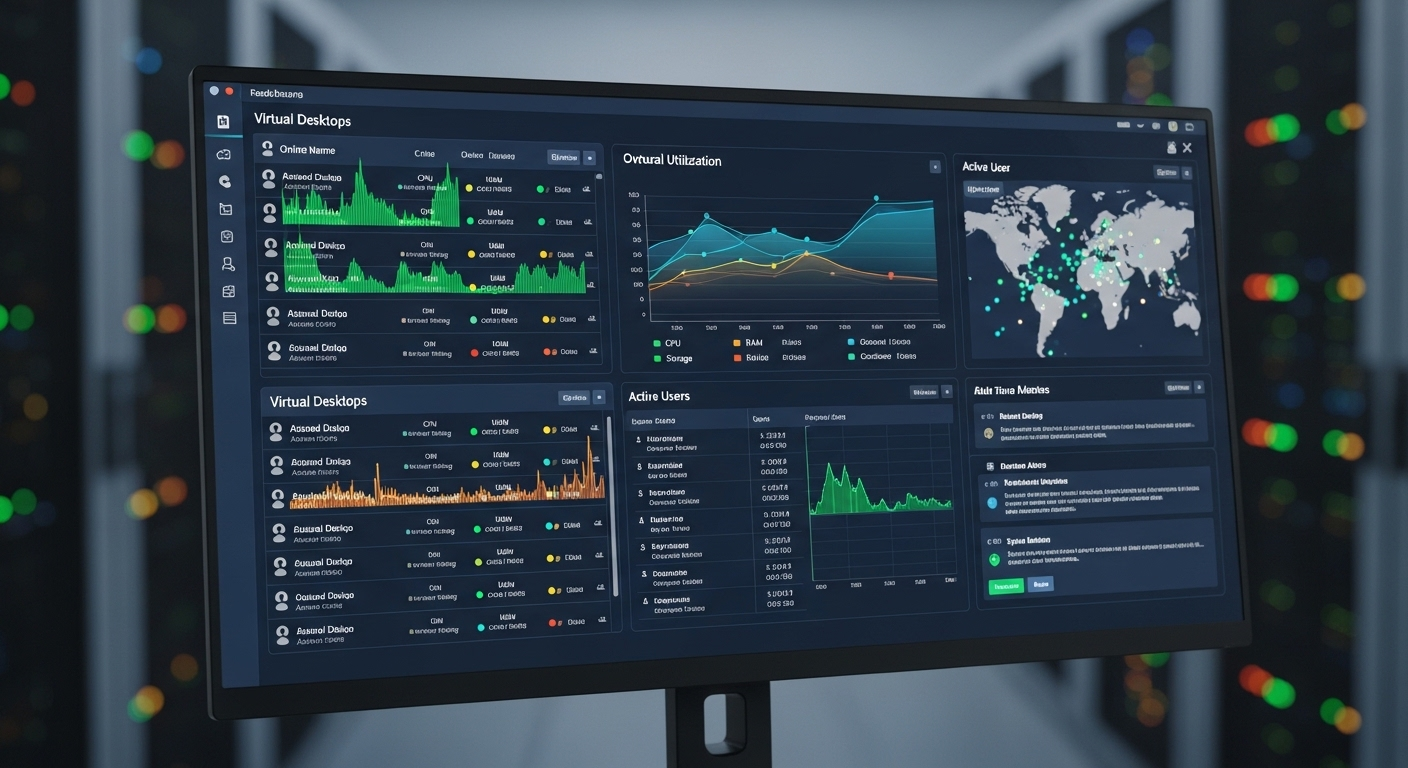
Azure Virtual Desktop Insights dashboard tracking user connections, session performance, and troubleshooting metrics.

Performance troubleshooting rarely works without data. When Azure Virtual Desktop slow performance appears, the most reliable way to understand what is happening is by monitoring the environment with the tools built into the platform.

Two of the most useful tools are Azure Virtual Desktop Insights and Azure Monitor. Together they provide visibility into how sessions behave, how resources are consumed, and where bottlenecks might be forming.

AVD Insights collects operational data from session hosts, the control plane, and user connections. That information flows into Azure Log Analytics, where administrators can review performance metrics, track trends, and investigate connection quality problems across the environment. Instead of guessing, you can see exactly what is happening during each user session.

Metrics to Monitor:

  • Round Trip Time (RTT): Measures how long it takes for data to travel between the client and the Azure region hosting the session.
  • Input Delay: Indicates how long it takes for keyboard or mouse actions to register in the remote session.
  • CPU and memory utilization: Shows whether session hosts are running out of compute resources.
  • Disk latency and throughput: Identifies storage bottlenecks affecting application launch or login speed.
  • Connection success rate: Tracks whether users are successfully connecting to desktops.

Within Log Analytics, administrators often analyze tables such as ConnectionGraphicsData and ConnectionNetworkDataLogs. These datasets reveal network behavior and graphical performance inside sessions.

If logs stop updating every two minutes, configuration should be reviewed. Monitoring Azure AD performance is also important because authentication delays can increase user logon time.


Best Practices to Improve Azure Virtual Desktop Performance

Once the main performance bottlenecks are understood, improving Azure Virtual Desktop performance becomes a matter of tuning the environment carefully. Small infrastructure adjustments can often produce noticeable improvements. Many administrators discover that responsiveness improves quickly once storage, networking, and session host capacity are aligned with the expected workload.

A healthy AVD deployment usually combines efficient virtual machine sizing, fast profile storage, and stable network connectivity. Without those elements working together, even a well-configured environment can develop performance issues over time.

Best Practices For Performance Optimization

  • Deploy session hosts in the Azure region closest to users: Shorter network paths reduce latency and improve connection responsiveness.
  • Use Premium SSD or Azure NetApp Files for FSLogix storage: Faster storage significantly reduces login delays and application launch time.
  • Enable Accelerated Networking on supported VM sizes: This reduces CPU overhead and improves packet processing efficiency.
  • Enable RDP Shortpath using UDP transport: Direct UDP communication often improves responsiveness and screen update speed.
  • Monitor CPU utilization and adjust VM sizes: Choosing the correct VM size ensures enough compute capacity for active workloads.
  • Limit the number of users per session host: Lower density helps maintain stable performance across sessions.

Administrators often configure auto scaling for host pools, ensuring enough session hosts run during peak hours while shutting down unused VMs when demand drops. Regularly rebooting session hosts can also help clear memory leaks and maintain stable performance.


How Image Optimization Improves Azure Virtual Desktop Performance?

IT administrator optimizing a Windows golden image for Azure Virtual Desktop using the Azure Virtual Desktop Optimization Tool.

Performance problems do not always originate from hardware or networking. Sometimes the issue sits quietly inside the Windows image used to deploy session hosts.

A poorly prepared base image can introduce unnecessary background services, startup tasks, and visual features that consume CPU and memory before users even begin working.

Every additional service running on a session host adds overhead. A few small processes might seem harmless at first, but multiplied across many users and sessions, the impact becomes noticeable. Over time the system spends more resources supporting the operating system itself instead of the user workload.

Optimizing the base image helps remove this hidden overhead and keeps the Azure Virtual Desktop platform running efficiently.

Image Optimization Techniques to Improve Performance are:

  • Use the Azure Virtual Desktop Optimization Tool (VDOT)
  • Disable unnecessary Windows services and visual effects
  • Exclude FSLogix containers from antivirus scanning
  • Maintain a clean and updated golden image

Regular updates to the golden image also help prevent image drift, where small configuration differences accumulate across session hosts and introduce unexpected performance issues.


Why Apporto is a Simpler Alternative to Complex Azure Virtual Desktop Deployments?

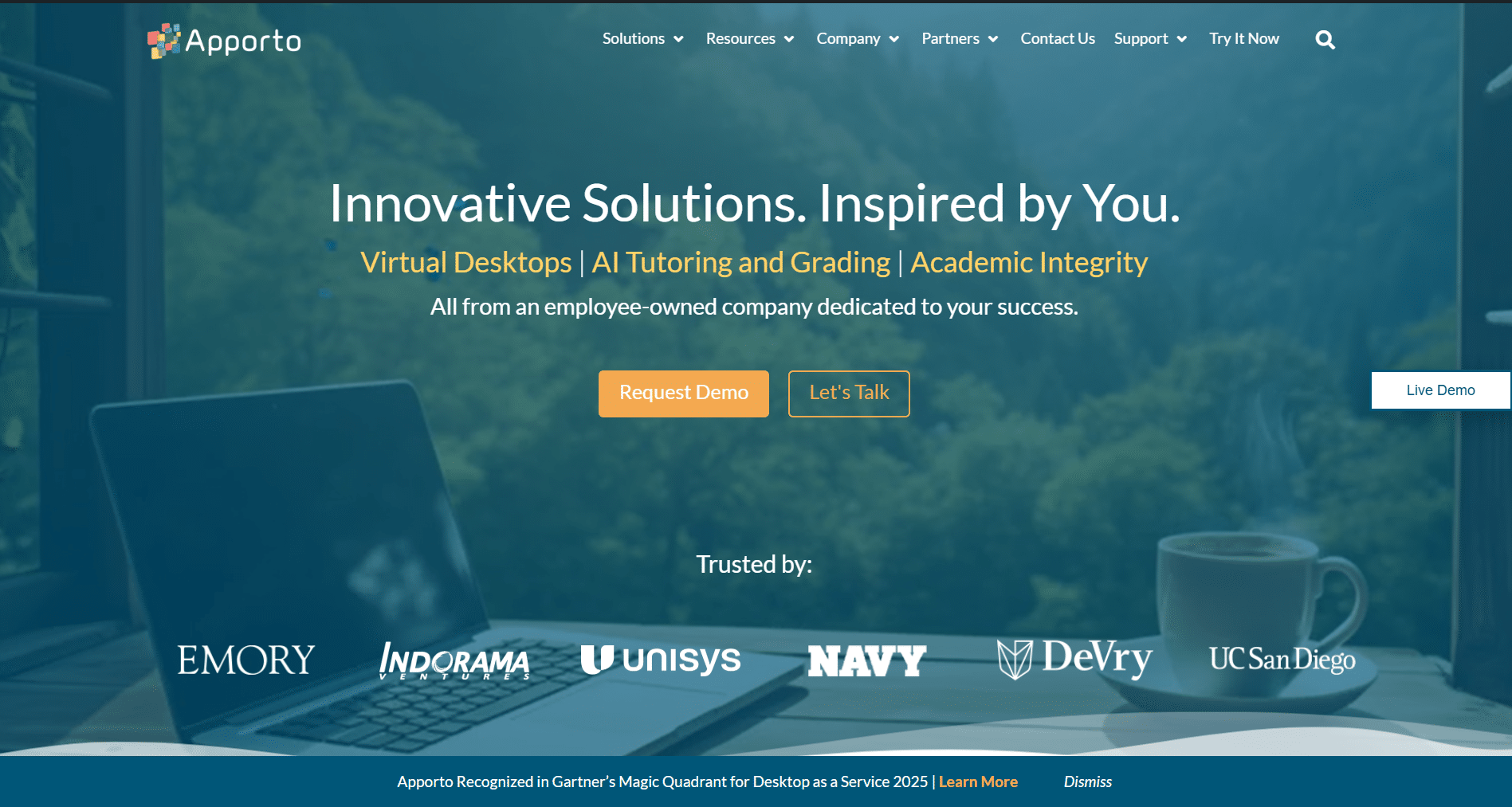
Apporto website homepage highlighting virtual desktops, AI tutoring, and academic integrity solutions with trusted customer logos.

Optimizing Azure Virtual Desktop performance often requires continuous infrastructure tuning. Administrators regularly review VM sizing, adjust host density, analyze storage throughput, and monitor network latency.

Over time the environment becomes a system that demands careful oversight. Small configuration changes can affect session responsiveness, login speed, or overall workload stability.

Maintaining this balance is possible, but it requires effort. Many organizations eventually manage several layers at once, including network tuning, storage optimization, performance monitoring, and scaling session hosts. The infrastructure works, yet the operational complexity grows.

Because of this, some teams begin exploring platforms designed to simplify cloud desktop delivery. Instead of managing virtual machines, storage systems, and host pools, the goal becomes delivering reliable desktops with less infrastructure management.

Apporto provides a cloud desktop platform built around that idea. The service delivers desktops directly through the browser, removing the need for traditional remote desktop clients and much of the underlying configuration work.


Final Thoughts

Resolving azure virtual desktop slow performance rarely comes down to a single adjustment. In most environments, responsiveness improves when several infrastructure elements are tuned together. The performance of Azure Virtual Desktop depends heavily on VM resources, network latency, storage performance, and session host density. When one of these areas becomes constrained, every user session can feel slower.

Administrators should treat performance monitoring as an ongoing task rather than a one-time fix. Regularly reviewing metrics such as CPU utilization, memory usage, disk latency, and connection quality helps reveal emerging issues early. By adjusting virtual machine sizing, optimizing storage, and maintaining balanced host pools, organizations can preserve a stable and responsive virtual desktop experience.


Frequently Asked Questions (FAQs)


1. Why is Azure Virtual Desktop running slow? 

Azure Virtual Desktop runs slowly when resources become constrained. Common causes include underpowered virtual machines, high session host density, network latency, and slow storage performance. These factors combine to create lag, delayed input response, and reduced application performance across user sessions.

2. What causes slow logins in Azure Virtual Desktop? 

Slow logins in Azure Virtual Desktop are often caused by large FSLogix profile containers, slow storage accounts, or disk latency during profile mounting. Overloaded session hosts and authentication delays can also increase login time, resulting in longer wait periods before the desktop fully loads.

3. How do you check Azure Virtual Desktop performance? 

You can check Azure Virtual Desktop performance using Azure Virtual Desktop Insights and Azure Monitor. These tools track key metrics such as round trip time, CPU and memory usage, disk latency, and connection success rates, helping identify bottlenecks and troubleshoot performance issues effectively.

4. What network latency is acceptable for Azure Virtual Desktop?

For smooth sessions, the round trip time (RTT) between the client network and the Azure region should stay below 150 milliseconds. Latency above 200 milliseconds often results in noticeable input delays, laggy mouse movements, and reduced connection quality.

5. Does FSLogix affect Azure Virtual Desktop performance?

Yes. FSLogix profiles can significantly affect performance if profile containers become large or are stored on slow storage accounts. Using Premium SSD or Azure NetApp Files for profile storage helps reduce disk latency and improve login speed.

6. How can you improve Azure Virtual Desktop performance? 

Improve Azure Virtual Desktop performance by optimizing virtual machine sizing, reducing users per session host, upgrading to faster storage, and minimizing network latency. Monitoring metrics regularly and optimizing system images also help. Some organizations use simplified platforms like Apporto to reduce infrastructure complexity.

VDI for Healthcare: What You Need to Know

Quick Answer

What Is VDI for Healthcare?

VDI for healthcare delivers secure virtual desktops that allow healthcare professionals to access patient records, applications, and clinical systems from any approved device or location. It improves data security, HIPAA compliance, remote access, and centralized management while reducing hardware dependence. Browser-based platforms like Apporto simplify deployment and ongoing management.

Things feel different in healthcare IT. More devices, more logins, more places where patient data moves. And with that comes pressure, constant, quiet pressure to keep everything secure, compliant, and actually usable.

This is where VDI for healthcare starts to make sense. It lets you access full desktop environments remotely while keeping sensitive patient data centralized and controlled. That matters when cybersecurity threats are rising and regulations like HIPAA leave little margin for error.

You get secure remote access, stronger data security, and simpler system management without constant hardware strain. In this blog, you’ll explore how VDI works in healthcare and what makes it worth considering.


What Is VDI for Healthcare and How It Works?

At a basic level, virtual desktop infrastructure (VDI) is exactly what it sounds like. Your desktop, not tied to a physical machine, but delivered to you from somewhere else. Usually a centralized data center. You log in, and there it is. Your apps, your files, your settings. All intact.

Instead of relying on physical desktops scattered across departments, everything runs inside a virtualized environment. That difference matters more than it first appears. With traditional setups, data lives on individual machines. With VDI, centralized data storage keeps everything in one controlled place, which makes managing access and protecting sensitive data far more manageable.

Access itself is fairly straightforward. Healthcare professionals connect through secure portals or clients, often from different devices, and gain remote access to full desktop environments. A nurse on a tablet, a physician on a workstation, an admin on a laptop, all seeing the same system.

Behind the scenes, encrypted connections keep that data protected as it moves back and forth. And because VDI works across multiple systems and operating systems, you’re not locked into one type of device. It simply works, or at least, that’s the idea when it’s done right.


Why Do Healthcare Organizations Need VDI Today?

Clinician reviewing real-time lab results and medical imaging on a cloud-based virtual desktop.

You can feel the strain in most healthcare IT environments. Systems don’t always talk to each other. Data sits in different places. And every new device or application adds another layer to manage. It builds up over time.

Security only complicates things further. Sensitive patient data moves across networks, devices, and users, and the risks are no longer theoretical. Data breaches happen. Regulations tighten. Expectations don’t ease up. At the same time, remote work has become part of daily operations, not an exception.

This is where VDI starts to earn its place. It gives you secure access to patient records and electronic health records (EHRs) from a centralized system, even when teams are spread across multiple locations. The urgency became obvious during COVID-19, when healthcare organizations had to support remote care almost overnight. Many never went back.

With VDI, clinicians can pull up real-time labs, imaging, and patient information without delays or system conflicts. That immediacy matters. It affects decisions. And sometimes, outcomes.

A few things tend to improve quickly:

  • Reliable access across devices, without worrying about system limitations
  • Seamless collaboration between healthcare teams working in different departments or facilities
  • Support for mobile and bedside workflows, where speed and continuity are critical


What Are the Main Benefits of VDI for Healthcare Providers?

You don’t always notice the improvement right away. Then, slowly, things stop breaking as often. Systems respond faster. Access becomes predictable. That’s usually when it clicks.

Here’s what you gain when you implement VDI in healthcare:

  • Enhanced Security: Protect sensitive patient data through encrypted connections, multi factor authentication, and centralized access controls that reduce exposure to security risks and unauthorized access.
  • Centralized Management: Manage desktops, updates, and software licensing from a single platform, reducing IT complexity and ongoing maintenance across healthcare systems.
  • Secure Remote Access: Allow healthcare professionals to access patient data and applications from any device or location without compromising compliance or data security.
  • Improved Data Security: Keep sensitive data in centralized data storage instead of local devices, reducing risks of data breaches and helping ensure compliance with HIPAA regulations.
  • Cost Efficiency: Reduce costs by eliminating hardware refresh cycles and optimizing resource utilization across virtual desktops and IT infrastructure.
  • Scalable Solution: Easily scale VDI deployments across departments, locations, or entire healthcare institutions without major infrastructure changes or disruptions.
  • Enhanced Productivity: Enable medical professionals to access tools instantly, reducing downtime and improving workflow efficiency across daily operations.
  • Seamless Collaboration: Allow healthcare teams across multiple locations to share data and collaborate securely in real time without delays or access barriers.

Taken together, these benefits don’t just improve IT operations. They create a more stable, responsive environment where patient care can move a little faster, and with fewer interruptions.


How Does VDI Improve Patient Care and Clinical Workflows?

Doctor seamlessly moving between patient rooms with a persistent virtual desktop session on a tablet.

The effect shows up in small moments first. A faster login. A chart that loads instantly. No waiting around for systems to catch up. Over time, those seconds start to matter.

With VDI, you get quicker access to patient records and real-time data, which directly influences how decisions are made. When lab results, imaging, and notes are available without delay, you’re not working off assumptions or outdated information. You’re working with what’s actually there. That changes things.

One detail that often goes unnoticed is session continuity. As doctors move between rooms, their session follows. Same applications, same patient data, no need to log in again or reopen files. It sounds minor, but in a busy clinical setting, it removes friction that adds up quickly.

Access is flexible too. Tablets, mobile devices, desktops, all connect to the same desktop environment. So you’re not tied to one workstation or location.

Less waiting. Fewer interruptions. More consistent workflows. And when delays are reduced, even slightly, you start to see the broader impact.

Care becomes more responsive. Decisions happen faster. Outcomes, in many cases, improve without needing to rethink the entire system.


What Security and Compliance Features Should You Look for in Healthcare VDI?

Security sits at the center of everything here. Not as a feature, more like a constant pressure in the background. Patient data is sensitive by default, and even small gaps can turn into serious problems. So the baseline has to be high.

Here’s what to look for in a secure healthcare VDI setup:

  • Multi Factor Authentication: Adds an additional verification layer beyond passwords, ensuring only authorized personnel can access patient information and critical systems.
  • Encrypted Connections: Protect data in transit between devices and the data center, preventing interception or exposure of sensitive data during remote access sessions.
  • Access Controls: Restrict data access based on user roles, ensuring healthcare professionals only see the information necessary for their responsibilities and nothing beyond that.
  • Centralized Data Storage: Keeps patient records off local devices, reducing risks of data breaches and supporting compliance standards like HIPAA and other strict regulations.
  • Regular Security Audits: Help identify vulnerabilities and ensure ongoing compliance with healthcare regulations and evolving cybersecurity requirements across systems.
  • Zero Trust Security Model: Continuously verifies users and devices before granting access, reducing security risks across distributed healthcare environments and multiple access points.

Individually, each of these helps. Together, they create a more controlled environment where data stays protected, access stays intentional, and compliance becomes something you can actually maintain without constant uncertainty.


What Challenges Should You Consider Before Implementing VDI in Healthcare?

Cost planning dashboard showing initial investment vs long-term savings for VDI implementation in healthcare.

It sounds straightforward on paper. Centralized systems, secure access, fewer moving parts. But once you start looking closer, a few complications tend to surface.

Technical difficulties are usually the first hurdle. Integrating VDI with existing healthcare systems, especially older ones, can take more effort than expected. Performance can also vary. If the infrastructure isn’t sized correctly, you may run into lag, slow application load times, or inconsistent access, which defeats the purpose.

Then there’s cost. The initial investment can feel high, particularly when you factor in infrastructure, licensing, and deployment. At the same time, many healthcare organizations see long-term cost savings through reduced hardware needs and simplified IT management. It’s a trade-off, not always obvious at first glance.

IT complexity doesn’t disappear either, it just changes shape. Managing VDI environments, handling updates, and maintaining uptime still require planning and expertise.

That’s why evaluation matters. You need to look closely at scalability, performance, and how well the solution fits your actual workflows. With the right approach, VDI works well. Without it, things can get… unnecessarily complicated.


How Do Leading VDI Solutions Compare for Healthcare?

Not all VDI solutions are built equally. Some lean toward flexibility, others toward control, and a few try to simplify the whole experience, though not always successfully.

Here’s how the major options compare:

Feature Apporto Citrix VMware Horizon Azure Virtual Desktop
Deployment Browser-based Complex setup Complex setup Moderate
Security Built-in Zero Trust Strong Strong Strong
IT Overhead Minimal High High Medium
Cost Transparency High Low Medium Variable
Performance Near-native Depends on config Good Depends


A few patterns stand out pretty quickly. Citrix and VMware Horizon are both mature, widely used platforms, but they tend to come with higher complexity and ongoing management requirements . Azure Virtual Desktop sits somewhere in between, easier to adopt in Microsoft environments, but still dependent on proper configuration and cloud expertise .

Apporto takes a different approach. No heavy setup, no client installs, just browser-based access with minimal overhead.

So the decision usually comes down to this. How much complexity are you willing to manage, and how quickly do you need things to work without friction.


How Is VDI Evolving in the Healthcare Industry?

AI-powered healthcare analytics running within a virtual desktop environment assisting diagnostics and workflows.

The future of VDI in healthcare looks quietly promising. Not in a dramatic way, but in how steadily it’s improving underneath the surface. Performance is better than it used to be. Access feels smoother. You notice fewer interruptions, which, in healthcare, is kind of the point.

One trend gaining traction is Desktop-as-a-Service (DaaS). Instead of managing infrastructure on premises, you rely on cloud-based delivery, which simplifies deployment and reduces the burden on IT teams. Alongside that, hyper-converged infrastructure is becoming more common, bringing compute, storage, and networking into a single system that’s easier to scale and manage.

There’s also a growing role for AI and machine learning. VDI environments can support these tools, allowing healthcare systems to process data faster and assist in diagnostics or workflow optimization.

Taken together, these shifts point to something more stable. More scalable. And likely to remain part of healthcare systems for the long run, not just a temporary solution.


Why Apporto Is a Smarter VDI Choice for Healthcare Organizations?

Apporto homepage showcasing virtual desktop solutions for education with cloud-based learning, AI tools, and trusted university partners.

Most VDI solutions promise similar outcomes, but the path to get there can look very different. Some require heavy setup, ongoing tuning, and constant attention from IT teams. Others try to simplify things, though not always completely.

Apporto takes a more direct route. It’s fully browser-based, which means no installs, no client configuration, and no dependency on specific devices or operating systems. You open a browser, log in, and your desktop environment is ready. That simplicity reduces IT overhead in a way that’s hard to ignore, especially in healthcare settings where time and resources are already stretched.

Deployment is fast, often much faster than traditional VDI setups. Security is built in from the start, with features designed to protect sensitive patient data without adding layers of complexity.

Compared to legacy platforms, it feels lighter. Less effort to maintain, fewer moving parts to manage. If you want to see how it works in practice, Try Now.


Final Thoughts

You can look at VDI as just another tool. Or something a bit more foundational. Over time, it starts to feel like the latter.

Secure access is no longer optional. Scalability isn’t a luxury. And compliance, especially around patient data, sits at the center of every decision you make. VDI brings these pieces together in a way that’s practical, not theoretical. It gives you a structure that can grow with your needs without constantly rebuilding your IT infrastructure.

That said, the right choice depends on what you actually need, not what legacy systems have trained you to accept. Some solutions add complexity. Others remove it.

Platforms like Apporto lean toward simplicity. And sometimes, that’s exactly what holds everything together.


Frequently Asked Questions (FAQs)


1. What is VDI in healthcare?

VDI in healthcare refers to virtual desktop infrastructure that allows you to access desktop environments hosted on centralized servers. It enables healthcare professionals to securely access applications, patient records, and systems from any approved device or location.

2. Is VDI secure enough for patient data?

Yes, when implemented properly, VDI provides strong security through encryption, multi factor authentication, and access controls. Patient data remains in centralized storage, reducing exposure to data breaches and helping protect sensitive information across healthcare systems.

3. How does VDI support HIPAA compliance?

VDI supports HIPAA compliance by keeping patient data centralized and controlled, limiting unauthorized access. Features like encrypted connections, audit logs, and role-based access controls help ensure compliance with strict healthcare data protection regulations.

4. Can doctors access patient records remotely using VDI?

Yes, doctors and healthcare professionals can securely access patient records, electronic health records, and clinical applications remotely. This enables faster decision-making and supports care delivery from multiple locations without compromising data security.

5. What are the costs of implementing VDI in healthcare?

VDI can require an upfront investment in infrastructure and deployment, but it often reduces long-term costs. You save on hardware upgrades, maintenance, and IT management while gaining more efficient resource utilization across systems.

6. Does VDI improve patient outcomes?

VDI can improve patient outcomes by enabling faster access to real-time data, reducing delays in care, and supporting more informed clinical decisions. Improved workflows and reduced downtime contribute to better overall patient care experiences.

7. What devices can be used with VDI in healthcare settings?

VDI works across a range of devices, including desktops, laptops, tablets, and thin clients. Healthcare professionals can access the same desktop environment regardless of device, making it easier to work across different settings and locations.

What is VDI as a Service & How It Works?

Quick Answer

What Is VDI as a Service?

VDI as a Service, also called DaaS, delivers cloud-hosted virtual desktops that users can access from any device through the internet. Unlike traditional VDI, the provider manages the infrastructure, security, and maintenance. Platforms like Apporto simplify remote desktop delivery with browser-based access, centralized management, and scalable cloud environments.

Something has been building for a while. Not suddenly, but steadily. More remote employees, more distributed teams, more systems to keep track of. And at some point, managing all of it through traditional setups starts to feel heavy.

That’s where VDI as a Service (DaaS) comes in. It delivers full desktop environments from the cloud, hosted remotely, so you’re not tied to physical machines or constant upgrades. The pressure to reduce hardware costs and simplify IT management is real, and many organizations struggle to scale traditional VDI infrastructure without adding complexity.

At the same time, you still need secure remote access to apps, data, and desktop environments.

In this guide, you’ll see how DaaS handles scalability, centralized control, cost efficiency, and security in a more practical way.


What Is VDI as a Service and How Does It Work?

At first glance, it sounds almost too simple. A desktop, but not really on your machine. Still, that’s essentially what VDI as a Service is.

You’re dealing with a cloud-hosted version of virtual desktop infrastructure (VDI), where a solution provider manages everything behind the scenes. Unlike traditional VDI, which your IT team has to build, maintain, and constantly adjust, this version lives in the provider’s environment. Less to manage, at least on your end.

Here’s how it works. Your desktop isn’t sitting on a physical device anymore. It’s hosted remotely in a cloud data center, running inside virtual machines. A connection broker handles access, routing you to the right desktop, while centralized storage keeps your data in one place. You log in through a browser or client, and suddenly you’re looking at a full desktop environment. Your apps, your files, your setup.

Each user gets a desktop image, often with their own operating system. Sometimes it’s persistent, meaning it saves your changes. Other times, it resets after each session. Depends on how it’s configured.

The key idea is this. Your entire desktop is relocated to the cloud. You access the same environment from different devices, different operating systems, and it still feels consistent. Mostly seamless, when done right.


Why Are Organizations Moving Toward VDI as a Service?

"IT administrator managing all company desktops, apps, and policies from a centralized cloud dashboard.

You can trace it back to one thing. Work stopped being tied to a single place. Then everything else followed.

Remote employees, contractors, offshore teams, they all need access to the same systems, the same apps, the same data. At the same time, BYOD, bring your own device, became common enough that locking everything to corporate laptops no longer made sense. It slows things down. Adds friction.

This is where VDI as a Service starts to feel practical. It allows users to securely access internal business applications through a remote desktop, without relying on specific hardware. So your team can work from personal devices, shared machines, or whatever is available, and still connect to the same controlled environment.

The use cases are pretty broad. Call centers need quick access to tools and customer data. Field teams need flexibility without compromising access. Regulated industries need tighter control over sensitive data without limiting productivity.

And then there’s IT. Managing desktops across scattered systems becomes exhausting over time. Centralized control, over desktop management, apps, patches, policies, starts to matter more than expected. It’s less about replacing systems. More about making them manageable again.


What Are the Core Benefits of VDI as a Service?

At some point, the conversation stops being about features. It becomes about relief. Fewer things to maintain, fewer surprises, fewer systems pulling in different directions.

Here’s are some benefits of VDI as a Service:

  • Centralized Management: Manage desktops, applications, patches, and policies from a single environment, allowing IT teams to control the entire desktop infrastructure without scattered systems or constant manual intervention.
  • Secure Remote Access: Deliver virtual desktops securely to remote employees while keeping sensitive data hosted remotely instead of stored on personal devices or local machines.
  • Reduced Hardware Costs: Eliminate reliance on physical machines and avoid frequent hardware upgrades by using cloud-hosted desktop environments that don’t depend on high-end local devices.
  • Scalability: Easily scale multiple virtual desktops based on workforce demand without investing in new infrastructure or dealing with long procurement cycles.
  • Improved Employee Experience: Provide users access to the same desktop across devices, creating a consistent environment that reduces confusion and improves day-to-day productivity.
  • Enhanced Security: Reduce data exposure by keeping sensitive information centralized and controlling access through policies, authentication layers, and managed environments.
  • Disaster Recovery: Ensure continuity by hosting desktops in secure cloud environments with built-in backup and recovery capabilities that keep operations running even during disruptions.
  • Operational Efficiency: Reduce ongoing management costs through automation and centralized IT management processes that simplify maintenance over time.


What Are the Limitations and Challenges of VDI as a Service?

Cost management dashboard with rising cloud expenses based on users, storage, and resource usage.

It’s easy to focus on the upside. Most platforms do that. But once you start working with VDI as a Service day to day, a few rough edges tend to show up. Nothing unusual, just things you need to account for early.

Operational complexity doesn’t disappear. It just moves. You’re still dealing with provisioning users, monitoring performance, and scaling environments as demand changes. And if that isn’t handled carefully, things can feel slower instead of simpler.

There’s also the issue of latency. Because everything is hosted remotely, performance depends on network quality. If connectivity drops or slows down, the user experience can take a hit. You notice it in small delays, then larger ones.

Costs are another factor. Pricing often depends on the number of users, storage requirements, and added security or compliance layers. If usage grows quickly or isn’t tracked properly, costs can build up faster than expected. It doesn’t always look expensive at first.

Customization can be limited too. Some platforms restrict how much you can configure desktop environments, and integrating complex or legacy applications may require extra effort. Add to that potential concerns around data residency when using third-party cloud providers.

So before committing, you need to look closely at performance, scalability, and compliance requirements. That’s where most decisions hold or fall apart.


How Does VDI as a Service Compare to Traditional VDI?

The difference becomes clearer when you place them side by side. On paper, both aim to deliver virtual desktops. In practice, how they get there feels quite different.

Feature VDI as a Service Traditional VDI
Infrastructure Cloud-hosted On premises
Setup Faster deployment Complex setup
Cost Model Subscription-based High upfront costs
Scalability Easily scale Limited by infrastructure
IT Management Managed by provider Managed by internal IT
Hardware Dependency Low High


Traditional VDI typically requires a substantial investment in infrastructure, licensing, storage, and ongoing maintenance. You’re building and managing everything internally, which gives you control, but also adds weight to your IT operations.

With VDI as a Service, much of that burden is reduced. The infrastructure sits in the cloud, management overhead is handled by the provider, and scaling becomes more flexible. You’re not constantly planning hardware upgrades or expanding capacity manually.

There is a trade-off, though. You gain simplicity and speed, but give up some level of control and customization. For many organizations, that trade feels reasonable. For others, especially those with very specific requirements, it’s something to think through carefully.


Which VDI as a Service Providers Should You Consider?

IT decision-maker evaluating VDI providers on a screen with criteria like scalability, security, and ease of management

Once you start comparing providers, the differences aren’t always obvious at first. Most of them promise secure access, scalability, and cloud delivery. The details, though, that’s where things begin to separate.

Apporto takes a noticeably simpler approach. It’s fully browser-based, so there’s no client to install and no heavy setup to manage. You get instant access to full desktop environments from any device, with built-in security and minimal IT overhead. It’s designed for teams that want things to work without constant tuning or maintenance.

Amazon WorkSpaces is often seen as a flexible, fully managed option. It allows you to provision Windows or Linux desktops in the AWS cloud and scale them as needed, which works well if you’re already operating inside that ecosystem.

Microsoft Windows 365 offers persistent cloud PCs, meaning your desktop stays consistent every time you log in. It integrates closely with Microsoft tools, which can simplify adoption for existing users.

Citrix DaaS leans toward enterprise environments, offering advanced policy control and scalability, though it often comes with added complexity.

V2 Cloud focuses more on simplicity, with faster onboarding and easier management for smaller teams.

The pattern is fairly clear. Some platforms prioritize control and depth. Others focus on ease of use. The choice depends on how much complexity you’re willing to carry.


How Is VDI as a Service Evolving with Cloud and AI?

You can almost feel the improvement before you measure it. Things load faster. Sessions reconnect more smoothly. Less friction, overall.

The adoption of cloud-based virtual desktop services keeps growing, partly because the underlying technology has matured. Automation is becoming more common in desktop management, handling updates, provisioning, and even performance adjustments without constant input from IT teams. That alone removes a fair amount of manual work.

There’s also a quiet integration of AI and analytics. Not in an obvious way, but in how systems optimize resource usage, detect issues early, and adapt to user behavior.

VDI continues to support modern workloads and remote work models, and it does so with improving performance, better scalability, and a more consistent user experience.

It’s not a temporary solution. It’s settling into something more permanent, especially for a global workforce that isn’t slowing down.


Why Apporto Is a Simpler Alternative to Traditional DaaS Models?

Apporto homepage showcasing virtual desktop solutions for education with cloud-based learning, AI tools, and trusted university partners.

At some point, complexity stops feeling like power and starts feeling like friction. That’s usually when simpler options begin to stand out.

Apporto approaches VDI as a Service differently. It’s fully browser-based, so you’re not dealing with installs, connection brokers, or layered infrastructure that needs constant attention. You open a browser, log in, and your desktop is ready. That alone removes a surprising amount of overhead.

Because there’s no heavy setup, deployment tends to move faster than traditional VDI or DaaS models. You’re not piecing together components or troubleshooting configurations just to get started. It works, and keeps working without much intervention. If you want to see how it works without overthinking it, you can Try Now.


Final Thoughts

By now, it probably feels less like a trend and more like a direction things are naturally moving toward. Still, it’s not automatic. You have to weigh it properly.

Cost matters. Performance matters. Scalability matters just as much, especially as your team grows or spreads out. VDI as a Service sits somewhere in the middle of all three, offering a more practical evolution of traditional VDI without requiring the same level of effort to maintain it.

But the real decision comes down to fit. What your users actually need, how much complexity your team can handle, and how much control you’re willing to give up. Get that balance right, and the rest tends to follow.


Frequently Asked Questions (FAQs)


1. What is VDI as a Service?

VDI as a Service, often called DaaS, delivers virtual desktops from the cloud instead of local machines. You access a full desktop environment hosted remotely, with applications, data, and settings managed by a solution provider.

2. How is DaaS different from traditional VDI?

Traditional VDI is built and managed internally, requiring infrastructure, licensing, and ongoing maintenance. DaaS shifts that responsibility to a provider, offering faster deployment, easier scalability, and less operational burden for your IT team.

3. Is VDI as a Service secure?

Yes, most DaaS platforms include strong security features like encryption, access controls, and authentication layers. Data stays centralized in the cloud, which reduces exposure on local devices and helps maintain compliance with security requirements.

4. What are the costs involved in DaaS?

Costs typically depend on the number of users, storage, and additional features like security or compliance layers. While it reduces hardware expenses, ongoing subscription costs can add up if usage isn’t monitored carefully.

5. Can VDI as a Service support remote employees?

Yes, it’s designed for that. Remote employees can securely access the same desktop, applications, and data from anywhere, allowing teams to work without relying on physical office setups or company-issued hardware.

6. What devices can be used with DaaS?

DaaS works across a wide range of devices, including laptops, desktops, tablets, and thin clients. As long as there’s internet access, you can connect to your desktop environment without being tied to a specific device.

Azure Virtual Desktop Supported Operating Systems (Complete List & Guide)

Quick Answer

What Operating Systems Does Azure Virtual Desktop Support?

Azure Virtual Desktop supports Windows 10 and Windows 11 Enterprise editions, including multi-session environments, along with several Windows Server operating systems. Users can access virtual desktops from Windows, macOS, Android, iOS, and web browsers. Browser-based platforms like Apporto also simplify remote desktop access without complex infrastructure management.

Work environments are no longer tied to a single device or location. Azure Virtual Desktop (AVD), Microsoft’s cloud-based virtual desktop infrastructure service, allows you to access Windows desktops and applications remotely through secure connections. The platform runs on Microsoft Azure, delivering virtual machines that host desktops and apps while users connect from laptops, mobile devices, or web browsers.

For organizations adopting hybrid or remote work models, choosing the right supported operating systems becomes essential. Compatibility affects performance, security, and the overall user experience across devices.

Azure Virtual Desktop supports a wide range of environments, including Windows desktop editions, Windows Server operating systems, and client connections from macOS, Android, iOS, and modern browsers.

In this blog post, you’ll learn which operating systems Azure Virtual Desktop supports and how those environments work together to deliver secure, scalable virtual desktops.


What Is Azure Virtual Desktop and How Does It Actually Work?

Understanding Azure Virtual Desktop begins with a simple idea. Instead of running applications and desktops directly on your local computer, the entire environment runs in the Microsoft Azure cloud.

Microsoft designed this virtualization service so organizations can deliver Windows desktops and apps remotely while keeping infrastructure centralized and easier to manage.

When you use Azure Virtual Desktop, the desktop itself lives on Azure virtual machines known as session hosts. These machines handle the computing workload while you access the environment from a laptop, mobile device, or web browser.

From the user perspective, the experience still feels like a normal Windows desktop, but the system is actually operating inside Azure.

The workflow behind the scenes is structured but efficient. First, you authenticate through Microsoft Entra ID, which verifies your identity. Next, you connect to desktops or applications through approved client software or a browser.

Once access is granted, the platform launches a remote session hosted in Azure, allowing you to work as if the desktop were local.

Components of Azure Virtual Desktop

  • Session Hosts: Azure virtual machines that run user sessions and deliver Windows desktops or applications remotely.
  • p,Host Pools: Groups of session hosts organized to support different workloads, teams, or deployment environments.
  • Microsoft Entra ID: Identity management service that authenticates users and controls secure access to desktops and apps.
  • Azure Portal: Administrative interface used to deploy, configure, and manage Azure Virtual Desktop resources.


Which Operating Systems Are Supported by Azure Virtual Desktop?

IT administrator reviewing supported Windows operating systems for Azure Virtual Desktop session hosts.

At some point every organization asks the same question, which operating systems actually work with Azure Virtual Desktop? The short answer is fairly clear. Azure Virtual Desktop primarily supports modern Windows desktop and Windows Server operating systems, allowing businesses to run full Windows environments inside the Azure cloud.

Most deployments rely on Windows 10 Enterprise or Windows 11 Enterprise, both of which are optimized for virtual desktop infrastructure. Microsoft also supports several Windows Server operating systems, giving IT teams flexibility when running enterprise workloads or legacy applications.

What makes Azure Virtual Desktop particularly interesting is its support for multi session Windows environments. With Windows 10 Enterprise Multi-session and Windows 11 Enterprise Multi-session, multiple users can log into a single virtual machine at the same time.

This design improves resource efficiency and helps organizations manage infrastructure costs more effectively. Below is a quick overview of the primary supported operating systems for Azure Virtual Desktop.

Supported Azure Virtual Desktop Operating Systems: 

Operating System Support Type Notes
Windows 11 Enterprise Multi-session Full support Optimized for shared environments
Windows 11 Enterprise Full support Single user desktop
Windows 10 Enterprise Multi-session Full support Multi-user VM support
Windows 10 Enterprise Full support Single session desktop
Windows Server 2022 Supported Enterprise workloads
Windows Server 2019 Supported Session host deployments
Windows Server 2016 Supported Legacy enterprise support
Windows Server 2012 R2 Limited legacy support Older deployments

The Enterprise multi session editions of Windows remain unique to Azure Virtual Desktop, allowing organizations to deliver shared desktop environments from a single virtual machine.


What Makes Windows 10 and Windows 11 Multi-Session Unique in Azure Virtual Desktop?

One capability that sets Azure Virtual Desktop apart from traditional virtual desktop infrastructure is support for multi session Windows environments. In most desktop virtualization platforms, each user requires a separate virtual machine. Azure Virtual Desktop approaches the problem differently. It allows multiple users to log into the same virtual machine at the same time while maintaining separate sessions and user profiles.

This feature is available through Windows 10 Enterprise Multi-session and Windows 11 Enterprise Multi-session, operating systems specifically designed for shared virtual desktop workloads.

Because several users can run their sessions on a single machine, organizations can deliver desktops to large teams without deploying a separate virtual machine for every employee.

The result is a more efficient system that balances performance with infrastructure efficiency.

Advantages of Multi-Session Windows Environments

  • Shared virtual machine sessions: Multiple users access the same session host while maintaining individual desktop environments.
  • Lower infrastructure costs: Fewer virtual machines are required, which helps reduce overall infrastructure costs in Azure deployments.
  • Optimized performance: Multi-session Windows environments are designed to handle high-density workloads without sacrificing stability.
  • Faster large-scale deployment: Enterprises can deploy virtual desktops to large user groups quickly using centralized host pools.

Windows 11 Enterprise Multi-session is optimized for performance and shared environments, while Windows 10 Enterprise Multi-session continues to support many existing enterprise deployments.


Which Devices and Client Operating Systems Can Connect to Azure Virtual Desktop?

Remote worker connecting to Azure Virtual Desktop from laptop, tablet, and phone using Microsoft Remote Desktop client.

One advantage of Azure Virtual Desktop is the flexibility it offers when it comes to devices. Users are not limited to a single type of computer or operating system. As long as a device can run the required client software or access a supported browser, it can connect to a virtual desktop session hosted in Azure.

In practice, this means you can open your desktop environment from many different devices. A Windows laptop at the office, a Mac at home, a tablet while traveling, or even a browser on a shared workstation can all provide access to the same desktop and applications. The computing work still happens in Azure, while the device simply displays the remote session.

This wide compatibility helps organizations support distributed teams and hybrid work setups without forcing employees to use a single device type.

Supported Client Platforms

  • Windows devices: Users connect through the Microsoft Remote Desktop client installed on Windows systems.
  • macOS devices: Apple computers running macOS 10.14 or later can access Azure Virtual Desktop using the Remote Desktop client.
  • Android devices: Mobile devices running Android 8.0 or later can connect through the Android Remote Desktop application.
  • iOS devices: iPhones and iPads running iOS 13.0 or later support secure connections through the Microsoft Remote Desktop app.
  • Web browsers: Modern browsers including Edge, Chrome, Safari, and Firefox allow users to connect directly without installing client software.

This flexibility allows organizations to support remote access to desktops and apps across many device types, helping teams stay productive wherever they connect.


How Does Azure Virtual Desktop Handle Security and Identity Management?

Security sits at the center of how Azure Virtual Desktop operates. Because desktops and applications run in the cloud, the platform must verify identities, protect sessions, and secure the connection between users and their virtual machines. Microsoft addresses this through Microsoft Entra ID, combined with built-in Azure security protocols.

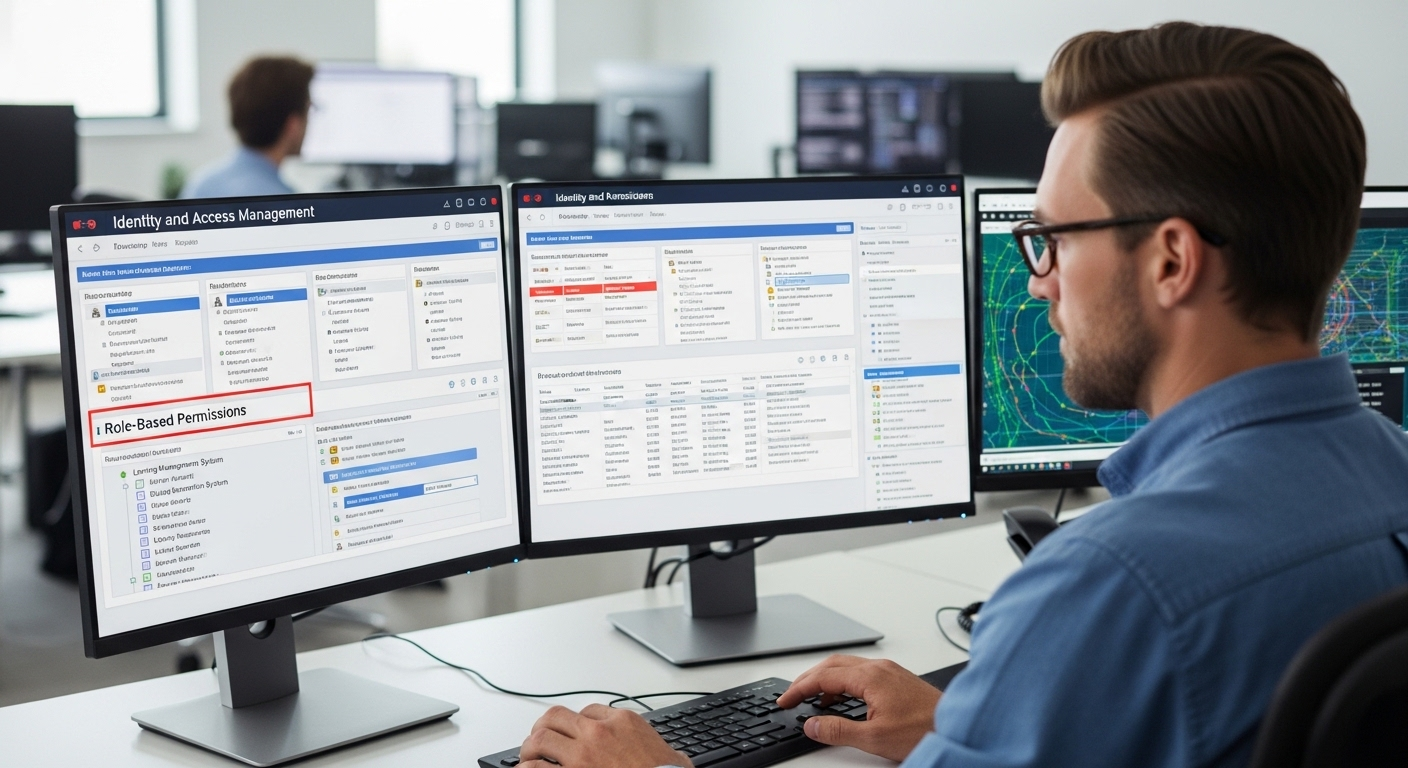
Before a user can access a virtual desktop, the system requires authentication through a valid Microsoft Entra ID account. Administrators configure the identity provider, assign role-based access permissions, and define which users can connect to specific host pools or applications. This structure allows organizations to control access at a granular level while maintaining centralized identity management.

Once authentication is confirmed, Azure Virtual Desktop establishes a secure remote session between the user’s device and the session host. Throughout that process, several security mechanisms work together to protect the environment.

Main Security Mechanisms Are:

  • Microsoft Entra ID
  • Multifactor authentication
  • Encryption
  • Reverse connect technology

Azure Virtual Desktop also supports compliance frameworks such as HIPAA, GDPR, and PCI DSS, helping organizations maintain a secure virtual desktop infrastructure.


What Licensing Is Required to Use Azure Virtual Desktop?

Enterprise IT team managing Azure Virtual Desktop user licenses through the Microsoft 365 admin center.

Running Azure Virtual Desktop requires more than just cloud infrastructure. To access desktops and applications, users must have valid Microsoft licenses that grant rights to connect to the service. These licenses are tied to the user rather than the device, which means access is typically managed on a per user basis.

Many organizations already have the required licenses through their existing Microsoft 365 subscriptions. If those licenses include the correct desktop virtualization rights, you can enable Azure Virtual Desktop without purchasing a separate access license. This helps simplify client licensing requirements, especially for businesses already operating within the Microsoft ecosystem.

However, licensing for the desktop service and the infrastructure are two separate elements. While licenses grant access to the virtual desktop environment, organizations still pay for the Azure virtual machines, storage, networking, and other Azure services that run the environment.

Common Azure Virtual Desktop Licensing Options

License Type Access Rights
Microsoft 365 E3 / E5 Full Azure Virtual Desktop access
Microsoft 365 A3 / A5 Designed for education environments
Microsoft 365 F3 Suitable for frontline workers
Microsoft 365 Business Premium Common option for SMB environments
Windows 10 Enterprise E3/E5 Provides desktop access rights


Organizations using Windows Server operating systems in Azure Virtual Desktop deployments must also meet the appropriate server licensing requirements, often tied to Software Assurance agreements.


How Does Azure Virtual Desktop Scale for Different Workloads?

One reason many organizations adopt Azure Virtual Desktop is its ability to adapt to different workloads without requiring constant infrastructure changes. In traditional environments, expanding capacity often means installing new hardware or redesigning systems. With Azure, scaling becomes far more flexible.

The platform organizes resources using host pools, which group multiple session hosts together to deliver desktops and applications. Each session host runs on an Azure virtual machine, allowing administrators to adjust capacity based on the number of users or the type of workloads being handled. If more computing power is required, additional virtual machines can be deployed quickly.

Another advantage comes from Azure’s global reach. Organizations can place deployments in different Azure regions, helping reduce latency and improve performance for distributed teams.

Because everything runs in the Azure cloud, businesses avoid maintaining complex on-premise infrastructure. Instead, they scale resources when demand increases and reduce them when usage drops, improving both efficiency and cost control.


Why Many Organizations Look for Simpler Alternatives to Traditional Azure Virtual Desktop Deployments?

Apporto website homepage highlighting virtual desktops, AI tutoring, and academic integrity solutions with trusted customer logos.

Azure Virtual Desktop offers strong capabilities, but deploying and managing the environment can take time and expertise. Organizations often deal with complex infrastructure configuration, identity management through directory services, network setup, and ongoing licensing management. Each of these pieces must work together correctly before users can access desktops and applications.

Because of this complexity, some teams start exploring simpler options. Apporto provides a virtualization platform and service designed to remove much of that operational overhead. Instead of installing client software or managing layered infrastructure, users access their desktops directly through a web browser.

This approach brings several advantages. Browser-based desktop access allows users to connect quickly from almost any device. Simplified deployment reduces setup time for administrators. Cross-device compatibility supports laptops, tablets, and other systems, while built-in security controls help maintain secure remote access.


Final Thoughts

Selecting the right environment for Azure Virtual Desktop begins with understanding compatibility. The service supports modern Windows desktop and Windows Server operating systems, giving organizations flexibility when building virtual desktop infrastructure.

Options such as Windows 10 Enterprise Multi-session and Windows 11 Enterprise Multi-session allow multiple users to share the same virtual machine while maintaining separate sessions and profiles.

At the same time, the platform allows connections from many devices and operating systems, including Windows, macOS, mobile devices, and web browsers.

Before deploying Azure Virtual Desktop, it helps to evaluate operating system compatibility, licensing requirements, and infrastructure capacity to ensure the environment can support long-term business needs.


Frequently Asked Questions (FAQs)


1. What operating systems does Azure Virtual Desktop support?

Azure Virtual Desktop primarily supports modern Windows operating systems. These include Windows 11 Enterprise, Windows 10 Enterprise, and multi-session editions designed for shared environments. The platform also supports several Windows Server operating systems such as Windows Server 2022, 2019, and 2016 for enterprise deployments.

2. Can Azure Virtual Desktop run Windows Server operating systems?

Yes, Azure Virtual Desktop supports several Windows Server operating systems. Organizations commonly deploy Windows Server 2022, Windows Server 2019, and Windows Server 2016 as session hosts to deliver remote desktop services and support enterprise workloads.

3. Does Azure Virtual Desktop support Linux machines?

Linux distributions such as Ubuntu, Red Hat, SUSE, and Oracle Linux can run on Azure virtual machines. However, Linux cannot currently function as native Azure Virtual Desktop session hosts within the standard service environment.

4. What devices can connect to Azure Virtual Desktop?

Users can connect to Azure Virtual Desktop from a wide range of devices. Supported platforms include Windows computers, macOS devices, Android and iOS mobile devices, and modern web browsers such as Edge, Chrome, Safari, and Firefox.

5. Is Windows 11 better than Windows 10 for Azure Virtual Desktop?

Windows 11 Enterprise offers improved security features and a refined interface compared with Windows 10. Both operating systems work well with Azure Virtual Desktop, though Windows 11 Enterprise Multi-session is optimized for newer environments and long-term deployments.

6. What licenses are required for Azure Virtual Desktop?

Access to Azure Virtual Desktop typically requires Microsoft licenses such as Microsoft 365 E3, E5, A3, A5, F3, or Business Premium. Windows 10 Enterprise E3 or E5 licenses also provide access rights, while Azure infrastructure costs remain separate.

7. Can I run Windows 11 in Azure Virtual Desktop?

Yes, you can run Windows 11 in Azure using Azure Virtual Machines or Azure Virtual Desktop. Microsoft supports Windows 11 Enterprise, including multi-session editions designed for virtual desktop infrastructure environments that allow secure remote access and centralized cloud-based management.

How to Connect to a Virtual Machine Using Remote Desktop?

Quick Answer

How to Connect to a Virtual Machine Using Remote Desktop?

You can connect to a virtual machine using Remote Desktop Protocol (RDP) by entering the VM’s IP address, enabling remote access, and authenticating with valid credentials. While RDP requires configuration, browser-based platforms like Apporto simplify access by providing secure virtual desktops without setup or client installation.

Connecting to a virtual machine no longer requires sitting in front of the physical computer that hosts it. With Remote Desktop Protocol (RDP), you can access a remote system from almost anywhere and interact with it through a familiar desktop interface.

The process is surprisingly straightforward. Your local computer simply displays the screen of the remote machine while sending your keyboard and mouse input across the network.

This capability is widely used for managing Windows servers, accessing cloud VMs, and working inside development environments without needing direct physical access to the machine.

In this guide, you will learn what Remote Desktop is, what requirements must be in place before connecting to a VM, how to establish a remote desktop connection step by step, and which security practices help keep remote access reliable and safe.


What Is Remote Desktop and How Does It Work With Virtual Machines?

Before connecting to a virtual machine, it helps to understand the mechanism doing the heavy lifting. That mechanism is Remote Desktop Protocol, usually shortened to RDP. Developed by Microsoft, it allows one computer to access another through a graphical desktop interface.

Instead of transferring the entire system to your device, the remote machine performs the processing while your computer simply displays the desktop and sends keyboard and mouse input across the network. Simple idea. Surprisingly powerful.

A remote desktop session lets you interact with a system that may be sitting in a data center, a server room, or somewhere across the internet.

Characteristics of Remote Desktop are:

• Provides a graphical desktop interface for remote access
• Allows users to control a remote computer as if sitting in front of it
• Supports remote sessions for managing servers and systems
• Works across Windows, Mac, Linux, and mobile devices


What Do You Need Before Connecting to a Virtual Machine Using Remote Desktop?

IT administrator configuring Remote Desktop settings on a Windows virtual machine with firewall rules and RDP port 3389 highlighted.

Understanding how Remote Desktop works is only half the story. Before a connection can happen, the environment around the virtual machine has to be prepared correctly.

Small configuration gaps often cause the most frustrating connection errors. A blocked firewall rule, a missing credential, sometimes even a simple network misconfiguration can prevent access.

Think of these requirements as the groundwork. When everything below is in place, the Remote Desktop connection usually works without much fuss.

Essential requirements include:

• A Windows virtual machine that is provisioned and currently running
• Remote Desktop enabled in the VM’s system configuration
• Firewall rules allowing traffic through the default RDP port 3389
• A public IP address or reachable local network connection for the VM
• A user account authorized for remote desktop access
• Valid username and password credentials for the virtual machine
• A Remote Desktop client installed on the local computer

Once these pieces are configured correctly, the system becomes ready to accept incoming RDP connections.


How Do You Enable Remote Desktop on a Windows Virtual Machine?

Once the basic requirements are in place, the next step is enabling Remote Desktop on the virtual machine itself. This setting allows the system to accept incoming remote connections through the Remote Desktop Protocol.

Without it, even a perfectly configured network will refuse the connection attempt. Windows keeps the option disabled by default for security reasons, so it must be turned on manually. The process is fairly quick and takes only a minute inside the VM’s system settings.

To enable Remote Desktop on a Windows VM:

• Open the Start Menu and search for Remote Desktop settings
• Enable the option Allow remote connections to this computer
• Verify which user accounts have permission to connect remotely
• Confirm firewall settings allow traffic through port 3389
• Ensure the virtual machine has a valid network connection

After this configuration is enabled, the VM is ready to accept remote desktop sessions.


How to Connect to a Virtual Machine Using Remote Desktop (Step-by-Step)

IT user authenticating with username and password to access a remote Windows VM through Remote Desktop Protocol.

With Remote Desktop enabled and the network configuration ready, the actual connection process becomes fairly routine. You are simply telling your computer where the virtual machine lives and then authenticating with the correct credentials. The Remote Desktop client handles the rest, establishing a secure session between the two systems.

Windows includes a built-in tool for this purpose called Remote Desktop Connection, which launches the remote desktop connection window where you enter the details of the VM.

Steps to Connect to a Windows Virtual Machine Using Remote Desktop

  1. Open Remote Desktop Connection from the Start Menu by searching for mstsc.
  2. In the Computer field, enter the IP address assigned to the virtual machine.
  3. Click Connect to begin the connection process.
  4. When prompted, enter the username and password associated with the VM.
  5. Confirm the credentials in the Windows Security prompt.
  6. The remote session starts and the Windows VM desktop appears on your screen.

Once logged in, the virtual machine behaves almost exactly like a local computer. Applications open normally, files are accessible, and system settings can be configured as needed.

To end the session, click the X in the top-right corner of the remote desktop window and choose Disconnect.


How Do You Connect to a Virtual Machine From Mac or Linux?

Remote Desktop connections are not limited to Windows computers. Many administrators and developers work on macOS or Linux systems, and connecting to a Windows virtual machine from those platforms is still straightforward.

The key requirement is installing a compatible Remote Desktop Protocol client that can communicate with the remote system. Several tools support RDP connections across different operating systems.

Some common RDP clients are:

Microsoft Remote Desktop app: For Mac, available through the Apple App Store
Remmina: A widely used graphical client for Linux environments
rdesktop: A lightweight command-line RDP client for Linux systems
Microsoft Remote Desktop mobile apps: For Android and iOS devices

Once the software is installed, the connection process looks familiar.

• Enter the IP address of the virtual machine
• Provide your username and password credentials
• Start the remote session to access the desktop environment


How Do Virtualization Platforms Like Hyper-V and VirtualBox Support Remote Desktop? 

Remote Desktop becomes even more useful when working with virtualization platforms. Tools like Hyper-V and VirtualBox allow several virtual machines to run on a single physical computer, which makes remote access essential for managing those systems efficiently. Instead of opening the VM through the host interface every time, you can connect directly using an RDP client. The setup varies slightly depending on the platform and its networking configuration.

RDP Support in Common Virtualization Platforms  

Platform RDP Support Notes
Hyper-V Yes Built into Windows virtualization platform
VirtualBox Yes Requires VirtualBox Extension Pack
Azure VM Yes Portal provides downloadable .rdp file
Local VM Yes Requires manual configuration

VirtualBox also includes a feature called VirtualBox Remote Desktop Extension (VRDE), which allows RDP connections directly to guest operating systems when properly configured.


What Security Settings Should You Configure for Remote Desktop Access?

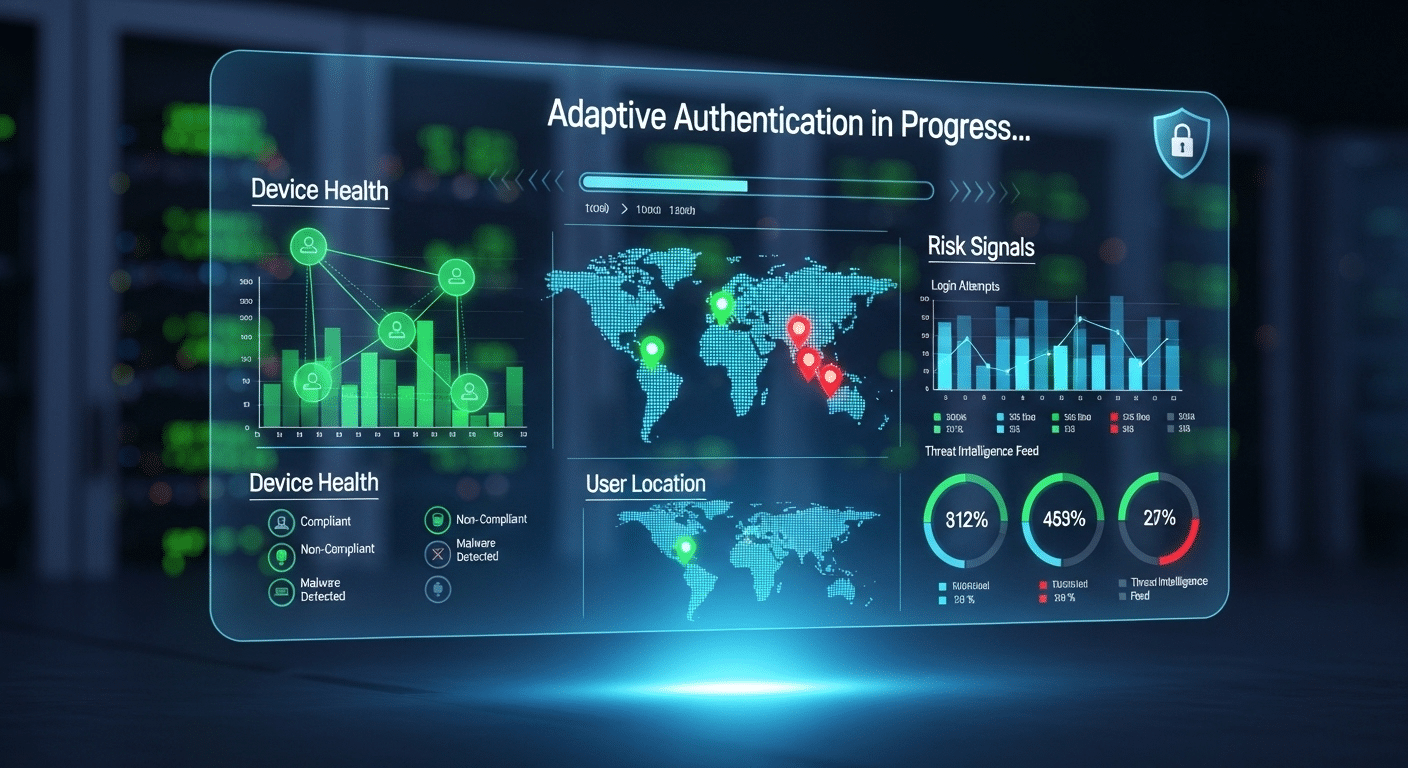
Cybersecurity dashboard monitoring Remote Desktop login attempts and remote session activity for suspicious behavior.

Remote Desktop makes accessing a virtual machine convenient, but that convenience comes with responsibility. A poorly secured configuration can expose a system to unwanted login attempts or unauthorized access. A few thoughtful security settings go a long way in protecting your remote environment. Administrators typically combine credential management, firewall configuration, and network controls to keep remote connections safe.

Recommended security practices are:

• Use strong usernames and passwords for all remote desktop accounts
• Restrict remote access through a VPN connection whenever possible
• Limit firewall exposure for the default RDP port 3389
• Allow only authorized user accounts to establish remote sessions
• Monitor login attempts and remote activity for unusual behavior


What Common Problems Prevent Remote Desktop Connections?

Even with everything configured correctly, Remote Desktop connections can occasionally fail. Most of the time the issue is something small, a blocked port, a permission setting, or a network detail that slipped past during setup. When troubleshooting a connection problem, these areas are usually the first places to check.

Common connection issues:

• Firewall blocking the default RDP port 3389
• Incorrect IP address entered in the computer field
• Remote Desktop not enabled on the virtual machine
• User account lacking permission for remote access
• Network connectivity problems between the local computer and the VM


Why Apporto Simplifies Access to Virtual Desktops ?

Apporto virtual desktop solutions platform homepage showcasing DaaS services, AI tutoring tools, and trusted enterprise and university partners.

Managing virtual machines through traditional Remote Desktop setups can become complicated as environments grow. Networking rules, firewall configuration, and multiple client tools often add layers of friction before users can even log in.

Apporto takes a simpler route. Its browser-based virtual desktop platform delivers secure remote access without manual RDP setup or client installation. You open a browser, authenticate, and the desktop appears.


Final Thoughts

Remote Desktop continues to be one of the most dependable ways to access a virtual machine. Once the basic configuration is complete, enabling remote connections, confirming firewall rules, and preparing the correct credentials, the process becomes surprisingly routine. A few small settings, and suddenly a computer sitting in another room, another office, or even another data center is right in front of you.

Understanding how the connection works also helps avoid the usual troubleshooting headaches. With the right setup in place, you can securely connect to systems from Windows, Mac, or Linux and manage them almost as if they were running locally on your own computer.


Frequently Asked Questions (FAQs)


1. What is Remote Desktop Protocol?

Remote Desktop Protocol, often called RDP, is Microsoft’s technology for connecting to another computer over a network. It allows you to open a remote desktop session and interact with the remote system using your keyboard, mouse, and display.

2. How do I connect to a virtual machine using Remote Desktop? 

To connect to a virtual machine using Remote Desktop, open an RDP client, enter the VM’s IP address, and log in with valid credentials. Once connected, you can access the desktop remotely. Platforms like Apporto simplify this by enabling browser-based access without manual setup.

3. What port does Remote Desktop use?

Remote Desktop typically uses port 3389 by default. This port must be allowed through firewall settings on the virtual machine and the network so the Remote Desktop client can establish a connection successfully.

4. Can you connect to a Linux VM using RDP?

Yes, although Linux systems do not include RDP by default. You can install services like xrdp on a Linux virtual machine, which allows Remote Desktop clients from Windows, Mac, or Linux devices to connect.

5. Do you need a public IP address to connect to a VM?

Not always. If your computer and the virtual machine are on the same local network, a local IP address is enough. Public IP addresses are typically required when connecting from outside the network.

Zero Trust vs Least Privilege: What’s the Difference?

Quick Answer

What’s the Difference Between Zero Trust & Least Privilege?

Zero Trust continuously verifies every user, device, and access request before granting access, while least privilege limits users to only the permissions needed for their role. Organizations often combine both models to strengthen security, and platforms like Apporto support these strategies through secure browser-based remote access and centralized access management.

Security once relied on a simple assumption. If someone was inside the company network, they were trusted. That assumption no longer holds. Today’s organizations operate across cloud platforms, remote environments, and distributed teams, which means the traditional perimeter around network security has largely disappeared.

At the same time, cyber threats continue to grow in both scale and sophistication. Data breaches, credential theft, and insider threats have become common concerns for security teams responsible for protecting sensitive data. Every user account, device, and access request represents a potential entry point if controls are not carefully managed.

This growing complexity forces organizations to rethink how user access is granted and monitored. Strong access management has become essential to maintaining a reliable security model.

That is where two widely discussed approaches enter the conversation: zero trust vs least privilege.
In this blog, you will explore what these security models mean, how they differ, and why combining them is becoming essential for protecting modern systems and sensitive data.


What Is the Principle of Least Privilege and Why Does It Matter?

The principle of least privilege is one of the most practical ideas in modern access management. At its core, the concept is simple. Every user receives only the minimum permissions required to perform their job. Nothing more. Nothing unnecessary.

This approach follows a clear “need-to-know” mindset. If someone does not require access to a system, application, or dataset to complete their work, that access should not exist. Limiting permissions in this way helps organizations reduce exposure to security risks and protects sensitive systems from unnecessary interaction.

Least privilege access also helps prevent a common problem known as privilege creep, where user accounts slowly accumulate more permissions than needed over time. Without proper controls, these excessive privileges can create opportunities for security breaches or misuse.

How the Least Privilege Principle Controls User Access?

The principle of least privilege strengthens security through several practical safeguards:

  • Users receive minimum access rights required for their role.
  • It helps prevent privilege escalation attacks that attempt to gain higher permissions.
  • Limiting access reduces the risk of insider threats.
  • Fewer permissions mean a smaller attack surface for cyber threats.
  • Sensitive systems and data remain protected from unnecessary access.

Least privilege is commonly enforced using role based access control (RBAC), attribute based access control (ABAC), and just-in-time access, which temporarily grants privileges only when required.


What Is Zero Trust Security and How Does It Work?

IT security dashboard analyzing user behavior and verifying device health before granting network access in a zero trust system.

If the principle of least privilege focuses on how much access a user should have, zero trust security asks a different question “should access be granted at all?”. This is where the modern idea of Zero Trust begins.

Zero trust security is built on a simple but powerful principle, “never trust, always verify.” Instead of assuming that users inside a network are safe, this security model treats every access request as potentially risky. Whether a user is inside the office or working remotely, the system verifies identity, device health, and context before granting access.

A zero trust architecture relies on several layers of verification. Identity checks confirm who the user is. Device health validation ensures the device connecting to the system is secure and up to date. Multi-factor authentication adds another level of protection by requiring more than just a password. At the same time, continuous verification monitors user behavior even after login.

Core Components of a Zero Trust Architecture

Zero trust security relies on several core controls working together:

  • Identity verification before granting network access
  • Multi-factor authentication (MFA) for privileged accounts
  • Continuous monitoring of user behavior and access events
  • Network segmentation to limit lateral movement
  • Device health validation before granting access

Together, these controls support zero trust network access (ZTNA), which replaces traditional perimeter-based trust security by verifying every connection, every time.


What’s the Difference Between Zero Trust & Least Privilege?

At first glance, zero trust vs least privilege can seem like competing security ideas. In reality, they solve different parts of the same problem. Both aim to control access and reduce risk, but they operate at different levels within a security model.

Zero Trust focuses primarily on authentication and verification. Every time a user, device, or application tries to connect to a system, the request must be verified. Identity, device health, and context are evaluated before any access is granted. Trust is never assumed, even for users already inside the network.

Least Privilege, on the other hand, focuses on authorization and permissions. Once a user has been verified, the system determines what that user is allowed to do. Access rights are restricted so users receive only the minimum permissions necessary to perform their tasks.

Zero Trust vs Least Privilege 

Security Aspect Zero Trust Least Privilege
Core goal Continuous verification Limit permissions
Security level Organization-wide architecture Permission management
Focus Identity and device trust User access rights
Access approach Verify every access request Grant only minimal permissions
Security impact Prevent unauthorized entry Limit damage after entry


How Do Zero Trust and Least Privilege Work Together?

Futuristic network security visualization showing verified users entering a system with restricted access zones representing least privilege.

It is easy to assume that zero trust and least privilege represent competing approaches to security. In practice, they are designed to complement each other. Each addresses a different stage of the access process, and together they create a stronger defense against modern cyber threats.

Zero Trust focuses on verifying access before it happens. Every request is evaluated using identity checks, device validation, and behavioral signals. This step determines whether a user or device should be allowed to enter the system at all.

Least Privilege takes over after that verification step. Once access is approved, permissions are carefully restricted so the user can only interact with the systems and data required for their role. Even trusted users operate within clearly defined limits.

Why Security Teams Combine Both Models?

Security teams often integrate trust and least privilege controls to strengthen access control mechanisms across their environment:

  • Zero Trust verifies user identity and device health before granting entry.
  • Least Privilege ensures minimum permissions after verification.
  • Combined controls help reduce the overall attack surface.
  • These protections help prevent lateral movement across systems.
  • Limited permissions help contain damage if an account becomes compromised.

Together, these strategies form a robust security framework, ensuring that access is both carefully verified and tightly controlled across modern infrastructure.


Why Traditional Network Security Models Are No Longer Enough?

For many years, network security relied on a simple perimeter model. If a user or device connected from inside the company network, it was generally trusted. Firewalls and internal controls protected the outer boundary, while everything inside the network operated under assumed trust.

That model worked when systems were centralized and employees worked from a single office environment. Today, the structure of technology has changed. Cloud environments host critical applications. Teams operate from different locations.

Organizations manage hybrid infrastructure that connects on-premise systems with cloud platforms and distributed applications. In this environment, relying on network location as a sign of trust is no longer reliable.

Remote access has become routine for employees, partners, and contractors. At the same time, cyber threats have evolved. Credential theft allows attackers to appear as legitimate users. Insider threats may originate from accounts that already exist inside the network. When access depends on location rather than verification, these risks grow quickly.

Modern security strategies now focus on identity, context, and continuous monitoring. Instead of assuming trust network access, organizations increasingly require secure remote access systems that verify every connection and access request.


When Should Organizations Start with Least Privilege First?

Cybersecurity dashboard showing an IT administrator reviewing user permissions and restricting access based on least privilege principles.

For many organizations, the least privilege principle is often the most practical place to begin strengthening security. Unlike large architectural changes, implementing least privilege access does not always require major infrastructure updates. In many cases, the process starts with something much simpler, reviewing who has access to what.

Security teams typically begin with a detailed access audit. This audit examines existing user accounts, permissions, and roles across systems. It often reveals that many users have more access than they actually need. Reducing those permissions to minimum access levels can immediately lower risk without disrupting daily operations.

Another advantage is that least privilege can often be introduced through updated policies and permission management rather than new hardware. Because of this, organizations can see meaningful improvements in their security posture fairly quickly.

Why Least Privilege Is Often the First Security Step?

Implementing least privilege delivers several early benefits:

  • Identifies excessive permissions and dormant accounts during access audits.
  • Reduces the likelihood of insider threats.
  • Helps limit privilege escalation attacks.
  • Strengthens the organization’s overall security posture.

By restricting permissions first, organizations create a strong foundation that later supports a broader Zero Trust architecture.


When Should Organizations Implement Zero Trust First?

While many organizations begin their security journey with the least privilege principle, there are situations where Zero Trust architecture must be prioritized from the start. Some environments face higher levels of risk, stricter regulatory requirements, or more complex infrastructure, making traditional security controls insufficient.

Organizations that manage large volumes of sensitive data often fall into this category. Financial institutions, healthcare providers, and government agencies must protect highly valuable information from both external cyber threats and internal misuse. In these environments, relying on partial access controls may not provide enough protection.

Highly regulated industries also benefit from implementing Zero Trust early. Compliance standards frequently require strict monitoring, identity verification, and strong access controls across all systems. A comprehensive security framework built around Zero Trust can help meet these requirements while improving visibility across the organization.

Large distributed networks present another challenge. Companies with global teams, remote workers, cloud services, and hybrid infrastructure cannot rely on a single network boundary. Instead, continuous monitoring, identity verification, and layered security controls become essential to managing access safely across complex environments.


Practical Steps to Implement Zero Trust and Least Privilege

IT security team reviewing a dashboard of user access permissions and system activity while implementing zero trust and least privilege policies.

Understanding the concepts behind Zero Trust and the principle of least privilege is only the first step. The real value appears when organizations translate these ideas into practical security controls. While a full Zero Trust architecture may take time to implement, many foundational improvements can begin immediately.

A good starting point is visibility. Security teams need a clear view of who has access to which systems, applications, and data. Without that visibility, it becomes difficult to enforce proper access controls or identify unnecessary permissions.

Once access is mapped, organizations can gradually tighten permissions, strengthen identity verification, and monitor how users interact with critical systems.

These changes do not require a complete overhaul on day one. Instead, they often begin with small but meaningful adjustments to security policies, identity controls, and monitoring practices.

Steps Security Teams Can Take Today

Organizations can begin strengthening access control by taking several practical steps:

  • Conduct a full audit of user access and permissions across systems and applications.
  • Remove unnecessary access rights that exceed a user’s role or responsibilities.
  • Implement multi-factor authentication to protect high-value accounts and systems.
  • Introduce just-in-time access so privileged permissions are granted only when needed.
  • Monitor user behavior and access events across critical systems.

Through continuous monitoring, security teams can detect unusual access requests, track how users interact with resources, and quickly respond to suspicious activity before it escalates into a security incident.


How Modern Platforms Help Enforce Zero Trust Access?

Apporto homepage showcasing virtual desktops, AI tutoring, and academic integrity solutions on a modern technology platform.

Implementing strong access control strategies such as Zero Trust architecture and the principle of least privilege often requires the right technology foundation. As organizations adopt cloud platforms, hybrid infrastructure, and remote work environments, traditional network tools can struggle to keep up. This is where modern secure access platforms play an important role.

These platforms help enforce identity verification before granting access to systems and applications. Instead of relying on network location, access decisions are based on who the user is, the device being used, and the context of the access request. This approach aligns closely with the principles of Zero Trust, where every connection must be verified before access is granted.

Modern platforms also simplify access management across distributed systems. Administrators can manage permissions, enforce security policies, and monitor access events through centralized controls. This helps organizations maintain a consistent security framework even as their infrastructure grows more complex.

Solutions like Apporto demonstrate how secure remote access can be delivered through a browser-based model. By eliminating the need for complex VPN configurations and providing secure remote application access, platforms like Apporto help organizations extend Zero Trust principles while simplifying infrastructure management.


Final Thoughts

When organizations evaluate zero trust vs least privilege, it may seem like a decision between two competing security approaches. In reality, they are most effective when used together. Each model addresses a different layer of access control, and combining them creates stronger protection against modern cyber threats.

For many organizations, implementing the principle of least privilege is the logical starting point. By reducing unnecessary permissions and enforcing minimum access, security teams can quickly lower risk and strengthen their security posture.

From there, organizations can gradually expand toward a full Zero Trust architecture, introducing continuous verification, stronger identity controls, and improved monitoring across systems.

Together, these strategies create layered protection. Zero Trust verifies every access request, while least privilege ensures users can only access what they truly need.


Frequently Asked Questions (FAQs)


1. What is the difference between Zero Trust and Least Privilege?

Zero Trust focuses on verifying every access request before granting entry to a system. Least Privilege focuses on limiting what a verified user can do after access is granted. Together, they control both authentication and authorization within a modern security model.

2. Is Least Privilege part of Zero Trust architecture?

Yes. Least Privilege is often considered a foundational element within Zero Trust architecture. Zero Trust verifies identity and device context, while the principle of least privilege ensures users receive only the minimum permissions required to perform their tasks.

3. Which should organizations implement first?

Many organizations start with the principle of least privilege because it is easier to implement and requires fewer infrastructure changes. Conducting access audits and reducing unnecessary permissions can quickly improve security posture before expanding toward a full Zero Trust strategy.

4. How does Zero Trust protect against insider threats?

Zero Trust reduces insider risk by continuously verifying user identity, device health, and behavior before granting access. Even internal users must pass authentication checks, which helps detect suspicious activity and prevent unauthorized access to sensitive systems or data.

5. Can Zero Trust work without Least Privilege?

Technically it can, but it would be incomplete. Zero Trust verifies who is requesting access, but without least privilege controls, verified users could still receive excessive permissions. Combining both ensures that access is verified and strictly limited.

How to Create an AI Tutor That Actually Teaches Effectively

Quick Answer

How Do You Create an AI Tutor That Actually Teaches?

Creating an effective AI tutor requires combining pedagogical frameworks, curated learning content, adaptive feedback, and human oversight. Strong AI tutors guide students through problem-solving instead of simply providing answers. Platforms like Apporto’s CoTutor support structured, instructor-aligned learning with secure, context-aware AI tutoring designed for education environments.

If you’re exploring how to create an AI tutor, you’ve probably noticed something unsettling. There are plenty of tools that look impressive. Few actually teach.

Artificial intelligence has moved quickly into education. Apps promise instant explanations, automated grading, personalized support at scale. On the surface, it feels like progress. And in some ways, it is. But many AI tutors fail for a simple reason, they prioritize speed over depth. They provide answers instead of building understanding.

When a student asks a question, the system responds immediately. Efficient, yes. Educational, not always. Students learn by grappling with material, by working through confusion, by making and correcting mistakes. If an AI tutor removes that struggle entirely, it removes growth with it.

So the real question is not just how to create an AI tutor, but how to create one that helps students solve problems rather than bypass them. That requires more than clever code. It demands pedagogy, guardrails, and design decisions that respect how learning actually works.

In this blog, you’ll learn how to create an AI tutor that strengthens understanding, supports real education, and prepares students for the future rather than just delivering quick answers.


What Learning Problem Are You Trying to Solve?

Before you write a single line of code, pause. Ask the uncomfortable question. What problem are you actually trying to fix?

Educational technology has a habit of racing ahead of reflection. The tools get built first, the pedagogy gets patched in later. That order rarely ends well. If you want to understand how to create an ai tutor that truly helps, you must begin with the learning experience itself.

Look closely at prior knowledge. Where are students getting stuck? Which key concepts create friction? One main point of friction is often not the material itself, but the gap between what the student already knows and what the course assumes they know. That gap matters.

Context matters too. In higher education, learners may need support with analytical thinking and complex material. In K–12, cognitive load and developmental readiness shape how students learn. An AI tutor should adapt to those realities. And it should support teachers, not replace them. The goal is to extend human guidance, not compete with it.


What Pedagogical Framework Should Guide Your AI Tutor?

Student solving a challenging problem with an AI interface offering progressive hints instead of direct answers.

Technology without pedagogy is just noise. Polished noise, perhaps, but noise all the same. If you are serious about how to create an ai tutor that actually teaches, you need a framework that respects how humans learn.

Start with the Zone of Proximal Development. Students learn best when the material feels slightly out of reach, not impossible, not trivial. That delicate edge is where growth happens. Too easy, and attention drifts. Too hard, and motivation collapses.

Then consider Bloom’s Taxonomy. Memorizing facts sits at the bottom. Analysis, evaluation, creation, those require deeper cognitive effort. Your AI tutor should not stop at recall. It should push thinking upward.

Active engagement matters as well. Passive consumption rarely builds durable skills. Constructive and interactive learning, where the learner responds, reflects, corrects error, and refines understanding, produces stronger outcomes.

Socratic questioning ties it together. Instead of supplying an explanation immediately, the system can ask probing questions that nudge the learner toward insight.

  • Target the Zone of Proximal Development by challenging learners just beyond current ability
  • Scaffold learning through hints rather than direct solutions
  • Use probing questions to deepen understanding
  • Encourage students to explain answers in their own words
  • Move learners from passive to active to constructive interaction

When you design around these principles, the AI becomes a guide, not a shortcut.


How Do You Design the Intelligence Layer of an AI Tutor?

Now you move beneath the surface. The visible interface, the friendly responses, the smooth conversation flow, all of that sits on top of something quieter. The intelligence layer.

Most AI tutors begin with a base model, often a large language model trained on vast amounts of text. That model can generate responses, follow instructions, and simulate conversation. Impressive, yes. But raw capability is not enough. If you stop there, your tutor may sound fluent yet drift into unreliable territory.

You need to fine tune it. Not with random internet scraps, but with curated, pedagogically rich datasets built around real content and actual learning objectives. Training should reflect research, structured material, and instructor-approved knowledge. Otherwise the system may respond confidently while being wrong, which is far worse than saying “I don’t know.”

Ground the model using Retrieval Augmented Generation, often called RAG. In simple terms, this means the AI pulls from vetted documents before it answers, staying anchored in context rather than improvising freely.

Use prompts strategically. Clear instructions guide how the program responds, how it phrases explanations, how it manages conversation flow. Good code matters. But disciplined design matters more.


How Can You Ensure Accuracy and Prevent Hallucinations?

AI tutor interface displaying verified citations beside each answer, with highlighted source references.

Hallucinations are not mystical. They are predictable. When a model lacks reliable grounding, it fills the gap with probability. The result can sound polished, even authoritative, yet quietly wrong.

If you want to understand how to create an ai tutor that educators can trust, accuracy cannot be optional. Students will assume the system is correct. That assumption carries weight.

Start by narrowing the knowledge boundary. Do not allow the AI to roam freely across the open internet. Anchor it to a defined body of research and course material. Confirm that every response can be traced back to vetted sources. Then test it, repeatedly, under challenging conditions.

Reinforcement Learning with Human Feedback, often shortened to RLHF, helps refine behavior. Human reviewers evaluate responses, flag error patterns, and improve reliability over time.

  • Use one solid core document as a source of truth
  • Add 1–3 additional content documents and FAQs
  • Design the tutor to refuse answers outside uploaded material
  • Use multiple evaluators to improve response consistency
  • Audit for bias and misinformation

Trust grows from disciplined limits. Not from unlimited answers.


How Should an AI Tutor Provide Feedback That Builds Understanding?

Feedback is where an AI tutor either earns its place or quietly undermines it. When students work through assignments or practice problems, timing matters. Immediate feedback helps anchor learning while the material is still fresh.

If correction comes days later, the connection weakens. But speed alone is not enough. The feedback must carry substance.

High-information feedback includes verification and elaboration. In other words, the system should confirm whether an answer is correct, then provide an explanation that clarifies why.

That explanation should strengthen understanding, not overwhelm the learner with excess detail. Cognitive overload is real. Too much information at once, and even capable students disengage.

Correction should be precise. Not vague encouragement, not robotic repetition. When mistakes appear, identify them clearly. When reasoning is strong, say so. Reinforce what works.

  • Highlight mistakes clearly and explain why
  • Provide hint-based support rather than full solutions
  • Adapt feedback in real time
  • Encourage learners to reflect before responding
  • Confirm understanding before moving forward

Good feedback turns error into progress. Poor feedback just delivers answers and moves on.


How Do You Personalize the Learning Experience Without Overcomplicating It?

Minimalist AI tutor dashboard adjusting difficulty level based on student performance analytics in real time.

To create a personalized AI tutor, you do not need an elaborate maze of features. You need clarity. Start with adaptive learning paths driven by analytics. As the learner interacts with the app, the system tracks performance, response time, recurring mistakes, and depth of understanding. Based on that data, it adjusts difficulty and pacing in quiet, almost invisible ways.

If a student demonstrates strong ability with key concepts, increase the challenge. If confusion appears, slow down and provide structured support. The goal is balance, not constant escalation.

Support multimodal interaction whenever possible. Some learners respond best to text. Others benefit from voice input or short video explanations. Offering multiple formats increases accessibility without adding unnecessary friction.

Above all, manage cognitive load. Keep the interface clean. Keep instructions clear. Personalization should feel natural, not overwhelming. When done well, it becomes engaging rather than distracting, tailored to the learner without becoming complicated for its own sake.


How Do You Keep Teachers in the Loop?

An AI tutor should never operate in isolation. Education does not exist in a vacuum, and technology should not quietly replace the judgment of teachers. If you are serious about how to create an ai tutor that works in higher education or any structured learning environment, you must design for human oversight from the beginning.

Teachers need visibility. They need to understand how students are performing, where confusion is clustering, which key concepts are sticking and which are not. Dashboards and clear insights make this possible. Data, when presented responsibly, becomes a lens rather than a burden.

AI can surface patterns quickly. A teacher still interprets them.

Without that loop, the system risks drifting away from classroom goals. With it, the tutor becomes a form of structured support rather than an invisible authority.

  • Share performance data with educators
  • Allow teachers to review AI responses
  • Use AI as supplemental, not replacement
  • Maintain contact between student and real person


What Ethical and Security Guardrails Must You Implement?

Secure AI tutor interface with encrypted student data represented by lock icons and protected records.

An AI tutor deals with something fragile, student data, academic records, patterns of behavior, even mistakes that reveal how someone thinks. That responsibility is not abstract. It is immediate.

If you want your system to be reliable in the real world, compliance is non-negotiable. In the United States, FERPA protects student records.

In Europe, GDPR governs personal data. Similar regulations exist globally. Your design must account for them from day one, not as an afterthought.

Security also extends beyond privacy. AI models trained on open internet material can inherit bias or produce subtle error patterns that affect certain learners unfairly. Without careful auditing, those issues persist quietly.

Ethical guardrails protect both the learner and the institution. They shape how the system behaves now and in the future.

  • Protect student records with robust encryption
  • Audit algorithmic bias using diverse datasets
  • Implement guardrails against harmful or inaccurate responses
  • Ensure equitable access to prevent disparities

A well-designed AI tutor does not just teach content. It operates within boundaries that safeguard trust.


How Do You Test and Refine an AI Tutor Before Launch?

You do not release an AI tutor and hope for the best. You test it, break it, and test it again. Iterative testing should involve both students and teachers. Let real learners interact with the system in authentic classroom conditions.

Observe where confusion arises, where conversation flow feels unnatural, where responses drift away from the intended material. Small friction points matter more than you think.

Collect structured feedback after each test cycle. Ask what felt engaging. Ask what felt mechanical. Measure learning outcomes, not just user satisfaction. Did understanding improve? Did performance on assignments shift in measurable ways? Research-backed evaluation keeps you grounded.

Refine prompts carefully. Slight adjustments in instructions can dramatically improve how the AI responds. Monitor cognitive load as well. If learners appear overwhelmed, simplify.

After each test round, adjust based on data. Then repeat. Launch should feel earned, not rushed. Continuous refinement is part of responsible design, not a postscript.


What Does a Future-Ready AI Tutor Look Like?

Student engaging in deep problem-solving while AI tutor prompts analytical questions instead of giving answers.

A future-ready AI tutor does more than respond quickly. It promotes critical thinking, nudging students to analyze, compare, question, and justify rather than simply repeat. It scales quality instruction without flattening it, preserving rigor even as access expands.

Active engagement sits at the center. The learner interacts, reflects, revises, practices. The system adapts across disciplines, from quantitative problem sets to conceptual discussions, without losing coherence. In higher education especially, scale matters, but so does depth.

The real test is this, can the tutor support thousands of students while still respecting individual ability and context?

That is the standard emerging tools must meet. And it is where platforms like CoTutor begin to enter the conversation.


Why CoTutor Represents a Smarter Way to Create an AI Tutor?

Apporto CoTutor page showing a student using a laptop alongside a holographic AI tutor interface promoting critical thinking and AI mastery.

If you have followed the thread so far, a pattern should be clear. Creating an AI tutor that truly teaches requires structure, restraint, and educational intent. CoTutor reflects that philosophy.

Rather than improvising from the open internet, CoTutor is grounded in vetted, instructor-approved content. Its intelligence layer is built around pedagogical scaffolding, encouraging students to think in their own words, not simply extract answers. The design prioritizes institutions, particularly in higher education, where accountability and measurable outcomes matter.

Human oversight is not an afterthought. Teachers remain in the loop, able to monitor progress and intervene when necessary. The goal is support, not substitution.

  • Curriculum-aligned conversation flow
  • High-information feedback mechanisms
  • Instructor visibility dashboards
  • Secure, compliant infrastructure

To ensure easy access for students and educators, institutions can post the CoTutor link in accessible platforms such as LMS, email, or intranet.

CoTutor embodies what this guide has outlined, a disciplined, research-informed approach to building an AI tutor that strengthens learning rather than shortcuts it.


Conclusion

If you step back, the path becomes clearer. How to create an AI tutor is not a question of adding more features or louder marketing claims. It begins with pedagogy. It requires defined learning goals, structured scaffolding, accurate content, human oversight, and disciplined guardrails.

Many AI tutors fail because they chase speed and convenience. Effective ones slow down just enough to foster understanding.

Design intentionally. Test rigorously. Keep teachers involved. Prioritize learning over automation.

When you build with those principles in mind, artificial intelligence becomes a meaningful support system rather than a shortcut. Explore how CoTutor can help your institution build AI tutoring the right way.


Frequently Asked Questions (FAQs)


1. What is the first step in creating an AI tutor?

The first step is defining the learning problem you want to solve. Identify key concepts, prior knowledge gaps, and clear objectives. Before writing code or selecting a model, clarify how students learn and what outcomes the tutor should improve.

2. How to create an AI language tutor?

Creating an AI language tutor requires conversational AI, structured language-learning content, pronunciation or grammar support, and adaptive feedback systems. Strong language tutors encourage active practice, contextual learning, and real-time correction while adjusting difficulty levels based on learner progress, vocabulary retention, and communication ability.

3. Why do many AI tutors fail in education?

Many AI tutors fail because they focus on providing answers instead of fostering understanding. When a system prioritizes speed over critical thinking, students may complete tasks but fail to develop problem-solving skills or long-term retention.

4. Do you need to train an AI tutor on internet data?

No. In fact, relying heavily on open internet data can reduce reliability. A stronger approach uses curated, instructor-approved content as the foundation, ensuring the tutor responds within a defined academic context rather than generating loosely sourced material.

5. How can you prevent hallucinations in an AI tutor?

You can prevent hallucinations by grounding the model in vetted documents, restricting responses to approved materials, and testing outputs rigorously. Human review and structured prompt design further reduce error and improve consistency.

6. Should AI tutors replace teachers?

AI tutors should not replace teachers. They work best as supplemental support tools, offering practice and feedback while educators provide judgment, context, and human guidance that technology alone cannot replicate.

7. How do you personalize an AI tutor for different learners?

Personalization comes from adaptive learning paths that adjust difficulty, pacing, and feedback based on performance data. The system should respond to learner ability without overwhelming them, offering targeted support where needed.

8. Can you build an AI tutor using only one document?

Yes, you can begin with one strong, up-to-date source document as a foundation. For deeper expertise, add a few additional materials and FAQs to strengthen coverage while maintaining clear boundaries.

How to Use AI to Help Study: A Complete Guide

Quick Answer

How to Use AI to Help Study?

CoTutor helps students study with AI by supporting concept explanations, practice questions, and active learning strategies. More broadly, AI can help students study by summarizing notes, generating quizzes, organizing study sessions, and clarifying difficult topics when used as a learning aid rather than a substitute.

Not long ago, studying followed a predictable rhythm. Read the chapter. Highlight a few lines. Maybe build flashcards the night before the test. Simple routine. Today, something new sits on the desk beside your textbooks, AI tools. Quiet helpers that can summarize lecture notes, organize study materials, and even generate practice questions in seconds.

Generative AI tools are now part of how many students approach learning. Used thoughtfully, they can support active learning and help you grasp difficult ideas more clearly. They can act as a study aid, a research assistant, sometimes even a planning tool when your schedule gets messy.

Still, technology works best when you guide it carefully. Learning does not happen by outsourcing the thinking. In this Blog, you will explore practical ways to use AI effectively, build stronger understanding, and make your study sessions far more productive.


What Does It Mean to Use AI to Help Study?

Using AI for studying means treating technology as a helper, not a substitute for thinking. Generative AI refers to AI systems that can create content such as explanations, summaries, questions, or ideas based on prompts you provide. It can generate text, outline topics, even simplify dense readings. Useful, yes. But it still depends on how you guide it.

The difference is simple. AI assistance supports your learning process, AI doing the work replaces it. One builds understanding, the other quietly weakens it.

Used well, AI behaves almost like a study buddy who never gets tired of questions. It can clarify complex concepts, summarize long textbook chapters into key concepts, and help generate study materials for review sessions.

It can also act as a research assistant when you are exploring unfamiliar topics, or an organization tool that helps align study sessions with learning goals.

Educational psychology has long emphasized active engagement with material. AI simply gives you another way to reach that deeper understanding, provided you stay in control of the thinking.


What Are the Best AI Tools Students Use for Studying Today?

Student working at a laptop surrounded by floating AI study tool icons for note summaries, quizzes, flashcards, and research assistance.

Not all AI tools do the same job. Some are great at organizing notes. Others explain complicated readings. A few focus on quizzes and practice questions. Because of that, students rarely rely on just one platform.

Most combine several AI tools depending on what the task requires, reading summaries, practice tests, research help, or organizing course materials. Think of it as assembling a small toolkit.

One tool might help you unpack dense lecture notes. Another turns those notes into study guides. A third helps you test your knowledge before exams. Used together, these AI platforms can support a more structured learning experience and help you stay focused on key concepts across different classes. Some tools that have quickly become favorites among students are.

  1. CoTutor: An AI-powered study assistant that helps you understand course concepts, generate practice questions, and reinforce learning through guided explanations designed to encourage active thinking.
  2. NotebookLM: Analyzes academic texts, summarizes lecture notes, and generates quizzes that help test your understanding.
  3. Explainpaper: Breaks down complex research papers and explains difficult terminology in simpler language.
  4. Quizlet Q-Chat: Automatically generates flashcards and quizzes based on your course materials.
  5. StudyFetch: Creates quizzes and practice questions directly from lecture notes or uploaded PDFs.
  6. Notion AI: Organizes class notes, study guides, and important course concepts in one workspace.
  7. Perplexity AI or Consensus: Provides research-backed answers with citations, helping you verify information and build reliable knowledge.


How Can AI Help You Understand Difficult Concepts Faster?

Some topics simply take time to click. Dense textbook chapters, complex readings filled with unfamiliar terms, theories that feel abstract at first glance. This is where AI can quietly become useful. Not as a shortcut, but as a translator of sorts, helping you unpack ideas piece by piece.

Many AI tools can reorganize information so your brain has an easier path through it. Instead of wrestling with pages of material all at once, you can focus on the key points first, then explore the details after your footing feels steadier. The result is often clearer understanding and, over time, deeper learning.

AI can support that process in a few practical ways.

  • Summarizing complex readings
  • Explaining difficult concepts in simpler language
  • Providing alternative explanations
  • Connecting theory to practical applications


How Can AI Generate Study Materials and Practice Questions?

Student uploading lecture notes into an AI study tool that automatically generates quizzes, flashcards, and practice questions.

Understanding material is one step. Remembering it during a test is another story. This is where practice becomes essential. Educational research often points to active learning methods such as self testing, retrieval practice, and repetition as some of the most reliable ways to strengthen memory. AI tools make these strategies easier to apply during everyday study sessions.

Instead of passively rereading notes, you can ask AI to generate study materials that challenge your understanding. Practice questions, quizzes, and flashcards force you to recall ideas rather than simply recognize them. That small difference matters. The brain works harder, and knowledge sticks longer.

AI can support this process in several useful ways.

  • Generate practice questions: You can upload lecture notes, textbook excerpts, or assignments and ask AI to create practice problems based on the material.
  • Create flashcards for key terms: Many AI powered flashcard tools rely on spaced repetition, a technique that helps reinforce memory over time.
  • Generate quizzes and mock exams: Tools like NotebookLM or StudyFetch can produce quizzes that resemble real test formats.
  • Convert notes into study guides: AI can organize scattered class notes into structured study guides for review sessions.
  • Create practice problems for self assessment: You can test your knowledge immediately instead of waiting for instructor feedback before exams.


How Can AI Help You Organize Study Sessions and Manage Time?

Understanding the material is only part of the equation. Managing your time well often determines how successful those study efforts become. Deadlines pile up quickly, exams approach faster than expected, and suddenly it feels like every class demands attention at once. AI can help bring some order to that chaos.

Many AI tools now assist with planning study sessions and organizing workloads. Instead of guessing how to divide your time, you can build a study plan based on real priorities such as upcoming exams, assignment deadlines, or topics that still feel unclear. This kind of structured planning improves focus and reduces last minute cramming. AI can help you organize session and support time management in a few ways.

  • Automatic study schedules
  • Daily and weekly study plans
  • Prioritizing difficult topics
  • Automating administrative tasks


How Can AI Improve Critical Thinking Instead of Replacing It?

Student discussing complex ideas with an AI assistant on a laptop, with thought bubbles showing questions, analysis, and problem solving.

One of the biggest concerns around AI in education is simple. If technology can produce answers instantly, will students stop thinking for themselves? The reality is more nuanced. When used carefully, AI can actually strengthen critical thinking rather than weaken it.

The difference lies in how you interact with it. Instead of asking AI to complete assignments or deliver finished conclusions, you use it as a tool for exploration. Ask questions. Challenge explanations. Test your understanding. That kind of dialogue encourages the same kind of reflection that happens in strong academic discussions.

Many AI tools now follow what educators call a Socratic approach, where the system responds with guiding questions instead of direct solutions. This nudges you to examine assumptions and think through ideas more carefully.

AI also works well with the Feynman Technique, a study method where you explain a concept as if teaching it to someone else. When you explain an idea to an AI system and the explanation feels unclear, the gaps in understanding become obvious.

It can also help generate ideas for essays, projects, or research topics. That early brainstorming stage often sparks better thinking. Even complex subjects, such as economic models or game theory, become easier to explore when you can walk through problems step by step with guided feedback.


What Are the Risks and Ethical Considerations of Using AI for Studying?

AI can be incredibly helpful during study sessions, but it also comes with responsibilities. In academic settings, integrity still matters, perhaps more than ever. Universities expect students to produce original academic work, and using generative AI without proper acknowledgment can violate academic integrity policies. So the tool itself is not the problem. How you use it is.

Another issue involves accuracy. AI output can sometimes include incorrect information, a phenomenon often called hallucination. The explanation might sound convincing, yet the facts may be wrong. That is why critical evaluation remains essential whenever you rely on AI tools for learning or research.

Bias can also appear in responses because AI systems learn from large collections of human produced data. Certain perspectives may be emphasized while others are overlooked. Citation mistakes are another risk. AI occasionally generates references that look real but do not exist.

When questions arise, the safest approach is simple. Ask your instructor about acceptable AI use, and always treat the technology as guidance rather than a substitute for genuine learning.


Best Practices for Using AI Effectively When Studying

AI works best when it supports your thinking rather than replacing it. Think of it as a study aid that helps you organize ideas, test your knowledge, and clarify difficult concepts. The goal is not to automate the entire learning process. Real understanding still comes from reading, questioning, and practicing the material yourself.

A good approach is to use AI in small, focused ways. Let it help you summarize information, create practice questions, or organize notes so your study sessions stay structured. When used carefully, these tools can reinforce active learning while keeping you in control of the work.

Here are a few practical strategies that students often find helpful.

Smart Ways to Use AI as a Study Aid 

Study Strategy How AI Helps
Summarizing lecture notes Highlights the most important parts so you can review key concepts faster
Generating quizzes Reinforces active recall during study sessions
Organizing notes Structures key concepts and study materials more clearly
Brainstorming ideas Helps generate outlines and possible research directions
Self testing Generates practice questions to help check your understanding


How CoTutor Helps Students Study Smarter with AI?

CoTutor page showing Student using an AI tutor on a laptop, illustrating AI-powered learning and critical thinking support for modern education.

There are many AI tools appearing in classrooms, but some are built specifically for learning rather than general conversation. CoTutor falls into that category. It functions less like a search engine and more like a guided study assistant, helping you work through course material step by step.

The goal is simple, support active learning while keeping the thinking in your hands. Instead of handing out finished answers, CoTutor encourages you to interact with the material, ask questions, and refine your understanding over time. That approach helps transform ordinary study sessions into more focused learning experiences.

What Makes CoTutor Useful for Students?

  1. AI guided learning support: Helps you break down complex course concepts and understand difficult material more clearly.
  2. Practice and self assessment tools: You can generate quizzes and practice questions directly from lecture notes or other course materials.
  3. Active learning design: The system encourages critical thinking rather than copying answers.
  4. Course specific guidance: Supports deeper understanding of lecture notes, textbook chapters, and key course concepts.


Final Thoughts

AI has quietly become part of the modern learning experience. Used well, it can help you organize study materials, understand complex concepts, and practice ideas before exams. That kind of support makes studying more efficient and often less frustrating.

Still, not every part of learning should be automated. Real understanding grows when you wrestle with ideas, question assumptions, and work through problems yourself. AI works best as a companion to that effort, not a replacement for it.

Use these tools thoughtfully. Maintain academic integrity. Stay curious. When you treat AI as a guide rather than a shortcut, it can become one of the most useful study partners you have.


Frequently Asked Questions (FAQs)


1. Is using AI for studying allowed in college?

In many colleges, using AI tools for study purposes is allowed, but the rules depend on the course and the instructor. Some professors encourage AI for brainstorming or reviewing material, while others limit its use during assignments. Always check course guidelines and ask questions when unsure.

2. What are the best AI tools for studying?

Several AI tools have become popular among students. Platforms like CoTutor, NotebookLM, Quizlet Q-Chat, Notion AI, and Perplexity can help summarize lecture notes, generate practice questions, organize study guides, and explain difficult concepts in ways that support deeper understanding.

3. Can AI replace studying?

No, and it should not. AI works best as a study aid rather than a substitute for effort. You still need to read course materials, think critically, and practice solving problems yourself. Real learning happens when you engage directly with the material.

4. How can AI help prepare for exams?

AI tools can generate quizzes, flashcards, and practice questions based on lecture notes or textbook chapters. These activities encourage active recall, which strengthens memory and helps you identify weak areas before exams arrive.

5. Can AI help explain difficult course concepts?

Yes, AI can be useful when you encounter confusing material. You can ask it to break down complex ideas into simpler explanations, summarize long readings, or provide examples that make abstract concepts easier to understand.

6. How to use AI effectively for studying? 

Use AI effectively by treating it as a study aid for explaining concepts, generating practice questions, summarizing notes, and organizing study plans. It works best when combined with active recall, critical thinking, and verification against course materials rather than replacing independent learning.

7. What should students be careful about when using AI?

AI tools sometimes produce incorrect information or biased responses. Because of this, you should always review AI output carefully, verify facts with course materials, and avoid submitting AI generated work as your own.

What Is an AI Tutor? Here’s How AI Has Changed Learning

Quick Answer

What Is an AI Tutor?

An AI tutor is an artificial intelligence system that provides personalized learning support through explanations, feedback, and adaptive practice. AI tutors analyze student performance, adjust instruction based on learning pace, and offer instant guidance across subjects. Structured platforms like Apporto CoTutor help schools integrate AI tutoring into curriculum-based learning.

Not long ago, tutoring meant sitting across from someone with a notebook and a pencil. Now you open a laptop, type a question, and within seconds a system responds. That shift has sparked a simple but important question, what is an AI tutor, and why does it seem to be everywhere at once?

Artificial intelligence has moved steadily into education over the past decade, but recent advances in large language models and generative AI have accelerated that movement.

These systems can produce natural responses, explain concepts, and guide students through problems in ways that feel conversational. The result is an AI tutor that can operate at scale, offering personalized guidance across subjects and grade levels.

This emerging technology is reshaping the learning process. It promises faster feedback, more adaptive instruction, and broader access to support. At the same time, it raises questions about accuracy, overreliance, and the role of human teachers.

In this blog post, we are going to discuss what is an AI tutor, how it works, where it helps, where it falls short, and how it fits into the future of education.


What Exactly Is an AI Tutor?

An AI tutor is software designed to guide your learning using artificial intelligence. It is not a person behind a screen. It is a system. You type a question, upload an assignment, or respond to a prompt, and the program analyzes your input, then generates feedback meant to move you forward. That is the core idea.

Underneath that clean interface, several layers are working together. Many platforms rely on intelligent tutoring systems, often shortened to ITS. These systems track your performance, notice patterns in your mistakes, and adjust difficulty based on your learning pace.

Add large language models into the mix, and you get something more conversational. Generative AI allows the system to produce natural explanations, hints, and follow-up questions that resemble a real dialogue.

Still, it remains software. It does not possess emotional intelligence. It calculates, predicts, and responds based on data analysis.

To keep the terms clear:

  • AI Tutor: AI powered system delivering personalized lessons and feedback.
  • Intelligent Tutoring Systems: Software that adapts to student performance and learning pace.
  • Generative AI: A Large language models that create helpful responses and explanations in real time.


How Do AI Tutors Actually Work Behind the Scenes?

Behind-the-scenes visualization of AI tutoring system processing student input and generating adaptive feedback.

From the outside, an AI tutor feels simple. You ask. It answers. But behind that exchange sits a layered structure built to monitor, predict, and respond to your learning process in real time.

Most intelligent tutoring systems operate through four core components. Each plays a distinct role, and together they create adaptive learning rather than static responses.

First comes the Student Model. This component analyzes student performance, tracking what you answer correctly, where you hesitate, and how your understanding evolves over time. It observes patterns. If you consistently struggle with fractions or grammar rules, the system notices. It adjusts.

Next is the Domain Model. Think of this as the mapped curriculum. It contains the structured knowledge base, concepts, skills, and course materials relevant to the subject. Without it, the AI would lack direction.

The Tutoring Model determines how feedback is delivered. Instead of immediately revealing answers, well-designed systems provide hints, probing questions, or partial explanations. This supports adaptive learning by encouraging you to think rather than simply copy.

Finally, the User Interface is where interaction happens. Chat windows, voice prompts, visuals, interactive lessons. This layer simulates natural dialogue, creating a back-and-forth dynamic that feels closer to conversation than instruction.

Here is how those pieces connect:

Component Purpose Why It Matters
Student Model Tracks student knowledge and performance Enables adaptive learning
Domain Model Maps curriculum concepts and skills Ensures accurate content
Tutoring Model Determines feedback and hints Guides learning process
User Interface Chat, voice, visuals Enables engagement


How Are AI Tutors Different From Human Tutors?

You might assume that an AI tutor and a human tutor serve the same purpose. On the surface, both answer questions and guide practice. The difference sits deeper.

AI tutors excel at speed. You receive instant feedback, immediate corrections, and explanations at any hour. There is no scheduling. No waiting. The system analyzes your response and generates guidance within seconds. For structured subjects like math or grammar, that responsiveness can feel efficient, even liberating.

Human tutors operate differently. They respond not just to the answer you give, but to how you give it. Emotional intelligence matters here. A human tutor can sense frustration, adjust pace, and encourage you when confidence dips. That relational layer supports soft skills development alongside academic growth.

AI lacks emotional awareness. It cannot truly interpret body language, motivation, or subtle shifts in mood. It also does not build mentorship in the same way educators do over time.

That said, AI remains scalable and cost-effective. It can support thousands of students simultaneously, providing teacher support by handling repetitive instruction while educators focus on deeper teaching.


What Are the Key Benefits of Using an AI Tutor?

Student using AI tutor on laptop with icons highlighting personalization, instant feedback, 24/7 access, and affordability.

The appeal of an AI tutor becomes clearer once you look at what it actually delivers. At its best, it offers personalized guidance at scale, something that was once reserved for one-on-one instruction.

Intelligent tutoring systems analyze your responses, track your learning pace, and adjust content based on your grade level and demonstrated understanding. That kind of personalization used to be rare. Now it is automated.

Immediate feedback is another advantage. Instead of waiting days for graded assignments, you see corrections in seconds. This rapid response shortens the learning loop. You make a mistake, you see it, you adjust. Research shows that timely feedback strengthens retention and improves learning outcomes, especially in structured subjects like math and grammar where repetition builds mastery.

Access also changes the equation. AI tutors operate 24 hours a day. Late-night study sessions, early-morning review, weekend practice, all possible without scheduling constraints. For students in underserved communities or remote areas, that accessibility can bridge gaps in support.

Multilingual capabilities extend reach even further. Many AI powered systems can provide explanations in multiple languages, helping English language learners engage more confidently with course material.

Cost matters too. Compared to private human tutors, AI platforms are often far more affordable while still producing measurable learning gains in foundational subjects.

Benefits of using AI Tutor are:

  • Personalized Learning
  • Immediate Feedback
  • 24/7 Access
  • Cost-Effective Support


Can AI Tutors Improve Student Performance and Learning Outcomes?

The question is not theoretical anymore. Research shows that intelligent tutoring systems can, in certain structured contexts, match the effectiveness of human tutoring. That claim once sounded ambitious.

Today it is supported by controlled studies, particularly in mathematics and science education where concepts build sequentially and problem solving follows defined rules.

AI tutors improve student performance by increasing practice opportunities. You are not limited by classroom time. You can work through additional math problems, receive immediate feedback, and correct misconceptions before they solidify. That repetition matters. Small corrections, applied consistently, compound into measurable learning gains.

Engagement also plays a role. Interactive dialogue, adaptive difficulty, and responsive feedback keep you involved in the learning process. When the system adjusts tasks based on your current ability, the material stays challenging but not overwhelming. That balance supports sustained focus.

Data-driven feedback strengthens the loop further. Intelligent tutoring systems analyze patterns in your responses and identify gaps in understanding. Instead of generic corrections, you receive targeted explanations that help students refine weak areas.

AI tutors are not magic. They are tools. Yet in structured subjects like math and science, they can meaningfully improve learning outcomes when used thoughtfully.


Where Do AI Tutors Struggle or Fall Short?

Student looking uncertain at AI tutor screen while human teacher silhouette appears faintly in background.

AI tutors are not flawless. Their limitations become clearer the longer you use them. Emotional intelligence is the first gap. Artificial intelligence can simulate conversation, but it cannot truly sense frustration, anxiety, or boredom. A human teacher might notice when you disengage or hesitate. An AI system responds only to the text you enter.

Over reliance presents another concern. When instant answers become routine, your own problem solving muscles may weaken. Critical thinking develops through effort, confusion, revision, and persistence. If you skip that process too often, you risk trading short-term convenience for long-term gaps in understanding.

Accuracy is not guaranteed either. Generative AI systems can produce incorrect answers or incomplete explanations. They may also reflect societal bias embedded in training data, which can subtly shape responses in ways you might not notice at first.

Then there is privacy. AI tutoring systems collect performance data to personalize feedback. Schools must ensure compliance with regulations like FERPA, which protects student information. Responsible implementation matters.

These tools support learning, but they require oversight.

  • Emotional Limitations: Cannot read student emotions or provide encouragement.
  • Over Reliance Risk: May reduce independent problem solving skills.
  • Bias & Accuracy Issues: Can reflect societal bias or produce incorrect answers.
  • Privacy Concerns: Must comply with regulations like FERPA.


How Can Teachers and Schools Use AI Tutors Responsibly?

AI tutors work best when educators remain in control. Teachers can create customized AI tutors by setting specific prompts that guide how the system responds to students. Those prompts matter. They can instruct the AI to provide hints instead of direct answers, to ask probing questions, or to encourage reflection before revealing solutions. Design determines outcome.

In classroom settings, AI should function as teacher support, not teacher replacement. It can automate routine grading, track student progress, and analyze patterns in performance data. That frees educators to focus on mentorship, discussion, and higher-order thinking tasks that require human judgment.

When integrated thoughtfully into the curriculum, AI tutors can double practice opportunities without doubling workload. Students receive extra support at their own pace, while teachers maintain oversight and adjust instruction based on real-time data insights.

Responsible implementation depends on structure. Clear guidelines. Defined boundaries. Ongoing evaluation.


What Does the Future of AI Tutoring Look Like?

The future of AI tutoring will likely unfold gradually, not all at once. You are already seeing early adoption in K-12 classrooms, but universities are expanding their use as well. Large lecture courses, online programs, and hybrid models provide fertile ground for AI tools that can offer personalized guidance at scale.

Higher education institutions are beginning to integrate AI tutors directly into course materials, rather than treating them as optional add-ons.

Adaptive learning will become more refined. As large language models improve, AI powered systems will better analyze learning pace, adjust difficulty, and provide more context-aware feedback. The interaction may feel smoother, more natural, perhaps closer to a thoughtful assistant than a search engine.

Collaboration between AI trainers and human teachers will define much of this progress. Educators will design prompts, set learning objectives, and guide how artificial intelligence interacts with students. The AI handles routine explanation and practice. Teachers handle nuance.

As emerging technologies mature, the learning journey will become more personalized. Still, the human role remains central. AI tools may evolve quickly, but education remains a deeply human endeavor.


Why Structured AI Tutors Like CoTutor Matter?

Apporto Cotutor page showing a student using a laptop alongside a holographic AI tutor interface with the headline “Empowering Learners to Think Critically and Master AI.”

Not all AI tutors are built the same. Some prioritize speed. Others prioritize structure. That distinction matters more than it first appears.

Generic AI tools often deliver quick responses to isolated questions. You ask, it answers. Efficient, yes. But learning is not a collection of disconnected answers. It is a progression. A structured journey. That is where systems like CoTutor enter the conversation.

CoTutor is designed with institutional integration in mind. It aligns with curriculum goals, course materials, and classroom expectations rather than operating as a standalone chatbot. The emphasis is on pedagogically sound design, meaning the AI powered system is guided by educational principles, not just data patterns. Structured prompts and guardrails encourage concept mastery before completion. You are nudged toward understanding, not just output.

Advanced features allow educators to shape how the AI interacts with students, creating personalized guidance within defined academic boundaries. That combination of structure and flexibility strengthens the overall learning journey.

Feature Generic AI Tutor CoTutor
Instant Help Yes Yes
Institutional Integration Limited Designed for schools
Learning Safeguards Basic Structured prompts
Focus Quick responses Mastery & guided learning


Final Thoughts

You can think of an AI tutor as a tool. Useful, sometimes impressive, occasionally imperfect. AI is not a replacement for human teachers, and it was never meant to be. Artificial intelligence can explain, prompt, and analyze. It cannot mentor in the human sense.

The strongest results appear in hybrid models. AI handles repetition, structured practice, and immediate feedback. Human teachers focus on discussion, critical thinking, creativity, and emotional support. That balance feels practical. Sustainable, even.

Responsible AI use matters. Verify answers. Reflect before copying. Treat the system as a guide rather than a shortcut. Your learning process depends on effort, not automation.

If you are considering an AI tutor, start with clarity. Ask how it supports your goals, how it aligns with your curriculum, and how it fits into your broader educational journey. Technology evolves. Thoughtful learning should evolve with it.


Frequently Asked Questions (FAQs)


1. What is an AI tutor in simple terms?

AI changes learning by providing personalized instruction, instant feedback, and adaptive support tailored to individual student needs. AI-powered systems can analyze learning patterns, automate routine tasks, and expand access to educational resources, helping students learn more efficiently across different subjects and skill levels.

2. How does AI change learning? 

AI changes learning by providing personalized instruction, instant feedback, and adaptive support tailored to individual student needs. AI-powered systems can analyze learning patterns, automate routine tasks, and expand access to educational resources, helping students learn more efficiently across different subjects and skill levels.

3. Are AI tutors better than human tutors?

AI tutors are not inherently better than human tutors. They offer instant feedback, flexible access, and cost efficiency. Human tutors provide emotional intelligence, mentorship, and adaptive encouragement. In structured subjects like math, AI can be highly effective. For deeper discussion and personal growth, human support remains essential.

4. Can AI tutors replace teachers?

AI tutors are designed to support teachers, not replace them. They can automate routine tasks, provide extra practice, and offer immediate feedback. Teachers still play an essential role in guiding critical thinking, fostering classroom discussion, and developing social and emotional skills that AI cannot replicate.

5. How do AI tutors personalize learning?

AI tutors personalize learning by analyzing your performance data, tracking your learning pace, and adjusting difficulty accordingly. Intelligent tutoring systems use student models to identify gaps in understanding. The system then delivers tailored explanations, practice exercises, and feedback designed to match your current level.

6. How good are AI tutors? 

AI tutors can be highly effective for structured learning, especially in subjects like math, science, and language practice. They provide instant feedback, adaptive instruction, and personalized support, though human teachers remain essential for mentorship, emotional guidance, critical thinking, and deeper classroom discussion.

7. Are AI tutors safe for schools to use?

AI tutors can be safe when implemented responsibly and in compliance with regulations like FERPA. Schools must ensure data privacy, monitor accuracy, and set clear guidelines for use. With proper oversight and structured integration into the curriculum, AI tutoring systems can support learning without compromising student safety.

8. Which AI tutor is best? 

The best AI tutor depends on learning goals, subject focus, and educational needs. Some platforms specialize in homework support, while structured systems like Apporto CoTutor are designed for schools and universities, combining personalized AI guidance with curriculum alignment, learning safeguards, and educator oversight.

How to Choose an AI Tutor With Smart Learning Features

Quick Answer

How to Choose an AI Tutor With Smart Learning Features?

A smart AI tutor uses adaptive learning, progress tracking, personalized feedback, and predictive analytics to adjust lessons based on student performance. The best platforms support different learning styles, provide step-by-step explanations, and protect student data. Solutions like Apporto CoTutor also offer structured, secure AI tutoring designed for educational institutions.

If you are trying to figure out how to choose an ai tutor with smart learning features, you are entering a fast-moving space. The global AI tutor market is projected to grow from $1.63 billion in 2024 to nearly $7.99 billion by 2030. That growth is not accidental. It reflects demand. Students struggle to get consistent 1:1 attention. Traditional tutoring remains expensive and limited in availability. Artificial intelligence has stepped in to fill that gap.

AI tools now offer instant feedback, adaptive lessons, and targeted practice across subjects. Schools and universities are integrating AI into mainstream education. Parents are exploring AI tutor apps at home. Professionals are using them to build new skills after hours.

But scale does not equal quality. Not all AI tutors are designed equally. Some simply provide answers. Others guide thinking. In this blog, you will explore what truly defines smart learning features and how to evaluate an AI tutor with clarity and confidence.


What Makes an AI Tutor Truly “Smart”?

A truly smart system relies on adaptive learning technology. That means it does not deliver the same lesson to everyone. It analyzes student data, evaluates patterns in performance, and adjusts the level of difficulty accordingly.

If you struggle with algebraic equations, the system slows down and offers structured reinforcement. If you master a concept quickly, it increases complexity. The experience evolves.

Personalized learning paths are another marker of intelligent tutoring. Instead of random practice questions, you receive lessons aligned to your learning goals. Some advanced platforms build internal knowledge graphs that track mastery of interconnected concepts, mapping strengths and gaps over time. That structure prevents fragmented understanding.

Predictive analytics adds another layer. By analyzing past interactions, the AI can anticipate where you might struggle next and introduce targeted practice before confusion deepens. Contextual understanding matters too. A quality system remembers previous questions and preferences, creating continuity rather than isolated exchanges.

Smart does not mean flashy. It means intentional design.

  • Adaptive Practice Adjusts difficulty based on your performance.
  • Progress Tracking Monitors mastery and suggests targeted practice.
  • Contextual Memory Remembers past interactions and preferences.
  • Predictive Analytics Anticipates areas where students may struggle.


How Do Smart AI Tutors Personalize Your Learning Experience?

Adaptive AI tutor dashboard customizing lessons based on student goals and performance data.

Personalization is where smart systems begin to separate themselves from generic chat tools. A well-designed AI tutor aligns instruction directly with your learning goals. If you are preparing for standardized tests, the system prioritizes targeted practice. If you are trying to understand abstract concepts in physics or writing, it shifts toward deeper explanation and structured reasoning.

Adjustment happens in real time. As you answer practice problems, the AI analyzes mistakes and provides instant feedback. It does not simply mark answers wrong. It offers step by step breakdowns, explains concepts clearly, and introduces follow up questions that test comprehension. That continuous loop of action and correction strengthens retention.

Learning style also matters. Some students absorb information visually, others through structured text, others through interactive problems. Smart AI tutors support multiple formats, presenting lessons through explanations, diagrams, quizzes, and guided exercises. Many platforms also include multilingual capabilities, expanding access and reducing barriers.

Engagement determines results. Students who actively interact, ask follow up questions, and request clarification see better outcomes than those who passively consume answers. Personalized tutoring is not automatic. It responds to your effort. When used deliberately, it becomes a dynamic learning experience rather than a static exchange.


Should You Choose an AI Tutor Over a Human Tutor?

This question deserves a careful answer. A human tutor brings qualities that artificial intelligence cannot replicate. Emotional intelligence stands at the top of that list. A human tutor can sense frustration, hesitation, or confidence in subtle ways.

They provide encouragement, adjust tone, and offer human support that builds trust. Traditional tutoring also allows for spontaneous discussion that moves beyond structured lessons.

AI tutors, however, introduce advantages that are difficult to ignore. Availability is constant. You receive consistent support at any hour, not just during scheduled sessions. Instant feedback arrives the moment you submit a response.

There is no waiting period. Scalability also changes the equation. AI systems can provide personalized tutoring to thousands of students simultaneously, something human teachers cannot realistically manage alone.

Cost plays a practical role. Human tutoring often requires significant financial investment and scheduling coordination. AI tools, by contrast, offer scalable pricing and broader access.

The strongest outcomes often emerge from a hybrid approach. Use AI for structured practice, targeted repetition, and quick correction. Rely on human tutors and teachers for emotional guidance, deeper dialogue, and complex reasoning. Each serves a distinct function.

Feature AI Tutor Human Tutor
Availability 24/7 Limited hours
Emotional Intelligence Limited High
Personalized Practice Adaptive algorithms Manual
Cost Scalable Often expensive
Progress Tracking Automated dashboards Manual feedback


What Smart Learning Features Should You Look For?

Student reviewing AI tutor platform with smart feature checklist including adaptive learning and step-by-step feedback.

Once you understand the difference between basic and intelligent tutoring, the next step is evaluation. Not all AI tools offer the same depth. Some provide quick answers. Others are designed to strengthen understanding over time. Your focus should be on key features that directly support your learning goals.

Adaptive learning technology should be at the top of your list. The system must adjust difficulty based on performance. If every lesson feels identical regardless of progress, the tool is not truly responsive. Smart tutors monitor student data continuously and refine practice accordingly.

Step by step feedback is equally critical. You need more than a correct or incorrect label. A strong AI tutor explains mistakes clearly, walks through reasoning, and helps you identify where thinking went off course. Targeted practice builds from those insights, reinforcing weak areas rather than repeating mastered material.

Natural language conversation matters as well. A tutor should understand follow up questions and rephrase explanations when confusion persists. Contextual memory allows the system to remember past interactions, creating continuity in your learning experience. Some advanced platforms map mastery through knowledge graph tracking, identifying gaps across interconnected concepts.

Integration with learning management systems such as Canvas or Google Classroom improves usability. Finally, secure data practices ensure student information is protected under regulations like FERPA and GDPR.


How Important Is Progress Tracking and Predictive Analytics?

Progress tracking is not a cosmetic feature. It is the backbone of intelligent tutoring. Without structured monitoring, an AI tutor becomes little more than a reactive answer engine. With it, the system begins to resemble a learning partner.

Intelligent progress monitoring analyzes your performance across lessons, quizzes, and assignments. It identifies knowledge gaps that may not be obvious at first glance. You might complete math practice problems correctly while still misunderstanding a foundational concept. A smart system detects that pattern and recommends targeted practice before the gap widens.

Predictive analytics adds another layer of sophistication. By examining prior responses and difficulty patterns, the tutor anticipates where you are likely to struggle next. It proactively introduces reinforcement exercises or simplified explanations. That foresight can be especially valuable when preparing for standardized tests, where cumulative mastery matters.

Most advanced AI tutors create structured quizzes and adjust difficulty dynamically. They highlight mistakes in context, explaining not only what went wrong but why. Immediate feedback strengthens retention, while adaptive difficulty keeps you challenged without overwhelming you.

Progress is not just recorded. It is interpreted. And that interpretation makes all the difference.


How Do You Evaluate Quality and Reliability?

Student critically evaluating AI tutor platform with checklist for accuracy, privacy, and institutional backing.

Choosing between AI tutors requires more than comparing features. You need to evaluate quality and reliability with the same care you would apply to any educational tool.

Start by examining data sources. Quality AI tutors rely on credible academic content, peer-reviewed materials, or structured curriculum frameworks. If a platform is vague about where its knowledge comes from, caution is warranted.

Artificial intelligence systems can occasionally generate incorrect responses, sometimes referred to as hallucinations. These answers may sound confident but contain factual errors. Cross-checking explanations against trusted textbooks or reliable references protects you from misinformation.

Institutional endorsements offer another signal. Platforms used by schools or universities typically undergo additional scrutiny. That does not guarantee perfection, but it suggests a baseline of accountability.

Transparency about training data and model design also matters. Reputable providers explain how student data is handled and whether information is used to train models.

Privacy policies deserve attention. Compliance with FERPA and GDPR is essential when student data is involved. Secure data practices should be explicit, not implied.

  • Check Institutional Backing: Endorsements from schools or universities.
  • Review Privacy Policy: Transparency about student data usage.
  • Test Accuracy: Cross-reference answers with trusted sources.


Do Smart AI Tutors Support Different Subjects and Learning Styles?

A smart AI tutor should not be confined to a narrow subject area. Strong platforms provide coverage across math, science, writing, reading, and languages, allowing you to move between disciplines without switching tools. That versatility matters if your learning goals evolve.

At the same time, some AI tutors are designed specifically for certain age groups or academic levels. Platforms like LittleLit focus on younger learners, blending structured lessons with age-appropriate support. Higher education tools, including those integrated with publishers such as Macmillan Learning, often align closely with university course materials. Context matters.

Learning style also deserves attention. Some students respond best to written explanations. Others benefit from visual aids or interactive problem solving. Advanced systems now support multi-modal interaction, including handwriting recognition for math equations or voice input for conversational practice. These features expand accessibility.

Mobile apps extend availability further. You can review practice questions, track progress, or revisit explanations anytime. For educators and parents, broad subject coverage combined with adaptable delivery creates consistent support across different learning preferences. The goal is not uniformity. It is flexibility without sacrificing depth.


What Role Should Parents, Teachers, and Educators Play?

AI tutors operate with impressive independence, but they should not operate alone. Human oversight remains essential. Teachers, parents, and educators provide context that no algorithm fully grasps. They understand long-term learning goals, emotional readiness, and the broader arc of education.

Teachers play a guiding role. They define objectives, align lessons with curriculum standards, and help students interpret feedback correctly. An AI tutor may provide instant corrections, but a teacher explains why certain concepts matter beyond the immediate assignment. That deeper framing strengthens critical thinking.

Parents contribute in quieter ways. Monitoring progress dashboards, reviewing performance trends, and asking reflective questions help reinforce accountability. When parents stay engaged, students are more likely to use AI tools responsibly rather than passively accepting answers.

Research and practical experience both suggest that the best outcomes emerge from a hybrid model. AI enhances repetition, adaptive practice, and targeted support. Human mentorship cultivates judgment, resilience, and intellectual curiosity. One does not replace the other. When balanced carefully, they create a more stable and comprehensive learning experience.


Why Structured AI Tutors Like CoTutor Stand Out?

Apporto Cotutor page showing a student using a laptop alongside a holographic AI tutor interface with the headline “Empowering Learners to Think Critically and Master AI.”

Not every AI tutor is designed specifically for institutional learning. Many are built for general use, flexible but loosely structured. That flexibility can be useful, yet it often lacks the safeguards and academic alignment that schools and universities require.

CoTutor takes a different approach. It is built for structured educational environments where educators need visibility, control, and accountability. The platform integrates with learning management systems, supports curriculum alignment, and operates within secure infrastructure standards. For institutions, that foundation is not optional.

More importantly, CoTutor emphasizes structured guidance rather than answer dumping. Prompts are pedagogically aligned, encouraging reasoning and mastery instead of shortcuts. This matters when the goal is long-term understanding, not quick completion of assignments.

Educators retain oversight while students receive adaptive support. Progress tracking is detailed and designed to inform instruction, not just display numbers. The result feels intentional. It functions as a learning solution rather than a generic chat tool.


Final Thoughts

Choosing the right AI tutor requires more than comparing price tags or flashy features. You now know what to look for. Adaptive learning technology. Step by step feedback. Progress tracking that actually interprets performance. Predictive analytics that anticipate difficulty. Secure data practices. Clear safeguards. Those are not extras. They are essentials.

Approach the process with curiosity. Test different tools. Explore how each platform responds to follow up questions, how it explains mistakes, and whether it adjusts to your learning goals. Experimentation helps you discover which smart learning features genuinely support your growth.

At the same time, verify information. Cross-check important answers. Combine AI practice with classroom instruction and human mentorship. The hybrid approach remains the most reliable path.

If you are evaluating options for schools or universities, structured institutional platforms like CoTutor offer a secure, guided starting point built specifically for educational environments.


Frequently Asked Questions? (FAQs)


1. What are smart learning features in an AI tutor?

Smart learning features include adaptive learning technology that adjusts difficulty based on performance, progress dashboards that monitor mastery over time, and predictive analytics that anticipate where you may struggle next. These tools work together to provide targeted practice and structured feedback instead of random answers.

2. Are AI tutors better than traditional tutoring?

AI tutors excel in scalability, consistent support, and 24/7 availability. Traditional tutoring offers emotional intelligence, mentorship, and nuanced human interaction. The most effective approach often combines both, using AI for adaptive practice and human tutors for deeper guidance and critical thinking development.

3. How do AI tutors personalize learning?

AI tutors personalize learning by analyzing performance data and adapting practice in real time. They use contextual memory to remember past interactions and adjust lessons accordingly. Adaptive practice ensures that difficulty increases gradually, while targeted feedback reinforces understanding and corrects mistakes efficiently.

4. Is student data safe with AI tutoring platforms?

Student data safety depends on the platform. Reputable providers comply with regulations such as FERPA and GDPR, maintain transparent privacy policies, and protect student information through secure infrastructure. You should review data practices carefully before committing to any AI tutoring tool.

5. Can AI tutors help with standardized test preparation?

Yes. AI tutors can provide targeted practice aligned with standardized test formats. They generate adaptive quizzes, adjust difficulty based on performance, and highlight mistakes in context. This structured approach helps reinforce weak areas while building confidence through repeated, focused preparation.