

How to Add a Server to VMware Horizon Client?
To add a server in VMware Horizon Client, open the client application, select “Add Server,” and enter the Horizon Connection Server address provided by your organization. After authentication, the client establishes a secure encrypted connection to access remote desktops or applications hosted on VMware Horizon infrastructure.
If you want to access a remote desktop through VMware Horizon, the first step begins with the VMware Horizon Client. This application lets users connect to virtual desktops and applications hosted on VMware Horizon infrastructure. But before any desktop session starts, the client needs a destination. You must add a Horizon Connection Server inside the client to establish the connection.
Most organizations provide a server address or Fully Qualified Domain Name (FQDN) such as view.company.com. When you enter this address, the Horizon Client creates a secure connection to the server using HTTPS protected by TLS encryption.
After authentication, the system establishes a secure tunnel connection that carries desktop data between your device and the remote environment. This guide explains how to add a server, understand the connection process, and resolve common connection issues.
What Is VMware Horizon Client and How It Works?
VMware Horizon Client is the doorway between your device and a remote workspace hosted somewhere else, usually inside a company data center or cloud environment.
When you open the Horizon Client, you are not launching a desktop on your computer. Instead, you are connecting to a VMware Horizon environment where desktops and applications run remotely.
The process starts when you enter the address of a Horizon Connection Server. This server acts as the control point that authenticates users and routes them to the correct desktop or application.
Once the login succeeds, the client establishes a secure pathway so your device can communicate with that remote environment.
How Horizon Client Establishes a Secure Connection?
- Client endpoints communicate with a Horizon Connection Server host through secure connections.
- The initial client connection begins over HTTPS after you enter the server domain name.
- After login, the system creates a second connection known as the secure tunnel.
- This tunnel carries RDP or other protocol traffic over HTTPS.
- The PCoIP Secure Gateway ensures only authenticated users access desktops and applications.
- TLS encryption protects all client connections to Horizon Connection Server hosts.
What Information Do You Need Before Adding a Server to Horizon Client?
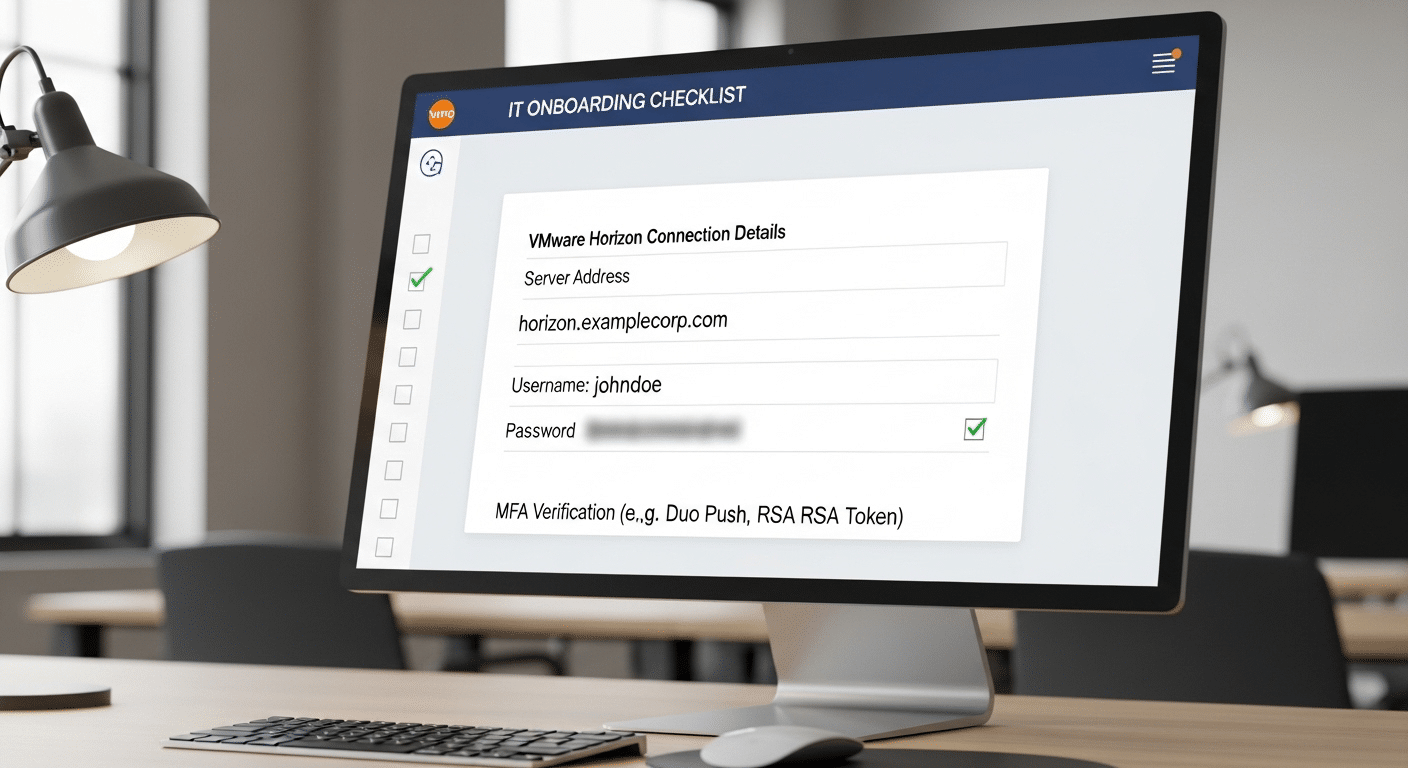
Before you attempt to connect, a small but important step comes first. You need the correct server information from your organization. Without that information, the Horizon Client simply does not know where to send your connection request.
Most companies provide these details through internal documentation, onboarding instructions, or directly from an IT administrator. Taking a moment to confirm the correct details saves time later and prevents connection errors during login.
Required Information Before Adding a Server
- Connection Server FQDN or IP address
- Example format: view.company.com
- Username and password credentials for login
- Domain name if the organization requires domain authentication
- Multi-factor authentication code if security policies require it
- VPN access when connecting from off-campus or external networks
In some testing environments, the client may also request certificate verification. Accepting the certificate allows the connection to proceed.
How to Add a Server to VMware Horizon Client
Now that you have the required server details, the actual setup inside VMware Horizon Client is fairly straightforward. The client interface is simple by design, which helps users connect to remote desktops without navigating complicated settings. You just provide the correct server address, authenticate, and the system takes care of the rest.
Still, following the correct steps matters. A small mistake in the server address or login credentials can prevent the connection from being established.
Steps to Add a Server in VMware Horizon Client
- Open the VMware Horizon Client application on your computer.
- In the client window, locate the option to Add Server and click it.
- Enter the server domain name or IP address provided by your organization.
- If the server uses a custom port, type it using the format servername:port.
- Click Connect to begin the client connection.
- When prompted, enter your username and password credentials.
- If the system requires additional verification, enter the multi-factor authentication code.
- After successful login, select the desktop or application you want to open.
Depending on company policy, Horizon Client may allow you to save your credentials. This option can simplify future logins and reduce the need to enter credentials each time you connect.
What Happens After You Add the Server? Understanding the Secure Tunnel Connection?

Once the server is added and your login succeeds, the process continues quietly in the background. The Horizon Client first establishes an HTTPS connection with the Horizon Connection Server, which acts as the central point that verifies your identity and determines which desktops or applications you are allowed to access.
After authentication, the system creates a secure tunnel connection. This tunnel is important because it carries the actual desktop display traffic and application data between your device and the remote environment. Everything moves through an encrypted channel.
The PCoIP Secure Gateway checks that the user has been authenticated before allowing access to the desktop session. In some configurations, once a direct session is established, the desktop can remain active even if the connection server stops running.
How Can You Manage Servers in VMware Horizon Client?
After adding a server, the VMware Horizon Client also allows you to manage multiple connections from the same interface. Many organizations operate more than one connection server, especially in large environments. Because of that, the client includes simple tools for organizing and updating server entries.
Server Management Options
- Add multiple servers if your organization provides access to different environments
- Open connections to several servers simultaneously from the client window
- Remove a server by right click on the server entry and selecting Delete
- Change or update server addresses if the connection server information changes
This flexibility allows you to move between desktop environments quickly without reopening or reinstalling the Horizon Client.
What Are the Most Common Issues When Adding a Server?

Even though the setup process is straightforward, connection problems can still appear from time to time. In most cases, the issue does not come from the Horizon Client itself. Instead, it usually comes from incorrect server information, network restrictions, or authentication problems during login.
Small details matter here. A missing character in the server address or an inactive VPN can prevent the connection from working properly.
Common VMware Horizon Connection Issues
- Incorrect server domain name or IP address entered in the client
- VPN not enabled when connecting from off-campus networks
- Certificate verification warnings in test or development environments
- Incorrect login credentials during authentication
- Firewall rules blocking secure connections
When a connection problem appears, carefully verify the server information, login details, and network requirements provided by your administrators. For broader deployment and troubleshooting considerations, see VMware Horizon configuration.
Final Thoughts
Adding a server in VMware Horizon Client may seem like a small step, but it plays a central role in gaining reliable desktop access. The basic process is straightforward. You open the Horizon Client, add the connection server, authenticate your credentials, and then launch the remote desktop or application assigned to you.
Understanding how the connection works behind the scenes helps avoid common setup problems. Correct server addresses, proper login credentials, and secure network access all contribute to a smooth connection experience.
When configuring the client, always follow the instructions and documentation provided by your organization or administrator. Accurate information ensures that Horizon Client connects successfully every time.
Frequently Asked Questions (FAQs)
1. What server address should you enter in VMware Horizon Client?
You typically enter the Fully Qualified Domain Name (FQDN) provided by your organization, such as view.company.com. If a custom port is required, the format should be servername:port.
2. How do you add a server to VMware Horizon Client?
Open VMware Horizon Client, click Add Server, enter the connection server address, then click Connect. After login, you can select the desktop or application you want to open.
3. Can you connect to multiple servers in Horizon Client?
Yes. VMware Horizon Client allows users to add multiple connection servers. Each server appears in the client window, and you can open connections to different desktops and applications.
4. Why can’t Horizon Client connect to the server?
Connection problems usually happen because of incorrect server addresses, VPN restrictions, firewall rules, or authentication issues during login.
5. How do you remove a server from VMware Horizon Client?
Right-click the server inside the client window and select Delete to remove the server connection.
