
What Is a Virtual Computer Lab and How Does It Work?
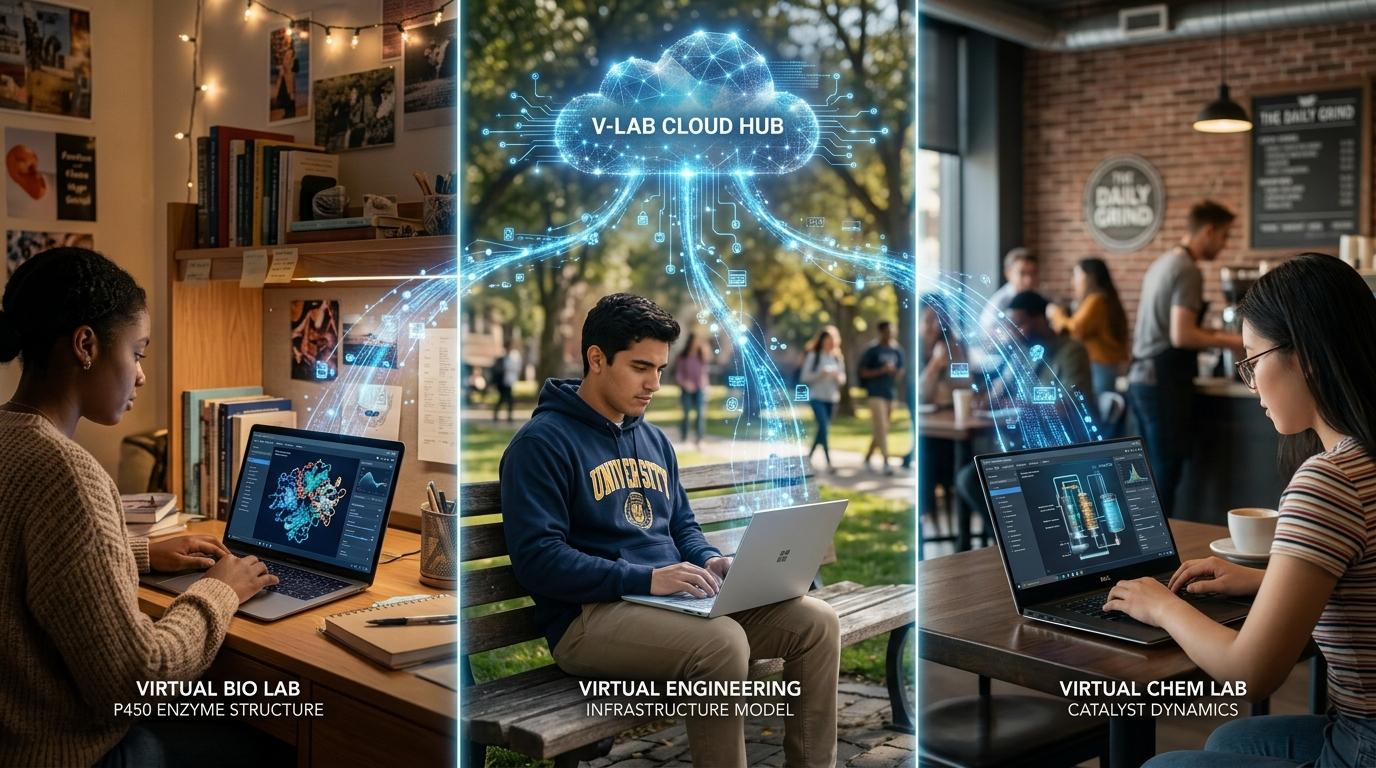
A virtual computer lab is a cloud-based environment that gives students and faculty access to software, applications, and desktop resources through a web browser. Unlike physical labs, virtual labs provide 24/7 remote access from almost any device, simplifying software delivery, reducing IT management, and supporting flexible learning.
Physical computer labs served universities well for decades, until remote learning exposed how limited they really were. Students needed software access beyond campus walls, faculty needed more flexible teaching tools, and IT teams struggled to support growing demand without constantly replacing hardware.
That pressure accelerated adoption of the virtual computer lab. Today, cloud-hosted virtual desktops give students 24/7 access to software and academic resources through a web browser from almost any device.
Virtual labs reduce dependence on expensive physical computer labs, simplify software management, and improve access for off-campus learners.
In this blog, you’ll explore how virtual computer labs work, why institutions are modernizing toward browser-based infrastructure, and how cloud-hosted learning environments are reshaping education technology.
What Is a Virtual Computer Lab?
The idea sounds complicated at first, mostly because the word “virtual” tends to make everything feel more abstract than it really is. But a virtual computer lab is actually pretty straightforward once you strip away the technical jargon.
Instead of requiring students to sit inside a physical room filled with campus-owned desktop computers, universities now deliver software, files, and computing resources through cloud-hosted virtual desktops accessible from almost anywhere. Dorm room. Apartment. Library. Airport Wi-Fi at 2 a.m. before an assignment deadline. Happens more often than faculty probably want to know.
The important distinction is this: the computer doing the heavy lifting often isn’t the device sitting in front of you anymore.
What Is the Simplest Definition of a Virtual Computer Lab?
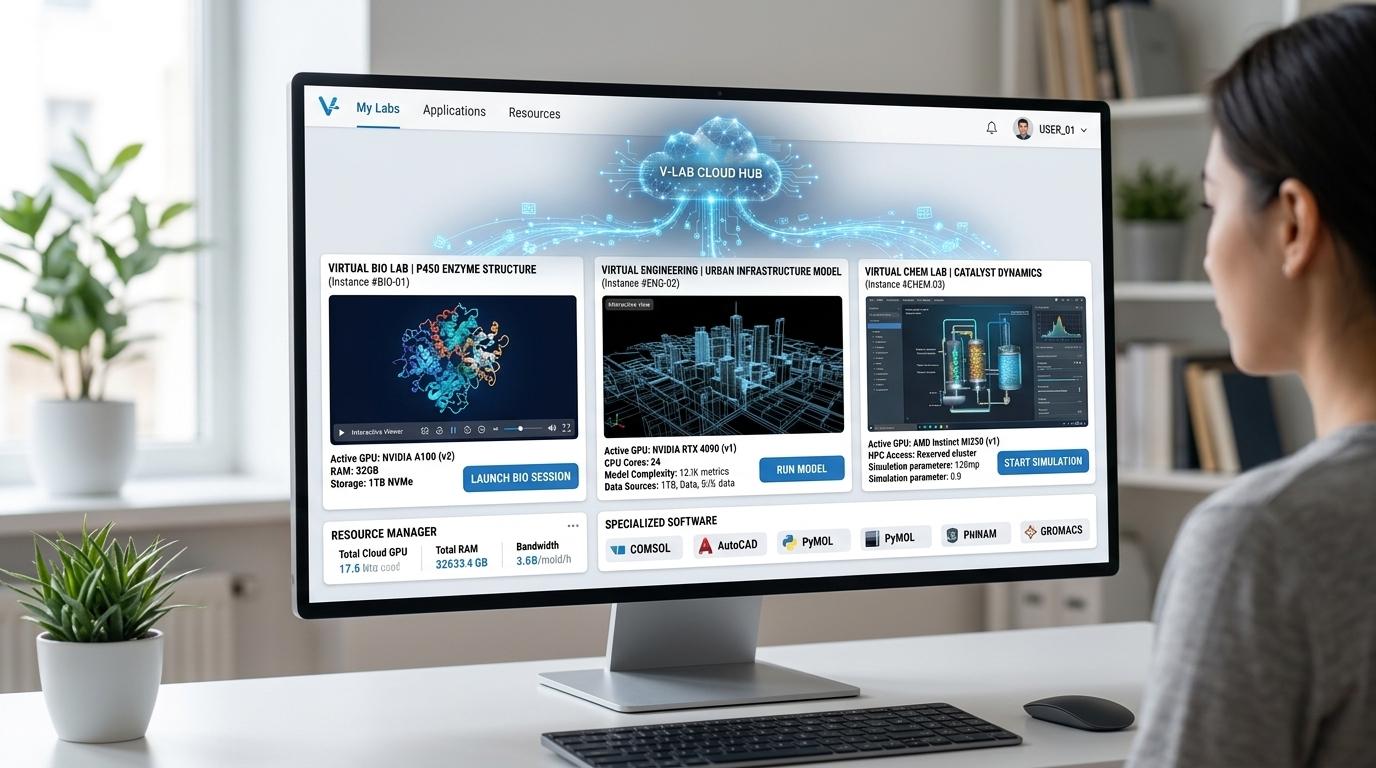
A virtual computer lab is a cloud-based environment that gives students and faculty remote access to software, applications, and desktop environments through a web browser or lightweight app.
Instead of relying on physical computer labs located on campus, users connect to virtual desktops running on secure cloud servers. These virtual computers can often be created within minutes after approval, allowing centralized access to academic software and institutional resources from almost any device.
In practical terms, a virtual computer lab works like a remotely hosted campus computer.
The software doesn’t run directly on your laptop in most cases. The applications, operating systems, and computing resources live inside centralized cloud infrastructure instead. Students simply access that virtual desktop remotely through a browser session or lightweight connection portal.
That architecture solves several long-standing problems in education:
- software accessibility
- device compatibility
- hardware limitations
- off-campus access
- IT management overhead
And honestly, universities needed those problems solved badly. Physical computer labs became harder to scale every year while remote learning expectations kept growing.
How Is a Virtual Computer Lab Different From a Physical Computer Lab?
Traditional computer labs were built around location. You went somewhere specific, sat at a specific machine, and used software installed directly onto that hardware. Functional model. Very inflexible model too.
Virtual labs reverse that arrangement almost entirely. Instead of bringing students to the software, cloud-hosted infrastructure delivers the software to students remotely through virtual desktop environments. The campus computer lab becomes accessible through a web browser rather than a physical room.
That changes a lot operationally. Students no longer depend heavily on local hardware performance because the demanding workloads run remotely on centralized infrastructure. A Chromebook, older Windows laptop, MacBook, or low-cost device can still access advanced software environments through the cloud.
And that matters because not every student owns high-end hardware. Universities know this. Faculty know this. Students definitely know this.
| Physical Computer Labs | Virtual Computer Labs |
|---|---|
| Require on-campus presence | Accessible remotely from almost anywhere |
| Depend on local desktop hardware | Run through cloud-hosted virtual desktops |
| Software installed individually on machines | Centralized software delivery |
| Limited operating schedules | 24/7 accessibility |
| Higher physical maintenance burden | Centralized infrastructure management |
| Device-specific access limitations | Supports Windows, Mac, Linux, Chromebooks |
There’s another subtle advantage too. Virtual desktops extend the usable life of older devices because the heavy computing happens remotely rather than locally. Universities can delay large hardware replacement cycles, which helps reduce cost pressures across campus IT budgets.
Physical labs still exist, certainly. But increasingly, they’re no longer the center of academic software access.
Why Are Universities Modernizing Beyond Traditional Computer Labs?
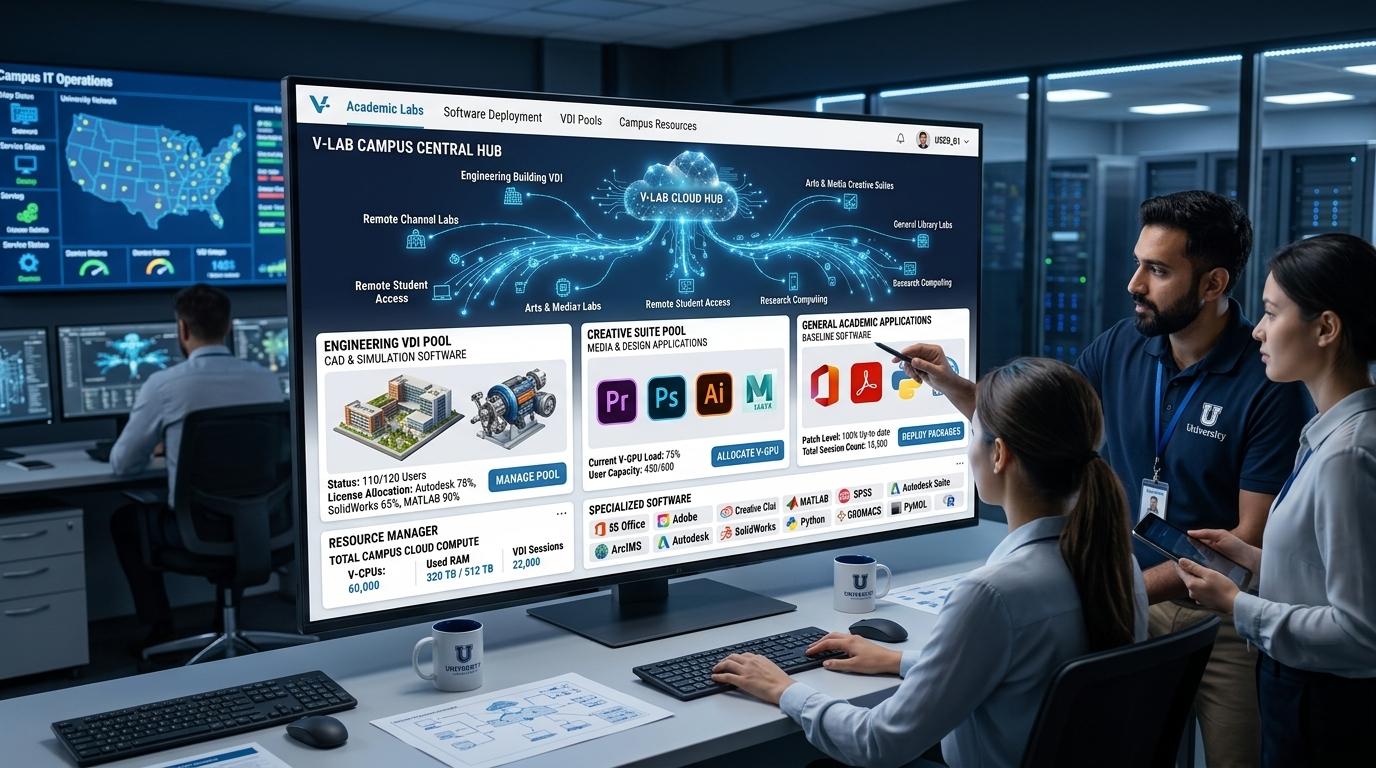
Part of the answer is financial. Maintaining physical computer labs across campus buildings became increasingly expensive over time. For a deeper look at the cost of on-campus computer labs, hardware replacement cycles alone create enormous cost pressure for universities already balancing shrinking budgets and growing technology expectations.
But remote learning accelerated the urgency dramatically. Students needed reliable access to software outside campus buildings, often across different time zones, devices, and internet conditions.
This shift from physical to cloud computer labs gave universities a more flexible way to deliver software and computing resources beyond the traditional campus lab.
Physical labs simply weren’t designed for that kind of flexibility. Virtual computer labs closed much of that gap by making academic resources accessible from almost anywhere with a web browser.
The operational benefits matter too. Centralized cloud management allows IT teams to install software once instead of updating hundreds of individual campus machines manually.
Faculty gain more consistent classroom environments. Students gain more flexibility around when and where they work.
And perhaps that’s the larger pattern emerging across higher education now. Access increasingly matters more than location.
How Does a Virtual Computer Lab Actually Work?
At first glance, virtual computer labs can feel oddly invisible. There’s no physical room full of humming desktop towers, no long rows of monitors glowing under fluorescent campus lighting, no lab assistant reminding students not to unplug cables again. Yet the software, computing power, files, and classroom resources still exist. They’ve simply moved into centralized cloud infrastructure instead of sitting inside a campus building.
That’s the core idea behind modern virtual desktop infrastructure in education.
The applications run remotely on powerful servers. Students connect through a web browser or lightweight portal. The device in front of you becomes more like an access window than the actual computer doing the heavy processing. Strange at first, perhaps. Then surprisingly normal after a few sessions.
And once universities centralize software delivery this way, a lot of operational headaches begin shrinking quietly in the background.
What Happens When You Log Into a Virtual Computer Lab?
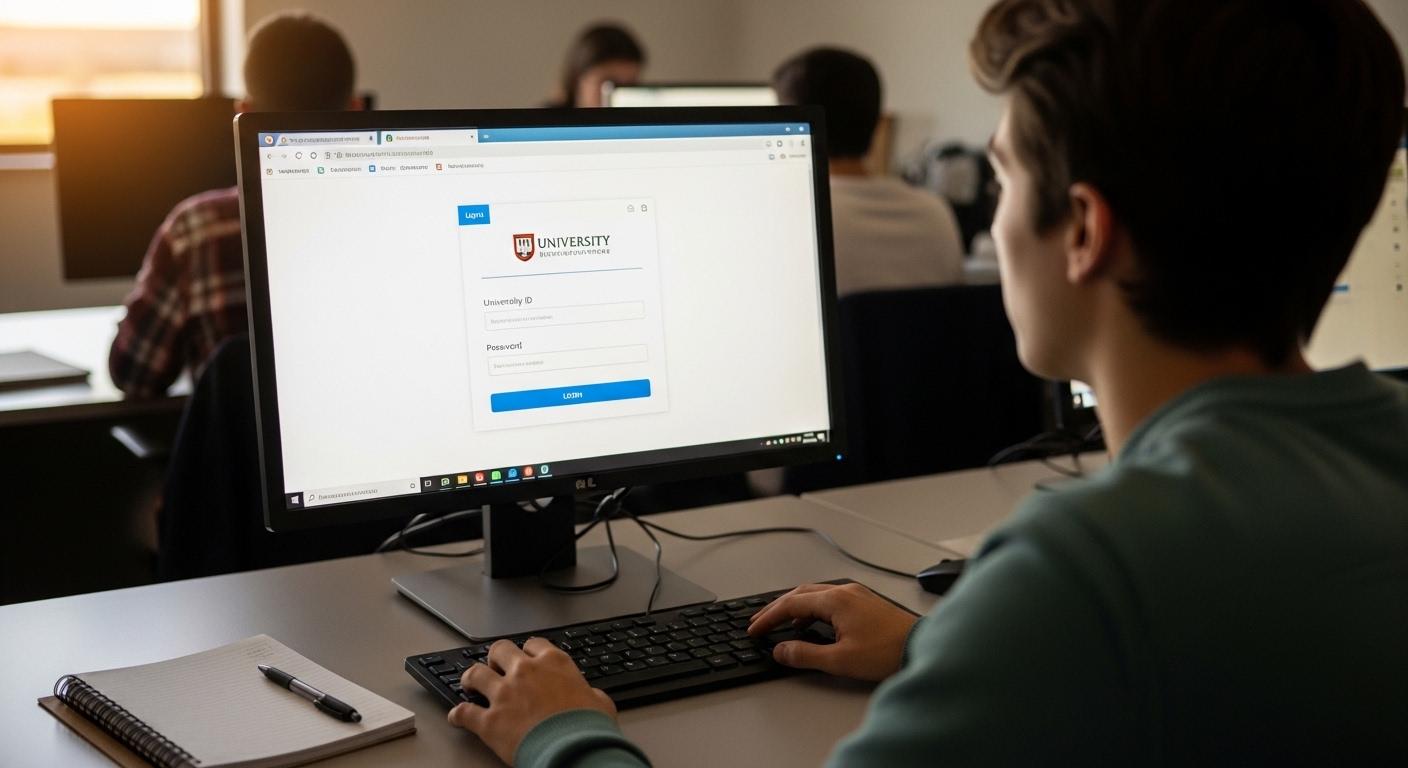
The process is usually much simpler than people expect. Most students never interact directly with the backend infrastructure at all. They just log in, launch the environment, and start working.
A typical workflow looks something like this:
- Submit a lab access request: Some institutions require students or faculty to submit a request before accessing specialized software environments.
- Receive permissions or VPN approval: Off-campus users may need VPN permissions depending on institutional security policies and software licensing requirements.
- Open a web browser: Students typically access the virtual computer lab directly through a supported web browser.
- Authenticate credentials: Users log in using institutional accounts, single sign-on systems, or multifactor authentication.
- Launch the virtual desktop: After login, a virtual computer is created or assigned, often within minutes after approval.
- Access software and files: Applications, academic tools, course materials, and lab resources appear inside the virtual desktop environment.
- Upload or save work to cloud storage: Students commonly save files to Google Drive, Box, or institutional cloud storage services during active sessions.
- Log out safely: Proper logout procedures help protect files, user sessions, and institutional resources.
A small but important detail catches many new users off guard: files not uploaded to cloud storage may disappear once the session ends. Virtual desktop environments are not always designed for permanent local storage persistence.
That’s why universities repeatedly remind students to save work carefully. Sometimes aggressively. Because somebody always forgets five minutes before a project deadline.
Browser-based delivery simplifies the entire process considerably though. No heavy software installation. Fewer compatibility issues. Less dependency on high-end local hardware.
Where Do Virtual Labs Actually Run?
The virtual desktop you see on screen usually does not run directly on your laptop. Instead, the applications, operating systems, and computing resources run remotely inside secure cloud infrastructure maintained by the university or cloud provider.
Your device mainly displays the session and sends inputs back to the remote environment.
That architecture allows institutions to centralize software delivery and handle demanding workloads using powerful shared infrastructure instead of requiring every student to own expensive hardware locally.
| Component | Where It Runs |
|---|---|
| Operating system | Cloud servers |
| Academic software | Remote infrastructure |
| Resource-intensive apps | Centralized computing environment |
| User display session | Web browser or lightweight client |
| Files and storage | Cloud storage platforms |
This matters especially for software that requires significant computing power. Engineering simulations, CAD tools, video editing applications, data science environments, 3D rendering software, those workloads often overwhelm older laptops quickly.
Virtual labs solve that problem because the heavy processing happens remotely on centralized infrastructure instead of the student’s local device.
So even lower-cost devices can access demanding applications through a virtual computer environment. A Chromebook can suddenly run software it technically could never run natively. Feels a little like cheating physics sometimes. But useful cheating.
Why Is Cloud Storage Essential Inside Virtual Desktop Environments?
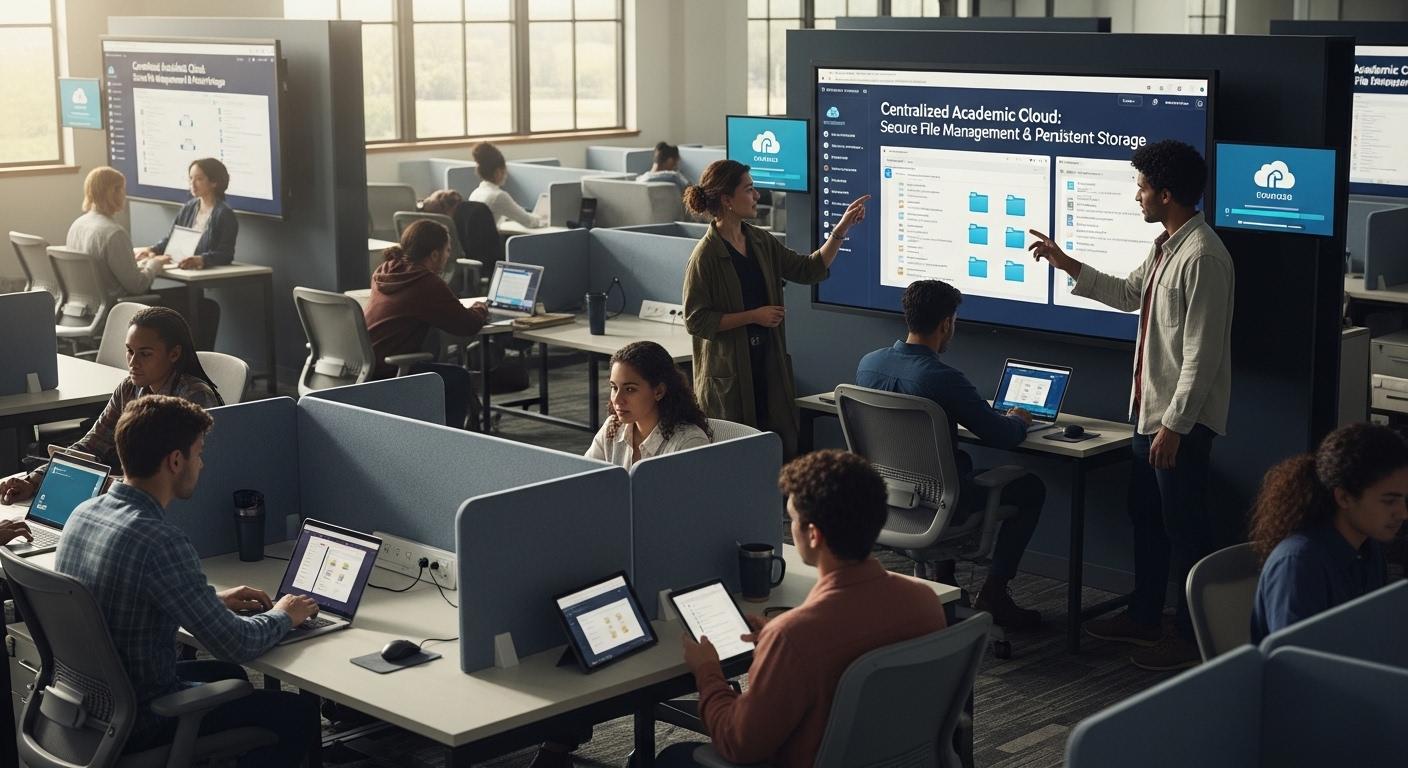
Cloud storage quietly becomes one of the most important parts of the entire system.
Inside many virtual desktop environments, local session storage is temporary by design. Once users log out, unsaved files may disappear permanently unless they’ve been uploaded or saved to cloud-based storage services first.
That’s why institutions strongly encourage students to use:
- Google Drive
- Box
- institutional cloud storage systems
- OneDrive environments in some cases
Google Drive is commonly viewed as one of the most reliable options because students only need to grant access permissions once, after that files remain accessible across sessions and devices much more consistently.
A typical workflow usually looks like this:
- Upload local files into the session
- Work inside the virtual desktop
- Save progress to cloud storage
- Access the same files later from another device
Many virtual computer labs also provide a Temporary Files area for:
- uploading large local files
- moving assignment data quickly
- transferring project materials during active sessions
But temporary storage is not permanent storage. Important distinction. Universities repeat that warning constantly because students occasionally treat temporary folders like long-term archives, which rarely ends well.
Cloud storage solves persistence problems while improving accessibility across multiple devices and locations simultaneously.
What Devices Can Access Virtual Computer Labs?
One of the biggest advantages of browser-based virtual desktops is flexibility across devices. The local machine matters far less because the actual computing workloads run remotely inside cloud infrastructure.
Most virtual computer labs support:
- Windows laptops and desktops
- Mac devices
- Chromebooks
- Linux systems
- Tablets
- Older computers with limited hardware capabilities
Cross-platform compatibility improves accessibility significantly across higher education environments because students rarely use identical hardware anymore. Some use gaming laptops. Others use budget Chromebooks. Some are still hanging onto laptops that sound like tiny aircraft engines during Zoom calls.
Virtual desktop infrastructure helps normalize that inconsistency.
Since applications run remotely, older devices remain useful much longer than they otherwise would. Browser-based access through a web browser reduces dependency on local processing power, making software and academic resources accessible across a much wider range of devices.
Why Are Virtual Computer Labs Transforming Higher Education?
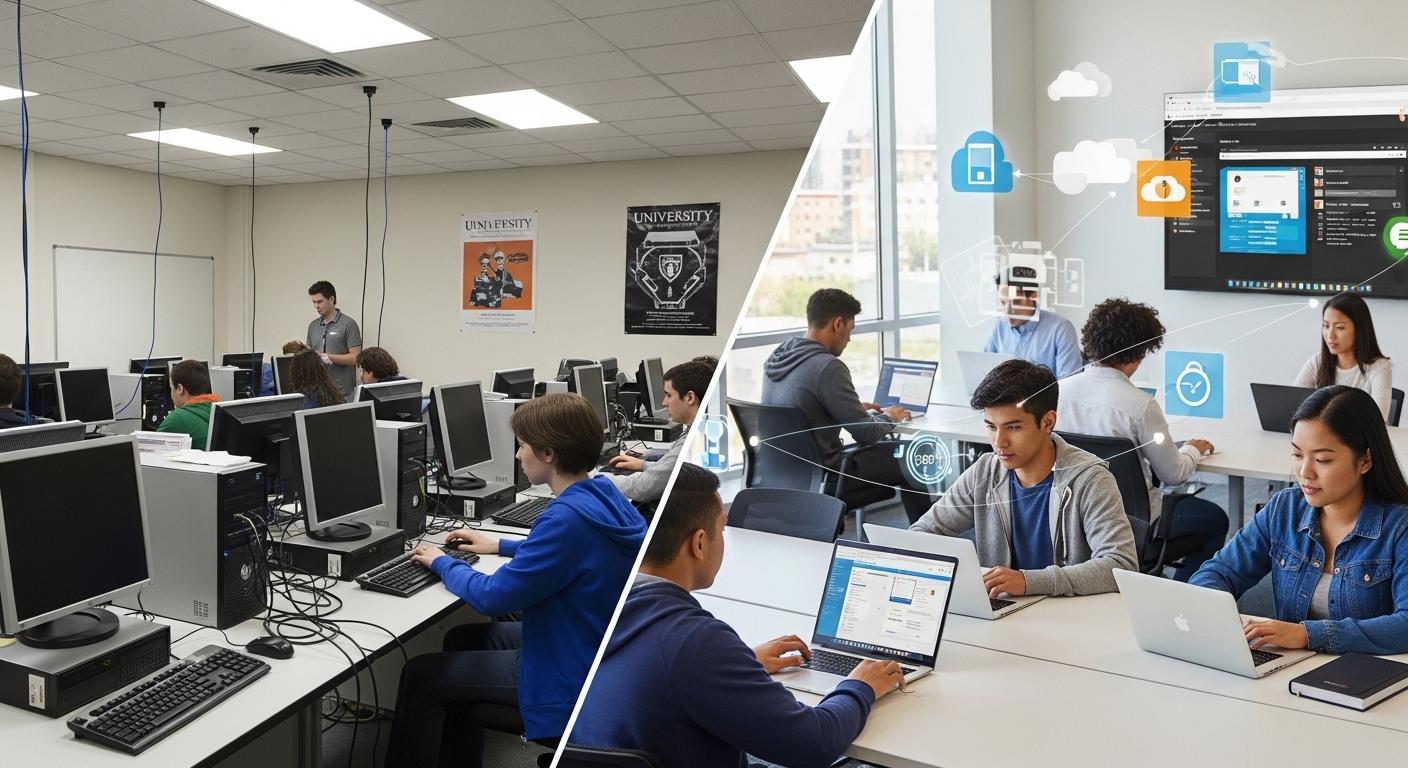
Higher education spent decades building learning environments around physical presence. Students walked into campus computer labs, used institution-owned machines, completed assignments, saved files onto flash drives, then rushed across campus to the next class hoping the printer actually worked that day. Familiar system. Also surprisingly fragile once remote learning entered the picture.
Virtual computer labs changed the assumptions underneath that model.
Now the important part is no longer where the computer sits physically. What matters is access, software availability, and whether students can continue working without being blocked by hardware limitations, lab schedules, or campus location restrictions. That difference sounds subtle at first. It isn’t.
For many universities, virtual desktop infrastructure quietly became one of the most important educational technologies supporting modern learning environments.
How Do Virtual Labs Improve Student Access to Software and Coursework?
Access used to depend heavily on proximity. If specialized software only existed inside a campus computer lab, students had to physically reach that room before they could work. Sounds obvious now, but that limitation shaped academic schedules for years.
Virtual labs remove much of that restriction.
Students can access software, files, and academic resources from almost any location with a web browser and internet connection. Dorm rooms. Apartments. Public libraries. Coffee shops with suspiciously unstable Wi-Fi. Even long airport layovers before conferences or competitions. Academic work no longer pauses simply because someone left campus.
That flexibility matters enormously for:
- hybrid learning students
- commuters
- part-time learners
- international students
- remote research assistants
- students balancing work alongside coursework
Cloud-hosted applications also reduce hardware barriers significantly. A student using an older laptop or Chromebook can still access demanding software through a virtual desktop because the actual computing workloads run remotely on centralized infrastructure instead of locally on the device itself.
And honestly, that changes educational equity more than many institutions initially expected.
Browser-based access improves continuity too. Students can begin work on one device, continue from another location later, and access the same resources without depending on specific campus hardware. The learning environment becomes more portable, less tied to buildings and schedules.
The campus still matters, of course. But software access increasingly exists beyond campus walls now.
Why Are Faculty and IT Departments Moving Toward Virtual Labs?
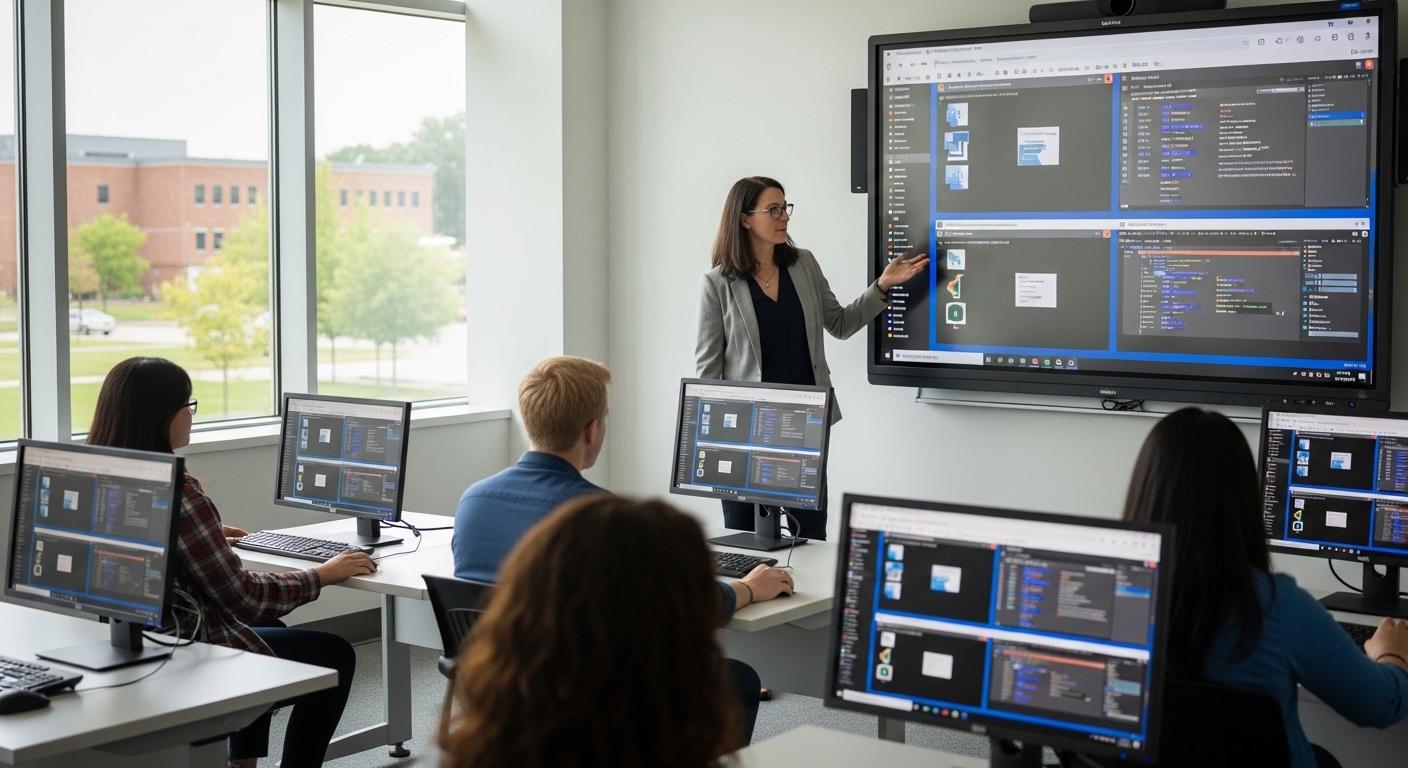
Faculty and IT staff often inherit the operational chaos surrounding traditional computer labs. Software updates, hardware failures, inconsistent classroom environments, licensing issues, machine imaging, semester turnover, the maintenance cycle never really stops.
As institutions look for more flexible ways to deliver learning, virtual training platforms can help extend that experience beyond the traditional lab environment.
Virtual labs simplify much of that. As institutions compare different approaches to delivering hands-on learning, exploring ReadyTech alternatives can help identify platforms that offer different capabilities for virtual training, labs, and flexible learning environments. Operational advantages include:
- Centralized software deployment: IT teams install applications once inside the cloud instead of configuring hundreds of physical machines individually.
- Simplified updates: Software patches and operating system updates happen centrally, reducing maintenance workload dramatically.
- Easier classroom preparation: Faculty gain more consistent teaching environments because students access standardized virtual desktops remotely.
- Faster onboarding: New students, faculty, and temporary users receive access more quickly through centralized provisioning systems.
- Reduced support workload: Browser-based delivery lowers compatibility problems across mixed-device environments.
- Consistent lab environments: Virtual desktops create predictable software configurations across courses and departments.
| Traditional Lab Management | Virtual Lab Management |
|---|---|
| Individual machine updates | Centralized cloud updates |
| Physical hardware maintenance | Reduced hardware dependency |
| Device-specific troubleshooting | Browser-based accessibility |
| Manual software deployment | Unified software delivery |
For IT departments especially, centralized management improves operational efficiency significantly because software only needs to be maintained once inside the cloud environment rather than across scattered campus devices. Organizations comparing different virtual lab platforms can also explore CloudLabs alternatives to evaluate other approaches to hands-on training, lab delivery, and scalable learning environments.
How Do Virtual Labs Support Hybrid and Remote Learning?
Hybrid learning exposed a problem universities had quietly carried for years: educational infrastructure was still deeply tied to physical location. Students could attend lectures remotely, yes, but accessing specialized software or campus resources often remained frustratingly inconsistent. How to conduct virtual training becomes an important consideration in this environment, especially when instructors need to deliver practical learning experiences to students who are not physically together.
For cybersecurity coursework in particular, understanding what is a virtual cybersecurity lab helps explain how practical training can move beyond the physical campus.
Virtual computer labs closed much of that gap. For instance, learners working with cybersecurity environments, a virtual lab for penetration testing can provide a controlled space to practice security techniques without relying entirely on physical lab infrastructure.
Browser-native virtual desktops support distributed learning environments and make cloud-based virtual training more practical by allowing students and faculty to access applications, coursework, and lab resources remotely through centralized cloud infrastructure.
The classroom becomes more flexible because access no longer depends entirely on being physically present inside a campus building. Several advantages stand out quickly:
- Remote study flexibility: Students continue coursework from almost any accessible location.
- Off-campus access: Virtual labs bridge software access gaps for remote learners.
- Real-time collaboration: Shared environments improve collaboration between students and faculty across distributed classrooms.
- Consistent learning environments: Students access standardized software regardless of device differences.
- Global accessibility: International and remote users gain more reliable access to academic resources.
Remote learning increasingly depends on centralized cloud access because universities need scalable systems capable of supporting large distributed user populations simultaneously. Virtual labs help create that continuity while reducing dependence on physical computer labs tied to fixed schedules and locations.
Virtual Labs vs Physical Labs: Which Model Makes More Sense Today?
| Category | Physical Computer Labs | Virtual Computer Labs |
|---|---|---|
| Accessibility | Limited to campus location | Accessible remotely 24/7 |
| Cost | High hardware replacement costs | Reduced infrastructure spending |
| Scalability | Limited by physical space | Easily scalable through cloud infrastructure |
| Hardware Dependency | Requires institution-owned devices | Supports mixed personal devices |
| Maintenance | Ongoing physical maintenance | Centralized cloud management |
| Learning Flexibility | Restricted schedules | Flexible remote study access |
| Software Delivery | Installed locally on machines | Centralized virtual desktop delivery |
| Resource Availability | Location-dependent | Available from almost anywhere |
Physical computer labs still serve important purposes in some academic environments. But increasingly, virtual computer labs provide the flexibility, accessibility, and operational efficiency modern institutions need to support distributed learning at scale.
What Are the Biggest Benefits of Virtual Computer Labs?
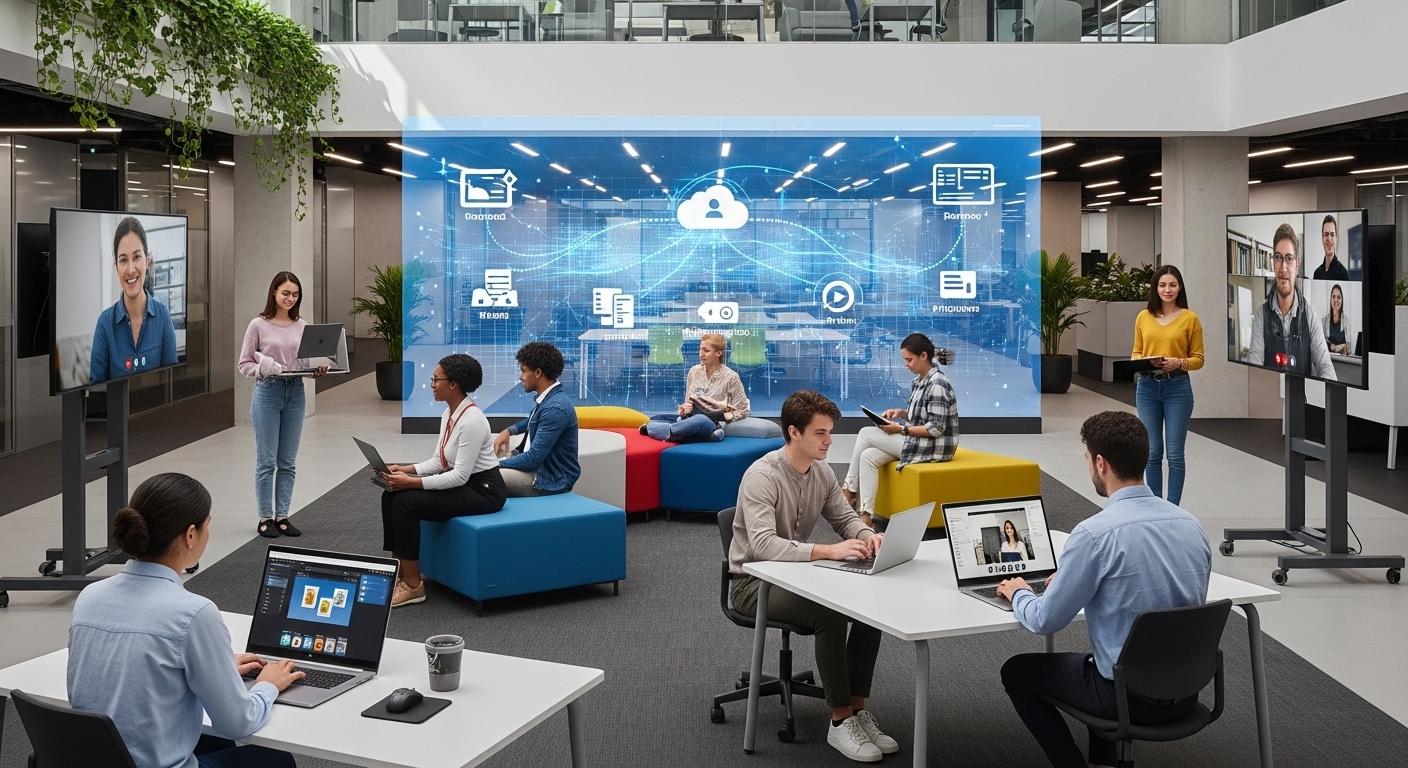
By this point, the appeal of virtual computer labs probably feels larger than simple convenience. Universities are not investing in browser-based virtual desktops merely because remote access sounds modern on a conference slide somewhere.
The deeper motivation is operational survival mixed with educational flexibility. For a closer look at the advantages of virtual computer labs, it helps to consider how these benefits affect cost, accessibility, maintenance, and scalability.
Physical labs became increasingly difficult to scale. Hardware aged quickly. Software licensing grew more complicated. Students used wildly different devices. Faculty expected learning continuity across campus, home, and hybrid classrooms simultaneously. Eventually the old model started straining under its own weight a little.
Virtual labs solve many of those problems by moving computing workloads, software delivery, and lab management into centralized cloud infrastructure. That architectural change affects cost, accessibility, maintenance, collaboration, and scalability all at once.
Not perfectly, of course. No infrastructure model solves everything. But the advantages are significant enough that higher education keeps moving in this direction anyway.
How Do Virtual Labs Reduce Hardware Costs?
Traditional computer labs require constant hardware investment. Desktop replacements, graphics upgrades, failed drives, aging processors, broken monitors, damaged keyboards, eventually the maintenance cycle becomes relentless. Universities know this pain very well.
Virtual desktops reduce much of that pressure because the demanding workloads run remotely inside cloud infrastructure instead of directly on local machines.
That changes the economics considerably.
Students no longer need high-performance devices to access advanced software environments. Older laptops, budget Chromebooks, or lower-cost devices can still function effectively as lightweight access points because the virtual computer handles the processing remotely.
Cloud-hosted workloads reduce local hardware demands in several important ways:
- fewer high-end campus desktops required
- longer lifespan for older devices
- reduced upgrade frequency
- lower physical maintenance costs
- smaller hardware replacement cycles
And honestly, extending hardware life matters more than many institutions initially expected. Universities often operate thousands of devices across departments, labs, libraries, and classrooms. Delaying replacement cycles even slightly can produce major cost reductions over time.
| Traditional Physical Labs | Virtual Computer Labs |
|---|---|
| Frequent hardware upgrades | Reduced endpoint dependency |
| High-performance local desktops required | Remote cloud processing |
| Shorter device lifespan | Extended usability for older devices |
| Larger maintenance burden | Lower hardware management costs |
The cloud doesn’t eliminate infrastructure spending entirely, certainly. But it redistributes computing demands away from local hardware and into centralized environments that scale more efficiently.
Why Are Virtual Labs Easier to Manage Than Physical Labs?
For IT staff, traditional computer labs often create a never-ending maintenance treadmill. Install software here. Patch operating systems there. Reimage broken machines. Troubleshoot device compatibility issues. Repeat forever. Sometimes literally during semester breaks while everyone else disappears for vacation.
Virtual labs simplify much of that operational workload. Management advantages include:
- Centralized software deployment: Applications are installed once inside centralized infrastructure rather than individually across physical machines.
- Unified operating system updates: Windows and system updates occur centrally, improving consistency across users and reducing maintenance fragmentation.
- Faster troubleshooting: IT teams troubleshoot centralized virtual environments instead of physically inspecting scattered campus devices.
- Simplified provisioning: New users and classroom environments can be created much faster through virtual desktop templates.
- Reduced maintenance: Fewer physical computers means fewer hardware failures, replacements, and repair cycles.
- Standardized lab environments: Students and faculty access more consistent software configurations across courses and departments.
| Physical Lab Management | Virtual Lab Management |
|---|---|
| Manual machine-by-machine updates | Centralized administration |
| High physical maintenance overhead | Lower operational complexity |
| Inconsistent software versions | Standardized environments |
| Slower onboarding processes | Faster provisioning |
Software installation occurring once inside centralized cloud infrastructure changes almost everything operationally. IT departments spend less time maintaining physical machines and more time managing services strategically instead.
For institutions comparing different approaches to virtual lab delivery, exploring Practice Labs alternatives can help identify platforms with different management, accessibility, and deployment models.
That’s also where the best virtual IT labs software can make a meaningful difference, by centralizing the environments students and faculty need to access. That reduction in operational friction becomes increasingly important as universities support larger distributed learning environments.
How Do Virtual Labs Improve Accessibility and Device Flexibility?

Accessibility may be the single most transformative advantage virtual labs provide. Students no longer need to physically travel to campus computer labs simply to complete coursework requiring specialized software.
They can access assignments, applications, and academic resources from nearly any location with internet access and a supported web browser. That flexibility changes educational access in practical ways:
- commuter students gain more scheduling freedom
- remote learners maintain consistent software access
- international students avoid location-based restrictions
- students using older devices remain supported
- coursework becomes less dependent on campus schedules
Browser-based delivery improves accessibility significantly because the virtual desktop environment runs consistently across different operating systems and hardware types. Windows devices, Macs, Chromebooks, Linux systems, tablets, mixed-device environments become much easier to support centrally.
And perhaps this matters most quietly for students facing technology inequity.
Not every student owns expensive laptops capable of running demanding software locally. Virtual labs reduce some of that disparity because cloud infrastructure handles the resource-intensive workloads remotely instead of relying entirely on local device capabilities.
The software experience becomes more standardized even when the hardware is not.
Why Are Virtual Labs Better for Resource-Intensive Software?
Some academic software is incredibly demanding. Engineering applications, CAD environments, simulation platforms, video editing tools, data science workloads, many of these programs push local hardware surprisingly hard. That’s one reason institutions exploring the virtual labs for software training often look for environments that can deliver demanding applications without relying on high-performance student devices.
Virtual labs handle those workloads differently. Instead of requiring students to own expensive high-performance computers, powerful cloud servers run the applications remotely while users access them through virtual desktops.
The heavy processing occurs inside centralized infrastructure rather than on the student’s local machine. Common resource-intensive workloads include:
- Engineering applications
- CAD software
- Video editing environments
- Data science tools
- Simulation platforms
That architecture improves software accessibility considerably because students no longer depend heavily on local hardware capabilities. A lower-cost laptop can still access advanced applications through browser-based virtual desktops, Which, frankly removes a major barrier in technical education environments.
Cloud infrastructure also allows institutions to scale demanding software access more efficiently across departments and classrooms without constantly expanding physical hardware inventories.
How Do Virtual Labs Improve Collaboration Between Students and Faculty?
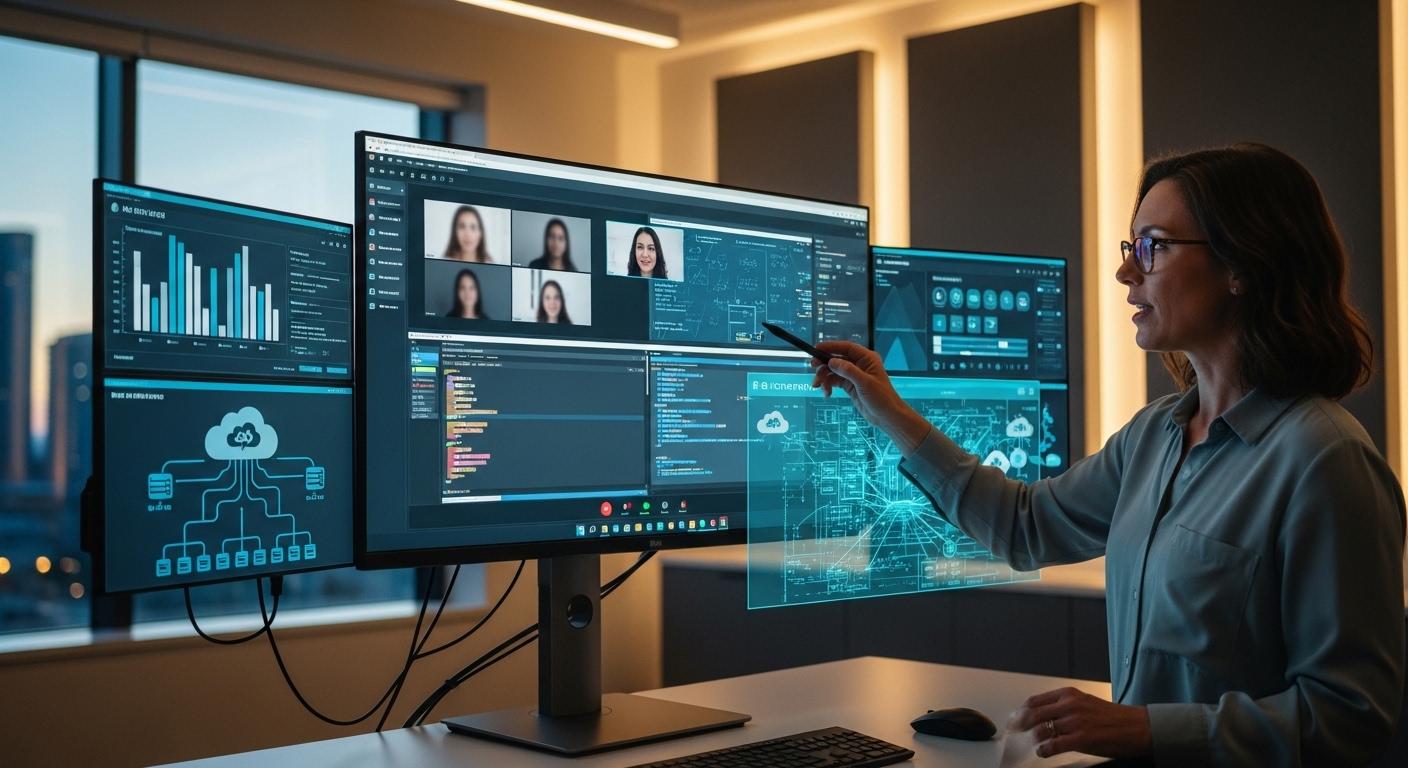
Collaboration becomes easier when everyone accesses the same centralized resources and software environments consistently. Virtual labs support shared access environments where students and faculty can work inside standardized platforms regardless of physical location.
Cloud-hosted infrastructure improves teamwork across distributed classrooms because users access the same applications, files, and lab resources remotely through centralized systems.
Faculty benefit too. Standardized software delivery reduces classroom inconsistencies and makes it easier to support assignments across entire courses. Students spend less time troubleshooting access problems and more time actually completing the work, which sounds obvious, but historically has not always been the case in academic technology environments.
What Challenges Do Virtual Computer Labs Still Face?
Virtual computer labs solve a surprising number of problems in higher education. Accessibility improves. Software delivery becomes easier. Hardware demands decrease. IT operations become more centralized and manageable. All true.
But virtual labs are not frictionless systems floating magically in the cloud somewhere beyond consequence. They still depend on infrastructure, connectivity, policies, and user behavior, and those things can get messy pretty quickly sometimes.
Universities adopting virtual desktop environments still face technical limitations, file management confusion, authentication challenges, and security considerations that require careful planning.
Most institutions accept those trade-offs because the broader benefits outweigh the drawbacks, but the drawbacks still exist. Ignoring them would make the discussion feel suspiciously polished. And students notice operational flaws immediately. Usually at midnight before a deadline.
What Technical Problems Can Affect Virtual Computer Labs?
Even well-designed virtual computer labs can experience technical friction points, especially when thousands of users connect simultaneously across different devices, internet conditions, and locations. Common technical challenges include:
- Internet dependency: Virtual desktops rely heavily on stable internet access. Weak connections can interrupt sessions, slow software performance, or create lag during coursework.
- Session timeouts: Some environments automatically disconnect inactive sessions after a certain amount of time to preserve resources and maintain security.
- Browser compatibility issues: Although browser-based access improves flexibility, not every web browser behaves identically across all operating systems and devices.
- VPN access limitations: Certain institutions still require VPN permissions for off-campus access, which can create additional login complexity for users unfamiliar with the process.
- File persistence risks: Files not properly saved to cloud storage may disappear after logout or session expiration.
- Performance bottlenecks: Resource-intensive applications can experience delays if infrastructure resources become congested during peak usage periods.
| Technical Challenge | Impact on Users |
|---|---|
| Poor internet connectivity | Lag, disconnects, slow performance |
| Session expiration | Lost progress if work is unsaved |
| Browser inconsistencies | Access or display issues |
| VPN requirements | Additional setup complexity |
| Storage mistakes | Missing files after logout |
| Infrastructure congestion | Reduced responsiveness |
Most universities provide instructions and onboarding resources to reduce these problems, but realistically, technical confusion never disappears entirely in large distributed learning environments. Humans remain very creative at clicking the wrong thing under pressure.
Why Does File Management Confuse New Virtual Lab Users?
File management becomes confusing because virtual desktop environments do not always behave like personal laptops. New users often assume files automatically save locally forever unless told otherwise very clearly, and unfortunately, that assumption can backfire badly.
Inside many virtual labs, session storage is temporary by design. That means unsaved files may disappear permanently after logout, timeout, or session expiration if they were not uploaded to cloud storage first. Students sometimes discover this the hard way after hours of coursework vanish unexpectedly. Not a pleasant learning experience.
Temporary Files spaces add another layer of confusion. These folders are useful for uploading large local files or moving materials during active sessions, but they are not permanent storage locations. Universities repeat this warning constantly because temporary storage gets mistaken for long-term storage all the time.
Cloud storage becomes essential because it creates persistence across sessions and devices. Most institutions encourage students to save work through:
- Google Drive
- Box
- institutional cloud storage platforms
Google Drive is often considered one of the most reliable options because students only need to authorize access once, after that files remain accessible much more consistently across devices and future sessions. The learning curve eventually settles down. Usually after one accidental file loss. Sometimes two.
What Security and Access Challenges Exist in Virtual Labs?
Security matters enormously inside virtual desktop environments because universities manage sensitive student information, licensed software, institutional resources, and shared infrastructure simultaneously. That creates complicated access control requirements behind the scenes.
Authentication systems are one major layer. Most institutions require users to:
- submit access requests
- authenticate through university credentials
- follow multifactor authentication procedures
- receive permission approvals for specialized software
Some environments also require VPN access for off-campus users, especially when software licensing agreements or institutional policies restrict external connectivity.
| Security Area | Purpose |
|---|---|
| Authentication systems | Verify user identity |
| VPN requirements | Secure off-campus access |
| Access control policies | Restrict unauthorized usage |
| Session security | Protect active virtual desktops |
| Data protection measures | Safeguard institutional information |
Centralized infrastructure improves security in many ways because universities maintain more control over software environments and user access. But centralized systems also require stronger oversight because large shared environments become attractive targets for misuse or unauthorized access attempts.
And honestly, balancing accessibility with security remains one of the hardest parts of modern educational infrastructure. Make systems too restrictive and students struggle to work. Make them too open and institutional risk increases quickly.
Why Are Browser-Based Virtual Computer Labs Becoming the Future?

Something subtle happened over the last few years in higher education technology. Universities stopped asking only, “How powerful is the software?” and started asking a different question entirely: “How difficult is this to access and maintain at scale?” This shift is part of the broader evolution and future of university computer labs.
That distinction changed everything. Traditional virtual labs still carried operational baggage from older infrastructure models, installed clients, software compatibility headaches, endpoint troubleshooting, device-specific configurations, endless update cycles. Functional systems, certainly. But not always graceful once thousands of students started connecting remotely across wildly different devices and locations.
Browser-native virtual computer labs simplify much of that complexity by turning the web browser into the access layer itself. No heavy installations. Fewer local dependencies. Faster onboarding. Less friction between students and the software they actually need to use.
Why Is Browser-Based Access Changing Educational Infrastructure?
Browser based access changes educational infrastructure because it removes one of the biggest operational bottlenecks in academic technology environments: software installation and device dependency. In traditional lab environments, students often needed:
- campus-owned hardware
- installed applications
- operating-system compatibility
- device-specific configurations
- VPN setup assistance
- local administrative permissions
That process created friction constantly. Some students could not install software properly. Others used unsupported devices. IT teams spent enormous amounts of time troubleshooting endpoint problems instead of improving learning systems strategically.
Browser-native virtual desktop environments reduce much of that complexity.
With HTML5 browser access, applications and virtual desktops run remotely inside centralized cloud infrastructure while users connect through a standard web browser. The device becomes more of a viewing window than the machine handling the actual computing workload.
That architecture improves scalability significantly because institutions no longer need to tightly control every endpoint device individually. Chromebooks, Macs, Windows laptops, Linux systems, mixed-device classrooms, all become easier to support through centralized browser-based delivery.
Clientless infrastructure also reduces support requirements dramatically. Fewer installations mean fewer compatibility failures. Easier onboarding means students access software faster. Updates occur centrally rather than across thousands of scattered devices.
And perhaps most importantly, browser-based access improves accessibility. Students can connect to academic apps and virtual desktop environments from almost anywhere without needing specialized hardware or complicated installation instructions. The software simply becomes easier to reach. Which sounds simple. Because it is.
What Operational Advantages Do Browser-Native Labs Provide?
Browser-native virtual labs simplify operations in several very practical ways:
- Faster onboarding: Students and faculty can access resources quickly through a web browser without lengthy installations or device configuration.
- Fewer support tickets: Eliminating many client-side compatibility issues reduces troubleshooting workload for IT staff.
- Easier software updates: Applications and operating systems update centrally inside cloud infrastructure instead of on individual devices.
- Reduced endpoint management: Institutions spend less time managing device-specific software installations across campus environments.
- Better device compatibility: Browser-based environments support Windows, Mac, Chromebook, Linux, and tablet access more consistently.
- Simplified global deployment: Universities can provide software access across campuses, remote learners, and international users more efficiently.
- Improved accessibility: Students gain more accessible access to resources regardless of device limitations or physical location.
And this is probably the deeper trend shaping educational infrastructure now. Institutions increasingly prioritize systems that remove friction quietly in the background, because once learning environments become globally distributed, operational simplicity stops being a convenience feature and starts becoming infrastructure strategy.
For a deeper look at the virtual computer labs future, these shifts in accessibility, scalability, and browser-based delivery provide important context.
Why Apporto Represents a More Modern Virtual Computer Lab Platform?
By now, the broader pattern across higher education feels difficult to ignore. Universities want flexible software access, simpler infrastructure management, scalable remote learning support, and fewer operational headaches tied to physical computer labs. Students expect coursework to remain accessible from almost anywhere. Faculty expect consistency. IT teams expect systems that don’t collapse into endless troubleshooting cycles every semester.
That combination of expectations pushed many institutions toward browser-native virtual desktop environments. And that’s where Apporto enters the conversation differently from many traditional virtual lab platforms.
Instead of building around heavy client installations and infrastructure complexity, Apporto focuses heavily on accessibility, centralized cloud delivery, and operational simplicity designed specifically for modern educational environments. The platform feels much closer to the way universities actually operate now, distributed users, mixed devices, remote coursework, hybrid classrooms, smaller IT teams doing the work of much larger ones.
What Makes Apporto Different From Traditional Virtual Lab Platforms?
Traditional virtual computer lab environments often inherit a surprising amount of complexity from older infrastructure models. Installed software clients, VPN dependencies, endpoint configuration issues, scattered application management, operating system inconsistencies, eventually the maintenance burden grows quietly in the background until IT teams spend enormous amounts of time simply keeping environments operational.
Apporto approaches the problem differently. The platform emphasizes browser based access and centralized cloud delivery, allowing students and faculty to access virtual desktop environments directly through a web browser without depending heavily on installed software or complicated endpoint setup procedures.
That architectural difference matters more than it may seem initially. Browser-native delivery reduces deployment complexity significantly because institutions no longer need to manage large-scale client installations across thousands of devices.
Students can access virtual apps and academic resources much faster, often without requiring deep technical setup knowledge at all.
Main advantages include:
- Browser-native delivery: Students and faculty connect directly through a supported web browser instead of relying on heavy installed clients.
- No heavy client installs: Reducing software installation requirements lowers compatibility problems across devices and operating systems.
- Simplified deployment: Centralized infrastructure allows faster rollout of software environments across classrooms, departments, and remote learners.
- Secure remote access: Cloud-hosted virtual desktop environments provide controlled access to institutional resources from almost anywhere.
- Faster onboarding: New users gain access more quickly because browser-based environments reduce setup friction significantly.
- Near-native performance: Modern streaming and virtualization technologies help applications feel responsive even when workloads run remotely.
- Lower operational overhead: Simplified infrastructure lowers IT management demands and reduces maintenance complexity.
- Reduced support burden: Fewer endpoint dependencies usually mean fewer troubleshooting tickets for IT staff.
- Designed for higher education and SMBs: Apporto aligns particularly well with universities, colleges, training environments, and lean IT organizations needing scalable access without oversized infrastructure investments.
Centralized cloud delivery improves software consistency across classrooms and departments because students access standardized virtual desktop environments regardless of local device differences. A Chromebook user and a high-end Windows laptop user can access the same academic resources through essentially the same browser-based experience. That consistency becomes incredibly valuable at scale.
And honestly, the institutions adopting browser-native infrastructure now are often trying to solve something larger than software access alone. They’re trying to simplify educational technology operations before complexity overwhelms flexibility completely.
Why Is Apporto Especially Effective for Universities and Lean IT Teams?
Universities face a strange balancing act. Students expect flexible access to software and academic resources from almost anywhere, while faculty expect consistent classroom environments and IT teams are expected to support all of it without endlessly expanding infrastructure budgets or staffing levels.
Apporto fits particularly well inside higher education because the platform reduces much of the operational complexity traditionally associated with virtual desktop environments. Browser-based delivery lowers infrastructure management demands while making software access more scalable across campus and remote learning environments simultaneously.
For lean IT teams, that operational simplicity matters enormously. Instead of maintaining large fleets of physical machines or troubleshooting software installations across thousands of devices, administrators manage centralized cloud-hosted environments more efficiently.
Software deployment becomes faster. Onboarding becomes simpler. Support overhead decreases because users access resources through consistent browser-native workflows.
Students benefit too. Virtual desktop access remains available across campus, home environments, hybrid classrooms, and remote learning scenarios without requiring specialized local hardware.
That flexibility improves continuity for coursework, labs, research environments, and collaborative projects across distributed academic settings.
And perhaps this is why browser-native virtual computer labs continue gaining traction so quickly. Universities increasingly need infrastructure that supports flexibility without multiplying operational complexity at the same pace.
How Does Apporto Compare to Traditional Computer Labs?
| Category | Traditional Computer Labs | Apporto |
|---|---|---|
| Accessibility | Limited to campus locations | Accessible remotely through browser |
| Deployment Complexity | Manual hardware and software setup | Simplified cloud deployment |
| Device Flexibility | Campus-owned hardware dependent | Supports mixed personal devices |
| Infrastructure Overhead | Higher maintenance burden | Lower operational overhead |
| Software Delivery | Installed locally on machines | Centralized virtual apps |
| Scalability | Limited by physical space | Scalable cloud infrastructure |
| Maintenance Burden | Ongoing physical management | Centralized administration |
Final Thoughts
A few years ago, virtual computer labs were often treated like supplemental infrastructure, useful for remote learners perhaps, but still secondary to physical campus labs. That assumption has changed quickly.
Educational institutions increasingly prioritize centralized cloud access because students, faculty, and IT departments now operate across far more distributed environments than before. Coursework happens across dorm rooms, apartments, hybrid classrooms, research spaces, libraries, and remote learning environments simultaneously. Software access can no longer depend entirely on physical location.
That reality is pushing universities toward browser-native virtual desktop infrastructure. Browser-based platforms reduce infrastructure complexity significantly because they simplify deployment, lower endpoint management requirements, and improve accessibility across devices. Students can access software and academic resources from Windows laptops, Chromebooks, Macs, tablets, even older computers that would struggle to run demanding applications locally. And hybrid learning continues accelerating virtual lab adoption.
Cloud-hosted software environments give institutions more flexibility to scale resources, standardize classroom experiences, and support remote access without constantly expanding physical hardware investments. Faculty gain more consistent teaching environments. IT teams gain centralized management. Students gain broader access to academic tools from almost anywhere.
Physical computer labs probably will not disappear completely. Some specialized environments still require dedicated on-campus infrastructure. But increasingly, the virtual computer lab is becoming the primary access layer rather than the backup option.
Perhaps that’s the larger transition happening quietly across higher education now. Access matters more than location, and browser-native infrastructure is slowly becoming the foundation supporting that idea.
Frequently Asked Questions (FAQs)
1. What is a virtual computer lab?
A virtual computer lab is a cloud-based environment that gives students and faculty remote access to software, applications, and virtual desktop resources through a web browser or lightweight connection portal. Instead of relying entirely on physical computer labs, users access centralized cloud infrastructure from almost any device.
2. How does a virtual computer lab work?
A virtual computer lab runs software and operating systems on centralized cloud servers rather than local devices. Students log into a virtual desktop through a web browser, access applications remotely, work inside the cloud-hosted environment, and save files to cloud storage platforms like Google Drive or Box.
3. What happens if you forget to save files in a virtual desktop session?
Files not saved to cloud storage may disappear permanently after logout or session expiration. Many virtual desktop environments use temporary session storage by default, so institutions strongly encourage students to upload and save files regularly through Google Drive, Box, or institutional cloud platforms.
4. Why is Google Drive commonly used in virtual labs?
Google Drive is commonly used because it provides reliable cloud storage persistence across sessions and devices. Students typically authorize access once, then save and retrieve files easily from virtual desktop environments without depending on temporary local session storage that may disappear after logout.
5. Can students access virtual computer labs off campus?
Yes. Most virtual computer labs allow off-campus access through a web browser and internet connection. Some universities may require VPN permissions or additional authentication for secure access, particularly when students use licensed software or protected institutional resources remotely.
6. Do virtual computer labs work on Chromebooks and Macs?
Yes. Modern browser-native virtual desktop environments support Chromebooks, Macs, Windows laptops, Linux systems, and tablets. Because applications run remotely inside cloud infrastructure, students can access software across many different devices without relying heavily on local hardware performance.
7. Are virtual labs secure for student and faculty use?
Virtual labs are generally secure when institutions use centralized authentication, encrypted sessions, access controls, and secure cloud infrastructure. Many universities also require multifactor authentication or VPN access to help protect academic resources, institutional information, and student data across distributed environments.
8. Why are universities replacing physical computer labs?
Universities are modernizing beyond physical computer labs because virtual labs improve accessibility, reduce hardware costs, simplify software management, and support hybrid learning environments more effectively. Cloud-hosted virtual desktops also help institutions provide broader software access without constantly expanding physical infrastructure.
9. What software can run inside a virtual computer lab?
Virtual computer labs can support many types of software, including engineering applications, CAD tools, programming environments, video editing software, simulation platforms, statistical analysis tools, and specialized academic resources that normally require powerful local hardware to run effectively.
10. Do virtual labs require VPN access?
Some virtual labs require VPN access for off-campus users, especially when institutions need additional security or software licensing compliance. Browser-native environments increasingly reduce VPN dependency, but requirements vary based on university policies, authentication systems, and application restrictions.
11. Can older computers use virtual desktop environments?
Yes. Older computers often work well with virtual desktop environments because the demanding workloads run remotely on cloud servers instead of the local machine. Browser-based access allows aging laptops and lower-cost devices to remain useful for coursework and software access much longer.
12. What is the difference between a physical and virtual computer lab?
Physical computer labs require students to use campus-owned hardware in specific locations during scheduled hours. Virtual computer labs deliver software and academic resources remotely through cloud-hosted virtual desktops accessible from almost any location, device, or web browser at any time.
13. Why are browser-native virtual labs becoming more popular?
Browser-native virtual labs reduce deployment complexity by eliminating many software installation and compatibility problems. They improve accessibility across devices, simplify onboarding, reduce IT support workload, and allow students to access applications directly through a web browser without heavy client installations.
14. How do virtual labs reduce IT workload?
Virtual labs reduce IT workload through centralized management. Software installation, operating system updates, troubleshooting, and provisioning occur inside cloud infrastructure instead of across hundreds of individual campus devices. That centralized approach lowers maintenance overhead and improves operational efficiency significantly.
15. Are virtual computer labs cheaper than physical labs?
In many cases, yes. Virtual computer labs reduce hardware replacement costs, extend device lifecycles, lower maintenance demands, and simplify software deployment. Institutions still invest in cloud infrastructure and licensing, but operational costs often become more scalable than maintaining large physical computer lab environments.
