

How Do You Create and Use a Canvas SpeedGrader Rubric?
To create a Canvas SpeedGrader rubric, open your course’s Rubrics page, define grading criteria, set performance ratings and point values, and save it. Attach the rubric to an assignment, open SpeedGrader, select appropriate ratings, provide feedback, and save the assessment. Enable rubric-based grading to automatically populate assignment grades.
Grading a stack of student assignments takes time. And when you’re reviewing dozens of submissions, keeping your scores fair and feedback consistent can become a challenge. That’s where a Canvas SpeedGrader rubric comes in handy.
Rather than deciding how to score each assignment from scratch, you can use clear grading criteria, assign points, and leave feedback on specific parts of a student’s work.
Students benefit, too. They can see exactly where they earned points and what needs improvement. So, how do you get started?
This guide walks you through creating Canvas rubrics, attaching them to assignments, grading in SpeedGrader, adjusting scores, and fixing common grading issues.
What Is a Canvas SpeedGrader Rubric, and How Does It Work?
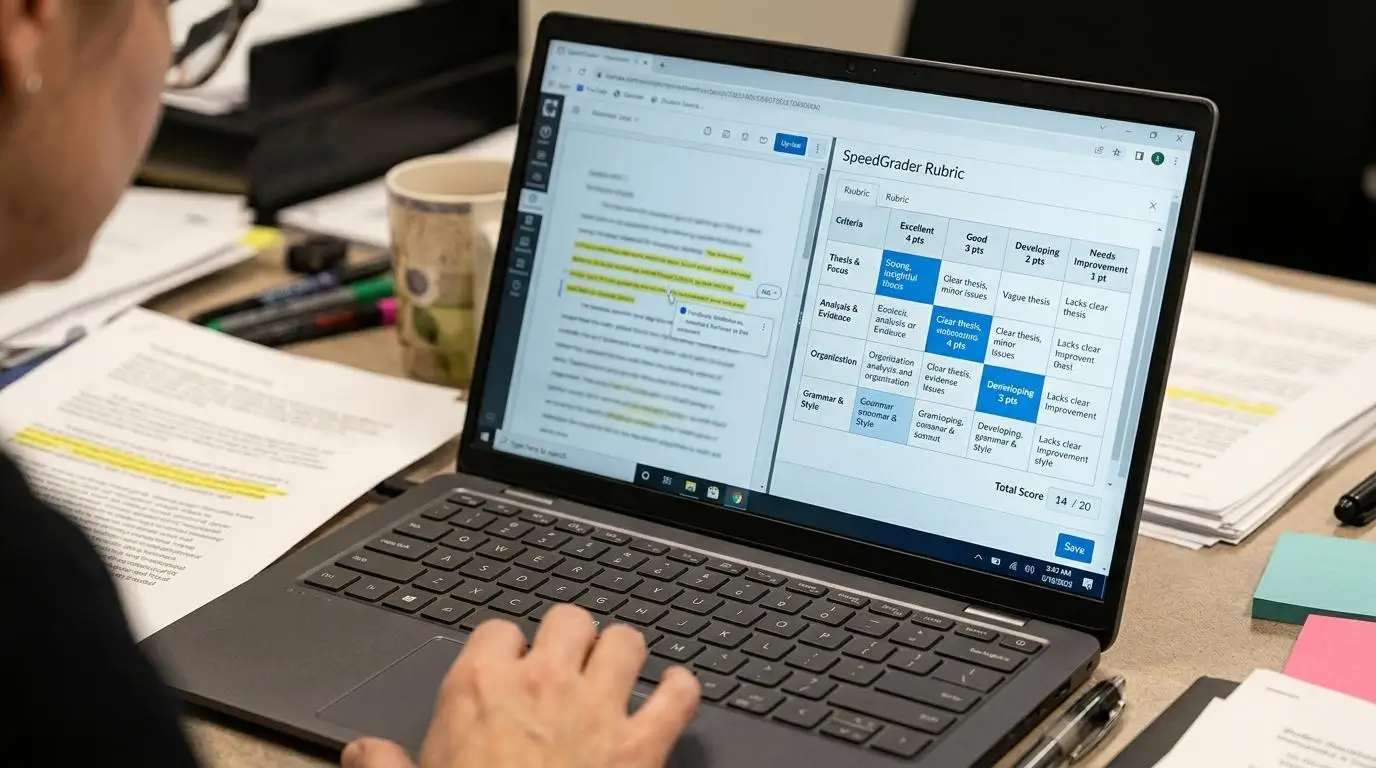
A Canvas SpeedGrader rubric gives you a clear set of standards for assessing student assignments. Each rubric breaks the work into grading criteria, performance ratings, and point values. That way, students know what’s expected, and you have a consistent way to score their submissions.
SpeedGrader is the Canvas tool where you open student work, apply the rubric, assign grades, and leave feedback. It’s a straightforward way to keep grading organized, particularly when you’re reviewing a large number of submissions.
How Do Rubric Criteria, Ratings, and Points Work?
Each rubric criterion covers a particular skill or part of the assignment, such as research quality, organization, or critical thinking. Say Research Quality is worth 10 points. Your rating scale might look like this:
| Rating | Points |
|---|---|
| Excellent | 10 |
| Good | 8 |
| Developing | 5 |
| Needs Improvement | 2 |
Here, the criterion maximum point value is 10. But a student who meets the “Good” standard would earn 8 points. You choose the rating that fits their work, and Canvas records the corresponding rubric points.
How Do You Create a Rubric in Canvas?

Creating a rubric in Canvas isn’t too complicated. The main thing is knowing where to find the tools and how to set up your grading criteria. You can create rubrics through your course’s Rubrics page or directly from an assignment. Depending on whether your institution uses Classic Rubrics or Enhanced Rubrics, some buttons and options may look a little different.
Here’s how to create one:
- Open Your Canvas Course: Go to the course where you’ll use the rubric and select Rubrics from the navigation menu.
- Start a New Rubric: Look for Add Rubric or Create New Rubric, depending on your Canvas interface.
- Give It a Name: Choose something specific, like “Research Paper Grading Rubric,” so you can easily find it later.
- Add Your Criteria: Create a separate criterion for each area you’re assessing, such as research quality, content, or organization.
- Set Points and Ratings: Decide how many points each criterion is worth and describe what different performance levels look like.
- Save Your Rubric: Review the criteria, add anything you’ve missed, and save your work.
Your rubric is now ready to attach to an assignment.
How Can You Customize Rubric Criteria and Rating Points?
Canvas gives you room to adjust grading criteria, rating descriptions, and point values based on what matters most in your assignment. For instance, Research Quality might carry 20 points, while Organization gets 10.
You can also add ratings, explain what each performance level requires, and use point ranges where available. Some Canvas interfaces use a pencil icon for editing, while Enhanced Rubrics may display different controls.
How Do You Add a Rubric to an Assignment in Canvas?

Once your rubric is ready, you’ll need to connect it to the assignment you’re grading. Canvas allows you to attach a new or existing rubric, which comes in handy if you use similar grading criteria across several assignments.
Here’s how to do it:
- Open Your Assignment: Go to Assignments in your Canvas course and select the assignment you want to grade.
- Find the Rubric Option: Look for Add Rubric or the relevant rubric controls, depending on your Canvas interface.
- Choose a Rubric: Create one from scratch or find an existing rubric you’ve already prepared.
- Check the Details: Make sure the grading criteria, rubric points, and assignment points match your grading plan.
- Save Your Changes: Attach the rubric to the assignment and confirm everything looks right.
Rubrics can also be used with graded discussions and supported quiz activities, although New Quizzes follows a slightly different setup process.
How Do You Enable “Use This Rubric for Assignment Grading”?
In Classic Rubrics, look for the Use this rubric for assignment grading checkbox when setting up your rubric. It’s an important option. When enabled, Canvas uses your completed rubric assessment to calculate the assignment grade and populate the Grade field in SpeedGrader.
If you leave it unchecked, you can still assess student work and provide feedback through the rubric, but you’ll generally need to enter the assignment grade separately. With that configured, you’re ready to grade submissions.
How Do You Grade an Assignment With a Rubric in Canvas SpeedGrader?

With your rubric attached and grading settings in place, you’re ready to start reviewing student work. A Canvas SpeedGrader rubric makes this process easier by keeping the grading criteria right alongside each submission. You can select ratings, assign points, and leave feedback without switching between different tools.
Here’s how to grade an assignment:
- Open SpeedGrader: Go to your assignment page in Canvas and click SpeedGrader.
- Choose a Student: Open the student submission you want to review.
- Show the Rubric: Click View Rubric to bring up the grading criteria.
- Review the Criteria: Compare the student’s work against the expectations you’ve already defined.
- Select a Rating: Choose the performance level that fits their work. Canvas displays the points associated with your selection.
- Adjust Points: If the preset rating doesn’t quite reflect the student’s performance, enter a different score in the Points field, where supported.
- Leave Feedback: Add comments to individual criteria to explain scores or suggest improvements.
- Save Your Assessment: Click Save, Submit Assessment, or the relevant button in your Canvas interface.
- Review the Grade: Check the rubric total and the assignment’s Grade field before opening the next submission.
If you’ve enabled the rubric for assignment grading, Canvas can automatically fill in the Grade field. Otherwise, you’ll generally need to enter that grade yourself.
How Can You View and Resize the Rubric Window?
Click View Rubric in SpeedGrader to open the criteria beside the student’s submission. Working with a longer rubric? Scroll through the panel to review all the ratings.
In Classic Rubrics, you can also drag the sizing column horizontally to give yourself more room. Enhanced Rubrics may have different viewing and resizing options.
How Does Canvas Calculate Rubric Points and Assignment Grades?
Canvas calculates your rubric score by adding together the points awarded for each grading criterion. If you’ve selected Use this rubric for assignment grading, Canvas can automatically transfer the completed rubric score to the Grade field in SpeedGrader.
Here’s a simple example. Say you’re grading a research assignment worth 30 points.
| Rubric Criterion | Maximum Points | Points Earned |
|---|---|---|
| Content Quality | 10 | 8 |
| Research and Analysis | 10 | 9 |
| Organization | 5 | 4 |
| Presentation | 5 | 5 |
| Total | 30 | 26 |
The student earns 26 out of 30 points. Pretty straightforward, and you can see exactly where those points came from.
Can You Manually Enter Different Points for a Rubric Criterion?
Yes. You don’t always have to stick with the points attached to a preset rating. In supported Canvas rubric interfaces, you can enter a different score directly into the Points field.
This comes in handy when a student’s work falls somewhere between two performance levels. Some configurations also allow points above the criterion maximum, as long as your grading rules permit it.
Why Might Rubric Points Not Automatically Populate the Grade Field?
First, check whether your rubric is actually enabled for assignment grading. In Classic Rubrics, look for the Use this rubric for assignment grading checkbox.
It’s also worth comparing the rubric total with the assignment points, since different totals can affect grading results. If the rubric isn’t configured to calculate grades, you’ll need to enter the final score separately.
How Do You Add Comments and Feedback to a Canvas Rubric?

A score tells students how they performed, but it doesn’t always explain why they earned it. With Canvas, you can leave feedback on individual rubric criteria, giving students a clearer idea of what they did well and where they need to improve. While grading in SpeedGrader, look for the comment icon beside each criterion. You can use it to add feedback specific to that part of the assignment.
For instance, rather than writing “Good work,” you could point out that the research was thorough but needed stronger evidence to support the main argument. That gives students something useful to work on.
Can You Use Free-Form Comments Instead of Fixed Rubric Ratings?
Yes. Canvas supports free-form comments in certain rubric configurations, so you can write personalized feedback rather than relying entirely on preset rating descriptions. This can be helpful when an assignment allows students to approach the work in different ways.
You can acknowledge their strengths, explain where they fell short, and suggest what to improve next time. Keep in mind that feedback and scoring work differently. How Canvas calculates rubric points depends on your grading settings.
How Do Canvas Rubrics Support Learning Outcomes and Extra Credit?

Canvas rubrics can help you assess specific learning outcomes, such as research, critical thinking, or communication. By adding an outcome criterion to your rubric, you can see how well students demonstrate a particular skill through their work.
This is useful when you’re tracking student progress across several assignments, rather than looking at one grade in isolation. It also gives you a clearer way to explain where students are improving and where they still need practice.
Can You Assign Extra Points Through a Canvas Rubric?
Yes. Depending on your rubric setup, Canvas may let you enter additional points above a criterion’s maximum value or include a separate extra-credit criterion. However, extra credit tied to learning outcomes may require specific course feature options.
It’s worth checking these settings before you start grading. Extra points don’t automatically work the same way in every Canvas configuration.
What Can Students See When You Grade With a Canvas Rubric?

Students don’t have to wait until their assignments are graded to understand what’s expected of them. When you make a rubric available on the assignment page, they can review the grading criteria, performance ratings, and point values before submitting their work.
That gives them a clearer idea of where to focus their effort. Once you’ve graded the assignment, students can also see how they performed in each area, along with the feedback you’ve provided.
How Do Students View Their Rubric Scores and Comments?
Students can open their graded assignment through the Canvas Grades page to check their rubric results. They’ll be able to review the points earned for each criterion and read any available instructor comments.
One thing to remember: grade-posting settings affect when students can see their results. If you’re using manual grade posting, they may need to wait until you release the grades.
Why Isn’t Your Canvas SpeedGrader Rubric Working?
Sometimes, a Canvas rubric doesn’t behave quite the way you’d expect. Maybe the rubric isn’t showing up in SpeedGrader, the scores aren’t updating, or you can’t find an option to edit your criteria.
Before creating a new rubric, it’s worth checking a few settings. Often, the problem is something fairly simple. Here’s a quick troubleshooting guide:
| Common Problem | What to Check |
|---|---|
| Rubric not appearing | Make sure it’s attached to the correct assignment. |
| Rubric score not updating the grade | Check whether you’ve enabled the rubric for assignment grading. |
| Selected rating shows unexpected points | Review the criterion value, rating points, and any available point ranges. |
| Rubric can’t be edited | Check whether it’s used elsewhere, along with your editing permissions. |
| Rubric panel is difficult to view | Try scrolling or resizing the rubric window. |
Can You Edit or Reuse an Existing Canvas Rubric?
Yes. Canvas lets you reuse an existing rubric across different assignments, which is helpful when you’re assessing similar skills. But editing a rubric you’ve already used can be tricky. If it’s attached to several assignments or students have already been graded with it, Canvas may limit what you can change.
In that case, making a copy and editing it separately is often the better option. The exact restrictions depend on your Canvas interface, permissions, and grading history.
What Are the Best Practices for Grading Consistently With Canvas Rubrics?

Having a good rubric is one thing. Using it consistently across every submission is what really matters. When students are graded against the same standards, it’s easier to explain your decisions and give feedback they can actually use.
A few habits can help:
- Keep Criteria Specific: Describe what you’re looking for instead of using vague terms like “good quality.”
- Choose Point Values Carefully: Give more points to the skills and requirements that matter most.
- Share the Rubric Early: Make sure students know what’s expected before they submit their work.
- Stick to the Same Standards: Apply the grading criteria consistently, regardless of whose assignment you’re reviewing.
- Explain Scores When Needed: Leave comments on individual criteria to clarify your decisions.
- Check the Final Total: Review rubric points before releasing grades.
Well-written Canvas rubrics can help reduce personal bias and repetitive feedback. They won’t make every grading decision perfect, but they give you a more reliable starting point.
How Can Apporto PowerGrader Complement Canvas Rubric Grading?
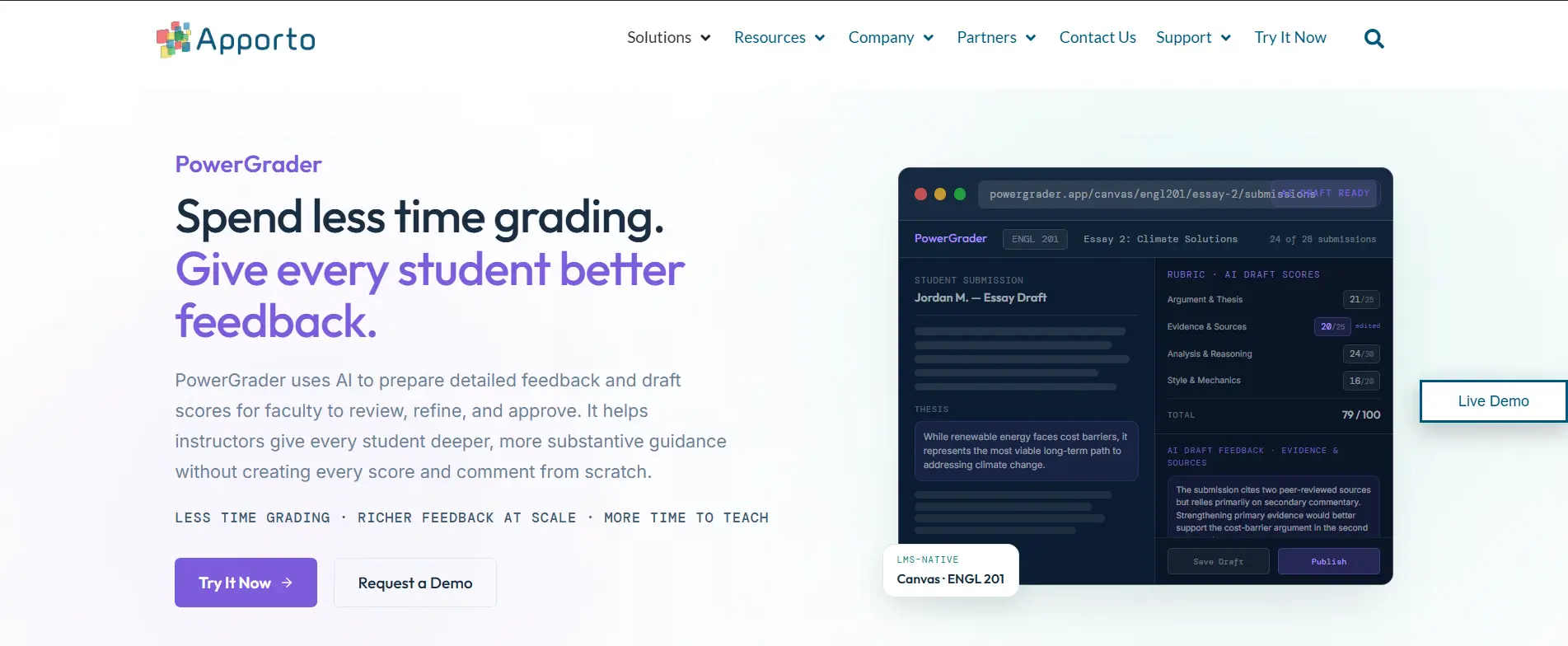
Canvas SpeedGrader makes rubric-based grading more organized, but going through every submission and writing detailed feedback still takes time.
That’s where Apporto PowerGrader can help. This AI-assisted grading platform uses instructor-defined rubrics to prepare suggested scores and feedback, cutting down on some of the repetitive work. You still review the suggestions, make changes where needed, and approve the final grades.
How Can AI-Assisted Rubric Feedback Save Instructors Time?
Writing similar feedback across dozens of assignments gets repetitive. AI-assisted grading can prepare draft scores and comments based on your rubric criteria, giving you something to work from.
You can then check the suggestions, correct anything that needs attention, and spend more time reviewing submissions that require a closer look.
Final Thoughts
Getting Canvas rubrics right doesn’t have to be complicated. Clear grading criteria, the right assignment settings, and useful feedback can make a real difference. You’ll spend less time sorting out scores, and students will have a better understanding of their grades. Before grading your next batch of assignments, take another look at your rubric. Are the point values correct? Is anything unclear?
And if you’re looking to cut down on repetitive grading work, explore Apporto PowerGrader for additional AI-assisted support.
Frequently Asked Questions (FAQs)
1. How Do You Add a Rubric to Canvas SpeedGrader?
To use a rubric in SpeedGrader, you first need to attach it to your Canvas assignment. You can create a new rubric or choose an existing one. Then, open a student submission in SpeedGrader and click View Rubric to start grading.
2. Does Canvas SpeedGrader Automatically Calculate Rubric Scores?
Yes, Canvas SpeedGrader can calculate rubric scores automatically, but you’ll need the right settings enabled. In Classic Rubrics, select Use this rubric for assignment grading so the completed rubric score updates the assignment’s Grade field.
3. Can You Change Rubric Points in Canvas SpeedGrader?
Yes. You can adjust rubric points manually in supported Canvas interfaces. Selecting a rating gives you its preset score, but you’re not always limited to that number. Use the Points field to enter a different value when appropriate.
4. Can Students See Rubric Feedback in Canvas?
Yes, students can review their rubric scores, performance ratings, and instructor comments through their graded assignments. Just remember that visibility depends on your grade-posting settings. If grades are being held for manual posting, students may need to wait until they’re released.
5. Can You Use the Same Rubric for Multiple Canvas Assignments?
Yes, Canvas lets you reuse the same rubric across multiple assignments, saving you the trouble of creating it again. Editing a shared rubric can be restricted, though, particularly after grading begins. If you need different criteria, making a separate copy is usually safer.
