

How Does AI Grading in Canvas Work?
AI grading in Canvas works by evaluating student submissions against predefined rubrics and generating suggested scores and feedback. Tools like Canvas IgniteAI Grading Assistance, Apporto PowerGrader, and CoGrader help automate repetitive grading tasks while allowing instructors to review, edit, and approve evaluations before publishing final grades.
Grading an entire class sounds manageable until you’re staring at dozens of essays, short-answer responses, and written assignments, each needing a fair score and thoughtful feedback. It takes time. Quite a lot of it.
Canvas LMS makes organizing assignments and grades easier, but reviewing student writing still requires considerable effort. That’s where AI grading in Canvas comes in. With tools like Canvas’s IgniteAI Grading Assistance and third-party AI grading assistants, you can get suggested scores and detailed feedback based on assignment rubrics.
The final decision stays with you. This guide takes a closer look at how AI grading works, which tools are worth considering, where they fall short, and how you can spend less time on repetitive grading tasks.
What Is AI Grading in Canvas, and How Does It Work?

AI grading in Canvas uses artificial intelligence to review student submissions against a set of grading criteria. It looks at written responses, suggests scores, and prepares feedback based on your assignment rubric. You then check the results, make any necessary changes, and approve the evaluation before students receive it.
The quality of those suggestions depends on what you give the AI to work with. Clear assignment descriptions, well-defined rubrics, and learning objectives help it understand what you’re assessing. So, instead of writing every comment from scratch, you have a draft to review and refine. Handy when you’ve got a large class to grade.
How Is AI Grading Different From Canvas’s Traditional Automatic Grading?
Canvas has several ways to grade assignments, and there’s an important difference between them.
| Grading Method | How It Works |
|---|---|
| Traditional Auto-Grading | Marks supported quiz questions using predefined correct answers |
| AI-Assisted Grading | Reviews written responses against a rubric and suggests scores and feedback |
| Manual Grading | Teachers read submissions and assign scores and comments themselves |
In Canvas New Quizzes, many questions with fixed answers are graded automatically. Essays and file-upload responses normally need manual grading through SpeedGrader.
AI-assisted grading can make reviewing supported written assignments easier, but you still decide which suggested scores and comments are appropriate.
Does Canvas Have a Built-In AI Grading Assistant?

Yes, Canvas introduced IgniteAI Grading Assistance for SpeedGrader in April 2026. It gives instructors a way to prepare AI-assisted scores and feedback without leaving Canvas or opening another grading application.
The feature works with your assignment rubric, reviewing student writing against the criteria you’ve already set. From there, it suggests scores for individual criteria and drafts comments explaining the evaluation.
You don’t have to accept everything it produces. You can review the suggestions, correct anything that seems off, and approve the assessment before students see their feedback.
What Can Canvas IgniteAI Grading Assistance Do?
Here’s what you can expect from the built-in AI grading assistant:
- Rubric-Based Evaluation: Checks student writing against your assignment’s grading criteria.
- Suggested Scores: Recommends ratings for individual rubric criteria.
- Draft Feedback: Writes comments you can edit or expand.
- Instructor Approval: Lets you review the evaluation before submitting it.
- Written Assignment Support: Handles supported text-entry submissions and PDF or DOCX uploads.
There’s one catch. IgniteAI Grading Assistance is available with Canvas Plus and Canvas Next, and your institution needs to enable the required settings. So, you might not see it in every Canvas course.
How Do You Use AI Grading in Canvas SpeedGrader?

Before you begin, check that your institution has access to IgniteAI Grading Assistance. You’ll also need the Grading Assistance, Enhanced Rubrics, and SpeedGrader performance and usability feature options enabled.
Once those settings are in place, here’s how to use AI grading in your Canvas course:
- Open Your Canvas Course: Head to the course containing the assignment you’re ready to grade.
- Check the Assignment Rubric: Make sure your grading criteria, descriptions, and rating levels are clearly defined.
- Open SpeedGrader: Find the assignment and select the student’s submission.
- Click Auto-Evaluate: IgniteAI will review the work and prepare suggested rubric scores and written feedback.
- Check the Results: Read through the evaluation and compare it with what the student actually submitted.
- Make Your Edits: Change scores, rewrite comments, or add explanations where the AI has missed something.
- Submit the Assessment: Once everything looks right, click Submit Assessment to approve the evaluation.
You can find the full process in Instructure’s official SpeedGrader instructions.
Why Do You Need a Detailed Rubric Before Using AI Grading?
Your rubric gives the AI something concrete to work with. If the criteria are vague, the suggested feedback may be vague, too.
IgniteAI also requires certain rubric details to be completed before it can run. Clear descriptions and rating levels make the evaluation more useful and give you a better basis for checking whether the suggested scores are fair.
Which Canvas Assignments Can You Grade With AI?
Some assignments are better suited to AI grading than others. Canvas IgniteAI Grading Assistance works primarily with written submissions, where students need to explain their thinking, build an argument, or demonstrate their understanding of a topic.
For questions with a single correct answer, Canvas’s regular automatic grading tools usually do the job just fine. Here’s a closer look at which assignments work best with AI grading:
| Assignment Type | AI Grading Considerations |
|---|---|
| Essays and Written Assignments | Can evaluate arguments, writing structure, and reasoning against your rubric |
| Short-Answer Responses | Useful when you’ve clearly defined what a complete answer should include |
| Research Papers | Can review writing quality, but you’ll still need to check facts, citations, and source credibility |
| Multiple-Choice Quizzes | Usually better handled by Canvas’s existing automatic grading features |
| Paper Exams | May need to be scanned or processed through a separate grading tool |
IgniteAI supports text-entry submissions and uploaded PDF or DOCX files. But there’s a limit to what it can assess. The tool doesn’t independently verify factual claims, check whether sources are reliable, or account for expectations missing from your rubric.
So, while AI can take some of the work out of grading written assignments, you’ll still need to read the submissions and make the final call on their quality and accuracy.
What Are the Best AI Grading Tools That Work With Canvas?

There are several AI grading tools you can use with Canvas LMS, though they handle the work differently. Some are built right into Canvas. Others connect through browser extensions or integrations that bring assignments and student submissions into a separate platform.
Your choice comes down to what you’re grading, how much work you want to automate, and how much control you need over the results.
Canvas IgniteAI Grading Assistance
IgniteAI Grading Assistance works directly inside Canvas SpeedGrader. It reviews supported written assignments against your rubric and suggests scores and comments. You can check the evaluation, make edits, and approve it before submitting.
Apporto PowerGrader
Apporto PowerGrader connects with Canvas through bidirectional LMS integration. It imports assignments, rubrics, and student submissions, then prepares draft scores and detailed feedback. Instructors review and approve the results, making it useful for handling larger grading workloads.
CoGrader
CoGrader focuses on AI-assisted essay grading and rubric-based feedback. Its Canvas Chrome extension supports grading workflows within Canvas, while eligible school and district plans offer additional integration options.
Gradescope
Gradescope uses rubrics and answer grouping to make grading exams and written responses easier. It connects with Canvas through LTI 1.3, although some of its grading features don’t use generative AI.
Here’s how the four options compare:
| Tool | Main Grading Approach | Canvas Connection |
|---|---|---|
| Canvas IgniteAI | AI-assisted rubric evaluation | Built into eligible Canvas plans |
| Apporto PowerGrader | Draft scores and detailed feedback | Bidirectional LMS integration |
| CoGrader | AI-assisted essay grading | Chrome extension and eligible school plans |
| Gradescope | Rubric grading and answer grouping | LTI 1.3 integration |
Can AI Grading in Canvas Detect Plagiarism or AI-Generated Content?

AI grading and AI-content detection do different jobs. AI grading reviews student submissions against your assignment rubric and suggests scores or feedback. Plagiarism tools look for matching text in existing sources, while AI detectors analyze writing patterns to estimate whether content may have been generated by AI.
Canvas’s built-in IgniteAI Grading Assistance focuses on assessing student work. It doesn’t check whether an essay was written using AI, so you’ll need a separate tool for that.
What Tools Can Help Teachers Check Academic Integrity?
If you’re concerned about plagiarism or AI-generated content, several tools can help you investigate:
- Plagiarism Checking Tools: Compare student submissions with existing sources and flag matching passages for review.
- GPTZero: Examines writing patterns and estimates how likely the text is to be AI-generated.
- CoGrader: Provides AI-writing detection and plagiarism checks through supported plans.
- Instructor Review: Lets you examine flagged passages, consider the assignment requirements, and discuss concerns directly with students.
One thing worth remembering: An AI detection score isn’t proof that a student cheated. False positives happen, and similarity reports need context, too. Always examine the evidence before making an academic misconduct decision.
What Are the Benefits and Limitations of AI Grading in Canvas?

AI-assisted grading can make a noticeable difference when you’ve got an entire class’s assignments to review. Repeated comments, similar mistakes, and lengthy evaluations all take time. Still, how useful the results are depends on your rubric, the assignment itself, and how closely you check the AI’s suggestions.
How Can AI Grading Save Teachers Time?
Writing the same type of feedback across dozens of submissions gets repetitive. AI can handle some of that groundwork by preparing draft scores and comments based on your grading criteria. When students make similar mistakes, you don’t have to explain the same issue from scratch every time.
That gives you more room to examine student reasoning, correct questionable evaluations, and provide personalized feedback where students need extra guidance.
What Are the Main Limitations of AI-Generated Grades?
AI can help you grade smarter, but it won’t catch everything. Some evaluations may sound convincing while missing important details.
| Potential Benefit | Important Limitation |
|---|---|
| Faster Draft Feedback | Comments may contain errors or need clarification |
| Consistent Rubric Application | Vague criteria can lead to unreliable evaluations |
| Less Repetitive Grading | Teachers still need to check the results |
| Detailed Feedback Suggestions | Creative ideas and subtle reasoning may be overlooked |
| Easier Initial Assessment | Facts and source credibility aren’t necessarily verified |
The sensible approach is to treat AI-generated scores as drafts. You make the final call, keeping grades fair and feedback genuinely useful to students.
How Can Teachers Keep AI Grading Fair, Accurate, and Secure?

AI can take some of the pressure off grading, but it’s still possible for a suggested score to look reasonable while missing something important in a student’s answer. That’s why fair and accurate AI grading needs clear criteria, careful checking, and proper handling of student data.
A few practical habits can help you keep the process reliable:
- Use Detailed Rubrics: Spell out what you’re looking for in each criterion so the AI has clear instructions to follow.
- Review Student Work: Read the original submission before accepting any suggested score or feedback.
- Fix Inaccurate Comments: Correct evaluations that overlook evidence, miss the point, or misunderstand a student’s reasoning.
- Protect Student Data: Check your institution’s privacy policies and tool permissions before sharing student work with third-party platforms.
- Keep Instructor Control: Make sure you have the final say on grades, feedback, and what gets published.
- Check for Consistency: Compare similar submissions to spot unusual differences in scoring.
AI grading can save you time, but your professional judgment still matters most. After all, those grades affect real students and their academic progress.
How Can Apporto PowerGrader Make AI Grading in Canvas More Manageable?
Grading dozens of assignments is one thing. Finding the time to write useful, individual feedback for every student? That’s often where the workload starts piling up.
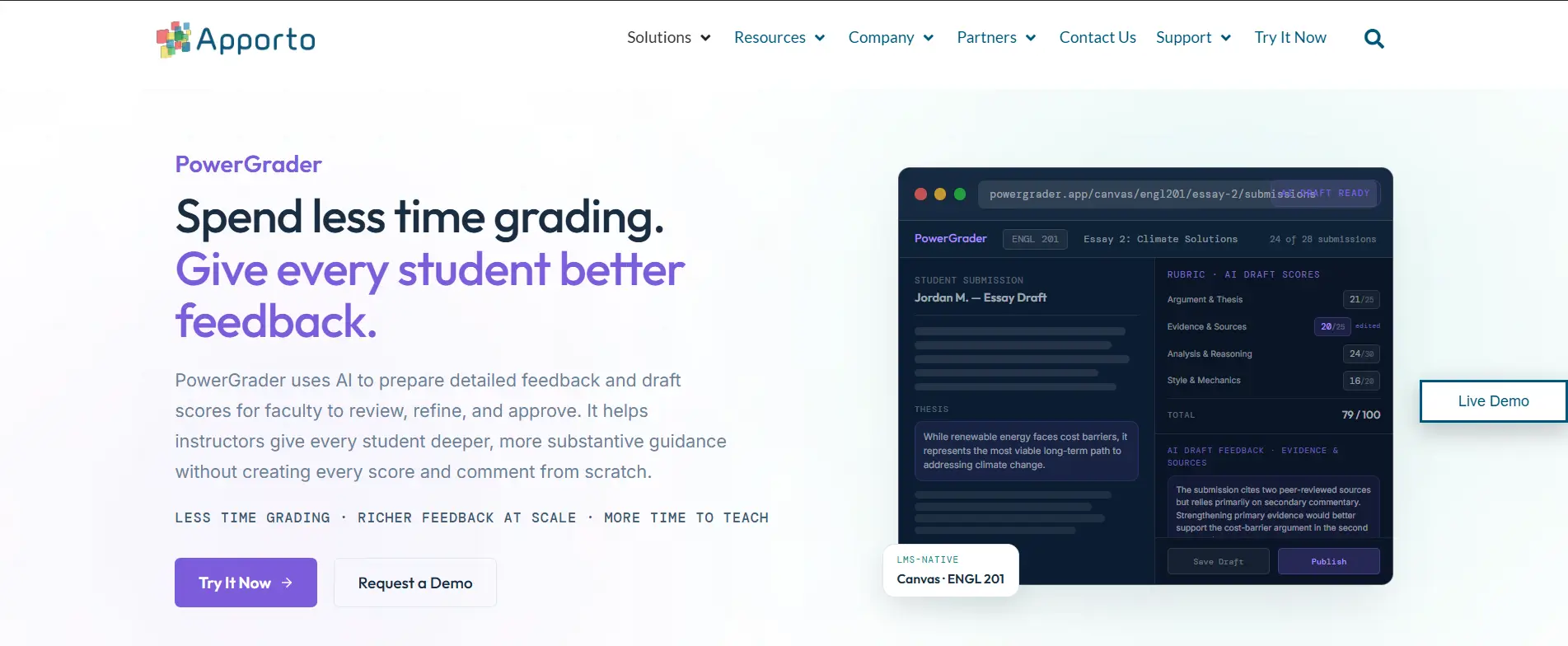
Apporto PowerGrader takes some of that work off your hands. The AI-assisted grading platform connects with Canvas and other learning management systems, bringing in assignments, rubrics, and student submissions. It then prepares suggested scores and detailed feedback based on your grading criteria, so you’re not starting every evaluation from scratch.
How Does PowerGrader Support Instructor-Controlled Grading?
You remain involved at every stage of the process:
- Import Assignments and Rubrics: Pull course materials and grading criteria from your connected LMS.
- Generate Draft Evaluations: Get suggested scores and comments based on your rubric.
- Review and Adjust: Edit feedback, change scores, or request targeted regrading.
- Approve Before Publishing: Send approved grades and comments back to your LMS gradebook.
Less repetitive grading means more time to focus on student learning and personalized feedback, while keeping the final decisions in your hands. Try Apporto PowerGrader
Final Thoughts
AI grading in Canvas can take some of the tedious work out of grading, from preparing draft scores to writing detailed feedback. Canvas IgniteAI and third-party tools offer different features, so it’s worth choosing one that fits your assignments, budget, and existing workflow.
Just remember, clear rubrics, student privacy, and careful review still matter. You’re responsible for the final grades. Want to make grading a little less time-consuming? Explore Apporto PowerGrader for additional grading support.
Frequently Asked Questions (FAQs)
1. Does Canvas Have Built-In AI Grading?
Yes, Canvas has built-in AI grading through IgniteAI Grading Assistance in SpeedGrader. It prepares suggested scores and written feedback using your assignment rubric. There’s one catch, though. Your institution needs an eligible Canvas subscription and must enable the feature before you can use it.
2. Can Canvas AI Grade Essays and Written Assignments?
Yes, Canvas IgniteAI can help grade essays and other written assignments, including supported text-entry submissions and PDF or DOCX uploads. You’ll need a properly configured rubric, and you’ll still have to check and approve the suggested scores and comments before submitting the assessment.
3. Can You Grade an Entire Class Automatically in Canvas?
Canvas IgniteAI evaluates student submissions individually, so you can’t grade an entire class with one click using the built-in feature. Some third-party AI grading tools support bulk processing, which can save time when you’ve got dozens of assignments to review.
4. Does Canvas Detect AI-Generated Student Work?
Canvas’s IgniteAI Grading Assistance doesn’t detect AI-generated writing or plagiarism. For those checks, you’ll need compatible third-party tools, depending on your school’s policies. Even then, detection results aren’t always reliable, so it’s important to examine flagged work before drawing conclusions.
5. Can You Change AI-Generated Scores Before Publishing Final Grades?
Yes, Canvas IgniteAI lets you review and edit suggested scores and written feedback before submitting an assessment. If a comment misses something important or a score seems unfair, you can correct it. The final grading decision stays with you.
